We have released an updated Passwork Docker image with patched PHP (CVE-2026-109618 and CVE-2026-109619). If you run Passwork 7 or later in Docker, update today.
The update restarts the containers, so Passwork will be unavailable for a few minutes. It doesn’t change the database or Docker volumes.
Passwork Cloud was updated right after the fixes were released. No action is required from Passwork Cloud customers.
Docker installation
Run these commands on the server, in the directory that contains docker-compose.yml.
Check the PHP version:
docker exec -it passwork_php php -v
Pull the new image and recreate the PHP containers:
docker compose pull
docker compose up -d --force-recreate php-fpm cron
Create a backup and confirm that the dump appears in ./backup/:
./db-backup.sh
The first line of the output must show PHP 8.3.36 or newer.
If the version is older, the new image was not applied. Contact Support rather than leaving the server in that state.
After the check, open the Passwork web interface and confirm that it loads.
Manual installation
If you installed Passwork 7 or later without Docker, update PHP to the patched release (8.3.36 or newer), restart PHP, and confirm the version with php -v.
We have released an updated Passwork Docker image with patched PHP (CVE-2026-109618 and CVE-2026-109619). If you run Passwork 7 or later in Docker, update today.
Os gestores de palavras-passe empresariais anunciam frequentemente a cifragem AES-256 e servidores que nunca veem as palavras-passe em texto não cifrado. No entanto, a força do algoritmo, por si só, não revela a quantidade de dados que uma única chave comprometida ou uma associação incorreta a um grupo pode expor.
Essa exposição depende do limite de cifragem: se uma chave desbloqueia uma organização, um cofre, uma pasta partilhada ou um segredo individual. Esta comparação analisa onde o Passwork, o Bitwarden, o Passbolt, o 1Password e o Keeper traçam esse limite, e o que os respetivos modelos significam para as permissões, o início de sessão por diretório, a automatização e a implementação.
A pergunta que revela o limite de cifragem
Imagine um gestor de palavras-passe autoalojado. Um administrador de sistemas responsável pelas cópias de segurança tem uma cópia da base de dados e junta-se à organização da empresa para aceder a uma palavra-passe partilhada. Que mais poderia decifrar com as chaves disponíveis na sua conta?
O Bitwarden cifra os itens da empresa com chaves por item, envolvidas por uma única chave simétrica da organização, de acordo com o seu white paper de segurança. Os membros da organização recebem acesso utilizável a essa chave, enquanto as coleções controlam o acesso e as permissões normais fornecidos pelo servidor, em vez de criarem limites criptográficos distintos. Num modelo de ameaça autoalojado, um atacante que obtenha os textos cifrados relevantes da base de dados e a chave de organização utilizável de um membro poderia decifrar itens da organização fora das coleções atribuídas a esse membro.
O Passwork, com a cifragem no lado do cliente ativada, utiliza uma chave distinta para cada cofre. As chaves dos itens situam-se sob as chaves dos cofres, e os utilizadores recebem uma chave de cofre envolvida apenas para os cofres a que têm acesso. Neste modelo de cifragem zero-knowledge, o mesmo administrador de sistemas consegue decifrar os cofres que lhe foram atribuídos, mas não cofres de Finanças ou Infraestrutura sem relação com a sua função.
O Passbolt cifra cada segredo separadamente para cada destinatário utilizando OpenPGP, conforme descrito na sua documentação de segurança (Pro v5.4, agosto de 2025). Não existe uma chave de contentor partilhada. Os utilizadores só conseguem decifrar os segredos cifrados para si, embora adicionar destinatários exija mais trabalho.
O 1Password isola os dados por cofre, onde as permissões também são definidas. O Keeper utiliza chaves de registo e chaves de pasta partilhada, em vez de uma única chave ao nível da organização. Nenhum dos dois oferece uma base de dados de cofre autoalojada para este teste em particular.
Aspeto
Passwork
Bitwarden
Passbolt
1Password
Keeper
Limite de cifragem
Cofre
Organização
Segredo individual
Cofre
Pasta partilhada e registo
A base de dados mais a chave do membro desbloqueia
Cofres atribuídos
Registos da empresa sob a chave da organização
Segredos partilhados com esse membro
Não aplicável: cofre na nuvem
Não aplicável: cofre na nuvem
Exposição a partir de um membro comprometido com acesso à base de dados
Cofres atribuídos
Organização
Segredos atribuídos
Não diretamente comparável
Não diretamente comparável
O Passwork e o Passbolt limitam o que uma cópia da base de dados, associada às chaves de um membro, pode revelar. O Bitwarden simplifica a distribuição de chaves, mas transforma a chave da organização num limite criptográfico mais amplo. Os produtos apenas na nuvem evitam este cenário específico de acesso à base de dados, embora a respetiva arquitetura de chaves continue a ser relevante.
Tipos de cofre: Governação acima dos cofres individuais
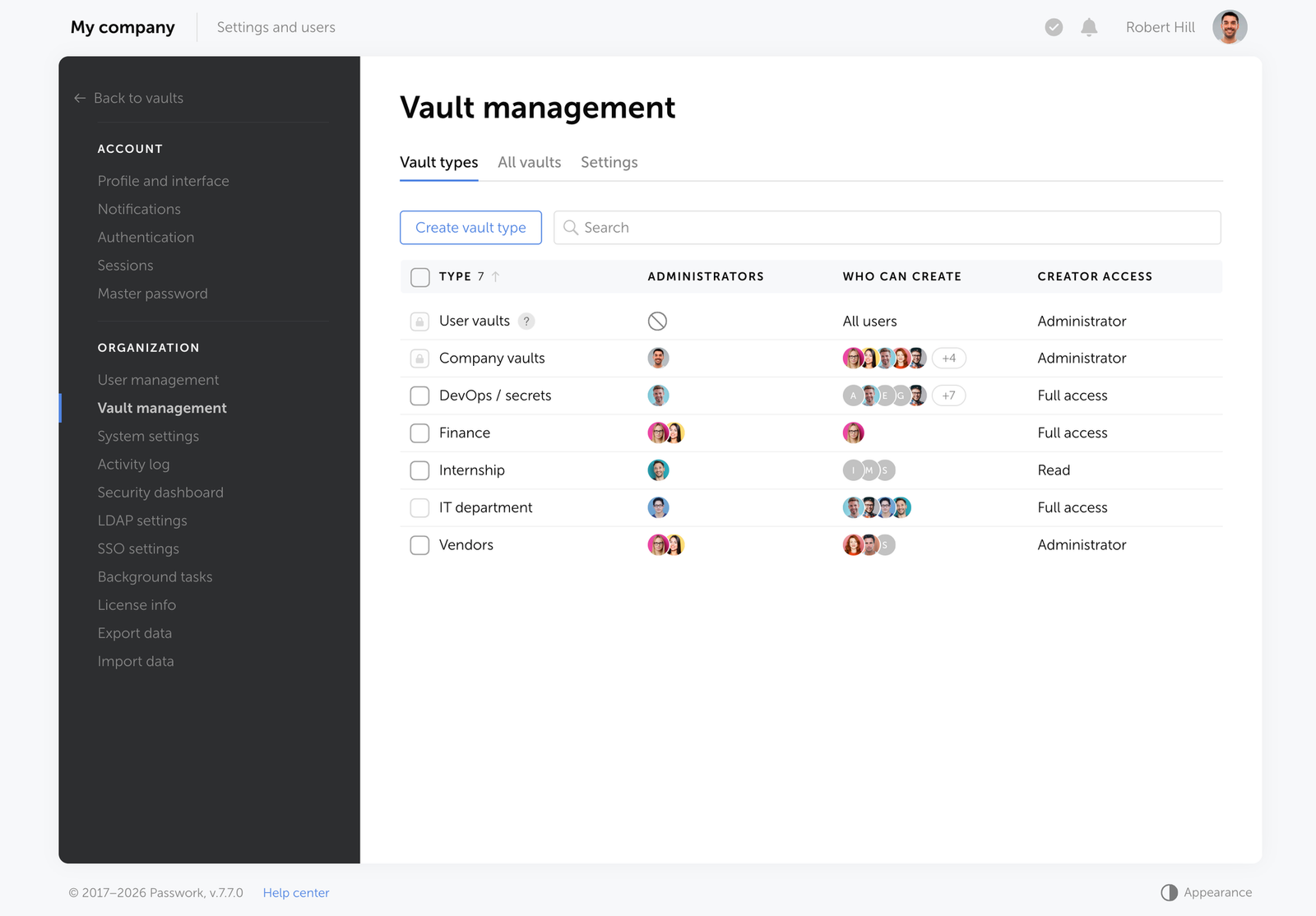
No Passwork, um tipo de cofre define quem pode criar cofres numa determinada classe e quais os administradores atribuídos automaticamente aos novos cofres desse tipo. Com a cifragem no lado do cliente ativada, esses administradores também recebem cópias envolvidas das novas chaves de cofre. O resultado é uma política repetível para departamentos e projetos.
Por exemplo, um tipo Finanças pode atribuir automaticamente o diretor financeiro a cada novo cofre financeiro. Um tipo DevOps pode manter os administradores de infraestrutura separados das vendas. Quando o responsável de um departamento sai, a empresa pode reatribuir o administrador do tipo e rever as concessões de acesso dentro dessa área, em vez de auditar uma função de administrador global dispersa. Isto torna-se útil à medida que o número de equipas e de cofres aumenta. Consulte as políticas de cofres do Passwork.
Dois tipos incorporados dispensam administradores da empresa. Um cofre pessoal pertence a um único utilizador. Um cofre privado partilhado permite que esse utilizador convide outras pessoas. Por predefinição, nem o Proprietário nem o Administrador da organização conseguem ler o respetivo conteúdo. Os administradores podem configurar quem tem permissão para criar estes tipos de cofre e partilhar informação a partir deles, incluindo desativar a criação não gerida de cofres pessoais.
Existem dois limites: atribuir um tipo não concede acesso retroativo a cofres já existentes, e os tipos só formam limites criptográficos quando a cifragem no lado do cliente está ativada. Caso contrário, permanecem apenas regras de governação.
Os concorrentes oferecem funcionalidades relacionadas, mas não a mesma camada de política. As políticas empresariais do Bitwarden regem aspetos como a autenticação, a recuperação e a pertença à organização, em vez de atribuírem automaticamente administradores por classe de cofre. O Passbolt não tem um contentor de cofre para classificar. O 1Password oferece isolamento ao nível do cofre e cofres pessoais, mas nenhuma regra equivalente à escala da classe para cofres recém-criados. As pastas partilhadas e as equipas do Keeper gerem o acesso sem políticas de criação de cofres por tipo.
Funcionalidade
Passwork
Bitwarden
Passbolt
1Password
Keeper
Classes de cofre com administradores atribuídos
Sim
Não
Não
Não
Não
Associar automaticamente administradores a novos cofres de uma classe
Sim
Não
Não
Não
Não
Controlar quem cria uma classe
Por tipo
Parcialmente, através de política da organização
Não
Não
Não
Espaço pessoal sem administrador da empresa
Cofres pessoais e privados partilhados
My Items
Partilha por segredo individual
Cofre pessoal
Pasta pessoal
Controlar a partilha a partir de cofres pessoais por classe
Sim
Sem equivalente
Sem equivalente
Sem equivalente
Sem equivalente
Os tipos de cofre reduzem a probabilidade de os cofres departamentais recém-criados receberem uma administração inconsistente. Acrescentam uma decisão de política antecipada, mas reduzem a configuração manual repetida mais tarde.
Permissões de pasta: Herança ou modelos?
Uma árvore de pastas só é útil se as respetivas permissões se comportarem conforme os administradores esperam. Interfaces com um aspeto semelhante podem aplicar regras muito diferentes.
O Passwork oferece cinco níveis de permissão (leitura, escrita, gestão, administração e proibido) para utilizadores e grupos ao nível do cofre ou da pasta. O acesso ao cofre propaga-se para as pastas aninhadas, enquanto as regras de pasta podem restringir o acesso. Os direitos de administração e de proibição não podem ser substituídos em níveis inferiores. Quando se aplicam várias regras, prevalece o nível de prioridade mais alta. É importante notar que uma pasta não constitui um limite de cifragem distinto: o acesso ao seu conteúdo continua a depender da chave do cofre. Isto está alinhado com o modelo de controlo de acesso baseado em funções do Passwork.
O Bitwarden concede permissões através de coleções. As coleções aninhadas são etiquetas organizacionais; não herdam os itens nem os direitos da coleção principal. As pastas pessoais não têm permissões de partilha. As permissões individuais de um membro sobrepõem-se às permissões de grupo.
O Passbolt utiliza as pastas como modelos de permissões. Quando um item é criado, movido ou partilhado, aplicam-se as permissões da pasta, mas são as permissões próprias do item que determinam o acesso subsequente. Um criador pode tornar-se proprietário de uma palavra-passe e restringir o acesso mesmo quando outra pessoa é proprietária da pasta. Numa discussão da comunidade em julho de 2026 sobre a extensão v5.14.2, o Passbolt confirmou que este comportamento segue o seu modelo de permissões e referiu que estava planeada uma alteração na interface para impedir que não proprietários editassem permissões durante a criação.
O 1Password não tem pastas com permissões próprias dentro de um cofre; as etiquetas organizam os itens sem alterar o acesso. Por isso, partilhar permanentemente um subconjunto de itens exige outro cofre. Os grupos aninhados do fornecedor de identidade não são suportados para a pertença a cofres, de acordo com uma resposta da comunidade de setembro de 2026.
O Keeper suporta pastas partilhadas aninhadas e permissões ao nível do registo. As atribuições explícitas de registos sobrepõem-se aos direitos de pasta herdados. O seu modelo de pastas aninhadas tem um limite de profundidade de cinco níveis e esteve protegido por uma feature flag na versão 18.0.0 do cofre.
Aspeto
Passwork
Bitwarden
Passbolt
1Password
Keeper
Estrutura interna
Árvore de pastas
Coleções
Pastas de modelo de permissões
Etiquetas
Pastas partilhadas aninhadas
Direitos herdados
Sim, com restrições
Não
Não; as permissões são aplicadas na criação ou na movimentação
Não aplicável
Sim, cinco níveis, feature flag
Níveis de permissão
Leitura, escrita, gestão, administração, proibido
Visualizar, oculto, editar, gerir
Leitura, atualização, proprietário
Visualizar, criar, editar, arquivar, eliminar, gerir
Permissões de pasta e de registo
Partilha individual de registos
Atalhos e caixa de entrada
Item em várias coleções
Concessão direta de item
Sem concessão permanente ao nível do item
Sim
A árvore do Passwork suporta estruturas departamentais e exceções. O Bitwarden e o 1Password são mais simples de administrar, mas menos flexíveis para acessos profundamente aninhados. O comportamento de modelo do Passbolt exige atenção especial, porque as permissões de pasta e de item podem divergir.
Grupos: O que muda quando alguém se junta?
Com a cifragem no lado do cliente do Passwork, adicionar alguém a um grupo não lhe concede automaticamente todas as chaves de cofre associadas a esse grupo. É criado, antes, um pedido pendente para cada cofre relevante. Um detentor da chave tem de aprovar o pedido antes de o novo membro conseguir decifrar o respetivo conteúdo.
Isto separa o aprovisionamento de diretório do acesso criptográfico. A sincronização LDAP pode colocar um novo colaborador em grupos, mas o acesso a cofres sensíveis continua a exigir aprovação. Esta distinção é relevante durante a integração e a saída de colaboradores.
Para equipas que necessitam de menos aprovação manual, o Passwork oferece outro padrão: colocar os dados do departamento num único cofre e organizá-los em pastas. Aprova-se a chave de cofre do utilizador uma única vez; as permissões de pasta determinam depois o acesso dentro desse cofre à medida que a pertença aos grupos muda. A contrapartida é um limite criptográfico partilhado mais amplo do que vários cofres separados.
O Passbolt não pode utilizar este atalho. Como cada segredo é cifrado para cada destinatário, adicionar um membro ao grupo exige que alguém com acesso recifre os segredos relevantes para esse utilizador. A sincronização de diretório notifica um gestor de grupo e aguarda por este passo. O trabalho escala com o número de segredos, e não com o número de cofres.
O Bitwarden já distribui a chave da organização aos membros, pelo que as atribuições de coleções não exigem novas chaves de cifragem. No 1Password, as chaves de cofre atribuídas acompanham o acesso de grupo. O Keeper distribui o acesso através de pastas partilhadas atribuídas.
Aspeto
Passwork
Passbolt
Bitwarden
1Password
Keeper
A pertença a um grupo fornece automaticamente novas chaves de decifragem
Não; aprovação por cofre
Não; recifragem por segredo
Chave da organização já detida
Chaves de cofre atribuídas
Chaves de pasta partilhada atribuídas
A sincronização de diretório completa o acesso sem intervenção humana
Não, para novas chaves de cofre
Não
Sim
Sim
Sim
Principal custo de adicionar um membro
Chave envolvida por cofre
Recifragem por segredo
Atualização de pertença
Chaves para os cofres atribuídos
Chaves para as pastas atribuídas
Aprovação ao nível do contentor
Sim
Não
Pertença à organização
Cofre
Pasta partilhada
A escolha está entre pontos de aprovação mais rigorosos e um aprovisionamento mais fluido. O Passwork permite que as organizações escolham equilíbrios diferentes para departamentos diferentes; o Passbolt oferece um controlo de acesso granular por segredo, a um custo de partilha mais elevado.
O que o início de sessão por domínio realmente faz
Uma palavra-passe de domínio autentica um utilizador; não decifra os dados do cofre em nenhum destes produtos. As diferenças residem na forma como a autenticação e o aprovisionamento por diretório funcionam.
Passwork Self-hosted autentica-se diretamente junto do LDAP ou do Active Directory, incluindo ambientes com vários controladores de domínio. Os utilizadores iniciam sessão com credenciais de domínio; os grupos de diretório podem ser associados a grupos do Passwork. Com a cifragem no lado do cliente ativada, a palavra-passe de domínio autentica a sessão, enquanto chaves criptográficas distintas protegem o conteúdo dos cofres.
O Passwork Cloud ainda não oferecia LDAP à data desta comparação; estava previsto no roteiro, juntamente com o aprovisionamento SCIM. Ambas as implementações do Passwork suportam SSO SAML 2.0.
O Bitwarden Directory Connector sincroniza utilizadores e grupos, mas não os autentica junto do LDAP, conforme explica a sua documentação. O início de sessão baseado em domínio exige SSO Enterprise através de SAML ou OIDC. Em condições normais, os utilizadores continuam a desbloquear o cofre com uma palavra-passe mestra, a menos que estejam configurados dispositivos fidedignos ou o Key Connector.
O Passbolt também separa a sincronização LDAP do início de sessão. Os utilizadores autenticam-se com uma chave privada e uma frase-passe, ou através de SSO, e adicionar utilizadores sincronizados a grupos com segredos existentes exige recifragem.
O 1Password e o Keeper utilizam serviços de cofre baseados na nuvem, com integração SSO. O SSO Connect On-Prem do Keeper pode manter determinados componentes de identidade no hardware da empresa, mas o seu backend de cofre cifrado permanece na nuvem do Keeper. O Keeper lista os componentes locais suportados na sua documentação de implementação.
Aspeto
Passwork
Bitwarden
Passbolt
1Password
Keeper
Início de sessão direto com palavra-passe de domínio
LDAP/AD autoalojado
Não; SSO
Não; chave/frase-passe ou SSO
SSO
SSO
Vários controladores de domínio
Sim
Apenas sincronização
Apenas sincronização
Não aplicável
AD Bridge
Protocolo SSO documentado
SAML 2.0
SAML 2.0 ou OIDC
OpenID Connect (OIDC)
OpenID Connect (OIDC)
SAML 2.0
Aprovisionamento SCIM
Previsto
Sim
Sim
Sim
Sim
A palavra-passe de domínio decifra registos
Não
Não
Não
Não
Não
O início de sessão direto por LDAP do Passwork pode simplificar implementações autoalojadas sem um fornecedor de identidade separado. Os concorrentes orientados para a nuvem oferecem atualmente um aprovisionamento automatizado de identidade mais maduro; as funcionalidades previstas do Passwork não devem ser consideradas disponíveis atualmente.
Uma única API para palavras-passe e segredos de máquina
O Passwork gere as credenciais dos colaboradores e os segredos de máquina através da mesma instância, do mesmo modelo de permissões, do mesmo registo de auditoria e da mesma API REST. As equipas podem suportar fluxos de trabalho de CI/CD sem licenciar um produto de segredos separado.
Os seus clientes Web, de ambiente de trabalho, de navegador e móvel utilizam a mesma API em /api/v1. Uma CLI oficial e um conector Python de código aberto suportam fluxos de trabalho de DevOps. A CLI disponibiliza get e update para registos, api para chamadas diretas a endpoints, e exec para obter e decifrar um segredo, expor os valores como variáveis de ambiente e executar um comando. As contas de serviço são utilizadores com tokens de API criados por um administrador. Gerar um novo token pessoal revoga as sessões de API anteriores do utilizador.
Este modelo unificado tem limitações: a API é baseada em pull, sem webhooks de saída, e o /v1/batch suporta apenas agregação de leitura, até 25 subpedidos GET. As integrações orientadas por eventos têm de efetuar polling ou consumir exportações de syslog.
Os concorrentes seguem abordagens diferentes. O Bitwarden Secrets Manager é um add-on pago separado, com contas de máquina e acesso baseado em projetos, em vez de acesso através das coleções do Password Manager. O Keeper Secrets Manager é outra linha de produtos, com SDKs e uma gateway ligada à nuvem. As contas de serviço do 1Password funcionam com cofres e permissões definidos, mas o respetivo âmbito é fixado no momento da criação do token; alterá-lo exige um novo token. O Passbolt expõe uma API e ferramentas de automatização, mantendo o seu modelo de partilha por segredo.
Aspeto
Passwork
Bitwarden
Passbolt
1Password
Keeper
Segredos de colaboradores e de máquina
Uma única instância
Password Manager mais Secrets Manager
Um único produto
Cofres mais contas de serviço
Cofre mais Secrets Manager
Interface de automatização
API REST, CLI, conector Python
Management API e CLI/SDKs do Secrets Manager
API REST, CLI de administração
CLI, SDKs, Connect
SDKs, Commander
Identidade de máquina
Conta de serviço com token
Conta de máquina com âmbito de projeto
Utilizador com chave privada
Conta de serviço com âmbito fixo
Aplicação do Secrets Manager
Principal limitação
Sem webhooks; lote só de leitura
Subscrição de segredos separada
Sobrecarga de partilha por segredo
Âmbito do token imutável
Produto de segredos separado
O Passwork privilegia um único sistema operacional para pessoas e automatização. Os produtos especializados em segredos podem oferecer integrações dedicadas, mas introduzem superfícies adicionais de licenciamento e gestão.
Onde o cofre é executado
A implementação pode eliminar produtos de uma lista restrita ainda antes de qualquer comparação de funcionalidades. O Passwork, o Bitwarden e o Passbolt permitem que as organizações alojem o próprio cofre. O 1Password e o Keeper mantêm o backend do cofre nos respetivos serviços na nuvem.
O Passwork suporta implementação local (on-premise) em Linux, Windows Server ou Docker, dando às organizações controlo sobre a sua infraestrutura e cópias de segurança. A sua oferta de nuvem alojada na UE utiliza uma base de dados e um tenant separados para cada cliente, em vez de armazenar os registos de todos os clientes num único esquema partilhado. Estas opções são discutidas no guia de modelos de implementação do Passwork.
O Bitwarden também oferece autoalojamento genuíno, embora a sua licença Enterprise continue associada a uma subscrição ativa na nuvem. O Passbolt suporta tanto o autoalojamento como um serviço alojado. Os componentes de SSO e de integração do Keeper, passíveis de implementação local, não alteram a localização do respetivo backend de cofre.
Aspeto
Passwork
Bitwarden
Passbolt
1Password
Keeper
Cofre autoalojado
Sim
Sim
Sim
Não
Não
Nuvem do fornecedor
UE
Sim
Sim
Sim
Sim
Modelo de tenant na nuvem
Base de dados separada por tenant
Multi-tenant
Dedicado por subscrição
Multi-tenant
Multi-tenant
O autoalojamento dá às organizações controlo sobre a localização dos dados, mas também a responsabilidade pelas atualizações, pelas cópias de segurança e pela disponibilidade. Os produtos apenas na nuvem reduzem essa carga de trabalho, desde que a política permita o alojamento externo.
Cifragem opcional no lado do cliente e metadados
O Passwork Cloud utiliza sempre a cifragem no lado do cliente. O Passwork Self-hosted permite que os administradores a desativem. Os outros quatro produtos desta comparação não oferecem um controlo equivalente.
A cifragem no lado do servidor pode ser adequada para uma equipa pequena, com administradores de confiança, que privilegie a concessão imediata de acesso e uma recuperação mais simples. Desativar a cifragem no lado do cliente elimina o isolamento criptográfico por cofre: os tipos de cofre continuam a controlar a criação e a administração, mas deixam de formar limites de cifragem distintos.
Mesmo com a cifragem no lado do cliente ativada, o servidor do Passwork consegue ler nomes de itens, logins, descrições e URLs, para suportar a pesquisa no lado do servidor. Os valores das palavras-passe permanecem cifrados no cliente e fora do índice de pesquisa. O Bitwarden e o Keeper também cifram estes campos de metadados, mantendo-os ocultos do servidor, ao custo de uma decifragem no lado do cliente para a pesquisa. O Passbolt v5 deixa os nomes de pasta e as etiquetas sem cifragem.
Aspeto
Passwork
Bitwarden
Passbolt
1Password
Keeper
Desativar a cifragem no lado do cliente
Apenas autoalojado
Não
Não
Não
Não
Metadados visíveis pelo servidor com a cifragem no lado do cliente ativada
Nome, login, descrição, URL
Nenhum destes campos
Nomes de pasta e etiquetas
Nenhum destes campos
Nenhum destes campos
Pesquisa
Servidor
Cliente
Cliente
Cliente
Cliente
Trata-se de uma contrapartida real entre segurança e usabilidade. Os compradores devem avaliar tanto a confidencialidade das palavras-passe como a exposição de metadados, especialmente quando os registos contêm nomes de sistemas sensíveis ou identificadores de conta.
Quanto custa
Estes são os preços de tabela publicados por utilizador, por mês, com faturação anual, a partir de outubro de 2026. Os fornecedores utilizam moedas e pacotes diferentes, pelo que a comparação é apenas indicativa.
O Passwork Padrão custa 3 € e o Avançado 4,50 € por utilizador, por mês. O Avançado inclui gestão de segredos e funcionalidades de identidade empresarial. Os clientes autoalojados também podem optar por uma licença vitalícia paga uma única vez. O Bitwarden Teams custa 4 $ e o Enterprise 6 $, com o Secrets Manager cobrado separadamente a 6 $ e 12 $, respetivamente. O Keeper Business parte de 4 $ e o Enterprise de 6 $, enquanto o KeeperPAM é cobrado separadamente. O 1Password Business custa 8,99 $. O Passbolt Pro autoalojado custa 4,50 € com um mínimo de dez utilizadores.
Produto
Preço/utilizador/mês
Condição relevante
Passwork Padrão
3 €
Nuvem ou autoalojado
Passwork Avançado
4,50 €
SSO, mapeamento LDAP, segredos, clustering; opção de licença vitalícia autoalojada
Bitwarden Teams
4 $
Password Manager
Bitwarden Enterprise
6 $
SSO, políticas, autoalojamento; Secrets Manager à parte
Keeper Business
4 €
Alguns relatórios e funcionalidades de monitorização exigem um nível superior
Keeper Enterprise
6 €
PAM vendido separadamente
1Password Business
8,99 $
Cofre na nuvem
Passbolt Pro
4,50 €
Autoalojado; mínimo de dez utilizadores
O Bitwarden Secrets Manager custa 6 $ por utilizador, por mês, no Teams, ou 12 $ no Enterprise, cobrado separadamente do Password Manager. As organizações que utilizam ambos os produtos devem comparar os custos de licenciamento combinados com base no número de utilizadores em cada um. O Passwork Avançado inclui a gestão de palavras-passe e de segredos numa única subscrição. O modelo de cifragem por segredo do Passbolt acrescenta trabalho administrativo ao partilhar segredos ou ao adicionar membros a grupos, um custo que os preços de subscrição, por si só, não conseguem captar.
Onde os concorrentes levam vantagem
O Passbolt oferece partilha e revogação diretas por segredo. Cada destinatário recebe um texto cifrado com a respetiva chave pública. A revogação remove do serviço a cópia cifrada desse destinatário. Isto permite um controlo granular, mas cada destinatário adicional exige trabalho de cifragem e de armazenamento. Tal como noutros gestores de palavras-passe, a revogação não consegue apagar o texto não cifrado nem as cópias que um destinatário já tenha guardado.
O Passwork armazena um único texto cifrado partilhado e distribui chaves envolvidas, em vez de duplicar cada segredo para cada destinatário. Remover uma concessão permanente de cofre ou de pasta remove o acesso à chave correspondente. A sua caixa de entrada funciona de forma diferente: uma entrega direta entre utilizadores envolve a chave de um item para o destinatário, e um item aceite torna-se uma cópia no cofre do destinatário. A entrega por caixa de entrada de grupo utiliza um percurso sem cifragem no lado do cliente. A caixa de entrada é, portanto, uma transferência, e não uma concessão permanentemente revogável.
Aspeto
Passwork
Passbolt
Dados armazenados por destinatário
Um texto cifrado partilhado, chaves envolvidas
Texto cifrado por destinatário
Partilhar
Envolver uma chave
Recifrar o segredo
Revogar acesso contínuo
Remover o acesso à chave envolvida
Remover a cópia cifrada do destinatário
Entrega pontual
A caixa de entrada cria uma cópia pertencente ao destinatário após aceitação
Partilha direta de item
O Bitwarden e o Keeper protegem metadados que o Passwork expõe para a pesquisa no lado do servidor. O Keeper também oferece atalhos de registo e permissões diretas por registo em pastas partilhadas, além de uma plataforma mais ampla de acesso privilegiado. O 1Password tem menos regras de herança e exceções, o que facilita a configuração para equipas que não necessitam de permissões de pasta complexas. O Bitwarden combina um preço de entrada baixo, autoalojamento e clientes consolidados.
Estas são vantagens substanciais. A flexibilidade do Passwork ajuda organizações com estruturas de acesso complexas, mas também cria mais políticas para conceber e manter.
Como escolher: Comece pelo limite
Comece pelo cenário de falha, e não pelo algoritmo de cifragem. Se uma conta for comprometida, que registos conseguem as suas chaves decifrar? O que muda se o atacante também obtiver uma cópia de segurança da base de dados? Depois, verifique se o modelo de permissões reflete os limites departamentais e se a integração de colaboradores pode expandir o acesso por acidente.
O Passwork é adequado a organizações que necessitem de cofres departamentais separados, permissões de pasta herdadas, autenticação LDAP direta on-premise, e credenciais de colaboradores e de máquina num único sistema. O Passbolt favorece o controlo por segredo nos casos em que o custo administrativo da partilha é aceitável. O Bitwarden oferece uma distribuição de chaves simples, à escala da organização, e autoalojamento. O 1Password minimiza a complexidade de configuração num modelo centrado na nuvem. O Keeper combina controlos de pasta partilhada com uma oferta mais ampla de acesso privilegiado.
Se Finanças, Recursos Humanos e Infraestrutura forem unidades operacionais separadas, decida se também devem ter limites criptográficos separados. Essa decisão determina a potencial exposição de uma única chave comprometida de forma mais direta do que um rótulo AES-256.
O que é um limite de cifragem num gestor de palavras-passe?
É a quantidade de dados acessível com uma determinada chave ou conjunto de chaves: uma organização, um cofre, uma pasta partilhada ou um segredo individual. A hierarquia de chaves e a partilha determinam esse âmbito.
O AES-256 garante um raio de impacto reduzido?
Não. A força do algoritmo não determina até que ponto as chaves são partilhadas. Produtos que utilizam cifragem forte podem expor quantidades de dados diferentes quando uma conta ou uma chave é comprometida.
Um administrador autoalojado consegue ler todas as palavras-passe numa base de dados?
Isso depende da conceção das chaves e das chaves do administrador. No Bitwarden, um membro da organização com a chave da organização e acesso à base de dados consegue decifrar os registos da empresa. No Passwork, com a cifragem no lado do cliente ativada, as chaves de um membro desbloqueiam apenas os cofres atribuídos.
A pertença a um grupo LDAP concede automaticamente acesso a cofres?
No Passwork, com a cifragem no lado do cliente, as novas chaves de cofre exigem aprovação de um detentor da chave. Outros produtos podem aprovisionar automaticamente as chaves relevantes ou, no caso do Passbolt, exigir recifragem por segredo.
Uma única ferramenta pode gerir palavras-passe de colaboradores e segredos de DevOps?
Sim. O Passwork suporta ambos através de uma única instância, API REST, CLI e modelo de permissões. Outros produtos podem utilizar ofertas de gestão de segredos separadas ou interfaces de automatização distintas.
Uma palavra-passe de domínio decifra os dados do cofre?
Não. Autentica o utilizador diretamente junto do LDAP/AD no Passwork Self-hosted, ou através de SSO noutros produtos. A decifragem depende de chaves criptográficas separadas.
Como os gestores de palavras-passe definem o limite de cifragem
Todos os fornecedores dizem «AES-256, zero-knowledge». Isso não revela o que uma única chave comprometida realmente abre. Testámos esta questão com o Passwork, o Bitwarden, o Passbolt, o 1Password e o Keeper.
Business-Passwortmanager werben häufig mit AES-256-Verschlüsselung und Servern, die niemals Passwörter im Klartext sehen. Doch die Stärke der Chiffre allein sagt nichts darüber aus, wie viele Daten ein kompromittierter Schlüssel oder eine falsch zugewiesene Gruppenmitgliedschaft offenlegen können.
Wie weit diese Offenlegung reicht, hängt von der Verschlüsselungsgrenze ab: ob ein Schlüssel eine Organisation, einen Tresor, einen gemeinsam genutzten Ordner oder ein einzelnes Secret entsperrt. Dieser Vergleich untersucht, wo Passwork, Bitwarden, Passbolt, 1Password und Keeper diese Grenze ziehen und was ihre Architektur für Berechtigungen, Verzeichnisanmeldung, Automatisierung und Bereitstellung bedeutet.
Die Frage, die die Verschlüsselungsgrenze offenlegt
Stellen Sie sich einen selbst gehosteten Passwortmanager vor. Ein für Backups zuständiger Systemadministrator besitzt einen Datenbank-Dump und tritt der Unternehmensorganisation bei, um auf ein gemeinsam genutztes Passwort zuzugreifen. Was könnte er mit den seinem Konto zur Verfügung stehenden Schlüsseln noch entschlüsseln?
Bitwarden verschlüsselt Unternehmenselemente laut seinem Security-Whitepaper mit Einzelschlüsseln pro Element, die von einem symmetrischen Organisationsschlüssel umschlossen werden. Organisationsmitglieder erhalten nutzbaren Zugriff auf diesen Schlüssel, während Collections den regulären, vom Server bereitgestellten Zugriff und die Berechtigungen steuern, anstatt eigene kryptografische Grenzen zu schaffen. In einem Bedrohungsmodell für selbst gehostete Instanzen könnte ein Angreifer, der an die relevanten Datenbank-Chiffretexte und den nutzbaren Organisationsschlüssel eines Mitglieds gelangt, Organisationselemente außerhalb der diesem Mitglied zugewiesenen Collections entschlüsseln.
Passwork verwendet bei aktivierter clientseitiger Verschlüsselung für jeden Tresor einen eigenen Schlüssel. Element-Schlüssel liegen unterhalb der Tresor-Schlüssel, und Benutzer erhalten einen umschlossenen Tresor-Schlüssel nur für Tresore, auf die sie zugreifen dürfen. In diesem Zero-Knowledge-Verschlüsselungsmodell kann derselbe Systemadministrator seine zugewiesenen Tresore entschlüsseln, nicht aber unzusammenhängende Finanz- oder Infrastruktur-Tresore.
Passbolt verschlüsselt laut seiner Sicherheitsdokumentation (Pro v5.4, August 2025) jedes Secret mit OpenPGP separat für jeden Empfänger. Es gibt keinen gemeinsamen Container-Schlüssel. Benutzer können nur Secrets entschlüsseln, die für sie verschlüsselt wurden, auch wenn das Hinzufügen von Empfängern mehr Aufwand bedeutet.
1Password isoliert Daten nach Tresor, wo auch die Berechtigungen festgelegt werden. Keeper verwendet Eintrags-Schlüssel und Schlüssel für gemeinsam genutzte Ordner anstelle eines einzigen organisationsweiten Schlüssels. Für diesen speziellen Test bietet keines der beiden Produkte eine selbst gehostete Tresor-Datenbank an.
Aspekt
Passwork
Bitwarden
Passbolt
1Password
Keeper
Verschlüsselungsgrenze
Tresor
Organisation
Einzelnes Secret
Tresor
Gemeinsam genutzter Ordner und Eintrag
Datenbank plus Mitgliedsschlüssel entsperrt
Zugewiesene Tresore
Unternehmenseinträge unter dem Organisationsschlüssel
Mit diesem Mitglied gemeinsam genutzte Secrets
Nicht zutreffend: Cloud-Tresor
Nicht zutreffend: Cloud-Tresor
Offenlegung durch ein kompromittiertes Mitglied mit Datenbankzugriff
Zugewiesene Tresore
Organisation
Zugewiesene Secrets
Nicht direkt vergleichbar
Nicht direkt vergleichbar
Passwork und Passbolt begrenzen, was ein Datenbank-Dump zusammen mit den Schlüsseln eines einzelnen Mitglieds offenlegen kann. Bitwarden vereinfacht die Schlüsselverteilung, macht den Organisationsschlüssel aber zu einer breiteren kryptografischen Grenze. Die reinen Cloud-Produkte umgehen dieses spezielle Datenbankzugriffsszenario, auch wenn ihre Schlüsselarchitektur weiterhin relevant ist.
In Passwork legt ein Tresortyp fest, wer Tresore einer bestimmten Klasse erstellen darf und welche Administratoren neuen Tresoren dieses Typs automatisch zugewiesen werden. Bei aktivierter clientseitiger Verschlüsselung erhalten diese Administratoren zusätzlich umschlossene Kopien der neuen Tresor-Schlüssel. Das Ergebnis ist eine wiederholbare Richtlinie für Abteilungen und Projekte.
Zum Beispiel kann ein Finance-Typ den CFO automatisch jedem neuen Finanz-Tresor zuweisen. Ein DevOps-Typ kann Infrastruktur-Administratoren getrennt vom Vertrieb halten. Verlässt eine Abteilungsleitung das Unternehmen, kann das Unternehmen den Typ-Administrator neu zuweisen und die Berechtigungen in diesem Bereich überprüfen, anstatt eine unübersichtliche globale Administratorrolle zu prüfen. Das wird mit wachsender Team- und Tresoranzahl nützlich. Mehr zu den Tresor-Richtlinien von Passwork.
Zwei integrierte Typen kommen ohne Unternehmens-Administratoren aus. Ein persönlicher Tresor gehört einem einzelnen Benutzer. Ein privater gemeinsam genutzter Tresor erlaubt diesem Benutzer, andere einzuladen. Standardmäßig können selbst der Besitzer oder Admin der Organisation deren Inhalte nicht lesen. Administratoren können festlegen, wer diese Tresortypen erstellen und Informationen daraus freigeben darf, einschließlich der Möglichkeit, die unkontrollierte Erstellung persönlicher Tresore zu deaktivieren.
Es gibt zwei Einschränkungen: Das Zuweisen eines Typs gewährt keinen rückwirkenden Zugriff auf bestehende Tresore, und Typen bilden nur bei aktivierter clientseitiger Verschlüsselung kryptografische Grenzen. Andernfalls bleiben sie reine Governance-Regeln.
Die Wettbewerber bieten verwandte Funktionen, aber keine vergleichbare Richtlinienebene. Bitwardens Enterprise-Richtlinien regeln Aspekte wie Authentifizierung, Wiederherstellung und Organisationsmitgliedschaft, weisen aber keine Administratoren automatisch nach Tresortyp zu. Passbolt besitzt keinen Tresor-Container, der klassifiziert werden könnte. 1Password bietet Isolation auf Tresorebene und persönliche Tresore, aber keine vergleichbare typweite Regel für neu erstellte Tresore. Keepers gemeinsam genutzte Ordner und Teams verwalten den Zugriff ohne typisierte Richtlinien zur Tresorerstellung.
Funktion
Passwork
Bitwarden
Passbolt
1Password
Keeper
Tresortypen mit zugewiesenen Administratoren
Ja
Nein
Nein
Nein
Nein
Administratoren automatisch neuen Tresoren eines Typs zuweisen
Ja
Nein
Nein
Nein
Nein
Steuerung, wer einen Typ erstellen darf
Pro Typ
Teilweise, über Organisationsrichtlinien
Nein
Nein
Nein
Persönlicher Bereich ohne Unternehmens-Administrator
Persönliche und private gemeinsam genutzte Tresore
„My Items"
Freigabe pro Secret
Persönlicher Tresor
Persönlicher Ordner
Steuerung der Freigabe aus persönlichen Tresoren nach Typ
Ja
Keine Entsprechung
Keine Entsprechung
Keine Entsprechung
Keine Entsprechung
Tresortypen verringern das Risiko, dass neu erstellte Abteilungstresore uneinheitlich administriert werden. Sie erfordern eine Richtlinienentscheidung im Vorfeld, reduzieren aber spätere wiederholte manuelle Konfiguration.
Ordnerberechtigungen: Vererbung oder Vorlagen?
Eine Ordnerstruktur ist nur dann nützlich, wenn sich ihre Berechtigungen so verhalten, wie Administratoren es erwarten. Ähnlich aussehende Oberflächen können sehr unterschiedliche Regeln durchsetzen.
Passwork bietet für Benutzer und Gruppen auf Tresor- oder Ordnerebene fünf Berechtigungsstufen: Lesen, Schreiben, Verwalten, Admin und Verboten. Der Tresorzugriff vererbt sich auf verschachtelte Ordner, während Ordnerregeln den Zugriff einschränken können. Admin- und Verboten-Rechte können weiter unten nicht überschrieben werden. Gelten mehrere Regeln gleichzeitig, setzt sich die Stufe mit höherer Priorität durch. Wichtig: Ein Ordner bildet keine eigene Verschlüsselungsgrenze – der Zugriff auf seine Inhalte hängt weiterhin vom Tresor-Schlüssel ab. Dies ergänzt Passworks Modell der rollenbasierten Zugriffskontrolle.
Bitwarden vergibt Berechtigungen über Collections. Verschachtelte Collections sind organisatorische Kennzeichnungen; sie erben weder die Elemente noch die Rechte der übergeordneten Collection. Persönliche Ordner besitzen keine Freigabeberechtigungen. Individuelle Mitgliederberechtigungen überschreiben Gruppenberechtigungen.
Passbolt verwendet Ordner als Berechtigungsvorlagen. Wird ein Element erstellt, verschoben oder freigegeben, gelten zunächst die Berechtigungen des Ordners; anschließend bestimmen die eigenen Berechtigungen des Elements den weiteren Zugriff. Ein Ersteller kann Besitzer eines Passworts werden und den Zugriff einschränken, selbst wenn jemand anderes Besitzer des Ordners ist. In einer Community-Diskussion vom Juli 2026 zur Erweiterung v5.14.2 bestätigte Passbolt, dass dieses Verhalten seinem Berechtigungsmodell entspricht, und kündigte eine geplante UI-Änderung an, die verhindern soll, dass Nicht-Besitzer während der Erstellung Berechtigungen bearbeiten.
1Password besitzt innerhalb eines Tresors keine berechtigungstragenden Ordner; Tags organisieren Elemente, ohne den Zugriff zu verändern. Um eine Teilmenge von Elementen dauerhaft freizugeben, ist daher ein weiterer Tresor erforderlich. Laut einer Community-Antwort vom September 2026 werden verschachtelte Identity-Provider-Gruppen für die Tresormitgliedschaft nicht unterstützt.
Keeper unterstützt verschachtelte gemeinsam genutzte Ordner und Berechtigungen auf Eintragsebene. Explizite Eintragszuweisungen überschreiben vererbte Ordnerrechte. Sein Modell verschachtelter Ordner ist auf fünf Ebenen begrenzt und war in Tresor-Release 18.0.0 hinter einem Feature-Flag verborgen.
Aspekt
Passwork
Bitwarden
Passbolt
1Password
Keeper
Interne Struktur
Ordnerstruktur
Collections
Ordner als Berechtigungsvorlagen
Tags
Verschachtelte gemeinsam genutzte Ordner
Vererbte Rechte
Ja, mit Einschränkungen
Nein
Nein; Berechtigungen gelten bei Erstellung oder Verschiebung
Nicht zutreffend
Ja, fünf Ebenen, Feature-Flag
Berechtigungsstufen
Lesen, Schreiben, Verwalten, Admin, Verboten
Anzeigen, Verbergen, Bearbeiten, Verwalten
Lesen, Aktualisieren, Besitzer
Anzeigen, Erstellen, Bearbeiten, Archivieren, Löschen, Verwalten
Ordner- und Eintragsberechtigungen
Freigabe einzelner Einträge
Shortcuts und Posteingang
Element in mehreren Collections
Direkte Elementfreigabe
Keine dauerhafte Freigabe auf Elementebene
Ja
Passworks Struktur unterstützt Abteilungsgliederungen und Ausnahmen. Bitwarden und 1Password sind einfacher zu administrieren, aber weniger flexibel bei tief verschachteltem Zugriff. Passbolts Vorlagenverhalten erfordert besondere Aufmerksamkeit, da Ordner- und Elementberechtigungen voneinander abweichen können.
Gruppen: Was ändert sich, wenn jemand beitritt?
Bei aktivierter clientseitiger Verschlüsselung in Passwork erhält eine Person, die einer Gruppe hinzugefügt wird, nicht automatisch alle mit dieser Gruppe verknüpften Tresor-Schlüssel. Stattdessen entsteht für jeden betroffenen Tresor eine ausstehende Anfrage. Ein Schlüsselinhaber muss die Anfrage genehmigen, bevor das neue Mitglied die Inhalte entschlüsseln kann.
Damit werden Verzeichnis-Provisioning und kryptografischer Zugriff getrennt. Die LDAP-Synchronisierung kann einen neuen Mitarbeiter in Gruppen aufnehmen, doch der Zugriff auf sensible Tresore erfordert weiterhin eine Genehmigung. Diese Unterscheidung ist bei Onboarding und Offboarding relevant.
Für Teams, die weniger manuelle Genehmigungen benötigen, bietet Passwork ein weiteres Muster: Die Daten der Abteilung in einem Tresor ablegen und in Ordnern organisieren. Der Tresor-Schlüssel des Benutzers wird einmalig genehmigt; Ordnerberechtigungen bestimmen anschließend den Zugriff innerhalb dieses Tresors, wenn sich die Gruppenmitgliedschaft ändert. Der Kompromiss ist eine breitere gemeinsam genutzte kryptografische Grenze als bei mehreren getrennten Tresoren.
Passbolt kann diese Abkürzung nicht nutzen. Da jedes Secret für jeden Empfänger einzeln verschlüsselt wird, muss jemand mit Zugriff die betreffenden Secrets für das neue Mitglied neu verschlüsseln, wenn eine Gruppe erweitert wird. Die Verzeichnissynchronisierung benachrichtigt einen Gruppenverantwortlichen und wartet auf diesen Schritt. Der Aufwand skaliert mit der Anzahl der Secrets, nicht mit der Anzahl der Tresore.
Bitwarden verteilt den Organisationsschlüssel bereits an die Mitglieder, sodass Collection-Zuweisungen keine neuen Verschlüsselungsschlüssel erfordern. Bei 1Password folgen zugewiesene Tresor-Schlüssel dem Gruppenzugriff. Keeper verteilt den Zugriff über zugewiesene gemeinsam genutzte Ordner.
Aspekt
Passwork
Passbolt
Bitwarden
1Password
Keeper
Gruppenmitgliedschaft liefert automatisch neue Entschlüsselungsschlüssel
Nein; Genehmigung pro Tresor
Nein; Neuverschlüsselung pro Secret
Organisationsschlüssel bereits vorhanden
Zugewiesene Tresor-Schlüssel
Schlüssel zugewiesener gemeinsam genutzter Ordner
Verzeichnissynchronisierung gewährt Zugriff ohne menschliches Eingreifen
Nein, für neue Tresor-Schlüssel
Nein
Ja
Ja
Ja
Hauptaufwand beim Hinzufügen eines Mitglieds
Umschlossener Schlüssel pro Tresor
Neuverschlüsselung pro Secret
Mitgliedschaftsaktualisierung
Schlüssel für zugewiesene Tresore
Schlüssel für zugewiesene Ordner
Genehmigung auf Container-Ebene
Ja
Nein
Organisationsmitgliedschaft
Tresor
Gemeinsam genutzter Ordner
Die Wahl besteht zwischen strengeren Genehmigungsschritten und reibungsloserem Provisioning. Passwork erlaubt es Organisationen, für unterschiedliche Abteilungen unterschiedliche Gewichtungen zu wählen; Passbolt bietet feingranularen Zugriff pro Secret zu einem höheren Freigabeaufwand.
Was die Domänenanmeldung tatsächlich bewirkt
Ein Domänenpasswort authentifiziert einen Benutzer; es entschlüsselt in keinem dieser Produkte Tresordaten. Die Unterschiede liegen darin, wie Verzeichnisauthentifizierung und Provisioning funktionieren.
Passwork Self-hosted authentifiziert direkt gegen LDAP oder Active Directory, auch in Umgebungen mit mehreren Domänencontrollern. Benutzer melden sich mit ihren Domänen-Zugangsdaten an; Verzeichnisgruppen lassen sich auf Passwork-Gruppen abbilden. Bei aktivierter clientseitiger Verschlüsselung authentifiziert das Domänenpasswort die Sitzung, während separate kryptografische Schlüssel die Tresorinhalte schützen.
Passwork Cloud bot zum Zeitpunkt dieses Vergleichs noch kein LDAP an; es stand zusammen mit SCIM-Provisioning auf der Roadmap. Beide Passwork-Bereitstellungen unterstützen SAML-2.0-SSO.
Bitwarden Directory Connector synchronisiert Benutzer und Gruppen, authentifiziert sie laut Dokumentation jedoch nicht gegen LDAP. Eine domänenbasierte Anmeldung erfordert Enterprise-SSO über SAML oder OIDC. Benutzer entsperren ihren Tresor normalerweise weiterhin mit einem Masterpasswort, sofern nicht Trusted Devices oder Key Connector konfiguriert sind.
Passbolt trennt ebenfalls LDAP-Synchronisierung und Anmeldung. Benutzer authentifizieren sich mit einem privaten Schlüssel und einer Passphrase oder per SSO, und das Hinzufügen synchronisierter Benutzer zu Gruppen mit bestehenden Secrets erfordert eine Neuverschlüsselung.
1Password und Keeper nutzen cloudbasierte Tresordienste mit SSO-Integration. Keepers SSO Connect On-Prem kann bestimmte Identitätskomponenten auf unternehmenseigener Hardware belassen, doch das verschlüsselte Tresor-Backend verbleibt in Keepers Cloud. Keeper listet die unterstützten lokalen Komponenten in seiner Bereitstellungsdokumentation auf.
Aspekt
Passwork
Bitwarden
Passbolt
1Password
Keeper
Direkte Anmeldung mit Domänenpasswort
Self-hosted LDAP/AD
Nein; SSO
Nein; Schlüssel/Passphrase oder SSO
SSO
SSO
Mehrere Domänencontroller
Ja
Nur Synchronisierung
Nur Synchronisierung
Nicht zutreffend
AD Bridge
Dokumentiertes SSO-Protokoll
SAML 2.0
SAML 2.0 oder OIDC
OpenID Connect (OIDC)
OpenID Connect (OIDC)
SAML 2.0
SCIM-Provisioning
Geplant
Ja
Ja
Ja
Ja
Domänenpasswort entschlüsselt Einträge
Nein
Nein
Nein
Nein
Nein
Passworks direkte LDAP-Anmeldung kann selbst gehostete Bereitstellungen ohne separaten Identity-Provider vereinfachen. Cloud-first ausgerichtete Wettbewerber bieten derzeit ein ausgereifteres automatisiertes Identity-Provisioning; geplante Passwork-Funktionen sollten nicht als bereits verfügbar betrachtet werden.
Eine API für Passwörter und Machine Secrets
Passwork verwaltet Mitarbeiter-Zugangsdaten und Machine Secrets über dieselbe Instanz, dasselbe Berechtigungsmodell, dasselbe Audit-Log und dieselbe REST-API. Teams können CI/CD-Workflows unterstützen, ohne ein separates Secrets-Produkt lizenzieren zu müssen.
Die Web-, Desktop-, Browser- und Mobil-Clients nutzen dieselbe API unter /api/v1. Eine offizielle CLI und ein Open-Source-Python-Connector unterstützen DevOps-Workflows. Die CLI bietet get und update für Einträge, api für direkte Endpunktaufrufe sowie exec, um ein Secret abzurufen und zu entschlüsseln, die Werte als Umgebungsvariablen bereitzustellen und einen Befehl auszuführen. Servicekonten sind Benutzer mit von einem Administrator erstellten API-Tokens. Das Erzeugen eines neuen persönlichen Tokens widerruft die vorherigen API-Sitzungen des Benutzers.
Dieses einheitliche Modell hat Grenzen: Die API ist pull-basiert, es gibt keine ausgehenden Webhooks, und /v1/batch unterstützt nur lesende Aggregation mit bis zu 25 GET-Teilanfragen. Ereignisgesteuerte Integrationen müssen pollen oder Syslog-Exporte konsumieren.
Die Wettbewerber verfolgen andere Ansätze. Bitwarden Secrets Manager ist ein separates kostenpflichtiges Add-on mit Machine Accounts und projektbasiertem Zugriff anstelle des Zugriffs über Password-Manager-Collections. Keeper Secrets Manager ist eine eigene Produktlinie mit SDKs und einem cloudverbundenen Gateway. Die Servicekonten von 1Password arbeiten mit festgelegten Tresoren und Berechtigungen, doch ihr Geltungsbereich wird bei der Erstellung eines Tokens fixiert; eine Änderung erfordert ein neues Token. Passbolt bietet eine API und Automatisierungswerkzeuge, behält dabei aber sein Freigabemodell pro Secret bei.
Aspekt
Passwork
Bitwarden
Passbolt
1Password
Keeper
Mitarbeiter- und Machine Secrets
Eine Instanz
Password Manager plus Secrets Manager
Ein Produkt
Tresore plus Servicekonten
Tresor plus Secrets Manager
Automatisierungsschnittstelle
REST-API, CLI, Python-Connector
Management-API sowie Secrets Manager CLI/SDKs
REST-API, Admin-CLI
CLI, SDKs, Connect
SDKs, Commander
Maschinenidentität
Servicekonto mit Token
Projektbezogener Machine Account
Benutzer mit privatem Schlüssel
Servicekonto mit festem Geltungsbereich
Secrets-Manager-Anwendung
Hauptbeschränkung
Keine Webhooks; nur lesender Batch-Zugriff
Separates Secrets-Abonnement
Zusätzlicher Aufwand durch Freigabe pro Secret
Token-Geltungsbereich unveränderlich
Separates Secrets-Produkt
Passwork setzt auf ein einziges operatives System für Mitarbeiter und Automatisierung. Spezialisierte Secrets-Produkte können dedizierte Integrationen bieten, bringen aber zusätzliche Lizenzierungs- und Verwaltungsebenen mit sich.
Wo der Tresor läuft
Die Bereitstellungsart kann Produkte schon vor jedem Funktionsvergleich von einer Auswahlliste ausschließen. Passwork, Bitwarden und Passbolt erlauben Organisationen, den Tresor selbst zu hosten. 1Password und Keeper belassen das Tresor-Backend in ihren eigenen Cloud-Diensten.
Passwork unterstützt eine On-Premise-Bereitstellung auf Linux, Windows Server oder Docker und gibt Organisationen so die Kontrolle über Infrastruktur und Backups. Das in der EU gehostete Cloud-Angebot verwendet für jeden Kunden eine separate Datenbank und einen eigenen Tenant, anstatt alle Kundendaten in einem gemeinsamen Schema zu speichern. Diese Optionen werden im Leitfaden zu Bereitstellungsmodellen von Passwork erläutert.
Bitwarden bietet ebenfalls echtes Self-Hosting an, wobei die Enterprise-Lizenz weiterhin an ein aktives Cloud-Abonnement gebunden ist. Passbolt unterstützt sowohl Self-Hosting als auch einen gehosteten Dienst. Keepers lokal bereitstellbare SSO- und Integrationskomponenten ändern nichts am Standort des Tresor-Backends.
Aspekt
Passwork
Bitwarden
Passbolt
1Password
Keeper
Selbst gehosteter Tresor
Ja
Ja
Ja
Nein
Nein
Anbieter-Cloud
EU
Ja
Ja
Ja
Ja
Cloud-Tenant-Modell
Separate Datenbank pro Tenant
Multi-Tenant
Dediziert pro Abonnement
Multi-Tenant
Multi-Tenant
Self-Hosting gibt Organisationen die Kontrolle über den Datenstandort, überträgt ihnen aber auch die Verantwortung für Updates, Backups und Verfügbarkeit. Reine Cloud-Produkte reduzieren diesen Aufwand, sofern die eigenen Richtlinien ein externes Hosting zulassen.
Optionale clientseitige Verschlüsselung und Metadaten
Passwork Cloud verwendet stets clientseitige Verschlüsselung. Bei selbst gehostetem Passwork können Administratoren sie deaktivieren. Die übrigen vier Produkte dieses Vergleichs bieten keine vergleichbare Option.
Serverseitige Verschlüsselung kann sich für ein kleines Team mit vertrauenswürdigen Administratoren eignen, dem sofortige Zugriffsvergabe und eine einfachere Wiederherstellung wichtiger sind. Das Deaktivieren der clientseitigen Verschlüsselung hebt die kryptografische Isolation pro Tresor auf: Tresortypen steuern weiterhin Erstellung und Administration, bilden aber keine eigenen Verschlüsselungsgrenzen mehr.
Selbst bei aktivierter clientseitiger Verschlüsselung kann der Passwork-Server Elementnamen, Logins, Beschreibungen und URLs lesen, um die serverseitige Suche zu unterstützen. Passwortwerte bleiben clientseitig verschlüsselt und außerhalb des Suchindex. Bitwarden und Keeper verschlüsseln auch diese Metadatenfelder und halten sie so vor dem Server verborgen – auf Kosten einer clientseitigen Entschlüsselung für die Suche. Passbolt v5 lässt Ordnernamen und Tags unverschlüsselt.
Aspekt
Passwork
Bitwarden
Passbolt
1Password
Keeper
Clientseitige Verschlüsselung deaktivierbar
Nur selbst gehostet
Nein
Nein
Nein
Nein
Für den Server sichtbare Metadaten bei clientseitiger Verschlüsselung
Name, Login, Beschreibung, URL
Keines dieser Felder
Ordnernamen und Tags
Keines dieser Felder
Keines dieser Felder
Suche
Server
Client
Client
Client
Client
Das ist ein echter Kompromiss zwischen Sicherheit und Benutzerfreundlichkeit. Käufer sollten sowohl die Vertraulichkeit der Passwörter als auch die Offenlegung von Metadaten bewerten, besonders wenn Einträge sensible Systemnamen oder Kontokennungen enthalten.
Was es kostet
Dies sind veröffentlichte Listenpreise pro Benutzer und Monat bei jährlicher Abrechnung, Stand Oktober 2026. Die Anbieter verwenden unterschiedliche Währungen und Paketierungen, weshalb der Vergleich nur eine grobe Orientierung bietet.
Passwork Standard kostet 3 €, Advanced 4,50 € pro Benutzer und Monat. Advanced umfasst Secrets-Management und Enterprise-Identitätsfunktionen. Self-hosted-Kunden können außerdem eine einmalige Lifetime-Lizenz wählen. Bitwarden Teams kostet 4 $, Enterprise 6 $, wobei der Secrets Manager separat mit 6 $ beziehungsweise 12 $ berechnet wird. Keeper Business startet bei 4 $, Enterprise bei 6 $, während KeeperPAM separat berechnet wird. 1Password Business kostet 8,99 $. Passbolt Pro Self-hosted kostet 4,50 € bei einem Mindestumfang von zehn Benutzern.
Produkt
Preis/Benutzer/Monat
Relevante Bedingung
Passwork Standard
3 €
Cloud oder selbst gehostet
Passwork Advanced
4,50 €
SSO, LDAP-Zuordnung, Secrets, Clustering; Lifetime-Option für Self-hosted
Einige Berichte und Überwachungsfunktionen erfordern eine höhere Stufe
Keeper Enterprise
6 €
PAM wird separat verkauft
1Password Business
8,99 $
Cloud-Tresor
Passbolt Pro
4,50 €
Self-hosted; Mindestens zehn Benutzer
Der Bitwarden Secrets Manager kostet 6 $ pro Benutzer und Monat im Tarif Teams beziehungsweise 12 $ im Tarif Enterprise und wird separat vom Password Manager abgerechnet. Organisationen, die beide Produkte nutzen, sollten die kombinierten Lizenzkosten anhand der jeweiligen Benutzerzahl vergleichen. Passwork Advanced vereint Passwort- und Secrets-Management in einem Abonnement. Passbolts Verschlüsselungsmodell pro Secret erzeugt zusätzlichen administrativen Aufwand beim Freigeben von Secrets oder beim Hinzufügen von Gruppenmitgliedern – ein Kostenfaktor, den die Abonnementpreise allein nicht abbilden.
Wo Wettbewerber im Vorteil sind
Passbolt ermöglicht direkte Freigabe und direkten Entzug pro Secret. Jeder Empfänger erhält einen mit seinem öffentlichen Schlüssel verschlüsselten Chiffretext. Ein Entzug entfernt die verschlüsselte Kopie dieses Empfängers aus dem Dienst. Das ermöglicht feingranulare Kontrolle, erfordert aber für jeden zusätzlichen Empfänger Verschlüsselungs- und Speicheraufwand. Wie bei anderen Passwortmanagern kann ein Entzug keinen Klartext oder zuvor vom Empfänger gespeicherte Kopien löschen.
Passwork speichert einen einzigen gemeinsam genutzten Chiffretext und verteilt umschlossene Schlüssel, anstatt jedes Secret für jeden Empfänger zu duplizieren. Das Entfernen einer dauerhaften Tresor- oder Ordnerfreigabe entzieht den entsprechenden Schlüsselzugriff. Der Posteingang funktioniert anders: Eine direkte Übergabe zwischen Benutzern umschließt den Schlüssel eines Elements für den Empfänger, und ein akzeptiertes Element wird zu einer Kopie im Tresor des Empfängers. Die Zustellung an einen Gruppen-Posteingang nutzt einen Pfad ohne clientseitige Verschlüsselung. Der Posteingang ist daher eine Übertragung und keine dauerhaft widerrufbare Freigabe.
Aspekt
Passwork
Passbolt
Pro Empfänger gespeicherte Daten
Ein gemeinsam genutzter Chiffretext, umschlossene Schlüssel
Chiffretext pro Empfänger
Freigeben
Schlüssel umschließen
Secret neu verschlüsseln
Laufenden Zugriff widerrufen
Zugriff auf umschlossenen Schlüssel entfernen
Chiffretext-Kopie des Empfängers entfernen
Einmalige Übergabe
Posteingang erstellt bei Annahme eine Kopie im Besitz des Empfängers
Direkte Elementfreigabe
Bitwarden und Keeper schützen Metadaten, die Passwork für die serverseitige Suche offenlegt. Keeper bietet außerdem Eintrags-Shortcuts und direkte Berechtigungen pro Eintrag in gemeinsam genutzten Ordnern sowie eine breitere Privileged-Access-Plattform. 1Password hat weniger Vererbungsregeln und Ausnahmen, wodurch es sich leichter für Teams konfigurieren lässt, die keine komplexen Ordnerberechtigungen benötigen. Bitwarden verbindet einen niedrigen Einstiegspreis, Self-Hosting und etablierte Clients.
Das sind handfeste Vorteile. Passworks Flexibilität hilft Organisationen mit komplexen Zugriffsstrukturen, schafft aber auch mehr Richtlinien, die entworfen und gepflegt werden müssen.
Die richtige Wahl: Bei der Grenze beginnen
Beginnen Sie mit dem Schadensszenario, nicht mit dem Verschlüsselungsalgorithmus. Welche Einträge können die Schlüssel eines kompromittierten Kontos entschlüsseln? Was ändert sich, wenn der Angreifer zusätzlich ein Datenbank-Backup erhält? Prüfen Sie anschließend, ob Ihr Berechtigungsmodell die Abteilungsgrenzen widerspiegelt und ob Onboarding den Zugriff unbeabsichtigt erweitern kann.
Passwork eignet sich für Organisationen, die separate Abteilungstresore, vererbte Ordnerberechtigungen, direkte LDAP-Authentifizierung vor Ort sowie Mitarbeiter- und Machine-Zugangsdaten in einem System benötigen. Passbolt bevorzugt Kontrolle pro Secret dort, wo der administrative Aufwand der Freigabe vertretbar ist. Bitwarden bietet unkomplizierte organisationsweite Schlüsselverteilung und Self-Hosting. 1Password minimiert die Konfigurationskomplexität in einem Cloud-first-Modell. Keeper verbindet Kontrollen für gemeinsam genutzte Ordner mit einem breiteren Privileged-Access-Angebot.
Wenn Finance, HR und Infrastruktur getrennte operative Einheiten sind, entscheiden Sie, ob sie auch getrennte kryptografische Grenzen haben sollten. Diese Entscheidung bestimmt die potenzielle Offenlegung durch einen kompromittierten Schlüssel direkter als ein AES-256-Label.
Was ist eine Verschlüsselungsgrenze bei einem Passwortmanager?
Sie bezeichnet die Datenmenge, auf die ein bestimmter Schlüssel oder eine bestimmte Schlüsselgruppe zugreifen kann: eine Organisation, ein Tresor, ein gemeinsam genutzter Ordner oder ein einzelnes Secret. Schlüsselhierarchie und Freigabe bestimmen diesen Umfang.
Garantiert AES-256 einen kleinen Blast Radius?
Nein. Die Stärke der Chiffre bestimmt nicht, wie breit Schlüssel verteilt werden. Produkte mit starker Verschlüsselung können bei einem kompromittierten Konto oder Schlüssel unterschiedlich viele Daten offenlegen.
Kann ein Administrator bei einer selbst gehosteten Instanz jedes Passwort in der Datenbank lesen?
Das hängt vom Schlüsseldesign und den Schlüsseln des Administrators ab. Bei Bitwarden kann ein Organisationsmitglied mit Organisationsschlüssel und Datenbankzugriff Unternehmenseinträge entschlüsseln. Bei Passwork mit aktivierter clientseitiger Verschlüsselung entsperren die Schlüssel eines Mitglieds nur zugewiesene Tresore.
Gewährt eine LDAP-Gruppenmitgliedschaft automatisch Tresorzugriff?
Bei Passwork mit clientseitiger Verschlüsselung erfordern neue Tresor-Schlüssel die Genehmigung eines Schlüsselinhabers. Andere Produkte stellen die relevanten Schlüssel möglicherweise automatisch bereit oder erfordern, wie bei Passbolt, eine Neuverschlüsselung pro Secret.
Kann ein einziges Tool Mitarbeiter-Passwörter und DevOps-Secrets verwalten?
Ja. Passwork unterstützt beides über eine einzige Instanz, REST-API, CLI und ein gemeinsames Berechtigungsmodell. Andere Produkte verwenden möglicherweise separate Secrets-Management-Angebote oder unterschiedliche Automatisierungsschnittstellen.
Entschlüsselt ein Domänenpasswort Tresordaten?
Nein. Es authentifiziert den Benutzer bei selbst gehostetem Passwork direkt gegen LDAP/AD oder bei anderen Produkten über SSO. Die Entschlüsselung erfolgt über separate kryptografische Schlüssel.
Wie Passwort-Manager die Verschlüsselungsgrenze ziehen
Jeder Anbieter verspricht „AES-256, Zero-Knowledge". Das sagt nichts darüber aus, was ein einziger kompromittierter Schlüssel tatsächlich öffnet. Diese Frage wurde an Passwork, Bitwarden, Passbolt, 1Password und Keeper gestellt.
Los gestores de contraseñas empresariales suelen destacar el cifrado AES-256 y servidores que nunca ven las contraseñas en texto claro. Pero la fortaleza del cifrado por sí sola no indica cuántos datos puede exponer una clave comprometida o una membresía de grupo incorrecta.
Esa exposición depende del límite de cifrado: si una clave desbloquea una organización, una bóveda, una carpeta compartida o un secreto individual. Esta comparación analiza dónde trazan ese límite Passwork, Bitwarden, Passbolt, 1Password y Keeper, y qué implican sus diseños para los permisos, el inicio de sesión mediante directorio, la automatización y la implementación.
La pregunta que revela el límite de cifrado
Imagine un gestor de contraseñas autoalojado. Un administrador de sistemas responsable de las copias de seguridad dispone de un volcado de la base de datos y se une a la organización corporativa para acceder a una contraseña compartida. ¿Qué más podría descifrar con las claves disponibles en su cuenta?
Bitwarden cifra los elementos corporativos con claves por elemento envueltas por una única clave simétrica de la organización, según su documento técnico de seguridad. Los miembros de la organización reciben acceso utilizable a esa clave, mientras que las colecciones controlan el acceso y los permisos habituales entregados por el servidor, en lugar de crear límites criptográficos independientes. En un modelo de amenazas autoalojado, un atacante que obtenga los textos cifrados pertinentes de la base de datos y la clave utilizable de la organización de un miembro podría descifrar elementos de la organización fuera de las colecciones asignadas a ese miembro.
Passwork, con el cifrado del lado del cliente activado, utiliza una clave independiente para cada bóveda. Las claves de los elementos se sitúan bajo las claves de bóveda, y los usuarios reciben una clave de bóveda envuelta únicamente para las bóvedas a las que tienen acceso. Con este modelo de cifrado de conocimiento cero, el mismo administrador de sistemas puede descifrar sus bóvedas asignadas, pero no las bóvedas de Finanzas o Infraestructura no relacionadas.
Passbolt cifra cada secreto por separado para cada destinatario mediante OpenPGP, tal como se describe en su documentación de seguridad (Pro v5.4, agosto de 2025). No existe una clave de contenedor compartida. Los usuarios solo pueden descifrar los secretos cifrados para ellos, aunque añadir destinatarios exige más trabajo.
1Password aísla los datos por bóveda, donde también se definen los permisos. Keeper utiliza claves de registro y claves de carpeta compartida en lugar de una única clave para toda la organización. Ninguno de los dos ofrece una base de datos de bóveda autoalojada para esta prueba en concreto.
Aspecto
Passwork
Bitwarden
Passbolt
1Password
Keeper
Límite de cifrado
Bóveda
Organización
Secreto individual
Bóveda
Carpeta compartida y registro
La base de datos más la clave de un miembro desbloquea
Bóvedas asignadas
Registros corporativos bajo la clave de la organización
Secretos compartidos con ese miembro
No aplicable: bóveda en la nube
No aplicable: bóveda en la nube
Exposición por un miembro comprometido con acceso a la base de datos
Bóvedas asignadas
Organización
Secretos asignados
No comparable directamente
No comparable directamente
Passwork y Passbolt limitan lo que un volcado de la base de datos más las claves de un miembro pueden revelar. Bitwarden simplifica la distribución de claves, pero convierte la clave de la organización en un límite criptográfico más amplio. Los productos exclusivamente en la nube evitan este escenario concreto de acceso a la base de datos, aunque su arquitectura de claves sigue siendo relevante.
Prueba gratuita de Passwork para comprobar cómo la estructura de su bóveda limita el acceso tras el compromiso de una cuenta.
Tipos de bóveda: gobernanza por encima de las bóvedas individuales
En Passwork, un tipo de bóveda define quién puede crear bóvedas de una clase y qué administradores se asignan automáticamente a las nuevas bóvedas de ese tipo. Con el cifrado del lado del cliente activado, esos administradores también reciben copias envueltas de las nuevas claves de bóveda. El resultado es una política repetible para departamentos y proyectos.
Por ejemplo, un tipo Finanzas puede asignar automáticamente al director financiero a cada nueva bóveda de finanzas. Un tipo DevOps puede mantener a los administradores de infraestructura separados de ventas. Cuando el responsable de un departamento se marcha, la empresa puede reasignar el administrador del tipo y revisar los permisos concedidos dentro de esa área, en lugar de auditar un rol de administrador global difícil de controlar. Esto resulta útil a medida que crecen los equipos y el número de bóvedas. Consulte las políticas de bóveda de Passwork.
Dos tipos integrados evitan la intervención de administradores corporativos. Una bóveda personal pertenece a un único usuario. Una bóveda compartida privada permite que ese usuario invite a otras personas. De forma predeterminada, ni siquiera el propietario o el administrador de la organización pueden leer su contenido. Los administradores pueden configurar quién puede crear estos tipos de bóveda y compartir información desde ellas, incluida la posibilidad de desactivar la creación no gestionada de bóvedas personales.
Existen dos límites: asignar un tipo no concede acceso retroactivo a las bóvedas existentes, y los tipos solo forman límites criptográficos cuando el cifrado del lado del cliente está activado. De lo contrario, siguen siendo reglas de gobernanza.
Los competidores ofrecen funciones relacionadas, pero no la misma capa de políticas. Las políticas empresariales de Bitwarden rigen aspectos como la autenticación, la recuperación y la pertenencia a la organización, en lugar de asignar automáticamente administradores por clase de bóveda. Passbolt no cuenta con un contenedor de bóveda que clasificar. 1Password ofrece aislamiento a nivel de bóveda y bóvedas personales, pero ninguna regla equivalente a nivel de clase para las bóvedas recién creadas. Las carpetas compartidas y los equipos de Keeper gestionan el acceso sin políticas de creación de bóvedas tipificadas.
Capacidad
Passwork
Bitwarden
Passbolt
1Password
Keeper
Clases de bóveda con administradores asignados
Sí
No
No
No
No
Asignar administradores automáticamente a las nuevas bóvedas de una clase
Sí
No
No
No
No
Controlar quién crea una clase
Por tipo
Parcialmente, mediante política de la organización
No
No
No
Espacio personal sin administrador corporativo
Bóvedas personales y compartidas privadas
Mis elementos
Uso compartido por secreto
Bóveda personal
Carpeta personal
Controlar el uso compartido desde bóvedas personales por clase
Sí
Sin equivalente
Sin equivalente
Sin equivalente
Sin equivalente
Los tipos de bóveda reducen la probabilidad de que las bóvedas departamentales recién creadas reciban una administración incoherente. Añaden una decisión de política por adelantado, pero reducen la configuración manual repetida más adelante.
Permisos de carpetas: ¿Herencia o plantillas?
Un árbol de carpetas solo resulta útil si sus permisos se comportan como esperan los administradores. Interfaces con un aspecto similar pueden aplicar reglas muy distintas.
Passwork ofrece cinco niveles de permiso (lectura, escritura, gestión, administración y prohibido) para usuarios y grupos a nivel de bóveda o de carpeta. El acceso de la bóveda se propaga a las carpetas anidadas, mientras que las reglas de carpeta pueden restringirlo. Los derechos de administración y de prohibición no se pueden anular en niveles inferiores. Cuando se aplican varias reglas, prevalece el nivel de mayor prioridad. Es importante señalar que una carpeta no constituye un límite de cifrado independiente: el acceso a su contenido sigue dependiendo de la clave de la bóveda. Esto se suma al modelo de control de acceso basado en roles de Passwork.
Bitwarden concede permisos a través de colecciones. Las colecciones anidadas son etiquetas organizativas; no heredan los elementos ni los derechos de su colección superior. Las carpetas personales no tienen permisos de uso compartido. Los permisos individuales de un miembro prevalecen sobre los permisos de grupo.
Passbolt utiliza las carpetas como plantillas de permisos. Cuando se crea, se mueve o se comparte un elemento, se aplican los permisos de la carpeta, pero los permisos propios del elemento determinan el acceso posterior. Quien lo crea puede convertirse en propietario de una contraseña y restringir el acceso aunque la carpeta pertenezca a otra persona. En un debate comunitario de julio de 2026 sobre la extensión v5.14.2, Passbolt confirmó que este comportamiento se ajusta a su modelo de permisos y señaló que estaba previsto un cambio en la interfaz para impedir que los no propietarios editaran los permisos durante la creación.
1Password no dispone de carpetas con permisos propios dentro de una bóveda; las etiquetas organizan los elementos sin modificar el acceso. Por ello, compartir de forma permanente un subconjunto de elementos exige otra bóveda. Los grupos anidados de un proveedor de identidad no son compatibles con la pertenencia a bóvedas, según una respuesta de la comunidad de septiembre de 2026.
Keeper admite carpetas compartidas anidadas y permisos a nivel de registro. Las asignaciones explícitas de registros prevalecen sobre los derechos heredados de la carpeta. Su modelo de carpetas anidadas tiene un límite de profundidad de cinco niveles y estaba detrás de un feature flag en la versión 18.0.0 de la bóveda.
El árbol de Passwork admite estructuras departamentales y excepciones. Bitwarden y 1Password son más sencillos de administrar, pero menos flexibles para el acceso con anidamiento profundo. El comportamiento de plantillas de Passbolt exige especial atención, ya que los permisos de carpeta y de elemento pueden divergir.
Grupos: ¿qué cambia cuando alguien se incorpora?
Con el cifrado del lado del cliente de Passwork, añadir a alguien a un grupo no le otorga automáticamente todas las claves de bóveda asociadas a ese grupo. Se genera una solicitud pendiente para cada bóveda pertinente. Un titular de la clave debe aprobar la solicitud antes de que el nuevo miembro pueda descifrar su contenido.
Esto separa el aprovisionamiento de directorio del acceso criptográfico. La sincronización LDAP puede incorporar a un nuevo empleado a los grupos, pero el acceso a bóvedas sensibles sigue requiriendo aprobación. Esta distinción es importante durante la incorporación y la baja de empleados.
Para los equipos que necesitan menos aprobación manual, Passwork ofrece otro patrón: colocar los datos del departamento en una única bóveda y organizarlos en carpetas. Apruebe la clave de bóveda del usuario una sola vez; a partir de ahí, los permisos de carpeta determinan el acceso dentro de esa bóveda a medida que cambia la pertenencia a los grupos. La contrapartida es un límite criptográfico compartido más amplio que el de varias bóvedas independientes.
Passbolt no puede recurrir a este atajo. Dado que cada secreto se cifra para cada destinatario, añadir un miembro al grupo exige que alguien con acceso vuelva a cifrar los secretos pertinentes para ese usuario. La sincronización de directorio notifica a un gestor del grupo y espera a que se complete este paso. El trabajo escala con el número de secretos, no con el número de bóvedas.
Bitwarden ya distribuye la clave de la organización a los miembros, por lo que las asignaciones de colección no requieren nuevas claves de cifrado. En 1Password, las claves de bóveda asignadas siguen el acceso del grupo. Keeper distribuye el acceso mediante carpetas compartidas asignadas.
Aspecto
Passwork
Passbolt
Bitwarden
1Password
Keeper
La pertenencia a un grupo proporciona automáticamente nuevas claves de descifrado
No; aprobación por bóveda
No; nuevo cifrado por secreto
La clave de la organización ya está en su poder
Claves de bóveda asignadas
Claves de carpeta compartida asignadas
La sincronización de directorio completa el acceso sin intervención humana
No, en el caso de nuevas claves de bóveda
No
Sí
Sí
Sí
Principal coste de añadir un miembro
Clave envuelta por bóveda
Nuevo cifrado por secreto
Actualización de pertenencia
Claves para las bóvedas asignadas
Claves para las carpetas asignadas
Aprobación a nivel de contenedor
Sí
No
Pertenencia a la organización
Bóveda
Carpeta compartida
La disyuntiva está entre puntos de aprobación más estrictos y un aprovisionamiento más fluido. Passwork permite a las organizaciones elegir distintos equilibrios según el departamento; Passbolt ofrece un acceso granular por secreto a un coste de uso compartido más elevado.
Qué hace realmente el inicio de sesión de dominio
Una contraseña de dominio autentica a un usuario; no descifra los datos de la bóveda en ninguno de estos productos. Sus diferencias residen en cómo funcionan la autenticación y el aprovisionamiento mediante directorio.
Passwork autoalojado autentica directamente frente a LDAP o Active Directory, incluso en entornos con varios controladores de dominio. Los usuarios inician sesión con sus credenciales de dominio; los grupos de directorio pueden asignarse a grupos de Passwork. Con el cifrado del lado del cliente activado, la contraseña de dominio autentica la sesión, mientras que claves criptográficas independientes protegen el contenido de la bóveda.
En el momento de esta comparación, Passwork Cloud aún no ofrecía LDAP; estaba en la hoja de ruta, junto con el aprovisionamiento SCIM. Ambas implementaciones de Passwork admiten SSO mediante SAML 2.0.
Bitwarden Directory Connector sincroniza usuarios y grupos, pero no los autentica frente a LDAP, tal como explica su documentación. El inicio de sesión basado en dominio requiere SSO Enterprise mediante SAML u OIDC. Por lo general, los usuarios siguen desbloqueando su bóveda con una contraseña maestra, salvo que se configuren dispositivos de confianza o Key Connector.
Passbolt también separa la sincronización LDAP del inicio de sesión. Los usuarios se autentican mediante una clave privada y una frase de contraseña, o bien SSO, y añadir usuarios sincronizados a grupos con secretos existentes exige un nuevo cifrado.
1Password y Keeper utilizan servicios de bóveda basados en la nube con integración SSO. SSO Connect On-Prem de Keeper puede mantener ciertos componentes de identidad en el hardware de la empresa, pero su backend de bóveda cifrada permanece en la nube de Keeper. Keeper enumera los componentes locales compatibles en su documentación de implementación.
Aspecto
Passwork
Bitwarden
Passbolt
1Password
Keeper
Inicio de sesión directo con contraseña de dominio
LDAP/AD autoalojado
No; SSO
No; clave/frase de contraseña o SSO
SSO
SSO
Varios controladores de dominio
Sí
Solo sincronización
Solo sincronización
No aplicable
AD Bridge
Protocolo SSO documentado
SAML 2.0
SAML 2.0 u OIDC
OpenID Connect (OIDC)
OpenID Connect (OIDC)
SAML 2.0
Aprovisionamiento SCIM
Previsto
Sí
Sí
Sí
Sí
La contraseña de dominio descifra los registros
No
No
No
No
No
El inicio de sesión LDAP directo de Passwork puede simplificar las implementaciones autoalojadas sin necesidad de un proveedor de identidad independiente. Los competidores centrados en la nube ofrecen actualmente un aprovisionamiento de identidad automatizado más maduro; las funciones previstas de Passwork no deben considerarse disponibles en la actualidad.
Una sola API para contraseñas y secretos de máquina
Passwork gestiona las credenciales de los empleados y los secretos de máquina a través de la misma instancia, el mismo modelo de permisos, el mismo registro de auditoría y la misma API REST. Los equipos pueden respaldar flujos de trabajo de CI/CD sin necesidad de licenciar un producto de secretos independiente.
Sus clientes web, de escritorio, de navegador y móviles utilizan la misma API en /api/v1. Una CLI oficial y un conector de Python de código abierto respaldan los flujos de trabajo de DevOps. La CLI ofrece get y update para los registros, api para llamadas directas a los endpoints, y exec para recuperar y descifrar un secreto, exponer los valores como variables de entorno y ejecutar un comando. Las cuentas de servicio son usuarios con tokens de API creados por un administrador. Generar un nuevo token personal revoca las sesiones de API anteriores del usuario.
Este modelo unificado tiene limitaciones: la API funciona por sondeo (pull), sin webhooks salientes, y /v1/batch solo admite la agregación de lecturas, hasta 25 subsolicitudes GET. Las integraciones basadas en eventos deben sondear la API o consumir las exportaciones de syslog.
Los competidores adoptan enfoques distintos. Bitwarden Secrets Manager es un complemento de pago independiente con cuentas de máquina y acceso basado en proyectos, en lugar de acceso a través de las colecciones de Password Manager. Keeper Secrets Manager es otra línea de producto con SDK y una puerta de enlace conectada a la nube. Las cuentas de servicio de 1Password funcionan con bóvedas y permisos definidos, pero su alcance queda fijado al crear el token; para cambiarlo se necesita un nuevo token. Passbolt expone una API y herramientas de automatización, manteniendo su modelo de uso compartido por secreto.
Aspecto
Passwork
Bitwarden
Passbolt
1Password
Keeper
Secretos de empleados y de máquina
Una sola instancia
Password Manager más Secrets Manager
Un solo producto
Bóvedas más cuentas de servicio
Bóveda más Secrets Manager
Interfaz de automatización
API REST, CLI, conector de Python
API de gestión y CLI/SDK de Secrets Manager
API REST, CLI de administración
CLI, SDK, Connect
SDK, Commander
Identidad de máquina
Cuenta de servicio con token
Cuenta de máquina con ámbito de proyecto
Usuario con clave privada
Cuenta de servicio con ámbito fijo
Aplicación de Secrets Manager
Principal limitación
Sin webhooks; lotes de solo lectura
Suscripción de secretos independiente
Sobrecarga de uso compartido por secreto
Ámbito del token inmutable
Producto de secretos independiente
Passwork favorece un único sistema operativo para personas y automatización. Los productos de secretos especializados pueden ofrecer integraciones específicas, pero añaden licencias y superficies de gestión adicionales.
Dónde se ejecuta la bóveda
La implementación puede descartar productos de una preselección antes de comparar cualquier función. Passwork, Bitwarden y Passbolt permiten a las organizaciones alojar la propia bóveda. 1Password y Keeper mantienen el backend de la bóveda en sus servicios en la nube.
Passwork admite la implementación local en Linux, Windows Server o Docker, lo que otorga a las organizaciones control sobre su infraestructura y sus copias de seguridad. Su oferta en la nube alojada en la UE utiliza una base de datos y un tenant independientes para cada cliente, en lugar de almacenar los registros de todos los clientes en un único esquema compartido. Estas opciones se analizan en la guía de modelos de implementación de Passwork.
Bitwarden también ofrece un autoalojamiento genuino, aunque su licencia Enterprise sigue vinculada a una suscripción activa en la nube. Passbolt admite tanto el autoalojamiento como un servicio alojado. Los componentes de SSO e integración de Keeper, implementables localmente, no cambian la ubicación de su backend de bóveda.
Aspecto
Passwork
Bitwarden
Passbolt
1Password
Keeper
Bóveda autoalojada
Sí
Sí
Sí
No
No
Nube del proveedor
UE
Sí
Sí
Sí
Sí
Modelo de tenant en la nube
Base de datos independiente por tenant
Multiinquilino
Dedicado por suscripción
Multiinquilino
Multiinquilino
El autoalojamiento da a las organizaciones control sobre la ubicación de los datos, pero también la responsabilidad de las actualizaciones, las copias de seguridad y la disponibilidad. Los productos exclusivamente en la nube reducen esa carga allí donde la política permite el alojamiento externo.
Cifrado del lado del cliente opcional y metadatos
Passwork Cloud utiliza siempre el cifrado del lado del cliente. En la versión autoalojada, Passwork permite a los administradores desactivarlo. Los otros cuatro productos de esta comparación no ofrecen un interruptor equivalente.
El cifrado del lado del servidor puede resultar adecuado para un equipo pequeño con administradores de confianza que prioriza la concesión inmediata de acceso y una recuperación más sencilla. Desactivar el cifrado del lado del cliente elimina el aislamiento criptográfico por bóveda: los tipos de bóveda siguen controlando la creación y la administración, pero dejan de constituir límites de cifrado independientes.
Incluso con el cifrado del lado del cliente activado, el servidor de Passwork puede leer los nombres de los elementos, los inicios de sesión, las descripciones y las URL para habilitar la búsqueda en el servidor. Los valores de las contraseñas permanecen cifrados en el cliente y fuera del índice de búsqueda. Bitwarden y Keeper también cifran estos campos de metadatos, manteniéndolos ocultos para el servidor a costa de tener que descifrarlos en el cliente para poder buscar. Passbolt v5 deja sin cifrar los nombres de carpeta y las etiquetas.
Aspecto
Passwork
Bitwarden
Passbolt
1Password
Keeper
Desactivar el cifrado del lado del cliente
Solo en la versión autoalojada
No
No
No
No
Metadatos visibles para el servidor con el cifrado del lado del cliente
Nombre, inicio de sesión, descripción, URL
Ninguno de estos campos
Nombres de carpeta y etiquetas
Ninguno de estos campos
Ninguno de estos campos
Búsqueda
Servidor
Cliente
Cliente
Cliente
Cliente
Se trata de una contrapartida real entre seguridad y usabilidad. Los compradores deben evaluar tanto la confidencialidad de las contraseñas como la exposición de metadatos, especialmente cuando los registros contienen nombres de sistemas o identificadores de cuenta sensibles.
Qué cuesta
Estos son los precios de lista publicados por usuario y mes con facturación anual, a fecha de octubre de 2026. Los proveedores utilizan monedas y combinaciones de planes distintas, por lo que la comparación es orientativa.
Passwork Standard cuesta 3 € y Advanced, 4,50 € por usuario y mes. Advanced incluye gestión de secretos y funciones de identidad empresarial. Los clientes autoalojados también pueden optar por una licencia perpetua de pago único. Bitwarden Teams cuesta 4 $ y Enterprise, 6 $, con Secrets Manager con precio aparte de 6 $ y 12 $, respectivamente. Keeper Business parte de 4 $ y Enterprise de 6 $, mientras que KeeperPAM tiene un precio independiente. 1Password Business cuesta 8,99 $. Passbolt Pro autoalojado cuesta 4,50 € con un mínimo de diez usuarios.
Producto
Precio por usuario y mes
Condición relevante
Passwork Standard
3 €
En la nube o autoalojado
Passwork Advanced
4,50 €
SSO, asignación LDAP, secretos, clustering; opción de licencia perpetua autoalojada
Bitwarden Teams
4 $
Password Manager
Bitwarden Enterprise
6 $
SSO, políticas, autoalojamiento; Secrets Manager aparte
Keeper Business
4 €
Algunos informes y funciones de supervisión requieren un nivel superior
Keeper Enterprise
6 €
PAM con venta independiente
1Password Business
8,99 $
Bóveda en la nube
Passbolt Pro
4,50 €
Autoalojado; mínimo de diez usuarios
Bitwarden Secrets Manager cuesta 6 $ por usuario y mes en Teams, o 12 $ en Enterprise, facturado por separado de Password Manager. Las organizaciones que utilicen ambos productos deben comparar los costes de licencia combinados en función del número de usuarios de cada uno. Passwork Advanced incluye la gestión de contraseñas y de secretos en una sola suscripción. El modelo de cifrado por secreto de Passbolt añade trabajo administrativo al compartir secretos o añadir miembros a un grupo, un coste que los precios de suscripción por sí solos no reflejan.
Dónde tienen ventaja los competidores
Passbolt ofrece uso compartido y revocación directos por secreto. Cada destinatario recibe un texto cifrado con su clave pública. La revocación elimina del servicio la copia cifrada de ese destinatario. Esto permite un control granular, pero cada destinatario adicional exige trabajo de cifrado y almacenamiento. Como ocurre con otros gestores de contraseñas, la revocación no puede borrar el texto en claro ni las copias que un destinatario haya guardado previamente.
Passwork almacena un único texto cifrado compartido y distribuye claves envueltas, en lugar de duplicar cada secreto para cada destinatario. Al eliminar una concesión permanente de bóveda o carpeta se elimina el acceso a la clave correspondiente. Su bandeja de entrada funciona de otro modo: una entrega directa entre usuarios envuelve la clave de un elemento para el destinatario, y un elemento aceptado se convierte en una copia dentro de la bóveda del destinatario. La entrega a la bandeja de entrada de un grupo utiliza una vía sin cifrado del lado del cliente. Por lo tanto, la bandeja de entrada es una transferencia, no una concesión revocable de forma permanente.
Aspecto
Passwork
Passbolt
Datos almacenados por destinatario
Un único texto cifrado compartido, claves envueltas
Texto cifrado por destinatario
Compartir
Envolver una clave
Volver a cifrar el secreto
Revocar el acceso continuo
Eliminar el acceso a la clave envuelta
Eliminar la copia cifrada del destinatario
Entrega puntual
La bandeja de entrada crea una copia propiedad del destinatario al aceptarla
Uso compartido directo del elemento
Bitwarden y Keeper protegen metadatos que Passwork expone para la búsqueda en el servidor. Keeper también ofrece accesos directos a registros y permisos directos por registro en carpetas compartidas, además de una plataforma más amplia de acceso privilegiado. 1Password tiene menos reglas de herencia y excepciones, lo que facilita su configuración para equipos que no necesitan permisos de carpeta complejos. Bitwarden combina un precio de entrada bajo, autoalojamiento y clientes consolidados.
Se trata de ventajas sustanciales. La flexibilidad de Passwork ayuda a las organizaciones con estructuras de acceso complejas, pero también genera más políticas que diseñar y mantener.
Cómo elegir: Empiece por el límite
Comience por el escenario de fallo, no por el algoritmo de cifrado. Si se compromete una cuenta, ¿qué registros pueden descifrar sus claves? ¿Qué cambia si el atacante también obtiene una copia de seguridad de la base de datos? A continuación, compruebe si su modelo de permisos refleja los límites departamentales y si la incorporación de nuevos usuarios puede ampliar el acceso de forma involuntaria.
Passwork es adecuado para organizaciones que necesitan bóvedas departamentales independientes, permisos de carpeta heredados, autenticación LDAP directa en local, y credenciales de empleados y de máquina en un solo sistema. Passbolt favorece el control por secreto cuando el coste administrativo del uso compartido resulta aceptable. Bitwarden ofrece una distribución de claves sencilla para toda la organización y autoalojamiento. 1Password minimiza la complejidad de configuración en un modelo centrado en la nube. Keeper combina controles de carpeta compartida con una oferta más amplia de acceso privilegiado.
Si Finanzas, Recursos Humanos e Infraestructura son unidades operativas independientes, decida si también deben tener límites criptográficos independientes. Esa decisión determina la exposición potencial de una clave comprometida de forma más directa que una simple etiqueta AES-256.
¿Qué es un límite de cifrado en un gestor de contraseñas?
Es la cantidad de datos accesibles con una clave o un conjunto de claves determinado: una organización, una bóveda, una carpeta compartida o un secreto individual. La jerarquía de claves y el uso compartido determinan ese alcance.
¿Garantiza AES-256 un alcance de exposición reducido?
No. La fortaleza del cifrado no determina cuán ampliamente se comparten las claves. Productos que utilizan un cifrado robusto pueden exponer distintas cantidades de datos cuando se compromete una cuenta o una clave.
¿Puede un administrador autoalojado leer todas las contraseñas de una base de datos?
Depende del diseño de las claves y de las claves del administrador. En Bitwarden, un miembro de la organización con la clave de la organización y acceso a la base de datos puede descifrar los registros corporativos. En Passwork, con el cifrado del lado del cliente activado, las claves de un miembro solo desbloquean las bóvedas asignadas.
¿La pertenencia a un grupo LDAP concede automáticamente acceso a la bóveda?
En Passwork, con el cifrado del lado del cliente, las nuevas claves de bóveda requieren la aprobación de un titular de la clave. Otros productos pueden aprovisionar automáticamente las claves pertinentes o, en el caso de Passbolt, exigir un nuevo cifrado por secreto.
¿Puede una sola herramienta gestionar las contraseñas de los empleados y los secretos de DevOps?
Sí. Passwork admite ambos mediante una sola instancia, API REST, CLI y modelo de permisos. Otros productos pueden recurrir a ofertas de gestión de secretos independientes o a interfaces de automatización distintas.
¿Una contraseña de dominio descifra los datos de la bóveda?
No. Autentica al usuario directamente frente a LDAP/AD en el caso de Passwork autoalojado, o mediante SSO en otros productos. El descifrado depende de claves criptográficas independientes.
Cómo los gestores de contraseñas trazan el límite de cifrado
Todos los proveedores dicen «AES-256, conocimiento cero». Nada de eso indica qué puede abrir realmente una clave comprometida. Esta comparación plantea esa pregunta a Passwork, Bitwarden, Passbolt, 1Password y Keeper.
Business password managers often advertise AES-256 encryption and servers that never see plaintext passwords. But cipher strength alone does not tell you how much data one compromised key or misplaced group membership can expose.
That exposure depends on the encryption boundary: whether a key unlocks an organization, a vault, a shared folder, or an individual secret. This comparison examines where Passwork, Bitwarden, Passbolt, 1Password, and Keeper draw that boundary, and what their designs mean for permissions, directory login, automation, and deployment.
The question that reveals the encryption boundary
Imagine a self-hosted password manager. A sysadmin responsible for backups has a database dump and joins the corporate organization to access one shared password. What else could they decrypt using the keys available to their account?
Bitwarden encrypts corporate items with per-item keys wrapped by one organization symmetric key, according to its security white paper. Organization members receive usable access to that key, while collections control normal server-delivered access and permissions rather than creating separate cryptographic boundaries. In a self-hosted threat model, an attacker who obtains the relevant database ciphertexts and a member’s usable organization key could decrypt organization items outside that member’s assigned collections.
Passwork, with client-side encryption enabled, uses a separate key for each vault. Item keys sit under vault keys, and users receive a wrapped vault key only for vaults they can access. Under this zero-knowledge encryption model, the same sysadmin can decrypt their assigned vaults, but not unrelated Finance or Infrastructure vaults.
Passbolt encrypts each secret separately for each recipient using OpenPGP, as described in its security documentation (Pro v5.4, August 2025). There is no shared container key. Users can decrypt only secrets encrypted for them, although adding recipients requires more work.
1Password isolates data by vault, where permissions are also defined. Keeper uses record keys and shared-folder keys rather than one organization-wide key. Neither offers a self-hosted vault database for this particular test.
Aspect
Passwork
Bitwarden
Passbolt
1Password
Keeper
Encryption boundary
Vault
Organization
Individual secret
Vault
Shared folder and record
Database plus member key unlocks
Assigned vaults
Corporate records under the organization key
Secrets shared with that member
Not applicable: cloud vault
Not applicable: cloud vault
Exposure from one compromised member with database access
Assigned vaults
Organization
Assigned secrets
Not directly comparable
Not directly comparable
Passwork and Passbolt limit what a database dump plus one member's keys can reveal. Bitwarden simplifies key distribution but makes the organization key a broader cryptographic boundary. The cloud-only products avoid this specific database-access scenario, though their key architecture still matters.
In Passwork, a vault type defines who may create vaults in a class and which administrators are automatically assigned to new vaults of that type. With client-side encryption enabled, those administrators also receive wrapped copies of the new vault keys. The result is a repeatable policy for departments and projects.
For example, a Finance type can automatically assign the CFO to each new finance vault. A DevOps type can keep infrastructure administrators separate from sales. When a department head leaves, the company can reassign the type administrator and review grants within that area instead of auditing a sprawling global admin role. This becomes useful as teams and vault counts grow. See Passwork's vault policies.
Two built-in types avoid corporate administrators. A personal vault belongs to one user. A private shared vault lets that user invite others. By default, even the organization's Owner or Admin cannot read their contents. Administrators can configure who is allowed to create these vault types and share information from them, including disabling unmanaged personal vault creation.
There are two limits: assigning a type does not retroactively grant access to existing vaults, and types form cryptographic boundaries only when client-side encryption is enabled. Otherwise they remain governance rules.
The competitors offer related features, but not the same policy layer. Bitwarden enterprise policies govern matters such as authentication, recovery, and organization membership rather than automatically assigning administrators by vault class. Passbolt has no vault container to classify. 1Password provides vault-level isolation and personal vaults, but no equivalent class-wide rule for newly created vaults. Keeper's shared folders and teams manage access without typed vault creation policies.
Capability
Passwork
Bitwarden
Passbolt
1Password
Keeper
Vault classes with assigned administrators
Yes
No
No
No
No
Automatically attach admins to new vaults of a class
Yes
No
No
No
No
Control who creates a class
Per type
Partly, via organization policy
No
No
No
Personal space without a corporate admin
Personal and private shared vaults
My Items
Per-secret sharing
Personal vault
Personal folder
Control sharing from personal vaults by class
Yes
No equivalent
No equivalent
No equivalent
No equivalent
Vault types reduce the chance that newly created departmental vaults receive inconsistent administration. They add a policy decision upfront, but reduce repeated manual configuration later.
Folder permissions: Inheritance or templates?
A folder tree is useful only if its permissions behave as administrators expect. Similar-looking interfaces can enforce very different rules.
Passwork offers five permission levels—read, write, manage, admin, and forbidden—for users and groups at vault or folder level. Vault access flows into nested folders, while folder rules can narrow access. Admin and forbidden rights cannot be overridden further down. When multiple rules apply, the higher-priority level wins. Importantly, a folder is not a separate encryption boundary: access to its contents still relies on the vault key. This sits alongside Passwork's role-based access control model.
Bitwarden grants permissions through collections. Nested collections are organizational labels; they do not inherit their parent's items or rights. Personal folders have no sharing permissions. Individual member permissions override group permissions.
Passbolt uses folders as permission templates. When an item is created, moved, or shared, the folder's permissions are applied, but the item's own permissions determine subsequent access. A creator can become the owner of a password and restrict access even when someone else owns the folder. In a July 2026 community discussion about extension v5.14.2, Passbolt confirmed this behavior follows its permission model and said a UI change was planned to prevent non-owners editing permissions during creation.
1Password has no permission-bearing folders inside a vault; tags organize items without changing access. Sharing a subset of items permanently therefore requires another vault. Nested identity-provider groups are not supported for vault membership, according to a September 2026 community response.
Keeper supports nested shared folders and record-level permissions. Explicit record assignments override inherited folder rights. Its nested-folder model has a five-level depth limit and was behind a feature flag in vault release 18.0.0.
Aspect
Passwork
Bitwarden
Passbolt
1Password
Keeper
Internal structure
Folder tree
Collections
Permission-template folders
Tags
Nested shared folders
Inherited rights
Yes, with restrictions
No
No; permissions applied at creation or move
Not applicable
Yes, five levels, feature flag
Permission levels
Read, write, manage, admin, forbidden
View, hidden, edit, manage
Read, update, owner
View, create, edit, archive, delete, manage
Folder and record permissions
Individual record sharing
Shortcuts and inbox
Item in multiple collections
Direct item grant
No permanent item-level grant
Yes
Passwork's tree supports departmental structures and exceptions. Bitwarden and 1Password are simpler to administer but less flexible for deeply nested access. Passbolt's template behavior requires special attention because folder and item permissions can diverge.
Groups: what changes when someone joins?
With Passwork client-side encryption, adding someone to a group does not automatically give them every vault key associated with that group. It creates a pending request for each relevant vault. A key holder must approve the request before the new member can decrypt its contents.
This separates directory provisioning from cryptographic access. LDAP synchronization can place a new employee into groups, but access to sensitive vaults still requires approval. The distinction matters during onboarding and offboarding.
For teams that need less manual approval, Passwork offers another pattern: put the department's data in one vault and organize it into folders. Approve the user's vault key once; folder permissions then determine access within that vault as group membership changes. The trade-off is a wider shared cryptographic boundary than several separate vaults.
Passbolt cannot use this shortcut. Because each secret is encrypted for each recipient, adding a group member requires someone with access to re-encrypt the relevant secrets for that user. Directory synchronization notifies a group manager and waits for this step. The work scales with the number of secrets rather than the number of vaults.
Bitwarden already distributes the organization key to members, so collection assignments do not require new encryption keys. In 1Password, assigned vault keys follow group access. Keeper distributes access through assigned shared folders.
Aspect
Passwork
Passbolt
Bitwarden
1Password
Keeper
Group membership automatically supplies new decryption keys
No; per-vault approval
No; re-encrypt per secret
Organization key already held
Assigned vault keys
Assigned shared-folder keys
Directory sync completes access without human intervention
No, for new vault keys
No
Yes
Yes
Yes
Main cost of adding a member
Wrapped key per vault
Re-encryption per secret
Membership update
Keys for assigned vaults
Keys for assigned folders
Container-level approval
Yes
No
Organization membership
Vault
Shared folder
The choice is between tighter approval checkpoints and smoother provisioning. Passwork lets organizations choose different balances for different departments; Passbolt provides fine-grained per-secret access at a higher sharing cost.
What domain login actually does
A domain password authenticates a user; it does not decrypt vault data in any of these products. Their differences lie in how directory authentication and provisioning work.
Passwork self-hosted authenticates directly against LDAP or Active Directory, including environments with multiple domain controllers. Users sign in with domain credentials; directory groups can map to Passwork groups. With client-side encryption enabled, the domain password authenticates the session while separate cryptographic keys protect vault contents.
Passwork Cloud did not yet offer LDAP at the time of this comparison; it was on the roadmap, along with SCIM provisioning. Both Passwork deployments support SAML 2.0 SSO.
Bitwarden Directory Connector synchronizes users and groups but does not authenticate them against LDAP, as its documentation explains. Domain-based sign-in requires Enterprise SSO through SAML or OIDC. Users ordinarily still unlock their vault with a master password, unless trusted devices or Key Connector are configured.
Passbolt also separates LDAP synchronization from login. Users authenticate using a private key and passphrase or SSO, and adding synced users to groups with existing secrets requires re-encryption.
1Password and Keeper use cloud-based vault services with SSO integration. Keeper's SSO Connect On-Prem can keep certain identity components on company hardware, but its encrypted vault backend remains in Keeper's cloud. Keeper lists supported local components in its deployment documentation.
Aspect
Passwork
Bitwarden
Passbolt
1Password
Keeper
Direct domain-password login
Self-hosted LDAP/AD
No; SSO
No; key/passphrase or SSO
SSO
SSO
Multiple domain controllers
Yes
Sync only
Sync only
Not applicable
AD Bridge
Documented SSO protocol
SAML 2.0
SAML 2.0 or OIDC
OpenID Connect (OIDC)
OpenID Connect (OIDC)
SAML 2.0
SCIM provisioning
Planned
Yes
Yes
Yes
Yes
Domain password decrypts records
No
No
No
No
No
Passwork's direct LDAP login can simplify self-hosted deployments without a separate identity provider. Cloud-first competitors currently offer more mature automated identity provisioning; planned Passwork features should not be treated as available today.
One API for passwords and machine secrets
Passwork manages employee credentials and machine secrets through the same instance, permission model, audit log, and REST API. Teams can support CI/CD workflows without licensing a separate secrets product.
Its web, desktop, browser, and mobile clients use the same API at /api/v1. An official CLI and open-source Python connector support DevOps workflows. The CLI provides get and update for records, api for direct endpoint calls, and exec to retrieve and decrypt a secret, expose values as environment variables, and run a command. Service accounts are users with API tokens created by an administrator. Generating a new personal token revokes the user's previous API sessions.
This unified model has limitations: the API is pull-based, with no outbound webhooks, and /v1/batch supports read aggregation only, up to 25 GET subrequests. Event-driven integrations must poll or consume syslog exports.
Competitors take different approaches. Bitwarden Secrets Manager is a separate paid add-on with machine accounts and project-based access, rather than access through Password Manager collections. Keeper Secrets Manager is another product line with SDKs and a cloud-connected gateway. 1Password service accounts work with defined vaults and permissions, but their scope is fixed when a token is created; changing it requires a new token. Passbolt exposes an API and automation tooling while retaining its per-secret sharing model.
Aspect
Passwork
Bitwarden
Passbolt
1Password
Keeper
Employee and machine secrets
One instance
Password Manager plus Secrets Manager
One product
Vaults plus service accounts
Vault plus Secrets Manager
Automation interface
REST API, CLI, Python connector
Management API and Secrets Manager CLI/SDKs
REST API, admin CLI
CLI, SDKs, Connect
SDKs, Commander
Machine identity
Service account with token
Project-scoped machine account
User with private key
Fixed-scope service account
Secrets Manager application
Main limitation
No webhooks; read-only batch
Separate secrets subscription
Per-secret sharing overhead
Token scope immutable
Separate secrets product
Passwork favors a single operational system for people and automation. Specialized secrets products can offer dedicated integrations, but introduce additional licensing and management surfaces.
Where the vault runs
Deployment can eliminate products from a shortlist before any feature comparison. Passwork, Bitwarden, and Passbolt allow organizations to host the vault itself. 1Password and Keeper keep the vault backend in their cloud services.
Passwork supports on-premise deployment on Linux, Windows Server, or Docker, giving organizations control over their infrastructure and backups. Its EU-hosted cloud offering uses a separate database and tenant for each customer, rather than storing all customers' records in one shared schema. These options are discussed in Passwork's deployment models guide.
Bitwarden also offers genuine self-hosting, although its Enterprise license remains tied to an active cloud subscription. Passbolt supports self-hosting and a hosted service. Keeper's locally deployable SSO and integration components do not change the location of its vault backend.
Aspect
Passwork
Bitwarden
Passbolt
1Password
Keeper
Self-hosted vault
Yes
Yes
Yes
No
No
Vendor cloud
EU
Yes
Yes
Yes
Yes
Cloud tenant model
Separate database per tenant
Multi-tenant
Dedicated per subscription
Multi-tenant
Multi-tenant
Self-hosting gives organizations control over data location but also responsibility for updates, backups, and availability. Cloud-only products reduce that workload where policy permits external hosting.
Optional client-side encryption and metadata
Passwork Cloud always uses client-side encryption. Self-hosted Passwork lets administrators disable it. The other four products in this comparison do not offer an equivalent switch.
Server-side encryption can suit a small team with trusted administrators that prioritizes immediate access grants and simpler recovery. Disabling client-side encryption removes per-vault cryptographic isolation: vault types still control creation and administration, but no longer form separate encryption boundaries.
Even when client-side encryption is enabled, Passwork's server can read item names, logins, descriptions, and URLs to support server-side search. Password values remain encrypted on the client and outside the search index. Bitwarden and Keeper encrypt these metadata fields too, keeping them hidden from the server at the cost of client-side decryption for search. Passbolt v5 leaves folder names and tags unencrypted.
Aspect
Passwork
Bitwarden
Passbolt
1Password
Keeper
Disable client-side encryption
Self-hosted only
No
No
No
No
Metadata visible to server with client-side encryption
Name, login, description, URL
None of these fields
Folder names and tags
None of these fields
None of these fields
Search
Server
Client
Client
Client
Client
This is a real security and usability trade-off. Buyers should evaluate both password confidentiality and metadata exposure, especially when records contain sensitive system names or account identifiers.
What it costs
These are published list prices per user per month on annual billing, as of October 2026. Vendors use different currencies and packaging, so the comparison is directional.
Passwork Standard costs €3 and Advanced €4.50 per user per month. Advanced includes secrets management and enterprise identity features. Self-hosted customers can also choose a one-time lifetime license. Bitwarden Teams costs $4 and Enterprise $6, with Secrets Manager priced separately at $6 and $12, respectively. Keeper Business starts at $4 and Enterprise at $6, while KeeperPAM is priced separately. 1Password Business costs $8.99. Passbolt Pro self-hosted costs €4.50 with a ten-user minimum.
SSO, policies, self-hosting; Secrets Manager extra
Keeper Business
€4
Some reporting and monitoring require higher tier
Keeper Enterprise
€6
PAM sold separately
1Password Business
$8.99
Cloud vault
Passbolt Pro
€4.50
Self-hosted; ten-user minimum
Bitwarden Secrets Manager costs $6 per user per month on Teams or $12 on Enterprise, billed separately from Password Manager. Organizations using both products should compare combined licensing costs based on the number of users in each. Passwork Advanced includes password and secrets management in one subscription. Passbolt's per-secret encryption model adds administrative work when sharing secrets or adding group members, a cost that subscription prices alone cannot capture.
Where competitors have the advantage
Passbolt provides direct per-secret sharing and revocation. Each recipient gets a ciphertext encrypted with their public key. Revocation removes that recipient's encrypted copy from the service. This supports fine-grained control, but every additional recipient requires encryption and storage work. As with other password managers, revocation cannot erase plaintext or copies a recipient previously saved.
Passwork stores one shared ciphertext and distributes wrapped keys rather than duplicating every secret for each recipient. Removing a permanent vault or folder grant removes the relevant key access. Its inbox works differently: a direct user handoff wraps an item's key for the recipient, and an accepted item becomes a copy in the recipient's vault. Group inbox delivery uses a non-client-side-encryption path. Inbox is therefore a transfer, not a permanently revocable grant.
Aspect
Passwork
Passbolt
Data stored per recipient
One shared ciphertext, wrapped keys
Ciphertext per recipient
Share
Wrap a key
Re-encrypt the secret
Revoke ongoing access
Remove wrapped-key access
Remove recipient's ciphertext copy
One-off handoff
Inbox creates recipient-owned copy on acceptance
Direct item sharing
Bitwarden and Keeper protect metadata that Passwork exposes for server-side search. Keeper also offers record shortcuts and direct per-record permissions in shared folders, plus a broader privileged-access platform. 1Password has fewer inheritance rules and exceptions, making it easier to configure for teams that do not need complex folder permissions. Bitwarden combines low entry pricing, self-hosting, and established clients.
These are substantive advantages. Passwork's flexibility helps organizations with complex access structures, but also creates more policies to design and maintain.
How to choose: Start with the boundary
Begin with the failure scenario, not the encryption algorithm. If an account is compromised, what records can its keys decrypt? What changes if the attacker also obtains a database backup? Then check whether your permission model mirrors departmental boundaries and whether onboarding can accidentally expand access.
Passwork is suited to organizations that need separate departmental vaults, inherited folder permissions, direct LDAP authentication on-premise, and employee and machine credentials in one system. Passbolt favors per-secret control where the administrative cost of sharing is acceptable. Bitwarden offers straightforward organization-wide key distribution and self-hosting. 1Password minimizes configuration complexity in a cloud-first model. Keeper combines shared-folder controls with a wider privileged-access offering.
If Finance, HR, and Infrastructure are separate operational units, decide whether they should also have separate cryptographic boundaries. That decision determines the potential exposure of one compromised key more directly than an AES-256 label.
What is an encryption boundary in a password manager?
It is the amount of data accessible with a particular key or set of keys: an organization, vault, shared folder, or individual secret. Key hierarchy and sharing determine that scope.
Does AES-256 guarantee a small blast radius?
No. Cipher strength does not determine how broadly keys are shared. Products using strong encryption can expose different amounts of data when an account or key is compromised.
Can a self-hosted administrator read every password in a database?
That depends on the key design and the administrator's keys. In Bitwarden, an organization member with the organization key and database access can decrypt corporate records. In Passwork with client-side encryption enabled, a member's keys unlock only assigned vaults.
Does LDAP group membership automatically grant vault access?
In Passwork with client-side encryption, new vault keys require approval from a key holder. Other products may provision relevant keys automatically or, in Passbolt, require per-secret re-encryption.
Can one tool manage employee passwords and DevOps secrets?
Yes. Passwork supports both through one instance, REST API, CLI, and permission model. Other products may use separate secrets-management offerings or distinct automation interfaces.
Does a domain password decrypt vault data?
No. It authenticates the user directly against LDAP/AD in self-hosted Passwork or through SSO in other products. Decryption relies on separate cryptographic keys.
How password managers draw the encryption boundary
Every vendor says "AES-256, zero-knowledge." None of that tells you what one compromised key actually opens. We ran the question against Passwork, Bitwarden, Passbolt, 1Password and Keeper.
O KeePass tem primitivas criptográficas melhores do que muitos gestores de palavras-passe disponíveis no mercado, e é daí que parte esta comparação. O formato KDBX 4 inclui uma função de derivação de chave com utilização intensiva de memória, autentica o texto cifrado antes de decifrar seja o que for e cifra a base de dados inteira, e não apenas os campos de palavra-passe.
O que o KDBX não tem é gestão de chaves para mais de uma pessoa. Existe uma única chave, que pertence a um ficheiro e não a uma pessoa, e que abre tudo. Todas as propriedades multiutilizador de que uma equipa acaba por precisar (revogar o acesso de uma pessoa, saber quem leu uma credencial, limitar o que fica exposto por uma única chave divulgada) têm de ser construídas fora do formato, normalmente à base de permissões do sistema de ficheiros e de boas intenções.
Este é o verdadeiro eixo da questão, e manifesta-se em três momentos: quando duas pessoas guardam em simultâneo a base de dados partilhada, quando alguém sai da empresa e quando um auditor pergunta quem abriu uma credencial no trimestre passado.
Em resumo
KDBX cifra um único ficheiro com uma única chave mestra composta. Passwork atribui a cada cofre a sua própria chave AES-256, encapsulada separadamente para cada utilizador com a chave pública RSA desse utilizador.
KeePass documenta claramente que não existem listas de controlo de acesso (ACL) por grupo nem por entrada. O controlo de acesso é delegado nos direitos do sistema de ficheiros, fora da criptografia.
KeePass 2.x deteta e funde, de facto, as edições simultâneas. Um conflito é decidido pela data e hora da última modificação, e não pelas permissões.
Revogar o acesso a um ficheiro KDBX que alguém já copiou não é possível. Alterar a chave mestra protege as gravações futuras, não as cópias existentes.
Em matéria de derivação de chave e de autenticação do texto cifrado, KeePass oferece a resposta mais sólida, e este artigo indica onde.
O que o KDBX 4 faz na realidade
Um ficheiro KDBX 4 é cifrado com AES-256 em modo CBC com preenchimento PKCS#7 ou com ChaCha20, segundo a especificação do formato. A chave resulta do cálculo de um hash dos componentes da chave mestra, que produz um valor de 256 bits; este passa por uma função de derivação de chave e o resultado é novamente processado por hash com uma semente nova em cada gravação. Três funções de derivação são fornecidas sem plugins: AES-KDF, Argon2d e Argon2id.
A integridade é o ponto em que o KDBX 4 superou o seu antecessor. O ficheiro guarda um hash SHA-256 do cabeçalho, pelo que a corrupção é detetável sem a chave mestra, depois um HMAC-SHA-256 do cabeçalho, e a carga útil é dividida em blocos de 1 MB, cada um com o seu próprio HMAC. A especificação designa este mecanismo como «um esquema Encrypt-then-MAC», o que significa que a autenticidade é verificada antes de qualquer decifragem. O KDBX 3.1 calculava o hash do texto simples, e a nota do autor sobre a alteração merece ser citada pela sua contenção:
Embora o esquema Encrypt-then-MAC (KDBX 4) seja, em geral, considerado mais seguro do que um esquema MAC-then-Encrypt (KDBX 3.1), não acreditamos que os ficheiros KDBX 3.1 fossem inseguros.
Duas ressalvas são relevantes para uma equipa. O KDBX 3.1 continua a ser um formato nativo no KeePassXC, pelo que «KeePass significa Argon2 e HMAC» só se verifica depois de alguém ter efetivamente migrado a base de dados, o que é um passo manual nas definições de cifragem. E o parâmetro de memória do Argon2 é limitado pelo dispositivo mais fraco que abre o ficheiro: o KeePass sugere metade da RAM do dispositivo mais pequeno e avisa que, no iOS, um parâmetro de memória elevado pode prejudicar o AutoFill, pelo que recomenda aí 64 MB ou menos. Uma KDF só é tão forte quanto os parâmetros que o telemóvel suporta.
O âmbito da cifragem é, de facto, superior ao de vários concorrentes alojados na nuvem: «O KeePass cifra toda a base de dados, ou seja, não só as palavras-passe, mas também os nomes de utilizador, os URLs, as notas, etc.» Um ficheiro KDBX roubado não revela nada sobre o seu conteúdo, nem sequer os títulos das entradas.
Há algo que parece uma segunda camada, mas não é. O KDBX aplica também Salsa20 ou ChaCha20 aos campos protegidos dentro do XML, e a especificação desfaz diretamente o equívoco:
Salientamos que o único objetivo da cifragem interna é permitir a proteção da memória do processo. A cifragem interna não tem qualquer efeito na segurança criptográfica do formato de ficheiro KDBX.
A sua chave reside no cabeçalho interno e não depende da chave mestra.
Onde reside a chave e porque é que isso decide tudo o resto
A chave mestra do KeePass é composta: uma palavra-passe mestra, um ficheiro de chave e uma chave associada à conta Windows atual através de DPAPI, em qualquer combinação. Todos os componentes escolhidos são obrigatórios, e a documentação sobre a chave mestra é direta a esse respeito:
Se esquecer/perder qualquer um dos componentes da chave mestra (ou esquecer a composição), todos os dados armazenados na base de dados são perdidos. Não existe nenhuma backdoor nem chave universal capaz de abrir a base de dados.
Note-se o que estes componentes têm em comum. Uma palavra-passe é conhecimento, um ficheiro de chave é posse, uma chave DPAPI é uma conta de máquina. Nenhum deles é uma identidade que a base de dados reconheça e consiga depois distinguir de outra. A chave é uma propriedade do ficheiro.
Passwork parte da pessoa e aplica o mesmo princípio de arquitetura zero-knowledge (o servidor só processa texto cifrado), construído em torno da identidade individual e não de um segredo de ficheiro único. Cada utilizador tem o seu próprio par de chaves RSA gerado no cliente, com a metade privada cifrada por uma chave derivada da sua palavra-passe mestra. Um cofre recebe a sua própria chave AES-256 na criação, e cada utilizador com acesso possui uma cópia separada dessa chave do cofre, encapsulada com a respetiva chave pública (hierarquia de chaves). O servidor só processa texto cifrado (visão geral da criptografia).
A partilha decorre desta estrutura. A concessão de acesso volta a encapsular a chave do cofre para a chave pública do destinatário, em vez de voltar a cifrar os dados (mecanismos de partilha). A revogação elimina a cópia encapsulada dessa pessoa. Todos os restantes continuam com a mesma chave do cofre, e nada é novamente cifrado.
KeePass (KDBX)
Passwork
O que a chave protege
O ficheiro inteiro
Um cofre
A que a chave está associada
O próprio ficheiro, não uma pessoa
A identidade de cada utilizador (par de chaves RSA)
Quem o pode abrir
Qualquer pessoa com a chave mestra composta
Cada utilizador, através da sua própria cópia encapsulada da chave do cofre
Adicionar ou remover alguém
Partilhar, ou deixar de partilhar, a própria chave mestra
Encapsular, ou eliminar, a cópia da chave do cofre dessa pessoa
Onde a criptografia do KeePass é mais forte para um único utilizador
A derivação de chave é onde isso se nota. O Argon2 é intensivo em memória (memory-hard), que é precisamente a propriedade que torna dispendiosa a quebra por GPU e ASIC, e o KeePass explica por que razão prefere o Argon2d neste cenário: «uma melhor proteção contra uma ameaça realmente existente (o cracking de palavras-passe com GPUs/ASICs é o estado da arte) é mais importante do que uma proteção contra certos ataques de canal lateral que podem vir ou não a ser um problema em dispositivos cliente no futuro.» O Passwork deriva a chave mestra com PBKDF2 a 300 000 iterações sobre SHA-256, uma configuração defensável e reconhecida pelo NIST, mas sem utilização intensiva de memória, e perante hardware de cracking dedicado essa distinção é relevante.
Isto não altera a conclusão para uma equipa que partilha credenciais entre mais de uma pessoa: tudo se resume à gestão de chaves, e não à força da cifra, e é a questão em que se concentra o resto desta comparação. Para um único utilizador com um só portátil e um só ficheiro, sem partilhar nada com ninguém, essa é a propriedade que mais importa contra tentativas de cracking offline.
O que acontece quando uma equipa partilha o ficheiro
É aqui que se revela o objetivo de conceção. A documentação do KeePass sobre vários utilizadores não deixa margem para dúvidas:
Todos os utilizadores usam a mesma palavra-passe mestra e/ou ficheiro de chave para abrir a base de dados. Não existem listas de controlo de acesso (ACL) por grupo ou por entrada. Para restringir o acesso de escrita ao ficheiro da base de dados (isto é, para que apenas um conjunto selecionado de utilizadores possa alterar os dados armazenados), utilize os direitos de acesso do sistema de ficheiros.
O controlo de acesso existe, mas reside no NTFS ou na partilha SMB, não no produto nem na criptografia. O acesso de leitura é do tipo tudo ou nada por construção, porque a leitura exige a única chave que decifra tudo.
O KeePass 2.x deteta conflitos. Ao guardar, «verifica primeiro se o ficheiro em disco foi modificado desde que foi carregado» e, se for o caso, propõe sincronizar em vez de substituir. A fusão é feita ao nível da entrada, e a versão perdedora de uma entrada em conflito é mantida no histórico dessa entrada, em vez de ser descartada.
Os conflitos são resolvidos por comparação das datas e horas da última modificação, pelo que o árbitro é o relógio do sistema de cada utilizador e não qualquer noção de autoridade. O aviso é acionado apenas ao guardar: «o aviso de sincronização só é acionado pelo comando ‹Guardar›, e não pelo comando ‹Guardar como›. Ao executar o comando ‹Guardar como› e selecionar manualmente um ficheiro, esse ficheiro será sempre substituído.» As entradas do histórico sobrevivem a uma fusão, mas «podem ser eliminadas pela manutenção automática do histórico», que se baseia no tamanho. E o KeePass 1.x não tem qualquer sincronização, pelo que aí uma gravação substitui mesmo o que foi alterado entretanto nos bastidores.
O KeePassXC difere de uma forma que importa se for esse o cliente em uso. Tem uma função de fusão na interface gráfica e como keepassxc-cli merge, que compara as entradas por UUID e data de modificação. Mas não tem sincronização na nuvem integrada, propositadamente, e a FAQ apresenta o raciocínio: colocar a base de dados numa pasta partilhada na nuvem e deixar que o serviço de sincronização trate dela, o que «mantém baixa a complexidade do nosso código». Engenharia defensável, com uma consequência operacional específica. O Dropbox, o Nextcloud e o OneDrive nada sabem sobre o KDBX, pelo que edições simultâneas produzem cópias em conflito do ficheiro, e a reconciliação é uma fusão manual de que alguém tem de se lembrar.
O padrão que o próprio KeePass recomenda para ficheiros partilhados é um trigger (acionador): manter uma cópia local e sincronizar com o ficheiro principal, um esquema que a documentação descreve como forma de evitar «a perda de dados quando os ficheiros de base de dados são substituídos por outras aplicações (por exemplo, software de serviços de armazenamento na nuvem).» Funciona. Significa também que o modelo de acesso passa a depender de um trigger guardado num ficheiro de configuração que, como a página Triggers refere, não está cifrado e «aplica-se a todos os utilizadores desta instalação do KeePass.»
Retirar o acesso
Esta é a primeira pergunta a fazer em qualquer avaliação. Um modelo baseado em ficheiros não tem boa resposta para ela, e a que tem tende a surpreender.
Um colaborador que está de saída tinha a chave mestra. Pode também ter uma cópia do KDBX num portátil, numa cópia de segurança, numa pasta de sincronização ou numa cópia em conflito que ninguém limpou. Alterar a chave mestra volta a cifrar a base de dados daí em diante e nada faz às cópias que já existem. Estas continuam decifráveis com a chave com que foram guardadas, indefinidamente. O histórico das entradas agrava a situação: rodar uma palavra-passe dentro da base de dados mantém o valor anterior no histórico dessa entrada, pelo que uma cópia antiga contém tanto o segredo antigo como o novo.
A única revogação real consiste em efetuar a rotação de todas as credenciais a que essa pessoa tinha acesso, o que, num modelo de ficheiro único, significa todas. O trabalho escala com o tamanho da base de dados e não com o âmbito das funções dessa pessoa.
No Passwork, o mesmo evento fica delimitado. Remover o acesso do utilizador elimina a sua cópia encapsulada da chave do cofre, e os restantes membros continuam com a chave inalterada. A rotação após a saída do colaborador continua a ser o controlo adequado para tudo o que essa pessoa efetivamente leu, e nenhum produto consegue reverter a divulgação de uma credencial que alguém memorizou. A diferença é que o raio de impacto é um cofre e não tudo, e a revogação é uma operação e não um projeto.
Quando a integração LDAP/Active Directory do Passwork estiver configurada, essa operação nem precisa de ser manual: desativar a conta no AD revoga automaticamente o acesso ao Passwork, de acordo com o estado do diretório, pelo que a saída de um colaborador no diretório equivale à saída no cofre. E o painel de segurança não deixa as consequências entregues à memória: sinaliza como risco de comprometimento as credenciais ainda acessíveis a um utilizador cujo acesso foi revogado, o que transforma aquilo a que essa pessoa tinha acesso numa lista de tarefas visível, em vez de algo a reconstituir manualmente.
Quem leu o quê
O KeePass é uma aplicação de desktop sem componente de servidor, um ponto que as suas próprias notas reconhecem ao rejeitar um relatório sobre um ataque de temporização: o KeePass «não dispõe de quaisquer capacidades de servidor (em especial, não é possível acionar externamente nenhuma abertura automática da base de dados).»
Isto tem uma consequência para a auditoria. O KDBX regista datas e horas de modificação e o histórico das entradas, que são um registo de alterações ao ficheiro, não um registo de acessos. Nada regista que alguém abriu a base de dados e leu uma credencial, porque a leitura ocorre inteiramente no cliente. Com uma única chave mestra partilhada, nem sequer um registo de alterações permite saber de forma fiável que pessoa as fez.
O Passwork regista as ações no servidor e pode reencaminhá-las em CEF para o syslog ou para o registo de eventos do Windows, para um SIEM (registo de atividade, lista de eventos). As concessões, alterações e revogações são registadas individualmente e atribuídas a uma conta.
Confiar num ficheiro que todos editam
O argumento mais contundente contra o padrão da base de dados partilhada provém da própria documentação do KeePass.
O KeePass permite usar marcadores de posição nas entradas. {CMD:...} executa uma linha de comandos, e as referências de campo podem obter dados de outras entradas, pelo que um URL manipulado pode exfiltrar uma credencial diferente. A página Security apresenta ela própria o exemplo: https://example.com/?u={REF:U@T:Facebook}&p={REF:P@T:Facebook}. A orientação que se segue é inequívoca:
Ao abrir uma base de dados criada/modificada por outra pessoa, deve verificar cuidadosamente todos os dados que pretende utilizar. Se não confiar plenamente no criador da base de dados, não abra quaisquer ficheiros anexados às entradas.
Leia-se isto no contexto de uma implementação em unidade de rede partilhada. Uma base de dados de equipa é, por definição, criada e modificada por outras pessoas, e qualquer pessoa com acesso de escrita pode adicionar entradas em que as outras irão clicar. O modelo de confiança que o KeePass documenta pressupõe que a base de dados tem um único proprietário que garante o seu conteúdo, o que é precisamente o que um ficheiro de equipa partilhado não é.
Vulnerabilidades documentadas
A CVE-2023-32784 (CVSS 7,5) permitia recuperar a palavra-passe mestra em texto simples a partir de um dump de memória no KeePass 2.x anterior à versão 2.54, inclusive a partir de um ficheiro de swap ou de hibernação e mesmo depois de o processo ter terminado, com apenas o primeiro carácter irrecuperável. A causa era uma caixa de texto personalizada que deixava vestígios de cada carácter na memória do .NET. Foi corrigida na versão 2.54, e o investigador elogiou a rapidez da resposta.
A CVE-2023-24055 (CVSS 5,5) está assinalada como disputada pela MITRE. Um atacante com acesso de escrita ao ficheiro de configuração XML podia adicionar um trigger de exportação e recolher palavras-passe em texto simples. A entrada do NVD regista a posição do fabricante: «a base de dados de palavras-passe não se destina a ser segura contra um atacante com esse nível de acesso ao PC local.» Essa posição é coerente, e a página Security Issues defende-a em termos gerais: quem consegue escrever no ficheiro de configuração pode, em regra, substituir antes o executável.
Para equilíbrio, o KeePassXC foi alvo de uma auditoria externa, concluída em janeiro de 2023, e afirma abertamente que uma auditoria «é válida apenas para um ‹instantâneo› do código».
Tabela comparativa
Aspeto
Passwork
KeePass (KDBX 4)
Limite criptográfico
Cada cofre tem a sua própria chave
O ficheiro inteiro, uma só chave
Chave raiz
Chave AES-256 por cofre, encapsulada por utilizador com RSA
Uma chave mestra composta: palavra-passe, ficheiro de chave, DPAPI
Identidade do utilizador na criptografia
Par de chaves RSA por utilizador
Nenhuma; a chave pertence ao ficheiro
Controlo de acesso
ACL da aplicação ao nível do cofre, da pasta e do registo individual
«Sem ACL por grupo ou por entrada»; direitos do sistema de ficheiros
Concessão de acesso
Voltar a encapsular a chave do cofre para a chave pública do destinatário
Entregar o ficheiro e a chave mestra
Revogação de acesso
Eliminar a chave do cofre encapsulada desse utilizador
Não é possível para as cópias existentes; rodar tudo
Derivação de chave
PBKDF2, 300 000 iterações, SHA-256
Argon2d / Argon2id (intensivo em memória) ou AES-KDF
Cifra
AES-256
AES-256 ou ChaCha20
Proteção dos metadados
Palavra-passe, campos personalizados, TOTP e anexos cifrados no cliente; nomes de registos/cofres, nomes de utilizador, URLs e etiquetas apenas do lado do servidor
Toda a base de dados, incluindo títulos, URLs e notas
Auditoria de acessos
Registo no servidor, CEF para syslog ou SIEM
Sem componente de servidor, logo sem registo de acessos
Edição simultânea
Mediada pelo servidor, sem conflitos de ficheiros
Fusão ao nível da entrada, prevalece a última data de modificação
Recuperação
Contas de recuperação do tipo cofre (palavra-passe mestra armazenada offline); sem chave única obrigatória
Nenhuma, por conceção: «nenhuma backdoor nem chave universal»
Migrar e o que vigiar durante o processo
O Passwork importa o XML do KeePass, a par de JSON e CSV. Não lê o binário KDBX cifrado, e a análise é feita no cliente e não no servidor, que é a única disposição coerente com o facto de o servidor nunca ver texto simples.
A consequência merece ser afirmada de forma explícita, e não diluída. Exportar do KeePass para XML produz um ficheiro não cifrado com todas as credenciais, que permanece no disco enquanto durar a migração. Convém fazê-lo numa máquina sob controlo próprio, em armazenamento local e não numa pasta sincronizada, e eliminar o ficheiro com uma ferramenta que sobrescreva os dados em vez de apenas remover a referência. É o único passo de uma migração em que uma tarde descuidada anula de uma só vez a criptografia dos dois produtos.
Quando o KeePass é a resposta certa
Para quem esteja a avaliar especificamente se o KeePass chega para uma pequena equipa, o artigo Gestão de palavras-passe e de acessos para PMEs: O KeePass é suficiente? trata essa questão diretamente. Este artigo mantém-se mais restrito, apenas no eixo da arquitetura de cifragem, para equipas de qualquer dimensão.
Para uma só pessoa, ou para duas pessoas que, de qualquer forma, partilham tudo, o KeePass com uma base de dados KDBX 4 e parâmetros Argon2 sensatos é uma excelente escolha, e é gratuito. A criptografia é sólida, o formato está documentado publicamente e, sem servidor, não existe nenhum serviço a violar.
O modelo deixa de servir quando são necessárias respostas que um ficheiro não consegue dar. Quem tem acesso a isto, em concreto. O que exatamente se perdeu quando aquele portátil desapareceu. O que deixa de funcionar quando esta pessoa sai na sexta-feira. Provar que o prestador externo nunca viu credenciais de produção.
Um teste útil antes de decidir: contar quantas pessoas possuem hoje a chave mestra da base de dados partilhada e perguntar o que seria necessário rodar se qualquer uma delas saísse amanhã. Se a resposta for «tudo», não se trata de um problema de configuração que se resolva com ajustes. É o modelo de ficheiro a funcionar como concebido. A referência da hierarquia de chaves mostra como é o limite alternativo.
Um ficheiro tem uma chave para todos. Um modelo de cofres tem uma chave por cofre, encapsulada por pessoa. Essa diferença não diminui à medida que a equipa cresce; agrava-se. Se o KeePass não for a única alternativa na pré-seleção, a comparação entre as arquiteturas de cifragem de cofres do Passwork e do Bitwarden percorre os mesmos três momentos (gravações simultâneas, saída de colaboradores, auditoria) para um concorrente nativo da nuvem em vez de um formato de ficheiro.
É possível dar a uma pessoa acesso apenas a algumas entradas de um ficheiro KDBX?
Não do ponto de vista criptográfico. O KeePass documenta que não existem listas de controlo de acesso por grupo nem por entrada, e a leitura de qualquer entrada exige a chave mestra que decifra toda a base de dados. É possível restringir o acesso de escrita através das permissões do sistema de ficheiros.
O KeePass substitui as alterações de outras pessoas numa unidade partilhada?
O KeePass 2.x não. Verifica se o ficheiro foi alterado em disco antes de guardar, propõe sincronizar, funde ao nível da entrada e mantém a versão perdedora no histórico da entrada. Os conflitos são resolvidos pela data e hora da última modificação. O KeePass 1.x não tem sincronização e substitui efetivamente o ficheiro.
O que acontece quando sai um colaborador que tinha o ficheiro KDBX?
Qualquer cópia que já possua continua decifrável com a chave mestra com que foi guardada. Alterar a chave mestra afeta apenas as gravações futuras. Na prática, a revogação implica rodar todas as credenciais da base de dados, e o histórico das entradas nas cópias antigas continua a conter os valores anteriores.
É possível saber quem consultou uma credencial no KeePass?
Não. Não existe componente de servidor e, por conseguinte, registo de acessos, e uma chave mestra partilhada significa que as alterações também não podem ser atribuídas a um indivíduo. As datas e horas do KDBX e o histórico das entradas registam modificações, não leituras.
Qual é melhor para uma equipa, o KeePass ou o KeePassXC?
Nenhum foi concebido para a gestão de chaves de equipa, mas falham de formas diferentes. O KeePassXC exclui deliberadamente plugins e triggers (classifica os plugins como «inerentemente perigosos») e não tem sincronização na nuvem integrada, pelo que a resolução de conflitos fica a cargo do fornecedor de sincronização. O KeePass 2.x mantém os triggers, que é a forma como a sua documentação recomenda automatizar a sincronização de ficheiros partilhados, ao custo de um trigger num ficheiro de configuração não cifrado que se aplica a todos os utilizadores dessa instalação.
Passwork vs KeePass: como difere a arquitetura de cifragem
A criptografia do KeePass é genuinamente sólida. A gestão de chaves para equipas não é. Eis onde um ficheiro KDBX partilhado falha (na gravação, na saída de colaboradores e na auditoria) e o que muda com uma chave por cofre.
KeePass hat bessere kryptografische Primitive als viele kommerzielle Passwortmanager, und genau dort beginnt dieser Vergleich. Das Format KDBX 4 unterstützt eine memory-hard Schlüsselableitungsfunktion, authentifiziert seinen Geheimtext, bevor überhaupt etwas entschlüsselt wird, und verschlüsselt die gesamte Datenbank statt nur der Passwortfelder.
Was KDBX nicht hat, ist eine Schlüsselverwaltung für mehr als eine Person. Es gibt einen Schlüssel, er gehört zu einer Datei und nicht zu einem Menschen, und er öffnet alles. Jede Mehrbenutzer-Eigenschaft, die ein Team irgendwann braucht – einer Person den Zugriff entziehen, wissen, wer welche Zugangsdaten gelesen hat, begrenzen, was ein einzelner abgeflossener Schlüssel offenlegt –, muss außerhalb des Formats entstehen, meist aus Dateisystemrechten und guten Absichten.
Das ist die eigentliche Trennlinie, und sie zeigt sich in drei Momenten: wenn zwei Personen die gemeinsame Datenbank gleichzeitig speichern, wenn jemand das Unternehmen verlässt und wenn ein Auditor fragt, wer im letzten Quartal welche Zugangsdaten geöffnet hat.
Auf einen Blick
KDBX verschlüsselt eine Datei mit einem zusammengesetzten Masterschlüssel. Passwork gibt jedem Tresor einen eigenen AES-256-Schlüssel, der für jeden Benutzer separat mit dem öffentlichen RSA-Schlüssel dieses Benutzers verschlüsselt wird.
KeePass dokumentiert ausdrücklich, dass es keine Zugriffskontrolllisten pro Gruppe oder pro Eintrag gibt. Die Zugriffskontrolle wird an Dateisystemrechte delegiert, außerhalb der Kryptografie.
KeePass 2.x erkennt gleichzeitige Änderungen und führt sie zusammen. Ein Konflikt wird über den Zeitstempel der letzten Änderung entschieden, nicht über Berechtigungen.
Den Zugriff auf eine KDBX-Datei, die jemand bereits kopiert hat, zu entziehen, ist nicht möglich. Ein Wechsel des Masterschlüssels schützt künftige Speichervorgänge, nicht bestehende Kopien.
Bei der Schlüsselableitung und der Authentifizierung des Geheimtexts hat KeePass die stärkere Antwort, und dieser Artikel sagt, wo.
Was KDBX 4 tatsächlich leistet
Eine KDBX-4-Datei wird mit AES-256 im CBC-Modus mit PKCS#7-Padding oder mit ChaCha20 verschlüsselt, so die Formatspezifikation. Der Schlüssel entsteht, indem die Komponenten des Masterschlüssels zu einem 256-Bit-Wert gehasht werden, dieser Wert durch eine Schlüsselableitungsfunktion läuft und das Ergebnis anschließend mit einem bei jedem Speichern neuen Seed gehasht wird. Drei Ableitungsfunktionen sind ohne Plugins enthalten: AES-KDF, Argon2d und Argon2id.
Bei der Integrität hat KDBX 4 den Vorsprung gegenüber dem Vorgänger gewonnen. Die Datei speichert einen SHA-256-Hash des Headers, sodass Beschädigungen ohne den Masterschlüssel erkennbar sind, anschließend einen HMAC-SHA-256 des Headers, und die Nutzdaten werden in 1-MB-Blöcke aufgeteilt, die jeweils ihren eigenen HMAC tragen. Die Spezifikation nennt das „ein Encrypt-then-MAC-Schema“, das heißt, die Authentizität wird geprüft, bevor überhaupt etwas entschlüsselt wird. KDBX 3.1 hashte stattdessen den Klartext, und die Anmerkung des Autors zu dieser Änderung ist wegen ihrer Zurückhaltung ein Zitat wert:
Obwohl das Encrypt-then-MAC-Schema (KDBX 4) allgemein als sicherer gilt als ein MAC-then-Encrypt-Schema (KDBX 3.1), glauben wir nicht, dass KDBX-3.1-Dateien unsicher waren.
Für ein Team sind zwei Einschränkungen wichtig. KDBX 3.1 ist in KeePassXC weiterhin ein natives Format, deshalb gilt „KeePass bedeutet Argon2 und HMAC“ erst, sobald jemand die Datenbank tatsächlich migriert hat – ein manueller Schritt in den Verschlüsselungseinstellungen. Und der Speicherparameter von Argon2 ist durch das schwächste Gerät begrenzt, das die Datei öffnet: KeePass empfiehlt die Hälfte des Arbeitsspeichers des kleinsten Geräts und warnt, dass ein großer Speicherparameter unter iOS AutoFill beeinträchtigen kann; dort werden 64 MB oder weniger empfohlen. Eine KDF ist nur so stark wie die Parameter, die Ihr Telefon verkraftet.
Der Umfang der Verschlüsselung ist tatsächlich besser als bei mehreren gehosteten Wettbewerbern: „KeePass verschlüsselt die gesamte Datenbank, das heißt nicht nur Ihre Passwörter, sondern auch Ihre Benutzernamen, URLs, Notizen und so weiter.“ Eine gestohlene KDBX-Datei verrät nichts über ihren Inhalt, nicht einmal die Titel der Einträge.
Eine Sache sieht wie eine zweite Schicht aus, ist es aber nicht. KDBX wendet auf geschützte Felder innerhalb des XML zusätzlich Salsa20 oder ChaCha20 an, und die Spezifikation begegnet dem Missverständnis direkt:
Wir betonen, dass der einzige Zweck der inneren Verschlüsselung darin besteht, den Schutz des Prozessspeichers zu unterstützen. Die innere Verschlüsselung hat keinen Einfluss auf die kryptografische Sicherheit des KDBX-Dateiformats.
Ihr Schlüssel liegt im inneren Header und hängt nicht vom Masterschlüssel ab.
Wo der Schlüssel liegt – und warum das alles andere entscheidet
Der Masterschlüssel von KeePass ist zusammengesetzt: ein Masterpasswort, eine Schlüsseldatei und ein über DPAPI an das aktuelle Windows-Konto gebundener Schlüssel, in beliebiger Kombination. Alle gewählten Komponenten sind erforderlich, und die Dokumentation zum Masterschlüssel wird dabei deutlich:
Wenn Sie eine der Komponenten des Masterschlüssels vergessen oder verlieren (oder die Zusammensetzung vergessen), sind alle in der Datenbank gespeicherten Daten verloren. Es gibt keine Backdoor und keinen Universalschlüssel, der Ihre Datenbank öffnen kann.
Beachten Sie, was diese Komponenten gemeinsam haben. Ein Passwort ist Wissen, eine Schlüsseldatei ist Besitz, ein DPAPI-Schlüssel ist ein Maschinenkonto. Keine davon ist eine Identität, die die Datenbank erkennt und später von einer anderen unterscheiden kann. Der Schlüssel ist eine Eigenschaft der Datei.
Passwork setzt bei der Person an und folgt demselben Prinzip der Zero-Knowledge-Architektur (der Server verarbeitet ausschließlich Geheimtext), aufgebaut um die individuelle Identität statt um ein einzelnes Dateigeheimnis. Jeder Benutzer hat ein eigenes RSA-Schlüsselpaar, das clientseitig erzeugt wird; der private Teil wird mit einem Schlüssel verschlüsselt, der aus dem Masterpasswort abgeleitet ist. Ein Tresor erhält bei der Erstellung einen eigenen AES-256-Schlüssel, und jeder Benutzer mit Zugriff hält eine separate Kopie dieses Tresorschlüssels, verschlüsselt mit seinem eigenen öffentlichen Schlüssel (Schlüsselhierarchie). Der Server verarbeitet immer nur Geheimtext (Überblick zur Kryptografie).
Die gemeinsame Nutzung folgt aus dieser Struktur. Eine Zugriffsvergabe verschlüsselt den Tresorschlüssel neu für den öffentlichen Schlüssel des Empfängers, statt die Daten neu zu verschlüsseln (Mechanik der Freigabe). Ein Entzug löscht die verschlüsselte Kopie dieser Person. Alle anderen arbeiten mit demselben Tresorschlüssel weiter, und nichts wird neu verschlüsselt.
KeePass (KDBX)
Passwork
Was der Schlüssel schützt
Die gesamte Datei
Einen Tresor
An was der Schlüssel gebunden ist
An die Datei selbst, nicht an eine Person
An die Identität des Benutzers (RSA-Schlüsselpaar)
Wer ihn öffnen kann
Jeder, der den zusammengesetzten Masterschlüssel besitzt
Jeder Benutzer über seine eigene verschlüsselte Kopie des Tresorschlüssels
Jemanden hinzufügen oder entfernen
Den Masterschlüssel selbst weitergeben oder nicht mehr weitergeben
Die Kopie des Tresorschlüssels für diese Person verschlüsseln oder löschen
Wo die Kryptografie von KeePass für Einzelnutzer stärker ist
Bei der Schlüsselableitung zeigt sich das. Argon2 ist memory-hard, und genau diese Eigenschaft macht das Knacken mit GPUs und ASICs teuer; KeePass erklärt, warum in diesem Zusammenhang Argon2d bevorzugt wird: „ein besserer Schutz gegen eine tatsächlich bestehende Bedrohung (das Knacken von Passwörtern mit GPUs/ASICs ist Stand der Technik) ist wichtiger als ein Schutz gegen bestimmte Seitenkanalangriffe, die auf Client-Geräten in Zukunft zu einem Problem werden können oder auch nicht.“ Passwork leitet den Masterschlüssel mit PBKDF2 über 300.000 Iterationen auf SHA-256 ab – eine vertretbare, von NIST anerkannte Einstellung, aber nicht memory-hard, und gegenüber spezialisierter Cracking-Hardware macht dieser Unterschied etwas aus.
An der Schlussfolgerung für ein Team, das Zugangsdaten über mehr als eine Person hinweg nutzt, ändert das nichts: dort entscheidet die Schlüsselverwaltung, nicht die Stärke des Verschlüsselungsverfahrens, und um diese Frage geht es im weiteren Vergleich. Für einen einzelnen Benutzer mit einem Laptop und einer Datei, der nichts mit anderen teilt, ist das die Eigenschaft, die gegen Offline-Knackversuche am meisten zählt.
Was passiert, wenn ein Team die Datei gemeinsam nutzt
Hier zeigt sich das Entwurfsziel. Die KeePass-Dokumentation zu mehreren Benutzern formuliert es ohne Einschränkung:
Alle Benutzer verwenden dasselbe Masterpasswort und/oder dieselbe Schlüsseldatei, um die Datenbank zu öffnen. Es gibt keine Zugriffskontrolllisten (ACLs) pro Gruppe oder pro Eintrag. Um den Schreibzugriff auf die Datenbankdatei einzuschränken (das heißt, nur eine ausgewählte Gruppe von Benutzern darf die gespeicherten Daten ändern), verwenden Sie Dateisystem-Zugriffsrechte.
Zugriffskontrolle gibt es, aber sie liegt in NTFS oder in Ihrer SMB-Freigabe, nicht im Produkt und nicht in der Kryptografie. Lesezugriff ist konstruktionsbedingt alles oder nichts, denn Lesen setzt den einen Schlüssel voraus, der alles entschlüsselt.
KeePass 2.x erkennt Konflikte. Beim Speichern „prüft es zunächst, ob die Datei auf der Festplatte seit dem Laden geändert wurde“, und bietet dann an, zu synchronisieren statt zu überschreiben. Das Zusammenführen erfolgt auf Eintragsebene, und die unterlegene Version eines konfliktbehafteten Eintrags wird in der Historie dieses Eintrags aufbewahrt, nicht verworfen.
Konflikte werden über den Vergleich der Zeitstempel der letzten Änderung gelöst; entscheidend ist damit die Systemuhr jedes Benutzers und nicht eine Form von Autorität. Die Abfrage erscheint nur beim Speichern: „Die Synchronisierungsabfrage wird nur durch den Befehl ‚Speichern‘ ausgelöst, nicht durch den Befehl ‚Speichern unter‘. Wird der Befehl ‚Speichern unter‘ ausgeführt und eine Datei manuell ausgewählt, wird diese Datei immer überschrieben.“ Historieneinträge überdauern ein Zusammenführen, „können aber von der automatischen Historienpflege gelöscht werden“ – diese richtet sich nach der Größe. Und KeePass 1.x hat überhaupt keine Synchronisierung, sodass ein Speichern dort tatsächlich überschreibt, was sich darunter geändert hat.
KeePassXC unterscheidet sich in einem Punkt, der wichtig ist, wenn es Ihr Client ist. Es hat eine Funktion zum Zusammenführen in der Oberfläche und als keepassxc-cli merge, die Einträge über UUID und Änderungszeit vergleicht. Eine integrierte Cloud-Synchronisierung fehlt aber absichtlich, und die FAQ nennt den Grund: Die Datenbank soll in einem gemeinsamen Cloud-Ordner liegen und der Synchronisierungsdienst soll sich darum kümmern, was „die Komplexität unseres Codes niedrig hält“. Vertretbare Technik mit einer konkreten betrieblichen Folge. Dropbox, Nextcloud und OneDrive wissen nichts über KDBX, deshalb entstehen bei gleichzeitigen Änderungen Konfliktkopien der Datei, und sie wieder zusammenzuführen ist Handarbeit, an die jemand denken muss.
Das von KeePass selbst empfohlene Muster für gemeinsam genutzte Dateien ist ein Trigger: eine lokale Kopie behalten und mit der Hauptdatei synchronisieren – ein Verfahren, das die Dokumentation damit beschreibt, es verhindere „Datenverlust, wenn Datenbankdateien von anderen Anwendungen überschrieben werden (zum Beispiel von Software für Cloud-Speicherdienste)“. Es funktioniert. Es bedeutet aber auch, dass Ihr Zugriffsmodell nun von einem Trigger abhängt, der in einer Konfigurationsdatei liegt, die laut Trigger-Seite unverschlüsselt ist und „für alle Benutzer dieser KeePass-Installation gilt“.
Zugriff zurücknehmen
Fragen Sie das in jeder Evaluierung zuerst. Ein dateibasiertes Modell hat darauf keine gute Antwort, und die Antwort, die es hat, überrascht die meisten.
Ein ausscheidender Mitarbeiter hatte den Masterschlüssel. Möglicherweise hat er außerdem eine Kopie der KDBX-Datei auf einem Laptop, in einem Backup, in einem Synchronisierungsordner oder in einer Konfliktkopie, die niemand aufgeräumt hat. Ein Wechsel des Masterschlüssels verschlüsselt die Datenbank für die Zukunft neu und ändert nichts an bereits bestehenden Kopien. Diese bleiben mit dem Schlüssel entschlüsselbar, unter dem sie gespeichert wurden – unbegrenzt. Die Eintragshistorie verschärft das: Wird ein Passwort in der Datenbank rotiert, bleibt der vorherige Wert in der Historie dieses Eintrags, sodass eine veraltete Kopie sowohl das alte als auch das neue Geheimnis enthält.
Der einzige echte Entzug besteht darin, alle Zugangsdaten zu rotieren, die diese Person erreichen konnte – in einem Einzeldateimodell also alle. Der Aufwand richtet sich nach der Größe Ihrer Datenbank und nicht nach dem Aufgabenbereich dieser Person.
In Passwork ist dasselbe Ereignis begrenzt. Der Entzug des Zugriffs löscht die verschlüsselte Kopie des Tresorschlüssels dieses Benutzers, und die übrigen Mitglieder arbeiten mit dem unveränderten Schlüssel weiter. Eine Rotation nach dem Offboarding bleibt die richtige Maßnahme für alles, was die Person tatsächlich gelesen hat, und kein Produkt kann Zugangsdaten zurückholen, die sich jemand gemerkt hat. Der Unterschied ist, dass der Schaden auf einen Tresor begrenzt bleibt statt auf alles und dass der Entzug eine einzelne Operation ist und kein Projekt.
Wo die LDAP-/Active-Directory-Integration von Passwork konfiguriert ist, muss dieser Vorgang gar nicht manuell erfolgen: Wird das Konto in AD deaktiviert, entzieht Passwork den Zugriff automatisch entsprechend dem Verzeichniszustand, sodass ein Offboarding im Verzeichnis ein Offboarding im Tresor ist. Und das Sicherheits-Dashboard überlässt die Nachbereitung nicht dem Gedächtnis – es markiert Zugangsdaten, die ein Benutzer nach dem Entzug seines Zugriffs weiterhin erreichen könnte, als Kompromittierungsrisiko und macht aus dem, was diese Person erreichen konnte, eine sichtbare Arbeitsliste statt etwas, das von Hand rekonstruiert werden muss.
Wer hat was gelesen
KeePass ist eine Desktop-Anwendung ohne Serverkomponente – ein Punkt, den die eigenen Hinweise machen, während sie einen Bericht über einen Timing-Angriff zurückweisen: KeePass „verfügt über keine Serverfunktionen (insbesondere kann das automatische Öffnen einer Datenbank nicht extern ausgelöst werden)“.
Das hat Folgen für das Audit. KDBX erfasst Änderungszeitstempel und Eintragshistorie, also ein Protokoll der Änderungen an der Datei, nicht ein Protokoll der Zugriffe. Nichts hält fest, dass jemand die Datenbank geöffnet und Zugangsdaten gelesen hat, denn das Lesen findet vollständig im Client statt. Bei einem gemeinsamen Masterschlüssel kann selbst ein Änderungseintrag nicht zuverlässig sagen, welcher Mensch ihn verursacht hat.
Passwork protokolliert Aktionen serverseitig und kann sie im CEF-Format an syslog oder das Windows-Ereignisprotokoll für ein SIEM weiterleiten (Aktivitätsprotokoll, Ereignisliste). Vergaben, Änderungen und Entzüge werden einzeln erfasst und einem Konto zugeordnet.
Einer Datei vertrauen, die alle bearbeiten
Das schärfste Argument gegen das Muster der gemeinsamen Datenbank kommt aus der Dokumentation von KeePass selbst.
KeePass unterstützt Platzhalter in Einträgen. {CMD:...} führt eine Befehlszeile aus, und Feldreferenzen können Daten aus anderen Einträgen holen, sodass eine präparierte URL andere Zugangsdaten abfließen lassen kann. Die Sicherheitsseite nennt das Beispiel selbst: https://example.com/?u={REF:U@T:Facebook}&p={REF:P@T:Facebook}. Der darauf folgende Hinweis ist eindeutig:
Wenn Sie eine Datenbank öffnen, die von jemand anderem erstellt oder geändert wurde, sollten Sie alle Daten, die Sie verwenden möchten, sorgfältig prüfen. Wenn Sie dem Ersteller der Datenbank nicht vollständig vertrauen, öffnen Sie keine an Einträge angehängten Dateien.
Lesen Sie das vor dem Hintergrund einer Bereitstellung auf einem Netzlaufwerk. Eine Team-Datenbank wird per Definition von anderen Personen erstellt und geändert, und jeder mit Schreibzugriff kann Einträge hinzufügen, die die anderen anklicken werden. Das von KeePass dokumentierte Vertrauensmodell setzt voraus, dass eine Datenbank einen Besitzer hat, der für ihren Inhalt bürgt – und genau das ist eine gemeinsam genutzte Team-Datei nicht.
Dokumentierte Schwachstellen
CVE-2023-32784 (CVSS 7,5) erlaubte es, das Masterpasswort im Klartext aus einem Speicherabbild in KeePass 2.x vor 2.54 zu rekonstruieren, auch aus einer Auslagerungs- oder Ruhezustandsdatei und selbst nach dem Beenden des Prozesses; nur das erste Zeichen blieb nicht rekonstruierbar. Ursache war ein eigenes Textfeld, das pro Zeichen Reste im .NET-Speicher hinterließ. Der Fehler wurde in 2.54 behoben, und der Forscher bescheinigte eine schnelle Reaktion.
CVE-2023-24055 (CVSS 5,5) ist von MITRE als umstritten markiert. Ein Angreifer mit Schreibzugriff auf die XML-Konfigurationsdatei konnte einen Export-Trigger hinzufügen und Passwörter im Klartext abgreifen. Der NVD-Eintrag hält die Position des Herstellers fest: „Die Passwortdatenbank soll nicht gegen einen Angreifer sicher sein, der diese Zugriffsebene auf dem lokalen PC hat.“ Diese Position ist konsistent, und die Security-Issues-Seite begründet sie allgemein: Wer Ihre Konfigurationsdatei schreiben kann, kann meist auch die ausführbare Datei ersetzen.
Zur Einordnung: KeePassXC hat ein externes Audit durchlaufen, abgeschlossen im Januar 2023, und sagt offen, dass ein Audit „nur für eine ‚Momentaufnahme‘ des Codes gilt“.
Vergleichstabelle
Aspekt
Passwork
KeePass (KDBX 4)
Kryptografische Grenze
Jeder Tresor hat einen eigenen Schlüssel
Die gesamte Datei, ein Schlüssel
Wurzelschlüssel
AES-256-Schlüssel pro Tresor, pro Benutzer mit RSA verschlüsselt
Ein zusammengesetzter Masterschlüssel: Passwort, Schlüsseldatei, DPAPI
Benutzeridentität in der Kryptografie
RSA-Schlüsselpaar pro Benutzer
Keine; der Schlüssel gehört zur Datei
Zugriffskontrolle
ACLs der Anwendung auf Tresor-, Ordner- und Einzeldatensatzebene
„Keine ACLs pro Gruppe oder pro Eintrag“; Dateisystemrechte
Zugriff gewähren
Tresorschlüssel für den öffentlichen Schlüssel des Empfängers neu verschlüsseln
Datei und Masterschlüssel weitergeben
Zugriff entziehen
Verschlüsselten Tresorschlüssel dieses Benutzers löschen
Für bestehende Kopien nicht möglich; alles rotieren
Schlüsselableitung
PBKDF2, 300.000 Iterationen, SHA-256
Argon2d/Argon2id (memory-hard) oder AES-KDF
Verschlüsselungsverfahren
AES-256
AES-256 oder ChaCha20
Schutz der Metadaten
Passwort, benutzerdefinierte Felder, TOTP und Anhänge clientseitig verschlüsselt; Datensatz- und Tresornamen, Logins, URLs und Tags nur serverseitig
Gesamte Datenbank, einschließlich Titel, URLs und Notizen
Zugriffsaudit
Serverseitiges Protokoll, CEF an syslog oder SIEM
Keine Serverkomponente, daher kein Zugriffsprotokoll
Gleichzeitiges Bearbeiten
Über den Server vermittelt, keine Dateikonflikte
Zusammenführen auf Eintragsebene, Gewinner nach Zeitstempel der letzten Änderung
Wiederherstellung
Wiederherstellungskonten vom Typ Tresor (Masterpasswort offline aufbewahrt); kein zwingender Einzelschlüssel
Keine, bewusst: „keine Backdoor und kein Universalschlüssel“
Migration – und worauf dabei zu achten ist
Passwork importiert KeePass-XML, daneben JSON und CSV. Die verschlüsselte KDBX-Binärdatei wird nicht gelesen, und das Parsen findet im Client statt und nicht auf dem Server – die einzige Anordnung, die dazu passt, dass der Server nie Klartext sieht.
Die Folge sollte ausgesprochen und nicht übergangen werden. Ein Export aus KeePass nach XML erzeugt eine unverschlüsselte Datei mit allen Zugangsdaten, und sie liegt so lange auf der Festplatte, wie die Migration dauert. Führen Sie ihn auf einem Rechner aus, den Sie kontrollieren, auf lokalem Speicher statt in einem synchronisierten Ordner, und löschen Sie die Datei mit einem Werkzeug, das überschreibt und nicht nur den Verweis entfernt. Es ist der eine Schritt einer Migration, in dem ein unachtsamer Nachmittag die Kryptografie beider Produkte gleichzeitig aushebelt.
Wann KeePass die richtige Wahl ist
Wenn Sie konkret abwägen, ob KeePass für ein kleines Team ausreicht, behandelt Passwort- und Zugriffsverwaltung für KMU: Reicht KeePass aus? genau diese Frage. Dieser Artikel bleibt enger gefasst, allein auf der Achse der Verschlüsselungsarchitektur, für Teams jeder Größe.
Wenn Sie eine Person sind oder zwei Personen, die ohnehin alles gemeinsam nutzen, ist KeePass mit einer KDBX-4-Datenbank und vernünftigen Argon2-Parametern eine ausgezeichnete Wahl – und kostenlos. Die Kryptografie ist stark, das Format ist öffentlich dokumentiert, und ohne Server gibt es keinen Dienst, in den eingebrochen werden kann.
Das Modell passt nicht mehr, sobald Sie Antworten brauchen, die eine Datei nicht geben kann. Wer genau hat hierauf Zugriff. Was genau ist verloren gegangen, als dieser Laptop verschwand. Was bricht, wenn diese Person am Freitag geht. Belegen Sie, dass der externe Dienstleister nie Produktions-Zugangsdaten gesehen hat.
Ein nützlicher Test vor der Entscheidung: Zählen Sie, wie viele Personen heute den Masterschlüssel zu Ihrer gemeinsamen Datenbank besitzen, und fragen Sie dann, was Sie rotieren müssten, wenn eine von ihnen morgen ginge. Lautet die Antwort „alles“, ist das kein Konfigurationsproblem, das sich wegstellen lässt. Es ist das Dateimodell, das genau wie vorgesehen funktioniert. Die Referenz zur Schlüsselhierarchie zeigt, wie die alternative Grenze aussieht.
Eine Datei hat einen Schlüssel für alle. Ein Tresor hat einen Schlüssel pro Tresor, verschlüsselt pro Person. Dieser Abstand wird nicht kleiner, wenn ein Team wächst; er wird größer. Wenn KeePass nicht die einzige Alternative auf Ihrer Auswahlliste ist, geht der Vergleich der Tresor-Verschlüsselungsarchitektur von Passwork und Bitwarden dieselben drei Momente (gleichzeitiges Speichern, Offboarding, Audit) für einen cloud-nativen Wettbewerber anstelle eines Dateiformats durch.
Kann ich einer Person Zugriff auf nur einige Einträge in einer KDBX-Datei geben?
Kryptografisch nicht. KeePass dokumentiert, dass es keine Zugriffskontrolllisten pro Gruppe oder pro Eintrag gibt, und das Lesen eines Eintrags setzt den Masterschlüssel voraus, der die gesamte Datenbank entschlüsselt. Den Schreibzugriff einzuschränken ist über Dateisystemrechte möglich.
Überschreibt KeePass die Änderungen anderer auf einem Netzlaufwerk?
KeePass 2.x nicht. Es prüft vor dem Speichern, ob sich die Datei auf der Festplatte geändert hat, bietet an zu synchronisieren, führt auf Eintragsebene zusammen und behält die unterlegene Version in der Eintragshistorie. Konflikte werden über die letzte Änderungszeit gelöst. KeePass 1.x hat keine Synchronisierung und überschreibt.
Was passiert, wenn ein Mitarbeiter mit der KDBX-Datei das Unternehmen verlässt?
Jede Kopie, die er schon besitzt, bleibt mit dem Masterschlüssel entschlüsselbar, unter dem sie gespeichert wurde. Ein Wechsel des Masterschlüssels betrifft nur künftige Speichervorgänge. Praktisch bedeutet ein Entzug, alle Zugangsdaten in der Datenbank zu rotieren, und die Eintragshistorie in alten Kopien enthält weiterhin die früheren Werte.
Lässt sich feststellen, wer in KeePass Zugangsdaten eingesehen hat?
Nein. Es gibt keine Serverkomponente und damit kein Zugriffsprotokoll, und bei einem gemeinsamen Masterschlüssel lassen sich auch Änderungen keiner einzelnen Person zuordnen. KDBX-Zeitstempel und Eintragshistorie erfassen Änderungen, keine Lesevorgänge.
Was ist für ein Team besser, KeePass oder KeePassXC?
Keines von beiden ist für die Schlüsselverwaltung im Team gebaut, aber sie scheitern unterschiedlich. KeePassXC verzichtet bewusst auf Plugins und Trigger und nennt Plugins „von Natur aus gefährlich“; eine integrierte Cloud-Synchronisierung fehlt, sodass die Konfliktlösung bei Ihrem Synchronisierungsdienst liegt. KeePass 2.x behält Trigger – so empfiehlt die Dokumentation die Automatisierung der Synchronisierung gemeinsam genutzter Dateien –, um den Preis eines Triggers in einer unverschlüsselten Konfigurationsdatei, der für jeden Benutzer dieser Installation gilt.
Passwork vs KeePass: Verschlüsselungsarchitektur im Vergleich
Die Kryptografie von KeePass ist wirklich stark. Ihre Schlüsselverwaltung für Teams ist es nicht. Hier zeigt sich, wo eine gemeinsam genutzte KDBX-Datei scheitert – beim Speichern, beim Offboarding, beim Audit – und was ein Schlüssel pro Tresor ändert.
KeePass tiene mejores primitivas criptográficas que muchos gestores de contraseñas de pago, y por ahí empieza esta comparación. El formato KDBX 4 admite una función de derivación de claves de uso intensivo de memoria, autentica su texto cifrado antes de descifrar nada y cifra toda la base de datos, no solo los campos de contraseña.
Lo que KDBX no tiene es gestión de claves para más de una persona. Hay una sola clave, pertenece a un archivo y no a una persona, y lo abre todo. Toda propiedad multiusuario que un equipo acaba necesitando —revocar el acceso de una persona, saber quién leyó una credencial, limitar lo que expone una única clave filtrada— hay que construirla fuera del formato, normalmente a partir de permisos del sistema de archivos y buenas intenciones.
Ese es el verdadero eje de esta comparación, y se manifiesta en tres momentos: cuando dos personas guardan a la vez la base de datos compartida, cuando alguien deja la empresa y cuando un auditor pregunta quién abrió una credencial el trimestre pasado.
De un vistazo
KDBX cifra un archivo con una única clave maestra compuesta. Passwork asigna a cada bóveda su propia clave AES-256, cifrada por separado para cada usuario con la clave pública RSA de ese usuario.
KeePass documenta sin rodeos que no hay listas de control de acceso por grupo ni por entrada. El control de acceso se delega en los permisos del sistema de archivos, fuera de la criptografía.
KeePass 2.x sí detecta y fusiona ediciones simultáneas. Un conflicto se resuelve por la marca de tiempo de última modificación, no por permisos.
No es posible revocar el acceso a un archivo KDBX que alguien ya ha copiado. Cambiar la clave maestra protege los guardados futuros, no las copias existentes.
En derivación de claves y autenticación del texto cifrado, KeePass tiene la mejor respuesta, y este artículo indica dónde.
Qué hace realmente KDBX 4
Un archivo KDBX 4 se cifra con AES-256 en modo CBC con relleno PKCS#7, o con ChaCha20, según la especificación del formato. La clave se obtiene a partir de un hash de los componentes de la clave maestra en un valor de 256 bits, que después pasa por una función de derivación de claves; al resultado se le aplica un hash con una semilla nueva en cada guardado. Tres funciones de derivación vienen incluidas sin plugins: AES-KDF, Argon2d y Argon2id.
En integridad es donde KDBX 4 se adelantó a su predecesor. El archivo guarda un hash SHA-256 de la cabecera, con lo que la corrupción se detecta sin la clave maestra, después un HMAC-SHA-256 de la cabecera, y la carga útil se divide en bloques de 1 MB que llevan cada uno su propio HMAC. La especificación lo llama «un esquema Encrypt-then-MAC», es decir que la autenticidad se verifica antes de descifrar nada. KDBX 3.1 aplicaba el hash al texto en claro, y la nota del autor sobre el cambio merece citarse por su contención:
Aunque en general se considera que el esquema Encrypt-then-MAC (KDBX 4) es más seguro que un esquema MAC-then-Encrypt (KDBX 3.1), no creemos que los archivos KDBX 3.1 fueran inseguros.
Dos advertencias importan en un equipo. KDBX 3.1 sigue siendo un formato nativo en KeePassXC, así que «KeePass significa Argon2 y HMAC» solo se cumple una vez que alguien ha migrado realmente la base de datos, un paso manual en los ajustes de cifrado. Y el parámetro de memoria de Argon2 está limitado por el dispositivo más débil que abra el archivo: KeePass sugiere la mitad de la RAM del dispositivo más pequeño, y advierte de que en iOS un parámetro de memoria elevado puede romper AutoFill, por lo que recomienda 64 MB o menos. Una KDF no es más fuerte que los parámetros que resista el teléfono.
El alcance del cifrado es realmente mejor que en varios competidores alojados: «KeePass cifra toda la base de datos, es decir, no solo las contraseñas, sino también los nombres de usuario, las URL, las notas, etc.» Un KDBX robado no filtra nada sobre su contenido, ni siquiera los títulos de las entradas.
Algo parece una segunda capa, pero no lo es. KDBX también aplica Salsa20 o ChaCha20 a los campos protegidos dentro del XML, y la especificación se adelanta directamente a esa lectura errónea:
Insistimos en que el único propósito del cifrado interno es dar soporte a la protección de la memoria del proceso. El cifrado interno no influye en la seguridad criptográfica del formato de archivo KDBX.
Su clave reside en la cabecera interna y no depende de la clave maestra.
Dónde reside la clave y por qué eso decide todo lo demás
La clave maestra de KeePass es compuesta: una contraseña maestra, un archivo de clave y una clave vinculada a la cuenta de Windows actual mediante DPAPI, en cualquier combinación. Todos los componentes elegidos son obligatorios, y la documentación de la clave maestra es tajante al respecto:
Si olvida/pierde cualquiera de los componentes de la clave maestra (u olvida la composición), se pierden todos los datos almacenados en la base de datos. No hay puerta trasera ni clave universal que pueda abrir su base de datos.
Observe lo que comparten esos componentes. Una contraseña es conocimiento, un archivo de clave es posesión, una clave DPAPI es una cuenta de máquina. Ninguno es una identidad que la base de datos reconozca y pueda después distinguir de otra. La clave es una propiedad del archivo.
Passwork parte de la persona y aplica el mismo principio de arquitectura de conocimiento cero (el servidor nunca maneja más que texto cifrado), construido en torno a la identidad individual y no a un único secreto de archivo. Cada usuario tiene su propio par de claves RSA generado en el cliente, con la mitad privada cifrada bajo una clave derivada de su contraseña maestra. Una bóveda recibe su propia clave AES-256 al crearse, y cada usuario con acceso conserva una copia independiente de esa clave de bóveda, cifrada con su propia clave pública (jerarquía de claves). El servidor nunca maneja nada más que texto cifrado (introducción a la criptografía).
El uso compartido se deriva de esa estructura. Conceder acceso vuelve a cifrar la clave de la bóveda con la clave pública del destinatario, en lugar de volver a cifrar los datos (mecánica del uso compartido). Revocarlo elimina la copia cifrada de esa persona. El resto continúa con la misma clave de bóveda y no se vuelve a cifrar nada.
KeePass (KDBX)
Passwork
Qué protege la clave
Todo el archivo
Una bóveda
A qué está vinculada la clave
Al archivo, no a una persona
A la identidad de cada usuario (par de claves RSA)
Quién puede abrirlo
Cualquiera que tenga la clave maestra compuesta
Cada usuario, mediante su propia copia cifrada de la clave de bóveda
Añadir o quitar a alguien
Compartir, o dejar de compartir, la propia clave maestra
Cifrar, o eliminar, la copia de la clave de bóveda de esa persona
Dónde la criptografía de KeePass es más fuerte para un solo usuario
En la derivación de claves es donde se nota. Argon2 es de uso intensivo de memoria, que es precisamente la propiedad que encarece el descifrado con GPU y ASIC, y KeePass explica por qué prefiere Argon2d en este contexto: «una mejor protección frente a una amenaza realmente existente (el descifrado de contraseñas con GPU/ASIC es lo más avanzado hoy) es más importante que una protección frente a ciertos ataques de canal lateral que pueden convertirse o no en un problema en los dispositivos cliente en el futuro». Passwork deriva la clave maestra con PBKDF2 y 300 000 iteraciones sobre SHA-256: un ajuste defendible y reconocido por NIST, pero no de uso intensivo de memoria, y frente a hardware dedicado al descifrado esa distinción importa.
Eso no cambia la conclusión para un equipo que comparte credenciales entre más de una persona: ahí lo decisivo es la gestión de claves, no la fuerza del cifrado, y es la cuestión en la que se centra el resto de esta comparación. Para un solo usuario con un portátil y un archivo, que no comparte nada con nadie, esa es la propiedad que más importa frente a los intentos de descifrado sin conexión.
Qué ocurre cuando un equipo comparte el archivo
Aquí se ve el objetivo de diseño. La documentación de KeePass sobre varios usuarios no se anda con rodeos:
Todos los usuarios utilizan la misma contraseña maestra o el mismo archivo de clave, o ambos, para abrir la base de datos. No hay listas de control de acceso (ACL) por grupo ni por entrada. Para restringir el acceso de escritura al archivo de base de datos (es decir, que solo un conjunto seleccionado de usuarios pueda modificar los datos almacenados), utilice los permisos de acceso del sistema de archivos.
El control de acceso existe, pero reside en NTFS o en el recurso compartido SMB, no en el producto ni en la criptografía. El acceso de lectura es todo o nada por construcción, porque leer requiere la única clave que descifra todo.
KeePass 2.x sí detecta conflictos. Al guardar, «comprueba primero si el archivo en disco se ha modificado desde que se cargó» y, en ese caso, ofrece sincronizar en lugar de sobrescribir. La fusión se produce a nivel de entrada, y la versión perdedora de una entrada en conflicto se conserva en el historial de esa entrada en lugar de descartarse.
Los conflictos se resuelven comparando las marcas de tiempo de última modificación, así que el árbitro es el reloj del sistema de cada usuario y no ninguna noción de autoridad. El aviso aparece solo al guardar: «el aviso de sincronización solo lo activa el comando ‹Save›, no el comando ‹Save As›. Al ejecutar el comando ‹Save As› y seleccionar un archivo manualmente, ese archivo se sobrescribe siempre». Las entradas del historial sobreviven a una fusión, pero «pueden ser eliminadas por el mantenimiento automático del historial», que se basa en el tamaño. Y KeePass 1.x no tiene sincronización alguna, de modo que allí un guardado sí sobrescribe lo que haya cambiado por debajo.
KeePassXC se diferencia de una forma que importa si es su cliente. Tiene una función de fusión en la interfaz gráfica y como keepassxc-cli merge, que compara las entradas por UUID y hora de modificación. Pero no incluye sincronización en la nube de forma deliberada, y las preguntas frecuentes explican el razonamiento: colocar la base de datos en una carpeta compartida en la nube y dejar que el servicio de sincronización se encargue, lo que «mantiene baja la complejidad de nuestro código». Ingeniería defendible, con una consecuencia operativa concreta. Dropbox, Nextcloud y OneDrive no saben nada de KDBX, así que las ediciones simultáneas generan copias en conflicto del archivo, y conciliarlas es una fusión manual que alguien tiene que acordarse de ejecutar.
El patrón que KeePass recomienda para archivos compartidos es un disparador (trigger): mantener una copia local y sincronizarla con el archivo maestro, un esquema que su documentación describe como una forma de evitar la «pérdida de datos cuando otras aplicaciones sobrescriben los archivos de base de datos (por ejemplo, software de servicios de almacenamiento en la nube)». Funciona. También significa que el modelo de acceso depende ahora de un disparador guardado en un archivo de configuración que, como señala la página de disparadores, no está cifrado y «se aplica a todos los usuarios que utilizan esta instalación de KeePass».
Retirar el acceso
Pregunte esto primero en cualquier evaluación. Un modelo basado en archivos no tiene una buena respuesta, y la que tiene suele sorprender.
Un empleado que se marcha tenía la clave maestra. Puede que también tenga una copia del KDBX en un portátil, en una copia de seguridad, en una carpeta sincronizada o en una copia en conflicto que nadie limpió. Cambiar la clave maestra vuelve a cifrar la base de datos a partir de ese momento y no afecta a las copias que ya existen. Esas siguen siendo descifrables indefinidamente con la clave con la que se guardaron. El historial de entradas lo agrava: rotar una contraseña dentro de la base de datos conserva el valor anterior en el historial de esa entrada, de modo que una copia desactualizada contiene tanto el secreto antiguo como el nuevo.
La única revocación real es rotar todas las credenciales a las que esa persona podía llegar, lo que en un modelo de un solo archivo significa todas. El trabajo escala con el tamaño de la base de datos, no con el alcance del puesto de esa persona.
En Passwork ese mismo suceso está acotado. Retirar el acceso del usuario elimina su copia cifrada de la clave de la bóveda, y los miembros restantes continúan con la clave sin cambios. La rotación tras la baja del empleado sigue siendo el control adecuado para todo lo que esa persona haya leído realmente, y ningún producto puede deshacer la filtración de una credencial que alguien memorizó. La diferencia es que el radio de impacto es una bóveda y no todo, y que la revocación es una operación y no un proyecto.
Cuando está configurada la integración con LDAP/Active Directory de Passwork, esa operación no tiene por qué ser manual: desactivar la cuenta en AD revoca el acceso a Passwork de forma automática, en consonancia con el estado del directorio, así que dar de baja en el directorio equivale a dar de baja en la bóveda. Y el panel de seguridad no deja las consecuencias a la memoria: marca como riesgo de compromiso las credenciales que siguen siendo accesibles para un usuario cuyo acceso se ha revocado, con lo que convierte lo que esa persona podía alcanzar en una lista de trabajo visible y no en algo que reconstruir a mano.
Quién leyó qué
KeePass es una aplicación de escritorio sin componente de servidor, algo que señalan sus propias notas al descartar un informe sobre un ataque de temporización: KeePass «no ofrece ninguna capacidad de servidor (en particular, no se puede activar externamente la apertura automática de la base de datos)».
Eso tiene una consecuencia para la auditoría. KDBX registra marcas de tiempo de modificación e historial de entradas, que es un log de cambios en el archivo, no un log de accesos. Nada registra que alguien haya abierto la base de datos y leído una credencial, porque la lectura ocurre por completo en el cliente. Con una única clave maestra compartida, ni siquiera un registro de cambios permite saber de forma fiable qué persona lo hizo.
Passwork registra las acciones en el servidor y puede reenviarlas en CEF a syslog o al registro de eventos de Windows para un SIEM (registro de actividad, lista de eventos). Las concesiones, los cambios y las revocaciones se registran de forma individual y se atribuyen a una cuenta.
Confiar en un archivo que todos editan
El argumento más contundente contra el patrón de base de datos compartida procede de la propia documentación de KeePass.
KeePass admite marcadores de posición dentro de las entradas. {CMD:...} ejecuta una línea de comandos y las referencias a campos pueden extraer datos de otras entradas, así que una URL manipulada puede exfiltrar una credencial distinta. La página de seguridad ofrece el ejemplo: https://example.com/?u={REF:U@T:Facebook}&p={REF:P@T:Facebook}. La recomendación que sigue es inequívoca:
Al abrir una base de datos que ha sido creada/modificada por otra persona, debería comprobar con cuidado todos los datos que quiera utilizar. Si no confía plenamente en el creador de la base de datos, no abra ningún archivo adjunto a las entradas.
Lea eso pensando en un despliegue en una unidad compartida. Una base de datos de equipo está, por definición, creada y modificada por otras personas, y cualquiera con acceso de escritura puede añadir entradas en las que los demás harán clic. El modelo de confianza que KeePass documenta supone que una base de datos tiene un único propietario que responde por su contenido, que es precisamente lo que un archivo de equipo compartido no es.
Vulnerabilidades documentadas
CVE-2023-32784 (CVSS 7,5) permitía recuperar la contraseña maestra en claro a partir de un volcado de memoria en KeePass 2.x anterior a 2.54, incluso desde un archivo de intercambio o de hibernación y aun después de que el proceso hubiera terminado, con solo el primer carácter irrecuperable. La causa era un cuadro de texto personalizado que dejaba restos de cada carácter en la memoria de .NET. Se corrigió en 2.54 y el investigador reconoció una respuesta rápida.
CVE-2023-24055 (CVSS 5,5) está marcado como disputado por MITRE. Un atacante con acceso de escritura al archivo de configuración XML podía añadir un disparador de exportación y recolectar contraseñas en claro. La entrada del NVD recoge la posición del proveedor: «la base de datos de contraseñas no pretende ser segura frente a un atacante que tiene ese nivel de acceso al PC local». Esa posición es coherente, y la página de problemas de seguridad lo argumenta de forma general: quien puede escribir en el archivo de configuración normalmente puede reemplazar el ejecutable.
Para ser justos, KeePassXC ha pasado una auditoría externa, finalizada en enero de 2023, y afirma abiertamente que una auditoría «solo es válida para una ‹instantánea› del código».
Tabla comparativa
Aspecto
Passwork
KeePass (KDBX 4)
Límite criptográfico
Cada bóveda tiene su propia clave
Todo el archivo, una clave
Clave raíz
Clave AES-256 por bóveda, cifrada para cada usuario con RSA
Una clave maestra compuesta: contraseña, archivo de clave, DPAPI
Identidad del usuario en la criptografía
Par de claves RSA por usuario
Ninguna; la clave pertenece al archivo
Control de acceso
ACL de aplicación a nivel de bóveda, carpeta y registro individual
«Sin ACL por grupo ni por entrada»; permisos del sistema de archivos
Conceder acceso
Volver a cifrar la clave de bóveda con la clave pública del destinatario
Entregar el archivo y la clave maestra
Revocar el acceso
Eliminar la copia cifrada de la clave de bóveda de ese usuario
No es posible para las copias existentes; rotarlo todo
Derivación de claves
PBKDF2, 300 000 iteraciones, SHA-256
Argon2d / Argon2id (uso intensivo de memoria) o AES-KDF
Cifrado
AES-256
AES-256 o ChaCha20
Protección de metadatos
Contraseña, campos personalizados, TOTP y archivos adjuntos cifrados en el cliente; nombres de registro y de bóveda, inicios de sesión, URL y etiquetas solo en el servidor
Toda la base de datos, incluidos títulos, URL y notas
Auditoría de accesos
Log en el servidor, CEF a syslog o SIEM
Sin componente de servidor, por lo que no hay log de accesos
Edición simultánea
Mediada por el servidor, sin conflictos de archivo
Fusión a nivel de entrada, gana la marca de tiempo de última modificación
Recuperación
Cuentas de recuperación de tipo bóveda (contraseña maestra almacenada sin conexión); sin clave única obligatoria
Ninguna por diseño: «no hay puerta trasera ni clave universal»
Migrar y a qué prestar atención durante la migración
Passwork importa XML de KeePass, además de JSON y CSV. No lee el binario KDBX cifrado, y el análisis se realiza en el cliente y no en el servidor, que es la única disposición coherente con que el servidor nunca vea texto en claro.
Vale la pena enunciar la consecuencia en lugar de pasarla por alto. Exportar de KeePass a XML produce un archivo sin cifrar que contiene todas las credenciales, y ese archivo permanece en disco todo el tiempo que dure la migración. Hágalo en un equipo que controle, en almacenamiento local y no en una carpeta sincronizada, y elimínelo con una herramienta que sobrescriba en lugar de desvincular. Es el único paso de una migración en el que una tarde descuidada deshace a la vez la criptografía de ambos productos.
Cuándo KeePass es la respuesta correcta
Si lo que está valorando concretamente es si KeePass basta para un equipo pequeño, Gestión de contraseñas y accesos para pymes: ¿Basta con KeePass? aborda esa pregunta directamente. Este artículo es más limitado y se centra solo en el eje de la arquitectura de cifrado, para equipos de cualquier tamaño.
Si es una sola persona, o dos que de todos modos comparten realmente todo, KeePass con una base de datos KDBX 4 y parámetros de Argon2 sensatos es una opción excelente, y es gratuita. La criptografía es sólida, el formato está documentado públicamente y, al no haber servidor, no hay ningún servicio que vulnerar.
El modelo deja de encajar cuando se necesitan respuestas que un archivo no puede dar. Quién tiene acceso a esto, exactamente. Qué se perdió exactamente cuando desapareció aquel portátil. Qué se rompe cuando esta persona se marche el viernes. Demuestre que el contratista nunca vio credenciales de producción.
Una prueba útil antes de decidir: cuente cuántas personas tienen hoy la clave maestra de la base de datos compartida y pregúntese qué tendría que rotar si cualquiera de ellas se marchara mañana. Si la respuesta es «todo», no es un problema de configuración que pueda ajustarse. Es el modelo de archivo funcionando como está diseñado. La referencia de la jerarquía de claves muestra cómo es el límite alternativo.
Un archivo tiene una clave para todos. Una bóveda tiene una clave por bóveda, cifrada para cada persona. Esa brecha no se reduce a medida que crece un equipo; se agrava. Si KeePass no es la única alternativa de su lista, la comparación de la arquitectura de cifrado de bóvedas de Passwork y Bitwarden recorre esos mismos tres momentos (guardados simultáneos, baja de empleados, auditoría) para un competidor nativo de la nube en lugar de un formato de archivo.
Haga la prueba de la clave maestra en su propio equipo y vea después la alternativa. Probar Passwork gratis.
Preguntas frecuentes
¿Puedo dar a una persona acceso solo a algunas entradas de un archivo KDBX?
No criptográficamente. KeePass documenta que no hay listas de control de acceso por grupo ni por entrada, y leer cualquier entrada requiere la clave maestra que descifra toda la base de datos. Restringir el acceso de escritura es posible mediante los permisos del sistema de archivos.
¿Sobrescribe KeePass los cambios de otras personas en una unidad compartida?
KeePass 2.x no lo hace. Comprueba si el archivo cambió en disco antes de guardar, ofrece sincronizar, fusiona a nivel de entrada y conserva la versión perdedora en el historial de la entrada. Los conflictos se resuelven por la hora de última modificación. KeePass 1.x no tiene sincronización y sí sobrescribe.
¿Qué ocurre cuando se marcha un empleado que tenía el archivo KDBX?
Cualquier copia que ya tenga sigue siendo descifrable con la clave maestra con la que se guardó. Cambiar la clave maestra solo afecta a los guardados futuros. En la práctica, revocar significa rotar todas las credenciales de la base de datos, y el historial de entradas de las copias antiguas sigue conteniendo los valores anteriores.
¿Puedo saber quién vio una credencial en KeePass?
No. No hay componente de servidor y, por tanto, no hay log de accesos, y una clave maestra compartida implica que los cambios tampoco pueden atribuirse a una persona concreta. Las marcas de tiempo y el historial de entradas de KDBX registran modificaciones, no lecturas.
¿Qué es mejor para un equipo, KeePass o KeePassXC?
Ninguno está pensado para la gestión de claves en equipo, pero fallan de forma distinta. KeePassXC renuncia deliberadamente a los plugins y a los disparadores, y califica los plugins de «intrínsecamente peligrosos», y no incluye sincronización en la nube, así que la resolución de conflictos recae en el proveedor de sincronización. KeePass 2.x mantiene los disparadores, que es la forma en que su documentación recomienda automatizar la sincronización de archivos compartidos, a costa de un disparador en un archivo de configuración sin cifrar que se aplica a todos los usuarios de esa instalación.
Passwork vs KeePass: Cómo difiere la arquitectura de cifrado
La criptografía de KeePass es realmente sólida. Su gestión de claves para equipos no lo es. Dónde falla un archivo KDBX compartido —al guardar, en la baja de empleados, en la auditoría— y qué cambia una clave por bóveda.
KeePass has better cryptographic primitives than plenty of password managers you can buy, and that's where this comparison starts. The KDBX 4 format supports a memory-hard key derivation function, authenticates its ciphertext before decrypting anything, and encrypts the whole database rather than just the password fields.
What KDBX does not have is key management for more than one person. There is one key, it belongs to a file rather than to a human, and it opens everything. Every multi-user property a team eventually needs — revoking one person's access, knowing who read a credential, bounding what a single leaked key exposes — has to be built outside the format, usually out of file system permissions and good intentions.
That is the real axis here, and it shows up in three moments: when two people save the shared database at once, when someone leaves the company, and when an auditor asks who opened a credential last quarter.
At a glance
KDBX encrypts one file with one composite master key. Passwork gives each vault its own AES-256 key, wrapped separately for each user with that user's RSA public key.
KeePass documents plainly that there are no per-group or per-entry access control lists. Access control is delegated to file system rights, outside the cryptography.
KeePass 2.x does detect and merge concurrent edits. A conflict is decided by last modification timestamp, not by permissions.
Revoking access to a KDBX file someone already copied is not possible. Changing the master key protects future saves, not existing copies.
On key derivation and ciphertext authentication, KeePass has the stronger answer, and this article says where.
What KDBX 4 actually does
A KDBX 4 file is encrypted with AES-256 in CBC mode with PKCS#7 padding, or with ChaCha20, per the format specification. The key comes from hashing the master key components into a 256-bit value, running that through a key derivation function, then hashing the result with a fresh per-save seed. Three derivation functions ship without plugins: AES-KDF, Argon2d and Argon2id.
Integrity is where KDBX 4 pulled ahead of its predecessor. The file stores a SHA-256 hash of the header, so corruption is detectable without the master key, then an HMAC-SHA-256 of the header, and the payload is split into 1 MB blocks that each carry their own HMAC. The specification calls this "an Encrypt-then-MAC scheme," meaning authenticity is verified before anything is decrypted. KDBX 3.1 hashed the plaintext instead, and the author's note on the change is worth quoting for its restraint:
Although the Encrypt-then-MAC scheme (KDBX 4) in general is considered to be more secure than a MAC-then-Encrypt scheme (KDBX 3.1), we do not believe that KDBX 3.1 files were insecure.
Two caveats matter for a team. KDBX 3.1 is still a native format in KeePassXC, so "KeePass means Argon2 and HMAC" holds only once someone has actually migrated the database, which is a manual step in the encryption settings. And the Argon2 memory parameter is bounded by the weakest device that opens the file: KeePass suggests half the RAM of your smallest device, and warns that on iOS a large memory parameter can break AutoFill, recommending 64 MB or less there. A KDF is only as strong as the parameters your phone survives.
The scope of encryption is genuinely better than several hosted competitors: "KeePass encrypts the whole database, i.e. not only your passwords, but also your user names, URLs, notes, etc." A stolen KDBX leaks nothing about its contents, not even entry titles.
One thing looks like a second layer but is not. KDBX also applies Salsa20 or ChaCha20 to protected fields inside the XML, and the specification heads off the misreading directly:
We emphasize that the only purpose of the inner encryption is to support the process memory protection. The inner encryption has no effect on the cryptographic security of the KDBX file format.
Its key lives in the inner header and does not depend on the master key.
Where the key lives, and why that decides everything else
The KeePass master key is composite: a master password, a key file, and a key tied to the current Windows account through DPAPI, in any combination. All chosen components are required, and the Master Key documentation is blunt about it:
If you forget/lose any of the master key components (or forget the composition), all data stored in the database is lost. There is no backdoor and no universal key that can open your database.
Notice what those components share. A password is knowledge, a key file is possession, a DPAPI key is a machine account. None is an identity the database recognizes and can later distinguish from another. The key is a property of the file.
Passwork starts from the person, using the same zero-knowledge architecture principle (the server never handles anything but ciphertext) built around individual identity rather than a single file secret. Each user has their own RSA key pair generated client-side, with the private half encrypted under a key derived from their master password. A vault gets its own AES-256 key at creation, and every user with access holds a separate copy of that vault key, wrapped with their own public key (key hierarchy). The server only ever handles ciphertext (cryptography overview).
Sharing follows from that shape. Granting access re-wraps the vault key for the recipient's public key rather than re-encrypting data (sharing mechanics). Revoking it deletes that person's wrapped copy. Everyone else continues on the same vault key, and nothing is re-encrypted.
KeePass (KDBX)
Passwork
What the key protects
The whole file
One vault
What the key is tied to
The file itself, not a person
Each user's identity (RSA key pair)
Who can open it
Anyone holding the composite master key
Each user, via their own wrapped copy of the vault key
Adding or removing someone
Share, or stop sharing, the master key itself
Wrap, or delete, that person's copy of the vault key
Where KeePass's cryptography is stronger for a single user
Key derivation is where it shows. Argon2 is memory-hard, which is exactly the property that makes GPU and ASIC cracking expensive, and KeePass explains why it prefers Argon2d in this setting: "a better protection against a really existing threat (password cracking using GPUs/ASICs is state of the art) is more important than a protection against certain side-channel attacks that may or may not become a problem on client devices in the future." Passwork derives the master key with PBKDF2 at 300,000 iterations over SHA-256 — a defensible, NIST-recognized setting, but not memory-hard, and against dedicated cracking hardware that distinction matters.
That doesn't change the conclusion for a team sharing credentials across more than one person: that comes down to key management, not cipher strength, and it's the question the rest of this comparison focuses on. For a single user with one laptop and one file, sharing nothing with anyone, that's the property that matters most against offline cracking attempts.
What happens when a team shares the file
Here the design goal shows. KeePass documentation on multiple users does not hedge:
All users use the same master password and/or key file to open the database. There are no per-group or per-entry access control lists (ACLs). In order to restrict write access to the database file (i.e. only a select set of users may change the stored data), use file system access rights.
Access control exists, but it lives in NTFS or your SMB share, not in the product and not in the cryptography. Read access is all-or-nothing by construction, because reading requires the one key that decrypts everything.
KeePass 2.x does detect conflicts. On Save it "first checks whether the file on disk has been modified since it was loaded," and if so offers to synchronize instead of overwriting. Merging happens at entry level, and the losing version of a conflicting entry is kept in that entry's history rather than discarded.
Conflicts resolve by comparing last modification timestamps, so the arbiter is each user's system clock rather than any notion of authority. The prompt fires only on Save: "the synchronize prompt is only triggered by the 'Save' command, not by the 'Save As' command. When executing the 'Save As' command and manually selecting a file, this file will always be overwritten." History entries survive a merge but "may be deleted by the automatic history maintenance," which is size-based. And KeePass 1.x has no synchronization at all, so a save there really does overwrite what changed underneath you.
KeePassXC differs in a way that matters if it is your client. It has a merge function in the GUI and as keepassxc-cli merge, comparing entries by UUID and modification time. But it has no built-in cloud synchronization on purpose, and the FAQ gives the reasoning: put the database in a shared cloud folder and let the sync service handle it, which "keeps the complexity of our code low." Defensible engineering, with a specific operational consequence. Dropbox, Nextcloud and OneDrive know nothing about KDBX, so simultaneous edits produce conflict copies of the file, and reconciling them is a manual merge somebody has to remember to run.
KeePass's own recommended pattern for shared files is a trigger: keep a local copy and synchronize with the master file, a scheme its documentation describes as preventing "data loss when database files are overwritten by other applications (e.g. cloud storage service software)." It works. It also means your access model now depends on a trigger stored in a configuration file that, as the Triggers page notes, is unencrypted and "applies to all users who use this KeePass installation."
Taking access back
Ask this first in any evaluation. A file-based model has no good answer to it, and the answer it does have tends to surprise people.
A departing employee had the master key. They may also have a copy of the KDBX on a laptop, in a backup, in a sync folder, or in a conflict copy nobody cleaned up. Changing the master key re-encrypts the database going forward and does nothing to copies that already exist. Those stay decryptable with the key they were saved under, indefinitely. Entry history compounds it: rotating a password inside the database keeps the previous value in that entry's history, so a stale copy carries both the old secret and the new one.
The only real revocation is rotating every credential that person could reach, which in a single-file model means all of them. The work scales with the size of your database rather than the scope of that person's job.
In Passwork the same event is bounded. Removing the user's access deletes their wrapped copy of the vault key, and remaining members continue on the unchanged key. Rotation after offboarding is still the right control for anything they actually read, and no product can un-leak a credential someone memorized. What differs is that the blast radius is a vault rather than everything, and revocation is one operation rather than a project.
Where Passwork's LDAP/Active Directory integration is configured, that operation doesn't have to be manual at all: disabling the account in AD revokes Passwork access automatically, in line with directory state, so offboarding in the directory is offboarding in the vault. And the security dashboard doesn't leave the aftermath to memory — it flags credentials still reachable by a user whose access was revoked as a compromise risk, turning what that person could reach into a visible worklist rather than something to reconstruct by hand.
Who read what
KeePass is a desktop application with no server component, a point its own notes make while dismissing a timing attack report: KeePass "does not feature any server capabilities (especially, no automatic database opening can be triggered externally)."
That has an audit consequence. KDBX records modification timestamps and entry history, which is a log of changes to the file, not a log of access. Nothing records that someone opened the database and read a credential, because the read happens entirely on the client. With one shared master key, even a change record cannot reliably tell you which human made it.
Passwork logs actions server-side and can forward them in CEF to syslog or the Windows event log for a SIEM (activity log, event list). Grants, changes and revocations are recorded individually and attributed to an account.
Trusting a file that everyone edits
The sharpest argument against the shared-database pattern comes from KeePass's own documentation.
KeePass supports placeholders inside entries. {CMD:...} runs a command line, and field references can pull data from other entries, so a crafted URL can exfiltrate a different credential. The Security page gives the example itself: https://example.com/?u={REF:U@T:Facebook}&p={REF:P@T:Facebook}. The guidance that follows is unambiguous:
When opening a database that has been created/modified by someone else, you should carefully check all data that you want to use. If you do not fully trust the creator of the database, do not open any files attached to entries.
Read that against a shared-drive deployment. A team database is by definition created and modified by other people, and everyone with write access can add entries the others will click. The trust model KeePass documents assumes a database has one owner who vouches for its contents, which is precisely what a shared team file is not.
Documented vulnerabilities
CVE-2023-32784 (CVSS 7.5) allowed recovering the cleartext master password from a memory dump in KeePass 2.x before 2.54, including from a swap or hibernation file and even after the process exited, with only the first character unrecoverable. The cause was a custom text box leaving per-character remnants in .NET memory. It was fixed in 2.54, and the researcher credited a fast response.
CVE-2023-24055 (CVSS 5.5) is tagged disputed by MITRE. An attacker with write access to the XML configuration file could add an export trigger and harvest cleartext passwords. The NVD entry records the vendor's position: "the password database is not intended to be secure against an attacker who has that level of access to the local PC." That position is consistent, and the Security Issues page argues it generally: someone who can write your configuration file can usually replace the executable instead.
For balance, KeePassXC has had an external audit, completed January 2023, and says openly that an audit "is valid only for a 'snapshot' of the code."
Comparison table
Aspect
Passwork
KeePass (KDBX 4)
Crypto boundary
Each vault has its own key
The whole file, one key
Root key
Per-vault AES-256 key, wrapped per user with RSA
One composite master key: password, key file, DPAPI
User identity in the crypto
Per-user RSA key pair
None; the key belongs to the file
Access control
Application ACLs at vault, folder, and individual-record level
"No per-group or per-entry ACLs"; file system rights
Granting access
Re-wrap the vault key for the recipient's public key
Hand over the file and the master key
Revoking access
Delete that user's wrapped vault key
Not possible for existing copies; rotate everything
Key derivation
PBKDF2, 300,000 iterations, SHA-256
Argon2d / Argon2id (memory-hard) or AES-KDF
Cipher
AES-256
AES-256 or ChaCha20
Metadata protection
Password, custom fields, TOTP and attachments client-encrypted; record/vault names, logins, URLs and tags server-side only
Whole database, including titles, URLs and notes
Access audit
Server-side log, CEF to syslog or SIEM
No server component, so no access log
Concurrent editing
Server-mediated, no file conflicts
Entry-level merge, winner by last-modified timestamp
Recovery
Vault-type recovery accounts (master password stored offline); no mandatory single key
None by design: "no backdoor and no universal key"
Migrating, and what to watch during it
Passwork imports KeePass XML, alongside JSON and CSV. It does not read the encrypted KDBX binary, and parsing happens in the client rather than on the server, which is the only arrangement consistent with the server never seeing plaintext.
The consequence deserves stating rather than glossing. Exporting from KeePass to XML produces an unencrypted file containing every credential, and it sits on disk for as long as the migration takes. Do it on a machine you control, on local storage rather than a synced folder, and delete it with a tool that overwrites rather than unlinks. It is the one step in a migration where a careless afternoon undoes both products' cryptography at once.
When KeePass is the right answer
If you are specifically weighing whether KeePass is enough for a small team, Password and access management for SMBs: Is KeePass enough? covers that question directly. This article stays narrower, on the encryption-architecture axis alone, for teams of any size.
If you are one person, or two people who genuinely share everything anyway, KeePass with a KDBX 4 database and sensible Argon2 parameters is an excellent choice, and it is free. The cryptography is strong, the format is publicly documented, and with no server there is no service to breach.
The model stops fitting when you need answers a file cannot give. Who has access to this, specifically. What exactly got lost when that laptop went missing. What breaks when this person leaves on Friday. Prove the contractor never saw production credentials.
A useful test before deciding: count how many people hold the master key to your shared database today, then ask what you would have to rotate if any one of them left tomorrow. If the answer is "everything," that is not a configuration problem you can tune away. It is the file model working as designed. The key hierarchy reference shows what the alternative boundary looks like.
A file has one key for everyone. A vault has one key per vault, wrapped per person. That gap does not shrink as a team grows; it compounds. If KeePass is not the only alternative on your shortlist, the comparison of Passwork's and Bitwarden's vault encryption architecture walks through the same three moments (concurrent saves, offboarding, audit) for a cloud-native competitor instead of a file format.
Can I give one person access to only some entries in a KDBX file?
Not cryptographically. KeePass documents that there are no per-group or per-entry access control lists, and reading any entry requires the master key that decrypts the whole database. Restricting write access is possible through file system permissions.
Does KeePass overwrite other people's changes on a shared drive?
KeePass 2.x does not. It checks whether the file changed on disk before saving, offers to synchronize, merges at entry level and keeps the losing version in entry history. Conflicts resolve by last modification time. KeePass 1.x has no synchronization and does overwrite.
What happens when an employee who had the KDBX file leaves?
Any copy they already hold stays decryptable with the master key it was saved under. Changing the master key affects only future saves. Practically, revocation means rotating every credential in the database, and entry history in old copies still holds previous values.
Can I tell who viewed a credential in KeePass?
No. There is no server component and therefore no access log, and a shared master key means changes cannot be attributed to an individual either. KDBX timestamps and entry history record modifications, not reads.
Which is better for a team, KeePass or KeePassXC?
Neither is built for team key management, but they fail differently. KeePassXC drops plugins and triggers deliberately, calling plugins "inherently dangerous," and has no built-in cloud sync, so conflict resolution falls to your sync provider. KeePass 2.x keeps triggers, which is how its documentation recommends automating shared-file synchronization, at the cost of a trigger in an unencrypted configuration file that applies to every user of that installation.
Passwork vs KeePass: How encryption architecture differs
KeePass's cryptography is genuinely strong. Its key management for teams is not. Here's where a shared KDBX file breaks down — at the save, at the offboarding, at the audit — and what a per-vault key changes.
O Passwork armazena cada credencial numa estrutura de três níveis: cofres, pastas e registos de palavras-passe, cifrados com AES-256 do lado do cliente para uma proteção zero-knowledge. O local onde uma credencial reside, e quem lhe pode aceder, depende do tipo de cofre em que se encontra. Um cofre de utilizador pessoal, controlado pelo proprietário, ou um cofre da empresa ou personalizado, sobre o qual os administradores mantêm supervisão permanente.
Esta distinção é importante porque as credenciais raramente ficam onde começaram. Um engenheiro guarda a palavra-passe de uma base de dados no seu cofre pessoal, partilha-a com dois colegas através da Caixa de entrada e, seis meses depois, ninguém se lembra de quem é o responsável por ela nem se a lista de acessos ainda corresponde à equipa. O mesmo padrão cria três riscos recorrentes:
uma conta crítica pode depender de um único colaborador que, por acaso, a detém
o acesso pode perdurar para além do motivo pelo qual foi concedido
a empresa perde o rasto de quem é o responsável por uma determinada credencial e de quem a utiliza
O modelo de armazenamento do Passwork resolve este problema ao fazer da estrutura de cofres e das regras de acesso a fonte de verdade, em vez da partilha ad hoc entre colegas. Este guia explica como funciona essa estrutura, desde os tipos de cofre até à cifragem ao nível do registo, e onde se enquadram a cifragem do lado do servidor e a do lado do cliente.
Pontos principais
A hierarquia de armazenamento segue a ordem cofre → pasta → registo. Um atalho reutiliza um registo noutro local sem o duplicar.
Um registo é o cartão da credencial. Contém um nome de utilizador, URLs, notas, ficheiros e campos personalizados a par da palavra-passe, e não apenas a palavra-passe em si.
Função, grupo e tipo de cofre são três camadas de acesso distintas: a função controla as definições, o grupo controla o acesso aos cofres e o tipo de cofre controla as regras de criação.
A localização determina a segurança tanto quanto a robustez da cifragem: as credenciais partilhadas pertencem a um cofre da empresa, nunca a um cofre privado.
A cifragem do lado do servidor está sempre ativa. A cifragem do lado do cliente é opcional, acrescenta uma camada zero-knowledge e troca comodidade por uma palavra-passe mestra que não pode ser recuperada em caso de esquecimento.
A hierarquia de armazenamento: Cofre, pasta, registo
O Passwork organiza cada credencial em três níveis.
Um cofre é o contentor cifrado de nível superior e o ponto onde o acesso é concedido pela primeira vez
Uma pasta fica dentro de um cofre, pode ser aninhada para refletir uma equipa ou um projeto reais e herda, por predefinição, o acesso do cofre, embora seja possível restringir o acesso a uma pasta específica para isolar uma subárvore sensível sem criar um novo cofre
Um registo é o próprio cartão da credencial
Um quarto objeto, o atalho, permite reutilizar um registo noutro cofre ou noutra pasta. Funciona como ligação ao original em vez de o copiar, pelo que editar o registo atualiza todos os atalhos associados. A possibilidade de alguém editar efetivamente através de um atalho depende do nível de acesso que lhe foi atribuído: um atalho pode ser partilhado com acesso «Só de leitura», por exemplo, o que permite consultar o registo sem o poder alterar.
Estrutura de cofres no Passwork, com as pastas e os registos guardados no seu interior
Um cofre «Infraestrutura de TI» pode conter uma pasta «Servidores de produção» com um registo vpn-gateway-admin. A estrutura reflete a equipa real, pelo que as decisões de acesso tomadas ao nível do cofre se propagam de forma lógica.
Registos: O cartão da credencial por trás da palavra-passe
Dos três níveis, o registo é onde reside a credencial propriamente dita, mas contém mais do que uma palavra-passe. No Passwork, uma entrada de palavra-passe chama-se registo e pode incluir:
um nome de utilizador
uma palavra-passe
um ou mais URLs
etiquetas
uma nota
um ficheiro anexo
campos personalizados para nomes de utilizador adicionais, palavras-passe adicionais ou códigos TOTP (palavra-passe de utilização única baseada no tempo)
Exemplo de cartão de palavra-passe no Passwork
A palavra-passe é um dos campos desse cartão. Um registo de uma base de dados de produção, por exemplo, pode conter o nome de utilizador e a palavra-passe principais, uma nota sobre o responsável pelo servidor, uma etiqueta de ambiente e um campo personalizado TOTP para o início de sessão com dois fatores, tudo num único objeto pesquisável em vez de notas dispersas. Se um sistema tiver uma conta de administração break-glass, adicione-a como segundo campo personalizado na mesma entrada, em vez de criar um registo isolado de que é fácil perder o rasto.
Funções e grupos: Duas camadas de permissões
O Passwork divide as permissões em dois sistemas que controlam aspetos diferentes.
Uma função determina o que um utilizador pode fazer ao nível do sistema: convidar pessoas, ligar o LDAP (Lightweight Directory Access Protocol), consultar o registo de atividade, gerir licenças.
Um grupo determina o que esse mesmo utilizador pode ver ou editar dentro de um cofre ou de uma pasta específicos.
Cada utilizador tem exatamente uma função. As funções predefinidas são Proprietário, Administrador e Membro. Os administradores podem também criar funções personalizadas, como um Auditor que pode consultar logs e permissões, mas não pode criar, editar nem eliminar registos. As funções regem as definições e as funcionalidades, incluindo os separadores de gestão de cofres, a configuração do LDAP e o acesso à API. Por si só, não dão acesso a nenhum cofre.
Funções no Passwork, desde as funções predefinidas de Proprietário e Administrador até funções específicas de cada equipa
Um grupo é a forma como um conjunto de pessoas obtém acesso a um cofre ou a uma pasta, com um nível que vai de Leitura até Acesso total e Administrador. Um utilizador pode pertencer a vários grupos em simultâneo, e o seu acesso efetivo a qualquer entrada resulta do nível do grupo, não da função.
Os grupos no Passwork permitem aos administradores gerir o acesso aos cofres de equipas inteiras de uma só vez
Os grupos são o principal mecanismo de acesso no dia a dia
O padrão eficiente é centrado em grupos: colocar as pessoas em grupos e deixar que o acesso já atribuído a cada grupo faça o trabalho, em vez de adicionar utilizadores individuais um a um, o que deixa de ser escalável a partir de meia dúzia de pessoas. Um utilizador adicionado a um grupo herda imediatamente o respetivo acesso. Se o grupo for desativado, todos os membros perdem esse acesso de uma só vez. Se for reativado, o acesso é reposto automaticamente.
Nas organizações que utilizam Active Directory ou LDAP, o mesmo padrão vai mais longe: um grupo de segurança do AD ou do LDAP é mapeado para um grupo do Passwork já ligado aos cofres certos, pelo que adicionar alguém ao grupo do AD concede acesso ao Passwork sem um passo manual separado.
Tipos de cofre: Política para uma categoria de cofres
Um tipo de cofre é um modelo de política para uma categoria de cofres, não uma função nem um grupo. Controla dois aspetos: quem pode criar um cofre desse tipo e que administradores são adicionados automaticamente a cada cofre criado com base nele. Também é possível restringir o que o criador pode fazer dentro dos cofres desse tipo, por exemplo, permitir que alguém crie um cofre sem poder convidar outros utilizadores.
O Passwork inclui dois tipos predefinidos.
Um cofre de utilizador é privado por predefinição para o seu criador e passa a ser partilhado no momento em que o proprietário concede acesso a outra pessoa.
Um cofre da empresa está disponível para o seu criador e para os administradores corporativos, que são adicionados automaticamente e não podem ser removidos nem despromovidos, o que mantém o cofre sob o controlo da organização mesmo que o criador saia.
Tipos de cofre no Passwork
Os tipos de cofre personalizados, como Finanças, RH ou TI, aplicam o mesmo mecanismo com nomes que correspondem ao organograma da organização, e é a organização que decide quem pode criar cada tipo: utilizadores específicos, grupos, funções ou todos.
Localização do cofre: Porque importa tanto como a robustez da palavra-passe
Um cofre de utilizador destina-se a credenciais pessoais que pertencem a uma pessoa. Um cofre da empresa destina-se a tudo aquilo de que uma equipa precisa para continuar a trabalhar. Confundir os dois é o erro mais comum na fase de integração.
Quando uma conta de serviço partilhada, a credencial de acesso de um fornecedor ou uma credencial de um departamento acaba no cofre privado de alguém, toda a equipa passa a depender, sem dar por isso, dessa única pessoa. Se essa pessoa estiver de licença, mudar de função ou sair da empresa, a credencial fica inacessível até que um administrador intervenha. A solução é processual: qualquer credencial de que mais de uma pessoa precise vai para um cofre da empresa desde o primeiro dia, com acesso concedido através de um grupo e não a título individual.
Menor privilégio: Aplicá-lo ao nível do cofre e da pasta
O princípio do menor privilégio significa dar às pessoas o acesso mínimo de que precisam e, no Passwork, aplica-se ao nível do cofre e da pasta, não registo a registo.
Conceda acesso através de grupos, e não a utilizadores individuais, sempre que mais de uma pessoa precise dele
Atribua aos novos membros o nível Leitura e aumente o acesso apenas quando o trabalho o exigir
Utilize substituições ao nível da pasta, incluindo a definição Proibido, para bloquear uma subárvore sensível mesmo para membros com acesso mais amplo ao cofre
Limite os direitos de Administrador do cofre ao proprietário e a um substituto documentado
Reserve a partilha direta de palavras-passe para exceções controladas, e não como substituto habitual do acesso ao cofre ou à pasta
Cifragem: O modelo de duas camadas
Os cofres, as pastas e os grupos definem onde as credenciais devem estar e quem as deve poder utilizar. A cifragem protege os dados dentro desse modelo.
O Passwork utiliza duas camadas de cifragem:
A cifragem do lado do servidor (SSE) não requer instalação nem configuração. Cada objeto é adicionalmente cifrado com AES-256 antes de chegar à base de dados.
A cifragem do lado do cliente (CSE) acrescenta uma camada zero-knowledge. Os dados são cifrados no navegador ou na aplicação antes de saírem do dispositivo, com chaves derivadas da palavra-passe mestra do utilizador. O servidor vê apenas texto cifrado e não o consegue decifrar, mesmo com acesso total à base de dados.
A CSE deriva as suas chaves inteiramente no cliente, e é isso que torna real a garantia zero-knowledge: a palavra-passe mestra desbloqueia uma chave privada, que desbloqueia a chave do cofre, que por sua vez desbloqueia a própria entrada. Os servidores do Passwork nunca detêm uma chave capaz de ler essa cadeia, pelo que adicionar um membro implica transferir a chave do cofre através de cifragem RSA diretamente entre utilizadores, e cada nova ligação passa, por conceção, por um passo de aprovação.
A mesma arquitetura condiciona a recuperação. Sem uma cópia da palavra-passe mestra ou das respetivas chaves no servidor, ninguém consegue decifrar um cofre a partir do lado do servidor. Uma conta cuja palavra-passe mestra foi esquecida é reposta por um administrador e depois novamente aprovada pelos administradores do cofre, um ponto de controlo que impede que uma conta comprometida recupere discretamente o acesso. A CSE protege desta forma as palavras-passe, os campos personalizados e os anexos.
A cifragem assegura a confidencialidade. Quem está autorizado a utilizar esses dados é uma camada distinta, regida por controlos como o NIST SP 800-53 Rev. 5, AC-6. As duas camadas funcionam em conjunto: a cifragem mantém uma credencial ilegível em repouso, enquanto a localização no cofre e o acesso por grupo decidem quem lhe deve aceder.
O Passwork permite três formas de partilhar uma credencial fora da pertença normal a um cofre. Enviar uma palavra-passe diretamente dá a alguém acesso permanente a uma entrada, com o nível Leitura ou Ler e editar, sem o adicionar ao cofre. As edições aplicam-se ao registo original.
Um atalho, já descrito anteriormente, reutiliza um registo noutro local sem o duplicar. Uma ligação partilha o acesso com alguém totalmente externo ao Passwork, sem necessidade de conta, e pode ser reutilizável até expirar ou de utilização única (deixa de estar disponível três minutos após ser aberta), com prazos de validade entre uma hora e ilimitado.
Nenhuma destas três formas concede direitos sobre todo o cofre, e nenhuma é automaticamente temporária, exceto a janela curta de uma ligação de utilização única. Revogue as palavras-passe enviadas, os atalhos e as ligações quando a necessidade de negócio terminar, segundo um calendário definido, por exemplo após o encerramento de um projeto.
Integração e saída de colaboradores: Pôr o modelo em prática
O verdadeiro teste desta estrutura é o que acontece quando alguém entra ou sai.
Novo colaborador. Adicione a pessoa ao grupo correspondente ao seu departamento. A pessoa herda de imediato o acesso aos cofres desse grupo, ou depois de um administrador aprovar o pedido de ligação.
Saída. Remova a pessoa dos respetivos grupos ou desative a conta. O acesso associado a esses grupos desaparece de imediato. Antes de encerrar o processo, confirme que tudo o que a pessoa geria a título pessoal, como uma conta de serviço que tenha configurado, está efetivamente num cofre da empresa, e verifique no Registo de atividade as suas ações recentes em cofres partilhados.
A localização correta nos cofres e o acesso centrado em grupos são o que transforma uma saída numa lista de verificação curta e repetível.
API, logs, computador e dispositivos móveis: As mesmas regras à escala
A API e a CLI (interface de linha de comandos) operam sobre os mesmos registos, cofres e regras de acesso que a interface web, pelo que o acesso por script segue a mesma lógica de função/grupo/tipo de cofre que as ações feitas na interface.
Todas as ações sobre um cofre, uma pasta ou uma entrada ficam registadas no Registo de atividade, e o que um determinado utilizador pode ver aí depende da sua própria função e do seu acesso aos cofres, a mesma divisão descrita acima.
A extensão do navegador, as aplicações de computador e as aplicações móveis leem a partir da mesma estrutura de cofres. Não existe um armazenamento separado, exclusivo dos dispositivos móveis, que seja preciso aprender.
Configurar uma nova categoria de credenciais passo a passo
Decida se a credencial é pessoal ou pertence à equipa
Coloque as credenciais da equipa num cofre da empresa, não num cofre privado
Crie pastas em torno de fronteiras reais: ambiente, projeto ou serviço
Preencha no registo o nome de utilizador, o URL, as etiquetas e os campos personalizados
Conceda acesso através de um grupo, não a utilizadores individuais
Atribua inicialmente ao grupo o nível Leitura e aumente o acesso apenas quando necessário
Defina um tipo de cofre se a categoria precisar das suas próprias regras de criação e de administração
Limite os direitos de Administrador do cofre ao proprietário e a um substituto
Decida sobre a CSE com base no modelo de ameaças da organização e na disponibilidade para assumir o esforço adicional de recuperação
Reveja a pertença aos grupos e as ligações de partilha segundo um calendário regular
Conclusão
Manter a função, o grupo e o tipo de cofre em vias separadas, colocar as credenciais partilhadas em cofres da empresa desde o início e decidir de forma ponderada se a garantia zero-knowledge da CSE compensa o custo na recuperação: é essa a disciplina por trás de todo este modelo. Comece por auditar um departamento: verifique se as respetivas credenciais partilhadas estão num cofre da empresa, confirme que o acesso é feito através de um grupo e avance a partir daí.
Se a equipa gere contas de serviço partilhadas ou credenciais de departamento, o Passwork oferece a estrutura de cofres, o acesso baseado em grupos e as opções de cifragem necessárias para as manter sob controlo. Começar a utilizar o Passwork.
Perguntas frequentes
Uma palavra-passe no Passwork é apenas um campo de palavra-passe?
Não. Um registo pode incluir um nome de utilizador, URLs, etiquetas, uma nota, um ficheiro e campos personalizados para nomes de utilizador, palavras-passe ou códigos TOTP adicionais. A palavra-passe é um campo de um cartão de credencial mais amplo.
Qual é a diferença entre uma função, um grupo e um tipo de cofre?
Uma função controla o que um utilizador pode fazer em todo o sistema, como convidar pessoas. Um grupo controla o acesso a cofres e pastas específicos. Um tipo de cofre define as regras de criação e os administradores predefinidos para uma categoria de cofres. Os três funcionam de forma independente.
As credenciais partilhadas devem ficar num cofre privado?
Não. Um cofre privado pertence a uma pessoa. Se essa pessoa estiver indisponível, a equipa perde o acesso. Coloque as credenciais partilhadas num cofre da empresa e conceda o acesso através de um grupo.
O que acontece ao acesso quando um grupo é desativado?
Todos os membros perdem de imediato o acesso concedido por esse grupo. Reativar o grupo repõe-no automaticamente. É por isso que a concessão de acesso centrada em grupos torna a saída de colaboradores rápida: basta desativar um grupo em vez de andar atrás de permissões individuais.
Como o Passwork armazena palavras-passe: Cofres, acesso e cifragem
O Passwork organiza credenciais em cofres, pastas e registos, controla o acesso com funções, grupos e tipos de cofre e protege os dados com cifragem no servidor e cifragem zero-knowledge opcional no cliente, para que as credenciais partilhadas fiquem sob controlo da empresa, não de um colaborador.
Passwork speichert jede Anmeldeinformation in einer dreistufigen Struktur: Tresore, Ordner und Passwort-Einträge, die clientseitig mit AES-256 für Zero-Knowledge-Schutz verschlüsselt werden. Wo sich eine Anmeldeinformation befindet und wer darauf zugreifen kann, hängt vom Tresortyp ab. Ein persönlicher Benutzertresor, den der Besitzer kontrolliert, oder ein Unternehmens- oder benutzerdefinierter Tresor, bei dem Administratoren dauerhaft die Kontrolle behalten.
Diese Unterscheidung ist wichtig, weil Anmeldeinformationen selten dort bleiben, wo sie ursprünglich gespeichert wurden. Ein Entwickler speichert ein Datenbankpasswort in seinem persönlichen Tresor, teilt es über den Posteingang mit zwei Kollegen, und sechs Monate später erinnert sich niemand mehr daran, wem es gehört oder ob die Zugriffsliste noch zum Team passt. Dasselbe Muster erzeugt drei wiederkehrende Risiken:
Ein kritisches Konto kann von einem Mitarbeiter abhängen, der es zufällig besitzt.
Der Zugriff kann den ursprünglichen Grund überdauern.
Das Unternehmen verliert den Überblick darüber, wem eine bestimmte Anmeldeinformation gehört und wer sie nutzt.
Passworks Speichermodell löst dieses Problem, indem die Tresorstruktur und Zugriffsregeln als zentrale Informationsquelle dienen — nicht das spontane Teilen zwischen Kollegen. Dieser Leitfaden erklärt, wie diese Struktur funktioniert: von Tresortypen über die Verschlüsselung auf Eintrag-Ebene bis hin zur Rolle der server- und clientseitigen Verschlüsselung.
Wichtigste Erkenntnisse
Die Speicherhierarchie lautet Tresor → Ordner → Eintrag. Ein Shortcut verwendet einen Eintrag an anderer Stelle wieder, ohne ihn zu duplizieren.
Ein Eintrag ist die Anmeldekarte. Er enthält neben dem Passwort einen Login, URLs, Notizen, Dateien und benutzerdefinierte Felder — nicht nur das Passwort selbst.
Rolle, Gruppe und Tresortyp sind drei separate Zugriffsebenen: Die Rolle steuert Einstellungen, die Gruppe steuert den Tresorzugriff, der Tresortyp steuert die Erstellungsregeln.
Die Platzierung bestimmt die Sicherheit ebenso wie die Verschlüsselungsstärke: Geteilte Anmeldeinformationen gehören in einen Unternehmens-Tresor, niemals in einen privaten.
Die serverseitige Verschlüsselung ist immer aktiv. Die clientseitige Verschlüsselung ist optional, fügt eine Zero-Knowledge-Schicht hinzu und tauscht Komfort gegen ein Masterpasswort ein, das bei Vergessen nicht wiederhergestellt werden kann.
Die Speicherhierarchie: Tresor, Ordner, Eintrag
Passwork organisiert jede Anmeldeinformation in drei Ebenen.
Ein Tresor ist der oberste verschlüsselte Container und der Punkt, an dem der Zugang erstmals gewährt wird.
Ein Ordner befindet sich innerhalb eines Tresors, kann verschachtelt werden, um ein echtes Team oder Projekt abzubilden, und erbt standardmäßig den Zugang des Tresors. Sie können jedoch den Zugang auf einen bestimmten Ordner einschränken, um einen sensiblen Teilbaum zu isolieren, ohne einen neuen Tresor zu erstellen.
Ein Eintrag ist die Anmeldekarte selbst.
Ein viertes Objekt, der Shortcut, ermöglicht die Wiederverwendung eines Eintrags in einem anderen Tresor oder Ordner. Er verweist auf das Original, anstatt es zu kopieren, sodass das Bearbeiten des Eintrags jeden Shortcut aktualisiert. Ob jemand über einen Shortcut tatsächlich bearbeiten kann, hängt vom vergebenen Zugangslevel ab — ein Shortcut kann beispielsweise als „Nur Lesen" geteilt werden, sodass jemand den Eintrag ansehen, aber nicht ändern kann.
Tresorstruktur in Passwork mit darin gespeicherten Ordnern und Einträgen
Ein IT-Infrastruktur-Tresor könnte einen Ordner „Produktionsserver" enthalten, der einen Eintrag „vpn-gateway-admin" speichert. Die Struktur bildet das tatsächliche Team ab, sodass Zugangsentscheidungen auf Tresorebene sinnvoll nach unten durchgereicht werden.
Einträge: Die Anmeldekarte hinter dem Passwort
Von den drei Ebenen befindet sich die eigentliche Anmeldeinformation im Eintrag, aber er enthält mehr als nur ein Passwort. Ein Passworteintrag in Passwork wird als Eintrag bezeichnet und kann Folgendes enthalten:
einen Login
ein Passwort
eine oder mehrere URLs
Tags
eine Notiz
eine angehängte Datei
benutzerdefinierte Felder für zusätzliche Logins, zusätzliche Passwörter oder TOTP-Codes (zeitbasierte Einmalpasswörter)
Beispiel einer Passwortkarte in Passwork
Das Passwort ist ein Feld auf dieser Karte. Ein Produktionsdatenbank-Eintrag kann beispielsweise den Haupt-Login und das Passwort, eine Notiz zur Server-Zuständigkeit, einen Umgebungs-Tag und ein benutzerdefiniertes TOTP-Feld für die Zwei-Faktor-Anmeldung enthalten — alles in einem durchsuchbaren Objekt statt in verstreuten Notizen. Wenn ein System ein Notfall-Admin-Konto hat, fügen Sie es als zweites benutzerdefiniertes Feld zum selben Eintrag hinzu, anstatt einen separaten Eintrag zu erstellen, der leicht verloren gehen kann.
Rollen und Gruppen: Zwei Berechtigungsebenen
Passwork teilt Berechtigungen in zwei Systeme auf, die verschiedene Dinge steuern.
Eine Rolle legt fest, was ein Benutzer auf Systemebene tun kann: Personen einladen, LDAP (Lightweight Directory Access Protocol) verbinden, das Aktivitätsprotokoll einsehen, Lizenzen verwalten.
Eine Gruppe legt fest, was derselbe Benutzer in einem bestimmten Tresor oder Ordner sehen oder bearbeiten kann.
Jeder Benutzer hat genau eine Rolle. Die integrierten Rollen sind Besitzer, Administrator und Mitglied. Admins können auch benutzerdefinierte Rollen erstellen, z. B. einen Prüfer, der Protokolle und Berechtigungen einsehen, aber keine Einträge erstellen, bearbeiten oder löschen kann. Rollen steuern Einstellungen und Funktionen, einschließlich Tresor-Verwaltungs-Tabs, LDAP-Konfiguration und API-Zugriff. Sie öffnen für sich genommen keinen einzigen Tresor.
Rollen in Passwork, von den Standard-Rollen Besitzer und Administrator bis zu teamspezifischen Rollen
Eine Gruppe ist die Art und Weise, wie eine Gruppe von Personen Zugang zu einem Tresor oder Ordner erhält, mit einem Level von „Lesen" bis „Vollständiger Zugang" und „Administrator". Ein Benutzer kann mehreren Gruppen gleichzeitig angehören, und sein tatsächlicher Zugriff auf jeden Eintrag ergibt sich aus dem Level seiner Gruppe, nicht aus seiner Rolle.
Gruppen in Passwork ermöglichen es Admins, den Tresorzugang für ganze Teams auf einmal zu verwalten
Gruppen sind der Hebel für den täglichen Zugriff
Das effiziente Muster ist Gruppe zuerst: Fügen Sie Personen zu Gruppen hinzu und lassen Sie den bestehenden Tresorzugang jeder Gruppe die Arbeit erledigen, anstatt einzelne Benutzer nacheinander hinzuzufügen, was bei mehr als einer Handvoll Personen nicht mehr skaliert. Ein Benutzer, der einer Gruppe hinzugefügt wird, erbt deren Zugang sofort. Deaktivieren Sie die Gruppe, und jedes Mitglied verliert diesen Zugang auf einmal. Reaktivieren Sie sie, und der Zugang wird automatisch wiederhergestellt.
Für Organisationen mit Active Directory oder LDAP lässt sich dasselbe Muster weiter ausbauen: Eine AD- oder LDAP-Sicherheitsgruppe wird einer Passwork-Gruppe zugeordnet, die bereits mit den richtigen Tresoren verbunden ist. Das Hinzufügen einer Person zur AD-Gruppe gewährt so den Passwork-Zugang ohne einen separaten manuellen Schritt.
Tresortypen: Richtlinien für eine Kategorie von Tresoren
Ein Tresortyp ist eine Richtlinienvorlage für eine Kategorie von Tresoren, keine Rolle und keine Gruppe. Er steuert zwei Dinge: wer einen Tresor dieses Typs erstellen kann und welche Administratoren automatisch zu jedem unter diesem Typ erstellten Tresor hinzugefügt werden. Sie können auch einschränken, was der Ersteller in Tresoren dieses Typs tun darf, z. B. jemandem erlauben, einen Tresor zu erstellen, ohne andere Benutzer einladen zu können.
Passwork wird mit zwei integrierten Typen geliefert.
Ein Benutzertresor ist standardmäßig privat für seinen Ersteller und wird in dem Moment geteilt, in dem der Besitzer jemand anderem Zugang gewährt.
Ein Unternehmens-Tresor steht seinem Ersteller und den Unternehmens-Administratoren zur Verfügung, die automatisch hinzugefügt werden und nicht entfernt oder herabgestuft werden können. So bleibt der Tresor unter organisatorischer Kontrolle, auch wenn der Ersteller das Unternehmen verlässt.
Tresortypen in Passwork
Benutzerdefinierte Tresortypen, wie Finanzen, HR oder IT, wenden denselben Mechanismus unter Namen an, die zu Ihrem Organigramm passen. Sie entscheiden, wer jeden Typ erstellen darf: bestimmte Benutzer, Gruppen, Rollen oder alle.
Tresorplatzierung: Warum sie genauso wichtig ist wie die Passwortstärke
Ein Benutzertresor ist für persönliche Anmeldeinformationen, die einer Person gehören. Ein Unternehmens-Tresor ist für alles, was ein Team benötigt, um arbeitsfähig zu bleiben. Diese Unterscheidung zu verwechseln ist der häufigste Onboarding-Fehler.
Wenn ein gemeinsames Dienstkonto, ein Anbieter-Login oder Abteilungs-Anmeldeinformationen im privaten Tresor einer Person landen, hängt das gesamte Team stillschweigend von dieser einen Person ab. Wenn diese Person im Urlaub ist, die Rolle wechselt oder das Unternehmen verlässt, ist die Anmeldeinformation gesperrt, bis ein Administrator eingreift. Die Lösung ist prozessual: Jede Anmeldeinformation, die mehr als eine Person benötigt, gehört von Anfang an in einen Unternehmens-Tresor, wobei der Zugang über eine Gruppe und nicht an Einzelpersonen vergeben wird.
Prinzip der geringsten Rechte: Anwendung auf Tresor- und Ordnerebene
Das Prinzip der geringsten Rechte bedeutet, Personen den minimalen Zugriff zu geben, den sie benötigen. In Passwork wird dies auf der Tresor- und Ordnerebene angewendet, nicht pro Eintrag.
Gewähren Sie Zugang über Gruppen, nicht über einzelne Benutzer, wenn mehr als eine Person ihn benötigt.
Starten Sie neue Mitglieder mit „Lesen" und erhöhen Sie den Zugang nur, wenn die Aufgabe es erfordert.
Verwenden Sie Überschreibungen auf Ordnerebene, einschließlich der Einstellung „Verboten", um einen sensiblen Teilbaum auch für Mitglieder mit breiterem Tresorzugang zu sperren.
Beschränken Sie Tresor-Administrator-Rechte auf den Besitzer plus eine dokumentierte Vertretung.
Reservieren Sie direktes Passwort-Teilen für kontrollierte Ausnahmen, nicht als Routine-Ersatz für Tresor- oder Ordnerzugang.
Verschlüsselung: Das Zwei-Schichten-Modell
Tresore, Ordner und Gruppen definieren, wohin Anmeldeinformationen gehören und wer sie verwenden können sollte. Die Verschlüsselung schützt die Daten innerhalb dieses Modells.
Passwork verwendet zwei Verschlüsselungsschichten:
Serverseitige Verschlüsselung (SSE) erfordert keine Einrichtung oder Konfiguration. Jedes Objekt wird zusätzlich mit AES-256 verschlüsselt, bevor es die Datenbank erreicht.
Clientseitige Verschlüsselung (CSE) fügt eine Zero-Knowledge-Schicht hinzu. Die Daten werden im Browser oder in der App verschlüsselt, bevor sie das Gerät verlassen, mit Schlüsseln, die vom Masterpasswort des Benutzers abgeleitet werden. Der Server sieht nur Chiffretext und kann ihn nicht entschlüsseln, selbst mit vollem Datenbankzugriff.
CSE leitet seine Schlüssel vollständig auf dem Client ab, was die Zero-Knowledge-Garantie real macht: Das Masterpasswort entsperrt einen privaten Schlüssel, der den Tresorschlüssel entsperrt, der wiederum den Eintrag selbst entsperrt. Passworks Server halten niemals einen Schlüssel, der diese Kette lesen könnte. Das Hinzufügen eines Mitglieds bedeutet daher die Übertragung des Tresorschlüssels über RSA-Verschlüsselung direkt zwischen Benutzern, und jede neue Verbindung durchläuft konstruktionsbedingt einen Genehmigungsschritt.
Dasselbe Design prägt die Wiederherstellung. Da keine Kopie des Masterpassworts oder seiner Schlüssel auf dem Server vorhanden ist, kann niemand einen Tresor serverseitig entschlüsseln. Ein vergessenes Konto wird von einem Administrator zurückgesetzt und dann von Tresor-Admins erneut genehmigt — ein Kontrollpunkt, der verhindert, dass ein kompromittiertes Login stillschweigend wieder Zugang erhält. CSE schützt auf diese Weise Passwörter, benutzerdefinierte Felder und Anhänge.
Verschlüsselung behandelt Vertraulichkeit. Wer berechtigt ist, diese Daten zu verwenden, ist eine separate Schicht, die durch Kontrollen wie NIST SP 800-53 Rev. 5, AC-6 geregelt wird. Beide arbeiten zusammen: Verschlüsselung hält Anmeldeinformationen im Ruhezustand unlesbar, Tresorplatzierung und Gruppenzugang bestimmen, wer darauf zugreifen sollte.
Passwork unterstützt drei Wege, um Anmeldeinformationen außerhalb der normalen Tresor-Mitgliedschaft zu teilen. Das direkte Senden eines Passworts gibt jemandem dauerhaften Zugriff auf einen Eintrag, mit „Lesen" oder „Lesen und Bearbeiten", ohne ihn zum Tresor hinzuzufügen. Änderungen gelten für den Originaleintrag.
Ein Shortcut, der bereits behandelt wurde, verwendet einen Eintrag an anderer Stelle wieder, ohne ihn zu duplizieren. Ein Link teilt den Zugriff mit jemandem außerhalb von Passwork, ohne dass ein Konto erforderlich ist — entweder wiederverwendbar bis zum Ablauf oder zur einmaligen Verwendung und drei Minuten nach dem Öffnen verschwunden, mit Ablaufzeiträumen von einer Stunde bis unbegrenzt.
Keiner dieser drei Wege gewährt tresorweite Rechte, und keiner ist automatisch zeitlich begrenzt, außer dem kurzen Fenster eines Einmal-Links. Widerrufen Sie gesendete Passwörter, Shortcuts und Links, sobald der geschäftliche Bedarf endet, nach einem Zeitplan wie z. B. nach Projektabschluss.
Onboarding und Offboarding: Das Modell in der Praxis
Der eigentliche Test dieser Struktur ist, was passiert, wenn jemand hinzukommt oder geht.
Neuer Mitarbeiter. Fügen Sie ihn der Gruppe hinzu, die seiner Abteilung entspricht. Er erbt den Tresorzugang dieser Gruppe sofort oder nachdem ein Admin die Verbindungsanfrage genehmigt hat.
Ausscheiden. Entfernen Sie ihn aus seinen Gruppen oder deaktivieren Sie das Konto. Der mit diesen Gruppen verbundene Zugang verschwindet sofort. Vor dem Abschluss bestätigen Sie, dass alles, was er persönlich verwaltet hat — wie ein von ihm eingerichtetes Dienstkonto — tatsächlich in einem Unternehmens-Tresor liegt, und überprüfen Sie das Aktivitätsprotokoll auf seine letzten Aktionen in geteilten Tresoren.
Korrekte Tresorplatzierung und gruppenbasierter Zugang sind es, die ein Ausscheiden in eine kurze, wiederholbare Checkliste verwandeln.
API, Protokolle, Desktop- und Mobilzugriff: Dieselben Regeln im großen Maßstab
Die API und CLI (Kommandozeilenschnittstelle) arbeiten mit denselben Einträgen, Tresoren und Zugriffsregeln wie die Weboberfläche, sodass skriptgesteuerter Zugriff derselben Rolle/Gruppen/Tresortyp-Logik folgt wie das Klicken durch die Benutzeroberfläche.
Jede Aktion an einem Tresor, Ordner oder Eintrag wird im Aktivitätsprotokoll aufgezeichnet, und was ein bestimmter Benutzer dort sehen kann, hängt von seiner eigenen Rolle und seinem Tresorzugang ab — dieselbe Aufteilung, die oben behandelt wurde.
Die Browser-Erweiterung, Desktop- und Mobile-Apps lesen aus derselben Tresorstruktur. Es gibt keinen separaten Nur-Mobil-Speicher, den man lernen müsste.
Einrichten einer neuen Anmeldeinformations-Kategorie: Schritt für Schritt
Entscheiden Sie, ob die Anmeldeinformation persönlich oder teambasiert ist.
Platzieren Sie teambasierte Anmeldeinformationen in einem Unternehmens-Tresor, nicht in einem privaten.
Erstellen Sie Ordner nach realen Grenzen: Umgebung, Projekt oder Dienst.
Füllen Sie Login, URL, Tags und benutzerdefinierte Felder im Eintrag aus.
Gewähren Sie Zugang über eine Gruppe, nicht über einzelne Benutzer.
Starten Sie die Gruppe mit „Lesen" und erhöhen Sie den Zugang nur bei Bedarf.
Legen Sie einen Tresortyp fest, wenn die Kategorie eigene Erstellungs- und Admin-Regeln benötigt.
Beschränken Sie Tresor-Administrator-Rechte auf den Besitzer plus eine Vertretung.
Entscheiden Sie sich für CSE basierend auf Ihrem Bedrohungsmodell und Ihrer Bereitschaft für den Wiederherstellungsaufwand.
Überprüfen Sie regelmäßig die Gruppenmitgliedschaft und geteilte Links.
Fazit
Rolle, Gruppe und Tresortyp getrennt zu halten, geteilte Anmeldeinformationen von Anfang an in Unternehmens-Tresoren zu platzieren und bewusst zu entscheiden, ob die Zero-Knowledge-Garantie von CSE den Wiederherstellungs-Kompromiss wert ist: Das ist die Disziplin hinter diesem gesamten Modell. Beginnen Sie mit einem Audit einer Abteilung: Prüfen Sie, ob ihre geteilten Anmeldeinformationen in einem Unternehmens-Tresor liegen, bestätigen Sie, dass der Zugang über eine Gruppe läuft, und gehen Sie von dort aus weiter.
Wenn Ihr Team gemeinsame Dienstkonten oder Abteilungs-Anmeldeinformationen verwaltet, bietet Passwork die Tresorstruktur, gruppenbasierten Zugang und Verschlüsselungsoptionen, um sie unter Kontrolle zu halten. Starten Sie mit Passwork.
Häufig gestellte Fragen
Ist ein Passwort in Passwork nur ein Passwortfeld?
Nein. Ein Eintrag kann einen Login, URLs, Tags, eine Notiz, eine Datei und benutzerdefinierte Felder für zusätzliche Logins, Passwörter oder TOTP-Codes enthalten. Das Passwort ist ein Feld auf einer größeren Anmeldekarte.
Was ist der Unterschied zwischen einer Rolle, einer Gruppe und einem Tresortyp?
Eine Rolle steuert, was ein Benutzer systemweit tun kann, wie z. B. Personen einladen. Eine Gruppe steuert den Zugang zu bestimmten Tresoren und Ordnern. Ein Tresortyp legt Erstellungsregeln und Standard-Administratoren für eine Kategorie von Tresoren fest. Alle drei arbeiten unabhängig voneinander.
Sollten geteilte Anmeldeinformationen in einem privaten Tresor sein?
Nein. Ein privater Tresor gehört einer Person. Wenn diese Person nicht verfügbar ist, verliert das Team den Zugriff. Legen Sie geteilte Anmeldeinformationen in einen Unternehmens-Tresor und gewähren Sie stattdessen den Zugang über eine Gruppe.
Was passiert mit dem Zugang, wenn eine Gruppe deaktiviert wird?
Jedes Mitglied verliert den von dieser Gruppe gewährten Zugang sofort. Das Reaktivieren der Gruppe stellt ihn automatisch wieder her. Deshalb macht gruppenbasierte Zugangsvergabe das Offboarding schnell: Deaktivieren Sie eine Gruppe, anstatt einzelnen Berechtigungen nachzujagen.
Wie Passwork Passwörter speichert: Tresore, Zugriff und Verschlüsselung
Passwork organisiert Anmeldedaten in Tresoren, Ordnern und Einträgen, steuert den Zugriff über Rollen, Gruppen und Tresortypen und schützt Daten mit serverseitiger sowie optionaler Zero-Knowledge-Verschlüsselung, sodass geteilte Zugangsdaten unter Unternehmenskontrolle bleiben.
Passwork almacena cada credencial en una estructura de tres niveles: bóvedas, carpetas y registros de contraseñas, cifrados con AES-256 en el lado del cliente para una protección de conocimiento cero. Dónde reside una credencial y quién puede acceder a ella depende del tipo de bóveda en la que se encuentra. Una bóveda de usuario personal que controla el propietario, o una bóveda de empresa o personalizada donde los administradores mantienen supervisión permanente.
Esta distinción importa porque las credenciales rara vez permanecen donde empezaron. Un ingeniero almacena una contraseña de base de datos en su bóveda personal, la comparte con dos colegas a través de la bandeja de entrada, y seis meses después nadie recuerda quién es el propietario o si la lista de acceso todavía coincide con el equipo. El mismo patrón genera tres riesgos recurrentes:
Una cuenta crítica puede depender de un empleado que casualmente la posee.
El acceso puede durar más que la razón por la que fue otorgado en primer lugar.
La empresa pierde el rastro de quién posee y utiliza una credencial determinada.
El modelo de almacenamiento de Passwork aborda esto haciendo que la estructura de bóvedas y las reglas de acceso sean la fuente de verdad, no el intercambio ad hoc entre colegas. Esta guía explica cómo funciona esa estructura, desde los tipos de bóveda hasta el cifrado a nivel de registro, y dónde encajan el cifrado del lado del servidor y del lado del cliente.
Puntos clave
La jerarquía de almacenamiento es bóveda → carpeta → registro. Un acceso directo reutiliza un registro en otro lugar sin duplicarlo.
Un registro es la tarjeta de credencial. Contiene un inicio de sesión, URLs, notas, archivos y campos personalizados junto con la contraseña, no solo la contraseña en sí.
Rol, grupo y tipo de bóveda son tres capas de acceso separadas: el rol controla la configuración, el grupo controla el acceso a la bóveda, el tipo de bóveda controla las reglas de creación.
La ubicación determina la seguridad tanto como la fortaleza del cifrado: las credenciales compartidas pertenecen a una bóveda de empresa, nunca a una privada.
El cifrado del lado del servidor siempre está activo. El cifrado del lado del cliente es opcional, añade una capa de conocimiento cero e intercambia comodidad por una contraseña maestra que no puede recuperarse si se olvida.
La jerarquía de almacenamiento: Bóveda, carpeta, registro
Passwork organiza cada credencial en tres niveles.
Una bóveda es el contenedor cifrado de nivel superior y el punto donde se otorga acceso por primera vez.
Una carpeta se encuentra dentro de una bóveda, puede anidarse para reflejar un equipo o proyecto real, y hereda el acceso de la bóveda por defecto, aunque puede restringir el acceso en una carpeta específica para aislar un subárbol sensible sin separarlo en una nueva bóveda.
Un registro es la tarjeta de credencial en sí.
Un cuarto objeto, el acceso directo, permite reutilizar un registro en una bóveda o carpeta diferente. Enlaza al original en lugar de copiarlo, por lo que editar el registro actualiza cada acceso directo asociado. Si alguien puede realmente editar a través de un acceso directo depende del nivel de acceso que se le otorgó — un acceso directo puede compartirse como solo lectura, por ejemplo, permitiendo que alguien vea el registro sin poder modificarlo.
Estructura de bóveda en Passwork, mostrando carpetas y registros almacenados en su interior
Una bóveda de Infraestructura de TI podría contener una carpeta de Servidores de producción que alberga un registro vpn-gateway-admin. La estructura refleja el equipo real, por lo que las decisiones de acceso tomadas a nivel de bóveda se propagan de manera coherente.
Registros: La tarjeta de credencial detrás de la contraseña
De los tres niveles, el registro es donde reside la credencial real, pero contiene más que solo una contraseña. Una entrada de contraseña en Passwork se llama registro, y puede incluir:
un inicio de sesión
una contraseña
una o más URLs
etiquetas
una nota
un archivo adjunto
campos personalizados para inicios de sesión adicionales, contraseñas adicionales o códigos TOTP (contraseña de un solo uso basada en tiempo)
Ejemplo de tarjeta de contraseña en Passwork
La contraseña es un campo en esa tarjeta. Un registro de base de datos de producción, por ejemplo, puede contener el inicio de sesión principal y la contraseña, una nota sobre la propiedad del servidor, una etiqueta de entorno y un campo personalizado TOTP para inicio de sesión con dos factores, todo en un objeto con capacidad de búsqueda en lugar de notas dispersas. Si un sistema tiene una cuenta de administrador de emergencia, añádala como un segundo campo personalizado en la misma entrada en lugar de crear un registro desconectado que es fácil de perder de vista.
Roles y grupos: Dos capas de permisos
Passwork divide los permisos en dos sistemas que controlan cosas diferentes.
Un rol decide lo que un usuario puede hacer a nivel del sistema: invitar personas, conectar LDAP (Protocolo Ligero de Acceso a Directorios), ver el registro de actividad, gestionar licencias.
Un grupo decide lo que ese mismo usuario puede ver o editar dentro de una bóveda o carpeta específica.
Cada usuario tiene exactamente un rol. Los roles integrados son Propietario, Administrador y Miembro. Los administradores también pueden crear roles personalizados, como un Auditor que puede ver registros y permisos pero no puede crear, editar o eliminar registros. Los roles gobiernan configuraciones y funciones, incluyendo pestañas de gestión de bóvedas, configuración de LDAP y acceso a la API. Por sí solos, no abren ninguna bóveda.
Roles en Passwork, desde Propietario y Administrador predeterminados hasta roles específicos del equipo
Un grupo es cómo un conjunto de personas obtiene acceso a una bóveda o carpeta, en un nivel que va desde Lectura hasta Acceso completo y Administrador. Un usuario puede pertenecer a varios grupos a la vez, y su acceso real a cualquier entrada proviene del nivel de su grupo, no de su rol.
Los grupos en Passwork permiten a los administradores gestionar el acceso a la bóveda para equipos completos a la vez
Los grupos son la palanca para el acceso diario
El patrón eficiente es primero el grupo: ponga a las personas en grupos y deje que el acceso existente a la bóveda de cada grupo haga el trabajo, en lugar de añadir usuarios individuales uno por uno, lo cual deja de escalar pasadas unas pocas personas. Un usuario añadido a un grupo hereda su acceso inmediatamente. Desactive el grupo y todos los miembros pierden ese acceso de una vez. Reactívelo y el acceso se restaura automáticamente.
Para organizaciones con Active Directory o LDAP, el mismo patrón se extiende más: un grupo de seguridad de AD o LDAP se mapea a un grupo de Passwork ya conectado a las bóvedas correctas, por lo que añadir a alguien al grupo de AD otorga acceso a Passwork sin un paso manual separado.
Tipos de bóveda: Política para una categoría de bóvedas
Un tipo de bóveda es una plantilla de política para una categoría de bóvedas, no un rol ni un grupo. Controla dos cosas: quién puede crear una bóveda de este tipo, y qué administradores se añaden automáticamente a cada bóveda creada bajo él. También puede restringir lo que el creador puede hacer dentro de las bóvedas de ese tipo, como permitir que alguien cree una bóveda sin permitirle invitar a otros usuarios.
Passwork viene con dos tipos integrados.
Una bóveda de usuario es privada por defecto para su creador y se convierte en compartida en el momento en que el propietario otorga acceso a otra persona.
Una bóveda de empresa está disponible para su creador y para los administradores corporativos, que se añaden automáticamente y no pueden ser eliminados ni degradados, lo que mantiene la bóveda bajo control organizacional incluso si el creador se va.
Tipos de bóveda en Passwork
Los tipos de bóveda personalizados, como Finanzas, RRHH o TI, aplican el mismo mecanismo bajo nombres que coinciden con su organigrama, y usted decide quién puede crear cada tipo: usuarios específicos, grupos, roles o todos.
Ubicación de la bóveda: Por qué importa tanto como la fortaleza de la contraseña
Una bóveda de usuario es para credenciales personales que pertenecen a una persona. Una bóveda de empresa es para todo lo que un equipo necesita para seguir trabajando. Confundir esto es el error más común en la incorporación.
Cuando una cuenta de servicio compartida, un inicio de sesión de proveedor o una credencial de departamento termina en la bóveda privada de alguien, todo el equipo depende silenciosamente de esa persona. Si está de vacaciones, cambia de rol o deja la empresa, la credencial queda bloqueada hasta que un administrador interviene. La solución es procedimental: cualquier credencial que necesite más de una persona va a una bóveda de empresa desde el primer día, con acceso otorgado a través de un grupo en lugar de al individuo.
Privilegio mínimo: Aplicándolo a nivel de bóveda y carpeta
El privilegio mínimo significa dar a las personas el acceso mínimo que necesitan, y en Passwork esto se aplica en la capa de bóveda y carpeta, no por registro.
Otorgue acceso a través de grupos, no usuarios individuales, siempre que más de una persona lo necesite.
Comience a los nuevos miembros en Lectura y aumente el acceso solo cuando el trabajo lo requiera.
Use anulaciones a nivel de carpeta, incluyendo una configuración de Prohibido, para bloquear un subárbol sensible incluso para miembros con acceso más amplio a la bóveda.
Limite los derechos de Administrador de bóveda al propietario más un respaldo documentado.
Reserve el intercambio directo de contraseñas para excepciones controladas, no como sustituto rutinario del acceso a bóveda o carpeta.
Cifrado: El modelo de dos capas
Las bóvedas, carpetas y grupos definen dónde pertenecen las credenciales y quién debería poder usarlas. El cifrado protege los datos dentro de ese modelo.
Passwork utiliza dos capas de cifrado:
El cifrado del lado del servidor (SSE) no requiere configuración. Cada objeto se cifra adicionalmente con AES-256 antes de llegar a la base de datos.
El cifrado del lado del cliente (CSE) añade una capa de conocimiento cero. Los datos se cifran en el navegador o la aplicación antes de salir del dispositivo, utilizando claves derivadas de la contraseña maestra del usuario. El servidor solo ve texto cifrado y no puede descifrarlo, incluso con acceso completo a la base de datos.
CSE deriva sus claves completamente en el cliente, que es lo que hace real la garantía de conocimiento cero: la contraseña maestra desbloquea una clave privada, que desbloquea la clave de la bóveda, que desbloquea la entrada en sí. Los servidores de Passwork nunca tienen una clave que pueda leer esa cadena, por lo que añadir un miembro significa transferir la clave de la bóveda mediante cifrado RSA directamente entre usuarios, y cada nueva conexión pasa por un paso de aprobación por diseño.
El mismo diseño determina la recuperación. Sin copia de la contraseña maestra o sus claves en el servidor, nadie puede descifrar una bóveda desde el lado del servidor. Una cuenta olvidada es restablecida por un administrador, luego re-aprobada por los administradores de la bóveda, un punto de control que evita que un inicio de sesión comprometido recupere silenciosamente el acceso. CSE protege contraseñas, campos personalizados y archivos adjuntos de esta manera.
El cifrado maneja la confidencialidad. Quién está autorizado a usar esos datos es una capa separada, gobernada por controles como NIST SP 800-53 Rev. 5, AC-6. Los dos trabajan juntos: el cifrado mantiene una credencial ilegible en reposo, la ubicación de la bóveda y el acceso del grupo deciden quién debería alcanzarla.
Compartir: Envío directo, accesos directos y enlaces
Passwork admite tres formas de compartir una credencial fuera de la membresía normal de la bóveda. Enviar una contraseña directamente da a alguien acceso permanente a una entrada, en Lectura o Leer y editar, sin añadirlo a la bóveda. Las ediciones se aplican al registro original.
Un acceso directo, cubierto anteriormente, reutiliza un registro en otro lugar sin duplicarlo. Un enlace comparte acceso con alguien fuera de Passwork completamente, sin necesidad de cuenta, ya sea reutilizable hasta que expire o de un solo uso y desaparecido tres minutos después de abrirse, con ventanas de expiración desde una hora hasta ilimitado.
Ninguno de estos tres otorga derechos a nivel de bóveda, y ninguno es automáticamente temporal excepto la breve ventana de un enlace de un solo uso. Revoque las contraseñas enviadas, accesos directos y enlaces una vez que termine la necesidad empresarial, según un cronograma como después del cierre de un proyecto.
Incorporación y desvinculación: Poniendo el modelo en práctica
La prueba real de esta estructura es lo que sucede cuando alguien se une o se va.
Nueva contratación. Añádala al grupo que coincide con su departamento. Hereda el acceso a la bóveda de ese grupo inmediatamente, o después de que un administrador apruebe la solicitud de conexión.
Salida. Elimínela de sus grupos o desactive la cuenta. El acceso vinculado a esos grupos desaparece de inmediato. Antes de cerrar, confirme que todo lo que gestionaba personalmente, como una cuenta de servicio que configuró, realmente reside en una bóveda de empresa, y verifique el registro de actividad para sus acciones recientes en bóvedas compartidas.
La ubicación correcta de la bóveda y el acceso basado en grupos son lo que convierte una salida en una lista de verificación breve y repetible.
API, registros, acceso de escritorio y móvil: Las mismas reglas a escala
La API y la CLI (interfaz de línea de comandos) operan sobre los mismos registros, bóvedas y reglas de acceso que la interfaz web, por lo que el acceso mediante scripts sigue la misma lógica de rol/grupo/tipo de bóveda que navegar por la interfaz de usuario.
Cada acción contra una bóveda, carpeta o entrada se registra en el registro de actividad, y lo que un usuario determinado puede ver allí depende de su propio rol y acceso a la bóveda, la misma división cubierta anteriormente.
La extensión del navegador, las aplicaciones de escritorio y móviles leen de la misma estructura de bóveda. No hay un almacenamiento separado solo para móvil que aprender.
Configuración de una nueva categoría de credenciales paso a paso
Decida si la credencial es personal o propiedad del equipo.
Coloque las credenciales propiedad del equipo en una bóveda de empresa, no en una privada.
Construya carpetas alrededor de límites reales: entorno, proyecto o servicio.
Complete el inicio de sesión, URL, etiquetas y campos personalizados en el registro.
Otorgue acceso a través de un grupo, no usuarios individuales.
Comience el grupo en Lectura y aumente el acceso solo cuando sea necesario.
Establezca un tipo de bóveda si la categoría necesita sus propias reglas de creación y administración.
Limite los derechos de Administrador de bóveda al propietario más un respaldo.
Decida sobre CSE según su modelo de amenazas y disposición para la sobrecarga de recuperación.
Revise la membresía del grupo y los enlaces compartidos en un cronograma regular.
Conclusión
Mantener rol, grupo y tipo de bóveda en carriles separados, colocar las credenciales compartidas en bóvedas de empresa desde el inicio, y decidir deliberadamente si la garantía de conocimiento cero de CSE vale su compensación de recuperación: esa es la disciplina detrás de todo este modelo. Comience auditando un departamento: verifique si sus credenciales compartidas están en una bóveda de empresa, confirme que el acceso funciona a través de un grupo, y continúe desde allí.
Si su equipo gestiona cuentas de servicio compartidas o credenciales de departamento, Passwork le proporciona la estructura de bóveda, el acceso basado en grupos y las opciones de cifrado para mantenerlas bajo control. Comience con Passwork.
Preguntas frecuentes
¿Una contraseña en Passwork es solo un campo de contraseña?
No. Un registro puede incluir un inicio de sesión, URLs, etiquetas, una nota, un archivo y campos personalizados para inicios de sesión adicionales, contraseñas o códigos TOTP. La contraseña es un campo en una tarjeta de credencial más grande.
¿Cuál es la diferencia entre un rol, un grupo y un tipo de bóveda?
Un rol controla lo que un usuario puede hacer en todo el sistema, como invitar personas. Un grupo controla el acceso a bóvedas y carpetas específicas. Un tipo de bóveda establece reglas de creación y administradores predeterminados para una categoría de bóvedas. Los tres funcionan de forma independiente.
¿Deberían ir las credenciales compartidas en una bóveda privada?
No. Una bóveda privada pertenece a una persona. Si esa persona no está disponible, el equipo pierde el acceso. Coloque las credenciales compartidas en una bóveda de empresa y otorgue acceso a través de un grupo en su lugar.
¿Qué sucede con el acceso cuando se desactiva un grupo?
Cada miembro pierde el acceso que ese grupo otorgaba, inmediatamente. Reactivar el grupo lo restaura automáticamente. Por eso las concesiones basadas en grupos hacen que la desvinculación sea rápida: desactive un grupo en lugar de perseguir permisos individuales.
Cómo Passwork almacena contraseñas: bóvedas, acceso y cifrado
Passwork organiza credenciales en bóvedas, carpetas y registros, controla el acceso mediante roles, grupos y tipos de bóveda, y protege los datos con cifrado del lado del servidor y cifrado opcional de conocimiento cero del lado del cliente, para que las credenciales compartidas permanezcan bajo…
Passwork stores every credential in a three-level structure: vaults, folders, and password records, encrypted with AES-256 on client-side for zero-knowledge protection. Where a credential lives, and who can reach it, depends on the vault type it sits in. A personal User vault the owner controls, or a Company or custom vault where administrators keep permanent oversight.
That distinction matters because credentials rarely stay where they started. An engineer stores a database password in their personal vault, shares it with two colleagues through Inbox, and six months later nobody remembers who owns it or whether the access list still matches the team. The same pattern creates three recurring risks:
a critical account can depend on one employee who happens to hold it
access can outlive the reason it was granted in the first place
the company loses track of who owns and uses a given credential
Passwork's storage model addresses this by making vault structure and access rules the source of truth, not ad hoc sharing between colleagues. This guide walks through how that structure works, from vault types down to record-level encryption, and where server-side and client-side encryption fit.
Key takeaways
The storage hierarchy runs vault → folder → record. A shortcut reuses one record elsewhere without duplicating it.
A record is the credential card. It holds a login, URLs, notes, files, and custom fields alongside the password, not just the password itself.
Role, group, and vault type are three separate access layers: role controls settings, group controls vault access, vault type controls creation rules.
Placement decides security as much as encryption strength does: shared credentials belong in a company vault, never a private one.
Server-side encryption is always on. Client-side encryption is optional, adds a zero-knowledge layer, and trades convenience for a master password that can't be recovered if forgotten.
The storage hierarchy: Vault, folder, record
Passwork organizes every credential in three levels.
A vault is the top-level encrypted container and the point where access is first granted.
A folder sits inside a vault, can nest to mirror a real team or project, and inherits the vault's access by default, though you can tighten access on a specific folder to isolate a sensitive subtree without splitting off a new vault.
A record is the credential card itself.
A fourth object, the shortcut, lets you reuse one record in a different vault or folder. It links to the original instead of copying it, so editing the record updates every shortcut with it. Whether someone can actually edit through a shortcut depends on the access level it was given — a shortcut can be shared as Read-only, for example, letting someone view the record without being able to change it.
Vault structure in Passwork, showing folders and records stored inside
An IT Infrastructure vault might contain a Production servers folder holding a vpn-gateway-admin record. The structure mirrors the actual team, so access decisions made at the vault level cascade down sensibly.
Records: The credential card behind the password
Of the three levels, the record is where the actual credential lives but it holds more than just a password. A password entry in Passwork is called a record, and it can include:
a login
a password
one or more URLs
tags
a note
an attached file
custom fields for extra logins, extra passwords, or TOTP (time-based one-time password) codes
Example of password card in Passwork
The password is one field on that card. A production database record, for example, can carry the main login and password, a note on server ownership, an environment tag, and a TOTP custom field for two-factor login, all in one searchable object instead of scattered notes. If a system has a break-glass admin account, add it as a second custom field on the same entry instead of creating a disconnected record that's easy to lose track of.
Roles and group: Two permission layers
Passwork splits permissions into two systems that control different things.
A role decides what a user can do at the system level: inviting people, connecting LDAP (Lightweight Directory Access Protocol), viewing the activity log, managing licenses.
A group decides what that same user can see or edit inside a specific vault or folder.
Every user holds exactly one role. The built-in roles are Owner, Administrator, and Member. Admins can also create custom roles, such as an Auditor who can view logs and permissions but can't create, edit, or delete records. Roles govern settings and features, including vault-management tabs, LDAP configuration, and API access. They don't, by themselves, open a single vault.
Roles in Passwork, from default Owner and Administrator to team-specific roles
A group is how a set of people gets access to a vault or folder, at a level ranging from Read up to Full access and Administrator. A user can belong to several groups at once, and their real access to any entry comes from their group's level, not their role.
Groups in Passwork let admins manage vault access for entire teams at once
Groups are the lever for everyday access
The efficient pattern is group-first: put people into groups and let each group's existing vault access do the work, rather than adding individual users one at a time, which stops scaling past a handful of people. A user added to a group inherits its access immediately. Disable the group, and every member loses that access at once. Re-enable it, and access returns automatically.
For organizations on Active Directory or LDAP, the same pattern extends further: an AD or LDAP security group maps to a Passwork group already connected to the right vaults, so adding someone to the AD group grants Passwork access without a separate manual step.
Vault types: Policy for a category of vaults
A vault type is a policy template for a category of vaults, not a role and not a group. It controls two things: who can create a vault of this type, and which administrators get added automatically to every vault created under it. You can also restrict what the creator is allowed to do inside vaults of that type, such as letting someone create a vault without letting them invite other users.
Passwork ships with two built-in types.
A user vault is private by default to its creator and becomes shared the moment the owner grants someone else access.
A company vault is available to its creator and to corporate administrators, who are added automatically and can't be removed or demoted, which keeps the vault under organizational control even if the creator leaves.
Vault types in Passwork
Custom vault types, such as Finance, HR, or IT, apply the same mechanism under names that match your org chart, and you decide who's allowed to create each type: specific users, groups, roles, or everyone.
Vault placement: Why it matters as much as password strength
A user vault is for personal credentials that belong to one person. A company vault is for anything a team needs to keep working. Mixing this up is the most common onboarding mistake.
When a shared service account, a vendor login, or a department credential ends up in someone's private vault, the whole team quietly depends on that one person. If they're on leave, switch roles, or leave the company, the credential is locked away until an administrator intervenes. The fix is procedural: any credential more than one person needs goes into a company vault from day one, with access granted through a group rather than to the individual.
Least privilege: Applying it at the vault and folder level
Least privilege means giving people the minimum access they need, and in Passwork that's applied at the vault and folder layer, not per record.
Grant access through groups, not individual users, whenever more than one person needs it.
Start new members at Read and raise access only when the job requires it.
Use folder-level overrides, including a Forbidden setting, to block a sensitive subtree even for members with broader vault access.
Limit vault Administrator rights to the owner plus one documented backup.
Reserve direct password sharing for controlled exceptions, not as a routine substitute for vault or folder access.
Encryption: The two-layer model
Vaults, folders, and groups define where credentials belong and who should be able to use them. Encryption protects the data inside that model.
Passwork uses two encryption layers:
Server-side encryption (SSE) requires no setup or configuration. Every object is additionally encrypted with AES-256 before it reaches the database.
Client-side encryption (CSE) adds a zero-knowledge layer. Data is encrypted in the browser or app before it leaves the device, using keys derived from the user’s master password. The server sees only ciphertext and cannot decrypt it, even with full database access.
CSE derives its keys entirely on the client, which is what makes the zero-knowledge guarantee real: the master password unlocks a private key, which unlocks the vault key, which unlocks the entry itself. Passwork's servers never hold a key that can read that chain, so adding a member means transferring the vault key over RSA encryption directly between users, and every new connection passes through an approval step by design.
The same design shapes recovery. With no copy of the master password or its keys on the server, nobody can decrypt a vault from the server side. A forgotten account gets reset by an administrator, then re-approved by vault admins, a checkpoint that stops a compromised login from quietly reclaiming access. CSE protects passwords, custom fields, and attachments this way.
Encryption handles confidentiality. Who's authorized to use that data is a separate layer, governed by controls like NIST SP 800-53 Rev. 5, AC-6. The two work together: encryption keeps a credential unreadable at rest, vault placement and group access decide who should reach it.
Passwork supports three ways to share a credential outside normal vault membership. Sending a password directly gives someone standing access to one entry, at Read or Read and edit, without adding them to the vault. Edits apply to the original record.
A shortcut, covered earlier, reuses a record elsewhere without duplicating it. A link shares access with someone outside Passwork entirely, no account required, either reusable until it expires or single-use and gone three minutes after opening, with expiration windows from one hour to unlimited.
None of these three grant vault-wide rights, and none are automatically temporary except a single-use link's short window. Revoke sent passwords, shortcuts, and links once the business need ends, on a schedule such as after a project closes.
Onboarding and offboarding: Putting the model to work
The real test of this structure is what happens when someone joins or leaves.
New hire. Add them to the group matching their department. They inherit that group's vault access immediately, or after an admin approves the connection request.
Departure. Remove them from their groups or disable the account. Access tied to those groups disappears at once. Before closing out, confirm anything they managed personally, like a service account they set up, actually lives in a company vault, and check the Activity log for their recent actions on shared vaults.
Correct vault placement and group-first access are what turn a departure into a short, repeatable checklist.
API, logs, desktop and mobile access: The same rules at scale
The API and CLI (command-line interface) operate on the same records, vaults, and access rules as the web interface, so scripted access follows the same role/group/vault-type logic as clicking through the UI.
Every action against a vault, folder, or entry is recorded in the Activity log, and what a given user can see there depends on their own role and vault access, the same split covered above.
The browser extension, desktop and mobile apps read from the same vault structure. There's no separate mobile-only storage to learn.
Setting up a new credential category step-by-step
Decide if the credential is personal or team-owned.
Place team-owned credentials in a company vault, not a private one.
Build folders around real boundaries: environment, project, or service.
Fill in login, URL, tags, and custom fields on the record.
Grant access through a group, not individual users.
Start the group at Read and raise access only when needed.
Set a vault type if the category needs its own creation and admin rules.
Limit vault Administrator rights to the owner plus one backup.
Decide on CSE based on your threat model and appetite for recovery overhead.
Review group membership and sharing links on a regular schedule.
Conclusion
Keeping role, group, and vault type in separate lanes, placing shared credentials in company vaults from the start, and deciding deliberately whether CSE's zero-knowledge guarantee is worth its recovery trade-off: that's the discipline behind this whole model. Start by auditing one department: check whether its shared credentials sit in a company vault, confirm access runs through a group, and go from there.
If your team manages shared service accounts or department credentials, Passwork gives you the vault structure, group-based access, and encryption options to keep them under control. Get started with Passwork.
Frequently asked questions
Is a password in Passwork just a password field?
No. A record can include a login, URLs, tags, a note, a file, and custom fields for extra logins, passwords, or TOTP codes. The password is one field on a larger credential card.
What's the difference between a role, a group, and a vault type?
A role controls what a user can do system-wide, like inviting people. A group controls access to specific vaults and folders. A vault type sets creation rules and default administrators for a category of vaults. All three work independently.
Should shared credentials go in a private vault?
No. A private vault belongs to one person. If that person is unavailable, the team loses access. Put shared credentials in a company vault and grant access through a group instead.
What happens to access when a group is disabled?
Every member loses the access that group granted, immediately. Re-enabling the group restores it automatically. This is why group-first grants make offboarding fast: disable one group instead of chasing individual permissions.
How Passwork stores passwords: Vaults, access and encryption
Passwork organizes credentials in vaults, folders, and records, controls access through roles, groups, and vault types, and protects data with server-side and optional zero-knowledge client-side encryption, so shared credentials stay under company control instead of one employee.
A implementação de um gestor de palavras-passe só é eficaz quando os utilizadores finais conseguem transformar o primeiro convite num fluxo de trabalho diário seguro e repetível. O Passwork apoia este objetivo com integração baseada em funções: cada grupo recebe um cenário adaptado às tarefas que tem de realizar na plataforma.
Gestores de departamento: estruturam equipas e delegam o acesso sem recorrer à TI a cada pedido
Administradores de TI e responsáveis pelos sistemas: implementam a plataforma, configuram cofres e gerem as definições de toda a organização
Engenheiros de DevOps e integradores: ligam o Passwork à infraestrutura existente através da API e da CLI
Especialistas de segurança e responsáveis pela conformidade: configuram o registo de auditoria, as políticas de acesso e os controlos associados a requisitos regulamentares
Utilizadores finais: passam do primeiro convite ao trabalho diário em segurança
Este guia centra-se no último cenário: o que os utilizadores finais percorrem, passo a passo, desde o momento em que recebem um convite.
O percurso do utilizador num relance
O cenário Integração de utilizadores demora aproximadamente 15–30 minutos e abrange cinco etapas: ativar a conta, instalar as ferramentas do dia a dia, proteger o início de sessão, aprender as ações essenciais e trabalhar com credenciais partilhadas nos cofres adequados.
A sequência ajuda os utilizadores a passar da obtenção de acesso à criação dos hábitos de que precisarão mais tarde: utilizar o Passwork sempre que são necessárias credenciais, gerar palavras-passe em vez de as criar manualmente e perceber onde devem ficar as credenciais pessoais e as da empresa. Este foco na usabilidade reflete-se na distinção do Passwork como Best for User Interface na seleção de 2026 da Software Advice.
Começar pelo início de sessão e pela configuração de conta adequados
O primeiro passo depende da forma como a organização configurou o Passwork. Os colaboradores podem autenticar-se através de Single Sign-On (SSO) com um fornecedor de identidade da empresa, através da integração com o Active Directory por Lightweight Directory Access Protocol (LDAP) ou com uma conta local do Passwork. O registo de uma conta local pode também exigir a aprovação de um administrador.
As organizações que utilizam cifragem do lado do cliente acrescentam a palavra-passe mestra. O Passwork utiliza-a para cifrar a chave privada do utilizador no dispositivo, e a própria palavra-passe mestra nunca é transmitida ao servidor. Deve ser diferente da palavra-passe de início de sessão do utilizador no Passwork, quando aplicável, e da palavra-passe de domínio ou de SSO. Ao contrário da palavra-passe normal de uma conta, não tem mecanismo de recuperação. Um administrador pode repô-la, mas isso implica a perda dos dados cifrados privados do utilizador.
Uma vez ativa a conta, o Passwork aproxima-se de onde os colaboradores utilizam as credenciais. A extensão do navegador oferece preenchimento automático, geração de palavras-passe e acesso aos cofres diretamente no navegador. Depois de instalarem a extensão a partir da loja do navegador, os utilizadores introduzem o URL do Passwork da organização no campo do endereço do anfitrião e iniciam sessão com as suas credenciais. A aplicação móvel disponibiliza o mesmo fluxo de trabalho em iOS e Android, enquanto uma aplicação desktop para Windows e Linux pode ser implementada em ambientes onde uma extensão do navegador é menos adequada. A disponibilidade depende das permissões e da configuração da organização.
A aplicação móvel liga-se a partir da versão desktop do Passwork através da leitura de um código QR, o que oferece aos utilizadores uma forma simples de autorizar a aplicação para a sua organização.
Recomenda-se também desativar o gestor de palavras-passe integrado do navegador depois de instalar a extensão. A execução simultânea de ambos pode originar conflitos de preenchimento automático e tornar menos previsível o fluxo de trabalho pretendido.
Aqui, a conveniência tem uma finalidade de segurança: as tarefas de rotina, como iniciar sessão ou criar uma credencial, podem decorrer dentro do fluxo de trabalho gerido e não à margem dele.
Proteger a conta antes de começar o trabalho de rotina
A proteção da conta surge logo no início do cenário de utilizadores. A autenticação de dois fatores (2FA) acrescenta mais uma etapa de verificação ao início de sessão, pelo que a posse da palavra-passe da conta, por si só, não é suficiente para aceder.
Consoante a política e a configuração da organização, os utilizadores podem ligar a aplicação Passwork 2FA, um autenticador Time-based One-Time Password (TOTP), como o Google Authenticator ou o Microsoft Authenticator, ou chaves de segurança compatíveis com WebAuthn e autenticação biométrica.
Passkeys também podem estar disponíveis quando ativadas para a função do utilizador. Utilizam a biometria do dispositivo ou uma chave de segurança física compatível para autenticação sem palavra-passe, e os utilizadores podem registar várias passkeys para diferentes dispositivos.
Incluir estas opções no percurso inicial do utilizador ajuda a tornar a proteção da conta parte da configuração, e não uma tarefa de que os colaboradores têm de se lembrar mais tarde.
Ensinar as três ações do dia a dia
A maioria dos colaboradores só precisa de um pequeno conjunto de ações para começar a trabalhar de forma produtiva:
Guardar uma credencial
Gerar uma palavra-passe
Utilizar o preenchimento automático
Em conjunto, estas três ações abrangem grande parte da interação diária de um colaborador com um gestor de palavras-passe.
Ao adicionar uma entrada, os utilizadores indicam o nome, o nome de utilizador, a palavra-passe, o URL e, opcionalmente, uma descrição. O URL tem uma função prática que vai além da documentação: o Passwork utiliza-o para associar as credenciais guardadas ao website adequado no preenchimento automático. Um URL incorreto ou em falta pode impedir que a entrada esperada seja apresentada.
Para novas contas e alterações de palavra-passe, os utilizadores podem gerar credenciais durante a criação de uma entrada ou através da extensão do navegador. O comprimento da palavra-passe e os conjuntos de carateres podem ser configurados no gerador, mas os requisitos que os colaboradores seguem devem ser determinados pela política de palavras-passe da própria organização.
Instruções para adicionar uma palavra-passe
Colocar as credenciais pessoais e partilhadas no local certo
Saber onde guardar uma credencial é tão importante como saber guardá-la.
Um cofre privado só é visível para o respetivo utilizador e destina-se a credenciais e notas pessoais. Os cofres da empresa contêm credenciais utilizadas por uma equipa ou departamento, incluindo contas de serviço partilhadas, com o acesso gerido pelo proprietário ou administrador do cofre.
Esta distinção tem uma consequência operacional. Uma credencial de equipa guardada no cofre privado de uma pessoa fica disponível apenas para essa pessoa. Guardá-la no cofre da empresa adequado mantém-na acessível aos colegas que têm as permissões necessárias, mesmo quando o colaborador original não está disponível.
Os utilizadores só veem os cofres e as pastas da empresa a que têm permissão de acesso. Quando falta algo necessário para o seu trabalho, o guia de integração orienta-os a pedir acesso ao gestor do departamento ou ao administrador do Passwork, em vez de criarem uma solução de armazenamento paralela.
Utilizar o guia como parte da implementação
Para as equipas de implementação, o cenário de utilizadores pode integrar a própria comunicação da implementação. Envie-o com o convite do Passwork e indique aos colaboradores quem pode ajudar em caso de falta de acesso a cofres ou de problemas com a conta.
Mantenha a mensagem centrada no percurso do utilizador. Os métodos de autenticação, a cifragem do lado do cliente, as opções de 2FA, as passkeys e a disponibilidade das aplicações dependem da configuração da organização, pelo que os colaboradores precisam do percurso relevante para o seu ambiente e não de detalhes administrativos sobre todas as configurações possíveis.
Um gestor de palavras-passe implementado torna-se útil quando os colaboradores sabem como o incorporar no trabalho diário. O guia de utilizadores do Passwork liga a ativação da conta a esse resultado: início de sessão seguro, acesso prático às credenciais, algumas ações repetíveis e uma distinção clara entre dados privados e dados da empresa.
Partilhe o cenário Integração de utilizadores com os novos colaboradores como parte da implementação do Passwork e dê-lhes um percurso definido do convite à utilização diária.
Se a sua equipa partilha credenciais através de folhas de cálculo, chat ou armazenamento do navegador, o Passwork oferece um cofre autoalojado com RBAC, registo de auditoria e saída de colaboradores com um clique, sem preços de nível empresarial. Instalar o Passwork na sua infraestrutura e deixe de se perguntar quem ainda tem a palavra-passe do Wi-Fi de há três admissões.
Guia de integração de utilizadores do Passwork: do convite ao uso diário
O Passwork permite uma integração baseada em funções: cada grupo recebe um cenário adaptado às tarefas que tem de realizar na plataforma. Descubra a integração de utilizadores e o percurso que os utilizadores finais seguem, do convite à utilização diária.
Eine Passwortverwaltungs-Einführung wird erst dann effektiv, wenn Endbenutzer ihre erste Einladung in einen sicheren, wiederholbaren Arbeitsablauf für den Alltag umwandeln können. Passwork unterstützt dies mit rollenbasiertem Onboarding: Jede Gruppe erhält ein Szenario, das auf ihre Aufgaben auf der Plattform zugeschnitten ist.
Abteilungsleiter — richten Teamstrukturen ein und delegieren Zugriffe, ohne für jede Anfrage die IT einzubeziehen.
IT-Administratoren und Systemverantwortliche — stellen die Plattform bereit, konfigurieren Tresore und verwalten organisationsweite Einstellungen.
DevOps-Ingenieure und Integratoren — verbinden Passwork über API und CLI mit der bestehenden Infrastruktur.
Sicherheitsspezialisten und Compliance-Beauftragte — konfigurieren Audit-Protokollierung, Zugriffsrichtlinien und Kontrollen gemäß regulatorischer Anforderungen.
Endbenutzer — gelangen von der ersten Einladung zur sicheren täglichen Arbeit.
Dieser Leitfaden konzentriert sich auf das letzte Szenario: Was Endbenutzer Schritt für Schritt durchlaufen, ab dem Moment, in dem sie eine Einladung erhalten.
Die Benutzerreise im Überblick
Das Szenario Benutzer-Onboarding dauert etwa 15–30 Minuten und umfasst fünf Phasen: Aktivierung des Accounts, Installation der alltäglichen Tools, Absicherung der Anmeldung, Erlernen der Kernaktionen und Arbeiten mit gemeinsam genutzten Anmeldedaten in den richtigen Tresoren.
Die Abfolge hilft Benutzern, vom Zugang zur Etablierung der Gewohnheiten zu gelangen, die sie später benötigen: Passwork dort nutzen, wo Anmeldedaten erforderlich sind, Passwörter generieren statt sie manuell zu erstellen, und verstehen, wohin persönliche und Unternehmensanmeldedaten gehören. Dieser Fokus auf Benutzerfreundlichkeit spiegelt sich darin wider, dass Passwork in der Software Advice 2026-Auswahl als Bestes für Benutzeroberfläche ausgezeichnet wurde.
Mit der richtigen Anmeldung und Account-Einrichtung beginnen
Der erste Schritt hängt davon ab, wie die Organisation Passwork konfiguriert hat. Mitarbeiter können sich über Single Sign-On (SSO) mit einem unternehmenseigenen Identity Provider authentifizieren, über Lightweight Directory Access Protocol (LDAP)-Integration mit Active Directory oder mit einem lokalen Passwork-Account. Die lokale Account-Registrierung kann auch eine Administrator-Genehmigung erfordern.
Organisationen, die clientseitige Verschlüsselung verwenden, fügen das Masterpasswort hinzu. Passwork verwendet es, um den privaten Schlüssel des Benutzers auf dem Gerät zu verschlüsseln, und das Masterpasswort selbst wird niemals an den Server übertragen. Es muss sich vom Passwork-Anmeldepasswort des Benutzers unterscheiden, sofern zutreffend, sowie von dessen Domain- oder SSO-Passwort. Anders als ein normales Account-Passwort gibt es keinen Wiederherstellungsmechanismus. Ein Administrator kann es zurücksetzen, aber dies führt zum Verlust der privaten verschlüsselten Daten des Benutzers.
Sobald der Account aktiv ist, rückt Passwork näher dorthin, wo Mitarbeiter Anmeldedaten verwenden. Die Browsererweiterung bietet Autofill, Passwortgenerierung und Tresorzugriff direkt im Browser. Nach der Installation der Erweiterung aus dem Browser-Store geben Benutzer die Passwork-URL ihrer Organisation im Feld für die Host-Adresse ein und melden sich mit ihren Anmeldedaten an. Die mobile App bringt denselben Arbeitsablauf auf iOS und Android, während eine Desktop-Anwendung für Windows und Linux in Umgebungen eingesetzt werden kann, in denen eine Browsererweiterung weniger geeignet ist. Die Verfügbarkeit hängt von den organisatorischen Berechtigungen und der Konfiguration ab.
Die mobile App wird über die Desktop-Version von Passwork durch Scannen eines QR-Codes verbunden, was Benutzern eine unkomplizierte Möglichkeit bietet, die App für ihre Organisation zu autorisieren.
Es wird außerdem empfohlen, den integrierten Passwort-Manager des Browsers nach der Installation der Erweiterung zu deaktivieren. Der gleichzeitige Betrieb beider kann zu Autofill-Konflikten führen und den beabsichtigten Arbeitsablauf weniger vorhersehbar machen.
Komfort dient hier einem Sicherheitszweck: Routineaufgaben wie das Anmelden oder Erstellen von Anmeldedaten können innerhalb des verwalteten Arbeitsablaufs stattfinden, anstatt ihn zu umgehen.
Den Account absichern, bevor die Routinearbeit beginnt
Der Account-Schutz kommt im Benutzer-Szenario früh zum Einsatz. Die Zwei-Faktor-Authentifizierung (2FA) fügt der Anmeldung einen weiteren Verifizierungsschritt hinzu, sodass der Besitz des Account-Passworts allein für den Zugang nicht ausreicht.
Abhängig von der Organisationsrichtlinie und Konfiguration können Benutzer die Passwork 2FA-App, einen Time-based One-Time Password (TOTP)-Authenticator wie Google Authenticator oder Microsoft Authenticator oder WebAuthn-kompatible Sicherheitsschlüssel und biometrische Authentifizierung verbinden.
Passkeys können ebenfalls verfügbar sein, wenn sie für die Rolle des Benutzers aktiviert sind. Sie nutzen Geräte-Biometrie oder einen kompatiblen physischen Sicherheitsschlüssel für passwortlose Authentifizierung, und Benutzer können mehrere Passkeys für verschiedene Geräte registrieren.
Die Integration dieser Optionen in die initiale Benutzerreise hilft dabei, den Account-Schutz zu einem Teil der Einrichtung zu machen, anstatt ihn als Aufgabe zu belassen, an die sich Mitarbeiter später erinnern müssen.
Die drei alltäglichen Aktionen vermitteln
Die meisten Mitarbeiter benötigen nur eine kleine Anzahl von Aktionen, um produktiv arbeiten zu können:
Anmeldedaten speichern
Passwort generieren
Autofill verwenden
Zusammen decken diese drei Aktionen einen Großteil der täglichen Interaktion ab, die ein Mitarbeiter mit einem Passwort-Manager hat.
Beim Hinzufügen eines Eintrags geben Benutzer dessen Namen, Login, Passwort, URL und eine optionale Beschreibung an. Die URL hat über die Dokumentation hinaus eine praktische Funktion: Passwork verwendet sie, um gespeicherte Anmeldedaten mit der entsprechenden Website für Autofill abzugleichen. Eine falsche oder fehlende URL kann verhindern, dass der erwartete Eintrag angezeigt wird.
Für neue Accounts und Passwortänderungen können Benutzer Anmeldedaten entweder beim Erstellen eines Eintrags oder über die Browsererweiterung generieren. Passwortlänge und Zeichensätze können im Generator konfiguriert werden, während die eigene Passwortrichtlinie der Organisation die Anforderungen bestimmen sollte, denen die Mitarbeiter folgen.
Anleitung zum Hinzufügen eines Passworts
Persönliche und gemeinsam genutzte Anmeldedaten am richtigen Ort speichern
Zu wissen, wo man Anmeldedaten speichert, ist ebenso wichtig wie zu wissen, wie man sie speichert.
Ein privater Tresor ist nur für seinen Benutzer sichtbar und ist für persönliche Anmeldedaten und Notizen vorgesehen. Unternehmenstresore enthalten Anmeldedaten, die von einem Team oder einer Abteilung verwendet werden, einschließlich gemeinsam genutzter Dienstkonten, wobei der Zugriff vom Tresor-Besitzer oder Administrator verwaltet wird.
Die Unterscheidung hat eine operative Konsequenz. Anmeldedaten eines Teams, die im privaten Tresor einer Person gespeichert sind, bleiben nur dieser Person zugänglich. Die Speicherung im entsprechenden Unternehmenstresor stellt sicher, dass sie für Kollegen mit den erforderlichen Berechtigungen zugänglich bleiben — auch wenn der ursprüngliche Mitarbeiter nicht verfügbar ist.
Benutzer sehen nur Unternehmenstresore und Ordner, für die sie Zugriffsberechtigungen haben. Wenn etwas für ihre Arbeit Erforderliches fehlt, weist der Onboarding-Leitfaden sie an, den Zugriff bei ihrem Abteilungsleiter oder Passwork-Administrator anzufordern, anstatt eine parallele Speicherlösung zu erstellen.
Den Leitfaden als Teil Ihrer Einführung nutzen
Für Implementierungsteams kann das Benutzer-Szenario Teil der Rollout-Kommunikation selbst werden. Senden Sie es zusammen mit der Passwork-Einladung und teilen Sie den Mitarbeitern mit, wer bei fehlendem Tresorzugriff oder Account-Problemen helfen kann.
Halten Sie die Nachricht auf die Benutzerreise fokussiert. Authentifizierungsmethoden, clientseitige Verschlüsselung, 2FA-Optionen, Passkeys und Anwendungsverfügbarkeit hängen von der Konfiguration der Organisation ab. Daher benötigen Mitarbeiter den für ihre Umgebung relevanten Pfad und keine administrativen Details zu jeder möglichen Einrichtung.
Ein bereitgestellter Passwort-Manager wird nützlich, wenn Mitarbeiter wissen, wie sie ihn in ihre tägliche Arbeit integrieren können. Der Passwork-Benutzer-Leitfaden verbindet die Account-Aktivierung mit diesem Ergebnis: sichere Anmeldung, bequemer Zugriff auf Anmeldedaten, einige wiederholbare Aktionen und eine klare Unterscheidung zwischen privaten und Unternehmensdaten.
Teilen Sie das Szenario Benutzer-Onboarding mit neuen Mitarbeitern als Teil Ihrer Passwork-Einführung und geben Sie ihnen einen definierten Weg von der Einladung bis zur täglichen Nutzung.
Wenn Ihr Team Anmeldedaten über Tabellenkalkulationen, Chat oder Browser-Speicher teilt, bietet Passwork Ihnen einen selbst gehosteten Tresor mit RBAC, Audit-Protokollierung und Offboarding mit einem Klick — ohne Enterprise-Preise. Richten Sie Passwork auf Ihrer Infrastruktur ein und hören Sie auf, sich zu fragen, wer noch das WLAN-Passwort von vor drei Einstellungen hat.
Leitfaden zum Passwork Benutzer-Onboarding — von der Einladung zur täglichen Nutzung
Passwork unterstützt rollenbasiertes Onboarding: Jede Gruppe erhält ein Szenario, das auf ihre Anforderungen an die Plattform zugeschnitten ist. Entdecken Sie das Benutzer-Onboarding und den Weg der Endnutzer von der Einladung bis zur täglichen Nutzung.
La implementación de un gestor de contraseñas solo se vuelve efectiva cuando los usuarios finales pueden convertir su primera invitación en un flujo de trabajo diario seguro y repetible. Passwork respalda esto con incorporación basada en roles: cada grupo recibe un escenario diseñado en torno a lo que necesita hacer en la plataforma.
Responsables de departamento — configuran estructuras de equipo y delegan acceso sin involucrar a TI para cada solicitud.
Administradores de TI y propietarios de sistemas — despliegan la plataforma, configuran bóvedas y gestionan ajustes a nivel de organización.
Ingenieros DevOps e integradores — conectan Passwork a la infraestructura existente a través de API y CLI.
Especialistas en seguridad y responsables de cumplimiento — configuran registros de auditoría, políticas de acceso y controles vinculados a requisitos normativos.
Usuarios finales — pasan de su primera invitación al trabajo diario seguro.
Esta guía se centra en el último escenario: lo que experimentan los usuarios finales, paso a paso, desde el momento en que reciben una invitación.
El recorrido del usuario en resumen
El escenario de incorporación de usuarios toma aproximadamente 15–30 minutos y cubre cinco etapas: activar la cuenta, instalar las herramientas cotidianas, asegurar el inicio de sesión, aprender las acciones principales y trabajar con credenciales compartidas en las bóvedas correctas.
La secuencia ayuda a los usuarios a pasar de obtener acceso a establecer los hábitos que necesitarán más adelante: usar Passwork donde se requieran credenciales, generar contraseñas en lugar de crearlas manualmente y comprender dónde pertenecen las credenciales personales y corporativas. Este enfoque en la usabilidad se refleja en que Passwork fue nombrado Mejor por Interfaz de Usuario en la selección de Software Advice de 2026.
Comience con el inicio de sesión y la configuración de cuenta correctos
El primer paso depende de cómo la organización haya configurado Passwork. Los empleados pueden autenticarse mediante Single Sign-On (SSO) con un proveedor de identidad corporativo, mediante integración Lightweight Directory Access Protocol (LDAP) con Active Directory, o con una cuenta local de Passwork. El registro de cuenta local también puede requerir aprobación del administrador.
Las organizaciones que utilizan cifrado del lado del cliente añaden la contraseña maestra. Passwork la utiliza para cifrar la clave privada del usuario en el dispositivo, y la contraseña maestra nunca se transmite al servidor. Debe ser diferente de la contraseña de inicio de sesión de Passwork del usuario, cuando corresponda, y de su contraseña de dominio o SSO. A diferencia de una contraseña de cuenta regular, no tiene mecanismo de recuperación. Un administrador puede restablecerla, pero hacerlo resulta en la pérdida de los datos privados cifrados del usuario.
Una vez que la cuenta está activa, Passwork se acerca a donde los empleados usan credenciales. La extensión del navegador proporciona autocompletado, generación de contraseñas y acceso a bóvedas directamente en el navegador. Después de instalar la extensión desde la tienda del navegador, los usuarios ingresan la URL de Passwork de su organización en el campo de dirección del host e inician sesión con sus credenciales. La aplicación móvil lleva el mismo flujo de trabajo a iOS y Android, mientras que una aplicación de escritorio para Windows y Linux puede desplegarse en entornos donde una extensión de navegador es menos adecuada. La disponibilidad depende de los permisos y la configuración de la organización.
La aplicación móvil se conecta desde la versión de escritorio de Passwork escaneando un código QR, brindando a los usuarios una forma sencilla de autorizar la aplicación para su organización.
También se recomienda desactivar el gestor de contraseñas integrado del navegador después de instalar la extensión. Ejecutar ambos puede crear conflictos de autocompletado y hacer que el flujo de trabajo previsto sea menos predecible.
La comodidad aquí sirve a un propósito de seguridad: las tareas rutinarias como iniciar sesión o crear una credencial pueden ocurrir dentro del flujo de trabajo gestionado en lugar de fuera de él.
Asegure la cuenta antes de que comience el trabajo rutinario
La protección de la cuenta aparece temprano en el escenario de usuarios. La autenticación de dos factores (2FA) añade otro paso de verificación al inicio de sesión, por lo que la posesión de la contraseña de la cuenta por sí sola no es suficiente para el acceso.
Dependiendo de la política y configuración de la organización, los usuarios pueden conectar la aplicación Passwork 2FA, un autenticador de contraseña de un solo uso basada en tiempo (TOTP) como Google Authenticator o Microsoft Authenticator, o llaves de seguridad compatibles con WebAuthn y autenticación biométrica.
Las Passkeys también pueden estar disponibles cuando están habilitadas para el rol del usuario. Utilizan biometría del dispositivo o una llave de seguridad física compatible para autenticación sin contraseña, y los usuarios pueden registrar múltiples passkeys para diferentes dispositivos.
Incluir estas opciones en el recorrido inicial del usuario ayuda a que la protección de la cuenta sea parte de la configuración en lugar de una tarea que los empleados tengan que recordar más tarde.
Enseñe las tres acciones cotidianas
La mayoría de los empleados solo necesitan un pequeño conjunto de acciones para comenzar a trabajar de manera productiva:
Guardar una credencial
Generar una contraseña
Usar el autocompletado
Juntas, estas tres acciones cubren gran parte de la interacción diaria que un empleado tiene con un gestor de contraseñas.
Al añadir una entrada, los usuarios proporcionan su nombre, inicio de sesión, contraseña, URL y descripción opcional. La URL tiene un papel práctico más allá de la documentación: Passwork la utiliza para hacer coincidir las credenciales guardadas con el sitio web apropiado para el autocompletado. Una URL incorrecta o faltante puede impedir que aparezca la entrada esperada.
Para cuentas nuevas y cambios de contraseña, los usuarios pueden generar credenciales mientras crean una entrada o a través de la extensión del navegador. La longitud de la contraseña y los conjuntos de caracteres pueden configurarse en el generador, mientras que la política de contraseñas propia de la organización debe determinar los requisitos que siguen los empleados.
Instrucciones sobre cómo añadir una contraseña
Coloque las credenciales personales y compartidas en el lugar correcto
Saber dónde guardar una credencial es tan importante como saber cómo guardarla.
Una bóveda privada solo es visible para su usuario y está destinada a credenciales personales y notas. Las bóvedas corporativas contienen credenciales utilizadas por un equipo o departamento, incluidas cuentas de servicio compartidas, con acceso gestionado por el propietario de la bóveda o el administrador.
La distinción tiene una consecuencia operativa. Una credencial de equipo almacenada en la bóveda privada de alguien permanece disponible solo para esa persona. Almacenarla en la bóveda corporativa apropiada la mantiene accesible para los colegas que tienen los permisos requeridos, incluso cuando el empleado original no está disponible.
Los usuarios solo ven las bóvedas y carpetas corporativas a las que tienen permiso de acceso. Cuando falta algo necesario para su trabajo, la guía de incorporación los dirige a solicitar acceso a su responsable de departamento o administrador de Passwork en lugar de crear un sistema de almacenamiento paralelo.
Use la guía como parte de su implementación
Para los equipos de implementación, el escenario de usuarios puede convertirse en parte de la comunicación de implementación. Envíelo con la invitación de Passwork e indique a los empleados quién puede ayudar con el acceso faltante a bóvedas o problemas de cuenta.
Mantenga el mensaje centrado en el recorrido del usuario. Los métodos de autenticación, el cifrado del lado del cliente, las opciones de 2FA, las passkeys y la disponibilidad de aplicaciones dependen de la configuración de la organización, por lo que los empleados necesitan la ruta relevante para su entorno en lugar de detalles administrativos sobre cada configuración posible.
Un gestor de contraseñas desplegado se vuelve útil cuando los empleados saben cómo incorporarlo a su trabajo diario. La guía de usuarios de Passwork conecta la activación de la cuenta con ese resultado: inicio de sesión seguro, acceso conveniente a credenciales, algunas acciones repetibles y una distinción clara entre datos privados y corporativos.
Comparta el escenario de incorporación de usuarios con los nuevos empleados como parte de su implementación de Passwork y bríndeles un camino definido desde la invitación hasta el uso cotidiano.
Si su equipo comparte credenciales a través de hojas de cálculo, chat o almacenamiento del navegador, Passwork le ofrece una bóveda autoalojada con RBAC, registro de auditoría y baja de usuarios con un clic, sin precios empresariales. Configure Passwork en su infraestructura y deje de preguntarse quién todavía tiene la contraseña del Wi-Fi de hace tres contrataciones.
Guía de incorporación de usuarios en Passwork: de la invitación al uso diario
Passwork permite una incorporación basada en roles: cada grupo recibe un escenario adaptado a sus necesidades en la plataforma. Descubra el proceso de incorporación de usuarios y el recorrido desde la invitación hasta el uso diario.
A password-management rollout becomes effective only when end users can turn their first invitation into a secure, repeatable everyday workflow. Passwork supports this with role-based onboarding: each group gets a scenario built around what they need to do on the platform.
Department managers — set up team structures and delegate access without involving IT for every request
IT administrators and system owners — deploy the platform, configure vaults, and manage organization-wide settings
DevOps engineers and integrators — connect Passwork to existing infrastructure through the API and CLI
Security specialists and compliance officers — configure audit logging, access policies, and controls tied to regulatory requirements
End users — move from their first invitation to secure daily work
This guide focuses on the last scenario: what end users go through, step by step, from the moment they receive an invitation.
The user journey at a glance
The User Onboarding scenario takes approximately 15–30 minutes and covers five stages: activating the account, installing everyday tools, securing sign-in, learning the core actions, and working with shared credentials in the right vaults.
The sequence helps users move from gaining access to establishing the habits they will need later: using Passwork where credentials are required, generating passwords instead of creating them manually, and understanding where personal and corporate credentials belong. This focus on usability is reflected in Passwork being named Best for User Interface in Software Advice’s 2026 selection.
Start with the right sign-in and account setup
The first step depends on how the organization has configured Passwork. Employees may authenticate through Single Sign-On (SSO) with a corporate identity provider, through Lightweight Directory Access Protocol (LDAP) integration with Active Directory, or with a local Passwork account. Local account registration may also require administrator approval.
Organizations using client-side encryption add the master password. Passwork uses it to encrypt the user’s private key on the device, and the master password itself is never transmitted to the server. It must be different from the user’s Passwork login password, where applicable, and from their domain or SSO password. Unlike a regular account password, it has no recovery mechanism. An administrator can reset it, but doing so results in the loss of the user’s private encrypted data.
Once the account is active, Passwork moves closer to where employees use credentials. The browser extension provides autofill, password generation, and vault access directly in the browser. After installing the extension from the browser’s store, users enter their organization’s Passwork URL in the host address field and sign in with their credentials. The mobile app brings the same workflow to iOS and Android, while a Windows and Linux desktop application can be deployed in environments where a browser extension is less suitable. Availability depends on organizational permissions and configuration.
The mobile app is connected from the desktop version of Passwork by scanning a QR code, giving users a straightforward way to authorize the app for their organization.
We also recommend disabling the browser's built-in password manager after installing the extension. Running both can create autofill conflicts and make the intended workflow less predictable.
Convenience here serves a security purpose: routine tasks such as signing in or creating a credential can happen inside the managed workflow instead of around it.
Secure the account before routine work begins
Account protection comes early in the Users scenario. Two-factor authentication (2FA) adds another verification step to sign-in, so possession of the account password alone is insufficient for access.
Depending on organizational policy and configuration, users can connect the Passwork 2FA app, a Time-based One-Time Password (TOTP) authenticator such as Google Authenticator or Microsoft Authenticator, or WebAuthn-compatible security keys and biometric authentication.
Passkeys may also be available when enabled for the user’s role. They use device biometrics or a compatible physical security key for passwordless authentication, and users can register multiple passkeys for different devices.
Putting these options into the initial user journey helps make account protection part of setup rather than a task employees have to remember later.
Teach the three everyday actions
Most employees only need a small set of actions to start working productively:
Save a credential
Generate a password
Use autofill
Together, these three actions cover much of the daily interaction an employee has with a password manager.
When adding an entry, users provide its name, login, password, URL, and optional description. The URL has a practical role beyond documentation: Passwork uses it to match saved credentials with the appropriate website for autofill. An incorrect or missing URL can prevent the expected entry from appearing.
For new accounts and password changes, users can generate credentials either while creating an entry or through the browser extension. Password length and character sets can be configured in the generator, while the organization's own password policy should determine the requirements employees follow.
How to add a password instructions
Put personal and shared credentials in the right place
Knowing where to save a credential is as important as knowing how to save one.
A private vault is visible only to its user and is intended for personal credentials and notes. Corporate vaults hold credentials used by a team or department, including shared service accounts, with access managed by the vault owner or administrator.
The distinction has an operational consequence. A team credential stored in someone’s private vault remains available only to that person. Storing it in the appropriate corporate vault keeps it accessible to colleagues who have the required permissions, including when the original employee is unavailable.
Users only see corporate vaults and folders they have permission to access. When something required for their work is missing, the onboarding guide directs them to request access from their department manager or Passwork administrator rather than create a parallel storage arrangement.
Use the guide as part of your rollout
For implementation teams, the Users scenario can become part of the rollout communication itself. Send it with the Passwork invitation and tell employees who can help with missing vault access or account issues.
Keep the message focused on the user journey. Authentication methods, client-side encryption, 2FA options, passkeys, and application availability depend on the organization’s configuration, so employees need the path relevant to their environment rather than administrative details about every possible setup.
A deployed password manager becomes useful when employees know how to incorporate it into their daily work. The Passwork Users guide connects account activation with that outcome: secure sign-in, convenient access to credentials, a few repeatable actions, and a clear distinction between private and corporate data.
Share the User onboarding scenario scenario with new employees as part of your Passwork rollout and give them a defined path from invitation to everyday use.
If your team shares credentials through spreadsheets, chat, or browser storage, Passwork gives you a self-hosted vault with RBAC, audit logging, and one-click offboarding, without enterprise pricing. Set up Passwork on your infrastructure and stop wondering who still has the Wi-Fi password from three hires ago.
A guide to Passwork User Onboarding from invitation to daily practice
Passwork supports role-based onboarding: each group gets a scenario built around what they need to do on the platform. Explore the User Onboarding and discover the journey end users take from invitation to daily use.
O Passwork cifra cada cofre com a sua própria chave independente. O Bitwarden cifra uma organização inteira com uma única chave partilhada. Esta única opção de conceção determina até onde pode chegar uma credencial roubada: uma chave por cofre expõe um só cofre, ao passo que uma única chave de organização partilhada pode comprometer todos os itens corporativos da empresa.
Esta diferença determina o raio de impacto após um comprometimento, o funcionamento da recuperação de contas e a possibilidade de o incidente de uma equipa se propagar aos dados de outra. Ambas as abordagens são conceções zero-knowledge legítimas e documentadas. Têm apenas consequências operacionais diferentes, e é isso que esta comparação analisa.
Esta diferença sente-se de forma concreta numa saída de colaboradores, numa aquisição em que os cofres de duas equipas passam subitamente a exigir tratamento separado, ou numa revisão pós-incidente em que é necessário indicar exatamente o que um atacante poderia alcançar com uma única chave roubada. Mencionar isto desde o início facilita a aplicação do resto desta comparação ao ambiente próprio, seja qual for o gestor de palavras-passe utilizado atualmente.
Em resumo
Fronteira de cifragem. O Passwork gera uma chave independente para cada cofre. O Bitwarden gera uma única Organization Symmetric Key (chave simétrica da organização) para toda a organização.
Raio de impacto. Uma chave de cofre do Passwork que seja divulgada expõe apenas esse cofre. Uma chave de organização do Bitwarden que seja divulgada expõe todas as cipher keys corporativas, porque todas são cifradas pela mesma chave principal.
Coleções vs. cofres. As coleções do Bitwarden restringem quem vê que itens, mas não acrescentam nenhuma fronteira criptográfica. A chave da organização continua a decifrar todas as coleções. Um cofre do Passwork é simultaneamente uma unidade de controlo de acesso e uma fronteira de chave autónoma.
Tipos de cofre. O Passwork define cofres da empresa e cofres pessoais, além de um número ilimitado de tipos de cofre personalizados com conjuntos de administradores próprios, e cada instância continua a ter a sua própria chave, independentemente do tipo. O Bitwarden não tem um modelo equivalente de cofres por tipo.
Recuperação. O processo de recuperação do Passwork emite uma nova chave e restaura o acesso apenas aos cofres já partilhados com outra conta. A recuperação do Bitwarden assenta num único par de chaves RSA da organização, pelo que um administrador pode desbloquear qualquer membro inscrito, o que é cómodo, mas concentra o risco nesse único par de chaves.
Como o Passwork cifra os cofres
O Passwork funciona com uma arquitetura zero-knowledge: o servidor nunca dispõe de informação suficiente para decifrar os dados dos cofres e a palavra-passe mestra nunca sai do dispositivo do utilizador. Todas as chaves criptográficas são geradas do lado do cliente, pelo que o servidor armazena apenas texto cifrado e chaves públicas (visão geral de segurança, visão geral de criptografia).
Duas camadas de cifragem
O Passwork aplica duas camadas de cifragem. A cifragem do lado do servidor (AES-256) protege tudo em repouso e está sempre ativa. A cifragem do lado do cliente protege os campos sensíveis antes de saírem do dispositivo.
A hierarquia de chaves: da palavra-passe mestra à chave do cofre
O que mais importa nesta comparação é a hierarquia de chaves. Uma palavra-passe mestra deriva uma chave mestra através de PBKDF2. Essa chave mestra decifra uma chave privada RSA. A chave privada RSA decifra então uma chave de cofre: uma chave simétrica AES-256 gerada no cliente especificamente para um cofre.
Cada cofre tem a sua própria chave, gerada de forma independente no momento em que o cofre é criado. Cada utilizador com acesso possui uma cópia distinta dessa chave, cifrada com a respetiva chave pública RSA, e só a chave privada correspondente a consegue decifrar. O comprometimento da chave de um cofre não expõe a chave de nenhum outro cofre.
Isolamento abaixo do cofre: registos e anexos
O isolamento prossegue abaixo do cofre. Cada registo tem a sua própria chave de registo, cifrada com a chave do cofre, e cada ficheiro anexo tem a sua própria chave de anexo, cifrada com a chave do registo. Uma chave de registo divulgada expõe um registo, e não o cofre inteiro. Uma chave de anexo divulgada expõe um ficheiro. A chave do cofre situa-se a meio dessa cadeia, separando os registos de um cofre dos registos de todos os outros cofres, que é a camada em que esta comparação se concentra.
Partilha sem expor a chave
A partilha segue o mesmo padrão. Conceder acesso a um colega implica que o atual detentor decifre a chave do cofre com a sua própria chave privada e a volte a cifrar com a chave pública do destinatário. O servidor lida apenas com texto cifrado (mecanismos de partilha). Níveis de acesso como Ver, Editar, Acesso total e Administrador são aplicados pela aplicação, e não pela criptografia: todos os que têm acesso a um cofre possuem a mesma chave subjacente, e as permissões determinam o que a interface permite a cada pessoa fazer com ela.
Documentação do Passwork
Para obter o detalhe técnico completo desta arquitetura, consulte a visão geral de segurança (cifragem do lado do servidor, segurança da infraestrutura, opções de implementação) e a visão geral de criptografia (cifragem do lado do cliente, geração de chaves, modelo zero-knowledge).
Como o Bitwarden cifra os dados da organização
O Bitwarden cifra todos os dados de cofre pertencentes à organização com uma única chave partilhada: uma Organization Symmetric Key obtida a partir de um CSPRNG, gerada uma só vez para toda a organização. De acordo com o whitepaper de segurança do próprio Bitwarden, esta chave única decifra todos os itens de cofre corporativos. A própria chave, sem proteção, nunca é armazenada nos servidores do Bitwarden.
Uma chave de organização, muitas cipher keys
Os itens individuais continuam a ter a sua própria chave. Cada cipher (termo do Bitwarden para um item armazenado) tem uma Cipher Key única de 64 bytes. Essa Cipher Key é cifrada por uma User Symmetric Key pessoal ou, no caso de tudo o que pertence à organização, pela única Organization Symmetric Key. Aceder a essa chave de organização expõe de uma só vez todas as cipher keys corporativas, porque todas remontam à mesma chave principal.
As coleções controlam o acesso, não a cifragem
As coleções, o mecanismo de agrupamento do Bitwarden, assentam sobre isto sem alterar a criptografia. Uma coleção controla que membros e grupos podem ver que itens, mas não acrescenta nenhuma chave própria ao nível da coleção. Uma única chave de organização decifra o conteúdo de todas as coleções dessa organização, facto confirmado pela documentação do servidor do próprio Bitwarden. Remover alguém de uma coleção revoga o acesso por via da pertença, e não através de uma fronteira criptográfica associada a essa coleção específica.
A recuperação de contas assenta na mesma chave partilhada
A recuperação de contas segue o mesmo padrão de chave única. Quando um membro adere à funcionalidade de recuperação de contas do Bitwarden, a sua User Symmetric Key pessoal é cifrada com a chave pública RSA da organização, formando aquilo a que o Bitwarden chama Account Recovery Key. Para recuperar um membro bloqueado, a chave privada RSA da organização decifra essa Account Recovery Key e obtém a chave de cifragem pessoal do membro. Um único administrador com a permissão Manage account recovery (gerir a recuperação de contas) pode fazê-lo para qualquer membro inscrito.
O Passwork distingue os cofres por tipo, e não apenas por proprietário. A documentação define dois tipos básicos de cofre: cofres da empresa, armazenamento partilhado com direitos de acesso configuráveis para uma equipa, e cofres pessoais, armazenamento criado por um único utilizador e que inicialmente lhe pertence.
Gestão de cofres no Passwork
Ambos os tipos recebem o mesmo tratamento de chave por cofre, pelo que um cofre pessoal está tão isolado criptograficamente de um cofre da empresa como dois cofres da empresa quaisquer estão entre si.
Os cofres pessoais podem tornar-se cofres partilhados
Um cofre pessoal não fica bloqueado a uma só pessoa de forma permanente. O proprietário pode partilhá-lo com colegas e, nesse momento, passa a funcionar como um cofre partilhado, com o acesso regido da mesma forma que qualquer outro cofre partilhado no Passwork.
Definições do tipo de cofre no Passwork
Tipos de cofre personalizados e atribuição obrigatória de administradores
O Passwork permite ainda que os administradores definam um número ilimitado de tipos de cofre personalizados, cada um com o seu próprio conjunto de administradores designados e as suas próprias regras de acesso. Isto permite a uma organização impor, por exemplo, um grupo de administradores para os cofres de finanças e outro diferente para os cofres de engenharia, sem depender de atribuições de permissões ad hoc a posteriori.
Cofres da empresa e pastas aninhadas no Passwork
Os administradores podem também desativar por completo a criação de cofres pessoais, forçando todos os dados a ficarem em cofres da empresa ou em tipos de cofre personalizados, onde a atribuição de administradores é obrigatória.
Leitura relacionada
Para uma análise mais detalhada do funcionamento dos tipos de cofre e das políticas de administração no Passwork, ver as políticas de cofre do Passwork explicadas.
Como isto se compara às coleções e às Enterprise Policies do Bitwarden
O Bitwarden não tem uma abstração equivalente de cofres por tipo. O seu análogo mais próximo, as coleções, agrupa itens dentro de uma organização, mas não os isola criptograficamente: como referido anteriormente, uma única Organization Symmetric Key decifra o conteúdo de todas as coleções, e remover um membro de uma coleção revoga o acesso por via da pertença, e não através de uma fronteira de chave separada. As coleções também não têm o conceito de um conjunto dedicado de administradores, como têm os tipos de cofre da empresa e personalizados do Passwork.
Definições de coleção no Bitwarden
As Enterprise Policies do Bitwarden funcionam numa camada completamente diferente. Políticas como Single organization, Centralize organization ownership, Master password requirements, Require two-step login e Account recovery administration aplicam-se a toda a organização, e não por coleção ou por tipo de cofre (documentação de políticas do Bitwarden). Um administrador que aplique uma política de robustez da palavra-passe mestra, por exemplo, define uma regra para toda a organização. Não existe um equivalente por coleção ou por tipo de cofre que permita delimitar essa regra de forma mais restrita.
A diferença prática
As políticas de cofre do Passwork dão ao administrador uma forma estrutural de separar os dados individuais dos dados de equipa, atribuir administradores responsáveis por tipo e manter cada instância de qualquer dos tipos com a sua própria chave. As coleções do Bitwarden organizam o acesso dentro de uma única chave partilhada, e as respetivas políticas configuram o comportamento numa organização que já partilha essa chave, independentemente da coleção ou do tipo de dados a que uma determinada política se destina.
O que isto significa na prática
A arquitetura de chaves de cada produto origina quatro diferenças operacionais concretas: o raio de impacto após um comprometimento, a facilidade com que as equipas podem ser isoladas, o funcionamento da recuperação e a forma como uma auditoria responde a «o que poderia esta credencial decifrar».
Raio de impacto de um único segredo comprometido
No Passwork, uma chave de cofre divulgada, uma chave privada RSA divulgada ou uma palavra-passe mestra comprometida limita o atacante a um cofre ou aos cofres partilhados desse utilizador, e não à organização inteira. No Bitwarden, como todas as cipher keys corporativas remontam a uma única Organization Symmetric Key, o comprometimento dessa chave expõe todos os itens de cofre da organização.
Isolamento entre várias equipas
Uma organização com várias equipas no Passwork pode atribuir a cada equipa o seu próprio cofre, cada um com a sua própria chave, pelo que um incidente no cofre de uma equipa não tem nenhum caminho criptográfico para o cofre de outra. No Bitwarden, as equipas são tipicamente separadas por coleções dentro da mesma organização, o que é controlo de acesso sobreposto a uma única chave de organização partilhada.
Modelo de recuperação
O processo de recuperação do Passwork não restaura a chave mestra original. Estabelece uma nova, e o utilizador mantém acesso apenas aos cofres cujo acesso já tinha sido partilhado antes com outra conta. A recuperação de contas do Bitwarden assenta num único par de chaves RSA da organização, pelo que um administrador com a permissão adequada pode recuperar qualquer membro inscrito sem que esse membro tenha partilhado previamente o que quer que seja (documentação de recuperação de contas). Isto é operacionalmente cómodo. Significa também que a chave privada RSA de recuperação da organização é um ponto único de exposição para o cofre de todos os membros inscritos.
Âmbito de auditoria e conformidade
Quando um auditor pergunta «o que poderia esta credencial decifrar», o modelo por cofre do Passwork dá uma resposta curta e específica: um cofre, ou uma lista nomeada de cofres a que esse utilizador tinha acesso. No modelo de chave única de organização do Bitwarden, a resposta honesta à mesma pergunta é «tudo o que a organização possui», porque não existe subdivisão criptográfica abaixo do nível da organização a que se possa apontar. Nenhuma das respostas está errada, mas documentam-se de forma muito diferente num pacote de evidências de auditoria.
Tabela comparativa
A tabela seguinte resume onde as duas arquiteturas divergem, desde a chave raiz até à partilha e à recuperação.
Aspeto
Passwork
Bitwarden
Fronteira criptográfica dos dados partilhados
Cada cofre
A organização inteira
Chave raiz dos dados corporativos
Chave de cofre por cofre
Uma Organization Symmetric Key
Granularidade do isolamento
Uma chave por cofre
Uma chave para toda a organização
Coleções / pastas
Controlo de acesso sobre uma fronteira criptográfica por cofre
Apenas controlo de acesso, sem fronteira criptográfica
Distinção por tipo de cofre
Cofres da empresa, personalizados e pessoais, cada um com a sua chave
Sem abstração de cofres por tipo; coleções e políticas ao nível da organização
Raiz de recuperação
Por utilizador / por cofre; a chave antiga não pode ser restaurada, o acesso tem de ser partilhado previamente
Um único par de chaves RSA da organização; um administrador pode recuperar qualquer utilizador inscrito
Raio de impacto de um segredo de recuperação
Um cofre ou as chaves de um utilizador
A organização inteira
Modelo de partilha
Recifrar a chave do cofre com a chave pública de cada destinatário; o servidor vê apenas texto cifrado
Chave da organização partilhada através da pertença; uma chave para todos os membros
Passar à prática
A questão não é saber qual dos fornecedores tem a melhor criptografia em abstrato. É saber se os dados necessitam realmente de isolamento por chave única ou por cofre. As equipas que tratam segredos sujeitos a requisitos regulamentares, a infraestrutura de um cliente específico ou uma fronteira de conformidade que tem de permanecer separada beneficiam diretamente de chaves por cofre. As equipas em que todos já partilham plena confiança mútua beneficiam menos do isolamento adicional.
Ambas as arquiteturas são consideradas zero-knowledge. A diferença está no que uma única chave roubada pode alcançar depois: um cofre ou a organização inteira. Esse é o ponto a confrontar com o modelo de risco próprio antes da próxima revisão de segurança.
Pretende ver o isolamento de chaves por cofre nos seus próprios dados antes de decidir? Experimente o Passwork gratuitamente e verifique como os tipos de cofre, a atribuição de administradores e as fronteiras de chaves resistem à sua própria revisão de segurança.
Perguntas frequentes
O Bitwarden utiliza uma chave de cifragem separada por cofre?
Não. O Bitwarden cifra todos os dados de cofre pertencentes à organização com uma única Organization Symmetric Key. Os itens individuais têm a sua própria Cipher Key, mas essa Cipher Key é cifrada pela mesma chave de organização, e não por uma chave por cofre.
Pode uma única chave comprometida decifrar todos os cofres do Passwork?
Não. Cada cofre do Passwork tem a sua própria chave de cofre, gerada de forma independente. O comprometimento da chave de um cofre expõe apenas esse cofre, e não qualquer outro cofre da organização.
Qual é a diferença entre uma coleção do Bitwarden e um cofre do Passwork?
Uma coleção do Bitwarden é um agrupamento de controlo de acesso dentro de uma organização que já partilha uma única chave de cifragem. Não acrescenta nenhuma fronteira criptográfica própria. Um cofre do Passwork é simultaneamente uma unidade de controlo de acesso e uma fronteira criptográfica, porque tem a sua própria chave de cofre.
O Passwork tem políticas ao nível da organização, como as Enterprise Policies do Bitwarden?
A distinção documentada publicamente do lado do Passwork são os tipos de cofre (da empresa, personalizados, partilhados e pessoais), e não um motor de políticas ao nível da organização.
Como funciona, do ponto de vista criptográfico, a recuperação de contas do Bitwarden?
A chave de cifragem pessoal de um membro inscrito é cifrada com a chave pública RSA da organização. Para recuperar o membro, a chave privada RSA da organização decifra essa cópia, e um administrador com a permissão Manage account recovery pode fazê-lo para qualquer membro inscrito.
Os cofres da empresa e os cofres pessoais do Passwork são cifrados de forma diferente?
Não. Ambos os tipos de cofre passam pela mesma hierarquia de chaves por cofre. O tipo afeta a forma como o cofre é utilizado e a quem se destina, e não a criptografia que o protege.
O que acontece, do ponto de vista criptográfico, quando o Bitwarden remove um utilizador de uma coleção?
A própria chave da organização não se altera. Remover alguém de uma coleção revoga o acesso através da pertença à organização ou à coleção, e não pela rotação da chave de cifragem que protege o conteúdo da coleção.
Passwork vs Bitwarden: diferenças na arquitetura de cifragem de cofres
O Passwork cifra cada cofre com uma chave própria. O Bitwarden cifra toda a organização com uma única chave partilhada. Esta comparação analisa as consequências para o raio de impacto, o isolamento entre equipas, a recuperação de contas e as respostas de auditoria quando uma credencial é divulgada.