SaaS credential management is the practice of tracking every password, shared login, and access key a company uses for cloud apps like Salesforce or Slack, and controlling who can see and use each one. It means treating every credential as inventory you can find, share on purpose, and revoke when people leave. The goal is one controlled vault for human passwords and machine secrets — not five tools that each hold a slice of the truth
Most companies use more SaaS apps than IT officially tracks: a CRM login in a browser profile, a Gmail password shared over Slack, staging database strings sitting in a private repo. Nobody centrally owns any of these logins, which means nobody is watching them either. Each one is an open entry point that could sit there for months before anyone notices it's been misused.
Passwork is built for that job: a business password and secrets manager you can run on your own servers or as a cloud service, with shared vaults, role-based access, LDAP/SSO, and a REST API for automation. The five steps below work the same way for teams already running Passwork and for teams still evaluating a system.
Key takeaways
A SaaS credential inventory grouped by risk and owner exposes shadow access before it turns into a breach.
Vault structure only helps if it mirrors how teams already search for access, not the legacy mess it replaces.
Migration works only with a fixed cutover date. Running chat, spreadsheets, and a vault side by side just relocates the sprawl.
Access through groups instead of individual grants makes offboarding one action instead of a search across five tools.
Connecting SSO, LDAP/AD, and a CI-friendly API extends control to machine secrets, not just human logins.
What counts as a SaaS credential
A SaaS credential is anything used to prove identity and get access: a password, a shared login, an API key, or a security certificate. A company's list of SaaS apps (what it pays for) is not the same as its list of credentials (how each app is actually accessed). One app can have several: ten people logging in through SSO, one shared billing account, and an API key a script uses to pull reports.
Knowing the apps a company uses shows what it's paying for. Knowing the credentials shows who can get in, and that's the list that matters for security.
Step 1: Build your SaaS credential management inventory
Start with a SaaS credential list. Group by risk. Do not "clean up" during this step. Cleaning mid-inventory creates a second mess. Capture, then move. For each SaaS app and internal service, write:
Which tool this is (SaaS app name)
Who owns the account (person or team)
Where the secret sits today (chat, wiki, CI variable, sticky note)
Who needs it next quarter (upcoming hires, projects, or teams)
What breaks if it disappears (dependent workflows, integrations, or services)
Example:
Field
Value
Tool
Marketing analytics tool
Owner
Marketing lead
Current location
Pasted into a shared Slack channel
Needed by (next quarter)
Two new hires joining the marketing team
Impact if lost
Team loses access to campaign reporting dashboards
One entry like this tells anyone exactly who to ask, where to look, and what's at stake.
Step 2: Design vaults and folders that match how you work
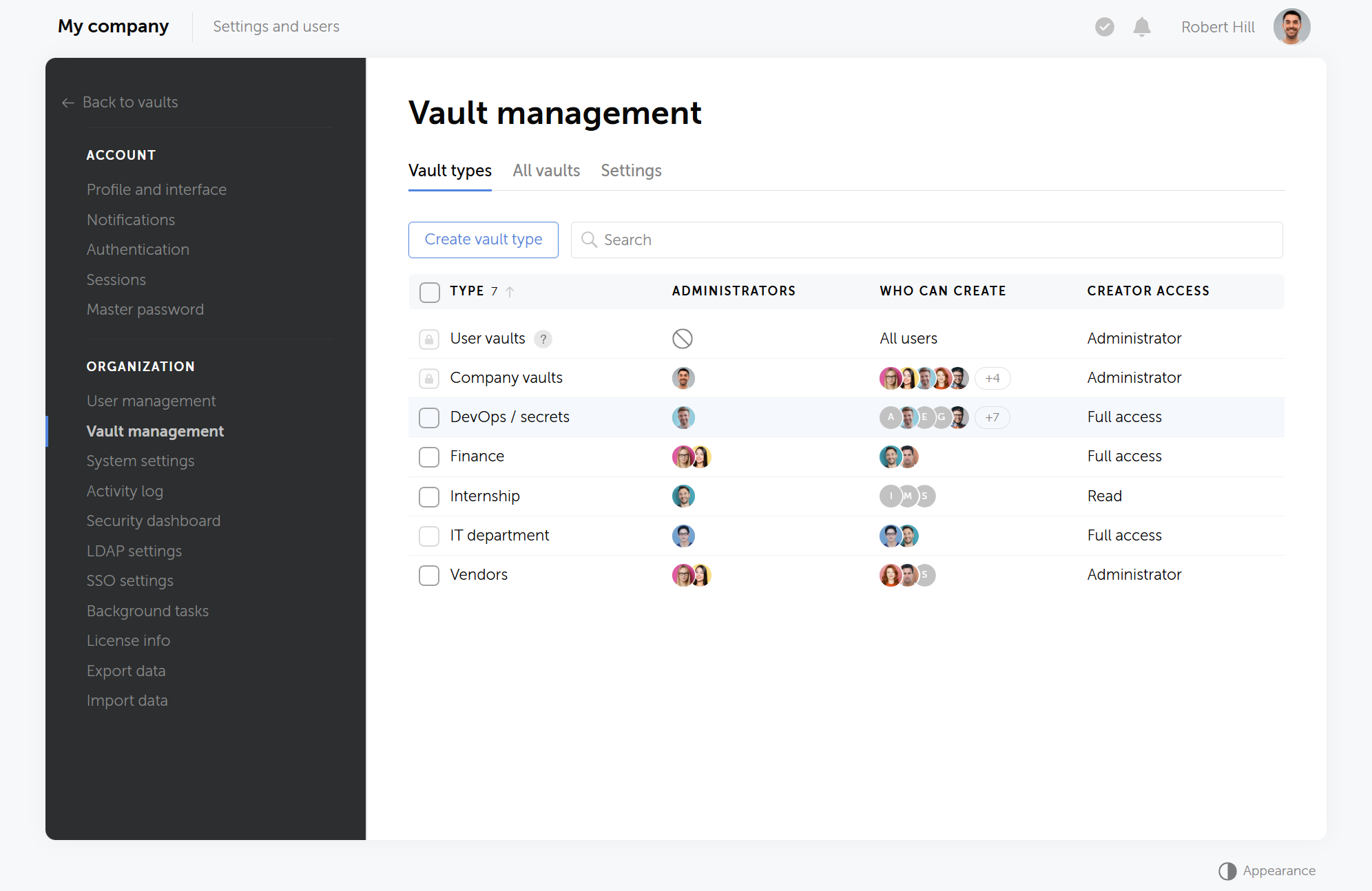
A password vault only helps SaaS credential management when its folder hierarchy matches how teams already search for access, not how the old, chaotic system grew. Centralization fails when the new store just relocates the mess. Pick a hierarchy someone can explain in one sentence. Group vaults by department or product, then split infrastructure secrets by environment.
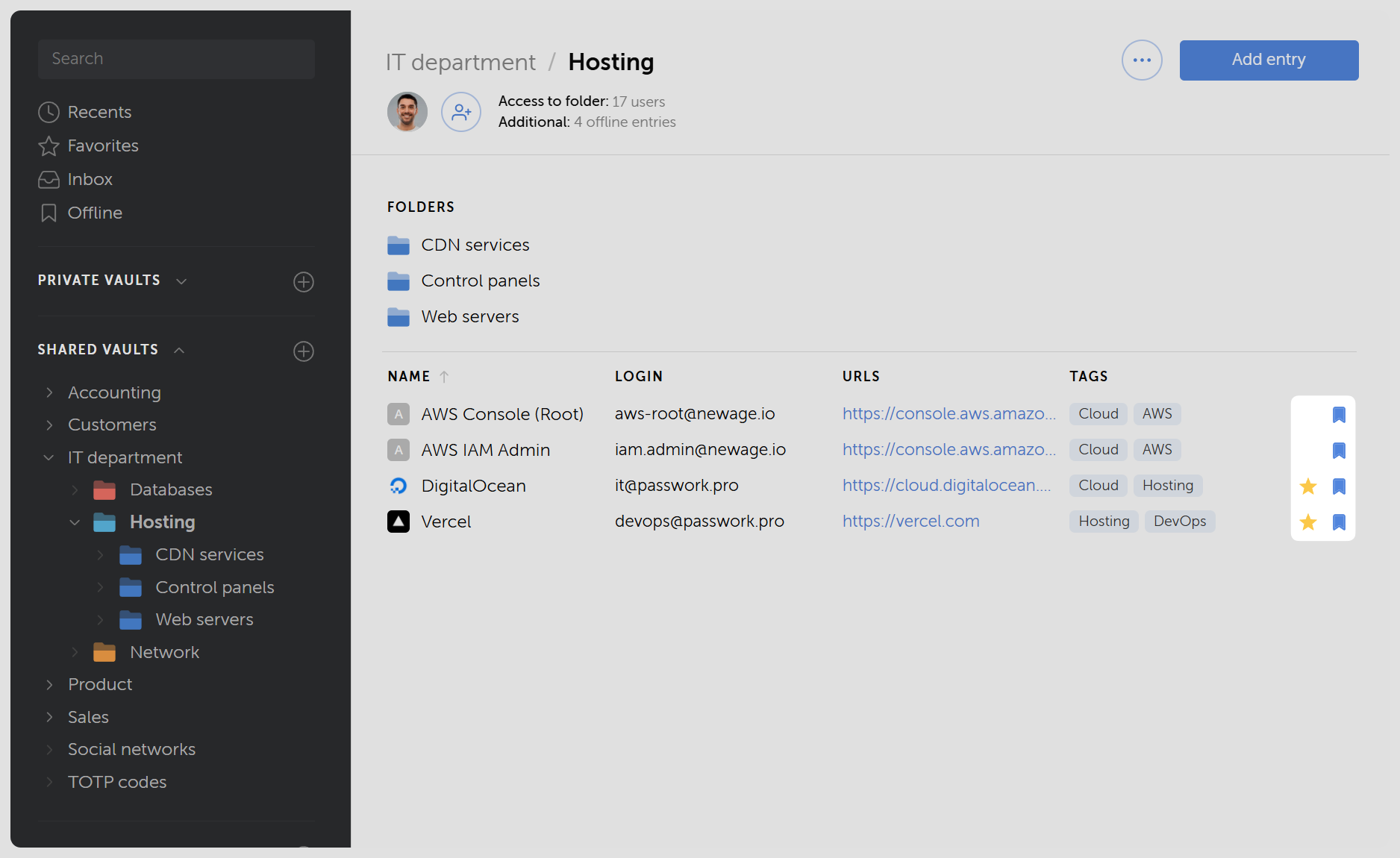
Example of credential hierarchy in Passwork
Nesting stays shallow in most branches. Two levels are usually enough: a vault for the team, a folder for the tool category. Add a third level only when a second-level folder isn't uniform on its own. If a folder already describes everything inside it, stop there.
Data hierarchy example:
Vault: Marketing
Folder: Analytics tools
Google Analytics — admin login
Mixpanel — project token
Vault: Sales
Folder: CRM systems
Salesforce — admin login
HubSpot — login
Folder: Outreach tools
Outreach.io — login
Salesloft — login
Vault: IT department
Folder: Cloud consoles
Nested folder: Cloud accounts
AWS — root account
Azure AD — global admin
Grafana Cloud — login
Folder: Monitoring
Datadog — application key
Two audiences use this same tree differently. Humans browse by team name. Pipelines fetch by folder ID, which is why onboarding docs for DevOps recommend environment-first folders: a job can pull everything it needs with one --folder-id instead of stitching SaaS credentials into code.
Naming rules help more than nested depth:
Prefer stripe-prod-dashboard over New password (2)
Put the environment in the name or the folder, not only in someone's head
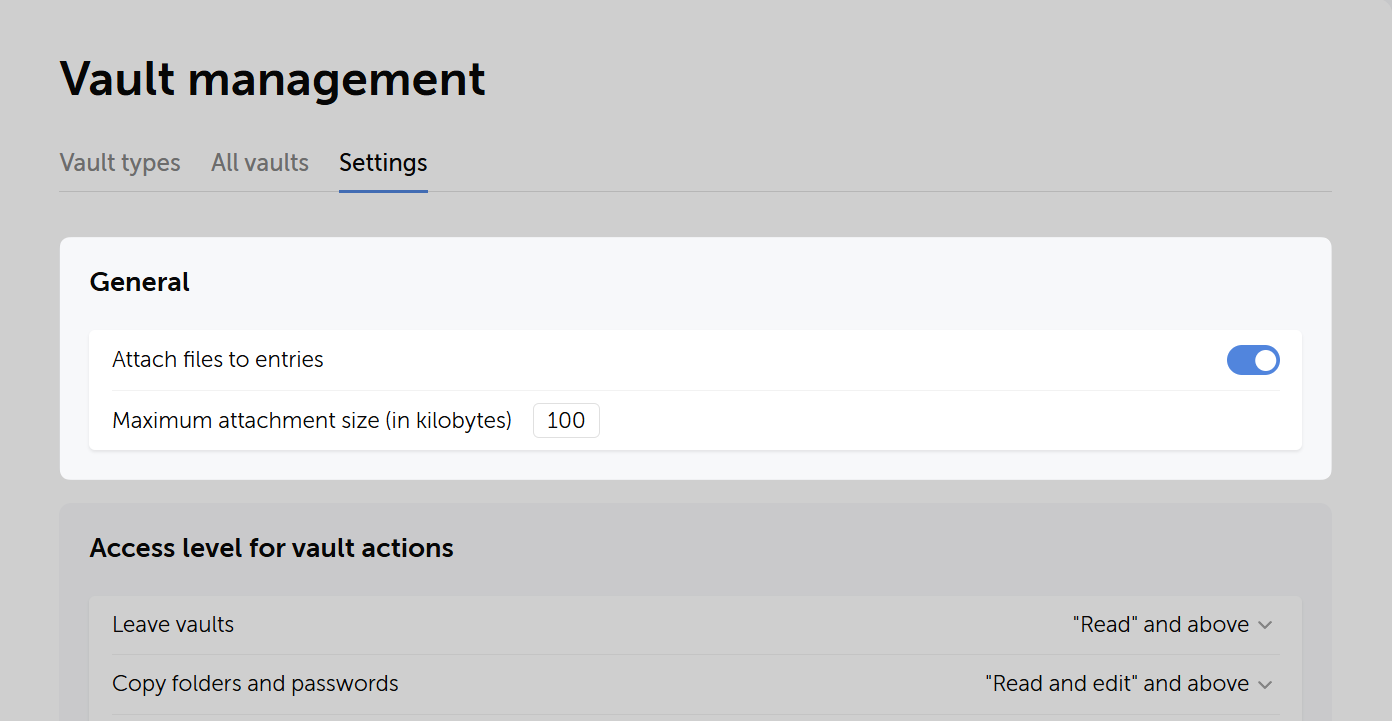
Use custom fields for non-password secrets (API keys, client IDs) instead of stuffing everything into the password field
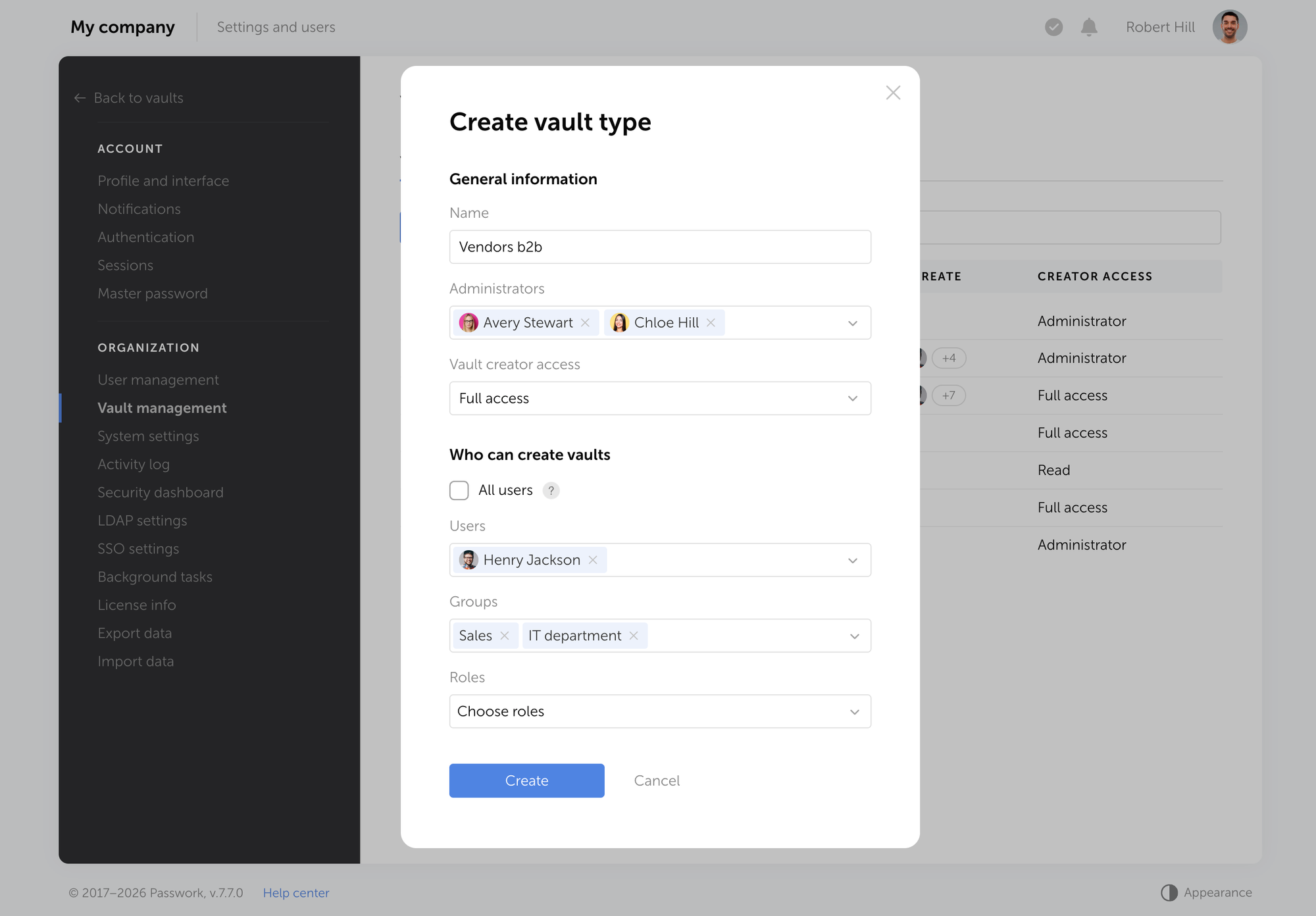
The last decision is who sees the vault at all. Corporate vaults are where team SaaS credentials belong. Private vaults are for personal work logins that should not outlive the employee.
Step 3: Migrate once, then delete the parallel stores
SaaS credential migration only reduces cloud management risk when the old storage gets shut down on a fixed date. Running a chat channel, a spreadsheet, and a password manager side by side as competing sources of truth just recreates the sprawl the migration was supposed to fix.
Import beats retyping.Passwork accepts structured imports (JSON, CSV and common password-manager export formats). Move a pilot department first — enough records that people feel the pain of the old way, not so many that a bad folder design becomes permanent.
Example of import process in Passwork
Rules that keep migration honest:
One source of truth after cutover. The Slack channel and the shared Google Sheet become read-only archives, then get deleted on a published date.
Rotate SaaS credentials after import when the old channel was shared. Anything that lived in chat is compromised by definition. Changing the password in the SaaS app, then updating the vault, beats updating the vault first and hoping the app still accepts the old value.
Shortcuts instead of copies. If two teams need the same SaaS credential, share access or use a shortcut rather than duplicating the secret. Duplicates drift.
Expect a messy two weeks. That is normal. The failure mode is leaving Notion and the password vault both "official" for six months.
Step 4: Gate access with roles, groups, and vault permissions
Central SaaS credential storage without least privilege turns a password vault into a very large, searchable pastebin. Effective SaaS credential management separates what a person can do to the platform itself from what they can do to a specific set of shared secrets.
Passwork separates two layers:
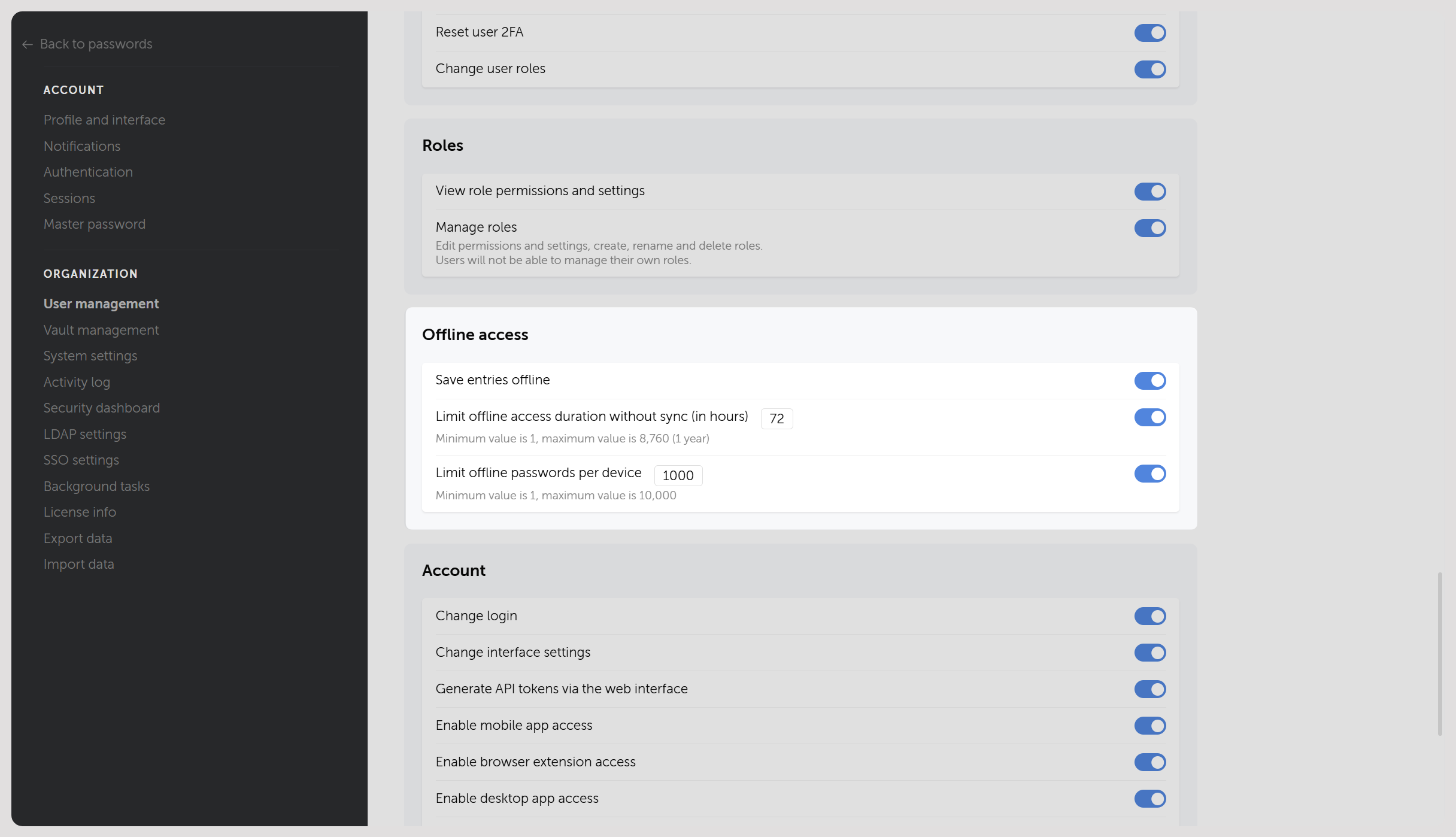
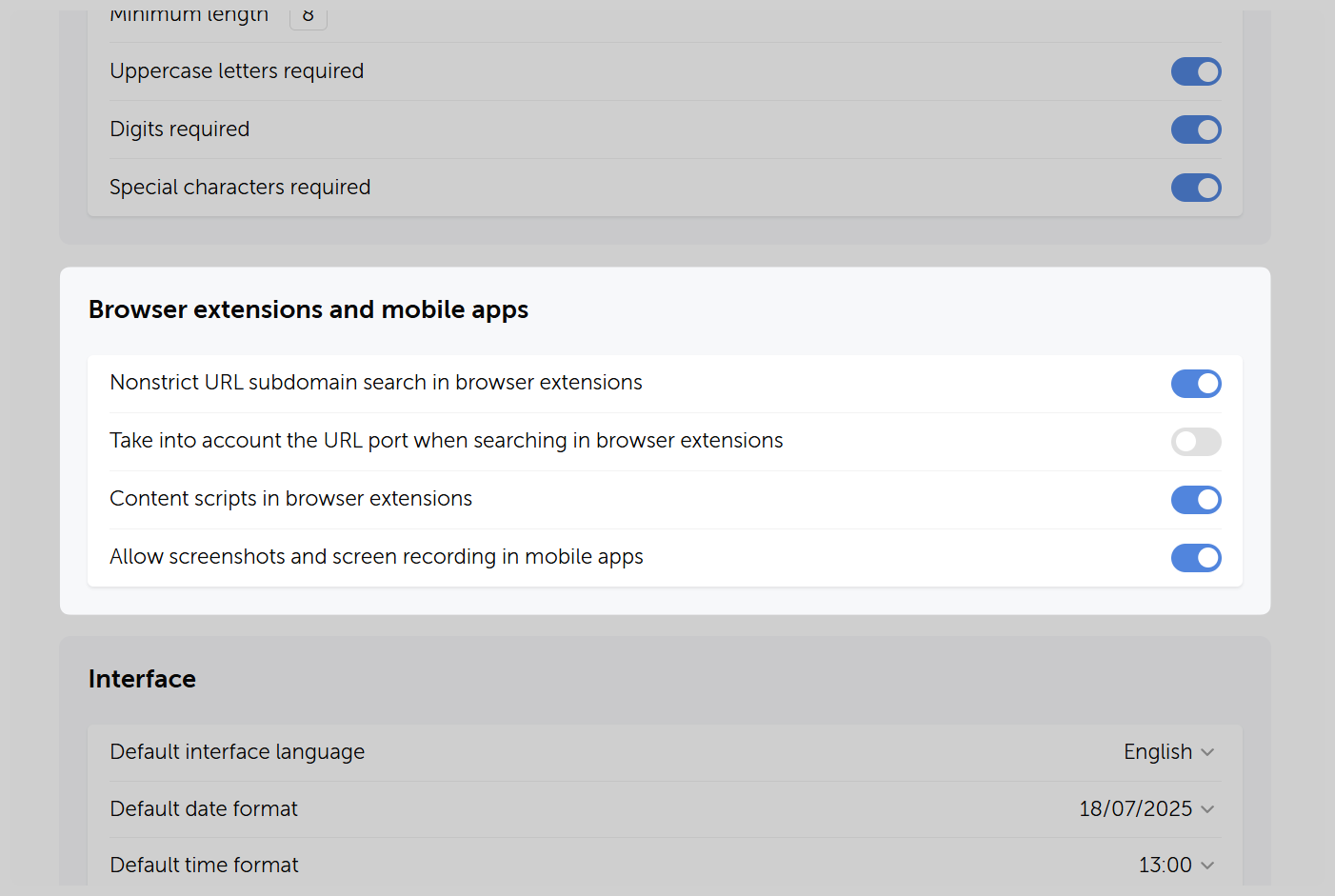
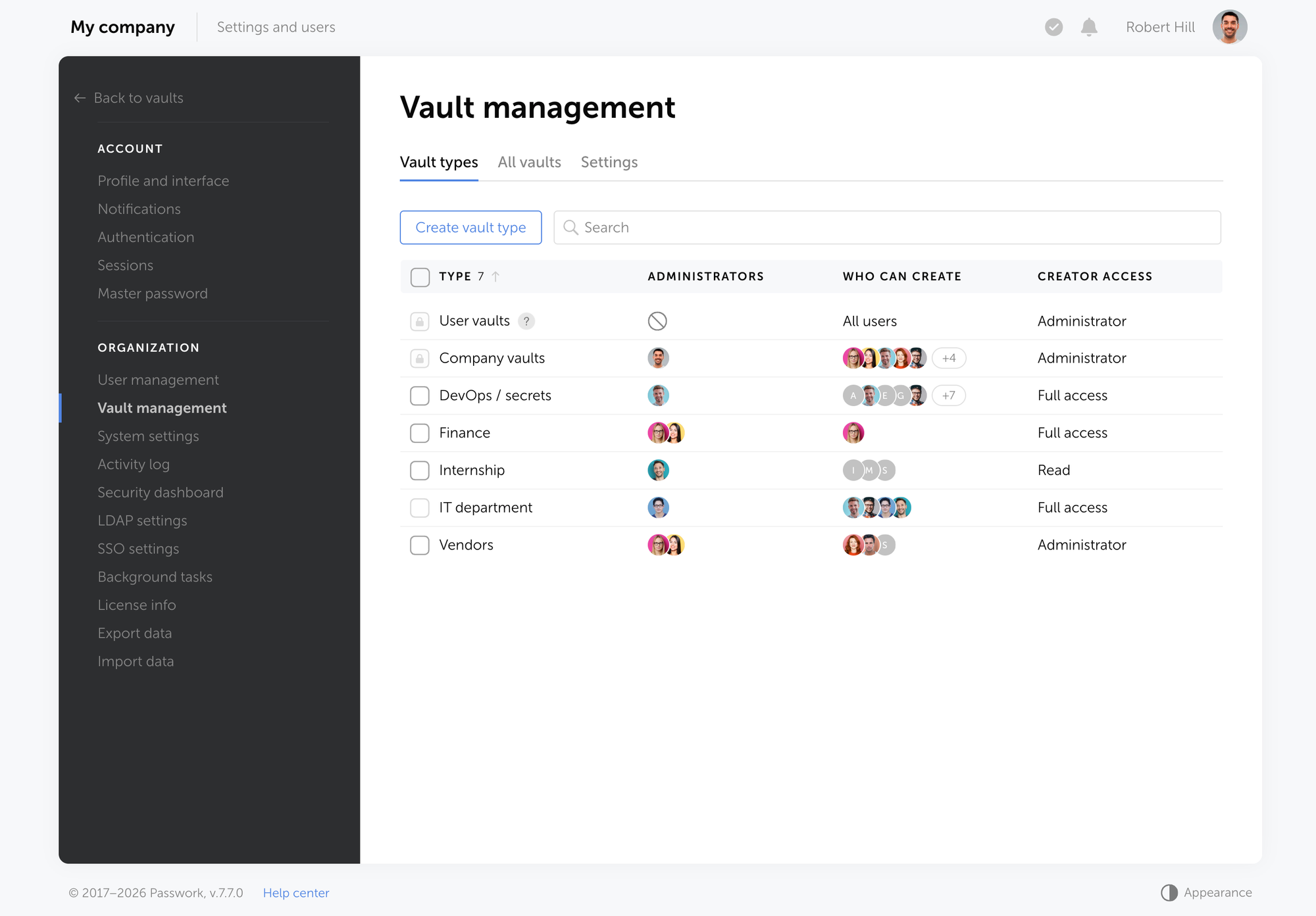
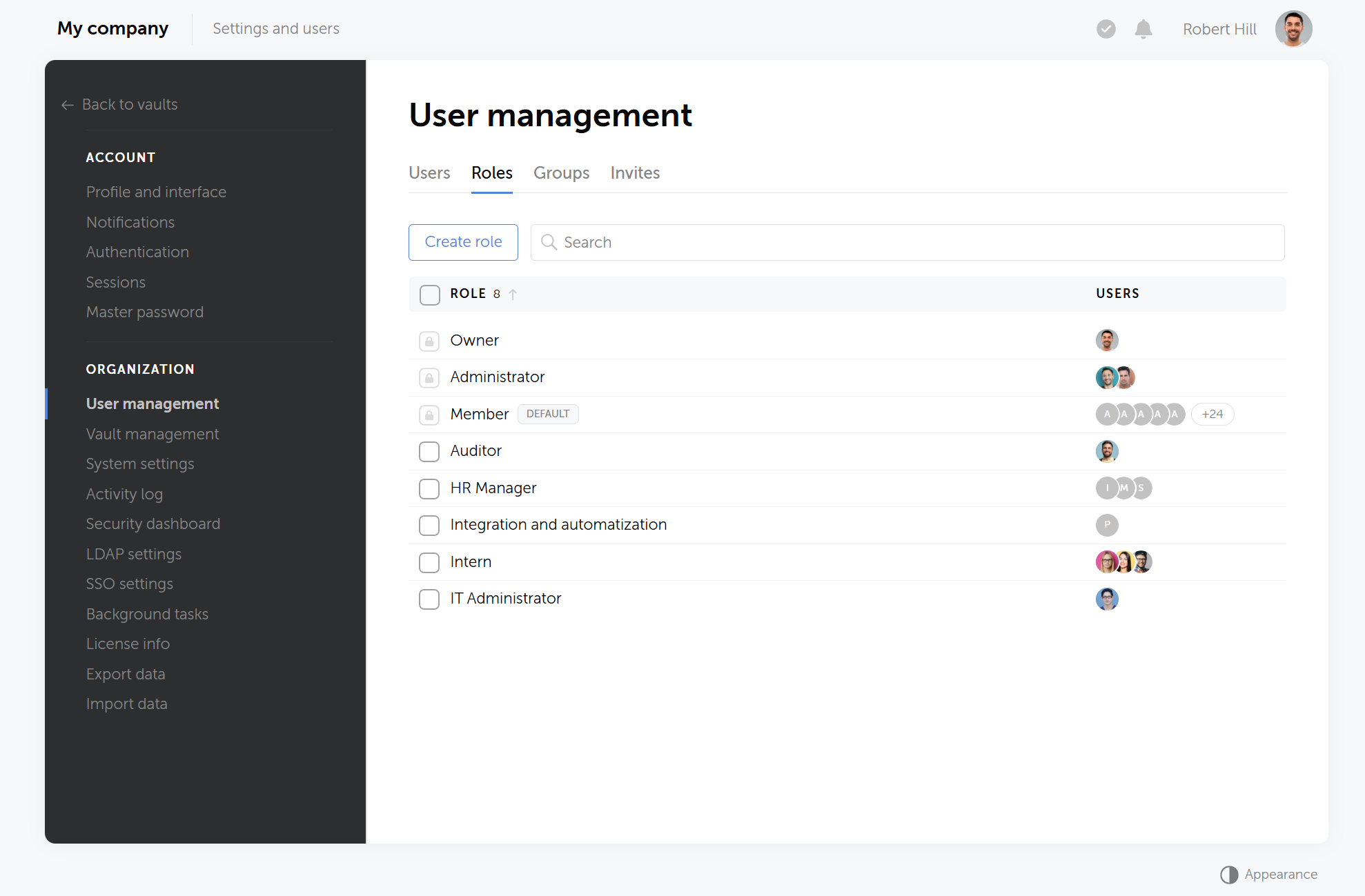
System roles — what someone can do to the instance (invite users, change SSO, read the activity log). Built-ins include Owner, Admin, and User. Unlimited custom roles let you carve out Support or Auditor without handing out full admin.
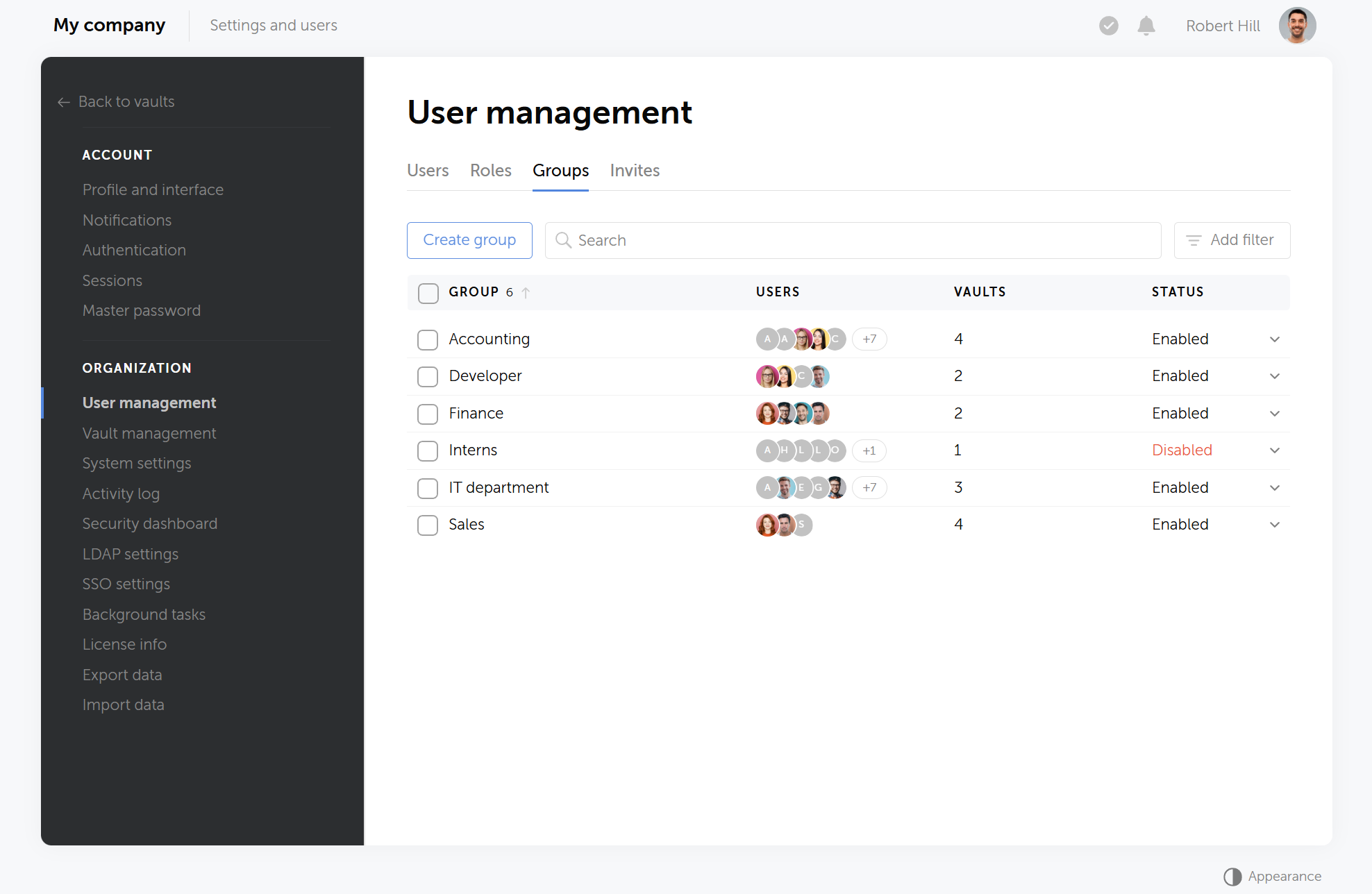
User groups — what they can do to shared SaaS credentials. Levels run from Forbidden through Read, Edit, and Full access up to Admin on that resource.
Grant access to groups, then map people into groups. When someone joins Support, they inherit vault access with the group. When they leave, you remove them once. LDAP/AD can sync group membership so directory changes flow into the password vault instead of waiting on a ticket.
Example of user groups in Passwork
Be strict with Admin on vaults. Most people need Read on the apps they use. Admin is for team leads who organize folders and review who has access.
Step 5: Connect identity, automation, and offboarding
A password vault used only for interactive logins covers half of SaaS credential management. The other half is the machine-to-machine secrets pipelines pull at build or deploy time. Wiring the vault to SSO, LDAP/AD, and a CI-friendly API turns it into the single control point for both human logins and automated cloud management workflows.
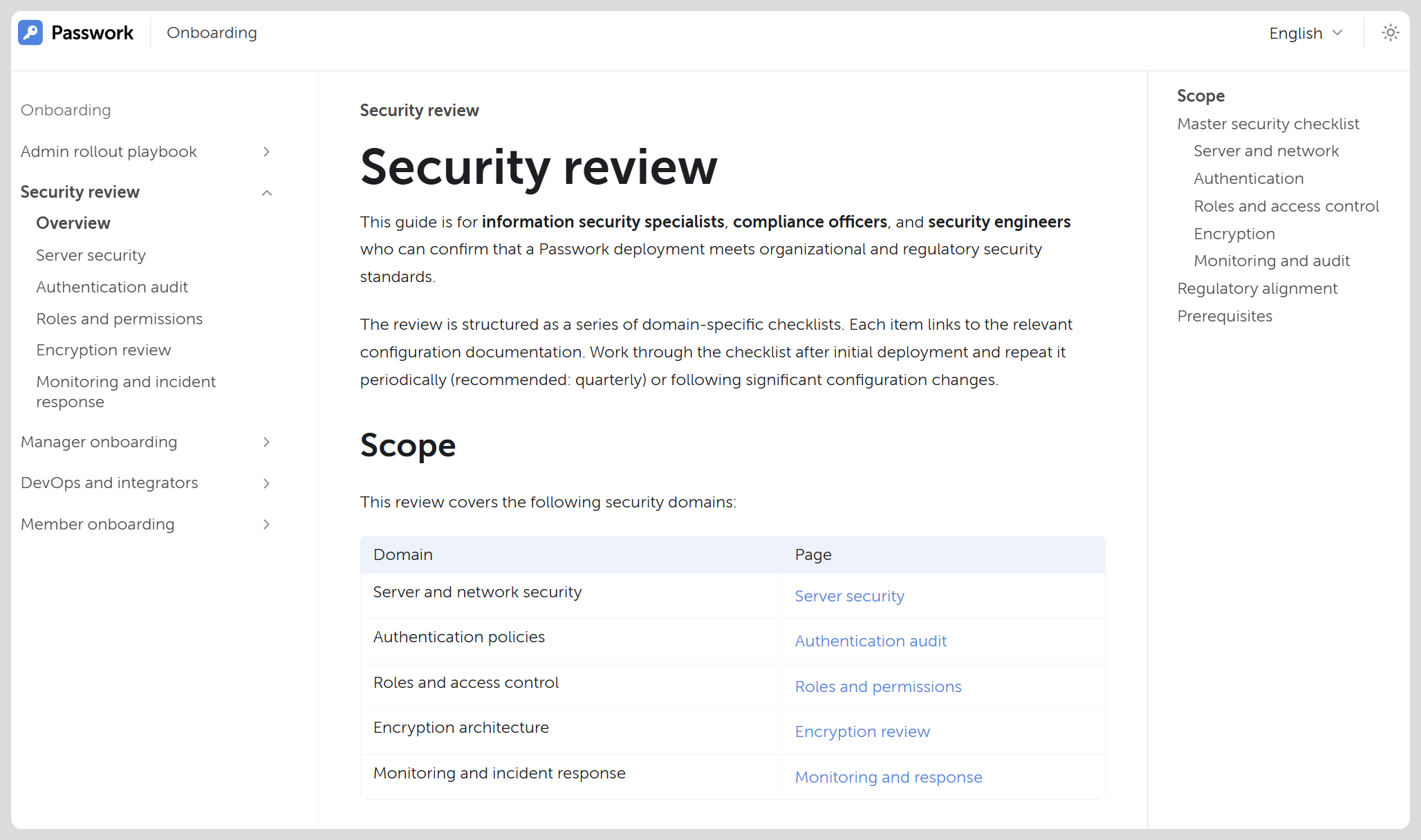
SAML SSO so people enter the password vault with the same IdP they use for the rest of the SaaS stack (Azure AD, Okta, ADFS, Google Workspace, and similar).
LDAP/AD when the directory is the source of truth for accounts and group-based vault access.
Browser extension and desktop/mobile clients so the daily path is autofill, not copy-paste from a web tab.
For the machine side of the stack, keep humans out of CI:
Use a service account with an API key (or session tokens consumed by passwork-cli), scoped to the vaults and folders the pipeline needs for SaaS credential access.
Pull secrets at job time. Do not bake them into images.
Rotate: update the secret in the target system first, then save the new value in the password vault — the reverse order creates silent outages.
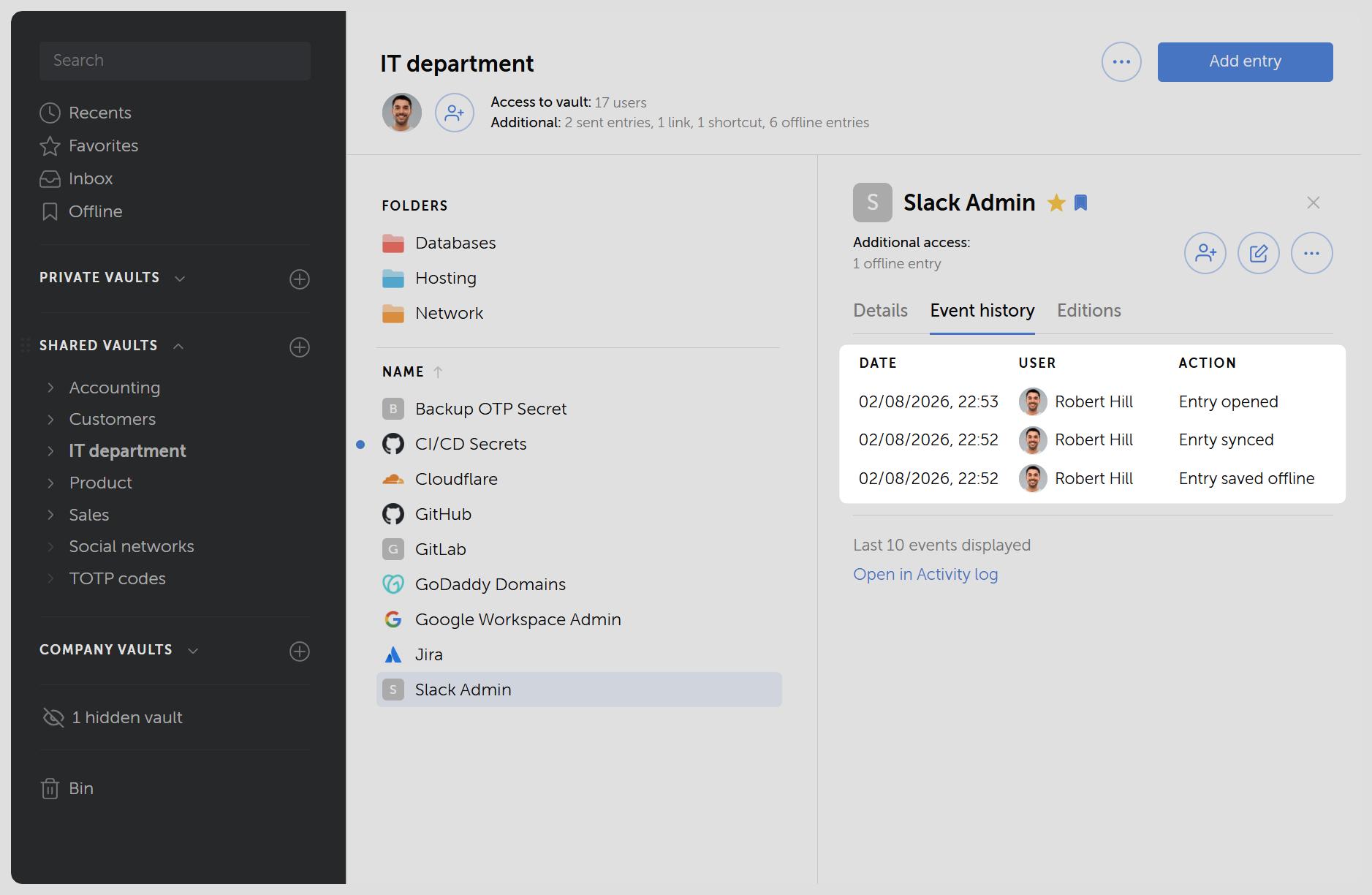
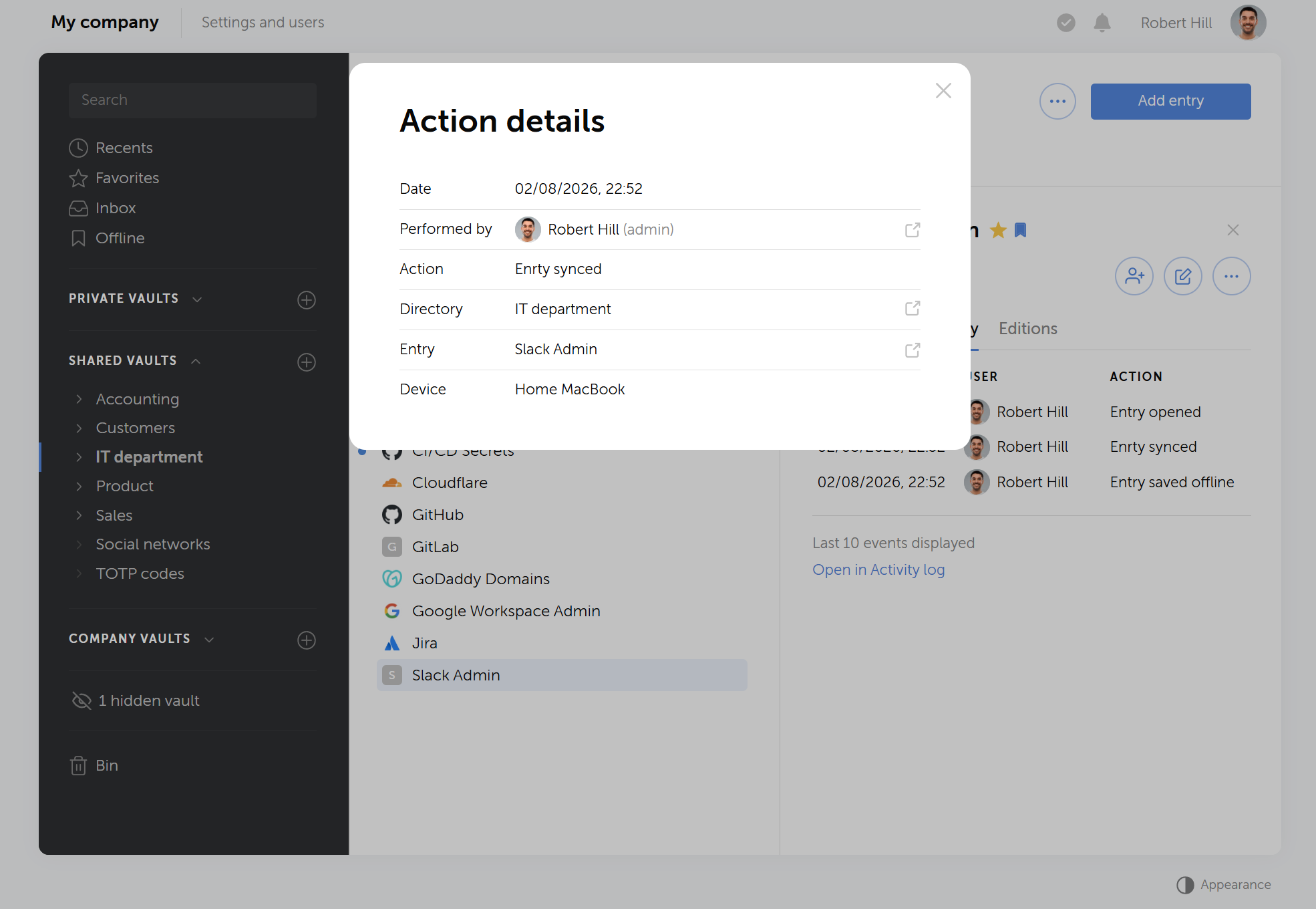
Review the activity log (and Syslog/CEF export to SIEM if you have one) for copies, exports, and access changes.
Offboarding is where this setup pays off. Disable the departing user's account, revoke their API sessions, and confirm they're removed from every group. If a shared SaaS admin password lived only in the vault, rotating it is one action, not a search through five inboxes to see who else had a copy.
What SaaS credential management done right looks like
SaaS credential management is centralized when access flows through groups instead of DMs, offboarding revokes password vault access in one action, and every credential lookup can be traced in an activity log. None of this needs a long program — inventory, structure, and migration run in parallel over a few weeks.
You are centralized when:
A new hire gets vault access through a group, not a DM with five passwords
A departing hire loses SaaS reach without a scavenger hunt
Engineers can point a pipeline at a folder ID and stop committing .env files
Security can answer "who could see the Stripe login last month?" from the activity log
None of that requires a twelve-month program. Inventory in a week. Structure and pilot in another. Migrate in waves. Permissions and SSO in parallel with the waves. Automation last — after the folders exist.
Conclusion
Centralizing SaaS credentials only works if the tool holding them enforces who's accountable for each vault, keeps human logins and service accounts on separate tracks, and produces a record you can hand to security without reconstructing it from memory.
Passwork ties that accountability to a role you define upfront, not to whoever happened to click "create vault" first. So when the person who set up the Marketing vault leaves the company, oversight doesn't leave with them — it stays with the role. Service accounts handle the machine side the same way: a CI pipeline gets its own scoped identity instead of quietly running on someone's personal login long after that person has moved teams.
Human passwords and machine secrets end up on the same platform, under one price. That's one vendor to manage instead of two, and one activity log to check instead of piecing together exports from a password manager and a separate secrets tool.
Ready to bring your credentials under one roof? Try Passwork and run your own vault structure through it.
Frequently asked questions
What is SaaS credential management?
SaaS credential management is the practice of tracking who owns, uses, and can access every password and login connected to a company's cloud apps. It covers accounts that don't go through single sign-on, including shared logins and software credentials like API keys.
Should personal SaaS logins go in the same vault as team credentials?
No. Personal work logins belong in private vaults tied to the individual, while shared SaaS credentials belong in corporate vaults tied to a team or department. Mixing the two means personal access outlives the employee, and team credentials become harder to find during an audit.
What's the difference between a password and a credential?
A password is something a person types in to log into an account. A credential is broader: it includes API keys, security certificates, and tokens that software uses instead of people. Every password is a credential, but not every credential is a password.
Do we still need a password vault if we already use SSO?
Yes. SSO covers only the apps that support it, and many SaaS tools still don't. A password vault handles everything SSO can't reach: shared logins, legacy systems, vendor portals, and the API keys that never touch an identity provider in the first place.
How is a secrets manager different from a password vault?
A secrets manager stores machine credentials such as API keys, tokens, and certificates, often with automatic rotation built in. A password vault stores credentials people type in manually. Full SaaS credential management needs both, tracked in one inventory rather than two disconnected systems.
How does SaaS credential management simplify offboarding?
When credentials are stored in a shared vault instead of scattered across chat and spreadsheets, offboarding becomes one action: disable the account, revoke API sessions, and remove the person from every group. Nobody needs to search five inboxes to find out who else had a copy of a shared password.
How do you track SaaS credentials used by CI/CD pipelines?
Pipelines use a scoped service account with an API key or session token, not a personal login. The account gets access to only the vaults and folders a specific job needs, and secrets are pulled at build or deploy time instead of being baked into images or committed as .env files.
How long does migrating to a centralized password vault usually take?
A pilot department can move in about a week, with inventory and structure work running in parallel beforehand. Full rollout typically happens in waves rather than all at once, with permissions and SSO configured alongside each wave and automation added last, after the folder structure is stable.
SaaS credential management: 5 steps to centralize your app stack
SaaS credential management turns scattered passwords and API keys into one inventory you can share on purpose and revoke on exit. Here's the five-step framework: inventory, structure, migration, access control, and automation.
O Data Breach Investigations Report 2026 da Verizon (DBIR) analisou mais de 22 000 violações de dados confirmadas em 145 países, o maior conjunto de dados dos 19 anos de história do relatório. A principal conclusão: a exploração de vulnerabilidades superou a utilização abusiva de credenciais como principal vetor de acesso inicial, enquanto o ransomware, o risco de terceiros e os ataques assistidos por IA cresceram de forma acentuada.
Esta é a 19.ª edição do relatório, que contou com a participação de Anthropic, Qualys, Tenable, Tenchi Security, Fastlye DTEX para ir além da contagem de incidentes. O DBIR 2026 mede a rapidez com que as organizações aplicam correções, durante quanto tempo os fornecedores mantêm a autenticação multifator (MFA) desativada e de que forma os agentes de ameaça estão a operacionalizar a IA generativa (GenAI) em campanhas reais.
Os dez números abaixo são aqueles em torno dos quais vale a pena construir o plano de segurança do próximo ano.
Principais dados do DBIR 2026
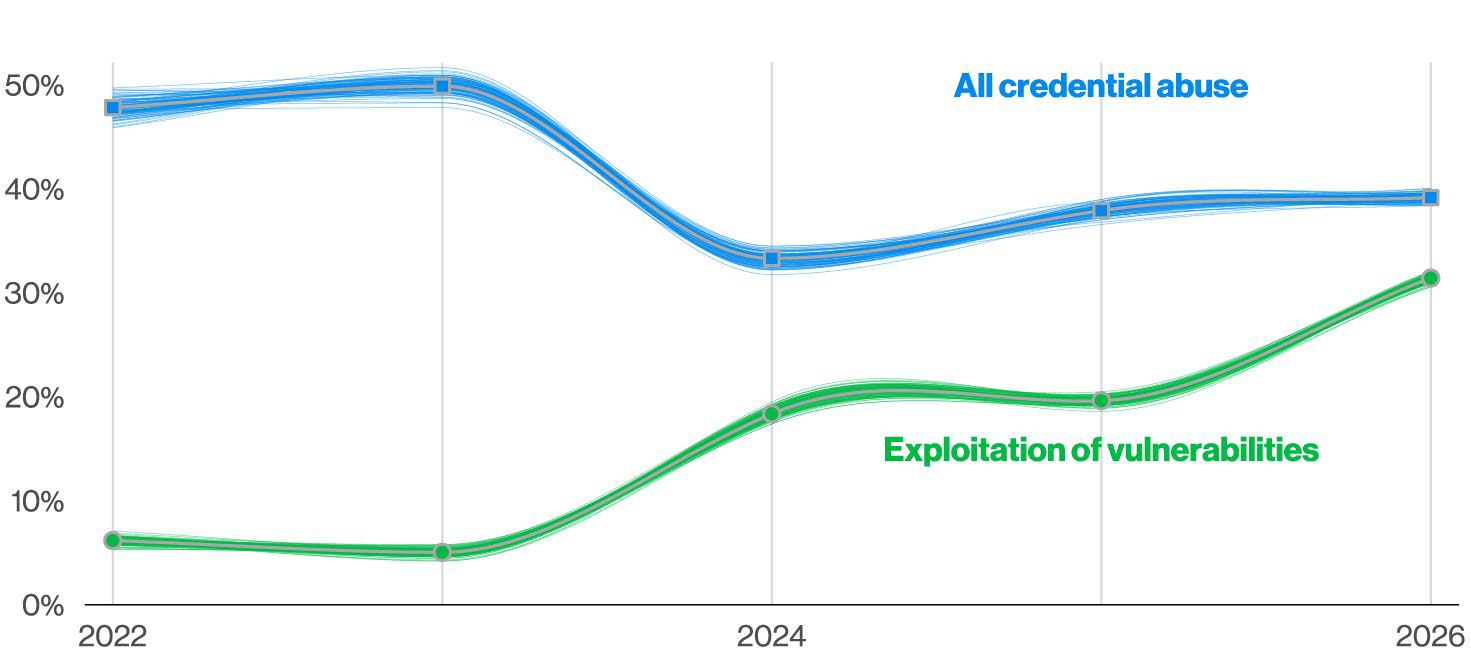
A exploração de vulnerabilidades superou a utilização abusiva de credenciais como principal vetor de acesso inicial, passando de 20 % para 31 % das violações de dados de um ano para o outro, um aumento de 55 %.
A utilização abusiva de credenciais continua presente em 39 % do total das violações de dados, mantendo-se como o ponto de passagem mais comum nos vários padrões de ataque, ainda que o seu peso como primeiro ponto de entrada tenha diminuído.
O ransomware esteve presente em 48 % de todas as violações de dados, mas 69 % das vítimas recusaram pagar, o que fez descer o pagamento mediano para 139 875 dólares.
O envolvimento de terceiros em violações de dados aumentou 60 % num único ano, atingindo 48 % de todos os incidentes, depois de já ter duplicado no ano anterior.
As organizações remediaram totalmente apenas 26 % das vulnerabilidades exploradas conhecidas em 2025, contra 38 % no ano anterior.
Mesmo as organizações com melhor desempenho corrigem, no máximo, 30-40 % das vulnerabilidades exploradas conhecidas na primeira semana, um limite que quase não se alterou em três anos.
Os agentes de ameaça utilizaram IA generativa numa mediana de 15 técnicas distintas do MITRE ATT&CK, com casos extremos que abrangeram 40-50 técnicas numa única campanha.
O phishing móvel (voz e SMS) registou taxas de cliques cerca de 40 % superiores às do e-mail, e o pretexting já é responsável por 6 % de todas as violações de dados.
A utilização de Shadow AI pelos colaboradores triplicou para 45 % num ano, e 67 % continuam a aceder a ferramentas de IA através de contas pessoais, não empresariais.
89 % das organizações tiveram de corrigir vulnerabilidades de segurança de memória em 2025, uma classe de falhas documentada pela primeira vez há três décadas.
O que é o Data Breach Investigations Report da Verizon
O Data Breach Investigations Report da Verizon (DBIR) é uma análise anual de violações de dados e incidentes de segurança confirmados a nível mundial, publicada desde 2008. A edição de 2026, a 19.ª, abrange dados de outubro de 2024 a novembro de 2025 e baseia-se em mais de 31 000 incidentes de segurança, incluindo mais de 22 000 violações de dados confirmadas em 145 países, o maior conjunto de dados da história do relatório.
Como os dados são reunidos
A Verizon elabora o relatório com contributos de quase 100 organizações parceiras, cada uma das quais fornece dados de violações e incidentes das suas próprias operações. A equipa do DBIR normaliza estes dados num modelo comum, estruturado em torno de agentes de ameaça, ações, ativos e atributos, o que permite que uma violação de dados num hospital na Alemanha e um caso de ransomware no Ohio surjam como pontos de dados comparáveis.
Ao contrário dos relatórios de ameaças de fornecedores, baseados na telemetria de uma única empresa, o DBIR agrega dados de vários setores, dimensões de empresa e geografias. Essa abrangência faz dele uma referência para o orçamento de segurança e para o reporte ao conselho de administração, e não uma narrativa comercial de um único fornecedor.
Novidades no conjunto de dados do DBIR 2026
A lista de parceiros determina o que o relatório consegue efetivamente medir, e 2026 trouxe um acréscimo que altera o seu âmbito. Anthropic contribuiu com dados de aplicação de políticas sobre 793 agentes de ameaça sinalizados pela sua equipa de Safeguards entre março de 2025 e fevereiro de 2026, associados a técnicas específicas do MITRE ATT&CK .
É a primeira vez que um laboratório de IA de ponta fornece um conjunto de dados deste tipo ao DBIR, o que permite ao relatório quantificar a utilização indevida de IA generativa com números reais de aplicação de políticas em vez de estimativas.
10 estatísticas do DBIR 2026 que devem redefinir as prioridades
Estas dez conclusões assinalam as mudanças mais claras no DBIR 2026: os atacantes exploram vulnerabilidades mais depressa do que os defensores as corrigem, o risco de terceiros tornou-se um dos principais vetores de violação de dados e a IA generativa está a escalar técnicas de ataque conhecidas em vez de inventar novas. Cada uma aponta para uma lacuna concreta na maioria dos programas de segurança atuais.
1. A exploração de vulnerabilidades é agora o principal vetor de acesso inicial
A exploração de vulnerabilidades passou de 20 % das violações de dados no relatório de 2025 para 31 % em 2026, um aumento de 55 %. A utilização abusiva de credenciais, que ocupou o primeiro lugar durante anos, desceu de 22 % para 13 % no mesmo período como primeira ação registada numa violação de dados.
A organização mediana teve de corrigir 50 % mais vulnerabilidades do catálogo Known Exploited Vulnerabilities (KEV) da CISA do que no ano anterior, 16 CVEs críticos contra 11, enquanto as taxas de remediação total desceram para 26 %. Mais vulnerabilidades, correções mais lentas e atacantes a automatizar a exploração com assistência de IA não é uma combinação que favoreça os defensores. Se a cadência de aplicação de correções não mudou desde 2023, os dados indicam que a organização está estatisticamente atrasada.
2. A utilização abusiva de credenciais continua presente em 39 % das cadeias de ataque
O facto de a exploração de vulnerabilidades ter passado a ocupar o primeiro lugar como acesso inicial não significa que as credenciais roubadas tenham deixado de ser relevantes. Os 13 % contabilizam apenas o primeiro passo registado numa violação de dados. Quando o DBIR rastreia a utilização abusiva de credenciais em qualquer fase de um ataque, esta surge em 39 % das violações de dados, o que a torna o ponto de passagem mais comum em quase todos os padrões de ataque do relatório.
Os atacantes também se camuflam melhor. Muitos abandonaram ferramentas como o Cobalt Strike em favor de vias legítimas de acesso remoto, software de partilha de ecrã e VPNs, o que torna o movimento lateral baseado em credenciais mais difícil de detetar através de mecanismos baseados em assinaturas. A MFA é hoje um requisito mínimo, mas não é suficiente por si só.
Os números de higiene de palavras-passe explicam por que razão a utilização abusiva de credenciais persiste. As próprias credenciais surgem como tipo de dados roubados em 28 % das violações de dados, e a política de palavras-passe é uma das salvaguardas que o DBIR assinala como controlo de mitigação em várias técnicas de ataque, a par da gestão de privilégios e do reforço da configuração. As verificações básicas de reforço confirmam a lacuna: 97 % dos dispositivos avaliados falharam na verificação da limitação de tentativas de início de sessão falhadas antes do bloqueio, e 90 % não aplicavam um comprimento mínimo de 15 carateres.
3. O ransomware está presente em 48 % das violações de dados, mas as vítimas pagam menos
O ransomware passou de 44 % para 48 % das violações de dados este ano e continua a ser a categoria de ameaça mais prejudicial. O aspeto contraintuitivo: 69 % das vítimas de ransomware recusaram pagar e o pagamento mediano desceu de 150 000 para 139 875 dólares.
Esta combinação sugere que as estratégias de cópias de segurança, a maturidade da resposta a incidentes e a desarticulação promovida pelas autoridades policiais estão a ganhar terreno. Mas o volume elevado de incidentes de ransomware, alimentado por intermediários de acesso inicial (initial access brokers) e por mercados de infostealers, faz com que tratá-lo como um problema resolvido apenas com cópias de segurança seja um erro. As organizações que melhor saíram de um ataque foram aquelas que nunca tiveram de negociar.
4. As violações de dados por terceiros representam agora 48 % de todos os incidentes
O envolvimento de terceiros em violações de dados atingiu 48 %, contra 30 % um ano antes, um aumento de 60 % depois de uma duplicação no ano anterior. Algumas das violações mais disruptivas de 2025 envolveram, em simultâneo, múltiplos fornecedores comprometidos.
As causas de fundo são banais: ausência de MFA em contas na cloud, permissões excessivas e palavras-passe fracas. Apenas 23 % das organizações terceiras remediaram totalmente as lacunas de MFA nas suas contas na cloud, embora metade de todas as constatações de MFA tenha sido resolvida no prazo de um mês.
As palavras-passe fracas e as configurações incorretas de permissões tiveram um desfecho muito pior: o tempo mediano para resolver metade dessas constatações chegou a quase oito meses. Os questionários anuais a fornecedores não conseguem detetar um problema cuja correção demora oito meses do lado do fornecedor.
Uma janela de remediação de oito meses é exatamente o que acontece quando o acesso dos fornecedores existe fora do campo de visibilidade da organização. Em contrapartida, o controlo de acesso baseado em funções do Passwork permite conceder, registar e revogar credenciais de fornecedores a partir de um cofre central, com um registo de auditoria completo. Descobrir como se integra no fluxo de acesso de terceiros.
5. Apenas 26 % das vulnerabilidades críticas foram totalmente remediadas
A remediação total das vulnerabilidades do CISA KEV desceu de 38 % para 26 %, e o tempo mediano de correção aumentou de 32 para 43 dias. A percentagem de vulnerabilidades que permanecem totalmente sem remediação subiu de 12 % para 16 %.
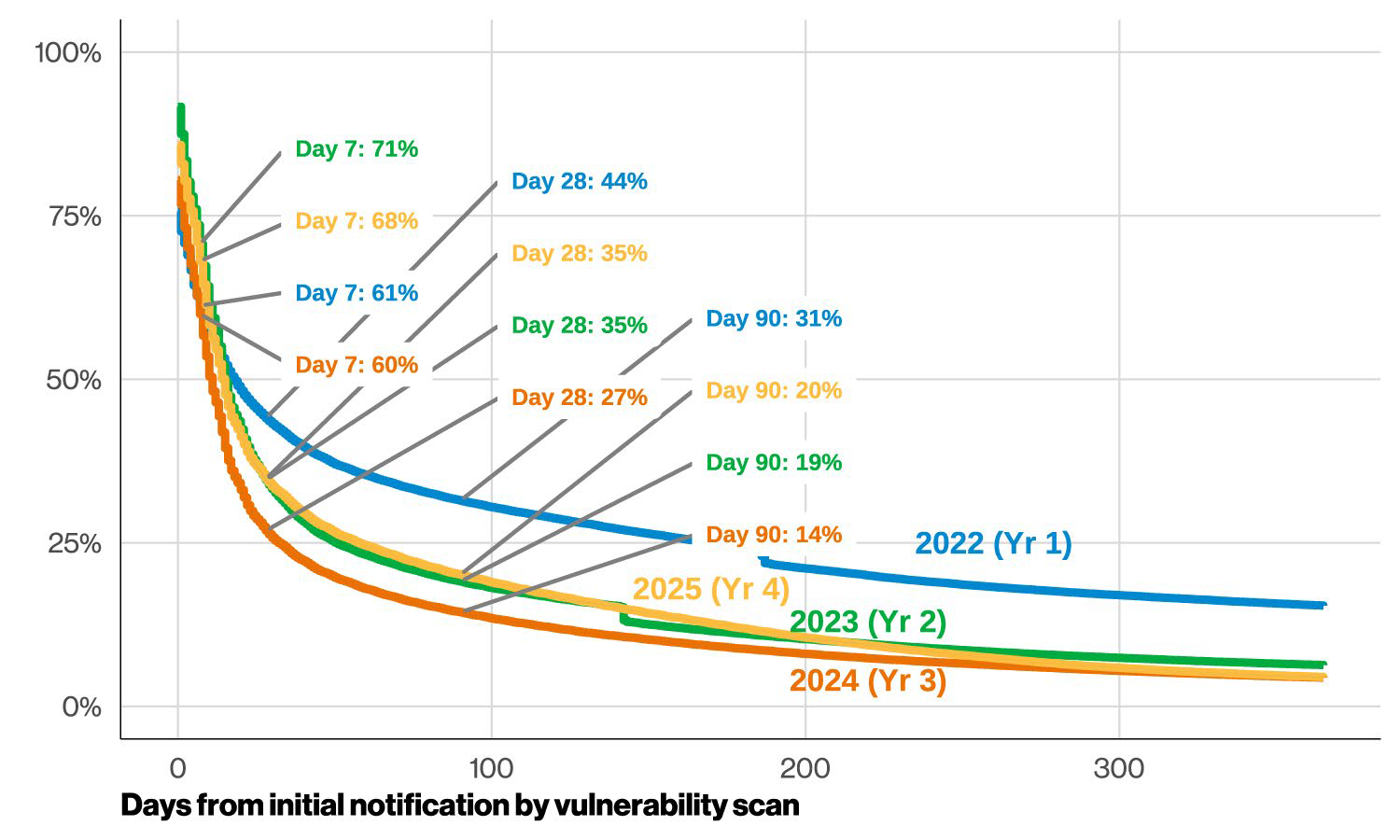
A curva de sobrevivência é pior do que as médias sugerem. No 28.º dia após a deteção, 35 % das vulnerabilidades KEV continuavam em aberto, o que representa 184 milhões de instâncias de vulnerabilidades (contra 31 milhões três anos antes). O volume de deteções cresceu quase oito vezes, de 68,7 milhões de registos em 2022 para 527,3 milhões em 2025, enquanto a capacidade de correção quase não se alterou.
A aplicação de correções, por si só, não vai colmatar esta lacuna. Como corrigir tudo não é realista com os volumes atuais, a remediação tem de ser ordenada por risco de exploração e não apenas pela pontuação CVSS. A evidência mais clara do relatório neste sentido: 80 % das vulnerabilidades exploradas de forma persistente tinham mais de dois anos, o que significa que os atacantes trabalham em grande medida com vulnerabilidades que as organizações já conheciam e decidiram não priorizar.
O aumento de oito vezes no volume de deteções (68,7 M → 527,3 M de registos) face a uma capacidade de correção estagnada é um problema de volume que a rapidez de correção, por si só, não resolve: seria necessária uma capacidade de remediação cerca de oito vezes superior apenas para manter o ritmo, e nenhuma organização escalou a esse ritmo. Assim, corrigir mais depressa não é, por si só, uma solução realista.
6. Os agentes de ameaça utilizam IA generativa numa mediana de 15 técnicas do ATT&CK
A colaboração da Verizon com a Anthropic produziu um dos contributos mais substanciais do relatório: a análise de 793 agentes de ameaça que violaram a política de utilização aceitável da Anthropic entre março de 2025 e fevereiro de 2026. O agente mediano recorreu à assistência de IA em 15 técnicas distintas do MITRE ATT&CK.
Os casos extremos são o dado mais revelador. Algumas campanhas abrangeram 40-50 técnicas em operações agênticas multissessão, nas quais a IA atuou como parceiro de desenvolvimento ao longo de toda a cadeia de ataque.
Esta escala não produziu ameaças inéditas. Menos de 1 % destes agentes pertencia à categoria de risco elevado ou crítico, e a maior parte do malware assistido por IA reutilizava técnicas bem documentadas: a observação mediana tinha 55 exemplos de malware existente com a mesma função. Apenas 2,5 % envolviam técnicas verdadeiramente raras.
A IA está a escalar o que já funciona, e não a gerar novas classes de ataque. As equipas de engenharia de deteção ainda não precisam de acompanhar táticas inéditas geradas por IA. Mas a velocidade e o volume a que os atacantes operam atualmente tornam os valores de referência de 2024 para o tempo médio de deteção (MTTD) e o tempo médio de resposta (MTTR) já obsoletos.
7. O phishing móvel regista taxas de cliques 40 % superiores às do e-mail
Os dados de simulações de phishing mostram taxas de cliques no e-mail com uma mediana de 1,4 %, enquanto os métodos centrados no telefone (voz e SMS) se aproximam de 2 %, uma taxa de sucesso 40 % superior. O pretexting, a manipulação em tempo real por telefone ou mensagem, é agora responsável por 6 % de todas as violações de dados e é, cada vez mais, o vetor de acesso inicial de ataques de ransomware e de extorsão.
As contramedidas para o phishing e para o pretexting não são a mesma coisa. A formação sobre e-mail ensina as pessoas a identificar uma ligação suspeita. O pretexting exige regras ao nível do negócio e a formação do pessoal do help desk para que não seja prestável quando alguém o manipula a repor uma palavra-passe ou a desativar a MFA. Os programas de sensibilização para a segurança baseados apenas em simulações de e-mail estão a testar a ameaça errada.
8. A utilização de Shadow AI triplicou, chegando a 45 % dos colaboradores
No DBIR 2025, 15 % dos colaboradores eram utilizadores regulares de IA em dispositivos da empresa. Esse valor triplicou para 45 % em 2026. Entretanto, 67 % dos utilizadores acedem a serviços de IA através de contas não empresariais, uma descida ligeira face ao ano anterior, mas ainda uma grande superfície não autorizada.
Shadow AI é agora a terceira ação não maliciosa de utilizadores internos mais comum detetada em conjuntos de dados de prevenção de perda de dados (DLP), com um aumento de quatro vezes face ao ano anterior. O código-fonte é o tipo de dados mais comum enviado para ferramentas de IA generativa não autorizadas, seguido de imagens e dados estruturados. Em 3,2 % das violações de políticas de DLP, documentação técnica e de investigação foi enviada para sistemas de IA externos, uma exposição direta de propriedade intelectual.
9. 60-70 % das vulnerabilidades exploradas conhecidas continuam abertas ao 7.º dia, independentemente da maturidade
O número mais preocupante do relatório: ao 7.º dia após a deteção, um objetivo ambicioso por qualquer critério, 60 % a 70 % das vulnerabilidades do CISA KEV continuam sem correção. Este valor quase não se alterou ao longo de três anos de mais ferramentas, investimento em processos e pressão regulamentar.
Análise de sobrevivência das vulnerabilidades do CISA KEV: comparação de quatro anos (fonte: DBIR 2026)
A equipa da Verizon chama a isto um limite da velocidade da luz , um teto prático para a rapidez com que a remediação de vulnerabilidades pode avançar com os níveis de recursos atuais. Mesmo as organizações com melhor desempenho corrigem, no máximo, 30-40 % das instâncias KEV na primeira semana.
A priorização decide agora o resultado: a vulnerabilidade que é corrigida primeiro importa mais do que o número de vulnerabilidades corrigidas. Classificar pela atividade de exploração real compensa mais do que depender apenas das pontuações CVSS (Common Vulnerability Scoring System). Quase metade das vulnerabilidades KEV apresenta exploração persistente, ativa em 96 % dos dias, em média, segundo o relatório.
10. 89 % das organizações continuam a disponibilizar vulnerabilidades de segurança de memória
A análise da Common Weakness Enumeration (CWE) do DBIR concluiu que 89 % das organizações tiveram de corrigir problemas de segurança de memória (buffer overflows, falhas use-after-free, leituras fora dos limites), três décadas depois de Smashing the Stack for Fun and Profit ter descrito pela primeira vez esta classe de falhas na Phrack em 1996. A formulação do próprio relatório: «O que ainda estamos a fazer aqui?»
As cinco principais categorias de CWE, segurança de memória, controlo de acesso, gestão do ciclo de vida de recursos, neutralização incorreta e tratamento de ficheiros, surgiram em mais de 75 % das organizações. Quando estas falhas surgem durante o desenvolvimento, o tempo mediano para corrigir metade delas é de seis a sete meses.
Para as equipas que desenvolvem ou adquirem software, isso justifica a adoção de linguagens com segurança de memória (Rust, Go, C#) nas normas de desenvolvimento, uma abordagem que o DBIR associa explicitamente à iniciativa Secure by Designda CISA. A correção mais barata é a vulnerabilidade que nunca chega a ser disponibilizada.
DBIR 2026 da Verizon: Os números num relance
As tabelas abaixo resumem as categorias não abordadas em profundidade acima, úteis como referência rápida para comparar com as métricas próprias.
Padrões de violação de dados, tendência de três anos
Padrão
2026
2025
2024
Intrusão em sistemas
61 %
53 %
36 %
Engenharia social
17 %
17 %
22 %
Ataques básicos a aplicações web
10 %
18 %
9 %
Erros diversos
8 %
12 %
25 %
Utilização indevida de privilégios
3 %
7 %
8 %
Agentes, motivações e impacto
Métrica
Valor em 2026
Agentes externos
88 % das violações de dados
Agentes internos
12 % (desceu de 18 %)
Agentes afiliados a Estados
~15 % das violações de dados
Divulgação de dados confirmada
82 % dos incidentes
Impacto na integridade
64 % dos incidentes
Impacto na disponibilidade
53 % dos incidentes
Ativos e exposição da infraestrutura
Os servidores continuam a ser o principal alvo, seguidos da pessoa como alvo de engenharia social. Os dispositivos de rede aumentaram de forma acentuada e estão agora praticamente a par dos dispositivos de utilizador, com cerca de 5 % cada. Os investigadores da Verizon identificaram ainda 45 000-50 000 routers celulares em fim de vida com interfaces de gestão acessíveis publicamente em setores adjacentes à tecnologia operacional, uma conclusão que merece ser assinalada a qualquer equipa que gira infraestrutura industrial remota.
Três mudanças estratégicas exigidas pelo DBIR 2026
O DBIR 2026 exige uma versão mais rápida e melhor priorizada do programa de segurança que a maioria das organizações já executa. A aplicação de correções, a MFA, a higiene de credenciais, a supervisão de fornecedores e a sensibilização para a segurança continuam a funcionar. O problema é que o volume de ameaças ultrapassou a capacidade de resposta da maioria das equipas ao mesmo ritmo.
O DBIR 2026 aponta para três mudanças de prioridade: velocidade em vez de exaustividade, visibilidade de terceiros em vez de confiança pontual e defesa à escala da IA em vez de receio à escala da IA.
A velocidade conta mais do que a exaustividade
Não é possível corrigir tudo, e os dados comprovam-no: mesmo os melhores desempenhos corrigem, no máximo, 40 % das vulnerabilidades críticas na primeira semana. Uma priorização baseada na atividade de exploração real, e não apenas na pontuação CVSS, é a única abordagem que escala com as 527 milhões de deteções anuais de vulnerabilidades.
Os terceiros fazem parte da superfície de ataque
Quando quase metade de todas as violações de dados envolve um terceiro, a supervisão de fornecedores tem o mesmo peso que os controlos internos. Um processo de gestão do risco de terceiros (TPRM) baseado em questionários anuais não consegue detetar uma lacuna de MFA de oito meses na consola cloud de um fornecedor.
A IA está a escalar técnicas conhecidas, não a inventar novas
Os atacantes utilizam IA generativa para executar playbooks existentes mais depressa e em maior volume, segundo a análise da Anthropic no DBIR 2026. As defesas existentes continuam a aplicar-se. Apenas precisam de operar à velocidade e à escala que os atacantes já atingiram.
As lacunas de higiene de credenciais e de acesso de fornecedores continuam a surgir como causas de fundo porque ninguém assume a visibilidade contínua de quem tem acesso a quê, ou durante quanto tempo. Experimentar o Passwork gratuitamente e ver como um cofre estruturado colmata essa lacuna no próprio ambiente.
Perguntas frequentes
O que é o DBIR 2026 da Verizon?
O Data Breach Investigations Report 2026 da Verizon é a 19.ª edição da análise anual da Verizon sobre violações de dados e incidentes de segurança confirmados a nível mundial. Baseia-se em mais de 22 000 violações de dados confirmadas em 145 países, com contributos de quase 100 organizações parceiras, incluindo equipas de resposta a incidentes, seguradoras e empresas de informação sobre ameaças.
Qual é o principal vetor de acesso inicial no DBIR 2026?
A exploração de vulnerabilidades é o principal vetor de acesso inicial no DBIR 2026, representando 31 % das violações de dados, contra 20 % no ano anterior. Superou a utilização abusiva de credenciais, que desceu de 22 % para 13 % no mesmo período.
Quanto pagam as empresas em ataques de ransomware, segundo o DBIR 2026?
O pagamento mediano de ransomware no DBIR 2026 é de 139 875 dólares, contra 150 000 dólares no ano anterior. Apesar de o ransomware estar presente em 48 % de todas as violações de dados, 69 % das vítimas recusaram pagar, o que sugere práticas mais sólidas de cópias de segurança e de resposta a incidentes.
Porque aumentaram tão acentuadamente as violações de dados por terceiros em 2026?
As violações de dados por terceiros subiram para 48 % de todos os incidentes, um aumento de 60 % num ano, em grande parte devido a lacunas de MFA por resolver, permissões excessivas na cloud e práticas fracas de palavras-passe dos fornecedores. Apenas 23 % das organizações terceiras corrigiram totalmente os problemas de MFA nas suas contas na cloud.
Os atacantes estão mesmo a utilizar IA para atacar organizações?
Sim. O contributo da Anthropic para o DBIR 2026 identificou 793 agentes de ameaça a utilizar IA generativa numa mediana de 15 técnicas do MITRE ATT&CK, com algumas campanhas a abranger 40-50 técnicas. A maioria dos ataques assistidos por IA escalou técnicas conhecidas e bem documentadas, em vez de criar técnicas inéditas.
Com que rapidez devem as organizações corrigir vulnerabilidades críticas?
O DBIR 2026 concluiu que mesmo as organizações com melhor desempenho só corrigem 30-40 % das vulnerabilidades exploradas conhecidas na primeira semana. A recomendação é priorizar com base na atividade de exploração real e na exposição dos ativos, em vez de procurar a remediação total, que os dados mostram ser irrealista com os volumes atuais
Verizon DBIR 2026: 10 estatísticas que devem mudar a estratégia de segurança
O DBIR 2026 da Verizon analisou mais de 22 000 violações de dados em 145 países. A exploração de vulnerabilidades superou a utilização abusiva de credenciais como principal vetor de ataque, enquanto o ransomware, o risco de terceiros e os ataques com IA cresceram. Eis os 10 números que importam.
Der Verizon 2026 Data Breach Investigations Report (DBIR) analysierte mehr als 22.000 bestätigte Datenschutzverletzungen in 145 Ländern — der größte Datensatz in der 19-jährigen Geschichte des Berichts. Die zentrale Erkenntnis: Die Ausnutzung von Schwachstellen hat den Missbrauch von Anmeldedaten als häufigsten initialen Zugriffsvektor überholt, während Ransomware, Drittanbieter-Risiken und KI-gestützte Angriffe stark zunahmen.
Dies ist die 19. Ausgabe des Berichts, und die Partnerschaft mit Anthropic, Qualys, Tenable, Tenchi Security, Fastly und DTEX ermöglichte es, über das reine Zählen von Vorfällen hinauszugehen. Der DBIR 2026 misst, wie schnell Organisationen patchen, wie lange Anbieter Multi-Faktor-Authentifizierung (MFA) deaktiviert lassen und wie Bedrohungsakteure generative KI (GenAI) in laufenden Kampagnen operationalisieren.
Die folgenden zehn Zahlen sind diejenigen, auf denen die Sicherheits-Roadmap für das nächste Jahr aufbauen sollte.
Zentrale Datenpunkte aus dem DBIR 2026
Die Ausnutzung von Schwachstellen überholte den Missbrauch von Anmeldedaten als häufigsten initialen Zugriffsvektor und stieg von 20 % auf 31 % der Datenschutzverletzungen im Jahresvergleich — ein Anstieg von 55 %.
Der Missbrauch von Anmeldedaten taucht weiterhin in 39 % aller Datenschutzverletzungen auf und bleibt der häufigste Engpass in Angriffsmustern, auch wenn seine Rolle als erster Einstiegspunkt zurückging.
Ransomware war an 48 % aller Datenschutzverletzungen beteiligt, doch 69 % der Opfer weigerten sich zu zahlen, wodurch die mediane Zahlung auf 139.875 USD sank.
Die Beteiligung von Drittanbietern an Datenschutzverletzungen stieg innerhalb eines Jahres um 60 % auf 48 % aller Vorfälle, nachdem sie sich im Vorjahr bereits verdoppelt hatte.
Organisationen beheben vollständig nur 26 % der bekannten ausgenutzten Schwachstellen im Jahr 2025, gegenüber 38 % im Vorjahr.
Selbst leistungsstarke Organisationen patchen höchstens 30–40 % der bekannten ausgenutzten Schwachstellen innerhalb der ersten Woche — eine Obergrenze, die sich in drei Jahren kaum verändert hat.
Bedrohungsakteure nutzten generative KI über einen Median von 15 verschiedenen MITRE ATT&CK-Techniken, wobei Extremfälle 40–50 Techniken in einer einzigen Kampagne umfassten.
Mobiles Phishing (Voice und SMS) erzielte Klickraten, die etwa 40 % höher als bei E-Mail lagen, wobei Pretexting nun 6 % aller Datenschutzverletzungen verursacht.
Die Nutzung von Schatten-KI durch Mitarbeiter verdreifachte sich innerhalb eines Jahres auf 45 %, und 67 % greifen weiterhin über persönliche, nicht-unternehmenseigene Konten auf KI-Tools zu.
89 % der Organisationen mussten 2025 Memory-Safety-Schwachstellen patchen — eine Fehlerklasse, die erstmals vor drei Jahrzehnten dokumentiert wurde.
Was ist der Verizon Data Breach Investigations Report
Der Verizon Data Breach Investigations Report (DBIR) ist eine jährliche Analyse bestätigter Datenschutzverletzungen und Sicherheitsvorfälle weltweit, die seit 2008 veröffentlicht wird. Die Ausgabe 2026, die 19., umfasst Daten von Oktober 2024 bis November 2025 und stützt sich auf mehr als 31.000 Sicherheitsvorfälle, darunter über 22.000 bestätigte Datenschutzverletzungen in 145 Ländern — der größte Datensatz in der Geschichte des Berichts.
Wie die Daten zusammengestellt werden
Verizon erstellt den Bericht mit Beiträgen von fast 100 Partnerorganisationen, die jeweils Daten zu Datenschutzverletzungen und Vorfällen aus ihrem eigenen Betrieb liefern. Das DBIR-Team normalisiert diese Daten in ein gemeinsames Framework, das auf Bedrohungsakteuren, Aktionen, Assets und Attributen basiert. Dadurch können eine Datenschutzverletzung in einem Krankenhaus in Deutschland und ein Ransomware-Fall in Ohio als vergleichbare Datenpunkte erscheinen.
Im Gegensatz zu Bedrohungsberichten von Anbietern, die auf der Telemetrie eines einzelnen Unternehmens basieren, aggregiert der DBIR Daten über Branchen, Unternehmensgrößen und Regionen hinweg. Diese Breite macht ihn zu einem Referenzpunkt für Sicherheitsbudgetierung und Vorstandsberichte statt zu einer einzelnen Anbieter-Verkaufsnarrative.
Was ist neu im DBIR 2026-Datensatz
Die Partnerliste bestimmt, was der Bericht tatsächlich messen kann, und 2026 brachte eine Ergänzung, die seinen Umfang verändert. Anthropic steuerte Durchsetzungsdaten zu 793 Bedrohungsakteuren bei, die zwischen März 2025 und Februar 2026 von seinem Safeguards Team gekennzeichnet wurden und spezifischen MITRE ATT&CK-Techniken zugeordnet wurden.
Es ist das erste Mal, dass ein führendes KI-Labor diese Art von Datensatz zum DBIR beigetragen hat, und es ermöglicht dem Bericht, GenAI-Missbrauch mit tatsächlichen Durchsetzungszahlen statt mit Schätzungen zu quantifizieren.
10 Statistiken aus dem DBIR 2026, die Ihre Prioritäten neu ausrichten sollten
Diese zehn Erkenntnisse markieren die deutlichsten Verschiebungen im DBIR 2026: Angreifer nutzen Schwachstellen schneller aus, als Verteidiger sie patchen, Drittanbieter-Risiken sind zu einem primären Vektor für Datenschutzverletzungen geworden, und generative KI skaliert bekannte Angriffstechniken, anstatt neue zu erfinden. Jede dieser Erkenntnisse weist auf eine spezifische Lücke in den meisten aktuellen Sicherheitsprogrammen hin.
1. Die Ausnutzung von Schwachstellen ist jetzt der häufigste initiale Zugriffsvektor
Die Ausnutzung von Schwachstellen stieg von 20 % der Datenschutzverletzungen im Bericht 2025 auf 31 % im Jahr 2026 — ein Anstieg von 55 %. Der Missbrauch von Anmeldedaten, der jahrelang den Spitzenplatz hielt, fiel im selben Zeitraum von 22 % auf 13 % als erste aufgezeichnete Aktion bei einer Datenschutzverletzung.
Die mediane Organisation musste 50 % mehr CISA Known Exploited Vulnerabilities (KEV) patchen als im Vorjahr — 16 kritische CVEs gegenüber 11 — während die vollständigen Behebungsraten auf 26 % sanken. Mehr Schwachstellen, langsameres Patchen und Angreifer, die die Ausnutzung mit KI-Unterstützung automatisieren — das ist keine Kombination, die Verteidigern in die Hände spielt. Wenn sich Ihre Patch-Kadenz seit 2023 nicht geändert hat, zeigen die Daten, dass Sie statistisch im Rückstand sind.
2. Der Missbrauch von Anmeldedaten berührt weiterhin 39 % jeder Angriffskette
Dass die Ausnutzung von Schwachstellen den Spitzenplatz beim initialen Zugriff übernommen hat, bedeutet nicht, dass gestohlene Anmeldedaten keine Rolle mehr spielen. Die 13 %-Zahl zählt nur den ersten aufgezeichneten Schritt bei einer Datenschutzverletzung. Wenn der DBIR den Missbrauch von Anmeldedaten an irgendeinem Punkt eines Angriffs verfolgt, taucht er in 39 % der Datenschutzverletzungen auf und ist damit der häufigste Engpass in fast jedem Angriffsmuster des Berichts.
Angreifer passen sich auch besser an. Viele haben Tools wie Cobalt Strike zugunsten legitimer Fernzugriffswege aufgegeben — Desktop-Sharing-Software und VPNs — was die auf Anmeldedaten basierende laterale Bewegung schwerer mit signaturbasierter Erkennung erfassbar macht. MFA ist mittlerweile Standard, reicht aber allein nicht aus.
Die Zahlen zur Passworthygiene erklären, warum der Missbrauch von Anmeldedaten fortbesteht. Anmeldedaten selbst tauchen als gestohlener Datentyp in 28 % der Datenschutzverletzungen auf, und Passwortrichtlinien gehören zu den Schutzmaßnahmen, die der DBIR neben Berechtigungsmanagement und Konfigurationshärtung als Kontrollmaßnahmen gegen Angriffstechniken hervorhebt. Grundlegende Härtungsprüfungen bestätigen die Lücke: 97 % der bewerteten Geräte scheiterten bei der Prüfung zur Begrenzung fehlgeschlagener Anmeldeversuche vor der Sperrung, und 90 % scheiterten bei der Durchsetzung einer Mindestlänge von 15 Zeichen.
3. Ransomware trifft 48 % der Datenschutzverletzungen, aber Opfer zahlen weniger
Ransomware stieg von 44 % auf 48 % der Datenschutzverletzungen in diesem Jahr und bleibt die schädlichste Bedrohungskategorie. Der kontraintuitive Teil: 69 % der Ransomware-Opfer weigerten sich zu zahlen, und die mediane Zahlung sank von 150.000 USD auf 139.875 USD.
Diese Kombination deutet darauf hin, dass Backup-Strategien, Incident-Response-Reife und Strafverfolgungsmaßnahmen an Boden gewinnen. Aber das schiere Volumen der Ransomware-Vorfälle, angetrieben von Initial Access Brokern und Infostealer-Märkten, bedeutet, dass es ein Fehler ist, sie als ein Problem zu behandeln, das allein durch Backups gelöst wird. Die Organisationen, die einen Angriff am besten überstanden, waren diejenigen, die nie verhandeln mussten.
4. Drittanbieter-Datenschutzverletzungen machen jetzt 48 % aller Vorfälle aus
Die Beteiligung von Drittanbietern an Datenschutzverletzungen erreichte 48 %, gegenüber 30 % ein Jahr zuvor — ein Anstieg von 60 % zusätzlich zu einer Verdopplung im Vorjahr. Mehrere der disruptivsten Datenschutzverletzungen des Jahres 2025 betrafen mehrere kompromittierte Anbieter gleichzeitig.
Die Grundursachen sind gewöhnlich: fehlende MFA bei Cloud-Konten, übermäßige Berechtigungen und schwache Passwörter. Nur 23 % der Drittanbieter-Organisationen beheben MFA-Lücken bei ihren Cloud-Konten vollständig, obwohl die Hälfte aller MFA-Befunde innerhalb eines Monats gelöst wurde.
Schwache Passwörter und Berechtigungsfehlkonfigurationen schnitten weitaus schlechter ab: Die mediane Zeit zur Behebung der Hälfte dieser Befunde erstreckte sich auf fast acht Monate. Jährliche Anbieterfragebögen können ein Problem nicht erfassen, dessen Behebung auf Anbieterseite acht Monate dauert.
Ein achtwöchiges Behebungsfenster entsteht genau dann, wenn der Anbieterzugriff außerhalb Ihrer Sichtbarkeit liegt. Mit der rollenbasierten Zugriffskontrolle von Passwork können Sie Anbieter-Anmeldedaten aus einem zentralen Tresor gewähren, protokollieren und widerrufen — mit vollständigem Audit-Trail. Erfahren Sie, wie es in Ihren Drittanbieter-Zugriffsworkflow passt.
5. Nur 26 % der kritischen Schwachstellen wurden vollständig behoben
Die vollständige Behebung von CISA KEV-Schwachstellen sank von 38 % auf 26 %, und die mediane Patch-Zeit stieg von 32 auf 43 Tage. Der Anteil der Schwachstellen, die vollständig unbehoben blieben, wuchs von 12 % auf 16 %.
Die Überlebenskurve ist schlechter als die Durchschnittswerte vermuten lassen. Am Tag 28 nach der Erkennung blieben 35 % der KEV-Schwachstellen offen, was 184 Millionen Schwachstelleninstanzen entspricht (gegenüber 31 Millionen vor drei Jahren). Das Erkennungsvolumen wuchs fast achtfach, von 68,7 Millionen Datensätzen im Jahr 2022 auf 527,3 Millionen im Jahr 2025, während die Patch-Kapazität sich kaum bewegte.
Patchen allein wird diese Lücke nicht schließen. Da es bei aktuellen Volumina unrealistisch ist, alles zu beheben, muss die Behebung nach Ausnutzungsrisiko statt nur nach CVSS-Score priorisiert werden. Der deutlichste Beweis des Berichts dafür: 80 % der dauerhaft ausgenutzten Schwachstellen waren mehr als zwei Jahre alt, was bedeutet, dass Angreifer größtenteils Schwachstellen bearbeiten, die Organisationen bereits kannten und sich entschieden hatten, nicht zu priorisieren.
Das achtfache Wachstum des Erkennungsvolumens (68,7 Mio. → 527,3 Mio. Datensätze) bei gleichbleibender Patch-Kapazität ist ein Volumenproblem, das allein durch Patch-Geschwindigkeit nicht gelöst werden kann — Sie bräuchten etwa den achtfachen Behebungsdurchsatz, nur um gleichauf zu bleiben, und keine Organisation skalierte so schnell. Also ist schneller patchen allein kein realistischer Ansatz.
6. Bedrohungsakteure nutzen generative KI über einen Median von 15 ATT&CK-Techniken
Die Zusammenarbeit von Verizon mit Anthropic lieferte einen der wesentlichsten Beiträge des Berichts: eine Analyse von 793 Bedrohungsakteuren, die zwischen März 2025 und Februar 2026 gegen die Nutzungsrichtlinien von Anthropic verstoßen haben. Der mediane Akteur nutzte KI-Unterstützung über 15 verschiedene MITRE ATT&CK-Techniken.
Die Extremfälle sind der aufschlussreichere Datenpunkt. Einige Kampagnen umfassten 40–50 Techniken in mehrstufigen, agentischen Operationen, bei denen die KI als Co-Entwickler über die gesamte Angriffskette fungierte.
Dieses Ausmaß hat keine neuartigen Bedrohungen hervorgebracht. Weniger als 1 % dieser Akteure fielen in die Kategorie hohes oder kritisches Risiko, und die meiste KI-unterstützte Malware verwendete gut dokumentierte Techniken wieder: Die mediane Beobachtung hatte 55 vorhandene Malware-Beispiele, die dieselbe Funktion ausführten. Nur 2,5 % betrafen wirklich seltene Techniken.
KI skaliert, was bereits funktioniert, und erzeugt keine neuen Angriffsklassen. Detection-Engineering-Teams müssen noch keine neuartigen KI-generierten Taktiken verfolgen. Aber die Geschwindigkeit und das Volumen, mit denen Angreifer jetzt operieren, lassen die Mean Time to Detect (MTTD)- und Mean Time to Respond (MTTR)-Benchmarks von 2024 bereits veraltet erscheinen.
7. Mobiles Phishing erzielt 40 % höhere Klickraten als E-Mail
Phishing-Simulationsdaten zeigen E-Mail-Klickraten mit einem Median von 1,4 %, während telefonzentrierte Methoden (Voice und SMS) näher bei 2 % liegen — eine um 40 % höhere Erfolgsrate. Pretexting — Live-Manipulation per Telefon oder SMS — macht jetzt 6 % aller Datenschutzverletzungen aus und ist zunehmend der initiale Zugriffsvektor für Ransomware- und Erpressungsangriffe.
Gegenmaßnahmen für Phishing und Pretexting sind nicht dasselbe. E-Mail-Training lehrt Menschen, einen verdächtigen Link zu erkennen. Pretexting erfordert Regeln auf Geschäftsebene — das Helpdesk-Personal zu schulen, nicht hilfreich zu sein, wenn jemand es manipuliert, ein Passwort zurückzusetzen oder MFA zu deaktivieren. Security-Awareness-Programme, die nur auf E-Mail-Simulationen aufbauen, testen auf die falsche Bedrohung.
8. Die Nutzung von Schatten-KI verdreifachte sich auf 45 % der Mitarbeiter
Im DBIR 2025 waren 15 % der Mitarbeiter regelmäßige KI-Nutzer auf Unternehmensgeräten. Diese Zahl verdreifachte sich 2026 auf 45 %. Gleichzeitig greifen 67 % der Nutzer über nicht-unternehmenseigene Konten auf KI-Dienste zu — ein moderater Rückgang gegenüber dem Vorjahr, aber immer noch eine große unautorisierte Angriffsfläche.
Schatten-KI ist jetzt die dritthäufigste nicht-böswillige Insider-Aktion, die in Data Loss Prevention (DLP)-Datensätzen erkannt wird — ein vierfacher Anstieg im Jahresvergleich. Quellcode ist der häufigste Datentyp, der an nicht genehmigte GenAI-Tools übermittelt wird, gefolgt von Bildern und strukturierten Daten. In 3,2 % der DLP-Richtlinienverletzungen gelangten Forschungs- und technische Dokumentation an externe KI-Systeme — eine direkte Exposition geistigen Eigentums.
9. 60–70 % der bekannten ausgenutzten Schwachstellen bleiben am Tag 7 offen, unabhängig vom Reifegrad
Die ernüchterndste Zahl im Bericht: Am Tag 7 nach der Erkennung — ein ambitioniertes Ziel nach jedem Standard — bleiben 60 % bis 70 % der CISA KEV-Schwachstellen ungepatcht. Diese Zahl hat sich über drei Jahre zusätzlicher Tools, Prozessinvestitionen und regulatorischen Drucks kaum verändert.
CISA KEV Überlebensanalyse der Schwachstellenbehebung: Vier-Jahres-Vergleich (Quelle: DBIR 2026)
Das Team von Verizon nennt dies ein Lichtgeschwindigkeitslimit — eine praktische Obergrenze dafür, wie schnell die Schwachstellenbehebung bei aktuellen Ressourcenniveaus erfolgen kann. Selbst leistungsstarke Organisationen beheben höchstens 30–40 % der KEV-Instanzen in der ersten Woche.
Die Priorisierung entscheidet jetzt über das Ergebnis: Welche Schwachstelle zuerst gepatcht wird, ist wichtiger als wie viele gepatcht werden. Die Priorisierung nach tatsächlicher Ausnutzungsaktivität ist besser als sich allein auf CVSS (Common Vulnerability Scoring System)-Scores zu verlassen. Fast die Hälfte der KEV-Schwachstellen zeigt laut Bericht anhaltende Ausnutzung — im Durchschnitt an 96 % der Tage aktiv.
10. 89 % der Organisationen liefern immer noch Memory-Safety-Schwachstellen aus
Die Common Weakness Enumeration (CWE)-Analyse des DBIR ergab, dass 89 % der Organisationen Memory-Safety-Probleme patchen mussten — Buffer Overflows, Use-after-free-Bugs, Out-of-bounds-Reads — drei Jahrzehnte nachdem Smashing the Stack for Fun and Profit diese Fehlerklasse erstmals in Phrack im Jahr 1996 beschrieb. Die eigene Formulierung des Berichts: „Was machen wir hier eigentlich noch?"
Die Top-5-CWE-Kategorien — Memory Safety, Access Control, Resource Lifecycle Management, Improper Neutralization und File Handling — tauchten in mehr als 75 % der Organisationen auf. Wenn diese Fehler während der Entwicklung auftreten, beträgt die mediane Zeit zur Behebung der Hälfte davon sechs bis sieben Monate.
Für Teams, die Software entwickeln oder beschaffen, spricht das für Memory-safe-Sprachen (Rust, Go, C#) in Entwicklungsstandards — ein Ansatz, den der DBIR ausdrücklich mit CISAs Secure by Design-Initiative verknüpft. Der günstigste Patch ist die Schwachstelle, die nie ausgeliefert wird.
Verizon 2026 DBIR: Die Zahlen auf einen Blick
Die folgenden Tabellen fassen die oben nicht ausführlich behandelten Kategorien zusammen — nützlich als schnelle Referenz gegenüber Ihren eigenen Metriken.
Muster bei Datenschutzverletzungen, Drei-Jahres-Trend
Muster
2026
2025
2024
Systemeindringung
61%
53%
36%
Social Engineering
17%
17%
22%
Einfache Web-Application-Angriffe
10%
18%
9%
Verschiedene Fehler
8%
12%
25%
Privilegienmissbrauch
3%
7%
8%
Akteure, Motive und Auswirkungen
Metrik
Wert 2026
Externe Akteure
88 % der Datenschutzverletzungen
Interne Akteure
12 % (gegenüber 18 % gesunken)
Staatlich affiliierte Akteure
~15 % der Datenschutzverletzungen
Bestätigte Datenoffenlegung
82 % der Vorfälle
Integritätsauswirkung
64 % der Vorfälle
Verfügbarkeitsauswirkung
53 % der Vorfälle
Assets und Infrastruktur-Exposition
Server bleiben das Hauptziel, gefolgt von Person als Social-Engineering-Ziel. Netzwerkgeräte stiegen stark an und sind jetzt ungefähr gleichauf mit Benutzergeräten bei jeweils etwa 5 %. Die Forscher von Verizon identifizierten auch 45.000–50.000 End-of-Life-Mobilfunkrouter mit öffentlich zugänglichen Verwaltungsschnittstellen in OT-nahen Sektoren — ein Befund, der für jedes Team relevant ist, das entfernte industrielle Infrastruktur verwaltet.
Drei strategische Verschiebungen, die der DBIR 2026 erfordert
Der DBIR 2026 fordert eine schnellere, besser priorisierte Version des Sicherheitsprogramms, das die meisten Organisationen bereits betreiben. Patching, MFA, Anmeldedaten-Hygiene, Anbieterüberwachung und Security Awareness funktionieren alle noch. Das Problem ist, dass das Bedrohungsvolumen die Kapazität der meisten Teams übersteigt, im gleichen Tempo zu reagieren.
Der DBIR 2026 weist auf drei Prioritätsverschiebungen hin: Geschwindigkeit vor Vollständigkeit, Drittanbieter-Sichtbarkeit statt punktuellem Vertrauen, und KI-skalierte Verteidigung statt KI-skalierter Angst.
Geschwindigkeit ist wichtiger als Vollständigkeit
Sie können nicht alles patchen, und die Daten beweisen es: Selbst Spitzenreiter beheben höchstens 40 % der kritischen Schwachstellen in der ersten Woche. Priorisierung basierend auf tatsächlicher Ausnutzungsaktivität — nicht allein auf CVSS-Score — ist der einzige Ansatz, der mit 527 Millionen jährlichen Schwachstellenerkennungen skaliert.
Drittanbieter sind Teil Ihrer Angriffsfläche
Wenn fast die Hälfte aller Datenschutzverletzungen einen Drittanbieter involviert, hat die Anbieterüberwachung das gleiche Gewicht wie interne Kontrollen. Ein TPRM (Third-Party Risk Management)-Prozess, der auf jährlichen Fragebögen basiert, kann eine achtmonatige MFA-Lücke auf der Cloud-Konsole eines Anbieters nicht erfassen.
KI skaliert bekannte Techniken, erfindet aber keine neuen
Angreifer nutzen GenAI, um bestehende Playbooks schneller und in größerem Umfang auszuführen, so die Anthropic-Analyse im DBIR 2026. Ihre bestehenden Verteidigungsmaßnahmen gelten weiterhin. Sie müssen nur mit der Geschwindigkeit und dem Umfang operieren, die Angreifer bereits erreicht haben.
Anmeldedaten-Hygiene und Drittanbieter-Zugriffslücken tauchen weiterhin als Grundursachen auf, weil niemand kontinuierliche Sichtbarkeit darüber hat, wer auf was Zugriff hat oder wie lange. Testen Sie Passwork kostenlos und sehen Sie, wie ein strukturierter Tresor diese Lücke in Ihrer eigenen Umgebung schließt.
Häufig gestellte Fragen
Was ist der Verizon 2026 DBIR?
Der Verizon 2026 Data Breach Investigations Report ist die 19. Ausgabe der jährlichen Analyse bestätigter Datenschutzverletzungen und Sicherheitsvorfälle weltweit von Verizon. Er stützt sich auf mehr als 22.000 bestätigte Datenschutzverletzungen in 145 Ländern, die von fast 100 Partnerorganisationen beigetragen wurden, darunter Incident Responder, Versicherer und Threat-Intelligence-Firmen.
Was ist der häufigste initiale Zugriffsvektor im DBIR 2026?
Die Ausnutzung von Schwachstellen ist der häufigste initiale Zugriffsvektor im DBIR 2026 und macht 31 % der Datenschutzverletzungen aus, gegenüber 20 % im Vorjahr. Sie überholte den Missbrauch von Anmeldedaten, der im selben Zeitraum von 22 % auf 13 % sank.
Wie viel zahlen Unternehmen bei Ransomware-Angriffen laut DBIR 2026?
Die mediane Ransomware-Zahlung im DBIR 2026 beträgt 139.875 USD, gegenüber 150.000 USD im Vorjahr. Obwohl Ransomware in 48 % aller Datenschutzverletzungen auftauchte, weigerten sich 69 % der Opfer zu zahlen, was auf stärkere Backup- und Incident-Response-Praktiken hindeutet.
Warum stiegen Drittanbieter-Datenschutzverletzungen 2026 so stark an?
Drittanbieter-Datenschutzverletzungen stiegen auf 48 % aller Vorfälle — ein Anstieg von 60 % in einem Jahr — hauptsächlich aufgrund unbehobener MFA-Lücken, übermäßiger Cloud-Berechtigungen und schwacher Passwortpraktiken bei Anbietern. Nur 23 % der Drittanbieter-Organisationen beheben MFA-Probleme bei ihren Cloud-Konten vollständig.
Nutzen Angreifer tatsächlich KI, um Organisationen zu hacken?
Ja. Der Beitrag von Anthropic zum DBIR 2026 ergab, dass 793 Bedrohungsakteure generative KI über einen Median von 15 MITRE ATT&CK-Techniken nutzten, wobei einige Kampagnen 40–50 Techniken umfassten. Die meisten KI-unterstützten Angriffe skalierten bekannte, gut dokumentierte Techniken, anstatt neuartige zu erschaffen.
Wie schnell sollten Organisationen kritische Schwachstellen patchen?
Der DBIR 2026 ergab, dass selbst leistungsstarke Organisationen nur 30–40 % der bekannten ausgenutzten Schwachstellen innerhalb der ersten Woche beheben. Die Empfehlung lautet, nach tatsächlicher Ausnutzungsaktivität und Asset-Exposition zu priorisieren, anstatt auf vollständige Behebung abzuzielen, die laut Daten bei aktuellen Volumina unrealistisch ist.
Verizon DBIR 2026: 10 Statistiken, die Ihre Sicherheitsstrategie ändern sollten
Verizons DBIR 2026 untersuchte über 22.000 Breaches in 145 Ländern. Schwachstellen-Ausnutzung löste Credential-Missbrauch als Top-Angriffsvektor ab, während Ransomware, Drittanbieter-Risiken und KI-Angriffe stark zunahmen. Hier die 10 wichtigsten Zahlen.
El Verizon 2026 Data Breach Investigations Report (DBIR) analizó más de 22.000 filtraciones confirmadas en 145 países, lo que lo convierte en el conjunto de datos más grande en los 19 años de historia del informe. Su hallazgo principal: la explotación de vulnerabilidades superó al abuso de credenciales como el principal vector de acceso inicial, mientras que el ransomware, el riesgo de terceros y los ataques asistidos por IA crecieron considerablemente.
Esta es la 19ª edición del informe, y contó con la colaboración de Anthropic, Qualys, Tenable, Tenchi Security, Fastly y DTEX para ir más allá del simple conteo de incidentes. El DBIR 2026 mide la velocidad de parcheo de las organizaciones, cuánto tiempo los proveedores dejan deshabilitada la autenticación multifactor (MFA) y cómo los actores de amenazas están operacionalizando la IA generativa (GenAI) en campañas activas.
Los diez números a continuación son los que vale la pena considerar para construir la hoja de ruta de seguridad del próximo año.
Datos clave del DBIR 2026
La explotación de vulnerabilidades superó al abuso de credenciales como el principal vector de acceso inicial, aumentando del 20% al 31% de las filtraciones año tras año, un incremento del 55%.
El abuso de credenciales todavía aparece en el 39% de las filtraciones en general, manteniéndose como el punto de estrangulamiento más común en los patrones de ataque, incluso cuando su papel como primer punto de entrada disminuyó.
El ransomware apareció en el 48% de todas las filtraciones, aunque el 69% de las víctimas se negó a pagar, reduciendo el pago medio a $139.875.
La participación de terceros en las filtraciones aumentó un 60% en un solo año, alcanzando el 48% de todos los incidentes, después de haberse duplicado el año anterior.
Las organizaciones remediaron completamente solo el 26% de las vulnerabilidades explotadas conocidas en 2025, frente al 38% del año anterior.
Incluso las organizaciones con mejor rendimiento parchean como máximo el 30-40% de las vulnerabilidades explotadas conocidas en la primera semana, un techo que apenas se ha movido en tres años.
Los actores de amenazas utilizaron IA generativa en una mediana de 15 técnicas distintas de MITRE ATT&CK, con casos extremos que abarcan 40-50 técnicas en una sola campaña.
El phishing móvil (voz y SMS) produjo tasas de clics aproximadamente un 40% más altas que el correo electrónico, con el pretexting impulsando ahora el 6% de todas las filtraciones.
El uso de Shadow AI entre los empleados se triplicó al 45% en un año, y el 67% todavía accede a herramientas de IA a través de cuentas personales, no corporativas.
El 89% de las organizaciones tuvo que parchear vulnerabilidades de seguridad de memoria en 2025, una clase de error documentada por primera vez hace tres décadas.
Qué es el Informe de Investigaciones de Filtraciones de Datos de Verizon
El Verizon 2026 Data Breach Investigations Report (DBIR) es un análisis anual, a nivel mundial, de filtraciones de datos confirmadas e incidentes de seguridad, publicado desde 2008. La edición 2026, la 19ª, cubre datos desde octubre de 2024 hasta noviembre de 2025 y se basa en más de 31.000 incidentes de seguridad, incluyendo más de 22.000 filtraciones confirmadas en 145 países — el conjunto de datos más grande en la historia del informe.
Cómo se recopilan los datos
Verizon elabora el informe con contribuciones de casi 100 organizaciones asociadas, cada una aportando datos de filtraciones e incidentes de sus propias operaciones. El equipo del DBIR normaliza estos datos en un marco común construido en torno a actores de amenazas, acciones, activos y atributos, lo que permite que una filtración hospitalaria en Alemania y un caso de ransomware en Ohio aparezcan como puntos de datos comparables.
A diferencia de los informes de amenazas de proveedores basados en la telemetría de una sola empresa, el DBIR agrega datos de distintas industrias, tamaños de empresa y geografías. Esa amplitud es lo que lo convierte en un punto de referencia para la presupuestación de seguridad y los informes a nivel directivo, en lugar de una narrativa de ventas de un solo proveedor.
Novedades en el conjunto de datos del DBIR 2026
La lista de socios determina lo que el informe puede medir realmente, y 2026 trajo una incorporación que redefine su alcance. Anthropic contribuyó con datos de aplicación de políticas sobre 793 actores de amenazas identificados por su Equipo de Salvaguardas entre marzo de 2025 y febrero de 2026, mapeados a técnicas específicas de MITRE ATT&CK.
Es la primera vez que un laboratorio de IA de frontera suministra este tipo de conjunto de datos al DBIR, y permite que el informe cuantifique el uso indebido de GenAI con números reales de aplicación de políticas en lugar de estimaciones.
10 estadísticas del DBIR 2026 que deberían reformular sus prioridades
Estos diez hallazgos marcan los cambios más claros en el DBIR 2026: los atacantes están explotando vulnerabilidades más rápido de lo que los defensores las parchean, el riesgo de terceros se ha convertido en un vector de filtración principal, y la IA generativa está escalando técnicas de ataque conocidas en lugar de inventar nuevas. Cada uno apunta a una brecha específica en la mayoría de los programas de seguridad actuales.
1. La explotación de vulnerabilidades es ahora el vector de acceso inicial #1
La explotación de vulnerabilidades subió del 20% de las filtraciones en el informe de 2025 al 31% en 2026, un aumento del 55%. El abuso de credenciales, que ocupó el primer lugar durante años, cayó del 22% al 13% en el mismo período como la primera acción registrada en una filtración.
La organización media tuvo que parchear un 50% más de Vulnerabilidades Explotadas Conocidas de CISA (KEV) que el año anterior, 16 CVE críticos frente a 11, mientras que las tasas de remediación completa cayeron al 26%. Más vulnerabilidades, parcheo más lento y atacantes automatizando la explotación con asistencia de IA no es una combinación que favorezca a los defensores. Si su cadencia de parcheo no ha cambiado desde 2023, los datos indican que estadísticamente está rezagado.
2. El abuso de credenciales todavía afecta al 39% de cada cadena de ataque
Que la explotación de vulnerabilidades ocupe el primer lugar como acceso inicial no significa que las credenciales robadas hayan dejado de importar. La cifra del 13% solo cuenta el primer paso registrado en una filtración. Cuando el DBIR rastrea el abuso de credenciales en cualquier punto de un ataque, aparece en el 39% de las filtraciones, convirtiéndolo en el punto de estrangulamiento más común en casi todos los patrones de ataque del informe.
Los atacantes también se están camuflando mejor. Muchos han abandonado herramientas como Cobalt Strike en favor de rutas de acceso remoto legítimas, software de escritorio compartido y VPN, lo que hace que el movimiento lateral basado en credenciales sea más difícil de detectar con detección basada en firmas. MFA es lo mínimo indispensable a estas alturas, pero no es suficiente por sí solo.
Los números de higiene de contraseñas explican por qué persiste el abuso de credenciales. Las credenciales aparecen como tipo de dato robado en el 28% de las filtraciones, y la política de contraseñas es una de las salvaguardas que el DBIR señala como control mitigador en todas las técnicas de ataque, junto con la gestión de privilegios y el endurecimiento de configuraciones. Las verificaciones básicas de endurecimiento confirman la brecha: el 97% de los dispositivos evaluados no cumplieron la verificación de limitar los intentos de inicio de sesión fallidos antes del bloqueo, y el 90% no aplicó una longitud mínima de 15 caracteres.
3. El ransomware afecta al 48% de las filtraciones, pero las víctimas pagan menos
El ransomware creció del 44% al 48% de las filtraciones este año y sigue siendo la categoría de amenaza más dañina. La parte contraintuitiva: el 69% de las víctimas de ransomware se negó a pagar, y el pago medio cayó de $150.000 a $139.875.
Esa combinación sugiere que las estrategias de respaldo, la madurez en respuesta a incidentes y la interrupción por parte de las fuerzas del orden están ganando terreno. Pero el gran volumen de incidentes de ransomware, impulsado por intermediarios de acceso inicial y mercados de infostealers, significa que tratarlo como un problema resuelto solo con respaldos es un error. Las organizaciones que salieron de un ataque en mejor forma fueron las que nunca tuvieron que negociar.
4. Las filtraciones de terceros ahora representan el 48% de todos los incidentes
La participación de terceros en las filtraciones alcanzó el 48%, frente al 30% del año anterior, un salto del 60% sobre una duplicación del año previo. Varias de las filtraciones más disruptivas de 2025 involucraron múltiples proveedores comprometidos simultáneamente.
Las causas raíz son ordinarias: MFA ausente en cuentas en la nube, permisos excesivos y contraseñas débiles. Solo el 23% de las organizaciones terceras remediaron completamente las brechas de MFA en sus cuentas en la nube, aunque la mitad de todos los hallazgos de MFA se resolvieron en un mes.
Las contraseñas débiles y las configuraciones incorrectas de permisos tuvieron resultados mucho peores: el tiempo medio para resolver la mitad de esos hallazgos se extendió a casi ocho meses. Los cuestionarios anuales de proveedores no pueden detectar un problema que tarda ocho meses en solucionarse del lado del proveedor.
Una ventana de remediación de ocho meses es exactamente lo que sucede cuando el acceso de proveedores está fuera de su visibilidad. El control de acceso basado en roles de Passwork le permite otorgar, registrar y revocar credenciales de proveedores desde una bóveda central, con un registro de auditoría completo. Explore cómo se adapta a su flujo de trabajo de acceso de terceros.
5. Solo el 26% de las vulnerabilidades críticas fueron completamente remediadas
La remediación completa de vulnerabilidades CISA KEV cayó del 38% al 26%, y el tiempo medio de parcheo se extendió de 32 a 43 días. La proporción de vulnerabilidades que quedaron completamente sin remediar creció del 12% al 16%.
La curva de supervivencia es peor de lo que sugieren los promedios. Al día 28 después de la detección, el 35% de las vulnerabilidades KEV permanecían abiertas, representando 184 millones de instancias de vulnerabilidades (frente a 31 millones tres años antes). El volumen de detección creció casi ocho veces, de 68,7 millones de registros en 2022 a 527,3 millones en 2025, mientras que la capacidad de parcheo apenas se movió.
El parcheo por sí solo no cerrará esa brecha. Como arreglar todo no es realista a los volúmenes actuales, la remediación debe priorizarse por riesgo de explotación en lugar de solo por puntuación CVSS. La evidencia más clara del informe para esto: el 80% de las vulnerabilidades explotadas persistentemente tenían más de dos años de antigüedad, lo que significa que los atacantes están principalmente trabajando con vulnerabilidades que las organizaciones ya conocían y decidieron no priorizar.
El crecimiento de 8x en el volumen de detección (68,7M → 527,3M registros) contra una capacidad de parcheo estancada es un problema de volumen que la velocidad de parcheo por sí sola no puede resolver — se necesitaría aproximadamente 8x más capacidad de remediación solo para mantenerse al nivel, y ninguna organización escaló tan rápido. Así que parchear más rápido no es una solución realista por sí sola.
6. Los actores de amenazas están usando IA generativa en una mediana de 15 técnicas ATT&CK
La colaboración de Verizon con Anthropic produjo una de las contribuciones más sustanciales del informe: análisis de 793 actores de amenazas que violaron la política de uso aceptable de Anthropic entre marzo de 2025 y febrero de 2026. El actor mediano usó asistencia de IA en 15 técnicas distintas de MITRE ATT&CK.
Los casos extremos son el punto de datos más revelador. Algunas campañas abarcaron 40-50 técnicas en operaciones multisesión y agénticas donde la IA funcionó como codesarrollador a lo largo de toda la cadena de ataque.
Esa escala no ha producido amenazas novedosas. Menos del 1% de estos actores cayeron en la categoría de riesgo alto o crítico, y la mayoría del malware asistido por IA reutilizó técnicas bien documentadas: la observación mediana tenía 55 ejemplos de malware existentes que realizaban la misma función. Solo el 2,5% involucró técnicas genuinamente raras.
La IA está escalando lo que ya funciona, no generando nuevas clases de ataque. Los equipos de ingeniería de detección no necesitan perseguir tácticas novedosas generadas por IA todavía. Pero la velocidad y el volumen con que los atacantes ahora operan dejan los puntos de referencia de tiempo medio de detección (MTTD) y tiempo medio de respuesta (MTTR) de la era 2024 ya obsoletos.
7. El phishing móvil produce tasas de clics un 40% más altas que el correo electrónico
Los datos de simulación de phishing muestran tasas de clics de correo electrónico en una mediana de 1,4%, mientras que los métodos centrados en el teléfono (voz y SMS) alcanzan cerca del 2%, una tasa de éxito un 40% más alta. El pretexting, manipulación en vivo por teléfono o texto, ahora representa el 6% de todas las filtraciones y es cada vez más el vector de acceso inicial para ataques de ransomware y extorsión.
Las contramedidas para phishing y pretexting no son lo mismo. La capacitación en correo electrónico enseña a las personas a detectar un enlace sospechoso. El pretexting requiere reglas a nivel empresarial, capacitando al personal de soporte técnico para que no sea servicial cuando alguien los manipula para restablecer una contraseña o deshabilitar MFA. Los programas de concienciación de seguridad construidos solo en torno a simulaciones de correo electrónico están probando para la amenaza equivocada.
8. El uso de Shadow AI se triplicó al 45% de los empleados
En el DBIR 2025, el 15% de los empleados eran usuarios regulares de IA en dispositivos corporativos. Ese número se triplicó al 45% en 2026. Mientras tanto, el 67% de los usuarios accede a servicios de IA a través de cuentas no corporativas, una modesta caída respecto al año anterior pero todavía una gran superficie no autorizada.
Shadow AI es ahora la tercera acción interna no maliciosa más común detectada en conjuntos de datos de prevención de pérdida de datos (DLP), cuadruplicándose año tras año. El código fuente es el tipo de dato más común enviado a herramientas GenAI no autorizadas, seguido de imágenes y datos estructurados. En el 3,2% de las violaciones de políticas DLP, documentación de investigación y técnica fue enviada a sistemas de IA externos, una exposición directa de propiedad intelectual.
9. El 60-70% de las vulnerabilidades explotadas conocidas permanecen abiertas al día 7, independientemente de la madurez
El número más aleccionador del informe: al día 7 después de la detección, un objetivo agresivo bajo cualquier estándar, del 60% al 70% de las vulnerabilidades CISA KEV permanecen sin parchear. Esa cifra apenas se ha movido en tres años de herramientas adicionales, inversión en procesos y presión regulatoria.
Análisis de supervivencia de vulnerabilidades CISA KEV: comparación de cuatro años (fuente: DBIR 2026)
El equipo de Verizon llama a esto un límite de velocidad de la luz, un techo práctico sobre cuán rápido puede moverse la remediación de vulnerabilidades con los niveles de recursos actuales. Incluso las organizaciones con mejor rendimiento corrigen como máximo del 30-40% de las instancias KEV en la primera semana.
La priorización ahora decide el resultado: qué vulnerabilidad se parchea primero importa más que cuántas se parchean. Clasificar por actividad de explotación real supera depender solo de puntuaciones CVSS (Sistema Común de Puntuación de Vulnerabilidades). Casi la mitad de las vulnerabilidades KEV muestran explotación persistente, activas en el 96% de los días en promedio, según el informe.
10. El 89% de las organizaciones todavía distribuyen vulnerabilidades de seguridad de memoria
El análisis de Enumeración de Debilidades Comunes (CWE) del DBIR encontró que el 89% de las organizaciones tuvo que parchear problemas de seguridad de memoria, desbordamientos de búfer, errores de uso después de liberación, lecturas fuera de límites, tres décadas después de que Smashing the Stack for Fun and Profit describiera por primera vez esta clase de error en Phrack en 1996. El propio enfoque del informe: «¿Qué seguimos haciendo aquí?»
Las cinco principales categorías de CWE — seguridad de memoria, control de acceso, gestión del ciclo de vida de recursos, neutralización incorrecta y manejo de archivos — aparecieron en más del 75% de las organizaciones. Cuando estos defectos aparecen durante el desarrollo, el tiempo medio para corregir la mitad de ellos es de seis a siete meses.
Para los equipos que desarrollan o adquieren software, eso argumenta a favor de lenguajes con seguridad de memoria (Rust, Go, C#) en los estándares de desarrollo, un enfoque que el DBIR vincula explícitamente con la iniciativa Secure by Design de CISA. El parche más barato es la vulnerabilidad que nunca se distribuye.
DBIR 2026 de Verizon: Los números de un vistazo
Las tablas a continuación resumen las categorías no cubiertas en profundidad anteriormente, útiles como referencia rápida contra sus propias métricas.
Patrones de filtración, tendencia de tres años
Patrón
2026
2025
2024
Intrusión de sistemas
61%
53%
36%
Ingeniería social
17%
17%
22%
Ataques básicos a aplicaciones web
10%
18%
9%
Errores varios
8%
12%
25%
Uso indebido de privilegios
3%
7%
8%
Actores, motivos e impacto
Métrica
Valor 2026
Actores externos
88% de las filtraciones
Actores internos
12% (frente al 18%)
Actores afiliados a estados
~15% de las filtraciones
Divulgación de datos confirmada
82% de los incidentes
Impacto en la integridad
64% de los incidentes
Impacto en la disponibilidad
53% de los incidentes
Activos y exposición de infraestructura
Los servidores siguen siendo el objetivo principal, seguidos de persona como objetivo de ingeniería social. Los dispositivos de red aumentaron considerablemente y ahora están aproximadamente empatados con los dispositivos de usuario en alrededor del 5% cada uno. Los investigadores de Verizon también identificaron 45.000-50.000 routers celulares al final de su vida útil con interfaces de gestión accesibles públicamente en sectores adyacentes a la tecnología operativa, un hallazgo que vale la pena señalar a cualquier equipo que gestione infraestructura industrial remota.
Tres cambios estratégicos que exige el DBIR 2026
El DBIR 2026 exige una versión más rápida y mejor priorizada del programa de seguridad que la mayoría de las organizaciones ya ejecutan. El parcheo, MFA, la higiene de credenciales, la supervisión de proveedores y la concienciación de seguridad todavía funcionan. El problema es que el volumen de amenazas ha superado la capacidad de respuesta de la mayoría de los equipos al mismo ritmo.
El DBIR 2026 apunta a tres cambios de prioridad: velocidad sobre completitud, visibilidad de terceros sobre confianza puntual, y defensa escalada por IA sobre miedo escalado por IA.
La velocidad importa más que la completitud
No puede parchear todo, y los datos lo demuestran: incluso los mejores ejecutores corrigen como máximo el 40% de las vulnerabilidades críticas en la primera semana. La priorización basada en actividad de explotación real, no solo en puntuación CVSS, es el único enfoque que escala con 527 millones de detecciones anuales de vulnerabilidades.
Los terceros son parte de su superficie de ataque
Cuando casi la mitad de todas las filtraciones involucran a un tercero, la supervisión de proveedores tiene el mismo peso que los controles internos. Un proceso de TPRM (gestión de riesgos de terceros) construido sobre cuestionarios anuales no puede detectar una brecha de MFA de ocho meses en la consola en la nube de un proveedor.
La IA está escalando técnicas conocidas, no inventando nuevas
Los atacantes usan GenAI para ejecutar manuales de estrategias existentes más rápido y con mayor volumen, según el análisis de Anthropic en el DBIR 2026. Sus defensas existentes todavía aplican. Solo necesitan operar a la velocidad y escala que los atacantes ya han alcanzado.
La higiene de credenciales y las brechas de acceso de proveedores siguen apareciendo como causas raíz porque nadie tiene visibilidad continua sobre quién tiene acceso a qué, o por cuánto tiempo. Pruebe Passwork gratis y vea cómo una bóveda estructurada cierra esa brecha en su propio entorno.
Preguntas frecuentes
¿Qué es el DBIR 2026 de Verizon?
El Informe de Investigaciones de Filtraciones de Datos 2026 de Verizon es la 19ª edición del análisis anual de Verizon sobre filtraciones de datos confirmadas e incidentes de seguridad a nivel mundial. Se basa en más de 22.000 filtraciones confirmadas en 145 países, aportadas por casi 100 organizaciones asociadas, incluyendo equipos de respuesta a incidentes, aseguradoras y firmas de inteligencia de amenazas.
¿Cuál es el principal vector de acceso inicial en el DBIR 2026?
La explotación de vulnerabilidades es el principal vector de acceso inicial en el DBIR 2026, representando el 31% de las filtraciones, frente al 20% del año anterior. Superó al abuso de credenciales, que cayó del 22% al 13% en el mismo período.
¿Cuánto pagan las empresas en ataques de ransomware según el DBIR 2026?
El pago medio de ransomware en el DBIR 2026 es de $139.875, frente a los $150.000 del año anterior. A pesar de que el ransomware aparece en el 48% de todas las filtraciones, el 69% de las víctimas se negó a pagar, lo que sugiere prácticas más sólidas de respaldo y respuesta a incidentes.
¿Por qué las filtraciones de terceros aumentaron tan drásticamente en 2026?
Las filtraciones de terceros aumentaron al 48% de todos los incidentes, un incremento del 60% en un año, en gran parte debido a brechas de MFA no resueltas, permisos excesivos en la nube y prácticas de contraseñas débiles de los proveedores. Solo el 23% de las organizaciones terceras corrigieron completamente los problemas de MFA en sus cuentas en la nube.
¿Los atacantes realmente están usando IA para hackear organizaciones?
Sí. La contribución de Anthropic al DBIR 2026 encontró 793 actores de amenazas usando IA generativa en una mediana de 15 técnicas MITRE ATT&CK, con algunas campañas abarcando 40-50 técnicas. La mayoría de los ataques asistidos por IA escalaron técnicas conocidas y bien documentadas en lugar de crear nuevas.
¿Qué tan rápido deberían las organizaciones parchear las vulnerabilidades críticas?
El DBIR 2026 encontró que incluso las organizaciones con mejor rendimiento solo remedian del 30-40% de las vulnerabilidades explotadas conocidas en la primera semana. La recomendación es priorizar por actividad de explotación real y exposición de activos en lugar de apuntar a una remediación completa, lo cual los datos muestran que no es realista a los volúmenes actuales.
Verizon DBIR 2026: 10 estadísticas que deberían cambiar su estrategia de seguridad
El DBIR 2026 de Verizon analizó más de 22.000 brechas en 145 países. La explotación de vulnerabilidades superó al abuso de credenciales como principal vector de ataque, mientras que el ransomware, el riesgo de terceros y los ataques con IA crecieron con fuerza. Estas son las 10 cifras clave.
Verizon's 2026 Data Breach Investigations Report (DBIR) analyzed more than 22,000 confirmed breaches across 145 countries, the largest dataset in the report's 19-year history. Its headline finding: vulnerability exploitation overtook credential abuse as the top initial access vector, while ransomware, third-party risk, and AI-assisted attacks all grew sharply.
This is the 19th edition of the report, and it partnered with Anthropic, Qualys, Tenable, Tenchi Security, Fastly, and DTEX to go beyond counting incidents. The 2026 DBIR measures how fast organizations patch, how long vendors leave multi-factor authentication (MFA) disabled, and how threat actors are operationalizing generative AI (GenAI) in live campaigns.
The ten numbers below are the ones worth building next year's security roadmap around.
Key data points from the 2026 DBIR
Vulnerability exploitation overtook credential abuse as the top initial access vector, rising from 20% to 31% of breaches year over year, a 55% increase.
Credential abuse still appears in 39% of breaches overall, remaining the most common chokepoint across attack patterns even as its role as the first entry point declined.
Ransomware appeared in 48% of all breaches, yet 69% of victims refused to pay, pushing the median payment down to $139,875.
Third-party involvement in breaches jumped 60% in a single year, to 48% of all incidents, after already doubling the year before.
Organizations fully remediated only 26% of known exploited vulnerabilities in 2025, down from 38% the year before.
Even top-performing organizations patch at most 30-40% of known exploited vulnerabilities within the first week, a ceiling that has barely moved in three years.
Threat actors used generative AI across a median of 15 distinct MITRE ATT&CK techniques, with extreme cases spanning 40-50 techniques in a single campaign.
Mobile phishing (voice and SMS) produced click rates roughly 40% higher than email, with pretexting now driving 6% of all breaches.
Shadow AI use among employees tripled to 45% in a year, and 67% still access AI tools through personal, non-corporate accounts.
89% of organizations had to patch memory safety vulnerabilities in 2025, a bug class first documented three decades ago.
What is Verizon's Data Breach Investigations Report
The Verizon Data Breach Investigations Report (DBIR) is an annual analysis of confirmed data breaches and security incidents worldwide, published since 2008. The 2026 edition, its 19th, covers data from October 2024 through November 2025 and draws on more than 31,000 security incidents, including over 22,000 confirmed breaches across 145 countries — the largest dataset in the report's history.
How the data comes together
Verizon compiles the report with contributions from nearly 100 partner organizations, each supplying breach and incident data from its own operations. The DBIR team normalizes this data into a common framework built around threat actors, actions, assets, and attributes, which is what lets a hospital breach in Germany and a ransomware case in Ohio show up as comparable data points.
Unlike vendor threat reports built on a single company's telemetry, the DBIR aggregates data across industries, company sizes, and geographies. That breadth is what makes it a reference point for security budgeting and board-level reporting rather than a single-vendor sales narrative.
What's new in the DBIR 2026 dataset
The partner list determines what the report can actually measure, and 2026 brought an addition that reshapes its scope. Anthropic contributed enforcement data on 793 threat actors flagged by its Safeguards Team between March 2025 and February 2026, mapped to specific MITRE ATT&CK techniques.
It's the first time a frontier AI lab has supplied this kind of dataset to the DBIR, and it lets the report quantify GenAI misuse with actual enforcement numbers instead of estimates.
10 stats from the 2026 DBIR that should reshape your priorities
These ten findings mark the clearest shifts in the 2026 DBIR: attackers are exploiting vulnerabilities faster than defenders patch them, third-party risk has become a primary breach vector, and generative AI is scaling known attack techniques rather than inventing new ones. Each one points to a specific gap in most current security programs.
1. Vulnerability exploitation is now the #1 initial access vector
Exploitation of vulnerabilities climbed from 20% of breaches in the 2025 report to 31% in 2026, a 55% increase. Credential abuse, which held the top spot for years, dropped from 22% to 13% over the same period as the first recorded action in a breach.
The median organization had to patch 50% more CISA Known Exploited Vulnerabilities (KEV) than the year before, 16 critical CVEs versus 11, while full remediation rates fell to 26%. More vulnerabilities, slower patching, and attackers automating exploitation with AI assistance is not a combination that favors defenders. If your patching cadence has not changed since 2023, the data says you are statistically behind.
2. Credential abuse still touches 39% of every attack chain
Vulnerability exploitation taking the top initial-access spot doesn't mean stolen credentials stopped mattering. The 13% figure only counts the first recorded step in a breach. When the DBIR tracks credential abuse at any point in an attack, it shows up in 39% of breaches, making it the most common chokepoint across nearly every attack pattern in the report.
Attackers are also blending in better. Many have abandoned tools like Cobalt Strike in favor of legitimate remote access paths, desktop-sharing software and VPNs, which makes credential-based lateral movement harder to catch with signature-based detection. MFA is table stakes at this point, but it is not sufficient on its own.
The password hygiene numbers explain why credential abuse persists. Credentials themselves show up as a stolen data type in 28% of breaches, and password policy is one of the safeguards the DBIR flags as a mitigating control across attack techniques, alongside privilege management and configuration hardening. Basic hardening checks confirm the gap: 97% of assessed devices failed the check for limiting failed login attempts before lockout, and 90% failed to enforce a 15-character minimum length.
3. Ransomware hits 48% of breaches, but victims are paying less
Ransomware grew from 44% to 48% of breaches this year and remains the single most damaging threat category. The counterintuitive part: 69% of ransomware victims refused to pay, and the median payment fell from $150,000 to $139,875.
That combination suggests backup strategies, incident response maturity, and law enforcement disruption are gaining ground. But the sheer volume of ransomware incidents, fueled by initial access brokers and infostealer markets, means treating it as a problem solved by backups alone is a mistake. The organizations that came out of an attack in the best shape were the ones that never had to negotiate.
4. Third-party breaches now account for 48% of all incidents
Third-party involvement in breaches reached 48%, up from 30% a year earlier, a 60% jump on top of a doubling the year before that. Several of 2025's most disruptive breaches involved multiple compromised vendors at once.
The root causes are ordinary: missing MFA on cloud accounts, excessive permissions, and weak passwords. Only 23% of third-party organizations fully remediated MFA gaps on their cloud accounts, though half of all MFA findings were resolved within a month.
Weak passwords and permission misconfigurations fared far worse: the median time to resolve half of those findings stretched to almost eight months. Annual vendor questionnaires cannot catch a problem that takes eight months to fix on the vendor's side.
An eight-month remediation window is exactly what happens when vendor access lives outside your visibility. Passwork's role-based access control lets you grant, log, and revoke vendor credentials from a central vault, with a full audit trail instead. Explore how it fits your third-party access workflow.
5. Only 26% of critical vulnerabilities were fully remediated
Full remediation of CISA KEV vulnerabilities dropped from 38% to 26%, and the median time to patch stretched from 32 to 43 days. The share of vulnerabilities left completely unremediated grew from 12% to 16%.
The survival curve is worse than the averages suggest. By day 28 after detection, 35% of KEV vulnerabilities remained open, representing 184 million vulnerability instances (up from 31 million three years earlier). Detection volume grew nearly eightfold, from 68.7 million records in 2022 to 527.3 million in 2025, while patching capacity barely moved.
Patching alone will not close that gap. Since fixing everything isn't realistic at current volumes, remediation has to be ranked by exploitation risk rather than CVSS score alone. The report's clearest evidence for this: 80% of persistently exploited vulnerabilities were more than two years old, meaning attackers are largely working through vulnerabilities organizations already knew about and chose not to prioritize.
The 8x growth in detection volume (68.7M → 527.3M records) against flat patching capacity is a volume problem that patching speed alone cannot solve — you'd need roughly 8x more remediation throughput just to stay even, and no organization scaled that fast. So patch faster isn't a realistic fix on its own.
6. Threat actors are using generative AI across a median of 15 ATT&CK techniques
Verizon's collaboration with Anthropic produced one of the report's most substantial contributions: analysis of 793 threat actors who violated Anthropic's acceptable use policy between March 2025 and February 2026. The median actor used AI assistance across 15 distinct MITRE ATT&CK techniques.
The extreme cases are the more telling data point. Some campaigns spanned 40-50 techniques in multi-session, agentic operations where the AI functioned as a co-developer across the full attack chain.
That scale hasn't produced novel threats. Less than 1% of these actors fell into the high or critical risk category, and most AI-assisted malware reused well-documented techniques: the median observation had 55 existing malware examples performing the same function. Only 2.5% involved genuinely rare techniques.
AI is scaling what already works, not generating new attack classes. Detection engineering teams don't need to chase novel AI-generated tactics yet. But the speed and volume at which attackers now operate leaves 2024-era mean time to detect (MTTD) and mean time to respond (MTTR) benchmarks already outdated.
7. Mobile phishing produces 40% higher click rates than email
Phishing simulation data shows email click rates at a median 1.4%, while phone-centric methods (voice and SMS) reach closer to 2%, a 40% higher success rate. Pretexting, live manipulation over phone or text, now accounts for 6% of all breaches and is increasingly the initial access vector for ransomware and extortion attacks.
Countermeasures for phishing and pretexting are not the same thing. Email training teaches people to spot a suspicious link. Pretexting requires business-level rules, training help desk staff not to be helpful when someone is manipulating them into resetting a password or disabling MFA. Security awareness programs built only around email simulations are testing for the wrong threat.
8. Shadow AI use tripled to 45% of employees
In the 2025 DBIR, 15% of employees were regular AI users on corporate devices. That number tripled to 45% in 2026. Meanwhile, 67% of users access AI services through non-corporate accounts, a modest drop from the prior year but still a large unauthorized surface.
Shadow AI is now the third most common non-malicious insider action detected in data loss prevention (DLP) datasets, up fourfold year over year. Source code is the most common data type submitted to unsanctioned GenAI tools, followed by images and structured data. In 3.2% of DLP policy violations, research and technical documentation went to external AI systems, a direct intellectual property exposure.
9. 60-70% of known exploited vulnerabilities remain open at day 7, regardless of maturity
The most sobering number in the report: by day 7 after detection, an aggressive target by any standard, 60% to 70% of CISA KEV vulnerabilities remain unpatched. That figure has barely moved across three years of additional tooling, process investment, and regulatory pressure.
Verizon's team calls this a speed of light limit, a practical ceiling on how fast vulnerability remediation can move at current resource levels. Even top-performing organizations fix at most 30-40% of KEV instances in the first week.
Prioritization now decides the outcome: which vulnerability gets patched first matters more than how many get patched. Ranking by actual exploitation activity beats relying on CVSS (Common Vulnerability Scoring System) scores alone. Nearly half of KEV vulnerabilities show persistent exploitation, active on 96% of days on average, according to the report.
10. 89% of organizations still ship memory safety vulnerabilities
The DBIR's Common Weakness Enumeration (CWE) analysis found that 89% of organizations had to patch memory safety issues, buffer overflows, use-after-free bugs, out-of-bounds reads, three decades after Smashing the Stack for Fun and Profit first described the class of bug in Phrack in 1996. The report's own framing: "What are we still doing here?"
The top five CWE categories, memory safety, access control, resource lifecycle management, improper neutralization, and file handling, showed up in more than 75% of organizations. When these flaws surface during development, the median time to fix half of them runs six to seven months.
For teams that build or procure software, that argues for memory-safe languages (Rust, Go, C#) in development standards, an approach the DBIR explicitly ties to CISA's Secure by Design initiative. The cheapest patch is the vulnerability that never ships.
Verizon 2026 DBIR: The numbers at a glance
The tables below summarize the categories not covered in depth above, useful as a quick reference against your own metrics.
Breach patterns, three-year trend
Pattern
2026
2025
2024
System intrusion
61%
53%
36%
Social engineering
17%
17%
22%
Basic web application attacks
10%
18%
9%
Miscellaneous errors
8%
12%
25%
Privilege misuse
3%
7%
8%
Actors, motives, and impact
Metric
2026 value
External actors
88% of breaches
Internal actors
12% (down from 18%)
State-affiliated actors
~15% of breaches
Confirmed data disclosure
82% of incidents
Integrity impact
64% of incidents
Availability impact
53% of incidents
Assets and infrastructure exposure
Servers remain the top target, followed by person as a social engineering target. Network devices rose sharply and are now roughly tied with user devices at around 5% each. Verizon's researchers also identified 45,000-50,000 end-of-life cellular routers with publicly accessible management interfaces in operational technology-adjacent sectors, a finding worth flagging to any team managing remote industrial infrastructure.
Three strategic shifts the 2026 DBIR demands
The 2026 DBIR calls for a faster, better-prioritized version of the security program most organizations already run. Patching, MFA, credential hygiene, vendor oversight, and security awareness all still work. The problem is that threat volume has outgrown most teams' capacity to respond at the same pace.
The 2026 DBIR points to three shifts in priority: speed over completeness, third-party visibility over point-in-time trust, and AI-scaled defense over AI-scaled fear.
Speed matters more than completeness
You cannot patch everything, and the data proves it: even top performers fix at most 40% of critical vulnerabilities in the first week. Prioritization based on real exploitation activity, not CVSS score alone, is the only approach that scales with 527 million annual vulnerability detections.
Third parties are part of your attack surface
When nearly half of all breaches involve a third party, vendor oversight carries the same weight as internal controls. A TPRM (third-party risk management) process built on annual questionnaires cannot catch an eight-month MFA gap on a vendor's cloud console.
AI is scaling known techniques, not inventing new ones
Attackers use GenAI to run existing playbooks faster and at higher volume, according to Anthropic's analysis in the 2026 DBIR. Your existing defenses still apply. They just need to operate at the speed and scale attackers have already reached.
Credential hygiene and vendor access gaps keep showing up as root causes because nobody owns continuous visibility into who has access to what, or for how long. Try Passwork free and see how a structured vault closes that gap in your own environment.
Frequently Asked Questions
What is the Verizon 2026 DBIR?
The Verizon 2026 Data Breach Investigations Report is the 19th edition of Verizon's annual analysis of confirmed data breaches and security incidents worldwide. It draws on more than 22,000 confirmed breaches across 145 countries, contributed by nearly 100 partner organizations including incident responders, insurers, and threat intelligence firms.
What is the top initial access vector in the 2026 DBIR?
Vulnerability exploitation is the top initial access vector in the 2026 DBIR, accounting for 31% of breaches, up from 20% the year before. It overtook credential abuse, which fell from 22% to 13% over the same period.
How much do companies pay in ransomware attacks according to the 2026 DBIR?
The median ransomware payment in the 2026 DBIR is $139,875, down from $150,000 the year before. Despite ransomware appearing in 48% of all breaches, 69% of victims refused to pay, suggesting stronger backup and incident response practices.
Why did third-party breaches increase so sharply in 2026?
Third-party breaches rose to 48% of all incidents, a 60% increase in one year, largely because of unresolved MFA gaps, excessive cloud permissions, and weak vendor password practices. Only 23% of third-party organizations fully fixed MFA issues on their cloud accounts.
Are attackers actually using AI to hack organizations?
Yes. Anthropic's contribution to the 2026 DBIR found 793 threat actors using generative AI across a median of 15 MITRE ATT&CK techniques, with some campaigns spanning 40-50 techniques. Most AI-assisted attacks scaled known, well-documented techniques rather than creating novel ones.
How fast should organizations patch critical vulnerabilities?
The 2026 DBIR found that even top-performing organizations only remediate 30-40% of known exploited vulnerabilities within the first week. The recommendation is to prioritize by actual exploitation activity and asset exposure rather than aiming for full remediation, which the data shows is unrealistic at current volumes
Verizon DBIR 2026: 10 stats that should change your security strategy
Verizon's 2026 DBIR analyzed 22,000+ breaches across 145 countries. Vulnerability exploitation overtook credential abuse as the top attack vector, while ransomware, third-party risk, and AI-assisted attacks all grew sharply. Here are the 10 numbers that matter.
A versão mais recente do Passwork centra-se num problema com que todas as equipas distribuídas acabam por se deparar: o que acontece ao acesso às palavras-passe quando a ligação falha. O Passwork 7.7 adiciona o modo offline seguro às aplicações de desktop e móveis, mantendo os administradores com controlo total sobre o que fica em cache no dispositivo.
Novidades da versão 7.7
Modo offline. Permite consultar palavras-passe em desktop e telemóvel sem ligação ativa ao servidor. Uma ativação voluntária em dois passos mantém a colocação em cache deliberada: nada é guardado num dispositivo, a menos que o utilizador o marque e o ative nesse dispositivo.
Só de leitura por conceção. Os registos offline podem ser consultados, mas não editados. Qualquer alteração continua a exigir uma ligação ativa.
Supervisão total pelos administradores. As permissões baseadas em funções controlam quem tem acesso offline, durante quanto tempo um dispositivo pode permanecer sem sincronizar e quantos registos pode conter.
Registo de auditoria completo. Cada transferência e ação offline é sincronizada com o registo de atividade e com o painel de segurança quando o dispositivo volta a ligar-se.
Expiração automática da cache. Os registos desaparecem do dispositivo por si próprios se este não sincronizar dentro do prazo definido pelo administrador.
Controlo de anexos de ficheiros. Os administradores podem agora desativar os anexos de ficheiros nos registos em toda a organização.
Bloqueio de pedidos durante a atualização. O sistema passa a reter os pedidos de utilizadores recebidos enquanto uma atualização está a ser aplicada, evitando conflitos a meio da implementação.
Melhorias na aplicação móvel. Acrescenta o bloqueio de capturas e gravações de ecrã ao nível da organização e a pesquisa entre pastas, a par da nova capacidade offline.
Novos guias de integração. Cinco percursos por função (utilizadores, gestores, administradores de TI, DevOps e especialistas em segurança) que abrangem configuração, integrações e listas de verificação de conformidade.
Acesso offline seguro em aplicações de desktop e móveis
Os utilizadores podem agora abrir registos de palavras-passe mesmo quando o dispositivo não tem ligação ao servidor. Para isso são necessários dois passos deliberados, pelo que nada fica num dispositivo por acidente.
Primeiro, o utilizador marca um registo específico com o ícone offline
, disponível tanto no cartão de informações da palavra-passe como na lista geral de palavras-passe. Isto adiciona os registos selecionados a uma lista sincronizada, visível em todos os dispositivos desse utilizador no separador Offline do painel de navegação. Neste momento, ainda nada é transferido nem fica disponível offline.
Segundo, no dispositivo, o utilizador abre o separador Offline na aplicação de desktop ou móvel e seleciona Ativar neste dispositivo. Só então o Passwork transfere os registos cifrados para uma cache local nesse dispositivo específico.
Ao abrir a aplicação de desktop ou móvel sem ligação à Internet, só estão disponíveis os registos previamente guardados para acesso offline. Se o servidor ficar inacessível a meio de uma sessão, a aplicação oferece três opções:
Terminar sessão na aplicação de desktop ou móvel
Tentar novamente a ligação ao servidor
Mudar para o modo offline para consultar apenas os registos em cache
Quando a conectividade é restabelecida, o Passwork sincroniza a cache e envia para o servidor um log de cada visualização offline.
Controlos de administração, visibilidade e acompanhamento de riscos
O acesso offline é regido ao nível da função e não funciona sem controlo. Os administradores mantêm controlo total sobre quem o utiliza e sobre a forma como é monitorizado.
Permissões baseadas em funções
Os administradores decidem que funções podem utilizar o acesso offline, durante quanto tempo um dispositivo pode ficar sem sincronizar antes de a cache ser apagada e quantos registos um único dispositivo pode conter.
Registo de auditoria completo
Cada transferência offline aparece no registo de eventos e no painel de segurança. Todas as ações realizadas em registos offline refletem-se também no registo de atividade assim que o dispositivo sincroniza, tal como acontece com qualquer outra palavra-passe. Assim, as equipas de segurança dispõem, sobre o acesso offline, do mesmo nível de supervisão que já têm sobre a atividade online.
Visibilidade ao nível do dispositivo
Os administradores podem ver quem colocou um registo em cache, em que dispositivo e quando esse dispositivo sincronizou pela última vez. A janela de acesso de uma pasta ou de um cofre mostra também o nome do utilizador e do dispositivo, pelo que os administradores podem rastrear a atividade offline até ao dispositivo concreto sem sair da vista de permissões.
Acompanhamento da exposição
O painel de segurança do Passwork trata um registo offline como uma potencial exposição a partir do momento em que fica numa cache local, quer o utilizador o abra ou não. Segue-se a mesma lógica já aplicada aos registos consultados.
Política de desativação por predefinição
Após a atualização para a versão 7.7, a funcionalidade fica ativada por predefinição apenas para as funções Proprietário e Administrador. Todos os restantes começam com a funcionalidade desativada.
Aspetos essenciais do modo offline
Onde funciona. Os registos podem ser marcados para acesso offline a partir de qualquer aplicação e cliente web, mas a sua consulta offline só está disponível nas aplicações móveis e de desktop. Tem de ser ativado separadamente em cada dispositivo.
Que dados estão disponíveis. Sem ligação, os utilizadores só podem consultar as palavras-passe que já adicionaram à lista offline e sincronizaram previamente.
Expiração automática. Se um dispositivo não sincronizar dentro do prazo definido pelo administrador, os registos em cache são apagados automaticamente.
Definições por função. Os administradores definem as regras para os utilizadores: quantos registos podem ser guardados por dispositivo e durante quanto tempo permanecem válidos sem sincronização.
Controlo administrativo. Os administradores decidem que funções podem, de todo, utilizar o acesso offline e podem desativá-lo por completo para funções específicas. Cada registo em cache permanece visível no registo de atividade e nas janelas de acesso, indicando que utilizador o colocou em cache, em que dispositivo e quando foi a última sincronização.
Monitorização da atividade. Quando um dispositivo volta a ligar-se, todas as ações realizadas offline são sincronizadas com o registo de atividade e surgem a par do histórico habitual do registo, o que dá aos administradores visibilidade total, tal como em qualquer atividade online.
Limitações do modo offline
Só de leitura. No modo offline, os registos só podem ser consultados. Criar, editar ou eliminar uma palavra-passe exige ligação ao servidor.
Revogação. A revogação do acesso a um registo não apaga a cópia local de imediato: a alteração só produz efeito quando o dispositivo volta a ficar online.
Disponibilidade por licença. O acesso offline só está disponível na licença avançada.
Controlo de anexos de ficheiros
Os administradores podem agora desativar os anexos de ficheiros nos registos em toda a organização. Depois de desativados, os utilizadores não podem adicionar ficheiros a nenhum registo de palavra-passe, independentemente da função ou das permissões do cofre. A definição encontra-se em Gestão de cofres → Definições → Geral.
Melhorias na pesquisa e na navegação
Os resultados de pesquisa incluem agora uma coluna URLs a par de uma coluna com o diretório principal das pastas, o que facilita identificar onde se encontram os itens sem os abrir. A barra de pesquisa ativa-se agora automaticamente assim que o utilizador começa a escrever. Foi também removida a divisão das consultas de pesquisa em subcadeias de texto, pelo que os resultados correspondem agora com maior precisão à intenção do utilizador.
Aplicações de desktop e móveis
Tanto as aplicações de desktop como as móveis incluem agora a implementação do acesso offline descrita acima. A aplicação móvel recebe ainda outras melhorias: controlos ao nível da organização para bloquear capturas de ecrã e gravação de ecrã (Definições do sistema → Extensões do navegador e aplicações móveis) e pesquisa entre pastas, e não apenas em registos individuais. Foi também adicionado o suporte para a transferência do pacote MSI na aplicação de desktop.
Novo: Guias de integração
Em simultâneo com a versão, foi publicada uma secção completa de integração estruturada em torno de cinco funções: utilizadores, gestores de departamento, administradores de TI, engenheiros de DevOps e especialistas em segurança. Cada guia abrange exatamente o que uma pessoa nessa função precisa de configurar no primeiro dia, sem pressupor familiaridade prévia com o produto.
Os administradores que implementam o Passwork em toda a organização dispõem de um guia prático que abrange a integração com LDAP e SSO, a estrutura de cofres e o aprovisionamento de utilizadores em massa. As equipas de DevOps dispõem de um percurso separado para a utilização da CLI e do SDK, contas de serviço e injeção de segredos em pipelines de CI/CD. Os responsáveis pela segurança e pela conformidade podem percorrer listas de verificação alinhadas com a ISO 27001, o RGPD e o NIST.
Passwork 7.7: Modo offline seguro para aplicações desktop e móveis
As palavras-passe passam a funcionar também offline. O Passwork 7.7 traz acesso offline seguro com supervisão total dos administradores, controlo de anexos de ficheiros ao nível da organização e cinco novos guias de integração por função, para uma implementação mais fluida.
Das neueste Passwork-Release konzentriert sich auf ein Problem, das jedes verteilte Team früher oder später trifft: Was passiert mit dem Passwortzugriff, wenn die Verbindung abbricht? Passwork 7.7 fügt einen sicheren Offline-Modus sowohl für Desktop- als auch für mobile Apps hinzu, während Administratoren die volle Kontrolle darüber behalten, was lokal zwischengespeichert wird.
Neuerungen in Version 7.7
Offline-Modus. Passwörter auf Desktop und Mobilgeräten ohne aktive Serververbindung anzeigen. Ein zweistufiges Opt-in-Verfahren stellt sicher, dass das Caching bewusst erfolgt: Nichts landet auf einem Gerät, es sei denn, ein Benutzer markiert es und aktiviert es dort.
Standardmäßig schreibgeschützt. Offline-Datensätze können angezeigt, aber nicht bearbeitet werden. Jede Änderung erfordert weiterhin eine aktive Verbindung.
Vollständige Admin-Kontrolle. Rollenbasierte Berechtigungen steuern, wer Offline-Zugriff erhält, wie lange ein Gerät ohne Synchronisierung bleiben kann und wie viele Datensätze es speichern darf.
Vollständiger Audit-Trail. Jeder Offline-Download und jede Aktion wird nach der Wiederverbindung des Geräts mit dem Aktivitätsprotokoll und dem Sicherheits-Dashboard synchronisiert.
Automatischer Cache-Ablauf. Datensätze verschwinden automatisch von einem Gerät, wenn es nicht innerhalb des vom Administrator festgelegten Zeitrahmens synchronisiert wird.
Dateianhang-Steuerung. Administratoren können jetzt Dateianhänge an Datensätze für die gesamte Organisation deaktivieren.
Anfragesperre während Updates. Das System hält eingehende Benutzeranfragen zurück, während ein Update angewendet wird, um Konflikte während der Bereitstellung zu vermeiden.
Mobile-App-Erweiterungen. Bietet organisationsweite Screenshot- und Aufnahmeblockierung sowie ordnerübergreifende Suche zusätzlich zur neuen Offline-Funktion.
Neue Onboarding-Anleitungen. Fünf rollenbasierte Tracks (Benutzer, Manager, IT-Administratoren, DevOps und Sicherheitsspezialisten) mit Setup-, Integrations- und Compliance-Checklisten.
Sicherer Offline-Zugriff für Desktop- und mobile Apps
Benutzer können jetzt Passwort-Datensätze öffnen, auch wenn ihr Gerät keine Verbindung zum Server hat. Dafür sind zwei bewusste Schritte erforderlich, sodass nichts versehentlich auf einem Gerät landet.
Erstens markiert ein Benutzer einen bestimmten Datensatz mit einem Offline-Symbol
, das sowohl in der Passwort-Infokarte als auch in der allgemeinen Passwortliste verfügbar ist. Dies fügt ausgewählte Datensätze zu einer synchronisierten Liste hinzu, die auf allen Geräten des Benutzers unter dem Tab Offline im Navigationsbereich sichtbar ist — zu diesem Zeitpunkt wird noch nichts heruntergeladen oder ist offline verfügbar.
Zweitens öffnet der Benutzer auf einem Gerät den Tab Offline in der Desktop- oder mobilen App und wählt Auf diesem Gerät aktivieren. Erst dann lädt Passwork die verschlüsselten Datensätze in einen lokalen Cache auf diesem spezifischen Gerät.
Beim Öffnen der Desktop- oder mobilen App ohne Internetverbindung sind nur Datensätze verfügbar, die zuvor für den Offline-Zugriff gespeichert wurden. Wenn der Server während einer Sitzung nicht mehr erreichbar ist, bietet die App drei Optionen:
Abmelden von der Desktop- oder mobilen App
Verbindung erneut versuchen zum Server
In den Offline-Modus wechseln um nur zwischengespeicherte Datensätze anzuzeigen
Sobald die Konnektivität wiederhergestellt ist, synchronisiert Passwork den Cache und lädt ein Protokoll jedes Offline-Zugriffs auf den Server hoch.
Admin-Steuerung, Transparenz und Risikoverfolgung
Der Offline-Zugriff wird auf Rollenebene gesteuert und läuft nicht unkontrolliert. Administratoren behalten die volle Kontrolle darüber, wer ihn nutzt und wie er verfolgt wird.
Rollenbasierte Berechtigungen
Administratoren entscheiden, welche Rollen den Offline-Zugriff nutzen können, wie lange ein Gerät ohne Synchronisierung bleiben kann, bevor sein Cache gelöscht wird, und wie viele Datensätze ein einzelnes Gerät speichern kann.
Vollständiger Audit-Trail
Jeder Offline-Download erscheint im Ereignisprotokoll und auf dem Sicherheits-Dashboard. Alle an Offline-Datensätzen durchgeführten Aktionen werden nach der Synchronisierung des Geräts ebenfalls im Aktivitätsprotokoll erfasst, genau wie bei jedem anderen Passwort. Dies gibt Sicherheitsteams das gleiche Maß an Kontrolle über den Offline-Zugriff wie über Online-Aktivitäten.
Geräteebenen-Einblick
Administratoren können sehen, wer einen Datensatz zwischengespeichert hat, auf welchem Gerät und wann dieses Gerät zuletzt synchronisiert wurde. Das Zugriffsmodal für einen Ordner oder Tresor zeigt auch den Benutzer- und Gerätenamen an, sodass Administratoren Offline-Aktivitäten bis zum spezifischen Gerät nachverfolgen können, ohne die Berechtigungsansicht zu verlassen.
Expositionsverfolgung
Das Sicherheits-Panel von Passwork behandelt einen Offline-Datensatz als potenzielle Exposition, sobald er in einem lokalen Cache landet — unabhängig davon, ob der Benutzer ihn tatsächlich öffnet. Dies folgt der gleichen Logik, die bereits auf angesehene Datensätze angewendet wird.
Standardmäßig deaktiviert
Nach dem Upgrade auf Version 7.7 ist die Funktion standardmäßig nur für die Rollen Besitzer und Administrator aktiviert. Für alle anderen ist sie zunächst deaktiviert.
Offline-Grundlagen
Wo es funktioniert. Datensätze können von jeder App und jedem Web-Client für den Offline-Zugriff markiert werden, aber das Offline-Anzeigen ist nur in den mobilen und Desktop-Apps verfügbar. Die Funktion muss auf jedem Gerät separat aktiviert werden.
Welche Daten verfügbar sind. Ohne Verbindung können Benutzer nur Passwörter anzeigen, die sie zuvor zur Offline-Liste hinzugefügt und synchronisiert haben.
Automatischer Ablauf. Wenn ein Gerät nicht innerhalb des vom Administrator festgelegten Zeitrahmens synchronisiert wird, werden zwischengespeicherte Datensätze automatisch gelöscht.
Rolleneinstellungen. Administratoren legen die Regeln für Benutzer fest: wie viele Datensätze pro Gerät gespeichert werden können und wie lange sie ohne Synchronisierung gültig bleiben.
Admin-Kontrolle. Administratoren entscheiden, welche Rollen den Offline-Zugriff überhaupt nutzen können, und können ihn für bestimmte Rollen vollständig deaktivieren. Jeder zwischengespeicherte Datensatz bleibt im Aktivitätsprotokoll und in den Zugriffsmodalen sichtbar und zeigt an, welcher Benutzer ihn zwischengespeichert hat, auf welchem Gerät und wann die letzte Synchronisierung stattfand.
Aktivitätsverfolgung. Sobald ein Gerät wieder verbunden ist, werden alle offline durchgeführten Aktionen mit dem Aktivitätsprotokoll synchronisiert und erscheinen neben dem regulären Verlauf des Datensatzes — dies gibt Administratoren volle Transparenz, genau wie bei jeder Online-Aktivität.
Offline-Einschränkungen
Schreibgeschützt. Im Offline-Modus können Datensätze nur angezeigt werden. Das Erstellen, Bearbeiten oder Löschen eines Passworts erfordert eine Verbindung zum Server.
Widerruf. Das Widerrufen des Zugriffs auf einen Datensatz löscht die lokale Kopie nicht sofort — die Änderung wird erst wirksam, wenn das Gerät wieder online ist.
Planverfügbarkeit. Der Offline-Zugriff ist nur in der Erweiterten Lizenz verfügbar.
Dateianhang-Steuerung
Administratoren können jetzt Dateianhänge an Datensätze für die gesamte Organisation deaktivieren. Nach der Deaktivierung können Benutzer keine Dateien zu Passwort-Datensätzen hinzufügen, unabhängig von Rolle oder Tresor-Berechtigungen. Die Einstellung befindet sich unter Tresorverwaltung → Einstellungen → Allgemein.
Such- und Navigationsverbesserungen
Suchergebnisse enthalten jetzt neben einer übergeordneten Verzeichnisspalte für Ordner auch eine URLs-Spalte, die es einfacher macht zu erkennen, wo sich Elemente befinden, ohne sie zu öffnen. Die Suchleiste wird jetzt automatisch aktiviert, sobald Sie mit der Eingabe beginnen. Zusätzlich wurde die Teilstring-Aufteilung in Suchanfragen entfernt, sodass die Ergebnisse jetzt genauer Ihrer Absicht entsprechen.
Desktop- und mobile Apps
Sowohl Desktop- als auch mobile Apps beinhalten jetzt die oben beschriebene Offline-Zugriffs-Implementierung. Die Mobile-App erhält zusätzliche Updates: organisationsweite Steuerungen zum Blockieren von Screenshots und Bildschirmaufnahmen (Systemeinstellungen → Browser-Erweiterungen und mobile Apps) sowie Suche über Ordner hinweg statt nur einzelner Datensätze. Zusätzlich wurde MSI-Paket-Download-Unterstützung für die Desktop-App hinzugefügt.
Neu: Onboarding-Anleitungen
Parallel zum Release wurde ein vollständiger Onboarding-Bereich veröffentlicht, der auf fünf Rollen ausgerichtet ist — Benutzer, Abteilungsleiter, IT-Administratoren, DevOps-Ingenieure und Sicherheitsspezialisten. Jede Anleitung behandelt genau das, was jemand in dieser Rolle am ersten Tag konfigurieren muss, ohne Vorkenntnisse des Produkts vorauszusetzen.
Administratoren, die Passwork organisationsweit einführen, erhalten ein Playbook mit LDAP- und SSO-Integration, Tresorstruktur und Massen-Benutzerbereitstellung. DevOps-Teams erhalten einen separaten Track für CLI- und SDK-Nutzung, Service-Accounts und Secret-Injection in CI/CD-Pipelines. Sicherheits- und Compliance-Verantwortliche können Checklisten durcharbeiten, die auf ISO 27001, DSGVO und NIST abgestimmt sind.
Passwork 7.7: Sicherer Offline-Modus für Desktop- und Mobile-Apps
Passwörter funktionieren jetzt auch offline. Passwork 7.7 bietet sicheren Offline-Zugriff mit vollständiger Admin-Kontrolle, organisationsweite Einstellungen für Dateianhänge und fünf neue rollenbasierte Onboarding-Leitfäden für eine reibungslose Einführung.
La última versión de Passwork se centra en un problema que todo equipo distribuido termina enfrentando: qué sucede con el acceso a las contraseñas cuando se pierde la conexión. Passwork 7.7 añade un modo sin conexión seguro tanto a las aplicaciones de escritorio como móviles, manteniendo a los administradores con control total sobre lo que se almacena en caché localmente.
Novedades en la versión 7.7
Modo sin conexión. Visualice contraseñas en escritorio y móvil sin conexión activa al servidor. Un proceso de activación en dos pasos mantiene el almacenamiento en caché deliberado: nada se guarda en un dispositivo a menos que el usuario lo marque y lo habilite allí.
Solo lectura por diseño. Los registros sin conexión pueden visualizarse, no editarse. Cualquier cambio sigue requiriendo una conexión activa.
Supervisión completa del administrador. Los permisos basados en roles controlan quién obtiene acceso sin conexión, cuánto tiempo puede permanecer un dispositivo sin sincronizar y cuántos registros puede almacenar.
Registro de auditoría completo. Cada descarga y acción sin conexión se sincroniza con el registro de actividad y el panel de seguridad una vez que el dispositivo se reconecta.
Expiración automática de caché. Los registros desaparecen del dispositivo automáticamente si no se sincroniza dentro del período establecido por el administrador.
Controles de archivos adjuntos. Los administradores ahora pueden deshabilitar los archivos adjuntos a los registros en toda la organización.
Bloqueo de solicitudes durante actualizaciones. El sistema ahora retiene las solicitudes entrantes de usuarios mientras se aplica una actualización, previniendo conflictos durante el despliegue.
Mejoras en la aplicación móvil. Añade bloqueos de capturas de pantalla y grabación a nivel de organización y búsqueda entre carpetas, junto con la nueva capacidad sin conexión.
Nuevas guías de incorporación. Cinco itinerarios basados en roles (usuarios, gerentes, administradores de TI, DevOps y especialistas en seguridad) que cubren configuración, integraciones y listas de verificación de cumplimiento.
Acceso seguro sin conexión para aplicaciones de escritorio y móviles
Los usuarios ahora pueden abrir registros de contraseñas incluso cuando su dispositivo no tiene conexión con el servidor. Lograrlo requiere dos pasos deliberados, por lo que nada termina en un dispositivo por accidente.
Primero, el usuario marca un registro específico con un icono de sin conexión
, disponible tanto en la tarjeta de información de la contraseña como en la lista general de contraseñas. Esto añade los registros seleccionados a una lista sincronizada visible en todos los dispositivos del usuario en la pestaña Sin conexión del panel de navegación — en este punto nada se descarga ni está disponible sin conexión todavía.
Segundo, en un dispositivo, el usuario abre la pestaña Sin conexión en la aplicación de escritorio o móvil y selecciona Habilitar en este dispositivo. Solo entonces Passwork descarga los registros cifrados a una caché local en ese dispositivo específico.
Al abrir la aplicación de escritorio o móvil sin conexión a internet, solo están disponibles los registros previamente guardados para acceso sin conexión. Si el servidor se vuelve inaccesible durante una sesión, la aplicación ofrece tres opciones:
Cerrar sesión de la aplicación de escritorio o móvil
Reintentar la conexión al servidor
Cambiar al modo sin conexión para ver solo los registros en caché
Una vez que se restablece la conectividad, Passwork sincroniza la caché y carga un registro de cada visualización sin conexión al servidor.
Controles de administrador, visibilidad y seguimiento de riesgos
El acceso sin conexión se gestiona a nivel de rol y no funciona sin control. Los administradores mantienen control total sobre quién lo usa y cómo se rastrea.
Permisos basados en roles
Los administradores deciden qué roles pueden usar el acceso sin conexión, cuánto tiempo puede pasar un dispositivo sin sincronizar antes de que se borre su caché, y cuántos registros puede almacenar un solo dispositivo.
Registro de auditoría completo
Cada descarga sin conexión aparece en el registro de eventos y en el panel de seguridad. Todas las acciones realizadas en registros sin conexión también se reflejan en el Registro de actividad una vez que el dispositivo se sincroniza, igual que cualquier otra contraseña. Esto proporciona a los equipos de seguridad el mismo nivel de supervisión sobre el acceso sin conexión que ya tienen sobre la actividad en línea.
Información a nivel de dispositivo
Los administradores pueden ver quién almacenó en caché un registro, en qué dispositivo y cuándo ese dispositivo se sincronizó por última vez. El modal de acceso para una carpeta o bóveda también muestra el nombre del usuario y del dispositivo, para que los administradores puedan rastrear la actividad sin conexión hasta el dispositivo específico sin salir de la vista de permisos.
Seguimiento de exposición
El Panel de seguridad de Passwork trata un registro sin conexión como una exposición potencial en el momento en que llega a una caché local, independientemente de si el usuario realmente lo abre. Esto sigue la misma lógica ya aplicada a los registros visualizados.
Política desactivada por defecto
Después de actualizar a la versión 7.7, la función está habilitada por defecto solo para los roles de Propietario y Administrador. Todos los demás comienzan con la función desactivada.
Aspectos esenciales del modo sin conexión
Dónde funciona. Los registros pueden marcarse para acceso sin conexión desde cualquier aplicación y cliente web, pero visualizarlos sin conexión solo está disponible en las aplicaciones móviles y de escritorio. Debe habilitarse por separado en cada dispositivo.
Qué datos están disponibles. Sin conexión, los usuarios solo pueden ver las contraseñas que ya han añadido a la lista sin conexión y sincronizado previamente.
Expiración automática. Si un dispositivo no se sincroniza dentro del período establecido por el administrador, los registros en caché se eliminan automáticamente.
Configuración de roles. Los administradores establecen las reglas para los usuarios: cuántos registros pueden almacenarse por dispositivo y cuánto tiempo permanecen válidos sin sincronizar.
Control del administrador. Los administradores deciden qué roles pueden usar el acceso sin conexión y pueden deshabilitarlo completamente para roles específicos. Cada registro en caché permanece visible en el Registro de actividad y los modales de acceso, mostrando qué usuario lo almacenó en caché, en qué dispositivo y cuándo se sincronizó por última vez.
Seguimiento de actividad. Una vez que un dispositivo se reconecta, todas las acciones realizadas sin conexión se sincronizan con el Registro de actividad, apareciendo junto con el historial regular del registro — proporcionando a los administradores visibilidad completa, igual que con cualquier actividad en línea.
Limitaciones del modo sin conexión
Solo lectura. En modo sin conexión, los registros solo pueden visualizarse. Crear, editar o eliminar una contraseña requiere conexión al servidor.
Revocación. Revocar el acceso a un registro no elimina la copia local instantáneamente — el cambio solo surte efecto una vez que el dispositivo vuelve a estar en línea.
Disponibilidad del plan. El acceso sin conexión está disponible solo en el plan avanzado.
Controles de archivos adjuntos
Los administradores ahora pueden deshabilitar los archivos adjuntos a los registros en toda la organización. Una vez desactivado, los usuarios no pueden añadir archivos a ningún registro de contraseña, independientemente del rol o los permisos de la bóveda. La configuración se encuentra en Gestión de bóvedas → Configuración → General.
Mejoras en búsqueda y navegación
Los resultados de búsqueda ahora incluyen una columna de URLs junto con una columna de directorio principal para carpetas, facilitando la identificación de dónde se encuentran los elementos sin abrirlos. La barra de búsqueda ahora se activa automáticamente en cuanto comienza a escribir. También se eliminó la división de subcadenas en las consultas de búsqueda, por lo que los resultados ahora coinciden con su intención de manera más precisa.
Aplicaciones de escritorio y móviles
Tanto las aplicaciones de escritorio como móviles ahora incluyen la implementación de acceso sin conexión descrita anteriormente. La aplicación móvil recibe actualizaciones adicionales: controles a nivel de organización para bloquear capturas de pantalla y grabación de pantalla (Configuración del sistema → Extensiones de navegador y aplicaciones móviles) y búsqueda entre carpetas en lugar de solo registros individuales. También se añadió soporte de descarga de paquete MSI para la aplicación de escritorio.
Nuevo: Guías de incorporación
Junto con el lanzamiento, se publicó una sección completa de incorporación construida en torno a cinco roles — usuarios, gerentes de departamento, administradores de TI, ingenieros DevOps y especialistas en seguridad. Cada guía cubre exactamente lo que alguien en ese rol necesita configurar en el primer día, sin asumir familiaridad previa con el producto.
Los administradores que implementan Passwork en toda la organización obtienen un manual que cubre la integración con LDAP y SSO, la estructura de bóvedas y el aprovisionamiento masivo de usuarios. Los equipos de DevOps tienen un itinerario separado para el uso de CLI y SDK, cuentas de servicio e inyección de secretos en pipelines de CI/CD. Los oficiales de seguridad y cumplimiento pueden trabajar con listas de verificación mapeadas a ISO 27001, GDPR y NIST.
Passwork 7.7: Modo sin conexión seguro para aplicaciones de escritorio y móviles
Las contraseñas ahora funcionan sin conexión. Passwork 7.7 ofrece acceso sin conexión seguro con supervisión total del administrador, controles de archivos adjuntos a nivel organizacional y cinco nuevas guías de incorporación basadas en roles para una implementación más fluida.
Passwork's latest release focuses on one problem every distributed team eventually runs into: what happens to password access when the connection drops. Passwork 7.7 adds secure offline mode to both desktop and mobile apps, while keeping admins fully in control of what gets cached locally.
What's new in version 7.7
Offline mode. View passwords on desktop and mobile without a live server connection. A two-step opt-in keeps caching deliberate: nothing lands on a device unless a user marks it and enables it there.
Read-only by design. Offline records can be viewed, not edited. Any change still requires an active connection.
Full admin oversight. Role-based permissions control who gets offline access, how long a device can stay unsynced, and how many records it can hold.
Complete audit trail. Every offline download and action syncs back to the Activity log and security dashboard once the device reconnects.
Automatic cache expiration. Records vanish from a device on their own if it doesn't sync within the admin-set timeframe.
File attachment controls. Administrators can now disable file attachments to records across the entire organization.
Update-time request lockout. The system now holds off incoming user requests while an update is being applied, preventing conflicts mid-deployment.
Mobile app upgrades. Adds org-wide screenshot and recording blocks and cross-folder search, alongside the new offline capability.
New onboarding guides. Five role-based tracks (users, managers, IT admins, DevOps, and security specialists) covering setup, integrations, and compliance checklists.
Secure offline access for desktop and mobile apps
Users can now open password records even when their device has no connection to the server. Getting there takes two deliberate steps, so nothing ends up on a device by accident.
First, a user marks specific record with an offline icon
, available both in the password info card and in the general password list. This adds selected records to a synced list visible across all that user's devices under the Offline tab in the navigation panel — at this point nothing is downloaded or available offline yet.
Second, on a device, the user opens the Offline tab in the desktop or mobile app and selects Enable on this device. Only then does Passwork pull the encrypted records into a local cache on that specific device.
When opening the desktop or mobile app without an internet connection, only records previously saved for offline access are available. If the server becomes unreachable mid-session, the app offers three options:
Sign out of the desktop or mobile app
Retry the connection to the server
Switch to offline mode to view only cached records
Once connectivity returns, Passwork syncs the cache and uploads a log of every offline view to the server.
Admin controls, visibility, and risk tracking
Offline access is governed at the role level and doesn't run unchecked. Admins retain full control over who uses it and how it's tracked.
Role-based permissions
Administrators decide which roles can use offline access, how long a device can go unsynced before its cache is wiped, and how many records a single device can hold.
Full audit trail
Every offline download appears in the event log and on the security dashboard. All actions performed on offline records are also reflected in the Activity log once the device syncs, just like any other password. This gives security teams the same level of oversight over offline access as they already have over online activity.
Device-level insight
Admins can see who cached a record, on which device, and when that device last synced. The access modal for a folder or vault also displays the user and device name, so admins can trace offline activity down to the specific device without leaving the permissions view.
Exposure tracking
Passwork Security panel treats an offline record as a potential exposure the moment it lands in a local cache, whether or not the user actually opens it. This follows the same logic already applied to viewed records.
Default-off policy
After upgrading to version 7.7, the feature is enabled by default only for Owner and Administrator roles. Everyone else starts with it off.
Offline essentials
Where it works. Records can be marked for offline access from any app and web client, but viewing them offline is only available in the mobile and desktop apps. It must be enabled separately on each device.
What data is available. Without a connection, users can only view passwords they've already added to the offline list and synced beforehand.
Automatic expiration. If a device doesn't sync within the timeframe set by the administrator, cached records are automatically wiped.
Role settings. Administrators set the rules for users: how many records can be stored per device and how long they remain valid without syncing.
Admin control. Administrators decide which roles can use offline access at all and can disable it entirely for specific roles. Every cached record stays visible in the Activity log and access modals, showing which user cached it, on which device, and when it last synced.
Activity tracking. Once a device reconnects, all actions performed offline sync to the Activity log, appearing alongside the record's regular history — giving admins full visibility, just as with any online activity.
Offline limitations
Read-only. In offline mode, records can only be viewed. Creating, editing, or deleting a password requires a connection to the server.
Revocation. Revoking access to a record doesn't wipe the local copy instantly — the change only takes effect once the device comes back online.
Plan availability. Offline access is available only in the Advanced plan.
File attachment controls
Administrators can now disable file attachments to records across the entire organization. Once turned off, users can't add files to any password record, regardless of role or vault permissions. The setting is located under Vault management → Settings → General.
Search and navigation improvements
Search results now include a URLs column alongside a parent directory column for folders, making it easier to identify where items live without opening them. The search bar now activates automatically as soon as you start typing. We also removed substring splitting in search queries, so results now match your intent more accurately.
Desktop and mobile apps
Both desktop and mobile apps now include the offline access implementation described above. Mobile picks up additional updates: org-wide controls to block screenshots and screen recording (System settings → Browser extensions and mobile apps) and search across folders instead of just individual records. Also added MSI package download support for the desktop app.
New: Onboarding guides
Alongside the release, we published a full onboarding section built around five roles — users, department managers, IT administrators, DevOps engineers, and security specialists. Each guide covers exactly what someone in that role needs to configure on day one, with no assumption of prior familiarity with the product.
Administrators rolling out Passwork organization-wide get a playbook covering LDAP and SSO integration, vault structure, and bulk user provisioning. DevOps teams get a separate track for CLI and SDK usage, service accounts, and secret injection into CI/CD pipelines. Security and compliance officers can work through checklists mapped to ISO 27001, GDPR, and NIST.
Passwork 7.7: Secure offline mode for desktop and mobile apps
Passwords now work offline too. Passwork 7.7 brings secure offline access with full admin oversight, org-wide file attachment controls, and five new role-based onboarding guides for a smoother rollout.
As políticas de cofre do Passwork (também designadas tipos de cofre ou Vault Types): uma camada de governação configurável que permite aos administradores definir, para cada categoria de cofre, quem são os seus administradores permanentes, que nível de acesso têm os criadores do cofre e quem pode criar cofres desse tipo. Uma vez definidas, estas regras aplicam-se automaticamente a todos os cofres criados nesse tipo.
A maioria das empresas não consegue afirmar com certeza quem tem direitos de administrador sobre o cofre de credenciais partilhadas de uma determinada equipa, porque o acesso de administração é atribuído de modo informal, sem uma política que o sustente. As políticas de cofre de palavras-passe empresariais resolvem este problema ao associar os direitos de administração à própria política do cofre, e não a quem o criou.
Este guia explica como a arquitetura de tipos de cofre (Vault Types) do Passwork dá aos diretores de TI (CIO) e aos responsáveis pela segurança da informação (CISO) um modelo prático de governação de cofres, que vai além das regras básicas de palavras-passe.
Pontos principais
As políticas de cofre associam os direitos de administração ao próprio tipo de cofre, e não a quem o criou, eliminando a lacuna em que ninguém sabe dizer quem controla realmente um cofre partilhado
O Passwork evita uma chave mestra única que desbloqueie todos os cofres de uma só vez; a recuperação passa, em alternativa, por uma conta de recuperação separada e offline
Ao contrário das ferramentas de consumo que dependem de uma chave partilhada ou de um superadministrador, o Passwork evita esse ponto único de falha por conceção
Uma lista de verificação com cinco políticas (limitar os cofres privados, atribuir administradores da empresa, planear o acesso de emergência, sincronizar o RBAC através do AD/LDAP e alinhar as regras de palavras-passe com as orientações NIST SP 800-63B Rev. 4) transforma uma implementação em governação efetiva
Os administradores não removíveis e os registos de auditoria exportáveis fornecem aos auditores provas diretas para o artigo 21.º, n.º 2, da NIS2 e para os controlos 5.15/8.15 da ISO 27001, um tema que pesa em 39 % das violações de dados, segundo o DBIR 2026 da Verizon
O que são as políticas de cofre e porque é que os CIO precisam delas
As políticas de cofre são regras de governação que determinam quem pode criar um cofre, a quem é atribuído automaticamente o acesso de administrador e quem não pode ser removido desse acesso. Deslocam o debate dos «requisitos de complexidade das palavras-passe» para a governação de cofres: um controlo estrutural sobre o armazenamento de credenciais da empresa, e não apenas sobre as próprias credenciais.
Três categorias de ferramentas afirmam resolver este problema:
Os gestores de palavras-passe de consumo tratam bem a partilha de credenciais pessoais ou de pequenas equipas, mas não foram concebidos para a governação departamental em escala
As plataformas de gestão de acessos privilegiados (PAM) protegem contas ao nível da infraestrutura e contas de serviço, mas acrescentam custos e complexidade de que a maioria dos casos de partilha de credenciais não precisa
Os gestores de palavras-passe empresariais com motores dedicados de políticas de cofre situam-se entre os dois, e é esta a abordagem em que o presente artigo se centra
Ação para o CIO: Audite a organização à procura de «cofres não autorizados»: pastas partilhadas ou cofres de equipa criados sem o conhecimento da TI, muitas vezes numa ferramenta de consumo que um departamento adotou por iniciativa própria.
Arquitetura das políticas de cofre: como o Passwork estrutura os acessos
O Passwork 7.1 introduziu uma arquitetura de tipos de cofre em que cada política de cofre define os seus próprios administradores, permissões de criação e regras de criação antes de existir um único cofre. Todos os novos cofres criados ao abrigo dessa política herdam automaticamente os administradores designados, e o proprietário do cofre não os pode remover.
Configuração das políticas de cofre nas definições dos tipos de cofre (Vault Types) do Passwork
Por predefinição, existem dois tipos básicos de cofre: os Cofres de utilizador, repositórios de credenciais privados ou partilhados, controlados inteiramente pelo seu criador, e os Cofres da empresa, que incluem sempre os administradores da empresa. Além destes, os administradores podem criar um número ilimitado de tipos de cofre personalizados, um por departamento, projeto ou nível de acesso, cada um com os seus próprios administradores designados e regras de criação.
Daqui resultam três benefícios concretos para o negócio:
Controlo sobre os cofres de equipa sem que um único superadministrador detenha uma chave mestra de todas as palavras-passe da empresa
Um caminho de recuperação que funciona quando alguém sai ou perde o acesso, através de uma conta de recuperação previamente aprovisionada, cuja palavra-passe mestra é guardada offline
Nenhum «botão único» ou chave mestra obrigatória que desbloqueie de uma só vez as credenciais de toda a organização
Criação de uma nova política de cofre no Passwork: atribuição de administradores da empresa e de regras de criação
A versão 7.4 acrescentou controlos de restrição específicos para os cofres de utilizador, que permitem aos administradores limitar também as permissões de partilha e de criação no nível dos cofres pessoais, fechando uma lacuna que os tipos de cofre básicos, por si sós, não cobriam.
Ação para o CIO: Mapeie a estrutura organizacional para tipos de cofre, um por departamento ou projeto, e atribua administradores da empresa antes de as equipas começarem a criar cofres por iniciativa própria.
O Passwork face a outras abordagens de controlo de acesso a cofres
Para qualquer ferramenta de gestão de credenciais, importa saber se a função de administrador está associada previamente a uma política e se a recuperação de acessos exige uma chave que também abre tudo o resto na organização. Na tabela seguinte, a resposta pretendida na coluna da chave única é «Não»: significa que não existe um ponto único de falha integrado.
Produto
Administradores da empresa por política de cofre
Recuperação de acessos
Uma só chave abre tudo
Passwork
Sim
Sim
Não, por conceção
1Password
Parcialmente
Parcialmente
Não, por conceção
LastPass
Não
Parcialmente
Sim, ponto único de falha
Bitwarden
Não
Sim
Sim, ponto único de falha
Passbolt
Não
Sim
Sim, ponto único de falha
CyberArk
Parcialmente
Parcialmente
Parcialmente, consoante a implementação
Os gestores de palavras-passe orientados para o consumidor permitem muitas vezes que os administradores de equipa giram um cofre partilhado, mas raramente aplicam essa política automaticamente a todos os novos cofres criados por um departamento.
Algumas ferramentas dependem de um único superadministrador, que pode repor a palavra-passe de qualquer utilizador e aceder a todas as pastas partilhadas da empresa. Outras associam todos os cofres da empresa a uma única chave de cifragem partilhada, pelo que o comprometimento dessa chave expõe tudo de uma só vez.
As plataformas PAM resolvem um problema diferente: guardam em cofre as credenciais privilegiadas da infraestrutura, muitas vezes protegidas pela sua própria chave mestra ou chave break-glass, em vez de governarem a partilha de palavras-passe ao nível das equipas.
Ação para o CIO: Avalie a ferramenta de credenciais atual segundo estes três critérios: atribuição de administradores associada a políticas, um caminho de recuperação funcional e a ausência de uma chave universal obrigatória.
Lista de verificação de governação de cofres com cinco políticas para CIO
Cinco decisões de configuração específicas transformam a implementação de um gestor de palavras-passe numa governação de cofres funcional. Cada uma corresponde a um modo de falha distinto, observado em intervenções reais de resposta a incidentes, e não a um risco teórico.
Desative a criação e a partilha de cofres privados onde não sejam necessárias. Os cofres privados sem restrições são precisamente a forma como se criam cofres não autorizados fora da visibilidade da TI. Restrinja a criação de cofres privados às funções que realmente precisam dela.
Atribua administradores da empresa a cada política de cofre de equipa e de departamento. Assim garante-se uma supervisão contínua, sem depender de que uma única pessoa se lembre de se adicionar.
Defina uma política de acesso de emergência antes de precisar dela. Decida entre um único circuito de recuperação à escala da organização ou contas de recuperação separadas por departamento, e guarde offline as credenciais mestras dessa conta de recuperação.
Implemente o controlo de acessos baseado em funções (RBAC) através do Active Directory ou do LDAP. A sincronização de grupos e funções aplica automaticamente o princípio do menor privilégio e elimina erros de aprovisionamento manual quando os colaboradores mudam de função.
Alinhe o comprimento e as regras de rotação das palavras-passe com as orientações atuais do NIST. A publicação NIST SP 800-63B Rev. 4 (2025) estabelece um mínimo de 15 caracteres para as palavras-passe usadas como único fator de autenticação e retira formalmente o requisito obrigatório de rotação a cada 90 dias (NIST SP 800-63B, 2025) [verificar o URL exato da publicação antes da impressão]. A rotação forçada sem indícios de comprometimento leva os utilizadores para palavras-passe previsíveis, apenas incrementadas, que é precisamente o resultado que as orientações agora desencorajam.
Ação para o CIO: Realize, ainda neste trimestre, uma auditoria de lacunas face às cinco políticas e atribua um responsável a cada constatação, em vez de tratar a auditoria como um relatório pontual.
Cumprir os requisitos da NIS2 e da ISO 27001 com a governação de cofres
As políticas de cofre correspondem diretamente aos dois requisitos que os auditores verificam primeiro: controlo de acessos documentado e um registo de auditoria verificável. A Diretiva NIS2 (UE) 2022/2555, no artigo 21.º, n.º 2, exige políticas de controlo de acessos e autenticação multifator como parte das medidas de gestão dos riscos de cibersegurança de uma entidade. Os controlos 5.15 e 8.15 da norma ISO/IEC 27001:2022 exigem o mesmo par: um modelo de acesso definido e um registo de quem o exerceu e quando.
Os administradores da empresa associados a uma política de cofre cobrem o lado do controlo de acessos sem folhas de cálculo manuais. Os registos de auditoria exportáveis e com data e hora cobrem o resto.
O DBIR 2026 da Verizon verificou que as credenciais estiveram presentes, em alguma fase, em 39 % das violações de dados, como vetor de acesso inicial em 13 % das violações confirmadas e como principal vetor em 52 % dos Basic Web Application Attacks (ataques básicos a aplicações web). IBM indica, no 2026 Cost of a Data Breach Report, que o custo médio global de uma violação de dados é de 4,99 milhões de dólares, um aumento de 12 % em relação ao ano passado e um máximo histórico.
Ação para o CIO: Peça à equipa de segurança um relatório atualizado de cobertura do controlo de acessos da NIS2 ainda este mês, antes que seja um auditor a pedi-lo primeiro.
O que isto significa para a implementação
A governação de cofres é uma decisão estrutural, tomada como a segmentação de rede: concebida em função dos departamentos e dos níveis de risco antes de um incidente forçar uma reformulação. As organizações que acertam nisto tratam-no assim desde o início. Ao abrigo da NIS2 e do RGPD, essa estrutura é hoje um requisito para as empresas abrangidas.
Comece pela auditoria, não pela ferramenta. Identifique os cofres que existem hoje, quem realmente os controla e onde o caminho de recuperação falha se uma só pessoa sair.
Perguntas frequentes
Qual é a diferença entre uma política de palavras-passe e uma política de cofre?
Uma política de palavras-passe rege a própria credencial (comprimento, complexidade, rotação). Uma política de cofre rege o contentor: quem o pode criar, quem é automaticamente administrador e quem não pode ser removido. A governação empresarial precisa de ambas, mas as políticas de cofre eliminam a lacuna de controlo de acessos que as regras de palavras-passe, por si sós, deixam em aberto.
Um administrador da empresa pode ser removido de um cofre do Passwork?
Não. Os administradores atribuídos ao nível da política de cofre são adicionados automaticamente a todos os novos cofres abrangidos por essa política e não podem ser removidos nem despromovidos pelo proprietário do cofre, o que garante uma supervisão contínua mesmo que mudem os proprietários dos cofres (ver Passwork 7.1: tipos de cofre).
O Passwork exige uma chave mestra única que desbloqueie todos os cofres da empresa?
Não. O Passwork admite um circuito de recuperação unificado ou contas e chaves de recuperação separadas por departamento ou por política de cofre. As organizações escolhem a estrutura; não existe nenhuma chave única obrigatória que abra todos os cofres de uma só vez.
Como ajuda a governação de cofres no cumprimento da NIS2?
O artigo 21.º, n.º 2, da NIS2 exige políticas de controlo de acessos documentadas e capacidade de auditoria. As políticas de cofre com administradores da empresa não removíveis e registos de auditoria exportáveis dão aos auditores provas diretas de quem pode aceder às credenciais e de quando o acesso mudou.
Uma política de rotação de palavras-passe de 90 dias continua a ser exigida segundo as orientações do NIST?
Não. A publicação NIST SP 800-63B Rev. 4 (2025) elimina o requisito de rotação periódica obrigatória das palavras-passe, recomendando a rotação apenas perante indícios de comprometimento, a par de um mínimo de 15 caracteres para palavras-passe de fator único.
Políticas de cofre do Passwork: guia do CIO de segurança empresarial
Os tipos de cofre (Vault Types) do Passwork associam a administração à própria política do cofre, e não a quem o criou, eliminando uma lacuna que a maioria das empresas desconhece. Este guia dá aos CIO e CISO um modelo de governação de cofres, alinhado com a NIS2 e a ISO 27001.
Tresor-Richtlinien in Passwork (auch als Tresortypen bezeichnet): eine konfigurierbare Governance-Ebene, mit der Administratoren für jede Kategorie von Tresoren festlegen können, wer die permanenten Administratoren sind, welches Zugangslevel die Ersteller des Tresors erhalten und wer Tresore dieses Typs erstellen darf. Einmal festgelegt, gelten diese Regeln automatisch für jeden Tresor, der unter diesem Typ erstellt wird.
Die meisten Unternehmen können nicht mit Sicherheit sagen, wer Administratorrechte über den gemeinsamen Anmeldedaten-Tresor eines bestimmten Teams hat, da Admin-Zugriff informell gewährt wird, ohne eine zugrundeliegende Richtlinie. Enterprise-Passwort-Tresor-Richtlinien beheben dies, indem sie Admin-Rechte an die Tresor-Richtlinie selbst binden und nicht an denjenigen, der den Tresor zufällig erstellt hat.
Dieser Leitfaden erklärt, wie die Tresortypen-Architektur von Passwork CIOs und CISOs ein funktionierendes Modell für Tresor-Governance bietet, das über einfache Passwortregeln hinausgeht.
Wichtigste Erkenntnisse
Tresor-Richtlinien binden Admin-Rechte an den Tresortyp selbst und nicht an denjenigen, der ihn erstellt hat. So wird die Lücke geschlossen, bei der niemand sagen kann, wer einen gemeinsamen Tresor tatsächlich kontrolliert.
Passwork vermeidet einen einzelnen Masterschlüssel, der alle Tresore auf einmal entsperrt; die Wiederherstellung erfolgt stattdessen über ein separates, offline gespeichertes Wiederherstellungskonto.
Im Vergleich zu Consumer-Tools, die auf einen gemeinsamen Schlüssel oder Super-Admin angewiesen sind, vermeidet Passwork diesen Single Point of Failure konstruktionsbedingt.
Eine benannte 5-Punkte-Richtlinien-Checkliste (Begrenzung privater Tresore, Zuweisung von Unternehmensadministratoren, Planung von Notfallzugriff, Synchronisierung von RBAC über AD/LDAP und Ausrichtung der Passwortregeln an NIST SP 800-63B Rev. 4) verwandelt eine Bereitstellung in funktionierende Governance.
Nicht entfernbare Administratoren und exportierbare Audit-Logs liefern Prüfern direkte Nachweise für NIS2 Artikel 21(2) und ISO 27001 Kontrollen 5.15/8.15 — relevant für 39 % der Sicherheitsverletzungen laut Verizons 2026 DBIR.
Was sind Tresor-Richtlinien und warum CIOs sie benötigen
Tresor-Richtlinien sind Governance-Regeln, die festlegen, wer einen Tresor erstellen kann, wer automatisch Administratorzugriff erhält und wer nicht von diesem Zugriff entfernt werden kann. Sie verlagern das Gespräch von „Passwort-Komplexitätsanforderungen" zu Tresor-Governance: strukturelle Kontrolle über die Speicherung von Unternehmensanmeldedaten, nicht nur über die Anmeldedaten selbst.
Drei Kategorien von Tools beanspruchen, dieses Problem zu lösen:
Consumer-Passwortmanager handhaben die gemeinsame Nutzung von Anmeldedaten für Einzelpersonen oder kleine Teams gut, wurden aber nicht für abteilungsübergreifende Governance im großen Maßstab entwickelt.
Privileged Access Management (PAM)-Plattformen sichern Infrastruktur- und Dienstkonten ab, verursachen aber Kosten und Komplexität, die die meisten Anwendungsfälle für die gemeinsame Nutzung von Anmeldedaten nicht benötigen.
Enterprise-Passwortmanager mit dedizierten Tresor-Richtlinien-Engines befinden sich zwischen beiden — und dieser Ansatz ist der Fokus dieses Artikels.
Handlungsempfehlung für CIOs: Führen Sie in Ihrer Organisation ein Audit nach „Schatten-Tresoren" durch — gemeinsame Ordner oder Team-Tresore, die ohne Wissen der IT erstellt wurden, oft innerhalb eines Consumer-Tools, das eine einzelne Abteilung eigenständig eingeführt hat.
Die Architektur hinter Tresor-Richtlinien: Wie Passwork die Zugangskontrolle strukturiert
Passwork 7.1 führte eine Tresortypen-Architektur ein, bei der jede Tresor-Richtlinie ihre eigenen Administratoren, Ersteller-Berechtigungen und Erstellungsregeln definiert, bevor ein einziger Tresor existiert. Jeder neue Tresor, der unter dieser Richtlinie erstellt wird, erbt automatisch die zugewiesenen Administratoren, und der Besitzer des Tresors kann diese nicht entfernen.
Konfiguration von Tresor-Richtlinien in den Tresortypen-Einstellungen von Passwork
Zwei grundlegende Tresortypen werden standardmäßig mitgeliefert: Benutzer-Tresore, private oder gemeinsame Anmeldedatenspeicher, die vollständig von ihrem Ersteller kontrolliert werden, und Unternehmens-Tresore, die immer die Unternehmensadministratoren der Organisation einschließen. Darüber hinaus können Administratoren unbegrenzt viele benutzerdefinierte Tresortypen erstellen — einen pro Abteilung, Projekt oder Zugangsstufe — jeweils mit eigenen zugewiesenen Administratoren und Erstellungsregeln.
Dies führt zu drei konkreten Ergebnissen für das Unternehmen:
Kontrolle über Team-Tresore ohne einen einzelnen Super-Administrator, der einen Masterschlüssel zu jedem Passwort im Unternehmen besitzt.
Ein Wiederherstellungspfad, der funktioniert, wenn jemand das Unternehmen verlässt oder den Zugriff verliert, durch ein vorab bereitgestelltes Wiederherstellungskonto, dessen Masterpasswort offline gespeichert ist.
Kein obligatorischer „Ein-Knopf"- oder Masterschlüssel, der alle Anmeldedaten der gesamten Organisation auf einmal entsperrt.
Erstellen einer neuen Tresor-Richtlinie in Passwork: Zuweisung von Unternehmensadministratoren und Erstellungsregeln
Version 7.4 fügte Einschränkungskontrollen speziell für Benutzer-Tresore hinzu, mit denen Administratoren auch auf der Ebene der persönlichen Tresore Freigabe- und Erstellungsberechtigungen einschränken können. Dies schließt eine Lücke, die die grundlegenden Tresortypen allein nicht abdeckten.
Erfahren Sie, wie Sie mit Tresortypen nicht entfernbare Unternehmensadministratoren pro Abteilung zuweisen können, ohne einen Single Point of Failure zu schaffen. Entdecken Sie die Tresortypen von Passwork.
Handlungsempfehlung für CIOs: Ordnen Sie Ihre Organisationsstruktur den Tresortypen zu — einen pro Abteilung oder Projekt — und weisen Sie Unternehmensadministratoren zu, bevor Teams beginnen, eigenständig Tresore zu erstellen.
Wie Passwork im Vergleich zu anderen Ansätzen zur Tresor-Zugangskontrolle abschneidet
Für jedes Tool zur Verwaltung von Anmeldedaten ist entscheidend, ob die Admin-Rolle vorab an eine Richtlinie gebunden ist und ob die Wiederherstellung des Zugriffs einen Schlüssel erfordert, der gleichzeitig alles andere in der Organisation öffnet. In der folgenden Tabelle ist „Nein" in der Spalte „Einzelner Schlüssel" die gewünschte Antwort: Es bedeutet, dass es keinen eingebauten Single Point of Failure gibt.
Produkt
Unternehmensadministratoren nach Tresor-Richtlinie
Zugriffswiederherstellung
Einzelner Schlüssel öffnet alles
Passwork
Ja
Ja
Nein — konstruktionsbedingt
1Password
Teilweise
Teilweise
Nein — konstruktionsbedingt
LastPass
Nein
Teilweise
Ja — Single Point of Failure
Bitwarden
Nein
Ja
Ja — Single Point of Failure
Passbolt
Nein
Ja
Ja — Single Point of Failure
CyberArk
Teilweise
Teilweise
Teilweise — abhängig von der Bereitstellung
Consumer-orientierte Passwortmanager erlauben es Team-Admins oft, einen gemeinsamen Tresor zu verwalten, wenden diese Richtlinie aber selten automatisch auf jeden neuen Tresor an, den eine Abteilung erstellt.
Einige Tools setzen auf einen einzelnen Super-Admin, der das Passwort jedes Benutzers zurücksetzen und auf jeden gemeinsamen Ordner im Unternehmen zugreifen kann. Andere binden alle Unternehmens-Tresore an einen einzigen gemeinsamen Verschlüsselungsschlüssel, sodass die Kompromittierung dieses Schlüssels alles auf einmal offenlegt.
PAM-Plattformen lösen ein anderes Problem: Sie sichern privilegierte Infrastruktur-Anmeldedaten, oft hinter einem eigenen Master- oder Breakglass-Schlüssel, anstatt die Passwort-Freigabe auf Teamebene zu regeln.
Handlungsempfehlung für CIOs: Bewerten Sie Ihr aktuelles Anmeldedaten-Tool anhand dieser drei Kriterien: richtliniengebundene Admin-Zuweisung, ein funktionierender Wiederherstellungspfad und das Fehlen eines obligatorischen universellen Schlüssels.
Die 5-Punkte-Tresor-Governance-Checkliste, die jeder CIO umsetzen sollte
Fünf spezifische Konfigurationsentscheidungen verwandeln die Bereitstellung eines Passwortmanagers in funktionierende Tresor-Governance. Jede adressiert einen bestimmten Fehlermodus, der bei echten Incident-Response-Einsätzen beobachtet wurde — kein theoretisches Risiko.
Deaktivieren Sie die Erstellung und Freigabe privater Tresore, wo sie nicht benötigt wird. Uneingeschränkte private Tresore sind genau der Weg, wie Schatten-Tresore außerhalb der Sichtbarkeit der IT entstehen. Beschränken Sie die Erstellung privater Tresore auf Rollen, die sie wirklich benötigen.
Weisen Sie jeder Team- und Abteilungs-Tresor-Richtlinie Unternehmensadministratoren zu. Dies garantiert eine kontinuierliche Aufsicht, ohne davon abhängig zu sein, dass sich jemand daran erinnert, sich selbst hinzuzufügen.
Definieren Sie eine Notfallzugriffsrichtlinie, bevor Sie sie benötigen. Entscheiden Sie sich zwischen einem einzigen organisationsweiten Wiederherstellungsbereich oder separaten Wiederherstellungskonten pro Abteilung und speichern Sie die Master-Anmeldedaten für dieses Wiederherstellungskonto offline.
Implementieren Sie RBAC (rollenbasierte Zugangskontrolle) über Active Directory oder LDAP. Die automatische Synchronisierung von Gruppen und Rollen wendet das Prinzip der minimalen Rechtevergabe an und eliminiert manuelle Bereitstellungsfehler, wenn Mitarbeiter ihre Rollen wechseln.
Richten Sie Passwortlänge und Rotationsregeln an den aktuellen NIST-Richtlinien aus. NIST SP 800-63B Rev. 4 (2025) setzt ein Minimum von 15 Zeichen für Passwörter fest, die als einziger Authentifizierungsfaktor verwendet werden, und schafft die obligatorische 90-Tage-Rotationsanforderung offiziell ab (NIST SP 800-63B, 2025) [exakte Veröffentlichungs-URL vor dem Druck überprüfen]. Erzwungene Rotation ohne Hinweise auf eine Kompromittierung führt dazu, dass Benutzer vorhersehbare, inkrementierte Passwörter verwenden — genau das Ergebnis, das die Richtlinie jetzt unterbinden soll.
Handlungsempfehlung für CIOs: Führen Sie in diesem Quartal ein Gap-Audit gegen alle fünf Richtlinien durch und weisen Sie für jede Feststellung einen Verantwortlichen zu, anstatt das Audit als einmaligen Bericht zu behandeln.
Erfüllung von NIS2- und ISO 27001-Anforderungen mit Tresor-Governance
Tresor-Richtlinien ordnen sich direkt zwei Anforderungen zu, die Prüfer zuerst überprüfen: dokumentierte Zugangskontrolle und ein überprüfbarer Audit-Trail. Die NIS2-Richtlinie (EU) 2022/2555, Artikel 21(2), verlangt Zugangskontrollrichtlinien und Multi-Faktor-Authentifizierung als Teil der Cybersicherheits-Risikomanagementmaßnahmen einer Einrichtung. Die Kontrollen 5.15 und 8.15 von ISO/IEC 27001:2022 erfordern dieselbe Kombination: ein definiertes Zugangsmodell plus einen Nachweis darüber, wer es wann genutzt hat.
An eine Tresor-Richtlinie gebundene Unternehmensadministratoren decken die Zugangskontrollseite ab, ohne eine manuelle Tabelle zu erfordern. Zeitgestempelte, exportierbare Audit-Logs decken den Rest ab.
Verizons 2026 DBIR stellte fest, dass Anmeldedaten in irgendeiner Phase bei 39 % der Sicherheitsverletzungen eine Rolle spielten, in 13 % der bestätigten Sicherheitsverletzungen der initiale Zugriffsvektor waren und der führende Vektor bei 52 % der Basic Web Application Attacks. IBMs 2026 Cost of a Data Breach Report beziffert die globalen durchschnittlichen Kosten einer Sicherheitsverletzung auf 4,99 Millionen US-Dollar — ein Anstieg von 12 % gegenüber dem Vorjahr und ein Rekordhoch.
Handlungsempfehlung für CIOs: Fordern Sie diesen Monat von Ihrem Sicherheitsteam einen aktuellen NIS2-Zugangskontroll-Abdeckungsbericht an — bevor ein Prüfer zuerst danach fragt.
Was das für Ihren Rollout bedeutet
Tresor-Governance ist eine strukturelle Entscheidung, die genauso getroffen wird wie Netzwerksegmentierung: Sie wird um Abteilungen und Risikostufen herum entworfen, bevor ein Vorfall eine Neugestaltung erzwingt. Die Organisationen, die dies richtig machen, behandeln es von Anfang an so. Unter NIS2 und DSGVO ist diese Struktur nun eine Anforderung für Unternehmen im Geltungsbereich.
Beginnen Sie mit dem Audit, nicht mit dem Tool. Erfassen Sie, welche Tresore heute existieren, wer sie tatsächlich kontrolliert und wo der Wiederherstellungspfad unterbrochen wird, wenn eine Person das Unternehmen verlässt.
Häufig gestellte Fragen
Was ist der Unterschied zwischen einer Passwortrichtlinie und einer Tresor-Richtlinie?
Eine Passwortrichtlinie regelt die Anmeldedaten selbst (Länge, Komplexität, Rotation). Eine Tresor-Richtlinie regelt den Container: wer ihn erstellen kann, wer automatisch Administrator ist und wer nicht entfernt werden kann. Enterprise-Governance benötigt beides, aber Tresor-Richtlinien schließen die Zugangskontroll-Lücke, die Passwortregeln allein offen lassen.
Kann ein Unternehmensadministrator aus einem Passwork-Tresor entfernt werden?
Nein. Administratoren, die auf der Ebene der Tresor-Richtlinie zugewiesen werden, werden automatisch zu jedem neuen Tresor unter dieser Richtlinie hinzugefügt und können vom Besitzer des Tresors nicht entfernt oder herabgestuft werden. Dies gewährleistet eine kontinuierliche Aufsicht, selbst wenn sich einzelne Tresorbesitzer ändern (siehe Passwork 7.1: Tresortypen).
Erfordert Passwork einen einzelnen Masterschlüssel, der alle Unternehmens-Tresore entsperrt?
Nein. Passwork unterstützt entweder einen einheitlichen Wiederherstellungsbereich oder separate Wiederherstellungskonten und Schlüssel pro Abteilung oder Tresor-Richtlinie. Organisationen wählen die Struktur; es gibt keinen obligatorischen einzelnen Schlüssel, der alle Tresore auf einmal öffnet.
Wie hilft Tresor-Governance bei der NIS2-Compliance?
NIS2 Artikel 21(2) erfordert dokumentierte Zugangskontrollrichtlinien und Audit-Fähigkeiten. Tresor-Richtlinien mit nicht entfernbaren Unternehmensadministratoren und exportierbaren Audit-Logs liefern Prüfern direkte Nachweise darüber, wer auf Anmeldedaten zugreifen kann und wann der Zugriff geändert wurde.
Ist eine 90-Tage-Passwortrotationsrichtlinie nach NIST-Richtlinien noch erforderlich?
Nein. NIST SP 800-63B Rev. 4 (2025) streicht die obligatorische periodische Rotationsanforderung für Passwörter und empfiehlt eine Rotation nur nach Nachweis einer Kompromittierung, zusammen mit einem Minimum von 15 Zeichen für Single-Factor-Passwörter.
Passwork Tresor-Richtlinien: ein Leitfaden für CIOs zur Unternehmenssicherheit
Passwork Tresortypen binden Admin-Rechte an die Tresor-Richtlinie selbst, nicht an den Ersteller — eine Lücke, die den meisten Unternehmen unbekannt ist. Dieser Leitfaden bietet CIOs und CISOs ein Modell für Tresor-Governance nach NIS2 und ISO 27001.
Las políticas de bóvedas de Passwork (también llamadas Tipos de Bóveda): una capa de gobernanza configurable que permite a los administradores definir, para cada categoría de bóveda, quiénes son sus administradores permanentes, qué nivel de acceso obtienen los creadores de bóvedas y quién tiene permitido crear bóvedas de ese tipo. Una vez establecidas, estas reglas se aplican automáticamente a cada bóveda creada bajo ese tipo.
La mayoría de las empresas no pueden afirmar con certeza quién tiene derechos de administrador sobre la bóveda de credenciales compartidas de un equipo determinado, porque el acceso de administrador se otorga de manera informal, sin una política detrás. Las políticas de bóvedas de contraseñas empresariales solucionan esto vinculando los derechos de administrador a la política de la bóveda en sí, no a quien la creó.
Esta guía explica cómo la arquitectura de Tipos de Bóveda de Passwork proporciona a los CIO y CISO un modelo funcional para la gobernanza de bóvedas, más allá de las reglas básicas de contraseñas.
Puntos clave
Las políticas de bóvedas vinculan los derechos de administrador al tipo de bóveda en sí, no a quien la creó, cerrando la brecha donde nadie puede decir quién controla realmente una bóveda compartida.
Passwork evita una clave maestra única que desbloquee todas las bóvedas a la vez; la recuperación se realiza a través de una cuenta de recuperación separada y fuera de línea.
En comparación con herramientas de consumo que dependen de una clave compartida o un superadministrador, Passwork evita ese único punto de fallo por diseño.
Una lista de verificación de 5 políticas (limitar bóvedas privadas, asignar administradores corporativos, planificar acceso de emergencia, sincronizar RBAC vía AD/LDAP y alinear las reglas de contraseñas con NIST SP 800-63B Rev. 4) convierte una implementación en gobernanza funcional.
Los administradores no removibles y los registros de auditoría exportables proporcionan a los auditores evidencia directa para el Artículo 21(2) de NIS2 y los controles ISO 27001 5.15/8.15, lo cual es un factor en el 39% de las brechas según el DBIR 2026 de Verizon.
Qué son las políticas de bóvedas y por qué los CIO las necesitan
Las políticas de bóvedas son reglas de gobernanza que determinan quién puede crear una bóveda, quién obtiene automáticamente acceso de administrador a ella y quién no puede ser removido de ese acceso. Cambian la conversación de «requisitos de complejidad de contraseñas» a gobernanza de bóvedas: control estructural sobre el almacenamiento de credenciales corporativas, no solo sobre las credenciales en sí.
Tres categorías de herramientas afirman resolver esto:
Los gestores de contraseñas de consumo manejan bien el intercambio de credenciales personales o de equipos pequeños, pero no fueron diseñados para la gobernanza departamental a escala.
Las plataformas de gestión de acceso privilegiado (PAM) aseguran cuentas de servicio y de nivel de infraestructura, pero añaden costos y complejidad que la mayoría de los casos de uso de intercambio de credenciales no necesitan.
Los gestores de contraseñas empresariales con motores de políticas de bóvedas dedicados se sitúan entre ambos, y ese es el enfoque en el que se centra este artículo.
Acción para el CIO: Audite su organización en busca de «bóvedas no autorizadas» — carpetas compartidas o bóvedas de equipo creadas sin conocimiento de TI, a menudo dentro de una herramienta de consumo que un departamento individual adoptó de forma independiente.
La arquitectura detrás de las políticas de bóvedas: cómo Passwork estructura el control de acceso
Passwork 7.1 introdujo una arquitectura de tipos de bóveda donde cada política de bóveda define sus propios administradores, permisos del creador y reglas de creación antes de que exista una sola bóveda. Cada nueva bóveda construida bajo esa política hereda automáticamente sus administradores designados, y el propietario de la bóveda no puede eliminarlos.
Configuración de políticas de bóvedas en los ajustes de Tipos de Bóveda de Passwork
Dos tipos de bóveda básicos vienen por defecto: Bóvedas de usuario, almacenes de credenciales privados o compartidos controlados completamente por su creador, y Bóvedas de empresa, que siempre incluyen a los administradores corporativos de la organización. Más allá de estos, los administradores pueden crear tipos de bóveda personalizados ilimitados, uno por departamento, proyecto o nivel de acceso, cada uno con sus propios administradores designados y reglas de creación.
Esto produce tres resultados concretos para el negocio:
Control sobre las bóvedas de equipo sin un único superadministrador que posea una clave maestra para todas las contraseñas de la empresa.
Una ruta de recuperación que funciona cuando alguien se va o pierde acceso, a través de una cuenta de recuperación preaprovisionada cuya contraseña maestra se almacena fuera de línea.
Sin «un botón» obligatorio ni clave maestra que desbloquee todas las credenciales de la organización a la vez.
Creación de una nueva política de bóveda en Passwork: asignación de administradores corporativos y reglas de creación
La versión 7.4 añadió controles de restricción específicamente para Bóvedas de usuario, permitiendo a los administradores limitar los permisos de compartir y creación también en el nivel de bóveda personal, cerrando una brecha que los tipos de bóveda básicos por sí solos no cubrían.
Descubra cómo los Tipos de Bóveda permiten asignar administradores corporativos no removibles por departamento sin crear un único punto de fallo. Explore los Tipos de Bóveda de Passwork.
Acción para el CIO: Mapee su estructura organizacional a tipos de bóveda, uno por departamento o proyecto, y asigne administradores corporativos antes de que los equipos comiencen a crear bóvedas por su cuenta.
Cómo se compara Passwork con otros enfoques de control de acceso a bóvedas
Lo que importa para cualquier herramienta de gestión de credenciales es si el rol de administrador está vinculado a una política de antemano, y si recuperar el acceso requiere una clave que también abre todo lo demás en la organización. En la tabla siguiente, «No» en la columna de clave única es la respuesta deseada: significa que no hay un único punto de fallo incorporado.
Producto
Administradores corporativos por política de bóveda
Recuperación de acceso
Una clave abre todo
Passwork
Sí
Sí
No — por diseño
1Password
Parcialmente
Parcialmente
No — por diseño
LastPass
No
Parcialmente
Sí — único punto de fallo
Bitwarden
No
Sí
Sí — único punto de fallo
Passbolt
No
Sí
Sí — único punto de fallo
CyberArk
Parcialmente
Parcialmente
Parcialmente — depende de la implementación
Los gestores de contraseñas orientados al consumidor a menudo permiten que los administradores de equipo gestionen una bóveda compartida, pero rara vez aplican esa política automáticamente a cada nueva bóveda que crea un departamento.
Algunas herramientas dependen de un único superadministrador que puede restablecer la contraseña de cualquier usuario y acceder a cada carpeta compartida en la empresa. Otras vinculan todas las bóvedas corporativas a una única clave de cifrado compartida, de modo que comprometer esa clave expone todo a la vez.
Las plataformas PAM resuelven un problema diferente: almacenan credenciales privilegiadas de infraestructura, a menudo detrás de su propia clave maestra o de emergencia, en lugar de gobernar el intercambio de contraseñas a nivel de equipo.
Acción para el CIO: Evalúe su herramienta de credenciales actual contra estos tres criterios: asignación de administradores vinculada a políticas, una ruta de recuperación funcional y la ausencia de una clave universal obligatoria.
La lista de verificación de 5 políticas de gobernanza de bóvedas que todo CIO debería implementar
Cinco decisiones de configuración específicas convierten una implementación de gestor de contraseñas en gobernanza de bóvedas funcional. Cada una aborda un modo de fallo distinto observado en compromisos reales de respuesta a incidentes, no un riesgo teórico.
Desactive la creación y el intercambio de bóvedas privadas donde no sea necesario. Las bóvedas privadas sin restricciones son exactamente cómo se forman las bóvedas no autorizadas fuera de la visibilidad de TI. Restrinja la creación de bóvedas privadas a los roles que realmente lo necesiten.
Asigne administradores corporativos a cada política de bóveda de equipo y departamental. Esto garantiza supervisión continua sin depender de que ningún individuo recuerde añadirse a sí mismo.
Defina una política de acceso de emergencia antes de necesitarla. Decida entre un contorno de recuperación único para toda la organización o cuentas de recuperación separadas por departamento, y almacene las credenciales maestras de esa cuenta de recuperación fuera de línea.
Implemente RBAC (control de acceso basado en roles) a través de Active Directory o LDAP. La sincronización de grupos y roles aplica automáticamente el principio de mínimo privilegio y elimina errores de aprovisionamiento manual cuando el personal cambia de rol.
Alinee las reglas de longitud y rotación de contraseñas con la guía NIST actual. NIST SP 800-63B Rev. 4 (2025) establece un mínimo de 15 caracteres para contraseñas usadas como único factor de autenticación y retira formalmente el requisito de rotación obligatoria cada 90 días (NIST SP 800-63B, 2025) [verificar URL de publicación exacta antes de imprimir]. La rotación forzada sin evidencia de compromiso empuja a los usuarios hacia contraseñas predecibles e incrementadas, que es precisamente el resultado que la guía ahora desaconseja.
Acción para el CIO: Realice una auditoría de brechas contra las cinco políticas este trimestre, y asigne un responsable para cada hallazgo en lugar de tratar la auditoría como un informe único.
Cumplimiento de los requisitos de NIS2 e ISO 27001 con gobernanza de bóvedas
Las políticas de bóvedas se mapean directamente a dos requisitos que los auditores verifican primero: control de acceso documentado y una pista de auditoría verificable. La Directiva NIS2 (UE) 2022/2555, Artículo 21(2), requiere políticas de control de acceso y autenticación multifactor como parte de las medidas de gestión de riesgos de ciberseguridad de una entidad. Los controles 5.15 y 8.15 de ISO/IEC 27001:2022 requieren la misma combinación: un modelo de acceso definido más un registro de quién lo ejerció y cuándo.
Los administradores corporativos vinculados a una política de bóveda cubren el lado del control de acceso sin una hoja de cálculo manual. Los registros de auditoría con marca de tiempo y exportables cubren el resto.
El DBIR 2026 de Verizon encontró credenciales presentes en alguna etapa del 39% de las brechas, como vector de acceso inicial en el 13% de las brechas confirmadas, y como vector principal detrás del 52% de los Ataques Básicos a Aplicaciones Web. El informe Cost of a Data Breach 2026 de IBM sitúa el costo promedio global de una brecha en $4,99 millones, un aumento del 12% respecto al año pasado y un máximo histórico.
Acción para el CIO: Solicite a su equipo de seguridad un informe actual de cobertura de control de acceso NIS2 este mes, antes de que un auditor lo solicite primero.
Qué significa esto para su implementación
La gobernanza de bóvedas es una decisión estructural, tomada de la misma manera que la segmentación de red: diseñada en torno a departamentos y niveles de riesgo antes de que un incidente fuerce un rediseño. Las organizaciones que hacen esto bien lo tratan así desde el principio. Bajo NIS2 y GDPR, esa estructura es ahora un requisito para las empresas dentro del alcance.
Comience con la auditoría, no con la herramienta. Mapee qué bóvedas existen hoy, quién las controla realmente y dónde se rompe la ruta de recuperación si una persona se va.
Preguntas frecuentes
¿Cuál es la diferencia entre una política de contraseñas y una política de bóvedas?
Una política de contraseñas gobierna la credencial en sí (longitud, complejidad, rotación). Una política de bóvedas gobierna el contenedor: quién puede crearlo, quién es automáticamente administrador y quién no puede ser removido. La gobernanza empresarial necesita ambas, pero las políticas de bóvedas cierran la brecha de control de acceso que las reglas de contraseñas por sí solas dejan abierta.
¿Se puede eliminar a un administrador corporativo de una bóveda de Passwork?
No. Los administradores asignados a nivel de política de bóveda se añaden automáticamente a cada nueva bóveda bajo esa política y no pueden ser eliminados o degradados por el propietario de la bóveda, asegurando supervisión continua incluso si los propietarios individuales de bóvedas cambian (ver Passwork 7.1: Tipos de bóveda).
¿Requiere Passwork una clave maestra única que desbloquee todas las bóvedas de la empresa?
No. Passwork soporta ya sea un contorno de recuperación unificado o cuentas de recuperación separadas y claves por departamento o política de bóveda. Las organizaciones eligen la estructura; no hay una clave única obligatoria que abra todas las bóvedas a la vez.
¿Cómo ayuda la gobernanza de bóvedas con el cumplimiento de NIS2?
El Artículo 21(2) de NIS2 requiere políticas de control de acceso documentadas y capacidad de auditoría. Las políticas de bóvedas con administradores corporativos no removibles y registros de auditoría exportables proporcionan a los auditores evidencia directa de quién puede acceder a las credenciales y cuándo cambió el acceso.
¿Sigue siendo necesaria una política de rotación de contraseñas cada 90 días según la guía NIST?
No. NIST SP 800-63B Rev. 4 (2025) elimina el requisito de rotación periódica obligatoria para contraseñas, recomendando la rotación solo después de evidencia de compromiso, junto con un mínimo de 15 caracteres para contraseñas de factor único.
Políticas de bóvedas de Passwork: guía para CIOs sobre seguridad empresarial
Los tipos de Vault de Passwork vinculan los permisos de administrador a la política del vault, no a quien lo creó, cerrando una brecha que la mayoría de las empresas ni siquiera conoce. Esta guía ofrece a CIOs y CISOs un modelo de gobernanza conforme a NIS2 e ISO 27001.
Passwork's vault policies (also called Vault Types): a configurable governance layer that lets administrators define, for each category of vault, who its permanent administrators are, what access level vault creators get, and who is allowed to create vaults of that type. Once set, these rules apply automatically to every vault created under that type.
Most enterprises can't say with certainty who has administrator rights over a given team's shared credential vault, because admin access gets granted informally, without a policy behind it. Enterprise password vault policies fix this by binding admin rights to the vault's policy itself, not to whoever happened to create it.
This guide explains how Passwork's Vault Types architecture gives CIOs and CISOs a working model for vault governance, beyond basic password rules.
Key takeaways
Vault policies bind admin rights to the vault type itself, not to whoever created it, closing the gap where nobody can say who actually controls a shared vault.
Passwork avoids a single master key that unlocks every vault at once; recovery runs through a separate, offline recovery account instead.
Compared to consumer tools that rely on a shared key or super-admin, Passwork avoids that single point of failure by design.
A named 5-policy checklist (limiting private vaults, assigning corporate admins, planning emergency access, syncing RBAC via AD/LDAP, and aligning password rules with NIST SP 800-63B Rev. 4) turns a deployment into working governance.
Non-removable admins and exportable audit logs give auditors direct evidence for NIS2 Article 21(2) and ISO 27001 controls 5.15/8.15, which factors into 39% of breaches per Verizon's 2026 DBIR.
What are vault policies and why CIOs need them
Vault policies are governance rules that determine who can create a vault, who is automatically granted administrator access to it, and who cannot be removed from that access. They shift the conversation from "password complexity requirements" to vault governance: structural control over corporate credential storage, not just the credentials themselves.
Three categories of tools claim to solve this:
Consumer password managers handle personal or small-team credential sharing well but were not built for departmental governance at scale.
Privileged access management (PAM) platforms secure infrastructure-level and service accounts but add cost and complexity that most credential-sharing use cases don't need.
Enterprise password managers with dedicated vault policy engines sit between the two, and that's the approach this article focuses on.
CIO action item: Audit your organization for "rogue vaults" — shared folders or team vaults created without IT's knowledge, often inside a consumer tool an individual department adopted independently.
The architecture behind vault policies: how Passwork structures access control
Passwork 7.1 introduced a vault types architecture where each vault policy defines its own administrators, creator permissions, and creation rules before a single vault exists. Every new vault built under that policy automatically inherits its designated administrators, and the vault's owner cannot remove them.
Configuring vault policies in Passwork's Vault Types settings
Two basic vault types ship by default: User vaults, private or shared credential stores controlled entirely by their creator, and Company vaults, which always include the organization's corporate administrators. Beyond these, administrators can create unlimited custom vault types, one per department, project, or access tier, each with its own designated administrators and creation rules.
This produces three concrete outcomes for the business:
Command over team vaults without a single super-administrator holding a master key to every password in the company.
A recovery path that works when someone leaves or loses access, through a pre-provisioned recovery account whose master password is stored offline.
No mandatory "one button" or master key that unlocks the entire organization's credentials at once.
Creating a new vault policy in Passwork: assigning corporate administrators and creation rules
Version 7.4 added restriction controls specifically for User vaults, letting administrators limit sharing and creation permissions on the personal-vault tier too, closing a gap that basic vault types alone didn't cover.
See how Vault Types let you assign non-removable corporate administrators per department without creating a single point of failure. Explore Passwork's Vault Types.
CIO action item: Map your organizational structure to vault types, one per department or project, and assign corporate administrators before teams start creating vaults on their own.
How Passwork compares to other approaches to vault access control
What matters for any credential management tool is whether the admin role is bound to a policy in advance, and whether recovering access requires a key that also opens everything else in the organization. In the table below, "No" in the single-key column is the answer you want: it means there's no built-in single point of failure.
Product
Corporate admins by vault policy
Access recovery
Single key opens everything
Passwork
Yes
Yes
No — by design
1Password
Partially
Partially
No — by design
LastPass
No
Partially
Yes — single point of failure
Bitwarden
No
Yes
Yes — single point of failure
Passbolt
No
Yes
Yes — single point of failure
CyberArk
Partially
Partially
Partially — depends on deployment
Consumer-oriented password managers often let team admins manage a shared vault, but rarely apply that policy automatically to every new vault a department creates.
Some tools rely on a single super admin who can reset any user's password and reach every shared folder in the company. Others tie all corporate vaults to one shared encryption key, so compromising that key exposes everything at once.
PAM platforms solve a different problem: they vault privileged infrastructure credentials, often behind their own master or breakglass key, rather than governing team-level password sharing.
CIO action item: Score your current credential tool against these three criteria: policy-bound admin assignment, a working recovery path, and the absence of a mandatory universal key.
The 5-policy vault governance checklist every CIO should implement
Five specific configuration decisions turn a password manager deployment into functioning vault governance. Each addresses a distinct failure mode observed in real incident response engagements, not a theoretical risk.
Disable private vault creation and sharing where it isn't required. Unrestricted private vaults are exactly how rogue vaults form outside IT's visibility. Restrict private vault creation to roles that genuinely need it.
Assign corporate administrators to every team and departmental vault policy. This guarantees continuous oversight without depending on any single individual remembering to add themselves.
Define an emergency access policy before you need one. Decide between a single organization-wide recovery contour or separate recovery accounts per department, and store master credentials for that recovery account offline.
Implement RBAC (role-based access control) through Active Directory or LDAP. Syncing groups and roles automatically applies the principle of least privilege and removes manual provisioning errors when staff change roles.
Align password length and rotation rules with current NIST guidance. NIST SP 800-63B Rev. 4 (2025) sets a 15-character minimum for passwords used as the sole authentication factor and formally retires the mandatory 90-day rotation requirement (NIST SP 800-63B, 2025) [verify exact publication URL before print]. Forced rotation without evidence of compromise pushes users toward predictable, incremented passwords, which is precisely the outcome the guidance now discourages.
CIO action item: Run a gap audit against all five policies this quarter, and assign an owner for each finding rather than treating the audit as a one-time report.
Meeting NIS2 and ISO 27001 requirements with vault governance
Vault policies map directly onto two requirements auditors check first: documented access control and a verifiable audit trail. NIS2 Directive (EU) 2022/2555, Article 21(2), requires access control policies and multi-factor authentication as part of an entity's cybersecurity risk-management measures. ISO/IEC 27001:2022 controls 5.15 and 8.15 require the same pairing: a defined access model plus a record of who exercised it and when.
Corporate administrators bound to a vault policy cover the access-control side without a manual spreadsheet. Timestamped, exportable audit logs cover the rest.
Verizon's 2026 DBIR found credentials present at some stage of 39% of breaches, as the initial access vector in 13% of confirmed breaches, and the lead vector behind 52% of Basic Web Application Attacks. IBM's 2026 Cost of a Data Breach Report puts the global average breach cost at $4.99 million, a 12% increase over last year and a record high.
CIO action item: Ask your security team for a current NIS2 access-control coverage report this month, before an auditor asks for it first.
What this means for your rollout
Vault governance is a structural decision, made the way network segmentation is: designed around departments and risk tiers before an incident forces a redesign. The organizations that get this right treat it that way from the start. Under NIS2 and GDPR, that structure is now a requirement for enterprises in scope.
Start with the audit, not the tool. Map which vaults exist today, who actually controls them, and where the recovery path breaks if one person leaves.
Frequently asked questions
What is the difference between a password policy and a vault policy?
A password policy governs the credential itself (length, complexity, rotation). A vault policy governs the container: who can create it, who is automatically an administrator, and who cannot be removed. Enterprise governance needs both, but vault policies close the access-control gap password rules alone leave open.
Can a corporate administrator be removed from a Passwork vault?
No. Administrators assigned at the vault policy level are automatically added to every new vault under that policy and cannot be removed or demoted by the vault's owner, ensuring continuous oversight even if individual vault owners change (see Passwork 7.1: Vault types).
Does Passwork require a single master key that unlocks all company vaults?
No. Passwork supports either a unified recovery contour or separate recovery accounts and keys per department or vault policy. Organizations choose the structure; there's no mandatory single key that opens every vault at once.
How does vault governance help with NIS2 compliance?
NIS2 Article 21(2) requires documented access control policies and audit capability. Vault policies with non-removable corporate administrators and exportable audit logs give auditors direct evidence of who can access credentials and when access changed.
Is a 90-day password rotation policy still required under NIST guidance?
No. NIST SP 800-63B Rev. 4 (2025) removes the mandatory periodic rotation requirement for passwords, recommending rotation only after evidence of compromise, alongside a 15-character minimum for single-factor passwords.
Passwork's vault policies: a CIO's guide to enterprise security
Passwork's Vault Types bind admin rights to the vault policy itself, not to whoever created it, closing a gap most enterprises don't even know exists. This guide gives CIOs and CISOs a working model for vault governance, mapped to NIS2 and ISO 27001 requirements.
A maioria das implementações de RBAC falha antes de ser atribuída uma única permissão. A causa raiz está quase sempre no desenho da política. As equipas adquirem uma ferramenta de gestão de identidades e acessos (IAM), mapeiam algumas funções óbvias como admin e utilizador, e começam a atribuir acessos. Dezoito meses depois, têm 400 funções para 250 colaboradores, ninguém se lembra porque é que a função Finance-Temp-2023 ainda tem acesso de escrita ao livro-razão geral, e a auditoria anual demora semanas em vez de dias.
Uma política de controlo de acessos empresarial é o documento formal que define as funções existentes numa organização, as permissões de cada função, quem reúne os requisitos para uma determinada função e de que forma esse acesso é revisto e revogado ao longo do tempo.
Controlo de acesso baseado em funções (RBAC) é o modelo de autorização. A política de controlo de acessos é a camada de governação que determina como o modelo é aplicado na prática. Sem um desenho deliberado da política, o RBAC degrada-se em explosão de funções, acumulação indevida de privilégios (privilege creep) e caos na auditoria, por melhor que seja a tecnologia subjacente.
Este artigo apresenta uma metodologia repetível, o RBAC Policy Design Canvas, para construir de raiz uma política de controlo de acessos empresarial: engenharia de funções, mapeamento de conformidade com a NIST SP 800-53 e o Anexo A da ISO 27001, e a camada de armazenamento de credenciais em cofre que transforma a política em algo aplicado e não apenas aspiracional
Pontos principais
Uma política de controlo de acessos é o documento de governação que define as funções existentes, as permissões que cada uma inclui e como o acesso é revisto e revogado. O RBAC é o modelo de autorização; a política é o que o torna aplicável.
A explosão de funções é evitável. Exija pelo menos três pessoas a desempenhar a mesma atividade profissional antes de criar uma função autónoma. Trate as exceções com permissões suplementares em vez de novas funções.
O RBAC Policy Design Canvas oferece uma sequência repetível de seis passos: mapear o panorama de acessos, definir a granularidade, modelar hierarquias, codificar o princípio do menor privilégio e a segregação de funções, documentar a política e, por último, estabelecer a aplicação e a cadência de revisão.
As políticas de RBAC remetem para controlos concretos, e não para formulações vagas: NIST SP 800-53 (AC-2, AC-5, AC-6), ISO 27001:2022 (5.15, 5.16, 8.2), SOC 2 (CC6.1-CC6.3) e Diretiva NIS2, artigo 21.º, n.º 2, alínea i).
Uma política que se fica pela camada aplicacional ignora o local onde reside o risco real. As credenciais comprometidas são a categoria mais dispendiosa de incidentes internos, com uma média de 779 000 dólares por evento. O armazenamento de credenciais em cofre associa os segredos a funções, e não a indivíduos, eliminando essa lacuna.
As identidades não humanas (contas de serviço, chaves de API e agentes de IA) já superam em número as contas humanas na maioria dos ambientes. Necessitam da mesma estrutura de funções, das mesmas regras de granularidade e da mesma cadência de revisão que as funções humanas, e não de uma isenção da política.
O ciclo de vida de uma função não termina na sua criação. A certificação de acessos, o tratamento de exceções e a desativação associados a eventos de joiner-mover-leaver (entrada, mudança e saída de colaboradores) impedem que o privilege creep se acumule sem ser detetado.
O que é uma política de controlo de acessos
Uma política de controlo de acessos é um conjunto documentado de regras que determina quem pode aceder a um recurso, em que condições e que ações pode executar depois de lhe ser concedido o acesso. Substitui o juízo caso a caso por uma lógica fixa e auditável, que escala à medida que aumentam a base de utilizadores e o número de recursos da organização.
Toda a política de controlo de acessos assenta num modelo de controlo de acesso, o mecanismo que determina como uma decisão de acesso é efetivamente tomada. Quatro modelos abrangem a maioria das implementações empresariais:
DAC (controlo de acesso discricionário): o proprietário do recurso decide quem tem acesso, caso a caso, sem qualquer passo de aprovação central.
MAC (controlo de acesso obrigatório): o acesso é fixado por níveis de classificação aplicados pelo sistema e nenhum indivíduo o pode alterar, independentemente da sua função. O NIST associa o MAC sobretudo a sistemas de elevada garantia que tratam dados classificados ou altamente sensíveis.
RBAC (controlo de acesso baseado em funções): o acesso corresponde à função do utilizador na organização e não à sua identidade individual.
ABAC (controlo de acesso baseado em atributos): o acesso depende de atributos dinâmicos, como o departamento, a localização, a hora do dia ou a postura de segurança do dispositivo, avaliados no momento do pedido. NIST SP 800-162 define o quadro formal que os sistemas federais utilizam para o ABAC.
O RBAC adequa-se à maioria dos ambientes empresariais porque as funções profissionais mudam com muito menos frequência do que os atributos individuais ou a titularidade dos recursos, e corresponde diretamente à forma como as organizações já estruturam o trabalho, por função e não por pessoa.
É essa estabilidade que explica por que razão este artigo constrói a sua metodologia de desenho de políticas especificamente em torno do RBAC. Os mesmos princípios de governação (mapear recursos, codificar restrições, aplicar o acesso na camada de credenciais) aplicam-se a qualquer dos quatro modelos acima, mas é no RBAC que a gestão de credenciais empresarial passa a maior parte do tempo.
Fundamentos do RBAC: O que a política de controlo de acessos rege
O RBAC organiza o acesso em torno de três elementos essenciais: utilizadores, funções e permissões. A política de controlo de acessos é o documento que especifica como estes elementos se relacionam numa organização concreta: que funções existem, que permissões cada função inclui, como as funções herdam umas das outras e em que condições de sessão o acesso é válido.
Três elementos compõem o modelo base:
Os utilizadores são atribuídos a uma ou mais funções e nunca recebem permissões diretamente
As funções agrupam um conjunto de permissões associado a uma atividade profissional, e não a uma pessoa
As permissões são autorizações para realizar operações específicas, como ler, escrever, eliminar ou aprovar, sobre recursos específicos
A formalização original do RBAC surgiu com David Ferraiolo e Richard Kuhn, do NIST, em 1992. Quatro anos depois, Ravi Sandhu e colegas alargaram o modelo em quatro níveis de complexidade crescente: RBAC0 (o modelo base simples descrito acima), RBAC1 (acrescenta a hierarquia de funções), RBAC2 (acrescenta restrições como a segregação de funções) e RBAC3 (combina ambos). Hoje, a maioria das implementações empresariais situa-se algures entre o RBAC1 e o RBAC2, sem lhe atribuir esse nome.
Nada disto funciona sem uma especificação escrita. O documento da política deve definir:
A convenção de nomenclatura das funções
Quem tem autoridade para criar uma nova função
Como são atribuídas as permissões a uma função
Que restrições de sessão se aplicam às funções sensíveis
Sem essa especificação, a configuração do RBAC torna-se ad hoc, e cada nova contratação transforma-se numa decisão pontual em vez da aplicação de uma política.
Leitura relacionada: Para uma descrição completa dos componentes essenciais do RBAC e do seu lugar numa estratégia mais ampla de gestão de acessos, consulte O que é o RBAC e como resolve os problemas de acesso.
O RBAC Policy Design Canvas: Modelo de 6 passos
O RBAC Policy Design Canvas é uma metodologia de seis passos para construir de raiz uma política de RBAC empresarial: mapear recursos, definir a granularidade das funções, modelar hierarquias, codificar o princípio do menor privilégio e a segregação de funções, documentar a política e estabelecer a aplicação e a cadência de revisão. Cada passo produz um artefacto concreto, e não apenas uma discussão.
Esta sequência é importante. Avançar diretamente para a criação de funções, sem um inventário do panorama de acessos, é a razão mais comum pela qual as organizações acabam com funções que não correspondem a atividades profissionais reais. Saltar o passo de aplicação é a razão pela qual as políticas são escritas uma vez e nunca cumpridas.
Passo 1: Mapear o panorama de recursos e acessos da organização
Antes de definir uma única função, inventarie o que precisa de ser protegido: aplicações, bases de dados, componentes de infraestrutura, partilhas de ficheiros e serviços de terceiros. Para cada recurso, registe a sensibilidade dos dados, quem tem atualmente acesso e como esse acesso foi concedido.
Este passo expõe quase de imediato a diferença entre o acesso presumido e o acesso real. Numa organização de média dimensão, com 500 ou mais colaboradores e mais de 30 aplicações, é de esperar que este inventário revele acessos concedidos que ninguém sabe explicar: antigos membros de projetos com permissões residuais, contas de serviço com acesso ao nível de utilizadores humanos e contas partilhadas sem responsável. Documente-os como constatações, ainda não como correções.
Passo 2: Definir regras de granularidade contra a explosão de funções
A explosão de funções ocorre quando as funções são criadas por pessoa ou por exceção, em vez de por atividade profissional. Defina uma regra rígida antes de criar qualquer função: uma função deve corresponder a uma atividade desempenhada por três ou mais pessoas, caso contrário não é criada como função autónoma.
Para a rara exceção individual, utilize uma concessão de permissão suplementar sobre uma função existente, em vez de uma função à medida. Esta regra única, aplicada desde o primeiro dia, é o controlo mais eficaz contra a proliferação de funções. As organizações que a ignoram descobrem, em regra, entre 300 e 500 funções para algumas centenas de colaboradores ao fim de dois anos.
Passo 3: Modelar hierarquias de funções e estruturas de herança
Agrupe as funções numa hierarquia que reflita a estrutura organizacional e a antiguidade, e não a política interna do organigrama. Um modelo hierárquico (RBAC1, na taxonomia de Sandhu) permite que as funções seniores herdem automaticamente as permissões das funções juniores, o que reduz as atribuições de permissões redundantes.
Mantenha a profundidade da hierarquia reduzida, em geral de três a quatro níveis. As hierarquias mais profundas tornam-se difíceis de auditar, porque uma permissão concedida no topo pode propagar-se por cadeias de herança que ninguém rastreia durante uma revisão. Os modelos planos são mais fáceis de auditar, mas exigem mais atribuições explícitas de permissões por função.
Passo 4: Codificar menor privilégio e segregação de funções
O princípio do menor privilégio e a segregação de funções são as duas restrições que transformam uma lista de funções numa política governada. De acordo com a NIST SP 800-53 Revisão 5, o controlo AC-6 exige que as organizações apliquem o princípio do menor privilégio, permitindo apenas os acessos autorizados necessários à execução das tarefas atribuídas (NIST SP 800-53 Rev. 5). O controlo AC-5 exige a segregação de funções, repartindo as tarefas críticas por pessoas diferentes para reduzir o risco de fraude e de erro.
Na prática, isto significa escrever regras de conflito explícitas na política: a função que aprova ordens de compra não pode ser também a função que cria registos de fornecedores. Estas regras devem ser codificadas como restrições documentadas, verificadas pelo processo de revisão de acessos, e não como conhecimento tácito na posse de um único responsável pela conformidade.
Passo 5: Documentar a política num formato vivo e auditável
Documente a finalidade de cada função, as permissões que inclui, o responsável pela aprovação e a data da última revisão, num formato estruturado e sujeito a controlo de versões, que auditores e novos administradores consigam ler sem ter de fazer engenharia inversa ao sistema de acessos.
Este documento torna-se a referência que o auditor confronta com o estado real do sistema. As discrepâncias entre o documento e a realidade são exatamente o que as auditorias de conformidade foram concebidas para detetar.
Passo 6: Estabelecer a aplicação e a cadência de revisão
Uma política sem aplicação é apenas uma declaração de intenções. Aplicar a política significa que cada concessão de acesso passa por um ponto de aplicação de políticas (policy enforcement point), um ponto de controlo técnico ou procedimental que verifica se o pedido corresponde à política documentada antes de conceder o acesso, seja um sistema IAM, um fluxo de aprovação ou um cofre de credenciais.
Associe a aplicação a uma cadência de revisão fixa: certificação trimestral de acessos para as funções padrão e revisão mais frequente para as funções privilegiadas e administrativas. A certificação de acessos, a reaprovação periódica de quem detém que acesso, é o mecanismo que deteta o privilege creep antes de este se tornar uma constatação de auditoria.
Definir estruturas de funções no papel é uma coisa. Aplicá-las na camada de credenciais é outra. Saiba como o acesso a cofres baseado em funções do Passwork associa os segredos a funções e não a indivíduos.
Mapeamento de conformidade: Controlos que a política RBAC deve cobrir
As políticas de RBAC empresariais correspondem diretamente a controlos específicos da NIST SP 800-53, do Anexo A da ISO 27001, do SOC 2 e, para as entidades reguladas na UE, da Diretiva NIS2, e não a formulações vagas sobre «gestão de acessos». Os auditores verificam estes controlos por identificador, e uma política que não os refira explicitamente torna a recolha de evidências mais lenta e as constatações de auditoria mais prováveis.
A família de controlo de acesso (AC) da NIST SP 800-53 Revisão 5 define a base de referência. O AC-2 (gestão de contas) exige um processo documentado de criação, ativação, modificação e desativação de contas. O AC-5 (segregação de funções) exige a repartição de tarefas entre pessoas para reduzir o risco de conluio. O AC-6 (menor privilégio) exige a restrição do acesso ao que uma função necessita (NIST SP 800-53 Rev. 5).
A ISO 27001:2022 reestruturou os controlos do Anexo A em quatro temas, num total de 93 controlos, em substituição dos domínios numerados da versão de 2013 (A.9 para o controlo de acessos). Os controlos equivalentes de 2022 relevantes para o RBAC são 5.15 (Controlo de acesso), 5.16 (Gestão de identidades), 5.18 (Direitos de acesso) e 8.2 (Direitos de acesso privilegiado), que em conjunto exigem uma política formal de controlo de acessos, o registo controlado de utilizadores e a gestão de acessos privilegiados (ISO/IEC 27001:2022).
Os Trust Services Criteria do SOC 2 abordam o mesmo território nos pontos CC6.1 a CC6.3, que abrangem os controlos de acesso lógico, o registo e a remoção de registo de utilizadores e o aprovisionamento baseado em funções alinhado com o princípio do menor privilégio.
Para as organizações abrangidas pela Diretiva NIS2 da UE, o artigo 21.º, n.º 2, alínea i), refere expressamente as políticas de controlo de acessos e a gestão de ativos entre as medidas de gestão de riscos de cibersegurança exigidas, o que coloca a documentação de RBAC ao mesmo nível dos requisitos de tratamento de incidentes e de segurança da cadeia de abastecimento previstos no mesmo artigo (Diretiva (UE) 2022/2555, artigo 21.º).
Quadro de controlos
ID do controlo
Requisito
Elemento da política RBAC
NIST SP 800-53 Rev. 5
AC-2
Ciclo de vida da gestão de contas
Procedimentos de criação, modificação e desativação de funções
NIST SP 800-53 Rev. 5
AC-5
Segregação de funções
Regras documentadas de conflito entre funções
NIST SP 800-53 Rev. 5
AC-6
Princípio do menor privilégio
Definição granular das permissões por função
ISO 27001:2022
5.15
Política de controlo de acessos
Documento escrito da política de RBAC
ISO 27001:2022
5.16
Gestão de identidades
Processo de atribuição de utilizadores a funções
ISO 27001:2022
8.2
Direitos de acesso privilegiado
Revisão e aprovação de funções elevadas
SOC 2
CC6.1
Controlos de acesso lógico
Pontos de aplicação de políticas
SOC 2
CC6.2
Registo e autorização
Fluxo de atribuição de funções na integração
SOC 2
CC6.3
Aprovisionamento baseado em funções
Menor privilégio e certificação de acessos
Diretiva NIS2
Art. 21.º, n.º 2, alínea i)
Políticas de controlo de acessos e gestão de ativos
Política de RBAC como medida nomeada de gestão de riscos
Armazenamento em cofre como aplicação do RBAC: A camada em falta
As definições de funções não têm qualquer valor se as credenciais que lhes correspondem estiverem escritas numa folha de cálculo ou forem conhecidas por pessoas fora da função. Uma política de RBAC que se fica pela camada aplicacional, a que decide quem pode clicar em quê dentro de uma aplicação, ignora a camada onde ocorre a maior parte dos danos reais: as credenciais, as chaves de API e os segredos que concedem acesso direto aos sistemas.
O Ponemon Institute, no relatório 2025 Cost of Insider Risks Global Report, estima o custo médio anual dos incidentes de risco interno em 17,4 milhões de dólares por organização, face a 16,2 milhões de dólares em 2023. Neste total, as credenciais comprometidas são a categoria de incidentes mais dispendiosa, com uma média de 779 000 dólares por evento, valor superior ao dos incidentes causados apenas por negligência ou por intenção maliciosa. Uma grande parte destes incidentes remonta a credenciais partilhadas ou órfãs que sobreviveram ao processo de revisão de acessos porque ninguém era responsável por elas ao nível da credencial, apenas ao nível da aplicação.
O armazenamento de credenciais em cofre elimina esta lacuna ao associar o acesso aos segredos a funções e não a indivíduos, o mesmo princípio que o RBAC aplica às permissões das aplicações. Quando a função de engenheiro de DevOps recebe acesso a um segredo de um pipeline de CI/CD através do gestor de palavras-passe e segredos Passwork, a política é aplicada na camada de credenciais e não apenas dentro da aplicação:
Ao adicionar alguém à função, esse utilizador herda exatamente os segredos de que a função necessita, nem mais nem menos
Ao remover essa pessoa, o acesso a todas as credenciais associadas à função é revogado de imediato
Isto é particularmente relevante para a gestão de acessos privilegiados (PAM). As credenciais de administração permanentes, as palavras-passe root de bases de dados e as chaves de fornecedores de cloud são os ativos que os atacantes visam primeiro, e são também os ativos com maior probabilidade de acabar num documento partilhado quando não existe uma camada de armazenamento em cofre. O registo de auditoria do Passwork documenta cada obtenção de credenciais por função e por utilizador, o que dá aos responsáveis pela conformidade o mesmo rasto de evidências para os segredos que a certificação de acessos já proporciona para as funções das aplicações.
A governação de contas partilhadas é o modo de falha específico que isto resolve: um único início de sessão de service ou admin utilizado por seis pessoas porque ninguém criou contas individuais para um sistema legado. Um cofre com acesso baseado em funções permite que essas seis pessoas mantenham a comodidade de uma credencial partilhada e preservem a responsabilização individual, uma vez que cada obtenção é registada em nome da pessoa e não apenas da conta.
Governação do ciclo de vida das funções: Da criação à desativação
A política de RBAC rege uma função desde o momento em que é criada até ao momento em que é desativada, segundo um ciclo joiner-mover-leaver (JML) a que a maioria das falhas de auditoria remonta, por via de saídas de colaboradores ou mudanças de função tratadas de forma incompleta. Uma função que não é retirada quando a atividade que lhe deu origem desaparece torna-se precisamente o tipo de acesso órfão de que o privilege creep se alimenta.
O ciclo de vida divide-se em quatro fases governadas:
Criação de funções exige uma justificação de negócio documentada, um responsável pela aprovação e o mapeamento com as regras de granularidade definidas na fase de desenho da política. Nenhuma função é criada sem passar por este ponto de controlo.
Certificação de acessos é a reaprovação periódica de cada atribuição de utilizador a função, tipicamente trimestral para as funções padrão e mensal para as privilegiadas. Este é o controlo que deteta o privilege creep, a acumulação gradual de direitos de acesso que sobrevivem à sua justificação à medida que os colaboradores mudam de equipa ou de projeto.
Tratamento de exceções abrange as concessões de acesso temporárias que ficam fora das funções padrão, como um prestador externo que precisa de acesso com prazo limitado a um sistema de produção. Estas devem expirar automaticamente, em vez de depender de alguém se lembrar de as revogar.
Desativação de funções retira as funções e o respetivo acesso associado quando a atividade subjacente deixa de existir, segundo o mesmo processo de aprovação da criação, mas em sentido inverso.
O modelo joiner-mover-leaver associa este ciclo de vida a eventos reais de emprego: a entrada de um colaborador (joiner) implica o aprovisionamento numa função, a mudança de função de um colaborador (mover) desencadeia o desaprovisionamento da função anterior e o aprovisionamento na nova, e a saída (leaver) desencadeia o desaprovisionamento imediato em todos os sistemas.
Erros comuns no desenho de políticas RBAC e como evitá-los
A maioria das falhas de RBAC empresariais remonta a cinco erros recorrentes: explosão de funções, atribuição de funções por copiar e colar, ignorar as identidades de máquina, políticas estáticas sem ciclos de revisão e confundir o RBAC com o início de sessão único (SSO). Cada um é evitável com um controlo específico da política.
Explosão de funções. Criar uma função única por pessoa em vez de por atividade profissional gera centenas de funções que ninguém consegue auditar. Solução: aplique a regra das três pessoas no mínimo, do passo 2 do canvas de desenho, antes de criar qualquer função.
Atribuição de funções por copiar e colar. Conceder a um novo colaborador «o mesmo acesso que [colaborador existente]» propaga os erros de acesso que esse colaborador já acumulou, incluindo permissões que deveria ter perdido há meses. Solução: atribua funções com base na atividade profissional documentada e nunca pela cópia do estado atual de outro utilizador.
Ignorar as contas de serviço e as identidades de máquina. As políticas de RBAC definem frequentemente as funções humanas com pormenor, enquanto as contas de serviço, as chaves de API e as credenciais de automação são aprovisionadas totalmente fora da política, muitas vezes com privilégios permanentes excessivos. Solução: integre todas as identidades não humanas na mesma estrutura de funções e na mesma cadência de revisão das funções humanas.
Política estática sem ciclos de revisão periódicos. Um documento de política escrito uma só vez e nunca revisto afasta-se da configuração real do sistema em poucos meses. Solução: associe cada função a uma data de revisão obrigatória, imposta pelo processo de certificação de acessos e não deixada ao critério de cada um.
Confundir o RBAC com o início de sessão único. O SSO controla a autenticação, ou seja, verifica quem é a pessoa. O RBAC controla a autorização, ou seja, determina o que essa pessoa pode fazer depois de verificada. As organizações que tratam a implementação do SSO como «a solução do controlo de acessos» deixam a camada de autorização por definir. Solução: trate o desenho da política de RBAC como um projeto separado da implementação do SSO, mesmo quando ambos decorrem em simultâneo.
RBAC para identidades não humanas: Contas de serviço, APIs e agentes de IA
As identidades não humanas (contas de serviço, chaves de API e, cada vez mais, agentes de IA autónomos) já superam em número as contas de utilizadores humanos na maioria dos ambientes empresariais, mas os modelos RBAC foram concebidos em torno de sessões humanas e raramente contemplam os padrões de acesso máquina a máquina. Alargar a política de RBAC para as abranger deixou de ser opcional.
Uma conta de serviço que executa uma cópia de segurança noturna da base de dados não se ajusta ao modelo de sessão que o RBAC pressupõe: não há ecrã de início de sessão, não há restrições de sessão interativa e há muitas vezes uma credencial que nunca é rodada, porque rodá-la implica o risco de interromper uma tarefa de produção. As chaves de API agravam o problema: uma única chave exposta pode conceder o mesmo acesso que uma função administrativa completa, mas a gestão de chaves vive muitas vezes fora do sistema IAM, registada em ficheiros de configuração ou variáveis de ambiente em vez de num cofre governado.
Os agentes de IA introduzem uma variante mais recente: um agente que atua em nome de um utilizador ou de um sistema e que precisa de permissões delimitadas e auditáveis, e não do acesso alargado que convém ao desenvolvimento. Trate as credenciais de agentes da mesma forma que a função de um prestador externo: com prazo limitado, estritamente delimitadas e revistas com a mesma cadência do acesso privilegiado humano, sem isenção da política só porque o requerente não é uma pessoa.
A solução prática é estrutural: integrar as identidades não humanas na mesma hierarquia de funções, nas mesmas regras de granularidade e no mesmo ciclo de certificação de acessos definidos para os humanos no RBAC Policy Design Canvas. Um cofre de credenciais que permita o acesso baseado em funções para chaves de API e segredos de contas de serviço, e não apenas para inícios de sessão humanos, fecha a lacuna entre a política e a prática neste ponto.
Construir a política que faz o RBAC funcionar
Uma implementação de RBAC vive ou morre pela qualidade da sua política. As organizações que evitam a explosão de funções, o privilege creep e o caos de auditoria são as que mapearam o seu panorama de acessos, escreveram regras de granularidade e estabeleceram uma cadência de revisão antes de atribuir uma única permissão.
O RBAC Policy Design Canvas fornece essa sequência. O mapeamento de conformidade fornece os identificadores de controlo concretos sobre os quais um auditor vai perguntar. Resta a aplicação: uma política bem desenhada especifica que funções acedem a que recursos, mas permanece teórica até que algo associe as credenciais a essas funções de forma automática.
Comece por um recurso de risco elevado, percorra os seis passos do canvas e utilize o resultado como modelo para o resto da organização.
Uma política de RBAC documentada é tão forte quanto a sua aplicação. O Passwork associa segredos, palavras-passe e chaves de API a funções e não a indivíduos, pelo que o acesso permanece controlado, auditável e revogável por conceção. Ver como funciona o acesso baseado em funções no Passwork.
Perguntas frequentes
Qual é a diferença entre uma política de controlo de acessos e uma política de RBAC?
Uma política de controlo de acessos é o documento de governação mais amplo, que abrange todos os modelos de autorização utilizados por uma organização. Uma política de RBAC é uma implementação específica dessa política mais ampla, que define funções, permissões e regras de atribuição de funções. Toda a política de RBAC é uma política de controlo de acessos, mas nem toda a política de controlo de acessos utiliza exclusivamente o RBAC.
Como se desenha o RBAC de raiz numa organização sem funções existentes?
Comece pelo passo 1 do RBAC Policy Design Canvas: inventarie todos os recursos, aplicações e repositórios de dados da organização. Em seguida, aplique a mineração de funções (role mining) para mapear os padrões reais de acesso dos utilizadores a atividades profissionais, defina as regras de granularidade antes de criar qualquer função e documente a política com uma cadência de revisão fixa.
Quem deve ser o responsável pela política de RBAC: a TI, a segurança ou os RH?
A segurança ou a TI são, tipicamente, responsáveis pela implementação técnica e pela aplicação, enquanto os RH fornecem os eventos de joiner-mover-leaver que desencadeiam a atribuição de funções. Nenhuma deve assumir essa responsabilidade sozinha. As políticas eficazes designam um responsável nomeado pela política, na área de segurança ou de conformidade, com os RH e os responsáveis das unidades de negócio como aprovadores obrigatórios da criação de funções.
Como tratar o acesso de prestadores externos e de terceiros no RBAC?
Crie funções separadas e com prazo limitado para os prestadores externos, em vez de lhes conceder as funções padrão dos colaboradores. Defina uma data de expiração automática associada à data de fim do contrato, restrinja as condições de sessão ao horário laboral sempre que viável e exija uma certificação de acessos mais frequente para as funções de prestadores externos do que para as de colaboradores a tempo inteiro.
Como evitar a explosão de funções?
Imponha um limiar mínimo, como três ou mais pessoas a desempenhar a mesma atividade, antes de criar uma função autónoma. Trate as exceções individuais com concessões de permissões suplementares sobre uma função existente, em vez de criar novas funções, e compare o número total de funções com o número de colaboradores em cada ciclo de certificação.
Política de controlo de acessos: Como conceber o RBAC empresarial
A maioria das implementações de RBAC falha na política, não na tecnologia. Este guia apresenta um modelo de 6 passos para conceber a política de RBAC empresarial: granularidade das funções, conformidade com a NIST e a ISO 27001 e o armazenamento de credenciais em cofre que a aplica.
Die meisten RBAC-Implementierungen scheitern, bevor eine einzige Berechtigung zugewiesen wird. Die Ursache ist fast immer das Richtliniendesign. Teams kaufen ein Identity and Access Management (IAM)-Tool, definieren ein paar offensichtliche Rollen wie Admin und Benutzer und beginnen mit der Zugriffsvergabe. Achtzehn Monate später haben sie 400 Rollen für 250 Mitarbeiter, niemand erinnert sich, warum die Rolle Finance-Temp-2023 noch Schreibzugriff auf das Hauptbuch hat, und das jährliche Audit dauert Wochen statt Tage.
Eine unternehmensweite Zugriffskontrollrichtlinie ist das formale Dokument, das festlegt, welche Rollen in einer Organisation existieren, welche Berechtigungen jede Rolle hat, wer für eine bestimmte Rolle qualifiziert ist und wie dieser Zugang im Laufe der Zeit überprüft und widerrufen wird.
Role-based access control (RBAC) ist das Autorisierungsmodell. Die Zugriffskontrollrichtlinie ist die Governance-Ebene, die bestimmt, wie das Modell in der Praxis angewendet wird. Ohne bewusstes Richtliniendesign degradiert RBAC zu Rollenexplosion, Berechtigungsausweitung und Audit-Chaos — unabhängig davon, wie gut die zugrunde liegende Technologie ist.
Dieser Artikel bietet Ihnen eine wiederholbare Methodik, den RBAC Policy Design Canvas, für den Aufbau einer unternehmensweiten Zugriffskontrollrichtlinie von Grund auf: Rollenengineering, Compliance-Mapping zu NIST SP 800-53 und ISO 27001 Annex A sowie die Credential-Vaulting-Ebene, die die Richtlinie in etwas Durchsetzbares verwandelt — statt nur in eine Absichtserklärung.
Wichtigste Erkenntnisse
Eine Zugriffskontrollrichtlinie ist das Governance-Dokument, das festlegt, welche Rollen existieren, welche Berechtigungen sie haben und wie der Zugang überprüft und widerrufen wird. RBAC ist das Autorisierungsmodell; die Richtlinie macht es durchsetzbar.
Rollenexplosion ist vermeidbar. Fordern Sie mindestens drei Personen, die dieselbe Funktion ausüben, bevor eine Rolle als eigenständige Einheit erstellt wird. Behandeln Sie Ausnahmen mit ergänzenden Berechtigungen statt mit neuen Rollen.
Der RBAC Policy Design Canvas bietet Ihnen eine wiederholbare Sechs-Schritte-Sequenz: Zugriffslandschaft kartieren, Granularität definieren, Hierarchien modellieren, Least Privilege und Funktionstrennung kodieren, die Richtlinie dokumentieren und dann Durchsetzung und Überprüfungszyklus aufbauen.
RBAC-Richtlinien werden spezifischen Controls zugeordnet, nicht vager Sprache: NIST SP 800-53 (AC-2, AC-5, AC-6), ISO 27001:2022 (5.15, 5.16, 8.2), SOC 2 (CC6.1-CC6.3) und NIS2 Artikel 21(2)(i).
Eine Richtlinie, die auf der Anwendungsebene endet, übersieht, wo das eigentliche Risiko liegt. Kompromittierte Anmeldedaten sind die kostspieligste Kategorie von Insider-Vorfällen mit durchschnittlich 779.000 USD pro Ereignis. Credential Vaulting bindet Secrets an Rollen, nicht an Einzelpersonen, und schließt diese Lücke.
Nicht-menschliche Identitäten, Service-Accounts, API-Schlüssel und KI-Agenten übertreffen in den meisten Umgebungen die Anzahl menschlicher Konten. Sie benötigen dieselbe Rollenstruktur, Granularitätsregeln und Überprüfungszyklus wie menschliche Rollen — keine Ausnahme von der Richtlinie.
Der Lebenszyklus einer Rolle endet nicht bei der Erstellung. Zugriffszertifizierung, Ausnahmebehandlung und Stilllegung, die an Joiner-Mover-Leaver-Ereignisse gekoppelt sind, verhindern, dass Berechtigungsausweitung unbemerkt akkumuliert.
Was ist eine Zugriffskontrollrichtlinie
Eine Zugriffskontrollrichtlinie ist ein dokumentierter Satz von Regeln, der festlegt, wer auf eine Ressource zugreifen kann, unter welchen Bedingungen und welche Aktionen nach Gewährung des Zugriffs ausgeführt werden dürfen. Sie ersetzt Einzelfallentscheidungen durch feste, prüfbare Logik, die mit wachsender Benutzerbasis und Ressourcenanzahl einer Organisation skaliert.
Jede Zugriffskontrollrichtlinie basiert auf einem Zugriffskontrollmodell — dem Mechanismus, der bestimmt, wie eine Zugriffsentscheidung tatsächlich getroffen wird. Vier Modelle decken die meisten Unternehmensimplementierungen ab:
DAC (Discretionary Access Control): Der Ressourceneigentümer entscheidet von Fall zu Fall, wer Zugriff erhält, ohne zentralen Genehmigungsschritt.
MAC (Mandatory Access Control): Der Zugriff wird durch systemdurchgesetzte Klassifizierungsstufen festgelegt, und keine Einzelperson kann ihn unabhängig von der Rolle außer Kraft setzen. NIST ordnet MAC primär hochsicheren Systemen zu, die klassifizierte oder hochsensible Daten verarbeiten.
RBAC (Role-based Access Control): Der Zugriff wird der Rolle eines Benutzers innerhalb der Organisation zugeordnet, nicht seiner individuellen Identität.
ABAC (Attribute-based Access Control): Der Zugriff hängt von dynamischen Attributen ab — wie Abteilung, Standort, Tageszeit oder Geräte-Posture — die zum Zeitpunkt der Anfrage ausgewertet werden. NIST SP 800-162 definiert das formale Framework, das Bundessysteme für ABAC verwenden.
RBAC passt zu den meisten Unternehmensumgebungen, weil sich Jobfunktionen weit seltener ändern als individuelle Attribute oder Eigentumsverhältnisse, und es direkt darauf abbildet, wie Organisationen Arbeit bereits strukturieren — nach Rolle, nicht nach Person.
Diese Stabilität ist der Grund, warum dieser Artikel seine Richtlinien-Design-Methodik speziell um RBAC aufbaut. Dieselben Governance-Prinzipien — Ressourcenmapping, Constraint-Kodierung, Zugriffsdurchsetzung auf Credential-Ebene — gelten für jedes der vier oben genannten Modelle, aber RBAC ist der Bereich, in dem Enterprise Credential Management die meiste Zeit verbringt.
RBAC-Grundlagen: Was die Zugriffsrichtlinie regelt
RBAC organisiert den Zugriff um drei Kernelemente: Benutzer, Rollen und Berechtigungen. Die Zugriffskontrollrichtlinie ist das Dokument, das spezifiziert, wie diese Elemente in einer bestimmten Organisation zusammenhängen: welche Rollen existieren, welche Berechtigungen jede Rolle hat, wie Rollen voneinander erben und unter welchen Sitzungsbedingungen der Zugriff gültig ist.
Drei Elemente bilden das Basismodell:
Benutzer werden einer oder mehreren Rollen zugewiesen, erhalten aber niemals direkt Berechtigungen.
Rollen bündeln eine Reihe von Berechtigungen, die an eine Jobfunktion gebunden sind, nicht an eine Person.
Berechtigungen sind Genehmigungen zur Durchführung bestimmter Operationen — wie Lesen, Schreiben, Löschen oder Genehmigen — auf bestimmten Ressourcen.
Die ursprüngliche RBAC-Formalisierung stammt von David Ferraiolo und Richard Kuhn am NIST im Jahr 1992. Vier Jahre später erweiterten Ravi Sandhu und Kollegen das Modell in vier zunehmend komplexe Stufen: RBAC0 (das oben beschriebene flache Basismodell), RBAC1 (fügt Rollenhierarchie hinzu), RBAC2 (fügt Constraints wie Funktionstrennung hinzu) und RBAC3 (kombiniert beides). Die meisten Unternehmensimplementierungen operieren heute irgendwo zwischen RBAC1 und RBAC2, ohne es so zu benennen.
Nichts davon funktioniert ohne eine schriftliche Spezifikation. Das Richtliniendokument sollte definieren:
Die Namenskonvention für Rollen.
Wer befugt ist, eine neue Rolle zu erstellen.
Wie Berechtigungen einer Rolle zugewiesen werden.
Welche Sitzungs-Constraints für sensible Rollen gelten.
Ohne diese Spezifikation wird die RBAC-Konfiguration ad hoc, und jede Neueinstellung wird zu einer Einzelfallentscheidung statt zu einer Richtlinienanwendung.
Weiterführende Lektüre: Für eine vollständige Aufschlüsselung der RBAC-Kernkomponenten und wo es in eine breitere Access-Management-Strategie passt, siehe Was ist RBAC und wie es Ihr Zugriffsproblem löst.
Der RBAC Policy Design Canvas: 6-Schritte-Framework
Der RBAC Policy Design Canvas ist eine Sechs-Schritte-Methodik für den Aufbau einer unternehmensweiten RBAC-Richtlinie von Grund auf: Ressourcen kartieren, Rollengranularität definieren, Hierarchien modellieren, Least Privilege und Funktionstrennung kodieren, die Richtlinie dokumentieren und Durchsetzung sowie Überprüfungszyklus aufbauen. Jeder Schritt produziert ein konkretes Artefakt, nicht nur eine Diskussion.
Diese Reihenfolge ist wichtig. Direkt zur Rollenerstellung zu springen, ohne ein Inventar der Zugriffslandschaft zu erstellen, ist der häufigste Grund, warum Organisationen mit Rollen enden, die nicht den tatsächlichen Jobfunktionen entsprechen. Den Durchsetzungsschritt zu überspringen ist der Grund, warum Richtlinien einmal geschrieben und nie befolgt werden.
Schritt 1: Ressourcen- und Zugriffslandschaft der Organisation kartieren
Bevor Sie eine einzige Rolle definieren, inventarisieren Sie, was geschützt werden muss: Anwendungen, Datenbanken, Infrastrukturkomponenten, Dateifreigaben und Drittanbieterdienste. Erfassen Sie für jede Ressource ihre Datensensibilität, wer derzeit Zugriff hat und wie dieser Zugriff gewährt wurde.
Dieser Schritt deckt die Lücke zwischen angenommenem und tatsächlichem Zugriff fast sofort auf. In einer mittelgroßen Organisation mit 500 oder mehr Mitarbeitern und über 30 Anwendungen erwarten Sie, dass dieses Inventar Zugriffsgenehmigungen aufdeckt, die niemand erklären kann: ehemalige Projektmitglieder mit verbliebenen Berechtigungen, Service-Accounts mit Zugriffsrechten auf menschlichem Niveau und gemeinsam genutzte Logins, die niemandem gehören. Dokumentieren Sie diese als Befunde, noch nicht als Korrekturen.
Schritt 2: Rollengranularitätsregeln definieren, um Rollenexplosion zu verhindern
Rollenexplosion entsteht, wenn Rollen pro Person oder pro Ausnahme erstellt werden, statt pro Jobfunktion. Legen Sie eine feste Regel fest, bevor Sie eine Rolle erstellen: Eine Rolle muss einer Funktion zugeordnet sein, die von drei oder mehr Personen ausgeführt wird, oder sie wird nicht als eigenständige Rolle erstellt.
Für die seltene individuelle Ausnahme verwenden Sie eine ergänzende Berechtigungsgewährung zusätzlich zu einer bestehenden Rolle statt einer maßgeschneiderten Rolle. Diese einzelne Regel, vom ersten Tag an durchgesetzt, ist die wirksamste Kontrolle gegen Rollenausweitung. Organisationen, die sie überspringen, entdecken typischerweise innerhalb von zwei Jahren 300 bis 500 Rollen für einige hundert Mitarbeiter.
Schritt 3: Rollenhierarchien und Vererbungsstrukturen modellieren
Gruppieren Sie Rollen in eine Hierarchie, die die Organisationsstruktur und Seniorität widerspiegelt, nicht die Politik des Organigramms. Ein hierarchisches Modell (RBAC1 in Sandhus Taxonomie) ermöglicht es übergeordneten Rollen, untergeordnete Berechtigungen automatisch zu erben, was redundante Berechtigungszuweisungen reduziert.
Halten Sie die Hierarchietiefe flach — in der Regel drei bis vier Ebenen. Tiefere Hierarchien werden schwer prüfbar, weil eine an der Spitze gewährte Berechtigung durch Vererbungsketten propagieren kann, die bei einer Überprüfung niemand nachverfolgt. Flache Modelle sind einfacher zu prüfen, erfordern aber mehr explizite Berechtigungszuweisungen pro Rolle.
Schritt 4: Least Privilege und Funktionstrennung-Constraints kodieren
Least Privilege und Funktionstrennung sind die beiden Constraints, die eine Rollenliste in eine geregelte Richtlinie umwandeln. Laut NIST SP 800-53 Revision 5 verlangt Control AC-6, dass Organisationen das Prinzip des Least Privilege anwenden und nur autorisierte Zugriffe erlauben, die zur Erfüllung zugewiesener Aufgaben notwendig sind (NIST SP 800-53 Rev. 5). Control AC-5 verlangt Funktionstrennung — die Aufteilung kritischer Funktionen auf verschiedene Personen, um das Betrugs- und Fehlerrisiko zu reduzieren.
In der Praxis bedeutet dies, explizite Konfliktregeln in die Richtlinie zu schreiben: Die Rolle, die Bestellungen genehmigt, darf nicht gleichzeitig die Rolle sein, die Lieferantendatensätze erstellt. Kodieren Sie diese als dokumentierte Constraints, gegen die der Zugriffsüberprüfungsprozess prüft — nicht als Stammwissen, das ein einzelner Compliance-Beauftragter besitzt.
Schritt 5: Die Richtlinie in einem lebenden, prüfbaren Format dokumentieren
Dokumentieren Sie den Zweck jeder Rolle, die zugehörigen Berechtigungen, den Genehmigungseigentümer und das letzte Überprüfungsdatum in einem strukturierten, versionskontrollierten Format, das Prüfer und neue Administratoren lesen können, ohne das Zugriffssystem reverse-engineeren zu müssen.
Dieses Dokument wird zur Referenz, gegen die ein Prüfer den tatsächlichen Systemzustand prüft. Diskrepanzen zwischen Dokument und Realität sind genau das, was Compliance-Audits aufdecken sollen.
Schritt 6: Durchsetzung und Überprüfungszyklus aufbauen
Eine Richtlinie ohne Durchsetzung ist eine Absichtserklärung. Durchsetzung bedeutet, dass jede Zugriffsgenehmigung durch einen Policy Enforcement Point fließt — einen technischen oder prozeduralen Prüfpunkt, der verifiziert, dass eine Anfrage mit der dokumentierten Richtlinie übereinstimmt, bevor der Zugriff gewährt wird, sei es ein IAM-System, ein Genehmigungsworkflow oder ein Credential Vault.
Kombinieren Sie Durchsetzung mit einem festen Überprüfungszyklus: vierteljährliche Zugriffszertifizierung für Standardrollen, häufigere Überprüfung für privilegierte und administrative Rollen. Zugriffszertifizierung — die periodische Wiederbestätigung, wer welchen Zugriff hat — ist der Mechanismus, der Berechtigungsausweitung erkennt, bevor sie zu einem Audit-Befund wird.
Rollenstrukturen auf Papier zu entwerfen ist eine Sache. Sie auf der Credential-Ebene durchzusetzen eine andere. Sehen Sie, wie Passworks rollenbasierter Tresor-Zugang Secrets an Rollen bindet statt an Einzelpersonen.
Compliance-Mapping: Welche Controls Ihre RBAC-Richtlinie adressieren muss
Unternehmens-RBAC-Richtlinien werden direkt spezifischen Controls in NIST SP 800-53, ISO 27001 Annex A, SOC 2 und für EU-regulierte Einheiten der NIS2-Richtlinie zugeordnet — nicht vager „Access Management"-Sprache. Prüfer suchen nach diesen Controls anhand der ID, und eine Richtlinie, die sie nicht explizit referenziert, macht die Beweissammlung langsamer und Audit-Befunde wahrscheinlicher.
Die Access Control (AC)-Familie von NIST SP 800-53 Revision 5 definiert die Baseline. AC-2 (Account Management) verlangt einen dokumentierten Prozess für das Erstellen, Aktivieren, Ändern und Deaktivieren von Konten. AC-5 (Separation of Duties) verlangt die Aufteilung von Pflichten auf verschiedene Personen, um das Kollusionsrisiko zu reduzieren. AC-6 (Least Privilege) verlangt die Beschränkung des Zugriffs auf das, was eine Rolle benötigt (NIST SP 800-53 Rev. 5).
ISO 27001:2022 hat seine Annex-A-Controls in vier Themen mit insgesamt 93 Controls umstrukturiert und ersetzt die nummerierten Domains der 2013-Version (A.9 für Zugriffskontrolle). Die entsprechenden 2022-Controls, die für RBAC relevant sind, sind 5.15 (Access Control), 5.16 (Identity Management), 5.18 (Access Rights) und 8.2 (Privileged Access Rights), die zusammen eine formale Zugriffskontrollrichtlinie, kontrollierte Benutzerregistrierung und verwalteten privilegierten Zugriff erfordern (ISO/IEC 27001:2022).
SOC 2's Trust Services Criteria adressieren dasselbe Gebiet unter CC6.1 bis CC6.3, abdeckend logische Zugriffskontrollen, Benutzerregistrierung und -abmeldung sowie rollenbasierte Bereitstellung im Einklang mit Least Privilege.
Für Organisationen im Geltungsbereich der EU-NIS2-Richtlinie nennt Artikel 21(2)(i) Zugriffskontrollrichtlinien und Asset Management ausdrücklich unter den erforderlichen Cybersicherheits-Risikomanagementmaßnahmen und stellt die RBAC-Dokumentation auf dieselbe Stufe wie Incident Handling und Supply-Chain-Sicherheitsanforderungen unter demselben Artikel (Richtlinie (EU) 2022/2555, Artikel 21).
Control-Framework
Control-ID
Anforderung
RBAC-Richtlinienelement
NIST SP 800-53 Rev. 5
AC-2
Account-Management-Lebenszyklus
Verfahren zur Rollenerstellung, -änderung und -deaktivierung
NIST SP 800-53 Rev. 5
AC-5
Funktionstrennung
Dokumentierte Rollenkonfliktregeln
NIST SP 800-53 Rev. 5
AC-6
Least Privilege
Granulare Berechtigungsabgrenzung pro Rolle
ISO 27001:2022
5.15
Zugriffskontrollrichtlinie
Schriftliches RBAC-Richtliniendokument
ISO 27001:2022
5.16
Identity Management
Benutzer-zu-Rolle-Zuweisungsprozess
ISO 27001:2022
8.2
Privilegierte Zugriffsrechte
Überprüfung und Genehmigung erhöhter Rollen
SOC 2
CC6.1
Logische Zugriffskontrollen
Policy Enforcement Points
SOC 2
CC6.2
Registrierung und Autorisierung
Onboarding-Rollenzuweisungs-Workflow
SOC 2
CC6.3
Rollenbasierte Bereitstellung
Least Privilege und Zugriffszertifizierung
NIS2-Richtlinie
Art. 21(2)(i)
Zugriffskontrollrichtlinien und Asset Management
RBAC-Richtlinie als benannte Risikomanagementmaßnahme
Credential Vaulting als RBAC-Durchsetzung: Die fehlende Ebene
Rollendefinitionen sind bedeutungslos, wenn die dahinterliegenden Anmeldedaten in einer Tabelle stehen oder Personen außerhalb der Rolle bekannt sind. Eine RBAC-Richtlinie, die auf der Anwendungsebene endet — die entscheidet, wer was innerhalb einer App anklicken kann — ignoriert die Ebene, auf der der meiste echte Schaden entsteht: die Anmeldedaten, API-Schlüssel und Secrets, die direkten Systemzugang gewähren.
Der 2025 Cost of Insider Risks Global Report des Ponemon Institute beziffert die durchschnittlichen jährlichen Kosten von Insider-Risiko-Vorfällen auf 17,4 Millionen USD pro Organisation, gegenüber 16,2 Millionen USD im Jahr 2023. Innerhalb dieser Summe sind kompromittierte Anmeldedaten die kostspieligste Vorfallkategorie mit durchschnittlich 779.000 USD pro Ereignis — höher als Vorfälle, die allein durch Fahrlässigkeit oder böswillige Absicht verursacht werden. Ein großer Teil dieser Vorfälle geht auf gemeinsam genutzte oder verwaiste Anmeldedaten zurück, die den Zugriffsüberprüfungsprozess überlebten, weil sie niemand auf der Credential-Ebene besaß — nur auf der Anwendungsebene.
Credential Vaulting schließt diese Lücke, indem es Secret-Zugriff an Rollen bindet statt an Einzelpersonen — dasselbe Prinzip, das RBAC auf Anwendungsberechtigungen anwendet. Wenn der DevOps-Engineer-Rolle über den Passwort- und Secrets-Manager Passwork Zugriff auf ein CI/CD-Pipeline-Secret gewährt wird, wird die Richtlinie auf der Credential-Ebene durchgesetzt, nicht nur innerhalb der Anwendung:
Fügen Sie jemanden zur Rolle hinzu, und er erbt genau die Secrets, die diese Rolle benötigt — nicht mehr.
Entfernen Sie ihn, und der Zugriff auf jedes mit dieser Rolle verbundene Credential wird sofort widerrufen.
Dies ist besonders wichtig für Privileged Access Management (PAM). Permanente Admin-Anmeldedaten, Datenbank-Root-Passwörter und Cloud-Provider-Schlüssel sind die Assets, die Angreifer zuerst anvisieren, und sie sind auch die Assets, die am ehesten in einem gemeinsam genutzten Dokument landen, wenn keine Vaulting-Ebene existiert. Das Audit-Protokoll von Passwork zeichnet jeden Credential-Abruf pro Rolle und pro Benutzer auf und gibt Compliance-Beauftragten denselben Beweispfad für Secrets, den die Zugriffszertifizierung bereits für Anwendungsrollen bietet.
Shared-Account-Governance ist der spezifische Fehlermodus, den dies adressiert: ein einzelnes Service- oder Admin-Login, das von sechs Personen verwendet wird, weil niemand individuelle Konten für ein Legacy-System erstellt hat. Ein Vault mit rollenbasiertem Zugriff ermöglicht es diesen sechs Personen, die Bequemlichkeit eines gemeinsam genutzten Credentials zu behalten, während die individuelle Rechenschaftspflicht gewahrt bleibt — da jeder Abruf gegen die Person protokolliert wird, nicht nur gegen das Konto.
Rollen-Lebenszyklus-Governance: Von der Erstellung bis zur Stilllegung
Die RBAC-Richtlinie regelt eine Rolle vom Moment ihrer Erstellung bis zum Moment ihrer Stilllegung, nach einem Joiner-Mover-Leaver (JML)-Zyklus, auf den die meisten Audit-Fehler bei unvollständigem Offboarding oder Rollenänderungen zurückzuführen sind. Eine Rolle, die nicht stillgelegt wird, wenn ihre Funktion verschwindet, wird genau zu der Art von verwaister Zugriffsberechtigung, von der Berechtigungsausweitung profitiert.
Der Lebenszyklus gliedert sich in vier geregelte Phasen:
Rollenerstellung erfordert eine dokumentierte geschäftliche Begründung, einen Genehmigungseigentümer und eine Zuordnung zu den in der Richtlinien-Designphase festgelegten Granularitätsregeln. Keine Rolle wird erstellt, ohne diesen Prüfpunkt zu passieren.
Zugriffszertifizierung ist die periodische Wiederbestätigung jeder Benutzer-zu-Rolle-Zuweisung — typischerweise vierteljährlich für Standardrollen und monatlich für privilegierte. Dies ist die Kontrolle, die Berechtigungsausweitung erkennt — die allmähliche Ansammlung von Zugriffsrechten, die ihre Begründung überleben, wenn Mitarbeiter Teams oder Projekte wechseln.
Ausnahmebehandlung deckt temporäre Zugriffsgewährungen ab, die außerhalb der Standardrollen liegen — wie ein Auftragnehmer, der zeitlich begrenzten Zugriff auf ein Produktionssystem benötigt. Diese sollten automatisch ablaufen, anstatt sich darauf zu verlassen, dass jemand daran denkt, sie zu widerrufen.
Rollenstilllegung deaktiviert Rollen und den damit verbundenen Zugriff, wenn die zugrunde liegende Funktion nicht mehr existiert, nach demselben Genehmigungsprozess wie bei der Erstellung — nur umgekehrt.
Das Joiner-Mover-Leaver-Modell verknüpft diesen Lebenszyklus mit tatsächlichen Beschäftigungsereignissen: Ein Joiner wird in eine Rolle provisioniert, die Rollenänderung eines Movers löst Deprovisionierung aus der alten Rolle und Provisionierung in die neue aus, und ein Leaver löst sofortige Deprovisionierung über alle Systeme hinweg aus.
Häufige RBAC-Richtlinien-Designfehler und wie Sie sie vermeiden
Die meisten unternehmensweiten RBAC-Fehler lassen sich auf fünf wiederkehrende Fehler zurückführen: Rollenexplosion, Copy-Paste-Rollenzuweisung, Ignorieren von Maschinenidentitäten, statische Richtlinien ohne Überprüfungszyklen und Verwechslung von RBAC mit Single Sign-On. Jeder ist mit einer spezifischen Richtlinienkontrolle vermeidbar.
Rollenexplosion. Das Erstellen einer einzigartigen Rolle pro Person statt pro Funktion erzeugt Hunderte von Rollen, die niemand prüfen kann. Lösung: Setzen Sie die Drei-Personen-Mindestregel aus Schritt 2 des Design Canvas durch, bevor eine Rolle erstellt wird.
Copy-Paste-Rollenzuweisung. Einer neuen Einstellung „denselben Zugriff wie [bestehender Mitarbeiter]" zu gewähren, propagiert alle Zugriffsfehler, die dieser Mitarbeiter bereits angesammelt hat — einschließlich Berechtigungen, die er vor Monaten hätte verlieren sollen. Lösung: Weisen Sie Rollen basierend auf dokumentierter Jobfunktion zu, niemals durch Kopieren des aktuellen Zustands eines anderen Benutzers.
Ignorieren von Service-Accounts und Maschinenidentitäten. RBAC-Richtlinien definieren häufig menschliche Rollen im Detail, während Service-Accounts, API-Schlüssel und Automatisierungs-Credentials vollständig außerhalb der Richtlinie provisioniert werden — oft mit übermäßigen permanenten Privilegien. Lösung: Bringen Sie jede nicht-menschliche Identität in dieselbe Rollenstruktur und denselben Überprüfungszyklus wie menschliche Rollen.
Statische Richtlinie ohne periodische Überprüfungszyklen. Ein Richtliniendokument, das einmal geschrieben und nie erneut überprüft wird, weicht innerhalb von Monaten von der tatsächlichen Systemkonfiguration ab. Lösung: Verknüpfen Sie jede Rolle mit einem obligatorischen Überprüfungsdatum, durchgesetzt durch den Zugriffszertifizierungsprozess — nicht dem Ermessen überlassen.
Verwechslung von RBAC mit Single Sign-On. SSO kontrolliert die Authentifizierung — die Verifizierung, wer jemand ist. RBAC kontrolliert die Autorisierung — was jemand nach der Verifizierung tun darf. Organisationen, die den SSO-Rollout als „Lösung der Zugriffskontrolle" behandeln, lassen die Autorisierungsebene undefiniert. Lösung: Behandeln Sie RBAC-Richtliniendesign als separates Projekt von der SSO-Implementierung, auch wenn beide zusammen ausgerollt werden.
RBAC für nicht-menschliche Identitäten: Service-Accounts, APIs und KI-Agenten
Nicht-menschliche Identitäten — Service-Accounts, API-Schlüssel und zunehmend autonome KI-Agenten — übertreffen in den meisten Unternehmensumgebungen inzwischen die Anzahl menschlicher Benutzerkonten, doch RBAC-Modelle wurden um menschliche Sitzungen herum entwickelt und berücksichtigen selten Machine-to-Machine-Zugriffsmuster. Die Erweiterung der RBAC-Richtlinie auf diese ist nicht mehr optional.
Ein Service-Account, der ein nächtliches Datenbank-Backup ausführt, passt nicht in das Sitzungsmodell, das RBAC voraussetzt: kein Anmeldebildschirm, keine interaktiven Sitzungs-Constraints, oft ein Credential, das nie rotiert wird, weil die Rotation riskiert, einen Produktionsjob zu unterbrechen. API-Schlüssel verschärfen dies: Ein einziger geleakter Schlüssel kann denselben Zugriff gewähren wie eine vollständige administrative Rolle, aber das Schlüsselmanagement lebt oft komplett außerhalb des IAM-Systems — verfolgt in Konfigurationsdateien oder Umgebungsvariablen statt in einem geregelten Vault.
KI-Agenten führen eine neuere Variante ein: ein Agent, der im Namen eines Benutzers oder Systems handelt und abgegrenzte, prüfbare Berechtigungen benötigt, statt den breiten Zugriff, der für die Entwicklung praktisch ist. Behandeln Sie Agent-Credentials genauso, wie Sie eine Auftragnehmer-Rolle behandeln würden — zeitlich begrenzt, eng abgegrenzt und im selben Zyklus überprüft wie menschlicher privilegierter Zugriff — nicht von der Richtlinie befreit, weil der Anfragende keine Person ist.
Die praktische Lösung ist strukturell: Bringen Sie nicht-menschliche Identitäten in dieselbe Rollenhierarchie, Granularitätsregeln und denselben Zugriffszertifizierungszyklus, der für Menschen im RBAC Policy Design Canvas definiert ist. Ein Credential Vault, der rollenbasierten Zugriff für API-Schlüssel und Service-Account-Secrets unterstützt — nicht nur menschliche Logins — schließt hier die Lücke zwischen Richtlinie und Praxis.
Die Richtlinie aufbauen, die RBAC funktionsfähig macht
Eine RBAC-Implementierung steht und fällt mit der Qualität ihrer Richtlinie. Die Organisationen, die Rollenexplosion, Berechtigungsausweitung und Audit-Chaos vermeiden, sind diejenigen, die ihre Zugriffslandschaft kartiert, Granularitätsregeln geschrieben und einen Überprüfungszyklus aufgebaut haben, bevor sie eine einzige Berechtigung zugewiesen haben.
Der RBAC Policy Design Canvas gibt Ihnen diese Sequenz. Das Compliance-Mapping gibt Ihnen die spezifischen Control-IDs, nach denen ein Prüfer fragen wird. Was bleibt, ist die Durchsetzung: Eine gut gestaltete Richtlinie spezifiziert, welche Rollen auf welche Ressourcen zugreifen, aber sie bleibt theoretisch, bis etwas Credentials automatisch an diese Rollen bindet.
Beginnen Sie mit einer hochriskanten Ressource, führen Sie sie durch alle sechs Schritte des Canvas und verwenden Sie das als Vorlage für den Rest der Organisation.
Eine dokumentierte RBAC-Richtlinie ist nur so stark wie ihre Durchsetzung. Passwork bindet Secrets, Passwörter und API-Schlüssel an Rollen, nicht an Einzelpersonen — so bleibt der Zugriff kontrolliert, prüfbar und widerrufbar by design. Sehen Sie, wie rollenbasierter Zugriff in Passwork funktioniert.
Häufig gestellte Fragen
Was ist der Unterschied zwischen einer Zugriffskontrollrichtlinie und einer RBAC-Richtlinie?
Eine Zugriffskontrollrichtlinie ist das umfassendere Governance-Dokument, das alle Autorisierungsmodelle abdeckt, die eine Organisation verwendet. Eine RBAC-Richtlinie ist eine spezifische Implementierung dieser umfassenderen Richtlinie und definiert Rollen, Berechtigungen und Rollenzuweisungsregeln. Jede RBAC-Richtlinie ist eine Zugriffskontrollrichtlinie, aber nicht jede Zugriffskontrollrichtlinie verwendet ausschließlich RBAC.
Wie entwirft man RBAC von Grund auf in einer Organisation ohne bestehende Rollen?
Beginnen Sie mit Schritt 1 des RBAC Policy Design Canvas: Inventarisieren Sie jede Ressource, Anwendung und jedes Daten-Repository in der gesamten Organisation. Wenden Sie dann Role Mining an, um tatsächliche Benutzerzugriffsmuster auf Jobfunktionen abzubilden, definieren Sie Granularitätsregeln, bevor Sie eine Rolle erstellen, und dokumentieren Sie die Richtlinie mit einem festen Überprüfungszyklus.
Wer sollte die RBAC-Richtlinie verantworten: IT, Security oder HR?
Security oder IT verantwortet typischerweise die technische Implementierung und Durchsetzung, während HR die Joiner-Mover-Leaver-Trigger liefert, die die Rollenzuweisung steuern. Keine Seite sollte allein verantwortlich sein. Effektive Richtlinien benennen einen namentlichen Richtlinieneigentümer in Security oder Compliance, mit HR und Geschäftsbereichsleitern als erforderliche Genehmiger für die Rollenerstellung.
Wie behandelt man Auftragnehmer- und Drittanbieter-Zugriff in RBAC?
Erstellen Sie separate, zeitlich begrenzte Rollen für Auftragnehmer, anstatt ihnen Standard-Mitarbeiterrollen zu gewähren. Legen Sie ein automatisches Ablaufdatum fest, das an das Vertragsende gebunden ist, beschränken Sie Sitzungs-Constraints wo möglich auf Geschäftszeiten und fordern Sie für Auftragnehmerrollen häufigere Zugriffszertifizierung als für Vollzeit-Mitarbeiterrollen.
Wie verhindert man Rollenexplosion?
Setzen Sie eine Mindestschwelle durch — wie drei oder mehr Personen, die dieselbe Funktion ausüben — bevor eine eigenständige Rolle erstellt wird. Behandeln Sie individuelle Ausnahmen mit ergänzenden Berechtigungsgewährungen, die auf eine bestehende Rolle aufgeschichtet werden, statt neue Rollen zu erstellen, und überprüfen Sie bei jedem Zertifizierungszyklus die Gesamtrollenzahl im Verhältnis zur Mitarbeiterzahl.
Die meisten RBAC-Implementierungen scheitern nicht an der Technik, sondern an der Richtlinie. Dieser Leitfaden bietet ein 6-Schritte-Framework für Enterprise-RBAC: Rollengranularität, Compliance-Mapping zu NIST und ISO 27001 sowie die durchsetzende Credential-Vaulting-Ebene.
La mayoría de las implementaciones de RBAC fallan antes de asignar un solo permiso. La causa raíz es casi siempre el diseño de la política. Los equipos compran una herramienta de gestión de identidades y accesos (IAM), mapean algunos roles obvios como admin y usuario, y comienzan a asignar accesos. Dieciocho meses después tienen 400 roles para 250 empleados, nadie recuerda por qué el rol Finance-Temp-2023 todavía tiene acceso de escritura al libro mayor, y la auditoría anual tarda semanas en lugar de días.
Una política de control de acceso empresarial es el documento formal que define qué roles existen en una organización, qué permisos tiene cada rol, quién califica para un rol determinado, y cómo ese acceso se revisa y revoca con el tiempo.
El control de acceso basado en roles (RBAC) es el modelo de autorización. La política de control de acceso es la capa de gobernanza que decide cómo se aplica el modelo en la práctica. Sin un diseño deliberado de la política, RBAC se degrada en explosión de roles, acumulación de privilegios y caos de auditoría, sin importar cuán buena sea la tecnología subyacente.
Este artículo proporciona una metodología repetible, el Canvas de Diseño de Política RBAC, para construir una política de control de acceso empresarial desde cero: ingeniería de roles, mapeo de cumplimiento con NIST SP 800-53 e ISO 27001 Anexo A, y la capa de bóveda de credenciales que convierte la política en algo aplicado en lugar de aspiracional.
Puntos clave
Una política de control de acceso es el documento de gobernanza que define qué roles existen, qué permisos tienen y cómo se revisa y revoca el acceso. RBAC es el modelo de autorización; la política es lo que lo hace aplicable.
La explosión de roles es prevenible. Requiera al menos tres personas realizando la misma función antes de crear un rol como entidad independiente. Maneje las excepciones con permisos suplementarios en lugar de nuevos roles.
El Canvas de Diseño de Política RBAC proporciona una secuencia repetible de seis pasos: mapear el panorama de acceso, definir la granularidad, modelar jerarquías, codificar mínimo privilegio y separación de funciones, documentar la política, y luego construir la aplicación y la cadencia de revisión.
Las políticas RBAC se mapean a controles nombrados, no a lenguaje vago: NIST SP 800-53 (AC-2, AC-5, AC-6), ISO 27001:2022 (5.15, 5.16, 8.2), SOC 2 (CC6.1-CC6.3) y NIS2 Artículo 21(2)(i).
Una política que se detiene en la capa de aplicación ignora donde realmente está el riesgo. Las credenciales comprometidas son la categoría de incidente interno más costosa, con un promedio de $779,000 por evento. La bóveda de credenciales vincula los secretos a roles, no a individuos, cerrando esa brecha.
Las identidades no humanas — cuentas de servicio, claves API y agentes de IA — ahora superan en número a las cuentas humanas en la mayoría de los entornos. Necesitan la misma estructura de roles, reglas de granularidad y cadencia de revisión que los roles humanos, no una exención de la política.
El ciclo de vida de un rol no termina en su creación. La certificación de acceso, el manejo de excepciones y la desactivación vinculada a eventos de alta-traslado-baja son lo que previene que la acumulación de privilegios pase desapercibida.
Qué es una política de control de acceso
Una política de control de acceso es un conjunto documentado de reglas que gobierna quién puede acceder a un recurso, bajo qué condiciones y qué acciones pueden realizar una vez otorgado el acceso. Reemplaza el juicio caso por caso con una lógica fija y auditable que escala a medida que crecen la base de usuarios y la cantidad de recursos de una organización.
Toda política de control de acceso se asienta sobre un modelo de control de acceso, el mecanismo que determina cómo se toma realmente una decisión de acceso. Cuatro modelos cubren la mayoría de las implementaciones empresariales:
DAC (control de acceso discrecional): el propietario del recurso decide quién obtiene acceso, caso por caso, sin paso de aprobación central.
MAC (control de acceso obligatorio): el acceso está fijado por niveles de clasificación impuestos por el sistema, y ningún individuo puede anularlo independientemente de su rol. NIST asocia MAC principalmente con sistemas de alta seguridad que manejan datos clasificados o altamente sensibles.
RBAC (control de acceso basado en roles): el acceso se mapea al rol del usuario dentro de la organización en lugar de su identidad individual.
ABAC (control de acceso basado en atributos): el acceso depende de atributos dinámicos, como departamento, ubicación, hora del día o postura del dispositivo, evaluados en el momento de la solicitud. NIST SP 800-162 define el marco formal que los sistemas federales usan para ABAC.
RBAC se adapta a la mayoría de los entornos empresariales porque las funciones laborales cambian con mucha menos frecuencia que los atributos individuales o los acuerdos de propiedad, y se mapea directamente a cómo las organizaciones ya estructuran el trabajo — por rol, no por persona.
Esa estabilidad es la razón por la cual este artículo construye su metodología de diseño de política específicamente alrededor de RBAC. Los mismos principios de gobernanza — mapear recursos, codificar restricciones, aplicar el acceso en la capa de credenciales — se aplican a cualquiera de los cuatro modelos anteriores, pero RBAC es donde la gestión de credenciales empresariales pasa la mayor parte de su tiempo.
Fundamentos de RBAC: qué gobierna la política de acceso
RBAC organiza el acceso alrededor de tres elementos centrales: usuarios, roles y permisos. La política de control de acceso es el documento que especifica cómo estos elementos se relacionan en una organización específica: qué roles existen, qué permisos tiene cada rol, cómo los roles heredan entre sí, y bajo qué condiciones de sesión el acceso es válido.
Tres elementos componen el modelo base:
Usuarios: se asignan a uno o más roles, nunca se les otorgan permisos directamente.
Roles: agrupan un conjunto de permisos vinculados a una función laboral, no a una persona.
Permisos: son aprobaciones para realizar operaciones específicas, como leer, escribir, eliminar o aprobar, sobre recursos específicos.
La formalización original de RBAC provino de David Ferraiolo y Richard Kuhn en NIST en 1992. Cuatro años después, Ravi Sandhu y colegas extendieron el modelo en cuatro niveles de complejidad creciente: RBAC0 (el modelo base plano anterior), RBAC1 (añade jerarquía de roles), RBAC2 (añade restricciones como separación de funciones) y RBAC3 (combina ambos). La mayoría de las implementaciones empresariales actuales operan en algún punto entre RBAC1 y RBAC2, sin nombrarlo de esa manera.
Nada de esto funciona sin una especificación escrita. El documento de política debe definir:
La convención de nomenclatura para roles.
Quién tiene autoridad para crear un nuevo rol.
Cómo se asignan los permisos a un rol.
Qué restricciones de sesión se aplican a roles sensibles.
Sin esa especificación, la configuración de RBAC se vuelve improvisada, y cada nueva contratación se convierte en una decisión ad hoc en lugar de una aplicación de política.
Lectura relacionada: Para un desglose completo de los componentes centrales de RBAC y dónde encaja en una estrategia más amplia de gestión de acceso, consulte Qué es RBAC y cómo soluciona su problema de acceso.
El Canvas de Diseño de Política RBAC: marco de 6 pasos
El Canvas de Diseño de Política RBAC es una metodología de seis pasos para construir una política RBAC empresarial desde cero: mapear recursos, definir la granularidad de roles, modelar jerarquías, codificar mínimo privilegio y separación de funciones, documentar la política y construir la cadencia de aplicación y revisión. Cada paso produce un artefacto concreto, no solo una discusión.
Esta secuencia importa. Saltar directamente a la creación de roles sin un inventario del panorama de acceso es la razón más común por la cual las organizaciones terminan con roles que no se mapean a funciones laborales reales. Saltarse el paso de aplicación es la razón por la cual las políticas se escriben una vez y nunca se siguen.
Paso 1: mapear el panorama de recursos y acceso de la organización
Antes de definir un solo rol, inventaríe lo que necesita protegerse: aplicaciones, bases de datos, componentes de infraestructura, carpetas compartidas y servicios de terceros. Para cada recurso, registre su sensibilidad de datos, quién tiene acceso actualmente y cómo se otorgó ese acceso.
Este paso revela la brecha entre el acceso asumido y el real casi de inmediato. En una organización mediana con 500 o más empleados y más de 30 aplicaciones, espere que este inventario revele otorgamientos de acceso que nadie puede explicar: antiguos miembros de proyectos con permisos persistentes, cuentas de servicio con acceso de nivel humano y credenciales compartidas que nadie posee. Documente estos como hallazgos, no como correcciones todavía.
Paso 2: definir reglas de granularidad de roles para prevenir la explosión de roles
La explosión de roles ocurre cuando los roles se crean por persona o por excepción en lugar de por función laboral. Establezca una regla estricta antes de crear cualquier rol: un rol debe mapearse a una función realizada por tres o más personas, o no se crea como un rol independiente.
Para la excepción individual rara, use un otorgamiento de permiso suplementario sobre un rol existente en lugar de un rol a medida. Esta única regla, aplicada desde el día uno, es el control más efectivo contra la proliferación de roles. Las organizaciones que la omiten típicamente descubren de 300 a 500 roles para unos pocos cientos de empleados en dos años.
Paso 3: modelar jerarquías de roles y estructuras de herencia
Agrupe roles en una jerarquía que refleje la estructura organizacional y la antigüedad, no la política del organigrama. Un modelo jerárquico (RBAC1 en la taxonomía de Sandhu) permite que los roles superiores hereden automáticamente los permisos de los inferiores, reduciendo las asignaciones de permisos redundantes.
Mantenga la profundidad de la jerarquía baja, generalmente de tres a cuatro niveles. Las jerarquías más profundas se vuelven difíciles de auditar porque un permiso otorgado en la cima puede propagarse a través de cadenas de herencia que nadie rastrea durante una revisión. Los modelos planos son más fáciles de auditar pero requieren más asignaciones de permisos explícitas por rol.
Paso 4: codificar restricciones de mínimo privilegio y separación de funciones
El mínimo privilegio y la separación de funciones son las dos restricciones que convierten una lista de roles en una política gobernada. Según NIST SP 800-53 Revisión 5, el control AC-6 requiere que las organizaciones empleen el principio de mínimo privilegio, permitiendo solo los accesos autorizados necesarios para cumplir las tareas asignadas (NIST SP 800-53 Rev. 5). El control AC-5 requiere separación de funciones, dividiendo las funciones críticas entre diferentes individuos para reducir el riesgo de fraude y error.
En la práctica, esto significa escribir reglas de conflicto explícitas en la política: el rol que aprueba órdenes de compra no puede ser también el rol que crea registros de proveedores. Codifique estas como restricciones documentadas que el proceso de revisión de acceso verifica, no como conocimiento tribal que posee un solo oficial de cumplimiento.
Paso 5: documentar la política en un formato vivo y auditable
Documente el propósito de cada rol, los permisos que tiene, su propietario de aprobación y su última fecha de revisión en un formato estructurado y con control de versiones que los auditores y nuevos administradores puedan leer sin tener que hacer ingeniería inversa del sistema de acceso.
Este documento se convierte en la referencia que un auditor verifica contra el estado real del sistema. Las discrepancias entre el documento y la realidad son exactamente lo que las auditorías de cumplimiento están diseñadas para detectar.
Paso 6: construir la cadencia de aplicación y revisión
Una política sin aplicación es una declaración de intenciones. La aplicación significa que cada otorgamiento de acceso fluye a través de un punto de aplicación de política — un punto de control técnico o procedimental que verifica que una solicitud coincide con la política documentada antes de otorgar acceso — ya sea un sistema IAM, un flujo de trabajo de aprobación o una bóveda de credenciales.
Combine la aplicación con una cadencia de revisión fija: certificación de acceso trimestral para roles estándar, revisión más frecuente para roles privilegiados y administrativos. La certificación de acceso — la re-aprobación periódica de quién tiene qué acceso — es el mecanismo que detecta la acumulación de privilegios antes de que se convierta en un hallazgo de auditoría.
Diseñar estructuras de roles en papel es una cosa. Aplicarlas en la capa de credenciales es otra. Vea cómo el acceso a bóvedas basado en roles de Passwork vincula secretos a roles en lugar de individuos.
Mapeo de cumplimiento: qué controles debe abordar su política RBAC
Las políticas RBAC empresariales se mapean directamente a controles específicos en NIST SP 800-53, ISO 27001 Anexo A, SOC 2 y, para entidades reguladas en la UE, la directiva NIS2 — no a lenguaje vago de «gestión de acceso». Los auditores verifican estos controles por ID, y una política que no los referencia explícitamente hace más lenta la recolección de evidencia y más probables los hallazgos de auditoría.
La familia de Control de Acceso (AC) de NIST SP 800-53 Revisión 5 define la línea base. AC-2 (Gestión de Cuentas) requiere un proceso documentado para crear, habilitar, modificar y deshabilitar cuentas. AC-5 (Separación de Funciones) requiere dividir las funciones entre individuos para reducir el riesgo de colusión. AC-6 (Mínimo Privilegio) requiere restringir el acceso solo a lo que un rol necesita (NIST SP 800-53 Rev. 5).
ISO 27001:2022 reestructuró sus controles del Anexo A en cuatro temas con 93 controles totales, reemplazando los dominios numerados de la versión 2013 (A.9 para control de acceso). Los controles equivalentes de 2022 relevantes para RBAC son 5.15 (Control de acceso), 5.16 (Gestión de identidad), 5.18 (Derechos de acceso) y 8.2 (Derechos de acceso privilegiado), que juntos requieren una política formal de control de acceso, registro controlado de usuarios y gestión de acceso privilegiado (ISO/IEC 27001:2022).
Los Criterios de Servicios de Confianza de SOC 2 abordan el mismo territorio bajo CC6.1 a CC6.3, cubriendo controles de acceso lógico, registro y cancelación de usuarios, y aprovisionamiento basado en roles alineado con el mínimo privilegio.
Para las organizaciones en el alcance de la directiva NIS2 de la UE, el Artículo 21(2)(i) nombra explícitamente las políticas de control de acceso y la gestión de activos entre las medidas requeridas de gestión de riesgos de ciberseguridad, poniendo la documentación RBAC al mismo nivel que el manejo de incidentes y los requisitos de seguridad de la cadena de suministro bajo el mismo artículo (Directiva (UE) 2022/2555, Artículo 21).
Marco de control
ID de control
Requisito
Elemento de política RBAC
NIST SP 800-53 Rev. 5
AC-2
Ciclo de vida de gestión de cuentas
Procedimientos de creación, modificación y desactivación de roles
NIST SP 800-53 Rev. 5
AC-5
Separación de funciones
Reglas documentadas de conflicto de roles
NIST SP 800-53 Rev. 5
AC-6
Mínimo privilegio
Alcance granular de permisos por rol
ISO 27001:2022
5.15
Política de control de acceso
Documento de política RBAC escrito
ISO 27001:2022
5.16
Gestión de identidad
Proceso de asignación usuario-a-rol
ISO 27001:2022
8.2
Derechos de acceso privilegiado
Revisión y aprobación de roles elevados
SOC 2
CC6.1
Controles de acceso lógico
Puntos de aplicación de política
SOC 2
CC6.2
Registro y autorización
Flujo de trabajo de asignación de roles en incorporación
SOC 2
CC6.3
Aprovisionamiento basado en roles
Mínimo privilegio y certificación de acceso
Directiva NIS2
Art. 21(2)(i)
Políticas de control de acceso y gestión de activos
Política RBAC como medida nombrada de gestión de riesgos
La bóveda de credenciales como aplicación de RBAC: la capa que falta
Las definiciones de roles carecen de sentido si las credenciales detrás de ellas están escritas en una hoja de cálculo o son conocidas por personas fuera del rol. Una política RBAC que se detiene en la capa de aplicación — decidiendo quién puede hacer clic en qué dentro de una app — ignora la capa donde ocurre la mayoría del daño real: las credenciales, claves API y secretos que otorgan acceso directo al sistema.
El Informe Global de Costo de Riesgos Internos 2025 del Instituto Ponemon sitúa el costo anual promedio de incidentes de riesgo interno en $17.4 millones por organización, frente a los $16.2 millones de 2023. Dentro de ese total, las credenciales comprometidas son la categoría de incidente más costosa, con un promedio de $779,000 por evento, más alto que los incidentes causados solo por negligencia o intención maliciosa. Una gran parte de estos incidentes se remonta a credenciales compartidas u huérfanas que sobrevivieron al proceso de revisión de acceso porque nadie las poseía a nivel de credencial — solo a nivel de aplicación.
La bóveda de credenciales cierra esta brecha vinculando el acceso a secretos a roles en lugar de individuos — el mismo principio que RBAC aplica a los permisos de aplicación. Cuando al rol de ingeniero DevOps se le otorga acceso a un secreto de pipeline CI/CD a través del gestor de contraseñas y secretos Passwork, la política se aplica en la capa de credenciales, no solo dentro de la aplicación:
Añada a alguien al rol, y heredará exactamente los secretos que ese rol requiere, ni más.
Elimínelo, y el acceso a cada credencial vinculada a ese rol se revoca de una vez.
Esto importa más para la gestión de acceso privilegiado (PAM). Las credenciales de administrador permanentes, las contraseñas root de bases de datos y las claves de proveedores en la nube son los activos que los atacantes apuntan primero, y también son los activos más propensos a terminar en un documento compartido si no existe una capa de bóveda. El registro de auditoría de Passwork registra cada recuperación de credencial por rol y por usuario, dando a los oficiales de cumplimiento el mismo rastro de evidencia para secretos que la certificación de acceso ya proporciona para roles de aplicación.
La gobernanza de cuentas compartidas es el modo de fallo específico que esto aborda: un único inicio de sesión de servicio o admin usado por seis personas porque nadie construyó cuentas individuales para un sistema heredado. Una bóveda con acceso basado en roles permite que esas seis personas retengan la conveniencia de una credencial compartida mientras se preserva la responsabilidad individual, ya que cada recuperación se registra contra la persona, no solo contra la cuenta.
Gobernanza del ciclo de vida de roles: de la creación a la retirada
La política RBAC gobierna un rol desde el momento en que se crea hasta el momento en que se desactiva, siguiendo un ciclo de alta-traslado-baja (JML por sus siglas en inglés) al que la mayoría de los fallos de auditoría se remontan por incorporación incompleta o cambios de rol. Un rol que no se retira cuando su función desaparece se convierte exactamente en el tipo de privilegio de acceso huérfano del que la acumulación de privilegios se alimenta.
El ciclo de vida se divide en cuatro etapas gobernadas:
Creación de rol requiere una justificación de negocio documentada, un propietario de aprobación y un mapeo a las reglas de granularidad establecidas en la fase de diseño de política. Ningún rol se crea sin pasar por este punto de control.
Certificación de acceso es la re-aprobación periódica de cada asignación usuario-a-rol, típicamente trimestral para roles estándar y mensual para los privilegiados. Este es el control que detecta la acumulación de privilegios — la acumulación gradual de derechos de acceso que sobreviven su justificación a medida que los empleados cambian de equipo o proyecto.
Manejo de excepciones cubre los otorgamientos de acceso temporal que caen fuera de los roles estándar, como un contratista que necesita acceso con tiempo limitado a un sistema de producción. Estos deberían expirar automáticamente en lugar de depender de que alguien recuerde revocarlos.
Desactivación de rol retira roles y su acceso asociado cuando la función subyacente ya no existe, siguiendo el mismo proceso de aprobación que la creación, pero a la inversa.
El modelo de alta-traslado-baja vincula este ciclo de vida a eventos de empleo reales: un alta es aprovisionado en un rol, un traslado desencadena la desprovisión del rol anterior y el aprovisionamiento en el nuevo, y una baja desencadena la desprovisión inmediata en todos los sistemas.
Errores comunes en el diseño de política RBAC y cómo evitarlos
La mayoría de los fallos de RBAC empresariales se remontan a cinco errores recurrentes: explosión de roles, asignación de roles por copia, ignorar identidades de máquina, políticas estáticas sin ciclos de revisión y confundir RBAC con inicio de sesión único. Cada uno es prevenible con un control de política específico.
Explosión de roles. Crear un rol único por persona en lugar de por función produce cientos de roles que nadie puede auditar. Solución: aplique la regla del mínimo de tres personas del Paso 2 del canvas de diseño antes de crear cualquier rol.
Asignación de roles por copia. Otorgar a un nuevo empleado «el mismo acceso que [empleado existente]» propaga cualquier error de acceso que ese empleado ya acumuló, incluyendo permisos que debería haber perdido hace meses. Solución: asigne roles basándose en la función laboral documentada, nunca copiando el estado actual de otro usuario.
Ignorar cuentas de servicio e identidades de máquina. Las políticas RBAC frecuentemente definen roles humanos en detalle mientras las cuentas de servicio, claves API y credenciales de automatización se aprovisionan completamente fuera de la política, a menudo con privilegios permanentes excesivos. Solución: incorpore cada identidad no humana en la misma estructura de roles y cadencia de revisión que los roles humanos.
Política estática sin ciclos de revisión periódica. Un documento de política escrito una vez y nunca revisado se desvía de la configuración real del sistema en meses. Solución: vincule cada rol a una fecha de revisión obligatoria, aplicada por el proceso de certificación de acceso, no dejada a discreción.
Confundir RBAC con inicio de sesión único. SSO controla la autenticación — verificar quién es alguien. RBAC controla la autorización — determinar qué puede hacer una vez verificado. Las organizaciones que tratan la implementación de SSO como «resolver el control de acceso» dejan la capa de autorización sin definir. Solución: trate el diseño de política RBAC como un proyecto separado de la implementación de SSO, incluso cuando ambos se implementen juntos.
RBAC para identidades no humanas: cuentas de servicio, APIs y agentes de IA
Las identidades no humanas — cuentas de servicio, claves API y, cada vez más, agentes de IA autónomos — ahora superan en número a las cuentas de usuario humanas en la mayoría de los entornos empresariales, pero los modelos RBAC fueron diseñados alrededor de sesiones humanas y rara vez contemplan patrones de acceso máquina-a-máquina. Extender la política RBAC para cubrirlas ya no es opcional.
Una cuenta de servicio que ejecuta una copia de seguridad de base de datos nocturna no encaja en el modelo de sesión que RBAC asume: sin pantalla de inicio de sesión, sin restricciones de sesión interactiva, a menudo una credencial que nunca rota porque rotarla arriesga romper un trabajo de producción. Las claves API agravan esto: una sola clave filtrada puede otorgar el mismo acceso que un rol administrativo completo, pero la gestión de claves a menudo vive fuera del sistema IAM por completo, rastreada en archivos de configuración o variables de entorno en lugar de en una bóveda gobernada.
Los agentes de IA introducen una variante más nueva: un agente actuando en nombre de un usuario o sistema que necesita permisos limitados y auditables en lugar del acceso amplio conveniente para el desarrollo. Trate las credenciales de agentes de la misma manera que trataría un rol de contratista — con tiempo limitado, alcance reducido y revisados en la misma cadencia que el acceso humano privilegiado, no exentos de la política porque el solicitante no es una persona.
La solución práctica es estructural: incorpore las identidades no humanas en la misma jerarquía de roles, reglas de granularidad y ciclo de certificación de acceso definidos para humanos en el Canvas de Diseño de Política RBAC. Una bóveda de credenciales que soporte acceso basado en roles para claves API y secretos de cuentas de servicio — no solo inicios de sesión humanos — cierra la brecha entre política y práctica aquí.
Construir la política que hace funcionar RBAC
Una implementación de RBAC vive o muere por la calidad de su política. Las organizaciones que evitan la explosión de roles, la acumulación de privilegios y el caos de auditoría son las que mapearon su panorama de acceso, escribieron reglas de granularidad y construyeron una cadencia de revisión antes de asignar un solo permiso.
El Canvas de Diseño de Política RBAC le proporciona esa secuencia. El mapeo de cumplimiento le da los ID de control específicos que un auditor preguntará. Lo que queda es la aplicación: una política bien diseñada especifica qué roles acceden a qué recursos, pero permanece teórica hasta que algo vincule credenciales a esos roles automáticamente.
Comience con un recurso de alto riesgo, ejecútelo a través de los seis pasos del canvas, y úselo como plantilla para el resto de la organización.
Una política RBAC documentada es tan fuerte como su aplicación. Passwork vincula secretos, contraseñas y claves API a roles, no a individuos, para que el acceso permanezca controlado, auditable y revocable por diseño. Vea cómo funciona el acceso basado en roles en Passwork.
Preguntas frecuentes
¿Cuál es la diferencia entre una política de control de acceso y una política RBAC?
Una política de control de acceso es el documento de gobernanza más amplio que cubre todos los modelos de autorización que usa una organización. Una política RBAC es una implementación específica de esa política más amplia, definiendo roles, permisos y reglas de asignación de roles. Toda política RBAC es una política de control de acceso, pero no toda política de control de acceso usa RBAC exclusivamente.
¿Cómo se diseña RBAC desde cero en una organización sin roles existentes?
Comience con el Paso 1 del Canvas de Diseño de Política RBAC: inventaríe cada recurso, aplicación y repositorio de datos en toda la organización. Luego aplique minería de roles para mapear los patrones de acceso reales de los usuarios a funciones laborales, defina reglas de granularidad antes de crear cualquier rol y documente la política con una cadencia de revisión fija.
¿Quién debería ser propietario de la política RBAC: TI, seguridad o RRHH?
Seguridad o TI típicamente poseen la implementación técnica y la aplicación, mientras que RRHH proporciona los disparadores de alta-traslado-baja que impulsan la asignación de roles. Ninguno debería poseerla solo. Las políticas efectivas asignan un propietario de política nombrado en seguridad o cumplimiento, con RRHH y líderes de unidades de negocio como aprobadores requeridos para la creación de roles.
¿Cómo se maneja el acceso de contratistas y terceros en RBAC?
Cree roles separados con tiempo limitado para contratistas en lugar de otorgarles roles estándar de empleados. Establezca una fecha de expiración automática vinculada a la fecha de fin del contrato, restrinja las restricciones de sesión a horarios de oficina cuando sea factible y requiera certificación de acceso más frecuente para roles de contratista que para roles de empleados a tiempo completo.
¿Cómo se previene la explosión de roles?
Aplique un umbral mínimo, como tres o más personas realizando la misma función, antes de crear un rol independiente. Maneje las excepciones individuales con otorgamientos de permisos suplementarios sobre un rol existente en lugar de crear nuevos roles, y revise el conteo total de roles contra la cantidad de empleados en cada ciclo de certificación.
Política de control de acceso: cómo diseñar RBAC empresarial
La mayoría de las implementaciones de RBAC fallan por la política, no por la tecnología. Esta guía ofrece un marco de 6 pasos para diseñar RBAC empresarial: granularidad de roles, mapeo de cumplimiento con NIST e ISO 27001, y la capa de vaulting de credenciales que lo aplica.
Most RBAC deployments fail before a single permission is assigned. The root cause is almost always policy design. Teams buy an identity and access management (IAM) tool, map a few obvious roles like admin and user, and start assigning access. Eighteen months later they have 400 roles for 250 employees, nobody remembers why the Finance-Temp-2023 role still has write access to the general ledger, and the annual audit takes weeks instead of days.
An enterprise access control policy is the formal document that defines which roles exist in an organization, which permissions each role carries, who qualifies for a given role, and how that access is reviewed and revoked over time.
Role-based access control (RBAC) is the authorization model. The access control policy is the governance layer that decides how the model gets applied in practice. Without deliberate policy design, RBAC degrades into role explosion, privilege creep, and audit chaos, no matter how good the underlying technology is.
This article gives you a repeatable methodology, the RBAC Policy Design Canvas, for building an enterprise access control policy from zero: role engineering, compliance mapping to NIST SP 800-53 and ISO 27001 Annex A, and the credential vaulting layer that turns the policy into something enforced rather than aspirational
Key takeaways
An access control policy is the governance document that defines which roles exist, what permissions they carry, and how access gets reviewed and revoked. RBAC is the authorization model; the policy is what makes it enforceable.
Role explosion is preventable. Require at least three people performing the same function before a role gets created as a standalone entity. Handle exceptions with supplemental permissions instead of new roles.
The RBAC Policy Design Canvas gives you a repeatable six-step sequence: map the access landscape, define granularity, model hierarchies, encode least privilege and separation of duties, document the policy, then build enforcement and review cadence.
RBAC policies map to named controls, not vague language: NIST SP 800-53 (AC-2, AC-5, AC-6), ISO 27001:2022 (5.15, 5.16, 8.2), SOC 2 (CC6.1-CC6.3), and NIS2 Article 21(2)(i).
A policy that stops at the application layer misses where the real risk sits. Compromised credentials are the costliest insider incident category, averaging $779,000 per event. Credential vaulting binds secrets to roles, not individuals, closing that gap.
Non-human identities, service accounts, API keys, and AI agents now outnumber human accounts in most environments. They need the same role structure, granularity rules, and review cadence as human roles, not an exemption from policy.
A role's lifecycle doesn't end at creation. Access certification, exception handling, and decommissioning tied to joiner-mover-leaver events are what prevent privilege creep from accumulating unnoticed.
What is access control policy
An access control policy is a documented set of rules that governs who can access a resource, under what conditions, and what actions they can take once granted. It replaces case-by-case judgment with fixed, auditable logic that scales as an organization's user base and resource count grow.
Every access control policy sits on top of an access control model, the mechanism that determines how an access decision actually gets made. Four models cover most enterprise implementations:
DAC (discretionary access control): the resource owner decides who gets access, case by case, with no central approval step.
MAC (mandatory access control): access is fixed by system-enforced classification levels, and no individual can override it regardless of role. NIST associates MAC primarily with high-assurance systems handling classified or highly sensitive data.
RBAC (role-based access control): access maps to a user's role within the organization rather than their individual identity.
ABAC (attribute-based access control): access depends on dynamic attributes, such as department, location, time of day, or device posture, evaluated at the moment of the request. NIST SP 800-162 defines the formal framework federal systems use for ABAC.
RBAC fits most enterprise environments because job functions change far less often than individual attributes or ownership arrangements do, and it maps directly onto how organizations already structure work, by role, not by person.
That stability is why this article builds its policy design methodology around RBAC specifically. The same governance principles, mapping resources, encoding constraints, enforcing access at the credential layer, apply to any of the four models above, but RBAC is where enterprise credential management spends most of its time.
RBAC fundamentals: What the access policy governs
RBAC organizes access around three core elements: users, roles, and permissions. The access control policy is the document that specifies how these elements relate in a specific organization: which roles exist, what permissions each role carries, how roles inherit from one another, and under what session conditions access is valid.
Three elements make up the base model:
Users are assigned to one or more roles, never granted permissions directly.
Roles bundle a set of permissions tied to a job function, not a person.
Permissions are approvals to perform specific operations, such as read, write, delete, or approve, on specific resources.
The original RBAC formalization came from David Ferraiolo and Richard Kuhn at NIST in 1992. Four years later, Ravi Sandhu and colleagues extended the model into four increasingly complex tiers: RBAC0 (the flat base model above), RBAC1 (adds role hierarchy), RBAC2 (adds constraints like separation of duties), and RBAC3 (combines both). Most enterprise deployments today operate somewhere between RBAC1 and RBAC2, without naming it that way.
None of this works without a written specification. The policy document should define:
The naming convention for roles.
Who has authority to create a new role.
How permissions get assigned to a role.
What session constraints apply to sensitive roles.
Without that specification, RBAC configuration becomes ad hoc, and every new hire turns into a one-off decision instead of a policy application.
The RBAC Policy Design Canvas is a six-step methodology for building an enterprise RBAC policy from scratch: map resources, define role granularity, model hierarchies, encode least privilege and separation of duties, document the policy, and build enforcement and review cadence. Each step produces a concrete artifact, not just a discussion.
This sequence matters. Skipping straight to role creation without an access landscape inventory is the single most common reason organizations end up with roles that don't map to actual job functions. Skipping the enforcement step is why policies get written once and never followed.
Step 1: Map the organization's resource and access landscape
Before defining a single role, inventory what needs to be protected: applications, databases, infrastructure components, file shares, and third-party services. For each resource, record its data sensitivity, who currently has access, and how that access was granted.
This step surfaces the gap between assumed and actual access almost immediately. In a mid-size organization with 500 or more employees and 30-plus applications, expect this inventory to reveal access grants nobody can explain: former project members with lingering permissions, service accounts with human-level access, and shared logins nobody owns. Document these as findings, not fixes yet.
Step 2: Define role granularity rules to prevent role explosion
Role explosion happens when roles are created per person or per exception instead of per job function. Set a hard rule before creating any role: a role must map to a function performed by three or more people, or it doesn't get created as a standalone role.
For the rare individual exception, use a supplemental permission grant on top of an existing role rather than a bespoke role. This single rule, enforced from day one, is the most effective control against role sprawl. Organizations that skip it typically discover 300 to 500 roles for a few hundred employees within two years.
Step 3: Model role hierarchies and inheritance structures
Group roles into a hierarchy that mirrors organizational structure and seniority, not the org chart's politics. A hierarchical model (RBAC1 in Sandhu's taxonomy) lets senior roles inherit junior permissions automatically, cutting redundant permission assignments.
Keep hierarchy depth shallow, generally three to four levels. Deeper hierarchies become difficult to audit because a permission granted at the top can propagate through inheritance chains nobody traces during a review. Flat models are easier to audit but require more explicit permission assignments per role.
Step 4: Encode least privilege and separation of duties constraints
Least privilege and separation of duties are the two constraints that convert a role list into a governed policy. According to NIST SP 800-53 Revision 5, control AC-6 requires organizations to employ the principle of least privilege, allowing only authorized accesses necessary to accomplish assigned tasks (NIST SP 800-53 Rev. 5). Control AC-5 requires separation of duties, dividing critical functions among different individuals to reduce fraud and error risk.
In practice, this means writing explicit conflict rules into the policy: the role that approves purchase orders cannot also be the role that creates vendor records. Encode these as documented constraints the access review process checks against, not tribal knowledge held by one compliance officer.
Step 5: Document the policy in a living, auditable format
Document each role's purpose, the permissions it carries, its approval owner, and its last review date in a structured, version-controlled format that auditors and new administrators can read without reverse-engineering the access system.
This document becomes the reference an auditor checks against actual system state. Discrepancies between the document and reality are exactly what compliance audits are designed to catch.
Step 6: Build the enforcement and review cadence
A policy without enforcement is a statement of intent. Enforcement means every access grant flows through a policy enforcement point, a technical or procedural checkpoint that verifies a request matches the documented policy before granting access, whether that's an IAM system, an approval workflow, or a credential vault.
Pair enforcement with a fixed review cadence: quarterly access certification for standard roles, more frequent review for privileged and administrative roles. Access certification, the periodic re-approval of who holds what access, is the mechanism that catches privilege creep before it becomes an audit finding.
Designing role structures on paper is one thing. Enforcing them at the credential layer is another. See how Passwork's role-based vault access binds secrets to roles instead of individuals.
Compliance mapping: Which controls your RBAC policy must address
Enterprise RBAC policies map directly to specific controls in NIST SP 800-53, ISO 27001 Annex A, SOC 2, and, for EU-regulated entities, the NIS2 directive, not to vague "access management" language. Auditors check for these controls by ID, and a policy that doesn't reference them explicitly makes evidence collection slower and audit findings more likely.
NIST SP 800-53 Revision 5's Access Control (AC) family defines the baseline. AC-2 (Account Management) requires a documented process for creating, enabling, modifying, and disabling accounts. AC-5 (Separation of Duties) requires dividing duties among individuals to reduce collusion risk. AC-6 (Least Privilege) requires restricting access to only what a role needs (NIST SP 800-53 Rev. 5).
ISO 27001:2022 restructured its Annex A controls into four themes with 93 total controls, replacing the 2013 version's numbered domains (A.9 for access control). The equivalent 2022 controls relevant to RBAC are 5.15 (Access control), 5.16 (Identity management), 5.18 (Access rights), and 8.2 (Privileged access rights), which together require a formal access control policy, controlled user registration, and managed privileged access (ISO/IEC 27001:2022).
SOC 2's Trust Services Criteria address the same territory under CC6.1 through CC6.3, covering logical access controls, user registration and deregistration, and role-based provisioning aligned to least privilege.
For organizations in scope of the EU's NIS2 directive, Article 21(2)(i) names access control policies and asset management explicitly among the required cybersecurity risk-management measures, putting RBAC documentation on the same footing as incident handling and supply chain security requirements under the same article (Directive (EU) 2022/2555, Article 21).
Control framework
Control ID
Requirement
RBAC policy element
NIST SP 800-53 Rev. 5
AC-2
Account management lifecycle
Role creation, modification, and deactivation procedures
NIST SP 800-53 Rev. 5
AC-5
Separation of duties
Documented role conflict rules
NIST SP 800-53 Rev. 5
AC-6
Least privilege
Granular permission scoping per role
ISO 27001:2022
5.15
Access control policy
Written RBAC policy document
ISO 27001:2022
5.16
Identity management
User-to-role assignment process
ISO 27001:2022
8.2
Privileged access rights
Elevated role review and approval
SOC 2
CC6.1
Logical access controls
Policy enforcement points
SOC 2
CC6.2
Registration and authorization
Onboarding role assignment workflow
SOC 2
CC6.3
Role-based provisioning
Least privilege and access certification
NIS2 Directive
Art. 21(2)(i)
Access control policies and asset management
RBAC policy as a named risk-management measure
Credential vaulting as RBAC enforcement: The missing layer
Role definitions are meaningless if the credentials behind them are written in a spreadsheet or known to people outside the role. RBAC policy that stops at the application layer, deciding who can click what inside an app, ignores the layer where most real damage happens: the credentials, API keys, and secrets that grant direct system access.
Ponemon Institute's 2025 Cost of Insider Risks Global Report puts the average annual cost of insider risk incidents at $17.4 million per organization, up from $16.2 million in 2023. Within that total, compromised credentials are the costliest incident category, averaging $779,000 per event, higher than incidents caused by negligence or malicious intent alone. A large share of these incidents trace back to shared or orphaned credentials that outlived the access review process because nobody owned them at the credential level, only at the application level.
Credential vaulting closes this gap by binding secret access to roles instead of individuals, the same principle RBAC applies to application permissions. When the DevOps engineer role is granted access to a CI/CD pipeline secret through password and secrets manager Passwork, the policy is enforced at the credential layer, not just inside the application:
Add someone to the role, and they inherit exactly the secrets that role requires, no more.
Remove them, and access to every credential tied to that role revokes at once.
This matters most for privileged access management (PAM). Standing admin credentials, database root passwords, and cloud provider keys are the assets attackers target first, and they're also the assets most likely to end up in a shared document if no vaulting layer exists. Passwork's audit log records every credential retrieval per role and per user, giving compliance officers the same evidence trail for secrets that access certification already provides for application roles.
Shared account governance is the specific failure mode this addresses: a single service or admin login used by six people because nobody built individual accounts for a legacy system. A vault with role-based access lets those six people retain a shared credential's convenience while preserving individual accountability, since each retrieval is logged against the person, not just the account.
Role lifecycle governance: From creation to retirement
RBAC policy governs a role from the moment it's created to the moment it's decommissioned, following a joiner-mover-leaver (JML) cycle that most audit failures trace back to incomplete offboarding or role changes. A role that isn't retired when its function disappears becomes the exact kind of orphaned access privilege creep thrives on.
The lifecycle breaks into four governed stages:
Role creation requires a documented business justification, an approval owner, and a mapping to the granularity rules set in the policy design phase. No role gets created without passing through this checkpoint.
Access certification is the periodic re-approval of every user-to-role assignment, typically quarterly for standard roles and monthly for privileged ones. This is the control that catches privilege creep, the gradual accumulation of access rights that outlive their justification as employees change teams or projects.
Exception handling covers temporary access grants that fall outside standard roles, such as a contractor needing time-boxed access to a production system. These should expire automatically rather than relying on someone remembering to revoke them.
Role decommissioning retires roles and their associated access when the underlying function no longer exists, following the same approval process as creation, in reverse.
The joiner-mover-leaver model ties this lifecycle to actual employment events: a joiner gets provisioned into a role, a mover's role changes trigger deprovisioning from the old role and provisioning into the new one, and a leaver triggers immediate deprovisioning across every system.
Common RBAC policy design mistakes and how to avoid them
Most enterprise RBAC failures trace back to five recurring mistakes: role explosion, copy-paste role assignment, ignoring machine identities, static policies without review cycles, and confusing RBAC with single sign-on. Each is preventable with a specific policy control.
Role explosion. Creating a unique role per person instead of per function produces hundreds of roles nobody can audit. Fix: enforce the three-person minimum rule from Step 2 of the design canvas before any role is created.
Copy-paste role assignment. Granting a new hire "the same access as [existing employee]" propagates whatever access errors that employee already accumulated, including permissions they should have lost months ago. Fix: assign roles based on documented job function, never by copying another user's current state.
Ignoring service accounts and machine identities. RBAC policies frequently define human roles in detail while service accounts, API keys, and automation credentials get provisioned outside the policy entirely, often with excessive standing privileges. Fix: bring every non-human identity into the same role structure and review cadence as human roles.
Static policy without periodic review cycles. A policy document written once and never revisited drifts from actual system configuration within months. Fix: tie every role to a mandatory review date, enforced by the access certification process, not left to discretion.
Conflating RBAC with single sign-on. SSO controls authentication, verifying who someone is. RBAC controls authorization, determining what they can do once verified. Organizations that treat SSO rollout as "solving access control" leave the authorization layer undefined. Fix: treat RBAC policy design as a separate project from SSO implementation, even when both roll out together.
RBAC for non-human identities: Service accounts, APIs, and AI agents
Non-human identities, service accounts, API keys, and increasingly autonomous AI agents, now outnumber human user accounts in most enterprise environments, yet RBAC models were designed around human sessions and rarely account for machine-to-machine access patterns. Extending RBAC policy to cover them is no longer optional.
A service account running a nightly database backup doesn't fit the session model RBAC assumes: no login screen, no interactive session constraints, often a credential that never rotates because rotating it risks breaking a production job. API keys compound this: a single leaked key can grant the same access as a full administrative role, but key management often lives outside the IAM system entirely, tracked in configuration files or environment variables instead of a governed vault.
AI agents introduce a newer variant: an agent acting on behalf of a user or system that needs scoped, auditable permissions rather than the broad access convenient for development. Treat agent credentials the same way you'd treat a contractor role, time-boxed, narrowly scoped, and reviewed on the same cadence as human privileged access, not exempted from policy because the requester isn't a person.
The practical fix is structural: bring non-human identities into the same role hierarchy, granularity rules, and access certification cycle defined for humans in the RBAC Policy Design Canvas. A credential vault that supports role-based access for API keys and service account secrets, not just human logins, closes the gap between policy and practice here.
Building the policy that makes RBAC work
An RBAC deployment lives or dies by the quality of its policy. The organizations that avoid role explosion, privilege creep, and audit chaos are the ones that mapped their access landscape, wrote granularity rules, and built a review cadence before assigning a single permission.
The RBAC Policy Design Canvas gives you that sequence. The compliance mapping gives you the specific control IDs an auditor will ask about. What's left is enforcement: a well-designed policy specifies which roles access which resources, but it stays theoretical until something binds credentials to those roles automatically.
Start with one high-risk resource, run it through all six steps of the canvas, and use that as the template for the rest of the organization.
A documented RBAC policy is only as strong as its enforcement. Passwork binds secrets, passwords, and API keys to roles, not individuals, so access stays controlled, auditable, and revocable by design. See how role-based access works in Passwork.
Frequently asked questions
What is the difference between an access control policy and an RBAC policy?
An access control policy is the broader governance document covering all authorization models an organization uses. An RBAC policy is a specific implementation of that broader policy, defining roles, permissions, and role assignment rules. Every RBAC policy is an access control policy, but not every access control policy uses RBAC exclusively.
How do you design RBAC from scratch in an organization with no existing roles?
Start with Step 1 of the RBAC Policy Design Canvas: inventory every resource, application, and data repository across the organization. Then apply role mining to map actual user access patterns to job functions, define granularity rules before creating any role, and document the policy with a fixed review cadence.
Who should own the RBAC policy: IT, security, or HR?
Security or IT typically owns the technical implementation and enforcement, while HR provides the joiner-mover-leaver triggers that drive role assignment. Neither should own it alone. Effective policies assign a named policy owner in security or compliance, with HR and business unit leaders as required approvers for role creation.
How do you handle contractor and third-party access in RBAC?
Create separate, time-boxed roles for contractors rather than granting them standard employee roles. Set an automatic expiration date tied to the contract end date, restrict session constraints to business hours where feasible, and require more frequent access certification for contractor roles than for full-time employee roles.
How do you prevent role explosion?
Enforce a minimum threshold, such as three or more people performing the same function, before creating a standalone role. Handle individual exceptions with supplemental permission grants layered on an existing role instead of creating new roles, and review the total role count against employee headcount at each certification cycle.
Access control policy: How to design enterprise RBAC
Most RBAC deployments fail at the policy level, not the technology. This guide gives you a 6-step framework for designing enterprise RBAC policy: role granularity, compliance mapping to NIST and ISO 27001, and the credential vaulting layer that enforces it.
O controlo de acesso baseado em funções (RBAC) é um método de gestão de direitos de acesso que atribui permissões a funções em vez de a pessoas individuais. O utilizador obtém acesso ao ser colocado numa função, e a função tem associado um conjunto predefinido de permissões. Em vez de tomar 50 decisões individuais de permissão para um novo colaborador, toma-se uma só: «esta pessoa é contabilista». A função já sabe a que podem aceder os contabilistas.
A maioria das organizações chega ao RBAC da mesma forma: através do custo acumulado de gerir acessos sem ele. Quando entra um novo colaborador, a equipa de TI reconstrói as permissões de raiz, normalmente copia o acesso de um colaborador existente e adia a limpeza indefinidamente. Com o tempo, isto produz uma estrutura de permissões que ninguém consegue explicar por completo e que ninguém consegue auditar com confiança.
Este é o problema de acessos que o RBAC foi concebido para resolver.
O RBAC em resumo: 8 pontos principais
O RBAC existe para substituir decisões de acesso manuais e pontuais por uma estrutura definida uma só vez e reutilizada em cada contratação, saída e auditoria.
O RBAC atribui o acesso por função profissional (a função RBAC), e não por pessoa, o que reduz a integração de colaboradores de horas para um único clique.
Resolve a saída de colaboradores ao ligar a remoção de acessos à remoção da função, o que fecha a lacuna em que ex-colaboradores mantêm acesso aos sistemas.
O RBAC não é segurança automática. Exige funções definidas e manutenção contínua, caso contrário regressa ao caos.
A maioria das organizações só precisa de 5 a 10 funções para começar. Criar demasiadas funções cedo demais provoca a explosão de funções (role explosion), o que recria a complexidade que o RBAC deve eliminar.
O RBAC já funciona por baixo das ferramentas que a equipa utiliza diariamente: AWS IAM, Kubernetes, GitHub, Salesforce, Google Workspace e Microsoft 365 assentam o controlo de acesso no mesmo modelo utilizador-função-permissão.
O princípio do menor privilégio passa a ser o resultado por defeito, e não uma política que alguém tem de aplicar caso a caso.
No Passwork, as funções controlam os direitos administrativos e os grupos controlam o acesso aos cofres. Ter uma função de administrador não concede, por si só, acesso a quaisquer dados de palavras-passe.
O que é o controlo de acesso baseado em funções (RBAC)
O RBAC é um método de gestão de acessos que atribui permissões a funções em vez de a pessoas individuais. Uma pessoa obtém acesso ao ser atribuída a uma função, e a função determina o que pode ver e fazer. Quando a função muda, o acesso muda com ela, automaticamente.
Três componentes tornam isto possível:
Utilizadores são as pessoas (ou contas de serviço) que precisam de acesso.
Funções correspondem a funções profissionais: Programador, Contabilista, Gestor de RH, Visualizador só de leitura.
Permissões são as ações específicas que uma função pode executar, como ler uma base de dados ou editar um ficheiro partilhado.
O fluxo é simples: Utilizador → Função → Permissões. Atribuída a função uma só vez, o utilizador herda tudo o que lhe está associado.
Elementos de apoio e relações:
Atribuições de funções (mapeamentos) são os mapeamentos que associam utilizadores específicos às funções que estão autorizados a desempenhar.
Sessões permitem ao utilizador ativar um subconjunto das funções que lhe foram atribuídas durante um período de trabalho específico, como uma função de piquete (on-call) que só está ativa durante um turno programado.
Hierarquia de funções é uma estrutura opcional em que as funções superiores ou principais herdam automaticamente as permissões das funções inferiores ou subordinadas.
Restrições são regras que impedem permissões conflituosas, como as regras de segregação de funções (SoD) que impedem uma mesma pessoa de aprovar e processar a mesma fatura.
Estes elementos combinam-se em três modelos RBAC com nome próprio: Core RBAC (apenas utilizadores, funções e permissões), Hierarchical RBAC (acrescenta a hierarquia de funções) e Constrained RBAC (acrescenta restrições como a SoD).
A origem do RBAC David Ferraiolo e Richard Kuhn introduziram o controlo de acesso baseado em funções num artigo apresentado na 15th National Computer Security Conference , em Baltimore. O artigo sustenta que o controlo de acesso discricionário, o modelo dominante na época, não se adequa à forma como as organizações comerciais e da administração pública civil atribuem realmente o acesso, e propõe o RBAC como alternativa não discricionária, construída em torno de funções profissionais e não de identidades individuais. → Ferraiolo, D.F. e Kuhn, D.R., «Role-Based Access Controls» (1992), NIST
O RBAC no mundo real: onde é mais relevante
O RBAC funciona por baixo da maioria das ferramentas que a equipa já utiliza:
AWS Identity and Access Management (IAM) atribui funções como Programador ou Auditor só de leitura para controlar quem pode iniciar servidores e quem só pode consultar logs.
Kubernetes RBAC usa objetos Role e ClusterRole para decidir quem pode fazer implementações num cluster e quem apenas o pode inspecionar.
Google Workspace e Microsoft 365 incluem níveis administrativos integrados, de Super Admin a Helpdesk Admin, para que um agente de suporte possa repor uma palavra-passe sem aceder às definições de faturação.
GitHub separa o acesso aos repositórios nas funções Read, Triage, Write, Maintain e Admin.
Salesforce usa perfis e conjuntos de permissões para decidir que registos pode ver um representante de vendas em comparação com um gestor de vendas.
Plataformas de bases de dados como o PostgreSQL e o Snowflake atribuem funções de leitura, escrita ou administração ao nível do esquema, para que um analista de dados possa consultar tabelas sem poder eliminá-las.
Estes são os mesmos três componentes abordados anteriormente (utilizadores, funções, permissões), apenas implementados de forma diferente em cada plataforma. Três situações mostram o benefício de forma mais clara.
Equipas em crescimento. Com 10 pessoas, as permissões ad hoc funcionam bem. Com 30, começam a falhar. Com 100, são um incidente de segurança à espera de acontecer. O Slack ilustra o padrão em pequena escala: as funções Owner, Admin, Member e Guest existem precisamente porque «todos podem fazer tudo» deixa de funcionar quando um espaço de trabalho ultrapassa algumas dezenas de utilizadores. Este limite de escala explica em parte por que se prevê que o mercado mundial de RBAC cresça a uma taxa de crescimento anual composta (CAGR) de cerca de 12 % até 2030, segundo a Fortune Business Insights (2024). O RBAC escala através da gestão de funções, não do número de colaboradores.
Conformidade e auditoria. Um auditor de SOC 2 pede uma revisão de acessos. Sem RBAC, isso significa exportar uma dúzia de folhas de cálculo e passar uma semana a cruzar quem tem acesso a quê. Com RBAC, um único relatório baseado em funções dá a resposta: consulta-se a função «Finanças» na plataforma de bases de dados ou na consola de IAM e obtêm-se, numa hora, todas as contas que a detêm.
Trabalho remoto e híbrido. Quando as pessoas trabalham a partir de qualquer lugar, o acesso a sistemas sensíveis exige um controlo que não dependa de estar dentro de uma rede de escritório. Este é o núcleo operacional da arquitetura zero trust, conforme definida na NIST SP 800-207: as decisões de acesso baseiam-se na identidade e na função, não na localização na rede. O RBAC cumpre essa promessa, ao associar o acesso à função profissional, independentemente do local a partir do qual alguém inicia sessão.
O problema de acessos: 5 sinais de que as permissões estão um caos
Se a organização apresenta dois ou mais destes cinco padrões, o modelo de acessos já falhou e está, silenciosamente, a aumentar o risco de violação de dados a cada novo colaborador e a cada saída.
A integração de colaboradores demora dias, não horas. A equipa de TI atribui as permissões manualmente, sistema a sistema, porque não existe um modelo para «o que um programador precisa». Cada novo colaborador torna-se uma nova negociação.
A saída de colaboradores é um jogo de adivinhas. Quando alguém sai, ninguém tem total confiança de que todos os pontos de acesso foram revogados. Contas antigas permanecem em ferramentas que ninguém se lembra de verificar.
«Basta copiar as permissões da Karen.» Os novos colaboradores herdam o acesso que um colaborador existente foi acumulando, incluindo anos de permissões adicionais que ninguém removeu. É assim que se propaga a acumulação indevida de privilégios (privilege creep).
O auditor pergunta quem tem acesso a determinado recurso e não é possível responder em menos de uma hora. Não existe uma fonte única de verdade. Responder implica abrir vários sistemas e fazer o cruzamento manualmente.
Todos são administradores locais nalgum sítio. Os privilégios proliferam por servidores, ferramentas SaaS e partilhas de ficheiros, até ninguém, incluindo a equipa de TI, ter uma visão completa. Este padrão é comum: o Data Breach Investigations Report de 2024 da Verizon concluiu que 74 % de todas as violações de dados envolvem o fator humano, incluindo o uso indevido de privilégios e erros de acesso.
De acordo com a Palo Alto Networks , no relatório 2026 Identity Security Landscape, 96 % dos inquiridos afirmam que as identidades humanas operam com acessos muito superiores aos que as respetivas funções exigem. Cada caixa não verificada acima é uma porta que alguém se esqueceu de trancar.
Se a organização se reconheceu nos 5 sinais de que as permissões estão um caos, é provável que o acesso a credenciais também faça parte desse quadro. Iniciar um teste gratuito do Passwork e configurar o primeiro cofre baseado em funções em menos de 10 minutos.
Como o RBAC resolve cada problema de acesso
O RBAC substitui as suposições por trás de cada problema da lista anterior por um processo definido e repetível.
A integração de colaboradores passa a ser uma única atribuição. Defina a função Programador júnior uma só vez, abrangendo o repositório do GitHub, o pipeline de CI/CD, o servidor de staging e o chat da equipa. Novo colaborador, uma função, tudo tratado.
A saída de colaboradores fica completa. Ao remover a função, todas as permissões a ela associadas desaparecem também. Acabou a busca por 15 sistemas para saber onde o ex-colaborador ainda poderá ter uma sessão ativa.
Fim da clonagem de permissões. Cada novo colaborador começa exatamente com as permissões da sua função, e não com uma cópia dos sete anos de acessos acumulados de um colega.
As auditorias tornam-se rápidas. «Quem tem acesso à base de dados financeira?» Basta executar um relatório filtrado por função. A resposta surge em segundos, com um registo de auditoria que mostra quando e porque mudou o acesso.
O princípio do menor privilégio passa a ser a regra, não a exceção. O princípio do menor privilégio consiste em dar às pessoas o acesso mínimo necessário para desempenharem o seu trabalho. As funções definem esse mínimo. Ninguém recebe acesso adicional «por precaução», porque não há nenhuma decisão caso a caso a tomar.
Começar com o RBAC: os primeiros 3 passos
Implementar o RBAC não exige um projeto de seis meses. A maioria das organizações consegue definir uma estrutura de funções operacional numa tarde e aperfeiçoá-la a partir daí.
Mapeie as funções. Liste todas as funções profissionais da organização. Evite a tentação de sobrecomplicar. Comece com 5 a 10 funções: Engenharia, Finanças, RH, Administração de TI, Só de leitura. As funções podem ser subdivididas mais tarde, quando surgirem padrões.
Passo 2. Defina o que cada função exige. Para cada função, liste o acesso mínimo necessário para desempenhar o trabalho. Em caso de dúvida, deixe de fora. Acrescentar acesso mais tarde é uma tarefa pequena. Descobrir que alguém tinha acesso que não devia ter é um problema muito maior.
Passo 3. Audite o que existe. Compare as permissões atuais com as novas definições de funções. A diferença entre o que as pessoas têm e o que a sua função deveria conceder é a lista de limpeza.
Para as equipas que gerem credenciais partilhadas, palavras-passe de servidores, chaves de API e painéis de administração, o Passwork aplica este mesmo modelo RBAC ao cofre de palavras-passe. Defina uma função Programadores com acesso às credenciais de desenvolvimento e de staging. Defina uma função Finanças com acesso às credenciais bancárias e de faturação. Ninguém vê tudo, e o acesso muda automaticamente quando as funções mudam.
Como o Passwork implementa o RBAC: funções, grupos e tipos de cofre
O Passwork divide o controlo de acesso baseado em funções em duas camadas distintas:
As funções controlam o que um utilizador pode configurar no sistema
Os grupos controlam os dados que um utilizador pode ver
Um utilizador pode ter uma função administrativa e, ainda assim, não ter qualquer acesso a um determinado cofre, porque o acesso aos cofres resulta exclusivamente da pertença a grupos, não da função.
Funções: permissões administrativas
Uma função no Passwork define direitos administrativos ao nível do sistema, não acesso a dados. As três funções predefinidas são Proprietário, Administrador, que gere utilizadores, definições de autenticação, integrações e licenciamento, e Utilizador, que não tem privilégios administrativos. As funções personalizadas podem restringir ainda mais este âmbito, por exemplo uma função de Auditor que pode consultar registos de segurança e gerar relatórios de acesso sem poder criar utilizadores nem alterar definições do sistema.
É importante notar que ter a função de Administrador não concede automaticamente acesso ao conteúdo de qualquer cofre. No modo Zero-Knowledge , os administradores não conseguem ler dados de palavras-passe, a menos que sejam adicionados separadamente a um cofre através de um grupo ou de uma atribuição individual.
Grupos: acesso aos dados
Um grupo é o que determina, na prática, os cofres e as pastas que um utilizador pode ver e utilizar. Em vez de atribuir um cofre a 12 programadores individuais, um a um, o administrador atribui-o uma só vez ao grupo Programadores, e todos os membros atuais e futuros herdam esse acesso automaticamente.
Este é o mecanismo que corresponde diretamente ao modelo RBAC descrito anteriormente neste artigo: o grupo é a função, no sentido do controlo de acesso, e as permissões do cofre são as permissões associadas a essa função.
Os grupos podem ser criados manualmente ou sincronizados a partir do Active Directory ou do LDAP, pelo que um grupo de segurança Finanças existente no AD corresponde a um grupo equivalente no Passwork, com as alterações de pertença a propagarem-se sem trabalho manual de ambos os lados.
Isto responde diretamente à questão anterior sobre grupos do AD versus RBAC: um grupo do Passwork associado a uma estrutura de cofres definida confere a esse grupo do AD uma finalidade explícita e auditável, em vez de o deixar como um conjunto de permissões sem etiqueta que ninguém consegue explicar.
Tipos de cofre: onde residem os limites de acesso
Um cofre é um contentor cifrado para palavras-passe e segredos, organizado numa estrutura de pastas com vários níveis. Todos os cofres são criados como privados por defeito, visíveis apenas para o proprietário, e passam a ser partilhados quando o proprietário lhes adiciona outros utilizadores ou grupos. Os administradores também podem marcar cofres como ocultos, para manter a navegação organizada para os utilizadores que não precisam de os ver com regularidade.
Num cofre partilhado, a cada grupo ou utilizador é atribuído um de vários níveis de acesso: Proibido, Só de leitura, Ler e editar, Acesso total ou Administrador. Um grupo de prestadores de serviços externos pode ter acesso Só de leitura a uma única pasta, enquanto o grupo da equipa principal tem Acesso total a tudo o resto, sem ser necessário separar as credenciais num cofre distinto.
O resultado é uma separação clara que reflete, em geral, um bom desenho de RBAC: as funções regem o sistema, os grupos regem os dados e os cofres definem o limite onde esses dados residem.
Ultrapassar o caos
Cada integração de colaboradores não planeada custa tempo real: as duas horas que a equipa de TI gasta a adivinhar permissões para cada novo colaborador e a hora dedicada a reconstituir o histórico de acessos quando um auditor pergunta quem consegue aceder a quê. O RBAC transforma esse custo recorrente numa configuração única. Defina as funções uma só vez e cada contratação, saída e auditoria assenta numa estrutura que já tem a resposta.
As funções exigem revisão periódica para se manterem corretas à medida que as equipas e as responsabilidades mudam. Começar com 5 a 10 funções esta semana dá à maioria das organizações uma estrutura funcional que um ano de correções de permissões ad hoc nunca produz.
As equipas que partilham palavras-passe entre ferramentas, servidores e serviços podem aplicar este mesmo modelo às credenciais. Os cofres baseados em funções do Passworkatribuem o acesso às palavras-passe por grupo, de modo que cada equipa veja exatamente as credenciais de que a sua função necessita.
Configurar o primeiro cofre baseado em funções no Passwork e verificar a rapidez com que uma estrutura definida substitui as verificações manuais de permissões. Iniciar um teste gratuito.
FAQ: Respostas rápidas a perguntas comuns sobre RBAC
Qual é a diferença entre o RBAC e o ABAC?
O RBAC atribui acesso por função (ou função profissional). O ABAC (controlo de acesso baseado em atributos) atribui acesso com base em atributos como a hora, a localização ou o dispositivo. A maioria das organizações deve começar pelo RBAC. É mais simples e abrange a maioria dos casos de utilização. Mais tarde, pode acrescentar-se o ABAC para regras de granularidade fina, como o acesso apenas por VPN durante o horário de expediente.
De quantas funções preciso?
Comece com 5 a 10 funções, uma por cada função profissional distinta: RH, Engenharia, Finanças, Administração de TI, Só de leitura. É sempre possível acrescentar mais. O erro comum é criar centenas de funções cedo demais, a chamada explosão de funções (role explosion), que anula o propósito do RBAC ao recriar a mesma complexidade que se pretendia eliminar.
Qual é a diferença entre o RBAC e simplesmente colocar pessoas em grupos do AD?
Os grupos do Active Directory podem implementar o RBAC, mas por si só não são RBAC. O RBAC exige funções associadas explicitamente a permissões definidas, com uma justificação documentada. Um grupo do AD sem uma definição clara daquilo a que dá acesso, ou porquê, é apenas caos com outra etiqueta.
O RBAC funciona numa pequena empresa de 15 pessoas?
Sim. As equipas pequenas são, muitas vezes, as que mais beneficiam, uma vez que é mais fácil definir funções antes de a proliferação de acessos se instalar. Comece com 3 a 5 funções abrangentes que cubram as principais áreas. O erro é esperar até a empresa chegar às 50 pessoas e o acesso já estar emaranhado.
Como justificar o RBAC perante a direção?
Apresente-o em termos de risco e de tempo, não de tecnologia. Refira o custo médio de uma violação de dados de 4,88 milhões de dólares (IBM, 2024) e o facto de 74 % das violações envolverem erro humano ou uso indevido de privilégios (Verizon DBIR, 2024). Em seguida, mostre o tempo atualmente gasto em integração e saída de colaboradores manuais e na preparação de auditorias. O RBAC reduz ambos.
O que é o RBAC e como resolve o problema de acessos
A proliferação de permissões não surge da noite para o dia: acumula-se a cada contratação sem auditoria. Este guia mostra como o controlo de acesso baseado em funções (RBAC) resolve a integração, a saída de colaboradores e as auditorias, e como o Passwork aplica o modelo a palavras-passe e segredos.


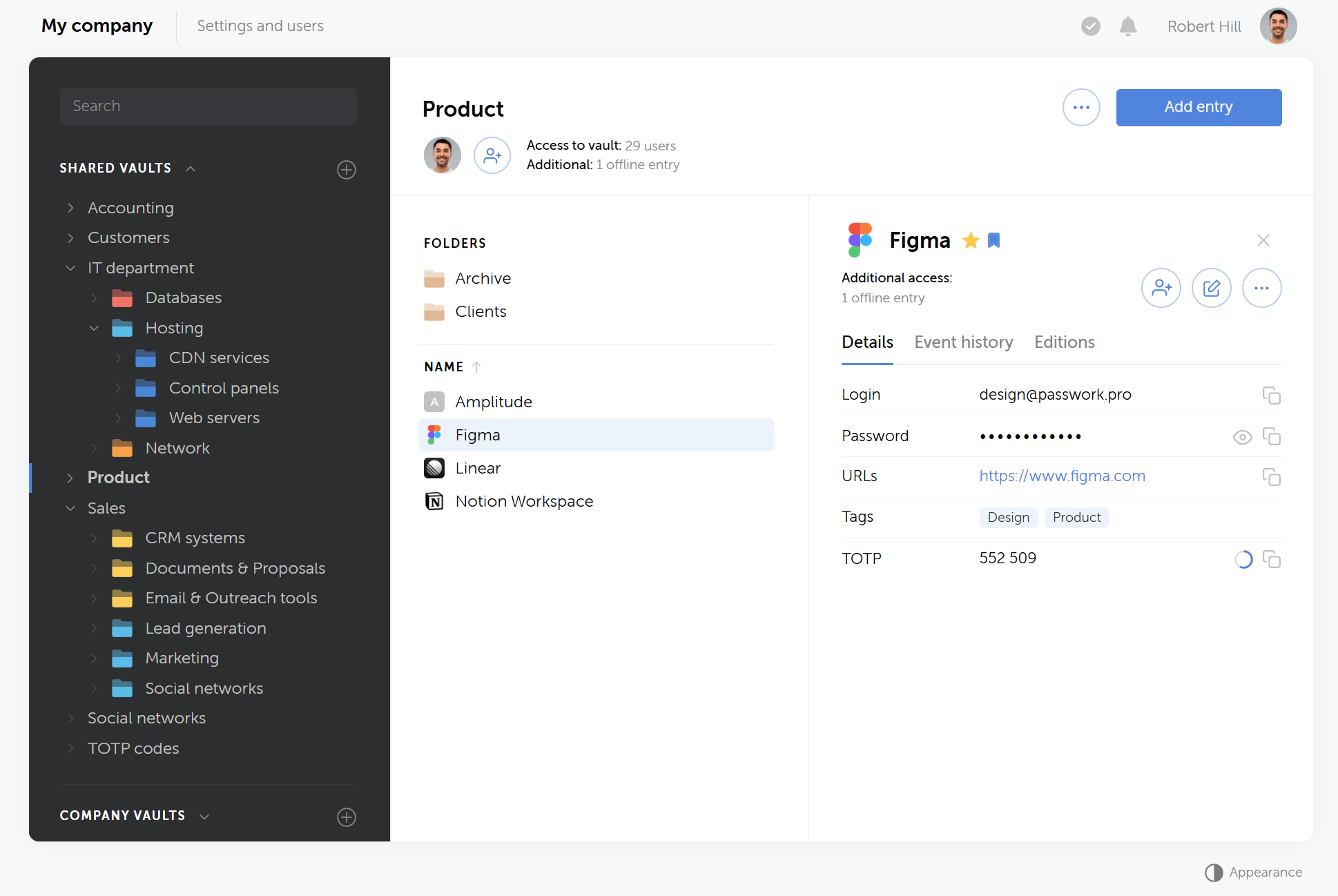
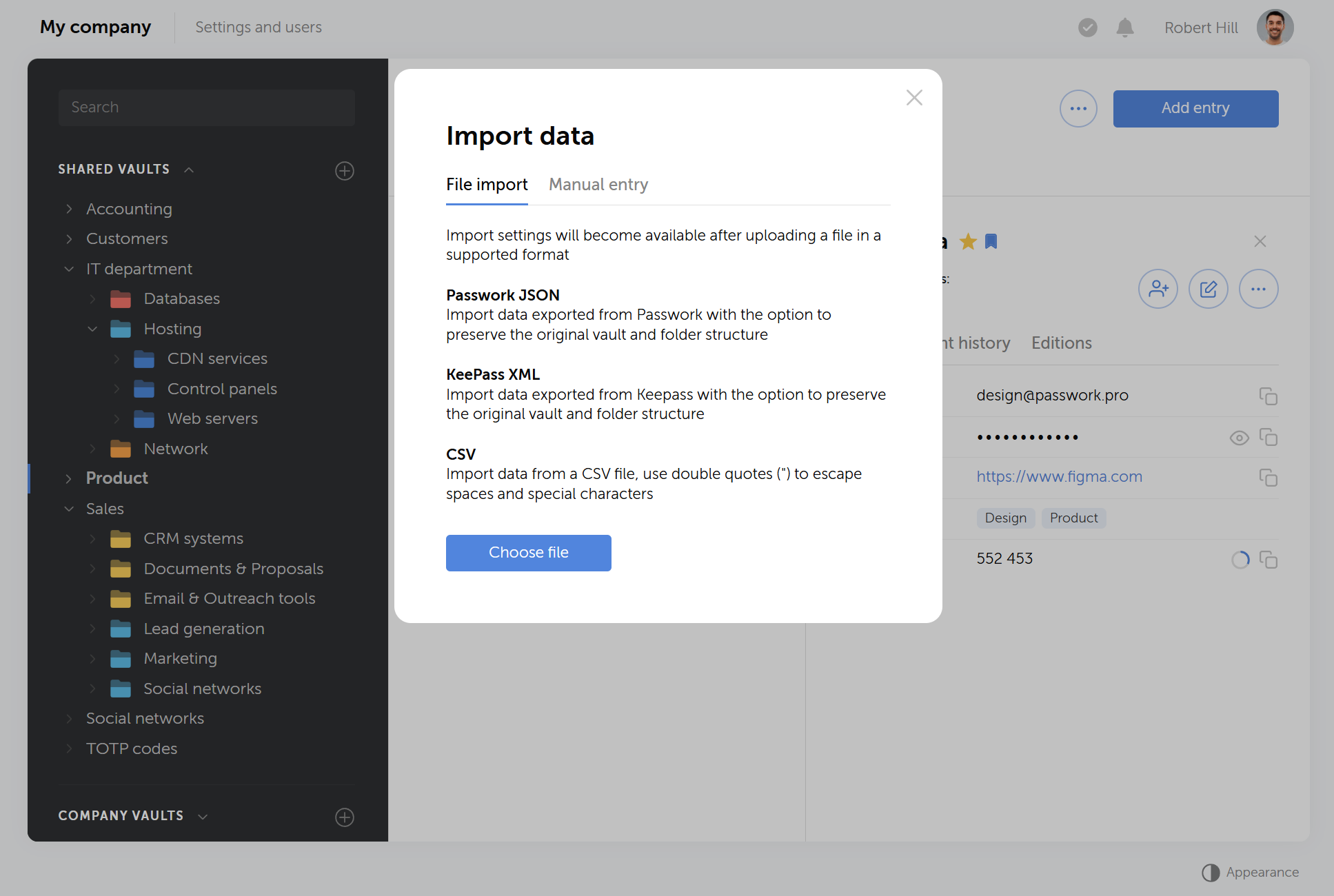
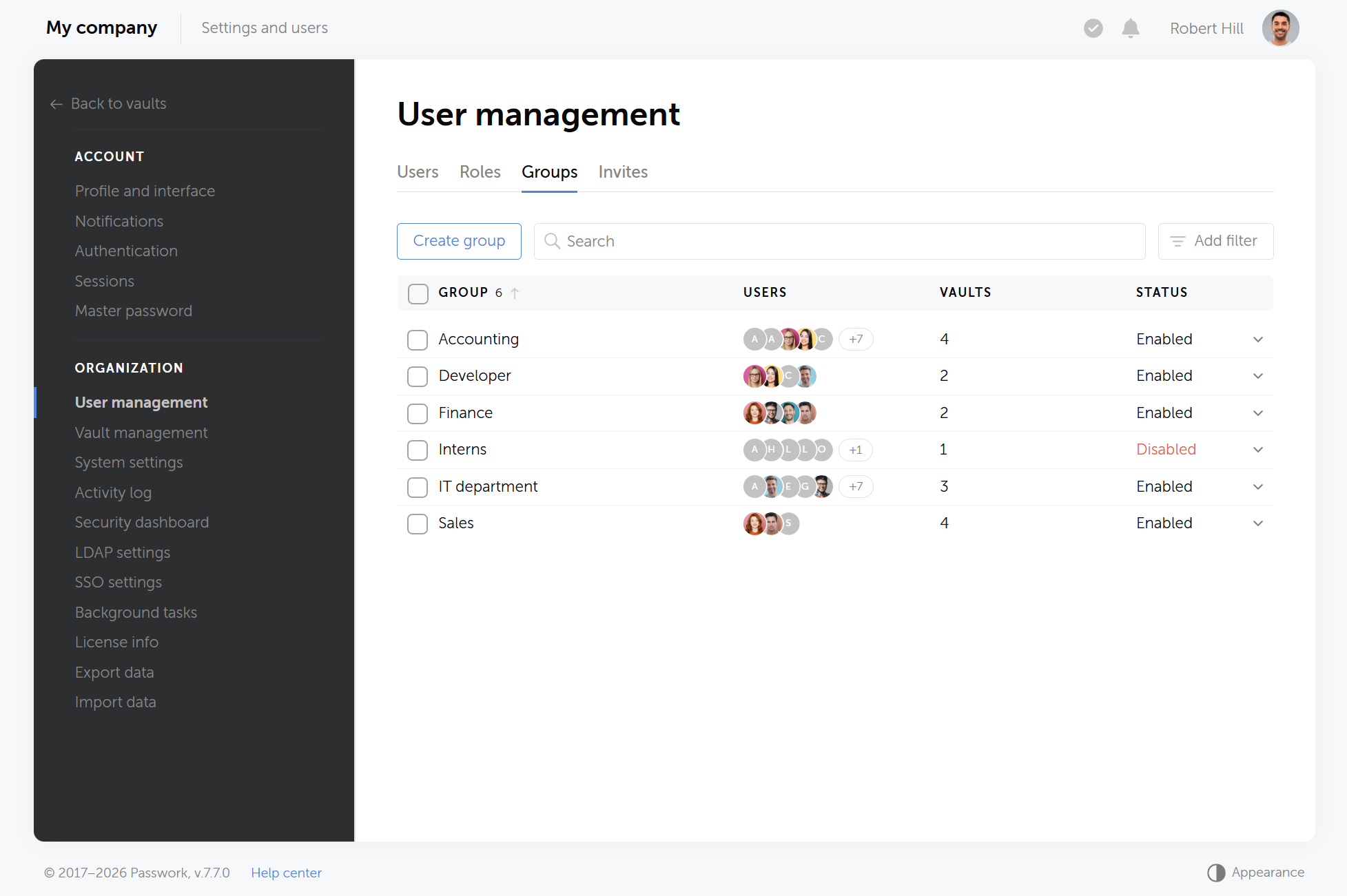

 Alex Muntyan
 Passwork Team
 Alex Muntyan