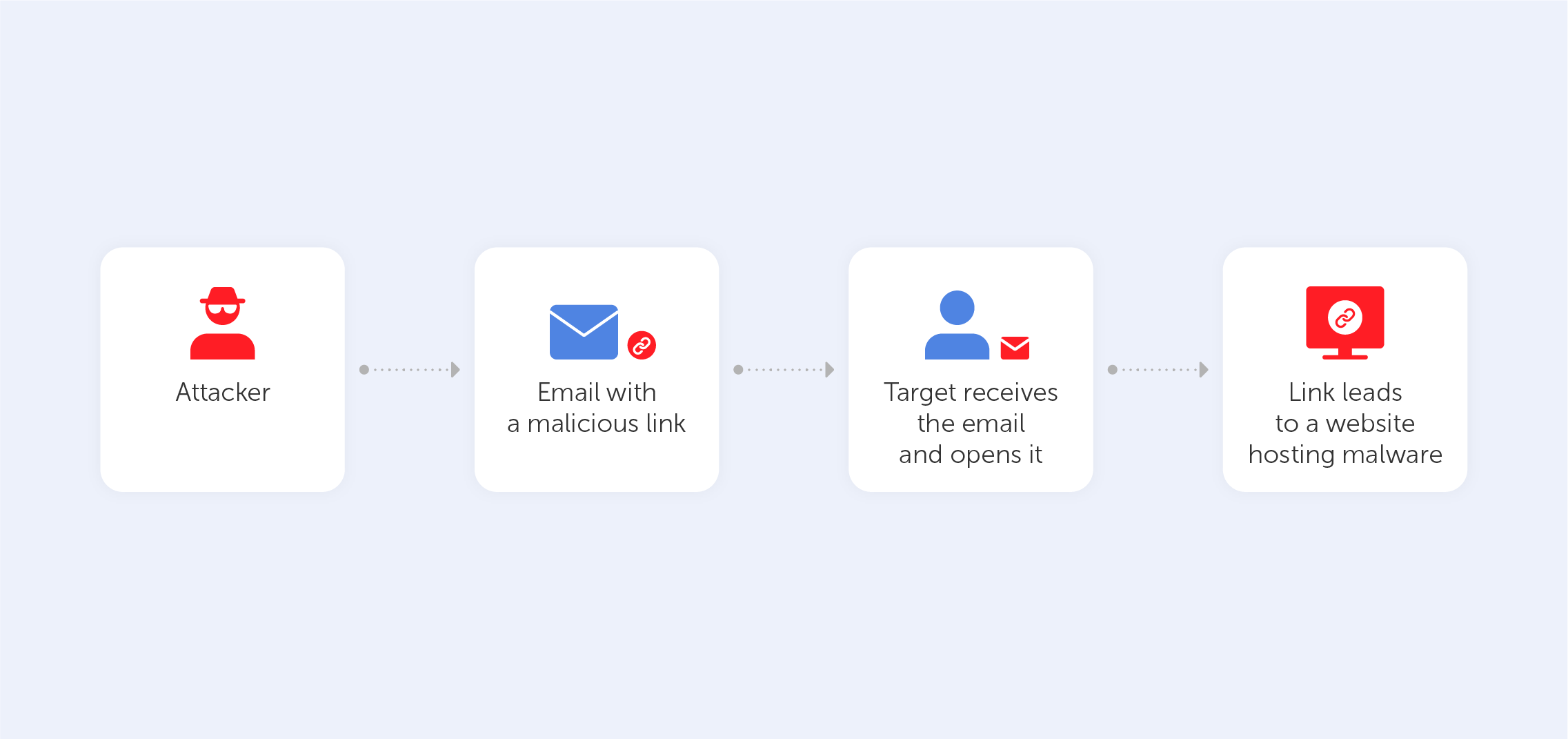
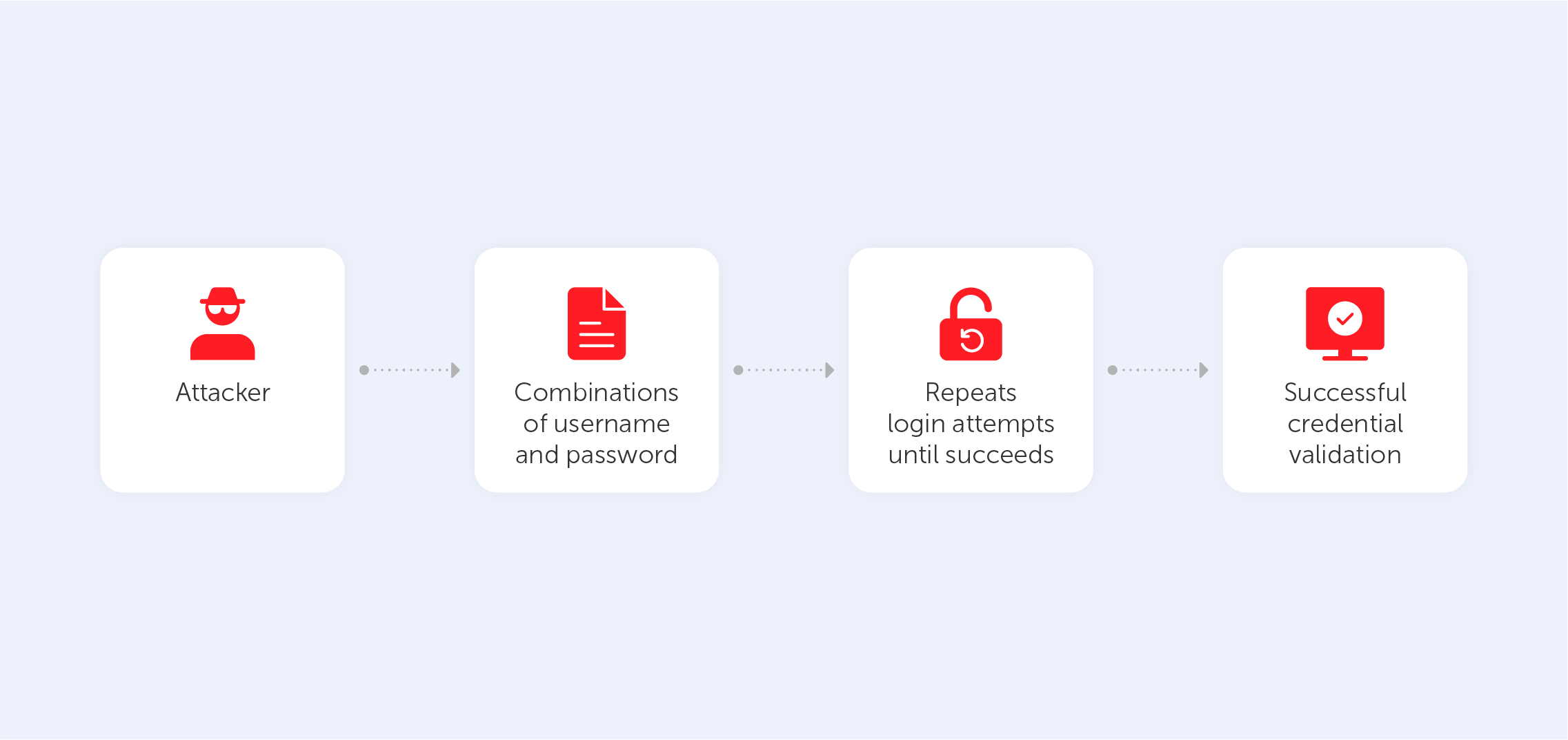
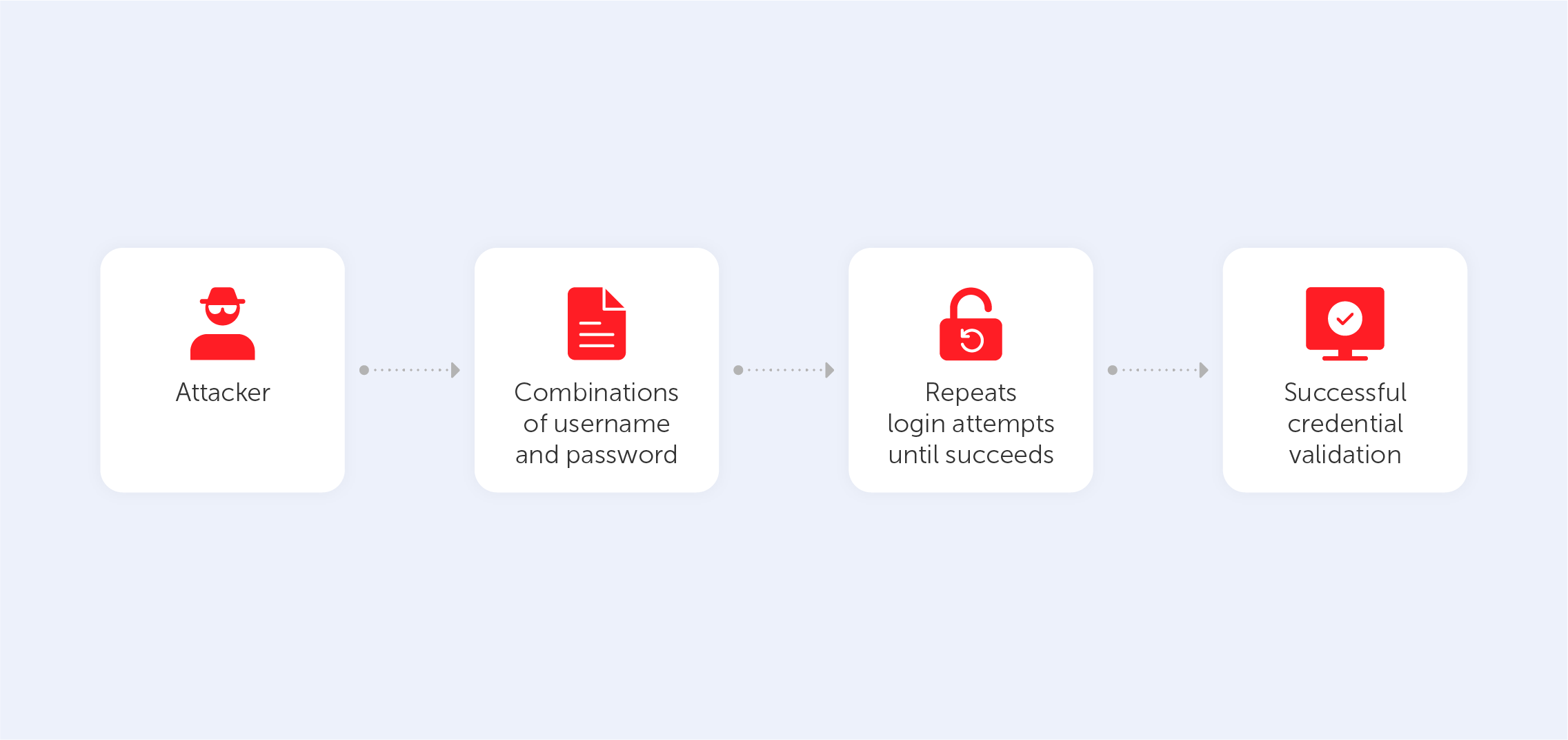
Outdated password practices, such as memorizing credentials or enforcing complex rules, consistently fail against today's threats. The Verizon Data Breach Investigations 2025 Report reveals that compromised credentials remain the leading cause of security incidents, with 22% of hacking-related breaches leveraging stolen or weak passwords.
Credential stuffing accounts for up to 19% of daily authentication attempts in enterprise environments. At $4.4 million per incident, the average breach cost reported by IBM in 2025 shows what's at stake.
The evolution of password management
Over the past decade, password management has fundamentally changed. We have moved away from frustrating, outdated practices like mandatory monthly password changes. Today, frameworks like NIST SP 800-63 guide organizations toward a more practical approach: longer passphrases and multi-factor authentication (MFA).
Security used to rely on complexity for its sake. Modern policies focus on resilience against real-world threats. A long, memorable passphrase is now far more effective than a short password packed with arbitrary special characters. Because long passphrases are harder to crack using brute-force methods, and their convenience helps users avoid unsafe practices like writing down their passwords.
Core password management
Password management relies on secure passwords, password managers, and MFA. Password policies adhere to NIST SP 800-63 standard by emphasizing the use of strong passwords and the adoption of multifactor authentication (MFA). These policies effectively address the most common entry points attackers use. This approach ensures that credential storage complies with audit and regulatory requirements.
Password managers make it easier to store complex passwords and help organizations maintain consistent credential policies. They also include built-in MFA support, providing an additional layer of verification. As a result, even if a password is compromised, the account remains protected.
Implications and benefits for enterprises:
Password managers are important for secure credential storage
Multi-factor authentication (MFA) provides an additional layer of protection
Password policies help maintain secure password hygiene across systems
Password strength is a defense against attacks like credential stuffing
Creating reliable passwords
Secure passwords defend against brute-force attacks, but length matters more than complexity. For accounts without MFA, NIST SP 800-63B sets the minimum password length to 8 characters, and with MFA to 15 characters.
Composition rules (uppercase, numbers, symbols) are now explicitly forbidden — they lead to predictable patterns like "P@ssw0rd567". Instead, encourage passphrases. Random word combinations like "correct-horse-battery-staple" are harder to crack than short complex strings.
Characteristics of secure passwords:
Length: at least 12 characters
Complexity: random letters, numbers, symbols
Memorability: use passphrases
The role of password managers
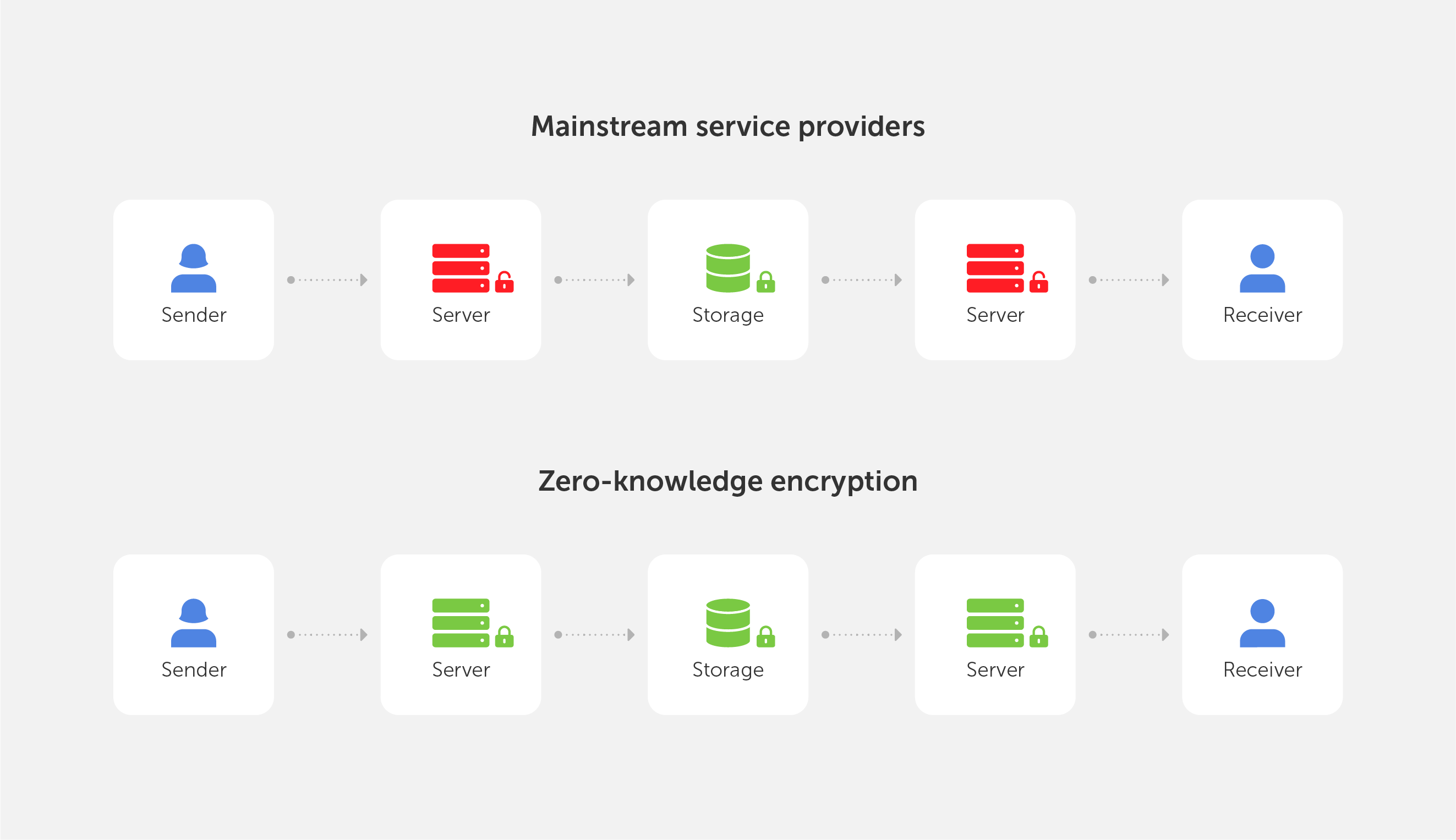
Behind the scenes, enterprise password managers handle encryption and authentication in addition to credential storage. With zero-knowledge architecture, the data stays encrypted on your device, and the provider never sees it. When selecting the right solution, it’s important to focus on key features that ensure security and adaptability: strong encryption, flexible deployment (cloud or on-premise), and built-in MFA support.
Password manager comparison
Feature
Passwork
LastPass
1Password
End-to-end encryption
Yes, zero-knowledge architecture
Yes
Yes
MFA support
Yes
Yes
Yes
Password generation
Automatic, strong
Automatic, strong
Automatic, strong
Deployment options
Cloud & on-premise
Cloud only
Cloud only
Role-based access
Yes
Yes
Yes
Some compliance and security policies call for keeping data behind a company's own firewall. For these organizations, on-premise deployment is a hard requirement. Passwork supports both cloud and on-premise, so you can choose what fits your infrastructure.
Multi-factor authentication: Security multiplier
MFA remains necessary for account protection — the DBIR treats it as a baseline. Yet the report also warns against complacency. Token theft, adversary-in-the-middle attacks, where an attacker intercepts communication between the user and the server, and SIM swapping are already identified as MFA bypass techniques in the 2025 dataset, and these threats are expected to become even more prevalent in the future.
Phishing-resistant methods like FIDO2 / WebAuthn offer stronger defense by binding credentials cryptographically to specific domains and devices.
Steps to implement MFA across common platforms:
Enable MFA for all user accounts
Choose your MFA method (SMS, app, or hardware token)
Integrate with existing identity management systems (AD / LDAP / SSO)
Set up recovery options for lost authentication factors
Educate users on MFA use and benefits
Avoiding password reuse and its dangers
Credential stuffing exploits password reuse at scale. Credentials leaking from one site often lead attackers to test them across others, where they succeed in 0.2–2% of attempts. With billions of stolen credentials available, attackers can compromise thousands of accounts.
Password managers solve this — they generate unique passwords for every account. If a breach occurs on one platform, it remains contained and cannot spread to other systems.
Key practices to prevent password reuse:
Use unique passwords for all accounts
Store them securely in a password manager
Regularly update password policies
When you evaluate password managers, deployment flexibility matters. For organizations with compliance requirements or existing infrastructure, it can be a deciding factor. Both cloud and on-premise options are available for testing in a demo environment that matches your actual setup.
Enterprise password management best practices
At the organizational level, password management has to account for team hierarchies, distributed infrastructure, and compliance rules. Centralized management, policy enforcement, and integration with existing systems reduce the risk of credential-related breaches. For privileged accounts, this extends to privileged access management (PAM) controls, limiting who can access critical systems and how.
Given the moderate to high implementation complexity (3-6 months), organizations should set realistic expectations. A successful enterprise-level strategy includes the use of password managers with multi-factor authentication, alongside solid password policies that follow current security standards.
Before you select an enterprise password management system, evaluate deployment options: cloud, on-premises, or both, against your organization's size, security needs, and compliance rules.
A centralized platform applies password policies consistently across all users and removes the risk of employees skipping rules or using unapproved workarounds. For secure credential management, pair your password manager with multi-factor authentication.
Password policies that balance security and usability
Without proactive monitoring, suspicious login patterns can go unnoticed for weeks or months. To detect credential stuffing, which the Verizon DBIR identifies as an increasingly prevalent attack type, security teams rely on behavioral analysis and rate limiting. For brute-force attacks, account lockout policies act as the primary countermeasure.
To block brute force attacks, security teams rely on account lockout and rate limiting. By establishing baseline login patterns and setting deviation alerts, organizations can spot anomalies early. Regular reviews of password policies against actual login data reveal where rules create friction without adding security. Quick responses to emerging risks keep systems protected.
Advanced strategies beyond passwords
Passwordless authentication replaces traditional passwords with more secure methods. Instead of typed credentials, WebAuthn uses biometrics or security tokens. Because credentials never leave the device, phishing and credential theft no longer apply.
According to NIST SP 800-63B, hardware-bound implementations, such as FIDO2 security keys, can meet AAL3, the highest authenticator assurance level. Synced passkeys satisfy AAL2 requirements.
Beyond eliminating passwords, these methods improve user experience and align with NIST's push for stronger authentication. Organizations should keep MFA in place during the transition. MFA continues to protect accounts while passwordless adoption scales across the organization.
The path to passwordless authentication
With WebAuthn, biometrics or security tokens replace passwords using public-key cryptography. When paired with hardware-bound keys, this method meets NIST highest assurance level (AAL3) for identity verification. All major browsers support WebAuthn today, though implementation complexity varies. A gradual approach works best: start with MFA for layered security, then introduce passwordless authentication step by step.
Recommended steps for transitioning to passwordless authentication:
Assess the current MFA implementation. Verify that MFA is configured to provide an extra layer of protection.
Integrate WebAuthn. Implement WebAuthn, use biometrics or security tokens.
Educate users. Prepare your team with proper training on the new authentication methods.
Update security policies. Revise security policies to reflect the technology integration.
Monitor and evaluate. Continuously track and evaluate the effectiveness of passwordless authentication.
Operational metrics for password management
Without clear metrics, password management stays invisible to leadership. Tracking specific indicators helps demonstrate their value across the organization. Start with these metrics: help desk ticket volume for password resets, MFA adoption rates, time to detect anomalous login attempts, and password reuse rates per department.
Beyond operational metrics, security standards like GDPR, HIPAA, and PCI DSS require organizations to verify compliance through audit trails — something centralized password management automatically provides. Regular reporting on these metrics turns security from a cost center into a documented, accountable program.
Building a culture of password security
Cybercrime increasingly targets human behavior. Technical controls alone cannot close this gap. Across the organization, strong password habits reduce risk more than any single tool.
Long-term adoption depends on combining sound password practices with security awareness. Employees need to understand why MFA matters and how to spot phishing attempts. When security becomes part of the daily workflow, adoption follows naturally.
Switch to Passwork without losing your current subscription. Transfer your remaining subscription period and enjoy 20% off your first renewal.
Frequently Asked Questions
What are the important password management best practices for 2026?
For 2026, password management practices include using unique passwords for every account, leveraging password managers for secure storage, and implementing multi-factor authentication (MFA) for added protection. Organizations should adopt a centralized password policy and maintain security awareness to protect against threats, such as credential stuffing.
How do password managers improve security compared to manual password management?
Password managers improve security by storing encrypted credentials, generating secure passwords, and preventing password reuse. Unlike manual management, password managers automate password updates and integrate with multi-factor authentication (MFA), boosting overall security and minimizing human error, which can lead to breaches.
Why is implementing multi-factor authentication important for password security?
Implementing multi-factor authentication (MFA) adds an important layer of security by requiring users to provide more than just a password. Even if passwords are compromised, MFA protects accounts by validating identity through additional verification methods such as security tokens or biometric authentication, reducing the risk of unauthorized access.
How should organizations balance security requirements with user experience in password management?
Organizations should implement user-friendly password policies that encourage reliable passwords while integrating multi-factor authentication to improve security without complicating the user experience. Password managers simplify password management, so users can follow protocols without sacrificing convenience. Balancing usability and security is needed for compliance and user adoption.
What are the risks of password reuse, and how can they be mitigated?
Password reuse increases the risk of credential stuffing attacks, where attackers use compromised credentials to gain unauthorized access to multiple accounts. Password managers mitigate this risk: they generate and store unique passwords for each account, prevent reuse across platforms, and limit the number of systems exposed if one credential leaks.
Password management best practices for enterprise security
Cybercrime increasingly targets human behavior. Technical controls alone cannot close this gap. Across the organization, strong password habits reduce risk more than any single tool.
Bring Your Own Device (BYOD) has transformed from a workplace trend into a business necessity. By 2026, over 82% of companies will have adopted formal BYOD policies, with more than 80% actively promoting this approach. This reflects a fundamental change in how organizations approach workplace flexibility and productivity.
The appeal is clear: employees work on devices they know, IT departments reduce hardware costs, and companies attract talent seeking flexibility. But this convenience introduces security challenges that can expose sensitive data, compromise networks, and create compliance headaches.
This guide walks you through the security landscape of BYOD — from understanding core risks to implementing frameworks that protect your organization without sacrificing employee autonomy.
Understanding BYOD and its security implications
BYOD allows employees to use personal smartphones, tablets, and laptops for work tasks. These devices access corporate email, cloud applications, internal networks, and sensitive data — all while living outside traditional IT control.
The current state of BYOD in modern workplaces
Organizations now face a reality where personal devices are integral to daily operations, not exceptions to policy.
Employees expect seamless transitions between home and office, using devices that fit their workflows. IT departments adapted by building security architectures that accommodate this flexibility rather than resist it.
Why organizations are adopting BYOD
Cost reduction drives many BYOD programs. Companies save on hardware procurement, maintenance, and replacement cycles. Employees bear the initial device cost, while organizations invest in security infrastructure and management tools.
Employee satisfaction improves when workers use familiar devices. Learning curves disappear, productivity increases, and job satisfaction rises. This matters in competitive talent markets where workplace flexibility influences hiring decisions.
Operational agility increases as employees access work resources from anywhere. Business continuity improves because workers aren't tied to corporate-owned equipment. During disruptions, operations continue with minimal interruption.
Main BYOD security challenges
Lack of standardization. Personal devices vary in operating systems, security patch levels, and configurations, leading to inconsistent security postures.
Visibility gaps. IT teams have difficulties monitoring device health, installed apps, and security settings, leaving blind spots in the security landscape.
Policy enforcement challenges. Balancing security requirements with employee privacy can lead to resistance or vulnerabilities.
Lifecycle management issues. Managing security when employees upgrade devices, switch platforms, or leave the organization requires careful planning and technical capabilities.
Key BYOD security risks and vulnerabilities
Data leakage and loss in BYOD environments
Corporate data lives alongside personal information on BYOD devices. Employees might unintentionally share confidential files through personal cloud storage, messaging apps, or email accounts. The boundary between work and personal use blurs, creating opportunities for data to escape corporate controls.
Lost or stolen devices represent immediate security incidents. Without proper safeguards, anyone accessing the device gains entry to corporate resources. The risk intensifies when devices lack basic protections for example screen locks or encryption.
Malware and phishing threats targeting personal devices
Personal devices often have weaker security than corporate equipment. Employees might disable security features for convenience, install apps from untrusted sources, or ignore software updates. These behaviors create entry points for malware.
Phishing attacks exploit the personal nature of BYOD. Attackers send convincing messages to personal email or messaging apps, knowing employees use the same device for work. Once compromised, the device provides access to corporate networks and data.
Out-of-date devices and unpatched vulnerabilities
Employees control update schedules on personal devices. Critical security patches might wait days or weeks while users delay updates for convenience. During this window, known vulnerabilities remain exploitable.
Older devices present additional challenges. Manufacturers eventually stop supporting devices with security updates, leaving them permanently vulnerable. When employees continue using these devices for work, they introduce unpatched risks into your environment.
Shadow IT and unsanctioned applications
Employees install applications that solve immediate problems without considering security implications. File-sharing services, collaboration tools, and productivity apps might bypass IT approval processes entirely.
These unsanctioned applications often lack proper security controls, compliance certifications, or integration with corporate security systems. Data flows through services your security team doesn't monitor or protect.
Mixing personal and business use
One of the most common vulnerabilities in BYOD environments is credential mismanagement. Employees frequently save corporate passwords in personal browser keychains or unencrypted notes for convenience. Meanwhile, a corporate password manager lives separately on their device, featuring its own encryption, access control, and biometric protection. With Passwork, employees access company vaults through a mobile app, keeping work credentials completely separate from personal data.
Building an effective BYOD security framework
Creating a comprehensive BYOD security policy
Your BYOD policy defines acceptable use, security requirements, and responsibilities. It should address device eligibility, required security measures, acceptable applications, and data handling procedures.
Scope and eligibility sections clarify which devices qualify for BYOD programs and which roles can participate. Not every position requires BYOD access, and not every device meets minimum security standards.
Security requirements must be specific and enforceable. Define mandatory features such as encryption, screen locks, biometric authentication, and automatic updates. Specify prohibited activities such as jailbreaking or rooting devices.
Data classification guides employees in handling different information types. Clearly distinguish between public, internal, confidential, and restricted data. Define which data types are accessible via BYOD and which require corporate-owned devices.
Incident response procedures outline steps employees must take when devices are lost, stolen, or compromised. Include reporting timelines, contact information, and expectations for cooperation during investigations.
Defining device and software requirements
Operating system requirements. Only devices with actively supported operating systems should be allowed in BYOD programs. Outdated systems must be excluded.
Mandatory security features. Devices must include encryption, secure boot, and hardware-backed credential storage. Ensure these features are enforced by policy.
Approved applications. Provide employees with a list of secure, approved apps and alternatives to unsanctioned tools to encourage compliance.
Technical solutions for BYOD security
Solution
Description
Mobile Device Management (MDM)
Enforces security policies, manages applications, and provides remote capabilities including device wiping
Mobile Application Management (MAM)
Focuses on protecting specific applications rather than entire devices, addressing privacy concerns
Unified Endpoint Management (UEM)
Extends protection across all device types with consistent policy enforcement
Securing Network Access and Ensuring Compliance
Personal devices should not have the same network access as corporate equipment. Implement network segmentation and strict access controls so that BYOD users can only access the necessary resources. Require a VPN for remote access in order to encrypt traffic and control entry points. Continuous network monitoring should detect unusual activity and trigger alerts.
These controls also help organizations meet regulatory requirements, such as HIPAA, GDPR, and others. A robust network strategy supports data residency rules and ensures proper logging and reporting for audits, including access records and incident tracking.
Best practices for BYOD security implementation
Security policies fail without employee buy-in. Focus training on practical compliance and real-world threats:
Onboarding first: Introduce BYOD policies, privacy boundaries, and incident reporting before employees enroll devices.
Continuous awareness: Share relevant threat intelligence and highlight recent incidents regularly to keep security top-of-mind.
Scenario-based learning: Train employees using industry-specific examples — like targeted phishing attempts or common social engineering tactics.
Monitoring and managing BYOD security risks
Proactive monitoring prevents minor issues from escalating into breaches:
Continuous tracking: Monitor device compliance, flag outdated software, and identify suspicious activities in real time.
Visibility dashboards: Track key metrics like enrollment rates, policy compliance, and OS versions across your environment.
Automated remediation: Configure systems to automatically restrict access or notify users when devices fall out of compliance.
Regular audits: Review access logs and test remote wipe capabilities to ensure technical controls adapt to evolving threats.
Balancing security with employee privacy
Successful BYOD programs protect corporate data while respecting personal privacy:
Containerization: Isolate corporate data within managed containers — keeping personal information entirely outside IT visibility.
Transparent policies: Explicitly document what data IT can access, clarifying that monitoring focuses strictly on corporate resources.
Informed consent: Require employees to acknowledge monitoring capabilities and remote wipe scenarios before device enrollment.
Zero-trust architecture for BYOD environments
Zero-trust principles assume no device or user is inherently trustworthy. Every access request requires verification regardless of network location or previous authentication.
Multi-factor authentication (MFA) is no longer optional. It is the baseline. Biometrics, hardware tokens, and authenticator apps should work together as layered protection.
In BYOD environments, employees need secure access to corporate credentials on their personal devices. Passwork mobile apps for iOS and Android provide biometric unlock with Face ID and Touch ID, allowing users to authenticate once and then securely access shared company vaults without disruption. This reflects a zero-trust approach in practice: identity is verified at the device level while the user experience remains seamless.
Continuous authentication monitors user behavior and device posture throughout sessions. Anomalies trigger re-authentication or access restrictions. If a device becomes less secure during a session, access is automatically adjusted.
Least privilege access limits what BYOD users can access based on role and necessity. Employees receive access to resources required for their jobs, nothing more. This minimizes potential damage from compromised devices.
Mobile threat defense and endpoint security
Mobile Threat Defense (MTD) solutions protect BYOD devices from threats specific to mobile environments. These platforms detect and respond to threats that traditional security tools miss.
Threat detection identifies malicious apps, network attacks, and device compromises. MTD solutions analyze application behavior, network connections, and device configurations to spot indicators of compromise.
Phishing protection extends to mobile browsers and messaging applications. MTD platforms detect and block access to known phishing sites, warn users about suspicious links, and prevent credential theft.
Network security evaluates Wi-Fi and cellular connections for risks. MTD solutions identify man-in-the-middle attacks, rogue access points, and insecure network configurations that could expose data.
Data protection strategies for BYOD
Think of containerization as a secure vault inside your employee's phone. Work apps and data stay locked in their own space — completely separate from personal photos, messages, and apps.
Application wrapping adds security controls to existing applications without modifying source code. Wrapped applications enforce encryption, prevent data leakage, and integrate with authentication systems.
Data Loss Prevention (DLP) within protected spaces prevents unauthorized data transfers. Users can't copy corporate data to personal applications, upload files to unsanctioned cloud services, or share information through unmanaged channels.
Remote wiping and data recovery
Feature
Description
Remote wipe capabilities
Protect data when devices are lost, stolen, or when employees leave the organization. Selective wiping removes only corporate data, preserving personal information.
Offline functionality
Remote wipe should work even when devices are offline, executing commands once devices reconnect to networks.
Backup strategies
Ensure data recovery after device loss or failure. Corporate data should sync to secure cloud storage, enabling business continuity regardless of device availability.
The future of BYOD security: Emerging trends and technologies
AI-powered threat detection will enhance BYOD security by identifying subtle behavioral anomalies and zero-day threats. Machine learning models will adapt to evolving attack patterns faster than signature-based approaches.
Passwordless authentication using biometrics and hardware tokens will replace traditional passwords. This shift reduces phishing risks and improves user experience on personal devices.
Edge computing will enable real-time security decisions without routing all traffic through centralized systems. Devices will make local security assessments, improving performance while maintaining protection.
Integration with SASE (Secure Access Service Edge) architectures will provide comprehensive security for BYOD users regardless of location. Cloud-delivered security services will protect devices accessing resources from anywhere.
Conclusion: Building a balanced BYOD security strategy
Effective BYOD security requires balancing protection with usability. Overly restrictive approaches drive non-compliance, and insufficient security exposes your organization to unacceptable risks.
Start with clear policies that employees understand and accept. Implement technical controls that protect data without unnecessarily invading privacy. Provide training that empowers employees to recognize and respond to threats.
Monitor your BYOD environment continuously, adapting to new threats and changing business needs. Regular assessments ensure your security measures remain effective as technology and attack methods evolve.
BYOD done right delivers flexibility, cost savings, and employee satisfaction without compromising security. The key is treating BYOD security as an ongoing program, not a one-time implementation.
Frequently Asked Questions
What is BYOD security?
BYOD security encompasses policies, technologies, and practices that protect corporate data and resources accessed through employee-owned devices. It addresses risks from device diversity, personal use mixing with business activities, and reduced IT control.
What are the main security risks of BYOD?
Primary risks include data leakage from lost or stolen devices, malware infections from personal use, unpatched vulnerabilities on outdated devices, shadow IT introducing unsanctioned applications, and compliance violations from inadequate controls.
How do you implement a BYOD security policy?
Start with risk assessment, identifying critical data and acceptable access scenarios. Develop comprehensive policies covering device requirements, security measures, and acceptable use. Deploy technical controls including MDM, MFA, and containerization. Train employees on security requirements and privacy boundaries.
How should employees manage corporate passwords on personal devices?
Organizations must avoid letting employees store work credentials in personal browser keychains or unencrypted apps. The most effective approach is deploying a corporate password manager with dedicated mobile applications. Passwork allows employees to access shared company vaults securely on their smartphones. Features such as biometric unlock and secure autofill ensure credentials remain protected and are never exposed to the device's unmanaged ecosystem.
What is the difference between MDM and MAM?
MDM (Mobile Device Management) controls entire devices, enforcing security policies across all device functions. MAM (Mobile Application Management) focuses on protecting specific applications and their data, leaving personal device areas unmanaged. MAM addresses privacy concerns by limiting IT control to work-related apps.
Can BYOD be secure enough for regulated industries?
Yes, with proper controls. Regulated industries successfully implement BYOD using containerization, strong authentication, encryption, network segmentation, and comprehensive monitoring. The key is matching security controls to regulatory requirements and data sensitivity levels.
How do you handle BYOD devices when employees leave?
Implement remote wipe capabilities that remove corporate data while preserving personal information. Revoke access credentials immediately upon termination. Maintain backups of corporate data independent of devices. Document offboarding procedures and verify completion for each departure.
What should a BYOD policy include?
Essential elements include scope and eligibility criteria, device and software requirements, security measures and controls, acceptable use guidelines, data classification and handling procedures, privacy boundaries and monitoring disclosures, incident response procedures, and offboarding processes.
How does zero-trust architecture apply to BYOD?
The zero-trust approach considers all devices to be potentially compromised and requires continuous verification. BYOD implementations use MFA for every access request, monitor device posture continuously, enforce least privilege access, and segment networks to limit blast radius from compromised devices.
Ready to take corporate security to the next level? Explore how Passwork helps you protect your corporate data with secure password management and seamless access control.
Most data breaches start the same way: with weak or poorly managed credentials. In basic web application attacks alone, the 2025 Verizon DBIR traced 88% of incidents back to stolen passwords. For any organization handling sensitive data, computer security starts with credential control. And password security has shifted beyond a recommendation and become a baseline requirement.
A password manager addresses this risk. For every account, it generates, stores, and auto-fills unique credentials — all protected by one master password. Instead of spreadsheets, sticky notes, and repeated password resets, teams get a controlled and auditable process across the entire workflow.
Main points:
One master password replaces hundreds of weak, reused credentials
AES-256 encryption and zero-knowledge architecture keep your vault unreadable, even to the provider
Setup takes planning, but the payoff is fewer support tickets, stronger compliance, and reduced breach risk
Understanding password managers
A password manager works as an encrypted vault — a digital safe that holds login credentials, secure notes, and other sensitive data. When you sign in somewhere, the manager retrieves the right password and fills the form automatically. Behind that vault stand two technologies: encryption and zero-knowledge architecture.
How password managers protect your digital identity
Before data leaves your device, AES-256 encryption (Advanced Encryption Standard with a 256-bit key) scrambles it into unreadable ciphertext. The same algorithm is used by governments and financial institutions.
Zero-knowledge architecture adds a second layer. Under this model, the provider cannot decrypt your data. Because all cryptographic operations happen locally, even full server access would reveal only encrypted blobs. We publish our cryptography documentation openly so teams can verify exactly how this works.
What password managers can and cannot do
A password manager is a reliable layer of defense, though it does not cover every threat on its own. Knowing its limitations helps you plan additional safeguards.
Can do
Cannot do
Generate unique, complex passwords for every account
Protect you if malware captures keystrokes on your device
Auto-fill credentials on recognized websites
Prevent phishing if you manually enter credentials on a fake site
Encrypt stored data with AES-256
Replace multi-factor authentication (MFA)
Alert you to reused or weak passwords
Stop social engineering attacks targeting your employees
Share credentials securely within a team
Guarantee safety if your master password is compromised
Multi-factor authentication (MFA) adds a second verification step, such as a time-based one-time password (TOTP), and addresses gaps that a password manager alone cannot cover. Together, they form a much stronger defense.
Creating your master password
Your master password is the single credential that unlocks the entire vault — a weak one undermines every other security measure.
Released in August 2025, NIST SP 800-63B-4 sets a minimum length of 15 characters for passwords used as a single-factor authenticator. The same revision states that verifiers shall not impose password composition rules (e.g., requiring uppercase letters, numbers, or symbols) and instead must screen passwords against lists of commonly used or compromised values. A password like "P@ssw0rd123" would fail such screening.
Instead of random character requirements, the passphrase method works better: pick four or five unrelated words and combine them. A password generator can produce random word combinations, but many users prefer manual selection. "correct-horse-battery-staple" is a classic example — high entropy.
Step-by-step master password creation:
Choose 4–5 random, unrelated words (avoid song lyrics or famous quotes)
Add a separator between words (hyphens, dots, or spaces)
Optionally insert one number or symbol at a random position — not at the end
Test: can you type it from memory three times in a row?
Write it down once, store that paper in a physically secure location, then memorize it within a week
Master password best practices
Do:
Memorize it, never store it digitally in plain text
Keep one physical backup in a secure place (a sealed envelope in a safe, for example)
Practice typing it regularly during the first week
Don't:
Reuse your master password for any other account
Share it with anyone, including IT staff
Change it on a fixed schedule without reason: according to NIST SP 800-63B-4, passwords should change only when evidence of compromise exists
Recovery options are limited by design. With a zero-knowledge architecture, the provider cannot reset your master password because they never had access to it.
Choosing the right password manager for your needs
Before committing to any password management software, define what your organization actually requires. Deployment model, encryption standards, and integration with existing infrastructure should all factor into the decision.
Criteria
Questions to ask
Deployment
On-premise, cloud, or both? Who controls the server?
Encryption
AES-256? Zero-knowledge? Where does decryption happen?
Integrations
AD/LDAP support? SSO protocols like SAML or OAuth?
Team features
Role-based access? Shared vaults? Audit logs?
Compliance
GDPR audit trails? Exportable reports?
Scalability
Per-user licensing? Can it grow with the team?
When deployment flexibility and security architecture matter, both on-premise and cloud options should be available. Passwork supports both models, so you can choose where your data lives. The platform features a user-friendly interface that teams can quickly adopt. It combines password management with DevOps secrets management, API keys, tokens, and certificates in one system.
If you're evaluating multiple solutions, see how we perform in a real deployment scenario. Get a demo environment and test alongside other enterprise password managers. No credit card required.
Browser-based vs. dedicated password managers
Browser-built password managers (like the ones in Chrome or Edge) are convenient, but they lack enterprise features. Within a single browser profile, credentials remain isolated — sharing, role-based access, and audit logging are either absent or limited.
With a dedicated password manager, encryption happens independently of the browser, alongside granular access controls and multi-platform sync. Auto-fill and credential capture still run through a browser extension, but the vault sits in a more controlled environment.
Getting started with your password manager
With the master password ready and the solution selected, setup begins. The process follows a predictable path.
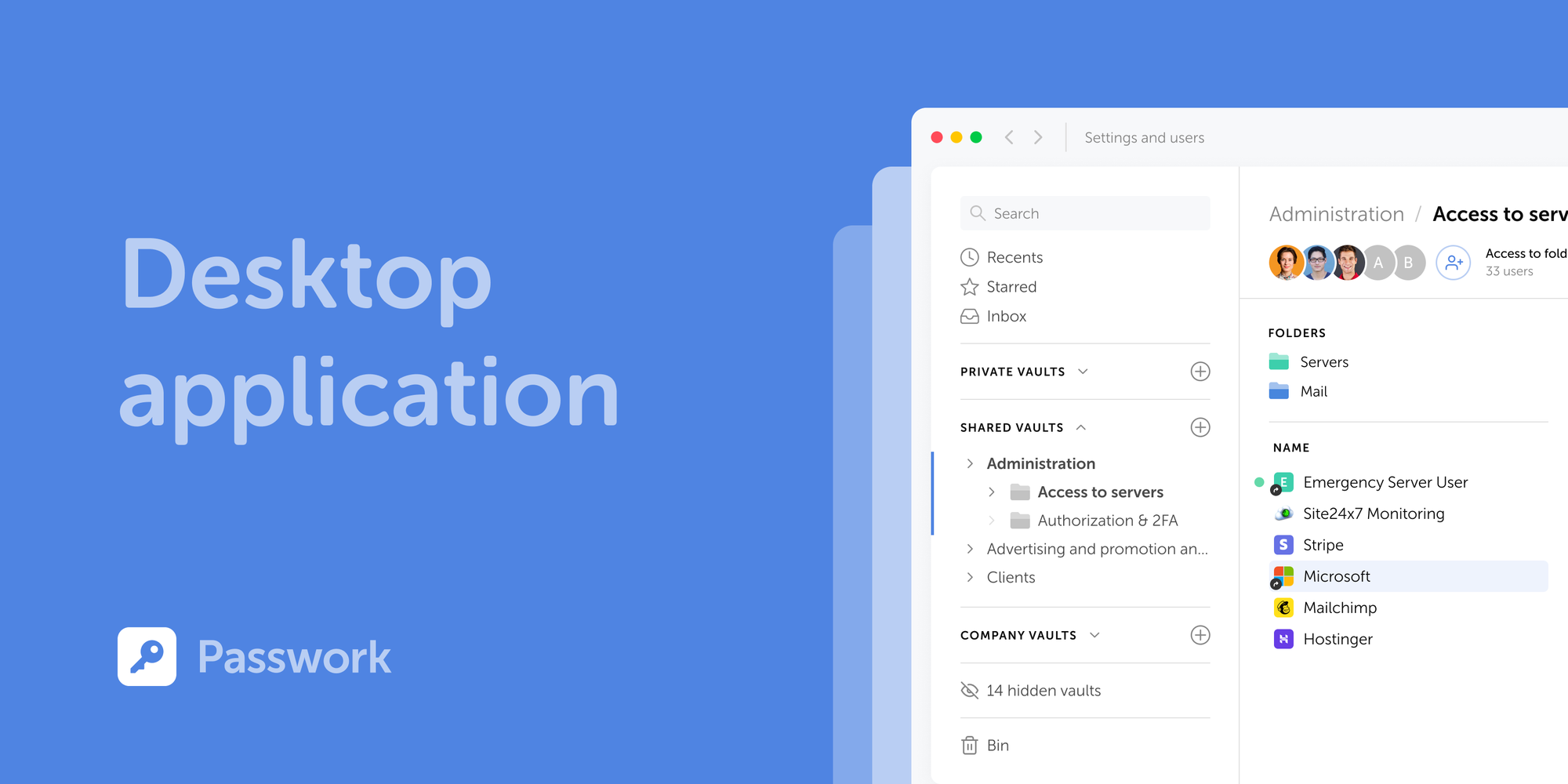
Install the core application: desktop client, web interface, or self-hosted instance
Create your account with the master password you prepared
Enable MFA immediately before adding any credentials to the vault
Install browser extensions for Chrome, Firefox, Edge, or Safari
Install mobile apps for iOS and Android if remote access is needed
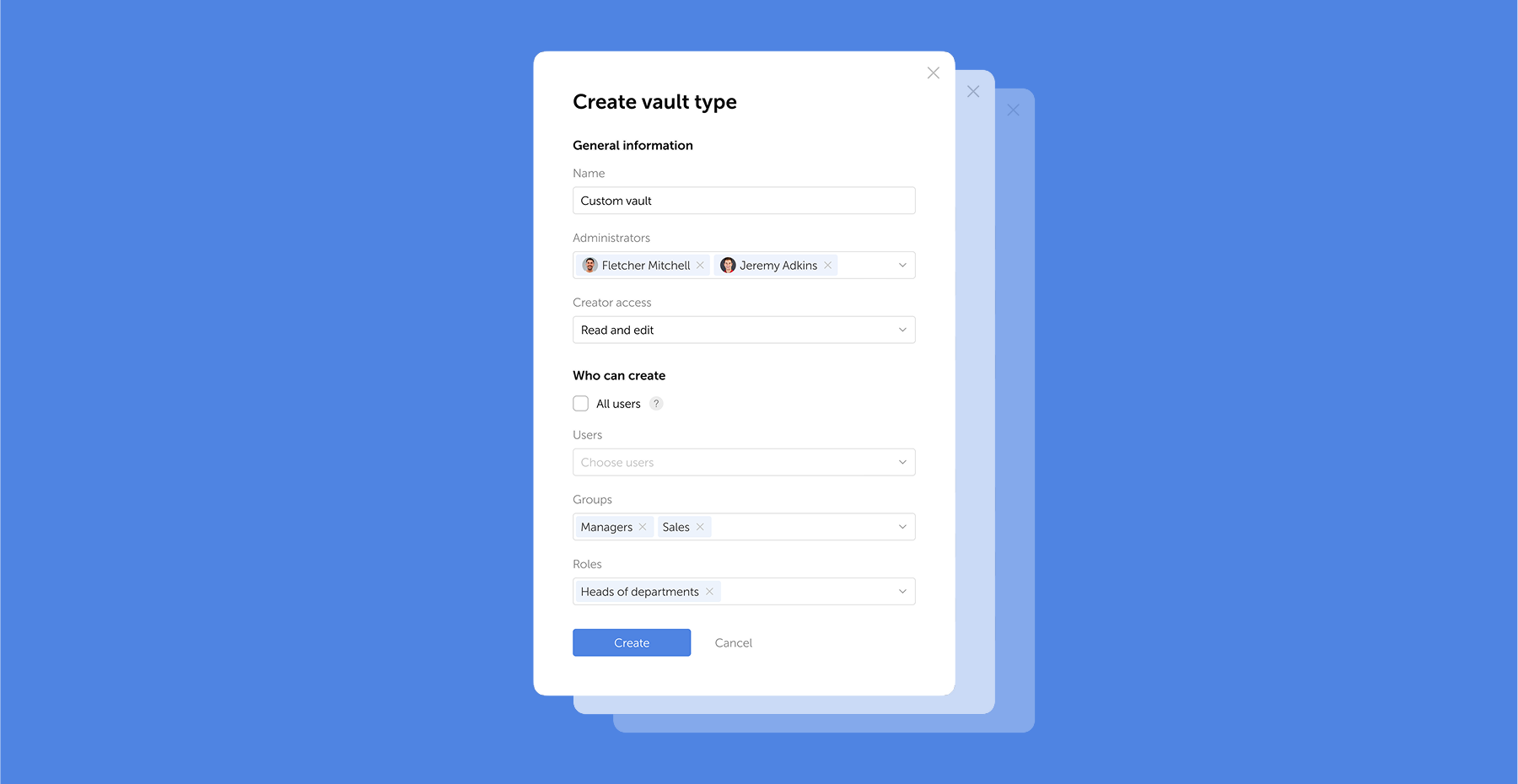
Configure vault structure: create shared and personal vaults by department, project, or access level
Setting up browser extensions and mobile apps
After installing the extension, adjust a few settings:
Enable auto-lock after inactivity — five minutes is a reasonable default
Turn on PIN or biometric lock for the mobile app
Confirm the extension connects to the correct server URL (required for on-premise deployments)
Disable auto-fill on public or shared devices
A password saved on your laptop appears on your phone within seconds through cross-platform sync. All data travels encrypted, so even an intercepted sync payload is useless without the master password.
Setting up two-factor authentication for your password manager
MFA adds a second lock to your vault through an additional security verification step. Even if someone learns your master password, access still requires that second factor.
Authenticator apps (Google Authenticator, Authy) generate six-digit TOTP codes that refresh every 30 seconds. During setup, scan the QR code, verify the first code, and save the backup recovery codes in a physically secure location. Without those codes, losing your phone could mean losing vault access.
Importing and organizing your existing passwords
Migration from browsers, spreadsheets, or another password manager into your password storage vault usually starts with a CSV (Comma-Separated Values) export. Most managers accept this format and map fields (URL, username, password) automatically.
Before importing, audit what you have. Old accounts, duplicate entries, and credentials reused across services all need attention. The import stage is the ideal time to replace weak passwords with generated ones.
Our admin tools let you configure vault structures that mirror your team's organization. With role-based access, the finance team sees only finance credentials, while IT administrators maintain oversight of everything. This combination with a cost-efficient approach gives you enterprise-grade control without paying for features you do not need.
For teams implementing password management for the first time, setting up the right structure early prevents future access issues. Book a consultation to define your access model, deployment approach, and rollout plan.
Prioritizing your most critical accounts
Not all accounts carry the same risk. Start migration with the credentials that would cause the most damage if compromised:
Primary email accounts (often the recovery method for everything else)
Financial services and payment platforms
Cloud infrastructure and admin panels
Business communication tools (Slack, Teams, email servers)
Social media and public-facing accounts
According to IBM's 2025 Cost of a Data Breach Report, the global average breach cost reached $4.44 million, and the average time to identify and contain an incident was 241 days. Early migration of high-value accounts reduces that exposure window.
Using password health and data breach tools
Once credentials are in the vault, run a password vault health report — a routine computer security check. Built-in data breach monitoring scans your entries against known breach databases, while compromised password detection flags reused or weak credentials. Address critical findings first, especially any accounts where the same password protects multiple services.
Generating and managing strong passwords
For every new account or password replacement, use the built-in password generator. A strong configuration for high-security accounts: 20+ characters, mixed case, numbers, and symbols. Where services impose character limits, adjust — but never go below 15 characters.
A generated password like "g7#Kp!2xVmNqR9bW" has no predictable structure, which makes brute-force attacks impractical. The password manager remembers it, so complexity costs nothing in usability.
Using autofill features securely
Auto-fill speeds up form filling, but it requires awareness. Before letting the extension complete a login, verify these indicators:
The URL in the address bar matches the expected domain exactly
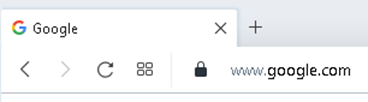
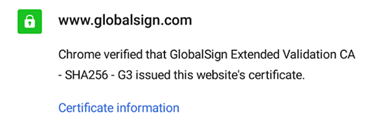
The connection uses HTTPS (look for the padlock icon)
The password manager recognizes the site; if it doesn't offer auto-fill, the domain may be spoofed
No unexpected redirects occurred before the login page loaded
A phishing page at g00gle.com looks convincing, yet the password manager matches exact domains and will not auto-fill on a fake site. On personal and work devices, keep the extension locked when not in active use.
Sharing passwords securely with others
For joint accounts, admin panels, and third-party services, teams need to share credentials. Sending passwords over email, Slack, or text messages is the wrong approach. Through built-in sharing features, encryption stays intact — credentials remain protected in transit.
We designed our role-based access controls to manage department-specific credentials and temporary contractor access. With on-premise deployment, shared secrets never transit through external servers. Learn more about our approach to business password management.
Managing family and team access
Shared password vaults work like shared folders: each vault has its own access permissions. An IT administrator might have full access, while a marketing team member sees only the social media credentials vault. Under GDPR, organizations must both protect personal data from unauthorized access and prove that protection is in place. Granular access controls and audit logs address both requirements at once.
Advanced features worth using
Beyond storing passwords, most enterprise password managers include features that teams often overlook. Secure notes let you store Wi-Fi credentials, server details, software license keys, or recovery codes — all protected by AES-256 encryption.
Through SSO (Single Sign-On) integration, the password manager connects with your identity provider, reducing friction for users who already authenticate through AD or LDAP. Audit logs track every action: who accessed which credential, when, and from which device — this simplifies GDPR and PCI-DSS (Payment Card Industry Data Security Standard) reporting.
Secure notes and document storage
Secure Shell keys (SSH), API tokens, recovery phrases, or internal procedures — all of these belong in secure notes rather than scattered across email threads or shared drives. Encryption protects them identically to passwords, and access controls determine who sees what.
Device syncing and access management
When a team member updates a password on their laptop, every authorized device reflects that change within seconds. Encrypted in transit, the data travels to the server (or your on-premise instance) and arrives at other devices still protected. Decryption happens only locally.
Proper device management requires MFA verification before any new device gains vault access. Without this step, an attacker who clones a session token could silently reach stored credentials.
Troubleshooting common password manager issues
Issue
Solution
Browser extension does not auto-fill
Clear extension cache, check browser compatibility and updates, verify the URL matches the saved entry.
Sync not working across devices
Confirm internet connectivity, check server status (for on-premise: verify the instance is running), log out and back in.
Master password not accepted
Check Caps Lock, verify keyboard language, try typing the password in a visible text field first.
MFA code rejected
Confirm the device clock is synced (TOTP codes depend on accurate time), use a backup recovery code if needed.
Maintaining your password security long-term
Security is not a one-time setup. Quarterly reviews keep your vault in good shape:
Run the vault's security audit to identify weak, reused, or old passwords
Replace any flagged credentials using the built-in password generator
Review shared vault access — remove former employees or contractors
Verify MFA is still active and backup codes are accessible
Check for any accounts in known breach databases and rotate those passwords immediately
What to do if your password manager is compromised
If you suspect your master password has been exposed, immediate damage control is critical for your computer security:
Change the master password immediately from a trusted device
Enable or re-verify MFA on the vault account
Rotate passwords for your highest-priority accounts (email, financial, infrastructure)
Review the vault's audit log for unauthorized access
Notify your security team and begin an incident response according to your organization's protocol
Conclusion: your next steps to password security
A password manager replaces guesswork with structure, a direct upgrade to your organization's digital protection. Instead of hoping employees choose strong passwords, you give them a tool that does it automatically and keeps every credential encrypted, auditable, and under control.
The first step is the simplest: choose a solution, create a strong master password, and start migrating your most critical accounts today.
Frequently Asked Questions
What is a password manager and how to use it?
Inside one encrypted vault, a password manager stores all your credentials – protected by a single master password. For new accounts, it generates strong passwords automatically and auto-fills login forms. We built our platform with AES-256 encryption and zero-knowledge architecture – once client-side encryption is enabled, your data stays unreadable, even to us.
How to use a password manager for the first time?
Create a strong master password (at least 15 characters, following NIST SP 800-63B-4 guidance). Enable MFA, install browser extensions, then import existing passwords from your browser or a CSV file. The process is well-documented and predictable with proper planning.
How do I create a master password?
Use the passphrase method: combine four or five random, unrelated words with separators (e.g., timber-clock-river-frost). Avoid personal details, common phrases, or song lyrics. The goal is high entropy – unpredictable to attackers, memorable for you.
What should I do if I forget my master password?
Under zero-knowledge architecture, the provider cannot recover it. Store a physical backup in a secure location (a sealed envelope in a safe, for example). Some platforms offer emergency access features or recovery keys – configure these during initial setup.
Are password managers safe?
With AES-256 encryption and zero-knowledge architecture, a properly configured password manager is safe by design: decryption happens only on the user's device, so even full server access reveals nothing. The 2025 Verizon DBIR found credential abuse in 22% of breaches – most involving weak or reused passwords. A password manager directly addresses that risk.
Upgrade from your current solution.Passwork provides free migration assistance, enterprise-grade implementation support. Get 20% off your first renewal!
Password security stands as your first line of defense against cyber threats. A comprehensive approach combines strong password creation, encrypted storage through password managers, and multi-factor authentication to counter increasingly sophisticated attacks targeting your digital identity.
The true cost of weak passwords
Data breaches cost organizations an average of $4.35 million per incident, according to IBM's Cost of Data Breach Report. According to the Verizon DBIR 2025 Report, compromised credentials are the leading cause of security incidents: 22% of hacking-related breaches leverage stolen or weak passwords.
Beyond financial losses, organizations face regulatory penalties, operational disruption, and reputational damage. Identity theft affects millions annually, with attackers exploiting weak passwords to access banking systems, healthcare records, and corporate networks. The cascading effects extend far beyond the initial breach — customer trust erodes, legal liabilities mount, and recovery efforts consume months of resources.
Companies struggle daily with password-related security incidents, where basic credential weaknesses lead to significant business disruption. Passwork's Zero-knowledge encryption architecture and transparent cryptography documentation help organizations understand exactly how their passwords are protected, eliminating the guesswork that often leads to security compromises.
Common password vulnerabilities and attack methods
Credential stuffing exploits password reuse across multiple accounts. Attackers obtain credentials from one breach and systematically test them against other services, succeeding when users recycle passwords. Dictionary attacks rapidly test common passwords and predictable patterns against target accounts.
Phishing remains devastatingly effective. Hackers craft convincing emails that trick users into revealing credentials directly. Brute force attacks test character combinations, with weak passwords falling within minutes. Password cracking tools leverage GPU processing to test billions of combinations per second.
The most exploited vulnerabilities stem from human behavior: using "password123" or "qwerty," incorporating easily discoverable personal information such as birthdays, and reusing the same password for years. Have I Been Pwned documents over 12 billion compromised accounts, demonstrating the scale of credential exposure. Password checkers reveal that most user-created passwords would crack in under an hour using standard tools.
Creating secure passwords and management strategies
Password strength fundamentally depends on length rather than complexity. NIST guidelines recommend a minimum 12-character password, with each additional character exponentially increasing crack time. A 16-character passphrase like "correct-horse-battery-staple" provides superior security compared to "P@ssw0rd!" while remaining more memorable.
Combining uppercase, lowercase, numbers, and symbols creates complexity, but a 20-character phrase of random words defeats attackers more effectively than an 8-character jumble of special characters. The mathematics of password entropy clearly favors length.
Longer passphrases provide better security than complex character combinations. Passwork's built-in password generator follows NIST guidelines, while our dual capability combines enterprise-grade password management with secrets management for DevOps teams — something most traditional password managers can't offer. Learn more about Passwork's enterprise deployment options.
Secure storage becomes essential when managing dozens of unique passwords. Writing passwords on paper creates physical security risks. Storing them in unencrypted documents or browser storage exposes credentials to malware. Password managers solve this problem by providing encrypted vaults that are protected by a single master password. This allows you to create and maintain unique and complex passwords for each of your accounts without having to remember them all.
Password manager selection and setup guide
Enterprise password management requires evaluating deployment models, security architecture, and operational capabilities. 1Password emphasizes business sharing features and cross-platform accessibility. KeePass provides open-source flexibility with local database control. LastPass offers cloud convenience but has faced security incidents that raise deployment concerns.
Password manager feature comparison chart:
Feature
Passwork
1Password
KeePass
LastPass
Deployment Model
On-premise/Cloud
Cloud
Local/Self-hosted
Cloud
Secrets Management
✓
✗
✗
✗
Zero-Knowledge Architecture
✓
✓
✓
✓
Role-Based Access Control
Advanced
Standard
Limited
Standard
LDAP/SSO Integration
✓
✓
Limited
✓
Audit Logging
Comprehensive
Standard
Basic
Standard
DevOps Integration
Native
Limited
Manual
Limited
Transparent Cryptography Docs
✓
Partial
✓
Partial
While 1Password offers strong business features and KeePass provides open-source flexibility, businesses need both password management and secrets management in one platform. Modern infrastructure includes not only human passwords, but also API keys, tokens, certificates. Passwork provides on-premises deployment, whereas Bitwarden is cloud-based. For companies, cost-efficiency without feature bloat is important.
Setup begins with master password creation. This single credential protects your entire vault, requiring maximum strength — minimum 16 characters combining random words or a memorable phrase with added complexity. Enable encryption at rest and verify that the password manager uses AES-256 or equivalent encryption standards.
Migration requires a systematic approach: inventory existing credentials, prioritize critical accounts, and gradually transfer passwords while updating weak credentials. Configure browser extensions for autofill convenience, but verify they require authentication before populating credentials. Establish backup procedures for encrypted vault data, ensuring recovery options if master password access is lost.
Evaluating enterprise password managers?Get a demo environment to test Passwork alongside other solutions.
Multi-factor authentication and future security
Multi-factor authentication (MFA) transforms password security from single-point failure to layered defense. Even when attackers obtain passwords through phishing or breaches, MFA blocks unauthorized access by requiring additional verification. This secondary defense layer reduces account compromise risk by 99.9%, according to Microsoft security research.
MFA combines something you know (password), something you have (phone or security key), and something you are (biometric data). This approach ensures that credential theft alone proves insufficient for account access. Organizations implementing MFA across critical systems dramatically reduce successful breach attempts, as attackers rarely possess multiple authentication factors.
The authentication landscape evolves toward passwordless systems. Biometrics leverage fingerprints, facial recognition, or behavioral patterns for verification. Passkeys, built on WebAuthn standards, enable cryptographic authentication without traditional passwords. These technologies promise enhanced security while reducing user friction.
Passwork integrates seamlessly with existing MFA systems through SSO and LDAP connections, ensuring that it becomes part of your existing security infrastructure rather than creating another authentication silo. This integration approach reduces user friction while maintaining the security benefits of multi-layered authentication.
MFA methods and emerging authentication technologies
Authenticator apps like Google Authenticator or Microsoft Authenticator generate time-based codes, providing strong security without SMS vulnerabilities. Hardware security keys offer maximum protection against phishing through cryptographic challenge-response protocols. SMS-based codes remain common but face interception risks through SIM swapping attacks.
Biometric authentication delivers convenience and security when properly implemented. Fingerprint sensors and facial recognition systems verify identity without memorization requirements. However, biometrics cannot be changed if compromised, requiring careful implementation with fallback options.
Passkeys represent the authentication future. WebAuthn enables public-key cryptography where private keys never leave your device. Passkeys prevent phishing by using cryptographic verification instead of shared secrets for authentication. Major platforms now support passkey implementation, with adoption accelerating across consumer and enterprise environments. Biometric hardware works seamlessly with WebAuthn, combining the security of cryptographic keys with the convenience of fingerprint or face verification.
Conclusion
Effective password security balances protection with usability. Implement unique, lengthy passwords for every account. Store credentials in encrypted password managers rather than memory or insecure documents. Enable multi-factor authentication on critical systems. Monitor for credential exposure through breach notification services.
Passwork is designed to be both enterprise-grade secure and genuinely usable — the best security system is the one people actually use consistently.
Frequently Asked Questions
What makes a strong password?
Strong passwords combine length and unpredictability. Use a minimum of 16 characters, combining random words or mixed character types. Avoid personal information, dictionary words, or predictable patterns. Each additional character exponentially increases crack time — a 16-character password resists brute force attacks for years, while 8-character passwords crack in hours. NIST guidelines emphasize length over complexity rules that create memorable but weak passwords like "Password1!". Password managers eliminate memorization burden, enabling truly random credentials.
Why should I use a password manager?
Password managers solve the fundamental conflict between security and usability. Humans cannot remember dozens of unique, complex passwords, leading to dangerous reuse patterns. Passwork has Zero-knowledge encryption where your master password never reaches our servers, ensuring only you can decrypt credentials. On-premise deployment options provide additional control for regulated industries. Password managers also generate cryptographically random passwords, store API keys and certificates for DevOps workflows, and provide audit trails for compliance requirements. The security improvement dramatically outweighs the minimal learning curve.
How does multi-factor authentication improve my security?
MFA creates layered defense requiring multiple verification methods. Even when attackers steal passwords through phishing or breaches, they cannot access accounts without the second factor. It's better to use authenticator apps or hardware keys over SMS codes, which face interception risks. MFA integration with password managers through SSO and LDAP ensures seamless workflows while maintaining security. Organizations implementing MFA reduce successful account compromises by over 99%, according to security research. The additional seconds required for authentication provide exponentially greater protection against credential-based attacks.
What should I do if I suspect my password has been compromised?
Immediately change the compromised password and any accounts sharing that credential. Check HaveIBeenPwned to verify if your email appears in known breaches. Enable MFA on affected accounts if not already active. Review account activity logs for unauthorized access. Conduct a comprehensive password audit using your password manager to identify and update reused credentials. Monitor financial accounts and credit reports for fraudulent activity. Consider freezing credit if personal information was exposed. Document the incident timeline and affected systems for potential regulatory reporting requirements.
Ready to take control of your credentials? Start your free Passwork trial and explore practical ways to protect your business.
Security password guide: Expert methods to protect your digital identity
Password security stands as your first line of defense against cyber threats. A comprehensive approach combines strong password creation, encrypted storage through password managers, and multi-factor authentication to counter increasingly sophisticated attacks targeting your digital identity.
60% of small businesses that suffer a cyberattack shut down within six months. That is a reality documented by the U.S. Securities and Exchange Commission.
Small and medium-sized businesses have become prime targets for cybercriminals. The reason? These organizations hold valuable customer data, financial records, and intellectual property, yet they often lack the dedicated security teams and enterprise-grade defenses of larger corporations.
But here's the good news: you don't need a Fortune 500 budget to build robust defenses. What you need is a systematic approach, starting with the fundamentals and building from there.
This guide provides a comprehensive, step-by-step cybersecurity checklist based on the National Institute of Standards and Technology (NIST) framework — the same standard used by government agencies and major corporations. We'll walk you through everything from securing passwords and training employees to creating an incident response plan, with a focus on practical solutions that actually work.
Quick takeaways
The 7 most critical actions to protect your business:
Enable multi-factor authentication (MFA) on all business accounts and systems
Train your teamquarterly on phishing recognition and security best practices
Implement the 3-2-1 backup rule and test your backups monthly
Create an incident response plan before you need it
Conduct a risk assessment to identify your most valuable assets and biggest vulnerabilities
Deploy a password manager to eliminate weak and reused passwords across your organization
Keep all software patched and updated with automatic updates wherever possible
SMB cybersecurity: 2025 snapshot
SMBs are prime targets
46% of all cyber breaches impact businesses with fewer than 1,000 employees, and 43% of SMBs faced at least one cyber attack in the past 12 months (October 2025). These statistics represent real businesses, many of which never recovered.
Cybercriminals target small businesses because they’re often the path of least resistance. These organizations have valuable data but typically lack dedicated security staff, making them an attractive target with a high probability of success.
Financial impact
The average cost of a data breach for a small business ranges from $120,000 to $1.24 million, according to research from Verizon. IBM's 2025 Cost of a Data Breach Report places the global average even higher at $4.44 million.
But the financial damage extends beyond immediate costs. Factor in lost business, damaged reputation, legal fees, regulatory fines, and the operational disruption of recovering from an attack, and the true cost becomes existential for many small businesses.
Top threats in 2025
Ransomware: Ransomware remains the most damaging attack type for small and medium-sized businesses. In 2025, 88% of all SMB breaches involved ransomware attacks, significantly exceeding the 39% rate seen in larger enterprises. 47% of small businesses (with annual revenue under $10 million) were hit by ransomware in the last year, with 75% of SMBs stating they could not continue operating if successfully attacked.
Phishing and social engineering: Deceptive emails and messages designed to trick employees into revealing credentials or transferring money. 95% of breaches involve human error, making this the most common attack vector.
Business Email Compromise (BEC): Sophisticated scams where attackers impersonate executives or vendors to authorize fraudulent wire transfers. The FBI reported BEC losses of $2.77 billion in 2024 across 21,442 complaints.
NIST cybersecurity framework
Rather than approaching security in an ad hoc manner, this guide follows the National Institute of Standards and Technology (NIST) Cybersecurity Framework — a structured, systematic approach used by organizations worldwide.
The framework consists of six core functions:
GOVERN: Establish policies, assign responsibilities, and understand your risk landscape
IDENTIFY: Know what assets you need to protect and where your vulnerabilities lie
PROTECT: Implement safeguards to ensure delivery of critical services
DETECT: Develop capabilities to identify cybersecurity events quickly
RESPOND: Take action when a security incident is detected
RECOVER: Restore capabilities and services impaired by an incident
This systematic approach ensures you're not just implementing random security measures, but building a comprehensive defense strategy that addresses all aspects of cybersecurity.
GOVERN: Establish your cybersecurity foundation
Step 1. Create a cybersecurity policy
A cybersecurity policy is your organization's rulebook for security. It defines acceptable behavior, establishes standards, and sets clear expectations for everyone in your company.
Your policy should cover:
Acceptable use: What employees can and cannot do with company devices, networks, and data. This includes guidelines on personal use of company equipment, prohibited websites, and acceptable software installations.
Password policy: Requirements for password strength, uniqueness, and management. Specify that employees must use unique passwords for each account, never share credentials, and store passwords only in approved password managers.
Data handling: How to classify, store, share, and dispose of different types of company and customer data. Define what constitutes confidential information and how it should be protected.
Incident reporting: Clear procedures for reporting suspected security incidents, including who to contact and what information to provide.
You don't need a 50-page document. A clear, concise 3-5 page policy that employees actually read and understand is far more valuable than a comprehensive document that sits unread in a shared drive.
Step 2. Conduct a risk assessment
A risk assessment helps you identify your most valuable assets and your biggest vulnerabilities so you can prioritize your security investments.
Start by asking:
What data would be most damaging if stolen or destroyed? (Customer records, financial data, intellectual property, employee information)
Which systems are critical to daily operations? (Email, CRM, payment processing, file servers)
What are our biggest vulnerabilities? (Outdated software, lack of MFA, untrained employees, poor backup procedures)
What would be the business impact of various incidents? (Ransomware, data breach, extended downtime)
The FCC's Small Biz Cyber Planner provides a free, guided assessment tool specifically designed for small businesses. It takes about 30 minutes and generates a customized action plan.
Step 3. Address compliance requirements
Depending on your industry and location, you may have legal obligations for data protection:
GDPR (General Data Protection Regulation): If you handle data of EU residents, you must comply with strict data protection and privacy requirements, including breach notification within 72 hours.
HIPAA (Health Insurance Portability and Accountability Act): Healthcare providers and their business associates must protect patient health information with specific technical, physical, and administrative safeguards.
PCI DSS (Payment Card Industry Data Security Standard): If you accept credit card payments, you must comply with PCI DSS requirements for protecting cardholder data.
SOX (Sarbanes-Oxley Act): Publicly traded companies must implement controls to ensure the accuracy and security of financial data, including IT systems that store or process financial information.
Non-compliance is a business risk. GDPR fines can reach €20 million or 4% of annual global turnover, whichever is higher. HIPAA violations can result in penalties up to $1.5 million per violation category per year.
Step 4. Consider cyber insurance
Cyber insurance can help cover the costs of a breach, including forensic investigation, legal fees, customer notification, credit monitoring services, and business interruption losses.
However, insurance isn't a substitute for good security practices. Insurers increasingly require evidence of basic security controls, like MFA, employee training, and regular backups before issuing coverage. Premiums have also risen significantly, with some businesses seeing increases of 50-100% in recent years.
Before purchasing, understand exactly what's covered and what's excluded. Many policies don't cover ransomware payments or have significant limitations on business interruption coverage.
IDENTIFY: Know what you need to protect
Step 5. Inventory your hardware and software
Create and maintain an inventory of all devices and applications connected to your network:
Software: Operating systems, business applications, cloud services, browser extensions
Include details like device owner, operating system version, software version, and last update date. This inventory serves multiple purposes: identifying outdated or unsupported systems, tracking devices when employees leave, and understanding your attack surface.
Many endpoint management tools can automate this inventory process. For smaller businesses, a simple spreadsheet updated quarterly may suffice.
Step 6. Classify your data
Not all data requires the same level of protection. Classify your data into categories to prioritize security efforts:
Public: Information intended for public consumption (marketing materials, published content)
Internal: Information for internal use that wouldn't cause significant harm if disclosed (internal memos, general business documents)
Confidential: Sensitive information that could cause significant harm if disclosed (customer data, financial records, employee information, trade secrets, intellectual property)
Restricted: Highly sensitive information subject to regulatory requirements (payment card data, health records, personally identifiable information)
Once classified, implement appropriate controls for each category. Confidential and restricted data should be encrypted, access should be limited to those with a business need, and handling procedures should be clearly documented.
PROTECT: Implement your core defenses
Step 7. Secure your passwords
Weak and compromised credentials are the leading cause of data breaches. 86% of breaches involved stolen or compromised credentials, according to Verizon's 2024 Data Breach Investigations Report.
The problem is simple: humans are terrible at creating and remembering strong, unique passwords. The average person has 100+ online accounts but uses the same handful of passwords across many of them. When one site is breached, attackers use those credentials to access other accounts — a technique called credential stuffing.
The solution: Password managers
A password manager is the single most impactful security tool you can deploy. It generates strong, unique passwords for every account, stores them in an encrypted vault, and automatically fills them when needed.
For businesses, a password manager like Passwork provides:
Centralized password management: Store all company credentials in a secure, encrypted vault accessible only to authorized team members.
Password generation: Create cryptographically strong passwords of 15+ characters with mixed case, numbers, and symbols — passwords that are virtually impossible to crack through brute force.
Secure sharing: Share credentials with team members without exposing the actual password. When an employee leaves, revoke access instantly without changing dozens of passwords.
Security dashboard: Identify weak, reused, or compromised passwords across your organization. Passwork's Security Dashboard provides visibility into your password hygiene and helps prioritize remediation efforts.
Audit trail: Track who accessed which credentials and when, providing accountability and helping investigate potential security incidents.
Even with a password manager, establish minimum standards:
Minimum 15 characters (longer is always better)
Unique for every account (never reuse passwords)
Randomly generated (no dictionary words, personal information, or predictable patterns)
Stored only in the password manager (never in browsers, spreadsheets, or sticky notes)
Step 8. Enforce Multi-Factor Authentication (MFA)
Multi-factor authentication requires two or more verification methods to access an account: something you know (password), something you have (phone or security key), or something you are (fingerprint or face).
Enable MFA immediately on:
Email accounts (your email is the key to resetting all other passwords)
Financial and banking systems
Cloud storage and file sharing
Administrative and privileged accounts
Any system containing sensitive data
MFA is extraordinarily effective.Microsoft research shows that MFA can prevent 99.9% of account compromise attacks. Even if an attacker steals a password through phishing or a data breach, they still can't access the account without the second factor.
Step 9. Train your employees
Technology alone cannot protect your business. 95% of breaches involve human error — an employee clicking a phishing link, falling for a social engineering scam, or misconfiguring a system.
Training program structure:
Onboarding training: All new employees should complete security awareness training within their first week. Cover the basics: password security, phishing recognition, physical security, acceptable use policy, and incident reporting.
Annual refresher training: Security threats evolve. Conduct comprehensive refresher training at least annually to cover new threats, reinforce fundamentals, and update employees on policy changes.
Phishing simulations: Send simulated phishing emails quarterly to test employee awareness and identify individuals who need additional training. This provides measurable data on your organization's security posture and keeps security top-of-mind.
Targeted training: When employees fall for simulated phishing or make security mistakes, provide immediate, constructive training rather than punishment. The goal is learning, not blame.
Key topics to cover:
Phishing recognition: How to identify suspicious emails, including checking sender addresses, hovering over links before clicking, watching for urgency and fear tactics, and verifying requests through alternative channels.
Social engineering: Tactics attackers use to manipulate people into divulging information or taking actions, including pretexting, baiting, and tailgating.
Password security: The importance of unique passwords, using the company password manager, never sharing credentials, and reporting suspected compromises.
Physical security: Locking screens when away from desks, securing mobile devices, proper disposal of sensitive documents, and challenging unknown individuals in the office.
Incident reporting: How to report suspected security incidents, who to contact, and the importance of reporting quickly even if unsure.
Make training engaging and relevant. Use real-world examples, keep sessions short (15-20 minutes), and relate threats to scenarios employees actually encounter.
Step 10. Secure your network
Your network is the foundation of your digital infrastructure. Securing it prevents unauthorized access and protects data in transit.
Firewall: A firewall acts as a barrier between your internal network and the internet, blocking unauthorized access while allowing legitimate traffic. Modern firewalls provide additional features like intrusion prevention, application control, and threat intelligence integration.
Ensure your firewall is:
Properly configured with rules that follow the principle of least privilege
Regularly updated with the latest firmware
Monitored for suspicious activity
Wi-Fi security: Wireless networks are convenient but create additional security risks.
Use WPA3 encryption (or WPA2 if WPA3 isn't available)
Change the default administrator password on your router
Disable WPS (Wi-Fi Protected Setup)
Hide your SSID if appropriate for your environment
Create a separate guest network isolated from your business network
VPN (Virtual Private Network): With remote work now standard, VPNs are essential. A VPN encrypts all internet traffic between remote employees and your business network, protecting sensitive data from interception.
Require all remote employees to use the company VPN when accessing business systems or handling sensitive data. Choose a reputable business VPN provider with strong encryption (AES-256), a no-logs policy, and support for modern protocols like WireGuard or OpenVPN.
Step 11. Protect your endpoints
Endpoints (computers, laptops, mobile devices) are where employees interact with your systems and data. They're also common entry points for malware and other threats.
Antivirus and Endpoint Detection and Response (EDR): Traditional antivirus is no longer sufficient. Modern threats require more sophisticated detection capabilities.
EDR solutions go beyond signature-based detection to identify suspicious behavior, contain threats automatically, and provide detailed forensics for investigation. While enterprise EDR can be expensive, several vendors now offer affordable solutions designed for small businesses.
At minimum, ensure every device has:
Modern antivirus/anti-malware software
Real-time scanning enabled
Automatic updates configured
Regular full system scans scheduled
Patch management: 60% of breaches involve unpatched vulnerabilities. Attackers actively scan for systems running outdated software with known vulnerabilities.
Implement a patch management process:
Enable automatic updates for operating systems and applications wherever possible
Prioritize critical security patches (apply within 48 hours of release)
Test patches in a non-production environment if possible, but don't let testing delay critical security updates
Maintain an inventory of all software to track patch status
Pay special attention to internet-facing systems and applications
Mobile Device Management (MDM): If employees use mobile devices for work, implement MDM to enforce security policies, encrypt data, enable remote wipe capabilities, and ensure devices stay updated.
Step 12. Back up your data
The 3-2-1 Backup Rule:
3 copies of your data (the original plus two backups)
2 different media types (e.g., local disk and cloud storage)
1 copy offsite (protected from physical disasters like fire or flood)
What to back up:
All business-critical data and databases
Email systems and archives
Financial records and customer data
Configuration files and system images
Intellectual property and work product
Backup frequency:
Critical systems: Daily or continuous
Important data: Daily
Less critical data: Weekly
Retention period: Keep multiple versions spanning at least 30 days. This protects against ransomware that remains dormant before activating, ensuring you have clean backups from before the infection.
Immutable backups: Configure backups to be immutable (cannot be modified or deleted) for a specified period. This prevents ransomware from encrypting your backups along with your production data.
Test your backups: Untested backups are just expensive storage. Conduct restoration tests quarterly to verify:
Backups are completing successfully
Data can be restored within acceptable timeframes
Restored data is complete and usable
Restoration procedures are documented and understood
Step 13. Control access to data
Not everyone needs access to everything. The Principle of Least Privilege states that users should have only the minimum access necessary to perform their job functions.
Role-Based Access Control (RBAC): Define roles based on job functions and assign permissions to roles rather than individuals. When someone changes positions, you simply change their role assignment rather than adjusting dozens of individual permissions.
Through Passwork's role-based permission system, administrators can define exactly who has access to which credentials, implement the principle of least privilege at the password level, and enforce separation of duties.
Regular access reviews: Conduct quarterly reviews of who has access to what. Remove access for departed employees immediately, adjust access for employees who changed roles, and revoke unnecessary permissions.
Privileged account management: Administrative accounts have extensive system access and are prime targets for attackers.
Limit the number of users with administrative privileges
Use separate accounts for administrative tasks (never use admin accounts for daily work)
Require MFA for all privileged accounts
Log and monitor all privileged account activity
Implement just-in-time access that grants elevated privileges only when needed and automatically revokes them after a specified period
When an employee changes roles or leaves the company, Passwork makes it possible to instantly revoke access to all relevant credentials without the need to change dozens of passwords across multiple systems. Audit logs track every credential access, providing the accountability and visibility required for compliance and security investigations.
Shared account elimination: Eliminate shared accounts wherever possible. Every user should have their own credentials for accountability and audit purposes. When shared accounts are unavoidable (legacy systems), use a password manager like Passwork to control access and maintain an audit trail of who accessed the credentials and when.
Passwork provides centralized control over credential access across the organization. Through Passwork's role-based permission system, administrators can define exactly who has access to which credentials, implement the principle of least privilege at the password level, and enforce separation of duties through Vault types.
DETECT: Monitor for suspicious activity
Assume that determined attackers will eventually find a way in. Your goal is to detect and respond before they can cause significant damage.
Step 14. Monitor your systems
Implement logging and monitoring for:
Failed login attempts: Multiple failed logins may indicate a brute-force attack or compromised credentials.
Unusual access patterns: Logins from unexpected locations, access to unusual resources, or activity outside normal business hours.
System changes: New user accounts, permission changes, software installations, or configuration modifications.
Network traffic anomalies: Unusual outbound traffic, connections to suspicious IP addresses, or large data transfers.
For small businesses without dedicated security staff, consider:
Security Information and Event Management (SIEM): Cloud-based SIEM solutions designed for SMBs can aggregate logs, identify anomalies, and alert you to potential incidents. Many offer affordable pricing tiers for small businesses.
Managed Detection and Response (MDR): Outsource monitoring to a security provider who watches your systems 24/7 and alerts you to threats. This provides enterprise-grade detection capabilities at a fraction of the cost of building an internal security operations center.
As your business grows and your security maturity increases, consider deploying Intrusion Detection Systems (IDS) or Intrusion Prevention Systems (IPS).
These systems monitor network traffic for malicious activity and known attack patterns. IDS alerts you to threats, while IPS can automatically block malicious traffic.
For most small businesses, this is a secondary priority after implementing the fundamental controls outlined above. Focus first on the basics before investing in more advanced detection capabilities.
RESPOND: Plan for a security incident
Having a plan in place before an incident occurs dramatically reduces response time, limits damage, and improves recovery outcomes. Yet 47% of SMBs lack an incident response plan.
Step 16. Create an Incident Response (IR) plan
An incident response plan is your playbook for handling security incidents. It defines roles, establishes procedures, and ensures everyone knows what to do when an incident occurs.
The 6-step incident response lifecycle:
1. Preparation
Develop and document your IR plan
Assemble your IR team and define roles
Establish communication procedures
Prepare tools and resources needed for response
Conduct training and tabletop exercises
2. Detection and analysis
Identify potential security incidents through monitoring, alerts, or user reports
Determine if an actual incident has occurred
Assess the scope, severity, and type of incident
Document all findings and actions taken
3. Containment
Short-term containment: Immediately isolate affected systems to prevent spread (disconnect from network, disable compromised accounts)
Long-term containment: Implement temporary fixes to allow systems to continue operating while preparing for recovery
Preserve evidence for investigation and potential legal action
4. Eradication
Remove the threat from your environment (delete malware, close vulnerabilities, remove unauthorized access)
Identify and address the root cause
Ensure the threat is completely eliminated before proceeding to recovery
5. Recovery
Restore systems and data from clean backups
Verify systems are functioning normally
Monitor closely for signs of persistent threats
Gradually return systems to production
6. Lessons learned
Conduct a post-incident review within two weeks
Document what happened, what worked, and what didn't
Update your IR plan based on lessons learned
Implement improvements to prevent similar incidents
Key components of your IR plan:
Incident classification: Define severity levels (Low, Medium, High, Critical) with clear criteria and corresponding response procedures.
Contact information: Maintain an updated list of internal team members, external partners (IT support, legal counsel, cyber insurance provider, law enforcement), and key vendors.
Communication procedures: Who communicates what to whom? How do you notify customers of a breach? What's your media response strategy?
Legal and regulatory requirements: Understand breach notification requirements for your jurisdiction and industry. Many regulations require notification within specific timeframes (GDPR: 72 hours, many U.S. state laws: 30-60 days).
Evidence preservation: Document procedures for preserving evidence for investigation and potential legal action.
RECOVER: Ensure business continuity
Step 17. Develop a Business Continuity Plan (BCP)
While your incident response plan focuses on the technical response to a security incident, your business continuity plan addresses how your business will continue operating.
Your BCP should address:
Critical business functions: Identify which business functions are essential and must continue during an incident (e.g., customer service, order processing, payroll).
Recovery Time Objectives (RTO): How quickly must each system or function be restored? Different systems have different priorities.
Recovery Point Objectives (RPO): How much data loss is acceptable? This determines your backup frequency.
Alternative procedures: How will you perform critical functions if primary systems are unavailable? This might include manual processes, alternative systems, or temporary workarounds.
Communication plan: How will you communicate with employees, customers, vendors, and partners during an extended outage?
Succession planning: Who makes decisions if key personnel are unavailable?
Step 18. Test your recovery procedures
Plans that aren't tested are just documents. Conduct regular tests of your recovery procedures:
Tabletop exercises: Gather your team and walk through incident scenarios. Discuss how you would respond, identify gaps in your plan, and clarify roles and responsibilities. Conduct these exercises at least annually.
Technical tests: Actually restore systems from backups, fail over to alternative systems, and verify that recovery procedures work as documented. Test quarterly for critical systems.
Full-scale simulations: For mature organizations, conduct realistic simulations that test your entire response and recovery capability. These are resource-intensive but provide invaluable insights.
Document the results of all tests, identify areas for improvement, and update your plans accordingly.
Frequently Asked Questions
How much should a small business spend on cybersecurity?
Industry guidelines suggest allocating 3-10% of your IT budget to cybersecurity, with the percentage increasing based on your risk profile and industry. For a small business with a $50,000 annual IT budget, this translates to $1,500-$5,000 per year.
However, don't let budget constraints prevent you from implementing basic security. The fundamental controls — password manager, MFA, employee training, and backups — cost less than $5,000 annually for most small businesses and provide the majority of risk reduction.
What is the most common cyber attack on small businesses?
Phishing is the most common attack vector, involved in 85% of breaches according to Cyber security breaches survey 2025. Phishing attacks trick employees into revealing credentials, downloading malware, or transferring money.
Ransomware is the most damaging attack type for small businesses, with attacks increasing 68% in 2024. The average ransomware payment demanded from small businesses is $200,000, though many organizations pay significantly more when downtime costs are included.
Do I need cyber insurance?
Cyber insurance can be valuable, but it's not a substitute for good security practices. Insurance helps cover costs after a breach, but it doesn't prevent the operational disruption, reputational damage, and customer trust issues that come with an incident.
Consider cyber insurance if:
You handle sensitive customer data
You're in a high-risk industry (healthcare, finance, retail)
You have significant revenue that would be impacted by downtime
You want to transfer some financial risk
Before purchasing, implement basic security controls. Many insurers now require evidence of MFA, employee training, and regular backups before issuing coverage.
What is the NIST Cybersecurity Framework?
The NIST Cybersecurity Framework is a voluntary framework developed by the National Institute of Standards and Technology to help organizations manage cybersecurity risk. It provides a common language and systematic approach to cybersecurity through six core functions: Govern, Identify, Protect, Detect, Respond, and Recover.
The framework is flexible and scalable, making it appropriate for organizations of all sizes, from small businesses to large enterprises and government agencies.
How often should we conduct security training?
At minimum, conduct comprehensive security awareness training annually for all employees. However, best practice includes:
Initial training during onboarding (within first week)
Annual comprehensive refresher training
Quarterly phishing simulations
Immediate targeted training when employees fail simulations or make security mistakes
Ad-hoc training when new threats emerge
Security awareness is not a one-time event—it's an ongoing process. Regular reinforcement keeps security top-of-mind and helps employees recognize evolving threats.
What should we do if we're hit by ransomware?
If you suspect a ransomware infection:
Immediately isolate affected systems from the network
Do not pay the ransom (payment doesn't guarantee data recovery and funds criminal activity)
Activate your incident response plan
Contact law enforcement (FBI, local authorities)
Notify your cyber insurance provider if you have coverage
Engage cybersecurity experts to contain the threat and investigate
Restore from clean backups once the threat is eradicated
This is why having tested backups and an incident response plan is critical — they provide options other than paying the ransom.
How do we know if our current security is adequate?
Conduct a security assessment using the NIST Cybersecurity Framework or the CIS Critical Security Controls as a benchmark. Ask:
Do we have a password manager and is MFA enabled on all critical systems?
Do we conduct regular security training and phishing simulations?
Do we have tested backups following the 3-2-1 rule?
Do we have an incident response plan?
Are all systems patched and up-to-date?
Do we monitor systems for suspicious activity?
Have we conducted a risk assessment in the past year?
If you answered "no" to any of these questions, you have gaps to address. Consider engaging a third-party security assessor for an objective evaluation of your security posture.
Conclusion
Cybersecurity can feel overwhelming, especially for small businesses without dedicated IT security staff. But the reality is that you don't need enterprise-grade tools or a massive budget to significantly reduce your risk.
What you need is a systematic approach: start with the fundamentals, build from there, and continuously improve. The NIST Cybersecurity Framework provides that structure, guiding you through governance, identification, protection, detection, response, and recovery.
The threats are real, and the statistics are sobering. But so is the opportunity. By implementing the controls outlined in this checklist, you'll be far ahead of most small businesses, and far less attractive to attackers who seek the path of least resistance.
Cybersecurity is an ongoing process of assessment, implementation, monitoring, and improvement. Start today with the highest-impact, lowest-cost controls: deploy a password manager, enable MFA, train your team, and implement robust backups.
Ready to take the first and most critical step? Secure your company's passwords today with a free trial of Passwork.
GDPR password security is an essential component of modern data protection strategies and a key aspect of GDPR compliance. Under the General Data Protection Regulation (GDPR), organizations are legally required to implement special technical and organizational measures to safeguard personal data. Passwords remain the most common authentication mechanism, and they also represent one of the weakest links in information security when poorly managed.
According to Verizon Data Breach Investigations Report 2024, human error, including credential misuse, remains a significant factor in data breaches, accounting for a substantial percentage of incidents. This highlights the critical need for effective employee training in GDPR password security. Strong technical tools are vital, but security gaps quickly appear if employees aren’t properly trained. This article examines best practices for employee training, identifies common mistakes, and demonstrates how business can mitigate risks through practical policies and modern tools.
Why training matters in GDPR password security
GDPR requires organizations to demonstrate accountability. That means it is not enough to set policies. Businesses must prove that employees understand and apply them. Password misuse remains one of the most frequent root causes of data breaches, often associated with weak or reused credentials.
From a regulatory perspective, insufficient password controls can be interpreted as a failure to apply "appropriate technical and organizational measures" under Article 32 of GDPR. This translates into direct financial and reputational risks, making cybersecurity training a critical investment.
Training employees is the bridge between abstract policy and daily practice. By equipping staff with knowledge and tools, companies not only reduce the risk of data breaches and cyberattacks but also create an auditable record of compliance.
GDPR password security training: Best practices
Effective GDPR password security training is not a one-time event but a continuous process. Employees must see security as part of their daily responsibilities rather than an annual compliance requirement. These are practical recommendations for employee training:
Ongoing, concise learning Short, frequent sessions are far more effective than long, one-off seminars. Use onboarding modules, quarterly refreshers, and targeted updates after incidents. For example, new hires can generate their first password directly in a password manager, immediately experiencing how the system enforces company-wide security policies.
Learn by doing with simulations Real-world simulations make lessons stick. A phishing exercise or a mock "compromised shared password" scenario shows how a single mistake can endanger the organization. In the Passwork password manager, such training can be replicated when the system flags outdated or reused passwords, prompting employees to walk through the secure update workflow with full audit logging.
Modern and practical password policies Overly complex rules often push staff into shortcuts. Instead, focus on length, uniqueness, and blocking reuse. Passwork automates this by generating strong, unique passwords and preventing weak combinations, eliminating the burden of memorization and reducing risky workarounds.
Seamless integration with daily workflows Employees are more likely to follow secure practices when security tools are built into their routine. Passwork integrates with LDAP and SSO, allowing staff to log in with their standard corporate accounts while administrators gain centralized oversight of accounts and groups.
Role-based training and access control Different departments face different risks: general staff deal with operational routine issues, finance teams — with fraud attempts, and IT teams manage critical systems. Passwork role-based access control (RBAC) allows employees to see firsthand that they have access only to the credentials required for their role, no more.
A no-blame reporting culture Security only works when staff feel safe reporting mistakes. Passwork provides audit trails and real-time alerts for critical events, enabling quick remediation and turning incidents into learning opportunities instead of sources of punishment.
The most successful programs blend practical exercises, clear communication, and tools that reinforce correct behavior at the point of use. With platforms like Passwork, secure practices become effortless, turning password management from a weak point into a core strength for compliance and resilience.
Common mistakes employees make with passwords
Despite awareness campaigns, many companies continue to face recurring issues in password behavior. These mistakes point out a gap between policy and practice, where employees either misunderstand requirements or prioritize convenience over security. Recognizing these pitfalls is the first step in addressing them through training and enforcement. Even in organizations with formal password policies, employees often fall into predictable traps:
Reusing passwords across multiple systems
Choosing weak or guessable patterns such as names, dates, or simple sequences
Storing credentials insecurely on notes, spreadsheets, or messengers
Failing to update compromised passwords after breaches
Bypassing complex policies with shortcuts (e.g., adding "1!" each time)
Neglecting multi-factor authentication (MFA) setup, even when available, is a common oversight that significantly weakens access control
Passwork helps businesses eliminate these problems systematically. Zero Knowledge architecture and AES-256 encryption ensure data protection by design. LDAP and SSO integration simplify authentication, and RBAC provides granular access control so that employees only see what they are authorized to use. Multi-factor authentication (MFA) further reduces risks if a password is compromised. Built-in audit trails and real-time monitoring enable security leaders to swiftly identify and address issues such as password reuse and weak credential creation. Employees naturally adopt secure practices, closing the gap between policy and daily behavior.
Business risks of poor GDPR password security
Companies that fail to secure passwords face multiple risks:
Regulatory fines of up to €20 million or 4% of global turnover or non-compliance with GDPR requirements
Operational disruptions if accounts are locked or compromised
Financial loss from investigations, lawsuits, and compensation
Reputational damage and customer churn
Supply chain risks occur when compromised passwords affect partners
Password training is universally important, but some industries face higher stakes:
Healthcare. Medical records are highly sensitive and overlap with HIPAA.
Finance. Passwords protect transactions and client trust.
Legal and consulting. Compromised credentials can expose client data.
Public sector and education. High user volumes and limited budgets make password training a critical necessity.
Technology and SaaS. Shared developer credentials and API keys require strict governance and oversight.
These risks represent everyday realities across industries. The vast majority of attacks exploiting weak passwords are opportunistic rather than targeted, meaning any business that relies on outdated password practices is automatically at risk. Poor password security is no longer just an IT issue. It is a strategic business risk with legal, financial, and reputational consequences.
By adopting strong training programs and enterprise-level solutions like Passwork, organizations can transform passwords from a liability into a managed part of their security posture.
Conclusion
GDPR password security is both a compliance requirement and a business safeguard. Employee training transforms password policies from abstract rules into daily habits that protect data, reduce risk, and demonstrate accountability.
Security leaders should combine concise training sessions, simulations, practical password policies, and strong technical tools. By embedding Passwork into this ecosystem, organizations both educate staff and provide them with resources to comply effortlessly. Training is about building a security culture where GDPR password security becomes second nature, protecting the business and its customers.
FAQ: Frequently asked questions about GDPR password security training
Q: What does GDPR say about passwords? A: GDPR does not prescribe exact password rules (e.g., "must be 12 characters long"). Instead, Article 32 requires organizations to implement "appropriate technical and organizational measures" to ensure data security. This is a risk-based approach. For passwords, this means your policies (length, complexity, MFA) must be strong enough to protect the specific personal data you process. A failure to enforce strong password hygiene can be interpreted as a direct violation of this requirement, leading to significant fines.
Q: How can we make security training engaging so employees actually pay attention? A: The key is to move beyond passive lectures. Effective training is interactive and context-driven. Use gamification (e.g., leaderboards for completing security quizzes), real-world phishing simulations, and role-playing scenarios where teams must respond to a mock data breach. Tying training directly to the tools they use daily, like a password manager, makes the lessons practical. For example, instead of just talking about strong passwords, have them generate one in the company's password manager during the training itself.
Q: What are the essential components of effective GDPR training? A: Effective programs combine GDPR fundamentals with practical application. This includes secure password creation, using password managers, multi-factor authentication, breach response procedures, and role-specific scenarios to keep the content relevant.
Q: How does password training support GDPR compliance? A: Documented training initiatives serve as proof of "appropriate technical and organizational measures" under Article 32. Good record-keeping shows regulators that employees have been properly trained and helps organizations track progress and demonstrate accountability during audits.
Q: What metrics prove training is effective? A: Organizations should monitor the following metrics: reduced password-related incidents, stronger password strength scores, increased adoption of password management tools, and a decline in password reset requests. These metrics provide tangible evidence that training translates into improved security.
Ready to take the first step? Try Passwork with a free demo and explore practical ways to protect your business.
In the complex ecosystem of modern healthcare, patient data is essential for secure management. In 2024, the U.S. healthcare sector experienced over 700 large-scale data breaches, marking the third consecutive year with such a high volume of incidents. This surge compromised over 275 million patient records, a significant 63.5% increase from 2023.
"Healthcare data are more sensitive than other types of data because any data tampering can lead to faulty treatment, with fatal and irreversible losses to patients" — Healthcare Data Breaches, MDPI
The consequences go far beyond financial penalties and reputational damage. Breaches of electronic Protected Health Information (ePHI) can disrupt patient care, compromise safety, and erode public trust. As the American Hospital Association highlights, since 2020, healthcare breaches have affected over 590 million patient records — more than the entire U.S. population, with a significant number of individuals being affected multiple times.
Healthcare operates in a 24/7 environment where delays in authentication can impact patient care. Systems must provide strong protection without disrupting urgent clinical workflows. Password management is no longer just an IT function. It is now a mission-critical process directly tied to patient safety and regulatory compliance under the Health Insurance Portability and Accountability Act (HIPAA).
How HIPAA works
HIPAA is a U.S. federal law that establishes strict requirements for safeguarding sensitive patient health information from unauthorized disclosure. In addition to privacy protection acts, the HIPAA Security Rule specifically addresses the protection of ePHI, any personally identifiable health information created, stored, transmitted, or received electronically.
HIPAA applies to:
Covered entities: hospitals, clinics, physicians, insurers, and healthcare clearinghouses
Business associates: service providers (IT, billing, cloud hosting, consultants) that handle ePHI on behalf of covered entities
HIPAA is structured around several interconnected rules, each serving a distinct purpose in protecting patient data:
The Privacy Rule sets standards for how PHI can be used and disclosed
Security Rule defines administrative, physical, and technical safeguards to protect ePHI
Breach Notification Rule requires covered entities and business associates to notify affected individuals, the U.S. Department of Health and Human Services (HHS), and sometimes the media, in the event of a breach
The Enforcement Rule outlines penalties for violations
Organizations must document their policies, conduct periodic risk assessments, and ensure that staff are properly trained. Non-compliance can lead to сivil fines up to millions of dollars, criminal penalties, including imprisonment, in cases of willful neglect or malicious misuse, and permanent listing on the public "Wall of Shame" for reported breaches. HIPAA compliance isn’t just about avoiding penalties — it’s about protecting patient safety and trust. A breach of PHI can result in identity theft, financial fraud, and critical interruptions to patient care, underscoring the vital importance of robust healthcare data security.
Cybersecurity and clinical efficiency
The 2024 NIST Digital Identity Guidelines (SP 800-63B) represent a significant evolution in cybersecurity best practices. These guidelines advocate for a shift away from overly complex passwords towards longer, more memorable passphrases, widespread adoption of multi-factor authentication (MFA), and enhanced breach detection capabilities. While these changes undeniably enhance healthcare cybersecurity, they also necessitate that healthcare providers reassess their existing tools and policies to align with modern security paradigms, like Zero trust architecture.
The NIST Digital Identity Guidelines provide a comprehensive framework that complements HIPAA requirements, offering detailed guidance on implementing robust identity and access management. For healthcare organizations, this means:
Identity proofing. Ensuring that individuals are the ones who they claim to be during the account creation process, reducing the risk of fraudulent access.
Authenticator Assurance Levels (AALs). NIST defines different levels of assurance for authenticators, from single-factor passwords to strong multi-factor methods. Healthcare organizations should strive for higher AALs for access to sensitive ePHI.
Federated identity management. Leveraging standards like Single Sign-On (SSO) and LDAP Integration to streamline user access across disparate systems while maintaining strong security controls. This reduces password fatigue and improves overall security posture.
Lifecycle management. Implementing robust processes for managing identities from creation to deactivation, including timely revocation of access rights for departing personnel. This is crucial for maintaining data integrity and preventing unauthorized access.
By integrating NIST recommendations, healthcare organizations can build a more resilient and adaptable cybersecurity posture in healthcare, moving beyond minimum compliance to proactive risk mitigation. This proactive approach is vital in combating evolving threats such as ransomware attacks and sophisticated phishing campaigns.
HIPAA and password management
The HIPAA Security Rule takes a structured approach to password management, breaking it into administrative and technical safeguards. Together, these safeguards form a framework that organizations must adapt to their operational realities, while still meeting regulatory expectations. All of that is done to keep their patient data secure.
Administrative safeguards focus on policy, governance, and people. They require:
Documented password policies that define how passwords are created, changed, stored, and removed. These policies must be clear, enforceable, and aligned with risk assessments
User training programs that educate staff on password hygiene, how to avoid common pitfalls such as reusing or sharing passwords, and how to recognize social engineering attempts. Training must be ongoing, not a one-time event
Risk-based access controls that ensure staff have only the level of access they need to perform their duties, following the HIPAA minimum necessary principle
Retention of documentation — all policies, risk assessments, and decisions must be recorded and kept for at least six years, enabling compliance audits and investigations
Technical safeguards address the systems and tools used to enforce secure authentication and access management. They include:
Authentication mechanisms to verify that the person accessing ePHI is the one who they claim to be — for example, username and password combinations backed up by multi-factor authentication
Logging and audit trails that record every authentication event and track changes to sensitive data, enabling investigation procedures of anomalies or breaches
Interoperability, ensuring that authentication and password controls work consistently across all environments — from electronic health record (EHR) systems to medical devices and cloud services
HIPAA further differentiates between required and addressable specifications. Required safeguards are non-negotiable — failure to implement them constitutes non-compliance. Addressable safeguards give organizations some flexibility: they can either adopt the recommended control or implement an alternative that achieves the same level of protection. In either case, the decision must be well-documented, justified, and periodically reviewed to ensure it remains appropriate and effective.
A well-designed password management program under HIPAA doesn’t stop at compliance — it also considers usability, scalability, and the unique pressures of healthcare workflows. Implemented correctly, it can reduce risks without creating operational friction, making secure access part of the daily routine rather than a barrier to patient care.
How to train staff to meet HIPAA standards
Human error remains a primary driver of healthcare data breaches. Therefore, effective staff training is not just a regulatory checkbox but an essential component of HIPAA compliance and overall ePHI protection. While regular, role-specific security awareness training for clinicians, administrators, and IT staff is fundamental, a truly effective program extends far beyond basic awareness. The goal is to transform passive compliance into active participation, empowering employees to be the first line of defense against breaches. Compliance is as much about operational discipline as it is about technology. Healthcare organizations should:
Implement Role-Based Access Control (RBAC) to enforce least-privilege policies.
Utilize LDAP Integration and Single Sign-On for centralized onboarding and offboarding processes, enhancing access rights management.
Separate vaults and permissions by department, specialty, or function to ensure granular control
Maintain comprehensive audit trails for all credential activities, crucial for accountability and forensic analysis
Organizations should consider incorporating advanced training modules on emerging cybersecurity threats, such as ransomware and advanced persistent threats (APTs), specifically tailored to the healthcare context. This includes practical exercises in incident response, data recovery, and business continuity planning. Furthermore, training should focus on the human element of security and foster a culture of vigilance, making sure that every employee understands their role in protecting sensitive patient data. This can involve gamified learning, interactive workshops, and regular communication channels for security updates and best practices.
How Passwork supports HIPAA compliance
Selecting a password manager for healthcare organizations means not only meeting the highest standards of healthcare data security and regulatory compliance, but also ensuring that the solution fits seamlessly into the daily workflow of medical staff. Complex tools are often rejected in practice, forcing employees to revert to insecure workarounds. Passwork architecture is designed to meet HIPAA-specific compliance challenges while remaining intuitive enough for fast and easy adoption.
Certifications and security practices. Passwork is ISO 27001 certified, demonstrating adherence to internationally recognized information security standards. Regular penetration testing via HackerOne ensures the platform remains resilient against emerging threats.
On-premise deployment. Passwork supports self-hosted deployment, allowing healthcare organizations to run the system entirely within their infrastructure. This approach keeps credentials under direct organizational control, meets HIPAA data protection requirements, and minimizes exposure to third-party risks.
Data protection by design. With a zero-knowledge architecture and AES-256 end-to-end encryption, Passwork ensures that no one — not even the service provider — can access stored credentials. This aligns directly with HIPAA privacy, security, and technical safeguard provisions.
Access management. Integration with LDAP and SSO centralizes authentication and user management, making it easier to enforce consistent security policies across large and distributed healthcare environments.
Granular access control. Passwork RBAC enables administrators to assign precise permissions to each user or group. Only authorized staff can access specific vaults or entries, supporting the HIPAA minimum necessary standard.
Audit trail and real-time monitoring. HIPAA requires detailed audit controls. Passwork logs all actions, including password creation, modification, sharing, and deletion. Real-time alerts for critical events enable quick detection and response to potential security incidents.
Multi-factor authentication (MFA). Adding an extra layer of protection, MFA helps safeguard accounts even if a password is compromised.
Easy onboarding and usability. The clean and intuitive interface allows healthcare staff to start using the system immediately without requiring extensive training or disrupting patient care workflows. Passwork received the "Ease of Use" award from Capterra, which confirms that the solution is user-friendly and does not require extensive training.
By combining advanced security measures, regulatory alignment, and user-friendly design, Passwork enables healthcare organizations to protect ePHI effectively while maintaining HIPAA compliance in a practical, sustainable manner.
Sustainable HIPAA compliance
Achieving compliance is only the first step. Maintaining compliance requires ongoing attention. Healthcare organizations should:
Conduct regular risk assessments and update policies accordingly
Review audit logs for anomalies
Refresh training content annually
Continuously evaluate tools and workflows against evolving threats and regulatory updates
HIPAA compliance is not just a legal obligation — it is central to fostering patient trust and ensuring patient safety. Secure, efficient password management plays a critical role in protecting ePHI and enabling high-quality care. By combining strong encryption, granular access controls, integration with enterprise systems, and ease of use, Passwork helps healthcare organizations meet and sustain HIPAA compliance. In doing so, it safeguards sensitive data, reduces breach risks, and supports the life-critical mission of healthcare.
Ready to take the first step? Try Passwork with a free demo and explore practical ways to protect your business.
Would you trust a single key to open every door in your life? Probably not. And yet, when it comes to online security, countless people unwittingly take similar risks by using weak or easy-to-guess passwords — or by using the same password over and over again. Enter password managers — software designed to protect your digital life. But despite their growing popularity, myths about password managers persist, often deterring people from adopting them.
In this article, we’ll unravel common myths about password managers, explain how they work, and why indeed you can’t afford not to use them in order to up your cybersecurity. Let’s separate fact from fiction and give you the necessary tools to make smart choices to be safe online.
What is a password manager?
A password manager is like a digital vault that stores, generates, and manages your passwords securely. Instead of remembering dozens of complex passwords, you only need to remember one. These software products encrypt your credentials, ensuring that even if someone gains access to your device, they can’t decrypt your data without the master key.
Modern password managers, like Passwork, are not limited just by storing passwords. They offer features like password sharing, secure notes, and compatibility with multi-factor authentication (MFA). Think of it as your personal cybersecurity assistant, making it easy for you to stay safe without sacrificing your online experience.
Myth 1: Password managers aren’t safe or secure
This is one of the oldest password myths out there. Many believe that storing all your sensitive information in one place is just asking for trouble, but the reality is quite the opposite. Reputable password managers use end-to-end encryption to protect your data, so even if their servers are compromised, your passwords remain unreadable without your master password. And since most password managers don’t store your master password, even the provider can’t access your information.
No security system is 100% foolproof, but dismissing password managers for this reason is like refusing to lock your door because a burglar might pick the lock. In fact, password managers greatly reduce your risk by helping you create and store strong, unique passwords for every account. Consider this: a Verizon study found that 81% of data breaches are caused by weak or reused passwords. Using a password manager is like having a bank vault for your credentials—far safer than sticky notes, spreadsheets, or browser storage. It’s a crucial layer in your cybersecurity strategy.
Real-world perspective: A study by Verizon found that 81% of data breaches are caused by weak or reused passwords. Using a password manager minimizes this risk, making it a crucial layer in your cybersecurity strategy.
Myth 2: Putting all my passwords in one place makes them easy to hack
This myth stems from the fear of a "single point of failure." However, password managers are designed to be resilient. They use zero-knowledge architecture, meaning your data is encrypted locally before it’s stored. Even if the manager’s servers are compromised, your information remains secure.
And — depending on the app or service in question — features such as biometric authentication and MFA add another layer of defense, one that can't be pierced without you there to open it.
Myth 3: Remembering all my passwords is safer than trusting technology to do it for me
Let’s face it: How many of us can be bothered to remember a unique, 16-character password for every account? The human brain simply isn’t wired for this task. This is why people frequently depend on risky practices like weak passwords or using the same password for multiple accounts.
Analogy: Would you memorize every phone number in your phone book? No, you keep them in your phone. Password managers serve the same purpose, but for your digital credentials.
Myth 4: It’s a hassle to get a password manager up and running
Some people are fed up with password managers because they think the setup process is too technical. The reality? The majority of password managers are built as user-friendly as possible.
For instance, Passwork provides clear user interfaces and easy step-by-step instruction, with which absolute lay persons can't do anything wrong. Their API connector also specialise in browser extensions and mobile apps for ease of use.
Pro tip: Start small by importing passwords from your browser or manually add just a few important accounts. Once you realize how much time and strain it saves, you might even regret that you didn’t make the switch sooner.
Myth 5: Your passwords will be compromised if your computer is stolen
This is a myth, and it neglects several strong security features in modern password managers. Even if someone physically stole your device, they’d still need your master password or biometric data to access your vault.
Myth 6: Password length doesn’t matter as long as it’s complex
Complexity is important, but so does length, and maybe even more so. It becomes exponentially more difficult to crack a longer password, even with the most sophisticated software.
Example: A 12-character password consisting of random words (e.g., "PurpleElephantSky") is far more secure than a shorter, complex one will ever be ("P@ssw0rd").
Myth 7: Two-factor authentication (2FA) makes passwords irrelevant
While 2FA is an excellent security measure, it’s not a replacement for strong passwords. Instead, consider it an added layer of protection. A weak or reused password is enough to get you hacked even with the added layer of 2FA protection.
Myth 8: You can reuse passwords for low-importance accounts
Even "low-importance" accounts can be exploited in credential stuffingattacks, where stolen passwords are used to break into other accounts. It also requires you to reset a lot of other passwords and, if you’ve reused a lot of passwords (which is a bad idea), might put a significant portion of your digital life at risk
This is where a password manager comes in — creating unique passwords for each and every account without determining a tier of "importance".
How Passwork improves online security
Passwork takes password management to the next level by combining robust security features with user-friendly design. Here’s how it stands out:
Team sharing: Share passwords with your team securely keeping everything private.
Customizable policies: Set password strength requirements and expiration dates to enforce best practices.
End-to-end encryption: Your data is encrypted locally, ensuring that only you can access it.
Seamless integration: Use browser extensions and mobile apps to access your credentials anytime, anywhere.
With Passwork, managing your passwords becomes effortless, freeing you to focus on what truly matters.
FAQs
Are password managers safe to use? Yes, password managers encrypt everything, so, much safer than say browser storage.
Is it possible for hackers to get into my password manager? Not without your master password or biometric authentication. Features like zero-knowledge architecture further enhance security.
What happens if I forget my master password? With most password managers, you can set up recovery options, but you must safeguard your master password.
I use 2FA, do I still need a password manager? Yes, 2FA complements strong passwords but doesn’t replace them. A password manager ensures your passwords are both strong and unique.
Are password managers difficult to set up? Not at all! Most tools, including Passwork, are designed for ease of use and come with setup guides.
Can I share passwords securely with a team? Yes, tools like Passwork offer features for secure password sharing within teams.
Conclusion
Password managers are no longer a luxury: they are a must-have in today’s pretty much entirely digital world. By debunking these myths, we hope to encourage more users to embrace password managers.
Still hesitant? The risks of weak or reused passwords far outweigh the few minutes it takes to set up a password manager. Be in charge of your online security today — your future self will thank you.
Ready to take the first step? Try Passwork with a free demo and explore practical ways to protect your business.
Worried that password managers are risky or hard to use? It’s time to rethink. In this article, we debunk common myths about password managers, break down how they actually work, and show why solutions like Passwork are vital for your cybersecurity. Learn how these tools keep your data protected.
Imagine waking up one morning to find your business crippled by a cyber attack — your customer data stolen, your systems locked, and your reputation hanging by a thread. It’s a nightmare scenario, but one faced by countless businesses every year. Cybersecurity is no longer optional; it’s a necessity. Whether you're running a small business or managing a large enterprise, understanding how to prevent cyber attacks is critical to staying ahead of increasingly sophisticated threats.
In this article, we’ll dive into practical strategies for protecting your business from cyber attacks, ranging from securing networks to educating employees. We’ll also explore how tools like Passwork password manager can play a pivotal role in fortifying your defenses. Ready to safeguard your business? Let’s get started.
What is a cyberattack?
A cyberattack is an intentional attempt by hackers or malicious actors to compromise the security of a system or network. These attacks come in various forms, including phishing, ransomware, denial-of-service (DoS), and malware. For businesses, the stakes are high — financial loss, data breaches, and damaged reputations are just the tip of the iceberg.
Common types of cyber attacks on businesses
Phishing
Phishing involves fraudulent emails or messages designed to trick employees into revealing sensitive information, such as login credentials or financial data.
Reports: Phishing remains one of the most prevalent and damaging forms of cyberattacks. In Q4 2024 alone, 989,123 phishing attacks were detected globally (APWG).
Example: In 2023, attackers impersonated Microsoft in a phishing campaign targeting over 120,000 employees across industries. The emails mimicked legitimate notifications, resulting in compromised credentials for several corporate accounts.
Ransomware
Ransomware attacks involve hackers encrypting your systems and demanding payment for decryption keys.
Reports: In 2024, 59% of organizations were hit by ransomware attacks, with 70% of these attacks resulting in data encryption. The average ransom demand increased to $2.73 million, a sharp rise from $1.85 million in 2023 (Varonis Ransomware Statistics).
Example: In 2024, the Colonial Pipeline ransomware attack crippled fuel supply across the eastern U.S. The company paid a $4.4 million ransom to regain access to its systems, highlighting the severe operational and financial impacts of such attacks.
DDoS (Distributed Denial of Service)
DDoS attacks aim to disrupt operations by overwhelming servers with traffic.
Reports: In 2023, the largest recorded DDoS attack peaked at 71 million requests per second, targeting Google Cloud.
Example: In 2024, the GitHub DDoS attack brought down the platform for hours, affecting millions of developers globally. The attack exploited botnets to flood GitHub’s servers with malicious traffic.
Credential stuffing
Attackers use stolen login credentials from one breach to gain access to other systems due to password reuse. Attackers use stolen credentials from one breach to gain access to other systems.
Reports: With 65% of users reusing passwords, credential stuffing remains a critical threat.
Example: In 2023, attackers used credential stuffing to breach Zoom accounts, exposing private meetings and sensitive data. The attack leveraged credentials leaked in earlier breaches of unrelated platforms.
Malware
Malware refers to malicious software, such as viruses, worms, or spyware, that infiltrates systems to steal data or cause damage.
Reports: Malware-related email threats accounted for 39.6% of all email attacks in 2024, and the global financial impact of malware exceeded $20 billion annually (NU Cybersecurity Report).
Example: The Emotet malware campaign in 2023 targeted financial institutions worldwide, stealing banking credentials and causing widespread disruptions.
Social engineering
Social engineering manipulates individuals into revealing confidential information or granting access to secure systems.
Reports: In 2024, 68% of breaches involved the human element, often through social engineering tactics like pretexting, baiting, and tailgating (Verizon DBIR).
Example: In 2023, an attacker posing as a senior executive tricked an employee at Toyota Boshoku Corporation into transferring $37 million to a fraudulent account.
Supply chain attacks
Supply chain attacks exploit vulnerabilities in third-party vendors or suppliers to infiltrate larger organizations.
Reports: In 2023, 62% of system intrusions were traced back to supply chain vulnerabilities (IBM X-Force).
Example: The SolarWinds attack remains one of the most damaging supply chain incidents. Hackers compromised the Orion software update, affecting thousands of organizations, including government agencies and Fortune 500 companies.
Data breaches
Data breaches involve unauthorized access to sensitive customer or company information.
Reports: In 2024, the average cost of a data breach reached $4.45 million, a 15% increase over three years (IBM Cost of a Data Breach Report 2024). These breaches often result from weak passwords, phishing, or insider threats.
Example: In 2023, the T-Mobile data breach exposed the personal information of 37 million customers, including names, addresses, and phone numbers, leading to significant reputational damage and regulatory scrutiny.
Understanding these threats is the first step toward prevention.
How to protect your online business from cyber attacks
Protecting your business from cyber threats requires a multi-layered approach. Below are actionable strategies to fortify your defenses.
Secure your networks and databases
Your network is the backbone of your business operations, making it a prime target for attackers. Implement these measures to secure it:
Install firewalls Firewalls act as a barrier between your internal network and external threats.
Use VPNs Encrypt data transfers with Virtual Private Networks to prevent interception.
Segment networks Divide your network into smaller sections to contain breaches.
Recommendation: Reduce the risk of data breaches by segmenting your network. Isolate sensitive customer data from general operations to limit unauthorized access and minimize potential exposure in case of a breach.
Educate your employees
Your employees are your first line of defense — and often the weakest link. Training them on cybersecurity best practices can significantly reduce risks.
Conduct regular workshops Teach employees how to recognize phishing emails and suspicious links.
Simulate cyber attacks Run mock scenarios to test their response and improve preparedness.
Create a reporting system Encourage employees to report potential threats immediately.
Recommendation: Since 95% of cybersecurity breaches are caused by human error, prioritize educating your team. Implement regular cybersecurity training to raise awareness and equip employees with the knowledge to identify and prevent potential threats.
Ensure proper password management
Weak passwords are an open invitation for hackers. Proper password management is essential to protecting your systems.
Use strong passwords Encourage the use of complex passwords with a mix of letters, numbers, and symbols.
Adopt a password manager Implement a secure solution like Passwork to simplify password management, encourage unique passwords for each account, and reduce the risk of breaches.
Change passwords regularly Implement policies for periodic password updates.
Recommendation: Use a secure password manager to generate and store complex, unique passwords for all accounts, enforce regular password updates, and eliminate the risks associated with weak or reused credentials.
Carefully manage access and identity
Controlling who has access to sensitive data is crucial. Follow these steps:
Role-based access control (RBAC) Assign access based on job roles.
Monitor access logs Regularly review who accessed what and when.
Deactivate unused accounts Immediately revoke access for former employees.
Set up multi-factor authentication (MFA)
Passwords alone aren’t enough. MFA adds an extra layer of security by requiring multiple forms of verification.
SMS or email codes Require a code sent to the user’s phone or email.
Biometric authentication Use fingerprint or facial recognition for secure access.
App-based authentication Tools like Passwork 2Fa and Google Authenticator offer reliable MFA solutions.
Encrypt your data
Encryption ensures that even if data is intercepted, it remains unreadable to unauthorized users.
Encrypt files Use advanced encryption algorithms for sensitive documents.
Secure communication channels Encrypt emails and messaging platforms.
Adopt end-to-end encryption Particularly important for customer-facing applications.
Create backups
Backups are your safety net in the event of a ransomware attack or accidental data loss.
Automate backups Use cloud services to schedule regular backups.
Keep multiple copies Store backups both online and offline.
Test recovery Periodically test your ability to restore data from backups.
Ensure your software is kept up-to-date
Outdated software is a goldmine for hackers. Regular updates close known vulnerabilities.
Enable automatic updates Ensure your systems update without manual intervention.
Patch management Use tools to monitor and apply security patches.
Audit software Regularly review third-party applications for potential risks.
Create security policies and practices
Formal policies provide a clear framework for cybersecurity.
Draft a cybersecurity policy Include guidelines for data handling, password use, and incident response.
Conduct regular audits Review compliance with security protocols.
Update policies Adapt your policies to evolving threats.
Inform your customers
Transparency builds trust. Inform customers about your cybersecurity measures and educate them on protecting their data.
Send security tips Share advice via newsletters or blogs.
Offer secure payment options Use encrypted payment gateways.
Respond to breaches Communicate openly and promptly if an incident occurs.
Understand what data you have and classify it
Knowing what data you store — and its value — is key to prioritizing protection.
Inventory your data Create a list of sensitive information, such as customer details and financial records.
Classify data Separate high-risk data from less critical information.
Limit data collection Only collect what’s necessary for business operations.
How Passwork protects your business from cyberattacks
Passwork password manager is a game-changer for businesses aiming to strengthen their cybersecurity. Here’s how:
Centralized password management Simplifies and secures access for teams.
Role-based permissions Ensures employees only access what they need.
Audit trails Tracks password usage for accountability.
Encrypted storage Keeps passwords safe from unauthorized access.
FAQ
What’s the most common type of cyberattack on businesses? Phishing is the most prevalent, accounting for over 80% of reported incidents.
How does Passwork enhance password security? Passwork provides encrypted storage, role-based permissions, and audit trails for secure password management.
How often should I update my software? Software should be updated as soon as patches are available to close vulnerabilities.
What’s the importance of encryption in cybersecurity? Encryption ensures that intercepted data remains unreadable to unauthorized users.
Can small businesses afford cybersecurity measures? Yes, many affordable tools and strategies cater specifically to small businesses. Passwork provides flexible and cost-effective plans tailored for small businesses.
What should I do if my business suffers a cyberattack? Immediately contain the breach, inform stakeholders, and consult cybersecurity professionals.
How can I educate employees about cybersecurity? Conduct regular workshops, simulate attacks, and provide easy-to-follow guidelines.
Conclusion
Cybersecurity isn’t just a technical issue — it’s a business imperative. By implementing the strategies outlined above, you can protect your online business from cyberattacks, safeguard sensitive data, and build trust with your customers. Tools like Passwork make it easier than ever to stay secure without sacrificing efficiency.
Ready to take the first step? Try Passwork with a free demo and explore practical ways to protect your business.
How to protect your online business from cyberattacks
Protect your online business from cyber threats with actionable strategies, from employee education to advanced tools like Passwork. Learn about phishing, ransomware, and more while discovering how to enhance security with simple yet effective measures. Stay protected — read the full article!
Cybersecurity — as complex as it sounds — is an essential concept that we all need to be aware of in this day and age. Computers, phones, and smart devices have become an extension of our bodies at this point, which makes their security paramount. From your family photos to your bank details and social media handles, everything lives inside these devices. That’s why a security breach could have potentially life-changing consequences. With viruses and malware getting more advanced than ever, it’s no longer just a programmer’s job to care about cybersecurity. Every user should have at least a basic understanding of it to be able to implement it onto their devices.
But, most of us aren’t too tech-savvy, so we can’t even understand the most basic computer terms. That’s why the first step is to get familiar with cybersecurity jargon so that you can easily grasp and follow tutorials online. In this article, we’re covering some of the most common cybersecurity terms and phrases. We’ve handpicked the most important ones, so read till the end and don’t miss any. Let’s get into it!
Phishing
Phishing is a malicious way to get unsuspecting users to click on shady links or attachments, or get them to reveal sensitive information by posing as a legitimate organization or business. Some attempts can be spotted easier than others depending on how sophisticated the setup is, and the user’s level of awareness.
Trojan
Sometimes, harmful code can be disguised as a legitimate program, application, or file, which is called a Trojan.
Keylogger
A keylogger is a software tool that can monitor and record all keystrokes entered by a user. Through the data gathered by a keylogger, hackers can easily steal sensitive information like login details, credentials, OTPs (one-time passwords), private texts, and much more.
Account hijacking
Account hijacking is where a hacker takes control of a user’s account with malicious intent like stealing sensitive information or sharing problematic content through their platform. You could see it as a form of online identity theft, making it one of the biggest cybersecurity threats faced by celebrities and influential personalities.
DevSecOps
DevSecOps seem like gibberish at first glance, but it’s a combination of the words “development,” “security,” and “operations.”
The combined term refers to a software development approach that integrates security solutions into the development process right from the get-go. It’s ideal because, with cybersecurity threats, prevention really is better than cure.
Digital footprint
As an online user, anything you do online creates a “footprint” consisting of your activities on the internet. For instance, what you post, what you like, the purchases you make, or simply the web pages you browse through. That’s your digital footprint.
Cyber insurance
It’s a type of insurance that helps large organizations cover the risk of financial losses that may occur as a result of data breaches or cyberattacks.
Threat vector
Hackers or cyber attackers use a certain method or path to get into their target device, network, or system, referred to as the “threat vector.”
IP address
An Internet Protocol (IP) address consists of a series of numbers associated with WiFi routers, servers, computers, and just about anything that’s connected to the Internet. Just like your standard home address, an IP address specifies the location of a system or device, letting users find it anywhere on the global network.
Malware
Malware is one of the most common words used within the cybersecurity space. It’s short for “malicious software,” and can be any code that’s meant to cause harm to systems or computers. Depending on how dangerous it is, it can steal, delete, and spy on information, or even destroy a system altogether.
Virus
A computer virus is a specific type of malware that’s designed to corrupt, change, or delete information from a system. Like viral diseases, a computer virus also passes onto other systems through in-built multiplication means like sending out emails with malware as attachments, etc.
Antivirus software
Antivirus software, as the name suggests, is a computer program that’s responsible for preventing, detecting, and getting rid of malware. Getting a strong antivirus service for your Mac or Windows PC is the most important step you can take to reinforce your cybersecurity defenses as an average user.
VPN
Most of us already know or use VPNs, without ever even knowing what it stands for. It’s an acronym for “Virtual Private Network,” whereby the user’s actual IP address gets replaced by the VPN’s — granting them digital anonymity and making a cyber attacker’s life much harder.
Cryptojacking
Cryptojacking is another modern threat for unsuspecting users where hackers can start using your computer’s processing power to mine cryptocurrency in an unauthorized manner. This slows down performance and starts jacking up your utility bills while the user has no clue.
Data encryption
Data encryption is the process of encoding data such that no third party can access it unless they have a decryption key.
Data protection
Data protection is an umbrella term that consists of many different practices designed to prevent private info from getting exposed to the wrong eyes. Data encryption, for instance, is one of the examples of data protection.
DDoS attacks
Distributed Denial of Service (DDoS) is a method used by attackers to render a server or site unusable. It involves overwhelming it with bots or malicious traffic in volumes that are way over the capacity it’s meant to handle.
Worm
A worm is a particularly nasty type of malware that can reproduce itself just to spread to other networks and computers. They can either slow down the computer by compromising its resources or steal data.
Conclusion
Now that you know some of the most commonly used cybersecurity jargon, you can hopefully start to educate yourself on this crucial topic. This vocabulary should allow you to comprehend basic cybersecurity tutorials to perform regular tasks like installing an antivirus program, performing a scan, and quarantining or removing threats from your computer. All the best!
A Security Operations Center (SOC) is a critical hub for cybersecurity within organizations. It combines people, processes, and technologies to detect, analyze, and respond to security incidents. In this article, we will delve into the components that make up a SOC, starting with its basic systems, then moving on to heavier software tools, and finally exploring emerging technologies that hold promise for the future of SOC operations.
Basic systems
The foundation of any SOC lies in its basic systems, which provide fundamental capabilities for monitoring, analysis, and incident response. These systems include:
A Security Information and Event Management (SIEM) system: A SIEM tool collects and correlates data from various sources, such as logs, network traffic, and endpoint events. It helps identify security incidents and generates alerts for further investigation. SIEM systems provide a centralized view of security events, allowing SOC analysts to detect patterns and anomalies.
Intrusion Detection Systems (IDS) and Intrusion Prevention Systems (IPS): IDS and IPS monitor network traffic, searching for suspicious patterns or known attack signatures. IDS detects intrusions, while IPS can actively block or mitigate threats in real time. These systems play a crucial role in detecting and preventing unauthorized access and malicious activities within the network.
Vulnerability management systems: Vulnerability management systems scan and assess the organization's network, applications, and systems for vulnerabilities. They enable proactive identification and remediation of security weaknesses, reducing the risk of exploitation by attackers. These systems play a vital role in maintaining a secure infrastructure.
Log management systems: Logs are critical for forensic analysis and incident response. Log management systems collect, store, and analyze logs from various sources, providing valuable insights into security events. They help SOC teams investigate incidents, identify the root cause of security breaches, and ensure compliance with regulatory requirements.
Network Traffic Analysis (NTA) tools: NTA tools analyze network traffic at a granular level, identifying anomalies and potential threats. By monitoring and analyzing network traffic patterns, these tools help SOC teams detect and respond to suspicious activities. NTA tools enhance visibility into network behavior, allowing SOC analysts to identify sophisticated threats that traditional security systems may miss.
Heavier software
As threats become more sophisticated, SOC teams require advanced software tools to combat them effectively. Let’s take a look at some examples.
Threat intelligence platforms: Threat intelligence platforms aggregate data from various sources to provide up-to-date information about known threats, vulnerabilities, and indicators of compromise. They enhance incident detection and response capabilities by enabling SOC teams to proactively identify and mitigate potential risks. Threat intelligence platforms allow organizations to stay informed about emerging threats and adopt appropriate defense measures.
Endpoint Detection and Response (EDR): EDR solutions monitor endpoint devices for suspicious activities and potential threats. They provide real-time visibility, investigation, and response capabilities, helping SOC teams swiftly identify and contain incidents. EDR tools leverage behavioral analysis and threat intelligence to detect and respond to advanced threats, such as file-less malware and insider threats, at the endpoint level.
Security Orchestration, Automation, and Response (SOAR): SOAR platforms streamline and automate SOC processes, integrating various tools and technologies. They facilitate incident triage, investigation, and response, enabling faster and more efficient security operations. SOAR platforms automate routine tasks, allowing SOC analysts to focus on high-value activities like threat hunting and incident response.
User and Entity Behavior Analytics (UEBA): UEBA tools leverage machine learning algorithms to establish baseline behaviors for users and entities within an organization. They detect anomalous activities, such as insider threats or compromised accounts, by analyzing behavior patterns. UEBA tools provide insights into user activities, helping SOC teams identify potential security incidents and mitigate risks.
Deception technologies: Deception technologies create decoys and traps within a network, luring attackers and diverting their attention. By interacting with deception assets, SOC teams can gather valuable threat intelligence and gain insights into attackers' techniques. Deception technologies complement traditional security measures by providing early detection and response capabilities.
Looking forward
The evolving threat landscape calls for constant innovation in the field of cybersecurity. Several technologies show promise for enhancing SOC capabilities in the future. Let’s take a look at a few.
Artificial Intelligence (AI) and Machine Learning (ML): AI and ML techniques are already being utilized in various aspects of cybersecurity. They can aid in threat detection, anomaly detection, and behavior analysis, enabling more proactive and accurate identification of security incidents. AI and ML algorithms can analyze vast amounts of data and identify patterns that human analysts may miss, improving the efficiency and effectiveness of SOC operations.
Advanced analytics: Advanced analytics techniques, such as predictive analytics and behavioral analytics, can provide deeper insights into security events and help identify emerging threats. By analyzing historical and real-time data, SOC teams can uncover hidden connections and predict future attack trends. Advanced analytics empower SOC analysts to make informed decisions, prioritize threats, and allocate resources effectively.
Cloud-based security: As organizations increasingly adopt cloud infrastructure, SOC operations will need to adapt accordingly. Cloud-native security solutions, including Cloud Access Security Brokers (CASBs) and Cloud Security Posture Management (CSPM) tools, are emerging to address the unique challenges of cloud environments. These solutions provide visibility, control, and compliance assurance across cloud services, ensuring that organizations can protect their data and applications effectively.
Internet of Things (IoT) security: With the proliferation of IoT devices, SOC teams will face the challenge of securing these endpoints. Future SOC technologies should incorporate specialized IoT security solutions that monitor and protect connected devices. IoT security platforms can detect and mitigate IoT-specific threats, such as device tampering, unauthorized access, and data exfiltration. These technologies enable SOC teams to secure the expanding landscape of IoT devices within organizations.
Quantum computing: Quantum computing has the potential to revolutionize cryptography and threat intelligence analysis. With its immense computational power, quantum computers may help SOC teams tackle complex cryptographic algorithms and facilitate faster threat analysis. Quantum-resistant encryption algorithms and quantum-enabled threat detection techniques may become crucial components of future SOC operations.
Conclusion
A well-equipped SOC comprises basic systems, advanced software, and future technologies. The basic systems form the foundation, providing essential monitoring and analysis capabilities. Heavier software tools enhance incident response and detection, allowing SOC teams to stay ahead of evolving threats. Looking ahead, emerging technologies like AI, advanced analytics, cloud-based security, IoT security solutions, and quantum computing hold the potential to revolutionize SOC operations, enabling organizations to protect their assets and data more effectively in an ever-changing cybersecurity landscape.
In an era where cybercrime is rampant, businesses must take a proactive approach to safeguard their confidential information. In 2021 alone, over 118 million people have been affected by data breaches, and this number is expected to rise exponentially.
In this post, we’ll discuss some of the best practices for businesses to protect themselves from cyber threats.
Always have a back-up
A good backup system is one of the best ways to maintain computers’ security and protect your business’s data. Regularly backing up important files can help ensure that you don’t lose any information if a cyber incident or computer issue occurs. Here are some tips on how to effectively back up your data:
Use multiple backup methods. Have an effective backup system by using daily incremental backups to portable devices or cloud storage, end-of-week server backups, quarterly server backups, and yearly server backups. Remember to regularly check and test whether you can restore your data from these backups.
Use portable devices. Consider using external drives or portable devices such as USB sticks to store your data. Store the devices separately offsite, and make sure they are not connected to the computer when not in use to prevent malicious attacks.
Utilize cloud storage solutions. Cloud storage solutions are a great way of backing up all your important information. Choose a solution that provides encryption for transferring and storing your data and multi-factor authentication for access.
Practice safe backup habits. Make it a habit to regularly back up your data, not just once but multiple times throughout the week or month, depending on the type of information you’re backing up. Additionally, it’s important to practice safe backup habits, such as keeping your devices away from computers when not in use and regularly testing that your data is properly backed up.
Train your employees
To protect your business from cyber threats, educating your employees about the risks and how to stay safe is essential. Training should focus on identifying phishing emails, using strong passwords, and reporting any suspicious activity immediately to the IT department.
Ensure that everyone is up-to-date with the latest threats and strategies for protection by conducting regular cybersecurity training sessions with all of your employees. Provide helpful resources such as tips for creating secure passwords, methods for spotting phishing attempts, and steps for safely sharing confidential information online.
Putting this emphasis on education and training will help create an environment of alertness so that any potential risk can be identified quickly and addressed appropriately.
Password management
Weak passwords are one of the most common entry points for cyber attackers, so using a secure password and password manager is essential to keep your business safe.
A password manager is a tool that allows you to store and manage all your passwords securely, with only one strong master password needed to access them all. Here are some tips for creating strong passwords and using a reliable password manager:
Create strong passwords. Choose passwords that include numbers, symbols, upper-case letters, and lower-case letters. Avoid using personal information like birthdays or pet names in your passwords. Additionally, avoid using the same username/password combination for multiple accounts.
Use a password manager. A reliable password manager will help you create and store secure passwords. Be sure to select a trustworthy provider, as they will be responsible for protecting your data.
An on-premise password manager like Passwork is an excellent option for businesses that need to store passwords on their own servers. Passwork provides the advantage of having full control over your data and features like password sharing and a secure audit log.
Enable multi-factor authentication. Adding an extra layer of security to your accounts is easy with multi-factor authentication (MFA). MFA requires two or more pieces of evidence to authenticate the user's identity, such as passwords and biometric data. Most password managers can enable MFA for all your accounts, so be sure to take advantage of this feature.
Finally, make sure you update your passwords regularly and always keep them private. Following these tips will help ensure that you are protecting your business from cyber threats.
Securing your network
Using a Virtual Private Network (VPN) effectively protects your business's sensitive data and prevents unauthorized access to your network. A VPN creates an encrypted connection between your device and the internet, making it more difficult for hackers or malicious actors to intercept and access confidential information. Here are some tips on how to leverage a VPN for optimal security:
Research the best VPN providers for features that best suit the needs of your organization
Ensure that the provider meets industry standards such as AES 256-bit encryption
Set up two-factor authentication with users’ login credentials
Configure the VPN for reliable and secure connections
Monitor your network for any suspicious activity or unauthorized access attempts
Make sure to update the VPN software with new security patches regularly
Train users on the proper internet safety and best practices when using a VPN
Use an antivirus program and scan all devices connected to the network for malware threats
VPNs are not only important for protecting data and preventing unauthorized access but also for maintaining user privacy. By encrypting the data sent and received over the internet, your organization can ensure that any information stays secure and confidential.
Consistent vulnerability assessments are crucial
Organizations of all sizes must remain vigilant in mitigating cyber threats — and one of the best ways to do this is by conducting regular vulnerability assessments. This will help identify any potential weaknesses or vulnerabilities that could be used by malicious actors to gain access to your system, allowing you to patch and address them before they become a problem.
Here are a few steps to help get you started:
Develop an assessment plan for your organization
Before starting, it’s important to understand the scope and objectives of the vulnerability assessment. Define the overall goals and objectives before identifying any assets or systems that should be included in the assessment.
Identify and document threats
Once you have developed a plan, it’s time to begin searching for potential vulnerabilities within your system. You can use various open-source intelligence techniques, such as scanning public databases and researching known security issues with similar software versions or operating systems that are present in your system.
Create a testing environment
After potential threats have been identified and documented, you should create a safe testing environment to validate the vulnerability assessment results. Doing so will help ensure that any tests conducted do not adversely affect production systems.
Run automated scans
Following the creation of your secure test environment, it’s time to run automated scans on your organization's target systems or assets. This should include both internal and external scanning tools, such as port scanners, web application scanners, or configuration management tools, depending on the scope of the assessment.
Analyze scan results
Once the automated scans have been completed, it’s time to analyze the results and identify any potential issues or vulnerabilities. Assess any weaknesses present in order to prioritize and address them more effectively.
Develop a remediation plan
After identifying potential security issues, you should develop a remediation plan based on the risk level of each issue. This could include patching vulnerable systems, implementing new security measures, or restricting access to certain areas of your system, depending on the severity of the threat.
By conducting regular vulnerability assessments, organizations can stay ahead of cyber threats and ensure their systems remain secure.
Bottom line
Protecting your business from cyber threats should be a top priority for any organization. With the increasing prevalence of cybercrime and data breaches, implementing effective cybersecurity practices is more important than ever.
By regularly backing up important files, training employees on identifying and reporting potential threats, using a secure password manager, utilizing a VPN, and conducting consistent vulnerability assessments, businesses can significantly reduce their risk of falling victim to cyber-attacks.
We have made enormous leaps forward in terms of technology over the past decade. However, the growth of cyberspace brings with it new challenges for cybersecurity; cybercriminals have adapted their techniques to the new environment. Nevertheless, there is a solution to every challenge.
In light of this, let's take a look at some of the most serious cybersecurity threats and the solutions that have been offered for them in 2023.
The biggest threats to cybersecurity today and how to combat them
Adaptation to a remote workforce
Employees encounter one of the most common security threats when working from home. Employees may mistakenly let hackers access their computers or corporate files due to inattention, weariness, or ignorance. However, protecting remote and hybrid working environments will remain the most difficult tasks in the world of cyber security.
Cloud-based cybersecurity solutions that safeguard the user's identity, devices, and the cloud are essential for secure remote working.
Blockchain and cryptocurrency attacks
Attacks on blockchain-based systems can be launched by both outsiders and insiders. Many of these assaults use well-known tactics such as phishing, social engineering, data-in-transit attacks, and those that focus on coding faults.
To defend organizations against cyberattacks, stronger technological infrastructure may be constructed using blockchain-powered cybersecurity controls and standards. Combining the blockchain with other cutting-edge technologies like AI, IoT, and machine learning may also be required.
Ransomware development
Ransomware is a type of virus that encrypts files on a victim's computer until a ransom is paid. Historically, organizations could keep their data fairly safe by using a standard backup procedure. The organization may be able to restore the data held hostage without paying the ransom, but this does not guarantee that the bad guys will not try to take over the data.
As a result, users must prioritize frequently backing up their devices, employing cutting-edge anti-malware and anti-phishing solutions, and keeping them up to date at all times
BYOD policies
Personal devices are more likely to be used to breach company networks, whether or not BYOD is permitted by IT, because they are less secure and more likely to contain security weaknesses than corporate devices. As a result, businesses of all sizes must understand and address BYOD security.
Among the management options are BYOD services, and the process begins with enrollment software that adds a device to the network. Company-owned devices can be configured individually or in bulk.
The dangers involved with serverless apps
For some developers, the event-driven nature of serverless computing and the lack of permanent states are drawbacks. Developers that need persistent data may encounter problems since the values of local variables may not survive between instantiations.
Enlisting the support of your company's cybersecurity expertise may be the best line of action for those who use serverless architectures.
Supply chain attacks are increasing
An attack on the supply chain happens when someone breaches your digital infrastructure by leveraging an external supplier or partner who has access to your data and systems. This type of attack is known as a supply chain assault.
Upkeep and maintenance of a highly secure build infrastructure, fast software security upgrades, and the creation of safe software updates as part of the software development life cycle are all essential.
Preventive social engineering measures
Cybercriminals use social engineering to get critical information from their targets by influencing their psychology. It causes users to make security mistakes and steal sensitive information such as banking passwords, login information, system access, and other similar information.
To avoid cyberattacks, organizations should employ a technology-and-training-based strategy. There is no one-size-fits-all solution to defeating these social engineers; instead, you must adopt an integrated approach that includes multi-factor authentication, email gateways, respected antivirus software, staff training, and other components to thwart such social engineering assaults.
Cyber security challenges in different industries
Cybersecurity issues are common anywhere cyberspace is used. Some significant industries that face specific cybersecurity challenges in business are listed below.
Vehicular communications
As Vehicle-to-Everything (V2X) communication technologies evolve and current cars are able to interface with external infrastructure, the necessity of securing communications becomes increasingly apparent. There is a very real possibility that the vehicles of today may be the targets of cyberattacks that are directed at vehicular communications.
Cybersecurity challenges in the healthcare industry
Cybercriminals continue to develop new methods to attack healthcare cybersecurity policies, whether it be high-value patient data or a low tolerance for downtime that might interfere with patient care. Both of these vulnerabilities present opportunities for cybercriminals. Hackers now have access to a market worth $13.2 billion thanks to the 55% rise in cyberattacks on healthcare providers that have occurred over the past several years. This has turned the healthcare industry into a veritable gold mine.
Banking
Threats are constantly evolving and the cybersecurity landscape is constantly changing. With huge sums of money and the potential for significant economic shocks at stake in the banking and financial business, the stakes are high in this area. A significant hacking assault on banks and other financial institutions might result in severe economic consequences.
Online retailing
Retailers present a favorable and low-risk target environment for those who commit cybercrime. These businesses are responsible for the processing, storage, and protection of the data and sensitive information of their customers. This information may include financial credentials, usernames, and passwords. These details are susceptible to being attacked because of the ease with which they might be utilized in both online and offline operations.
Conclusion
Recent years have demonstrated how the key cyber security issues and threat actors are adapting their techniques to a changing global environment. The greatest strategy to safeguard your organization and plan for cybersecurity in 2023 is to be proactive. A single data breach can cost millions of dollars in lost data, penalties, and regulatory action. Understanding the hazards that are on the horizon will allow you to account for them in your procedures and stay one step ahead of attackers.
Ransomware assaults are something that all of us have been keeping an eye on for some time. According to the most recent findings, over 21 percent of companies throughout the world were victims of ransomware attacks in 2022. 43% of these had a substantial influence on the way in which their business activities were carried out.
It’s true that cybercrime is on the rise, and those who commit these crimes are going after both individuals and businesses. In order to maintain a competitive advantage, it is essential to have a solid understanding of the types of cyber threats that will be prevalent in 2023.
The purpose of this article is to familiarize you with the most important developments in the field of cybersecurity that are expected to take place in 2023. There are a lot of different things to keep an eye on here, from emerging malware to security solutions based on artificial intelligence. In this section, we will discuss the potential effects of these trends on the future of cybersecurity and the steps you can take to better defend yourself.
Top 5 cybersecurity trends for 2023
1. The Internet of Things (IoT) and cloud security
It's critical to stay up to date on the newest cybersecurity developments in an ever-changing technological context. As more firms utilize cloud computing and Internet of Things (IoT) technology, the importance of adequate security measures grows.
When it comes to IoT and cloud security, it is critical to recognize the particular dangers that these technologies entail. One of the most serious concerns about IoT devices, for example, is that they are frequently "always on," leaving them exposed to external assaults. Similarly, if security mechanisms are not adequately established, cloud services might be accessible to hackers.
It is critical to have robust security procedures for your IoT devices and cloud services in order to keep your organization secure. This includes adopting strong passwords on all devices, enabling multi-factor authentication for access control, and ensuring that any data saved in the cloud is encrypted.
2. SaaS security solutions are becoming increasingly popular
As businesses and consumers rely more on cloud computing and software solutions, the requirement for effective security becomes even more critical. When compared to traditional on-premises solutions, SaaS security solutions provide rapid scale-up or scale-out based on demand and cost savings. These solutions are also well suited for working with remote or dispersed teams where several business components may be located all over the world.
Data protection, identity and access management, web application firewalls, and mobile device security are all available through Security as a Service (SECaaS) solutions. They also provide managed services, which allow customers to delegate the monitoring and maintenance of their cloud security systems to qualified specialists. This helps guard against dangers like malware and ransomware while also keeping businesses up to date on the newest security developments.
3. Increased security for remote and hybrid employees
As the world continues to migrate to remote and hybrid work arrangements, cybersecurity must change to meet these new needs. Organizations must safeguard their systems and train their staff with cyberthreat defenses as their dependence on technology and access to sensitive data grows.
Multi-factor authentication (MFA), which requires multiple authentication stages to validate a user's identity before giving access to systems or data, is one security protocol that organizations should consider using. MFA can offer an extra degree of security against attackers who use stolen credentials to gain access to accounts.
Businesses should also consider adopting rules and processes to ensure the security of their workers' devices. This may involve offering safe antivirus software and encrypted virtual private networks (VPNs) for remote connectivity to employees. Employees must also be trained on the significance of using strong and unique passwords for each account, alongside the risks of connecting to public networks.
4. Machine learning and artificial intelligence
Artificial intelligence and machine learning have grown in popularity in the realm of cybersecurity in recent years. AI and machine learning (ML) offer automated threat detection and enhanced security processes, making them effective instruments in the battle against cyberattacks. Organizations may employ AI and machine learning to proactively detect and avoid dangers as these technologies evolve.
AI and machine learning can assist in the rapid and accurate analysis of vast volumes of data, enabling more effective threat identification and prevention. For example, AI may detect harmful or suspicious network activities, such as increased traffic from a certain source or trends in user behavior. Organizations can also use machine learning algorithms to identify abnormalities and prioritize warnings that may signal a possible breach.
Furthermore, AI and machine learning can automate key cybersecurity operations like patch management, malware detection, and compliance checks. Organizations can save time and money that would otherwise be spent on manual processes. Furthermore, the application of AI and machine learning may assist businesses in lowering the risk of false positives and ensuring that only the most critical security incidents are highlighted.
5. Creating a Safe Culture
Businesses in today's environment must cultivate a culture of safety. Security cannot be handled after the fact or as a one-time job. It should be the organization's fundamental value, ingrained in all parts of its operations. This implies that everyone in the business must be informed of current cybersecurity trends and understand how to secure their data.
Employee training and checks and balances should be part of a safe culture. All personnel should be trained in the fundamentals of Internet security, as well as how to utilize systems and software safely. Policies, systems, and processes should be evaluated on a regular basis to ensure they are in compliance with the most up-to-date security guidelines.
Conclusion
As technology advances, cybersecurity risks and patterns will alter. Businesses must keep ahead of the curve by monitoring emerging trends and updating their security measures as needed. Organizations can secure their data and networks from intruders by staying up to date with the newest 5 cybersecurity trends in 2023.
Organizations may maintain the security of their data by keeping with the times on trends and implementing the required safeguards. Furthermore, they should work to educate their personnel on the need to adhere to best practices in cybersecurity. This will aid in the creation of a secure environment and reduce the likelihood of hacking.
Multi-factor authentication (often known as MFA for short), refers to the process of confirming the identity of a user who is attempting to log in to a website, application, or another type of resource using more than one piece of information. Indeed, multi-factor authentication is the difference between entering a password to gain access to a resource and entering a password plus a one-time password (OTP), or a password plus the answer to a security question. Another example of multi-factor authentication is entering a password plus the answer to a security question.
Multi-factor authentication provides greater assurance that individuals are who they claim to be by requiring them to confirm their identity in more than one way. This, in turn, reduces the risk of unauthorised access to sensitive data. Multi-factor authentication requires individuals to confirm their identity in more than one way. After all, entering a stolen password to get access is one thing; it is quite another to enter a stolen password and then be needed to additionally input an OTP that was sent to the smartphone of the real user.
Multi-factor authentication can be achieved through the use of any combination of two or more factors. Two-factor authentication is another name for the practice of using only two factors to verify a user's identity.
How Does MFA work?
MFA is effective because it necessitates the collection of extra verification information (factors). One-time passwords are one of the multi-factor authentication mechanisms that consumers encounter most frequently (OTP). OTPs are the four-digit to eight-digit codes that you frequently receive through email, SMS, or a mobile application of some kind. When using OTPs, a fresh code will be created at predetermined intervals or whenever an authentication request is sent in. The code is created based on a seed value that is assigned to the user when they first register and some other component, which might simply be a counter that is incremented or a time value. This seed value is used in conjunction with some other factor to generate the code.
The three categories of multi-factor authentication methods
Generally speaking, a technique of multi-factor authentication will fall into one of these three categories:
• Something you are familiar with: a PIN, password, or the solution to a security question
• Something you own: an OTP, a token, a trusted device, a smart card, or a badge
• Something you are, such as your face, fingerprint, retinal scan, or other biometric information
Methods of multi-factor authentication
In order to accomplish multi-factor authentication, you will need to utilize at least one of the following methods in addition to a password.
Biometrics
A method of verification that depends on a piece of hardware or software being able to recognize biometric data, such as a person's fingerprint, facial characteristics, or the retina or iris of their eye.
Push to approve
A notice is shown on someone's smartphone that prompts the user to tap their screen in order to accept or deny a request for access to their device.
One-time password (OTP)
A collection of characters that are created automatically and are used to authenticate a user for a single login session or transaction only.
An SMS
A method for sending a One-Time Password (OTP) to the user's smartphone or other devices.
Hardware token
A compact, portable OTP-generating device that is sometimes referred to as a key fob.
Software token
A token that does not exist in the form of a physical token but rather as a software program that can be downloaded onto a smartphone or other device.
The advantages of multi-factor authentication
Enhancing the level of safety
Authentication that takes into account many factors is more secure. After all, when there is only one mechanism defending a point of access, such as a password, all a malicious actor needs to do to get admission is figure out a means to guess or steal that password. This is the only thing that needs to be done in order to acquire access. However, if admittance additionally needs a second (or perhaps a second and a third) element of authentication, then it becomes far more difficult to obtain access, particularly if the requirement is for something that is more difficult to guess or steal, such as a biometric characteristic.
Providing support for various digital initiatives
Multi-factor authentication is a key enabler in today's business world, where more companies are keen to deploy remote workforces, more customers want to purchase online rather than in shops, and more companies are migrating apps and other resources to the cloud. In this day and age, it can be difficult to ensure the safety of organisational and e-commerce resources. Multi-factor authentication can be an extremely useful tool for assisting in the protection of online interactions and financial transactions.
Are there any disadvantages to multi-factor authentication?
It is feasible to establish a less easy-to-access environment while building a more secure one — and this might be a disadvantage (this is especially true as zero trust, which sees everything as a possible threat, including the network and any apps or services running on it, gains acceptance as a safe access basis). No employee wants to spend additional time each day dealing with several impediments to getting on and accessing resources, and no consumer wants to be slowed down by multiple authentication procedures. The objective is to strike a balance between security and convenience so that access is secure but not so onerous that it causes excessive hardship for those who legitimately require it.
The role of risk-based authentication in multi-factor authentication
One technique to achieve a balance between security and convenience is to increase or decrease authentication requirements based on the risk associated with an access request. This is what risk-based authentication entails. The risk might be associated with either what is being accessed or who is requesting access.
The risk presented by what is accessed
For example, if someone seeks digital access to a bank account, is it to initiate a money transfer or simply to verify the status of an existing transfer? Or, if someone interacts with an online shopping website or app, is it to place an order or to monitor the progress of an existing purchase? For the latter, a username and password may be sufficient, but multi-factor authentication makes sense when a high-value item is at stake.
The risk is presented by the person requesting access
When a remote employee or contractor seeks access to the corporate network from the same city, on the same laptop, day after day, there's little reason to assume it's not that person. But what happens when a request from Mary in Minneapolis arrives from Moscow unexpectedly one morning? A request for extra authentication is warranted due to the possible danger – is it really her?
The future of Multi-Factor Authentication: AI, Machine Learning and more
Multi-factor authentication is always improving to provide enterprises with access that is both more secure and less unpleasant for individuals. Biometrics is an excellent example of this concept. It's more secure, since stealing a fingerprint or a face is difficult, and it's more convenient because the user doesn't have to remember anything (such as a password) or make any other substantial effort. The following are some of the current advancements in multi-factor authentication.
Machine learning (ML) and artificial intelligence (AI)
AI and ML may be used to identify characteristics that indicate if a particular access request is "normal" and as such, does not require extra authentication (or, conversely, to recognize anomalous behaviour that does warrant it).
Online Quick Identity (FIDO)
The FIDO Alliance's free and open standards serve as the foundation for FIDO authentication. It facilitates the replacement of password logins with safe and quick login experiences across websites and applications.
Authentication without a password
Rather than utilizing a password as the primary means of identity verification and complementing it with alternative non-password methods, passwordless authentication does away with passwords entirely.
Be certain that multi-factor authentication will continue to evolve and develop in the pursuit of methods for individuals to show they are who they say they are — reliably and without having to jump through an endless number of hoops.
1.1 What Are ‘Certificates’ and Why Are They Needed?
Certificates are text files on a web server, the placement and content of which confirms the identity of the responsible owner of a web resource. Owner confirmation is carried out by specially authorized companies or divisions of an organization – Certification Centers (also referred to as the CC, Certificate Authority, CA).
Additionally, certificates contain the public key required to establish an encrypted connection to work on a network in order to prevent data interception by intruders. The protocols by which this connection is established end with the letter "S", from the English word "Secure" — see HTTP(S), FTP(S), etc. This means that standard internet protocols, such as HTTP and FTP, are used over an encrypted TLS connection, whereas ordinary messages are exchanged over TCP/IP without encryption. TLS (which stands for Transport Layer Security is a protocol that ensures secure data transfer based on SSL (Secure Sockets Layer), which is another cryptographic protocol. This uses asymmetric cryptography to authenticate exchange keys so that a session can be established, symmetric encryption to further preserve the confidentiality of the session, and the cryptographic signature of messages to guarantee the delivery of information without loss. Despite the fact that it is the only TLS protocol that is actually used, due to habit, the entire family of these protocols is called SSL, and the accompanying certificates are SSL certificates.
The use of SSL certificates primarily allows you to prevent data theft by using clones of sites of well-known services, when attackers duplicate the main pages of said sites, employ similar domain names, and forge personal information forms. The user may input personal information about themselves, their documents, and payment details on fake websites. As a result, users' personal information may subsequently be used to gain unauthorized access to other resources or social networks so it can be resold, or used to steal funds from a bank account. Service owners can help customers avoid these problems by configuring HTTPS on their resource and demonstrating the authenticity of their web pages to their users directly in the browser address bar.
As mentioned above, TLS/SSL is used to encrypt traffic from the client to the web server, and this prevents intruders from intercepting traffic on public unsecured networks.
1.2 How Do They Work?
When it comes to TLS /SSL, three parties are involved: the client – the consumer of services or goods on the internet; the server – the provider of these services or goods; and the Certification Center, whose duties include ensuring that the domain name and resource belong to the organization specified in the registration information of the certificate.
The TLS/SSL algorithm works as follows:
1. The owners of the service contact the Certification Center through partners and provide information about themselves.
2. The Certification Center makes inquiries about the owners of the service. If the primary information is verified, the Certification Center issues the owners of the service with a certificate which includes the verified information and a public key.
3. The user launches a browser on a personal device and goes to the service page.
4. The browser, along with other standard operations, requests the SSL certificate while the service page is loading.
5. The service sends the browser a copy of the certificate in response.
6. The browser checks the validity period and validity of the copy of the certificate using the Certificate Centers’ pre-installed root certificates. If everything is approved, the browser sends the corresponding response to the service, signed with the client's key.
7. The service receives confirmation of the client’s verification with their digital signature and they begin an encrypted session.
Session encryption is carried out using PKI (Public Key Infrastructure). PKI is based on the following principles:
1. There is a related pair of non-interchangeable control sequences of almost random characters called keys: public or public and private, also referred to as private.
2. Any dataset can be encrypted with a public key. Because of this, the public key can be freely transmitted over the network, and an attacker will not be able to use it to harm users.
3. The private key is known only to its owner and can decrypt the received data stream into structured information that has been encrypted with a public key paired with it. The private key should be stored on the service and used only for local decryption of messages that have been received. If an attacker is able to gain access to a private key, then procedures for revoking and reissuing the certificate must be initiated to make the previous certificate useless. A leak of a private key is called a compromise.
An SSL certificate from a Certificate Authority is one way of distributing a server’s public key to clients in unsecured networks. After verifying the validity of the certificate, the client encrypts all outgoing messages with the public key attached to the certificate and decrypts incoming messages with the private one, thereby ensuring a secure communication channel.
1.3 Who Releases Them?
Certificates are issued by Certification Centers upon the request of customers. The Certification Center is an independent third–party organization that officially verifies the information specified in a certificate request: i.e. whether the domain name is valid, whether a network resource with this name belongs to a specific company or individual to whom it is registered; whether the site of the company or individual to whom the SSL certificate was issued is genuine, and other checks. The most famous international Certification Centers are Comodo, Geotrust, GoDaddy, GlobalSign, Symantec. The root SSL certificates of these Certification Authorities are pre-installed as trusted in all popular browsers and operating systems.
It is often more cost-effective to purchase certificates not directly from the Certification Center but from their partners instead, as they offer wholesale discounts. In Russia, many companies and hosting providers that have their own tariffs for the SSL certificate service sell certificates from well-known Certification Centers.
2. Advanced Information about Certificates
2.1 Which Crypto Algorithms Are Used?
The following algorithms are used to establish a secure connection:
Encryption algorithm
Hashing algorithms
Authentication algorithms
The most commonly used encryption algorithms for cryptographic operations in TLS/SSL are combinations of the algorithms RSA (an initialism of the names of the creators Rivest, Shamir and Adleman), DSA (which stands for Digital Signature Algorithm, patented by the National Institute of Standards and Technology of the USA) and several variations of the Diffie–Hellman algorithm or DH, such as a one-time DH (Ephemeral Diffie–Hellman, EDH) and DH based on elliptic curves (Elliptic curve Diffie–Hellman, ECDH). These Diffie-Hellman variations, unlike the original algorithm, provide progressive secrecy, i.e. when previously recorded data cannot be decrypted after a certain amount of time — even if it was possible to obtain the server's secret key — because the original parameters of the algorithm are generated again when the channel is re-established after a forced break when the connection has timed out.
Hashing algorithms are based on a family of mathematical functions for calculating the hash SHA (Secure Hash Algorithm). The hash function allows you to convert the original data array into a string of a certain length, and this length determines the amount of processing time and the computing power required. All encryption algorithms today support the SHA2 hashing algorithm, most often SHA-256. SHA-512 has a similar structure, but in it the word length is 64 bits rather than 32, the number of rounds in the cycle is 80 rather than 64, and the message is divided into blocks of 1024 bits rather than 512 bits. Previously, SHA1 and MD5 algorithms were used for the same purpose, but today they are considered vulnerable to attack. Modern services use keys 64 bits long and higher. The current version of the SHA-3 algorithm (Keccak), uses an amount necessary to verify the integrity of the transmitted data — MAC (Message Authentication Code). The MAC uses the mapping function to represent message data as a fixed length value, and then hashes the message.
In modern versions of the TLS protocol, HMAC is used (Hashed Message Authentication Code), which uses a hash function immediately with a shared secret key. This key is transmitted along with the flow of information, and to confirm authenticity, both parties must use the same secret keys. This provides greater security.
The General Algorithm of SSL Operation
1. Handshake protocol. The connection confirmation (handshake) protocol is the order of operations performed directly during the initialization of the SSL connection between the client and the server. The protocol allows the server and client to carry out mutual authentication, determine the encryption algorithm and MAC, as well as secret keys to protect data during a further SSL session. The handshake protocol is used by participants at the stage before data exchange. Each message transmitted as part of the handshake protocol contains the following fields:
Type is the category of messages. There are 10 categories of messages.
Length refers to the length of each message in bytes.
The content is the message itself and its parameters.
During the handshake, the following stages take place:
1.1 Determination of supported algorithms. At the first stage, the connection between the client and the server is initiated and the encryption algorithms are selected. First, the client sends a welcome message to the server, before entering response-waiting mode. After receiving the client's welcome message, the server returns its own welcome message to the client to confirm the connection. The client's welcome message includes the following data:
The maximum SSL version number that the client can support
A 32-byte random number used to generate the master secret
Session ID
A list of cipher suites
A list of compression algorithms
The format of the list of cipher suites is as follows:
<1>_<2>_<3>_<4>
Wherein lies:
The name of the protocol, for example, "SSL" or "TLS".
Key exchange algorithm (with an indication of the authentication algorithm).
The encryption algorithm.
Hashing algorithm. For example, the entry "SSL_DHE_RSA_WITH_DES_CBC_SHA" means that the fragment "DHE_RSA" (temporary Diffie-Hellman with RSA digital signature) is defined as a key exchange algorithm; the fragment "DES_CBC" is defined as an encryption algorithm; and the fragment "SHA" is defined as a hashing algorithm. As will be discussed later in TLSv1.3, the key exchange and encryption protocols are combined into an authenticated encryption algorithm with attached data (AEAD), so the entry there will be shorter. Example: TLS_AES_256_GCM_SHA384. The server response includes the following fields:
The SSL version number. On the client side, the lowest version number supported by the client and the largest version number supported by the server are compared. Depending on the server’s settings, selection priority can be given to either the client or server.
A 32-byte random number used to generate the master secret.
Session ID.
A set of ciphers from the list of ciphers supported by the client.
Compression method from the list of compression methods supported by the client.
1.2 Server authentication and key exchange
At the second stage, all messages are sent by the server. This stage is divided into 4 steps:
The sending of a digital certificate to the client so they can use the server's public key for authentication purposes.
Key exchange on the server. Depending on the established algorithm, this step may be skipped.
Client certificate request. Depending on the settings, the server may require the client to send their own certificate.
A message confirming that the server authentication and key exchange stage is complete, before moving on to the next stage.
1.3 Client authentication and key exchange:
At the third stage, all messages are sent by the client. This stage is divided into 3 steps:
The sending of the certificate to the server — if the server requested it (this depends on the established algorithm). If the algorithm includes this, the client can authenticate on the server. For example, in IIS, you can configure mandatory authentication of the client certificate.
Client key exchange (Pre-master-secret) – the sending of the master key to the server, which will later be encrypted using the server key. The client knows the master key and in case of server substitution will be able to terminate the connection.
Signing a random number to confirm ownership of the certificate's public key. This stage also depends on the algorithm chosen.
1.4 Server shutdown
At the fourth stage, messages are exchanged directly and errors are monitored. If an error is detected, the alarm protocol comes into effect. This stage consists of exchanging session messages: the first two messages come from the client, and the last two come from the server.
2. The Key Generation Process
To ensure the integrity and confidentiality of information, SSL requires six encryption secrets: four keys and two values of the initialization vector (IV, see below). The information’s authenticity is guaranteed by an authentication key (for example, HMAC). The data is then encrypted by a public key, and data blocks are created based on IV. The keys required by SSL are unidirectional, so when a client is hacked, the data obtained cannot be used to hack the server.
3. Record Agreement (Record Protocol)
The recording protocol is used after a connection between the client and the server has been successfully established, and when the client and server have passed mutual authentication and have determined the algorithm they will use to exchange information about the algorithms used. The recording protocol implements the following functions:
Confidentiality by using the secret key defined at the handshake stage;
Integrity by analyzing the MAC defined at the handshake.
4. Alarm Protocol
When the client and server detect an error, they send a message recognizing this. If it is a critical error, the algorithm immediately closes the SSL connection, and both sides first delete the session details: the identifier, secret, and key. Each error message is 2 bytes long. The first byte indicates the type of error. If the connection fails, the value is 1, while if a critical error is detected, it is 2. The second byte indicates the nature of the error.
2.2 Versions of SSL (SSL, TLS) — and How They Differ
During the initial installation of a secure connection between the client and the server, the protocol is selected from those supported by both sides from the set of SSLv3, TLSv1, TLSv1.1, TLSv1.2 or TLSv1.3.
Earlier versions of the SSL protocol are not used. The SSLv1 version was never made public. The SSLv2 version was released in February 1995, but it contained many security flaws that led to the development of SSLv3. Various IT companies have begun to attempt to implement their own versions of secure data transfer protocols. In order to prevent disunity and monopolization in the field of network security, the international community of designers, scientists, network operators, and providers (The Internet Engineering Task Force [IETF]), which was created by the Internet Architecture Council in 1986, is involved with developing protocols and organizing the internet, specifically regarding the standardized TLS protocol version 1, slightly different from SSL 3.0.
The technical details of the protocol are recorded by the release of a document called RFC (Request for Comments, working proposal). These documents can be found on the IETF website: www.ietf.org/rfc/rfcXXXX.txt , where XXXX is a four-digit RFC number. Thus, the TLSv1 version is fixed in RFC 2246, the TLSv1.1 version is fixed in RFC 4346, the TLSv1 version.2 in RFC 5246, and the TLSv1 version.3 in RFC 8446. In addition, RFC 3546 defines several extensions for cases when TLS is used in systems with limited bandwidth, such as wireless networks; RFC 6066 defines a number of additional TLS changes made to the extended client greeting format (presented in TLSv1.2); RFC 6961 defines a method for reducing traffic when a client requests information about the status of a certificate from the server; and, finally, RFC 7925 defines what happens to TLS (and DTLS) when it is used in IoT (Internet Of Things) to exchange data between hardware and other physical objects without human intervention.
As mentioned above, the TLSv1 protocol was released as an update to SSLv3. RFC 2246 states that "the differences between this protocol and SSLv3 are not hugely significant, but they are significant enough to exclude interaction between TLSv1 and SSLv3."
In contrast to the TLS Version 1.0, the TLSv1.1 protocol provides:
Added protection against attacks using CBC (Cipher Block Chaining), when each block of plaintext is associated with the previous block of ciphertext before encryption. 1. The implicit initialization vector (the original pseudorandom number initiating the calculation of the further cipher, IV) was replaced by an explicit one which is not secret, but nonetheless cannot be predicted in a reasonable timeframe. 2. A change in the handling of block filling errors when a data packet is expanded to a fixed block size.
Support for registering server IP address parameters and other network information.
The TLS 1.2 protocol is based on the TLS 1.1 specification. This is the most common at the moment. The main differences include:
The combination of MD5–SHA-1 hashing algorithms in a pseudorandom function (PRF) has been replaced by the more secure SHA-256, with the possibility of using a set of ciphers, the specified function.
The hash size in the finished message has become at least 96 bits.
The combination of MD5–SHA-1 hashing algorithms in the digital signature has been replaced by a single hash agreed upon during the handshake, which is SHA-1 by default.
The implementation of the function of selecting encryption and hashing algorithms for the client and server.
The extension of support for authenticated encryption ciphers used mainly for Galois/Counter mode (GCM) and CCM mode for Advanced Encryption Standard (AES).
The addition of TLS extension definitions and AES cipher suites.
The ending of backward compatibility with SSLv2 as part of the 6176 RFC. Thus, TLS sessions have ceased to negotiate the use of SSL version 2.0.
The TLS 1.3 protocol is based on the TLS 1.2 specification. Internet services are gradually transitioning to this protocol. The main differences include:
The separation of key matching and authentication algorithms from cipher suites.
The ending of support for unstable and less-used named elliptic curves.
The ending of support for MD5 and SHA-224 cryptographic hash functions.
The need for digital signatures even when using the previous configuration.
The integration of the HMAC-based key generation function and a semi-ephemeral DH sentence.
The introduction of support for a one-time resumption of the receive-transmit session (Round Trip Time or 1-RTT) handshakes, and initial support for zero time for resuming the receive-transmit session (the name of the 0-RTT mode).
Session keys obtained using a set of long-term keys can no longer be compromised when attackers gain access to them. This property is called perfect direct secrecy (PFS) and is implemented through the use of ephemeral keys during the DH key agreement.
The ending of support for many insecure or outdated functions, including compression, renegotiation, ciphers other than AEAD-block encryption modes (Authenticated Encryption with Associated Data), non-PFS key exchange (including static RSA key exchange and static DH key exchange), configurable EDH groups, elliptic curve point ECDH format negotiation, encryption modification specification protocol, UNIX time welcome message, etc.
The prevention of SSL or RC4 negotiation that was previously possible to ensure backward compatibility.
The ceasing of use of a record-level version number and fixing the number to improve backward compatibility.
The addition of the ChaCha20 stream cipher with the Poly1305 message authentication code.
The addition of digital signature algorithms Ed25519 and Ed448.
The addition of the x25519 and x448 key exchange protocols.
The addition of support for sending multiple responses to the Online Certificate Status Protocol, OCSP.
The encryption of all confirmations of receiving and transmitting a block of data after calling the server.
2.3 What Is PKI (Public Key Infrastructure)?
Public Key Infrastructure (PKI) is a system of software, hardware and regulatory methods that solve cryptographic tasks based on a pair of private and public keys. The PKI is based on the exclusive trust of the exchange participants in the certifying center in the absence of information about each other. The certifying center, in turn, confirms or refutes the ownership of the public key to the specified person who owns the corresponding private key.
The main components of PKI:
The certifying center or Certification Center is an organization that performs, among other things, legal verification of data on participants in a network interaction (client or server). From a technical point of view, the Certification Center is a software and hardware complex that manages the lifecycle of certificates, but not their direct use. It is a trusted third party.
A public key certificate (most often just ‘certificate’) consists of client or server data and public key signed with the electronic signature of the Certifying Center. The issuance of a public key certificate by a Certification Authority ensures that the person specified in the certificate also owns the private part of a single key pair.
Registration Center (RC) is an intermediary of the Certification Center that acts on the basis of trust in the root Certification Center. The Root Certification Center trusts the data received by the Registration Center while verifying the information about the subject. After verifying the authenticity of the information, the Registration Center signs it with its own key and transmits the data it has received to the root Certification Center. The Root Certification Authority verifies the registration authority’s signature and, if successful, issues a certificate. One Registration Center can work with several Certification Centers (in other words, it can consist of several PKIs), just as one Certification Center can work with several Registration Centers. This component may not be present in the corporate infrastructure.
Repository – a repository of valid certificates and a list of revoked certificates that are constantly updated. The list of revoked certificates (Certificate Revocation List, CRL) contains data on issued certificates whose paid period or validity period have elapsed, as well as certificates of resource owners that have been compromised or have not been authenticated.
A Certificate Archive is a repository of all certificates ever issued (including expired certificates) within the current PKI. The certificate archive is used for security incident investigations, which include verifying all data that has ever been signed.
The Request Center is the personal account of the Certification Center’s clients, where end users can request a new certificate or revoke an existing one. It is implemented most often in the form of a web interface for the registration center.
End users are clients, applications, or systems that own a certificate and use the public key management infrastructure.
3. How the Browser Works with SSL Certificates
3.1 What Happens in the Browser When the Certificate Is Checked?
Regardless of any extensions, browsers should always check a certificate’s basic information, such as the signature or the publisher. Steps for verifying Certificate Information:
1. Checking the integrity of the certificate. This is done with the cryptographic Verify operation with a public key. If the signature is invalid, then the certificate is considered fake: it has been modified after it was issued by a third party, so it is rejected.
2. Verifying the validity of the certificate. This is done with the cryptographic Decrypt operation, and by reading the accompanying information. The certificate is considered valid as long as the period for which the client has paid has not elapsed, or the expiration date has not passed. The expiration date of the certificate is the length of time for which the owner’s identity is validated by the Certifying Center that issued the certificate. Browsers reject any certificates with an expiration date that has expired before or started after the date and time of verification.
3. Checking the certificate revocation status. This is done with the cryptographic Decrypt operation, and loading and reconciliation with CRL. A number of circumstances, for example, law enforcement agencies’ appeals, the identification of a change in the source information or confirmation of the fact that the server's private key has been compromised, can make the certificate invalid before its expiration date. To do this, the certificate is added to the CRL on the side of the Certifying Center.
Certification authorities periodically release a new version of the signed CRL, and it is distributed in public repositories. Browsers access the latest version of the CRL when verifying the certificate. The main drawback of this approach is that it limits verification to the CRL issuance period. The browser will be informed of the revocation only after it receives the current CRL. Depending on the policy of the signing Certification Authority, the CRL update period can be calculated in weeks.
When working with TLSv2 and TLSv3, the browser can use the OCSP Network Certificate Status detection protocol described in RFC 6960. OCSP allows the browser to request the revocation status of a particular certificate online (the reply operation). If the OCSP is configured correctly, the verification of certificates in the CRL is much faster and avoids the use of actually revoked certificates until the next CRL update. There is an OCSP Stapling technology that allows you to include a copy of the response to the certificate status request from the Certifying Center in the headers of the HTTP responses of the web server, which in turn increases the performance and speed of data exchange.
4. Verification of the certificate publisher by the certificate chain.
Certificates are usually associated with several Certification Authorities: the root authority, which is the owner of the public key for signing certificates, and a number of intermediary ones, which refer to previous owners of the public key all the way up to the root one.
Browsers check the certificates of each Certifying Authority for being in the chain of trust with the root at the head. For added security, most PKI implementations also verify that the public key of the Certifying Authority matches the key with which the current certificate was signed. Thus, self-signed certificates are determined, because they have the same publisher only on the server where they were issued, or were added to the list of root certificates.
The X.509 v3 format allows you to determine which chain certificates should be checked. These restrictions rarely affect the average Internet user, although they are quite common in corporate systems at the development and debugging stage.
5. Checking the domain name restriction
The certification authority may restrict the validity of the certificate on a server with a specific domain name or a list of the organization's child domains. Domain name restrictions are often used for intermediate Certification Authority certificates purchased from a publicly trusted Certification Authority to exclude the possibility of issuing valid certificates for third-party domains.
6. Checking the certificate issuance policy
The Certificate Issuance Policy is a legal document published by the Certification Authority, which describes in detail the procedures for issuing and managing certificates. Certification authorities can issue a certificate in accordance with one or more policies, links to which are added to the information of the issued certificate so that the verifying parties can validate these policies before deciding whether to trust this certificate. For example, restrictions may be imposed on the region or time frame (for the period of technological maintenance of the Certification Center software).
7. Checking the length of the certificate chain
The X.509 v3 format allows publishers to define the maximum number of intermediate certification authorities that can support a certificate. This restriction was introduced after the possibility of forgery of a valid certificate was demonstrated in 2009 by including a self-signed certificate in a very long chain.
8. Verifying the public key assignment
The browser checks the purpose of the public key contained in the certificate encryption, signatures, certificate signature and so on. Browsers reject certificates, for example, if a server certificate is found with a key intended only for CRL signing.
9. Checking the rest of the chain certificates
The browser checks each certificate of the chain. If the verification data was completed without errors, then the entire operation is considered valid. If any errors occur, the chain is marked as invalid and a secure connection is not established.
3.2 How to View Certificate Information and Check that Everything Is Working Correctly
The security certificate can be checked directly in the browser. All modern browsers display certificate information visibly in the address bar. If a secure connection with a web resource is established, a lock icon is displayed on the left of the browser address bar. In case of an error, the crossed-out word "HTTPS" or an open lock icon will be displayed. Depending on the type of browser and its version, the type of icons and behavior when working with SSL certificates may differ. Below are examples of images for different versions of modern browsers:
Google Chrome
Mozilla Firefox
Opera
Microsoft Edge
Chrome for Android
Safari for iOS
To view the details of the certificate, click on the lock icon and in the subsequent menu, click on the option that outlines the security details. Information about the certificate will appear after clicking on the appropriate button or information link.
Google Chrome
Mozilla Firefox
Microsoft Edge
Chrome for Android
3.3 A Message that the Browser Does Not Trust the Certificate
Most browsers display a security warning. These warnings inform you that the certificate has not been verified by a trusted certificate authority.
There are a number of reasons why an SSL certificate may be considered invalid in the browser. The most common reasons are:
Errors in the certificate chain installation process, the intermediate certificate is missing;
The SSL certificate has expired;
The SSL certificate is valid only for the primary domain, not for subdomains;
A self-signed SSL certificate has been used, or the root certificate of the Certification Authority has not been added to the trusted list on the current device.
4. Certification Centers
4.1 More Details about the Certification Centers
As mentioned above, the main task of the Certification Center is to confirm the authenticity of encryption keys using electronic signature certificates. The overarching operating principle can be described by the phrase "users do not trust each other, but everyone trusts the Certifying Center."
Any HTTPS interaction is based on the fact that one participant has a certificate signed by the Certification Authority, and the other attempts to verify the authenticity of this certificate. Verification will be successful if both participants trust the same Certification Authority. To solve this problem, the Certification Center’s certificates are preinstalled in operating systems and browsers. If the Certification Authority itself has issued a certificate, it is called a root certificate. A certificate issued by a partner of the Certification Authority with which it has a trust relationship is called an intermediate certificate. As a result, a tree of certificates is formed with a chain of trust between them.
By installing the certificate of the Certifying Center in the system, you can trust the certificates that have been signed with it. A certificate (particularly for HTTPS) that is issued but not signed by a root or intermediate Certification authority is called a self-signed certificate and is considered untrusted on all devices where this certificate is not added to the root/intermediate lists.
According to the distribution level of certificates, the Certification Center can be international, regional, and corporate. The public key management infrastructure’s activities are carried out in accordance with the regulations of the appropriate level: i.e. public directives recorded by the international community of Internet users, the legislation of the region, or the relevant provisions of the organization.
The main functions of the certification center are:
verifying the identity of future certificate users;
issuing certificates to users;
revoking certificates;
maintaining and publishing lists of revoked certificates (Certificate Revocation List/CRL), which are used by public key infrastructure clients when they decide whether to trust a certificate.
Additional functions of the certification center are:
Generating key pairs, one of which will be included in the certificate.
Upon request, when resolving conflicts, the UC can verify the authenticity of the electronic signature of the owner of the certificate issued by this UC.
Browsers and operating systems of devices fix the trust of the Certifying Center by accepting the root certificate into their storage – a special database of root certificates of Certifying centers. The storage is placed on the user's device after installing the OS or browser. For example, Windows maintains its root certificate store in operating systems, Apple has a so-called trust store, Mozilla (for its Firefox browser) creates a separate certificate store. Many mobile operators also have their own storage. Regional and corporate should be added either at the stage of software certification in the country, or by contacting the technical support of the organization.
Regional representatives of the world Certification Centers have the authority to make legal requests for the activities of organizations related to the publication of web resources. For corporate Certification Centers, this is not necessary, since they usually have access to the internal information of the organization. For security purposes, Certification Authorities should not issue digital certificates directly from the root certificate transmitted to operators, but only through one or more Intermediate Certificate Authority, ICA. These intermediate Certification Authorities are required to comply with security recommendations in order to minimize the vulnerability of the root Certification authority to hacker attacks, but there are exceptions. For example, GlobalSign is one of the few certification authorities that have always (since 1996) used ICA.
Certificates come in different formats and support not only SSL, but also the authentication of people and devices, as well as certifying the authenticity of code and documents.
The universal algorithm for obtaining a certificate from the Certification Center:
1. Private key generation 2. Creation of a certificate signing request (CSR request) 3. Procurement of a certificate signed by the Certificate Authority’s root certificate after passing the checks 4. Configuration of the web server for your resource
Since browsers have a copy of the international Certification Authority’s root certificate, as well as a number of intermediate certificates from the chain of trust, the browser can check whether a certificate was signed by a trusted certification authority. When users or an organization create a self-signed certificate, the browser does not trust it as it knows nothing about the organization, so the root certificate of the organization must be manually added to all controlled devices. These certificates will become trusted after this.
4.2 What Are Root Certificates?
A root certificate is a file that contains service information about the Certification Authority. Special software or a library that verifies, encrypts and decrypts information is called a crypto provider (a provider of cryptographic functions). The cryptographer gets access to the encrypted information, thereby confirming the authenticity of the personal electronic signature.
A chain of trust for the certificates is then built based on the certifying center’s root certificate. Any electronic signature issued by the Certifying Center only works if there is a root certificate.
The root certificate stores information with the dates of its validity. The cryptographic provider can also get access to the organization's registry through the root certificate.
4.3 What Is a Certificate Chain?
Historically and technologically, certain Certification Centers are widely recognized among SSL users, and as a result, it was agreed that the certificates they issued would be considered root certificates, and they would always be trusted. Regional Certifying certificates, in turn, can be confirmed by the root Certifying center. In turn, they can confirm other certificates, forming a chain of trust to certificates. The Certifying Center acts as a guarantor-certifier which issues an SSL certificate at the request of the owner of a web resource.
The certificate and the web resource to which it is issued are certified by an electronic digital signature (EDS). This signature indicates who the owner of the certificate is and records its contents, that is, it allows you to check whether it has been changed by someone after it was issued and signed.
The list of certificates of root Certifying centers and their public keys is initially placed in the operating system’s software storage on the users' workstation, in the browser, and in other applications that use SSL.
If the chain of sequentially signed certificates ends with the root certificate, all certificates included in this chain are considered confirmed.
Root certificates located on the user's workstation are stored in a container protected by the operating system from accidental access. However, the user can add new root certificates themselves, and this is a source of potential security problems.
By carrying out certain actions and accessing an attacked workstation, an attacker can include their own certificate among the root certificates and use it to decrypt the data that is received.
The Root Certification Center can be formed by the government of a particular country or the leaders of an organization. In these cases, root Certification Centers will not operate everywhere, but they can nonetheless be used quite successfully in a specific country or within a specific enterprise.
At present, the list of root certification authorities on the user's computer can be automatically changed when updating the operating system, software products, or manually by the system administrator.
Certification centers can issue a variety of SSL certificates linked by what is known as a tree structure. The root certificate is the root of the tree, with the secret key with which other certificates are signed. All intermediate certificates that are at a lower level inherit the degree of trust that the root certificate has. SSL certificates located further down the structure receive trust in the same way from the Certifying Centers located higher up the chain. Using the example of the Comodo Certification Center, the structure of SSL certificates can explained as follows:
1. The root certificate of the Comodo Certification Authority: AddTrustExternalCARoot
2. Intermediate Certificates: PositiveSSL CA 2, ComodoUTNSGCCA, UTNAddTrustSGCCA, EssentialSSLCA, Comodo High-Assurance Secure Server CA
3. SSL certificates for individual domains
5. General Information about Certificate Types
5.1 Paid Trusted Certificates
The purchase of trusted certificates, except in some cases, is a paid service.
5.1.1 Where and How to Buy
In most cases in Russia, web resource hosting companies or partner organizations of international Certification centers provide SSL certificate services. It is possible to purchase certificates directly from Certification Centers, but such certificates are usually more expensive than from partners who purchase them in bulk.
The procedure for purchasing an SSL certificate is no different from purchasing other internet services. It entails:
1. Selecting a supplier and going to the SSL certificates order page.
2. Selecting the appropriate SSL certificate and clicking the purchase button.
3. Entering the name of your domain and selecting the protection option — for one domain or Wildcard certificate for a group of subdomains.
4. Paying for the service in whichever way is most convenient.
5. Continue configuring the service in accordance with the following parameters:
a. The number of domains that the certificate protects (i.e. one or more). b. Subdomain support. c. The speed of release. Certificates with domain-only validation are issued the quickest, while certificates with EV validation are issued the slowest. d. Most Certifiers offer unlimited certificate reissues. This is required if there are mistakes in the organization data. e. Warranty – for some certificates there is a $10,000 warranty. This is a guarantee not for the certificate buyer, but rather for the visitor of a site that installs a certificate. If a site visitor with such a certificate suffers from fraud and loses money, the Certification Center undertakes to compensate the stolen funds up to the amount specified in the guarantee. In practice, such cases are extremely rare. f. Free trial period – Symantec Secure Site, Geotrust Rapidssl, Comodo Positive SSL, Thawte SSL Web Server certificates have paid certificates. There are also free certificates. g. Refund – almost all certificates have a 30-day refund policy, although there are certificates without this.
5.1.2 Approximate Cost
SSL certificates can be separated into different groups based on their properties.
1. Regular SSL certificates. These are issued instantly and confirm only one domain name. Cost: from $20 per year.
2. SGC certificates. These support customers with increasing the level of encryption. Server Gated Cryptography technology allows you to forcibly increase the encryption level to 128 bits in older browsers that supported only 40 or 56 bit encryption. Cryptography is used to solve this problem, but it cannot cope with the other vulnerabilities present in unsecure browsers, so there are a number of root Certification centers that do not support this technology. Cost: from $300 per year.
3. Wildcard certificates. They provide encryption of all subdomains of the same domain by mask. For example, there is a domain domain.com; if the same certificate must be installed on support.domain.com, forum.domain.com and billing.domain.com, customers can issue a certificate for *.domain.com. Depending on the number of subdomains that need the certificate, it may be more cost-effective to purchase several ordinary SSL certificates individually. Examples of wildcard certificates: Comodo PositiveSSL Multi-Domain Wildcard and Comodo Multi-Domain Wildcard SSL. Cost: from $180 per year.
4. SAN Certificates Subject Alternative Name technology allows customers to use one certificate for several different domains hosted on the same server. Such certificates are also referred to as UCC (Unified Communication Certificate), MDC (Multi-domain certificate) or EC (Exchange Certificate). Generally, one SAN certificate includes up to 5 domains, but this number can be increased for an additional fee. Cost: from $395 per year.
5. Certificates with IDN support Certificates with national domain support (International Domain Name, such as *.US, *.CN, *.UK). Not all certificates can support IDN. This must be clarified with the Certification Center. Certificates supporting IDN include:
Thawte SSL123 Certificate;
Thawte SSL Web Server;
Symantec Secure Site;
Thawte SGC SuperCerts;
Thawte SSL Web Server Wildcard;
Thawte SSL Web Server with EV;
Symantec Secure Site Pro;
Symantec Secure Site with EV;
Symantec Secure Site Pro with EV.
As is mentioned above, partners of Certification Centers can provide significant discounts on prices — starting at $10 — or offer service packages.
5.1.3. Certificate Validation
Certificates are divided into the following levels of validation:
1. DV
Domain Validation, or certificates with domain validation. The certification authority verifies that the client who requests the certificate controls the domain that needs the certificate. A network service for verifying the ownership of WHOIS web resources is used to do this. This type of certificate is the cheapest and most popular, but it is not completely secure, since it contains only information about the registered domain name in the CN field (CommonName is the common domain name of a web resource).
2. OV
Organization Validation, or certificates with organization verification. The certification center verifies the affiliation of a commercial, non-profit or government organization to the client, who must provide legal information when purchasing. This type of certificate is seen as more reliable, since it meets the RFC standards and also confirms the registration data of the owner company in the following fields:
O (Organization – name of the organization);
OU (Organizational Unit – name of the organization's division);
L (Locality – name of the locality of the organization’s legal address);
S (State or Province Name – name of the territorial and administrative unit of the organization’s legal address);
C (Country Name – the name of the organization's country).
The certification center can contact the company directly to confirm this information. The certificate contains information about the person that confirmed it, but not data about the owner. An OV certificate for a private person is called IV (individual validation/ individual verification) and verifies the identity of the person requesting the certificate.
3. EV
Extended validation, or a certificate with extended validation. The Certification Center verifies the same data as the OV, but in accordance with stricter standards set by CA/Browser Forum. CA/Browser Forum (Certification Authority Browser Forum)is a voluntary consortium of certification authorities, developers of Internet browsers and software for secure email, operating systems, and other applications with PKI support. The Consortium publishes industry recommendations governing the issuing and management of certificates. This type of certificate is considered the most reliable. Previously, when using these certificates in a browser, the color of the address bar changed and the name of the organization was displayed. It is widely used by web resources that conduct financial transactions and require a high level of confidentiality. However, many sites prefer to redirect users to make payments to external resources confirmed by certificates with extended verification, while using OV certificates which are secure enough to protect the rest of the user data.
5.1.4. The Setup Process (General Information, What Is CSR?)
To initiate the certificate issuing process, a CSR request must be made. Technically, a CSR request is a file that contains a small fragment of encrypted data about the domain and the company to which the certificate is issued. The public key is also stored in this file.
The CSR generation procedure depends entirely on the software used on your server, and is most often performed using the settings in the administrative panel of your hosting. If your hosting does not provide this, then you can use online services to generate a CSR request, or alternatively you can turn to specialized software, such as OpenSSL, GnuTLS, Network Security Services, etc. After generating the CSR, the private key will also be generated.
To successfully generate a CSR, you need to enter data about the organization that has requested the certificate. The information must be entered in the Latin alphabet. The following parameters are sufficient:
Country Name — the country of registration of the organization in two-letter format. For the USA — US;
State or Province Name — region, region of registration of the organization. For New York — New York;
Locality Name — the city where the organization is registered. For New York — New York;
Organization Name — the name of the organization. For individuals, "Private Person" is indicated;
Common Name — the domain name of those who have requested the certificate;
Self–signed certificates are SSL certificates created by the service developers themselves. A pair of keys for them is generated through specialized software, for example, OpenSSL. Such a communication channel may well be used for internal purposes, i.e. between devices within your network or applications at the development stage.
5.3. Let’s Encrypt
Let's Encrypt is an Authentication Center that provides free X.509 cryptographic certificates for encrypting HTTPS data transmitted over the Internet and other protocols used by servers on the Internet. The process of issuing certificates is fully automated. The service is provided by the public organization Internet Security Research Group (ISRG).
The Let's Encrypt project was started to translate most of the Internet sites to HTTPS. Unlike commercial Certification centers, this project does not require payment, reconfiguration of web servers, use of e-mail, or the processing of expired certificates. This simplifies the installation and configuration of TLS encryption. For example, on a typical Linux-based web server, you need to run two commands that will configure HTTPS encryption, receive and install a certificate in about 20-30 seconds.
Let's Encrypt root certificates are installed as trusted by major software vendors, including Microsoft, Google, Apple, Mozilla, Oracle and Blackberry.
The Let's Encrypt Certification Authority issues DV certificates with a validity period of 90 days. It has no plans to start issuing OV or EV Certificates, although it began providing support for Wildcard certificates some time ago.
The key to the root certificate of the RSA standard has been stored in the HSM hardware storage since 2015 and is not connected to the network. This root certificate is signed by two intermediate root certificates, which were also signed by the IdenTrust certification authority. One of the intermediate certificates is used to issue sites’ final certificates, while the second is kept as a backup in storage that is not connected to the Internet, in case the first certificate is compromised. Since the root certificate of the IdenTrust center is preinstalled in most operating systems and browsers as a trusted root certificate, the certificates issued by the Let's Encrypt project are verified and accepted by clients — despite the absence of the ISRG root certificate in the trusted list.
The Automated Certificate Management Environment (ACME) authentication protocol is used to automatically issue a certificate to the destination site. In this protocol, a series of requests are made to the web server that seeks a signature for the certificate to confirm the ownership of the domain (DV). To receive requests, the ACME client configures a special TLS server, which is polled by the ACME server using Server Name Indication (Domain Validation using Server Name Indication, DVSNI).
Validation is carried out repeatedly, using different network paths. DNS records are pulled from a variety of geographically distributed locations to prevent DNS spoofing attacks. This is when domain name cache data is changed by an attacker in order to return a false IP address and redirect the intermediary to the attacker's resource (or any other resource on the network)1.
6. Paid Trusted Certificates
6.1 Usage on Windows Server and IIS
6.1.1 What Are the Formats of the Private Key?
These are today’s private key formats:
1. PEM format
This format is most often used by Certification Authorities. PEM certificates most often have extensions *.pem, *.crt, *.cer or *.key (for private keys) and others. For example, the package file SSL.com The CA available in the download table in the order of the certificate has the extension *.ca-bundle. The contents of the files are encrypted using Base64 and contain the strings "--BEGIN CERTIFICATE--" and "--END CERTIFICATE--".
This certificate format is common in Linux OS. Multiple PEM certificates and even a private key can be included in one file, one under the other. But most servers, such as Apache, expect the certificate and private key to be in different files.
2. PKCS#7/P7B format
PKCS#7 or P7B format certificates are usually saved in Base64 ACVII format and have the extension *.p7b or *.p7c. The P7B certificate contains the strings "--BEGIN PKCS7--" and "--END PKCS7--". This format contains only the certificate and certificate chain, but not the private key. Several commonly-used platforms support this format, including Microsoft Windows and Java Tomcat.
3. PKCS#12/PFX format
PKCS#12 or PFX format is a binary format for saving a certificate, any intermediate certificates, and a private key in one encrypted file. PFX files are usually saved with the extension *.pfx or *.p12. As a rule, this format is used on Windows certificates to export/import the certificate and private key 2.
6.1.2 How to Generate a CSR Request
To generate a CSR request in IIS 10, perform the following operations:
1. Run IIS from the iis.msc command line or from the visual interface.
2. Select your server from the Connections list and click the Server Certificates button.
3. On the Server Certificates page, click the Create Certificate Request link in the Actions block.
4. In the Request Certificate window of the wizard, fill in the CSR fields and click Next.
5. In the Cryptographic Service Provider Properties window of the wizard, select the required cryptographic provider, depending on the desired algorithm and the key length, and then click Next.
6. In the File Name window of the wizard, specify the path to the CSR being created, and then click Finish.
To send the finished CSR to the Certification Center, open the file in a text editor and copy the contents to the web form of the certificate provider.
6.1.3 How to Create a Private Key
As a result of creating the CSR, the private key will be created automatically by IIS. Viewing is available on the Certificates console snap-in in the Personal or Web Hosting points of the certificate tree.
The snap-in can be hidden in the console. To add it, run the mmc command in Start menu > Run and in the window that appears, add the Certificates snap-in to the list available on the local machine:
6.1.4 How to Export It
To export a private key for backup purposes or to configure a new server, follow these steps:
1. Find the certificate in the Certificates snap-in of the management console, and right-click on it. In the context menu that appears, click on the menu item All Tasks > Export;
2. In the Welcome to the Certificate Export wizardwindow of the Certificate Export Wizard, click Next and then in the Export Private Key window, set the switch to Yes, export the private key, and then click Next;
3. In the Export File Format window of the wizard, select the type item Personal Information Exchange – PKCS #12 (.PFX) and select the checkbox Include all certificates in the certification path if possible. Then click Next. Be aware that if the Delete the private key if the export is successful checkbox is checked, the private key created on the current server will be deleted after export;
4. In the Security wizard window, fill the Password checkbox and enter the password twice to protect the private key. It will be required for the subsequent import. Additionally, it is recommended that Active Directory users or groups that have the ability to use a private key are restricted. To do this, fill the Group or User Name checkbox and select Required Groups or Users, then click Next;
5. In the File to Export window of the wizard, specify the path to the exported file with the private key and its name. To do this, enter it manually or use the system file search dialog box, then click Next;
6. In the File to Export window of the wizard, specify the path to the exported file with the private key and its name. To do this, enter it manually or use the system file search dialog box, and then click Next. In the next window Completing the Certificate Export Wizard, a list of the installed settings will appear. Click Finish. The exported file will appear in the specified directory.
6.1.5 How to Configure SSL on IIS
To configure SSL in IIS, follow these steps:
1. Run IIS from the iis.msc command line or from the visual interface.
2. Select your server from the Connections list and click on the Bindings... link in the Actions block.
3. In the Site Bindings window, click Add.
4. In the Add Site Bindings window, fill in the following fields and click OK.
IP address – select the IP addresses of the servers with which the certificate will be associated from the drop-down list or click the All Unassigned button to associate the certificate with all servers.
Port – leave the value 443. This is a standard SSL port.
SSL certificate – select the required SSL certificate from the drop-down list.
The setup is finished, you can check the operation of the web service. If the private key is missing, then import it in the Certificates snap-in of the Management console. To do this, select the desired resource and right-click on it. Then, in the context menu that appears, click on the menu item All Tasks > Import, and follow the instructions of the wizard.
6.2 Usage on Linux
6.2.1 How to Create a Private Key
The private key that has been created can be obtained in the interface of the SSL certificate provider after sending the CSR or using specialized software, such as OpenSSL, for example.
Below is a fragment of private key generation in the web interface of the SSL certificate provider.
If the private key was created in the web interface, then the export is carried out by clicking the button there. After clicking on the button, the browser starts downloading the archive with the key file in the desired format.
To create a private RSA key using OpenSSL, one command is enough:
openssl genrsa -out rsaprivkey.pem 2048
This command generates the PEM private key and stores it in the rsaprivkey.pem file. In our example, a 2048-bit key is created, which is suitable for almost all situations.
To create a DSA key, you need to perform two steps:
The first step creates a DSA parameters file (dsaparam.pem), which in this case contains instructions for OpenSSL to create a 2048-bit key in step 2. The dsaparam.pem file is not a key, so it can be deleted after the public and private keys are created. In the second step, a private key is generated (dsaprivkey.pem file), which must be kept secret.
To create a file in the PKCS#12 format used in Windows OS, use the following command:
export – the operation of exporting the private key to the required format;
out – the directory in the file system where the resulting file should be placed;
inkey – private key file in PEM format;
in – file of the certificate received from the Certifying Center;
certfile is a copy of the root certificate and intermediate certificates in the chain. In the example above, they are missing.
6.2.2 How to Generate a CSR Request
To generate a CSR, fill in the suggested fields in the web form of the SSL certificate service provider. The figure above demonstrates an example of this. The set of minimum required fields is the same and is given in the section about CSR description, but some vendors can add their own or change the input method.
To generate CSR using OpenSSL, use the following command:
new – creating a new CSR request by direct input in the console. Without this option, the OpenSSL configuration file data will be used;
key – the name of the private key required for generation. If the option is not specified, a new private key will be created according to the default algorithm;
out – the path to the CSR file being created;
sha256 is an encryption algorithm.
After executing the command, a request to fill in the required fields will appear in the console.
Then send the resulting CSR to the Certifying Center. In response, a personal certificate must be returned.
6.2.3 How to Configure SSL for Apache
Follow these steps to configure SSL in Apache:
1. Add the personal certificate issued by the Certification Authority, the private key, and the root certificate to the /etc/ssl/ directory — along with the rest of the certificates in the chain.
2. Open the Apache configuration file with any text editor: vim, for example. Depending on the server OS, the file may be located in one of the following locations:
for CentOS: /etc/httpd/conf/httpd.conf;
for Debian/Ubuntu: /etc/apache2/apache2.conf;
3. If you are installing an SSL certificate on an OpenServer, use the path to its root folder. At the end of the file, create a copy of the "VirtualHost" block. Specify port 443 for the block and add the following lines inside:
SSLEngine on
SSLCertificateFile /etc/ssl/domain_name.crt
SSLCertificateKeyFile /etc/ssl/private.key
SSLCertificateChainFile /etc/ssl/chain.crt
4. Check the Apache configuration before restarting with the command: apachectl configtest, then restart Apache.
6.2.4 How to configure SSL for Nginx
Follow these steps to configure SSL in Nginx:
1. Open a text editor and add the contents of the personal certificate issued by the Certification Authority, and the root certificate — along with the rest of the certificates in the chain. The resulting file should look like this:
2. Save the resulting file with the *.crt extension to the /etc/ssl/ directory. Please note: the second certificate should come directly after the first, without any empty lines.
3. Save the your_domain file.key with the certificate's private key in the /etc/ssl directory.
4. Open the Nginx configuration file and edit the virtual host of your site that you want to protect with a certificate. Perform the minimum setup for the job by adding the following lines to the file:
/etc/ssl/your_domain.crt — the path to the file created with three certificates;
/etc/ssl/your_domain.key — the path to the file with the private key.
The names of files and directories can be arbitrary.
Additionally, you can configure the operation of the site over HTTP, the type of server cache, the cache update timeout, and the operating time of a single keepalive connection. You can also configure the supported protocols and their level of priority (server set or client set), as well as OCSP responses for certificate validation. Details are given in the Nginx user manual.
5. For the changes to take effect, restart the Nginx server with the following command:
sudo /etc/init.d/nginx restart
7. Self-Signed Certificates
7.1 Usage on Windows Server and IIS
7.1.1 How to Create a Private Key
You can create a private key with IIS by creating a CSR and then actioning the above instructions.
7.1.2 How to Create a Self-Signed Root Certificate
To generate a self-signed root certificate in IIS 10, perform the following operations:
1. Run IIS from the iis.msc command line or from the visual interface.
2. Select your server from the Connections list and click on the Server Certificates button.
3. On the Server Certificates page, click the Create Domain Certificate link in the Actions block.
4. In the Distinguished Name Properties window of the Create Certificate wizard, fill in the Common Name field (the server name specified in the browser), the remaining fields that were filled when creating the CSR, and click Next.
5. In the Online Certification Authority window of the wizard, specify in the Specify Online Certification Authority field the repository where you want to place the root certificate. In the Friendly Name field, specify the name of the certificate, and then click Finish.
7.1.3 How to Create an SSL Certificate Signed by the Root
To generate a self-signed SSL certificate in IIS 10, perform the following operations:
1. Run IIS from the iis.msc command line or from the visual interface.
2. Select your server from the Connections list and click on the Server Certificates button.
3. On the Server Certificates page, click the Create Self-Signed Certificate link in the Actions block.
4. In the ‘Create Self-Signed Certificate’ window in the ‘Friendly Name’ field, specify the name of the certificate in the ‘Select a Certificate Store for the New Certificate’ field. Then, select the repository in which the self-signed certificate will be stored, and click OK.
7.1.4 How to Configure IIS for a Self-Signed Certificate
IIS configuration for Configuring IIS for a self-signed certificate requires the same process as a certificate issued by a Certification Authority.
7.2 Usage on Linux
7.2.1 How to Create a Private Key
Creating a private key using the genrsa command and other similar ones in OpenSSL is described above.
7.2.2. How to Create a Self-Signed Root Certificate
To generate a self-signed root certificate in OpenSSL, run the following command:
7.2.4. How to Configure Apache for a Self-Signed Certificate
Apache configuration for a self-signed certificate is performed in the same way as for a certificate issued by a Certification Authority.
7.2.5. How to Configure Nginx for a Self-Signed Certificate
Nginx configuration for a self-signed certificate requires the same process as a certificate issued by a Certification Authority.
7.3 How to Make Self-Signed Certificates Trusted
7.3.1 On Windows
To make a self-signed certificate trusted, follow these steps:
1. Find the repository of trusted certificates in the Certificates snap-in of the management console. Right-click on it, and then in the Context Menu that appears, click on the menu item All Tasks > Import;
2. In the Welcome to the Certificate Import wizard window of the Certificate Import wizard, click Next. Then, in the File to Import window, specify the path to the imported file with the self-signed certificate. To do this, either enter it manually or use the system file search dialog box. Afterwards, click Next.
3. In the Private Key Protection window of the wizard, enter the password specified when creating the self-signed certificate. Set the checkboxes Mark this key as exportable to allow further export of the certificate for backup purposes, and Include all extended properties, then click Next. Further export will only work if the private key is available.
4. In the Certificate Store window of the wizard, turn on Place all certificates in the following store, select the Trusted Root Certification Authorities repository, and then click Next. In the next window Completing the Certificate Import Wizard, you will see a list of the installed settings. Click Finish. The imported file will appear in the specified repository.
7.3.2 On macOS
To add a self-signed certificate to trusted certificates, follow these steps:
1. Open the Keychain Access application by clicking on the icon below and go to the All Items menu item.
2. Use Finder to find the self-signed certificate file (*.pem, *.p12 or other).
3. Drag the file to the left side of the Keychain Access window.
4. Go to the Certificates menu item, find the self-signed certificate that has been added and double-click on it.
5. Click on the Trust button in the drop-down menu and set the When using this certificate field from System Defaults to Always Trust.
7.3.3 On Linux
To add a self-signed certificate to trusted ones in Linux OS (Ubuntu, Debian), follow these steps:
1. Copy the root self-signed certificate file to the /usr/local/share/ca-certificates/ directory. To do this, run the command sudo cp foo.crt /usr/local/share/ca-certificates/foo.crt, where foo.crt is the personal certificate file.
2. Run the sudo update-ca-certificates command.
To add a self-signed certificate to trusted certificates in Linux OS (CentOS 6), follow these steps:
1. Install the root certificates using the command: yum install ca-certificates.
2. Enable the dynamic configuration mode of root certificates: update-ca-trust force-enable.
3. Add the certificate file to the directory /etc/pki/ca-trust/source/anchors/: cp foo.crt /etc/pki/ca-trust/source/anchors/.
4. Run the command: update-ca-trust extract.
7.3.4 On iOS
To add a self-signed certificate to trusted certificates, follow these steps:
1. Install any web server and place the certificate file in the root of the application directory.
2. Go to the URL of the web server, after which the file will be downloaded to the profile of the current user.
3. Open the Profiles menu and click Install.
4. Go to Settings > General > About-> Certificate Trust Settings and set the switch for the certificate to Enabled.
7.3.5 On Android
To make a self-signed certificate trusted, follow these steps:
1. Download the file to the device.
2. Go to Settings > Security > Credential Storage and tap Install from Device Storage.
3. Find the *.crt that has been downloaded and enter its name in the Certificate Name field. After it has been imported, the certificate will be displayed in Settings > Security > Credential Storage > Trusted Credentials > User.
7.3.6 How to Make a Root Certificate Trusted in Windows AD Group Policies
To make a root certificate trusted in Windows Active Directory Group Policies, follow these steps:
1. Run the Group management snap-in from the gpmc.msc command line.
2. Select the desired domain, right-click on it, and select Create a GPO in this domain and link it here.
3. Specify the name of the group policy in the window that appears and click OK.
4. Right-click on the created group policy and click Edit.... On the next screen, go to Computer Configuration > Policies > Administrative Templates > Windows Components > Windows Update. Select Allow signed content from intranet Microsoft update service location and click Edit Policy Settings.
5. Set the switch to Enabled and click OK.
6. Go to Computer Configuration>Windows Settings >Security Settings>Public Key Policies and trust the required certificate in accordance with the instructions above.
7. Repeat step 4 and close the Group Policy Editor. The policy will be applied shortly. To apply it immediately, run gpupdate /force on the command line.
8. Let’s Encrypt
8.1 Usage on Windows Server and IIS
8.1.1 How to Issue a Certificate
To install the Let's Encrypt certificate, an ACME client must be installed on the server. The following implementations are common for Windows:
The Windows ACME Simple Utility (WACS) is a command–line utility for interactively issuing a certificate and binding it to a specific site on your IIS web server;
The ACMESharp Powershell module is a Powershell library. It has many commands for interacting with Let's Encrypt servers via the ACME API;
Certify is a graphical SSL certificate manager for Windows that allows you to interactively manage certificates via the ACME API.
To issue a Let's Encrypt certificate using WACS, follow these steps:
2. Open a command prompt and run the client wacs.exe from the specified location.
3. Press the N key. This will create a certificate for IIS.
4. Select the certificate type: DV for one domain, DV for all domains in IIS (SAN), domains corresponding to Wildcard, or a manual list of domains in IIS.
5. Depending on the choice, WACS.exe will display a list of sites running on the IIS server and will prompt you to select the desired site.
6. After selecting the site, provide an email address to receive information about problems including site certificate updates (several addresses can be given if they are separated by commas).
7. Agree to the terms of use by pressing the Y key, after which Windows ACME Simple will connect to Let's Encrypt servers and try to automatically generate a new SSL certificate for the site 3.
8.1.2 How to Configure IIS for Let's Encrypt Certificate
The WACS utility saves the certificate's private key (*.pem), the certificate itself, and a number of other files to the directory C:\Users\%username%\AppData\Roaming\letsencrypt-win-simple . It will then install the generated Let's Encrypt SSL certificate in the background and bind it to your IIS site.
To install the Let's Encrypt certificate, the ACME client must be installed on the server. For Linux, this is the Certbot utility.
To issue a Let's Encrypt certificate using Certbot, follow these steps:
1. Install Certbot according to the instructions on the website https://certbot.eff.org / to the server. 2. Execute the certificate issue command: certbot --nginx or certbot --apache. When launching for the first time, an email address for receiving information about problems site certificate updates and other alerts may be required.
Certbot will analyze the ServerName directive that corresponds to the domain name with the requested certificate in the web server’s configuration files. If you need to specify multiple domains or wildcard, use the command line key -d.
8.2.2 How to Configure IIS for a Let's Encrypt Certificate
After executing the certbot command, the web server configuration will be updated automatically. The certbot client will display a successful completion message, and will also show the path to the directory where the certificates are stored.
9. Certificate Renewal for Linux and Windows
9.1 Paid Trusted
When extending the validity of the SSL/TLS certificate, creating a new CSR request is recommended. Generating a new request will create a new unique key pair (public/private) for the updated certificate.
The web interface of many SSL certificate providers allows you to renew the certificate manually or automatically. After renewing, the user will receive a new reissued certificate. This needs to be reconfigured again in accordance with the instructions above.
9.2 Self-Signed
Self-signed certificates are renewed by recreating and configuring the web server in accordance with the instructions described above.
9.3 Let’s Encrypt
9.3.1 On Windows
Windows ACME Simple creates a new rule in the Windows Task Scheduler (called win-acme-renew) to automatically renew the certificate. The task is started every day, and the certificate renewal itself is performed after 60 days. When extending, the scheduler runs the command:
C:\\<path to the WACS directory>\\wacs.exe --renew --baseuri "<https://acme-v02.api.letsencrypt.org >"
You can use the same command to manually update the certificate.
9.3.2 On Linux
To renew the certificate via certbot, you need to run the following command:
certbot Renew --force-Renewal
To specify a specific domain, use the -d parameter.
10. Testing
10.1 Services (SSL Checkers) that Allow You to Check SSL Tinctures on a Public Server
SSL verification is carried out using online services provided by Certification Centers, as well as third-party developers such as:
These services allow you to gain information about certificates, domains, organizations, cities, serial numbers, algorithms used, their parameters (such as key length) and details about the certificate chain.
10.2 Verification of the Entire Certificate Chain
The entire certificate chain is verified by SSL Shopper, Symantec SSL Toolbox and SSL Checker. The links are given above.
10.3 Checking on iOS (via a Special App)
To check certificates on iOS devices, install the SSL Checker app from the App Store. With this application, you can check the current status and validity of the SSL certificate of any server, including self-signed certificates. The application can detect changes in the certificate parameters and send notifications about it.
10.4 Checking on Android
To check certificates on Android devices, install the SSL Certificate Checker application from Google Play. Using this application, you can check the current status and attributes of the SSL certificate of any server, including the certificate chain.
Are you sure that your home is protected in the way that you think? Sure, you can secure it with modern locks or an alarm system to protect yourself from robbers who want to steal your money or furniture, but what about those who are looking at your home as a means of stealing your privacy?
As the number of smart electronic devices we use every day increases, we have to make sure that the personal information that is recorded by these devices is safe.
So let’s talk about home security and how to protect yourself from those that are looking for ways to hack your smart devices.
Which smart devices can be hacked?
Almost every smart system used with modern devices is potentially dangerous as hackers know hundreds of ways to obtain remote access to them. But still, some devices seem too ordinary and primitive to be hacked. Perhaps a robot vacuum cleaner or a smart baby monitor. But there are more sophisticated technologies like a smart TV or smart house security system. They're all vulnerable since they're connected to the internet and are frequently part of your home Wi-Fi network. Recent research showed that every one of them has several serious security flaws.
What are the risks?
Many experts note that when it comes to smart home devices, you should be thinking about ‘when’ they will be hacked, not 'if,' because many are notoriously easy to hack and provide no protection whatsoever. Scientists from the European watchdog Eurovomsumers examined 16 regularly used devices from a variety of manufacturers and discovered 54 vulnerabilities that exposed consumers to hacker attacks, with potential implications ranging from security system deactivation to personal data theft.
According to the results of research, hackers can gain access to highly sensitive information such as banking credentials or even utilise many linked devices to stage enormous distributed denial of service (DDOS) operations, which allows them to ruin banking or other service networks.
Whenever most internet users realise the vulnerabilities associated with the usage of computers connected to the Internet, many people still do not pay enough attention to the fact that their home smart devices also present the same danger. As all home devices are commonly connected to the same Wi-Fi network, it gives an opportunity for hackers to get access to all domestic technologies at the same time.
Security gaps
One of the most significant dangers that are presented by smart home devices is the potential for a ‘deauthentication attack’, in which a hacker orders the device to disconnect from the house Wi-Fi. It may cause the blocking of systems and devices, which won’t be able to respond to users’ requests as a result. It was also discovered that some apps designed for home appliances are able to transfer unencrypted data. It means that if hackers break into their system, they’ll gain access to the owner's personal information, such as Wi-Fi passwords or even listen to what happens around the device if it’s equipped with a microphone. A stolen WiFi password may provide hackers access to phones or computers connected to this network and lead to an eventual data leak.
Due to the gaps in security systems, smart devices often have flaws that make them vulnerable to attack. Designers of these devices focus on the comfort of exploitation and multifunctionality of their products, but not on their security. But now, when almost everything from house alarms to refrigerators can be hacked, it becomes a paramount point.
Recent research that took place in America and Europe has shown that about a half of interviewees use smart home devices, but most of them do nothing to protect themselves from being compromised. Thus, even though people know about the risks, they still do nothing to minimize them. One of the possible reasons for such behavior is the lack of knowledge and accessible information about how to make the usage of smart home devices secure.
How can you secure your home devices?
Of course, the most basic way to protect yourself from the hacking of your smart home devices is just not to use them and replace them with less functional but safer options. But what if you can’t go without such a pleasure? Well, Euroconsumers — one of the most well-known private organizations for consumers — developed a list of recommendations that can help people who want to maintain their privacy while using smart devices:
1. Use an ethernet cable instead of Wi-Fi to connect your devices to the network where possible;
2. Create strong multilayered passwords for your devices and Wi-Fi;
3. After installing your Wi-Fi network, always change the default name;
4. Always keep your devices up-to-date and switch them off if you’re not using them at a certain moment;
5. When you use a device for the first time, always finish the setup procedure;
6. Do not buy cheap devices with a low level of protection.
Conclusion
When we’re talking about smart devices, we’re not just talking about full smart house systems such as alarms. Rather, we’re talking about smart appliances such as TVs, doorbell systems, vacuum cleaners, and other common household things. Using them makes our lives more comfortable and saves time and energy. However, they each have their own flaws, and many are vulnerable when it comes to hacking. So, consumers should pay attention to this point of using smart devices and consider all possible ways to protect their privacy without refusing to exploit such useful appliances. If you use one of these devices, try to get more information regarding what manufacturers pay more attention to regarding the security of their goods. Moreover, make sure to protect your own devices from hacking. It won’t take a lot of time or effort, but it will save your sensitive data and protect you from being compromised.
Which words pop into your head when creating a password for your new account on a website or on a social network? Safety? Privacy? Well, there’s some bad news for you here — in our digital world, hackers are clued-up on hacking any kind of password that you can think into existence, and as a matter of fact, it’s a global problem. Users of the internet can never be sure that their accounts are protected enough to prevent data theft. Even global organizations such as Facebook can be the subject of cyber-attacks. And we mention the social giant for good reason too — in March 2020, the British company Comparitech stated that the data of more than 267 million people was leaked.
Ergo, it’s of paramount importance to know which techniques cybercriminals use to hack your password and steal your private information. There are a great number of methods that hackers can use to deceive people in order to steal private credentials and data. That’s why, today, we’re going through the most common techniques that can be used, so you’ll be in the know and much more secure online as a result.
1. Phishing
The easiest and most common way of hacking someone’s password is phishing. There are plenty of techniques here: phishing can take the form of an email, an SMS, a direct message on a social media platform, or a public post on a website. Cybercriminals spread a link or attachment that hooks an internet user in. Pushing leads a victim to a fake log-in page where he or she has to enter their data. After hacking, the hackers get a variety of data that can be used for any purpose. This way, people get their sensitive information served on a silver platter. As this technique is one of the oldest ones in the book, most users are aware of such a ploy. Almost everyone knows that following a suspicious link on the internet is a sure way of compromising yourself. Indeed, that’s why emails from unknown addresses tend to fall straight into the spam box and we’re used to blocking unknown numbers.
2. Social engineering
This type of cyberattack is based on the mistakes and imprudence that come as standard with the human brain. A criminal tricks the victim by acting like he or she is a real agent of an official company. It might be a fake call from your bank or some kind of technical support branch. You’ll likely be asked to provide confidential data so that the ‘agent’ may investigate ‘suspicious activity’ on your bank account. Usually, social engineering is mostly successful in manipulating pensioners due to their often dull mental blade and trusting nature. This technique is quite widespread and is much easier than creating an entire fake website to phish someone’s password.
3. Brute force attack
Brute force attacks are best characterized by the long, heavy method of checking each possible password variant. This way is really time-consuming, so most hackers use special software to automate the process. Most of the time, such attacks are based on knowledge gained from previous cracks as users often reuse their passwords on multiple websites and platforms. Also, cybercriminals might try lists of common variations of letters and numbers. That’s why, to protect yourself from such attacks, you should use as many symbols as possible and create passwords from unconnected words and unpredictable alpha-numerical compilations. Alternatively, you could use a password manager to automate this struggle (nudge nudge).
4. Dictionary attack
The dictionary attack partly resembles the previous method (brute force attack), the main idea of such a cyber attack is to submit all possible password variations by taking words from the dictionary. It makes the process of researching the right combination easier due to the strict structure of the dictionary. Moreover, it takes less time to crack the password If the hacker knows some sensitive information about the victim, like the name of their child, pet, or favorite color, for instance. Indeed, predictable human nature is the reason why this is such an effective method. To eliminate the possibility of such a cyberattack, it’s worth mixing semantically unconnected words, numerals, and other symbols. The best way, of course, is to get a password manager (nudge nudge).
5. Rainbow table attack
Passwords stored on the victim’s computer are usually encrypted. The plain text is replaced by various strings (hashes) to prevent data leaks. This method is named ‘hashing’. However, this method doesn’t guarantee that the password won’t be cracked; hackers are very familiar with such multi-layer security. The ‘rainbow table’ is a list of passwords and their hashes that have already been acquired through previous attacks. Hackers try to decrypt hashes by figuring out the correct combination based on different variations from the rainbow table. As a result, the password’s code may be retrieved from the database, removing the necessity to hack it. A good way to mitigate the risks of such an attack is to use software that includes randomly generated data in the password before hashing it.
6. Spidering
Many companies base their passwords on the names of the products they produce to help their staff remember the credentials that they need to access corporate accounts. Spidering is a type of cyberattack that uses this information to hack the company’s system and exploit the obtained information for malicious purposes. They surf the sites of organizations and learn about their businesses. Then, this knowledge is used to make a list of keywords that can be exploited in brute force attacks. As this process is quite time-consuming, experienced hackers utilize automatic software such as the infamous ‘web crawler’.
7. Malware
Malware is a harmful kind of software created to steal private information from the computer that it has been installed on. The victim gives access to his or her computer by clicking on a link specially made by cybercriminals. While this technique has various forms, the most common are keyloggers and screen scrapers that take a video of a user's screen or screenshots when passwords are being entered. They then send this data to the hacker. Some kinds of malware can encrypt a system’s data and prevent users from accessing certain programs. Others can look through users’ data to find a password dictionary that can be used in a variety of ways.
The amount of techniques being used by hackers to crack our passwords is increasing exponentially. The more ways there are to prevent break-ins, the more work hackers ought to do to get around them. That’s why, you should leave it to us, Passwork, your neighborly password managing wizards, to lift the burden from your shoulders.




 Mike Shikun
 Eirik Salmi
 Eirik Salmi