Back

Releases

Latest — Jan 19, 2024

In Passwork 6.2 we have introduced a range of features aimed at enhancing your security and convenience:

  • Bin
  • Protection against accidental removal of vault
  • Protection against 2FA brute force
  • Accelerated synchronization with LDAP
  • Improved API settings
  • Bug fixes in role management

Bin

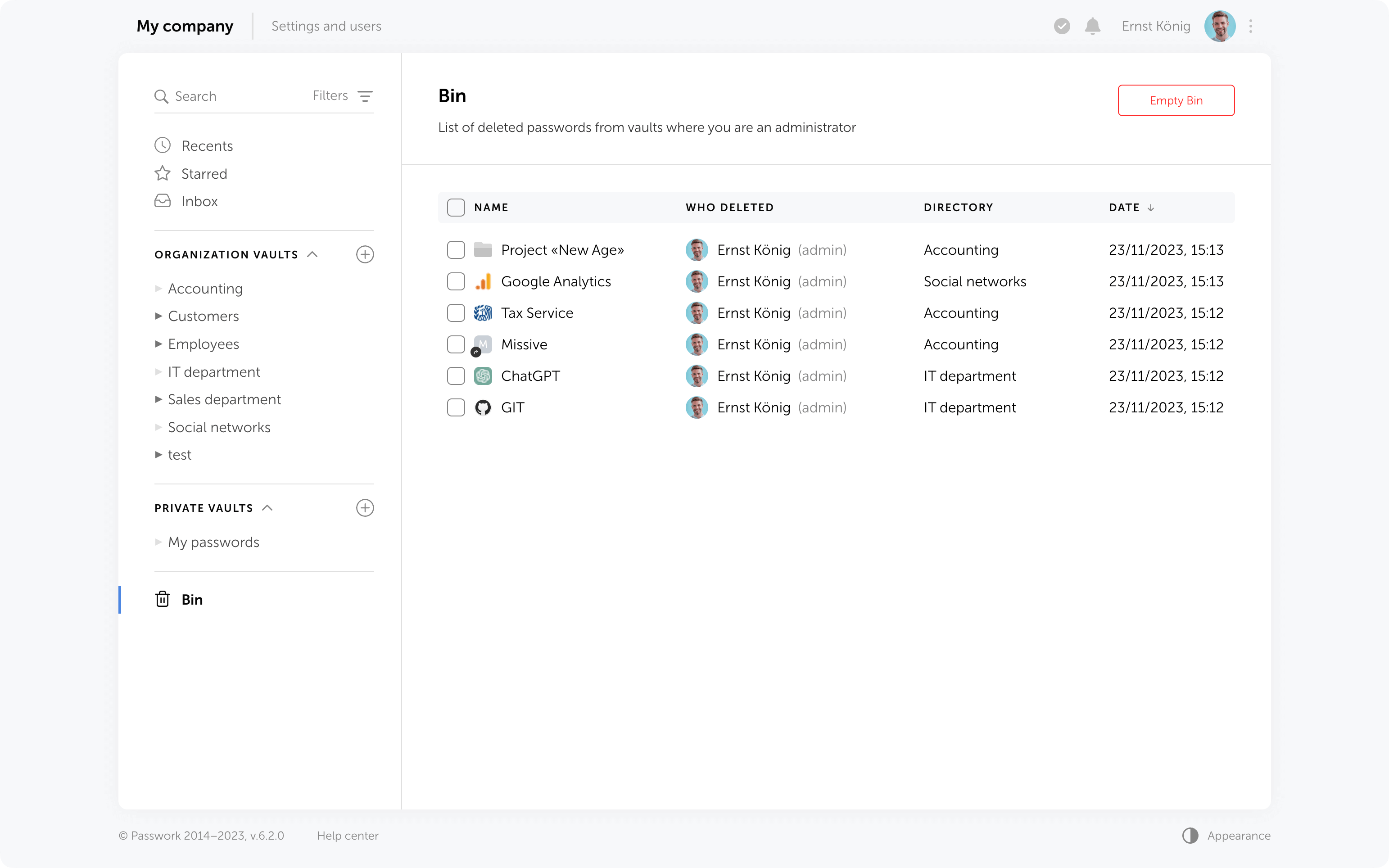
Now, when deleting folders and passwords, they will be moved to the Bin. If needed, they can be restored while preserving previously set access permissions. Vaults are deleted without being moved to the Bin — they can only be restored from a backup.

Who can view deleted passwords and folders in the Bin?

Inside the bin users can see the deleted items from those vaults in which they are administrators. For instance, an employee who is not an administrator of organization vaults will only see the deleted passwords and folders from his personal vaults when opening the Bin.

In addition to object names, the Bin also displays the usernames of people who deleted data. You can also see the initial directory name and the deletion date.
Object restoration

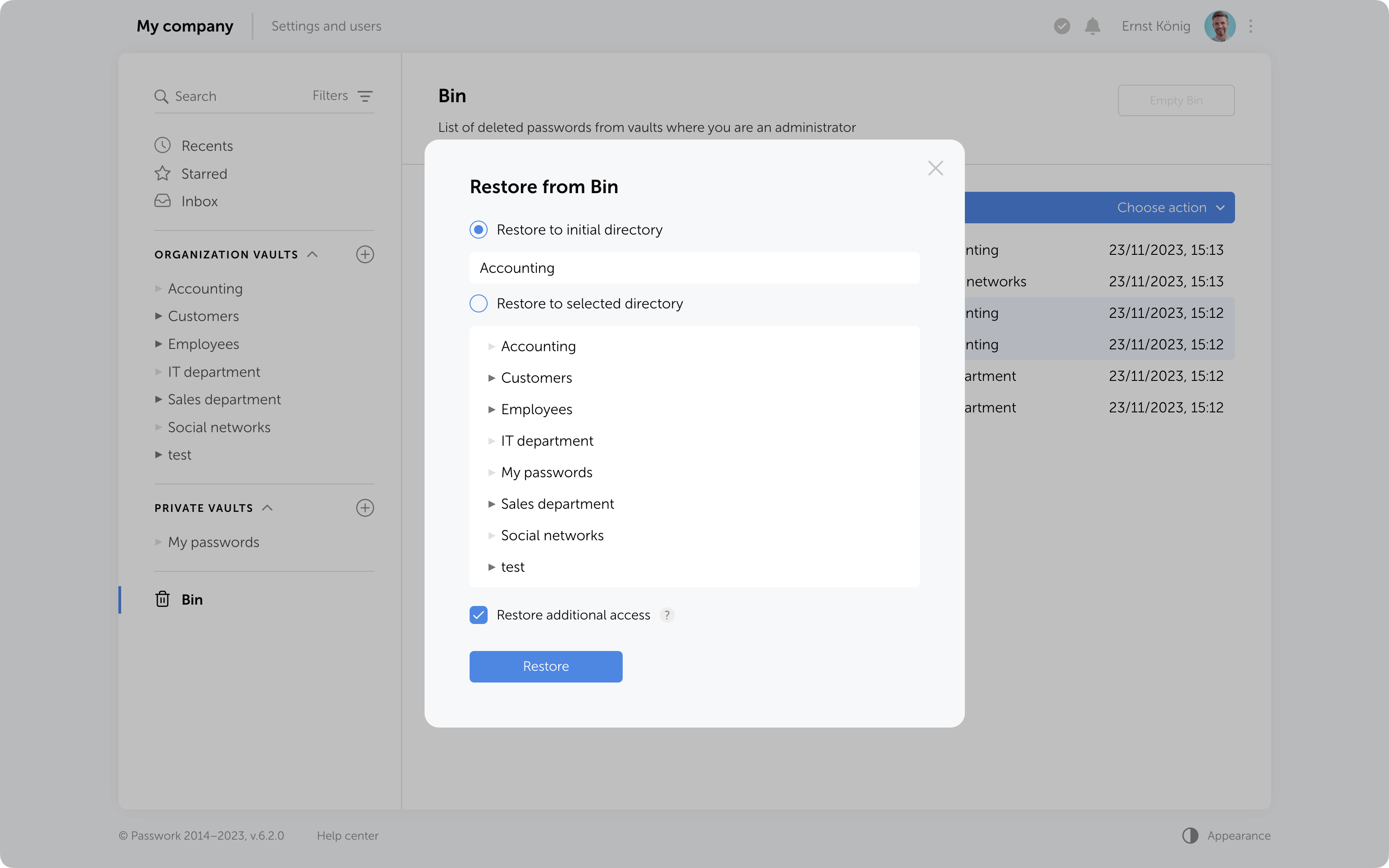
Objects from the Bin can be restored to their initial directory if it has not been deleted or moved. Alternatively, you can choose any other directory where you have edit and higher access levels.

When restoring deleted folders to their initial directories, user and role access levels will also be restored exactly as they were previously manually set in these folders. Other access permissions will be set based on the current permissions in the initial directory.

When restoring folders to a directory different from the initial, access levels will always depend on the current permissions in the selected directory.
Additional access to deleted passwords

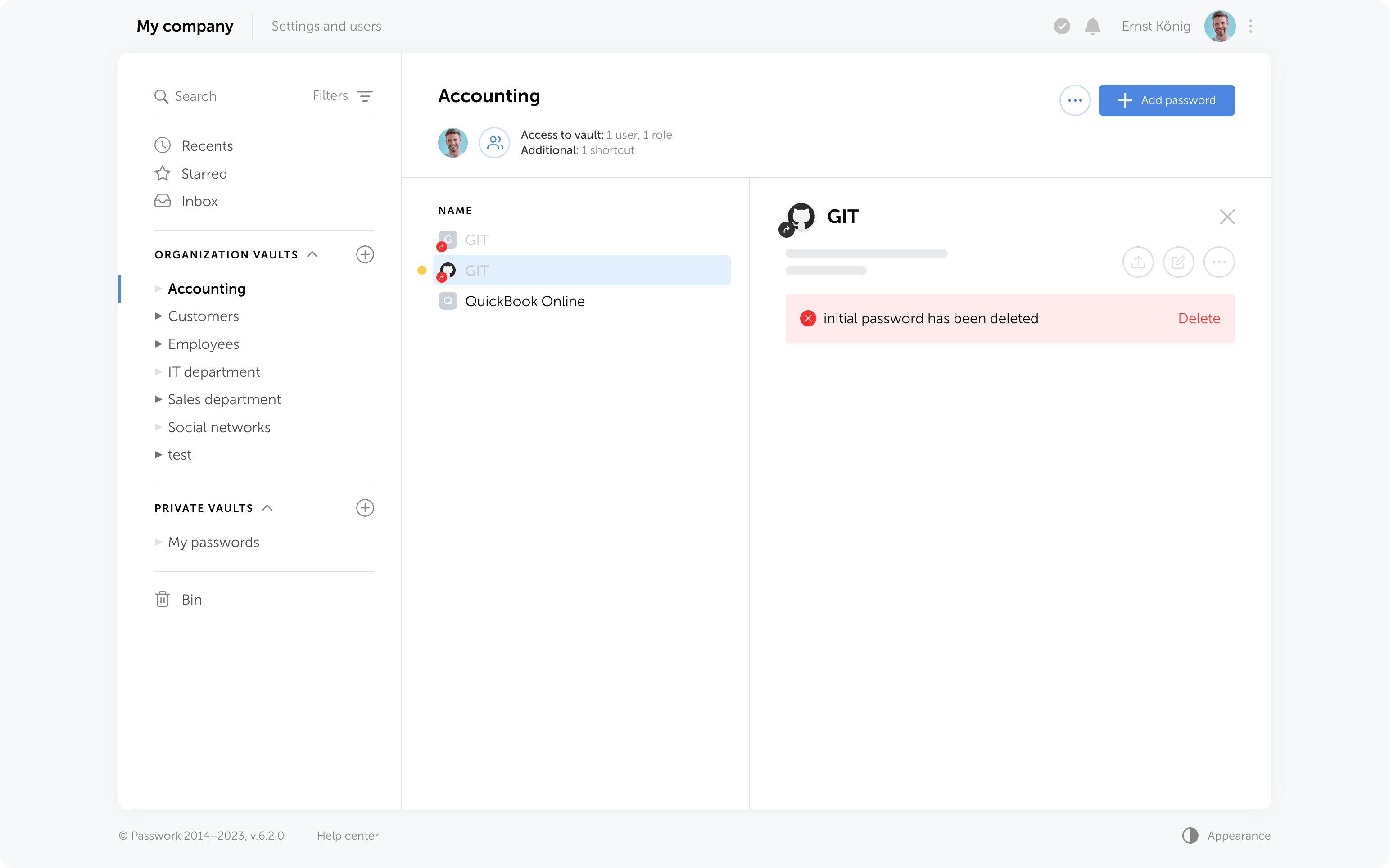
If passwords have been shared with users, moving them to the Bin will remove them from the “Inbox” section, and any shortcuts or links to these passwords will become nonfunctional.
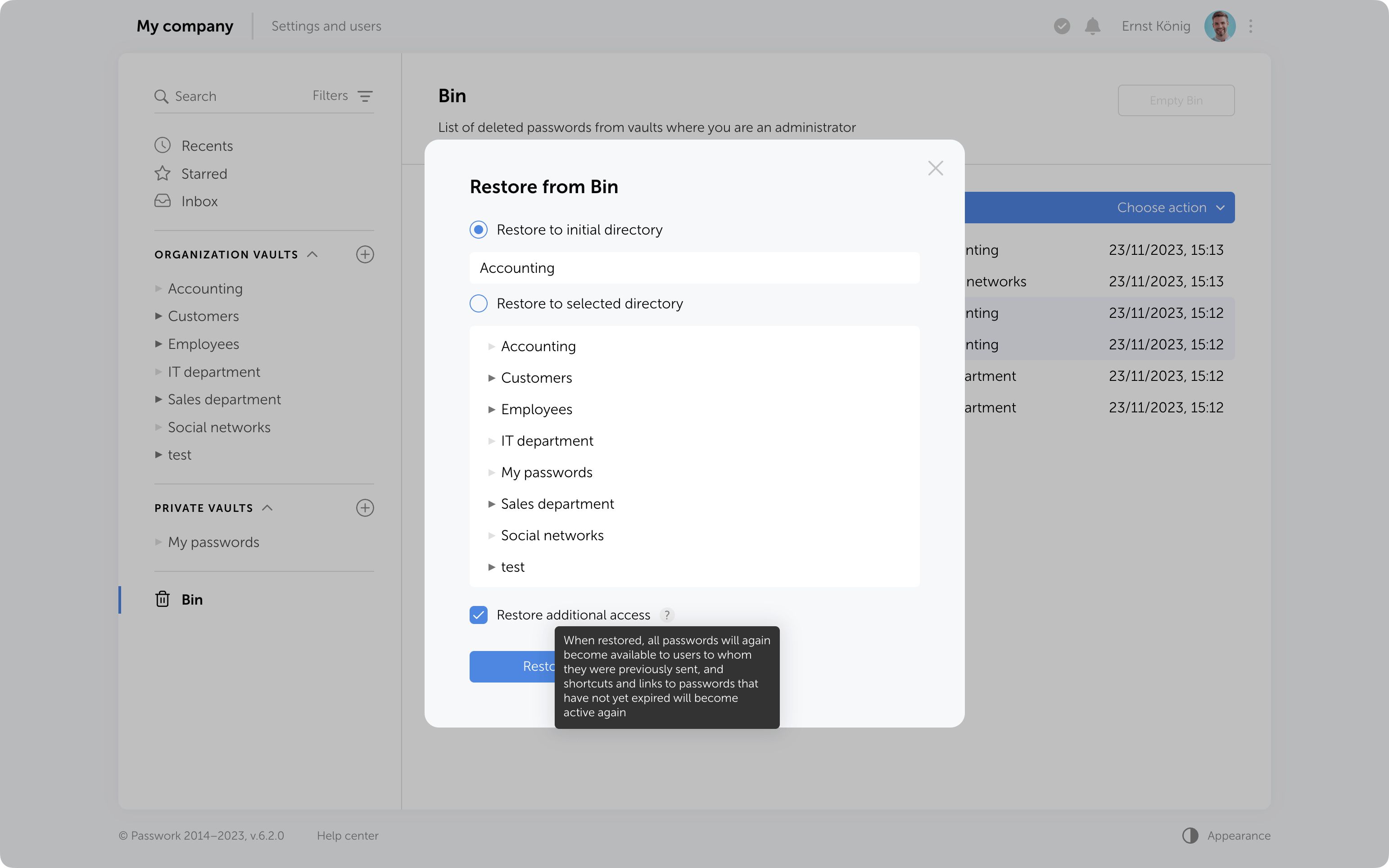
Restoring additional access

When restoring from the Bin, it is possible to regain additional access levels to passwords. Passwords that were shared with users will reappear in their “Inbox” section, access to passwords through shortcuts will be restored, and links that have not expired will become functional again.
Bin cleanup

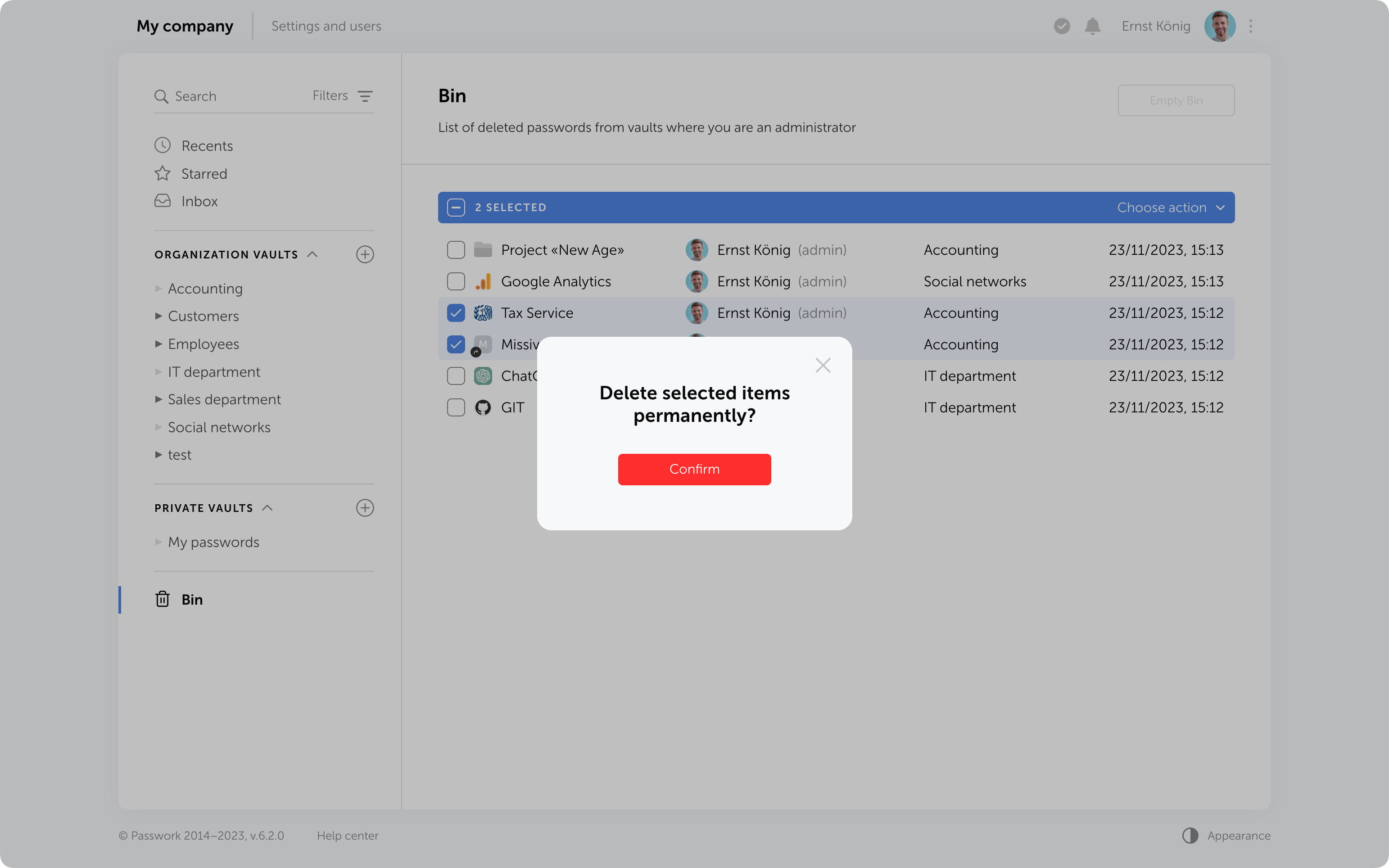
You can delete selected items from the Bin or use the "Empty Bin" button to remove all items contained inside.

It's important to note that in the Bin you only see the items which were deleted from the vaults where you are an administrator. Objects from other vaults are not visible, and clearing the Bin will not affect them.

In future, the option to configure automatic Bin cleanup will be added.
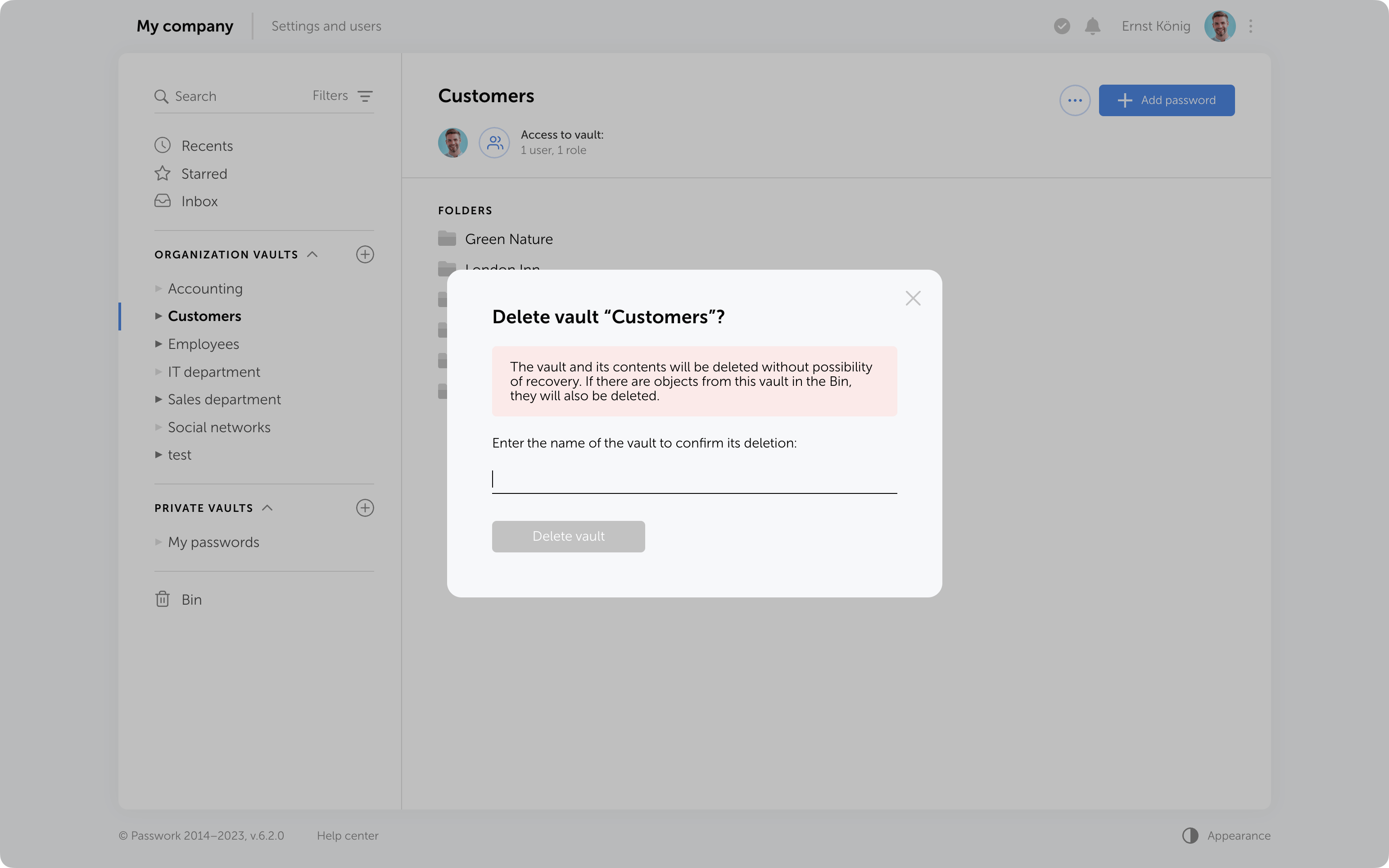
Protection against accidental removal of vault

To confirm the deletion of a vault, you now need to enter its name. It will be permanently deleted along with all the data inside. Additionally, if there are passwords or folders from this vault in the Bin, they will also be removed.
Protection against 2FA brute force

Protection against 2FA brute-force attacks has been added. After several incorrect attempts to enter the 2FA code, the user will be temporarily locked. The number of attempts, input intervals, and the lockout time are set in the config.ini file.

Other changes

  • LDAP synchronization has been accelerated
  • Descriptions of parameters and minimum allowable values for API token expiration time and API refresh token expiration time have been added to the API settings section
  • Automatic assignment of "Navigation" to parent folders in role management has been fixed
  • The issue when a vault administrator could not add roles to a vault and manage its permissions has been fixed
  • The issue with showing additional access rights to passwords when moved to another vault has been fixed

Why do employees ignore cybersecurity policies?
Employees often ignore cybersecurity rules not out of laziness, but because they feel generic, irrelevant, or disconnected from real work. True change starts with empathy, leadership, and context-driven policies. Read the full article to learn how to make security stick.
Python connector 0.1.5: Automated secrets management
The new Python connector version 0.1.5 expands CLI utility capabilities. We’ve added commands that solve critical tasks for DevOps engineers and developers — secure retrieval and updating of secrets in automated pipelines. What this solves Hardcoded secrets, API keys, tokens, and database credentials create security vulnerabilities and operational bottlenecks.
The 2025 small business cybersecurity checklist: A complete guide | Passwork
Passwork’s 2025 cybersecurity checklist, based on the NIST framework, provides actionable steps to prevent data breaches and financial loss.

Introducing Passwork 6.2

Aug 8, 2023 — 5 min read

This latest update demonstrates our focus on refining user experience and enhancing collaborative password management.

No longer will you need to create password copies in various vaults — we've introduced shortcuts. With these handy labels, you can easily organize access to passwords from different directories.

The new enhanced settings provide administrators with more control over configurations and user rights, and all changes require approvals, preventing any unintentional actions.

LDAP user management has now become simpler with its cleaner interface and background data updates.

In addition to that, Passwork 6.0 brings new notifications and interface improvements. All these enhancements contribute to a more comfortable user experience while ensuring the security of passwords and sensitive data.

Shortcuts

Shortcuts are a new way to share passwords, enhancing collaboration flexibility. There's no need for creating password duplicates in different vaults — instead, create multiple shortcuts in required directories. All changes to original passwords are reflected in shortcuts, keeping your team up to date. Users can view or edit data via shortcuts according to their access rights.

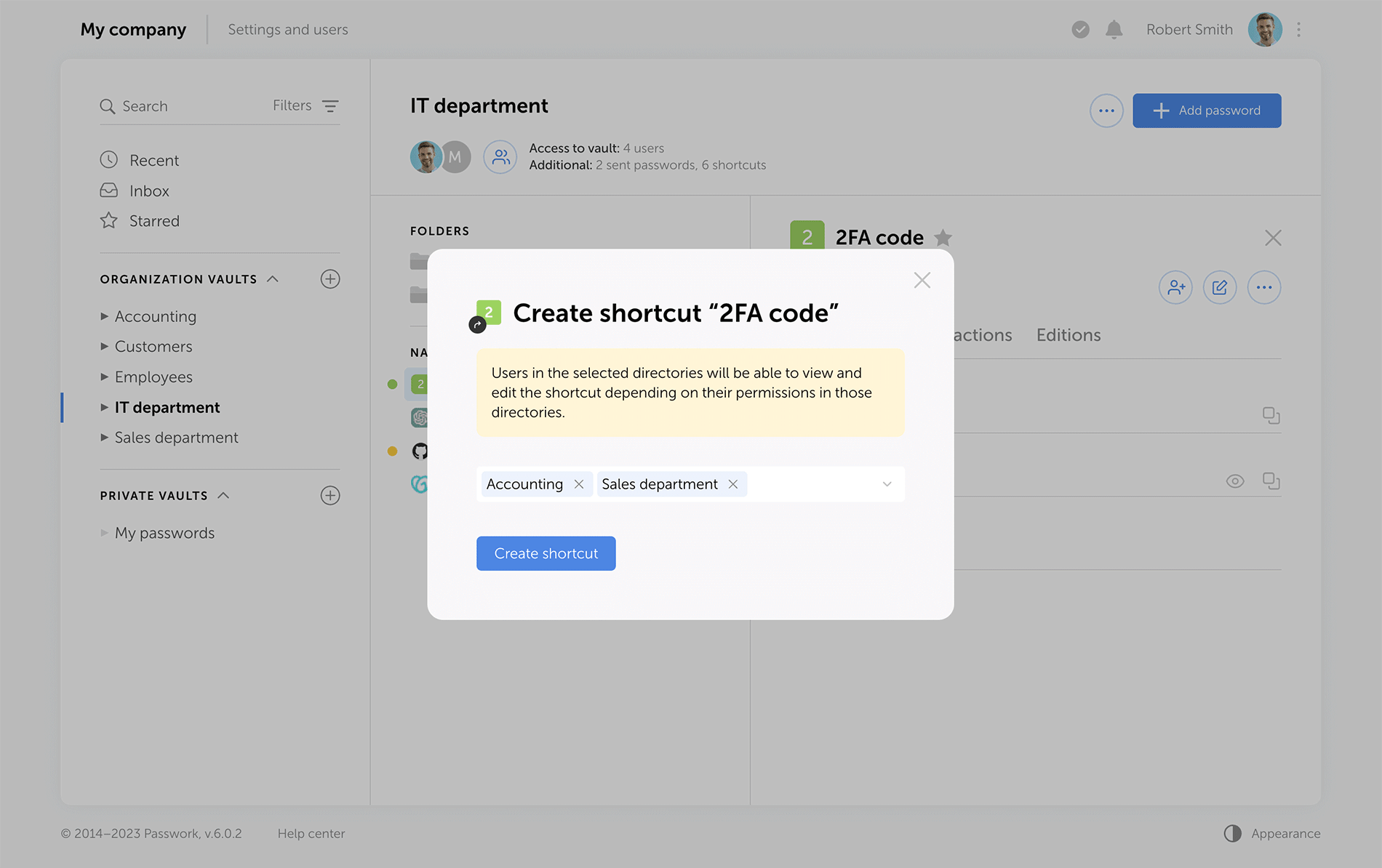
Choose the directories where you would like to create shortcuts
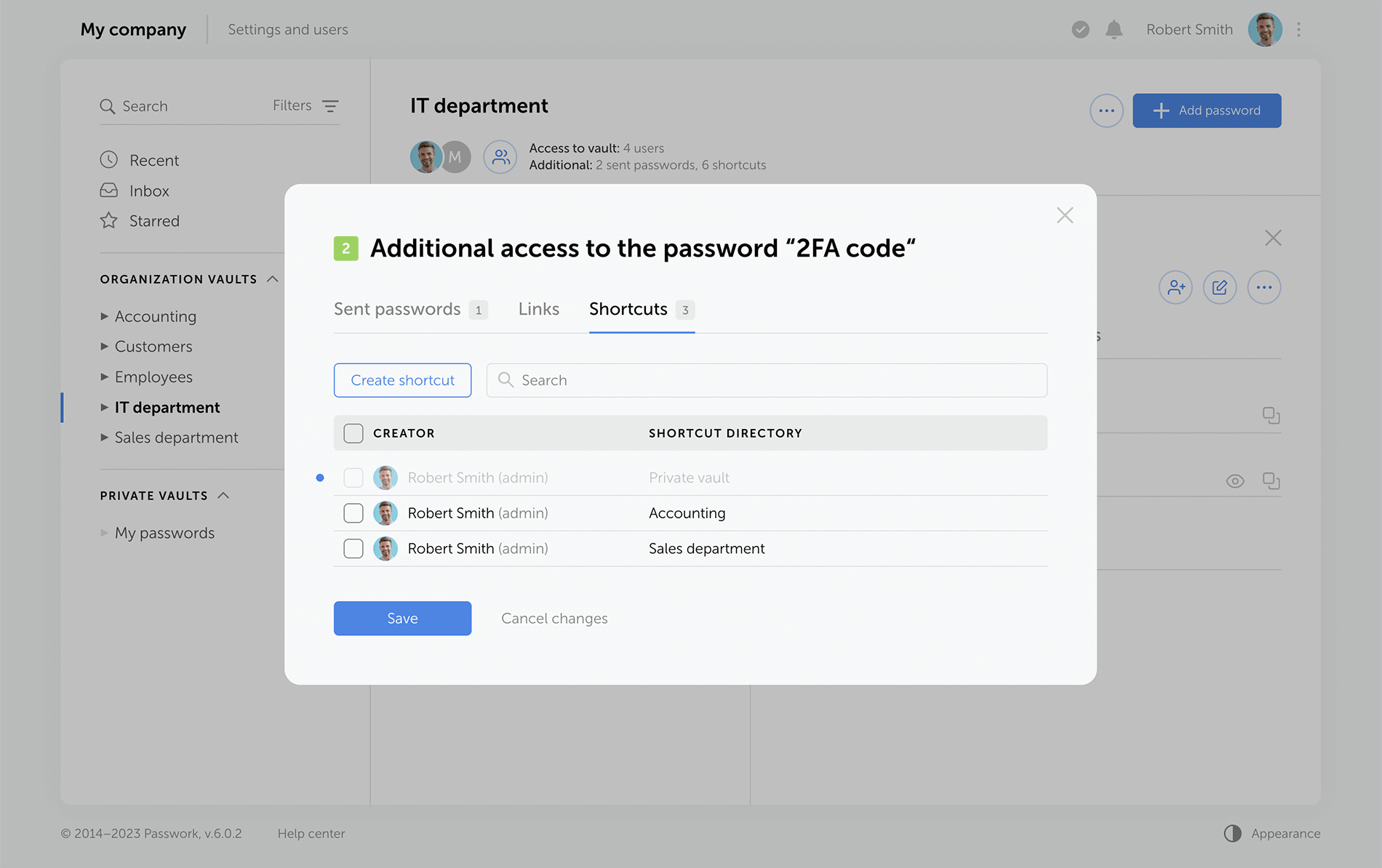
View the complete list of shortcuts to passwords created in a specific vault

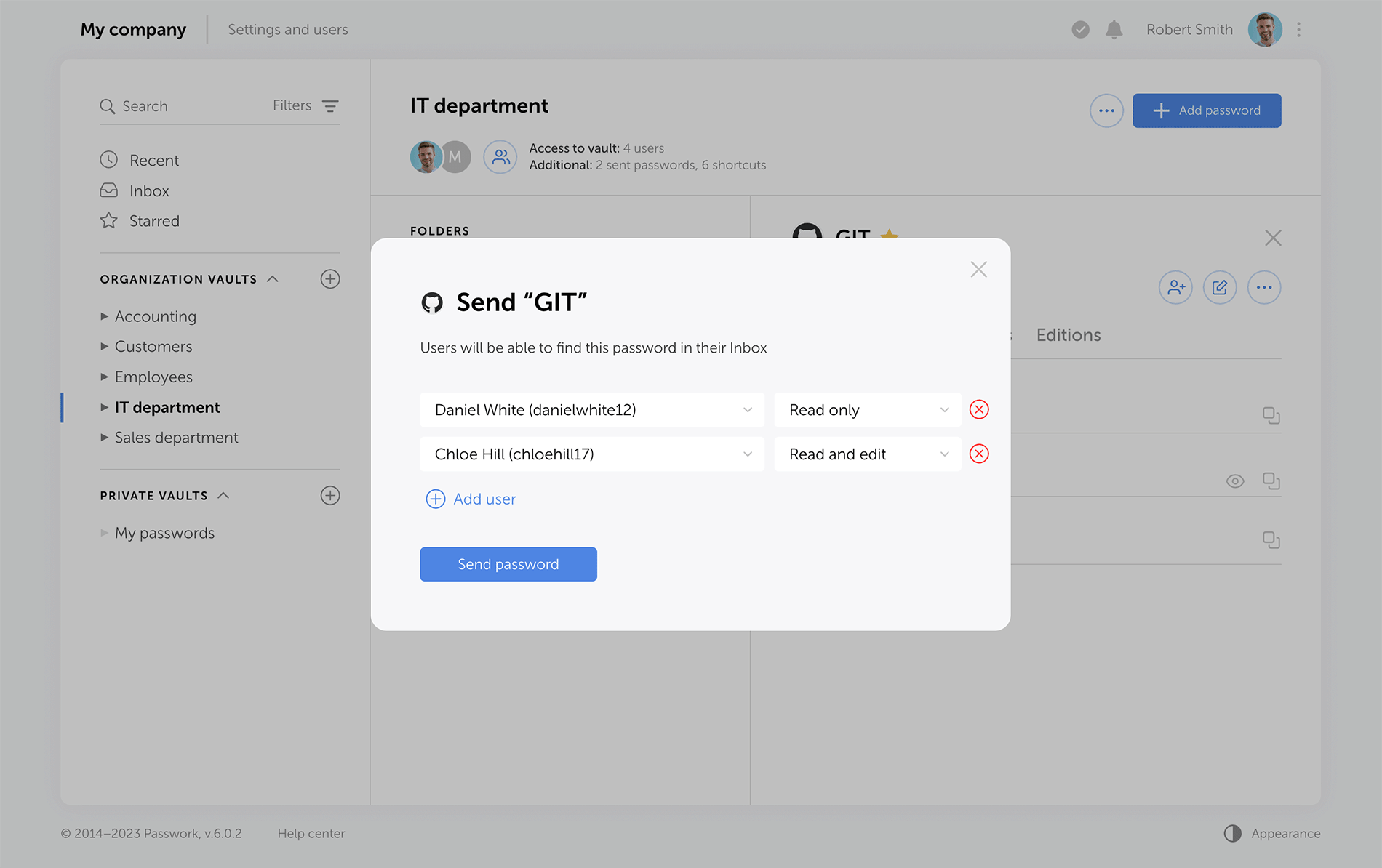
Sending passwords without granting partial access to vaults

Previous versions of Passwork encrypt passwords at the vault level. This type of encryption gives users partial access to vaults even when a single password is shared with them. Now, when users access passwords via their "Inbox" or a shortcut, they receive keys to specific passwords, but not their vaults.

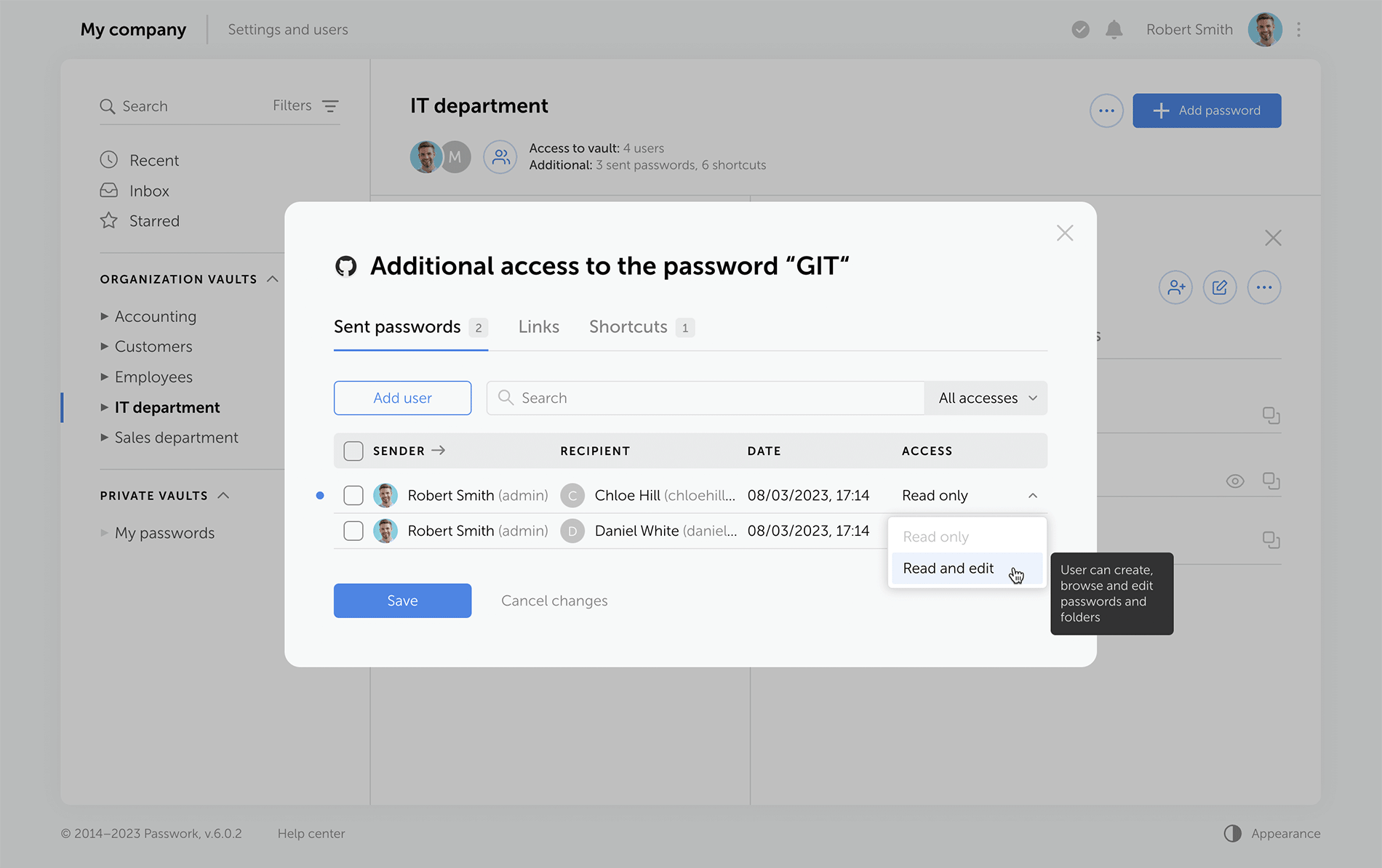
Administrators can clearly see who has vault access rights, and who can only work with specific passwords.

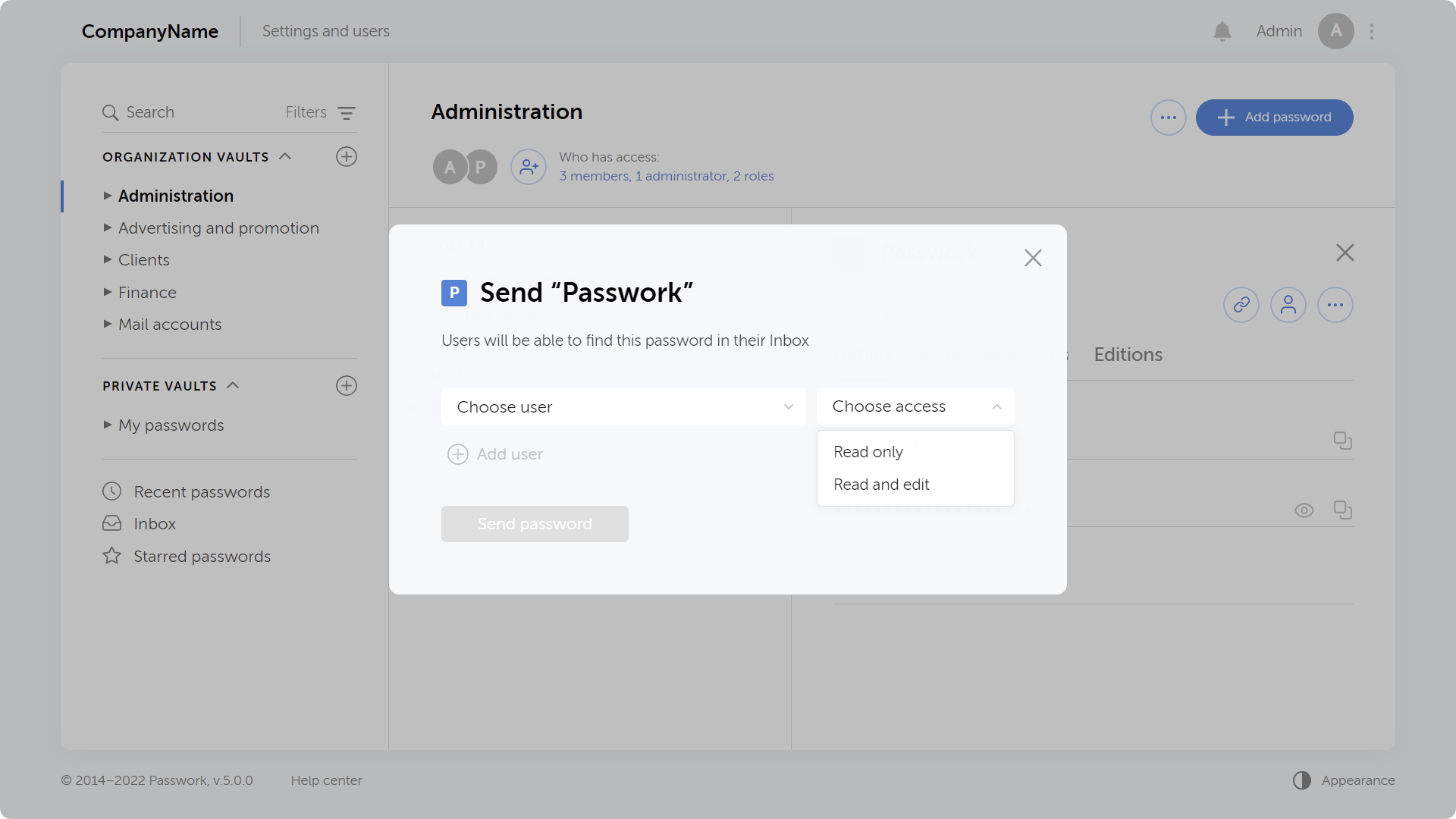
Send passwords to users with necessary access rights
View the complete list of all passwords that were sent from a specific vault

LDAP

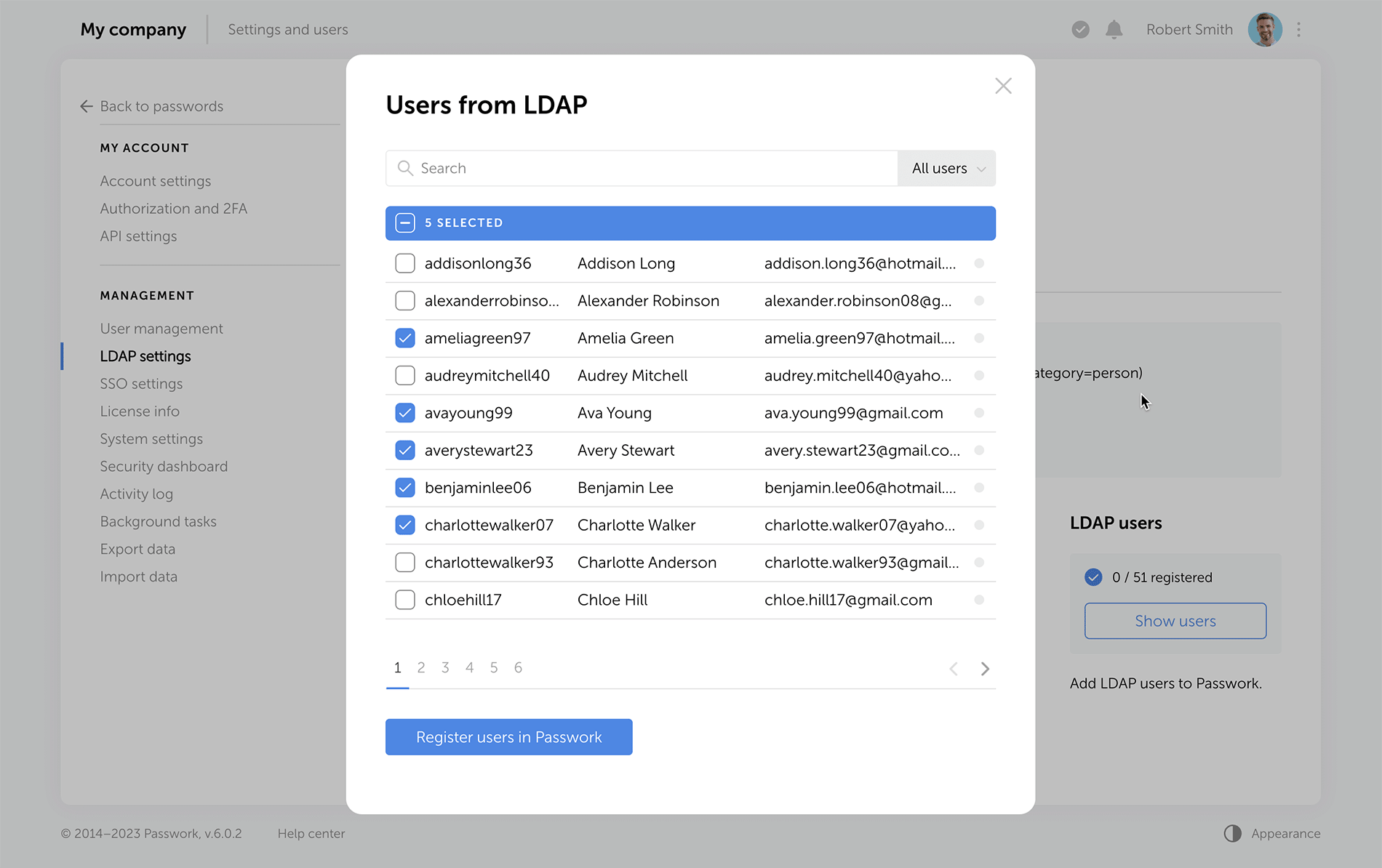
The LDAP interface is now cleaner and more intuitive, with a reimagined user management logic. Adding new LDAP users is simpler and safer, especially with the client-side encryption enabled.

Previously, admins had to add an employee and provide a master password. Now, users set their master passwords upon the first login, and admins confirm them afterwards.

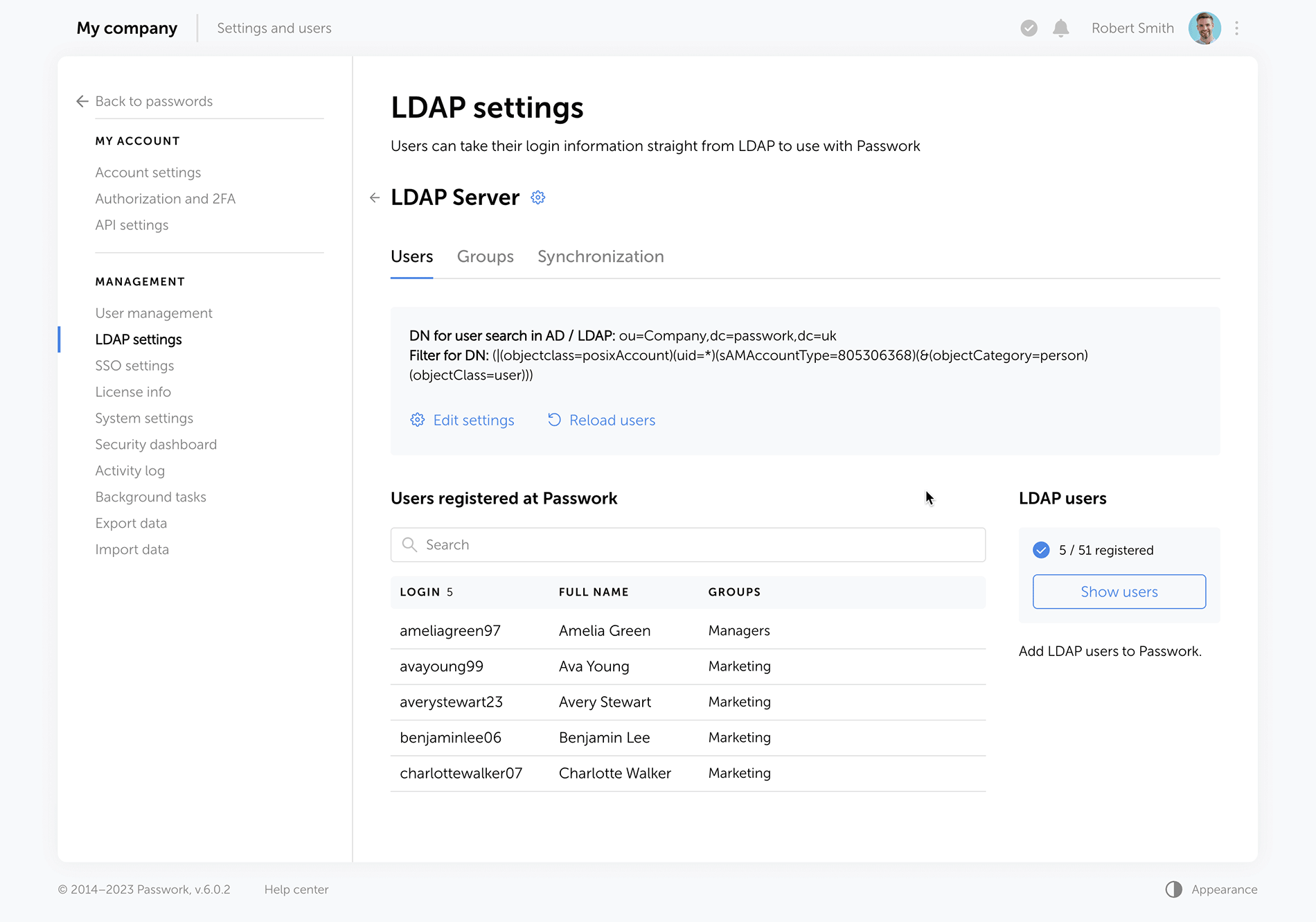
The "Users" tab shows registered users, and there is a separate window for adding new ones. LDAP user data updates take place in the background, allowing admins to navigate elsewhere without waiting for data refresh.

View your LDAP user list and add users to Passwork
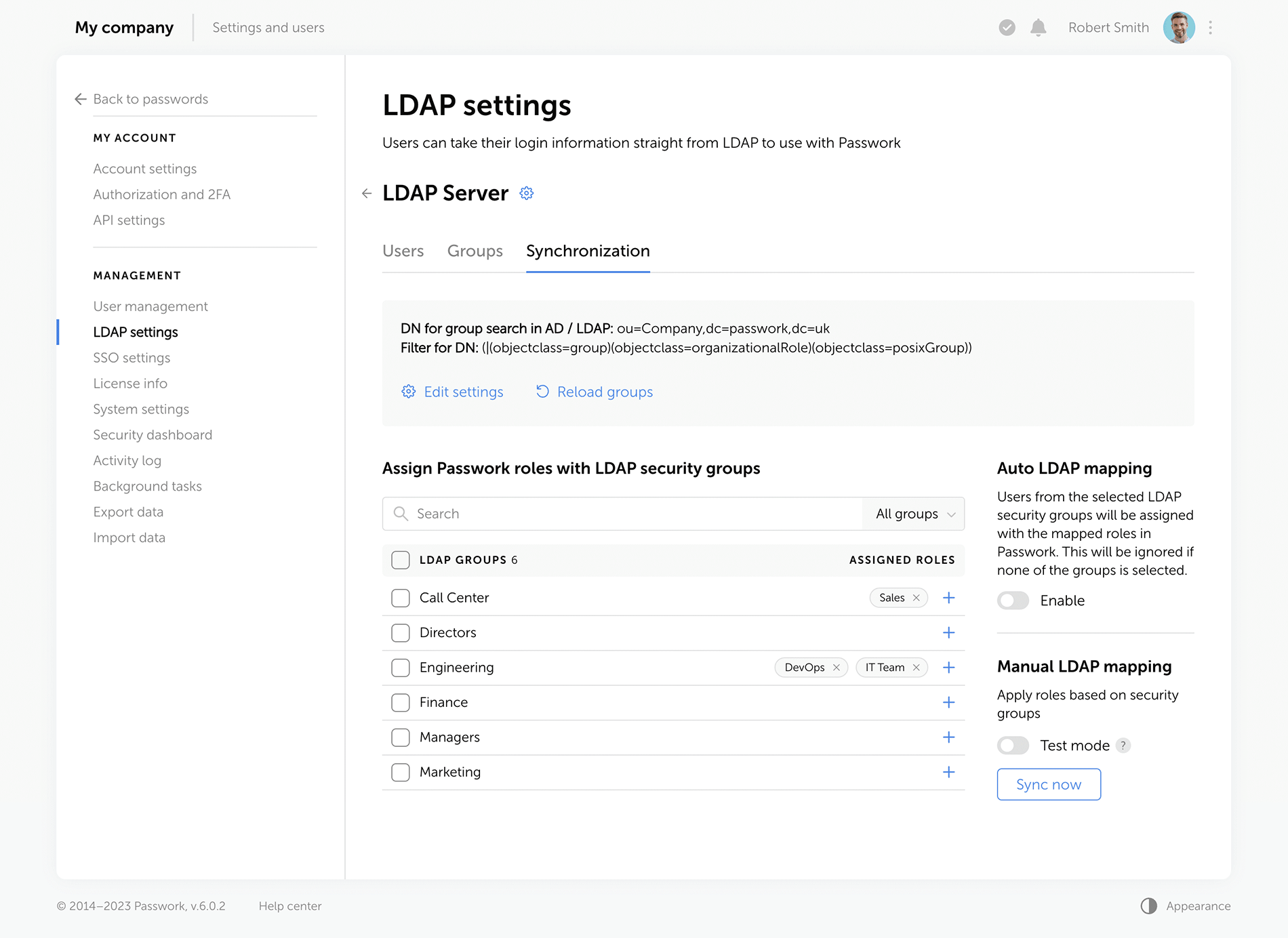
Set up your LDAP integration in the updated interface

Passwork now provides more detailed security group information. The groups that are linked to roles are marked with special tags, and the groups which were not loaded from LDAP during the last update are marked as "Deleted", alerting admins to adjust the search settings or remove such groups. Also, you can now see the members of each security group.

Map your LDAP groups with Passwork roles and set up their automatic synchronization

Improved settings

We've redesigned all settings sections for a unified visual style and enhanced functionality, reimagined the logics of some settings.

Rights for links, tags, and password sharing
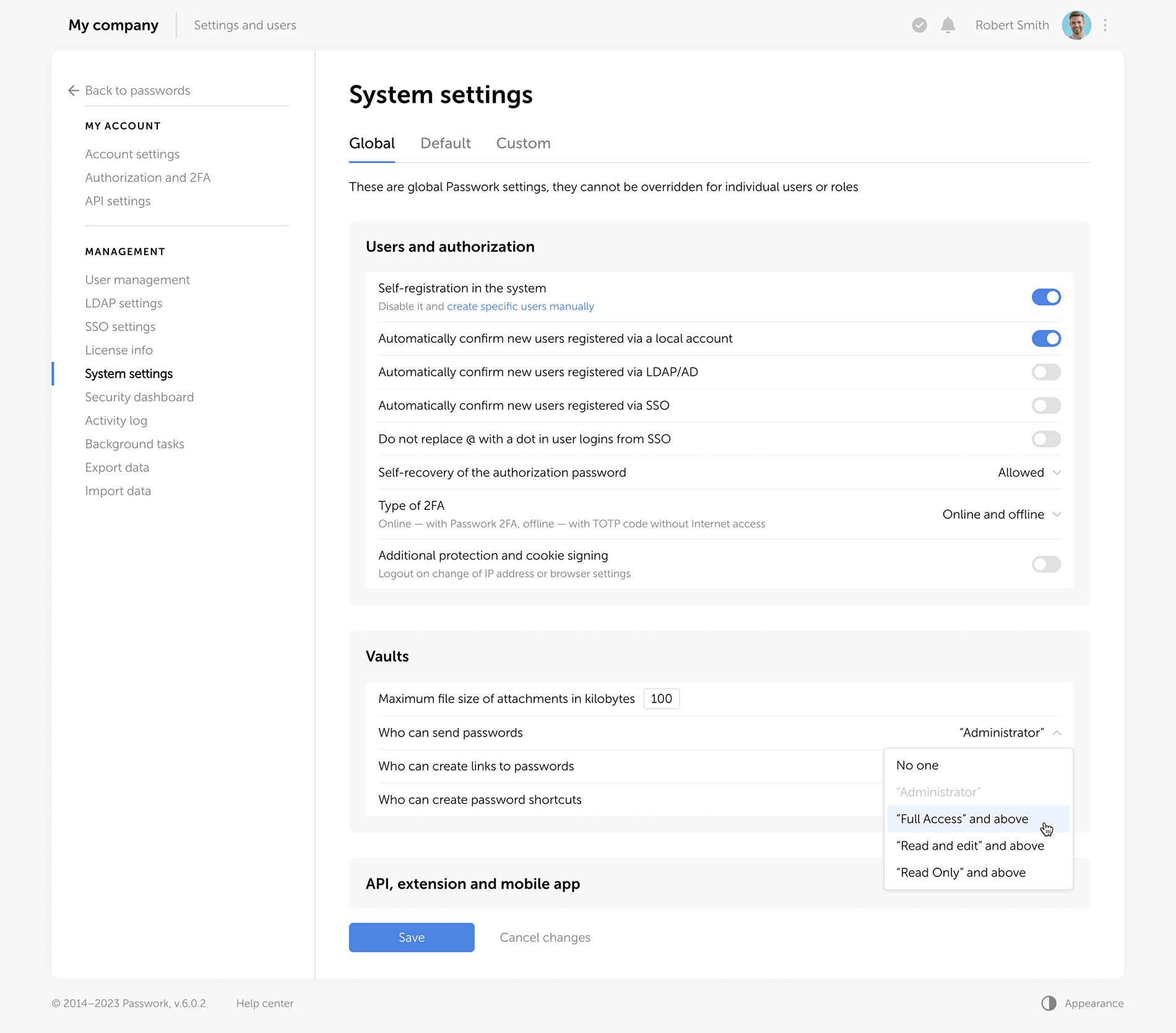
Previously, these settings were applied individually to each user. Now, they are applied to everyone with a certain level of vault access. For example, anyone with the “Edit” access rights or higher can create hyperlinks to passwords. These parameters are located in the system settings under the “Global” tab.

Change confirmation
We've added “Save” and “Cancel changes” buttons in system settings. Now, any changes to settings must be confirmed — this helps to prevent accidental actions.

Custom auto-logout time
Users can now set these parameters individually, and admins specify the maximum inactivity time period before automatic logout.

Language selection
In the new version of Passwork, admins can allow employees to choose their interface language.

Choose the required access level which will make it possible to send passwords, create links and shortcuts

Interface enhancements

Improved drag and drop
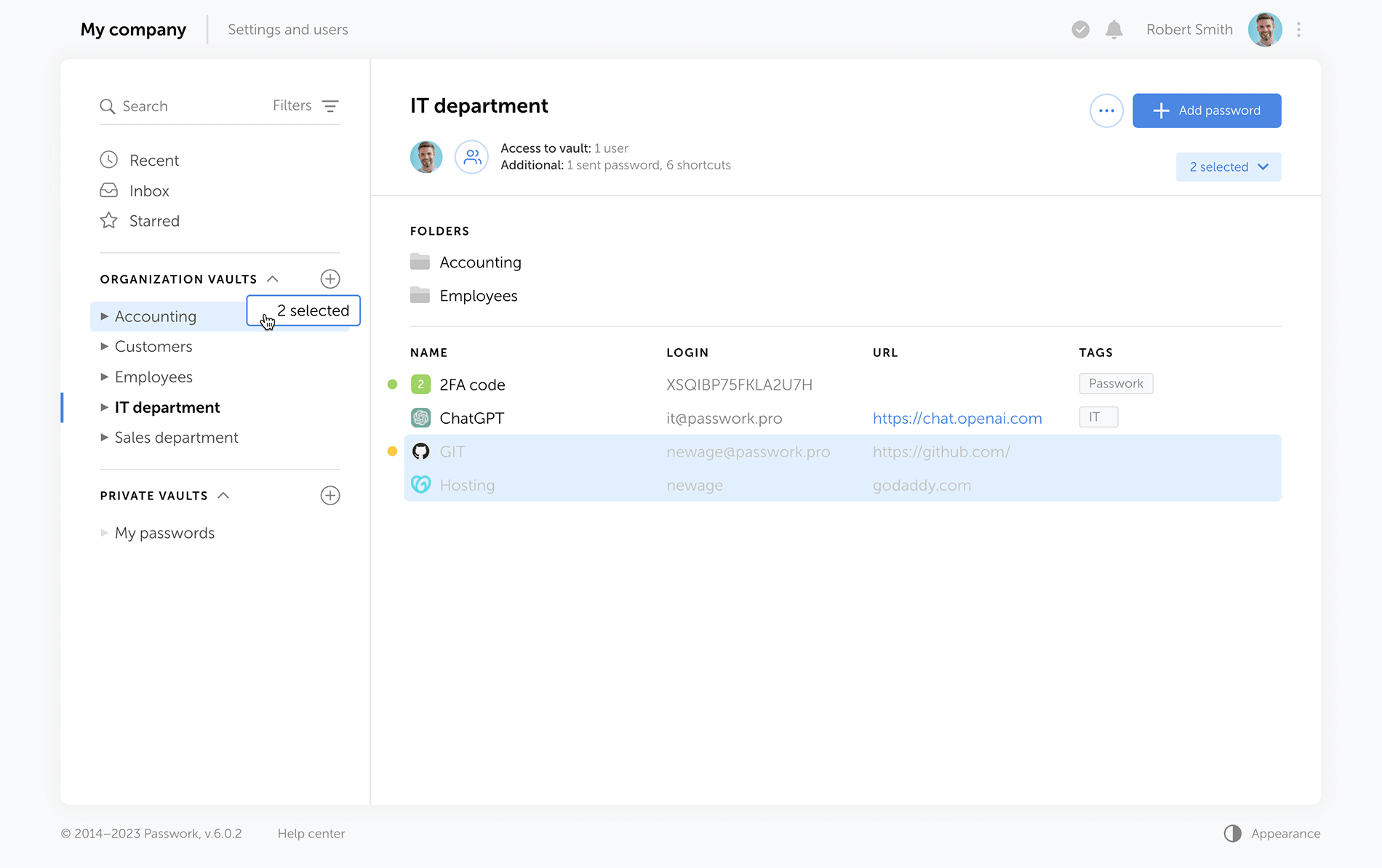
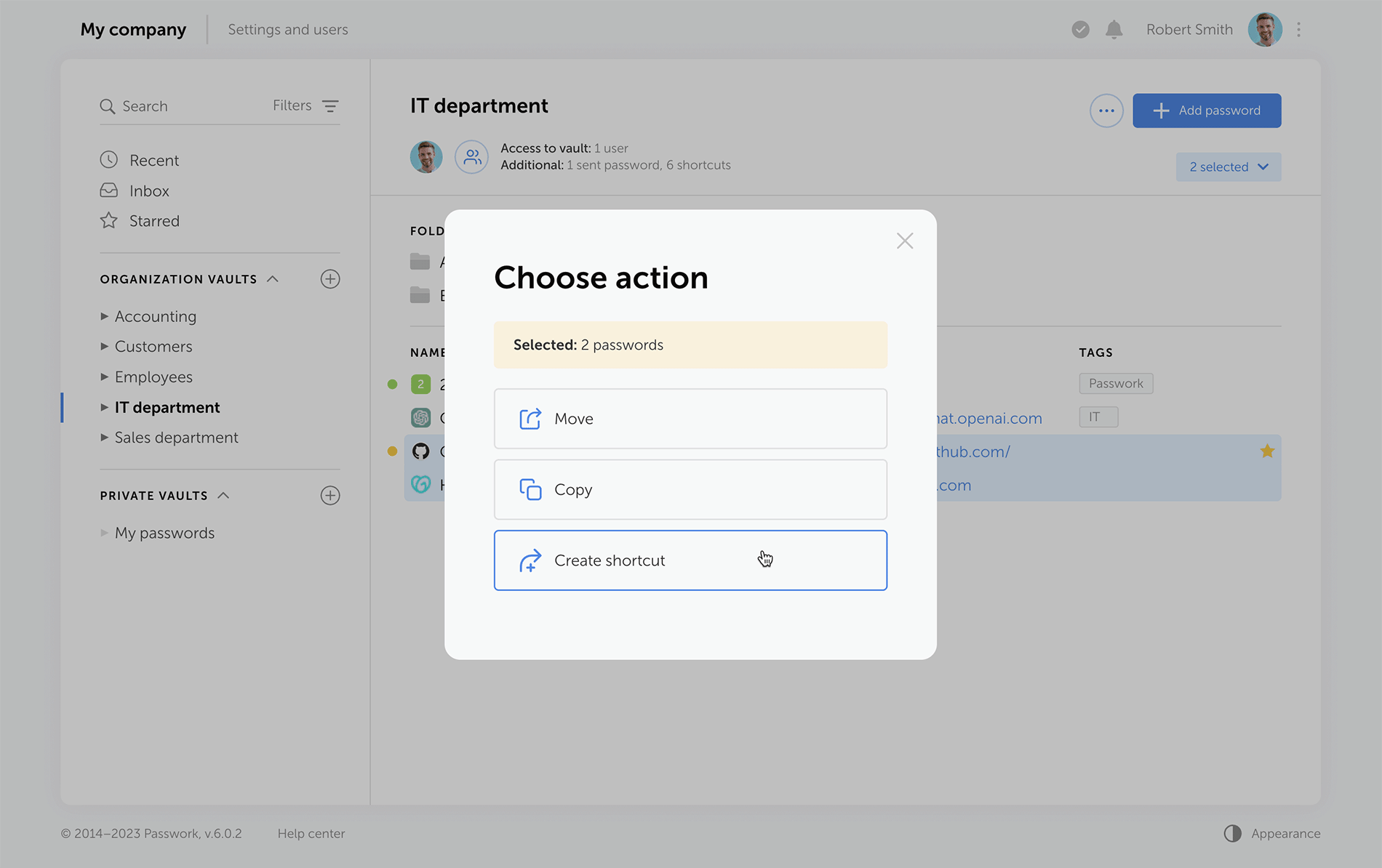
Now, when dragging and dropping passwords and folders into desired directories, Passwork displays selectable actions — move, copy, or create a shortcut.

Select folders and passwords, then drag and drop them to the required directory
Choose actions for the selected objects: move, copy, create shortcuts

Other improvements

Separate windows for access to the vault and additional access
Vault access info is now split into two easy-to-read windows. One window shows users who has access to a specific vault, and the other displays alternative ways passwords from this vault can be accessed — shortcuts, hyperlinks, or shared passwords.

Redesigned password action buttons
On the password panel, we've added the "Edit" button and grouped together all actions for additional password access via shortcuts, links, or direct user sharing.

Additional fields for password import and export
Passwork 6.0 supports the use of custom fields, that means you can transfer not only login and password but also additional information stored within password cards.

New notifications
Administrators will receive notifications about new unconfirmed users, and employees will be notified of new passwords in the "Incoming" section.


HIPAA requirements for password management
Introduction In the complex ecosystem of modern healthcare, patient data is essential for secure management. In 2024, the U.S. healthcare sector experienced over 700 large-scale data breaches, marking the third consecutive year with such a high volume of incidents. This surge compromised over 275 million patient records, a significant
GDPR password security: Guide to effective staff training
Learn proven strategies to train employees for GDPR password security compliance. Reduce breach risks with practical training methods.
Cyber insurance: A false sense of security?
Introduction As cyber threats and data breaches become more frequent and sophisticated, many organizations are looking to cyber insurance as a way to manage risk. But is cyber insurance a true safety net — or is it just a false sense of security? This question was at the core of the

Introducing Passwork 6.0

Sep 8, 2022 — 3 min read

Running tasks in the background

A new mechanism for handling tasks allows you to run them in the background. For example, you can run an LDAP synchronization task and still work in Passwork. Your synchronization task will run in the background.

You can see scheduled and completed tasks on the “Tasks” page. Here you can also find the configuration instructions for your operating system.

Display a favicon in the password list

The Passwork interface has become even more user friendly and convenient. If a password has a URL, a website icon will be displayed next to its name.

Automatic favicon loading can be set up by administrators on the “Company settings” page. In this case background tasks should be set up.

Other changes

  • Automatic session termination in the mobile app and Passwork extension when API key is changed
  • Removed white background in the dark theme when loading pages
  • Fixed bug displaying the results of an outdated search query
  • Improved validation of TOTP keys
  • Fixed empty messages in Syslog
  • Added login validation with UTF-8 encoding
  • Added automatic LDAP host swap :\\ → ://
  • Fixed errors in LDAP code related to the migration to PHP 8
  • Redesigned login and registration forms

Passwork: Secrets management and automation for DevOps
Introduction In corporate environment, the number of passwords, keys, and digital certificates is rapidly increasing, and secrets management is becoming one of the critical tasks for IT teams. Secrets management addresses the complete lifecycle of sensitive data: from secure generation and encrypted storage to automated rotation and audit trails. As
How SHA-256 works
If you’ve heard of ‘SHA’ in various forms but aren’t sure what it stands for or why it’s essential — you’re in luck! We’ll attempt to shed some light on the family of cryptographic hash algorithms today. But, before we get into SHA, let’s go over what a hash function
How to create a secure password
Of course you want to keep your data safe. So why are so many security precautions frequently overlooked? Many accounts, for example, are protected by weak passwords, making it easy for hackers to do their work. There is a fine line between selecting a password that no one can guess

Introducing Passwork 5.1

Jun 15, 2022 — 4 min read

Migration to PHP 8

The new version of Passwork now runs on PHP 8. Previous versions of PHP are no longer supported.

New access rights window

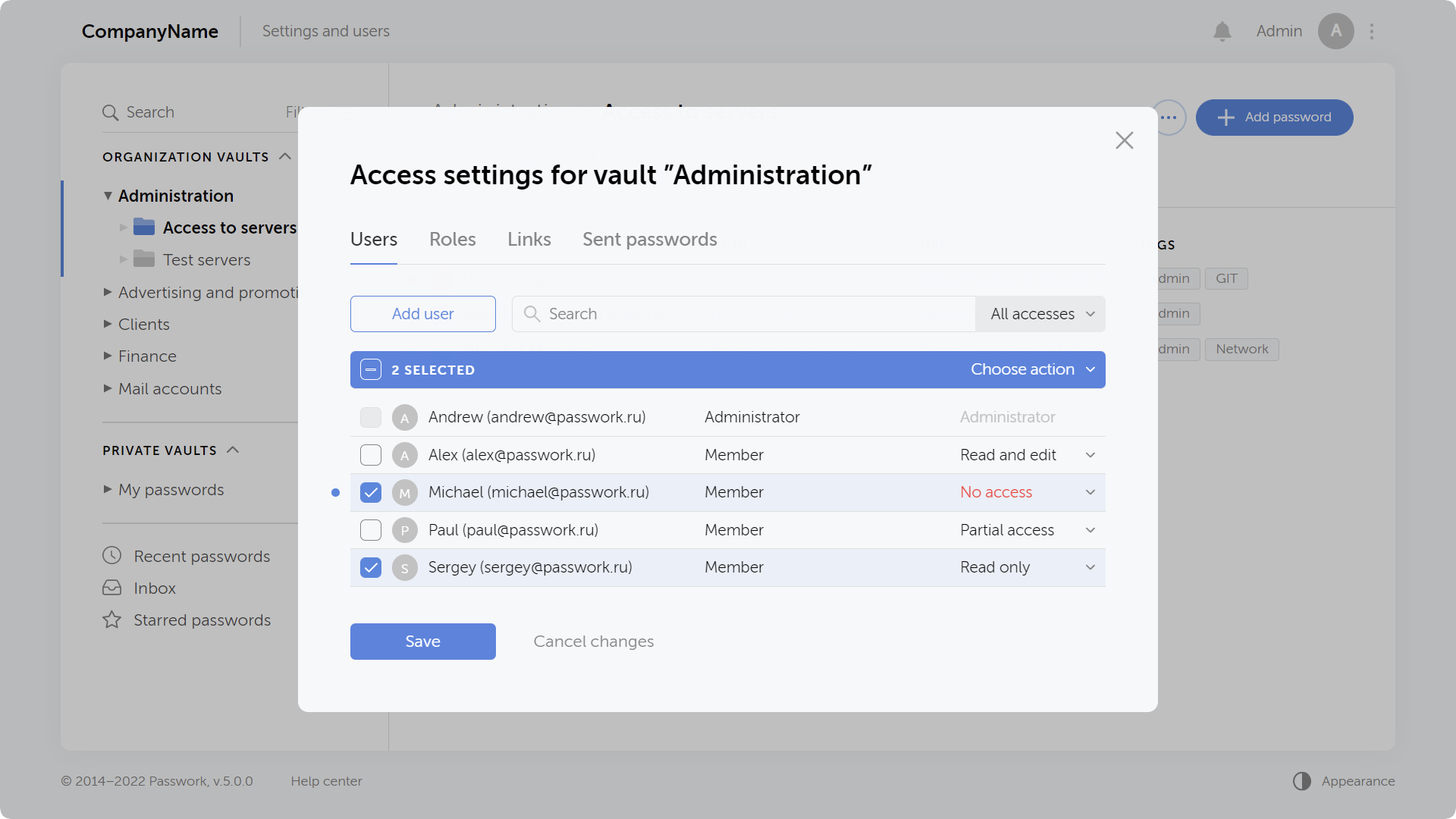
The window with access settings for vaults and folders has been completely redesigned. All users and roles having access to a vault or folder are now collected here as well as links and sent passwords.

The rights can now be edited on each tab by selecting multiple objects at once. All modified and deleted objects are marked by an indicator until you save changes. Search filters allow you to display all objects with a certain access right.

Ability to quickly view who accessed vaults and folders

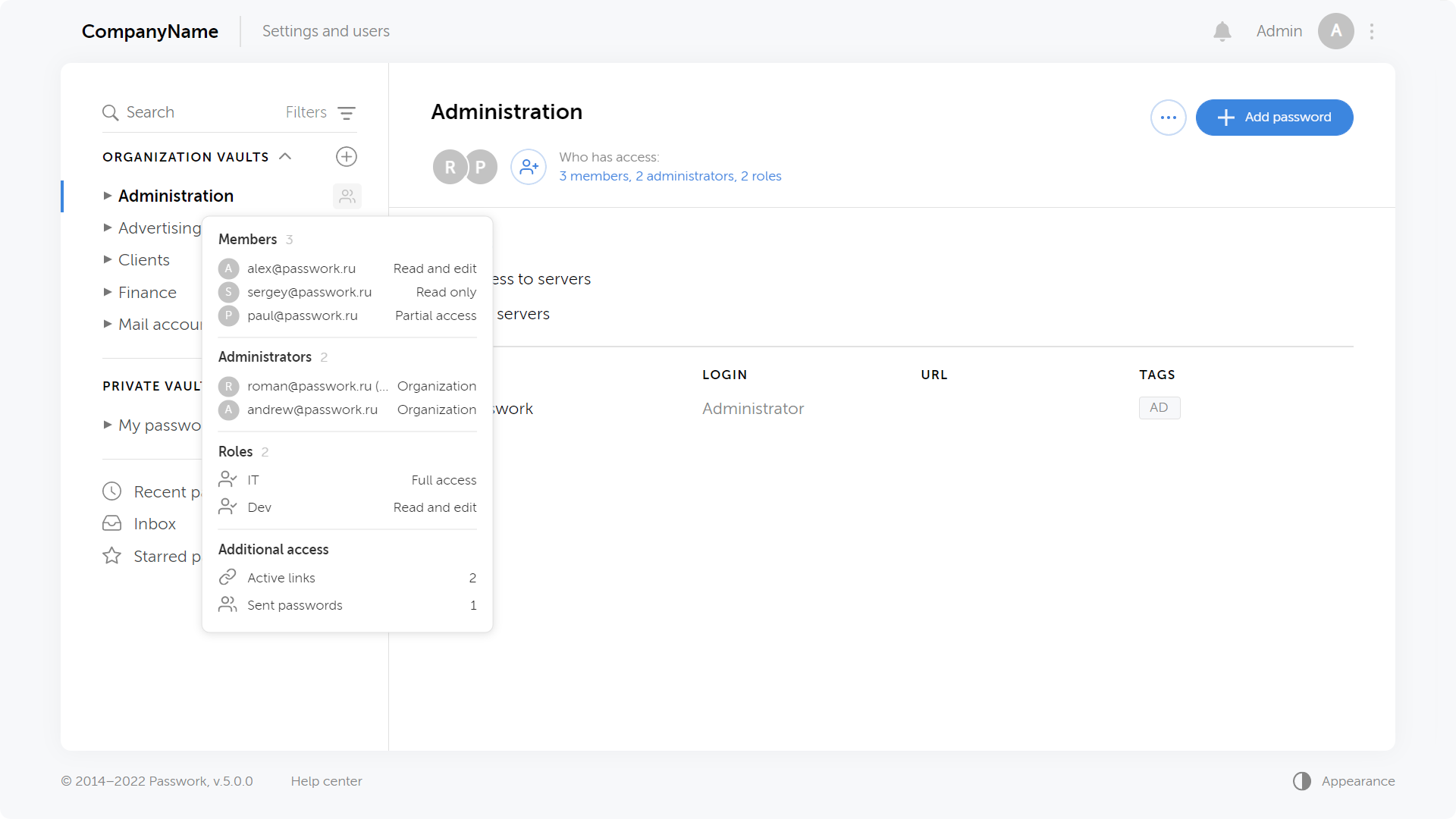
When hovering over an icon next to the name of a vault or folder you can see some brief information about the number of users, roles, links and sent passwords.

Clicking on a list opens up the window for access rights management inside a given vault or folder.

Granting access to individual passwords without adding users to a vault

In previous versions of Passwork, it was possible to send a password copy to users. In the new version, users will see the original password in the Inbox, which will be updated when the original vault changes.

That means you can now give access directly to a password without adding users to a vault or folder.

You can send a password and enable users to edit it, then when a user changes this password, it will be updated for you as well.

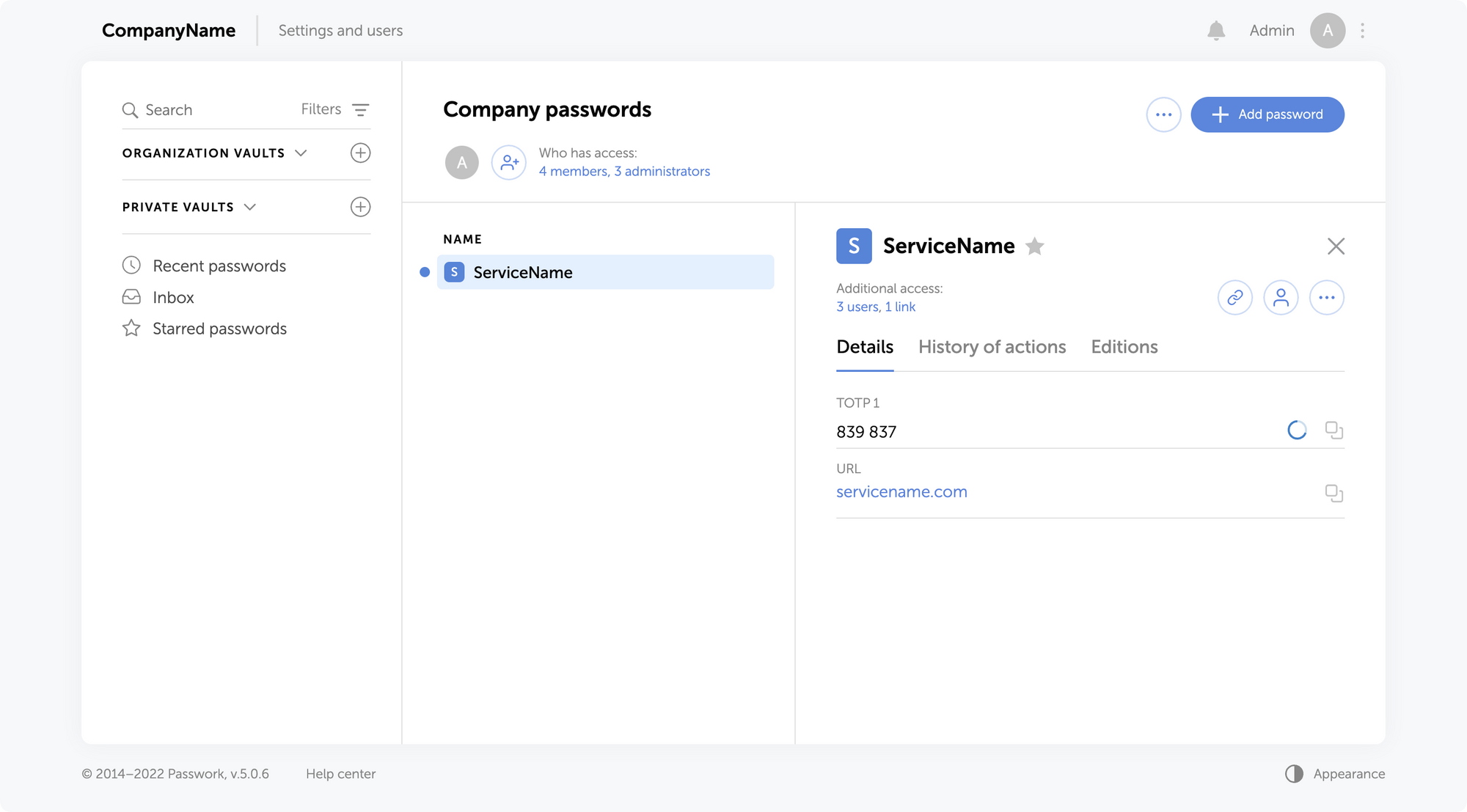
Ability to add TOTP keys and then generate 2FA codes

When adding and editing a password, you can add a TOTP field and enter a secret code to generate 2FA codes. The generated code is updated every 30 seconds.

The "Password" field is now optional, so you can keep 2FA codes separate from main passwords.

Adding TOTP keys and generating 2FA codes is available in the web version, browser extension, and mobile app.

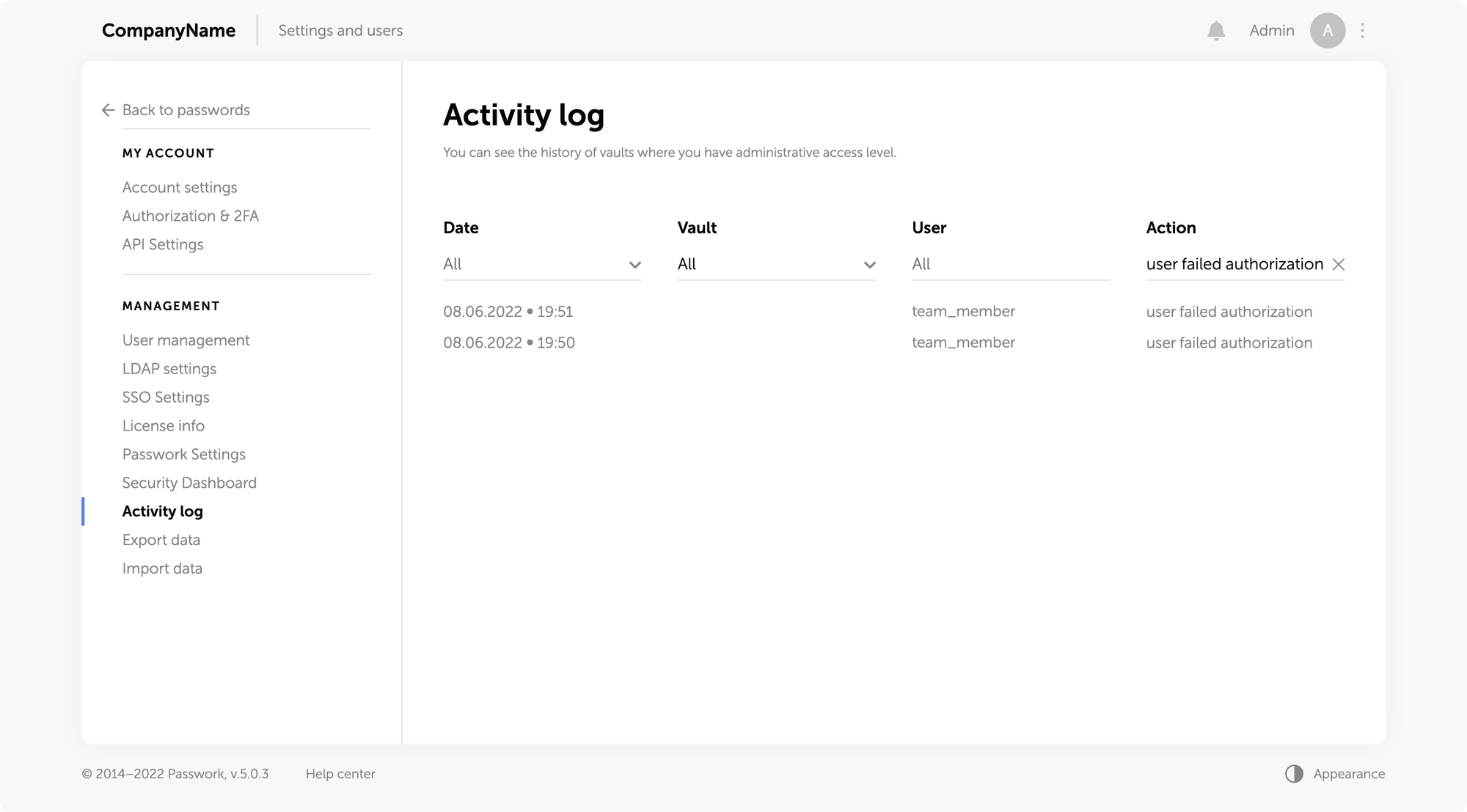
Failed login attempts are now displayed in the action history

The action history displays all failed user authorization attempts. This allows you to better track unauthorized access attempts and the actions of blocked users.

You can see all failed login attempts on the Activity Log page by enabling a filter in the Action column.

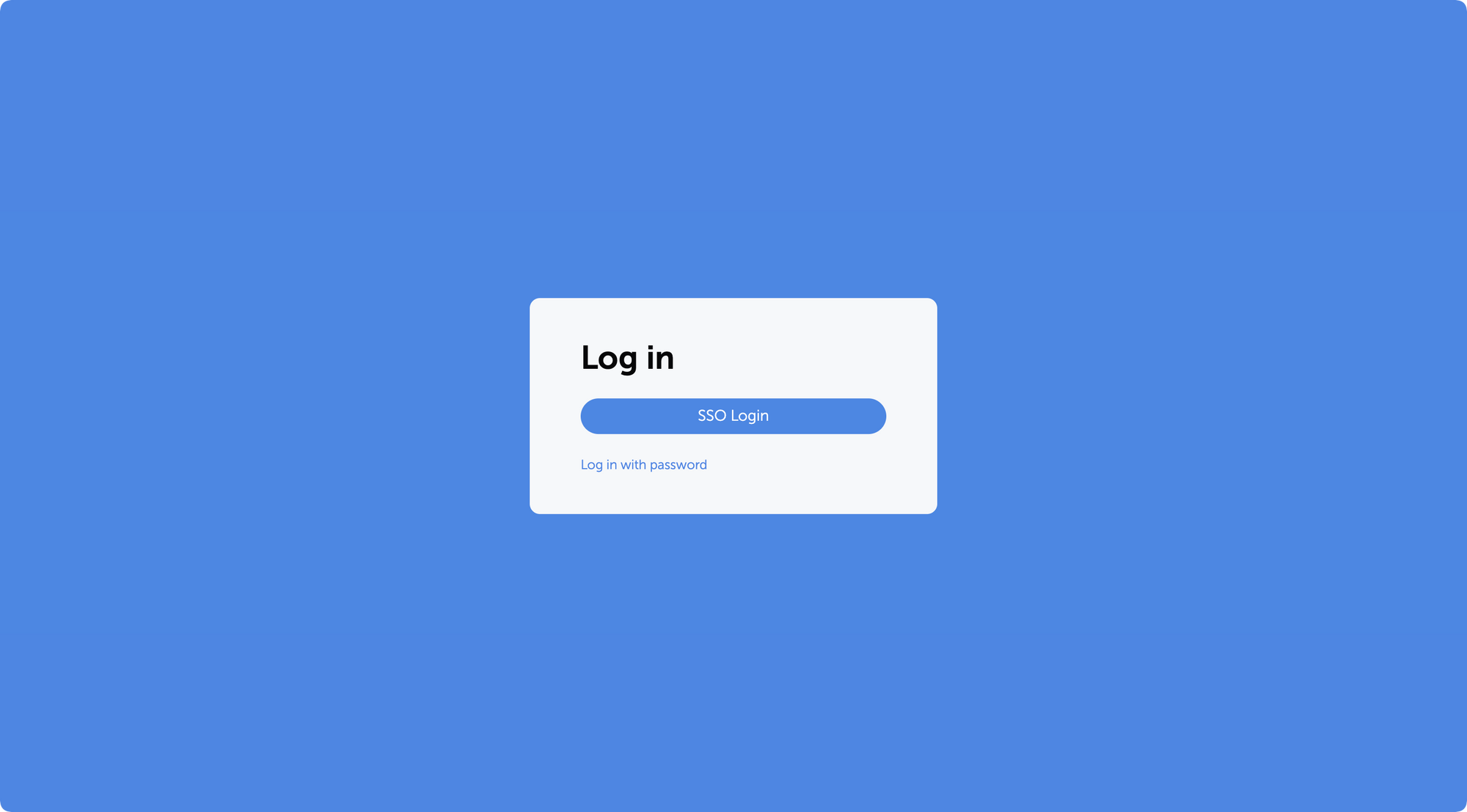
Ability to enable priority authorization using SSO

The new version of Passwork now allows you to enable SSO priority authorization for all users. You can enable it in the "SSO settings" section.

With this option enabled, only the "Sign in via SSO" button is displayed on the authorization page, the login and password fields appear only when switching to the standard authorization.

Optimized work with a large number of users

Passwork has been tested and optimized for 20,000+ users.

Improved LDAP integration

  • Test mode for LDAP roles and groups linking
  • Saving LDAP logs to a CSV file
  • Updating user attributes during synchronization with LDAP directory

Mobile app update

  • Passwork 5 support
  • Ability to copy passwords on long press
  • New home screen view with separating by type of vault
  • Inbox passwords
  • Improved search mechanism
  • Debug mode

Python connector 0.1.5: Automated secrets management
The new Python connector version 0.1.5 expands CLI utility capabilities. We’ve added commands that solve critical tasks for DevOps engineers and developers — secure retrieval and updating of secrets in automated pipelines. What this solves Hardcoded secrets, API keys, tokens, and database credentials create security vulnerabilities and operational bottlenecks.
GDPR password security: Guide to effective staff training
Learn proven strategies to train employees for GDPR password security compliance. Reduce breach risks with practical training methods.
HIPAA requirements for password management
Introduction In the complex ecosystem of modern healthcare, patient data is essential for secure management. In 2024, the U.S. healthcare sector experienced over 700 large-scale data breaches, marking the third consecutive year with such a high volume of incidents. This surge compromised over 275 million patient records, a significant

Introducing Passwork 5.0