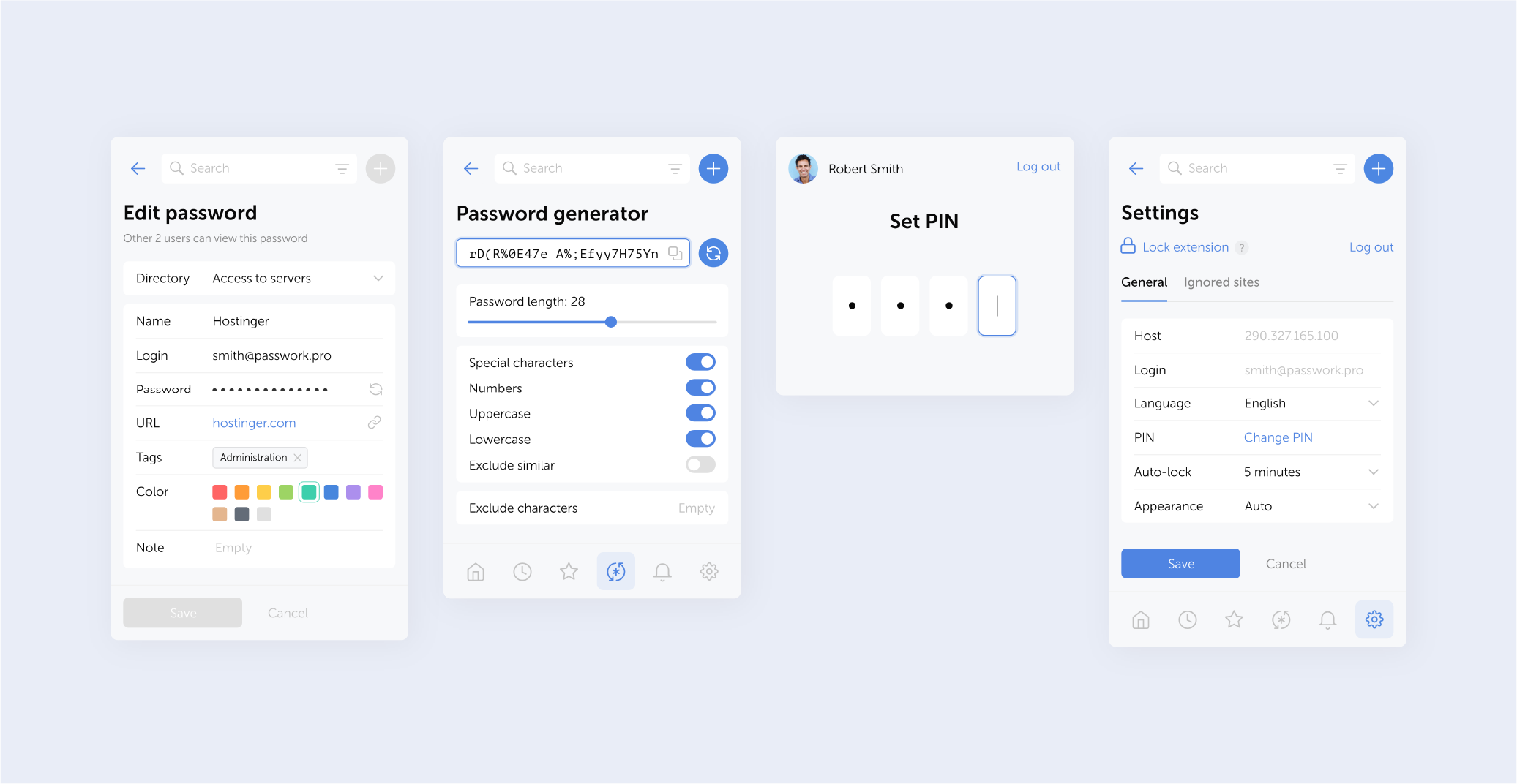
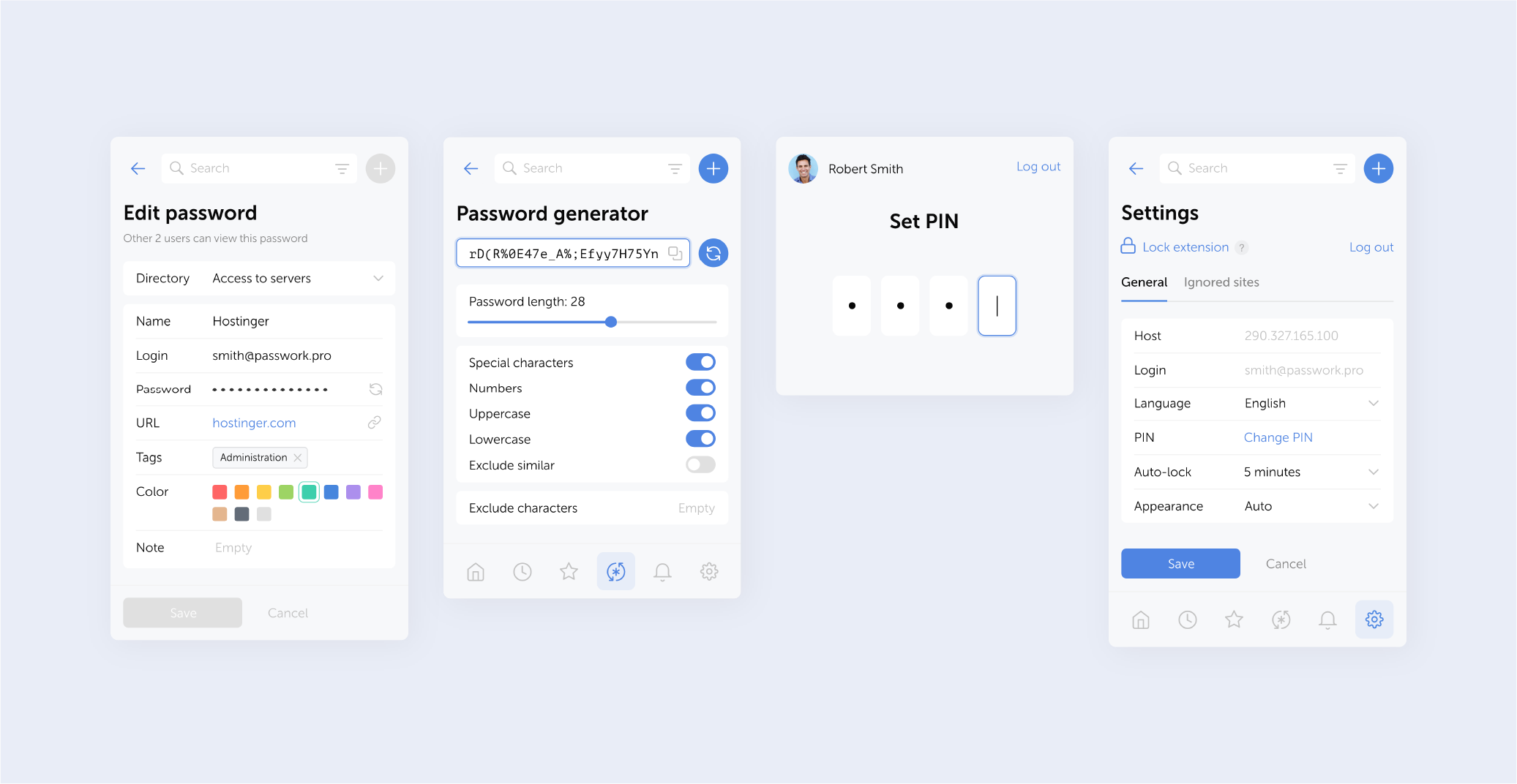
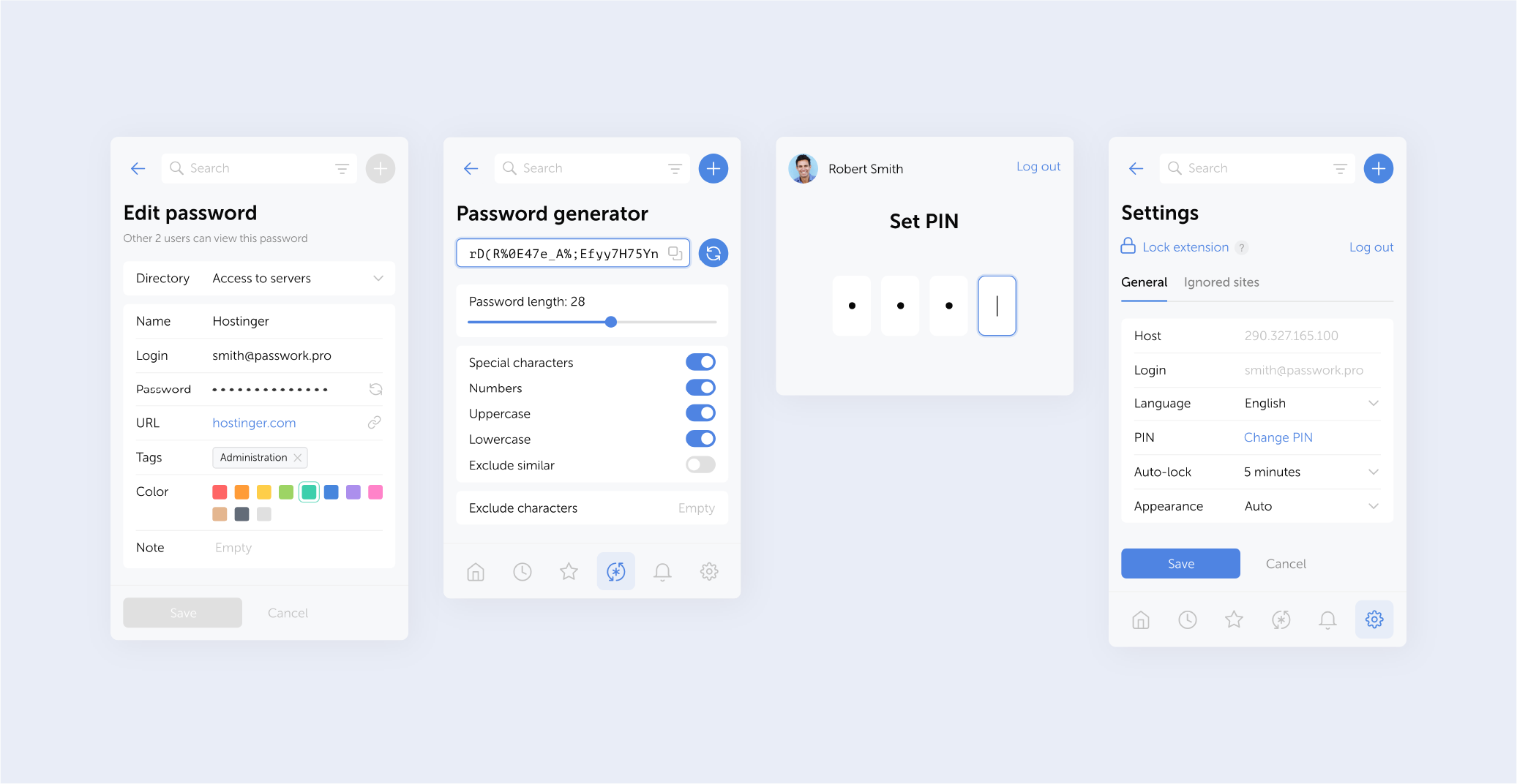
In the new version, we’ve improved TOTP autofill and added error logging to the browser extension. You can now export logs directly from the service worker console and share them with our team — significantly speeding up troubleshooting.
Improved TOTP autofill performance in the browser extension
Added the capability to download error logs through the service worker console using the downloadErrors() command
Fixed an issue where TOTP autofill did not work for items from the Inbox
Fixed an issue where the extension could incorrectly prompt to save or autofill data in some forms not related to authentication
Fixed an issue that could block extension functionality after connecting it
Fixed an issue where notification dates could display incorrectly
Fixed an issue preventing the extension from working in Firefox Incognito mode
Minor bug fixes and performance improvements
⚠️ We updated the extension manifest permissions to enable log downloads. As a result, you may need to re-enable the Passwork extension in Chrome, Firefox, and Edge.
In the new version, we’ve improved TOTP autofill and added error logging to the browser extension. You can now export logs directly from the service worker console and share them with our team — significantly speeding up troubleshooting.
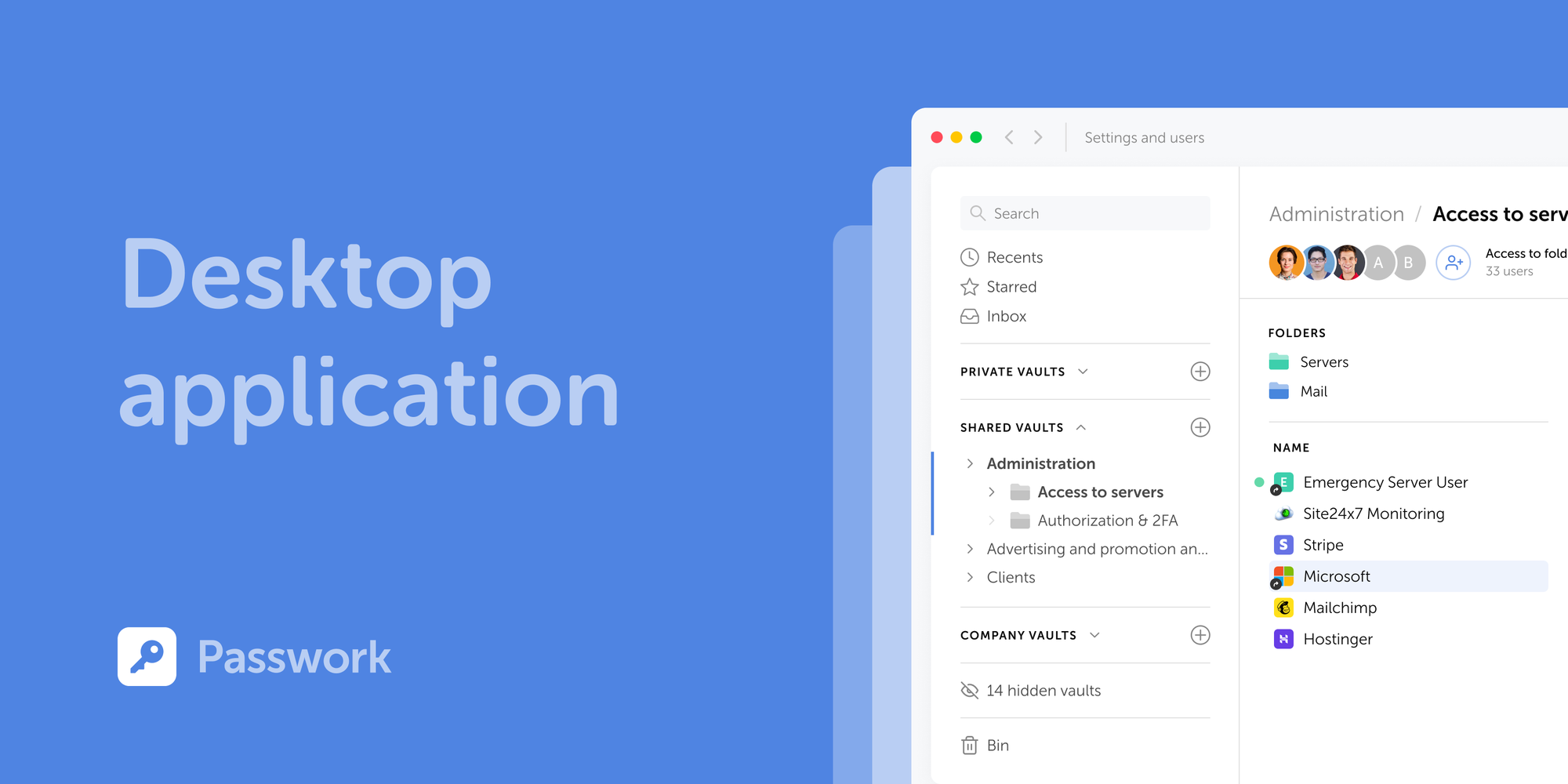
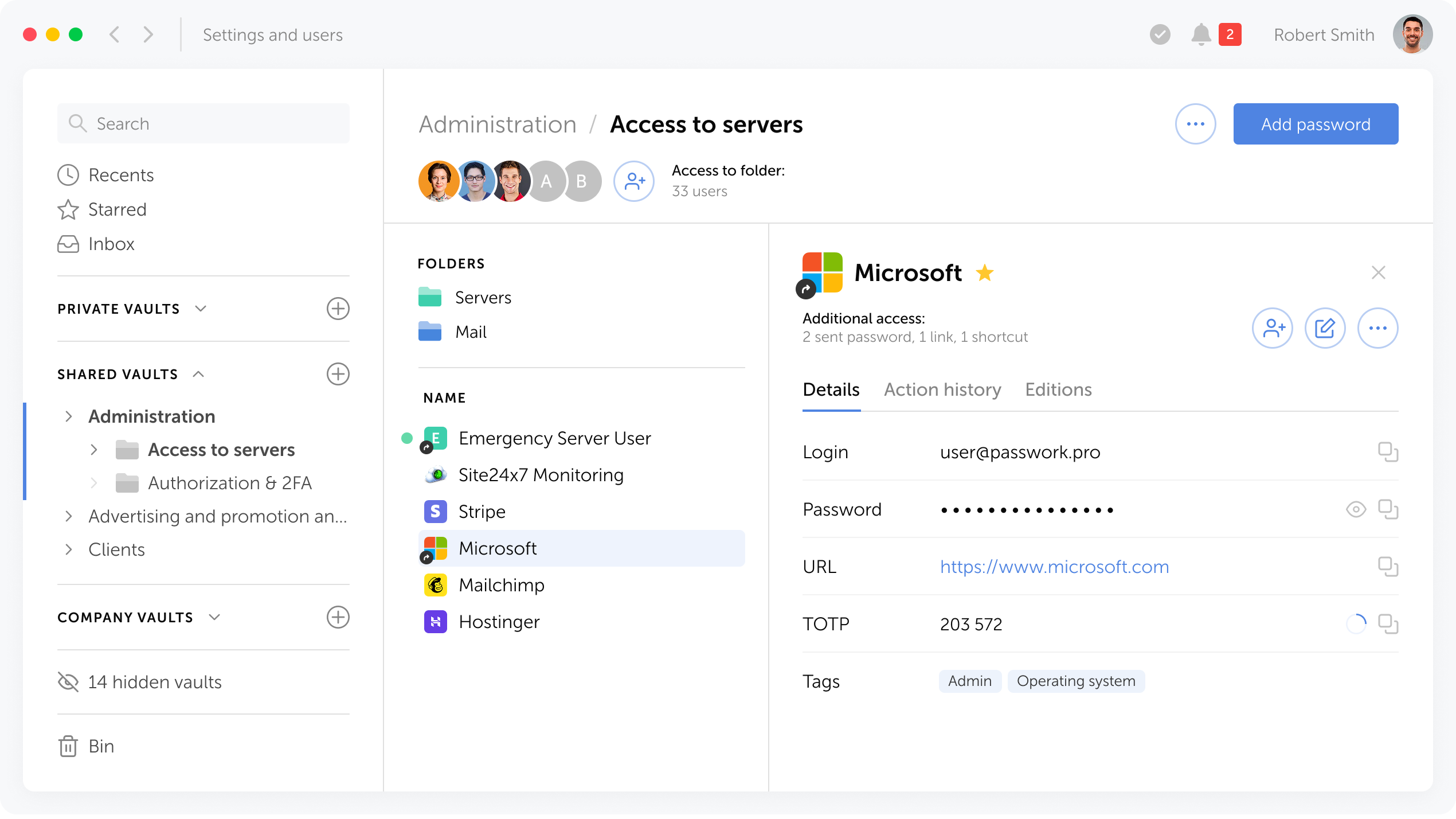
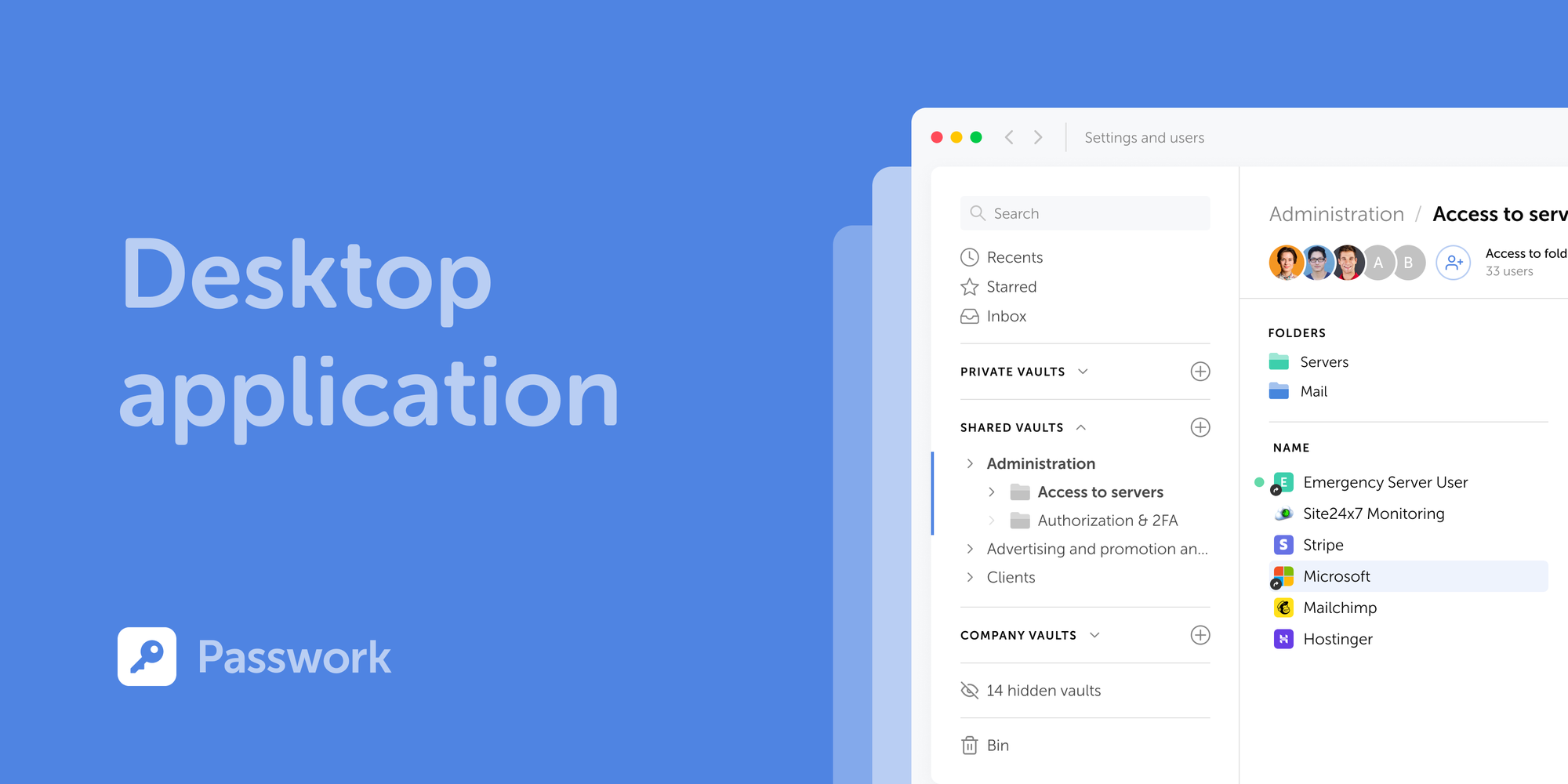
Passwork is now available as a full-featured desktop app for Windows, macOS, and Linux. The desktop app delivers complete password management functionality: manage credentials, access vaults, collaborate with your team, all with the native performance and convenience of a desktop environment.
Supported operating systems
The desktop application supports Windows 10/11 (64-bit), macOS 12 (Monterey) and later, and Linux distros including Ubuntu 20.04+, Fedora 34+, Debian 11+, and others (64-bit).
How to download
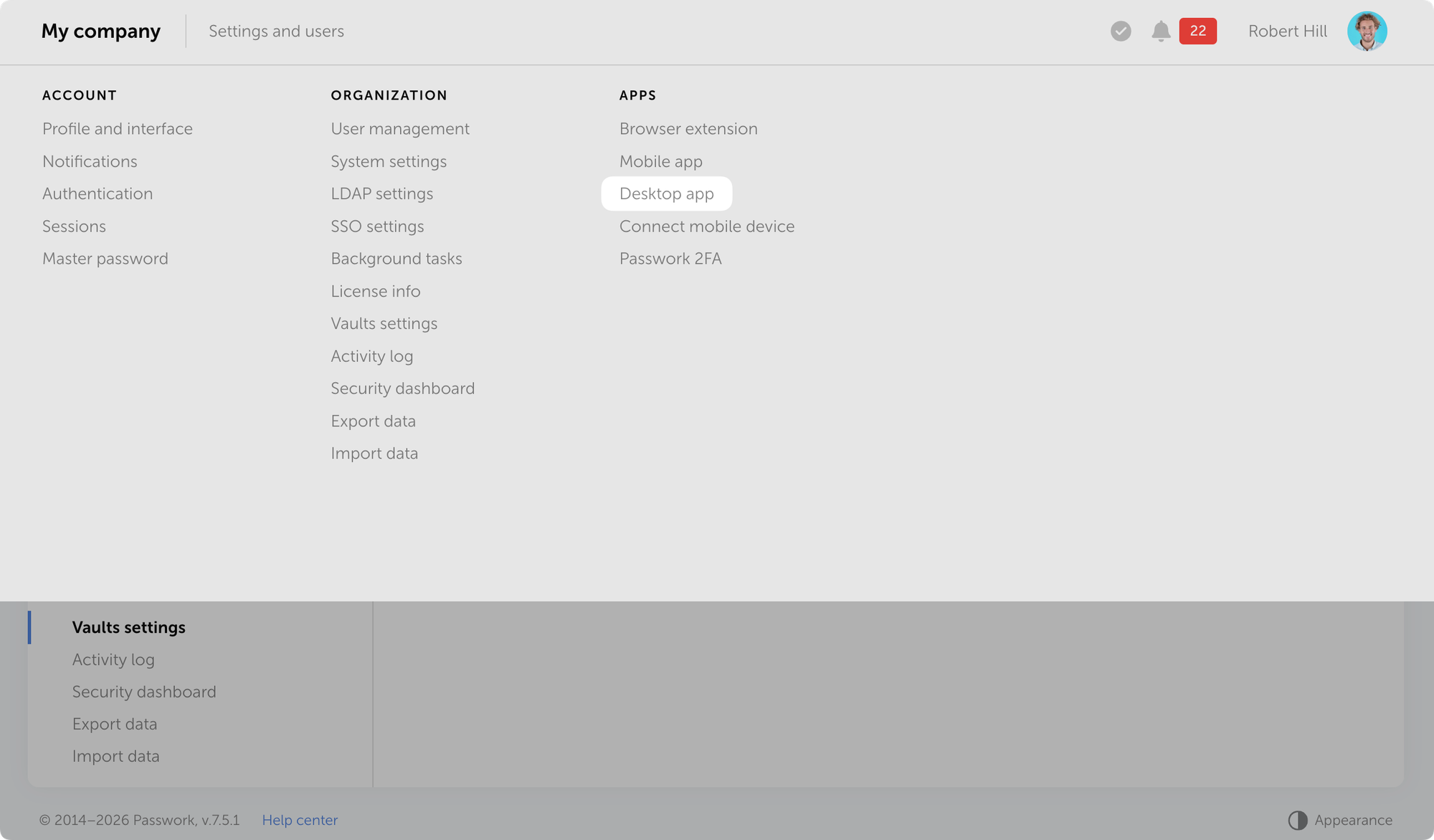
You can download the desktop app directly from the Passwork interface.
Open Passwork → Settings and users → Desktop app and download the installer for your operating system.
Installation
The app authenticates through your browser. You'll need your Passwork instance hostname.
Download the installer
Install the app for your OS and launch it
Enter your Passwork hostname and click Sign in with browser
Authenticate in the browser: enter your credentials or sign in via SSO or passkey
Allow the app to connect to your browser session
If client-side encryption is enabled in Passwork, enter your master password in the app
Note: If you have an active session in the web version, Passwork will prompt you to continue with the current user or switch accounts.
How to update
New desktop app versions are released alongside Passwork updates. When a new version becomes available, the app prompts you to update. The process is automatic — the installer downloads from the repository and installs without manual intervention.
What's next
Upcoming releases will introduce desktop-exclusive features, including offline mode. Access your passwords without a server connection, ensuring continuity even when network access is unavailable.
On macOS, the system may block the first launch because the app is still undergoing Apple's verification process. To allow it, open System Settings → Privacy & Security, find the message about Passwork being blocked, click Open Anyway, and authenticate with your administrator password.
Detailed installation instructions are available in the user guide All information about Passwork updates in our release notes
Passwork is now available as a full-featured desktop app for Windows, macOS, and Linux. The desktop app delivers complete password management functionality: manage credentials, access vaults, collaborate with your team, all with the native performance and convenience of a desktop environment.
The new releases introduce restrictive settings for User vaults (including the option to block adding new users and groups), smooth appearance switching, and other improvements and fixes.
Restrictions for User vaults
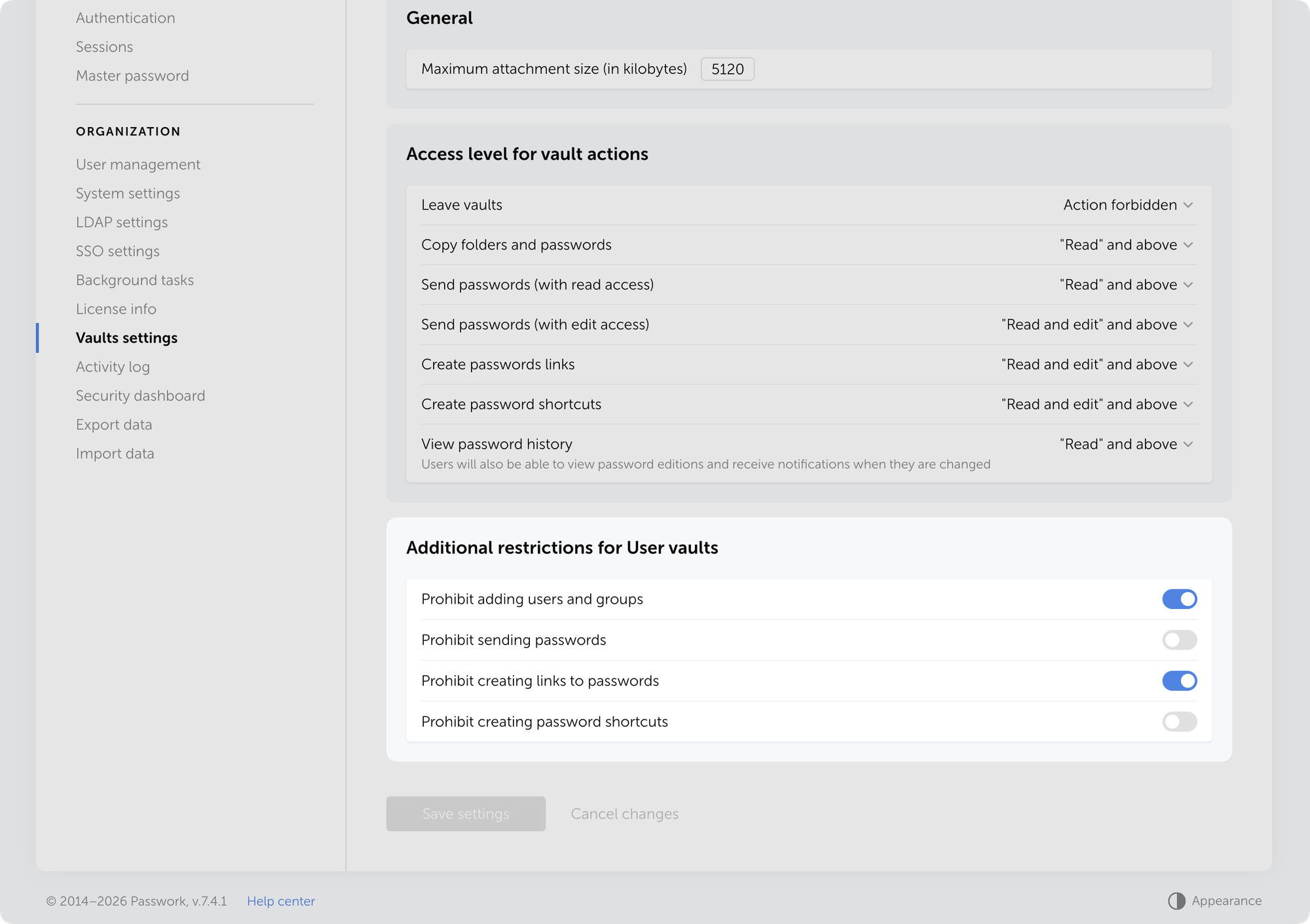
We've added a new block of additional restrictive settings for User vaults in the Vaults settings, allowing administrators to centrally permit or restrict the following actions for all user vaults (private and shared):
Adding users and groups
Sending passwords
Creating password links
Creating password shortcuts
The restrictions do not apply to Company vaults and are automatically enforced on all existing and new User vaults.
Additional restriction settings for user vaults are located in Settings and users → Vaults settings → Settings tab.
New restrictions solve three security problems:
Lower breach risk — Blocking link creation and password sending from User vaults prevents accidental or intentional data leaks outside the organization.
Centralized policy management — Administrators control actions at the platform level rather than relying on employee discipline.
Stronger control over data distribution — Prevent unmonitored password sharing through personal vaults. Critical for organizations with strict security requirements.
Use cases
Three common cases where additional restrictions for User vaults resolve specific security challenges:
Prohibiting password sharing from Personal vaults
Problem: Employees store corporate passwords in personal vaults and share them directly with colleagues, bypassing company vaults.
Solution: Enable all four restrictions. Employees can store passwords in personal vaults but cannot share them — sharing requires Company vaults with controlled access.
Prohibiting link creation for external contractors
Problem: Employees create temporary password links from personal vaults and send them to external contractors, creating leak risks.
Solution: Enable "Prohibit creating password links." Links can only be created from Company vaults, where administrators control expiration time and access rights.
Preventing corporate password duplication
Problem: Employees copy passwords from Company vaults to their personal ones, create shortcuts, and then share them with colleagues. As a result, the same credentials are stored in multiple locations, and when a password is changed in the Company vault, outdated copies remain in personal storage.
Solution: Enable the restrictions "Prohibit creating password shortcuts" and "Prohibit adding users and groups." This will force employees to work directly with Company vaults, where passwords are always up to date, and the administrator controls their lifecycle and change history.
Other changes
Added visual indicators informing users about the mandatory email confirmation in order to receive notifications
Added dynamic list loading for the user filter in the Security dashboard
Added smooth transition when switching appearance
Added automatic setting of the Read value in the Access field when sending a password to another user
Fixed an issue where users couldn't confirm their email addresses when the master password wasn't saved in the browser
Fixed an issue where, after resetting access in User management, an incorrect access level was displayed until the page was reloaded
Fixed an issue where the list of inbox passwords wasn't displayed correctly after enabling the "Search only in Inbox" checkbox with an empty search query
Fixed an issue where XML files from KeePass could not be imported if they contained folders with names consisting only of digits
Made minor UI and localization improvements
You can find all information about Passwork updates in our release notes
The new version introduces restrictive settings for User vaults, including the option which blocks adding new users and groups, adds smooth appearance switching, and other improvements and fixes.
The new version adds a resizable note field, enhanced event descriptions in Action log, and several other improvements and bug fixes.
Improvements
Added the capability to resize the Note field when creating and editing entries
Changed the behavior of the Export data menu item: it now becomes inactive when there is no data to export
Improved the description of user email confirmation events in the Activity log
Bug fixes
Fixed an issue where passwords with special characters could be processed incorrectly when saving an LDAP server
Fixed an issue where search results with an empty search query and no filters applied displayed incorrectly for a specified vault
Fixed an issue where after exiting search in a selected vault, only folders were displayed while passwords and shortcuts did not load until re-entering the vault
Fixed an issue where not all passwords were being exported during the data export process
Fixed an issue where resetting a user's master password incorrectly required permission to manage master password complexity policies
Fixed an issue where the sign-up form accessed via link returned a 401 error when self-registration was disabled
Fixed an issue that prevented adding a WebAuthn credential with an empty transports field
You can find all information about Passwork updates in our release notes
In the new version, we've added search filtering by current directory and made minor improvements to the import process, localization, and UI. The update is available in the Customer portal.
Search in vault or Inbox
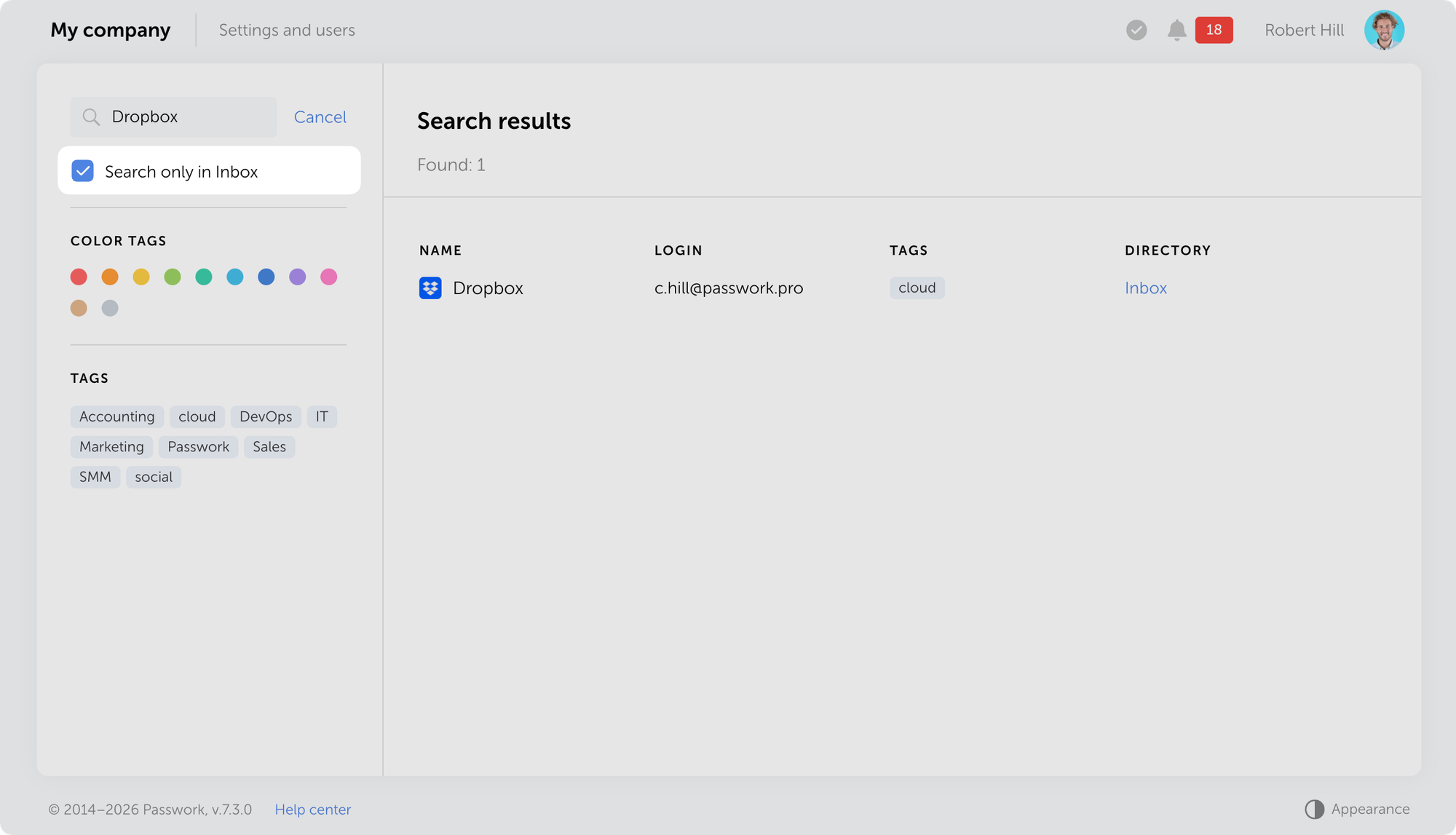
Added an option to limit search to the current vault or Inbox. A checkbox is now available below the search bar that, when enabled, restricts search to the selected area.
Other changes
Fixed an issue where quickly switching between directories and Recents, Favorites, or Inbox pages could display an incorrect or empty password list
Fixed an issue where importing files with long notes could cause the process to freeze
Fixed an issue in MongoDB connection string handling
You can find all information about Passwork updates in our release notes
In the new version, we've added search filtering by current directory and made minor improvements to the import process, localization, and UI. The update is available in the Customer portal.
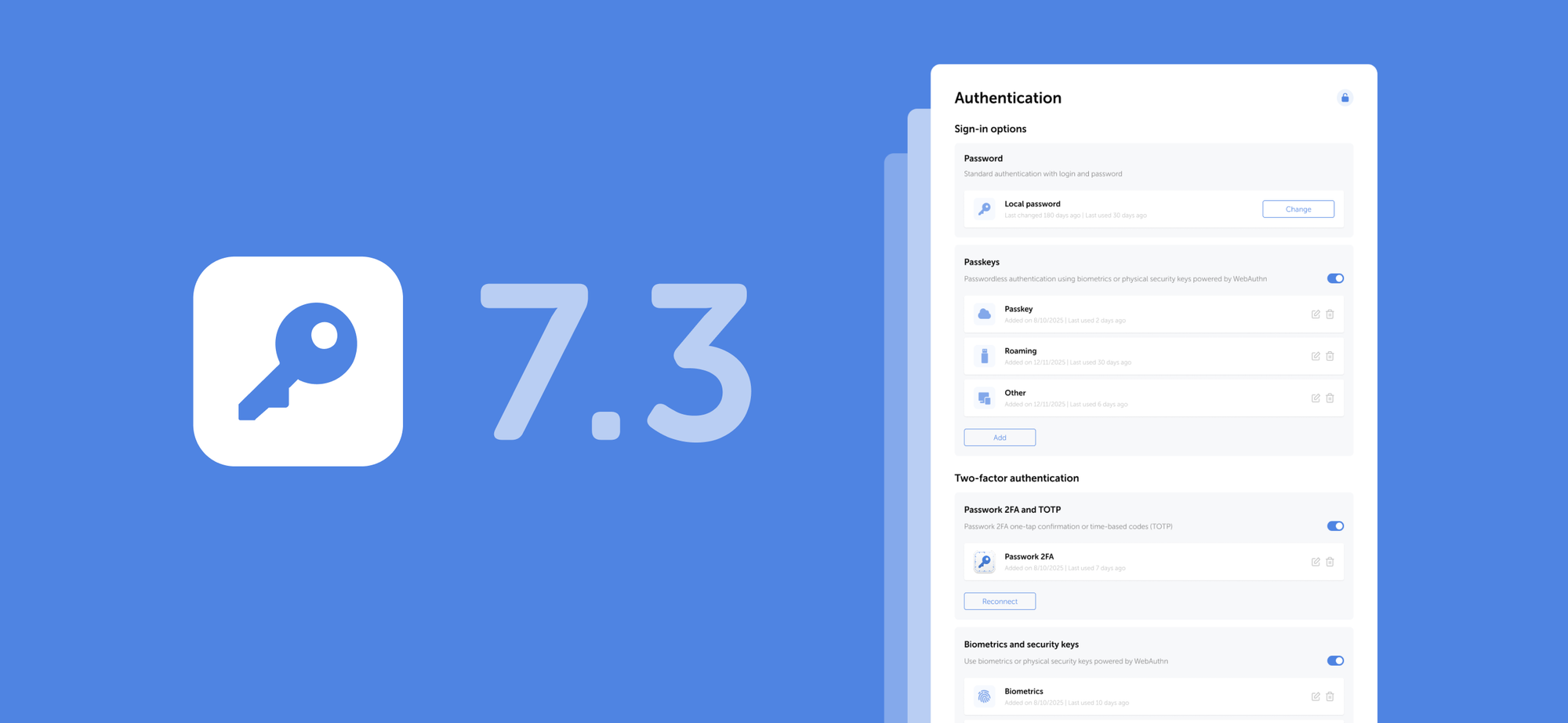
The new version introduces biometric and passkey authentication, the option to add multiple URLs for a single password, email address verification for users, email-based authentication, and numerous other improvements and fixes.
Biometric authentication and passkeys
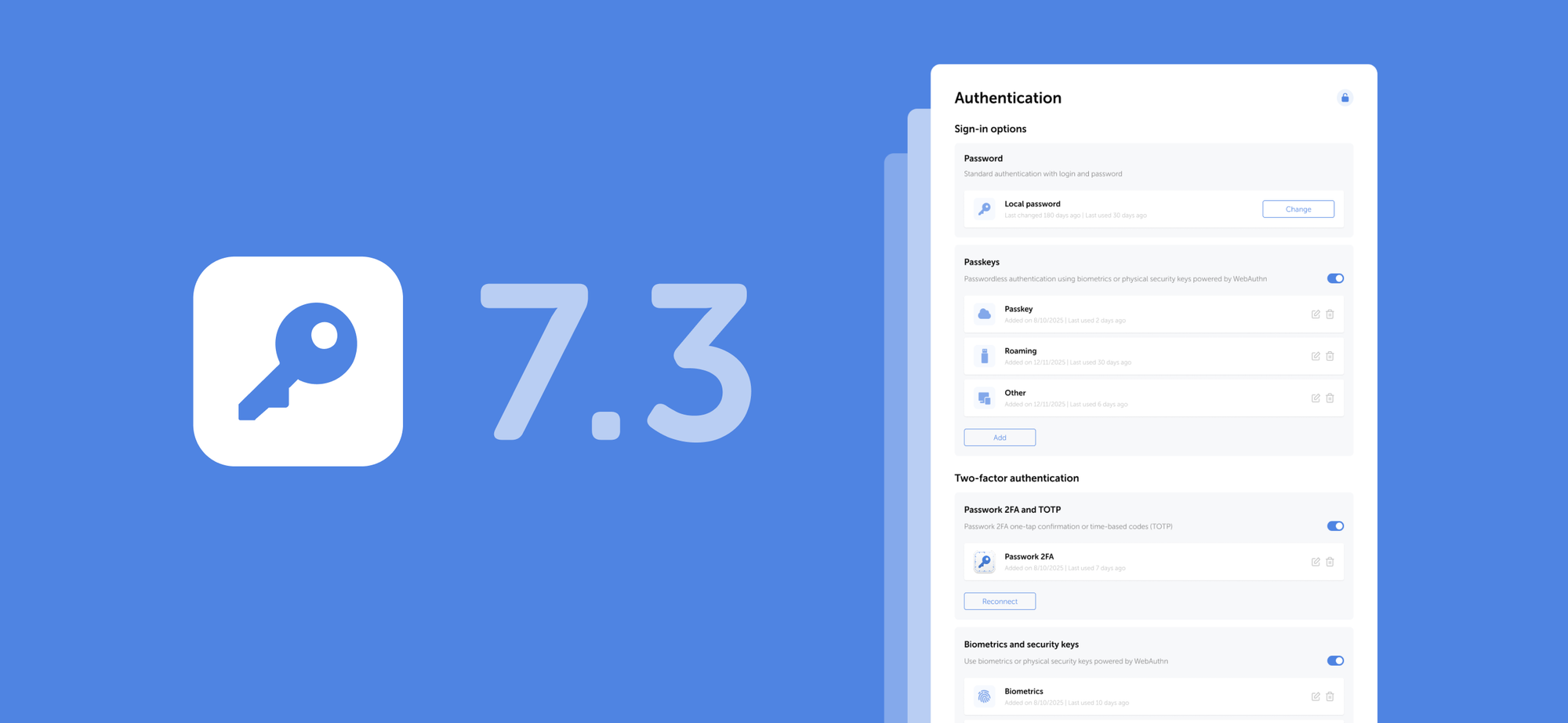
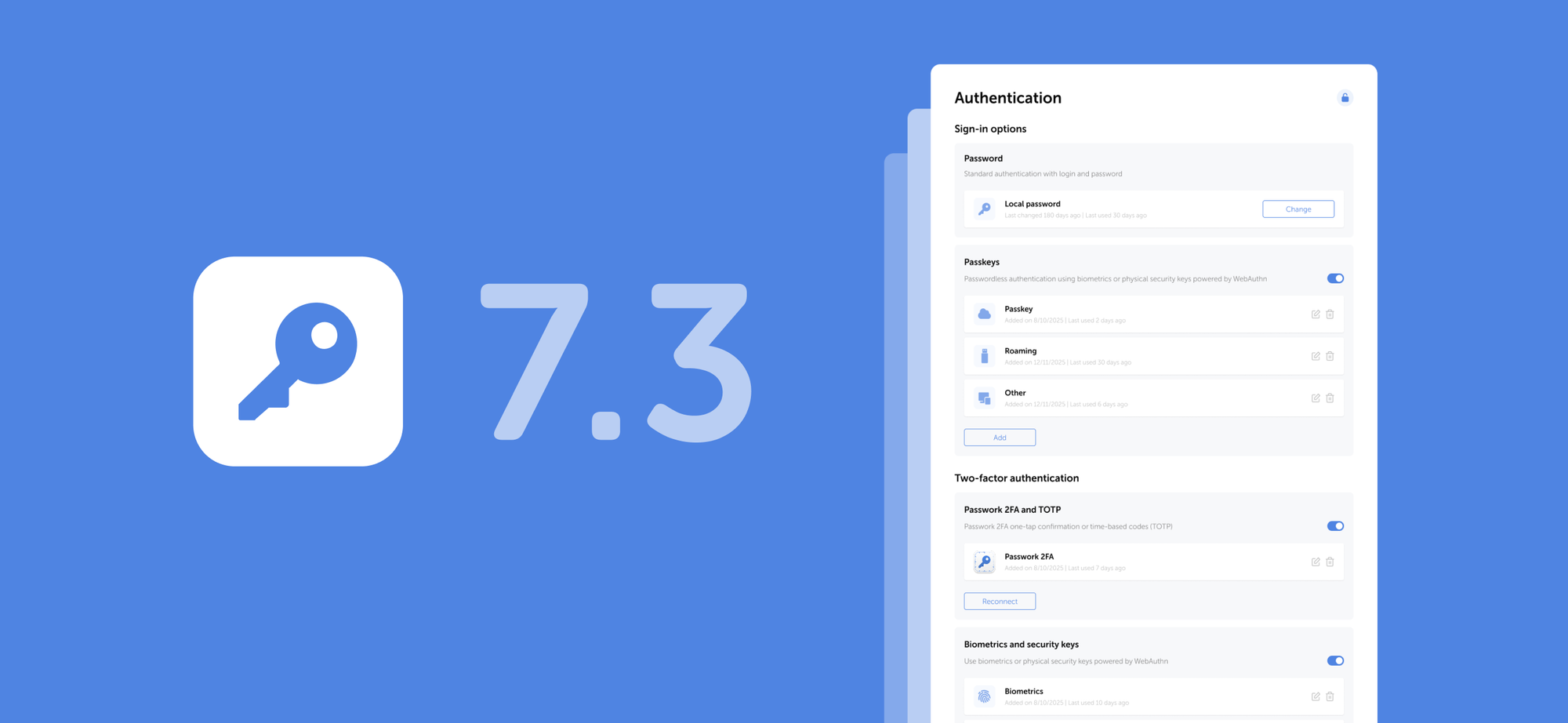
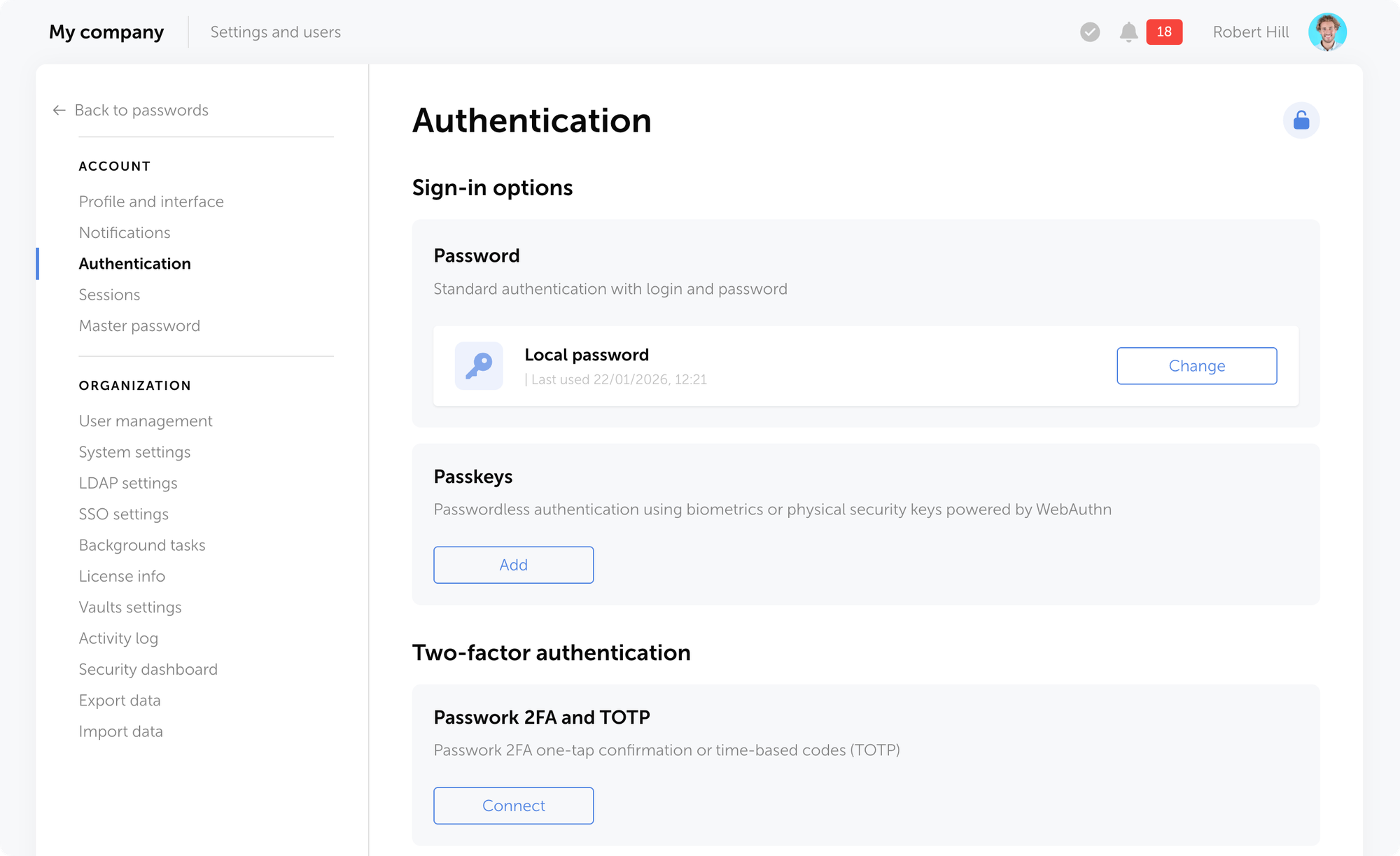
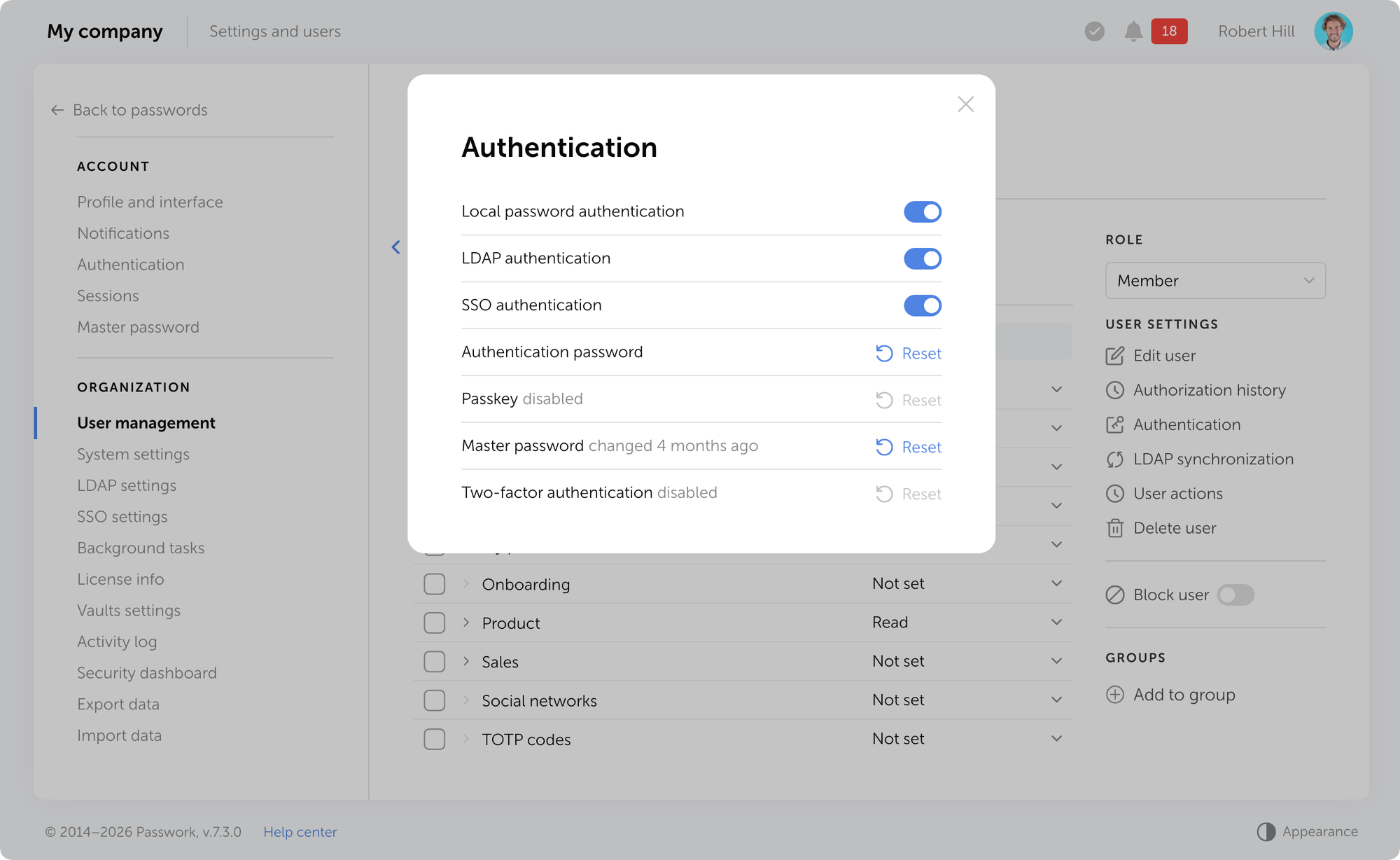
We've added support for biometric authentication, passkeys, and security keys based on the WebAuthn standard. You can now sign in to Passwork using your fingerprint, Face ID, PIN code, or a hardware security key (YubiKey and similar devices).
On the Authentication settings page, you can add new sign-in methods, manage existing ones, change your password, or enable passwordless authentication through biometrics or hardware security keys.
The authentication settings page automatically locks after 5 minutes of inactivity — click the lock icon in the top-right corner to unlock it.
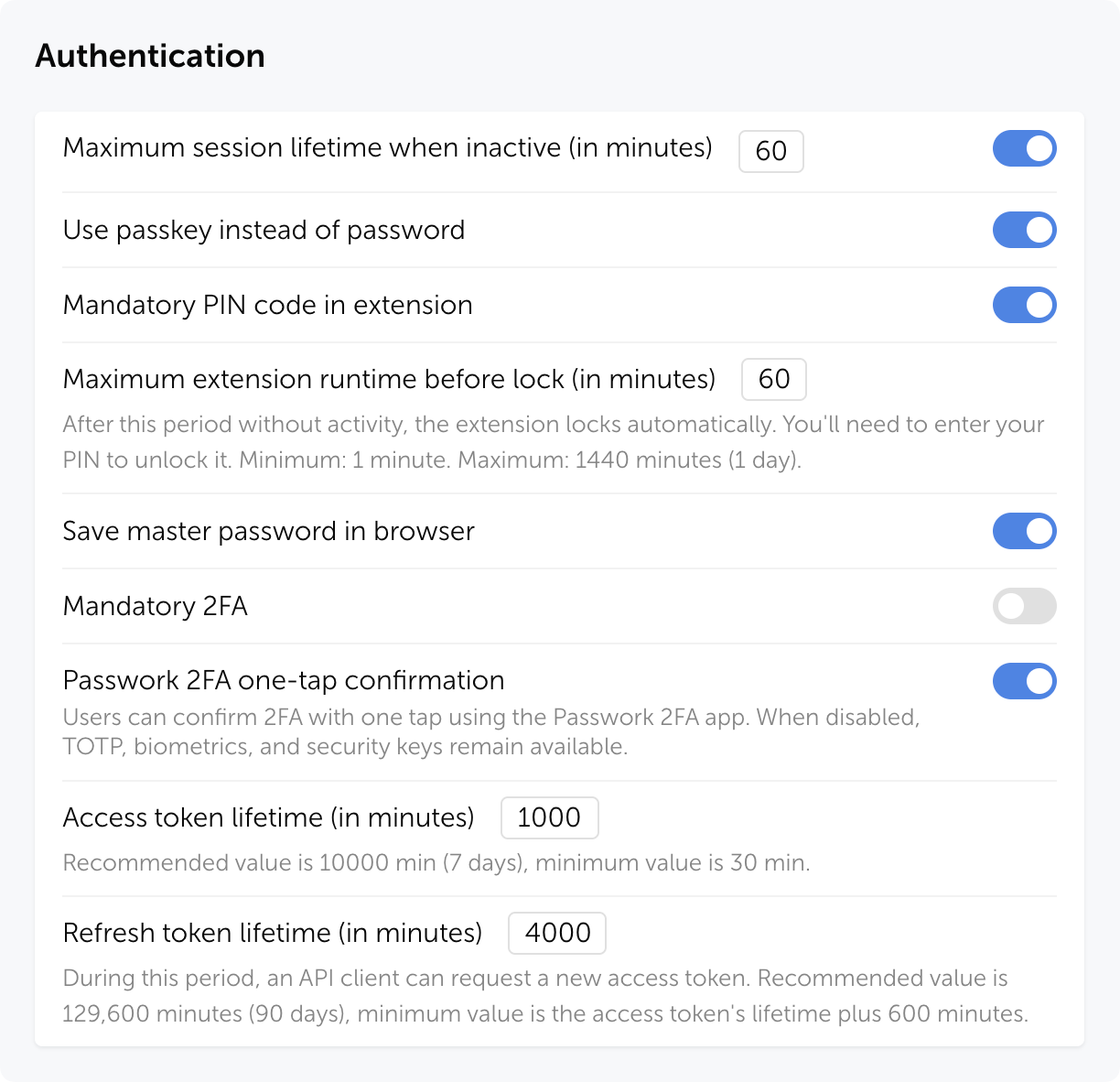
The new role setting Use passkey instead of password allows users to authenticate with a passkey instead of their local or domain password.
You can reset a passkey for an individual user on their page in the User management section through the Authentication modal window.
Learn more about authentication methods in our user manual.
Multiple URLs per entry
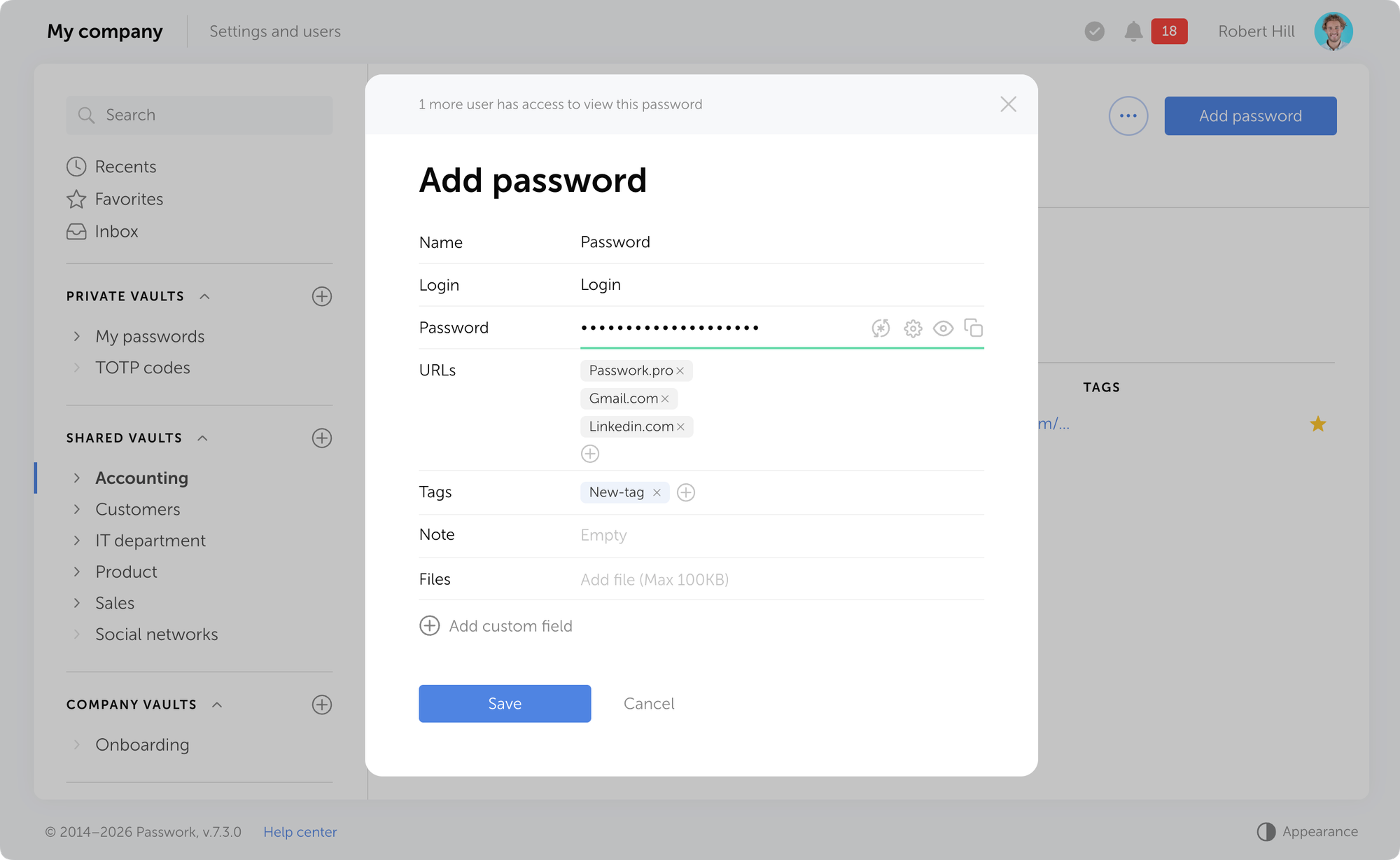
You can now add multiple URLs to a single entry. This is useful when one account is used to access different addresses: test and production environments, regional versions of a website, or related company services. The browser extension will automatically suggest filling in credentials on any of the specified URLs.
Email verification
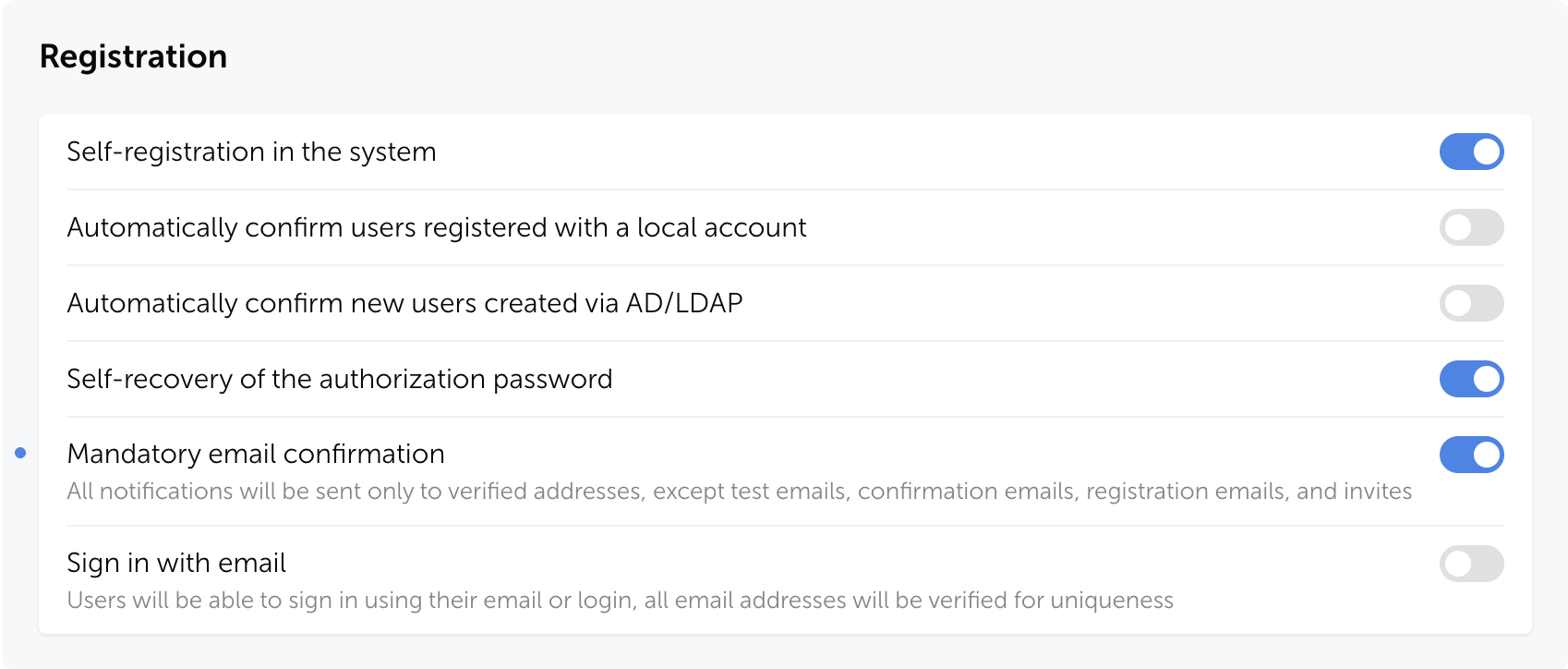
Passwork now supports mandatory email verification for users. When a user adds or changes their email address, Passwork sends a verification email with a confirmation link.
Email notifications will only be sent to verified addresses. Exceptions include: test emails, verification emails, registration emails, and invites.
You can enable mandatory email confirmation in System settings → Registration → Mandatory email confirmation.
Without email verification, invalid addresses can appear in the system. This can create problems: notifications don't reach users, password reset fails, and security risks emerge. Email confirmation ensures that messages are delivered only to legitimate recipients.
Email-based authentication
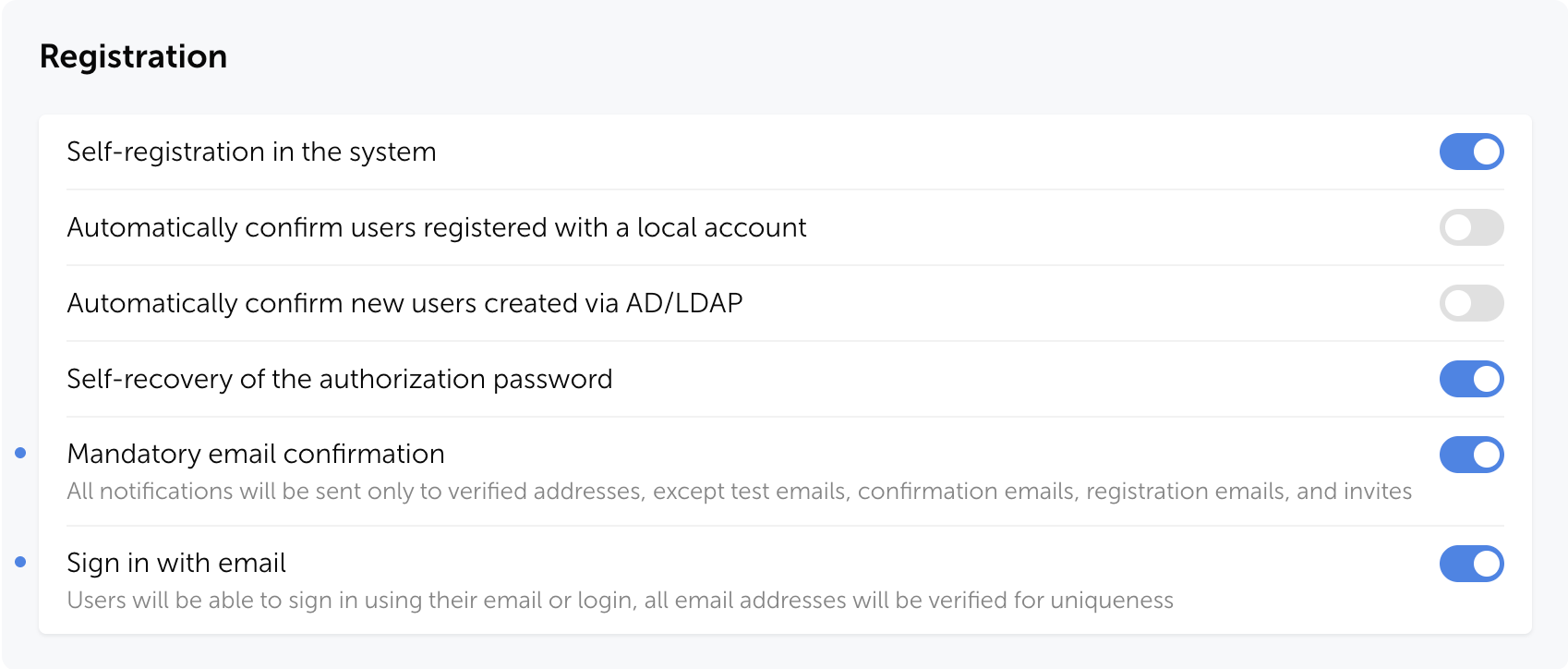
We've added the ability to sign in to Passwork using a verified email address instead of a login to simplify authentication and reduce login errors. After enabling this setting, username-based sign-in remains available, and all email addresses will be checked for uniqueness in the system.
You can enable email-based authentication in Passwork in System settings → Registration→ Sign in with email.
Improvements
Improved the user filter in the Activity log: search now considers not only the action initiator but also linked users
Fixed an issue where the folder filter in Security dashboard and Activity log might not include data from nested subfolders when selecting a parent folder
Added automatic locking of the authentication settings page after 5 minutes of inactivity
Added an option to set a color for each shortcut individually without changing the color of the initial password
Fixed an issue where the Edit option in User management was not activated when the "Edit user email" option was enabled in role settings
Fixed incorrect display of the banner prompting to add a service account on the LDAP server edit page after reloading the page
Fixed an issue where the Update button in the user edit modal could remain inactive when there were unsaved changes
Fixed an issue in the setup wizard where an incorrect "Database already exists" message could be displayed on the database connection page
Fixed an issue where after saving changes in the Vault access or Folder access modal, an incorrect "Discard changes?" message was displayed when attempting to close the window
Fixed an issue where notifications about failed PIN code entry attempts in the browser extension might not be sent
You can find all information about Passwork updates in our release notes
In the new version, we've added support for passkeys and biometrics, an email address verification mechanism for users, the option to specify multiple URLs for a single password, independent shortcut color customization, as well as numerous improvements and fixes.
Passwork 7.2.4 update is available in the Customer portal.
Fixed an issue in the Security dashboard where the threat warning about a password being viewed via an expired link disappeared after deleting that link: the threat warning now persists until the password is changed
Fixed an issue where after setting up 2FA, authentication apps (e.g., Google Authenticator) displayed incorrect text instead of the user's login
Fixed PIN logic in the browser extension: now when a PIN is deleted or after three failed attempts, only the current session is reset
Fixed an issue where the Enter key was incorrectly handled in the "Background task history retention period" field
Fixed an issue where a folder would only open after double-clicking on its name
Fixed an issue where email notifications could be sent to blocked and unconfirmed users when vault access was changed
Fixed an issue where the directory filter reset button did not work in the Activity log
Minor improvements to UI and localization
You can find all information about Passwork updates in our release notes
In the new releases, we’ve added the capability to display a company logo in the Passwork interface, improved event display in the Activity log and Notifications settings, and fixed several UI issues.
Improvements
Added the capability to display a company logo in the upper left corner of the interface: specify the image path in the APP_LOGO_PATH parameter of the configuration file (recommended format and size: PNG, 200×80 px)
Improved event display in Activity log and Notification settings: now only relevant events are shown depending on the encryption type
Added automatic logout from the mobile app and browser extension when a user's master password is changed: previously, changing the master password could cause errors in the app and extension
Changed the behavior of the "Reset filter" button in filter modal windows: the window now remains open after reset
Added icons for system events in the Activity log
Improved event descriptions in the Activity log
Bug fixes
Fixed an issue where multiple tags could display as a single element in the password details window in Security dashboard
Fixed an issue where some toggles in the "Role-based user management" section remained active when necessary permissions were missing
Fixed an issue where the “Set as owner” button could be unavailable (non-client-side encryption version)
Minor fixes to UI and localization
You can find all information about Passwork updates in our release notes
The new Python connector version 0.1.5 expands CLI utility capabilities. We've added commands that solve critical tasks for DevOps engineers and developers — secure retrieval and updating of secrets in automated pipelines.
What this solves
Hardcoded secrets, API keys, tokens, and database credentials create security vulnerabilities and operational bottlenecks. Manual secret management introduces delays and human error into deployment pipelines. The new get and update commands in passwork-cli fully automate secrets management. Passwork functions as your single source of truth (SSOT): secrets stay centralized, secure, and fully automated.
How the new commands work
get — retrieves data from Passwork
update — updates data in Passwork
Both commands support all field types: passwords, tokens, API keys, and custom fields.
Get: Retrieving data from entries
The get command extracts any field value from an entry and fits perfectly into automation scripts.
Retrieving specific fields
Use the --field flag to extract login, URL, or values from any custom field.
# Get API access token from custom field 'API_TOKEN'
export API_TOKEN=$(passwork-cli get --password-id "..." --field API_TOKEN)
Generating TOTP codes
If you store two-factor authentication secrets in Passwork, passwork-cli generates the current code directly in your terminal. Use the --totp-code flag.
# Get TOTP code for VPN connection
VPN_TOTP=$(passwork-cli get --password-id "..." --totp-code "VPN_SECRET")
Update: Modifying secrets
The update command changes data in Passwork and automates secret rotation.
Updating custom fields
The --custom-<field_name> flag updates values in custom fields.
# Update API key in entry
passwork-cli update --password-id "..." --custom-API_KEY "new-generated-key"
Bulk updates
Now you can modify multiple fields with a single command.
Both get and update commands fully support Passwork's client-side encryption mode. When using get, all encrypted fields are automatically decrypted using the master key. When executing update, data is first encrypted on your side and only then sent to the server.
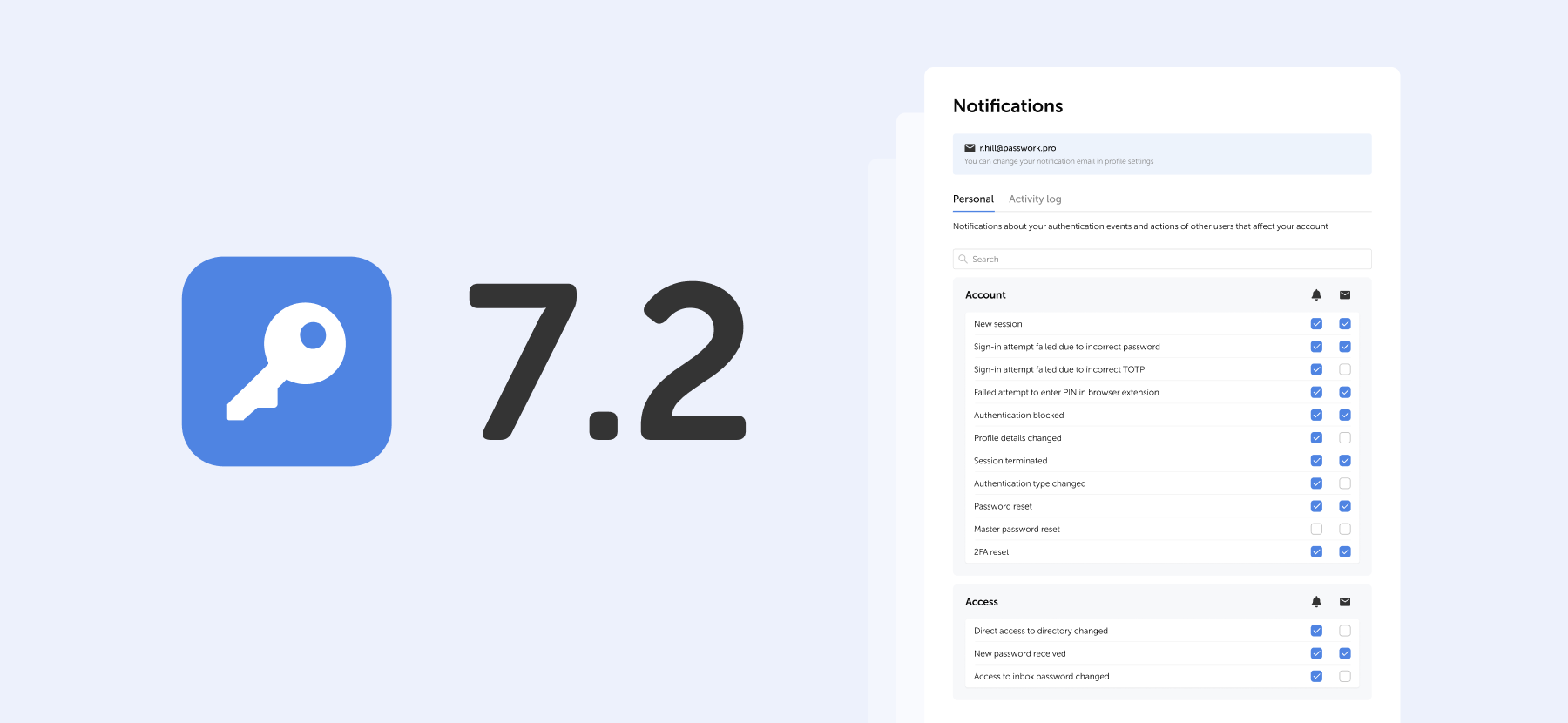
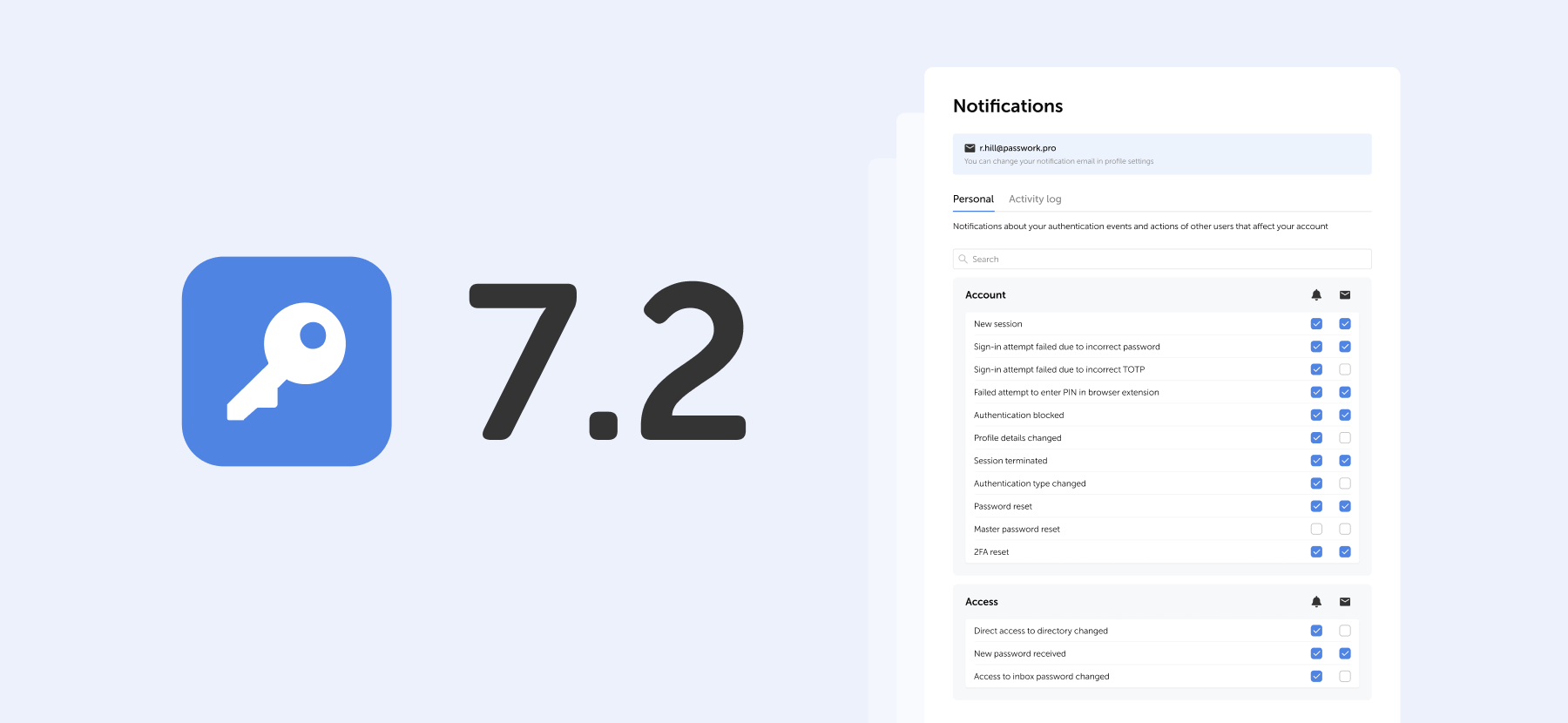
The new version introduces customizable notifications with flexible delivery options, enhanced event logging descriptions, expanded CLI functionality, server-side PIN code storage for the browser extension, and the ability to enable client-side encryption during initial Passwork configuration.
Notification settings
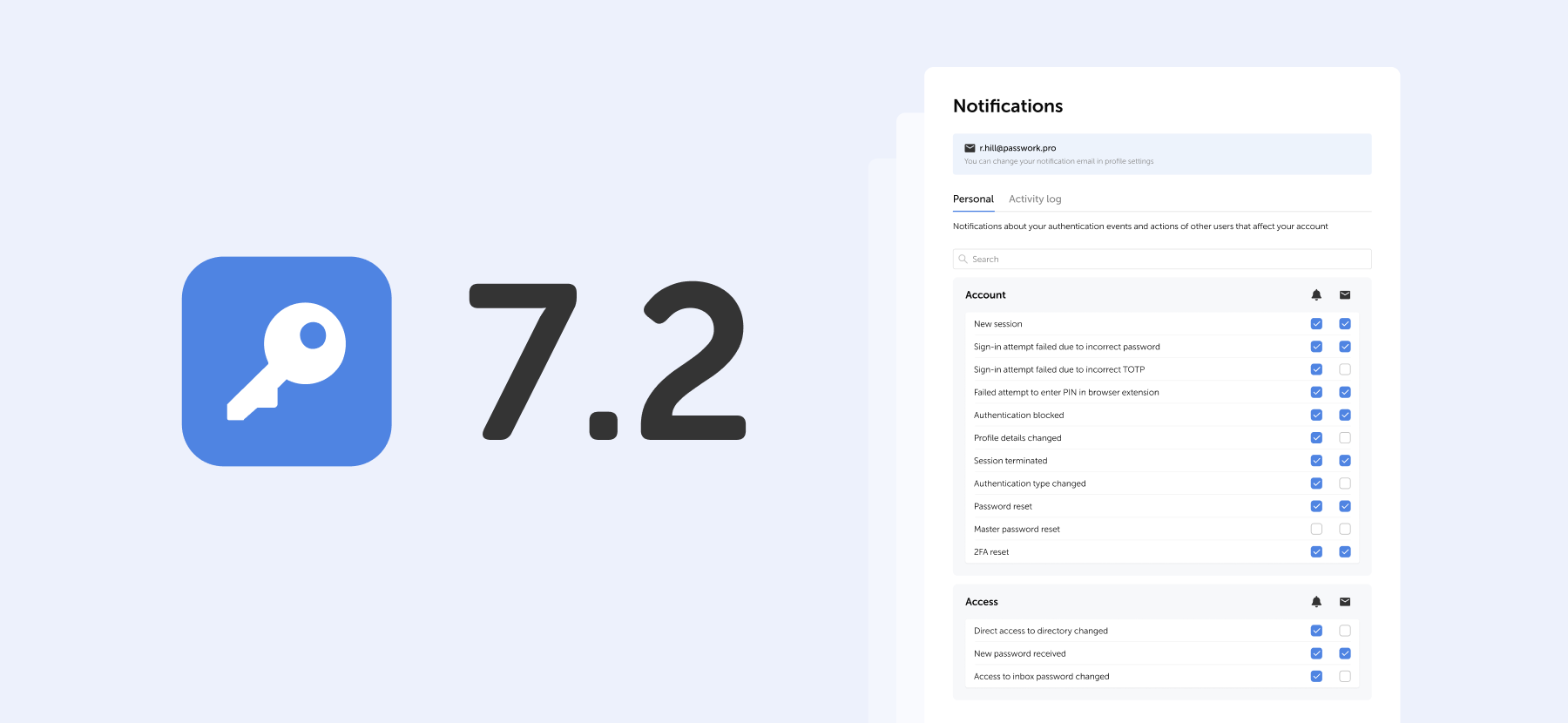
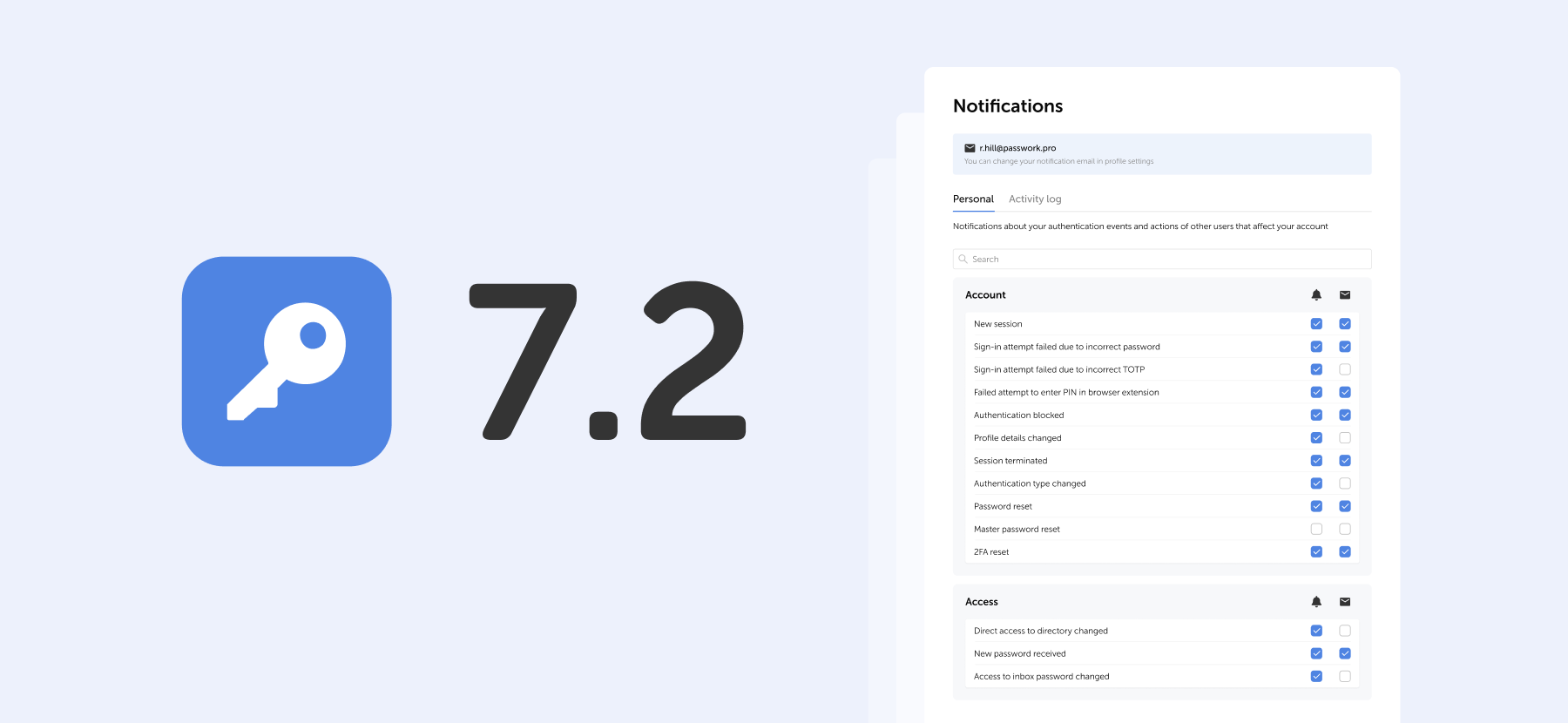
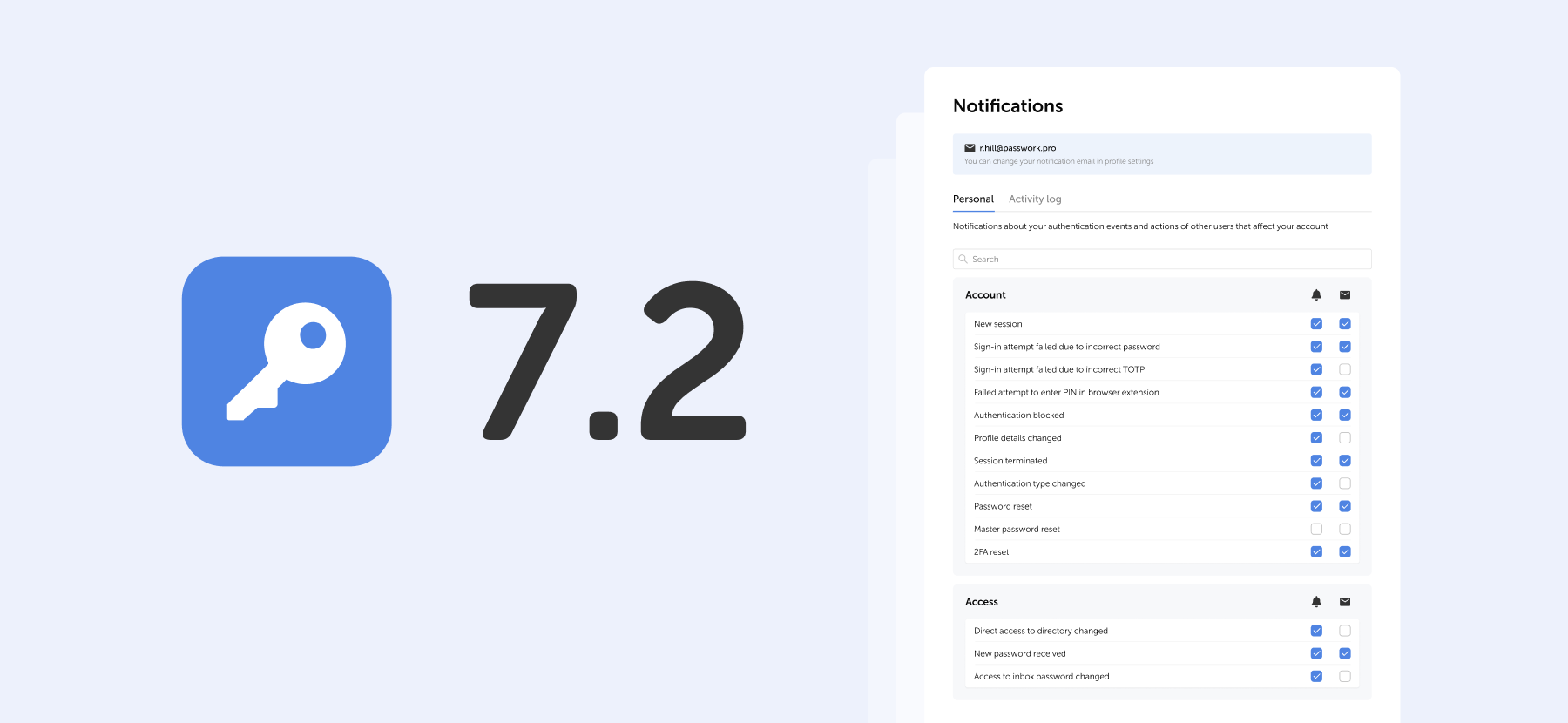
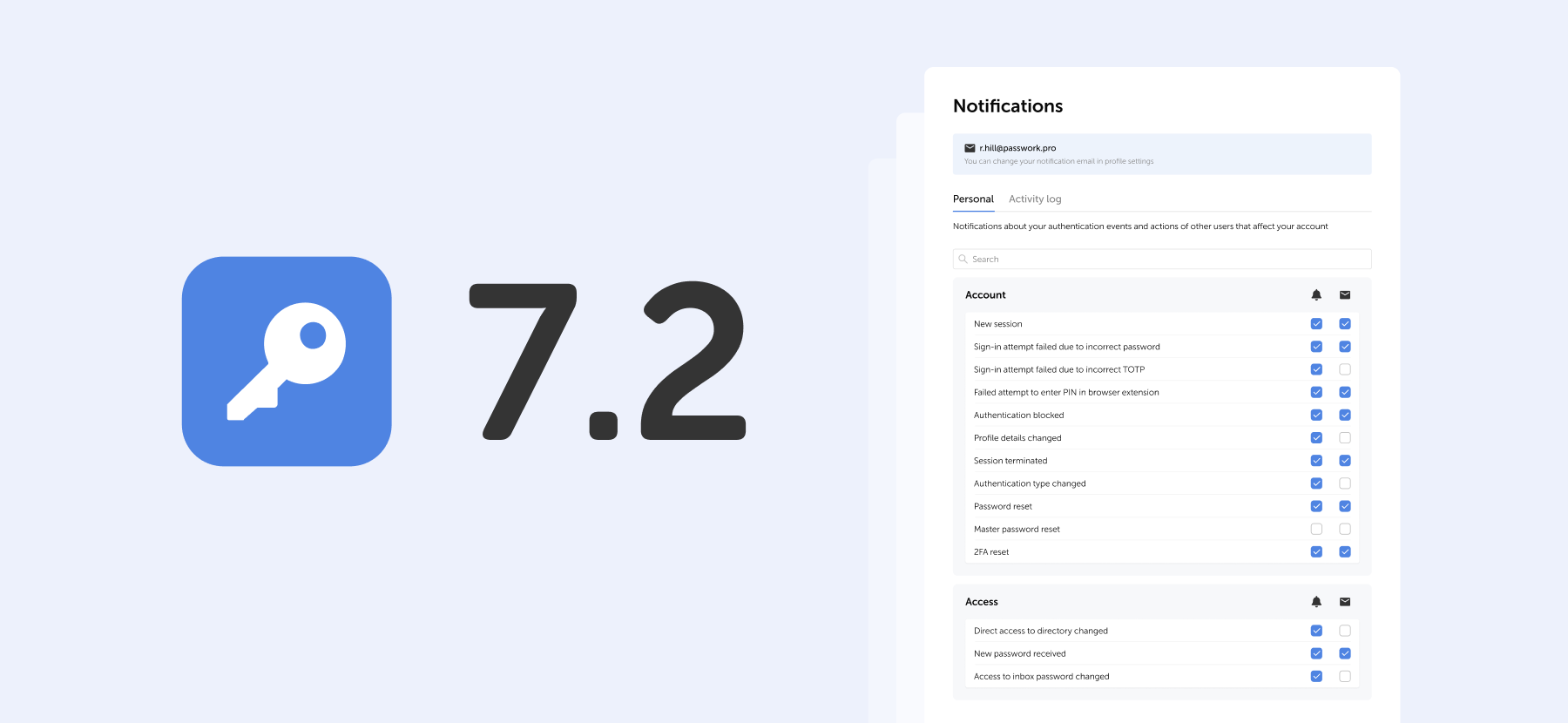
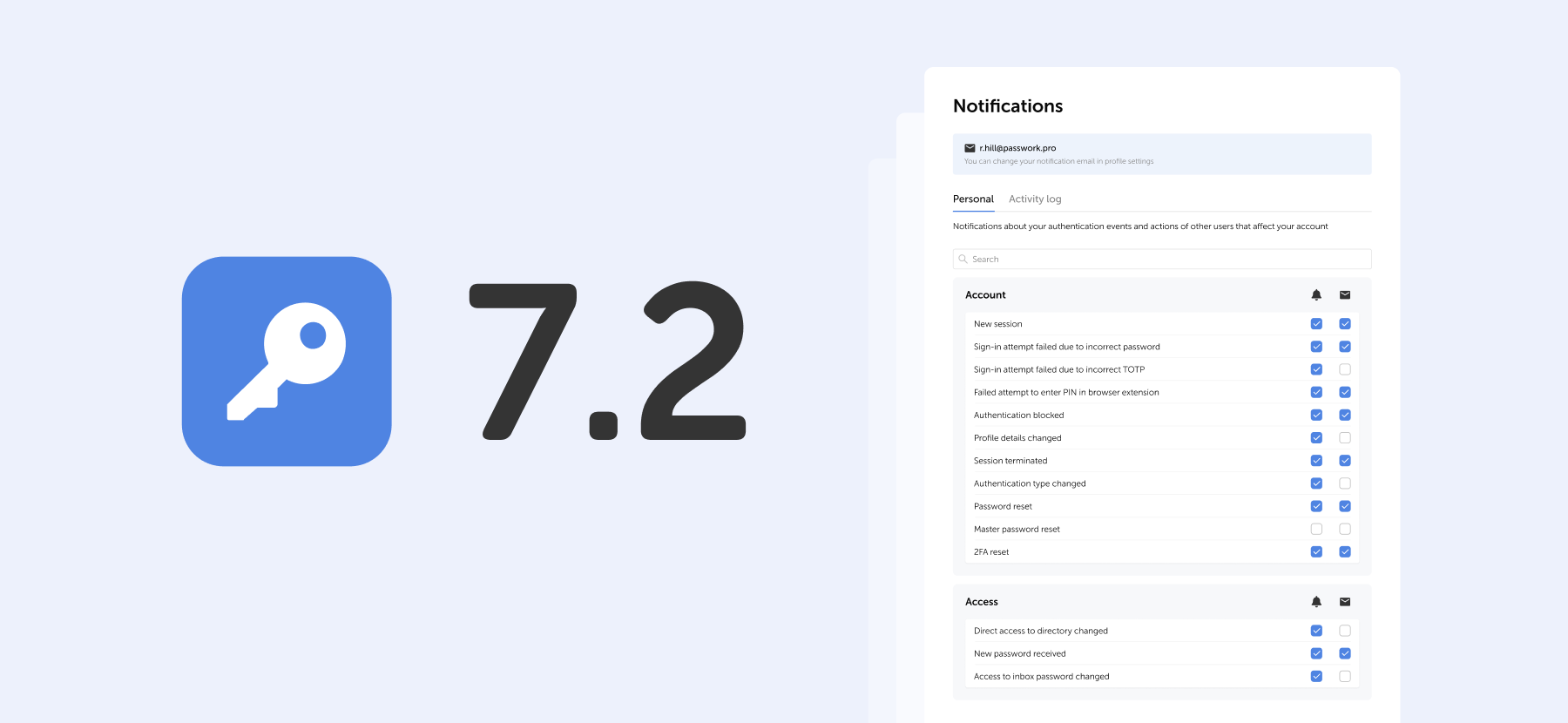
We've added a dedicated notification settings section where you can choose notification types and delivery methods: in-app or via email.
Access notification settings in the Notifications section under Account in the settings menu.
Notification settings include two tabs:
Personal — notifications about your authentication events and actions of other users that affect your account
Activity log — notifications about selected events from the activity log. Notifications for events related to vaults, passwords, and tags are available for vaults with "Read" access level or higher.
For each event, you can independently choose how to receive notifications or disable them entirely.
Use the checkboxes in the two columns to the right of the event name:
Bell icon — in-app notifications in Passwork interface
Envelope icon — email notifications to your specified address
Select the desired checkboxes. Settings apply independently for each event type.
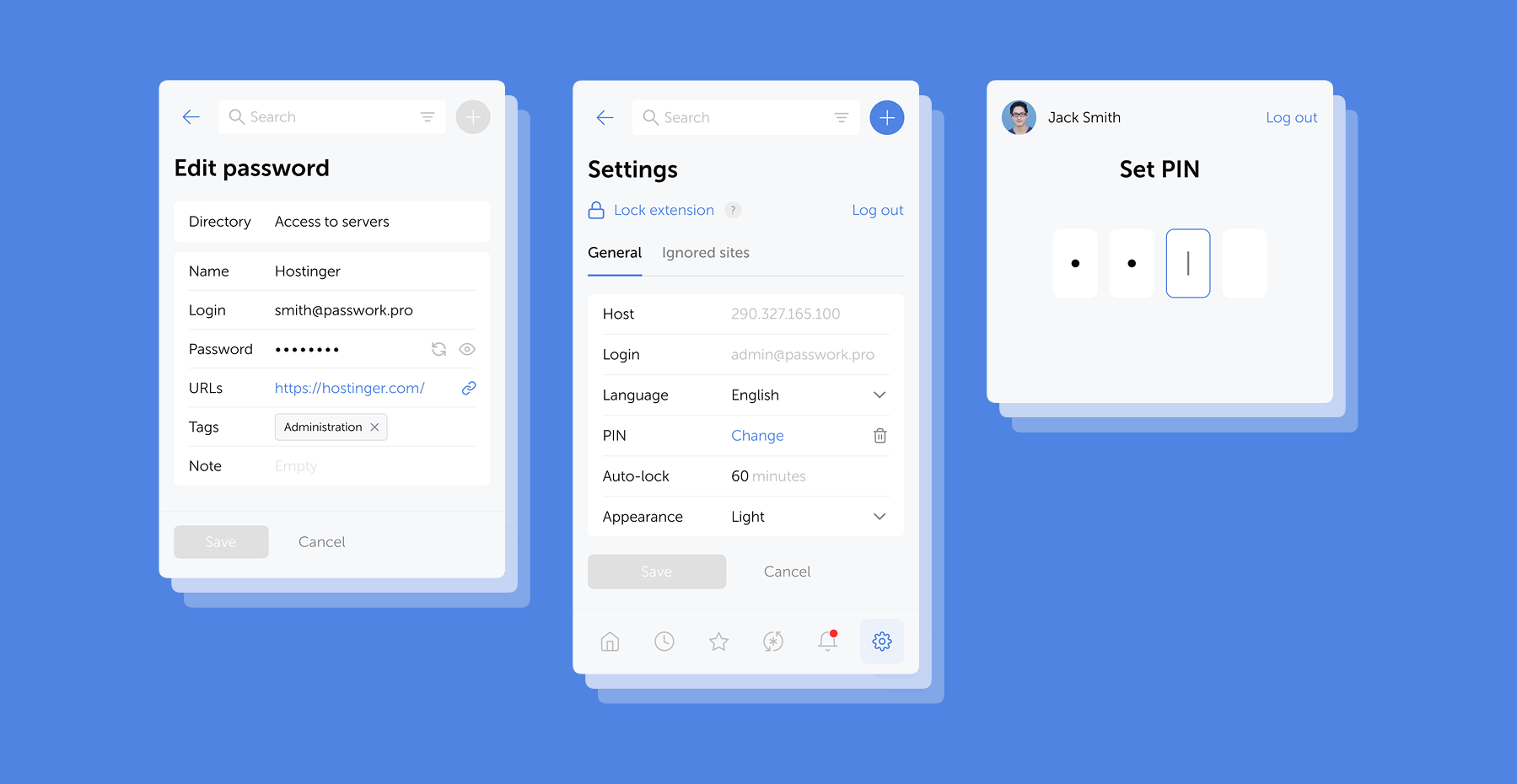
PIN in browser extension
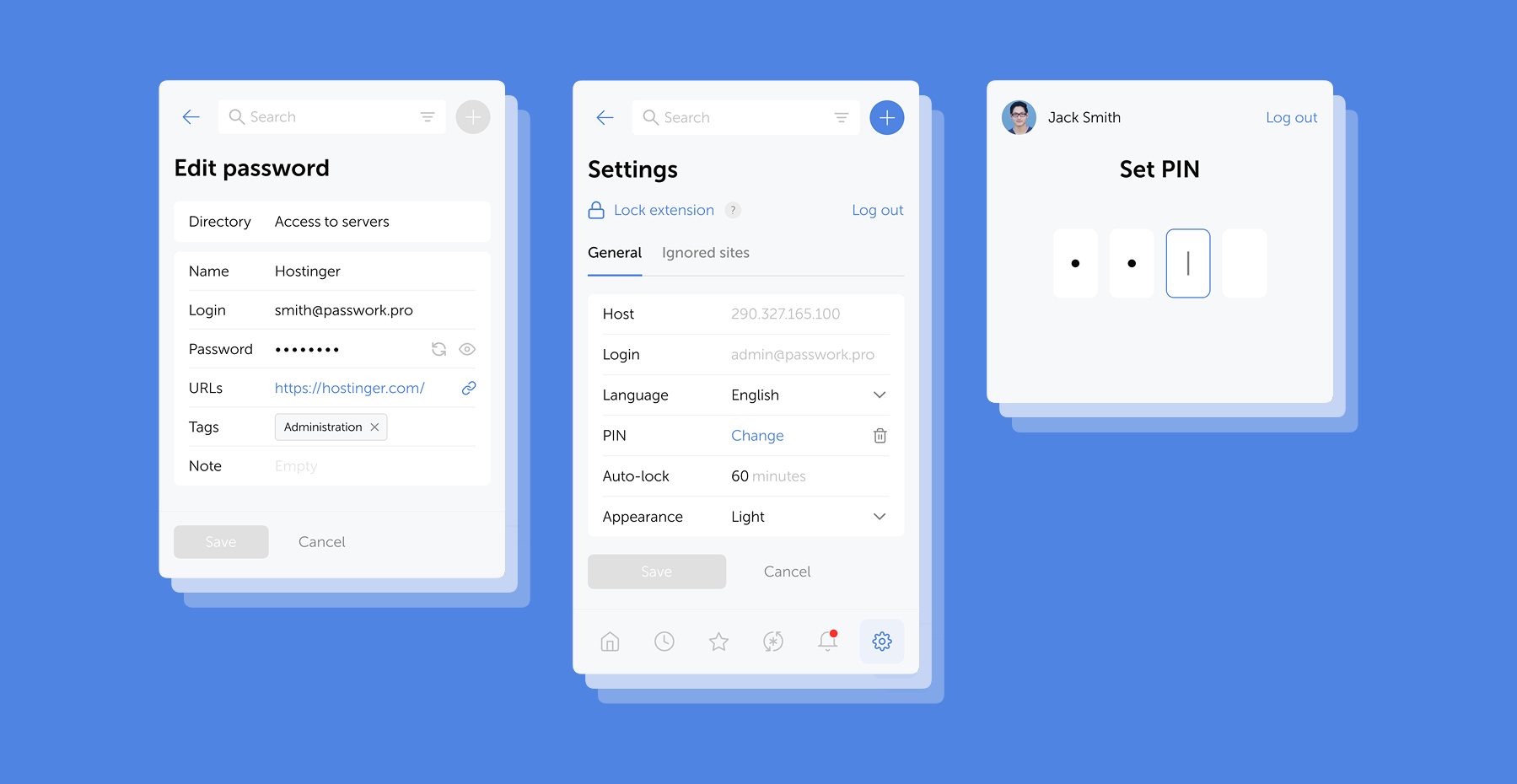
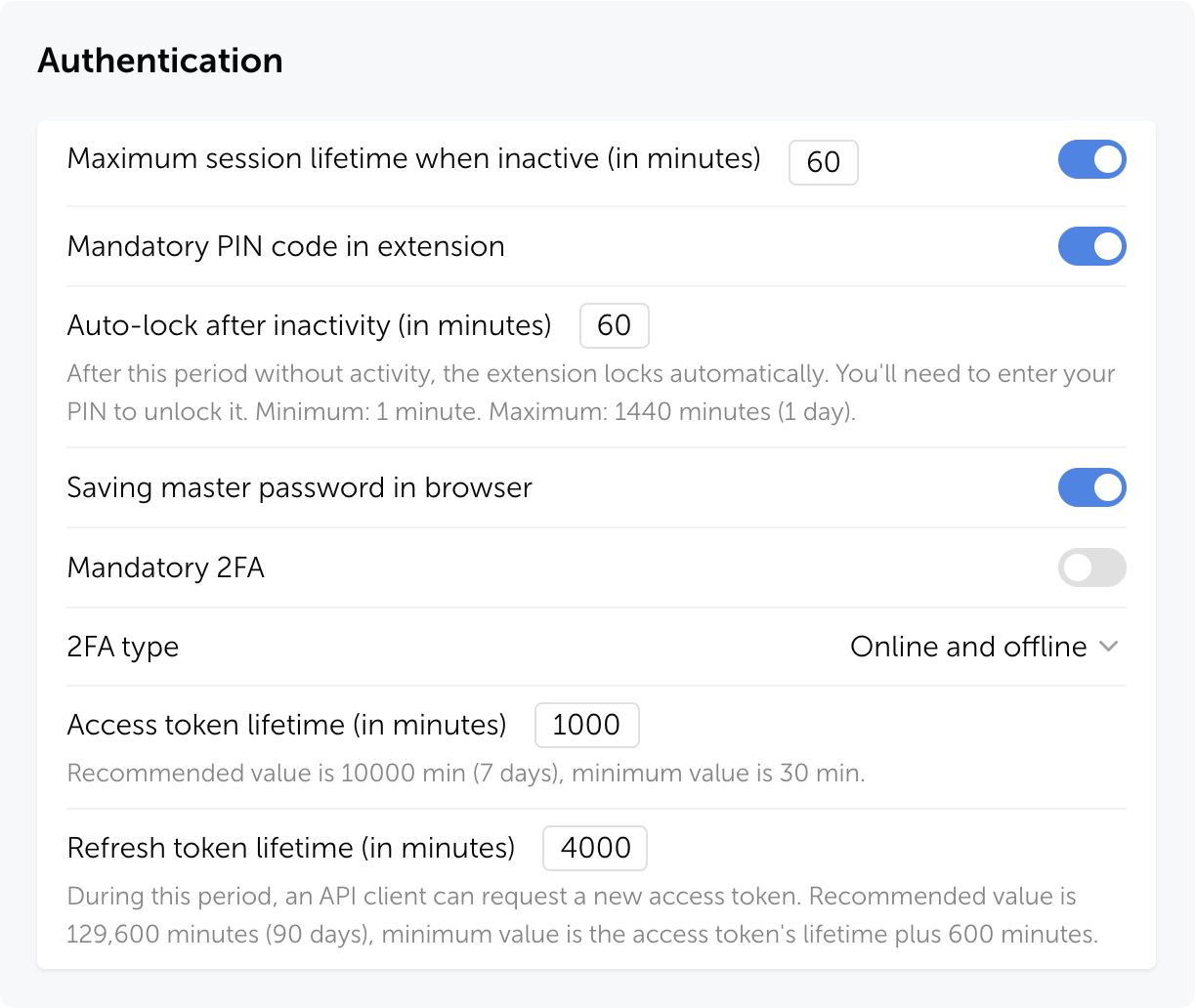
The extension PIN is now stored on the server as a cryptographic hash. In the role settings, you can set a maximum user inactivity period, after which the extension will request the PIN to be re-entered, narrowing the window of potential attack and protecting against unauthorized access to an already open session.
How it works
Actions on first extension login:
User authenticates in the extension
If PIN is mandatory for the user's role — a prompt to create one appears
If PIN is optional — the user can enable it voluntarily for additional protection
After successful login, a temporary access session begins — the user works with the extension without re-entering the PIN. Session duration depends on role settings and personal preferences. The PIN is requested again if the user hasn't performed any actions in the extension during the set time period.
If PIN is mandatory for the user's role, it cannot be disabled
Security
Even if someone gains access to a user's session token, they cannot open passwords in the extension without the PIN.
Passwork automatically terminates all sessions when:
PIN code is reset
Three failed entry attempts occur
Mandatory PIN code is enabled for the user's role
User's role is changed to one where PIN code is mandatory
All PIN code actions are recorded in the Activity log
Zero knowledge mode
Added an option to enable client-side encryption (Zero knowledge mode) in the setup wizard during initial Passwork configuration. Previously, this required running a separate script or editing the configuration file.
Zero knowledge mode encrypts all data on the client side, making decryption impossible even if the server is compromised. Each user has their own master password that is never transmitted to the server.
Learn more about Zero knowledge mode in our documentation
Improvements
Added a confirmation modal window for changing role to Owner and restricted the ability to assign this role to users
Added pagination and change indicators in the hidden vaults modal window
Added error information and update and get commands to the CLI utility (details in documentation)
Added the ability to retrieve current TOTP codes via CLI: the command now returns a one-time code instead of the original key
Improved security dashboard analysis: entries with an empty Password field no longer fall into the Weak category and are not evaluated for complexity
Added an option to limit link validity to one day
Improved display of long names and logins in User management
Improved display of inactive items in dropdown menus
Improved event descriptions in Activity log
Improved data import with large numbers of folders
Improved localization
Bug fixes
Fixed an issue where folders were not created during CSV import, causing passwords to import directly to the root directory
Fixed automatic launch of background tasks for loading groups, users, and LDAP sync when saving changes on the Groups and Synchronization tabs, and when starting manual sync in LDAP settings
Fixed display of pagination items when changing the sidebar width
Fixed an issue where pagination in User management could stop working after using the search bar
Fixed import window freezing when uploading files with large amounts of data and when importing vaults containing only folders
Fixed an issue in export where not all passwords could be exported after selecting all directories with the checkbox
Fixed an issue when bulk deleting large numbers of folders from the Bin
Fixed issues when moving columns: overlapping and extending beyond the visible area
Fixed filtering by invite creator: now it is possible to sequentially select different users without resetting the filter
Fixed an issue where checkboxes in access modals were not reset after canceling changes
Fixed an issue where a vault connection request appeared when connecting a user without access (version with client-side encryption)
Fixed an issue where copy and move folder to another vault options were unavailable if folder access was granted through a group without access to the root directory
Fixed an issue where the Move option remained available for folders in directories with "Full access" rights
Fixed an issue where the active tab reset to Users after refreshing the User management page
Fixed an issue in JSON import with structure preservation where passwords from folders could move to the root directory
Fixed KeePass XML import issues when the <UUID> tag is missing and custom fields transfer incorrectly
Fixed an issue where the first password edition was not saved after migration from version 6.x.x
Fixed an issue where attachments stopped downloading from links after preparing for migration in version 5.4.2, with the problem persisting after updating to version 7.x.x
Fixed an issue where links in the access window stopped displaying for some vaults and passwords after updating to version 7.x.x
Fixed an issue in migration from version 6.x.x where user IDs displayed instead of user names in notifications
Fixed user manual links: they now open in a new tab and lead to correct pages
Fixed an issue where favicon failed to display correctly when changing the URL to a site with an unavailable favicon
Fixed an issue where selected items remained highlighted after copying folders by drag-and-drop
Fixed the display of the default role in user creation and confirmation windows
Fixed an issue where the TOTP code would only update after reopening the password card when the key was changed
Other changes
Changed default values for "Access to vault actions" section in Vaults settings
Hidden the "Password sent to group" item from the actions filter in Activity log (version with client-side encryption)
Hidden the Edit menu item in the password send window for users without the appropriate access rights
Hidden the "Connect mobile device" menu item for users who have mobile app usage restricted by their role settings
Important: Passwork requires MongoDB version 7.0 or higher. Earlier versions are not supported and may cause compatibility issues.
You can find all information about Passwork updates in our release notes.
In the new version, we've improved the migration process from older versions of Passwork, enhanced descriptions in the Activity log, and made minor fixes to the UI and localization.
Improvements
Added a restriction that blocks users from changing their own authorization type
Improved migration to Passwork 7 for versions earlier than 5.3
Improved descriptions for certain events in the Activity log
Bug fixes
Fixed an issue where it was impossible to move a folder to the Bin via drag-and-drop if the "Access level required to copy folders and passwords" setting was set to "Action forbidden"
Fixed duplicate "Save settings" button in Vault settings
Fixed the display of parameter change indicators in Vault settings and User management in Safari browser
Fixed incorrect redirect to Recents after successful extension authorization
You can find all information about Passwork updates in our release notes
Further improved clickjacking protection: added blocking of clicks on hidden elements and checking for element overlap and CSS transformations
Fixed an issue when following a link from a notification to a deleted vault or password
Fixed an issue that could cause the extension to log out
Changes in versions 2.0.25 and 2.0.26
In version 2.0.25, pop-up window offering autofill was disabled to test the extension’s resistance to clickjacking attacks. Warnings about suspicious elements on webpages were also added.
In version 2.0.26, autofill pop-ups are available again, and you can now disable them for the entire organization. The extension automatically detects and blocks most common clickjacking methods.
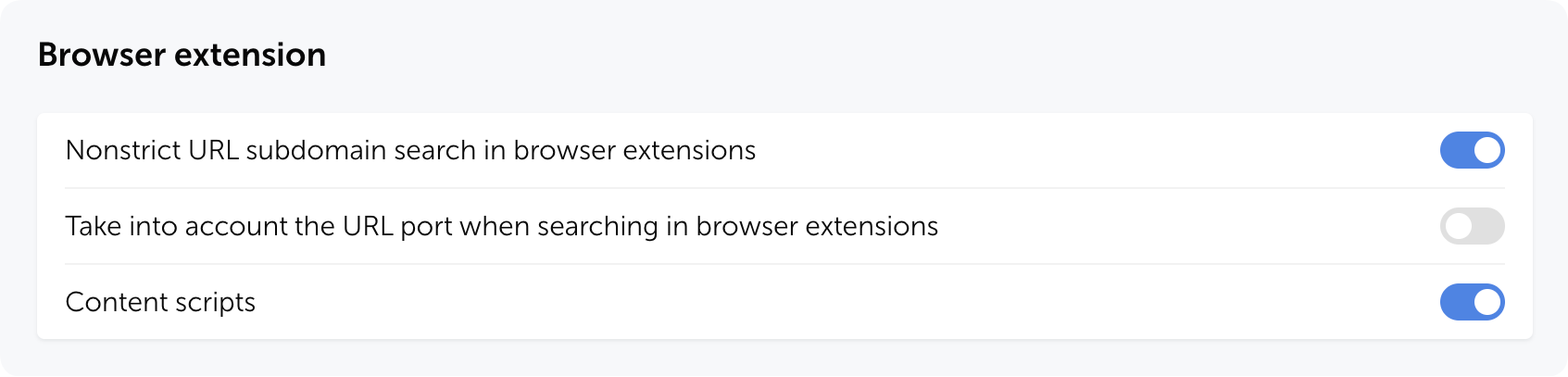
You can disable pop-up autofill suggestions by adjusting the Content scripts setting in the Browser extension section of the system settings (available starting from Passwork 7.1.2).
In the new version, we have introduced the capability to create custom vault types with automatically assigned administrators, refined the inheritance of group-based access rights and handling of TOTP code parameters, as well as made numerous fixes and improvements.
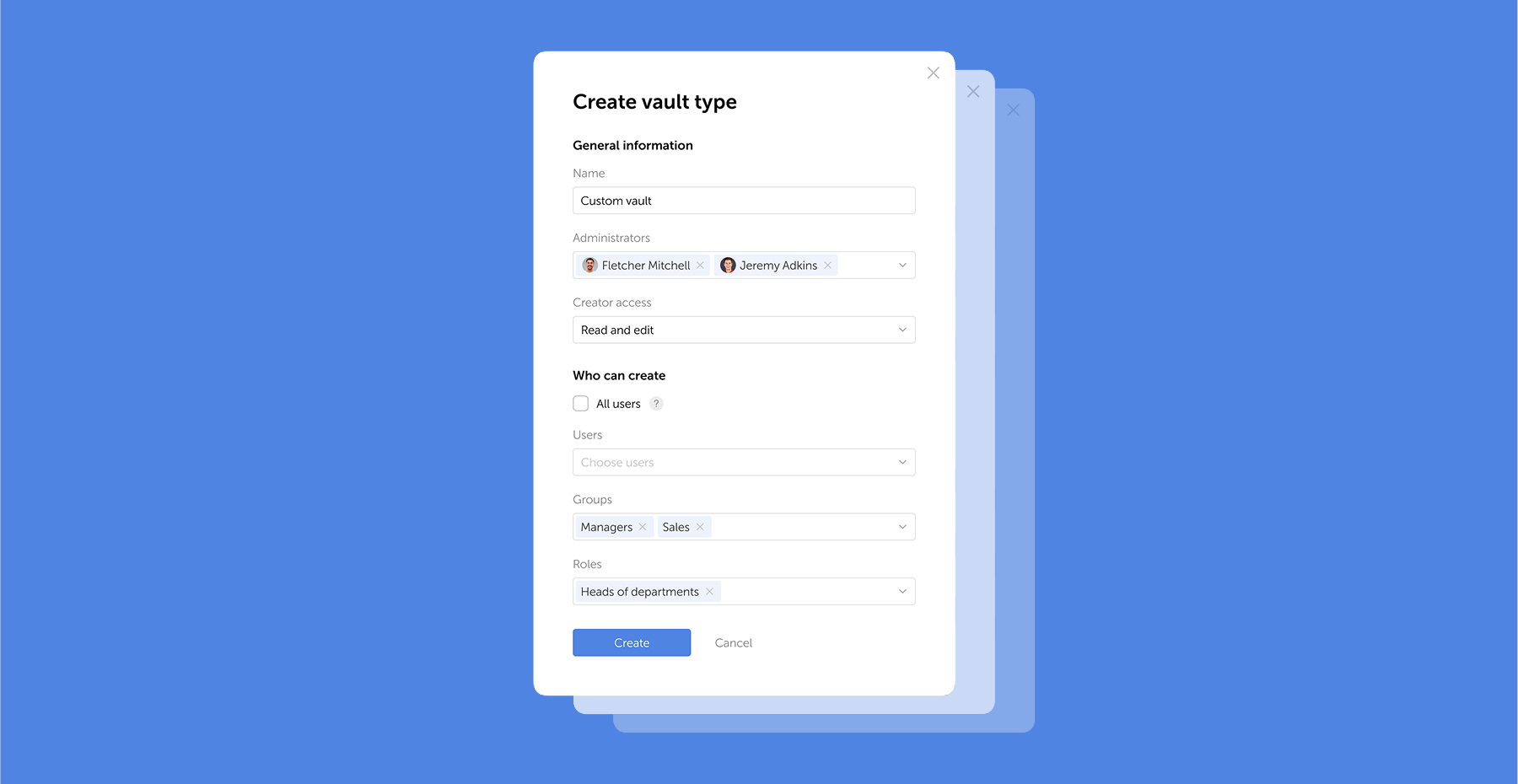
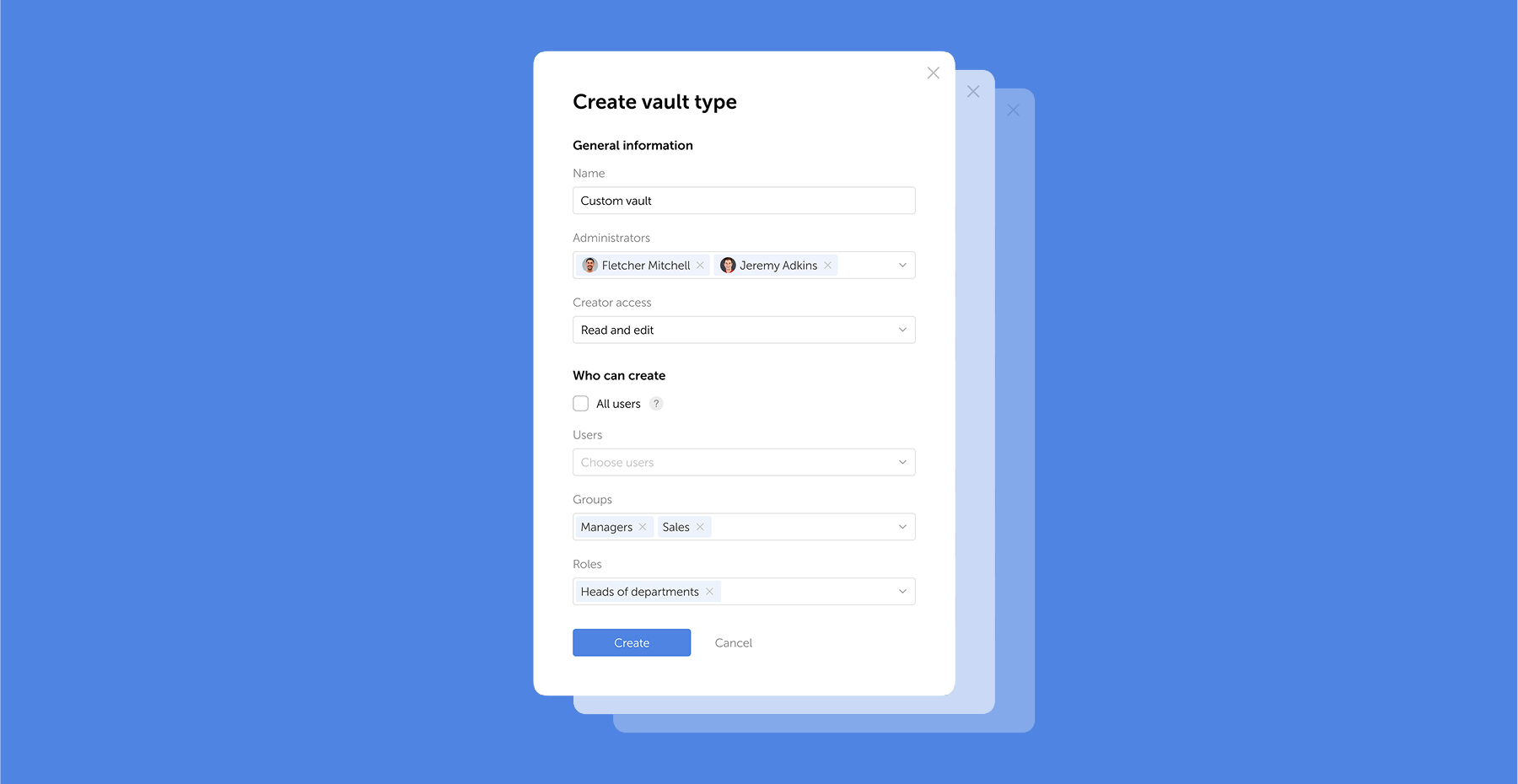
Vault types
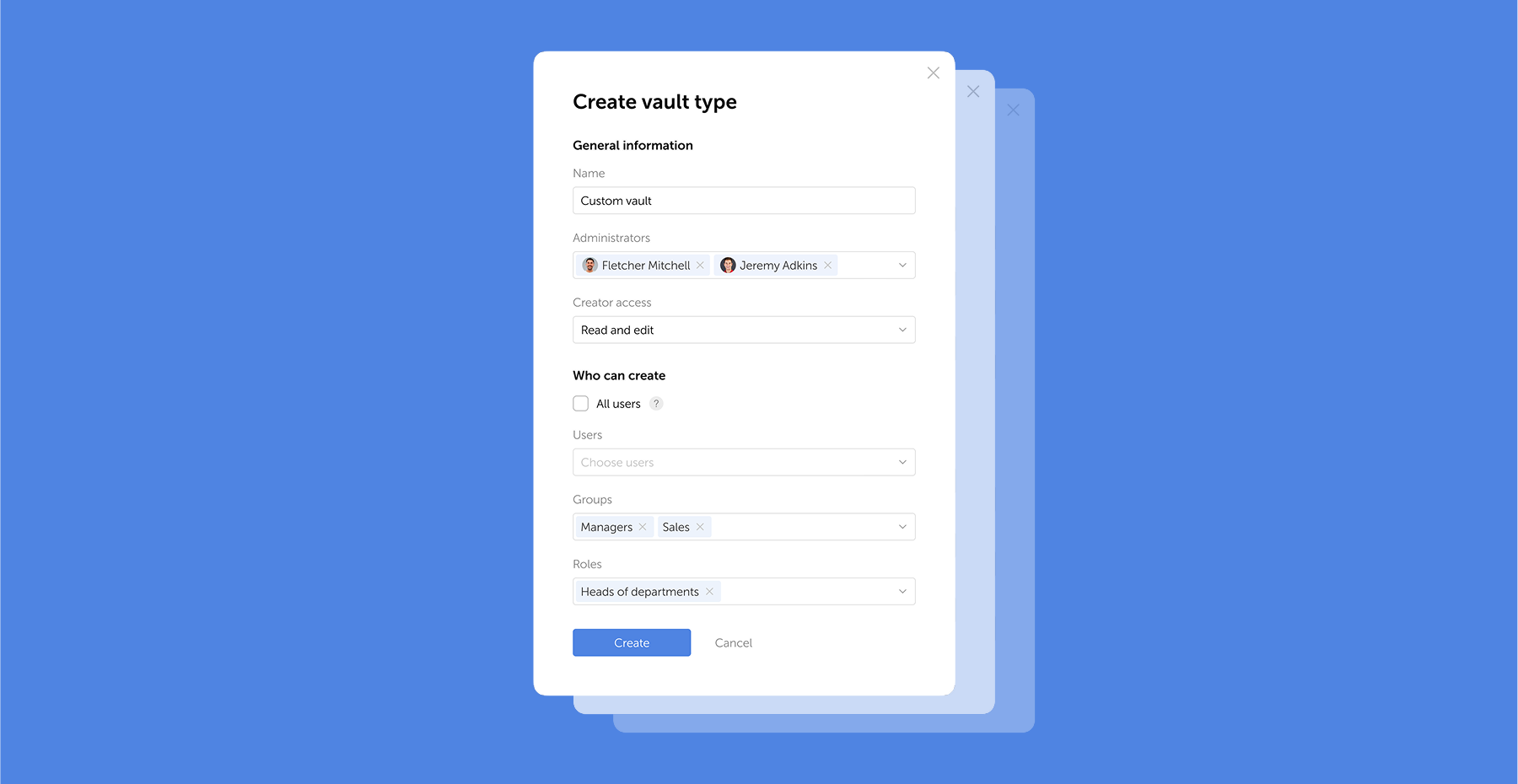
In Passwork 7.1, you can create custom vault types with flexible settings tailored to your organization’s needs:
Each vault type allows you to assign dedicated administrators, set restrictions on vault creation and define a creator's access level
When you create a vault or change it's type, select corporate administrators automatically gain access to it. Other administrators won't be able to lower their access level or remove them altogether
Now you can set up different vault types for various departments or projects, assign relevant administrators, and configure permissions for specific tasks
Viewing all system vaults
We've added an ability to view all vaults created within the organization, including the private ones. The list displays only the names of the vaults as well as users and groups that have access to them, while the vault contents are still available strictly to users with direct access. This opens up extensive opportunities for system-wide data storage audits. Access to the vault list is determined by role settings.
Improvements
Improved the logic of inheriting access from multiple groups: now if a user belongs to groups with both "Full access" and "Forbidden" rights to a specific directory, the 'Forbidden' access level will be applied
Added "Access level required to leave vaults" and "Access level required to copy folders and passwords" settings
Added the option to show a custom banner to unauthenticated users: when the "Show to unauthenticated users" option is enabled, the banner will be visible on the sign-in, sign-up, master password and password reset pages
Added processing of digits and period parameters during TOTP code generation
Added clickable links to vaults, folders, passwords, roles, groups, and users in notifications
Added transfer of user session history when migrating from Passwork 6
Bug fixes
Fixed an issue where the 2FA setup page did not appear when logging into Passwork after enabling "Mandatory 2FA" in role settings
Fixed incorrect counting of failed login attempts with active "Limit on failed login attempts within a specified time frame" setting
Fixed an issue where mobile app and browser extension sessions were not reset after disabling "Enable mobile apps" and "Enable browser extensions" in role settings
Fixed an issue where Activity log filtered by a particular vault showed events from folders inside the vault: now, only events at the selected nesting level are displayed
Fixed an issue where a search by color tag did not work for some passwords
Fixed an issue where user data could be updated on LDAP login despite disabled "Allow user modification during LDAP synchronization" setting
Fixed an issue in the export window where unchecking all folders inside a vault also unchecked the vault itself
Fixed incorrect behavior of the "Automatically log out after inactivity" setting
Fixed incorrect display of notes
Fixed incorrect redirect to the password's or shortcut's initial directory after editing these items in Favorites
Fixed an issue where the item deletion date in the Bin was reset during migration from Passwork 6


 Eirik Salmi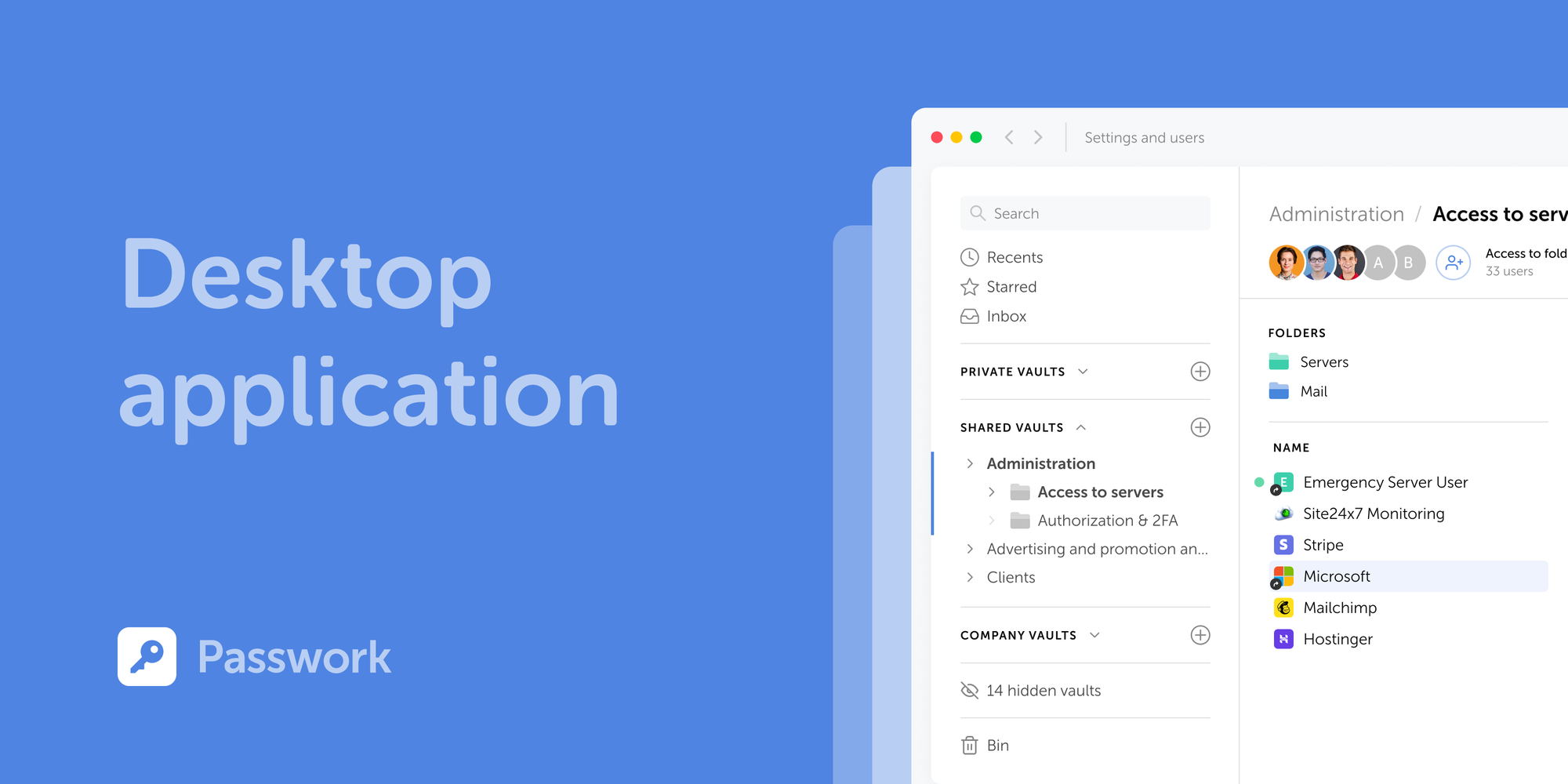
 Mike Shikun
 Mike Shikun