Vault types
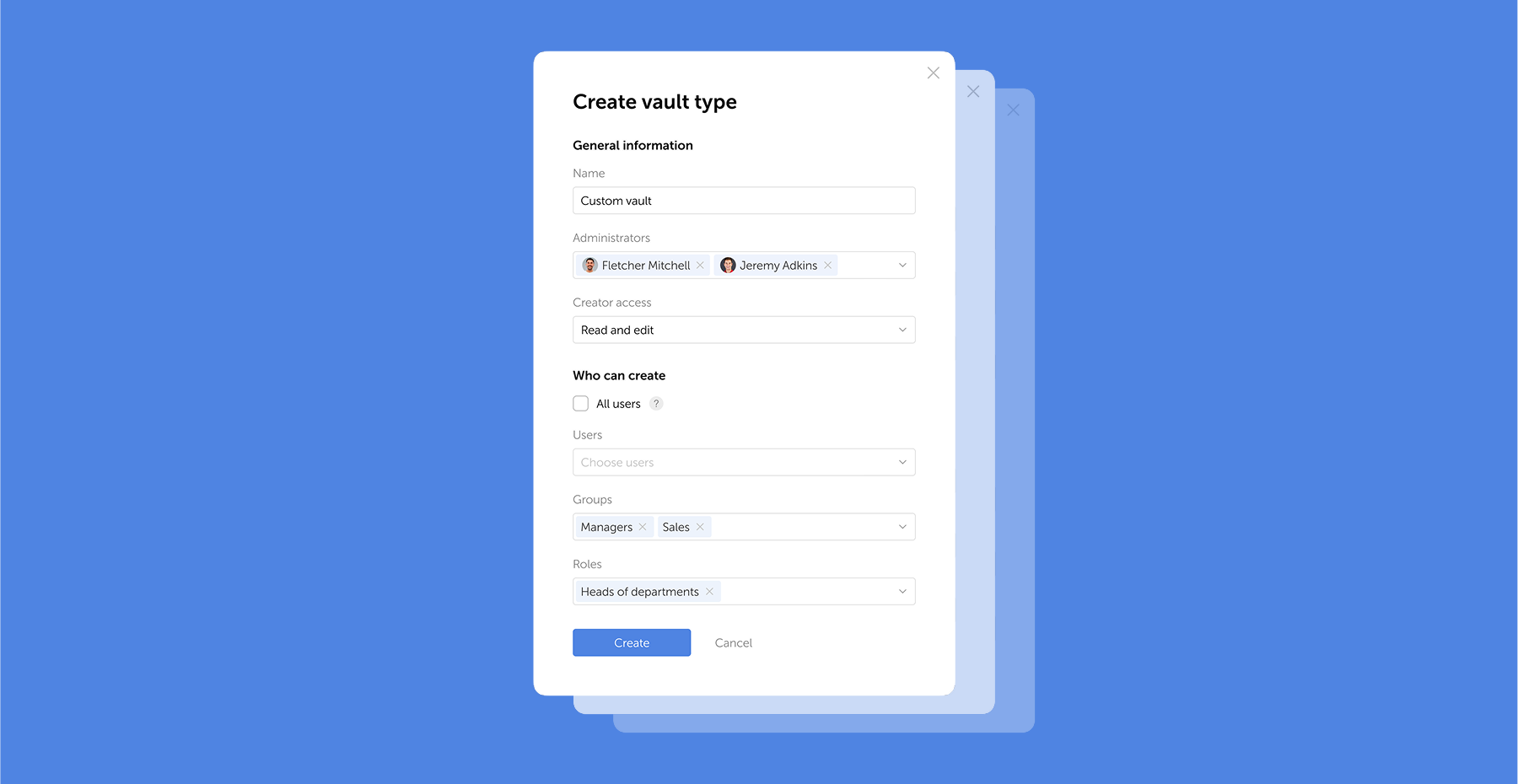
Passwork 7.1 introduces a robust vault types architecture, providing enterprise-grade access control for enhanced security and management. Vault types address a key challenge for administrators: controlling data access and delegating vault management across large organizations. Previously, the choice was limited to two types. Now, you can create custom vault types tailored to any task or organizational structure.
For each department or project, you can create a dedicated vault type, assign specific administrators, choose creator permissions, and define who can create vaults of this type.
For example, you can create separate vaults for IT department, finance, HR, or temporary project teams. Administrators assigned to a specific vault type will be automatically added to all new vaults of this type, ensuring constant control and transparency.
What are vault types
Vault types allow administrators to establish vault templates with predefined access management settings. For each vault type, you can designate specific administrators, configure vault creator permissions, and set rules or restrictions for creating new vaults.
You can organize vaults by department, project, or access level, ensuring that permissions are assigned accurately
When a vault is created, administrators specified in the vault type settings are automatically granted access. These administrators cannot be removed or demoted, ensuring that key personnel — such as department heads or IT administrators — always retain control over critical data.
Basic vault types
Passwork has two basic vault types: User vaults and Company vaults — they cannot be deleted or renamed:
- User vaults: By default, these are accessible only to their creators and are categorized as either private or shared. A private vault becomes shared when the owner of this vault grants access to other users.
- Company vaults: These vaults are available to both the creator and corporate administrators, who are automatically assigned access. Corporate administrators cannot be removed or demoted, ensuring continuous oversight and control.
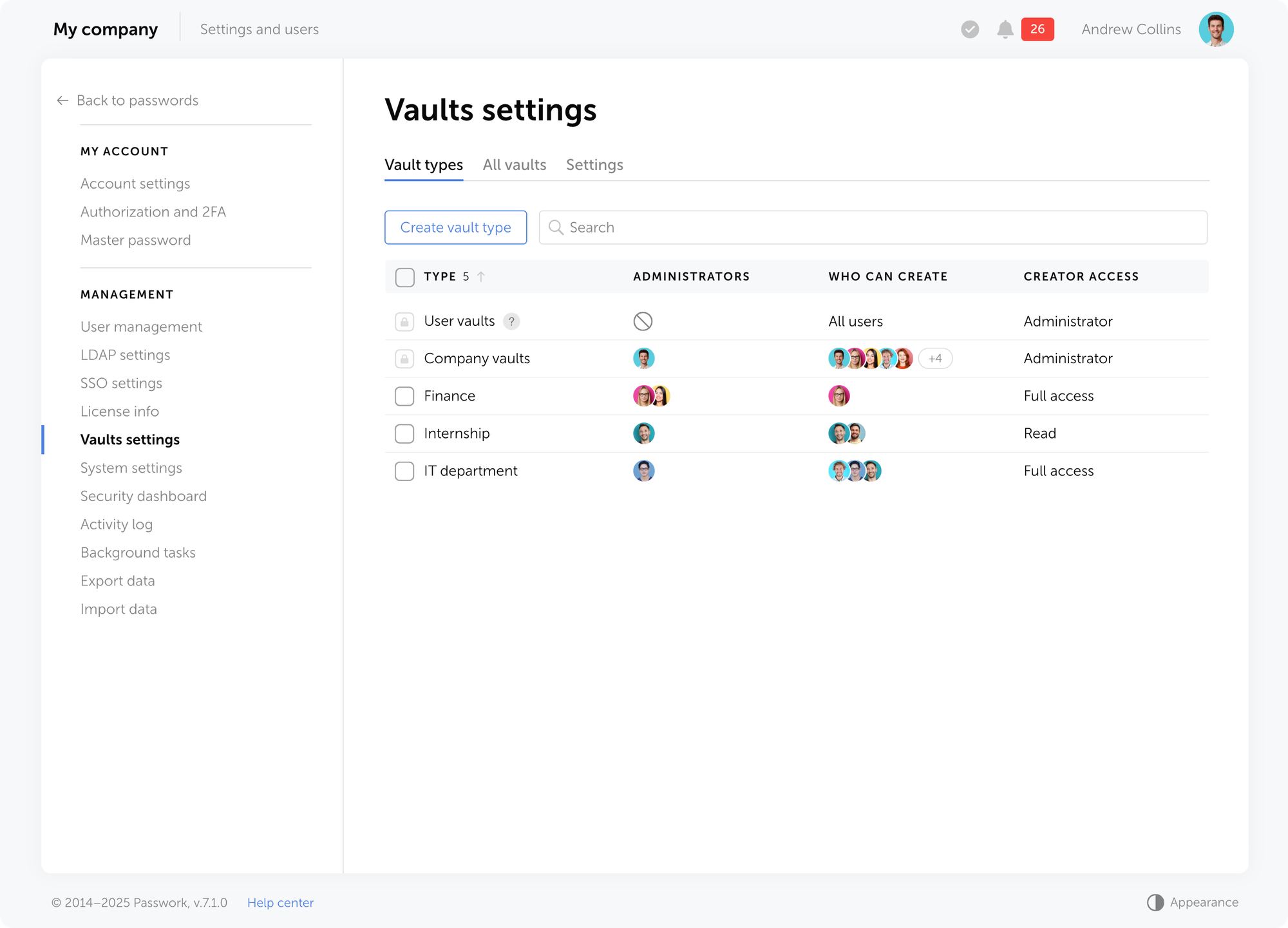
Besides basic types, you can create unlimited custom vault types.
Advantages of vault types
Vault types empower Passwork administrators to control who can create vaults, automatically assign administrators who cannot be removed, and effectively manage creator permissions.
- Constant control: New vaults of a specific type automatically include non-removable administrators, ensuring continuous access to critical data and consistent security standards across all vaults of the same type.
- Permission flexibility: You can allow users to create vaults while restricting certain actions, such as prohibiting them from inviting other users.
- Delegation: Vault types enable granular permission distribution — for example, the IT director can manage IT vaults, while the sales director oversees sales department vaults.
- Audit and analysis: Easily view all vaults in the system, along with their types and associated users, and quickly adjust vault types as needed.
- Streamlined vault creation: No need to configure permissions from scratch each time.
Vaults of all types support a multi-level, folder-based structure, allowing administrators to create hierarchies with nested elements
Managing vault types
On the Vault settings page, you can manage all vault types, view their list, and configure action access permissions. Access to this section is controlled by individual role permissions, ensuring that only authorized users can modify critical settings.
Creating vault types
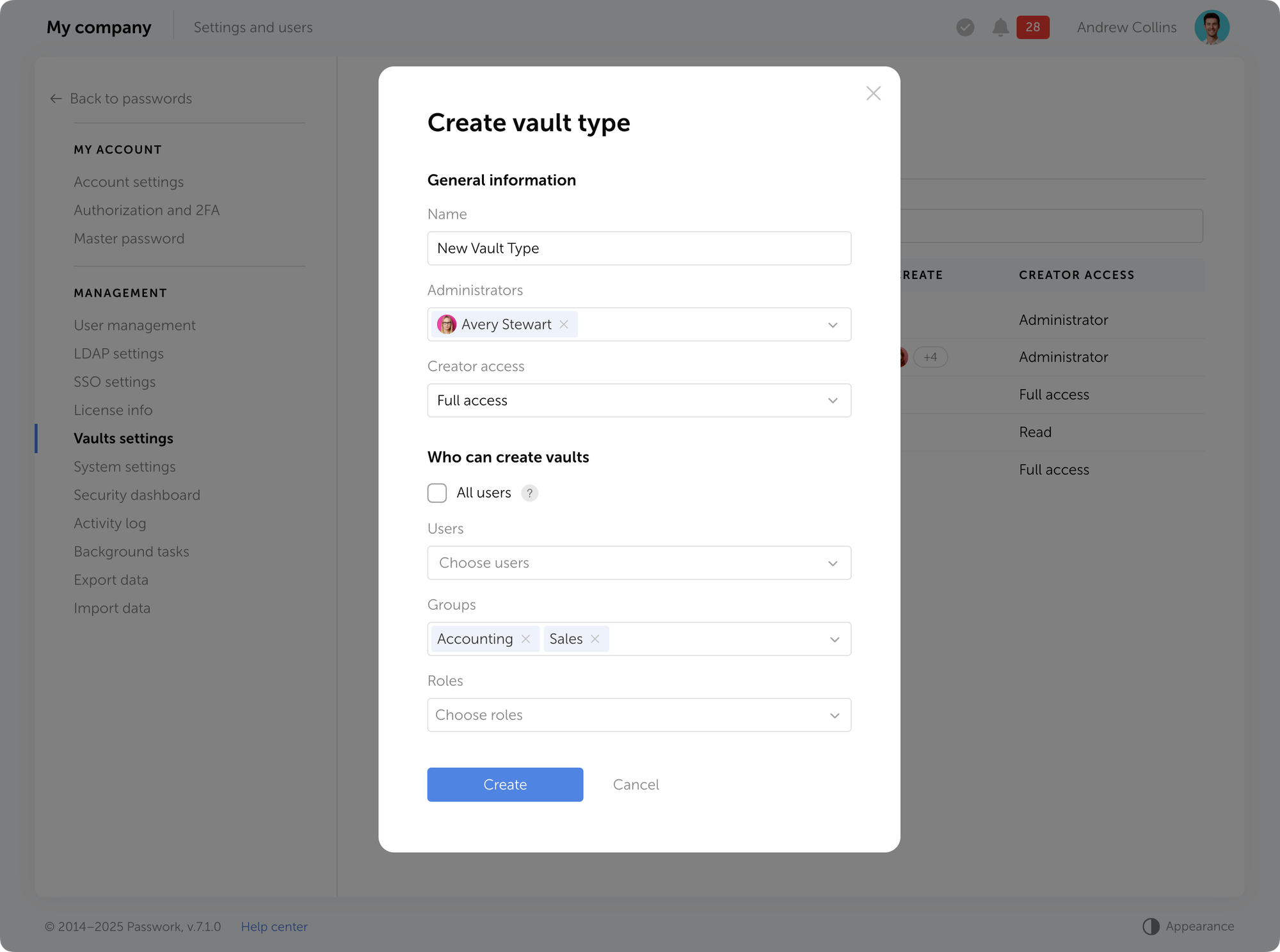
You can choose from basic vault types or create your own custom types. To set up a custom vault type, click Create vault type.
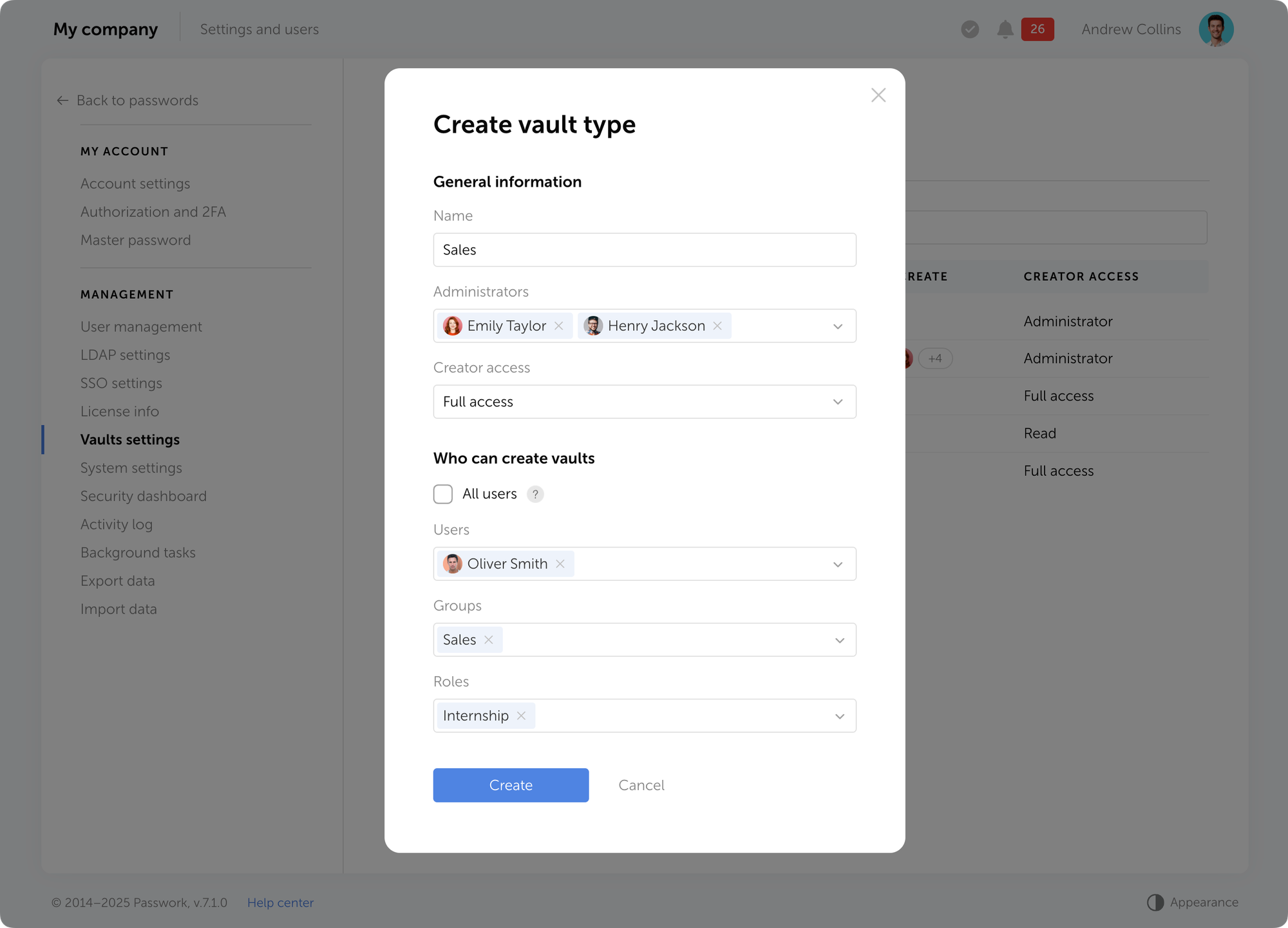
The vault type creation window offers the following options:
- Name — specify the vault type name.
- Administrators — select users who will be automatically added to all vaults of this type with Administrator permissions.
- Creator access — define the access level granted to users who create vaults of this type. For example, you can allow employees to create vaults without permitting them to invite other users.
- Who can create vaults — determine who is allowed to create vaults of this type: specific users, groups, roles, or all users.
Editing vault types
Users with access to the Vault types tab can modify vault types by renaming them, adding or removing administrators, and updating vault creation permissions. To edit a vault type, select it from the list of all types and adjust the necessary fields.
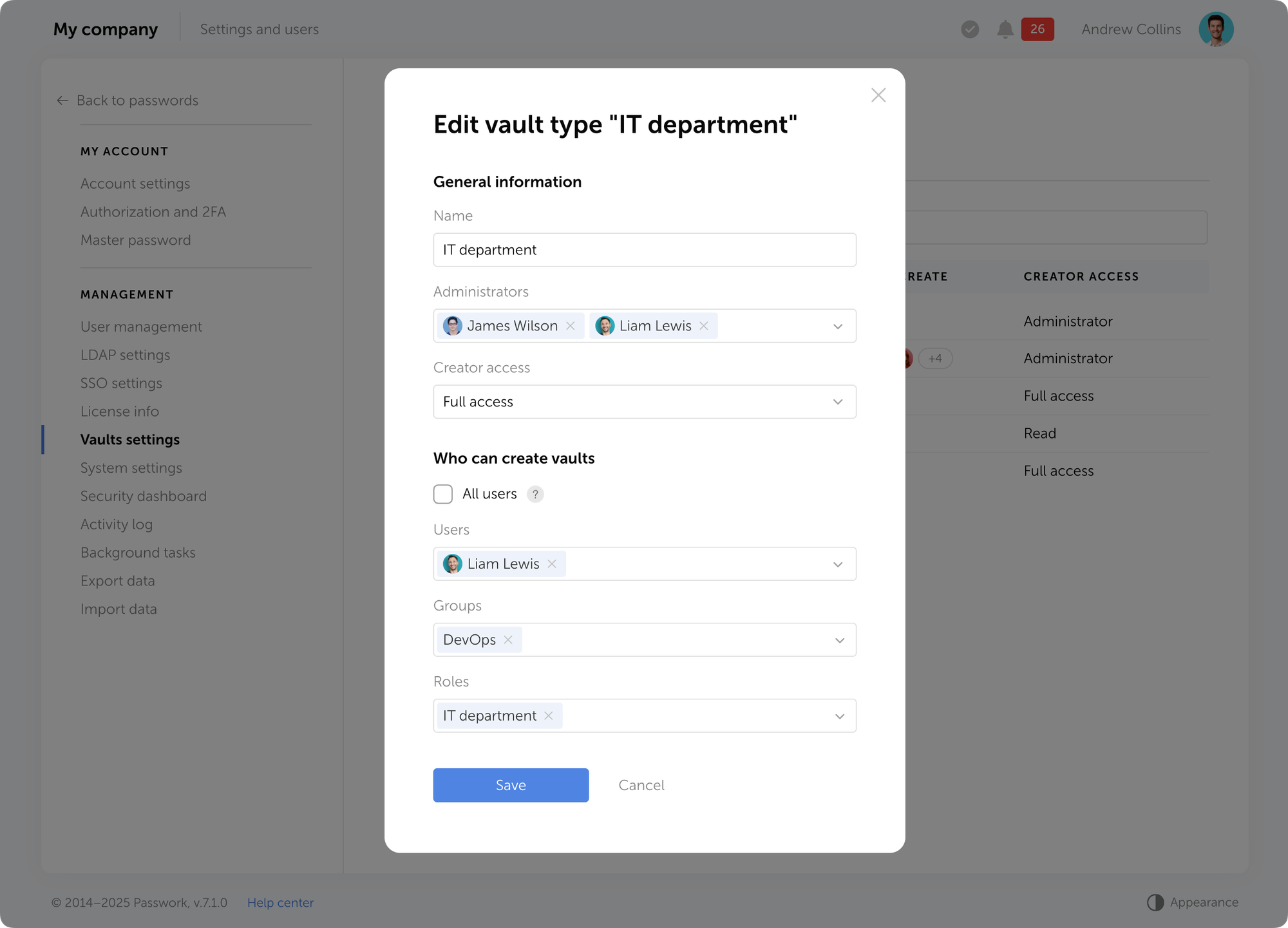
If a user is added as an administrator to an existing vault type, you must confirm the request to grant them access to the corresponding vaults.
Deleting vault types
To delete a vault type, select one or more types on the Vault types tab and click Delete in the dropdown menu at the top of the list.
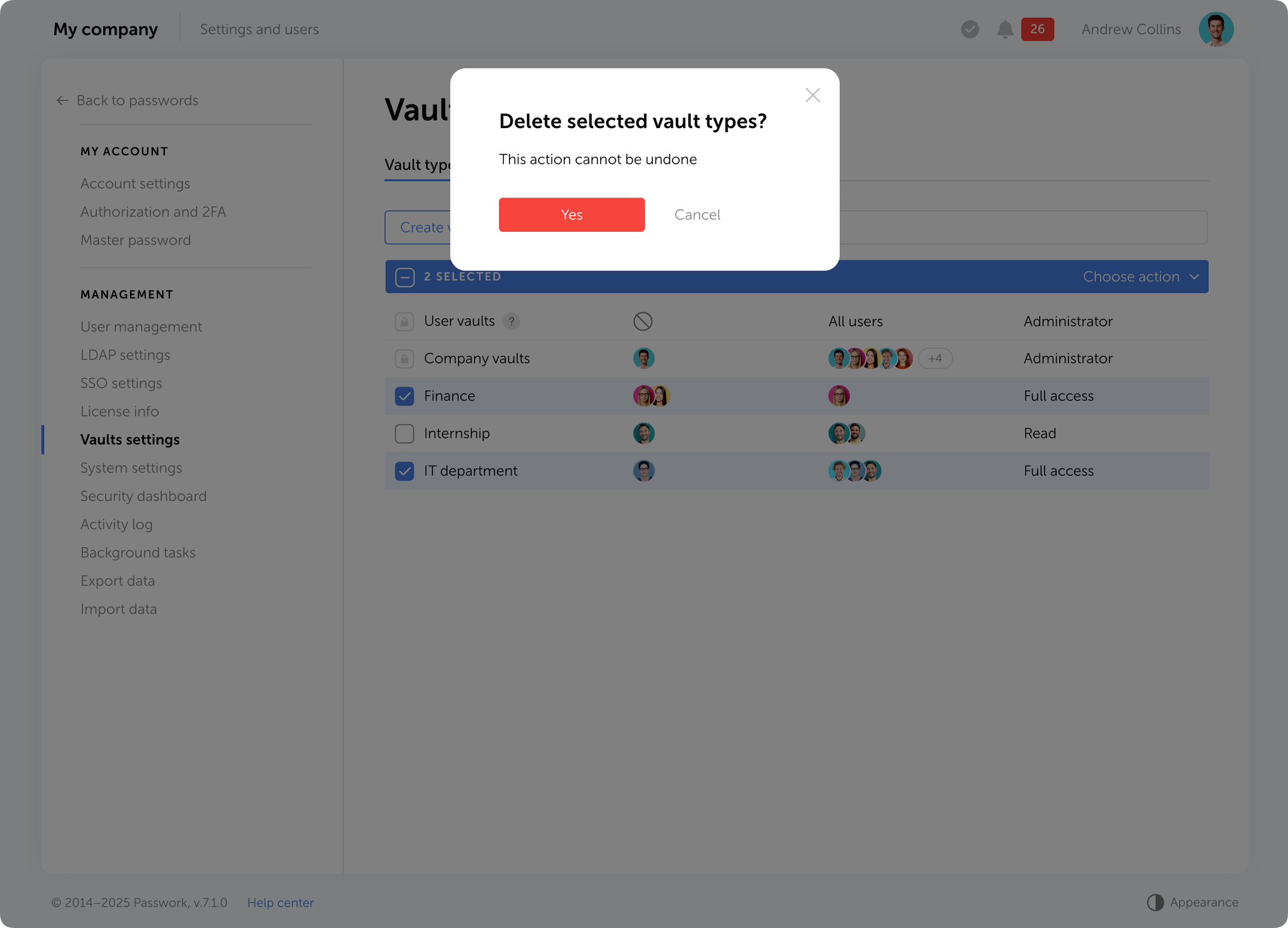
Audit and vault type change
On the All vaults tab, you can view all vaults along with their types, user lists, and administrators. Additionally, you can quickly change a vault’s type — for example, when a department is reorganized or a new project is created.
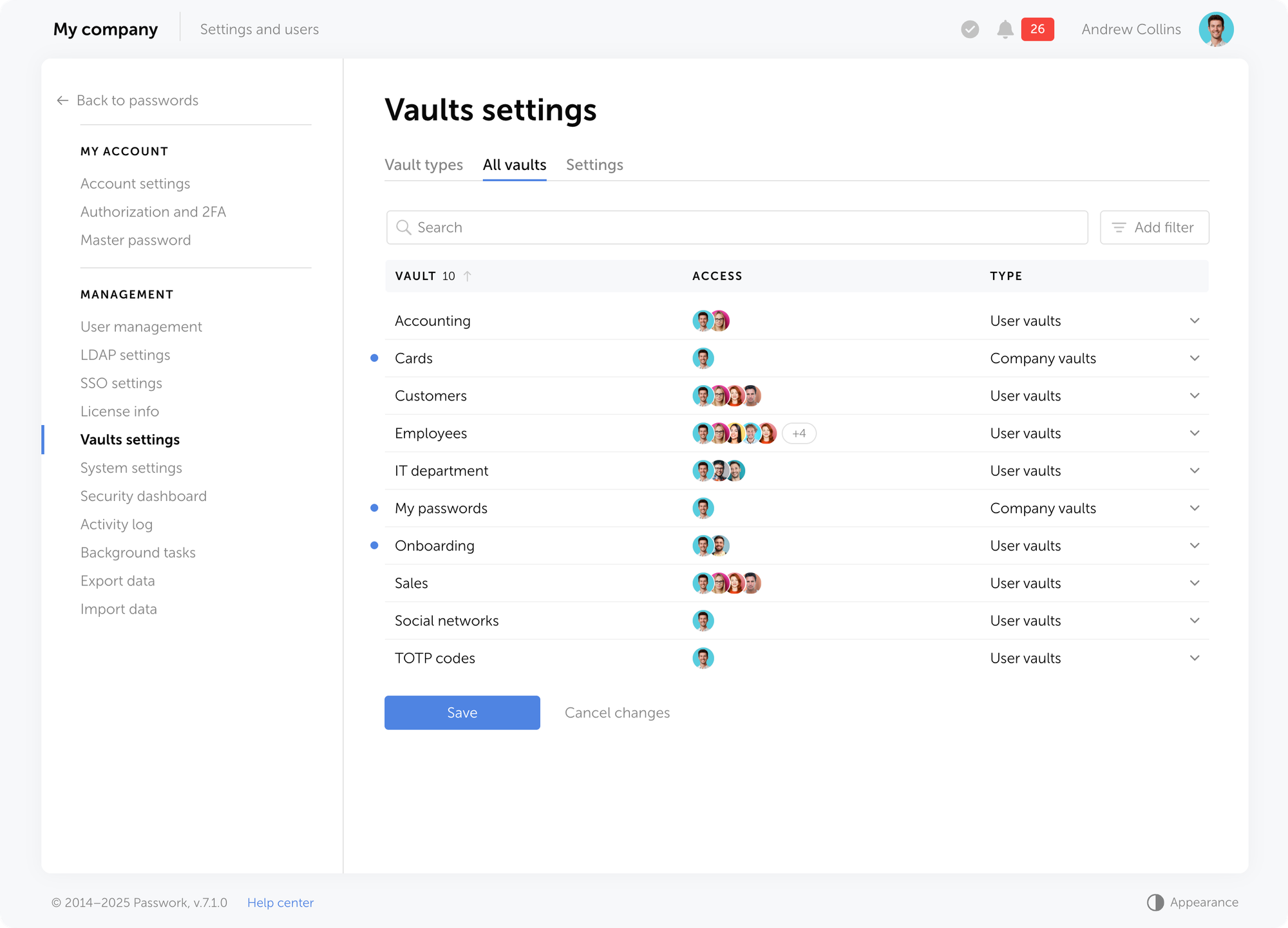
You have the option to filter vaults by type or display only those to which you have access.
Settings
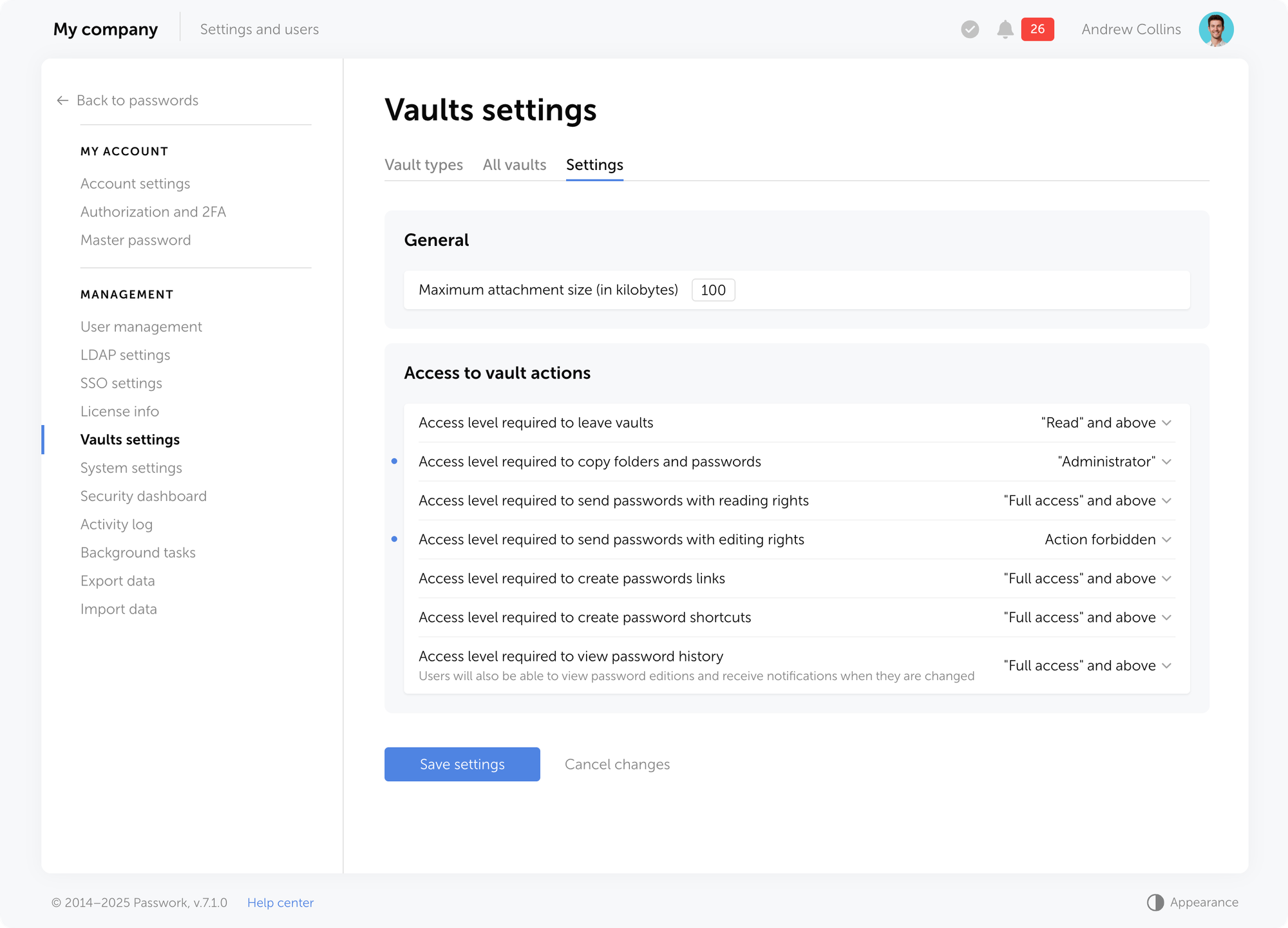
The Settings tab makes it possible to define the minimum required access level for performing specific actions within directories, as well as set the maximum file size for attachments linked to passwords.
Migration from previous versions
When migrating from previous versions, you can assign a vault type to imported vaults in the vault import window, provided you choose the option to import to the root directory.
When upgrading from Passwork 6 to version 7, the system automatically converts existing vaults:
- Private vaults remain private and receive the User vaults type. Your permissions and access rights remain unchanged.
- Shared vaults also receive the User vaults type. All users and their permissions are preserved.
- Organization vaults are converted to company vault type. Administrators are restored and become non-removable, with the access structure preserved.
Frequently asked questions
- What's the difference between vault types and regular vaults? Regular vaults are containers for storing passwords. Vault types are rules and templates that define how vaults of a specific type are created and managed.
- Is it mandatory to use vault types? No, using custom vault types is not mandatory. You'll always have access to basic types: private vaults for personal passwords and shared vaults for passwords users share independently.
- How do corporate administrators differ from regular ones? Corporate administrators are users who automatically receive administrator rights in all vaults of a specific type. Assigning corporate administrators ensures permanent control over critical data.
- Can I change administrators in an existing type? Yes, you can modify the list of administrators in the vault type settings. When adding a new user, the system automatically creates requests to add the new administrator to all existing vaults of that type.
- How do I restrict who can create vaults of a specific type? When creating or editing a vault type, go to Who can create vaults and choose one of the options: All users — any user can create a vault of this type, or limited access — only selected users, roles, or groups.
- Can I change the type of an existing vault? Yes, you can change an existing vault's type, but only if you have administrator rights in that vault. When changing the type, corporate administrators of the new type are automatically added to the vault, new access rules are applied, and user connection requests are created.
- Why can't I remove certain administrators from a vault? If you cannot remove administrators from a vault, they are corporate administrators. Corporate administrators can only be removed by changing the corresponding vault type setting (requires administrator rights).
Basic use cases
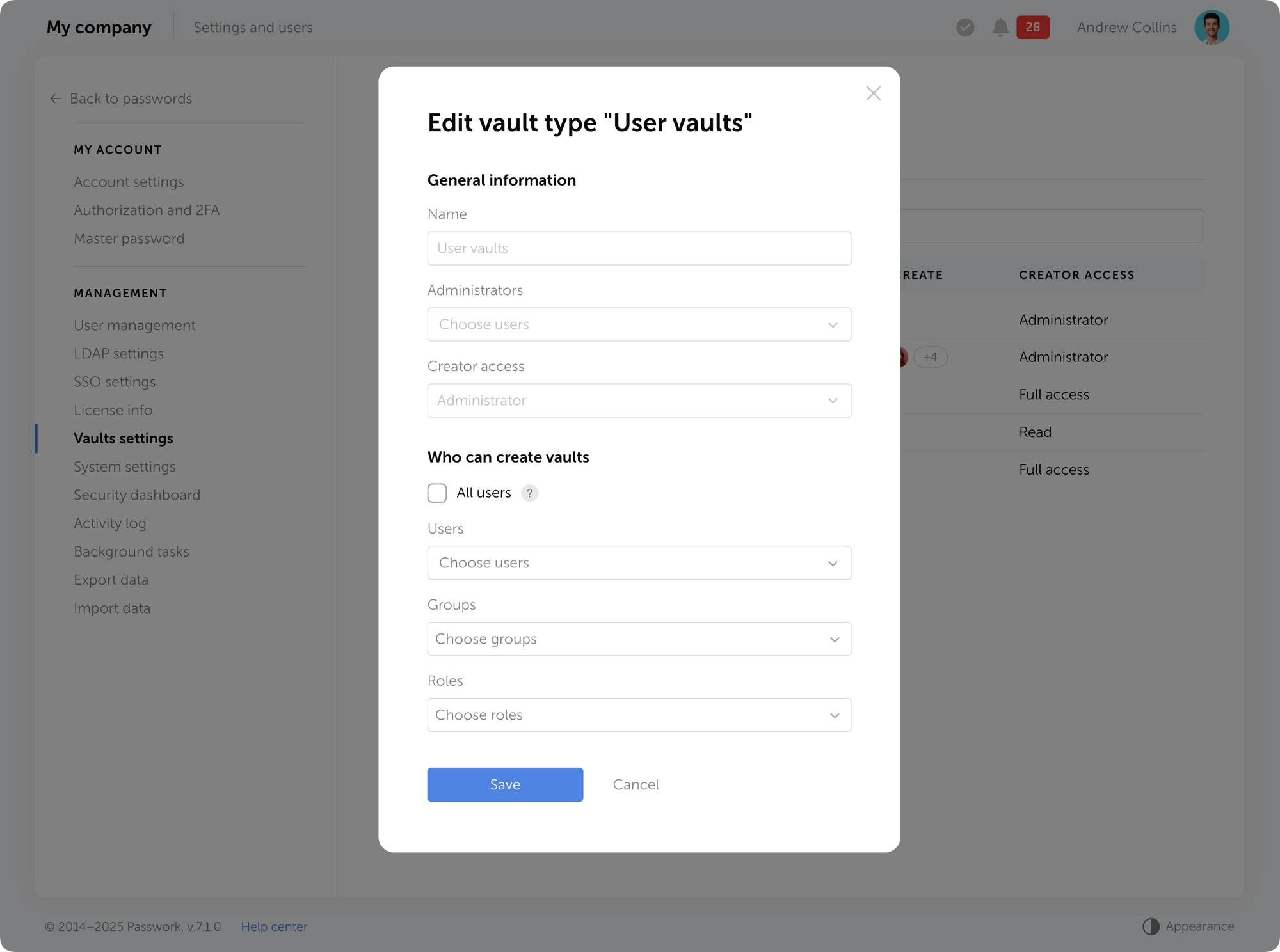
Prohibit private vaults creation
Task: Prevent employees from creating private vaults.
Solution: In Vault settings, open the User vaults type. In Who can create vaults, remove all users or leave only those who need to retain this right.
Vaults with mandatory administrators
Task: All vaults created by users must include corporate administrators.
Solution: In Vault settings, create one or more new vault types. In the Administrators section, add the required users (corporate administrators) — they will automatically be added to all vaults of this type with rights that cannot be changed or revoked. Prohibit creation of other vault types.
Private vaults creation without user invitation rights
Task: Allow users to create their own vaults but prohibit inviting other users.
Solution: In Vault settings, create a new type with Full access level for the creator—this level prohibits adding other users.
Delegating administrative responsibilities
Task: Configure the system so different departments or projects have their own administrators.
Solution: In Vault settings, create separate types for each department and add corresponding roles.
Limit vault management
Task: Prevent administrators from viewing the list of all vaults, managing vault types, and access level settings.
Solution: In role settings, open the Administrator role. In the Vaults section, disable the necessary permissions — you can restrict access to the section with the list of all vaults or to the entire Vault settings page.
Conclusion: Data control and efficiency
Vault types address a key challenge for growing companies: controlling data access without overwhelming the IT department. Administrators automatically gain access to new vaults of their type, while department heads can manage data independently. Passwork scales with your organization, ensuring data remains secure, processes are automated, and employees can work efficiently.
Further reading
 Turpal Makh
 Ana Moore
 Eirik Salmi