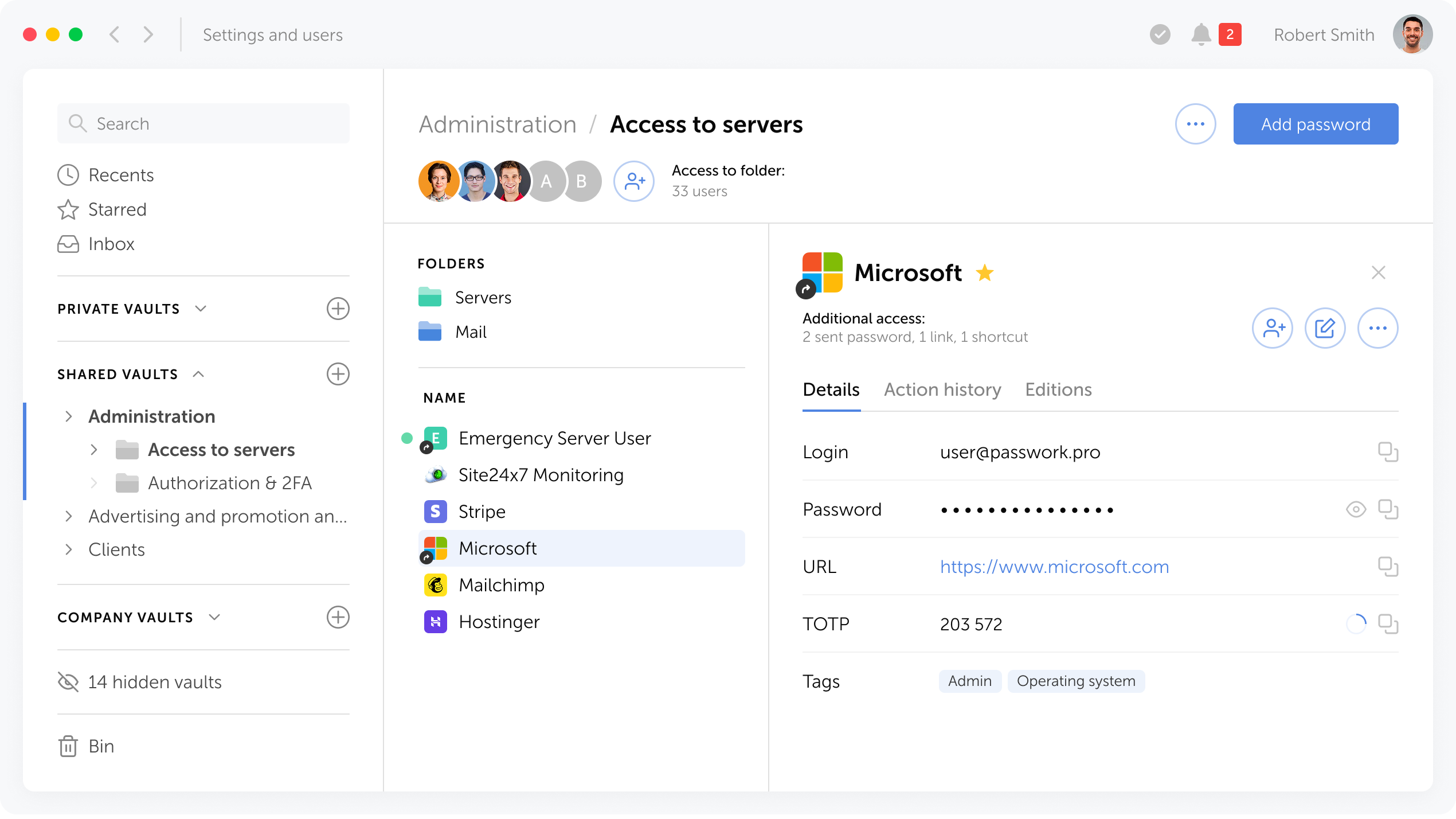
Passwork is now available as a full-featured desktop app for Windows, macOS, and Linux. The desktop app delivers complete password management functionality: manage credentials, access vaults, collaborate with your team, all with the native performance and convenience of a desktop environment.
Supported operating systems
The desktop application supports Windows 10/11 (64-bit), macOS 12 (Monterey) and later, and Linux distros including Ubuntu 20.04+, Fedora 34+, Debian 11+, and others (64-bit).
How to download
You can download the desktop app directly from the Passwork interface.
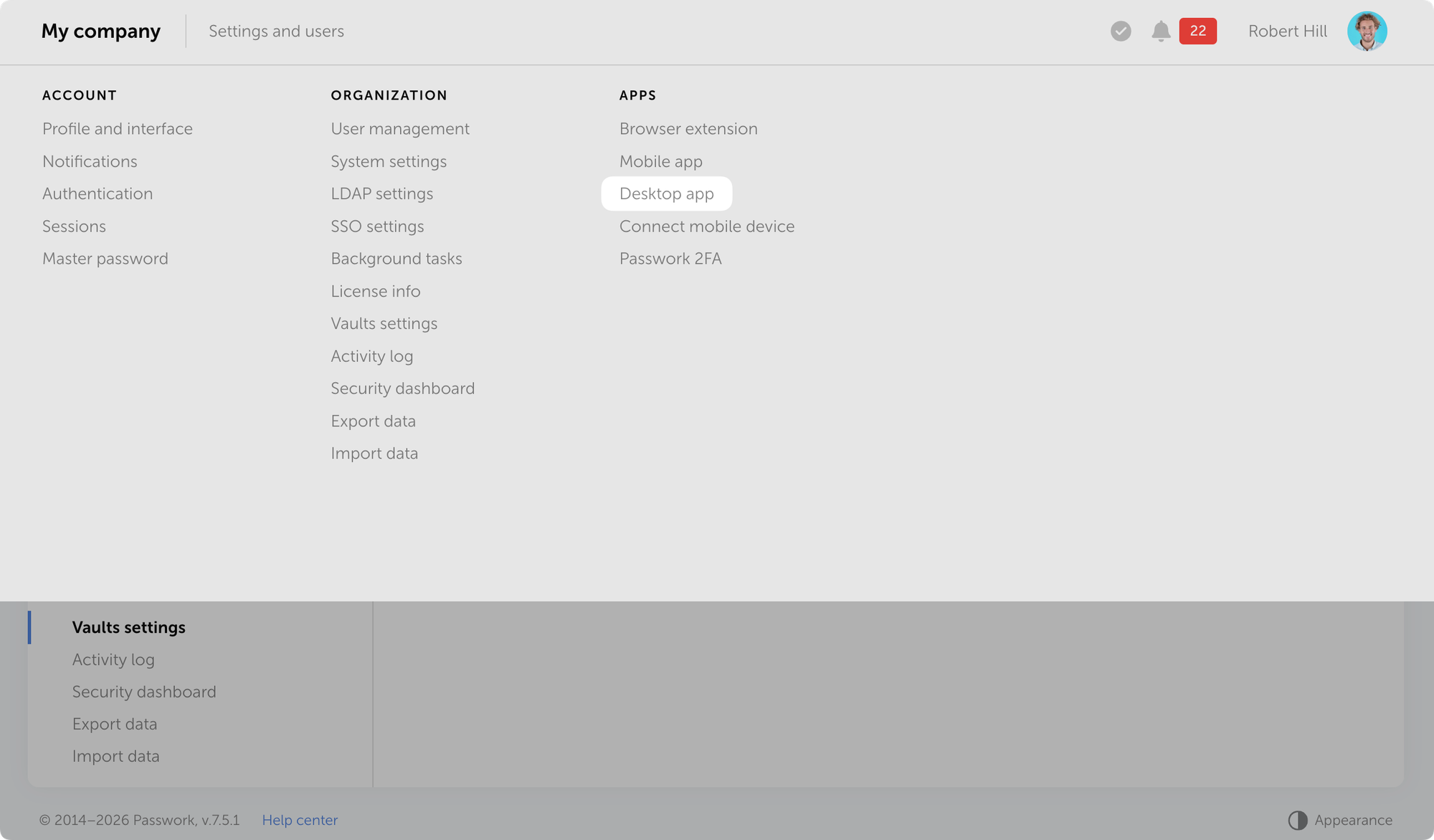
Open Passwork → Settings and users → Desktop app and download the installer for your operating system.
Installation
The app authenticates through your browser. You'll need your Passwork instance hostname.
- Download the installer
- Install the app for your OS and launch it
- Enter your Passwork hostname and click Sign in with browser
- Authenticate in the browser: enter your credentials or sign in via SSO or passkey
- Allow the app to connect to your browser session
- If client-side encryption is enabled in Passwork, enter your master password in the app
Note: If you have an active session in the web version, Passwork will prompt you to continue with the current user or switch accounts.
How to update
New desktop app versions are released alongside Passwork updates. When a new version becomes available, the app prompts you to update. The process is automatic — the installer downloads from the repository and installs without manual intervention.
What's next
Upcoming releases will introduce desktop-exclusive features, including offline mode. Access your passwords without a server connection, ensuring continuity even when network access is unavailable.
All information about Passwork updates in our release notes
 Eirik Salmi
 Mike Shikun
 Eirik Salmi