Mike Shikun

Latest — Mar 4, 2026
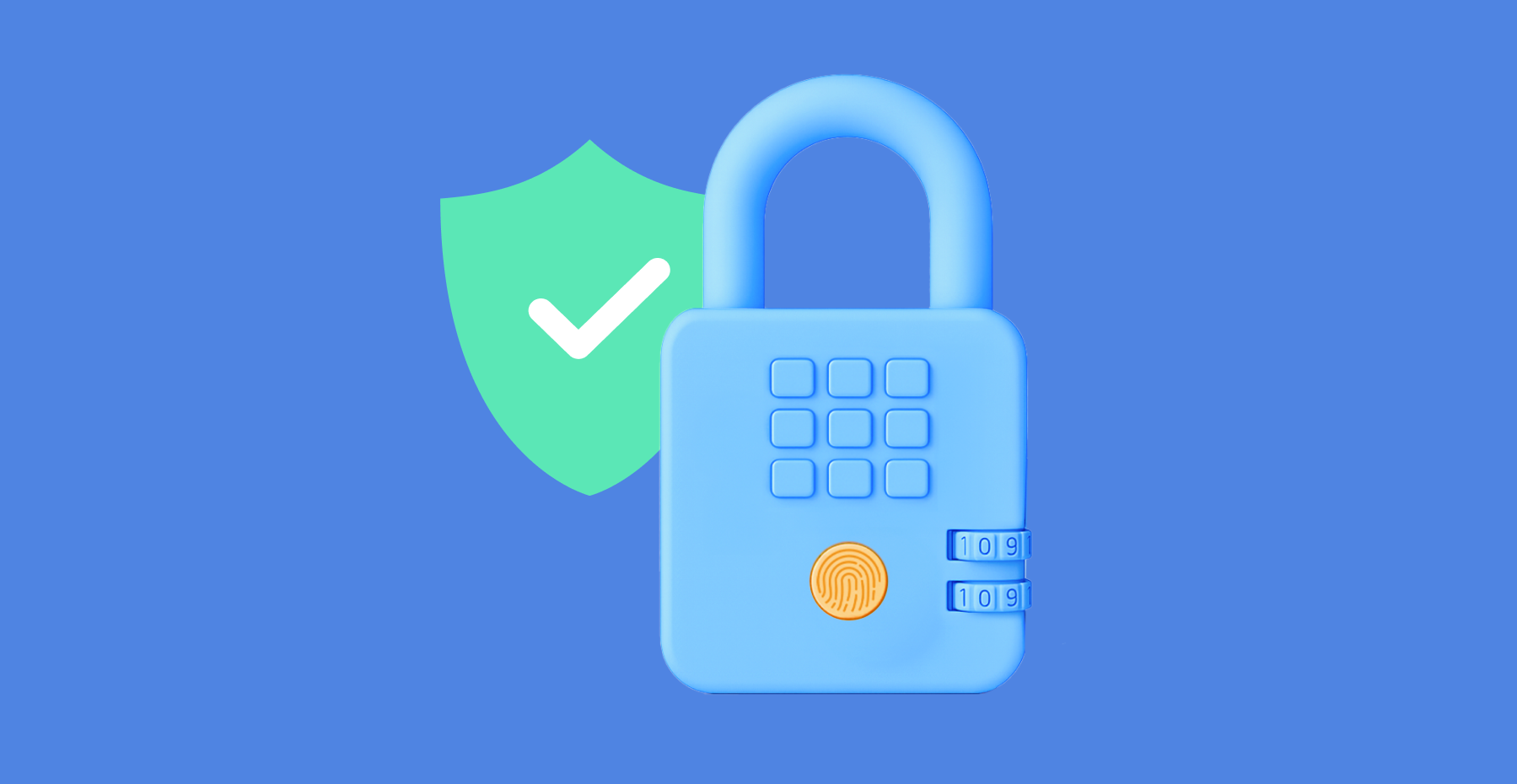
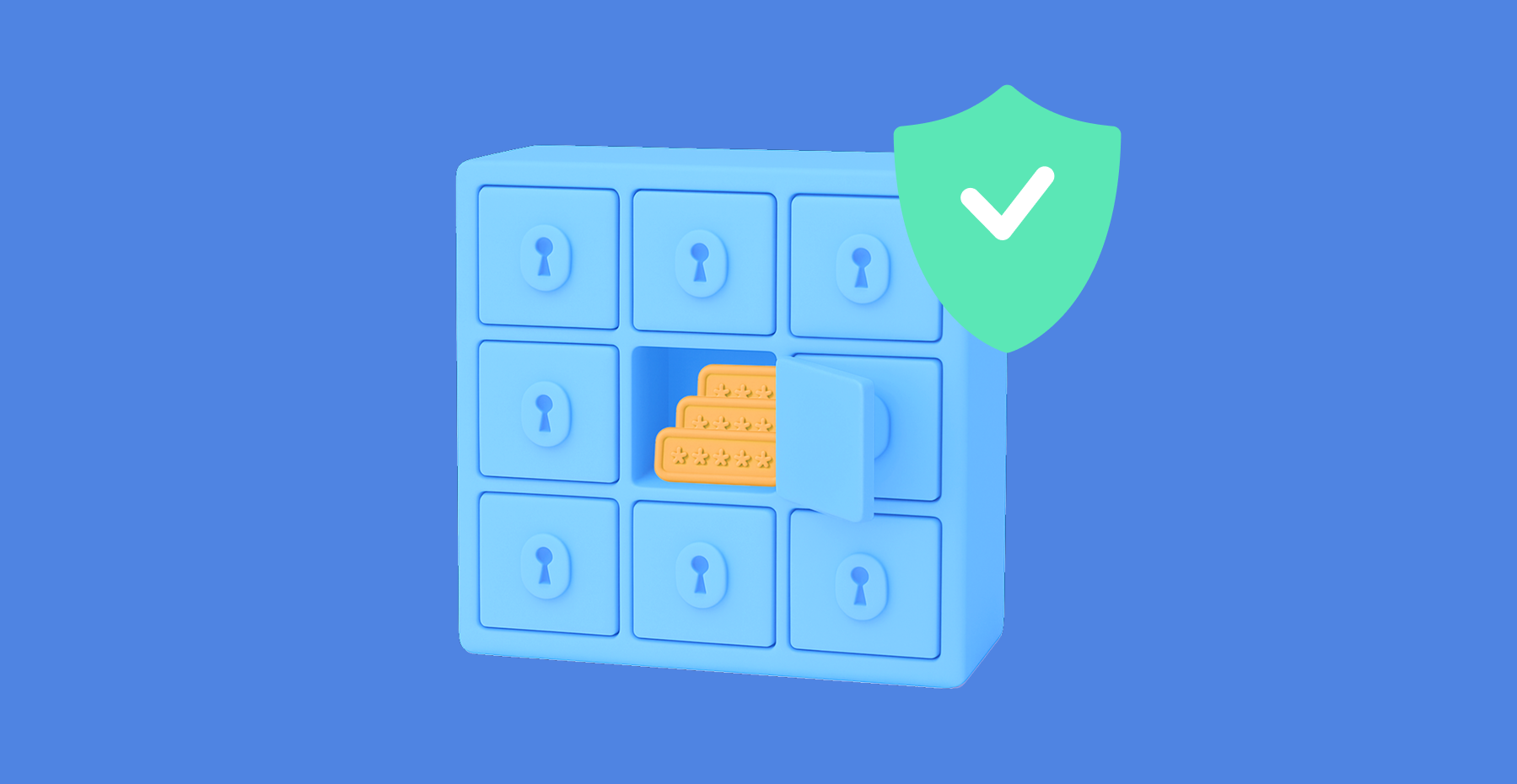
Shield with lock and password field symbolizing credential protection

Outdated password practices, such as memorizing credentials or enforcing complex rules, consistently fail against today's threats. The Verizon Data Breach Investigations 2025 Report reveals that compromised credentials remain the leading cause of security incidents, with 22% of hacking-related breaches leveraging stolen or weak passwords.

Credential stuffing accounts for up to 19% of daily authentication attempts in enterprise environments. At $4.4 million per incident, the average breach cost reported by IBM in 2025 shows what's at stake.

The evolution of password management

Over the past decade, password management has fundamentally changed. We have moved away from frustrating, outdated practices like mandatory monthly password changes. Today, frameworks like NIST SP 800-63 guide organizations toward a more practical approach: longer passphrases and multi-factor authentication (MFA).

Security used to rely on complexity for its sake. Modern policies focus on resilience against real-world threats. A long, memorable passphrase is now far more effective than a short password packed with arbitrary special characters. Because long passphrases are harder to crack using brute-force methods, and their convenience helps users avoid unsafe practices like writing down their passwords.

Core password management

Password management relies on secure passwords, password managers, and MFA. Password policies adhere to NIST SP 800-63 standard by emphasizing the use of strong passwords and the adoption of multifactor authentication (MFA). These policies effectively address the most common entry points attackers use. This approach ensures that credential storage complies with audit and regulatory requirements.

Password managers make it easier to store complex passwords and help organizations maintain consistent credential policies. They also include built-in MFA support, providing an additional layer of verification. As a result, even if a password is compromised, the account remains protected.

Implications and benefits for enterprises:

  • Password managers are important for secure credential storage
  • Multi-factor authentication (MFA) provides an additional layer of protection
  • Password policies help maintain secure password hygiene across systems
  • Password strength is a defense against attacks like credential stuffing

Creating reliable passwords

Secure passwords defend against brute-force attacks, but length matters more than complexity. For accounts without MFA, NIST SP 800-63B sets the minimum password length to 8 characters, and with MFA to 15 characters.

Composition rules (uppercase, numbers, symbols) are now explicitly forbidden — they lead to predictable patterns like "P@ssw0rd567". Instead, encourage passphrases. Random word combinations like "correct-horse-battery-staple" are harder to crack than short complex strings.

Characteristics of secure passwords:

  • Length: at least 12 characters
  • Complexity: random letters, numbers, symbols
  • Memorability: use passphrases

The role of password managers

Behind the scenes, enterprise password managers handle encryption and authentication in addition to credential storage. With zero-knowledge architecture, the data stays encrypted on your device, and the provider never sees it. When selecting the right solution, it’s important to focus on key features that ensure security and adaptability: strong encryption, flexible deployment (cloud or on-premise), and built-in MFA support.

Password manager comparison

Feature

Passwork

LastPass

1Password

End-to-end encryption

Yes, zero-knowledge architecture

Yes

Yes

MFA support

Yes

Yes

Yes

Password generation

Automatic, strong

Automatic, strong

Automatic, strong

Deployment options

Cloud & on-premise

Cloud only

Cloud only

Role-based access

Yes

Yes

Yes

Some compliance and security policies call for keeping data behind a company's own firewall. For these organizations, on-premise deployment is a hard requirement. Passwork supports both cloud and on-premise, so you can choose what fits your infrastructure.

Multi-factor authentication: Security multiplier

MFA remains necessary for account protection — the DBIR treats it as a baseline. Yet the report also warns against complacency. Token theft, adversary-in-the-middle attacks, where an attacker intercepts communication between the user and the server, and SIM swapping are already identified as MFA bypass techniques in the 2025 dataset, and these threats are expected to become even more prevalent in the future.

Phishing-resistant methods like FIDO2 / WebAuthn offer stronger defense by binding credentials cryptographically to specific domains and devices.

Steps to implement MFA across common platforms:

  1. Enable MFA for all user accounts
  2. Choose your MFA method (SMS, app, or hardware token)
  3. Integrate with existing identity management systems (AD / LDAP / SSO)
  4. Set up recovery options for lost authentication factors
  5. Educate users on MFA use and benefits

Avoiding password reuse and its dangers

Credential stuffing exploits password reuse at scale. Credentials leaking from one site often lead attackers to test them across others, where they succeed in 0.2–2% of attempts. With billions of stolen credentials available, attackers can compromise thousands of accounts.

Password managers solve this — they generate unique passwords for every account. If a breach occurs on one platform, it remains contained and cannot spread to other systems.

Key practices to prevent password reuse:

  • Use unique passwords for all accounts
  • Store them securely in a password manager
  • Regularly update password policies

When you evaluate password managers, deployment flexibility matters. For organizations with compliance requirements or existing infrastructure, it can be a deciding factor. Both cloud and on-premise options are available for testing in a demo environment that matches your actual setup.

Enterprise password management best practices
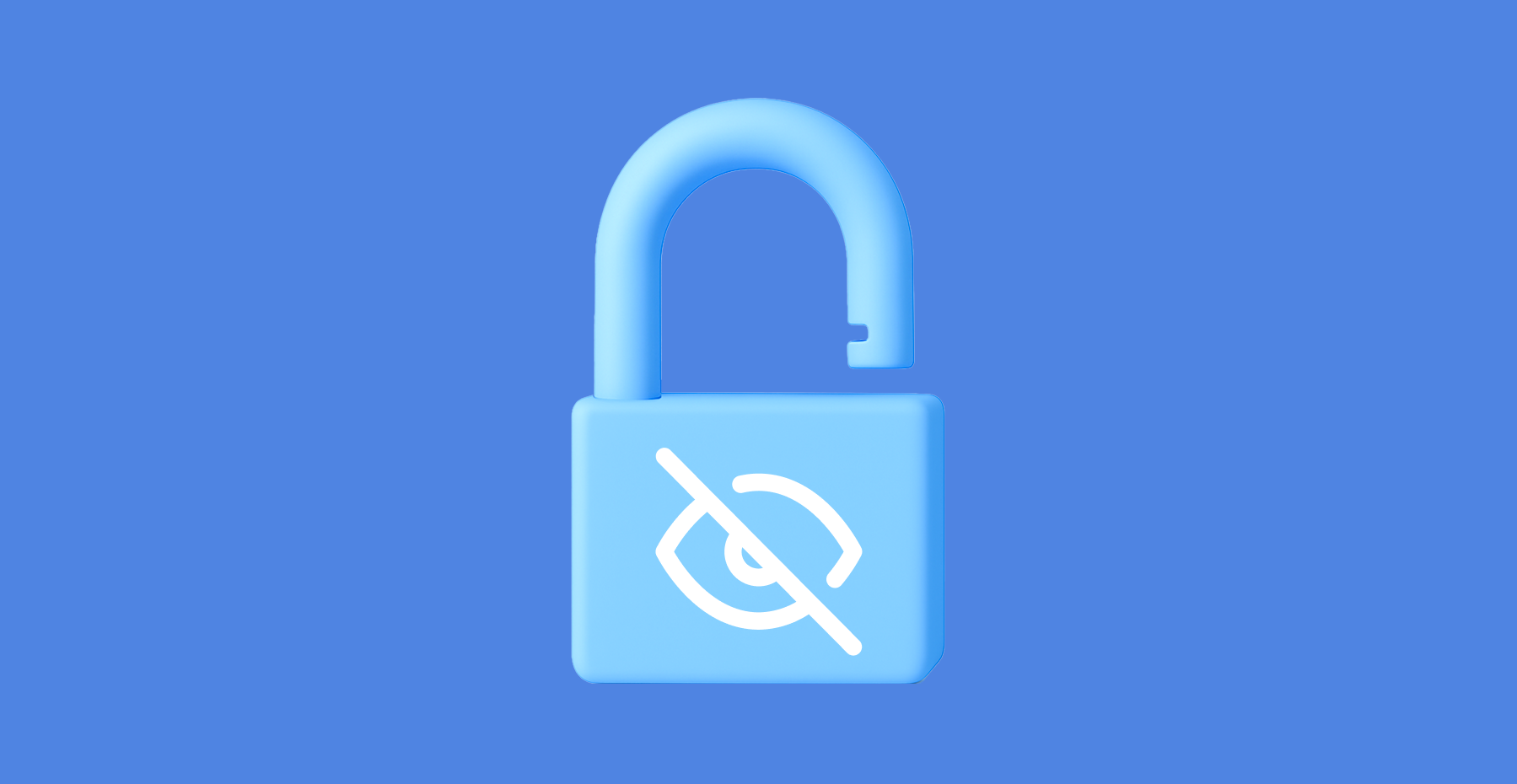
 Padlock over masked password representing strong security

At the organizational level, password management has to account for team hierarchies, distributed infrastructure, and compliance rules. Centralized management, policy enforcement, and integration with existing systems reduce the risk of credential-related breaches. For privileged accounts, this extends to privileged access management (PAM) controls, limiting who can access critical systems and how.

Given the moderate to high implementation complexity (3-6 months), organizations should set realistic expectations. A successful enterprise-level strategy includes the use of password managers with multi-factor authentication, alongside solid password policies that follow current security standards.

Implementing centralized password management solutions

Before you select an enterprise password management system, evaluate deployment options: cloud, on-premises, or both, against your organization's size, security needs, and compliance rules. 

A centralized platform applies password policies consistently across all users and removes the risk of employees skipping rules or using unapproved workarounds. For secure credential management, pair your password manager with multi-factor authentication.

Password policies that balance security and usability

Without proactive monitoring, suspicious login patterns can go unnoticed for weeks or months. To detect credential stuffing, which the Verizon DBIR identifies as an increasingly prevalent attack type, security teams rely on behavioral analysis and rate limiting. For brute-force attacks, account lockout policies act as the primary countermeasure.

To block brute force attacks, security teams rely on account lockout and rate limiting. By establishing baseline login patterns and setting deviation alerts, organizations can spot anomalies early. Regular reviews of password policies against actual login data reveal where rules create friction without adding security. Quick responses to emerging risks keep systems protected.

Advanced strategies beyond passwords

Passwordless authentication replaces traditional passwords with more secure methods. Instead of typed credentials, WebAuthn uses biometrics or security tokens. Because credentials never leave the device, phishing and credential theft no longer apply.

According to NIST SP 800-63B, hardware-bound implementations, such as FIDO2 security keys, can meet AAL3, the highest authenticator assurance level. Synced passkeys satisfy AAL2 requirements.

Beyond eliminating passwords, these methods improve user experience and align with NIST's push for stronger authentication. Organizations should keep MFA in place during the transition. MFA continues to protect accounts while passwordless adoption scales across the organization.

The path to passwordless authentication

With WebAuthn, biometrics or security tokens replace passwords using public-key cryptography. When paired with hardware-bound keys, this method meets NIST highest assurance level (AAL3) for identity verification. All major browsers support WebAuthn today, though implementation complexity varies. A gradual approach works best: start with MFA for layered security, then introduce passwordless authentication step by step.

Recommended steps for transitioning to passwordless authentication:

  1. Assess the current MFA implementation. Verify that MFA is configured to provide an extra layer of protection.
  2. Integrate WebAuthn. Implement WebAuthn, use biometrics or security tokens.
  3. Educate users. Prepare your team with proper training on the new authentication methods.
  4. Update security policies. Revise security policies to reflect the technology integration.
  5. Monitor and evaluate. Continuously track and evaluate the effectiveness of passwordless authentication.

Operational metrics for password management

Without clear metrics, password management stays invisible to leadership. Tracking specific indicators helps demonstrate their value across the organization. Start with these metrics: help desk ticket volume for password resets, MFA adoption rates, time to detect anomalous login attempts, and password reuse rates per department.

Beyond operational metrics, security standards like GDPR, HIPAA, and PCI DSS require organizations to verify compliance through audit trails — something centralized password management automatically provides. Regular reporting on these metrics turns security from a cost center into a documented, accountable program.

Building a culture of password security

Cybercrime increasingly targets human behavior. Technical controls alone cannot close this gap. Across the organization, strong password habits reduce risk more than any single tool.

Long-term adoption depends on combining sound password practices with security awareness. Employees need to understand why MFA matters and how to spot phishing attempts. When security becomes part of the daily workflow, adoption follows naturally.

Switch to Passwork without losing your current subscription.
Transfer your remaining subscription period and enjoy 20% off your first renewal.

Frequently Asked Questions

What are the important password management best practices for 2026?

For 2026, password management practices include using unique passwords for every account, leveraging password managers for secure storage, and implementing multi-factor authentication (MFA) for added protection. Organizations should adopt a centralized password policy and maintain security awareness to protect against threats, such as credential stuffing.

How do password managers improve security compared to manual password management?

Password managers improve security by storing encrypted credentials, generating secure passwords, and preventing password reuse. Unlike manual management, password managers automate password updates and integrate with multi-factor authentication (MFA), boosting overall security and minimizing human error, which can lead to breaches.

Why is implementing multi-factor authentication important for password security?

Implementing multi-factor authentication (MFA) adds an important layer of security by requiring users to provide more than just a password. Even if passwords are compromised, MFA protects accounts by validating identity through additional verification methods such as security tokens or biometric authentication, reducing the risk of unauthorized access.

How should organizations balance security requirements with user experience in password management?

Organizations should implement user-friendly password policies that encourage reliable passwords while integrating multi-factor authentication to improve security without complicating the user experience. Password managers simplify password management, so users can follow protocols without sacrificing convenience. Balancing usability and security is needed for compliance and user adoption.

What are the risks of password reuse, and how can they be mitigated?

Password reuse increases the risk of credential stuffing attacks, where attackers use compromised credentials to gain unauthorized access to multiple accounts. Password managers mitigate this risk: they generate and store unique passwords for each account, prevent reuse across platforms, and limit the number of systems exposed if one credential leaks.


Passwork wins Best Customer Support 2026 by Software Advice
We’re excited to share that Passwork’s customer support has been recognized as the best in the Password Managers category by Software Advice.
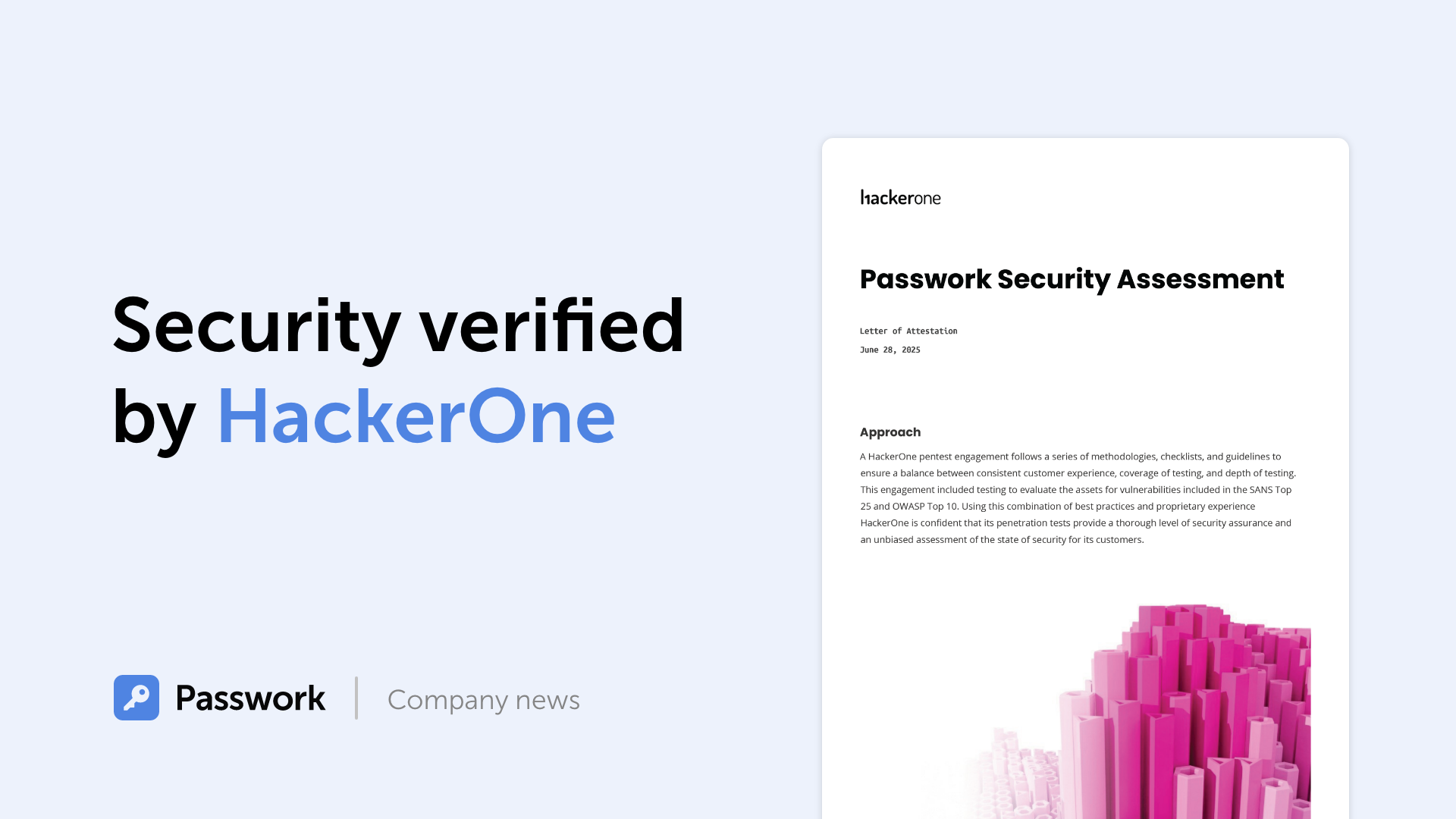
Passwork 7: Security verified by HackerOne
Passwork has successfully completed the penetration testing, carried out by HackerOne — the world’s largest platform for coordinating bug bounty programs and security assessments. This independent evaluation confirmed Passwork’s highest level of data protection and strong resilience against modern cyber threats. What the pentest covered Security architecture and data
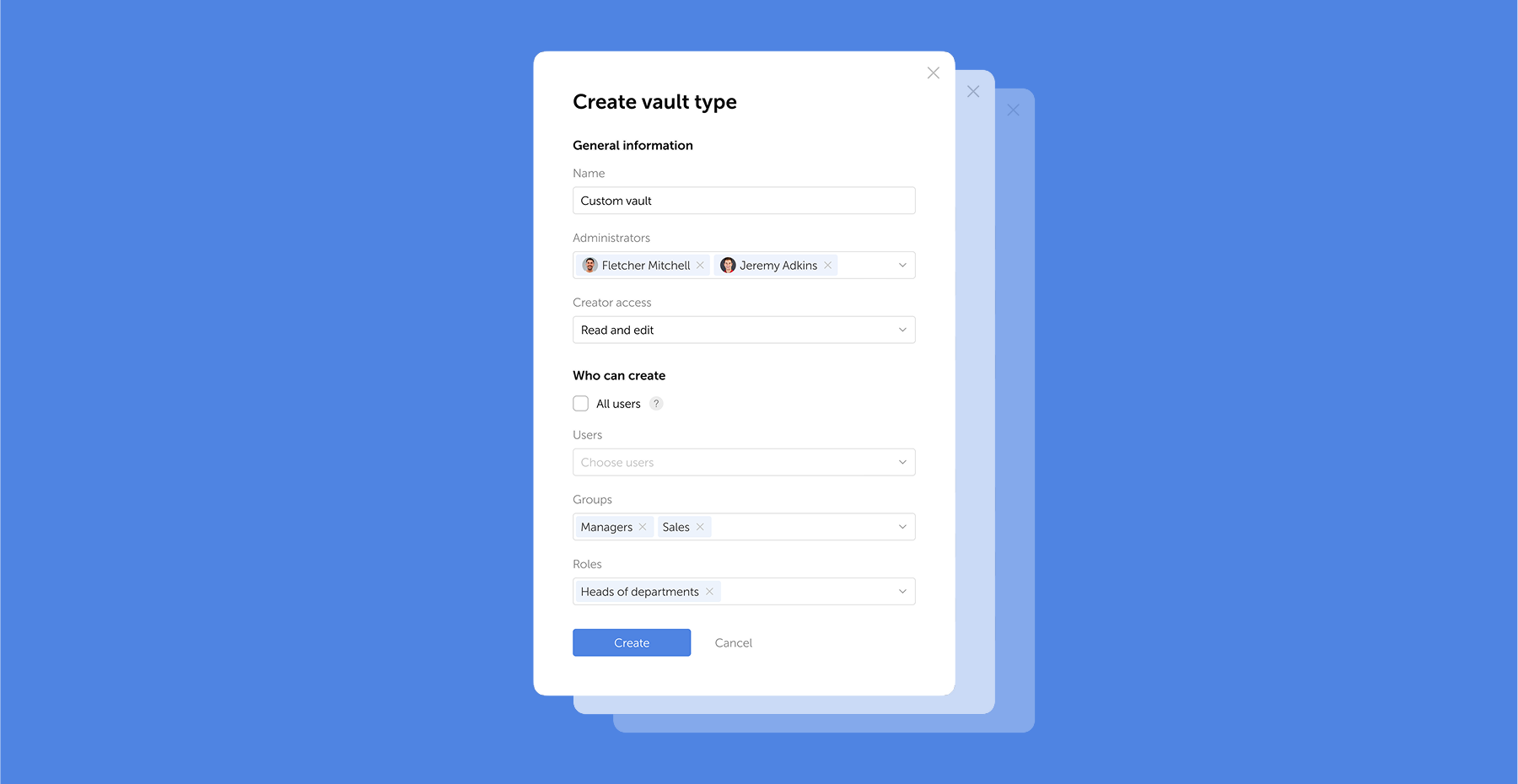
Passwork 7.1: Vault types
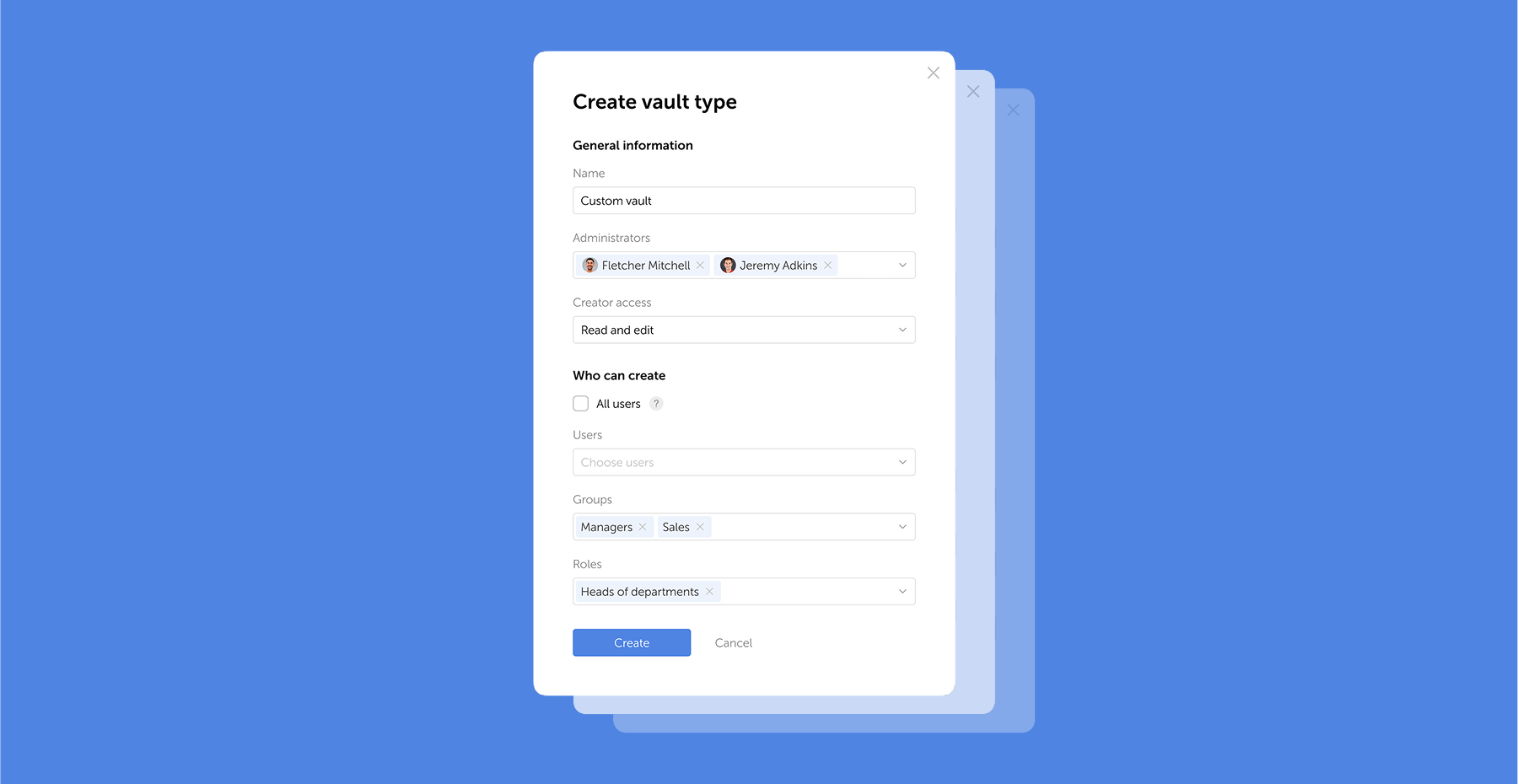
Vault types Passwork 7.1 introduces a robust vault types architecture, providing enterprise-grade access control for enhanced security and management. Vault types address a key challenge for administrators: controlling data access and delegating vault management across large organizations. Previously, the choice was limited to two types. Now, you can create

Password management best practices for enterprise security

Cybercrime increasingly targets human behavior. Technical controls alone cannot close this gap. Across the organization, strong password habits reduce risk more than any single tool.

Feb 27, 2026 — 11 min read
BYOD security:  Steps to keep corporate data secure

Bring Your Own Device (BYOD) has transformed from a workplace trend into a business necessity. By 2026, over 82% of companies will have adopted formal BYOD policies, with more than 80% actively promoting this approach. This reflects a fundamental change in how organizations approach workplace flexibility and productivity.

The appeal is clear: employees work on devices they know, IT departments reduce hardware costs, and companies attract talent seeking flexibility. But this convenience introduces security challenges that can expose sensitive data, compromise networks, and create compliance headaches.

This guide walks you through the security landscape of BYOD — from understanding core risks to implementing frameworks that protect your organization without sacrificing employee autonomy.

Understanding BYOD and its security implications

BYOD allows employees to use personal smartphones, tablets, and laptops for work tasks. These devices access corporate email, cloud applications, internal networks, and sensitive data — all while living outside traditional IT control.

The current state of BYOD in modern workplaces

Organizations now face a reality where personal devices are integral to daily operations, not exceptions to policy.

Employees expect seamless transitions between home and office, using devices that fit their workflows. IT departments adapted by building security architectures that accommodate this flexibility rather than resist it.

Why organizations are adopting BYOD

Cost reduction drives many BYOD programs. Companies save on hardware procurement, maintenance, and replacement cycles. Employees bear the initial device cost, while organizations invest in security infrastructure and management tools.

Employee satisfaction improves when workers use familiar devices. Learning curves disappear, productivity increases, and job satisfaction rises. This matters in competitive talent markets where workplace flexibility influences hiring decisions.

Operational agility increases as employees access work resources from anywhere. Business continuity improves because workers aren't tied to corporate-owned equipment. During disruptions, operations continue with minimal interruption.

Main BYOD security challenges

  • Lack of standardization. Personal devices vary in operating systems, security patch levels, and configurations, leading to inconsistent security postures.
  • Visibility gaps. IT teams have difficulties monitoring device health, installed apps, and security settings, leaving blind spots in the security landscape.
  • Policy enforcement challenges. Balancing security requirements with employee privacy can lead to resistance or vulnerabilities.
  • Lifecycle management issues. Managing security when employees upgrade devices, switch platforms, or leave the organization requires careful planning and technical capabilities.

Key BYOD security risks and vulnerabilities

Data leakage and loss in BYOD environments

Corporate data lives alongside personal information on BYOD devices. Employees might unintentionally share confidential files through personal cloud storage, messaging apps, or email accounts. The boundary between work and personal use blurs, creating opportunities for data to escape corporate controls.

Lost or stolen devices represent immediate security incidents. Without proper safeguards, anyone accessing the device gains entry to corporate resources. The risk intensifies when devices lack basic protections for example screen locks or encryption.

Malware and phishing threats targeting personal devices

Personal devices often have weaker security than corporate equipment. Employees might disable security features for convenience, install apps from untrusted sources, or ignore software updates. These behaviors create entry points for malware.

Phishing attacks exploit the personal nature of BYOD. Attackers send convincing messages to personal email or messaging apps, knowing employees use the same device for work. Once compromised, the device provides access to corporate networks and data.

Out-of-date devices and unpatched vulnerabilities

Employees control update schedules on personal devices. Critical security patches might wait days or weeks while users delay updates for convenience. During this window, known vulnerabilities remain exploitable.

Older devices present additional challenges. Manufacturers eventually stop supporting devices with security updates, leaving them permanently vulnerable. When employees continue using these devices for work, they introduce unpatched risks into your environment.

Shadow IT and unsanctioned applications

Employees install applications that solve immediate problems without considering security implications. File-sharing services, collaboration tools, and productivity apps might bypass IT approval processes entirely.

These unsanctioned applications often lack proper security controls, compliance certifications, or integration with corporate security systems. Data flows through services your security team doesn't monitor or protect.

Mixing personal and business use

One of the most common vulnerabilities in BYOD environments is credential mismanagement. Employees frequently save corporate passwords in personal browser keychains or unencrypted notes for convenience. Meanwhile, a corporate password manager lives separately on their device, featuring its own encryption, access control, and biometric protection. With Passwork, employees access company vaults through a mobile app, keeping work credentials completely separate from personal data.

Building an effective BYOD security framework

Creating a comprehensive BYOD security policy

Your BYOD policy defines acceptable use, security requirements, and responsibilities. It should address device eligibility, required security measures, acceptable applications, and data handling procedures.

Scope and eligibility sections clarify which devices qualify for BYOD programs and which roles can participate. Not every position requires BYOD access, and not every device meets minimum security standards.

Security requirements must be specific and enforceable. Define mandatory features such as encryption, screen locks, biometric authentication, and automatic updates. Specify prohibited activities such as jailbreaking or rooting devices.

Data classification guides employees in handling different information types. Clearly distinguish between public, internal, confidential, and restricted data. Define which data types are accessible via BYOD and which require corporate-owned devices.

Incident response procedures outline steps employees must take when devices are lost, stolen, or compromised. Include reporting timelines, contact information, and expectations for cooperation during investigations.

Defining device and software requirements

  • Operating system requirements. Only devices with actively supported operating systems should be allowed in BYOD programs. Outdated systems must be excluded.
  • Mandatory security features. Devices must include encryption, secure boot, and hardware-backed credential storage. Ensure these features are enforced by policy.
  • Approved applications. Provide employees with a list of secure, approved apps and alternatives to unsanctioned tools to encourage compliance.

Technical solutions for BYOD security

Solution

Description

Mobile Device Management (MDM)

Enforces security policies, manages applications, and provides remote capabilities including device wiping

Mobile Application Management (MAM)

Focuses on protecting specific applications rather than entire devices, addressing privacy concerns

Unified Endpoint Management (UEM)

Extends protection across all device types with consistent policy enforcement

Securing Network Access and Ensuring Compliance

Personal devices should not have the same network access as corporate equipment. Implement network segmentation and strict access controls so that BYOD users can only access the necessary resources. Require a VPN for remote access in order to encrypt traffic and control entry points. Continuous network monitoring should detect unusual activity and trigger alerts.

These controls also help organizations meet regulatory requirements, such as HIPAA, GDPR, and others. A robust network strategy supports data residency rules and ensures proper logging and reporting for audits, including access records and incident tracking.

Best practices for BYOD security implementation

Security policies fail without employee buy-in. Focus training on practical compliance and real-world threats:

  • Onboarding first: Introduce BYOD policies, privacy boundaries, and incident reporting before employees enroll devices.
  • Continuous awareness: Share relevant threat intelligence and highlight recent incidents regularly to keep security top-of-mind.
  • Scenario-based learning: Train employees using industry-specific examples — like targeted phishing attempts or common social engineering tactics.

Monitoring and managing BYOD security risks

Proactive monitoring prevents minor issues from escalating into breaches:

  • Continuous tracking: Monitor device compliance, flag outdated software, and identify suspicious activities in real time.
  • Visibility dashboards: Track key metrics like enrollment rates, policy compliance, and OS versions across your environment.
  • Automated remediation: Configure systems to automatically restrict access or notify users when devices fall out of compliance.
  • Regular audits: Review access logs and test remote wipe capabilities to ensure technical controls adapt to evolving threats.

Balancing security with employee privacy

Successful BYOD programs protect corporate data while respecting personal privacy:

  • Containerization: Isolate corporate data within managed containers — keeping personal information entirely outside IT visibility.
  • Transparent policies: Explicitly document what data IT can access, clarifying that monitoring focuses strictly on corporate resources.
  • Informed consent: Require employees to acknowledge monitoring capabilities and remote wipe scenarios before device enrollment.

Zero-trust architecture for BYOD environments

Zero-trust principles assume no device or user is inherently trustworthy. Every access request requires verification regardless of network location or previous authentication.

Multi-factor authentication (MFA) is no longer optional. It is the baseline. Biometrics, hardware tokens, and authenticator apps should work together as layered protection.

In BYOD environments, employees need secure access to corporate credentials on their personal devices. Passwork mobile apps for iOS and Android provide biometric unlock with Face ID and Touch ID, allowing users to authenticate once and then securely access shared company vaults without disruption. This reflects a zero-trust approach in practice: identity is verified at the device level while the user experience remains seamless.

Continuous authentication monitors user behavior and device posture throughout sessions. Anomalies trigger re-authentication or access restrictions. If a device becomes less secure during a session, access is automatically adjusted.

Least privilege access limits what BYOD users can access based on role and necessity. Employees receive access to resources required for their jobs, nothing more. This minimizes potential damage from compromised devices.

Mobile threat defense and endpoint security

Mobile Threat Defense (MTD) solutions protect BYOD devices from threats specific to mobile environments. These platforms detect and respond to threats that traditional security tools miss.

Threat detection identifies malicious apps, network attacks, and device compromises. MTD solutions analyze application behavior, network connections, and device configurations to spot indicators of compromise.

Phishing protection extends to mobile browsers and messaging applications. MTD platforms detect and block access to known phishing sites, warn users about suspicious links, and prevent credential theft.

Network security evaluates Wi-Fi and cellular connections for risks. MTD solutions identify man-in-the-middle attacks, rogue access points, and insecure network configurations that could expose data.

Data protection strategies for BYOD

Think of containerization as a secure vault inside your employee's phone. Work apps and data stay locked in their own space — completely separate from personal photos, messages, and apps.

Application wrapping adds security controls to existing applications without modifying source code. Wrapped applications enforce encryption, prevent data leakage, and integrate with authentication systems.

Data Loss Prevention (DLP) within protected spaces prevents unauthorized data transfers. Users can't copy corporate data to personal applications, upload files to unsanctioned cloud services, or share information through unmanaged channels.

Remote wiping and data recovery

Feature

Description

Remote wipe capabilities

Protect data when devices are lost, stolen, or when employees leave the organization. Selective wiping removes only corporate data, preserving personal information.

Offline functionality

Remote wipe should work even when devices are offline, executing commands once devices reconnect to networks.

Backup strategies

Ensure data recovery after device loss or failure. Corporate data should sync to secure cloud storage, enabling business continuity regardless of device availability.

AI-powered threat detection will enhance BYOD security by identifying subtle behavioral anomalies and zero-day threats. Machine learning models will adapt to evolving attack patterns faster than signature-based approaches.

Passwordless authentication using biometrics and hardware tokens will replace traditional passwords. This shift reduces phishing risks and improves user experience on personal devices.

Edge computing will enable real-time security decisions without routing all traffic through centralized systems. Devices will make local security assessments, improving performance while maintaining protection.

Integration with SASE (Secure Access Service Edge) architectures will provide comprehensive security for BYOD users regardless of location. Cloud-delivered security services will protect devices accessing resources from anywhere.

Conclusion: Building a balanced BYOD security strategy

Effective BYOD security requires balancing protection with usability. Overly restrictive approaches drive non-compliance, and insufficient security exposes your organization to unacceptable risks.

Start with clear policies that employees understand and accept. Implement technical controls that protect data without unnecessarily invading privacy. Provide training that empowers employees to recognize and respond to threats.

Monitor your BYOD environment continuously, adapting to new threats and changing business needs. Regular assessments ensure your security measures remain effective as technology and attack methods evolve.

BYOD done right delivers flexibility, cost savings, and employee satisfaction without compromising security. The key is treating BYOD security as an ongoing program, not a one-time implementation.

Frequently Asked Questions

What is BYOD security?

BYOD security encompasses policies, technologies, and practices that protect corporate data and resources accessed through employee-owned devices. It addresses risks from device diversity, personal use mixing with business activities, and reduced IT control.

What are the main security risks of BYOD?

Primary risks include data leakage from lost or stolen devices, malware infections from personal use, unpatched vulnerabilities on outdated devices, shadow IT introducing unsanctioned applications, and compliance violations from inadequate controls.

How do you implement a BYOD security policy?

Start with risk assessment, identifying critical data and acceptable access scenarios. Develop comprehensive policies covering device requirements, security measures, and acceptable use. Deploy technical controls including MDM, MFA, and containerization. Train employees on security requirements and privacy boundaries.

How should employees manage corporate passwords on personal devices?

Organizations must avoid letting employees store work credentials in personal browser keychains or unencrypted apps. The most effective approach is deploying a corporate password manager with dedicated mobile applications. Passwork allows employees to access shared company vaults securely on their smartphones. Features such as biometric unlock and secure autofill ensure credentials remain protected and are never exposed to the device's unmanaged ecosystem.

What is the difference between MDM and MAM?

MDM (Mobile Device Management) controls entire devices, enforcing security policies across all device functions. MAM (Mobile Application Management) focuses on protecting specific applications and their data, leaving personal device areas unmanaged. MAM addresses privacy concerns by limiting IT control to work-related apps.

Can BYOD be secure enough for regulated industries?

Yes, with proper controls. Regulated industries successfully implement BYOD using containerization, strong authentication, encryption, network segmentation, and comprehensive monitoring. The key is matching security controls to regulatory requirements and data sensitivity levels.

How do you handle BYOD devices when employees leave?

Implement remote wipe capabilities that remove corporate data while preserving personal information. Revoke access credentials immediately upon termination. Maintain backups of corporate data independent of devices. Document offboarding procedures and verify completion for each departure.

What should a BYOD policy include?

Essential elements include scope and eligibility criteria, device and software requirements, security measures and controls, acceptable use guidelines, data classification and handling procedures, privacy boundaries and monitoring disclosures, incident response procedures, and offboarding processes.

How does zero-trust architecture apply to BYOD?

The zero-trust approach considers all devices to be potentially compromised and requires continuous verification. BYOD implementations use MFA for every access request, monitor device posture continuously, enforce least privilege access, and segment networks to limit blast radius from compromised devices.

Ready to take corporate security to the next level? Explore how Passwork helps you protect your corporate data with secure password management and seamless access control.

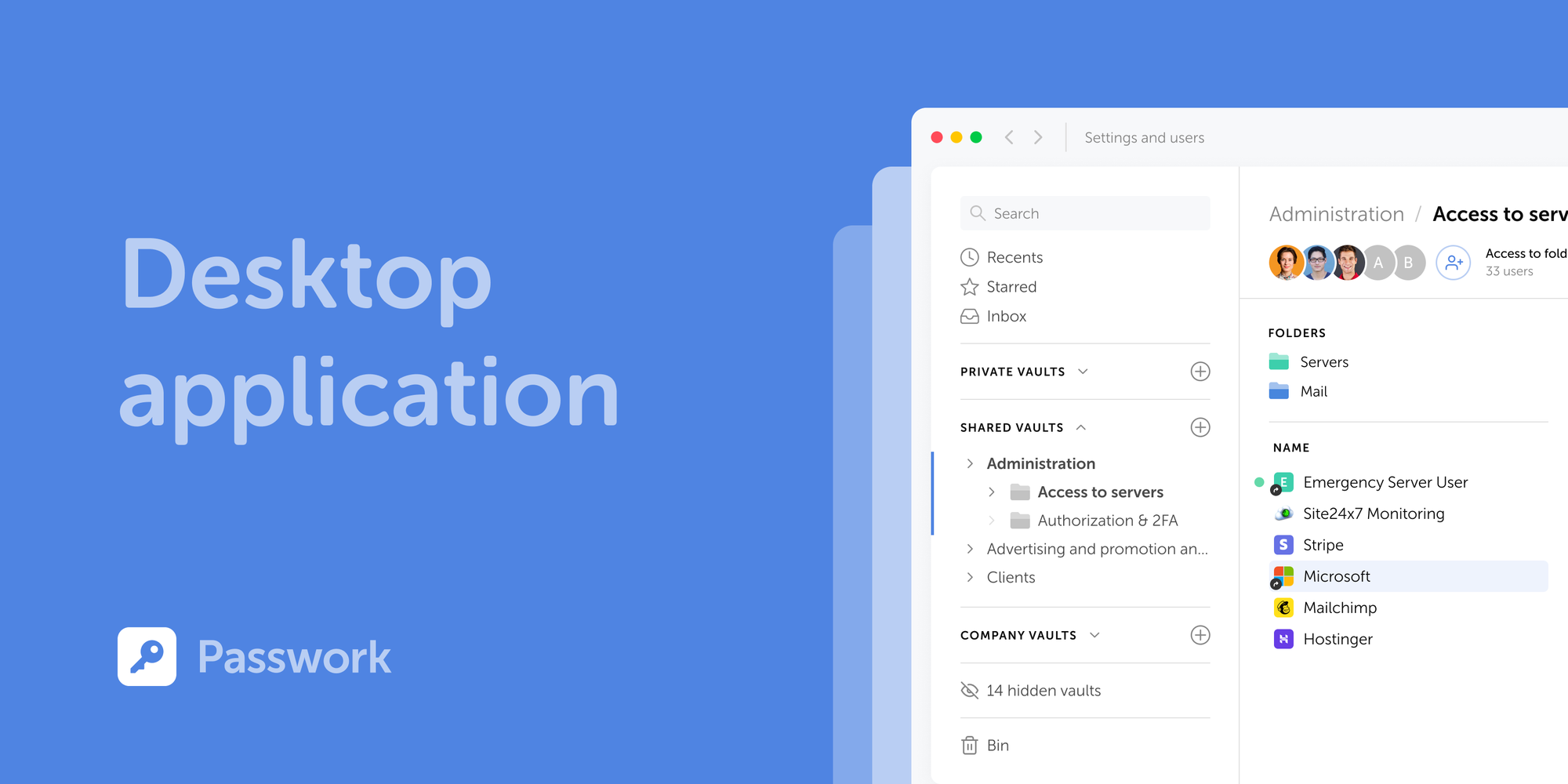
Introducing Passwork Desktop app
Passwork is now available as a full-featured desktop app for Windows, macOS, and Linux. The desktop app delivers complete password management functionality: manage credentials, access vaults, collaborate with your team, all with the native performance and convenience of a desktop environment.
Case study: City of Melle and Passwork
Passwork has improved the internal security at the City of Melle by creating a reliable system for password management.
Passwork: Secrets management and automation for DevOps
Introduction In corporate environment, the number of passwords, keys, and digital certificates is rapidly increasing, and secrets management is becoming one of the critical tasks for IT teams. Secrets management addresses the complete lifecycle of sensitive data: from secure generation and encrypted storage to automated rotation and audit trails. As

BYOD security: Practical steps to keep corporate data secure

Feb 24, 2026 — 12 min read
How to use a password manager: an expert's guide to reliable security

Most data breaches start the same way: with weak or poorly managed credentials. In basic web application attacks alone, the 2025 Verizon DBIR traced 88% of incidents back to stolen passwords. For any organization handling sensitive data, computer security starts with credential control. And password security has shifted beyond a recommendation and become a baseline requirement.

A password manager addresses this risk. For every account, it generates, stores, and auto-fills unique credentials — all protected by one master password. Instead of spreadsheets, sticky notes, and repeated password resets, teams get a controlled and auditable process across the entire workflow.

Main points:

  • One master password replaces hundreds of weak, reused credentials
  • AES-256 encryption and zero-knowledge architecture keep your vault unreadable, even to the provider
  • Setup takes planning, but the payoff is fewer support tickets, stronger compliance, and reduced breach risk

Understanding password managers

A password manager works as an encrypted vault — a digital safe that holds login credentials, secure notes, and other sensitive data. When you sign in somewhere, the manager retrieves the right password and fills the form automatically. Behind that vault stand two technologies: encryption and zero-knowledge architecture.

How password managers protect your digital identity

Before data leaves your device, AES-256 encryption (Advanced Encryption Standard with a 256-bit key) scrambles it into unreadable ciphertext. The same algorithm is used by governments and financial institutions.

Zero-knowledge architecture adds a second layer. Under this model, the provider cannot decrypt your data. Because all cryptographic operations happen locally, even full server access would reveal only encrypted blobs. We publish our cryptography documentation openly so teams can verify exactly how this works.

What password managers can and cannot do

A password manager is a reliable layer of defense, though it does not cover every threat on its own. Knowing its limitations helps you plan additional safeguards.

Can do

Cannot do

Generate unique, complex passwords for every account

Protect you if malware captures keystrokes on your device

Auto-fill credentials on recognized websites

Prevent phishing if you manually enter credentials on a fake site

Encrypt stored data with AES-256

Replace multi-factor authentication (MFA)

Alert you to reused or weak passwords

Stop social engineering attacks targeting your employees

Share credentials securely within a team

Guarantee safety if your master password is compromised

Multi-factor authentication (MFA) adds a second verification step, such as a time-based one-time password (TOTP), and addresses gaps that a password manager alone cannot cover. Together, they form a much stronger defense.

Creating your master password

Your master password is the single credential that unlocks the entire vault — a weak one undermines every other security measure.

Released in August 2025, NIST SP 800-63B-4 sets a minimum length of 15 characters for passwords used as a single-factor authenticator. The same revision states that verifiers shall not impose password composition rules (e.g., requiring uppercase letters, numbers, or symbols) and instead must screen passwords against lists of commonly used or compromised values. A password like "P@ssw0rd123" would fail such screening.

Instead of random character requirements, the passphrase method works better: pick four or five unrelated words and combine them. A password generator can produce random word combinations, but many users prefer manual selection. "correct-horse-battery-staple" is a classic example — high entropy.

Step-by-step master password creation:

  1. Choose 4–5 random, unrelated words (avoid song lyrics or famous quotes)
  2. Add a separator between words (hyphens, dots, or spaces)
  3. Optionally insert one number or symbol at a random position — not at the end
  4. Test: can you type it from memory three times in a row?
  5. Write it down once, store that paper in a physically secure location, then memorize it within a week

Master password best practices

Do:

  • Memorize it, never store it digitally in plain text
  • Keep one physical backup in a secure place (a sealed envelope in a safe, for example)
  • Practice typing it regularly during the first week

Don't:

  • Reuse your master password for any other account
  • Share it with anyone, including IT staff
  • Change it on a fixed schedule without reason: according to NIST SP 800-63B-4, passwords should change only when evidence of compromise exists

Recovery options are limited by design. With a zero-knowledge architecture, the provider cannot reset your master password because they never had access to it.

Choosing the right password manager for your needs

Before committing to any password management software, define what your organization actually requires. Deployment model, encryption standards, and integration with existing infrastructure should all factor into the decision.

Criteria

Questions to ask

Deployment On-premise, cloud, or both? Who controls the server?
Encryption AES-256? Zero-knowledge? Where does decryption happen?
Integrations AD/LDAP support? SSO protocols like SAML or OAuth?
Team features Role-based access? Shared vaults? Audit logs?
Compliance GDPR audit trails? Exportable reports?
Scalability Per-user licensing? Can it grow with the team?

When deployment flexibility and security architecture matter, both on-premise and cloud options should be available. Passwork supports both models, so you can choose where your data lives. The platform features a user-friendly interface that teams can quickly adopt. It combines password management with DevOps secrets management, API keys, tokens, and certificates in one system.

If you're evaluating multiple solutions, see how we perform in a real deployment scenario. Get a demo environment and test alongside other enterprise password managers. No credit card required.

Browser-based vs. dedicated password managers

Browser-built password managers (like the ones in Chrome or Edge) are convenient, but they lack enterprise features. Within a single browser profile, credentials remain isolated — sharing, role-based access, and audit logging are either absent or limited.

With a dedicated password manager, encryption happens independently of the browser, alongside granular access controls and multi-platform sync. Auto-fill and credential capture still run through a browser extension, but the vault sits in a more controlled environment.

Getting started with your password manager

With the master password ready and the solution selected, setup begins. The process follows a predictable path.

  1. Install the core application: desktop client, web interface, or self-hosted instance
  2. Create your account with the master password you prepared
  3. Enable MFA immediately before adding any credentials to the vault
  4. Install browser extensions for Chrome, Firefox, Edge, or Safari
  5. Install mobile apps for iOS and Android if remote access is needed
  6. Configure vault structure: create shared and personal vaults by department, project, or access level

Setting up browser extensions and mobile apps

After installing the extension, adjust a few settings:

  • Enable auto-lock after inactivity — five minutes is a reasonable default
  • Turn on PIN or biometric lock for the mobile app
  • Confirm the extension connects to the correct server URL (required for on-premise deployments)
  • Disable auto-fill on public or shared devices

A password saved on your laptop appears on your phone within seconds through cross-platform sync. All data travels encrypted, so even an intercepted sync payload is useless without the master password.

Setting up two-factor authentication for your password manager

MFA adds a second lock to your vault through an additional security verification step. Even if someone learns your master password, access still requires that second factor.

Authenticator apps (Google Authenticator, Authy) generate six-digit TOTP codes that refresh every 30 seconds. During setup, scan the QR code, verify the first code, and save the backup recovery codes in a physically secure location. Without those codes, losing your phone could mean losing vault access.

Importing and organizing your existing passwords

Migration from browsers, spreadsheets, or another password manager into your password storage vault usually starts with a CSV (Comma-Separated Values) export. Most managers accept this format and map fields (URL, username, password) automatically.

Before importing, audit what you have. Old accounts, duplicate entries, and credentials reused across services all need attention. The import stage is the ideal time to replace weak passwords with generated ones. 

Our admin tools let you configure vault structures that mirror your team's organization. With role-based access, the finance team sees only finance credentials, while IT administrators maintain oversight of everything. This combination with a cost-efficient approach gives you enterprise-grade control without paying for features you do not need.

For teams implementing password management for the first time, setting up the right structure early prevents future access issues. Book a consultation to define your access model, deployment approach, and rollout plan.

Prioritizing your most critical accounts

Not all accounts carry the same risk. Start migration with the credentials that would cause the most damage if compromised:

  1. Primary email accounts (often the recovery method for everything else)
  2. Financial services and payment platforms
  3. Cloud infrastructure and admin panels
  4. Business communication tools (Slack, Teams, email servers)
  5. Social media and public-facing accounts

According to IBM's 2025 Cost of a Data Breach Report, the global average breach cost reached $4.44 million, and the average time to identify and contain an incident was 241 days. Early migration of high-value accounts reduces that exposure window.

Using password health and data breach tools

Once credentials are in the vault, run a password vault health report — a routine computer security check. Built-in data breach monitoring scans your entries against known breach databases, while compromised password detection flags reused or weak credentials. Address critical findings first, especially any accounts where the same password protects multiple services.

Generating and managing strong passwords

For every new account or password replacement, use the built-in password generator. A strong configuration for high-security accounts: 20+ characters, mixed case, numbers, and symbols. Where services impose character limits, adjust — but never go below 15 characters.

A generated password like "g7#Kp!2xVmNqR9bW" has no predictable structure, which makes brute-force attacks impractical. The password manager remembers it, so complexity costs nothing in usability.

Using autofill features securely

Auto-fill speeds up form filling, but it requires awareness. Before letting the extension complete a login, verify these indicators:

  • The URL in the address bar matches the expected domain exactly
  • The connection uses HTTPS (look for the padlock icon)
  • The password manager recognizes the site; if it doesn't offer auto-fill, the domain may be spoofed
  • No unexpected redirects occurred before the login page loaded

A phishing page at g00gle.com looks convincing, yet the password manager matches exact domains and will not auto-fill on a fake site. On personal and work devices, keep the extension locked when not in active use.

Sharing passwords securely with others

For joint accounts, admin panels, and third-party services, teams need to share credentials. Sending passwords over email, Slack, or text messages is the wrong approach. Through built-in sharing features, encryption stays intact — credentials remain protected in transit.

We designed our role-based access controls to manage department-specific credentials and temporary contractor access. With on-premise deployment, shared secrets never transit through external servers. Learn more about our approach to business password management.

Managing family and team access

Shared password vaults work like shared folders: each vault has its own access permissions. An IT administrator might have full access, while a marketing team member sees only the social media credentials vault. Under GDPR, organizations must both protect personal data from unauthorized access and prove that protection is in place. Granular access controls and audit logs address both requirements at once.

Advanced features worth using

Beyond storing passwords, most enterprise password managers include features that teams often overlook. Secure notes let you store Wi-Fi credentials, server details, software license keys, or recovery codes — all protected by AES-256 encryption.

Through SSO (Single Sign-On) integration, the password manager connects with your identity provider, reducing friction for users who already authenticate through AD or LDAP. Audit logs track every action: who accessed which credential, when, and from which device — this simplifies GDPR and PCI-DSS (Payment Card Industry Data Security Standard) reporting.

Secure notes and document storage

Secure Shell keys (SSH), API tokens, recovery phrases, or internal procedures — all of these belong in secure notes rather than scattered across email threads or shared drives. Encryption protects them identically to passwords, and access controls determine who sees what.

Device syncing and access management

When a team member updates a password on their laptop, every authorized device reflects that change within seconds. Encrypted in transit, the data travels to the server (or your on-premise instance) and arrives at other devices still protected. Decryption happens only locally.

Proper device management requires MFA verification before any new device gains vault access. Without this step, an attacker who clones a session token could silently reach stored credentials.

Troubleshooting common password manager issues

Issue

Solution

Browser extension does not auto-fill

Clear extension cache, check browser compatibility and updates, verify the URL matches the saved entry.

Sync not working across devices

Confirm internet connectivity, check server status (for on-premise: verify the instance is running), log out and back in.

Master password not accepted

Check Caps Lock, verify keyboard language, try typing the password in a visible text field first.

MFA code rejected

Confirm the device clock is synced (TOTP codes depend on accurate time), use a backup recovery code if needed.

Maintaining your password security long-term

Security is not a one-time setup. Quarterly reviews keep your vault in good shape:

  1. Run the vault's security audit to identify weak, reused, or old passwords
  2. Replace any flagged credentials using the built-in password generator
  3. Review shared vault access — remove former employees or contractors
  4. Verify MFA is still active and backup codes are accessible
  5. Check for any accounts in known breach databases and rotate those passwords immediately

What to do if your password manager is compromised

If you suspect your master password has been exposed, immediate damage control is critical for your computer security:

  1. Change the master password immediately from a trusted device
  2. Enable or re-verify MFA on the vault account
  3. Rotate passwords for your highest-priority accounts (email, financial, infrastructure)
  4. Review the vault's audit log for unauthorized access
  5. Notify your security team and begin an incident response according to your organization's protocol

Conclusion: your next steps to password security

A password manager replaces guesswork with structure, a direct upgrade to your organization's digital protection. Instead of hoping employees choose strong passwords, you give them a tool that does it automatically and keeps every credential encrypted, auditable, and under control.

The first step is the simplest: choose a solution, create a strong master password, and start migrating your most critical accounts today.

Frequently Asked Questions

What is a password manager and how to use it?

Inside one encrypted vault, a password manager stores all your credentials – protected by a single master password. For new accounts, it generates strong passwords automatically and auto-fills login forms. We built our platform with AES-256 encryption and zero-knowledge architecture – once client-side encryption is enabled, your data stays unreadable, even to us.

How to use a password manager for the first time?

Create a strong master password (at least 15 characters, following NIST SP 800-63B-4 guidance). Enable MFA, install browser extensions, then import existing passwords from your browser or a CSV file. The process is well-documented and predictable with proper planning.

How do I create a master password?

Use the passphrase method: combine four or five random, unrelated words with separators (e.g., timber-clock-river-frost). Avoid personal details, common phrases, or song lyrics. The goal is high entropy – unpredictable to attackers, memorable for you.

What should I do if I forget my master password?

Under zero-knowledge architecture, the provider cannot recover it. Store a physical backup in a secure location (a sealed envelope in a safe, for example). Some platforms offer emergency access features or recovery keys – configure these during initial setup.

Are password managers safe?

With AES-256 encryption and zero-knowledge architecture, a properly configured password manager is safe by design: decryption happens only on the user's device, so even full server access reveals nothing. The 2025 Verizon DBIR found credential abuse in 22% of breaches – most involving weak or reused passwords. A password manager directly addresses that risk.

Upgrade from your current solution. Passwork provides free migration assistance, enterprise-grade implementation support. Get 20% off your first renewal!

Passwork: Secrets management and automation for DevOps
Introduction In corporate environment, the number of passwords, keys, and digital certificates is rapidly increasing, and secrets management is becoming one of the critical tasks for IT teams. Secrets management addresses the complete lifecycle of sensitive data: from secure generation and encrypted storage to automated rotation and audit trails. As
What is password management?
Learn what password management is, why it matters, and how it protects your accounts with encryption, secure storage, and access control.
Passwork 7.1: Vault types
Vault types Passwork 7.1 introduces a robust vault types architecture, providing enterprise-grade access control for enhanced security and management. Vault types address a key challenge for administrators: controlling data access and delegating vault management across large organizations. Previously, the choice was limited to two types. Now, you can create

How to use a password manager: A guide to reliable security

A password manager replaces guesswork with structure, a direct upgrade to your organization's digital protection.

Feb 18, 2026 — 7 min read
Security password guide: Expert methods to protect your digital identity

Password security stands as your first line of defense against cyber threats. A comprehensive approach combines strong password creation, encrypted storage through password managers, and multi-factor authentication to counter increasingly sophisticated attacks targeting your digital identity.

The true cost of weak passwords

Data breaches cost organizations an average of $4.35 million per incident, according to IBM's Cost of Data Breach Report. According to the Verizon DBIR 2025 Report, compromised credentials are the leading cause of security incidents: 22% of hacking-related breaches leverage stolen or weak passwords.

Beyond financial losses, organizations face regulatory penalties, operational disruption, and reputational damage. Identity theft affects millions annually, with attackers exploiting weak passwords to access banking systems, healthcare records, and corporate networks. The cascading effects extend far beyond the initial breach — customer trust erodes, legal liabilities mount, and recovery efforts consume months of resources.

Companies struggle daily with password-related security incidents, where basic credential weaknesses lead to significant business disruption. Passwork's Zero-knowledge encryption architecture and transparent cryptography documentation help organizations understand exactly how their passwords are protected, eliminating the guesswork that often leads to security compromises.

Common password vulnerabilities and attack methods

Credential stuffing exploits password reuse across multiple accounts. Attackers obtain credentials from one breach and systematically test them against other services, succeeding when users recycle passwords. Dictionary attacks rapidly test common passwords and predictable patterns against target accounts.

Phishing remains devastatingly effective. Hackers craft convincing emails that trick users into revealing credentials directly. Brute force attacks test character combinations, with weak passwords falling within minutes. Password cracking tools leverage GPU processing to test billions of combinations per second.

The most exploited vulnerabilities stem from human behavior: using "password123" or "qwerty," incorporating easily discoverable personal information such as birthdays, and reusing the same password for years. Have I Been Pwned documents over 12 billion compromised accounts, demonstrating the scale of credential exposure. Password checkers reveal that most user-created passwords would crack in under an hour using standard tools.

Creating secure passwords and management strategies

Password strength fundamentally depends on length rather than complexity. NIST guidelines recommend a minimum 12-character password, with each additional character exponentially increasing crack time. A 16-character passphrase like "correct-horse-battery-staple" provides superior security compared to "P@ssw0rd!" while remaining more memorable.

Combining uppercase, lowercase, numbers, and symbols creates complexity, but a 20-character phrase of random words defeats attackers more effectively than an 8-character jumble of special characters. The mathematics of password entropy clearly favors length.

Longer passphrases provide better security than complex character combinations. Passwork's built-in password generator follows NIST guidelines, while our dual capability combines enterprise-grade password management with secrets management for DevOps teams — something most traditional password managers can't offer. Learn more about Passwork's enterprise deployment options.

Secure storage becomes essential when managing dozens of unique passwords. Writing passwords on paper creates physical security risks. Storing them in unencrypted documents or browser storage exposes credentials to malware. Password managers solve this problem by providing encrypted vaults that are protected by a single master password. This allows you to create and maintain unique and complex passwords for each of your accounts without having to remember them all.

Password manager selection and setup guide

Enterprise password management requires evaluating deployment models, security architecture, and operational capabilities. 1Password emphasizes business sharing features and cross-platform accessibility. KeePass provides open-source flexibility with local database control. LastPass offers cloud convenience but has faced security incidents that raise deployment concerns.

Password manager feature comparison chart:

Feature

Passwork

1Password

KeePass

LastPass

Deployment Model

On-premise/Cloud

Cloud

Local/Self-hosted

Cloud

Secrets Management

Zero-Knowledge Architecture

Role-Based Access Control

Advanced

Standard

Limited

Standard

LDAP/SSO Integration

Limited

Audit Logging

Comprehensive

Standard

Basic

Standard

DevOps Integration

Native

Limited

Manual

Limited

Transparent Cryptography Docs

Partial

Partial

While 1Password offers strong business features and KeePass provides open-source flexibility, businesses need both password management and secrets management in one platform. Modern infrastructure includes not only human passwords, but also API keys, tokens, certificates. Passwork provides on-premises deployment, whereas Bitwarden is cloud-based. For companies, cost-efficiency without feature bloat is important.

Setup begins with master password creation. This single credential protects your entire vault, requiring maximum strength — minimum 16 characters combining random words or a memorable phrase with added complexity. Enable encryption at rest and verify that the password manager uses AES-256 or equivalent encryption standards.

Migration requires a systematic approach: inventory existing credentials, prioritize critical accounts, and gradually transfer passwords while updating weak credentials. Configure browser extensions for autofill convenience, but verify they require authentication before populating credentials. Establish backup procedures for encrypted vault data, ensuring recovery options if master password access is lost.

Evaluating enterprise password managers? Get a demo environment to test Passwork alongside other solutions.

Multi-factor authentication and future security

Multi-factor authentication (MFA) transforms password security from single-point failure to layered defense. Even when attackers obtain passwords through phishing or breaches, MFA blocks unauthorized access by requiring additional verification. This secondary defense layer reduces account compromise risk by 99.9%, according to Microsoft security research.

MFA combines something you know (password), something you have (phone or security key), and something you are (biometric data). This approach ensures that credential theft alone proves insufficient for account access. Organizations implementing MFA across critical systems dramatically reduce successful breach attempts, as attackers rarely possess multiple authentication factors.

The authentication landscape evolves toward passwordless systems. Biometrics leverage fingerprints, facial recognition, or behavioral patterns for verification. Passkeys, built on WebAuthn standards, enable cryptographic authentication without traditional passwords. These technologies promise enhanced security while reducing user friction.

Passwork integrates seamlessly with existing MFA systems through SSO and LDAP connections, ensuring that it becomes part of your existing security infrastructure rather than creating another authentication silo. This integration approach reduces user friction while maintaining the security benefits of multi-layered authentication.

MFA methods and emerging authentication technologies

Authenticator apps like Google Authenticator or Microsoft Authenticator generate time-based codes, providing strong security without SMS vulnerabilities. Hardware security keys offer maximum protection against phishing through cryptographic challenge-response protocols. SMS-based codes remain common but face interception risks through SIM swapping attacks.

Biometric authentication delivers convenience and security when properly implemented. Fingerprint sensors and facial recognition systems verify identity without memorization requirements. However, biometrics cannot be changed if compromised, requiring careful implementation with fallback options.

Passkeys represent the authentication future. WebAuthn enables public-key cryptography where private keys never leave your device. Passkeys prevent phishing by using cryptographic verification instead of shared secrets for authentication. Major platforms now support passkey implementation, with adoption accelerating across consumer and enterprise environments. Biometric hardware works seamlessly with WebAuthn, combining the security of cryptographic keys with the convenience of fingerprint or face verification.

Conclusion

Effective password security balances protection with usability. Implement unique, lengthy passwords for every account. Store credentials in encrypted password managers rather than memory or insecure documents. Enable multi-factor authentication on critical systems. Monitor for credential exposure through breach notification services.

Passwork is designed to be both enterprise-grade secure and genuinely usable — the best security system is the one people actually use consistently.

Frequently Asked Questions

What makes a strong password?

Strong passwords combine length and unpredictability. Use a minimum of 16 characters, combining random words or mixed character types. Avoid personal information, dictionary words, or predictable patterns. Each additional character exponentially increases crack time — a 16-character password resists brute force attacks for years, while 8-character passwords crack in hours. NIST guidelines emphasize length over complexity rules that create memorable but weak passwords like "Password1!". Password managers eliminate memorization burden, enabling truly random credentials.

Why should I use a password manager?

Password managers solve the fundamental conflict between security and usability. Humans cannot remember dozens of unique, complex passwords, leading to dangerous reuse patterns. Passwork has Zero-knowledge encryption where your master password never reaches our servers, ensuring only you can decrypt credentials. On-premise deployment options provide additional control for regulated industries. Password managers also generate cryptographically random passwords, store API keys and certificates for DevOps workflows, and provide audit trails for compliance requirements. The security improvement dramatically outweighs the minimal learning curve.

How does multi-factor authentication improve my security?

MFA creates layered defense requiring multiple verification methods. Even when attackers steal passwords through phishing or breaches, they cannot access accounts without the second factor. It's better to use authenticator apps or hardware keys over SMS codes, which face interception risks. MFA integration with password managers through SSO and LDAP ensures seamless workflows while maintaining security. Organizations implementing MFA reduce successful account compromises by over 99%, according to security research. The additional seconds required for authentication provide exponentially greater protection against credential-based attacks.

What should I do if I suspect my password has been compromised?

Immediately change the compromised password and any accounts sharing that credential. Check HaveIBeenPwned to verify if your email appears in known breaches. Enable MFA on affected accounts if not already active. Review account activity logs for unauthorized access. Conduct a comprehensive password audit using your password manager to identify and update reused credentials. Monitor financial accounts and credit reports for fraudulent activity. Consider freezing credit if personal information was exposed. Document the incident timeline and affected systems for potential regulatory reporting requirements.

Ready to take control of your credentials? Start your free Passwork trial and explore practical ways to protect your business.

Case study: City of Melle and Passwork
Passwork has improved the internal security at the City of Melle by creating a reliable system for password management.
Passwork wins Best Customer Support 2026 by Software Advice
We’re excited to share that Passwork’s customer support has been recognized as the best in the Password Managers category by Software Advice.
Guide to Advanced Encryption Standard (AES)
Learn how AES encryption works, why it’s the standard for data security, and how AES-256 protects everything from passwords to TOP SECRET data.

Security password guide: Expert methods to protect your digital identity

Password security stands as your first line of defense against cyber threats. A comprehensive approach combines strong password creation, encrypted storage through password managers, and multi-factor authentication to counter increasingly sophisticated attacks targeting your digital identity.

Feb 13, 2026 — 3 min read
Passwork wins Best Customer Support 2026 from Software Advice

We're excited to share that Passwork's customer support has been recognized as the best in the Password Managers category by Software Advice. This award is based on real customer reviews and serves as an objective indicator of our product and service quality — we don't just answer questions, we help clients solve their challenges effectively.

What customers say about us

There are many reviews available across multiple platforms, and here are some of them.

"Clients highlight our responsiveness, deep expertise, and willingness to help even in non-standard situations. Excellent support during the testing and implementation phase, as well as very responsive managers who quickly and flexibly helped resolve all organizational issues." — Information security officer

Passwork has improved the internal security at the Melle city administration by creating a reliable system for password management:

"I ran into some minor difficulties after migrating to Passwork 7, but the support team literally walked me through the entire process. Within a day at most, I received answers to all my questions. Perfect. No issues. I'm very satisfied." — System administrator

Through careful evaluation and a security-focused implementation strategy, the deployment proceeded smoothly. A tailored onboarding approach drove high user adoption.

About the platform

Software Advice is an international platform for discovering and comparing IT solutions for businesses. It's part of Gartner Digital Markets, alongside GetApp and Capterra, which recognized Passwork with the Best Ease of Use 2025 award in the password management category by Capterra, a leading software review platform.

At Passwork, we believe cybersecurity should feel manageable, not overwhelming. Our expert support team and managers work closely with you, offering fast responses, practical guidance, and personal assistance whenever you need it.

Customer trust and honest feedback play a key role in how we improve and develop Passwork.

Take the first step too! Start your free Passwork trial and see how easy secure password management can be.

What is password management?
Learn what password management is, why it matters, and how it protects your accounts with encryption, secure storage, and access control.
The 2025 small business cybersecurity checklist: A complete guide | Passwork
Passwork’s 2025 cybersecurity checklist, based on the NIST framework, provides actionable steps to prevent data breaches and financial loss.
Secrets management - Passwork Blog
Self-hosted password manager for your business

Passwork wins Best Customer Support 2026 from Software Advice

We're excited to share that Passwork's customer support has been recognized as the best in the Password Managers category by Software Advice.