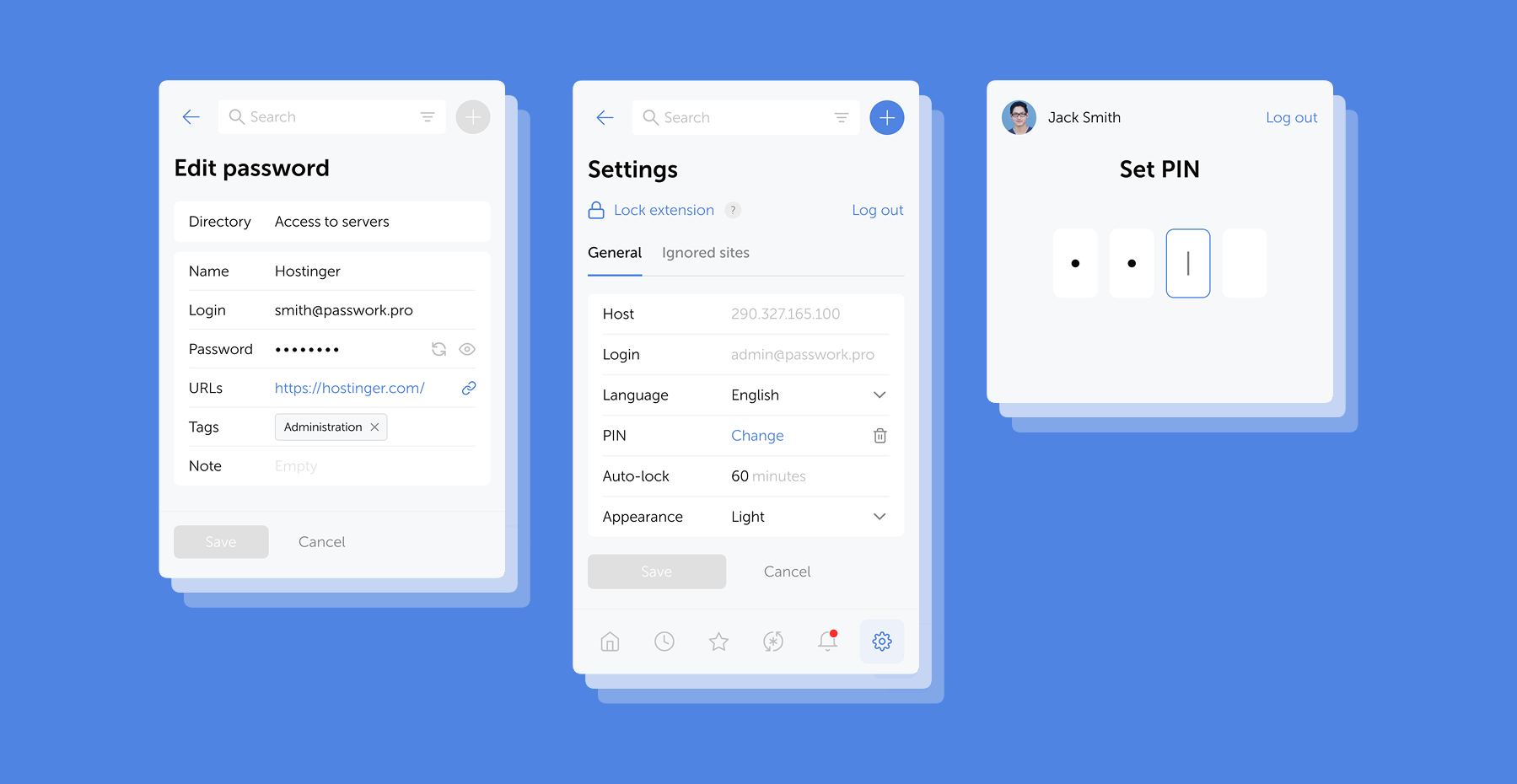
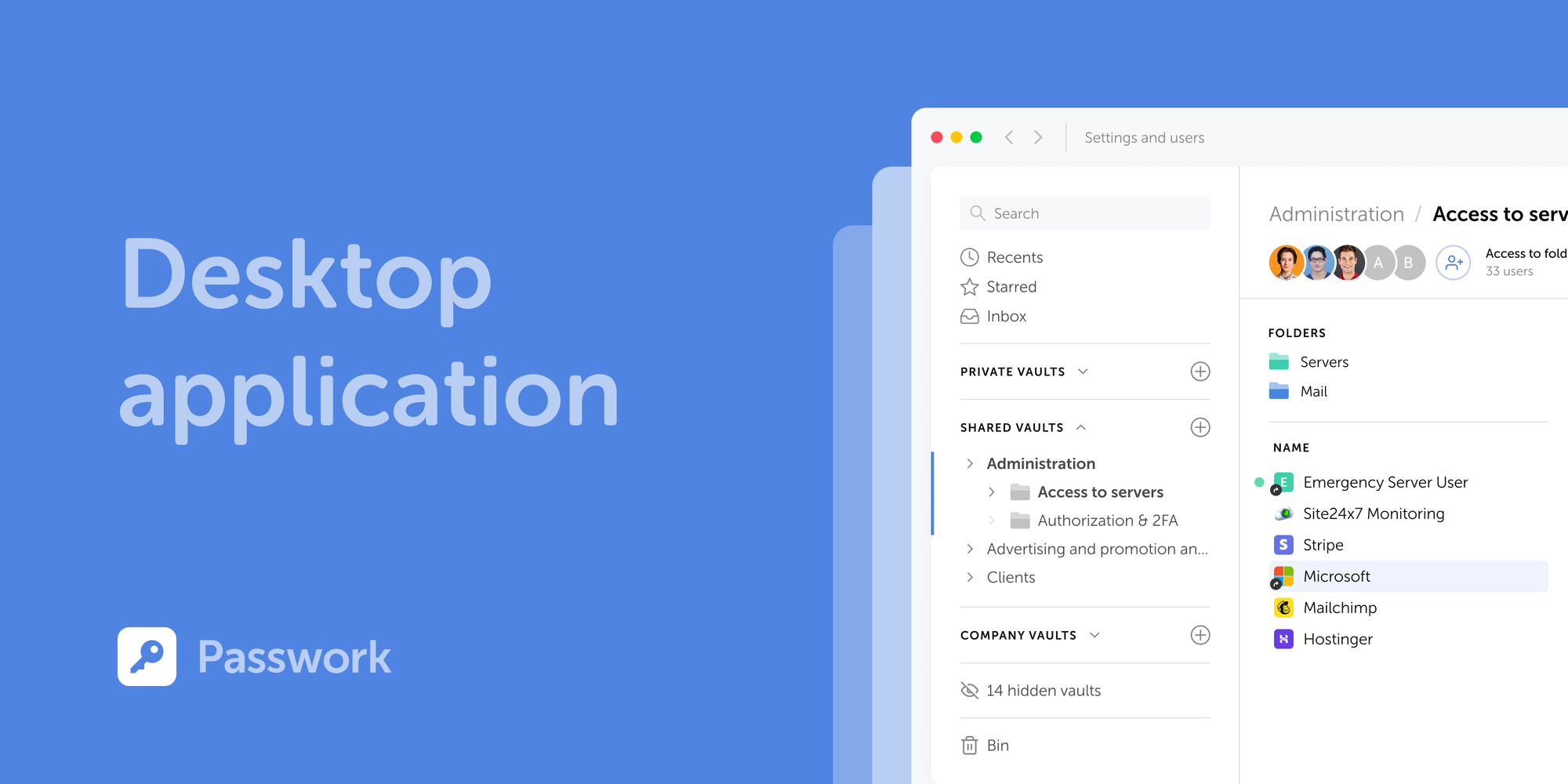
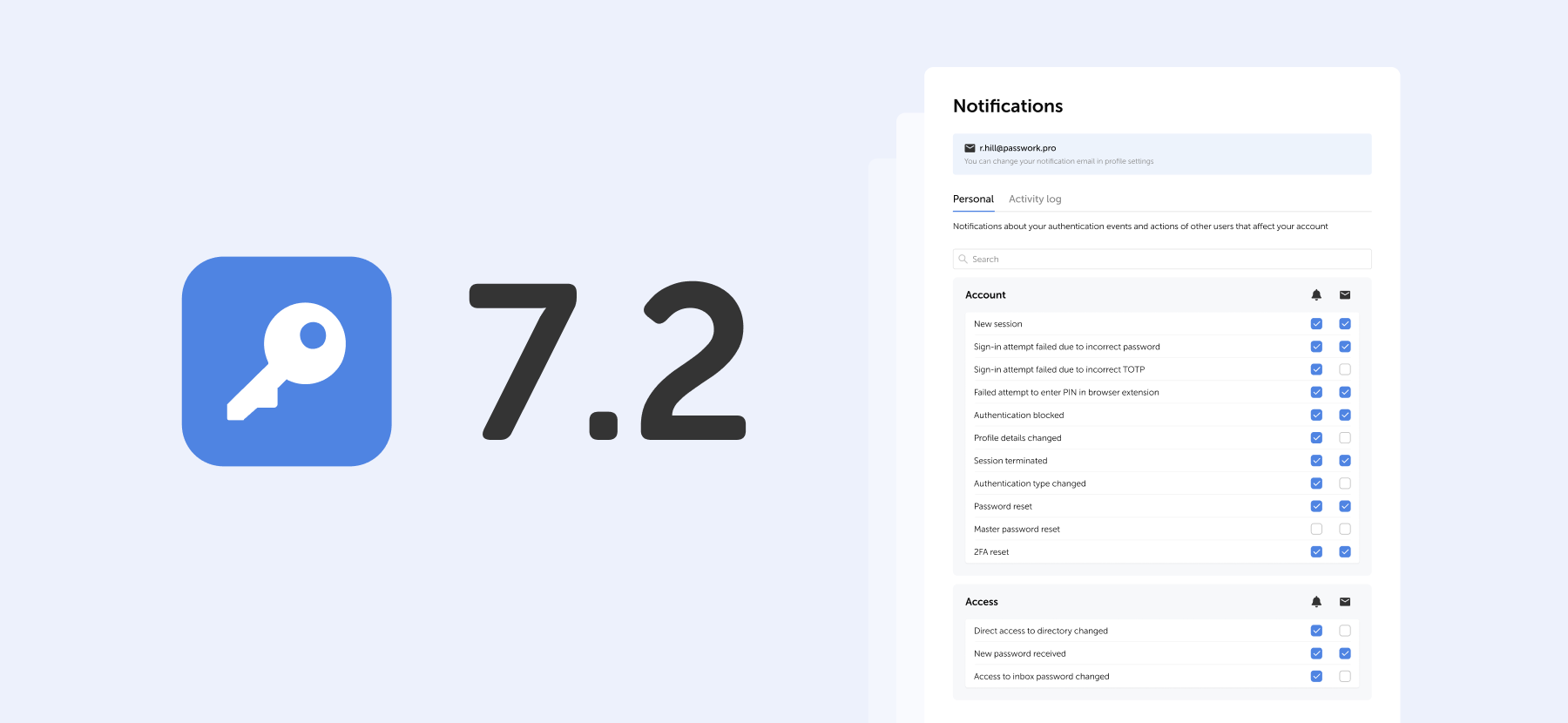
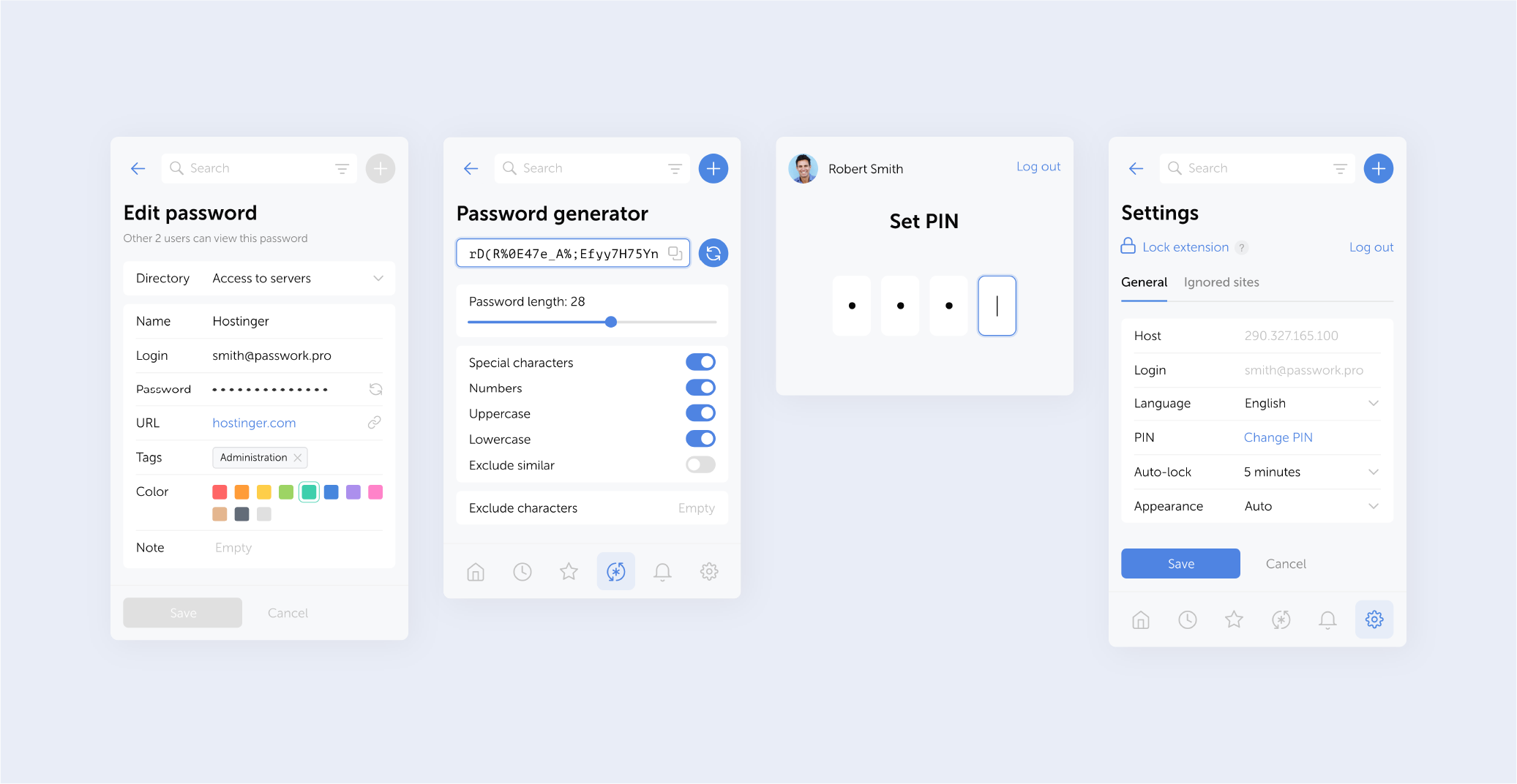
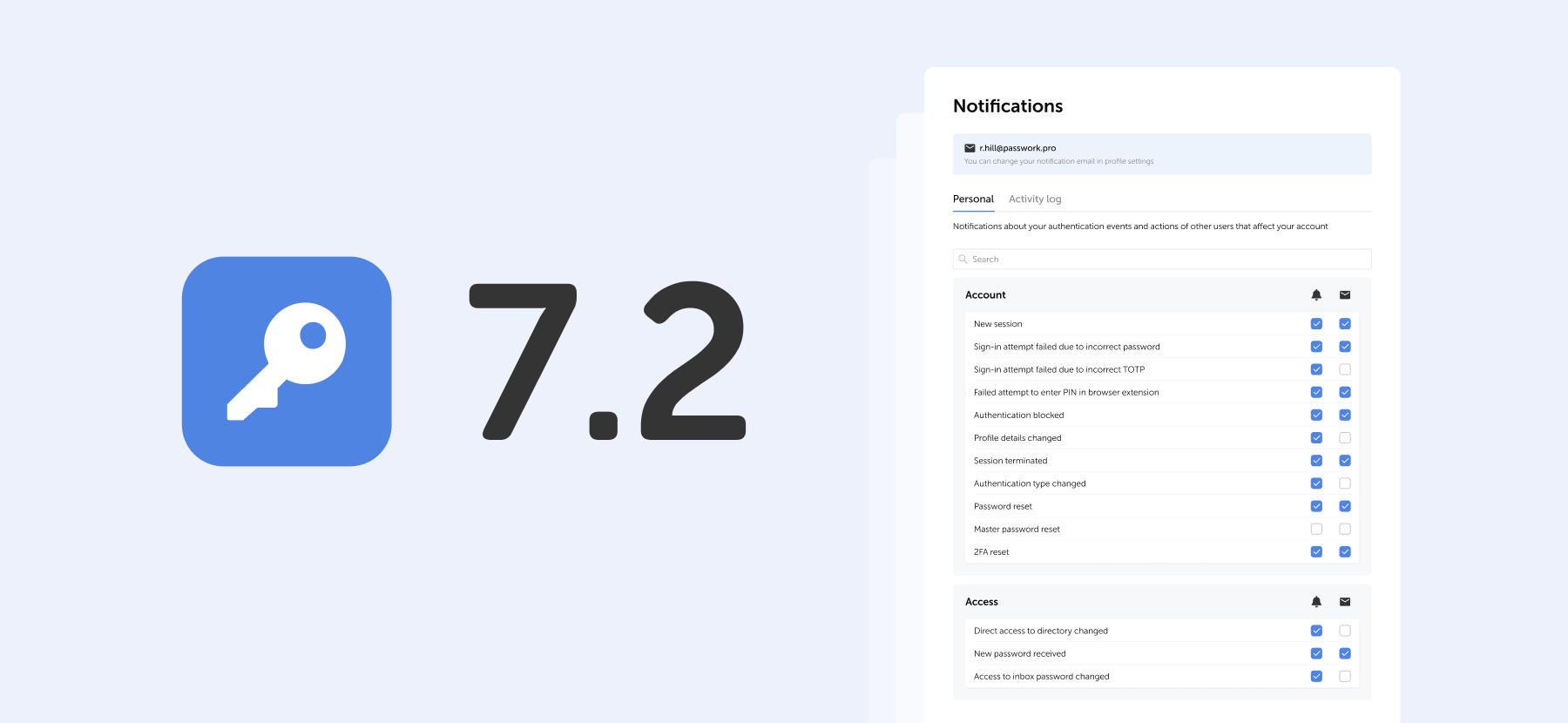
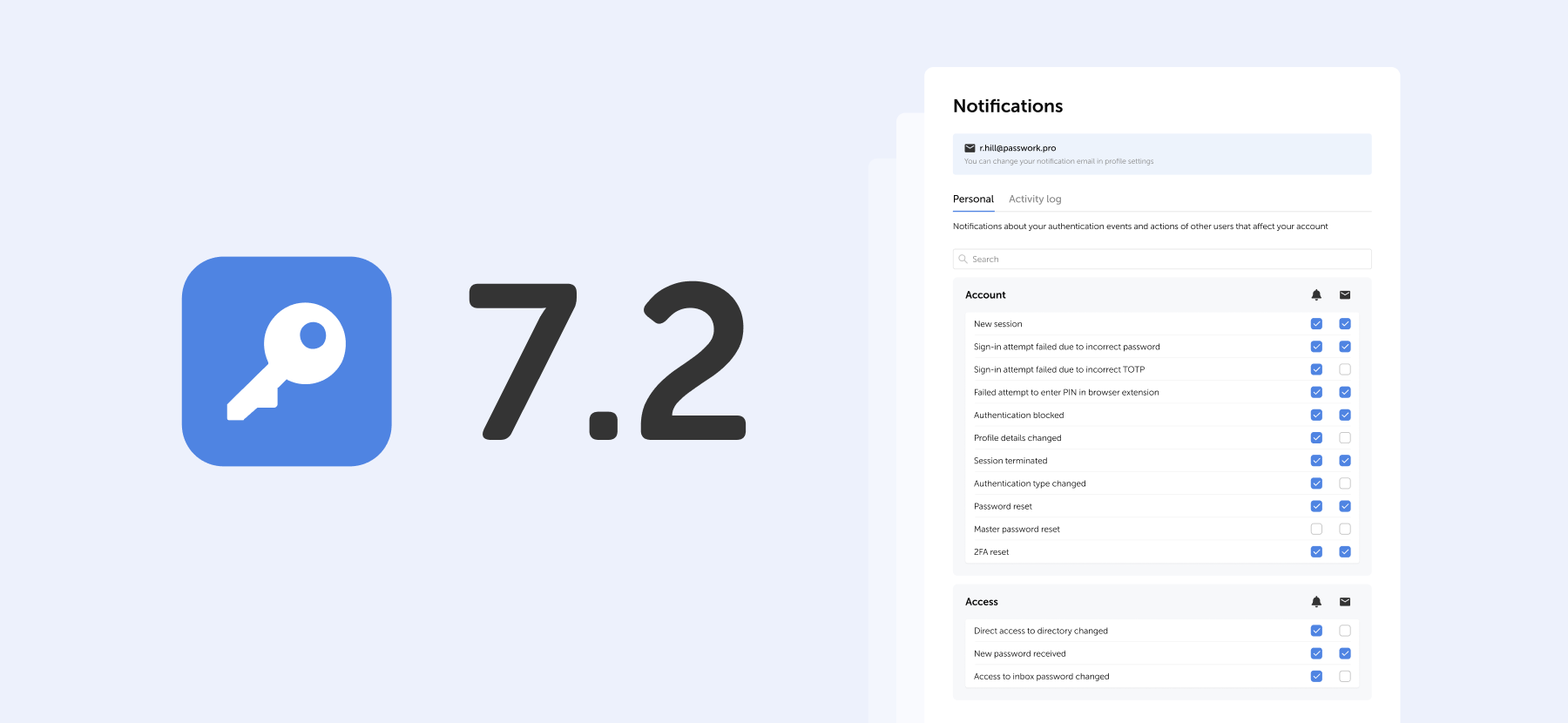
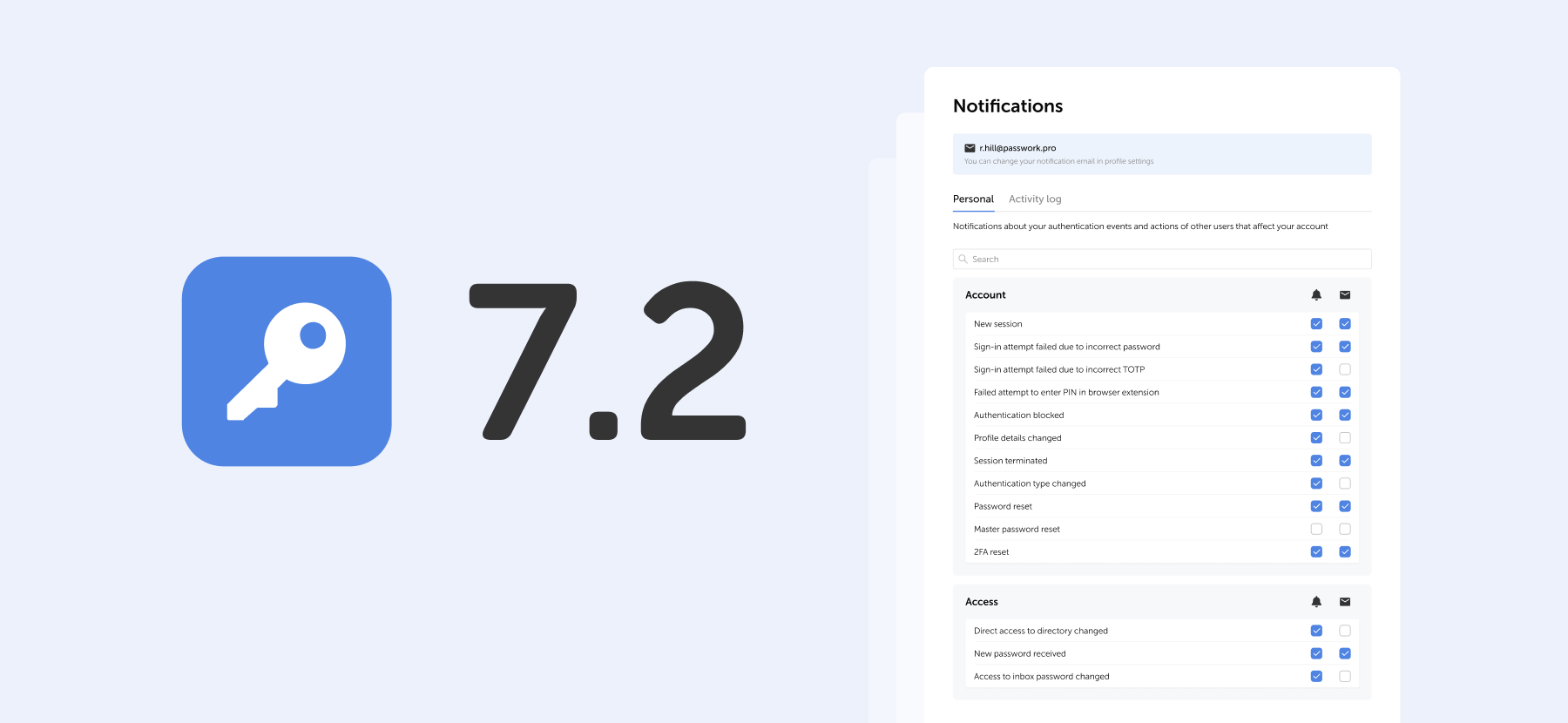
The new release brings independent token lifecycle management, flexible SSL certificate verification, and multi-URL support for password items.
Token lifecycle management
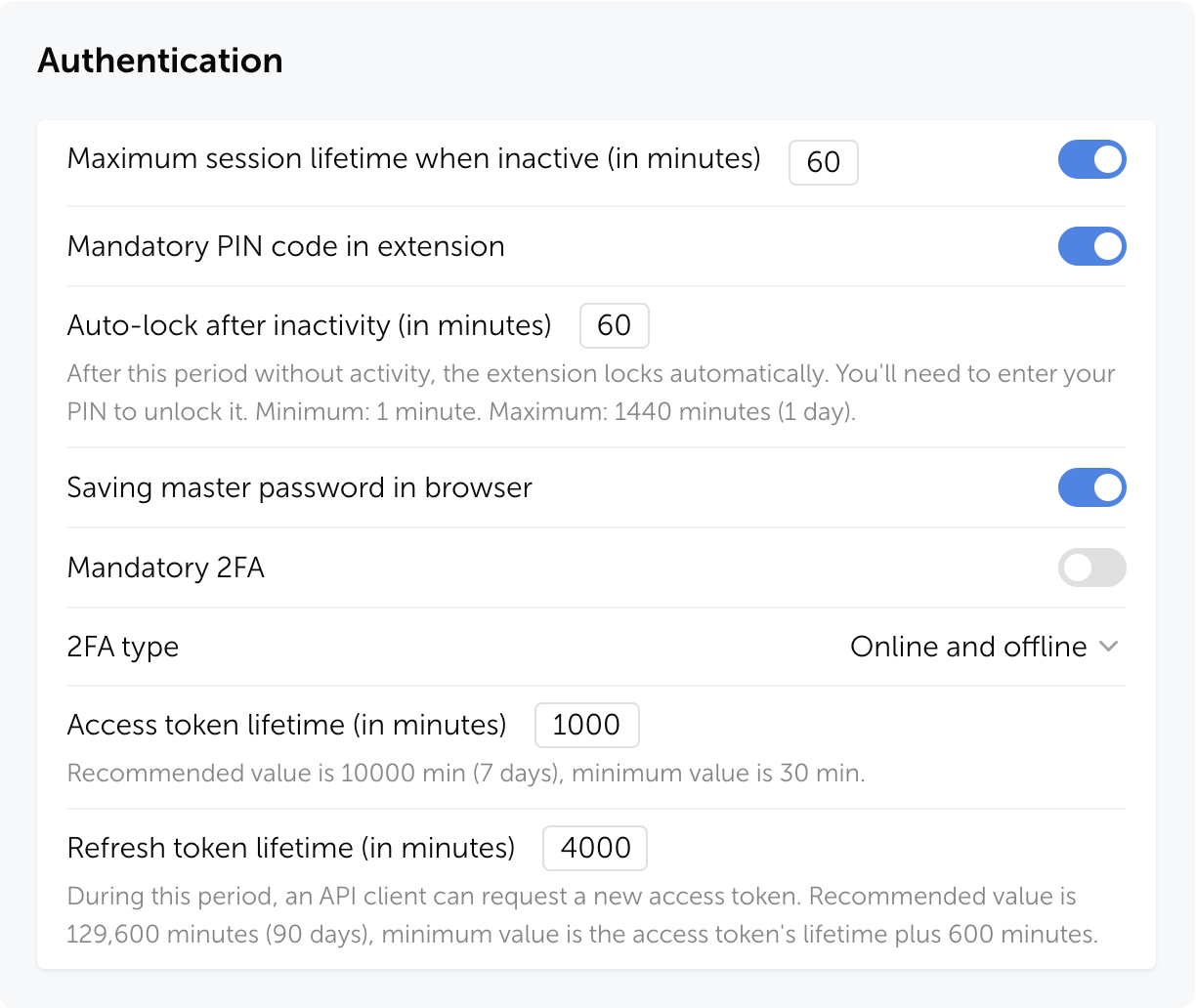
Previously, the only way to extend an active session was to call the full token refresh — which replaced both the access token and the refresh token at once. Version 0.2.0 introduces two new methods for independent, fine-grained control over session lifetime.
update_access_token()
Extends the access token using the current access token, without touching the refresh token. Useful when you want to keep a long-lived session alive in a background service without cycling the refresh token.
result = client.update_access_token()
# result contains: accessToken, accessTokenExpiredAt
update_refresh_token()
Extends the refresh token using the current refresh token, without affecting the access token. Useful in scripts that run infrequently and need to maintain a valid refresh token between runs.
result = client.update_refresh_token()
# result contains: refreshToken, refreshTokenExpiredAt
Both methods automatically update the internal client state and re-save the session file if one is configured.
SSL certificate verification
The PassworkClient now accepts a string path as the verify_ssl parameter in addition to True and False. This allows you to specify a custom CA certificate bundle — useful in corporate environments with internal PKI or self-signed certificates.
# Use system default CA bundle (default behavior)
client = PassworkClient("https://passwork.example.com", verify_ssl=True)

# Use a custom CA bundle
client = PassworkClient("https://passwork.example.com", verify_ssl="/etc/ssl/certs/ca-bundle.crt")

# Disable verification (not recommended for production)
client = PassworkClient("https://passwork.example.com", verify_ssl=False)
Multiple URLs per item
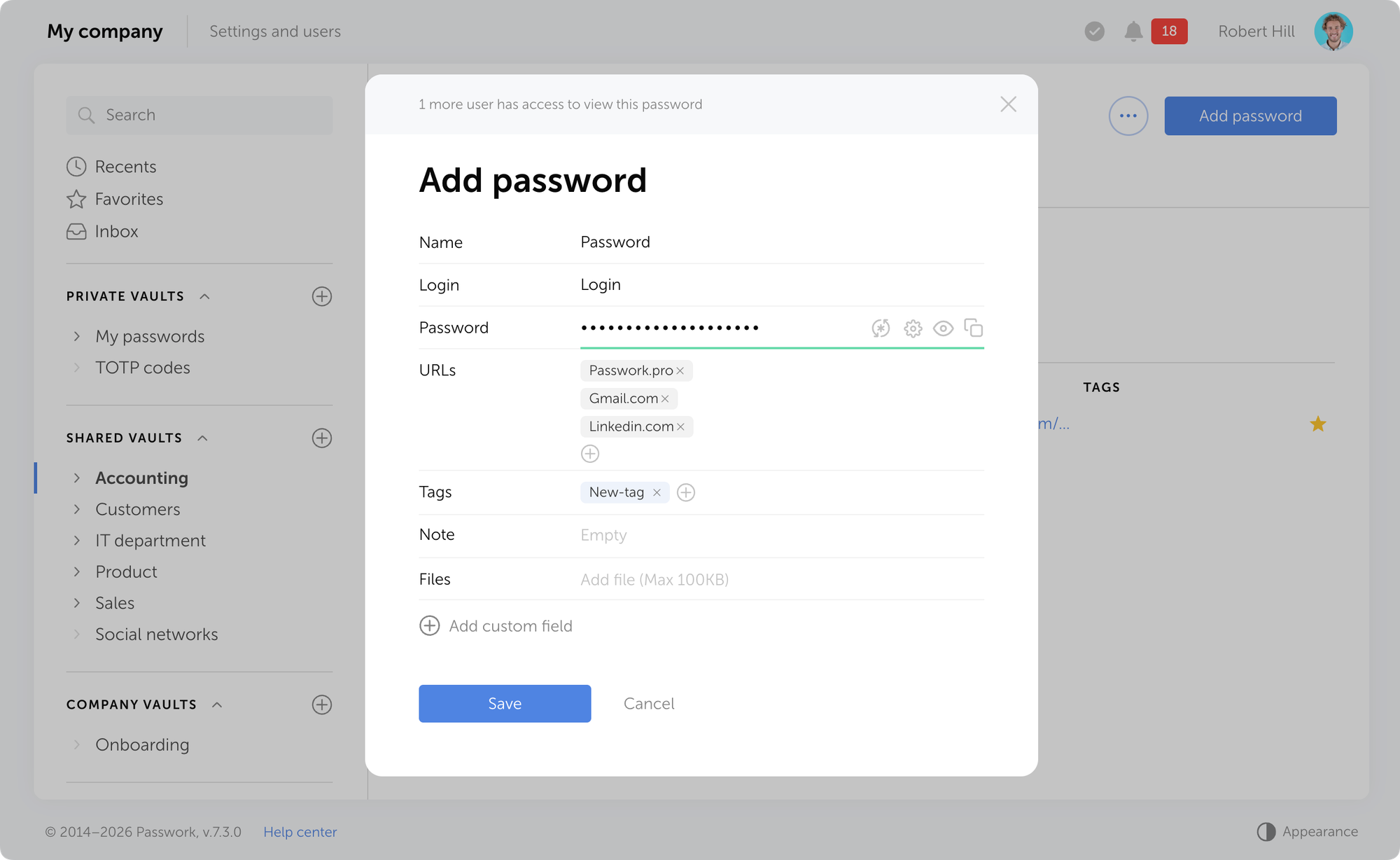
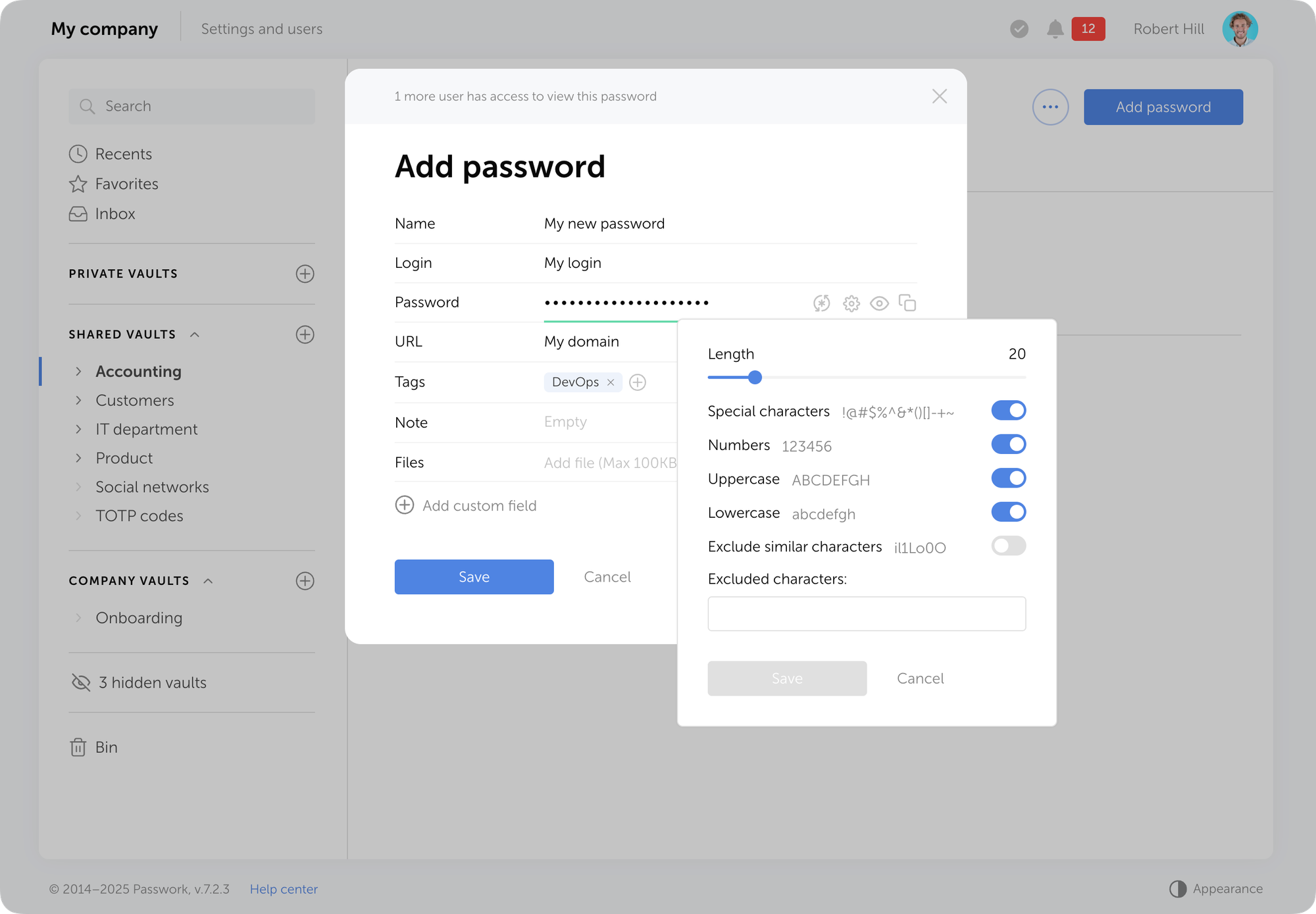
Password items now expose a urls field — a list of all URLs associated with the item. The existing url field (primary URL) remains unchanged for backward compatibility.
The new release brings independent token lifecycle management, flexible SSL certificate verification, and multi-URL support for password items.
Apr 7, 2026 — 4 min read
Das neue Release führt Servicekonten, gespeicherte Filter, automatische Papierkorb-Bereinigung, eine mobile Version der Weboberfläche sowie eine Reihe weiterer Verbesserungen und Fehlerbehebungen ein.
Servicekonto
Passwork unterstützt jetzt einen neuen Kontotyp — Servicekonto. Diese sind für Automatisierung und Integration mit externen Systemen über API konzipiert. Im Gegensatz zu regulären Benutzerkonten kann ein einzelnes Servicekonto mehrere API-Token haben, die jeweils auf eine bestimmte Integration oder Umgebung beschränkt sind.
Warum Sie ein Servicekonto benötigen
Bisher erforderte jede Integration ein eigenes Konto. Zehn Integrationen bedeuteten zehn Konten, die erstellt, konfiguriert und gepflegt werden mussten — mit separaten Anmeldungen nur um Token zu generieren oder zu widerrufen.
Servicekonten lösen dieses Problem: Ein Konto, mehrere unabhängige Token, alle vom Administrator verwaltet. Widerrufen Sie ein Token für eine Integration und die übrigen laufen ohne Unterbrechung weiter.
So erstellen Sie ein Servicekonto
Servicekonten werden in der Benutzerverwaltung erstellt — am selben Ort wie reguläre Konten.
0:00
/0:14
So erstellen Sie ein API-Token
Token werden in den Einstellungen eines bestimmten Service Accounts erstellt und widerrufen.
0:00
/0:16
Neue Rollenberechtigungen
Drei neue Berechtigungen wurden zu den Rolleneinstellungen hinzugefügt:
Service Accounts erstellen — ermöglicht das Erstellen von Service Accounts
API-Token verwalten — ermöglicht das Generieren und Widerrufen von Token
API-Token anzeigen — ermöglicht das Anzeigen vorhandener Token
Gespeicherte Filter
Benutzer können jetzt ihre ausgewählten Filter speichern und sofort erneut anwenden. Gespeicherte Filter sind privat — nur der Benutzer, der sie erstellt hat, kann sie sehen und verwenden.
Um die aktuellen Filtereinstellungen zu speichern, klicken Sie auf die Schaltfläche + im Filterauswahlmenü.
Automatische Papierkorb-Bereinigung
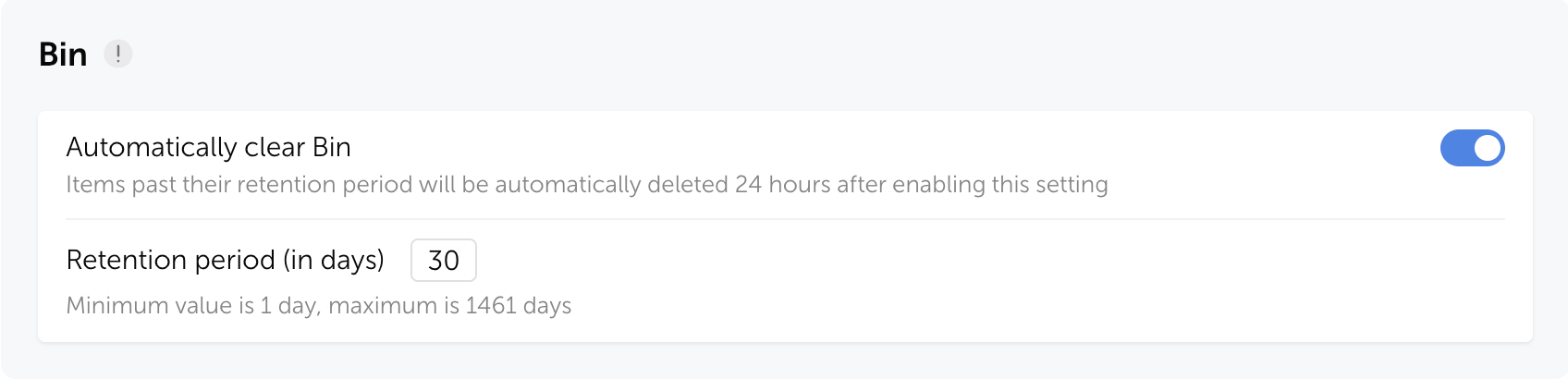
Passwork kann jetzt automatisch Elemente aus dem Papierkorb nach einem festgelegten Zeitraum löschen.Die neuen Einstellungen sind in den Tresor-Einstellungen verfügbar — aktivieren Sie die automatische Löschung und konfigurieren Sie die Aufbewahrungsdauer von 1 bis 1.461 Tagen (standardmäßig 30 Tage).
Nach Ablauf der Aufbewahrungsdauer werden Passwörter, Ordner und Shortcuts dauerhaft aus dem Papierkorb gelöscht.
Mobile Weboberfläche
Die Passwork-Weboberfläche passt sich jetzt an mobile Browser an. Beim Öffnen auf einem mobilen Gerät wechselt sie automatisch zum mobilen Layout.
Verbesserungen
Verbesserte Links: Eine Webseite mit einem einmaligen oder abgelaufenen Link wechselt jetzt automatisch in den Status „Link abgelaufen" — 30 Minuten nach dem Öffnen oder Ablaufen, ohne dass die Seite aktualisiert werden muss.
Die Schaltfläche „Mit Passkey anmelden" auf der Anmeldeseite wird jetzt ausgeblendet, wenn die Einstellung „Passkey anstelle von Passwort verwenden" für alle Rollen deaktiviert ist.
Vereinfachte Browsererweiterungs-Verbindung: Unnötige Schritte zur Benutzerauswahl und erneuten Authentifizierung nach der Anmeldung in einer Web-Sitzung wurden entfernt.
Verbesserte Anzeige des Sperrstatus für die Authentifizierungseinstellungen.
Aktualisierte Standardwerte für Masterpasswort- und Authentifizierungssperrrichtlinien.
Tooltips für lange Gruppennamen in den LDAP-Einstellungen hinzugefügt.
Fehlende Tooltips für inaktive Oberflächenelemente hinzugefügt.
Aktualisierte Tooltip-Anzeige zur Verbesserung der Lesbarkeit.
Verschiedene UI-Verbesserungen und -Korrekturen.
Fehlerbehebungen
Ein Problem wurde behoben, bei dem das Bearbeiten von Nicht-Passwort-Feldern eines Elements dessen Bedrohungsmarkierung im Sicherheits-Dashboard entfernte.
Ein Problem wurde behoben, bei dem der Status der Authentifizierungsbeschränkungseinstellung für LDAP-Benutzer falsch angezeigt werden konnte.
Ein Problem wurde behoben, bei dem Spaltenreihenfolge und -breite nicht zwischen Sitzungen gespeichert wurden.
Ein Problem wurde behoben, bei dem Browser-Navigationsschaltflächen auf bestimmten Einstellungsseiten nicht mehr funktionierten.
Desktop-App 1.3.0
Unterstützung für nicht-standardmäßige Ports in der Host-URL hinzugefügt.
Verbesserter App-Update-Mechanismus und automatische Prüfung auf die neueste Version hinzugefügt.
Alle Informationen zu Passwork-Updates finden Sie in unseren Release Notes
Die neueste Passwork-Version bietet Dienstkonten mit Multi-Token-API-Unterstützung, gespeicherte Filter, mobile Web-Oberfläche und automatische Papierkorb-Bereinigung.
Apr 7, 2026 — 4 min read
La nueva versión introduce cuentas de servicio, filtros guardados, limpieza automática de la papelera, una versión móvil de la interfaz web y varias mejoras y correcciones adicionales.
Cuentas de servicio
Passwork ahora admite un nuevo tipo de cuenta — cuentas de servicio. Están diseñadas para la automatización e integración con sistemas externos a través de API. A diferencia de las cuentas de usuario regulares, una sola cuenta de servicio puede tener múltiples tokens de API, cada uno con un alcance específico para una integración o entorno determinado.
Por qué necesita una cuenta de servicio
Anteriormente, cada integración requería su propia cuenta. Diez integraciones significaban diez cuentas que crear, configurar y mantener — con inicios de sesión separados necesarios solo para generar o revocar tokens.
Las cuentas de servicio resuelven esto: una cuenta, múltiples tokens independientes, todos gestionados por el administrador. Revoque un token para una integración y el resto seguirá funcionando sin interrupción.
Cómo crear una cuenta de servicio
Las cuentas de servicio se crean en la Gestión de usuarios — el mismo lugar que las cuentas regulares.
0:00
/0:14
Cómo crear un token de API
Los tokens se crean y revocan en la configuración de una cuenta de servicio específica.
0:00
/0:16
Nuevos permisos de rol
Se han añadido tres nuevos permisos a la configuración de roles:
Crear cuentas de servicio — permite crear cuentas de servicio.
Gestionar tokens de API — permite generar y revocar tokens.
Ver tokens de API — permite visualizar los tokens existentes.
Filtros guardados
Los usuarios ahora pueden guardar los filtros seleccionados y volver a aplicarlos de forma instantánea. Los filtros guardados son privados — solo el usuario que los creó puede verlos y utilizarlos.
Para guardar la configuración del filtro actual, haga clic en el botón + en el menú de selección de filtros.
Limpieza automática de la papelera
Passwork ahora puede eliminar automáticamente los elementos de la papelera después de un período establecido.Las nuevas opciones están disponibles en Configuración de bóvedas — active la eliminación automática y configure el período de retención de 1 a 1.461 días (30 días por defecto).
Una vez que expire el período de retención, las contraseñas, carpetas y accesos directos se eliminan permanentemente de la papelera.
Interfaz web móvil
La interfaz web de Passwork ahora se adapta a los navegadores móviles. Al abrirla en un dispositivo móvil, cambia automáticamente al diseño móvil.
Mejoras
Enlaces mejorados: una página web con un enlace de un solo uso o caducado ahora pasa automáticamente al estado «Enlace caducado» 30 minutos después de abrirse o caducar, sin necesidad de actualizar la página.
El botón «Iniciar sesión con passkey» en la página de inicio de sesión ahora se oculta si la opción «Usar passkey en lugar de contraseña» está desactivada para todos los roles.
Conexión simplificada de la extensión del navegador: se eliminaron los pasos innecesarios para seleccionar un usuario y volver a autenticarse después de iniciar sesión en una sesión web.
Se mejoró la visualización del estado de bloqueo para la configuración de autenticación.
Se actualizaron los valores predeterminados para las políticas de bloqueo de contraseña maestra y autenticación.
Se añadieron tooltips para nombres de grupos largos en la configuración de LDAP.
Se añadieron tooltips faltantes para elementos de interfaz inactivos.
Se actualizó la visualización de tooltips para mejorar la legibilidad.
Se realizaron varias mejoras y correcciones de la interfaz de usuario.
Corrección de errores
Se corrigió un problema donde editar campos que no son contraseña de un elemento eliminaba su marca de amenaza en el panel de seguridad.
Se corrigió un problema donde el estado de la configuración de restricción de autenticación para usuarios de LDAP podía mostrarse incorrectamente.
Se corrigió un problema donde el orden y ancho de las columnas no se guardaban entre sesiones.
Se corrigió un problema donde los botones de navegación del navegador dejaban de funcionar en ciertas páginas de configuración.
Aplicación de escritorio 1.3.0
Se añadió compatibilidad con puertos no estándar en la URL del host.
Se mejoró el mecanismo de actualización de la aplicación y se añadieron comprobaciones automáticas de la última versión.
Puede encontrar toda la información sobre las actualizaciones de Passwork en nuestras notas de la versión
La última versión de Passwork añade cuentas de servicio con soporte API multi-token, filtros guardados, interfaz web móvil y limpieza automática de la papelera. Descubra las novedades.
Apr 7, 2026 — 4 min read
The new release introduces service accounts, saved filters, automatic Bin cleanup, a mobile version of the web interface, and a number of other improvements and fixes.
Service accounts
Passwork now supports a new account type — service accounts. They are designed for automation and integration with external systems via API. Unlike regular user accounts, a single service account can have multiple API tokens, each scoped to a specific integration or environment.
Why you need a service account
Previously, each integration required its own account. Ten integrations meant ten accounts to create, configure, and maintain — with separate sign-ins needed just to generate or revoke tokens.
Service accounts solve this: one account, multiple independent tokens, all managed by the administrator. Revoke a token for one integration and the rest keep running without interruption.
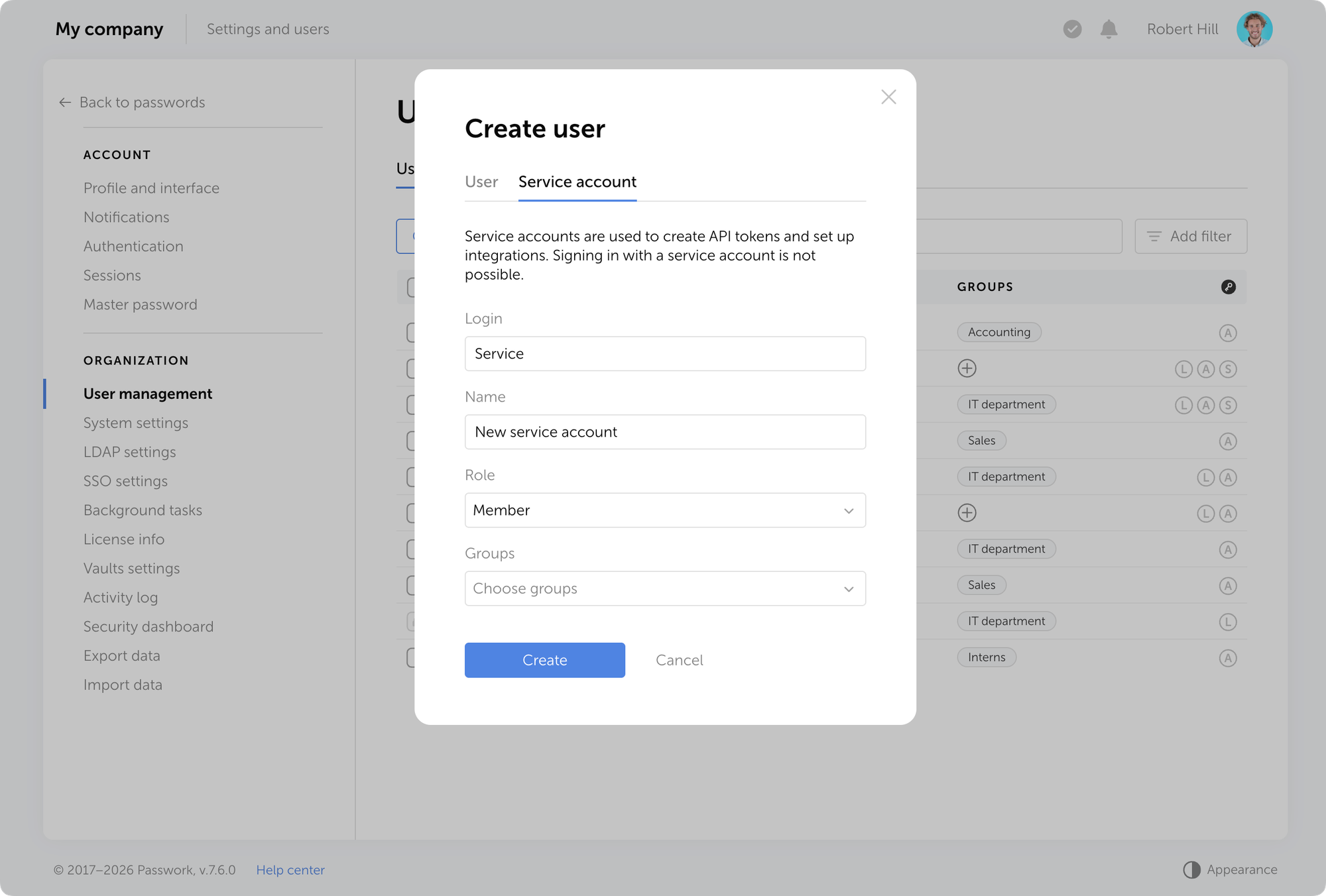
How to create a service account
Service accounts are created in the User management — the same place as regular accounts.
0:00
/0:14
How to create an API token
Tokens are created and revoked in the settings of a specific service account.
0:00
/0:16
New role permissions
Three new permissions have been added to role settings:
Create service accounts — allows creating service accounts
Manage API tokens — allows generating and revoking tokens
View API tokens — allows viewing existing tokens
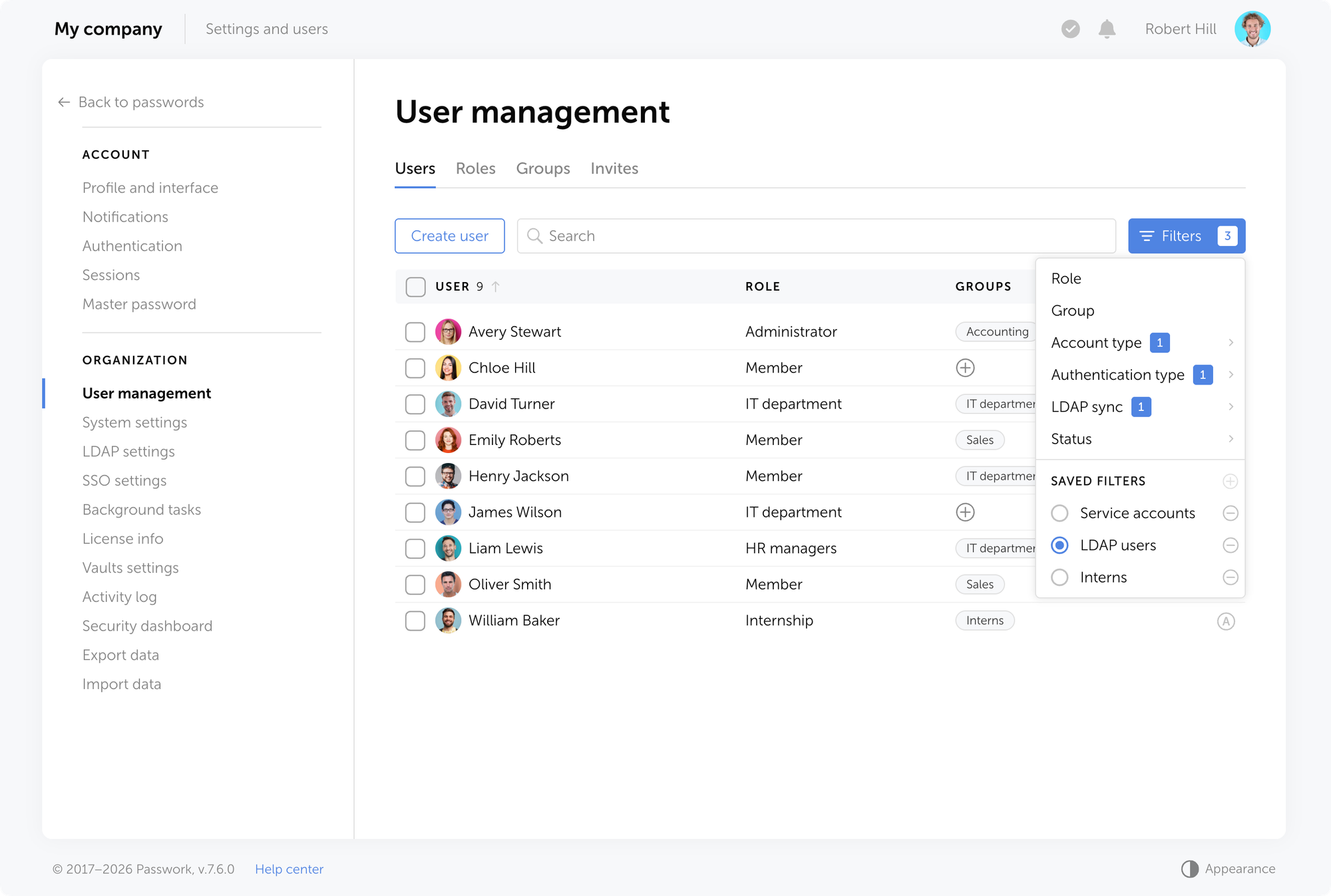
Saved filters
Users can now save their selected filters and reapply them instantly. Saved filters are private — only the user who created them can see and use them.
To save the current filter settings, click the + button in the filter selection menu.
Automatic Bin cleanup
Passwork can now automatically delete items from the Bin after a set period.The new settings are available in Vaults settings — enable automatic deletion and configure the retention period from 1 to 1,461 days (30 days by default).
Once the retention period expires, passwords, folders, and shortcuts are permanently deleted from the Bin.
Mobile web interface
The Passwork web interface now adapts to mobile browsers. When opened on a mobile device, it switches to the mobile layout automatically.
Improvements
Improved links: a webpage with a one-time or expired link now automatically transitions to the "Link expired" state 30 minutes after being opened or expiring, without requiring a page refresh
The "Sign in with passkey" button on the sign-in page is now hidden if the "Use passkey instead of password" setting is disabled for all roles
Simplified browser extension connection: removed unnecessary steps for selecting a user and re-authenticating after signing into a web session
Improved the display of the lock state for the Authentication settings
Updated the default values for master password and authentication lockout policies
Added tooltips for long group names in LDAP settings
Added missing tooltips for inactive interface element
Updated the tooltip display to improve readability
Made various UI improvements and fixes
Bug fixes
Fixed an issue where editing non-password fields of a item removed its threat flag in the Security dashboard
Fixed an issue where the state of the authentication restriction setting for LDAP users could be displayed incorrectly
Fixed an issue where column order and width were not saved between sessions
Fixed an issue where browser navigation buttons stopped working in certain settings pages
Desktop app 1.3.0
Added support for non-standard ports in the host URL
Improved the app update mechanism and added automatic checks for the latest version
You can find all information about Passwork updates in our release notes
The latest Passwork release adds service accounts with multi-token API support, saved filters, mobile web UI, and automatic Bin cleanup. See what changed.
Mar 18, 2026 — 14 min read
La mayoría de las filtraciones de datos comienzan de la misma manera: con credenciales débiles o mal gestionadas. Solo en ataques básicos a aplicaciones web, el informe DBIR 2025 de Verizon rastreó el 88% de los incidentes hasta contraseñas robadas. Para cualquier organización que maneje datos sensibles, la seguridad informática comienza con el control de credenciales. Y la seguridad de contraseñas ha pasado de ser una recomendación a convertirse en un requisito básico.
Un gestor de contraseñas aborda este riesgo. Para cada cuenta, genera, almacena y completa automáticamente credenciales únicas — todo protegido por una contraseña maestra. En lugar de hojas de cálculo, notas adhesivas y restablecimientos de contraseña repetidos, los equipos obtienen un proceso controlado y auditable en todo el flujo de trabajo.
Puntos principales:
Una contraseña maestra reemplaza cientos de credenciales débiles y reutilizadas
El cifrado AES-256 y la arquitectura de conocimiento cero mantienen su bóveda ilegible, incluso para el proveedor
La configuración requiere planificación, pero la recompensa son menos tickets de soporte, mayor cumplimiento normativo y menor riesgo de filtraciones
Comprender los gestores de contraseñas
Un gestor de contraseñas funciona como una bóveda cifrada — una caja fuerte digital que almacena credenciales de inicio de sesión, notas seguras y otros datos sensibles. Cuando inicia sesión en algún lugar, el gestor recupera la contraseña correcta y completa el formulario automáticamente. Detrás de esa bóveda hay dos tecnologías: cifrado y arquitectura de conocimiento cero.
Cómo los gestores de contraseñas protegen su identidad digital
Antes de que los datos salgan de su dispositivo, el cifrado AES-256 (Estándar de Cifrado Avanzado con una clave de 256 bits) los convierte en texto cifrado ilegible. El mismo algoritmo es utilizado por gobiernos e instituciones financieras.
La arquitectura de conocimiento cero añade una segunda capa. Bajo este modelo, el proveedor no puede descifrar sus datos. Debido a que todas las operaciones criptográficas ocurren localmente, incluso el acceso completo al servidor solo revelaría bloques cifrados. Publicamos nuestra documentación de criptografía abiertamente para que los equipos puedan verificar exactamente cómo funciona.
Qué pueden y qué no pueden hacer los gestores de contraseñas
Un gestor de contraseñas es una capa de defensa confiable, aunque no cubre todas las amenazas por sí solo. Conocer sus limitaciones ayuda a planificar salvaguardas adicionales.
Puede hacer
No puede hacer
Generar contraseñas únicas y complejas para cada cuenta
Protegerle si un malware captura las pulsaciones de teclas en su dispositivo
Completar automáticamente credenciales en sitios web reconocidos
Prevenir phishing si introduce credenciales manualmente en un sitio falso
Cifrar datos almacenados con AES-256
Reemplazar la autenticación multifactor (MFA)
Alertarle sobre contraseñas reutilizadas o débiles
Detener ataques de ingeniería social dirigidos a sus empleados
Compartir credenciales de forma segura dentro de un equipo
Garantizar seguridad si su contraseña maestra se ve comprometida
La autenticación multifactor (MFA) añade un segundo paso de verificación, como una contraseña de un solo uso basada en tiempo (TOTP), y aborda brechas que un gestor de contraseñas por sí solo no puede cubrir. Juntos, forman una defensa mucho más sólida.
Crear su contraseña maestra
Su contraseña maestra es la única credencial que desbloquea toda la bóveda — una débil socava todas las demás medidas de seguridad.
Publicado en agosto de 2025, NIST SP 800-63B-4 establece una longitud mínima de 15 caracteres para contraseñas utilizadas como autenticador de factor único. La misma revisión indica que los verificadores no deben imponer reglas de composición de contraseñas (por ejemplo, requerir letras mayúsculas, números o símbolos) y en su lugar deben comparar las contraseñas con listas de valores comúnmente usados o comprometidos. Una contraseña como "P@ssw0rd123" no pasaría dicha verificación.
En lugar de requisitos aleatorios de caracteres, el método de frase de contraseña funciona mejor: elija cuatro o cinco palabras no relacionadas y combínelas. Un generador de contraseñas puede producir combinaciones de palabras aleatorias, pero muchos usuarios prefieren la selección manual. "correct-horse-battery-staple" es un ejemplo clásico — alta entropía.
Creación de contraseña maestra paso a paso:
Elija 4-5 palabras aleatorias y no relacionadas (evite letras de canciones o citas famosas)
Añada un separador entre palabras (guiones, puntos o espacios)
Opcionalmente inserte un número o símbolo en una posición aleatoria — no al final
Pruebe: ¿puede escribirla de memoria tres veces seguidas?
Escríbala una vez, guarde ese papel en un lugar físicamente seguro, luego memorícela en una semana
Mejores prácticas para la contraseña maestra
Haga:
Memorícela, nunca la almacene digitalmente en texto plano
Mantenga una copia de seguridad física en un lugar seguro (un sobre sellado en una caja fuerte, por ejemplo)
Practique escribirla regularmente durante la primera semana
No haga:
Reutilizar su contraseña maestra para cualquier otra cuenta
Compartirla con nadie, incluido el personal de TI
Cambiarla en un horario fijo sin razón: según NIST SP 800-63B-4, las contraseñas solo deben cambiarse cuando existe evidencia de compromiso
Las opciones de recuperación son limitadas por diseño. Con una arquitectura de conocimiento cero, el proveedor no puede restablecer su contraseña maestra porque nunca tuvo acceso a ella.
Elegir el gestor de contraseñas adecuado para sus necesidades
Antes de comprometerse con cualquier software de gestión de contraseñas, defina lo que su organización realmente necesita. El modelo de implementación, los estándares de cifrado y la integración con la infraestructura existente deben ser factores en la decisión.
Criterio
Preguntas a hacer
Implementación
¿Local, en la nube o ambos? ¿Quién controla el servidor?
Cifrado
¿AES-256? ¿Conocimiento cero? ¿Dónde ocurre el descifrado?
Integraciones
¿Soporte para AD/LDAP? ¿Protocolos SSO como SAML u OAuth?
Funciones de equipo
¿Acceso basado en roles? ¿Bóvedas compartidas? ¿Registros de auditoría?
Cumplimiento
¿Registros de auditoría GDPR? ¿Informes exportables?
Escalabilidad
¿Licencias por usuario? ¿Puede crecer con el equipo?
Cuando la flexibilidad de implementación y la arquitectura de seguridad importan, deben estar disponibles tanto las opciones locales como en la nube. Passwork admite ambos modelos, para que pueda elegir dónde residen sus datos. La plataforma cuenta con una interfaz fácil de usar que los equipos pueden adoptar rápidamente. Combina la gestión de contraseñas con la gestión de secretos de DevOps, claves API, tokens y certificados en un solo sistema.
Si está evaluando múltiples soluciones, vea cómo funcionamos en un escenario de implementación real. Obtenga un entorno de demostración y pruebe junto con otros gestores de contraseñas empresariales. No se requiere tarjeta de crédito.
Gestores de contraseñas basados en navegador vs. dedicados
Los gestores de contraseñas integrados en el navegador (como los de Chrome o Edge) son convenientes, pero carecen de funciones empresariales. Dentro de un único perfil de navegador, las credenciales permanecen aisladas — el uso compartido, el acceso basado en roles y el registro de auditoría están ausentes o limitados.
Con un gestor de contraseñas dedicado, el cifrado ocurre independientemente del navegador, junto con controles de acceso granulares y sincronización multiplataforma. El autocompletado y la captura de credenciales aún se ejecutan a través de una extensión del navegador, pero la bóveda se encuentra en un entorno más controlado.
Comenzar con su gestor de contraseñas
Con la contraseña maestra lista y la solución seleccionada, comienza la configuración. El proceso sigue un camino predecible.
Instale la aplicación principal: cliente de escritorio, interfaz web o instancia autoalojada
Cree su cuenta con la contraseña maestra que preparó
Habilite MFA inmediatamente antes de añadir cualquier credencial a la bóveda
Instale extensiones del navegador para Chrome, Firefox, Edge o Safari
Instale aplicaciones móviles para iOS y Android si necesita acceso remoto
Configure la estructura de la bóveda: cree bóvedas compartidas y personales por departamento, proyecto o nivel de acceso
Configurar extensiones del navegador y aplicaciones móviles
Después de instalar la extensión, ajuste algunos parámetros:
Habilite el bloqueo automático después de inactividad — cinco minutos es un valor predeterminado razonable
Active el bloqueo por PIN o biométrico para la aplicación móvil
Confirme que la extensión se conecta a la URL correcta del servidor (requerido para implementaciones locales)
Desactive el autocompletado en dispositivos públicos o compartidos
Una contraseña guardada en su portátil aparece en su teléfono en segundos a través de la sincronización multiplataforma. Todos los datos viajan cifrados, por lo que incluso un paquete de sincronización interceptado es inútil sin la contraseña maestra.
Configurar la autenticación de dos factores para su gestor de contraseñas
MFA añade un segundo bloqueo a su bóveda a través de un paso adicional de verificación de seguridad. Incluso si alguien descubre su contraseña maestra, el acceso aún requiere ese segundo factor.
Las aplicaciones de autenticación (Google Authenticator, Authy) generan códigos TOTP de seis dígitos que se actualizan cada 30 segundos. Durante la configuración, escanee el código QR, verifique el primer código y guarde los códigos de recuperación de respaldo en un lugar físicamente seguro. Sin esos códigos, perder su teléfono podría significar perder el acceso a la bóveda.
Importar y organizar sus contraseñas existentes
La migración desde navegadores, hojas de cálculo u otro gestor de contraseñas a su bóveda de almacenamiento de contraseñas generalmente comienza con una exportación CSV (valores separados por comas). La mayoría de los gestores aceptan este formato y mapean campos (URL, nombre de usuario, contraseña) automáticamente.
Antes de importar, audite lo que tiene. Cuentas antiguas, entradas duplicadas y credenciales reutilizadas en varios servicios necesitan atención. La etapa de importación es el momento ideal para reemplazar contraseñas débiles por otras generadas.
Las herramientas de administración permiten configurar estructuras de bóveda que reflejan la organización de su equipo. Con acceso basado en roles, el equipo de finanzas ve solo las credenciales de finanzas, mientras que los administradores de TI mantienen supervisión de todo. Esta combinación con un enfoque rentable le proporciona control de nivel empresarial sin pagar por funciones que no necesita.
Para equipos que implementan gestión de contraseñas por primera vez, configurar la estructura correcta desde el principio previene futuros problemas de acceso. Reserve una consulta para definir su modelo de acceso, enfoque de implementación y plan de despliegue.
Priorizar sus cuentas más críticas
No todas las cuentas conllevan el mismo riesgo. Comience la migración con las credenciales que causarían más daño si se vieran comprometidas:
Cuentas de correo electrónico principales (a menudo el método de recuperación para todo lo demás)
Servicios financieros y plataformas de pago
Infraestructura en la nube y paneles de administración
Herramientas de comunicación empresarial (Slack, Teams, servidores de correo)
Redes sociales y cuentas públicas
Según el Informe del Costo de una Filtración de Datos 2025 de IBM, el costo promedio global de una filtración alcanzó los 4,44 millones de dólares, y el tiempo promedio para identificar y contener un incidente fue de 241 días. La migración temprana de cuentas de alto valor reduce esa ventana de exposición.
Usar herramientas de salud de contraseñas y filtraciones de datos
Una vez que las credenciales están en la bóveda, ejecute un informe de salud de la bóveda de contraseñas — una verificación rutinaria de seguridad informática. El monitoreo integrado de filtraciones de datos escanea sus entradas contra bases de datos de filtraciones conocidas, mientras que la detección de contraseñas comprometidas marca credenciales reutilizadas o débiles. Aborde primero los hallazgos críticos, especialmente cualquier cuenta donde la misma contraseña proteja múltiples servicios.
Generar y gestionar contraseñas seguras
Para cada nueva cuenta o reemplazo de contraseña, use el generador de contraseñas integrado. Una configuración sólida para cuentas de alta seguridad: más de 20 caracteres, mayúsculas y minúsculas mezcladas, números y símbolos. Donde los servicios impongan límites de caracteres, ajuste — pero nunca baje de 15 caracteres.
Una contraseña generada como "g7#Kp!2xVmNqR9bW" no tiene estructura predecible, lo que hace que los ataques de fuerza bruta sean impracticables. El gestor de contraseñas la recuerda, por lo que la complejidad no cuesta nada en usabilidad.
Usar las funciones de autocompletado de forma segura
El autocompletado acelera el llenado de formularios, pero requiere atención. Antes de dejar que la extensión complete un inicio de sesión, verifique estos indicadores:
La URL en la barra de direcciones coincide exactamente con el dominio esperado
La conexión usa HTTPS (busque el icono del candado)
El gestor de contraseñas reconoce el sitio; si no ofrece autocompletado, el dominio puede estar falsificado
No ocurrieron redirecciones inesperadas antes de que cargara la página de inicio de sesión
Una página de phishing en g00gle.com parece convincente, pero el gestor de contraseñas coincide con dominios exactos y no autocompletará en un sitio falso. En dispositivos personales y de trabajo, mantenga la extensión bloqueada cuando no esté en uso activo.
Compartir contraseñas de forma segura con otros
Para cuentas conjuntas, paneles de administración y servicios de terceros, los equipos necesitan compartir credenciales. Enviar contraseñas por correo electrónico, Slack o mensajes de texto es el enfoque incorrecto. A través de las funciones de uso compartido integradas, el cifrado permanece intacto — las credenciales permanecen protegidas en tránsito.
Los controles de acceso basados en roles están diseñados para gestionar credenciales específicas de departamento y acceso temporal de contratistas. Con la implementación local, los secretos compartidos nunca transitan a través de servidores externos. Obtenga más información sobre el enfoque de gestión de contraseñas empresariales.
Gestionar el acceso familiar y de equipo
Las bóvedas de contraseñas compartidas funcionan como carpetas compartidas: cada bóveda tiene sus propios permisos de acceso. Un administrador de TI podría tener acceso completo, mientras que un miembro del equipo de marketing ve solo la bóveda de credenciales de redes sociales. Según el GDPR, las organizaciones deben tanto proteger los datos personales del acceso no autorizado como demostrar que esa protección está implementada. Los controles de acceso granulares y los registros de auditoría abordan ambos requisitos a la vez.
Funciones avanzadas que vale la pena usar
Más allá de almacenar contraseñas, la mayoría de los gestores de contraseñas empresariales incluyen funciones que los equipos a menudo pasan por alto. Las notas seguras permiten almacenar credenciales Wi-Fi, detalles del servidor, claves de licencia de software o códigos de recuperación — todo protegido por cifrado AES-256.
A través de la integración SSO (Single Sign-On), el gestor de contraseñas se conecta con su proveedor de identidad, reduciendo la fricción para usuarios que ya se autentican a través de AD o LDAP. Los registros de auditoría rastrean cada acción: quién accedió a qué credencial, cuándo y desde qué dispositivo — esto simplifica los informes de GDPR y PCI-DSS (Estándar de Seguridad de Datos de la Industria de Tarjetas de Pago).
Notas seguras y almacenamiento de documentos
Claves Secure Shell (SSH), tokens API, frases de recuperación o procedimientos internos — todo esto pertenece a las notas seguras en lugar de estar disperso en hilos de correo electrónico o unidades compartidas. El cifrado los protege de manera idéntica a las contraseñas, y los controles de acceso determinan quién ve qué.
Sincronización de dispositivos y gestión de acceso
Cuando un miembro del equipo actualiza una contraseña en su portátil, cada dispositivo autorizado refleja ese cambio en segundos. Cifrados en tránsito, los datos viajan al servidor (o su instancia local) y llegan a otros dispositivos aún protegidos. El descifrado ocurre solo localmente.
La gestión adecuada de dispositivos requiere verificación MFA antes de que cualquier dispositivo nuevo obtenga acceso a la bóveda. Sin este paso, un atacante que clone un token de sesión podría alcanzar silenciosamente las credenciales almacenadas.
Solución de problemas comunes del gestor de contraseñas
Problema
Solución
La extensión del navegador no autocompleta
Borre la caché de la extensión, verifique la compatibilidad y actualizaciones del navegador, confirme que la URL coincide con la entrada guardada.
La sincronización no funciona entre dispositivos
Confirme la conectividad a internet, verifique el estado del servidor (para local: verifique que la instancia esté funcionando), cierre sesión y vuelva a iniciarla.
Contraseña maestra no aceptada
Verifique Bloq Mayús, confirme el idioma del teclado, intente escribir la contraseña primero en un campo de texto visible.
Código MFA rechazado
Confirme que el reloj del dispositivo esté sincronizado (los códigos TOTP dependen de la hora exacta), use un código de recuperación de respaldo si es necesario.
Mantener su seguridad de contraseñas a largo plazo
La seguridad no es una configuración única. Las revisiones trimestrales mantienen su bóveda en buen estado:
Ejecute la auditoría de seguridad de la bóveda para identificar contraseñas débiles, reutilizadas o antiguas
Reemplace cualquier credencial marcada usando el generador de contraseñas integrado
Revise el acceso a la bóveda compartida — elimine exempleados o contratistas
Verifique que MFA siga activo y que los códigos de respaldo sean accesibles
Compruebe si hay cuentas en bases de datos de filtraciones conocidas y rote esas contraseñas inmediatamente
Qué hacer si su gestor de contraseñas se ve comprometido
Si sospecha que su contraseña maestra ha sido expuesta, el control de daños inmediato es crítico para su seguridad informática:
Cambie la contraseña maestra inmediatamente desde un dispositivo de confianza
Habilite o vuelva a verificar MFA en la cuenta de la bóveda
Rote las contraseñas de sus cuentas de mayor prioridad (correo electrónico, financieras, infraestructura)
Revise el registro de auditoría de la bóveda en busca de accesos no autorizados
Notifique a su equipo de seguridad y comience una respuesta a incidentes según el protocolo de su organización
Conclusión: sus próximos pasos hacia la seguridad de contraseñas
Un gestor de contraseñas reemplaza las conjeturas con estructura, una mejora directa a la protección digital de su organización. En lugar de esperar que los empleados elijan contraseñas seguras, les proporciona una herramienta que lo hace automáticamente y mantiene cada credencial cifrada, auditable y bajo control.
El primer paso es el más simple: elija una solución, cree una contraseña maestra fuerte y comience a migrar sus cuentas más críticas hoy.
Preguntas frecuentes
¿Qué es un gestor de contraseñas y cómo se usa?
Dentro de una bóveda cifrada, un gestor de contraseñas almacena todas sus credenciales — protegidas por una única contraseña maestra. Para nuevas cuentas, genera contraseñas fuertes automáticamente y autocompleta los formularios de inicio de sesión. Passwork está construido con cifrado AES-256 y arquitectura de conocimiento cero — una vez habilitado el cifrado del lado del cliente, sus datos permanecen ilegibles, incluso para nosotros.
¿Cómo usar un gestor de contraseñas por primera vez?
Cree una contraseña maestra fuerte (al menos 15 caracteres, siguiendo la guía de NIST SP 800-63B-4). Habilite MFA, instale las extensiones del navegador, luego importe las contraseñas existentes desde su navegador o un archivo CSV. El proceso está bien documentado y es predecible con una planificación adecuada.
¿Cómo creo una contraseña maestra?
Use el método de frase de contraseña: combine cuatro o cinco palabras aleatorias y no relacionadas con separadores (por ejemplo, madera-reloj-río-escarcha). Evite detalles personales, frases comunes o letras de canciones. El objetivo es alta entropía — impredecible para atacantes, memorable para usted.
¿Qué debo hacer si olvido mi contraseña maestra?
Bajo la arquitectura de conocimiento cero, el proveedor no puede recuperarla. Almacene una copia de seguridad física en un lugar seguro (un sobre sellado en una caja fuerte, por ejemplo). Algunas plataformas ofrecen funciones de acceso de emergencia o claves de recuperación — configúrelas durante la configuración inicial.
¿Son seguros los gestores de contraseñas?
Con cifrado AES-256 y arquitectura de conocimiento cero, un gestor de contraseñas correctamente configurado es seguro por diseño: el descifrado ocurre solo en el dispositivo del usuario, por lo que incluso el acceso completo al servidor no revela nada. El DBIR 2025 de Verizon encontró abuso de credenciales en el 22% de las filtraciones — la mayoría involucrando contraseñas débiles o reutilizadas. Un gestor de contraseñas aborda directamente ese riesgo.
Actualice desde su solución actual.Passwork proporciona asistencia de migración gratuita, soporte de implementación de nivel empresarial. ¡Obtenga un 20% de descuento en su primera renovación!
Cómo usar un gestor de contraseñas: guía para una seguridad fiable
Un gestor de contraseñas reemplaza la improvisación con estructura, una mejora directa en la protección digital de su organización.
Mar 18, 2026 — 12 min read
Die meisten Datenschutzverletzungen beginnen auf dieselbe Weise: mit schwachen oder schlecht verwalteten Anmeldedaten. Allein bei einfachen Angriffen auf Webanwendungen führte der 2025 Verizon DBIR 88 % der Vorfälle auf gestohlene Passwörter zurück. Für jede Organisation, die mit sensiblen Daten umgeht, beginnt Computersicherheit mit der Kontrolle von Anmeldedaten. Und Passwortsicherheit ist über eine Empfehlung hinausgegangen und zu einer grundlegenden Anforderung geworden.
Ein Passwort-Manager adressiert dieses Risiko. Für jedes Konto generiert, speichert und füllt er automatisch einzigartige Anmeldedaten aus — alles geschützt durch ein Masterpasswort. Anstelle von Tabellen, Haftnotizen und wiederholten Passwort-Zurücksetzungen erhalten Teams einen kontrollierten und auditierbaren Prozess über den gesamten Arbeitsablauf.
Wichtigste Punkte:
Ein Masterpasswort ersetzt Hunderte von schwachen, wiederverwendeten Anmeldedaten
AES-256-Verschlüsselung und Zero-Knowledge-Architektur halten Ihren Tresor unlesbar — selbst für den Anbieter
Die Einrichtung erfordert Planung, aber der Nutzen sind weniger Support-Tickets, stärkere Compliance und reduziertes Risiko von Datenschutzverletzungen
Passwort-Manager verstehen
Ein Passwort-Manager funktioniert als verschlüsselter Tresor — ein digitaler Safe, der Anmeldedaten, sichere Notizen und andere sensible Daten speichert. Wenn Sie sich irgendwo anmelden, ruft der Manager das richtige Passwort ab und füllt das Formular automatisch aus. Hinter diesem Tresor stehen zwei Technologien: Verschlüsselung und Zero-Knowledge-Architektur.
Wie Passwort-Manager Ihre digitale Identität schützen
Bevor Daten Ihr Gerät verlassen, verschlüsselt die AES-256-Verschlüsselung (Advanced Encryption Standard mit einem 256-Bit-Schlüssel) sie in unlesbaren Chiffretext. Der gleiche Algorithmus wird von Regierungen und Finanzinstitutionen verwendet.
Zero-Knowledge-Architektur fügt eine zweite Schicht hinzu. Unter diesem Modell kann der Anbieter Ihre Daten nicht entschlüsseln. Da alle kryptografischen Operationen lokal stattfinden, würde selbst voller Serverzugriff nur verschlüsselte Blobs offenbaren. Wir veröffentlichen unsere Kryptografie-Dokumentation offen, damit Teams genau überprüfen können, wie dies funktioniert.
Was Passwort-Manager können und was nicht
Ein Passwort-Manager ist eine zuverlässige Verteidigungsschicht, deckt aber nicht jede Bedrohung allein ab. Das Wissen um seine Grenzen hilft Ihnen, zusätzliche Schutzmaßnahmen zu planen.
Kann
Kann nicht
Einzigartige, komplexe Passwörter für jedes Konto generieren
Sie schützen, wenn Malware Tastatureingaben auf Ihrem Gerät erfasst
Anmeldedaten auf erkannten Websites automatisch ausfüllen
Phishing verhindern, wenn Sie Anmeldedaten manuell auf einer gefälschten Website eingeben
Gespeicherte Daten mit AES-256 verschlüsseln
Multi-Faktor-Authentifizierung (MFA) ersetzen
Sie auf wiederverwendete oder schwache Passwörter hinweisen
Social-Engineering-Angriffe auf Ihre Mitarbeiter stoppen
Anmeldedaten sicher innerhalb eines Teams teilen
Sicherheit garantieren, wenn Ihr Masterpasswort kompromittiert ist
Multi-Faktor-Authentifizierung (MFA) fügt einen zweiten Verifizierungsschritt hinzu, wie ein zeitbasiertes Einmalpasswort (TOTP), und adressiert Lücken, die ein Passwort-Manager allein nicht abdecken kann. Zusammen bilden sie eine wesentlich stärkere Verteidigung.
Ihr Masterpasswort erstellen
Ihr Masterpasswort ist die einzige Anmeldeinformation, die den gesamten Tresor entsperrt — ein schwaches untergräbt jede andere Sicherheitsmaßnahme.
Im August 2025 veröffentlicht, legt NIST SP 800-63B-4 eine Mindestlänge von 15 Zeichen für Passwörter fest, die als Einzelfaktor-Authentifikator verwendet werden. Die gleiche Überarbeitung besagt, dass Prüfer keine Passwort-Zusammensetzungsregeln auferlegen sollen (z. B. Großbuchstaben, Zahlen oder Symbole erforderlich) und stattdessen Passwörter gegen Listen häufig verwendeter oder kompromittierter Werte prüfen müssen. Ein Passwort wie „P@ssw0rd123" würde eine solche Prüfung nicht bestehen.
Anstelle zufälliger Zeichenanforderungen funktioniert die Passphrasen-Methode besser: Wählen Sie vier oder fünf unzusammenhängende Wörter und kombinieren Sie diese. Ein Passwort-Generator kann zufällige Wortkombinationen erzeugen, aber viele Benutzer bevorzugen manuelle Auswahl. „correct-horse-battery-staple" ist ein klassisches Beispiel — hohe Entropie.
Schritt-für-Schritt-Anleitung zur Masterpasswort-Erstellung:
Wählen Sie 4–5 zufällige, unzusammenhängende Wörter (vermeiden Sie Songtexte oder berühmte Zitate)
Fügen Sie ein Trennzeichen zwischen den Wörtern hinzu (Bindestriche, Punkte oder Leerzeichen)
Fügen Sie optional eine Zahl oder ein Symbol an einer zufälligen Position ein — nicht am Ende
Test: Können Sie es dreimal hintereinander aus dem Gedächtnis eingeben?
Schreiben Sie es einmal auf, bewahren Sie das Papier an einem physisch sicheren Ort auf, dann prägen Sie es sich innerhalb einer Woche ein
Best Practices für Masterpasswörter
Tun Sie:
Prägen Sie es sich ein, speichern Sie es niemals digital im Klartext
Bewahren Sie eine physische Sicherungskopie an einem sicheren Ort auf (z. B. ein versiegelter Umschlag in einem Safe)
Üben Sie das Eintippen regelmäßig in der ersten Woche
Vermeiden Sie:
Ihr Masterpasswort für ein anderes Konto wiederzuverwenden
Es mit jemandem zu teilen, einschließlich IT-Personal
Es nach festem Zeitplan ohne Grund zu ändern: Laut NIST SP 800-63B-4 sollten Passwörter nur geändert werden, wenn Hinweise auf eine Kompromittierung vorliegen
Wiederherstellungsoptionen sind konstruktionsbedingt begrenzt. Bei einer Zero-Knowledge-Architektur kann der Anbieter Ihr Masterpasswort nicht zurücksetzen, weil er niemals Zugang dazu hatte.
Den richtigen Passwort-Manager für Ihre Anforderungen wählen
Bevor Sie sich für eine Passwortverwaltungs-Software entscheiden, definieren Sie, was Ihre Organisation tatsächlich benötigt. Bereitstellungsmodell, Verschlüsselungsstandards und Integration in die bestehende Infrastruktur sollten alle in die Entscheidung einfließen.
Kriterien
Fragen, die Sie stellen sollten
Bereitstellung
On-Premise, Cloud oder beides? Wer kontrolliert den Server?
Verschlüsselung
AES-256? Zero-Knowledge? Wo findet die Entschlüsselung statt?
Integrationen
AD/LDAP-Unterstützung? SSO-Protokolle wie SAML oder OAuth?
Pro-Benutzer-Lizenzierung? Kann es mit dem Team wachsen?
Wenn Bereitstellungsflexibilität und Sicherheitsarchitektur wichtig sind, sollten sowohl On-Premise- als auch Cloud-Optionen verfügbar sein. Passwork unterstützt beide Modelle, sodass Sie wählen können, wo Ihre Daten liegen. Die Plattform verfügt über eine benutzerfreundliche Oberfläche, die Teams schnell übernehmen können. Sie kombiniert Passwortverwaltung mit DevOps-Secrets-Management, API-Schlüsseln, Tokens und Zertifikaten in einem System.
Wenn Sie mehrere Lösungen evaluieren, sehen Sie, wie wir in einem realen Bereitstellungsszenario abschneiden. Holen Sie sich eine Demo-Umgebung und testen Sie neben anderen Enterprise-Passwort-Managern. Keine Kreditkarte erforderlich.
Browserbasierte vs. dedizierte Passwort-Manager
In Browser integrierte Passwort-Manager (wie die in Chrome oder Edge) sind praktisch, aber es fehlen ihnen Enterprise-Funktionen. Innerhalb eines einzelnen Browserprofils bleiben Anmeldedaten isoliert — Teilen, rollenbasierter Zugriff und Audit-Protokollierung sind entweder nicht vorhanden oder begrenzt.
Mit einem dedizierten Passwort-Manager erfolgt die Verschlüsselung unabhängig vom Browser, zusammen mit granularen Zugriffskontrollen und plattformübergreifender Synchronisierung. Automatisches Ausfüllen und Erfassen von Anmeldedaten laufen weiterhin über eine Browser-Erweiterung, aber der Tresor befindet sich in einer kontrollierteren Umgebung.
Erste Schritte mit Ihrem Passwort-Manager
Mit dem vorbereiteten Masterpasswort und der ausgewählten Lösung beginnt die Einrichtung. Der Prozess folgt einem vorhersehbaren Ablauf.
Installieren Sie die Kernanwendung: Desktop-Client, Web-Oberfläche oder selbst gehostete Instanz
Erstellen Sie Ihr Konto mit dem Masterpasswort, das Sie vorbereitet haben
Aktivieren Sie MFA sofort, bevor Sie Anmeldedaten zum Tresor hinzufügen
Installieren Sie Browser-Erweiterungen für Chrome, Firefox, Edge oder Safari
Installieren Sie mobile Apps für iOS und Android, wenn Fernzugriff benötigt wird
Konfigurieren Sie die Tresor-Struktur: Erstellen Sie geteilte und persönliche Tresore nach Abteilung, Projekt oder Zugangslevel
Browser-Erweiterungen und mobile Apps einrichten
Nach der Installation der Erweiterung passen Sie einige Einstellungen an:
Aktivieren Sie die automatische Sperre nach Inaktivität — fünf Minuten ist ein vernünftiger Standard
Aktivieren Sie PIN- oder biometrische Sperre für die mobile App
Bestätigen Sie, dass die Erweiterung mit der richtigen Server-URL verbunden ist (erforderlich für On-Premise-Bereitstellungen)
Deaktivieren Sie das automatische Ausfüllen auf öffentlichen oder gemeinsam genutzten Geräten
Ein auf Ihrem Laptop gespeichertes Passwort erscheint durch plattformübergreifende Synchronisierung innerhalb von Sekunden auf Ihrem Telefon. Alle Daten werden verschlüsselt übertragen, sodass selbst ein abgefangenes Sync-Paket ohne das Masterpasswort nutzlos ist.
Zwei-Faktor-Authentifizierung für Ihren Passwort-Manager einrichten
MFA fügt Ihrem Tresor durch einen zusätzlichen Sicherheitsverifizierungsschritt ein zweites Schloss hinzu. Selbst wenn jemand Ihr Masterpasswort erfährt, erfordert der Zugang immer noch diesen zweiten Faktor.
Authenticator-Apps (Google Authenticator, Authy) generieren sechsstellige TOTP-Codes, die alle 30 Sekunden aktualisiert werden. Scannen Sie während der Einrichtung den QR-Code, verifizieren Sie den ersten Code und speichern Sie die Backup-Wiederherstellungscodes an einem physisch sicheren Ort. Ohne diese Codes könnte der Verlust Ihres Telefons den Verlust des Tresorzugangs bedeuten.
Importieren und Organisieren Ihrer vorhandenen Passwörter
Die Migration von Browsern, Tabellen oder einem anderen Passwort-Manager in Ihren Passwortspeicher-Tresor beginnt normalerweise mit einem CSV-Export (Comma-Separated Values). Die meisten Manager akzeptieren dieses Format und ordnen Felder (URL, Benutzername, Passwort) automatisch zu.
Vor dem Import prüfen Sie, was Sie haben. Alte Konten, doppelte Einträge und über Dienste hinweg wiederverwendete Anmeldedaten erfordern alle Aufmerksamkeit. Die Importphase ist der ideale Zeitpunkt, um schwache Passwörter durch generierte zu ersetzen.
Unsere Admin-Tools ermöglichen es Ihnen, Tresor-Strukturen zu konfigurieren, die die Organisation Ihres Teams widerspiegeln. Mit rollenbasiertem Zugriff sieht das Finanzteam nur Finanz-Anmeldedaten, während IT-Administratoren den Überblick über alles behalten. Diese Kombination mit einem kosteneffizienten Ansatz gibt Ihnen Enterprise-Grade-Kontrolle, ohne für Funktionen zu bezahlen, die Sie nicht benötigen.
Für Teams, die zum ersten Mal Passwortverwaltung implementieren, verhindert die frühzeitige Einrichtung der richtigen Struktur zukünftige Zugriffsprobleme. Buchen Sie eine Beratung, um Ihr Zugriffsmodell, Ihren Bereitstellungsansatz und Ihren Rollout-Plan zu definieren.
Ihre kritischsten Konten priorisieren
Nicht alle Konten tragen das gleiche Risiko. Beginnen Sie die Migration mit den Anmeldedaten, die bei Kompromittierung den größten Schaden verursachen würden:
Primäre E-Mail-Konten (oft die Wiederherstellungsmethode für alles andere)
Laut IBMs 2025 Cost of a Data Breach Report erreichten die globalen durchschnittlichen Kosten einer Datenschutzverletzung 4,44 Millionen US-Dollar, und die durchschnittliche Zeit zur Identifizierung und Eindämmung eines Vorfalls betrug 241 Tage. Die frühzeitige Migration von hochwertigen Konten reduziert dieses Expositionsfenster.
Tools für Passwort-Gesundheit und Datenschutzverletzungen nutzen
Sobald die Anmeldedaten im Tresor sind, führen Sie einen Passwort-Tresor-Gesundheitsbericht durch — eine routinemäßige Computersicherheitsprüfung. Integrierte Überwachung von Datenschutzverletzungen scannt Ihre Einträge gegen bekannte Breach-Datenbanken, während die Erkennung kompromittierter Passwörter wiederverwendete oder schwache Anmeldedaten markiert. Beheben Sie kritische Befunde zuerst, insbesondere bei Konten, bei denen dasselbe Passwort mehrere Dienste schützt.
Starke Passwörter generieren und verwalten
Verwenden Sie für jedes neue Konto oder jeden Passwortersatz den integrierten Passwort-Generator. Eine starke Konfiguration für hochsichere Konten: 20+ Zeichen, Groß-/Kleinschreibung, Zahlen und Symbole. Wo Dienste Zeichenbeschränkungen auferlegen, passen Sie an — aber gehen Sie niemals unter 15 Zeichen.
Ein generiertes Passwort wie „g7#Kp!2xVmNqR9bW" hat keine vorhersehbare Struktur, was Brute-Force-Angriffe unpraktisch macht. Der Passwort-Manager merkt es sich, sodass Komplexität nichts an Benutzerfreundlichkeit kostet.
Autofill-Funktionen sicher nutzen
Automatisches Ausfüllen beschleunigt das Ausfüllen von Formularen, erfordert aber Aufmerksamkeit. Bevor Sie die Erweiterung ein Login vervollständigen lassen, überprüfen Sie diese Indikatoren:
Die URL in der Adressleiste stimmt exakt mit der erwarteten Domain überein
Die Verbindung verwendet HTTPS (achten Sie auf das Schlosssymbol)
Der Passwort-Manager erkennt die Website; wenn er kein automatisches Ausfüllen anbietet, könnte die Domain gefälscht sein
Vor dem Laden der Login-Seite erfolgten keine unerwarteten Weiterleitungen
Eine Phishing-Seite unter g00gle.com sieht überzeugend aus, doch der Passwort-Manager gleicht exakte Domains ab und füllt auf einer gefälschten Website nicht automatisch aus. Halten Sie die Erweiterung auf privaten und Arbeitsgeräten gesperrt, wenn sie nicht aktiv genutzt wird.
Passwörter sicher mit anderen teilen
Für gemeinsame Konten, Admin-Panels und Dienste von Drittanbietern müssen Teams Anmeldedaten teilen. Das Senden von Passwörtern über E-Mail, Slack oder Textnachrichten ist der falsche Ansatz. Durch integrierte Freigabefunktionen bleibt die Verschlüsselung intakt — Anmeldedaten bleiben während der Übertragung geschützt.
Wir haben unsere rollenbasierten Zugriffskontrollen entwickelt, um abteilungsspezifische Anmeldedaten und temporären Zugriff für Auftragnehmer zu verwalten. Mit On-Premise-Bereitstellung werden geteilte Geheimnisse niemals über externe Server übertragen. Erfahren Sie mehr über unseren Ansatz zur geschäftlichen Passwortverwaltung.
Familien- und Teamzugriff verwalten
Geteilte Passwort-Tresore funktionieren wie geteilte Ordner: Jeder Tresor hat seine eigenen Zugriffsberechtigungen. Ein IT-Administrator könnte vollen Zugriff haben, während ein Marketingteam-Mitglied nur den Tresor für Social-Media-Anmeldedaten sieht. Gemäß DSGVO müssen Organisationen personenbezogene Daten sowohl vor unbefugtem Zugriff schützen als auch nachweisen, dass dieser Schutz besteht. Granulare Zugriffskontrollen und Audit-Logs erfüllen beide Anforderungen gleichzeitig.
Erweiterte Funktionen, die sich lohnen
Über das Speichern von Passwörtern hinaus enthalten die meisten Enterprise-Passwort-Manager Funktionen, die Teams oft übersehen. Sichere Notizen ermöglichen das Speichern von WLAN-Anmeldedaten, Serverdetails, Software-Lizenzschlüsseln oder Wiederherstellungscodes — alle durch AES-256-Verschlüsselung geschützt.
Durch SSO-Integration (Single Sign-On) verbindet sich der Passwort-Manager mit Ihrem Identitätsanbieter und reduziert die Reibung für Benutzer, die sich bereits über AD oder LDAP authentifizieren. Audit-Logs verfolgen jede Aktion: Wer hat auf welche Anmeldedaten zugegriffen, wann und von welchem Gerät — dies vereinfacht die DSGVO- und PCI-DSS-Berichterstattung (Payment Card Industry Data Security Standard).
Sichere Notizen und Dokumentenspeicherung
Secure Shell-Schlüssel (SSH), API-Tokens, Wiederherstellungsphrasen oder interne Verfahren — all dies gehört in sichere Notizen und nicht verstreut über E-Mail-Threads oder geteilte Laufwerke. Die Verschlüsselung schützt sie identisch zu Passwörtern, und Zugriffskontrollen bestimmen, wer was sieht.
Gerätesynchronisierung und Zugriffsverwaltung
Wenn ein Teammitglied ein Passwort auf seinem Laptop aktualisiert, spiegelt jedes autorisierte Gerät diese Änderung innerhalb von Sekunden wider. Verschlüsselt während der Übertragung, gelangen die Daten zum Server (oder Ihrer On-Premise-Instanz) und kommen auf anderen Geräten weiterhin geschützt an. Die Entschlüsselung erfolgt nur lokal.
Ordnungsgemäße Geräteverwaltung erfordert MFA-Verifizierung, bevor ein neues Gerät Tresorzugang erhält. Ohne diesen Schritt könnte ein Angreifer, der ein Sitzungstoken klont, unbemerkt auf gespeicherte Anmeldedaten zugreifen.
Häufige Probleme mit Passwort-Managern beheben
Problem
Lösung
Browser-Erweiterung füllt nicht automatisch aus
Erweiterungs-Cache leeren, Browser-Kompatibilität und Updates prüfen, überprüfen, ob die URL mit dem gespeicherten Eintrag übereinstimmt.
Synchronisierung funktioniert nicht geräteübergreifend
Internetverbindung bestätigen, Serverstatus prüfen (für On-Premise: überprüfen, ob die Instanz läuft), ab- und wieder anmelden.
Masterpasswort wird nicht akzeptiert
Feststelltaste prüfen, Tastatursprache überprüfen, das Passwort zuerst in einem sichtbaren Textfeld eintippen.
MFA-Code wird abgelehnt
Bestätigen, dass die Geräteuhr synchronisiert ist (TOTP-Codes hängen von genauer Zeit ab), bei Bedarf einen Backup-Wiederherstellungscode verwenden.
Ihre Passwortsicherheit langfristig aufrechterhalten
Sicherheit ist keine einmalige Einrichtung. Vierteljährliche Überprüfungen halten Ihren Tresor in gutem Zustand:
Führen Sie das Sicherheitsaudit des Tresors durch, um schwache, wiederverwendete oder alte Passwörter zu identifizieren
Ersetzen Sie alle markierten Anmeldedaten mit dem integrierten Passwort-Generator
Überprüfen Sie den Zugriff auf geteilte Tresore — entfernen Sie ehemalige Mitarbeiter oder Auftragnehmer
Überprüfen Sie, ob MFA noch aktiv ist und Backup-Codes zugänglich sind
Prüfen Sie, ob Konten in bekannten Breach-Datenbanken vorhanden sind, und rotieren Sie diese Passwörter sofort
Was tun, wenn Ihr Passwort-Manager kompromittiert wird
Wenn Sie vermuten, dass Ihr Masterpasswort offengelegt wurde, ist sofortige Schadensbegrenzung entscheidend für Ihre Computersicherheit:
Ändern Sie das Masterpasswort sofort von einem vertrauenswürdigen Gerät aus
Aktivieren oder verifizieren Sie MFA auf dem Tresor-Konto erneut
Rotieren Sie Passwörter für Ihre höchstpriorisierten Konten (E-Mail, Finanzen, Infrastruktur)
Überprüfen Sie das Audit-Log des Tresors auf unbefugten Zugriff
Benachrichtigen Sie Ihr Sicherheitsteam und beginnen Sie mit der Incident Response gemäß dem Protokoll Ihrer Organisation
Fazit: Ihre nächsten Schritte zur Passwortsicherheit
Ein Passwort-Manager ersetzt Mutmaßungen durch Struktur — ein direktes Upgrade für den digitalen Schutz Ihrer Organisation. Anstatt zu hoffen, dass Mitarbeiter starke Passwörter wählen, geben Sie ihnen ein Werkzeug, das dies automatisch erledigt und jede Anmeldeinformation verschlüsselt, auditierbar und unter Kontrolle hält.
Der erste Schritt ist der einfachste: Wählen Sie eine Lösung, erstellen Sie ein starkes Masterpasswort und beginnen Sie noch heute mit der Migration Ihrer kritischsten Konten.
Häufig gestellte Fragen
Was ist ein Passwort-Manager und wie verwendet man ihn?
In einem verschlüsselten Tresor speichert ein Passwort-Manager alle Ihre Anmeldedaten — geschützt durch ein einziges Masterpasswort. Für neue Konten generiert er automatisch starke Passwörter und füllt Login-Formulare automatisch aus. Wir haben unsere Plattform mit AES-256-Verschlüsselung und Zero-Knowledge-Architektur entwickelt — sobald die clientseitige Verschlüsselung aktiviert ist, bleiben Ihre Daten unlesbar, selbst für uns.
Wie verwendet man einen Passwort-Manager zum ersten Mal?
Erstellen Sie ein starkes Masterpasswort (mindestens 15 Zeichen, gemäß NIST SP 800-63B-4-Richtlinien). Aktivieren Sie MFA, installieren Sie Browser-Erweiterungen und importieren Sie dann vorhandene Passwörter aus Ihrem Browser oder einer CSV-Datei. Der Prozess ist gut dokumentiert und bei richtiger Planung vorhersehbar.
Wie erstelle ich ein Masterpasswort?
Verwenden Sie die Passphrasen-Methode: Kombinieren Sie vier oder fünf zufällige, unzusammenhängende Wörter mit Trennzeichen (z. B. timber-clock-river-frost). Vermeiden Sie persönliche Details, gängige Phrasen oder Songtexte. Das Ziel ist hohe Entropie — unvorhersehbar für Angreifer, merkbar für Sie.
Was soll ich tun, wenn ich mein Masterpasswort vergesse?
Bei Zero-Knowledge-Architektur kann der Anbieter es nicht wiederherstellen. Bewahren Sie eine physische Sicherungskopie an einem sicheren Ort auf (z. B. ein versiegelter Umschlag in einem Safe). Einige Plattformen bieten Notfallzugriffsfunktionen oder Wiederherstellungsschlüssel — konfigurieren Sie diese während der Ersteinrichtung.
Sind Passwort-Manager sicher?
Mit AES-256-Verschlüsselung und Zero-Knowledge-Architektur ist ein ordnungsgemäß konfigurierter Passwort-Manager konstruktionsbedingt sicher: Die Entschlüsselung erfolgt nur auf dem Gerät des Benutzers, sodass selbst voller Serverzugriff nichts offenbart. Der 2025 Verizon DBIR stellte Missbrauch von Anmeldedaten bei 22 % der Datenschutzverletzungen fest — die meisten mit schwachen oder wiederverwendeten Passwörtern. Ein Passwort-Manager adressiert dieses Risiko direkt.
Steigen Sie von Ihrer aktuellen Lösung um.Passwork bietet kostenlose Migrationsunterstützung und Enterprise-Grade-Implementierungssupport. Erhalten Sie 20 % Rabatt auf Ihre erste Verlängerung!
So nutzen Sie einen Passwort-Manager: Leitfaden für zuverlässige Sicherheit
Ein Passwort-Manager ersetzt Unsicherheit durch Struktur — ein direktes Upgrade für den digitalen Schutz Ihrer Organisation.
Mar 16, 2026 — 11 min read
El Esquema Nacional de Seguridad (ENS) es el marco normativo de seguridad de la información para los sistemas y servicios digitales en España. Se aplica en todo el sector público español y también a las organizaciones del sector privado que prestan servicios o proporcionan soluciones tecnológicas a entidades públicas bajo las condiciones establecidas en el Real Decreto 311/2022. Para las empresas que venden al sector público español, la preparación para la conformidad con el ENS no es una opción; suele ser parte de la base legal y contractual para los sistemas dentro del alcance que soportan dichos servicios.
Esta guía está dirigida a responsables de seguridad, directores de cumplimiento normativo y directores de TI que necesitan una respuesta práctica a una pregunta sencilla: ¿qué se necesita para prepararse para la conformidad con el ENS en 2026? Se basa en el texto normativo oficial — el Real Decreto 311/2022— y en las guías técnicas publicadas por el Centro Criptológico Nacional (CCN) de España.
Al final de esta guía, usted dispondrá de:
Un test rápido para determinar si el ENS le aplica.
Un conocimiento claro de la categorización de sistemas en BÁSICA, MEDIA y ALTA.
Una hoja de ruta para estructurar su paquete de evidencias.
Un plan de adecuación realista de seis semanas para ejecutar el proceso oficial.
Una lista de los controles que con más frecuencia no superan las auditorías.
¿Qué es el ENS y a Quién se Aplica?
El ENS está regulado por el Real Decreto 311/2022, que entró en vigor el 5 de mayo de 2022. Este real decreto sigue siendo el texto legal principal para la preparación y la conformidad con el ENS.
Según el artículo 2, el ENS se aplica a todo el sector público español y también a las entidades del sector privado que, en virtud de la normativa aplicable y una relación contractual, presten servicios o provean soluciones a entidades del sector público para el ejercicio de sus competencias y potestades administrativas. El real decreto también exige que los contratos del sector público incluyan los requisitos necesarios para asegurar la conformidad con el ENS de los sistemas de información que los soportan.
El portal oficial del ENS lo resume en un lenguaje sencillo: el ENS se aplica a todo el sector público, así como a los proveedores que colaboran con la Administración. Las preguntas frecuentes (FAQ) oficiales van un paso más allá, señalando que la cadena de suministro de dichos proveedores privados también puede entrar en el alcance cuando un análisis de riesgos previo determine que es necesario.
Un Test Práctico de Alcance
Debería tratar la preparación para la conformidad con el ENS como un requisito vigente si se cumple una o más de las siguientes condiciones:
Tiene un contrato con una administración pública española.
Proporciona un sistema, ya sea alojado o en las instalaciones del cliente, que soporta un servicio del sector público.
Procesa o almacena información en nombre de un organismo público.
Su contrato o la documentación de una licitación hace referencia a la conformidad con el ENS.
Es un subcontratista en una cadena de servicios que da soporte a un contratista del sector público, y el análisis de riesgos puede extender las expectativas del ENS a su función.
Si la respuesta a cualquiera de estas preguntas es afirmativa, la pregunta correcta no es "¿Necesitamos el ENS?", sino "¿Qué sistemas nuestros están dentro del alcance, en qué categoría se encuadran y qué evidencias debemos presentar?"
Adecuación al ENS vs. Conformidad con el ENS: Uso de los Términos Correctos
"Adecuación al ENS" es un término empresarial útil, pero no es el estatus legal formal que utiliza el marco. Usar la terminología correcta es fundamental para la precisión legal y reputacional. Los resultados formales de conformidad son:
Categoría del Sistema
Mecanismo Formal de Conformidad
Quién lo Realiza
BÁSICA
Declaración de Conformidad
Equipo interno (autoevaluación)
MEDIA
Certificación de Conformidad
Entidad de certificación acreditada por ENAC (auditoría)
ALTA
Certificación de Conformidad
Entidad de certificación acreditada por ENAC (auditoría)
Esa distinción es importante. En la práctica, la adecuación significa que su gobernanza, controles y evidencias están implementados y son defendibles. La conformidad significa que ha completado el proceso formal que el ENS exige para la categoría del sistema dentro del alcance. El lenguaje más seguro para un proveedor no es "somos cumplidores del ENS" en abstracto, sino:
"Este sistema dentro del alcance ha obtenido la conformidad con el ENS mediante una [Declaración/Certificación de Conformidad]".
"Estamos preparando este sistema dentro del alcance para su conformidad con el ENS".
La conformidad debe renovarse mediante una verificación ordinaria al menos cada dos años, y se requieren auditorías extraordinarias cuando se producen cambios sustanciales que afectan al sistema.
El Proceso Oficial de Adecuación: Su Plan de Proyecto Fundamental
Antes de crear listas de verificación o buscar herramientas, debe anclar su proyecto en el Plan de Adecuación oficial. La página del proceso de conformidad del ENS establece que la certificación y la conformidad requieren un plan de adecuación previo. Describe una secuencia práctica:
Definir el sistema dentro del alcance y sus límites.
Categorizar el sistema correctamente (BÁSICA, MEDIA o ALTA).
Obtener una Declaración de Aplicabilidad (DdA) provisional, mapeando los controles del Anexo II.
Realizar un análisis de riesgos formal.
Validar la Declaración de Aplicabilidad final.
Preparar y aprobar la Política de Seguridad formal.
Esta secuencia oficial proporciona un modelo operativo claro para cualquier proyecto interno de adecuación. El plan de 6 semanas de esta guía es una superposición práctica para ejecutar este proceso oficial.
Paso 1: Categorizar el Sistema (BÁSICA / MEDIA / ALTA)
La categorización del sistema es la primera gran decisión, ya que determina el conjunto de controles requeridos y la vía de conformidad. Un sistema es de categoría ALTA si alguna dimensión de seguridad alcanza el nivel ALTO; MEDIA si alguna dimensión alcanza el nivel MEDIO y ninguna es superior; y BÁSICA si todas las dimensiones son de nivel BAJO. En otras palabras, la categoría general viene determinada por la dimensión de seguridad más alta que sea relevante.
El marco funciona a través de cinco dimensiones de seguridad:
Dimensión
Qué Mide
Confidencialidad (C)
El daño causado por la divulgación no autorizada de información.
Integridad (I)
El daño causado por la modificación no autorizada de la información.
Disponibilidad (D)
El daño causado por la interrupción del acceso o la prestación del servicio.
Autenticidad (A)
El daño causado por la incapacidad de verificar la identidad de los usuarios o las fuentes de datos.
Trazabilidad (T)
El daño causado por la incapacidad de atribuir acciones a individuos específicos.
Un taller práctico de categorización debería responder a cuatro preguntas:
¿Qué información se está procesando?
¿Qué servicios dependen de este sistema?
¿Cuál sería el impacto si la confidencialidad, la integridad, la disponibilidad, la autenticidad o la trazabilidad se vieran comprometidas?
¿Qué dimensión alcanza el nivel requerido más alto?
Plantilla de Categorización del ENS — una plantilla estructurada para guiar su proceso de clasificac.
Paso 2: Construir el Paquete de Evidencias
El paquete de evidencias es el resultado operacionalmente más importante de su programa de adecuación. Es lo que presentará a un auditor o a un posible cliente. La forma más clara de presentarlo es como una matriz de evidencias organizada en seis bloques.
1. Gobernanza y Políticas
El artículo 12 del RD 311/2022 exige una Política de Seguridad de la Información formal, aprobada por el máximo órgano ejecutivo de la organización. Este es el documento fundamental de su paquete de evidencias.
Evidencias típicas:
Política de Seguridad firmada y versionada.
Matriz de roles y responsabilidades (RACI).
Políticas de apoyo (control de acceso, respuesta a incidentes, seguridad de proveedores).
2. Alcance e Inventario de Activos
El proceso oficial de adecuación comienza con la identificación del alcance del sistema. En la práctica, eso significa un inventario de sistemas, aplicaciones, usuarios, cuentas privilegiadas y terceros dentro de los límites definidos.
Evidencias típicas:
Declaración de alcance del sistema y diagrama de arquitectura.
Inventario de aplicaciones e infraestructura.
Inventario de usuarios y cuentas privilegiadas.
Registro de terceros/proveedores de servicios.
3. Identidad y Control de Acceso
El ENS es explícito en que cada usuario o proceso debe tener un identificador único. La familia de controles de control de acceso (op.acc) exige autorización formal, revisión periódica de permisos y políticas explícitas de acceso remoto.
Evidencias típicas:
Modelo de Control de Acceso Basado en Roles (RBAC).
Documentación del proceso de altas, bajas y cambios de personal.
Registros de revisiones periódicas de acceso.
Reglas de MFA y acceso remoto.
Registros de aprobación de acceso privilegiado.
4. Trazabilidad y Registro de Actividad
El control op.exp.8 exige que los registros de auditoría incluyan, como mínimo, el identificador del usuario, la fecha y hora, la información afectada, el tipo de evento y el resultado. Los períodos de retención deben definirse en función del análisis de riesgos y las obligaciones legales.
Evidencias típicas:
Estándar de registro de logs e inventario de fuentes de logs.
Política documentada de retención de logs.
Registros de revisiones periódicas de logs.
Evidencia de sincronización horaria (NTP).
5. Análisis de Riesgos y Declaración de Aplicabilidad
El proceso oficial de adecuación exige explícitamente un análisis de riesgos y una Declaración de Aplicabilidad (DdA) final. La DdA mapea cada control del Anexo II con su estado de implementación (aplicable, no aplicable, compensado) y debe incluir justificaciones para cualquier exclusión.
Evidencias típicas:
Registro de riesgos e informe de análisis de riesgos.
Decisiones de tratamiento de riesgos.
La Declaración de Aplicabilidad final y aprobada.
6. Controles Operacionales y de Protección
Este bloque cubre las evidencias del día a día en copias de seguridad, continuidad, gestión de vulnerabilidades, incidentes y criptografía, tal como se detalla en las secciones de medidas operacionales (op) y de protección (mp) del Anexo II.
Evidencias típicas:
Evidencias de pruebas de copia de seguridad y restauración.
Informes de escaneo de vulnerabilidades y planes de remediación.
Registros de incidentes, incluidas las notificaciones al CCN-CERT cuando sea necesario.
Checklist del Paquete de Evidencias del ENS — una hoja de cálculo completa que cubre los seis bloque.
Paso 3: Priorizar las Brechas que Suelen Bloquear la Adecuación
Los programas de adecuación se estancan cuando las organizaciones no pueden demostrar propiedad, repetibilidad o trazabilidad. Las áreas de mayor fricción suelen ser:
Fallo Común en Auditorías
Causa Raíz
Cómo Solucionarlo
Alcance del Sistema Poco Claro
Los límites están mal definidos.
Cree una declaración de alcance y un diagrama de arquitectura claros.
Justificación Débil de la Categorización
Los niveles de impacto se asumen, no se justifican.
Documente el razonamiento para la calificación de cada dimensión en la plantilla.
Política de Seguridad Inexistente o Desactualizada
La política es informal o no está aprobada por la dirección.
Formalice la política y obtenga la firma del máximo órgano ejecutivo.
Gobernanza de Acceso Incompleta
Cuentas compartidas, sin revisiones de acceso, bajas lentas.
Implemente una bóveda de credenciales, programe revisiones trimestrales y automatice el proceso de baja.
Cobertura o Revisión de Logs Deficiente
Los logs están descentralizados o no se revisan.
Despliegue una solución centralizada de logs y programe sesiones formales de revisión.
Acceso de Terceros no Documentado
El acceso de proveedores es ad-hoc y no está limitado en el tiempo.
Cree un flujo de trabajo formal para el acceso de terceros con aprobaciones explícitas.
Paso 4: Un Plan Práctico de Adecuación al ENS de 6 Semanas
El siguiente plan de seis semanas es un ritmo operativo práctico para ejecutar el Plan de Adecuación oficial.
Semana 1: Alcance, Categoría, Propietarios. Defina el sistema dentro del alcance, realice el taller de categorización y asigne propietarios para las políticas, los riesgos y las áreas operativas clave. Entregables: Declaración de alcance, plantilla de categorización.
Semana 2: Política de Seguridad y Modelo de Acceso. Redacte o revise la Política de Seguridad formal, documente el modelo RBAC y formalice los procesos de altas, bajas y cambios. Entregables: Borrador de la Política de Seguridad, documentación del modelo de acceso.
Semana 3: Análisis de Riesgos y Declaración de Aplicabilidad. Realice el análisis de riesgos formal y produzca una Declaración de Aplicabilidad (DdA) provisional. Entregables: Registro de riesgos, DdA provisional.
Semana 4: Logs, Incidentes y Evidencias Operacionales. Estandarice el registro de actividad, defina la retención y alinee la gestión de incidentes con los requisitos de captura de evidencias y notificación. Entregables: Estándar de registro de logs, plantilla de evidencia de incidentes.
Semana 5: Copias de Seguridad, Continuidad y Proveedores. Recopile evidencias de copias de seguridad/restauración, material de planificación de continuidad y documentación de control de proveedores. Entregables: Registros de pruebas de copias de seguridad, checklist de seguridad de proveedores.
Semana 6: Ensayo Interno y Vía de Conformidad. Realice un simulacro de auditoría interna con el paquete de evidencias. Decida si el sistema está listo para una Declaración de Conformidad o una Certificación de Conformidad formal. Entregables: Lista de brechas, plan de remediación.
Plan de Adecuación al ENS de 6 Semanas + Plantilla RACI — un plan de proyecto estructurado con hitos y propietarios.
Paso 5: Preparación de Proveedores para Contratos con el Sector Público
Para los proveedores, la adecuación al ENS es una cuestión de credibilidad en la contratación. El artículo 2 del RD 311/2022 exige que los contratos del sector público aseguren la conformidad con el ENS. En la práctica, los clientes del sector público y los procesos de contratación a menudo requieren que los proveedores documenten su estado de conformidad con el ENS o su hoja de ruta.
Esto significa que un proveedor debe preparar un Paquete ENS para Proveedores compacto que contenga:
El sistema dentro del alcance y su categoría.
El estado de conformidad actual (Declaración/Certificado) o la hoja de ruta de adecuación.
Un resumen de los controles clave para la gobernanza de acceso, logs y análisis de riesgos.
Plantilla del Paquete ENS para Proveedores del Sector Público — una plantilla lista para usar para demostrar su estado de conformidad.
Dónde Encaja un Gestor de Contraseñas y Secretos
Un gestor de contraseñas y secretos apoya algunas de las áreas de evidencia más difíciles en la adecuación al ENS: responsabilidad individual, mínimo privilegio, gobernanza del acceso privilegiado y trazabilidad. El ENS exige explícitamente identificadores únicos y registros de actividad que puedan vincularse a usuarios específicos.
Una lista de verificación útil para la selección de productos es:
RBAC granular y acceso privilegiado basado en aprobaciones.
Acceso seguro y temporal para usuarios externos.
Registros de auditoría a prueba de manipulaciones vinculados a usuarios nominativos.
Exportación rápida de evidencias de acceso para auditorías.
ENS e ISO 27001 / NIS2
Si su organización ya tiene la certificación ISO/IEC 27001, es útil, pero no equivale automáticamente a la conformidad con el ENS. El CCN ha publicado una guía de mapeo oficial (CCN-STIC 825) entre ISO 27001:2022 y el RD 311/2022. La formulación más segura es: La ISO 27001 puede reducir el esfuerzo requerido para la adecuación al ENS, pero la conformidad con el ENS aún depende de la categoría, el alcance y los requisitos específicos del sistema.
La relación entre el ENS y la Directiva NIS2 es de complementariedad. Para las organizaciones sujetas a ambas, el cumplimiento del ENS proporciona una base sólida para cumplir muchos de los requisitos técnicos y organizativos de NIS2, pero NIS2 tiene su propio alcance, gobernanza y obligaciones de notificación que deben abordarse por separado.
Preguntas Frecuentes
¿Las empresas privadas necesitan prepararse para la conformidad con el ENS? Sí, cuando prestan servicios o proporcionan soluciones a entidades del sector público español bajo las condiciones del artículo 2 del Real Decreto 311/2022.
¿Deben estar cubiertos todos los sistemas de una empresa? No necesariamente. La conformidad con el ENS se evalúa para el sistema de información específico que soporta el servicio relevante, no automáticamente para todos los sistemas de la empresa.
¿Cómo sabemos si nuestro sistema es de categoría BÁSICA, MEDIA o ALTA? Se clasifica el sistema a través de las cinco dimensiones de seguridad y se toma el nivel más alto aplicable como la categoría general.
¿Se puede certificar un sistema de categoría BÁSICA? Sí. Los sistemas de categoría BÁSICA solo requieren una autoevaluación para una Declaración de Conformidad, pero también pueden someterse a certificación voluntariamente.
¿Con qué frecuencia se renueva la conformidad? Los sistemas deben someterse a una verificación ordinaria al menos cada dos años, y puede requerirse una auditoría extraordinaria tras cambios sustanciales.
¿Qué herramientas oficiales apoyan la adecuación al ENS? El CCN proporciona las herramientas nacionales de gobernanza de ciberseguridad INES, AMPARO y PILAR para apoyar los procesos de adecuación, implementación y auditoría.
Conclusión
En 2026, el ENS ya no es una historia de "requisitos futuros". El marco actual bajo el RD 311/2022 está en vigor desde mayo de 2022, y el período de transición para los sistemas preexistentes ha finalizado. Para los proveedores que venden al sector público español, el desafío ahora es práctico: definir el alcance correctamente, categorizar el sistema, construir las evidencias adecuadas y seguir la vía de conformidad correcta.
Las organizaciones que avanzan más rápido no son las que tienen más documentos de políticas. Son las que pueden conectar la gobernanza, los controles y las evidencias en un paquete limpio y listo para el proveedor.
Guía de Adecuación al ENS (2026) para Empresas Españolas
Una guía práctica de adecuación al ENS para empresas españolas y proveedores del sector público: alcance, categorización, paquete de evidencias, preparación de auditorías y documentación para proveedores bajo el RD 311/2022.
Mar 12, 2026 — 2 min read
En la nueva versión, se ha mejorado el proceso de migración desde versiones anteriores de Passwork, se han perfeccionado las descripciones en el registro de actividad y se han realizado correcciones menores en la interfaz de usuario y la localización.
Mejoras
Se ha añadido una restricción que impide a los usuarios cambiar su propio tipo de autorización
Se ha mejorado la migración a Passwork 7 para versiones anteriores a la 5.3
Se han mejorado las descripciones de ciertos eventos en el registro de actividad
Corrección de errores
Se ha corregido un problema que impedía mover una carpeta a la papelera mediante arrastrar y soltar si la configuración «Nivel de acceso requerido para copiar carpetas y contraseñas» estaba establecida en «Acción prohibida»
Se ha corregido el botón duplicado «Guardar configuración» en la configuración de la bóveda
Se ha corregido la visualización de indicadores de cambio de parámetros en la configuración de la bóveda y la gestión de usuarios en el navegador Safari
Se ha corregido la redirección incorrecta a Recientes después de una autorización exitosa de la extensión
Puede encontrar toda la información sobre las actualizaciones de Passwork en nuestras notas de la versión
In der neuen Version wurde der Migrationsprozess von älteren Passwork-Versionen verbessert, die Beschreibungen im Aktivitätsprotokoll erweitert sowie kleinere Korrekturen an der Benutzeroberfläche und Lokalisierung vorgenommen.
Verbesserungen
Eine Einschränkung wurde hinzugefügt, die Benutzer daran hindert, ihren eigenen Autorisierungstyp zu ändern
Die Migration zu Passwork 7 für Versionen vor 5.3 wurde verbessert
Die Beschreibungen für bestimmte Ereignisse im Aktivitätsprotokoll wurden verbessert
Fehlerbehebungen
Ein Problem wurde behoben, bei dem es nicht möglich war, einen Ordner per Drag-and-Drop in den Papierkorb zu verschieben, wenn die Einstellung „Zugangslevel erforderlich zum Kopieren von Ordnern und Passwörtern" auf „Verboten" gesetzt war
Die doppelte Schaltfläche „Einstellungen speichern" in den Tresor-Einstellungen wurde behoben
Die Anzeige von Parameteränderungsindikatoren in den Tresor-Einstellungen und der Benutzerverwaltung im Safari-Browser wurde korrigiert
Eine fehlerhafte Weiterleitung zu „Kürzlich" nach erfolgreicher Autorisierung über die Erweiterung wurde behoben
Alle Informationen zu Passwork-Updates finden Sie in unseren Release Notes
Die neueste Version führt zusätzliche Zugriffskontrollen für die Desktop-App ein und enthält mehrere UI-Verbesserungen sowie Fehlerbehebungen.
Zugriffskontrolle für die Desktop-App
Passwork-Administratoren können nun den Zugriff auf die Desktop-App verwalten. Der Bereich „Account" in den Rolleneinstellungen enthält zwei neue Parameter, mit denen Sie den Desktop-Client aktivieren oder deaktivieren und dessen Download aus der Web-Version einschränken können.
Wenden Sie diese Berechtigungen über die Rolleneinstellungen unter Einstellungen und Benutzer → Rollen → Rolle auswählen → Account an.
Verbesserungen
Option zum direkten Kopieren der URL aus dem Kontextmenü „In Zwischenablage kopieren" hinzugefügt
Automatische Masterpasswort-Migration für Benutzer hinzugefügt, die von Passwork 5.3 und früheren Versionen aktualisieren
Kleinere UI-Verbesserungen
Fehlerbehebungen
Problem behoben, bei dem Ordnernamen im Importfenster bei Verwendung des dunklen Themes falsch angezeigt wurden
Browser-Navigation vor und zurück zwischen Passwörtern in Kürzlich, Favoriten und Posteingang behoben
Problem behoben, bei dem Account-Einstellungen für die Besitzer-Rolle nach einer Seitenaktualisierung nicht gespeichert wurden
Anzeige einiger Systemmeldungen behoben
Fehler beim Avatar-Upload behoben
Desktop-App 1.2.0
Problem behoben, bei dem die macOS-App beim ersten Start eine manuelle Bestätigung in den Datenschutz- & Sicherheitseinstellungen erforderte
Problem behoben, das eine fehlerhafte Sitzungsbeendigung verursachte
Problem in den Tresor-Einstellungen behoben, bei dem die Schaltflächen „Speichern" und „Abbrechen" im Tab „Alle Tresore" beim Scrollen andere Elemente überlagern konnten
Falsches App-Symbol in der Windows-Taskleistenvorschau behoben
Desktop-App 1.2.0 enthält alle Verbesserungen und Fehlerbehebungen aus Passwork 7.5.2
Alle Informationen zu Passwork-Updates finden Sie in unseren Release Notes
Das neueste Release führt zusätzliche Zugriffskontrollen für die Desktop-App ein und enthält mehrere UI-Verbesserungen und Fehlerbehebungen.
Mar 6, 2026 — 3 min read
La última versión introduce controles de acceso adicionales para la aplicación de escritorio y añade varias mejoras y correcciones de la interfaz de usuario.
Control de acceso a la aplicación de escritorio
Los administradores de Passwork ahora pueden gestionar el acceso a la aplicación de escritorio. La sección Cuenta en la configuración de roles incluye dos nuevos parámetros que permiten habilitar o deshabilitar el cliente de escritorio y restringir su descarga desde la versión web.
Aplique estos permisos a través de la configuración de roles en Configuración y usuarios → Roles → Seleccionar rol → Cuenta.
Mejoras
Se añadió la opción de copiar URL directamente desde el menú contextual Copiar al portapapeles
Se añadió la migración automática de la contraseña maestra para usuarios que actualizan desde Passwork 5.3 y versiones anteriores
Mejoras menores de la interfaz de usuario
Corrección de errores
Se corrigió un problema donde los nombres de las carpetas se mostraban incorrectamente en la ventana de importación al usar el tema oscuro
Se corrigió la navegación del navegador hacia atrás y adelante entre contraseñas en Recientes, Favoritos y Bandeja de entrada
Se corrigió un problema donde la configuración de cuenta para el rol Propietario no se guardaba después de actualizar la página
Se corrigió la visualización de algunas notificaciones del sistema
Se corrigió un fallo en la carga del avatar
Aplicación de escritorio 1.2.0
Se corrigió un problema donde la aplicación de macOS requería confirmación manual en la configuración de Privacidad y seguridad en el primer inicio
Se corrigió un problema que causaba una terminación de sesión incorrecta
Se corrigió un problema en la configuración de bóvedas donde los botones Guardar y Cancelar en la pestaña Todas las bóvedas podían superponerse a otros elementos durante el desplazamiento
Se corrigió el icono incorrecto de la aplicación mostrado en la vista previa de la barra de tareas de Windows
La aplicación de escritorio 1.2.0 incluye todas las mejoras y correcciones de Passwork 7.5.2
Puede encontrar toda la información sobre las actualizaciones de Passwork en nuestras notas de la versión
La última versión introduce controles de acceso adicional para la aplicación de escritorio y añade varias mejoras y correcciones de interfaz.
Mar 6, 2026 — 2 min read
The latest release introduces additional access controls for the desktop app and adds several UI improvements and fixes.
Desktop app access control
Passwork administrators can now manage access to the desktop app. The Account section in role settings includes two new parameters that allow you to enable or disable the desktop client and restrict its download from the web version.
Apply these permissions via role settings under Settings and users → Roles → Select role → Account.
Improvements
Added the option to copy URL directly from the Copy to clipboard context menu
Added automatic master password migration for users upgrading from Passwork 5.3 and earlier versions
Minor UI improvements
Bug fixes
Fixed an issue where folder names displayed incorrectly in the import window when using the dark theme
Fixed browser back and forward navigation between passwords in Recents, Favorites, and Inbox
Fixed an issue where account settings for the Owner role failed to save after a page refresh
Fixed the display of some system notifications
Fixed an avatar upload failure
Desktop app 1.2.0
Fixed an issue where the macOS app required manual confirmation in Privacy & Security settings on first launch
Fixed an issue causing incorrect session termination
Fixed an issue in Vault settings where the Save and Cancel buttons in the All vaults tab could overlap other elements during scrolling
Fixed the incorrect app icon displayed in the Windows taskbar preview
Desktop app 1.2.0 includes all improvements and fixes from Passwork 7.5.2
You can find all information about Passwork updates in our release notes
The latest release introduces additional access controls for the desktop app and adds several UI improvements and fixes.
Mar 3, 2026 — 2 min read
In der neuen Version wurde das automatische Ausfüllen von TOTP verbessert und eine Fehlerprotokollierung zur Browser-Erweiterung hinzugefügt. Protokolle können jetzt direkt aus der Service-Worker-Konsole exportiert und mit unserem Team geteilt werden — was die Fehlerbehebung erheblich beschleunigt.
Verbesserte Leistung beim automatischen Ausfüllen von TOTP in der Browser-Erweiterung
Möglichkeit hinzugefügt, Fehlerprotokolle über die Service-Worker-Konsole mit dem Befehl downloadErrors() herunterzuladen
Problem behoben, bei dem das automatische Ausfüllen von TOTP für Elemente aus dem Posteingang nicht funktionierte
Problem behoben, bei dem die Erweiterung fälschlicherweise zum Speichern oder automatischen Ausfüllen von Daten in Formularen auffordern konnte, die nicht mit der Authentifizierung zusammenhängen
Problem behoben, das die Funktionalität der Erweiterung nach dem Verbinden blockieren konnte
Problem behoben, bei dem Benachrichtigungsdaten falsch angezeigt werden konnten
Problem behoben, das die Funktion der Erweiterung im Firefox-Inkognito-Modus verhinderte
Kleinere Fehlerbehebungen und Leistungsverbesserungen
⚠️ Die Manifest-Berechtigungen der Erweiterung wurden aktualisiert, um den Download von Protokollen zu ermöglichen. Daher müssen Sie möglicherweise die Passwork-Erweiterung in Chrome, Firefox und Edge erneut aktivieren.
In der neuen Version wurde die TOTP-Autofill-Funktion verbessert und eine Fehlerprotokollierung zur Browser-Erweiterung hinzugefügt. Logs können nun direkt aus der Service-Worker-Konsole exportiert und mit unserem Team geteilt werden — dies beschleunigt die Fehlerbehebung erheblich.
Mar 3, 2026 — 2 min read
En la nueva versión, se ha mejorado el autocompletado de TOTP y se ha añadido el registro de errores a la extensión del navegador. Ahora puede exportar los registros directamente desde la consola del service worker y compartirlos con nuestro equipo — lo que acelera significativamente la resolución de problemas.
Mejora del rendimiento del autocompletado de TOTP en la extensión del navegador.
Añadida la capacidad de descargar registros de errores a través de la consola del service worker utilizando el comando downloadErrors().
Corregido un problema donde el autocompletado de TOTP no funcionaba para elementos de la bandeja de entrada.
Corregido un problema donde la extensión podía solicitar incorrectamente guardar o autocompletar datos en algunos formularios no relacionados con la autenticación.
Corregido un problema que podía bloquear la funcionalidad de la extensión después de conectarla.
Corregido un problema donde las fechas de las notificaciones podían mostrarse incorrectamente.
Corregido un problema que impedía que la extensión funcionara en el modo incógnito de Firefox.
Correcciones menores de errores y mejoras de rendimiento.
⚠️ Se han actualizado los permisos del manifiesto de la extensión para habilitar la descarga de registros. Como resultado, es posible que necesite volver a habilitar la extensión Passwork en Chrome, Firefox y Edge.
En la nueva versión, hemos mejorado el autocompletado TOTP y añadido el registro de errores a la extensión del navegador. Ahora puede exportar registros directamente desde la consola del service worker y compartirlos con nuestro equipo, lo que acelera significativamente la resolución de problemas.
Mar 3, 2026 — 2 min read
In the new version, we’ve improved TOTP autofill and added error logging to the browser extension. You can now export logs directly from the service worker console and share them with our team — significantly speeding up troubleshooting.
Improved TOTP autofill performance in the browser extension
Added the capability to download error logs through the service worker console using the downloadErrors() command
Fixed an issue where TOTP autofill did not work for items from the Inbox
Fixed an issue where the extension could incorrectly prompt to save or autofill data in some forms not related to authentication
Fixed an issue that could block extension functionality after connecting it
Fixed an issue where notification dates could display incorrectly
Fixed an issue preventing the extension from working in Firefox Incognito mode
Minor bug fixes and performance improvements
⚠️ We updated the extension manifest permissions to enable log downloads. As a result, you may need to re-enable the Passwork extension in Chrome, Firefox, and Edge.
In the new version, we’ve improved TOTP autofill and added error logging to the browser extension. You can now export logs directly from the service worker console and share them with our team — significantly speeding up troubleshooting.
Feb 27, 2026 — 11 min read
Bring Your Own Device (BYOD) hat sich von einem Arbeitsplatztrend zu einer geschäftlichen Notwendigkeit entwickelt. Bis 2026 werden über 82 % der Unternehmen formelle BYOD-Richtlinien eingeführt haben, wobei mehr als 80 % diesen Ansatz aktiv fördern. Dies spiegelt eine grundlegende Veränderung wider, wie Organisationen Arbeitsplatzflexibilität und Produktivität angehen.
Die Vorteile liegen auf der Hand: Mitarbeiter arbeiten auf Geräten, die sie kennen, IT-Abteilungen reduzieren Hardwarekosten, und Unternehmen gewinnen Talente, die Flexibilität suchen. Doch dieser Komfort bringt Sicherheitsherausforderungen mit sich, die sensible Daten offenlegen, Netzwerke kompromittieren und Compliance-Probleme verursachen können.
Dieser Leitfaden führt Sie durch die Sicherheitslandschaft von BYOD — vom Verständnis der Kernrisiken bis zur Implementierung von Frameworks, die Ihre Organisation schützen, ohne die Autonomie der Mitarbeiter zu opfern.
BYOD verstehen und seine Sicherheitsimplikationen
BYOD ermöglicht es Mitarbeitern, persönliche Smartphones, Tablets und Laptops für Arbeitsaufgaben zu nutzen. Diese Geräte greifen auf Unternehmens-E-Mails, Cloud-Anwendungen, interne Netzwerke und sensible Daten zu — und befinden sich dabei außerhalb der traditionellen IT-Kontrolle.
Der aktuelle Stand von BYOD in modernen Arbeitsumgebungen
Organisationen stehen nun vor der Realität, dass persönliche Geräte integraler Bestandteil des täglichen Betriebs sind und keine Ausnahmen von der Richtlinie darstellen.
Mitarbeiter erwarten nahtlose Übergänge zwischen Zuhause und Büro und nutzen Geräte, die zu ihren Arbeitsabläufen passen. IT-Abteilungen haben sich angepasst, indem sie Sicherheitsarchitekturen aufgebaut haben, die diese Flexibilität ermöglichen, anstatt sie zu blockieren.
Warum Organisationen BYOD einführen
Kostensenkung treibt viele BYOD-Programme an. Unternehmen sparen bei der Hardwarebeschaffung, Wartung und Austauschzyklen. Mitarbeiter tragen die anfänglichen Gerätekosten, während Organisationen in Sicherheitsinfrastruktur und Management-Tools investieren.
Die Mitarbeiterzufriedenheit verbessert sich, wenn Mitarbeiter vertraute Geräte nutzen. Lernkurven entfallen, die Produktivität steigt und die Arbeitszufriedenheit nimmt zu. Dies ist wichtig in wettbewerbsintensiven Arbeitsmärkten, wo Arbeitsplatzflexibilität Einstellungsentscheidungen beeinflusst.
Die betriebliche Agilität steigt, da Mitarbeiter von überall auf Arbeitsressourcen zugreifen können. Die Geschäftskontinuität verbessert sich, weil Mitarbeiter nicht an unternehmenseigene Geräte gebunden sind. Bei Störungen läuft der Betrieb mit minimaler Unterbrechung weiter.
Hauptsicherheitsherausforderungen bei BYOD
Mangelnde Standardisierung. Persönliche Geräte unterscheiden sich in Betriebssystemen, Sicherheitspatch-Levels und Konfigurationen, was zu inkonsistenten Sicherheitslagen führt.
Sichtbarkeitslücken. IT-Teams haben Schwierigkeiten, den Gerätezustand, installierte Apps und Sicherheitseinstellungen zu überwachen, wodurch blinde Flecken in der Sicherheitslandschaft entstehen.
Herausforderungen bei der Richtliniendurchsetzung. Die Balance zwischen Sicherheitsanforderungen und Mitarbeiterprivatsphäre kann zu Widerstand oder Schwachstellen führen.
Probleme beim Lebenszyklus-Management. Die Verwaltung der Sicherheit, wenn Mitarbeiter Geräte upgraden, Plattformen wechseln oder die Organisation verlassen, erfordert sorgfältige Planung und technische Fähigkeiten.
Wichtige BYOD-Sicherheitsrisiken und Schwachstellen
Datenverlust und -abfluss in BYOD-Umgebungen
Unternehmensdaten befinden sich neben persönlichen Informationen auf BYOD-Geräten. Mitarbeiter könnten unbeabsichtigt vertrauliche Dateien über persönlichen Cloud-Speicher, Messaging-Apps oder E-Mail-Konten teilen. Die Grenze zwischen beruflicher und privater Nutzung verschwimmt und schafft Möglichkeiten für Daten, der Unternehmenskontrolle zu entgleiten.
Verlorene oder gestohlene Geräte stellen unmittelbare Sicherheitsvorfälle dar. Ohne angemessene Schutzmaßnahmen erhält jeder, der auf das Gerät zugreift, Zugang zu Unternehmensressourcen. Das Risiko verstärkt sich, wenn Geräte grundlegende Schutzmaßnahmen wie Bildschirmsperren oder Verschlüsselung nicht haben.
Malware- und Phishing-Bedrohungen, die auf persönliche Geräte abzielen
Persönliche Geräte haben oft schwächere Sicherheit als Unternehmensgeräte. Mitarbeiter könnten Sicherheitsfunktionen aus Bequemlichkeit deaktivieren, Apps aus nicht vertrauenswürdigen Quellen installieren oder Software-Updates ignorieren. Diese Verhaltensweisen schaffen Einfallstore für Malware.
Phishing-Angriffe nutzen die persönliche Natur von BYOD aus. Angreifer senden überzeugende Nachrichten an persönliche E-Mail- oder Messaging-Apps, wohlwissend, dass Mitarbeiter dasselbe Gerät für die Arbeit nutzen. Einmal kompromittiert, bietet das Gerät Zugang zu Unternehmensnetzwerken und -daten.
Veraltete Geräte und ungepatchte Schwachstellen
Mitarbeiter kontrollieren die Update-Zeitpläne auf persönlichen Geräten. Kritische Sicherheitspatches könnten Tage oder Wochen warten, während Benutzer Updates aus Bequemlichkeit verzögern. Während dieses Zeitfensters bleiben bekannte Schwachstellen ausnutzbar.
Ältere Geräte stellen zusätzliche Herausforderungen dar. Hersteller stellen irgendwann die Unterstützung von Geräten mit Sicherheitsupdates ein, wodurch diese dauerhaft anfällig bleiben. Wenn Mitarbeiter diese Geräte weiterhin für die Arbeit nutzen, führen sie ungepatchte Risiken in Ihre Umgebung ein.
Schatten-IT und nicht genehmigte Anwendungen
Mitarbeiter installieren Anwendungen, die unmittelbare Probleme lösen, ohne Sicherheitsimplikationen zu berücksichtigen. Dateifreigabedienste, Kollaborationstools und Produktivitäts-Apps könnten IT-Genehmigungsprozesse vollständig umgehen.
Diese nicht genehmigten Anwendungen verfügen oft nicht über angemessene Sicherheitskontrollen, Compliance-Zertifizierungen oder Integration mit Unternehmenssicherheitssystemen. Daten fließen durch Dienste, die Ihr Sicherheitsteam weder überwacht noch schützt.
Vermischung von privater und geschäftlicher Nutzung
Eine der häufigsten Schwachstellen in BYOD-Umgebungen ist das unsachgemäße Management von Anmeldedaten. Mitarbeiter speichern häufig Unternehmenspasswörter aus Bequemlichkeit in persönlichen Browser-Schlüsselbunden oder unverschlüsselten Notizen. Währenddessen existiert ein Unternehmens-Passwort-Manager separat auf ihrem Gerät, mit eigener Verschlüsselung, Zugangskontrolle und biometrischem Schutz. Mit Passwork greifen Mitarbeiter über eine mobile App auf Unternehmenstresore zu und halten Arbeitsanmeldedaten vollständig von persönlichen Daten getrennt.
Ein effektives BYOD-Sicherheitsframework aufbauen
Eine umfassende BYOD-Sicherheitsrichtlinie erstellen
Ihre BYOD-Richtlinie definiert akzeptable Nutzung, Sicherheitsanforderungen und Verantwortlichkeiten. Sie sollte die Geräteberechtigung, erforderliche Sicherheitsmaßnahmen, zulässige Anwendungen und Datenverarbeitungsverfahren behandeln.
Abschnitte zu Umfang und Berechtigung klären, welche Geräte für BYOD-Programme qualifiziert sind und welche Rollen teilnehmen können. Nicht jede Position erfordert BYOD-Zugang, und nicht jedes Gerät erfüllt die Mindestsicherheitsstandards.
Sicherheitsanforderungen müssen spezifisch und durchsetzbar sein. Definieren Sie obligatorische Funktionen wie Verschlüsselung, Bildschirmsperren, biometrische Authentifizierung und automatische Updates. Spezifizieren Sie verbotene Aktivitäten wie Jailbreaking oder Rooten von Geräten.
Die Datenklassifizierung leitet Mitarbeiter beim Umgang mit verschiedenen Informationstypen an. Unterscheiden Sie klar zwischen öffentlichen, internen, vertraulichen und eingeschränkten Daten. Definieren Sie, welche Datentypen über BYOD zugänglich sind und welche unternehmenseigene Geräte erfordern.
Incident-Response-Verfahren beschreiben die Schritte, die Mitarbeiter unternehmen müssen, wenn Geräte verloren gehen, gestohlen werden oder kompromittiert sind. Fügen Sie Meldefristen, Kontaktinformationen und Erwartungen zur Zusammenarbeit bei Untersuchungen hinzu.
Geräte- und Softwareanforderungen definieren
Betriebssystemanforderungen. Nur Geräte mit aktiv unterstützten Betriebssystemen sollten in BYOD-Programmen zugelassen werden. Veraltete Systeme müssen ausgeschlossen werden.
Obligatorische Sicherheitsfunktionen. Geräte müssen Verschlüsselung, Secure Boot und hardwaregestützte Anmeldedatenspeicherung beinhalten. Stellen Sie sicher, dass diese Funktionen durch Richtlinien durchgesetzt werden.
Genehmigte Anwendungen. Stellen Sie Mitarbeitern eine Liste sicherer, genehmigter Apps und Alternativen zu nicht genehmigten Tools zur Verfügung, um die Compliance zu fördern.
Technische Lösungen für BYOD-Sicherheit
Lösung
Beschreibung
Mobile Device Management (MDM)
Setzt Sicherheitsrichtlinien durch, verwaltet Anwendungen und bietet Remote-Funktionen einschließlich Gerätelöschung
Mobile Application Management (MAM)
Konzentriert sich auf den Schutz spezifischer Anwendungen statt ganzer Geräte und adressiert damit Datenschutzbedenken
Unified Endpoint Management (UEM)
Erweitert den Schutz auf alle Gerätetypen mit konsistenter Richtliniendurchsetzung
Netzwerkzugang sichern und Compliance gewährleisten
Persönliche Geräte sollten nicht denselben Netzwerkzugang wie Unternehmensgeräte haben. Implementieren Sie Netzwerksegmentierung und strenge Zugriffskontrollen, damit BYOD-Benutzer nur auf die notwendigen Ressourcen zugreifen können. Fordern Sie ein VPN für den Fernzugriff, um den Datenverkehr zu verschlüsseln und Einstiegspunkte zu kontrollieren. Kontinuierliche Netzwerküberwachung sollte ungewöhnliche Aktivitäten erkennen und Warnmeldungen auslösen.
Diese Kontrollen helfen Organisationen auch, regulatorische Anforderungen wie HIPAA, DSGVO und andere zu erfüllen. Eine robuste Netzwerkstrategie unterstützt Datenresidenzregeln und gewährleistet ordnungsgemäße Protokollierung und Berichterstattung für Audits, einschließlich Zugriffsaufzeichnungen und Vorfallsverfolgung.
Best Practices für die Implementierung von BYOD-Sicherheit
Sicherheitsrichtlinien scheitern ohne die Zustimmung der Mitarbeiter. Konzentrieren Sie Schulungen auf praktische Compliance und reale Bedrohungen:
Onboarding zuerst: Führen Sie BYOD-Richtlinien, Datenschutzgrenzen und Vorfallsmeldungen ein, bevor Mitarbeiter Geräte anmelden.
Kontinuierliche Sensibilisierung: Teilen Sie regelmäßig relevante Bedrohungsinformationen und heben Sie aktuelle Vorfälle hervor, um Sicherheit präsent zu halten.
Szenariobasiertes Lernen: Schulen Sie Mitarbeiter mit branchenspezifischen Beispielen — wie gezielte Phishing-Versuche oder gängige Social-Engineering-Taktiken.
BYOD-Sicherheitsrisiken überwachen und verwalten
Proaktive Überwachung verhindert, dass kleine Probleme zu Sicherheitsverletzungen eskalieren:
Kontinuierliche Verfolgung: Überwachen Sie die Geräte-Compliance, markieren Sie veraltete Software und identifizieren Sie verdächtige Aktivitäten in Echtzeit.
Sichtbarkeits-Dashboards: Verfolgen Sie wichtige Kennzahlen wie Anmelderaten, Richtlinien-Compliance und Betriebssystemversionen in Ihrer gesamten Umgebung.
Automatische Behebung: Konfigurieren Sie Systeme so, dass sie automatisch den Zugriff einschränken oder Benutzer benachrichtigen, wenn Geräte nicht mehr compliant sind.
Regelmäßige Audits: Überprüfen Sie Zugriffsprotokolle und testen Sie Remote-Löschfunktionen, um sicherzustellen, dass technische Kontrollen sich an sich entwickelnde Bedrohungen anpassen.
Sicherheit und Mitarbeiterprivatsphäre in Einklang bringen
Erfolgreiche BYOD-Programme schützen Unternehmensdaten und respektieren gleichzeitig die persönliche Privatsphäre:
Containerisierung: Isolieren Sie Unternehmensdaten in verwalteten Containern — halten Sie persönliche Informationen vollständig außerhalb der IT-Sichtbarkeit.
Transparente Richtlinien: Dokumentieren Sie explizit, auf welche Daten die IT zugreifen kann, und stellen Sie klar, dass die Überwachung sich strikt auf Unternehmensressourcen konzentriert.
Informierte Einwilligung: Fordern Sie, dass Mitarbeiter die Überwachungsfunktionen und Remote-Löschszenarien vor der Geräteanmeldung bestätigen.
Zero-Trust-Architektur für BYOD-Umgebungen
Zero-Trust-Prinzipien gehen davon aus, dass kein Gerät oder Benutzer von Natur aus vertrauenswürdig ist. Jede Zugriffsanfrage erfordert eine Überprüfung, unabhängig vom Netzwerkstandort oder früherer Authentifizierung.
Multi-Faktor-Authentifizierung (MFA) ist nicht mehr optional. Sie ist die Grundlage. Biometrie, Hardware-Token und Authentifizierungs-Apps sollten als mehrschichtiger Schutz zusammenwirken.
In BYOD-Umgebungen benötigen Mitarbeiter sicheren Zugang zu Unternehmensanmeldedaten auf ihren persönlichen Geräten. Die mobilen Apps von Passwork für iOS und Android bieten biometrische Entsperrung mit Face ID und Touch ID, sodass Benutzer sich einmal authentifizieren und dann sicher auf gemeinsame Unternehmenstresore zugreifen können, ohne Unterbrechung. Dies spiegelt einen Zero-Trust-Ansatz in der Praxis wider: Die Identität wird auf Geräteebene verifiziert, während die Benutzererfahrung nahtlos bleibt.
Kontinuierliche Authentifizierung überwacht das Benutzerverhalten und den Gerätezustand während der gesamten Sitzung. Anomalien lösen eine erneute Authentifizierung oder Zugriffsbeschränkungen aus. Wenn ein Gerät während einer Sitzung weniger sicher wird, wird der Zugriff automatisch angepasst.
Least-Privilege-Zugang begrenzt, worauf BYOD-Benutzer basierend auf Rolle und Notwendigkeit zugreifen können. Mitarbeiter erhalten Zugang zu Ressourcen, die für ihre Arbeit erforderlich sind, nicht mehr. Dies minimiert potenzielle Schäden durch kompromittierte Geräte.
Mobile Threat Defense und Endpoint Security
Mobile Threat Defense (MTD)-Lösungen schützen BYOD-Geräte vor Bedrohungen, die spezifisch für mobile Umgebungen sind. Diese Plattformen erkennen und reagieren auf Bedrohungen, die traditionelle Sicherheitstools übersehen.
Die Bedrohungserkennung identifiziert bösartige Apps, Netzwerkangriffe und Gerätekompromittierungen. MTD-Lösungen analysieren Anwendungsverhalten, Netzwerkverbindungen und Gerätekonfigurationen, um Indikatoren für Kompromittierungen zu erkennen.
Der Phishing-Schutz erstreckt sich auf mobile Browser und Messaging-Anwendungen. MTD-Plattformen erkennen und blockieren den Zugang zu bekannten Phishing-Websites, warnen Benutzer vor verdächtigen Links und verhindern Anmeldedatendiebstahl.
Die Netzwerksicherheit bewertet Wi-Fi- und Mobilfunkverbindungen auf Risiken. MTD-Lösungen identifizieren Man-in-the-Middle-Angriffe, bösartige Zugangspunkte und unsichere Netzwerkkonfigurationen, die Daten offenlegen könnten.
Datenschutzstrategien für BYOD
Stellen Sie sich Containerisierung als einen sicheren Tresor im Smartphone Ihres Mitarbeiters vor. Arbeits-Apps und -Daten bleiben in ihrem eigenen Bereich gesperrt — vollständig getrennt von persönlichen Fotos, Nachrichten und Apps.
Application Wrapping fügt bestehenden Anwendungen Sicherheitskontrollen hinzu, ohne den Quellcode zu ändern. Gewrappte Anwendungen erzwingen Verschlüsselung, verhindern Datenlecks und integrieren sich in Authentifizierungssysteme.
Data Loss Prevention (DLP) innerhalb geschützter Bereiche verhindert unbefugte Datenübertragungen. Benutzer können keine Unternehmensdaten in persönliche Anwendungen kopieren, Dateien zu nicht genehmigten Cloud-Diensten hochladen oder Informationen über nicht verwaltete Kanäle teilen.
Remote-Löschung und Datenwiederherstellung
Funktion
Beschreibung
Remote-Löschfunktionen
Schützen Daten, wenn Geräte verloren gehen, gestohlen werden oder wenn Mitarbeiter die Organisation verlassen. Selektives Löschen entfernt nur Unternehmensdaten und bewahrt persönliche Informationen.
Offline-Funktionalität
Remote-Löschung sollte auch funktionieren, wenn Geräte offline sind, und Befehle ausführen, sobald Geräte sich wieder mit Netzwerken verbinden.
Backup-Strategien
Gewährleisten Datenwiederherstellung nach Geräteverlust oder -ausfall. Unternehmensdaten sollten mit sicherem Cloud-Speicher synchronisiert werden, um Geschäftskontinuität unabhängig von der Geräteverfügbarkeit zu ermöglichen.
Die Zukunft der BYOD-Sicherheit: Aufkommende Trends und Technologien
KI-gestützte Bedrohungserkennung wird die BYOD-Sicherheit verbessern, indem sie subtile Verhaltensanomalien und Zero-Day-Bedrohungen identifiziert. Maschinelle Lernmodelle werden sich schneller an sich entwickelnde Angriffsmuster anpassen als signaturbasierte Ansätze.
Passwortlose Authentifizierung mit Biometrie und Hardware-Token wird traditionelle Passwörter ersetzen. Diese Umstellung reduziert Phishing-Risiken und verbessert die Benutzererfahrung auf persönlichen Geräten.
Edge Computing wird Sicherheitsentscheidungen in Echtzeit ermöglichen, ohne den gesamten Datenverkehr durch zentralisierte Systeme zu leiten. Geräte werden lokale Sicherheitsbewertungen durchführen, was die Leistung verbessert und gleichzeitig den Schutz aufrechterhält.
Die Integration mit SASE (Secure Access Service Edge)-Architekturen wird umfassende Sicherheit für BYOD-Benutzer unabhängig vom Standort bieten. Cloud-basierte Sicherheitsdienste werden Geräte schützen, die von überall auf Ressourcen zugreifen.
Fazit: Eine ausgewogene BYOD-Sicherheitsstrategie aufbauen
Effektive BYOD-Sicherheit erfordert ein Gleichgewicht zwischen Schutz und Benutzerfreundlichkeit. Übermäßig restriktive Ansätze führen zu Nichteinhaltung, und unzureichende Sicherheit setzt Ihre Organisation inakzeptablen Risiken aus.
Beginnen Sie mit klaren Richtlinien, die Mitarbeiter verstehen und akzeptieren. Implementieren Sie technische Kontrollen, die Daten schützen, ohne unnötig in die Privatsphäre einzugreifen. Bieten Sie Schulungen an, die Mitarbeiter befähigen, Bedrohungen zu erkennen und darauf zu reagieren.
Überwachen Sie Ihre BYOD-Umgebung kontinuierlich und passen Sie sich an neue Bedrohungen und sich ändernde Geschäftsanforderungen an. Regelmäßige Bewertungen stellen sicher, dass Ihre Sicherheitsmaßnahmen wirksam bleiben, während sich Technologie und Angriffsmethoden weiterentwickeln.
Richtig umgesetztes BYOD liefert Flexibilität, Kosteneinsparungen und Mitarbeiterzufriedenheit, ohne die Sicherheit zu gefährden. Der Schlüssel ist, BYOD-Sicherheit als fortlaufendes Programm zu behandeln, nicht als einmalige Implementierung.
Häufig gestellte Fragen
Was ist BYOD-Sicherheit?
BYOD-Sicherheit umfasst Richtlinien, Technologien und Praktiken, die Unternehmensdaten und -ressourcen schützen, auf die über mitarbeitereigene Geräte zugegriffen wird. Sie adressiert Risiken durch Gerätevielfalt, die Vermischung von privater und geschäftlicher Nutzung sowie reduzierte IT-Kontrolle.
Was sind die hauptsächlichen Sicherheitsrisiken von BYOD?
Zu den primären Risiken gehören Datenlecks durch verlorene oder gestohlene Geräte, Malware-Infektionen durch private Nutzung, ungepatchte Schwachstellen auf veralteten Geräten, Schatten-IT, die nicht genehmigte Anwendungen einführt, und Compliance-Verstöße durch unzureichende Kontrollen.
Wie implementiert man eine BYOD-Sicherheitsrichtlinie?
Beginnen Sie mit einer Risikobewertung, bei der kritische Daten und akzeptable Zugriffsszenarien identifiziert werden. Entwickeln Sie umfassende Richtlinien, die Geräteanforderungen, Sicherheitsmaßnahmen und akzeptable Nutzung abdecken. Implementieren Sie technische Kontrollen wie MDM, MFA und Containerisierung. Schulen Sie Mitarbeiter zu Sicherheitsanforderungen und Datenschutzgrenzen.
Wie sollten Mitarbeiter Unternehmenspasswörter auf persönlichen Geräten verwalten?
Organisationen müssen vermeiden, dass Mitarbeiter Arbeitsanmeldedaten in persönlichen Browser-Schlüsselbunden oder unverschlüsselten Apps speichern. Der effektivste Ansatz ist die Bereitstellung eines Unternehmens-Passwort-Managers mit dedizierten mobilen Anwendungen. Passwork ermöglicht es Mitarbeitern, sicher auf gemeinsame Unternehmenstresore auf ihren Smartphones zuzugreifen. Funktionen wie biometrische Entsperrung und sicheres Autofill stellen sicher, dass Anmeldedaten geschützt bleiben und niemals dem nicht verwalteten Ökosystem des Geräts ausgesetzt sind.
Was ist der Unterschied zwischen MDM und MAM?
MDM (Mobile Device Management) kontrolliert ganze Geräte und setzt Sicherheitsrichtlinien über alle Gerätefunktionen hinweg durch. MAM (Mobile Application Management) konzentriert sich auf den Schutz spezifischer Anwendungen und ihrer Daten und lässt persönliche Gerätebereiche unverwaltet. MAM adressiert Datenschutzbedenken, indem es die IT-Kontrolle auf arbeitsbezogene Apps beschränkt.
Kann BYOD für regulierte Branchen sicher genug sein?
Ja, mit geeigneten Kontrollen. Regulierte Branchen implementieren BYOD erfolgreich mit Containerisierung, starker Authentifizierung, Verschlüsselung, Netzwerksegmentierung und umfassender Überwachung. Der Schlüssel ist, Sicherheitskontrollen an regulatorische Anforderungen und Datensensibilitätsstufen anzupassen.
Wie handhabt man BYOD-Geräte, wenn Mitarbeiter das Unternehmen verlassen?
Implementieren Sie Remote-Löschfunktionen, die Unternehmensdaten entfernen und persönliche Informationen bewahren. Widerrufen Sie Zugangsdaten sofort bei Beendigung des Arbeitsverhältnisses. Pflegen Sie Backups von Unternehmensdaten unabhängig von den Geräten. Dokumentieren Sie Offboarding-Verfahren und überprüfen Sie den Abschluss bei jedem Austritt.
Was sollte eine BYOD-Richtlinie beinhalten?
Wesentliche Elemente umfassen Umfang und Berechtigungskriterien, Geräte- und Softwareanforderungen, Sicherheitsmaßnahmen und -kontrollen, Richtlinien zur akzeptablen Nutzung, Datenklassifizierungs- und -handhabungsverfahren, Datenschutzgrenzen und Offenlegungen zur Überwachung, Incident-Response-Verfahren und Offboarding-Prozesse.
Wie wird Zero-Trust-Architektur auf BYOD angewendet?
Der Zero-Trust-Ansatz betrachtet alle Geräte als potenziell kompromittiert und erfordert kontinuierliche Verifizierung. BYOD-Implementierungen verwenden MFA für jede Zugriffsanfrage, überwachen den Gerätezustand kontinuierlich, setzen Least-Privilege-Zugang durch und segmentieren Netzwerke, um den Schadensradius kompromittierter Geräte zu begrenzen.
Bereit, die Unternehmenssicherheit auf die nächste Stufe zu heben? Entdecken Sie, wie Passwork Ihnen hilft, Ihre Unternehmensdaten mit sicherem Passwort-Management und nahtloser Zugriffskontrolle zu schützen.
BYOD-Sicherheit: Praktische Schritte zum Schutz von Unternehmensdaten
Feb 27, 2026 — 13 min read
Bring Your Own Device (BYOD) ha pasado de ser una tendencia laboral a convertirse en una necesidad empresarial. Para 2026, más del 82% de las empresas habrán adoptado políticas formales de BYOD, y más del 80% promoverán activamente este enfoque. Esto refleja un cambio fundamental en cómo las organizaciones abordan la flexibilidad y productividad en el lugar de trabajo.
El atractivo es evidente: los empleados trabajan en dispositivos que conocen, los departamentos de TI reducen costos de hardware y las empresas atraen talento que busca flexibilidad. Sin embargo, esta comodidad introduce desafíos de seguridad que pueden exponer datos sensibles, comprometer redes y crear problemas de cumplimiento normativo.
Esta guía le orienta a través del panorama de seguridad de BYOD — desde comprender los riesgos principales hasta implementar marcos que protejan su organización sin sacrificar la autonomía de los empleados.
Comprensión de BYOD y sus implicaciones de seguridad
BYOD permite a los empleados utilizar smartphones, tablets y laptops personales para tareas laborales. Estos dispositivos acceden al correo corporativo, aplicaciones en la nube, redes internas y datos sensibles — todo mientras permanecen fuera del control tradicional de TI.
El estado actual de BYOD en los lugares de trabajo modernos
Las organizaciones ahora enfrentan una realidad donde los dispositivos personales son parte integral de las operaciones diarias, no excepciones a la política.
Los empleados esperan transiciones fluidas entre el hogar y la oficina, utilizando dispositivos que se adapten a sus flujos de trabajo. Los departamentos de TI se han adaptado construyendo arquitecturas de seguridad que acomodan esta flexibilidad en lugar de resistirse a ella.
Por qué las organizaciones están adoptando BYOD
La reducción de costos impulsa muchos programas BYOD. Las empresas ahorran en adquisición de hardware, mantenimiento y ciclos de reemplazo. Los empleados asumen el costo inicial del dispositivo, mientras que las organizaciones invierten en infraestructura de seguridad y herramientas de gestión.
La satisfacción de los empleados mejora cuando los trabajadores utilizan dispositivos familiares. Las curvas de aprendizaje desaparecen, la productividad aumenta y la satisfacción laboral crece. Esto importa en mercados laborales competitivos donde la flexibilidad en el lugar de trabajo influye en las decisiones de contratación.
La agilidad operativa aumenta cuando los empleados acceden a recursos laborales desde cualquier lugar. La continuidad del negocio mejora porque los trabajadores no dependen de equipos propiedad de la empresa. Durante interrupciones, las operaciones continúan con mínima interrupción.
Principales desafíos de seguridad BYOD
Falta de estandarización. Los dispositivos personales varían en sistemas operativos, niveles de parches de seguridad y configuraciones, lo que genera posturas de seguridad inconsistentes.
Brechas de visibilidad. Los equipos de TI tienen dificultades para monitorear el estado del dispositivo, las aplicaciones instaladas y la configuración de seguridad, dejando puntos ciegos en el panorama de seguridad.
Desafíos en la aplicación de políticas. Equilibrar los requisitos de seguridad con la privacidad de los empleados puede generar resistencia o vulnerabilidades.
Problemas de gestión del ciclo de vida. Gestionar la seguridad cuando los empleados actualizan dispositivos, cambian de plataformas o abandonan la organización requiere una planificación cuidadosa y capacidades técnicas.
Principales riesgos y vulnerabilidades de seguridad BYOD
Fuga y pérdida de datos en entornos BYOD
Los datos corporativos conviven con la información personal en los dispositivos BYOD. Los empleados podrían compartir involuntariamente archivos confidenciales a través de almacenamiento personal en la nube, aplicaciones de mensajería o cuentas de correo electrónico. El límite entre el uso laboral y personal se difumina, creando oportunidades para que los datos escapen de los controles corporativos.
Los dispositivos perdidos o robados representan incidentes de seguridad inmediatos. Sin las protecciones adecuadas, cualquier persona que acceda al dispositivo obtiene entrada a los recursos corporativos. El riesgo se intensifica cuando los dispositivos carecen de protecciones básicas, como bloqueos de pantalla o cifrado.
Amenazas de malware y phishing dirigidas a dispositivos personales
Los dispositivos personales a menudo tienen una seguridad más débil que los equipos corporativos. Los empleados podrían desactivar funciones de seguridad por comodidad, instalar aplicaciones de fuentes no confiables o ignorar las actualizaciones de software. Estos comportamientos crean puntos de entrada para el malware.
Los ataques de phishing explotan la naturaleza personal de BYOD. Los atacantes envían mensajes convincentes al correo electrónico personal o aplicaciones de mensajería, sabiendo que los empleados utilizan el mismo dispositivo para trabajar. Una vez comprometido, el dispositivo proporciona acceso a redes y datos corporativos.
Dispositivos obsoletos y vulnerabilidades sin parches
Los empleados controlan los programas de actualización en dispositivos personales. Los parches de seguridad críticos podrían esperar días o semanas mientras los usuarios retrasan las actualizaciones por comodidad. Durante esta ventana, las vulnerabilidades conocidas permanecen explotables.
Los dispositivos más antiguos presentan desafíos adicionales. Los fabricantes eventualmente dejan de soportar los dispositivos con actualizaciones de seguridad, dejándolos permanentemente vulnerables. Cuando los empleados continúan utilizando estos dispositivos para trabajar, introducen riesgos sin parches en su entorno.
Shadow IT y aplicaciones no autorizadas
Los empleados instalan aplicaciones que resuelven problemas inmediatos sin considerar las implicaciones de seguridad. Los servicios de intercambio de archivos, herramientas de colaboración y aplicaciones de productividad podrían eludir completamente los procesos de aprobación de TI.
Estas aplicaciones no autorizadas a menudo carecen de controles de seguridad adecuados, certificaciones de cumplimiento o integración con los sistemas de seguridad corporativos. Los datos fluyen a través de servicios que su equipo de seguridad no monitorea ni protege.
Mezcla de uso personal y empresarial
Una de las vulnerabilidades más comunes en entornos BYOD es la mala gestión de credenciales. Los empleados frecuentemente guardan contraseñas corporativas en llaveros de navegadores personales o notas sin cifrar por comodidad. Mientras tanto, un gestor de contraseñas corporativo reside por separado en su dispositivo, con su propio cifrado, control de acceso y protección biométrica. Con Passwork, los empleados acceden a las bóvedas de la empresa a través de una aplicación móvil, manteniendo las credenciales de trabajo completamente separadas de los datos personales.
Construcción de un marco de seguridad BYOD efectivo
Creación de una política de seguridad BYOD integral
Su política BYOD define el uso aceptable, los requisitos de seguridad y las responsabilidades. Debe abordar la elegibilidad de dispositivos, las medidas de seguridad requeridas, las aplicaciones aceptables y los procedimientos de manejo de datos.
Las secciones de alcance y elegibilidad aclaran qué dispositivos califican para los programas BYOD y qué roles pueden participar. No todas las posiciones requieren acceso BYOD, y no todos los dispositivos cumplen con los estándares mínimos de seguridad.
Los requisitos de seguridad deben ser específicos y aplicables. Defina características obligatorias como cifrado, bloqueos de pantalla, autenticación biométrica y actualizaciones automáticas. Especifique actividades prohibidas como hacer jailbreak o rootear dispositivos.
La clasificación de datos guía a los empleados en el manejo de diferentes tipos de información. Distinga claramente entre datos públicos, internos, confidenciales y restringidos. Defina qué tipos de datos son accesibles mediante BYOD y cuáles requieren dispositivos propiedad de la empresa.
Los procedimientos de respuesta a incidentes describen los pasos que los empleados deben seguir cuando los dispositivos se pierden, son robados o están comprometidos. Incluya plazos de notificación, información de contacto y expectativas de cooperación durante las investigaciones.
Definición de requisitos de dispositivos y software
Requisitos del sistema operativo. Solo los dispositivos con sistemas operativos activamente soportados deben permitirse en los programas BYOD. Los sistemas obsoletos deben excluirse.
Características de seguridad obligatorias. Los dispositivos deben incluir cifrado, arranque seguro y almacenamiento de credenciales respaldado por hardware. Asegúrese de que estas características se apliquen mediante política.
Aplicaciones aprobadas. Proporcione a los empleados una lista de aplicaciones seguras y aprobadas, así como alternativas a herramientas no autorizadas para fomentar el cumplimiento.
Soluciones técnicas para la seguridad BYOD
Solución
Descripción
Mobile Device Management (MDM)
Aplica políticas de seguridad, gestiona aplicaciones y proporciona capacidades remotas, incluyendo el borrado del dispositivo
Mobile Application Management (MAM)
Se enfoca en proteger aplicaciones específicas en lugar de dispositivos completos, abordando preocupaciones de privacidad
Unified Endpoint Management (UEM)
Extiende la protección a todos los tipos de dispositivos con aplicación de políticas consistente
Protección del acceso a la red y garantía de cumplimiento
Los dispositivos personales no deberían tener el mismo acceso a la red que los equipos corporativos. Implemente segmentación de red y controles de acceso estrictos para que los usuarios BYOD solo puedan acceder a los recursos necesarios. Requiera una VPN para el acceso remoto con el fin de cifrar el tráfico y controlar los puntos de entrada. El monitoreo continuo de la red debe detectar actividad inusual y activar alertas.
Estos controles también ayudan a las organizaciones a cumplir con los requisitos regulatorios, como HIPAA, GDPR y otros. Una estrategia de red robusta apoya las reglas de residencia de datos y garantiza el registro y los informes adecuados para auditorías, incluyendo registros de acceso y seguimiento de incidentes.
Mejores prácticas para la implementación de seguridad BYOD
Las políticas de seguridad fracasan sin la aceptación de los empleados. Enfoque la capacitación en el cumplimiento práctico y las amenazas del mundo real:
Incorporación primero: Presente las políticas BYOD, los límites de privacidad y los informes de incidentes antes de que los empleados registren dispositivos.
Concienciación continua: Comparta inteligencia de amenazas relevante y destaque incidentes recientes regularmente para mantener la seguridad presente.
Aprendizaje basado en escenarios: Capacite a los empleados utilizando ejemplos específicos de la industria — como intentos de phishing dirigidos o tácticas comunes de ingeniería social.
Monitoreo y gestión de riesgos de seguridad BYOD
El monitoreo proactivo evita que problemas menores escalen a brechas:
Seguimiento continuo: Monitoree el cumplimiento del dispositivo, marque software desactualizado e identifique actividades sospechosas en tiempo real.
Paneles de visibilidad: Rastree métricas clave como tasas de registro, cumplimiento de políticas y versiones de sistemas operativos en todo su entorno.
Remediación automatizada: Configure sistemas para restringir automáticamente el acceso o notificar a los usuarios cuando los dispositivos dejen de cumplir.
Auditorías regulares: Revise los registros de acceso y pruebe las capacidades de borrado remoto para asegurar que los controles técnicos se adapten a las amenazas en evolución.
Equilibrio entre seguridad y privacidad del empleado
Los programas BYOD exitosos protegen los datos corporativos mientras respetan la privacidad personal:
Contenedorización: Aísle los datos corporativos dentro de contenedores gestionados — manteniendo la información personal completamente fuera de la visibilidad de TI.
Políticas transparentes: Documente explícitamente a qué datos puede acceder TI, aclarando que el monitoreo se enfoca estrictamente en recursos corporativos.
Consentimiento informado: Requiera que los empleados reconozcan las capacidades de monitoreo y los escenarios de borrado remoto antes del registro del dispositivo.
Arquitectura de confianza cero para entornos BYOD
Los principios de confianza cero asumen que ningún dispositivo o usuario es inherentemente confiable. Cada solicitud de acceso requiere verificación independientemente de la ubicación en la red o autenticación previa.
La autenticación multifactor (MFA) ya no es opcional. Es la línea base. La biometría, los tokens de hardware y las aplicaciones de autenticación deben trabajar juntos como protección en capas.
En entornos BYOD, los empleados necesitan acceso seguro a credenciales corporativas en sus dispositivos personales. Las aplicaciones móviles de Passwork para iOS y Android proporcionan desbloqueo biométrico con Face ID y Touch ID, permitiendo a los usuarios autenticarse una vez y luego acceder de forma segura a las bóvedas compartidas de la empresa sin interrupciones. Esto refleja un enfoque de confianza cero en la práctica: la identidad se verifica a nivel del dispositivo mientras la experiencia del usuario permanece fluida.
La autenticación continua monitorea el comportamiento del usuario y la postura del dispositivo durante las sesiones. Las anomalías activan la reautenticación o restricciones de acceso. Si un dispositivo se vuelve menos seguro durante una sesión, el acceso se ajusta automáticamente.
El acceso de privilegio mínimo limita lo que los usuarios BYOD pueden acceder según su rol y necesidad. Los empleados reciben acceso a los recursos requeridos para sus trabajos, nada más. Esto minimiza el daño potencial de dispositivos comprometidos.
Defensa contra amenazas móviles y seguridad de endpoints
Las soluciones de Mobile Threat Defense (MTD) protegen los dispositivos BYOD de amenazas específicas de entornos móviles. Estas plataformas detectan y responden a amenazas que las herramientas de seguridad tradicionales pasan por alto.
La detección de amenazas identifica aplicaciones maliciosas, ataques de red y compromisos de dispositivos. Las soluciones MTD analizan el comportamiento de las aplicaciones, las conexiones de red y las configuraciones de dispositivos para detectar indicadores de compromiso.
La protección contra phishing se extiende a navegadores móviles y aplicaciones de mensajería. Las plataformas MTD detectan y bloquean el acceso a sitios de phishing conocidos, advierten a los usuarios sobre enlaces sospechosos y previenen el robo de credenciales.
La seguridad de red evalúa las conexiones Wi-Fi y celulares en busca de riesgos. Las soluciones MTD identifican ataques de intermediario, puntos de acceso no autorizados y configuraciones de red inseguras que podrían exponer datos.
Estrategias de protección de datos para BYOD
Piense en la contenedorización como una bóveda segura dentro del teléfono de su empleado. Las aplicaciones y datos de trabajo permanecen bloqueados en su propio espacio — completamente separados de fotos personales, mensajes y aplicaciones.
El wrapping de aplicaciones agrega controles de seguridad a aplicaciones existentes sin modificar el código fuente. Las aplicaciones envueltas aplican cifrado, previenen la fuga de datos e integran con sistemas de autenticación.
La Prevención de Pérdida de Datos (DLP) dentro de espacios protegidos previene transferencias de datos no autorizadas. Los usuarios no pueden copiar datos corporativos a aplicaciones personales, subir archivos a servicios en la nube no autorizados o compartir información a través de canales no gestionados.
Borrado remoto y recuperación de datos
Característica
Descripción
Capacidades de borrado remoto
Protegen los datos cuando los dispositivos se pierden, son robados o cuando los empleados abandonan la organización. El borrado selectivo elimina solo datos corporativos, preservando la información personal.
Funcionalidad sin conexión
El borrado remoto debe funcionar incluso cuando los dispositivos están sin conexión, ejecutando comandos una vez que los dispositivos se reconectan a las redes.
Estrategias de respaldo
Garantizan la recuperación de datos después de la pérdida o fallo del dispositivo. Los datos corporativos deben sincronizarse con almacenamiento seguro en la nube, permitiendo la continuidad del negocio independientemente de la disponibilidad del dispositivo.
El futuro de la seguridad BYOD: Tendencias y tecnologías emergentes
La detección de amenazas impulsada por IA mejorará la seguridad BYOD al identificar anomalías conductuales sutiles y amenazas de día cero. Los modelos de aprendizaje automático se adaptarán a los patrones de ataque en evolución más rápido que los enfoques basados en firmas.
La autenticación sin contraseña utilizando biometría y tokens de hardware reemplazará las contraseñas tradicionales. Este cambio reduce los riesgos de phishing y mejora la experiencia del usuario en dispositivos personales.
La computación en el borde permitirá decisiones de seguridad en tiempo real sin enrutar todo el tráfico a través de sistemas centralizados. Los dispositivos realizarán evaluaciones de seguridad locales, mejorando el rendimiento mientras mantienen la protección.
La integración con arquitecturas SASE (Secure Access Service Edge) proporcionará seguridad integral para usuarios BYOD independientemente de su ubicación. Los servicios de seguridad entregados desde la nube protegerán los dispositivos que acceden a recursos desde cualquier lugar.
Conclusión: Construcción de una estrategia de seguridad BYOD equilibrada
La seguridad BYOD efectiva requiere equilibrar la protección con la usabilidad. Los enfoques excesivamente restrictivos impulsan el incumplimiento, y la seguridad insuficiente expone a su organización a riesgos inaceptables.
Comience con políticas claras que los empleados entiendan y acepten. Implemente controles técnicos que protejan los datos sin invadir innecesariamente la privacidad. Proporcione capacitación que empodere a los empleados para reconocer y responder a las amenazas.
Monitoree su entorno BYOD continuamente, adaptándose a nuevas amenazas y necesidades empresariales cambiantes. Las evaluaciones regulares aseguran que sus medidas de seguridad permanezcan efectivas a medida que la tecnología y los métodos de ataque evolucionan.
BYOD bien implementado ofrece flexibilidad, ahorro de costos y satisfacción de los empleados sin comprometer la seguridad. La clave es tratar la seguridad BYOD como un programa continuo, no como una implementación única.
Preguntas frecuentes
¿Qué es la seguridad BYOD?
La seguridad BYOD abarca políticas, tecnologías y prácticas que protegen los datos y recursos corporativos accedidos a través de dispositivos propiedad de los empleados. Aborda los riesgos derivados de la diversidad de dispositivos, la mezcla de uso personal con actividades empresariales y el control reducido de TI.
¿Cuáles son los principales riesgos de seguridad de BYOD?
Los riesgos principales incluyen la fuga de datos por dispositivos perdidos o robados, infecciones de malware por uso personal, vulnerabilidades sin parches en dispositivos obsoletos, shadow IT que introduce aplicaciones no autorizadas y violaciones de cumplimiento por controles inadecuados.
¿Cómo se implementa una política de seguridad BYOD?
Comience con una evaluación de riesgos, identificando datos críticos y escenarios de acceso aceptables. Desarrolle políticas integrales que cubran requisitos de dispositivos, medidas de seguridad y uso aceptable. Despliegue controles técnicos incluyendo MDM, MFA y contenedorización. Capacite a los empleados sobre requisitos de seguridad y límites de privacidad.
¿Cómo deben gestionar los empleados las contraseñas corporativas en dispositivos personales?
Las organizaciones deben evitar que los empleados almacenen credenciales de trabajo en llaveros de navegadores personales o aplicaciones sin cifrar. El enfoque más efectivo es implementar un gestor de contraseñas corporativo con aplicaciones móviles dedicadas. Passwork permite a los empleados acceder de forma segura a las bóvedas compartidas de la empresa en sus smartphones. Características como el desbloqueo biométrico y el autocompletado seguro aseguran que las credenciales permanezcan protegidas y nunca se expongan al ecosistema no gestionado del dispositivo.
¿Cuál es la diferencia entre MDM y MAM?
MDM (Mobile Device Management) controla dispositivos completos, aplicando políticas de seguridad en todas las funciones del dispositivo. MAM (Mobile Application Management) se enfoca en proteger aplicaciones específicas y sus datos, dejando las áreas personales del dispositivo sin gestionar. MAM aborda las preocupaciones de privacidad al limitar el control de TI a las aplicaciones relacionadas con el trabajo.
¿Puede BYOD ser lo suficientemente seguro para industrias reguladas?
Sí, con los controles adecuados. Las industrias reguladas implementan BYOD exitosamente utilizando contenedorización, autenticación fuerte, cifrado, segmentación de red y monitoreo integral. La clave es hacer coincidir los controles de seguridad con los requisitos regulatorios y los niveles de sensibilidad de los datos.
¿Cómo se gestionan los dispositivos BYOD cuando los empleados se van?
Implemente capacidades de borrado remoto que eliminen datos corporativos mientras preservan la información personal. Revoque las credenciales de acceso inmediatamente tras la terminación. Mantenga copias de seguridad de datos corporativos independientes de los dispositivos. Documente los procedimientos de desvinculación y verifique su cumplimiento para cada salida.
¿Qué debe incluir una política BYOD?
Los elementos esenciales incluyen criterios de alcance y elegibilidad, requisitos de dispositivos y software, medidas y controles de seguridad, directrices de uso aceptable, procedimientos de clasificación y manejo de datos, límites de privacidad y divulgaciones de monitoreo, procedimientos de respuesta a incidentes y procesos de desvinculación.
¿Cómo se aplica la arquitectura de confianza cero a BYOD?
El enfoque de confianza cero considera que todos los dispositivos están potencialmente comprometidos y requiere verificación continua. Las implementaciones BYOD utilizan MFA para cada solicitud de acceso, monitorean la postura del dispositivo continuamente, aplican acceso de privilegio mínimo y segmentan redes para limitar el radio de explosión de dispositivos comprometidos.
¿Listo para llevar la seguridad corporativa al siguiente nivel? Descubra cómo Passwork le ayuda a proteger sus datos corporativos con gestión segura de contraseñas y control de acceso sin interrupciones.
Seguridad BYOD: Pasos prácticos para proteger los datos corporativos
Feb 27, 2026 — 11 min read
Bring Your Own Device (BYOD) has transformed from a workplace trend into a business necessity. By 2026, over 82% of companies will have adopted formal BYOD policies, with more than 80% actively promoting this approach. This reflects a fundamental change in how organizations approach workplace flexibility and productivity.
The appeal is clear: employees work on devices they know, IT departments reduce hardware costs, and companies attract talent seeking flexibility. But this convenience introduces security challenges that can expose sensitive data, compromise networks, and create compliance headaches.
This guide walks you through the security landscape of BYOD — from understanding core risks to implementing frameworks that protect your organization without sacrificing employee autonomy.
Understanding BYOD and its security implications
BYOD allows employees to use personal smartphones, tablets, and laptops for work tasks. These devices access corporate email, cloud applications, internal networks, and sensitive data — all while living outside traditional IT control.
The current state of BYOD in modern workplaces
Organizations now face a reality where personal devices are integral to daily operations, not exceptions to policy.
Employees expect seamless transitions between home and office, using devices that fit their workflows. IT departments adapted by building security architectures that accommodate this flexibility rather than resist it.
Why organizations are adopting BYOD
Cost reduction drives many BYOD programs. Companies save on hardware procurement, maintenance, and replacement cycles. Employees bear the initial device cost, while organizations invest in security infrastructure and management tools.
Employee satisfaction improves when workers use familiar devices. Learning curves disappear, productivity increases, and job satisfaction rises. This matters in competitive talent markets where workplace flexibility influences hiring decisions.
Operational agility increases as employees access work resources from anywhere. Business continuity improves because workers aren't tied to corporate-owned equipment. During disruptions, operations continue with minimal interruption.
Main BYOD security challenges
Lack of standardization. Personal devices vary in operating systems, security patch levels, and configurations, leading to inconsistent security postures.
Visibility gaps. IT teams have difficulties monitoring device health, installed apps, and security settings, leaving blind spots in the security landscape.
Policy enforcement challenges. Balancing security requirements with employee privacy can lead to resistance or vulnerabilities.
Lifecycle management issues. Managing security when employees upgrade devices, switch platforms, or leave the organization requires careful planning and technical capabilities.
Key BYOD security risks and vulnerabilities
Data leakage and loss in BYOD environments
Corporate data lives alongside personal information on BYOD devices. Employees might unintentionally share confidential files through personal cloud storage, messaging apps, or email accounts. The boundary between work and personal use blurs, creating opportunities for data to escape corporate controls.
Lost or stolen devices represent immediate security incidents. Without proper safeguards, anyone accessing the device gains entry to corporate resources. The risk intensifies when devices lack basic protections for example screen locks or encryption.
Malware and phishing threats targeting personal devices
Personal devices often have weaker security than corporate equipment. Employees might disable security features for convenience, install apps from untrusted sources, or ignore software updates. These behaviors create entry points for malware.
Phishing attacks exploit the personal nature of BYOD. Attackers send convincing messages to personal email or messaging apps, knowing employees use the same device for work. Once compromised, the device provides access to corporate networks and data.
Out-of-date devices and unpatched vulnerabilities
Employees control update schedules on personal devices. Critical security patches might wait days or weeks while users delay updates for convenience. During this window, known vulnerabilities remain exploitable.
Older devices present additional challenges. Manufacturers eventually stop supporting devices with security updates, leaving them permanently vulnerable. When employees continue using these devices for work, they introduce unpatched risks into your environment.
Shadow IT and unsanctioned applications
Employees install applications that solve immediate problems without considering security implications. File-sharing services, collaboration tools, and productivity apps might bypass IT approval processes entirely.
These unsanctioned applications often lack proper security controls, compliance certifications, or integration with corporate security systems. Data flows through services your security team doesn't monitor or protect.
Mixing personal and business use
One of the most common vulnerabilities in BYOD environments is credential mismanagement. Employees frequently save corporate passwords in personal browser keychains or unencrypted notes for convenience. Meanwhile, a corporate password manager lives separately on their device, featuring its own encryption, access control, and biometric protection. With Passwork, employees access company vaults through a mobile app, keeping work credentials completely separate from personal data.
Building an effective BYOD security framework
Creating a comprehensive BYOD security policy
Your BYOD policy defines acceptable use, security requirements, and responsibilities. It should address device eligibility, required security measures, acceptable applications, and data handling procedures.
Scope and eligibility sections clarify which devices qualify for BYOD programs and which roles can participate. Not every position requires BYOD access, and not every device meets minimum security standards.
Security requirements must be specific and enforceable. Define mandatory features such as encryption, screen locks, biometric authentication, and automatic updates. Specify prohibited activities such as jailbreaking or rooting devices.
Data classification guides employees in handling different information types. Clearly distinguish between public, internal, confidential, and restricted data. Define which data types are accessible via BYOD and which require corporate-owned devices.
Incident response procedures outline steps employees must take when devices are lost, stolen, or compromised. Include reporting timelines, contact information, and expectations for cooperation during investigations.
Defining device and software requirements
Operating system requirements. Only devices with actively supported operating systems should be allowed in BYOD programs. Outdated systems must be excluded.
Mandatory security features. Devices must include encryption, secure boot, and hardware-backed credential storage. Ensure these features are enforced by policy.
Approved applications. Provide employees with a list of secure, approved apps and alternatives to unsanctioned tools to encourage compliance.
Technical solutions for BYOD security
Solution
Description
Mobile Device Management (MDM)
Enforces security policies, manages applications, and provides remote capabilities including device wiping
Mobile Application Management (MAM)
Focuses on protecting specific applications rather than entire devices, addressing privacy concerns
Unified Endpoint Management (UEM)
Extends protection across all device types with consistent policy enforcement
Securing Network Access and Ensuring Compliance
Personal devices should not have the same network access as corporate equipment. Implement network segmentation and strict access controls so that BYOD users can only access the necessary resources. Require a VPN for remote access in order to encrypt traffic and control entry points. Continuous network monitoring should detect unusual activity and trigger alerts.
These controls also help organizations meet regulatory requirements, such as HIPAA, GDPR, and others. A robust network strategy supports data residency rules and ensures proper logging and reporting for audits, including access records and incident tracking.
Best practices for BYOD security implementation
Security policies fail without employee buy-in. Focus training on practical compliance and real-world threats:
Onboarding first: Introduce BYOD policies, privacy boundaries, and incident reporting before employees enroll devices.
Continuous awareness: Share relevant threat intelligence and highlight recent incidents regularly to keep security top-of-mind.
Scenario-based learning: Train employees using industry-specific examples — like targeted phishing attempts or common social engineering tactics.
Monitoring and managing BYOD security risks
Proactive monitoring prevents minor issues from escalating into breaches:
Continuous tracking: Monitor device compliance, flag outdated software, and identify suspicious activities in real time.
Visibility dashboards: Track key metrics like enrollment rates, policy compliance, and OS versions across your environment.
Automated remediation: Configure systems to automatically restrict access or notify users when devices fall out of compliance.
Regular audits: Review access logs and test remote wipe capabilities to ensure technical controls adapt to evolving threats.
Balancing security with employee privacy
Successful BYOD programs protect corporate data while respecting personal privacy:
Containerization: Isolate corporate data within managed containers — keeping personal information entirely outside IT visibility.
Transparent policies: Explicitly document what data IT can access, clarifying that monitoring focuses strictly on corporate resources.
Informed consent: Require employees to acknowledge monitoring capabilities and remote wipe scenarios before device enrollment.
Zero-trust architecture for BYOD environments
Zero-trust principles assume no device or user is inherently trustworthy. Every access request requires verification regardless of network location or previous authentication.
Multi-factor authentication (MFA) is no longer optional. It is the baseline. Biometrics, hardware tokens, and authenticator apps should work together as layered protection.
In BYOD environments, employees need secure access to corporate credentials on their personal devices. Passwork mobile apps for iOS and Android provide biometric unlock with Face ID and Touch ID, allowing users to authenticate once and then securely access shared company vaults without disruption. This reflects a zero-trust approach in practice: identity is verified at the device level while the user experience remains seamless.
Continuous authentication monitors user behavior and device posture throughout sessions. Anomalies trigger re-authentication or access restrictions. If a device becomes less secure during a session, access is automatically adjusted.
Least privilege access limits what BYOD users can access based on role and necessity. Employees receive access to resources required for their jobs, nothing more. This minimizes potential damage from compromised devices.
Mobile threat defense and endpoint security
Mobile Threat Defense (MTD) solutions protect BYOD devices from threats specific to mobile environments. These platforms detect and respond to threats that traditional security tools miss.
Threat detection identifies malicious apps, network attacks, and device compromises. MTD solutions analyze application behavior, network connections, and device configurations to spot indicators of compromise.
Phishing protection extends to mobile browsers and messaging applications. MTD platforms detect and block access to known phishing sites, warn users about suspicious links, and prevent credential theft.
Network security evaluates Wi-Fi and cellular connections for risks. MTD solutions identify man-in-the-middle attacks, rogue access points, and insecure network configurations that could expose data.
Data protection strategies for BYOD
Think of containerization as a secure vault inside your employee's phone. Work apps and data stay locked in their own space — completely separate from personal photos, messages, and apps.
Application wrapping adds security controls to existing applications without modifying source code. Wrapped applications enforce encryption, prevent data leakage, and integrate with authentication systems.
Data Loss Prevention (DLP) within protected spaces prevents unauthorized data transfers. Users can't copy corporate data to personal applications, upload files to unsanctioned cloud services, or share information through unmanaged channels.
Remote wiping and data recovery
Feature
Description
Remote wipe capabilities
Protect data when devices are lost, stolen, or when employees leave the organization. Selective wiping removes only corporate data, preserving personal information.
Offline functionality
Remote wipe should work even when devices are offline, executing commands once devices reconnect to networks.
Backup strategies
Ensure data recovery after device loss or failure. Corporate data should sync to secure cloud storage, enabling business continuity regardless of device availability.
The future of BYOD security: Emerging trends and technologies
AI-powered threat detection will enhance BYOD security by identifying subtle behavioral anomalies and zero-day threats. Machine learning models will adapt to evolving attack patterns faster than signature-based approaches.
Passwordless authentication using biometrics and hardware tokens will replace traditional passwords. This shift reduces phishing risks and improves user experience on personal devices.
Edge computing will enable real-time security decisions without routing all traffic through centralized systems. Devices will make local security assessments, improving performance while maintaining protection.
Integration with SASE (Secure Access Service Edge) architectures will provide comprehensive security for BYOD users regardless of location. Cloud-delivered security services will protect devices accessing resources from anywhere.
Conclusion: Building a balanced BYOD security strategy
Effective BYOD security requires balancing protection with usability. Overly restrictive approaches drive non-compliance, and insufficient security exposes your organization to unacceptable risks.
Start with clear policies that employees understand and accept. Implement technical controls that protect data without unnecessarily invading privacy. Provide training that empowers employees to recognize and respond to threats.
Monitor your BYOD environment continuously, adapting to new threats and changing business needs. Regular assessments ensure your security measures remain effective as technology and attack methods evolve.
BYOD done right delivers flexibility, cost savings, and employee satisfaction without compromising security. The key is treating BYOD security as an ongoing program, not a one-time implementation.
Frequently Asked Questions
What is BYOD security?
BYOD security encompasses policies, technologies, and practices that protect corporate data and resources accessed through employee-owned devices. It addresses risks from device diversity, personal use mixing with business activities, and reduced IT control.
What are the main security risks of BYOD?
Primary risks include data leakage from lost or stolen devices, malware infections from personal use, unpatched vulnerabilities on outdated devices, shadow IT introducing unsanctioned applications, and compliance violations from inadequate controls.
How do you implement a BYOD security policy?
Start with risk assessment, identifying critical data and acceptable access scenarios. Develop comprehensive policies covering device requirements, security measures, and acceptable use. Deploy technical controls including MDM, MFA, and containerization. Train employees on security requirements and privacy boundaries.
How should employees manage corporate passwords on personal devices?
Organizations must avoid letting employees store work credentials in personal browser keychains or unencrypted apps. The most effective approach is deploying a corporate password manager with dedicated mobile applications. Passwork allows employees to access shared company vaults securely on their smartphones. Features such as biometric unlock and secure autofill ensure credentials remain protected and are never exposed to the device's unmanaged ecosystem.
What is the difference between MDM and MAM?
MDM (Mobile Device Management) controls entire devices, enforcing security policies across all device functions. MAM (Mobile Application Management) focuses on protecting specific applications and their data, leaving personal device areas unmanaged. MAM addresses privacy concerns by limiting IT control to work-related apps.
Can BYOD be secure enough for regulated industries?
Yes, with proper controls. Regulated industries successfully implement BYOD using containerization, strong authentication, encryption, network segmentation, and comprehensive monitoring. The key is matching security controls to regulatory requirements and data sensitivity levels.
How do you handle BYOD devices when employees leave?
Implement remote wipe capabilities that remove corporate data while preserving personal information. Revoke access credentials immediately upon termination. Maintain backups of corporate data independent of devices. Document offboarding procedures and verify completion for each departure.
What should a BYOD policy include?
Essential elements include scope and eligibility criteria, device and software requirements, security measures and controls, acceptable use guidelines, data classification and handling procedures, privacy boundaries and monitoring disclosures, incident response procedures, and offboarding processes.
How does zero-trust architecture apply to BYOD?
The zero-trust approach considers all devices to be potentially compromised and requires continuous verification. BYOD implementations use MFA for every access request, monitor device posture continuously, enforce least privilege access, and segment networks to limit blast radius from compromised devices.
Ready to take corporate security to the next level? Explore how Passwork helps you protect your corporate data with secure password management and seamless access control.
BYOD security: Practical steps to keep corporate data secure
Feb 24, 2026 — 12 min read
Most data breaches start the same way: with weak or poorly managed credentials. In basic web application attacks alone, the 2025 Verizon DBIR traced 88% of incidents back to stolen passwords. For any organization handling sensitive data, computer security starts with credential control. And password security has shifted beyond a recommendation and become a baseline requirement.
A password manager addresses this risk. For every account, it generates, stores, and auto-fills unique credentials — all protected by one master password. Instead of spreadsheets, sticky notes, and repeated password resets, teams get a controlled and auditable process across the entire workflow.
Main points:
One master password replaces hundreds of weak, reused credentials
AES-256 encryption and zero-knowledge architecture keep your vault unreadable, even to the provider
Setup takes planning, but the payoff is fewer support tickets, stronger compliance, and reduced breach risk
Understanding password managers
A password manager works as an encrypted vault — a digital safe that holds login credentials, secure notes, and other sensitive data. When you sign in somewhere, the manager retrieves the right password and fills the form automatically. Behind that vault stand two technologies: encryption and zero-knowledge architecture.
How password managers protect your digital identity
Before data leaves your device, AES-256 encryption (Advanced Encryption Standard with a 256-bit key) scrambles it into unreadable ciphertext. The same algorithm is used by governments and financial institutions.
Zero-knowledge architecture adds a second layer. Under this model, the provider cannot decrypt your data. Because all cryptographic operations happen locally, even full server access would reveal only encrypted blobs. We publish our cryptography documentation openly so teams can verify exactly how this works.
What password managers can and cannot do
A password manager is a reliable layer of defense, though it does not cover every threat on its own. Knowing its limitations helps you plan additional safeguards.
Can do
Cannot do
Generate unique, complex passwords for every account
Protect you if malware captures keystrokes on your device
Auto-fill credentials on recognized websites
Prevent phishing if you manually enter credentials on a fake site
Encrypt stored data with AES-256
Replace multi-factor authentication (MFA)
Alert you to reused or weak passwords
Stop social engineering attacks targeting your employees
Share credentials securely within a team
Guarantee safety if your master password is compromised
Multi-factor authentication (MFA) adds a second verification step, such as a time-based one-time password (TOTP), and addresses gaps that a password manager alone cannot cover. Together, they form a much stronger defense.
Creating your master password
Your master password is the single credential that unlocks the entire vault — a weak one undermines every other security measure.
Released in August 2025, NIST SP 800-63B-4 sets a minimum length of 15 characters for passwords used as a single-factor authenticator. The same revision states that verifiers shall not impose password composition rules (e.g., requiring uppercase letters, numbers, or symbols) and instead must screen passwords against lists of commonly used or compromised values. A password like "P@ssw0rd123" would fail such screening.
Instead of random character requirements, the passphrase method works better: pick four or five unrelated words and combine them. A password generator can produce random word combinations, but many users prefer manual selection. "correct-horse-battery-staple" is a classic example — high entropy.
Step-by-step master password creation:
Choose 4–5 random, unrelated words (avoid song lyrics or famous quotes)
Add a separator between words (hyphens, dots, or spaces)
Optionally insert one number or symbol at a random position — not at the end
Test: can you type it from memory three times in a row?
Write it down once, store that paper in a physically secure location, then memorize it within a week
Master password best practices
Do:
Memorize it, never store it digitally in plain text
Keep one physical backup in a secure place (a sealed envelope in a safe, for example)
Practice typing it regularly during the first week
Don't:
Reuse your master password for any other account
Share it with anyone, including IT staff
Change it on a fixed schedule without reason: according to NIST SP 800-63B-4, passwords should change only when evidence of compromise exists
Recovery options are limited by design. With a zero-knowledge architecture, the provider cannot reset your master password because they never had access to it.
Choosing the right password manager for your needs
Before committing to any password management software, define what your organization actually requires. Deployment model, encryption standards, and integration with existing infrastructure should all factor into the decision.
Criteria
Questions to ask
Deployment
On-premise, cloud, or both? Who controls the server?
Encryption
AES-256? Zero-knowledge? Where does decryption happen?
Integrations
AD/LDAP support? SSO protocols like SAML or OAuth?
Team features
Role-based access? Shared vaults? Audit logs?
Compliance
GDPR audit trails? Exportable reports?
Scalability
Per-user licensing? Can it grow with the team?
When deployment flexibility and security architecture matter, both on-premise and cloud options should be available. Passwork supports both models, so you can choose where your data lives. The platform features a user-friendly interface that teams can quickly adopt. It combines password management with DevOps secrets management, API keys, tokens, and certificates in one system.
If you're evaluating multiple solutions, see how we perform in a real deployment scenario. Get a demo environment and test alongside other enterprise password managers. No credit card required.
Browser-based vs. dedicated password managers
Browser-built password managers (like the ones in Chrome or Edge) are convenient, but they lack enterprise features. Within a single browser profile, credentials remain isolated — sharing, role-based access, and audit logging are either absent or limited.
With a dedicated password manager, encryption happens independently of the browser, alongside granular access controls and multi-platform sync. Auto-fill and credential capture still run through a browser extension, but the vault sits in a more controlled environment.
Getting started with your password manager
With the master password ready and the solution selected, setup begins. The process follows a predictable path.
Install the core application: desktop client, web interface, or self-hosted instance
Create your account with the master password you prepared
Enable MFA immediately before adding any credentials to the vault
Install browser extensions for Chrome, Firefox, Edge, or Safari
Install mobile apps for iOS and Android if remote access is needed
Configure vault structure: create shared and personal vaults by department, project, or access level
Setting up browser extensions and mobile apps
After installing the extension, adjust a few settings:
Enable auto-lock after inactivity — five minutes is a reasonable default
Turn on PIN or biometric lock for the mobile app
Confirm the extension connects to the correct server URL (required for on-premise deployments)
Disable auto-fill on public or shared devices
A password saved on your laptop appears on your phone within seconds through cross-platform sync. All data travels encrypted, so even an intercepted sync payload is useless without the master password.
Setting up two-factor authentication for your password manager
MFA adds a second lock to your vault through an additional security verification step. Even if someone learns your master password, access still requires that second factor.
Authenticator apps (Google Authenticator, Authy) generate six-digit TOTP codes that refresh every 30 seconds. During setup, scan the QR code, verify the first code, and save the backup recovery codes in a physically secure location. Without those codes, losing your phone could mean losing vault access.
Importing and organizing your existing passwords
Migration from browsers, spreadsheets, or another password manager into your password storage vault usually starts with a CSV (Comma-Separated Values) export. Most managers accept this format and map fields (URL, username, password) automatically.
Before importing, audit what you have. Old accounts, duplicate entries, and credentials reused across services all need attention. The import stage is the ideal time to replace weak passwords with generated ones.
Our admin tools let you configure vault structures that mirror your team's organization. With role-based access, the finance team sees only finance credentials, while IT administrators maintain oversight of everything. This combination with a cost-efficient approach gives you enterprise-grade control without paying for features you do not need.
For teams implementing password management for the first time, setting up the right structure early prevents future access issues. Book a consultation to define your access model, deployment approach, and rollout plan.
Prioritizing your most critical accounts
Not all accounts carry the same risk. Start migration with the credentials that would cause the most damage if compromised:
Primary email accounts (often the recovery method for everything else)
Financial services and payment platforms
Cloud infrastructure and admin panels
Business communication tools (Slack, Teams, email servers)
Social media and public-facing accounts
According to IBM's 2025 Cost of a Data Breach Report, the global average breach cost reached $4.44 million, and the average time to identify and contain an incident was 241 days. Early migration of high-value accounts reduces that exposure window.
Using password health and data breach tools
Once credentials are in the vault, run a password vault health report — a routine computer security check. Built-in data breach monitoring scans your entries against known breach databases, while compromised password detection flags reused or weak credentials. Address critical findings first, especially any accounts where the same password protects multiple services.
Generating and managing strong passwords
For every new account or password replacement, use the built-in password generator. A strong configuration for high-security accounts: 20+ characters, mixed case, numbers, and symbols. Where services impose character limits, adjust — but never go below 15 characters.
A generated password like "g7#Kp!2xVmNqR9bW" has no predictable structure, which makes brute-force attacks impractical. The password manager remembers it, so complexity costs nothing in usability.
Using autofill features securely
Auto-fill speeds up form filling, but it requires awareness. Before letting the extension complete a login, verify these indicators:
The URL in the address bar matches the expected domain exactly
The connection uses HTTPS (look for the padlock icon)
The password manager recognizes the site; if it doesn't offer auto-fill, the domain may be spoofed
No unexpected redirects occurred before the login page loaded
A phishing page at g00gle.com looks convincing, yet the password manager matches exact domains and will not auto-fill on a fake site. On personal and work devices, keep the extension locked when not in active use.
Sharing passwords securely with others
For joint accounts, admin panels, and third-party services, teams need to share credentials. Sending passwords over email, Slack, or text messages is the wrong approach. Through built-in sharing features, encryption stays intact — credentials remain protected in transit.
We designed our role-based access controls to manage department-specific credentials and temporary contractor access. With on-premise deployment, shared secrets never transit through external servers. Learn more about our approach to business password management.
Managing family and team access
Shared password vaults work like shared folders: each vault has its own access permissions. An IT administrator might have full access, while a marketing team member sees only the social media credentials vault. Under GDPR, organizations must both protect personal data from unauthorized access and prove that protection is in place. Granular access controls and audit logs address both requirements at once.
Advanced features worth using
Beyond storing passwords, most enterprise password managers include features that teams often overlook. Secure notes let you store Wi-Fi credentials, server details, software license keys, or recovery codes — all protected by AES-256 encryption.
Through SSO (Single Sign-On) integration, the password manager connects with your identity provider, reducing friction for users who already authenticate through AD or LDAP. Audit logs track every action: who accessed which credential, when, and from which device — this simplifies GDPR and PCI-DSS (Payment Card Industry Data Security Standard) reporting.
Secure notes and document storage
Secure Shell keys (SSH), API tokens, recovery phrases, or internal procedures — all of these belong in secure notes rather than scattered across email threads or shared drives. Encryption protects them identically to passwords, and access controls determine who sees what.
Device syncing and access management
When a team member updates a password on their laptop, every authorized device reflects that change within seconds. Encrypted in transit, the data travels to the server (or your on-premise instance) and arrives at other devices still protected. Decryption happens only locally.
Proper device management requires MFA verification before any new device gains vault access. Without this step, an attacker who clones a session token could silently reach stored credentials.
Troubleshooting common password manager issues
Issue
Solution
Browser extension does not auto-fill
Clear extension cache, check browser compatibility and updates, verify the URL matches the saved entry.
Sync not working across devices
Confirm internet connectivity, check server status (for on-premise: verify the instance is running), log out and back in.
Master password not accepted
Check Caps Lock, verify keyboard language, try typing the password in a visible text field first.
MFA code rejected
Confirm the device clock is synced (TOTP codes depend on accurate time), use a backup recovery code if needed.
Maintaining your password security long-term
Security is not a one-time setup. Quarterly reviews keep your vault in good shape:
Run the vault's security audit to identify weak, reused, or old passwords
Replace any flagged credentials using the built-in password generator
Review shared vault access — remove former employees or contractors
Verify MFA is still active and backup codes are accessible
Check for any accounts in known breach databases and rotate those passwords immediately
What to do if your password manager is compromised
If you suspect your master password has been exposed, immediate damage control is critical for your computer security:
Change the master password immediately from a trusted device
Enable or re-verify MFA on the vault account
Rotate passwords for your highest-priority accounts (email, financial, infrastructure)
Review the vault's audit log for unauthorized access
Notify your security team and begin an incident response according to your organization's protocol
Conclusion: your next steps to password security
A password manager replaces guesswork with structure, a direct upgrade to your organization's digital protection. Instead of hoping employees choose strong passwords, you give them a tool that does it automatically and keeps every credential encrypted, auditable, and under control.
The first step is the simplest: choose a solution, create a strong master password, and start migrating your most critical accounts today.
Frequently Asked Questions
What is a password manager and how to use it?
Inside one encrypted vault, a password manager stores all your credentials – protected by a single master password. For new accounts, it generates strong passwords automatically and auto-fills login forms. We built our platform with AES-256 encryption and zero-knowledge architecture – once client-side encryption is enabled, your data stays unreadable, even to us.
How to use a password manager for the first time?
Create a strong master password (at least 15 characters, following NIST SP 800-63B-4 guidance). Enable MFA, install browser extensions, then import existing passwords from your browser or a CSV file. The process is well-documented and predictable with proper planning.
How do I create a master password?
Use the passphrase method: combine four or five random, unrelated words with separators (e.g., timber-clock-river-frost). Avoid personal details, common phrases, or song lyrics. The goal is high entropy – unpredictable to attackers, memorable for you.
What should I do if I forget my master password?
Under zero-knowledge architecture, the provider cannot recover it. Store a physical backup in a secure location (a sealed envelope in a safe, for example). Some platforms offer emergency access features or recovery keys – configure these during initial setup.
Are password managers safe?
With AES-256 encryption and zero-knowledge architecture, a properly configured password manager is safe by design: decryption happens only on the user's device, so even full server access reveals nothing. The 2025 Verizon DBIR found credential abuse in 22% of breaches – most involving weak or reused passwords. A password manager directly addresses that risk.
Upgrade from your current solution.Passwork provides free migration assistance, enterprise-grade implementation support. Get 20% off your first renewal!
How to use a password manager: A guide to reliable security
A password manager replaces guesswork with structure, a direct upgrade to your organization's digital protection.
Feb 18, 2026 — 3 min read
Passwork ist jetzt als vollwertige Desktop-App für Windows, macOS und Linux verfügbar. Die Desktop-App bietet den kompletten Funktionsumfang für die Passwortverwaltung: Zugangsdaten verwalten, auf Tresore zugreifen und mit Ihrem Team zusammenarbeiten — alles mit der nativen Leistung und dem Komfort einer Desktop-Umgebung.
Unterstützte Betriebssysteme
Die Desktop-Anwendung unterstützt Windows 10/11 (64-Bit), macOS 12 (Monterey) und neuer sowie Linux-Distributionen einschließlich Ubuntu 20.04+, Fedora 34+, Debian 11+ und andere (64-Bit).
So laden Sie die App herunter
Sie können die Desktop-App direkt über die Passwork-Oberfläche herunterladen.
Öffnen Sie Passwork → Einstellungen und Benutzer → Desktop-App und laden Sie das Installationsprogramm für Ihr Betriebssystem herunter.
Installation
Die App authentifiziert sich über Ihren Browser. Sie benötigen den Hostnamen Ihrer Passwork-Instanz.
Laden Sie das Installationsprogramm herunter.
Installieren Sie die App für Ihr Betriebssystem und starten Sie sie.
Geben Sie Ihren Passwork-Hostnamen ein und klicken Sie auf Mit Browser anmelden.
Authentifizieren Sie sich im Browser: Geben Sie Ihre Zugangsdaten ein oder melden Sie sich über SSO oder Passkey an.
Erlauben Sie der App, sich mit Ihrer Browser-Sitzung zu verbinden.
Wenn die clientseitige Verschlüsselung in Passwork aktiviert ist, geben Sie Ihr Masterpasswort in der App ein.
Hinweis: Wenn Sie eine aktive Sitzung in der Web-Version haben, werden Sie von Passwork gefragt, ob Sie mit dem aktuellen Benutzer fortfahren oder das Konto wechseln möchten.
So aktualisieren Sie die App
Neue Versionen der Desktop-App werden zusammen mit Passwork-Updates veröffentlicht. Wenn eine neue Version verfügbar ist, werden Sie von der App zur Aktualisierung aufgefordert. Der Vorgang ist automatisch — das Installationsprogramm wird aus dem Repository heruntergeladen und ohne manuellen Eingriff installiert.
Was kommt als Nächstes
Kommende Versionen werden exklusive Desktop-Funktionen einführen, einschließlich eines Offline-Modus. Greifen Sie auf Ihre Passwörter ohne Serververbindung zu und gewährleisten Sie Kontinuität auch bei nicht verfügbarem Netzwerkzugang.
Unter macOS kann das System den ersten Start blockieren, da sich die App noch im Verifizierungsprozess von Apple befindet. Um sie zuzulassen, öffnen Sie Systemeinstellungen → Datenschutz & Sicherheit, suchen Sie die Meldung, dass Passwork blockiert wurde, klicken Sie auf Trotzdem öffnen und authentifizieren Sie sich mit Ihrem Administratorpasswort.
Detaillierte Installationsanleitungen finden Sie im Benutzerhandbuch Alle Informationen zu Passwork-Updates in unseren Release Notes
Passwork ist jetzt als vollwertige Desktop-App für Windows, macOS und Linux verfügbar.
Feb 18, 2026 — 3 min read
Passwork ya está disponible como una aplicación de escritorio completa para Windows, macOS y Linux. La aplicación de escritorio ofrece funcionalidad completa de gestión de contraseñas: gestione credenciales, acceda a bóvedas, colabore con su equipo, todo con el rendimiento nativo y la comodidad de un entorno de escritorio.
Sistemas operativos compatibles
La aplicación de escritorio es compatible con Windows 10/11 (64 bits), macOS 12 (Monterey) y versiones posteriores, y distribuciones de Linux incluyendo Ubuntu 20.04+, Fedora 34+, Debian 11+ y otras (64 bits).
Cómo descargar
Puede descargar la aplicación de escritorio directamente desde la interfaz de Passwork.
Abra Passwork → Configuración y usuarios → Aplicación de escritorio y descargue el instalador para su sistema operativo.
Instalación
La aplicación se autentica a través de su navegador. Necesitará el nombre de host de su instancia de Passwork.
Descargue el instalador.
Instale la aplicación para su sistema operativo e iníciela.
Introduzca el nombre de host de Passwork y haga clic en Iniciar sesión con navegador.
Autentíquese en el navegador: introduzca sus credenciales o inicie sesión mediante SSO o passkey.
Permita que la aplicación se conecte a su sesión del navegador.
Si el cifrado del lado del cliente está habilitado en Passwork, introduzca su contraseña maestra en la aplicación.
Nota: Si tiene una sesión activa en la versión web, Passwork le preguntará si desea continuar con el usuario actual o cambiar de cuenta.
Cómo actualizar
Las nuevas versiones de la aplicación de escritorio se publican junto con las actualizaciones de Passwork. Cuando una nueva versión está disponible, la aplicación le solicita que actualice. El proceso es automático — el instalador se descarga del repositorio y se instala sin intervención manual.
Próximas novedades
Las próximas versiones introducirán funciones exclusivas para escritorio, incluyendo el modo sin conexión. Acceda a sus contraseñas sin conexión al servidor, garantizando la continuidad incluso cuando el acceso a la red no esté disponible.
En macOS, el sistema puede bloquear el primer inicio porque la aplicación aún está en proceso de verificación por Apple. Para permitirla, abra Configuración del Sistema → Privacidad y seguridad, busque el mensaje sobre el bloqueo de Passwork, haga clic en Abrir de todos modos y autentíquese con su contraseña de administrador.
Las instrucciones detalladas de instalación están disponibles en la guía del usuario Toda la información sobre las actualizaciones de Passwork en nuestras notas de versión
Passwork ya está disponible como aplicación de escritorio completa para Windows, macOS y Linux.
Feb 18, 2026 — 3 min read
Passwork is now available as a full-featured desktop app for Windows, macOS, and Linux. The desktop app delivers complete password management functionality: manage credentials, access vaults, collaborate with your team, all with the native performance and convenience of a desktop environment.
Supported operating systems
The desktop application supports Windows 10/11 (64-bit), macOS 12 (Monterey) and later, and Linux distros including Ubuntu 20.04+, Fedora 34+, Debian 11+, and others (64-bit).
How to download
You can download the desktop app directly from the Passwork interface.
Open Passwork → Settings and users → Desktop app and download the installer for your operating system.
Installation
The app authenticates through your browser. You'll need your Passwork instance hostname.
Download the installer
Install the app for your OS and launch it
Enter your Passwork hostname and click Sign in with browser
Authenticate in the browser: enter your credentials or sign in via SSO or passkey
Allow the app to connect to your browser session
If client-side encryption is enabled in Passwork, enter your master password in the app
Note: If you have an active session in the web version, Passwork will prompt you to continue with the current user or switch accounts.
How to update
New desktop app versions are released alongside Passwork updates. When a new version becomes available, the app prompts you to update. The process is automatic — the installer downloads from the repository and installs without manual intervention.
What's next
Upcoming releases will introduce desktop-exclusive features, including offline mode. Access your passwords without a server connection, ensuring continuity even when network access is unavailable.
Detailed installation instructions are available in the user guide All information about Passwork updates in our release notes
Passwork is now available as a full-featured desktop app for Windows, macOS, and Linux. The desktop app delivers complete password management functionality: manage credentials, access vaults, collaborate with your team, all with the native performance and convenience of a desktop environment.
Feb 18, 2026 — 2 min read
Die neuen Releases führen die Unterstützung der Passwork Desktop-App ein und bringen mehrere Verbesserungen sowie Fehlerbehebungen für die Authentifizierungseinstellungen.
Änderungen
Unterstützung für die Desktop-App hinzugefügt: Sie kann jetzt über die Einstellungen und das Benutzermenü heruntergeladen werden
Option zum manuellen Sperren der Authentifizierungseinstellungen hinzugefügt, um unbefugte Änderungen zu verhindern
Entsperrmethode für das Modal „Mobilgerät verbinden" geändert: Jetzt ist bei jedem Öffnen des Fensters eine Verifizierung per Passwort, Passkey oder SSO erforderlich
Problem behoben, bei dem das Entsperren der Authentifizierungseinstellungen über SSO nicht funktionierte, wenn der SSO-Server und Passwork unterschiedliche Domains hatten
Problem behoben, bei dem Benutzer mit LDAP-Authentifizierung das Passwortfeld beim Entsperren der Authentifizierungseinstellungen nicht sehen konnten
Alle Informationen zu Passwork-Updates finden Sie in unseren Release Notes
Die neuen Releases führen die Unterstützung für die Passwork Desktop-App ein und beinhalten mehrere Verbesserungen sowie Fehlerbehebungen in den Authentifizierungseinstellungen.
Feb 18, 2026 — 2 min read
Las nuevas versiones introducen compatibilidad con la aplicación de escritorio de Passwork y añaden varias mejoras y correcciones de errores en la configuración de autenticación.
Cambios
Se añadió compatibilidad con la aplicación de escritorio: ahora se puede descargar desde el menú de Configuración y usuarios.
Se añadió la opción de bloquear manualmente la configuración de autenticación para evitar cambios no autorizados.
Se modificó el método de desbloqueo del modal «Conectar dispositivo móvil»: ahora requiere verificación mediante contraseña, passkey o SSO cada vez que se abre la ventana.
Se corrigió un problema en el que el desbloqueo de la configuración de autenticación mediante SSO no funcionaba cuando el servidor SSO y Passwork tenían dominios diferentes.
Se corrigió un problema en el que los usuarios con autenticación LDAP no podían ver el campo de contraseña al desbloquear la configuración de autenticación.
Puede encontrar toda la información sobre las actualizaciones de Passwork en nuestras notas de la versión
Las nuevas versiones introducen soporte para la aplicación de escritorio Passwork y añaden varias mejoras y correcciones de errores en la configuración de autenticación.
Feb 18, 2026 — 2 min read
The new releases introduce the Passwork desktop app support and add several improvements and bug fixes to the Authentication settings.
Changes
Added support for the desktop app: it can now be downloaded from the Settings and users menu
Added the option to manually lock Authentication settings to prevent unauthorized changes
Changed the unlock method for the "Connect mobile device" modal: it now requires password, passkey, or SSO verification each time the window is opened
Fixed an issue where unlocking Authentication settings via SSO didn't work when the SSO server and Passwork had different domains
Fixed an issue where users with LDAP authentication couldn't see the password field when unlocking the Authentication settings
You can find all information about Passwork updates in our release notes
The new releases introduce the Passwork desktop app support and add several improvements and bug fixes to the Authentication settings.
Feb 13, 2026 — 4 min read
Die neuen Releases führen restriktive Einstellungen für Benutzer-Tresore ein (einschließlich der Option, das Hinzufügen neuer Benutzer und Gruppen zu blockieren), einen sanften Wechsel der Darstellung sowie weitere Verbesserungen und Fehlerbehebungen.
Einschränkungen für Benutzer-Tresore
In den Tresor-Einstellungen wurde ein neuer Block mit zusätzlichen restriktiven Einstellungen für Benutzer-Tresore hinzugefügt. Dieser ermöglicht es Administratoren, die folgenden Aktionen für alle Benutzer-Tresore (privat und geteilt) zentral zu erlauben oder einzuschränken:
Hinzufügen von Benutzern und Gruppen
Senden von Passwörtern
Erstellen von Passwort-Links
Erstellen von Passwort-Shortcuts
Die Einschränkungen gelten nicht für Firmen-Tresore und werden automatisch auf alle bestehenden und neuen Benutzer-Tresore angewendet.
Zusätzliche Einschränkungseinstellungen für Benutzer-Tresore befinden sich unter Einstellungen und Benutzer → Tresor-Einstellungen → Reiter Einstellungen.
Die neuen Einschränkungen lösen drei Sicherheitsprobleme:
Geringeres Risiko von Sicherheitsverletzungen — Das Blockieren der Link-Erstellung und des Passwortversands aus Benutzer-Tresoren verhindert versehentliche oder absichtliche Datenlecks außerhalb der Organisation.
Zentralisierte Richtlinienverwaltung — Administratoren steuern Aktionen auf Plattformebene, anstatt sich auf die Disziplin der Mitarbeiter zu verlassen.
Stärkere Kontrolle über die Datenverteilung — Unkontrollierte Passwortfreigabe über persönliche Tresore wird verhindert. Dies ist entscheidend für Organisationen mit strengen Sicherheitsanforderungen.
Anwendungsfälle
Drei häufige Fälle, in denen zusätzliche Einschränkungen für Benutzer-Tresore spezifische Sicherheitsherausforderungen lösen:
Verbot der Passwortfreigabe aus persönlichen Tresoren
Problem: Mitarbeiter speichern Unternehmenspasswörter in persönlichen Tresoren und teilen sie direkt mit Kollegen, wobei sie Firmen-Tresore umgehen.
Lösung: Aktivieren Sie alle vier Einschränkungen. Mitarbeiter können Passwörter in persönlichen Tresoren speichern, aber nicht teilen — das Teilen erfordert Firmen-Tresore mit kontrolliertem Zugriff.
Verbot der Link-Erstellung für externe Auftragnehmer
Problem: Mitarbeiter erstellen temporäre Passwort-Links aus persönlichen Tresoren und senden diese an externe Auftragnehmer, wodurch Risiken für Datenlecks entstehen.
Lösung: Aktivieren Sie „Erstellen von Passwort-Links verbieten". Links können nur aus Firmen-Tresoren erstellt werden, wo Administratoren Ablaufzeit und Zugriffsrechte kontrollieren.
Verhinderung von Unternehmenspasswort-Duplikaten
Problem: Mitarbeiter kopieren Passwörter aus Firmen-Tresoren in ihre persönlichen, erstellen Shortcuts und teilen diese dann mit Kollegen. Dadurch werden dieselben Anmeldedaten an mehreren Orten gespeichert. Wenn ein Passwort im Firmen-Tresor geändert wird, bleiben veraltete Kopien im persönlichen Speicher erhalten.
Lösung: Aktivieren Sie die Einschränkungen „Erstellen von Passwort-Shortcuts verbieten" und „Hinzufügen von Benutzern und Gruppen verbieten". Dies zwingt Mitarbeiter, direkt mit Firmen-Tresoren zu arbeiten, wo Passwörter immer aktuell sind und der Administrator deren Lebenszyklus und Änderungshistorie kontrolliert.
Weitere Änderungen
Visuelle Indikatoren hinzugefügt, die Benutzer über die obligatorische E-Mail-Bestätigung informieren, um Benachrichtigungen zu erhalten
Dynamisches Laden der Liste für den Benutzerfilter im Sicherheits-Dashboard hinzugefügt
Sanfter Übergang beim Wechseln der Darstellung hinzugefügt
Automatische Einstellung des Wertes „Lesen" im Zugangsfeld beim Senden eines Passworts an einen anderen Benutzer hinzugefügt
Problem behoben, bei dem Benutzer ihre E-Mail-Adressen nicht bestätigen konnten, wenn das Masterpasswort nicht im Browser gespeichert war
Problem behoben, bei dem nach dem Zurücksetzen des Zugriffs in der Benutzerverwaltung ein falsches Zugangslevel angezeigt wurde, bis die Seite neu geladen wurde
Problem behoben, bei dem die Liste der Posteingangs-Passwörter nicht korrekt angezeigt wurde, nachdem das Kontrollkästchen „Nur im Posteingang suchen" bei einer leeren Suchanfrage aktiviert wurde
Problem behoben, bei dem XML-Dateien aus KeePass nicht importiert werden konnten, wenn sie Ordner mit Namen enthielten, die nur aus Ziffern bestanden
Kleinere UI- und Lokalisierungsverbesserungen vorgenommen
Alle Informationen zu Passwork-Updates finden Sie in unseren Release Notes
Die neue Version führt restriktive Einstellungen für Benutzertresore ein, einschließlich der Option, das Hinzufügen neuer Benutzer und Gruppen zu blockieren, bietet einen fließenden Wechsel des Erscheinungsbilds sowie weitere Verbesserungen und Fehlerbehebungen.
Feb 13, 2026 — 4 min read
Las nuevas versiones introducen configuraciones restrictivas para las bóvedas de usuario (incluyendo la opción de bloquear la adición de nuevos usuarios y grupos), cambio fluido de apariencia, y otras mejoras y correcciones.
Restricciones para bóvedas de usuario
Se ha añadido un nuevo bloque de configuraciones restrictivas adicionales para las bóvedas de usuario en la Configuración de bóvedas, permitiendo a los administradores autorizar o restringir de forma centralizada las siguientes acciones para todas las bóvedas de usuario (privadas y compartidas):
Añadir usuarios y grupos
Enviar contraseñas
Crear enlaces de contraseñas
Crear accesos directos de contraseñas
Las restricciones no se aplican a las bóvedas de empresa y se aplican automáticamente en todas las bóvedas de usuario existentes y nuevas.
Las configuraciones de restricción adicionales para las bóvedas de usuario se encuentran en Configuración y usuarios → Configuración de bóvedas → pestaña Configuración.
Las nuevas restricciones resuelven tres problemas de seguridad:
Menor riesgo de filtración — Bloquear la creación de enlaces y el envío de contraseñas desde las bóvedas de usuario previene fugas de datos accidentales o intencionales fuera de la organización.
Gestión centralizada de políticas — Los administradores controlan las acciones a nivel de plataforma en lugar de depender de la disciplina de los empleados.
Mayor control sobre la distribución de datos — Previene el intercambio no supervisado de contraseñas a través de bóvedas personales. Crítico para organizaciones con requisitos de seguridad estrictos.
Casos de uso
Tres casos comunes donde las restricciones adicionales para bóvedas de usuario resuelven desafíos de seguridad específicos:
Prohibir compartir contraseñas desde bóvedas personales
Problema: Los empleados almacenan contraseñas corporativas en bóvedas personales y las comparten directamente con colegas, evitando las bóvedas de empresa.
Solución: Active las cuatro restricciones. Los empleados pueden almacenar contraseñas en bóvedas personales pero no pueden compartirlas — compartir requiere bóvedas de empresa con acceso controlado.
Prohibir la creación de enlaces para contratistas externos
Problema: Los empleados crean enlaces temporales de contraseñas desde bóvedas personales y los envían a contratistas externos, creando riesgos de filtración.
Solución: Active «Prohibir crear enlaces de contraseñas». Los enlaces solo pueden crearse desde bóvedas de empresa, donde los administradores controlan el tiempo de expiración y los derechos de acceso.
Prevenir la duplicación de contraseñas corporativas
Problema: Los empleados copian contraseñas de las bóvedas de empresa a sus bóvedas personales, crean accesos directos y luego las comparten con colegas. Como resultado, las mismas credenciales se almacenan en múltiples ubicaciones, y cuando se cambia una contraseña en la bóveda de empresa, las copias obsoletas permanecen en el almacenamiento personal.
Solución: Active las restricciones «Prohibir crear accesos directos de contraseñas» y «Prohibir añadir usuarios y grupos». Esto obligará a los empleados a trabajar directamente con las bóvedas de empresa, donde las contraseñas siempre están actualizadas y el administrador controla su ciclo de vida e historial de cambios.
Otros cambios
Se añadieron indicadores visuales que informan a los usuarios sobre la confirmación obligatoria del correo electrónico para recibir notificaciones
Se añadió carga dinámica de listas para el filtro de usuarios en el panel de seguridad
Se añadió transición fluida al cambiar la apariencia
Se añadió la configuración automática del valor Lectura en el campo Acceso al enviar una contraseña a otro usuario
Se corrigió un problema donde los usuarios no podían confirmar sus direcciones de correo electrónico cuando la contraseña maestra no estaba guardada en el navegador
Se corrigió un problema donde, después de restablecer el acceso en Gestión de usuarios, se mostraba un nivel de acceso incorrecto hasta que se recargaba la página
Se corrigió un problema donde la lista de contraseñas de la bandeja de entrada no se mostraba correctamente después de activar la casilla «Buscar solo en Bandeja de entrada» con una consulta de búsqueda vacía
Se corrigió un problema donde los archivos XML de KeePass no podían importarse si contenían carpetas con nombres que consistían solo en dígitos
Se realizaron mejoras menores de interfaz y localización
Puede encontrar toda la información sobre las actualizaciones de Passwork en nuestras notas de versión
La nueva versión introduce configuraciones restrictivas para las bóvedas de usuario, incluyendo la opción de bloquear la adición de nuevos usuarios y grupos, transiciones suaves de apariencia, y otras mejoras y correcciones.
Feb 13, 2026 — 4 min read
The new releases introduce restrictive settings for User vaults (including the option to block adding new users and groups), smooth appearance switching, and other improvements and fixes.
Restrictions for User vaults
We've added a new block of additional restrictive settings for User vaults in the Vaults settings, allowing administrators to centrally permit or restrict the following actions for all user vaults (private and shared):
Adding users and groups
Sending passwords
Creating password links
Creating password shortcuts
The restrictions do not apply to Company vaults and are automatically enforced on all existing and new User vaults.
Additional restriction settings for user vaults are located in Settings and users → Vaults settings → Settings tab.
New restrictions solve three security problems:
Lower breach risk — Blocking link creation and password sending from User vaults prevents accidental or intentional data leaks outside the organization.
Centralized policy management — Administrators control actions at the platform level rather than relying on employee discipline.
Stronger control over data distribution — Prevent unmonitored password sharing through personal vaults. Critical for organizations with strict security requirements.
Use cases
Three common cases where additional restrictions for User vaults resolve specific security challenges:
Prohibiting password sharing from Personal vaults
Problem: Employees store corporate passwords in personal vaults and share them directly with colleagues, bypassing company vaults.
Solution: Enable all four restrictions. Employees can store passwords in personal vaults but cannot share them — sharing requires Company vaults with controlled access.
Prohibiting link creation for external contractors
Problem: Employees create temporary password links from personal vaults and send them to external contractors, creating leak risks.
Solution: Enable "Prohibit creating password links." Links can only be created from Company vaults, where administrators control expiration time and access rights.
Preventing corporate password duplication
Problem: Employees copy passwords from Company vaults to their personal ones, create shortcuts, and then share them with colleagues. As a result, the same credentials are stored in multiple locations, and when a password is changed in the Company vault, outdated copies remain in personal storage.
Solution: Enable the restrictions "Prohibit creating password shortcuts" and "Prohibit adding users and groups." This will force employees to work directly with Company vaults, where passwords are always up to date, and the administrator controls their lifecycle and change history.
Other changes
Added visual indicators informing users about the mandatory email confirmation in order to receive notifications
Added dynamic list loading for the user filter in the Security dashboard
Added smooth transition when switching appearance
Added automatic setting of the Read value in the Access field when sending a password to another user
Fixed an issue where users couldn't confirm their email addresses when the master password wasn't saved in the browser
Fixed an issue where, after resetting access in User management, an incorrect access level was displayed until the page was reloaded
Fixed an issue where the list of inbox passwords wasn't displayed correctly after enabling the "Search only in Inbox" checkbox with an empty search query
Fixed an issue where XML files from KeePass could not be imported if they contained folders with names consisting only of digits
Made minor UI and localization improvements
You can find all information about Passwork updates in our release notes
The new version introduces restrictive settings for User vaults, including the option which blocks adding new users and groups, adds smooth appearance switching, and other improvements and fixes.
Feb 5, 2026 — 2 min read
Die neue Version bietet ein anpassbares Notizfeld, erweiterte Ereignisbeschreibungen im Aktivitätsprotokoll sowie verschiedene weitere Verbesserungen und Fehlerbehebungen.
Verbesserungen
Möglichkeit hinzugefügt, die Größe des Notizfelds beim Erstellen und Bearbeiten von Einträgen anzupassen
Verhalten des Menüpunkts „Daten exportieren" geändert: Er wird nun inaktiv, wenn keine Daten zum Exportieren vorhanden sind
Beschreibung der E-Mail-Bestätigungsereignisse für Benutzer im Aktivitätsprotokoll verbessert
Fehlerbehebungen
Problem behoben, bei dem Passwörter mit Sonderzeichen beim Speichern eines LDAP-Servers falsch verarbeitet werden konnten
Problem behoben, bei dem Suchergebnisse mit leerer Suchanfrage und ohne angewendete Filter für einen bestimmten Tresor falsch angezeigt wurden
Problem behoben, bei dem nach dem Verlassen der Suche in einem ausgewählten Tresor nur Ordner angezeigt wurden, während Passwörter und Shortcuts erst nach erneutem Öffnen des Tresors geladen wurden
Problem behoben, bei dem nicht alle Passwörter während des Datenexports exportiert wurden
Problem behoben, bei dem das Zurücksetzen des Masterpassworts eines Benutzers fälschlicherweise die Berechtigung zur Verwaltung von Masterpasswort-Komplexitätsrichtlinien erforderte
Problem behoben, bei dem das über einen Link aufgerufene Registrierungsformular einen 401-Fehler zurückgab, wenn die Selbstregistrierung deaktiviert war
Problem behoben, das das Hinzufügen einer WebAuthn-Anmeldeinformation mit leerem Transports-Feld verhinderte
Alle Informationen zu Passwork-Updates finden Sie in unseren Release Notes
Die neue Version bietet ein anpassbares Notizfeld, verbesserte Ereignisbeschreibungen im Aktionsprotokoll sowie weitere Verbesserungen und Fehlerbehebungen.
Feb 5, 2026 — 2 min read
La nueva versión añade un campo de notas redimensionable, descripciones de eventos mejoradas en el Registro de acciones y varias otras mejoras y correcciones de errores.
Mejoras
Se añadió la capacidad de redimensionar el campo de Nota al crear y editar entradas
Se cambió el comportamiento del elemento de menú Exportar datos: ahora se desactiva cuando no hay datos para exportar
Se mejoró la descripción de los eventos de confirmación de correo electrónico de usuario en el Registro de actividad
Correcciones de errores
Se corrigió un problema donde las contraseñas con caracteres especiales podían procesarse incorrectamente al guardar un servidor LDAP
Se corrigió un problema donde los resultados de búsqueda con una consulta de búsqueda vacía y sin filtros aplicados se mostraban incorrectamente para una bóveda especificada
Se corrigió un problema donde después de salir de la búsqueda en una bóveda seleccionada, solo se mostraban las carpetas mientras que las contraseñas y los accesos directos no se cargaban hasta volver a entrar en la bóveda
Se corrigió un problema donde no se exportaban todas las contraseñas durante el proceso de exportación de datos
Se corrigió un problema donde restablecer la contraseña maestra de un usuario requería incorrectamente permiso para gestionar las políticas de complejidad de la contraseña maestra
Se corrigió un problema donde el formulario de registro accedido mediante enlace devolvía un error 401 cuando el autorregistro estaba deshabilitado
Se corrigió un problema que impedía añadir una credencial WebAuthn con un campo de transports vacío
Puede encontrar toda la información sobre las actualizaciones de Passwork en nuestras notas de lanzamiento
La nueva versión añade un campo de notas redimensionable, descripciones de eventos mejoradas en el registro de acciones y varias otras mejoras y correcciones de errores.
Feb 5, 2026 — 2 min read
The new version adds a resizable note field, enhanced event descriptions in Action log, and several other improvements and bug fixes.
Improvements
Added the capability to resize the Note field when creating and editing entries
Changed the behavior of the Export data menu item: it now becomes inactive when there is no data to export
Improved the description of user email confirmation events in the Activity log
Bug fixes
Fixed an issue where passwords with special characters could be processed incorrectly when saving an LDAP server
Fixed an issue where search results with an empty search query and no filters applied displayed incorrectly for a specified vault
Fixed an issue where after exiting search in a selected vault, only folders were displayed while passwords and shortcuts did not load until re-entering the vault
Fixed an issue where not all passwords were being exported during the data export process
Fixed an issue where resetting a user's master password incorrectly required permission to manage master password complexity policies
Fixed an issue where the sign-up form accessed via link returned a 401 error when self-registration was disabled
Fixed an issue that prevented adding a WebAuthn credential with an empty transports field
You can find all information about Passwork updates in our release notes
The new version adds a resizable note field, enhanced event descriptions in Action log, and several other improvements and bug fixes.
Jan 29, 2026 — 2 min read
In der neuen Version wurde eine Suchfilterung nach aktuellem Verzeichnis hinzugefügt sowie kleinere Verbesserungen am Importprozess, an der Lokalisierung und an der Benutzeroberfläche vorgenommen. Das Update ist im Kundenportal verfügbar.
Suche im Tresor oder Posteingang
Eine Option zur Einschränkung der Suche auf den aktuellen Tresor oder Posteingang wurde hinzugefügt. Unterhalb der Suchleiste ist nun ein Kontrollkästchen verfügbar, das bei Aktivierung die Suche auf den ausgewählten Bereich beschränkt.
Weitere Änderungen
Ein Problem wurde behoben, bei dem schnelles Wechseln zwischen Verzeichnissen und den Seiten Kürzlich, Favoriten oder Posteingang eine falsche oder leere Passwortliste anzeigen konnte.
Ein Problem wurde behoben, bei dem der Import von Dateien mit langen Notizen zum Einfrieren des Prozesses führen konnte.
Ein Problem bei der Verarbeitung von MongoDB-Verbindungszeichenfolgen wurde behoben.
Alle Informationen zu Passwork-Updates finden Sie in unseren Release Notes
In der neuen Version wurde eine Suchfilterung nach aktuellem Verzeichnis hinzugefügt sowie kleinere Verbesserungen am Import, der Lokalisierung und der Benutzeroberfläche vorgenommen. Das Update ist im Kundenportal verfügbar.
Jan 29, 2026 — 2 min read
En la nueva versión, se ha añadido el filtrado de búsqueda por directorio actual y se han realizado mejoras menores en el proceso de importación, la localización y la interfaz de usuario. La actualización está disponible en el portal de clientes.
Búsqueda en bóveda o bandeja de entrada
Se ha añadido una opción para limitar la búsqueda a la bóveda actual o a la bandeja de entrada. Ahora hay disponible una casilla de verificación debajo de la barra de búsqueda que, cuando está habilitada, restringe la búsqueda al área seleccionada.
Otros cambios
Se ha corregido un problema donde al cambiar rápidamente entre directorios y las páginas de recientes, favoritos o bandeja de entrada podía mostrar una lista de contraseñas incorrecta o vacía
Se ha corregido un problema donde la importación de archivos con notas largas podía causar que el proceso se congelara
Se ha corregido un problema en el manejo de la cadena de conexión de MongoDB
Puede encontrar toda la información sobre las actualizaciones de Passwork en nuestras notas de la versión
En la nueva versión, se ha añadido el filtrado de búsqueda por directorio actual y se han realizado mejoras menores en el proceso de importación, la localización y la interfaz. La actualización está disponible en el portal de clientes.
Jan 29, 2026 — 2 min read
In the new version, we've added search filtering by current directory and made minor improvements to the import process, localization, and UI. The update is available in the Customer portal.
Search in vault or Inbox
Added an option to limit search to the current vault or Inbox. A checkbox is now available below the search bar that, when enabled, restricts search to the selected area.
Other changes
Fixed an issue where quickly switching between directories and Recents, Favorites, or Inbox pages could display an incorrect or empty password list
Fixed an issue where importing files with long notes could cause the process to freeze
Fixed an issue in MongoDB connection string handling
You can find all information about Passwork updates in our release notes
In the new version, we've added search filtering by current directory and made minor improvements to the import process, localization, and UI. The update is available in the Customer portal.
Jan 22, 2026 — 4 min read
Die neue Version führt biometrische Authentifizierung und Passkeys ein, die Möglichkeit, mehrere URLs für ein einzelnes Passwort hinzuzufügen, E-Mail-Adressverifizierung für Benutzer, E-Mail-basierte Authentifizierung sowie zahlreiche weitere Verbesserungen und Fehlerbehebungen.
Biometrische Authentifizierung und Passkeys
Passwork unterstützt jetzt biometrische Authentifizierung, Passkeys und Sicherheitsschlüssel basierend auf dem WebAuthn-Standard. Sie können sich jetzt bei Passwork mit Ihrem Fingerabdruck, Face ID, PIN-Code oder einem Hardware-Sicherheitsschlüssel (YubiKey und ähnliche Geräte) anmelden.
Auf der Einstellungsseite Authentifizierung können Sie neue Anmeldemethoden hinzufügen, bestehende verwalten, Ihr Passwort ändern oder passwortlose Authentifizierung über Biometrie oder Hardware-Sicherheitsschlüssel aktivieren.
Die Seite mit den Authentifizierungseinstellungen wird nach 5 Minuten Inaktivität automatisch gesperrt — klicken Sie auf das Schloss-Symbol in der oberen rechten Ecke, um sie zu entsperren.
Die neue Rolleneinstellung Passkey anstelle von Passwort verwenden ermöglicht es Benutzern, sich mit einem Passkey anstelle ihres lokalen oder Domain-Passworts zu authentifizieren.
Sie können einen Passkey für einen einzelnen Benutzer auf dessen Seite im Bereich Benutzerverwaltung über das Modalfenster Authentifizierung zurücksetzen.
Erfahren Sie mehr über Authentifizierungsmethoden in unserem Benutzerhandbuch.
Mehrere URLs pro Eintrag
Sie können jetzt mehrere URLs zu einem einzelnen Eintrag hinzufügen. Dies ist nützlich, wenn ein Konto für den Zugriff auf verschiedene Adressen verwendet wird: Test- und Produktionsumgebungen, regionale Versionen einer Website oder verwandte Unternehmensdienste. Die Browser-Erweiterung schlägt automatisch das Ausfüllen von Anmeldedaten auf jeder der angegebenen URLs vor.
E-Mail-Verifizierung
Passwork unterstützt jetzt die obligatorische E-Mail-Verifizierung für Benutzer. Wenn ein Benutzer seine E-Mail-Adresse hinzufügt oder ändert, sendet Passwork eine Verifizierungs-E-Mail mit einem Bestätigungslink.
E-Mail-Benachrichtigungen werden nur an verifizierte Adressen gesendet. Ausnahmen sind: Test-E-Mails, Verifizierungs-E-Mails, Registrierungs-E-Mails und Einladungen.
Sie können die obligatorische E-Mail-Bestätigung in Systemeinstellungen → Registrierung → Obligatorische E-Mail-Bestätigung aktivieren.
Ohne E-Mail-Verifizierung können ungültige Adressen im System erscheinen. Dies kann Probleme verursachen: Benachrichtigungen erreichen Benutzer nicht, die Passwortzurücksetzung schlägt fehl und Sicherheitsrisiken entstehen. Die E-Mail-Bestätigung stellt sicher, dass Nachrichten nur an legitime Empfänger zugestellt werden.
E-Mail-basierte Authentifizierung
Passwork bietet jetzt die Möglichkeit, sich mit einer verifizierten E-Mail-Adresse anstelle eines Logins anzumelden, um die Authentifizierung zu vereinfachen und Anmeldefehler zu reduzieren. Nach Aktivierung dieser Einstellung bleibt die Anmeldung mit Benutzername weiterhin verfügbar, und alle E-Mail-Adressen werden auf Eindeutigkeit im System geprüft.
Sie können die E-Mail-basierte Authentifizierung in Passwork unter Systemeinstellungen → Registrierung → Mit E-Mail anmelden aktivieren.
Verbesserungen
Der Benutzerfilter im Aktivitätsprotokoll wurde verbessert: Die Suche berücksichtigt jetzt nicht nur den Aktionsinitiator, sondern auch verknüpfte Benutzer.
Ein Problem wurde behoben, bei dem der Ordnerfilter im Sicherheits-Dashboard und Aktivitätsprotokoll möglicherweise keine Daten aus verschachtelten Unterordnern einbezog, wenn ein übergeordneter Ordner ausgewählt wurde.
Die automatische Sperrung der Authentifizierungseinstellungen-Seite nach 5 Minuten Inaktivität wurde hinzugefügt.
Eine Option wurde hinzugefügt, um für jeden Shortcut individuell eine Farbe festzulegen, ohne die Farbe des ursprünglichen Passworts zu ändern.
Verbesserungen an der Benutzeroberfläche und Lokalisierung wurden vorgenommen.
Fehlerbehebungen
Ein Problem wurde behoben, bei dem die Option „Bearbeiten" in der Benutzerverwaltung nicht aktiviert wurde, wenn die Option „Benutzer-E-Mail bearbeiten" in den Rolleneinstellungen aktiviert war.
Die fehlerhafte Anzeige des Banners mit der Aufforderung, ein Dienstkonto hinzuzufügen, auf der LDAP-Server-Bearbeitungsseite nach dem Neuladen der Seite wurde korrigiert.
Ein Problem wurde behoben, bei dem die Schaltfläche „Aktualisieren" im Benutzerbearbeitungs-Modal inaktiv bleiben konnte, wenn nicht gespeicherte Änderungen vorhanden waren.
Ein Problem im Einrichtungsassistenten wurde behoben, bei dem eine fehlerhafte Meldung „Datenbank existiert bereits" auf der Datenbankverbindungsseite angezeigt werden konnte.
Ein Problem wurde behoben, bei dem nach dem Speichern von Änderungen im Modal „Tresor-Zugang" oder „Ordner-Zugang" eine fehlerhafte Meldung „Änderungen verwerfen?" beim Versuch angezeigt wurde, das Fenster zu schließen.
Ein Problem wurde behoben, bei dem Benachrichtigungen über fehlgeschlagene PIN-Code-Eingabeversuche in der Browser-Erweiterung möglicherweise nicht gesendet wurden.
Alle Informationen über Passwork-Updates finden Sie in unseren Versionshinweisen
In der neuen Version wurden Unterstützung für Passkeys und Biometrie, ein Mechanismus zur E-Mail-Verifizierung für Benutzer, die Möglichkeit, mehrere URLs für ein einzelnes Passwort anzugeben, unabhängige Shortcut-Farbeinstellungen sowie zahlreiche Verbesserungen und Fehlerbehebungen hinzugefügt.
Jan 22, 2026 — 5 min read
La nueva versión introduce autenticación biométrica y por passkey, la opción de añadir múltiples URL para una sola contraseña, verificación de direcciones de correo electrónico para usuarios, autenticación basada en correo electrónico y numerosas otras mejoras y correcciones.
Autenticación biométrica y passkeys
Se ha añadido soporte para autenticación biométrica, passkeys y llaves de seguridad basadas en el estándar WebAuthn. Ahora es posible iniciar sesión en Passwork utilizando huella dactilar, Face ID, código PIN o una llave de seguridad de hardware (YubiKey y dispositivos similares).
En la página de configuración de Autenticación, puede añadir nuevos métodos de inicio de sesión, gestionar los existentes, cambiar su contraseña o habilitar la autenticación sin contraseña mediante biometría o llaves de seguridad de hardware.
La página de configuración de autenticación se bloquea automáticamente después de 5 minutos de inactividad — haga clic en el icono de candado en la esquina superior derecha para desbloquearla.
La nueva configuración de rol Usar passkey en lugar de contraseña permite a los usuarios autenticarse con una passkey en lugar de su contraseña local o de dominio.
Puede restablecer una passkey para un usuario individual en su página en la sección Gestión de usuarios a través de la ventana modal Autenticación.
Obtenga más información sobre los métodos de autenticación en nuestro manual de usuario.
Múltiples URL por entrada
Ahora es posible añadir múltiples URL a una sola entrada. Esto es útil cuando una cuenta se utiliza para acceder a diferentes direcciones: entornos de prueba y producción, versiones regionales de un sitio web o servicios relacionados de la empresa. La extensión del navegador sugerirá automáticamente completar las credenciales en cualquiera de las URL especificadas.
Verificación de correo electrónico
Passwork ahora soporta la verificación obligatoria de correo electrónico para usuarios. Cuando un usuario añade o cambia su dirección de correo electrónico, Passwork envía un correo de verificación con un enlace de confirmación.
Las notificaciones por correo electrónico solo se enviarán a direcciones verificadas. Las excepciones incluyen: correos de prueba, correos de verificación, correos de registro e invitaciones.
Puede habilitar la confirmación obligatoria de correo electrónico en Configuración del sistema → Registro → Confirmación obligatoria de correo electrónico.
Sin verificación de correo electrónico, pueden aparecer direcciones inválidas en el sistema. Esto puede crear problemas: las notificaciones no llegan a los usuarios, el restablecimiento de contraseña falla y surgen riesgos de seguridad. La confirmación de correo electrónico asegura que los mensajes se entreguen solo a destinatarios legítimos.
Autenticación basada en correo electrónico
Se ha añadido la posibilidad de iniciar sesión en Passwork utilizando una dirección de correo electrónico verificada en lugar de un nombre de usuario para simplificar la autenticación y reducir los errores de inicio de sesión. Después de habilitar esta configuración, el inicio de sesión basado en nombre de usuario permanece disponible, y todas las direcciones de correo electrónico se verificarán para asegurar su unicidad en el sistema.
Puede habilitar la autenticación basada en correo electrónico en Passwork en Configuración del sistema → Registro → Iniciar sesión con correo electrónico.
Mejoras
Se mejoró el filtro de usuarios en el Registro de actividad: la búsqueda ahora considera no solo al iniciador de la acción sino también a los usuarios vinculados.
Se corrigió un problema donde el filtro de carpetas en el Panel de seguridad y el Registro de actividad podría no incluir datos de subcarpetas anidadas al seleccionar una carpeta principal.
Se añadió el bloqueo automático de la página de configuración de autenticación después de 5 minutos de inactividad.
Se añadió una opción para establecer un color para cada acceso directo individualmente sin cambiar el color de la contraseña inicial.
Se realizaron mejoras en la interfaz de usuario y la localización.
Corrección de errores
Se corrigió un problema donde la opción Editar en Gestión de usuarios no se activaba cuando la opción «Editar correo electrónico del usuario» estaba habilitada en la configuración de roles.
Se corrigió la visualización incorrecta del banner que solicita añadir una cuenta de servicio en la página de edición del servidor LDAP después de recargar la página.
Se corrigió un problema donde el botón Actualizar en la ventana modal de edición de usuario podía permanecer inactivo cuando había cambios sin guardar.
Se corrigió un problema en el asistente de configuración donde un mensaje incorrecto «La base de datos ya existe» podía mostrarse en la página de conexión de base de datos.
Se corrigió un problema donde después de guardar cambios en la ventana modal de Acceso a bóveda o Acceso a carpeta, se mostraba un mensaje incorrecto «¿Descartar cambios?» al intentar cerrar la ventana.
Se corrigió un problema donde las notificaciones sobre intentos fallidos de ingreso de código PIN en la extensión del navegador podrían no enviarse.
Puede encontrar toda la información sobre las actualizaciones de Passwork en nuestras notas de versión
En la nueva versión, hemos añadido soporte para passkeys y biometría, un mecanismo de verificación de direcciones de correo electrónico para usuarios, la opción de especificar múltiples URL para una sola contraseña, personalización independiente del color de accesos directos, así como numerosas…
Jan 22, 2026 — 4 min read
The new version introduces biometric and passkey authentication, the option to add multiple URLs for a single password, email address verification for users, email-based authentication, and numerous other improvements and fixes.
Biometric authentication and passkeys
We've added support for biometric authentication, passkeys, and security keys based on the WebAuthn standard. You can now sign in to Passwork using your fingerprint, Face ID, PIN code, or a hardware security key (YubiKey and similar devices).
On the Authentication settings page, you can add new sign-in methods, manage existing ones, change your password, or enable passwordless authentication through biometrics or hardware security keys.
The authentication settings page automatically locks after 5 minutes of inactivity — click the lock icon in the top-right corner to unlock it.
The new role setting Use passkey instead of password allows users to authenticate with a passkey instead of their local or domain password.
You can reset a passkey for an individual user on their page in the User management section through the Authentication modal window.
Learn more about authentication methods in our user manual.
Multiple URLs per entry
You can now add multiple URLs to a single entry. This is useful when one account is used to access different addresses: test and production environments, regional versions of a website, or related company services. The browser extension will automatically suggest filling in credentials on any of the specified URLs.
Email verification
Passwork now supports mandatory email verification for users. When a user adds or changes their email address, Passwork sends a verification email with a confirmation link.
Email notifications will only be sent to verified addresses. Exceptions include: test emails, verification emails, registration emails, and invites.
You can enable mandatory email confirmation in System settings → Registration → Mandatory email confirmation.
Without email verification, invalid addresses can appear in the system. This can create problems: notifications don't reach users, password reset fails, and security risks emerge. Email confirmation ensures that messages are delivered only to legitimate recipients.
Email-based authentication
We've added the ability to sign in to Passwork using a verified email address instead of a login to simplify authentication and reduce login errors. After enabling this setting, username-based sign-in remains available, and all email addresses will be checked for uniqueness in the system.
You can enable email-based authentication in Passwork in System settings → Registration→ Sign in with email.
Improvements
Improved the user filter in the Activity log: search now considers not only the action initiator but also linked users
Fixed an issue where the folder filter in Security dashboard and Activity log might not include data from nested subfolders when selecting a parent folder
Added automatic locking of the authentication settings page after 5 minutes of inactivity
Added an option to set a color for each shortcut individually without changing the color of the initial password
Fixed an issue where the Edit option in User management was not activated when the "Edit user email" option was enabled in role settings
Fixed incorrect display of the banner prompting to add a service account on the LDAP server edit page after reloading the page
Fixed an issue where the Update button in the user edit modal could remain inactive when there were unsaved changes
Fixed an issue in the setup wizard where an incorrect "Database already exists" message could be displayed on the database connection page
Fixed an issue where after saving changes in the Vault access or Folder access modal, an incorrect "Discard changes?" message was displayed when attempting to close the window
Fixed an issue where notifications about failed PIN code entry attempts in the browser extension might not be sent
You can find all information about Passwork updates in our release notes
In the new version, we've added support for passkeys and biometrics, an email address verification mechanism for users, the option to specify multiple URLs for a single password, independent shortcut color customization, as well as numerous improvements and fixes.
Improved recognition and autofill algorithm for simple and multi-step login forms, including TOTP code fields
Improved local storage security for the extension in Chromium-based browsers
Fixed an issue where password icons displayed incorrectly when entry names contained Unicode characters
Fixed vault list display issues that occurred after deleting folders within a vault and returning to the main screen
Fixed unintended session reset when removing the PIN code in the extension
You can find all information about Passwork updates in our release notes
Browser extension 2.0.30 release
The browser extension is available for Google Chrome, Microsoft Edge, Mozilla Firefox, and Safari.
Dec 12, 2025 — 13 min read
Passwortverwaltung bezeichnet die Praxis des sicheren Erstellens, Speicherns, Organisierens und Kontrollierens des Zugriffs auf Passwörter und andere Authentifizierungsdaten. Sie kombiniert menschliche Prozesse mit spezialisierten Softwaretools, um sicherzustellen, dass jedes Konto ein starkes, einzigartiges Passwort verwendet — ohne dass Benutzer sich alle merken müssen.
Ob Sie eine Einzelperson sind, die ihr digitales Leben absichern möchte, oder ein IT-Administrator, der die digitalen Ressourcen eines Unternehmens schützt — das Verständnis von Passwortverwaltung ist essenziell.
Dieser Leitfaden erklärt alles Wissenswerte: Was Passwortverwaltung ist, warum sie wichtig ist, wie sie funktioniert und wie sie effektiv implementiert werden kann. Sie erfahren mehr über verschiedene Arten von Passwort-Managern, wichtige Funktionen und Best Practices, die vor den häufigsten Sicherheitsbedrohungen schützen.
Passwortverwaltung verstehen
Im Kern adressiert Passwortverwaltung eine grundlegende Herausforderung: Menschen sind schlecht darin, sichere Passwörter zu erstellen und zu merken. Wir greifen auf vorhersehbare Muster zurück, verwenden vertraute Kombinationen für mehrere Konten wieder und priorisieren Bequemlichkeit über Sicherheit.
Passwortverwaltungssysteme kompensieren diese inhärenten Einschränkungen, indem sie die kognitive Last und Komplexität übernehmen. Als Praxis und Technologie umfasst Passwortverwaltung mehrere Schlüsselfunktionen:
Passwortgenerierung: Erstellung starker, zufälliger Passwörter, die Sicherheitsanforderungen erfüllen und gängigen Angriffsmethoden wie Brute-Force- und Wörterbuchangriffen widerstehen.
Sichere Speicherung: Verschlüsselung und Speicherung von Passwörtern in einem geschützten Tresor, auf den nur autorisierte Benutzer zugreifen können.
Organisation: Kategorisierung und Verwaltung von Anmeldedaten über Hunderte von Konten hinweg, sodass sie bei Bedarf leicht zu finden sind.
Zugriffskontrolle: Festlegung, wer auf welche Passwörter zugreifen darf — besonders wichtig in Team- und Unternehmensumgebungen.
Autofill und Automatisierung: Automatisches Eintragen von Anmeldedaten in Login-Formulare, um Reibungsverluste zu reduzieren und gleichzeitig die Sicherheit zu gewährleisten.
Audit-Protokolle: Aufzeichnung, wer wann auf welche Anmeldedaten zugegriffen hat, damit Sicherheitsteams verdächtige Aktivitäten erkennen, Vorfälle untersuchen und regulatorische Compliance gewährleisten können.
Passwortverwaltung hat sich von rudimentären Praktiken zu ausgereifter Sicherheitsinfrastruktur entwickelt. Die erste Generation digitaler Passwort-Manager führte grundlegende Verschlüsselung (wie den Blowfish-Algorithmus) und zentralisierte Speicherung ein, adressierte unmittelbare Sicherheitslücken, verfügte aber nicht über die granularen Kontrollen, die Unternehmen benötigen.
Moderne Passwortverwaltungssysteme stellen einen grundlegenden Wandel dar: Sie kombinieren militärische Verschlüsselung, Zero-Knowledge-Architektur, rollenbasierte Zugriffskontrollen und umfassende Audit-Funktionen. Heutige Lösungen setzen Sicherheitsrichtlinien durch, erkennen Anomalien, integrieren sich in bestehende Infrastrukturen und bieten die Transparenz, die Organisationen benötigen, um Compliance aufrechtzuerhalten und in Echtzeit auf Bedrohungen zu reagieren.
Warum ist Passwortverwaltung wichtig?
Laut dem Data Breach Investigations Report 2025 von Verizon dienten gestohlene Anmeldedaten in 22 % aller bestätigten Datenschutzverletzungen als initialer Zugriffsvektor — bei einfachen Webanwendungsangriffen steigt dieser Wert auf 88 %.
Allein in der ersten Jahreshälfte 2025 wurden durch über 8.000 globale Datenschutzverletzungen etwa 345 Millionen Datensätze exponiert — ein Beleg für das anhaltende und katastrophale Ausmaß von Credential-basierten Angriffen. Hinter diesen Statistiken verbirgt sich eine grundlegende Inkompatibilität zwischen menschlicher Kognition und modernen Sicherheitsanforderungen.
Der menschliche Faktor
Unser Gehirn wurde schlicht nicht für dieses Informationstempo konzipiert. Psychologische Forschung zeigt, dass Menschen nur etwa 7±2 Informationseinheiten zuverlässig im Arbeitsgedächtnis behalten können. Dennoch wird erwartet, dass Hunderte einzigartige, komplexe Passwörter verwaltet werden — jedes eine zufällige Zeichenfolge aus Groß- und Kleinbuchstaben, Zahlen und Symbolen.
Angesichts dieser unmöglichen Aufgabe entwickeln Menschen Bewältigungsmechanismen, die die Sicherheit untergraben:
Vorhersehbare Muster: Hinzufügen von „123" oder „!", um Komplexitätsanforderungen zu erfüllen.
Passwort-Wiederverwendung: Über 60 % der Menschen verwenden Passwörter für mehrere Konten wieder.
Aufschreiben von Passwörtern: Haftnotizen am Monitor sind erstaunlich verbreitet.
Einfache Passwörter: „password", „123456" und „qwerty" gehören weltweit immer noch zu den häufigsten Passwörtern.
Dieses Verhalten ist keine Faulheit. Es ist eine rationale Reaktion auf eine überwältigende kognitive Belastung. Passwort-Müdigkeit ist real und führt zu Sicherheitsabkürzungen.
Passwort-Müdigkeit bezeichnet die mentale Erschöpfung und Frustration, die Benutzer beim Erstellen, Merken, Verwalten und Zurücksetzen einer übermäßigen Anzahl von Passwörtern für mehrere Konten erleben.
Die Folgen schlechter Passworthygiene
Wenn Passwortsicherheit versagt, kaskadieren die Konsequenzen:
Für Einzelpersonen: Identitätsdiebstahl, Finanzbetrug, Datenschutzverletzungen und der zeitaufwändige Prozess der Wiederherstellung kompromittierter Konten. Das durchschnittliche Opfer von Identitätsdiebstahl verbringt 200 Stunden mit der Problemlösung.
Für Unternehmen: Datenschutzverletzungen kosten durchschnittlich 4,44 Millionen US-Dollar pro Vorfall, laut IBMs Cost of a Data Breach Report. Neben direkten finanziellen Verlusten drohen Organisationen Bußgelder, rechtliche Haftung, Reputationsschäden und Vertrauensverlust bei Kunden.
Für IT-Teams: Passwortbezogene Helpdesk-Tickets verbrauchen in typischen Organisationen 20-50 % der IT-Support-Ressourcen. Jede „Passwort vergessen"-Anfrage steht für Zeit, die für strategische Initiativen genutzt werden könnte.
Die Vorteile effektiver Passwortverwaltung
Die Implementierung einer ordnungsgemäßen Passwortverwaltung liefert messbare Verbesserungen:
Erhöhte Sicherheit: Einzigartige, starke Passwörter für jedes Konto eliminieren den Dominoeffekt der Passwort-Wiederverwendung. Selbst wenn ein Passwort kompromittiert wird, bleiben andere Konten sicher.
Reduzierte kognitive Belastung: Sie merken sich ein Masterpasswort statt Hunderter. Die mentale Entlastung ist sofort und erheblich.
Zeitersparnis: Autofill eliminiert die Minuten, die mit dem Eintippen oder Zurücksetzen von Passwörtern verbracht werden. Für Organisationen bedeutet dies jährlich Tausende Stunden Produktivitätsgewinn.
Compliance-Unterstützung: Viele Vorschriften (DSGVO, HIPAA, SOC 2) verlangen von Organisationen den Nachweis einer ordnungsgemäßen Anmeldedatenverwaltung. Passwort-Manager liefern die für die Compliance erforderlichen Audit-Protokolle und Kontrollen.
Verbesserte Benutzererfahrung: Reibungsloser Zugriff auf Konten ohne Frustration durch Passwortzurücksetzungen oder Kontosperrungen.
Wie funktioniert Passwortverwaltung?
Das Verständnis der Mechanismen der Passwortverwaltung hilft, sowohl ihre Sicherheit als auch ihre Benutzerfreundlichkeit zu schätzen. Moderne Passwort-Manager balancieren starke Verschlüsselung mit benutzerfreundlichem Zugriff.
Das Masterpasswort-Konzept
Alles beginnt mit Ihrem Masterpasswort — dem einzigen Passwort, das Sie sich merken müssen. Dieses Passwort entsperrt Ihren verschlüsselten Tresor mit allen anderen Anmeldedaten.
Viele Benutzer erstellen Masterpasswörter mithilfe von Passphrasen — zufällige Wörter, die aneinandergereiht werden wie correct-horse-battery-staple — die sowohl sicher als auch einprägsam sind.
Der XKCD-Comic, der dieses Konzept populär machte, demonstrierte eine entscheidende Erkenntnis: Vier oder fünf zufällige gebräuchliche Wörter erzeugen mehr Entropie (Zufälligkeit) als ein kürzeres komplexes Passwort und sind dabei viel leichter zu merken.
Der verschlüsselte Tresor
Ihr Passwort-Tresor ist eine verschlüsselte Datenbank, die alle Ihre Anmeldedaten, Notizen und andere sensible Informationen speichert. Moderne Passwort-Manager verwenden AES-256-Verschlüsselung — denselben Standard, der von Regierungen und Militärs weltweit eingesetzt wird.
Das macht ihn sicher:
Verschlüsselung im Ruhezustand: Ihre Daten werden verschlüsselt, bevor sie Ihr Gerät verlassen. Selbst das Passwort-Manager-Unternehmen kann Ihre Tresorinhalte nicht lesen.
Zero-Knowledge-Architektur: Der Dienstanbieter hat niemals Zugriff auf Ihr Masterpasswort oder unverschlüsselte Daten. Wenn deren Server kompromittiert werden, bleiben Ihre Passwörter geschützt.
Verschlüsselung bei der Übertragung: Bei der Synchronisierung zwischen Geräten reist Ihr verschlüsselter Tresor durch sichere Kanäle (TLS/SSL), was eine weitere Schutzebene hinzufügt.
On-Premise-Passwort-Manager wie Passwork gehen noch weiter. Ihr verschlüsselter Tresor verlässt niemals Ihre Infrastruktur — keine Cloud-Synchronisierung, keine externen Server, kein Zugriff durch Dritte. Die Daten verbleiben auf Ihren Servern, hinter Ihrer Firewall, unter Ihren Zugriffskontrollen.
Die Benutzerreise
So funktioniert Passwortverwaltung in der Praxis:
Ersteinrichtung: Sie erstellen Ihr Masterpasswort, richten Ihr Konto und Sicherheitseinstellungen ein — Multi-Faktor-Authentifizierung, Zugriffskontrollen und Tresor-Parameter.
Passwörter hinzufügen: Wenn Sie sich bei bestehenden Konten anmelden, erkennt der Passwort-Manager Login-Formulare und bietet an, Ihre Anmeldedaten zu speichern. Sie können Passwörter auch manuell hinzufügen oder aus Browsern oder anderen Passwort-Managern importieren.
Passwortgenerierung: Beim Erstellen neuer Konten generiert der Passwort-Manager starke, zufällige Passwörter entsprechend den Anforderungen der Website. Sie müssen nie wieder über die Passworterstellung nachdenken.
Autofill: Wenn Sie eine Login-Seite besuchen, erkennt der Passwort-Manager die Website und bietet an, Ihre Anmeldedaten einzutragen. Ein Klick, und Sie sind eingeloggt.
Synchronisierung: Ihr verschlüsselter Tresor synchronisiert sich über alle Ihre Geräte — Smartphone, Tablet, Laptop, Desktop. Änderungen auf einem Gerät erscheinen überall.
Sicheres Teilen: Wenn Sie Anmeldedaten mit Familienmitgliedern oder Teammitgliedern teilen müssen, verschlüsselt und überträgt der Passwort-Manager diese sicher, ohne sie im Klartext preiszugeben.
Arten von Passwort-Managern
Passwort-Manager unterscheiden sich erheblich in Architektur, Sicherheitsmodell und Bereitstellungsoptionen. Das Verständnis dieser Unterschiede ist für die Auswahl der richtigen Lösung essenziell.
Browserbasierte Passwort-Manager
In Webbrowser wie Chrome, Firefox, Safari und Edge integriert, bieten diese Passwort-Manager grundlegende Funktionalität ohne zusätzliche Software.
Vorteile:
Kostenlos und sofort verfügbar
Nahtlose Integration mit dem Browser
Automatische Synchronisierung über Geräte mit demselben Browser
Keine Lernkurve
Nachteile:
Beschränkt auf Browser-Passwörter
Grundlegende Sicherheitsfunktionen im Vergleich zu dedizierten Lösungen
Anfällig bei kompromittiertem Browser-Konto
Eingeschränkte Freigabefunktionen
Inkonsistente browserübergreifende Funktionalität
Geeignet für: Gelegenheitsnutzer mit einfachen Anforderungen, die hauptsächlich ein Browser-Ökosystem verwenden.
Eigenständige Passwort-Manager
Diese Anwendungen speichern Ihren verschlüsselten Passwort-Tresor lokal auf Ihrem Gerät statt in der Cloud. Sie sind für die individuelle Nutzung konzipiert und priorisieren lokale Kontrolle über Mehräte-Komfort.
Vorteile:
Vollständige Kontrolle über Ihre Daten
Keine Abhängigkeit von Cloud-Diensten
Funktioniert offline
Maximale Privatsphäre
Nachteile:
Manuelle Synchronisierung zwischen Geräten
Risiko von Datenverlust bei Geräteausfall ohne Backups
Weniger komfortabel für Mehrgeräte-Nutzer
Erfordert mehr technisches Wissen
Geeignet für: Datenschutzbewusste Benutzer, Personen mit eingeschränkter Internetverbindung oder alle, die lokale Datenspeicherung bevorzugen.
Cloud-basierte Passwort-Manager
Die beliebteste Kategorie: Diese Dienste speichern Ihren verschlüsselten Tresor auf ihren Servern und synchronisieren ihn über alle Ihre Geräte.
Potenzielles Ziel für Angreifer (obwohl Verschlüsselung die Daten schützt)
Geeignet für: Die meisten Einzelnutzer, Familien und kleine Teams, die Komfort und umfassende Funktionen wünschen.
Enterprise-Passwort-Manager
Für Organisationen konzipiert, bieten diese Lösungen zusätzliche administrative Kontrollen, Compliance-Funktionen, Integration mit Unternehmenssystemen und werden On-Premise bereitgestellt. Diese Architektur eliminiert Abhängigkeiten von externen Anbietern. Sie definieren den Sicherheitsperimeter, verwalten Zugriffskontrollen und bewahren vollständige operative Unabhängigkeit.
Vorteile:
Vollständige Datenhoheit
Keine externen Abhängigkeiten oder Cloud-Dienstanbieter
Automatische Compliance mit Datenlokalisierungsvorschriften
Integration mit Active Directory, LDAP und SSO-Systemen
Zentralisierte Administration mit granularer Richtliniendurchsetzung
Rollenbasierte Zugriffskontrollen und Privileged Access Management
Umfassende Audit-Protokolle und Compliance-Berichte
Automatisierte Onboarding-/Offboarding-Workflows
Schutz vor anbieterseitigen Sicherheitsvorfällen
Nachteile:
Höhere anfängliche Infrastruktur- und Lizenzkosten
Komplexere Einrichtung und Administration
Kann IT-Expertise erfordern
Organisation verwaltet Backups und Disaster Recovery
Geeignet für: Unternehmen jeder Größe, IT-Teams, die gemeinsame Anmeldedaten verwalten, Organisationen mit Compliance-Anforderungen.
Schlüsselfunktionen von Passwort-Managern
Moderne Passwort-Manager bieten weit mehr als einfache Passwortspeicherung. Das Verständnis dieser Funktionen hilft bei der Evaluierung von Lösungen und der Maximierung ihres Nutzens.
Kernfunktionen
Passwortgenerierung: Erstellt starke, zufällige Passwörter basierend auf anpassbaren Kriterien (Länge, Zeichentypen, Symboleinschluss). Die besten Generatoren erstellen Passwörter, die mit aktueller Technologie Jahrhunderte lang Brute-Force-Angriffen widerstehen.
Sichere Speicherung: Verschlüsselter Tresor für Passwörter, wobei viele Manager auch sichere Notizen, Kreditkarteninformationen, Identitätsdokumente und andere sensible Daten speichern.
Autofill: Erkennt automatisch Login-Formulare und füllt Anmeldedaten mit einem Klick oder Tippen aus. Erweitertes Autofill unterscheidet zwischen ähnlichen Websites, um Phishing-Angriffe zu verhindern.
Plattformübergreifende Synchronisierung: Hält Ihren Tresor über Windows, macOS, Linux, iOS, Android und Webbrowser synchronisiert.
Browser-Erweiterungen: Integrationen für Chrome, Firefox, Safari, Edge und andere Browser, die Autofill und Passworterfassung ermöglichen.
Mobile Apps: Vollwertige Anwendungen für Smartphones und Tablets, oft mit biometrischer Authentifizierung.
Sicherheitsfunktionen
Multi-Faktor-Authentifizierung (MFA): Fügt einen zweiten Verifizierungsschritt über Ihr Masterpasswort hinaus hinzu. Optionen umfassen Authenticator-Apps (TOTP), SMS-Codes, Hardware-Keys (YubiKey) oder biometrische Verifizierung.
Biometrische Authentifizierung: Entsperren Sie Ihren Tresor per Fingerabdruck, Gesichtserkennung oder anderen biometrischen Methoden auf unterstützten Geräten.
Sicherheits-Dashboard: Analysiert Ihre Passwörter und identifiziert:
Schwache Passwörter, die Sicherheitsstandards nicht erfüllen
Wiederverwendete Passwörter für mehrere Konten
Alte Passwörter, die lange nicht geändert wurden
Zero-Knowledge-Architektur: Stellt sicher, dass selbst das Passwort-Manager-Unternehmen nicht auf Ihre unverschlüsselten Daten zugreifen kann.
Notfallzugriff: Bestimmen Sie vertrauenswürdige Kontakte, die nach einer Wartezeit auf Ihren Tresor zugreifen können, falls Sie handlungsunfähig werden.
Freigabe- und Kollaborationsfunktionen
Sicheres Teilen: Teilen Sie einzelne Passwörter oder ganze Ordner mit Familienmitgliedern oder Teammitgliedern, ohne Passwörter im Klartext preiszugeben.
Team-Konten: Organisieren Sie Passwörter nach Abteilung, Projekt oder Zugangslevel mit rollenbasierten Berechtigungen.
Zugriffskontrollen: Definieren Sie, wer bestimmte Passwörter anzeigen, nutzen oder ändern darf.
Freigabeverlauf: Verfolgen Sie, wann Passwörter geteilt, aufgerufen oder geändert wurden.
Erweiterte Funktionen
Passwortverlauf: Speichert frühere Versionen von Passwörtern, sodass Sie bei Bedarf zurückkehren können.
Sichere Notizen: Speichern Sie sensible Informationen über Passwörter hinaus — Softwarelizenzen, WLAN-Zugangsdaten, Serverdetails, Wiederherstellungscodes.
Dateianhänge: Hängen Sie verschlüsselte Dateien an Tresor-Einträge an (Verträge, Zertifikate, Dokumente).
API-Zugriff: Für Entwickler und Power-User: Programmatischer Zugriff auf den Passwort-Manager.
CLI-Tools: Kommandozeilen-Schnittstellen zur Integration der Passwortverwaltung in Entwicklungs-Workflows.
Audit-Protokolle: Detaillierte Aufzeichnungen aller Tresor-Aktivitäten für Sicherheitsüberwachung und Compliance.
Best Practices für die Passwortverwaltung
Einen Passwort-Manager zu besitzen, ist nur der erste Schritt. Diese Best Practices stellen sicher, dass Sie ihn effektiv und sicher nutzen.
1. Erstellen Sie ein unknackbares Masterpasswort
Ihr Masterpasswort ist der einzige Schwachpunkt Ihrer gesamten Passwortsicherheit. Machen Sie es richtig:
Verwenden Sie mindestens 16 Zeichen (länger ist besser)
Kombinieren Sie zufällige Wörter zu einer einprägsamen Passphrase
Vermeiden Sie persönliche Informationen (Namen, Daten, Adressen)
Verwenden Sie niemals ein Passwort wieder, das Sie anderswo genutzt haben
2. Aktivieren Sie Multi-Faktor-Authentifizierung
Fügen Sie Ihrem Passwort-Manager-Konto eine zweite Sicherheitsebene hinzu. Selbst wenn jemand Ihr Masterpasswort entdeckt, kann er ohne den zweiten Faktor nicht auf Ihren Tresor zugreifen. Authenticator-Apps (Passwork 2FA, Google Authenticator, Authy) sind sicherer als SMS-Codes. Hardware-Sicherheitsschlüssel (YubiKey) bieten den stärksten Schutz.
3. Verwenden Sie einzigartige Passwörter für jedes Konto
Dies ist die Grundregel der Passwortsicherheit. Ihr Passwort-Manager macht es mühelos — lassen Sie ihn für jedes Konto ein einzigartiges Passwort generieren. Wenn eine Website kompromittiert wird, bleiben Ihre anderen Konten sicher.
4. Generieren Sie lange, komplexe Passwörter
Maximieren Sie beim Erstellen von Passwörtern Länge und Komplexität:
Streben Sie mindestens 16-20 Zeichen an
Verwenden Sie alle Zeichentypen (Groß-, Kleinbuchstaben, Zahlen, Symbole)
Lassen Sie den Passwort-Manager sie zufällig generieren
5. Führen Sie regelmäßige Passwort-Audits durch
Planen Sie vierteljährliche Überprüfungen mithilfe des Sicherheits-Dashboards Ihres Passwort-Managers:
Aktualisieren Sie schwache Passwörter
Eliminieren Sie wiederverwendete Passwörter
Ändern Sie alte Passwörter (besonders für kritische Konten)
Entfernen Sie Passwörter für Konten, die Sie nicht mehr nutzen
6. Reagieren Sie sofort auf Breach-Warnungen
Wenn Ihr Passwort-Manager Sie über ein kompromittiertes Passwort informiert, ändern Sie es sofort. Warten Sie nicht — kompromittierte Anmeldedaten werden oft innerhalb von Stunden ausgenutzt.
7. Organisieren Sie Ihren Tresor durchdacht
Erstellen Sie eine logische Struktur:
Verwenden Sie Ordner oder Tags zur Kategorisierung von Passwörtern (Arbeit, Privat, Finanzen etc.)
Fügen Sie Notizen zu Passwörtern mit Sicherheitsfragen, Kontonummern oder anderen relevanten Informationen hinzu
Markieren Sie kritische Konten zur einfachen Identifizierung
8. Sichern Sie Ihren Tresor regelmäßig
Obwohl Cloud-basierte Passwort-Manager Backups automatisch handhaben, sollten Sie Folgendes in Betracht ziehen:
Exportieren Sie regelmäßig ein verschlüsseltes Backup
Speichern Sie das Backup an einem separaten sicheren Ort
Testen Sie Ihr Backup, um sicherzustellen, dass es funktioniert
9. Richten Sie Notfallzugriff ein
Bestimmen Sie eine vertrauenswürdige Person, die auf Ihren Tresor zugreifen kann, falls Ihnen etwas zustößt. Die meisten Passwort-Manager bieten Notfallzugriffsfunktionen mit konfigurierbaren Wartezeiten.
10. Nutzen Sie sichere Freigabefunktionen
Beim Teilen von Passwörtern mit Teammitgliedern:
Verwenden Sie die integrierten Freigabefunktionen des Passwort-Managers
Senden Sie niemals Passwörter per E-Mail, SMS oder Messenger-Apps
Entziehen Sie den Zugriff sofort, wenn er nicht mehr benötigt wird
Überprüfen Sie regelmäßig, wer Zugriff auf geteilte Passwörter hat
11. Halten Sie Ihren Passwort-Manager aktuell
Aktivieren Sie automatische Updates, um sicherzustellen, dass Sie die neuesten Sicherheitspatches und Funktionen erhalten. Dies gilt für Browser-Erweiterungen, mobile Apps und Desktop-Anwendungen.
12. Vermeiden Sie häufige Fehler
Speichern Sie nicht Ihr Masterpasswort in Ihrem Tresor (zirkuläre Abhängigkeit)
Teilen Sie niemals Ihr Masterpasswort mit irgendjemandem
Verwenden Sie nicht Autofill des Passwort-Managers auf öffentlichen oder geteilten Computern
Ignorieren Sie nicht Sicherheitswarnungen Ihres Passwort-Managers
Gehen Sie nicht davon aus, dass Sie völlig sicher sind — bleiben Sie wachsam
Häufig gestellte Fragen
Sind Passwort-Manager sicher?
Ja, bei ordnungsgemäßer Implementierung sind Passwort-Manager deutlich sicherer als die Alternativen (Passwort-Wiederverwendung, Aufschreiben oder schwache Passwörter). Sie verwenden militärische AES-256-Verschlüsselung und Zero-Knowledge-Architektur — selbst das Passwort-Manager-Unternehmen kann nicht auf Ihre unverschlüsselten Daten zugreifen. Obwohl kein System zu 100 % unverwundbar ist, haben Passwort-Manager bewährte Erfolgsbilanz und werden von Sicherheitsexperten empfohlen, einschließlich der NSA und CISA.
Können Passwort-Manager gehackt werden?
Obwohl Passwort-Manager theoretisch von Angreifern ins Visier genommen werden können, sind erfolgreiche Angriffe extrem selten und erfordern typischerweise ausgefeilte Techniken. Die verwendete Verschlüsselung ist mit aktueller Technologie praktisch unknackbar. Die meisten „Passwort-Manager-Breaches", von denen Sie hören, betreffen kompromittierte Benutzerkonten (schwache Masterpasswörter, keine MFA) statt Fehler im Passwort-Manager selbst. Ein starkes Masterpasswort und die Aktivierung von Multi-Faktor-Authentifizierung machen Ihren Passwort-Manager hochresistent gegen Angriffe.
Sollte ich einen kostenlosen oder kostenpflichtigen Passwort-Manager verwenden?
Kostenlose Passwort-Manager bieten ausreichende Sicherheit für grundlegende Anforderungen. Kostenpflichtige Passwort-Manager bieten zusätzliche Funktionen wie erweiterte Freigabe, Prioritäts-Support, Dark-Web-Monitoring und mehr Speicherplatz. Für Einzelpersonen reichen kostenlose Optionen oft aus. Für Familien und Unternehmen bieten kostenpflichtige Pläne bessere Kollaborationstools und administrative Kontrollen. Der wichtigste Faktor ist die Wahl eines seriösen Passwort-Managers und dessen konsequente Nutzung — unabhängig davon, ob kostenlos oder kostenpflichtig.
Kann ich Passwörter sicher mit Familie oder Teammitgliedern teilen?
Ja, moderne Passwort-Manager beinhalten sichere Freigabefunktionen, die Passwörter vor der Übertragung verschlüsseln. Sie können einzelne Passwörter oder ganze Ordner mit bestimmten Personen teilen und den Zugriff jederzeit widerrufen. Das ist weit sicherer als das Senden von Passwörtern per E-Mail, SMS oder Messenger-Apps. Familienpläne ermöglichen typischerweise jedem Mitglied einen eigenen Tresor plus gemeinsame Familienordner. Unternehmenspläne bieten detailliertere Berechtigungskontrollen.
Brauche ich einen Passwort-Manager, wenn ich Zwei-Faktor-Authentifizierung verwende?
Ja. Zwei-Faktor-Authentifizierung (2FA) und Passwort-Manager dienen ergänzenden Zwecken. 2FA fügt einen zweiten Verifizierungsschritt über Ihr Passwort hinaus hinzu und bietet Schutz, selbst wenn Ihr Passwort kompromittiert wird. Dennoch benötigen Sie für jedes Konto starke, einzigartige Passwörter — genau das bieten Passwort-Manager. Tatsächlich können viele Passwort-Manager auch 2FA-Codes speichern und automatisch ausfüllen, was die Kombination noch komfortabler macht.
Kann ich einen Passwort-Manager auf öffentlichen oder geteilten Computern verwenden?
Die Verwendung Ihres Passwort-Managers auf öffentlichen Computern (Bibliotheken, Internetcafés) oder geteilten Computern (Hotel-Business-Center) wird generell nicht empfohlen — aufgrund des Risikos von Keyloggern oder anderer Malware. Wenn Sie von einem öffentlichen Computer aus auf Konten zugreifen müssen, verwenden Sie den Web-Tresor Ihres Passwort-Managers in einem privaten/Inkognito-Browserfenster, melden Sie sich nach Abschluss vollständig ab und ändern Sie danach Ihr Masterpasswort.
Fazit
Passwortverwaltung ist keine Option mehr — sie ist essenzielle Infrastruktur für das digitale Leben. Die durchschnittliche Person verwaltet Hunderte von Konten, die jeweils sichere Authentifizierung erfordern. Der Versuch, sich einzigartige, starke Passwörter für jedes Konto zu merken, ist unmöglich, und die Alternativen — Passwort-Wiederverwendung, schwache Passwörter oder schriftliche Notizen — schaffen ernsthafte Sicherheitslücken.
Passwort-Manager lösen dieses Problem. Sie generieren starke Passwörter, speichern sie sicher mit militärischer Verschlüsselung und füllen sie bei Bedarf automatisch aus. Sie merken sich ein Masterpasswort; der Passwort-Manager übernimmt den Rest.
Die Vorteile gehen über Sicherheit hinaus. Passwort-Manager sparen Zeit, reduzieren Frustration, verbessern die Produktivität und unterstützen Compliance-Anforderungen. Für Unternehmen reduzieren sie die Helpdesk-Belastung und schützen vor den kostspieligen Folgen von Datenschutzverletzungen.
Passwork ist ein EU-ansässiges Unternehmen mit einem bewährten Namen in der Cybersicherheit und bietet eine Enterprise-Passwortverwaltungslösung für Organisationen, die volle Kontrolle über ihre Sicherheitsinfrastruktur verlangen.
Mit On-Premise-Bereitstellung als Kernkonzept gewährleistet Passwork vollständige Datenhoheit, Zero-Knowledge-Verschlüsselung und Compliance mit Branchenvorschriften — gestützt durch ISO 27001-Zertifizierung.
Machen Sie heute den ersten Schritt. Starten Sie Ihre kostenlose Passwork-Testversion und erleben Sie, wie einfach sichere Passwortverwaltung sein kann.
La gestión de contraseñas es la práctica de crear, almacenar, organizar y controlar de forma segura el acceso a contraseñas y otras credenciales de autenticación. Combina procesos humanos con herramientas de software especializadas para garantizar que cada cuenta utilice una contraseña única y segura sin que los usuarios tengan que memorizarlas todas.
Ya sea una persona que intenta proteger su vida digital o un administrador de TI que protege los activos digitales de su organización, comprender la gestión de contraseñas es esencial.
Esta guía explica todo lo que necesita saber: qué es la gestión de contraseñas, por qué es importante, cómo funciona y cómo implementarla de manera efectiva. Aprenderá sobre los diferentes tipos de gestores de contraseñas, las características clave que debe buscar y las mejores prácticas que lo protegen de las amenazas de seguridad más comunes.
Comprender la gestión de contraseñas
En esencia, la gestión de contraseñas aborda un desafío fundamental: los humanos somos terribles creando y recordando contraseñas seguras. Recurrimos a patrones predecibles, reciclamos combinaciones familiares en diferentes cuentas y priorizamos la comodidad sobre la seguridad.
Los sistemas de gestión de contraseñas compensan estas limitaciones inherentes al asumir la carga cognitiva y la complejidad en nuestro nombre. Como práctica y tecnología, la gestión de contraseñas abarca varias funciones clave:
Generación de contraseñas: Crear contraseñas fuertes y aleatorias que cumplan con los requisitos de seguridad y resistan métodos de ataque comunes como la fuerza bruta y los ataques de diccionario.
Almacenamiento seguro: Cifrar y almacenar contraseñas en una bóveda protegida a la que solo pueden acceder los usuarios autorizados.
Organización: Categorizar y gestionar credenciales en cientos de cuentas, facilitando su localización cuando se necesitan.
Control de acceso: Determinar quién puede acceder a qué contraseñas, algo particularmente importante en entornos de equipo y empresariales.
Autocompletado y automatización: Introducir automáticamente las credenciales en los formularios de inicio de sesión, reduciendo la fricción mientras se mantiene la seguridad.
Registros de auditoría: Registrar quién accedió a qué credenciales y cuándo, permitiendo a los equipos de seguridad detectar actividad sospechosa, investigar incidentes y mantener el cumplimiento de los requisitos regulatorios.
La gestión de contraseñas ha evolucionado desde prácticas rudimentarias hasta una infraestructura de seguridad sofisticada. La primera generación de gestores de contraseñas digitales introdujo cifrado básico (como el algoritmo Blowfish) y almacenamiento centralizado, abordando las brechas de seguridad inmediatas pero careciendo de los controles granulares que las empresas requerían.
Los sistemas modernos de gestión de contraseñas representan un cambio fundamental: combinan cifrado de grado militar, arquitectura de conocimiento cero, controles de acceso basados en roles y capacidades de auditoría integrales. Las soluciones actuales aplican políticas de seguridad, detectan anomalías, se integran con la infraestructura existente y proporcionan la visibilidad que las organizaciones necesitan para mantener el cumplimiento y responder a las amenazas en tiempo real.
¿Por qué es importante la gestión de contraseñas?
Según el Informe de Investigaciones de Brechas de Datos 2025 de Verizon, las credenciales robadas sirvieron como vector de acceso inicial en el 22% de todas las brechas confirmadas, y esa cifra aumenta al 88% en ataques básicos a aplicaciones web.
Solo en la primera mitad de 2025, más de 8.000 brechas de datos a nivel mundial expusieron aproximadamente 345 millones de registros, lo que demuestra la escala persistente y catastrófica de los ataques basados en credenciales. Detrás de estas estadísticas hay una incompatibilidad fundamental entre la cognición humana y las demandas de seguridad modernas.
El factor humano
Nuestros cerebros simplemente no fueron diseñados para este ritmo de información. La investigación psicológica muestra que los humanos solo pueden recordar de manera fiable 7±2 elementos de datos en la memoria de trabajo. Sin embargo, se espera que gestionemos cientos de contraseñas únicas y complejas — cada una una cadena aleatoria de letras mayúsculas, minúsculas, números y símbolos.
Ante esta tarea imposible, las personas desarrollan mecanismos de afrontamiento que socavan la seguridad:
Patrones predecibles: Añadir «123» o «!» para cumplir con los requisitos de complejidad.
Reutilización de contraseñas: Más del 60% de las personas reutilizan contraseñas en múltiples cuentas.
Escribir contraseñas: Las notas adhesivas en los monitores siguen siendo sorprendentemente comunes.
Contraseñas simples: «password», «123456» y «qwerty» siguen estando entre las contraseñas más comunes a nivel mundial.
Este comportamiento no es pereza. Es una respuesta racional a una carga cognitiva abrumadora. La fatiga de contraseñas es real y conduce a atajos de seguridad.
La fatiga de contraseñas es el agotamiento mental y la frustración que experimentan los usuarios al crear, recordar, gestionar y restablecer un número excesivo de contraseñas en múltiples cuentas.
Las consecuencias de una mala higiene de contraseñas
Cuando falla la seguridad de las contraseñas, las consecuencias se multiplican:
Para individuos: Robo de identidad, fraude financiero, violaciones de privacidad y el proceso que consume tiempo de recuperar cuentas comprometidas. La víctima promedio de robo de identidad pasa 200 horas resolviendo el problema.
Para empresas: Las brechas de datos cuestan un promedio de 4,44 millones de dólares por incidente, según el Informe del Coste de una Brecha de Datos de IBM. Más allá de las pérdidas financieras directas, las organizaciones enfrentan multas regulatorias, responsabilidad legal, daño reputacional y pérdida de confianza del cliente.
Para equipos de TI: Los tickets de soporte relacionados con contraseñas consumen del 20 al 50% de los recursos de soporte de TI en organizaciones típicas. Cada solicitud de «olvidé mi contraseña» representa tiempo que podría dedicarse a iniciativas estratégicas.
Los beneficios de una gestión de contraseñas efectiva
Implementar una gestión de contraseñas adecuada ofrece mejoras medibles:
Seguridad mejorada: Contraseñas únicas y fuertes para cada cuenta eliminan el efecto dominó de la reutilización de credenciales. Incluso si una contraseña se ve comprometida, sus otras cuentas permanecen seguras.
Carga cognitiva reducida: Recuerda una contraseña maestra en lugar de cientos. El alivio mental es inmediato y significativo.
Ahorro de tiempo: El autocompletado elimina los minutos dedicados a escribir o restablecer contraseñas. Para las organizaciones, esto se traduce en miles de horas de productividad anualmente.
Soporte de cumplimiento: Muchas regulaciones (GDPR, HIPAA, SOC 2) requieren que las organizaciones demuestren una gestión adecuada de credenciales. Los gestores de contraseñas proporcionan los registros de auditoría y controles necesarios para el cumplimiento.
Experiencia de usuario mejorada: Acceso fluido a las cuentas sin la fricción de restablecimientos de contraseñas o bloqueos de cuenta.
¿Cómo funciona la gestión de contraseñas?
Comprender la mecánica de la gestión de contraseñas ayuda a apreciar tanto su seguridad como su usabilidad. Los gestores de contraseñas modernos equilibran un cifrado fuerte con un acceso fácil de usar.
El concepto de contraseña maestra
Todo comienza con su contraseña maestra — la única contraseña que necesita recordar. Esta contraseña desbloquea su bóveda cifrada que contiene todas sus otras credenciales.
Muchos usuarios crean contraseñas maestras usando frases de contraseña, palabras aleatorias encadenadas como correct-horse-battery-staple, que son tanto seguras como memorables.
El cómic de XKCD que popularizó este concepto demostró una idea crucial: cuatro o cinco palabras comunes aleatorias crean más entropía (aleatoriedad) que una contraseña compleja más corta, siendo mucho más fáciles de recordar.
La bóveda cifrada
Su bóveda de contraseñas es una base de datos cifrada que almacena todas sus credenciales, notas y otra información sensible. Los gestores de contraseñas modernos utilizan cifrado AES-256, el mismo estándar utilizado por gobiernos y ejércitos de todo el mundo.
Esto es lo que la hace segura:
Cifrado en reposo: Sus datos se cifran antes de salir de su dispositivo. Incluso la empresa del gestor de contraseñas no puede leer el contenido de su bóveda.
Arquitectura de conocimiento cero: El proveedor del servicio nunca tiene acceso a su contraseña maestra ni a sus datos sin cifrar. Si sus servidores son vulnerados, sus contraseñas permanecen protegidas.
Cifrado en tránsito: Al sincronizar entre dispositivos, su bóveda cifrada viaja a través de canales seguros (TLS/SSL), añadiendo otra capa de protección.
Los gestores de contraseñas locales como Passwork van más allá. Su bóveda cifrada nunca sale de su infraestructura — sin sincronización en la nube, sin servidores externos, sin acceso de terceros. Los datos permanecen en sus servidores, detrás de su cortafuegos, bajo sus controles de acceso.
El recorrido del usuario
Así es como funciona la gestión de contraseñas en la práctica:
Configuración inicial: Crea su contraseña maestra, configura su cuenta y ajustes de seguridad — autenticación multifactor, controles de acceso y parámetros de la bóveda.
Añadir contraseñas: A medida que inicia sesión en cuentas existentes, el gestor de contraseñas detecta los formularios de inicio de sesión y ofrece guardar sus credenciales. También puede añadir contraseñas manualmente o importarlas desde navegadores u otros gestores de contraseñas.
Generación de contraseñas: Al crear nuevas cuentas, el gestor de contraseñas genera contraseñas fuertes y aleatorias según los requisitos del sitio. No necesita pensar más en la creación de contraseñas.
Autocompletado: Cuando visita una página de inicio de sesión, el gestor de contraseñas reconoce el sitio y ofrece completar sus credenciales. Un clic y ya ha iniciado sesión.
Sincronización: Su bóveda cifrada se sincroniza en todos sus dispositivos — teléfono, tableta, portátil, ordenador de escritorio. Los cambios realizados en un dispositivo aparecen en todas partes.
Compartir de forma segura: Cuando necesita compartir credenciales con miembros de la familia o del equipo, el gestor de contraseñas las cifra y transmite de forma segura, sin exponerlas en texto plano.
Tipos de gestores de contraseñas
Los gestores de contraseñas varían significativamente en arquitectura, modelo de seguridad y opciones de implementación. Comprender estas diferencias es esencial para seleccionar la solución adecuada.
Gestores de contraseñas basados en navegador
Integrados en navegadores web como Chrome, Firefox, Safari y Edge, estos gestores de contraseñas ofrecen funcionalidad básica sin software adicional.
Ventajas:
Gratuitos y disponibles de inmediato
Integración perfecta con el navegador
Sincronización automática entre dispositivos que usan el mismo navegador
Sin curva de aprendizaje
Desventajas:
Limitados solo a contraseñas del navegador
Funciones de seguridad básicas comparadas con soluciones dedicadas
Vulnerables si la cuenta del navegador se ve comprometida
Capacidades de compartir limitadas
Funcionalidad inconsistente entre navegadores
Ideal para: Usuarios ocasionales con necesidades simples que principalmente usan un ecosistema de navegador.
Gestores de contraseñas independientes
Estas aplicaciones almacenan su bóveda de contraseñas cifrada localmente en su dispositivo en lugar de en la nube. Diseñados para uso individual, priorizan el control local sobre la comodidad multidispositivo.
Ventajas:
Control completo sobre sus datos
Sin dependencia de servicios en la nube
Funciona sin conexión
Máxima privacidad
Desventajas:
Sincronización manual entre dispositivos
Riesgo de pérdida de datos si el dispositivo falla sin copias de seguridad
Menos conveniente para usuarios con múltiples dispositivos
Requiere más conocimiento técnico
Ideal para: Usuarios preocupados por la privacidad, aquellos con conectividad a internet limitada, o cualquiera que prefiera el almacenamiento local de datos.
Gestores de contraseñas basados en la nube
La categoría más popular, estos servicios almacenan su bóveda cifrada en sus servidores y la sincronizan en todos sus dispositivos.
Ventajas:
Sincronización perfecta entre dispositivos ilimitados
Accesible desde cualquier lugar con internet
Copias de seguridad automáticas
Conjuntos de funciones completos (compartir, auditoría, monitoreo de brechas)
Interfaces fáciles de usar
Aplicaciones móviles con autenticación biométrica
Desventajas:
Requiere confianza en el proveedor del servicio
Costes de suscripción para funciones premium
Dependiente de la conectividad a internet
Objetivo potencial para atacantes (aunque el cifrado protege los datos)
Ideal para: La mayoría de usuarios individuales, familias y equipos pequeños que desean comodidad y funciones completas.
Gestores de contraseñas empresariales
Diseñados para organizaciones, estas soluciones añaden controles administrativos, funciones de cumplimiento, integración con sistemas corporativos y se implementan de forma local. Esta arquitectura elimina dependencias de proveedores externos. Usted define el perímetro de seguridad, gestiona los controles de acceso y mantiene una independencia operativa completa.
Ventajas:
Soberanía completa de los datos
Cero dependencias externas o proveedores de servicios en la nube
Cumplimiento automático con las regulaciones de residencia de datos
Integración con Active Directory, LDAP y sistemas SSO
Administración centralizada con aplicación de políticas granulares
Controles de acceso basados en roles y gestión de acceso privilegiado
Registros de auditoría completos e informes de cumplimiento
Flujos de trabajo automatizados de incorporación/desvinculación
Protección contra incidentes de seguridad del lado del proveedor
Desventajas:
Mayores costes iniciales de infraestructura y licencias
Configuración y administración más complejas
Puede requerir experiencia en TI
La organización gestiona las copias de seguridad y la recuperación ante desastres
Ideal para: Empresas de todos los tamaños, equipos de TI que gestionan credenciales compartidas, organizaciones con requisitos de cumplimiento.
Características clave de los gestores de contraseñas
Los gestores de contraseñas modernos ofrecen mucho más que almacenamiento básico de contraseñas. Comprender estas funciones le ayuda a evaluar soluciones y maximizar su valor.
Funciones principales
Generación de contraseñas: Crea contraseñas fuertes y aleatorias basadas en criterios personalizables (longitud, tipos de caracteres, inclusión de símbolos). Los mejores generadores crean contraseñas que resisten ataques de fuerza bruta durante siglos.
Almacenamiento seguro: Bóveda cifrada para contraseñas, con muchos gestores que también almacenan notas seguras, información de tarjetas de crédito, documentos de identidad y otros datos sensibles.
Autocompletado: Detecta automáticamente los formularios de inicio de sesión y completa las credenciales con un clic o toque. El autocompletado avanzado distingue entre sitios similares para prevenir ataques de phishing.
Sincronización multiplataforma: Mantiene su bóveda sincronizada en Windows, macOS, Linux, iOS, Android y navegadores web.
Extensiones de navegador: Integraciones para Chrome, Firefox, Safari, Edge y otros navegadores que permiten el autocompletado y la captura de contraseñas.
Aplicaciones móviles: Aplicaciones con todas las funciones para smartphones y tabletas, a menudo con autenticación biométrica.
Funciones de seguridad
Autenticación multifactor (MFA): Añade un segundo paso de verificación más allá de su contraseña maestra. Las opciones incluyen aplicaciones de autenticación (TOTP), códigos SMS, llaves de hardware (YubiKey) o verificación biométrica.
Autenticación biométrica: Desbloquee su bóveda usando huella dactilar, reconocimiento facial u otros métodos biométricos en dispositivos compatibles.
Panel de seguridad: Analiza sus contraseñas e identifica:
Contraseñas débiles que no cumplen con los estándares de seguridad
Contraseñas reutilizadas en múltiples cuentas
Contraseñas antiguas que no se han cambiado recientemente
Arquitectura de conocimiento cero: Garantiza que ni siquiera la empresa del gestor de contraseñas pueda acceder a sus datos sin cifrar.
Acceso de emergencia: Designa contactos de confianza que pueden acceder a su bóveda después de un período de espera si usted queda incapacitado.
Funciones de compartir y colaboración
Compartir de forma segura: Comparta contraseñas individuales o carpetas enteras con miembros de la familia o del equipo sin exponer las contraseñas en texto plano.
Cuentas de equipo: Organice contraseñas por departamento, proyecto o nivel de acceso con permisos basados en roles.
Controles de acceso: Defina quién puede ver, usar o modificar contraseñas específicas.
Historial de compartidos: Registre cuándo se compartieron, accedieron o modificaron las contraseñas.
Funciones avanzadas
Historial de contraseñas: Mantiene versiones anteriores de las contraseñas, permitiéndole revertir si es necesario.
Notas seguras: Almacene información sensible más allá de las contraseñas — licencias de software, credenciales WiFi, detalles de servidores, códigos de recuperación.
Archivos adjuntos: Adjunte archivos cifrados a elementos de la bóveda (contratos, certificados, documentos).
Acceso API: Para desarrolladores y usuarios avanzados, acceso programático al gestor de contraseñas.
Herramientas CLI: Interfaces de línea de comandos para integrar la gestión de contraseñas en flujos de trabajo de desarrollo.
Registros de auditoría: Registros detallados de todas las actividades de la bóveda para monitoreo de seguridad y cumplimiento.
Mejores prácticas de gestión de contraseñas
Tener un gestor de contraseñas es solo el primer paso. Seguir estas mejores prácticas garantiza que lo esté usando de manera efectiva y segura.
1. Cree una contraseña maestra inquebrantable
Su contraseña maestra es el único punto de fallo para toda su seguridad de contraseñas. Hágala valer:
Use al menos 16 caracteres (más es mejor)
Combine palabras aleatorias en una frase de contraseña memorable
Evite información personal (nombres, fechas, direcciones)
Nunca reutilice una contraseña que haya usado en otro lugar
2. Active la autenticación multifactor
Añada una segunda capa de seguridad a su cuenta del gestor de contraseñas. Incluso si alguien descubre su contraseña maestra, no podrá acceder a su bóveda sin el segundo factor. Las aplicaciones de autenticación (Passwork 2FA, Google Authenticator, Authy) son más seguras que los códigos SMS. Las llaves de seguridad de hardware (YubiKey) ofrecen la protección más fuerte.
3. Use contraseñas únicas para cada cuenta
Esta es la regla fundamental de la seguridad de contraseñas. Su gestor de contraseñas lo hace sencillo — deje que genere una contraseña única para cada cuenta. Si un sitio sufre una brecha, sus otras cuentas permanecen seguras.
4. Genere contraseñas largas y complejas
Al crear contraseñas, maximice la longitud y complejidad:
Apunte a un mínimo de 16-20 caracteres
Use todos los tipos de caracteres (mayúsculas, minúsculas, números, símbolos)
Deje que el gestor de contraseñas las genere aleatoriamente
5. Realice auditorías de contraseñas regulares
Programe revisiones trimestrales usando el panel de seguridad de su gestor de contraseñas:
Actualice contraseñas débiles
Elimine contraseñas reutilizadas
Cambie contraseñas antiguas (especialmente para cuentas críticas)
Elimine contraseñas de cuentas que ya no usa
6. Responda inmediatamente a las alertas de brechas
Cuando su gestor de contraseñas le notifique de una contraseña comprometida, cámbiela inmediatamente. No espere — las credenciales filtradas a menudo se explotan en cuestión de horas.
7. Organice su bóveda de manera reflexiva
Cree una estructura lógica:
Use carpetas o etiquetas para categorizar contraseñas (Trabajo, Personal, Finanzas, etc.)
Añada notas a las contraseñas con preguntas de seguridad, números de cuenta u otra información relevante
Marque las cuentas críticas para una fácil identificación
8. Haga copias de seguridad de su bóveda regularmente
Aunque los gestores de contraseñas basados en la nube manejan las copias de seguridad automáticamente, considere:
Exportar una copia de seguridad cifrada periódicamente
Almacenar la copia de seguridad en una ubicación segura separada
Probar su copia de seguridad para asegurarse de que funciona
9. Configure el acceso de emergencia
Designe a una persona de confianza que pueda acceder a su bóveda si algo le sucede. La mayoría de los gestores de contraseñas ofrecen funciones de acceso de emergencia con períodos de espera configurables.
10. Use las funciones de compartir de forma segura
Al compartir contraseñas con miembros del equipo:
Use las funciones de compartir integradas del gestor de contraseñas
Nunca envíe contraseñas por correo electrónico, mensajes de texto o aplicaciones de mensajería
Revoque el acceso inmediatamente cuando ya no sea necesario
Revise regularmente quién tiene acceso a las contraseñas compartidas
11. Mantenga su gestor de contraseñas actualizado
Active las actualizaciones automáticas para asegurarse de tener los últimos parches de seguridad y funciones. Esto se aplica a extensiones de navegador, aplicaciones móviles y aplicaciones de escritorio.
12. Evite errores comunes
No almacene su contraseña maestra en su bóveda (dependencia circular)
No comparta su contraseña maestra con nadie, nunca
No use el autocompletado del gestor de contraseñas en ordenadores públicos o compartidos
No ignore las advertencias de seguridad de su gestor de contraseñas
No asuma que está completamente seguro — manténgase vigilante
Preguntas frecuentes
¿Son seguros los gestores de contraseñas?
Sí, cuando se implementan correctamente, los gestores de contraseñas son significativamente más seguros que las alternativas (reutilizar contraseñas, escribirlas o usar contraseñas débiles). Utilizan cifrado AES-256 de grado militar y arquitectura de conocimiento cero, lo que significa que ni siquiera la empresa del gestor de contraseñas puede acceder a sus datos sin cifrar. Aunque ningún sistema es 100% invulnerable, los gestores de contraseñas tienen un historial probado y son recomendados por expertos en seguridad, incluidos la NSA y CISA.
¿Pueden ser hackeados los gestores de contraseñas?
Aunque los gestores de contraseñas pueden teóricamente ser objetivo de atacantes, los ataques exitosos son extremadamente raros y típicamente requieren técnicas sofisticadas. El cifrado utilizado es prácticamente inquebrantable con la tecnología actual. La mayoría de las «brechas de gestores de contraseñas» de las que oye hablar involucran cuentas de usuario comprometidas (contraseñas maestras débiles, sin MFA) en lugar de fallos en el propio gestor de contraseñas. Usar una contraseña maestra fuerte y activar la autenticación multifactor hace que su gestor de contraseñas sea altamente resistente a los ataques.
¿Debería usar un gestor de contraseñas gratuito o de pago?
Los gestores de contraseñas gratuitos proporcionan seguridad adecuada para necesidades básicas. Los gestores de contraseñas de pago ofrecen funciones adicionales como compartir avanzado, soporte prioritario, monitoreo de la dark web y más almacenamiento. Para individuos, las opciones gratuitas a menudo son suficientes. Para familias y empresas, los planes de pago proporcionan mejores herramientas de colaboración y controles administrativos. El factor más importante es elegir un gestor de contraseñas de buena reputación y usarlo consistentemente, independientemente de si es gratuito o de pago.
¿Puedo compartir contraseñas de forma segura con familiares o miembros del equipo?
Sí, los gestores de contraseñas modernos incluyen funciones de compartir seguro que cifran las contraseñas antes de la transmisión. Puede compartir contraseñas individuales o carpetas enteras con personas específicas, y puede revocar el acceso en cualquier momento. Esto es mucho más seguro que enviar contraseñas por correo electrónico, mensajes de texto o aplicaciones de mensajería. Los planes familiares típicamente permiten que cada persona tenga su propia bóveda más carpetas familiares compartidas. Los planes empresariales ofrecen controles de permisos más granulares.
¿Necesito un gestor de contraseñas si uso autenticación de dos factores?
Sí. La autenticación de dos factores (2FA) y los gestores de contraseñas sirven propósitos complementarios. 2FA añade un segundo paso de verificación más allá de su contraseña, proporcionando protección incluso si su contraseña se ve comprometida. Sin embargo, todavía necesita contraseñas fuertes y únicas para cada cuenta — que es lo que proporcionan los gestores de contraseñas. De hecho, muchos gestores de contraseñas también pueden almacenar y autocompletar códigos 2FA, haciendo la combinación aún más conveniente.
¿Puedo usar un gestor de contraseñas en ordenadores públicos o compartidos?
Generalmente no se recomienda usar su gestor de contraseñas en ordenadores públicos (bibliotecas, cibercafés) u ordenadores compartidos (centros de negocios de hoteles) debido al riesgo de keyloggers u otro malware. Si debe acceder a cuentas desde un ordenador público, use la bóveda web de su gestor de contraseñas en una ventana de navegador privada/incógnito, cierre sesión completamente cuando termine y cambie su contraseña maestra después.
Conclusión
La gestión de contraseñas ya no es opcional — es infraestructura esencial para la vida digital. La persona promedio gestiona cientos de cuentas, cada una requiriendo autenticación segura. Intentar recordar contraseñas únicas y fuertes para cada cuenta es imposible, y las alternativas — reutilización de contraseñas, contraseñas débiles o notas escritas — crean vulnerabilidades de seguridad graves.
Los gestores de contraseñas resuelven este problema. Generan contraseñas fuertes, las almacenan de forma segura con cifrado de grado militar y las autocompl etan cuando se necesitan. Usted recuerda una contraseña maestra; el gestor de contraseñas se encarga de todo lo demás.
Los beneficios van más allá de la seguridad. Los gestores de contraseñas ahorran tiempo, reducen la frustración, mejoran la productividad y apoyan los requisitos de cumplimiento. Para las empresas, reducen la carga del servicio de asistencia y protegen contra las costosas consecuencias de las brechas de datos.
Passwork es una empresa con sede en la UE con un nombre de confianza en ciberseguridad que ofrece una solución de gestión de contraseñas de nivel empresarial diseñada para organizaciones que exigen control total sobre su infraestructura de seguridad.
Con la implementación local como núcleo, Passwork garantiza la propiedad completa de los datos, cifrado de conocimiento cero y cumplimiento de las regulaciones de la industria — respaldado por la certificación ISO 27001.
Dé el primer paso hoy. Comience su prueba gratuita de Passwork y descubra lo fácil que puede ser la gestión segura de contraseñas.
Password management is the practice of securely creating, storing, organizing, and controlling access to passwords and other authentication credentials. It combines human processes with specialized software tools to ensure that every account uses a strong, unique password without requiring users to memorize them all.
Whether you're an individual trying to secure your online life or an IT administrator protecting your organization's digital assets, understanding password management is essential.
This guide explains everything you need to know: what password management is, why it matters, how it works, and how to implement it effectively. You'll learn about different types of password managers, key features to look for, and best practices that protect you from the most common security threats.
Understanding password management
At its core, password management addresses a fundamental challenge: humans are terrible at creating and remembering secure passwords. We default to predictable patterns, recycle familiar combinations across accounts, and prioritize convenience over security.
Password management systems compensate for these inherent limitations by assuming the cognitive burden and complexity on our behalf. As both a practice and a technology, password management encompasses several key functions:
Password generation: Creating strong, random passwords that meet security requirements and resist common attack methods like brute force and dictionary attacks.
Secure storage: Encrypting and storing passwords in a protected vault that only authorized users can access.
Organization: Categorizing and managing credentials across hundreds of accounts, making them easy to find when needed.
Access control: Determining who can access which passwords, particularly important in team and enterprise environments.
Autofill and automation: Automatically entering credentials into login forms, reducing friction while maintaining security.
Audit trails: Recording who accessed which credentials and when, allowing security teams to detect suspicious activity, investigate incidents, and maintain compliance with regulatory requirements.
Password management has evolved from rudimentary practices to sophisticated security infrastructure. The first generation of digital password managers introduced basic encryption (like Blowfish algorithm) and centralized storage, addressing immediate security gaps but lacking the granular controls enterprises required.
Modern password management systems represent a fundamental shift: they combine military-grade encryption, zero-knowledge architecture, role-based access controls, and comprehensive audit capabilities. Today's solutions enforce security policies, detect anomalies, integrate with existing infrastructure, and provide the visibility organizations need to maintain compliance and respond to threats in real time.
Why is password management important?
According to Verizon's 2025 Data Breach Investigations Report, stolen credentials served as the initial access vector in 22% of all confirmed breaches, with that figure jumping to 88% for basic web application attacks.
In the first half of 2025 alone, over 8,000 global data breaches exposed approximately 345 million records, demonstrating the persistent and catastrophic scale of credential-based attacks. Behind these statistics lies a fundamental incompatibility between human cognition and modern security demands.
The human factor
Our brains simply weren't designed for this pace of information. Psychological research shows that humans can reliably remember only 7±2 pieces of data in working memory. Yet we're expected to manage hundreds of unique, complex passwords — each a random string of uppercase letters, lowercase letters, numbers, and symbols.
Faced with this impossible task, people develop coping mechanisms that undermine security:
Predictable patterns: Adding "123" or "!" to meet complexity requirements.
Password reuse: Over 60% of people reuse passwords across multiple accounts.
Writing passwords down: Sticky notes on monitors remain surprisingly common.
Simple passwords: "password," "123456," and "qwerty" still rank among the most common passwords globally.
This behavior isn't laziness. It's a rational response to an overwhelming cognitive burden. Password fatigue is real, and it leads to security shortcuts.
Password fatigue is the mental exhaustion and frustration users experience from creating, remembering, managing, and resetting an excessive number of passwords across multiple accounts.
The consequences of poor password hygiene
When password security fails, the consequences cascade:
For individuals: Identity theft, financial fraud, privacy violations, and the time-consuming process of recovering compromised accounts. The average victim of identity theft spends 200 hours resolving the issue.
For businesses: Data breaches cost an average of $4.44 million per incident, according to IBM's Cost of a Data Breach Report. Beyond direct financial losses, organizations face regulatory fines, legal liability, reputational damage, and loss of customer trust.
For IT teams: Password-related help desk tickets consume 20-50% of IT support resources in typical organizations. Every "forgot password" request represents time that could be spent on strategic initiatives.
Enhanced security: Unique, strong passwords for every account eliminate the domino effect of credential reuse. Even if one password is compromised, your other accounts remain secure.
Reduced cognitive load: You remember one master password instead of hundreds. The mental relief is immediate and significant.
Time savings: Autofill eliminates the minutes spent typing or resetting passwords. For organizations, this translates to thousands of hours of productivity annually.
Compliance support: Many regulations (GDPR, HIPAA, SOC 2) require organizations to demonstrate proper credential management. Password managers provide the audit trails and controls needed for compliance.
Improved user experience: Seamless access to accounts without the friction of password resets or account lockouts.
How does password management work?
Understanding the mechanics of password management helps you appreciate both its security and its usability. Modern password managers balance strong encryption with user-friendly access.
The master password concept
Everything starts with your master password — the single password you need to remember. This password unlocks your encrypted vault containing all your other credentials.
Many users create master passwords using passphrases, random words strung together like correct-horse-battery-staple, which are both secure and memorable.
The XKCD comic that popularized this concept demonstrated a crucial insight: four or five random common words create more entropy (randomness) than a shorter complex password, while being far easier to remember.
The encrypted vault
Your password vault is an encrypted database that stores all your credentials, notes, and other sensitive information. Modern password managers use AES-256 encryption, the same standard used by governments and militaries worldwide.
Here's what makes it secure:
Encryption at rest: Your data is encrypted before it leaves your device. Even the password manager company cannot read your vault contents.
Zero-knowledge architecture: The service provider never has access to your master password or unencrypted data. If their servers are breached, your passwords remain protected.
Encryption in transit: When syncing across devices, your encrypted vault travels through secure channels (TLS/SSL), adding another layer of protection.
On-premise password managers such as Passwork take this further. Your encrypted vault never leaves your infrastructure — no cloud sync, no external servers, no third-party access. The data stays on your servers, behind your firewall, under your access controls.
The user journey
Here's how password management works in practice:
Initial setup: You create your master password, set up your account and security settings — multi-factor authentication, access controls, and vault parameters.
Adding passwords: As you log into existing accounts, the password manager detects login forms and offers to save your credentials. You can also manually add passwords or import them from browsers or other password managers.
Password generation: When creating new accounts, the password manager generates strong, random passwords according to the site's requirements. You never need to think about password creation again.
Autofill: When you visit a login page, the password manager recognizes the site and offers to fill in your credentials. One click, and you're logged in.
Syncing: Your encrypted vault syncs across all your devices — phone, tablet, laptop, desktop. Changes made on one device appear everywhere.
Secure sharing: When you need to share credentials with family members or team members, the password manager encrypts and transmits them securely, without exposing them in plain text.
Types of password managers
Password managers vary significantly in architecture, security model, and deployment options. Understanding these differences is essential for selecting the right solution.
Browser-based password managers
Built into web browsers like Chrome, Firefox, Safari, and Edge, these password managers offer basic functionality without additional software.
Pros:
Free and immediately available
Seamless integration with the browser
Automatic syncing across devices using the same browser
No learning curve
Cons:
Limited to browser-only passwords
Basic security features compared to dedicated solutions
Vulnerable if browser account is compromised
Limited sharing capabilities
Inconsistent cross-browser functionality
Best for: Casual users with simple needs who primarily use one browser ecosystem.
Standalone password managers
These applications store your encrypted password vault locally on your device rather than in the cloud. Designed for individual use, they prioritize local control over multi-device convenience.
Pros:
Complete control over your data
No reliance on cloud services
Works offline
Maximum privacy
Cons:
Manual syncing across devices
Risk of data loss if device fails without backups
Less convenient for multi-device users
Requires more technical knowledge
Best for: Privacy-conscious users, those with limited internet connectivity, or anyone who prefers local data storage.
Cloud-based password managers
The most popular category, these services store your encrypted vault on their servers and sync it across all your devices.
Potential target for attackers (though encryption protects data)
Best for: Most individual users, families, and small teams who want convenience and comprehensive features.
Enterprise password managers
Designed for organizations, these solutions add administrative controls, compliance features, integration with corporate systems and are deployed on-premise. This architecture eliminates dependencies on external providers. You define the security perimeter, manage access controls, and maintain complete operational independence.
Pros:
Complete data sovereignty
Zero external dependencies or cloud service providers
Automatic compliance with data residency regulations
Integration with Active Directory, LDAP, and SSO systems
Centralized administration with granular policy enforcement
Role-based access controls and privileged access management
Comprehensive audit logs and compliance reporting
Automated onboarding/offboarding workflows
Protection from provider-side security incidents
Cons:
Higher upfront infrastructure and licensing costs
More complex setup and administration
May require IT expertise
Organization manages backups and disaster recovery
Best for: Businesses of all sizes, IT teams managing shared credentials, organizations with compliance requirements.
Key features of password managers
Modern password managers offer far more than basic password storage. Understanding these features helps you evaluate solutions and maximize their value.
Core features
Password generation: Creates strong, random passwords based on customizable criteria (length, character types, symbol inclusion). The best generators create passwords that resist brute force attacks for centuries.
Secure storage: Encrypted vault for passwords, with many managers also storing secure notes, credit card information, identity documents, and other sensitive data.
Autofill: Automatically detects login forms and fills credentials with one click or tap. Advanced autofill distinguishes between similar sites to prevent phishing attacks.
Cross-platform syncing: Keeps your vault synchronized across Windows, macOS, Linux, iOS, Android, and web browsers.
Browser extensions: Integrations for Chrome, Firefox, Safari, Edge, and other browsers that enable autofill and password capture.
Mobile apps: Full-featured applications for smartphones and tablets, often with biometric authentication.
Security features
Multi-factor authentication (MFA): Adds a second verification step beyond your master password. Options include authenticator apps (TOTP), SMS codes, hardware keys (YubiKey), or biometric verification.
Biometric authentication: Unlock your vault using fingerprint, face recognition, or other biometric methods on supported devices.
Security dashboard: Analyzes your passwords and identifies:
Weak passwords that don't meet security standards
Reused passwords across multiple accounts
Old passwords that haven't been changed recently
Zero-knowledge architecture: Ensures that even the password manager company cannot access your unencrypted data.
Emergency access: Designates trusted contacts who can access your vault after a waiting period if you become incapacitated.
Sharing and collaboration features
Secure sharing: Share individual passwords or entire folders with family members or team members without exposing passwords in plain text.
Team accounts: Organize passwords by department, project, or access level with role-based permissions.
Access controls: Define who can view, use, or modify specific passwords.
Sharing history: Track when passwords were shared, accessed, or modified.
Advanced features
Password history: Maintains previous versions of passwords, allowing you to revert if needed.
Secure notes: Store sensitive information beyond passwords — software licenses, WiFi credentials, server details, recovery codes.
API access: For developers and power users, programmatic access to the password manager.
CLI tools: Command-line interfaces for integrating password management into development workflows.
Audit logs: Detailed records of all vault activities for security monitoring and compliance.
Password management best practices
Having a password manager is only the first step. Following these best practices ensures you're using it effectively and securely.
1. Create an unbreakable master password
Your master password is the single point of failure for your entire password security. Make it count:
Use at least 16 characters (longer is better)
Combine random words into a memorable passphrase
Avoid personal information (names, dates, addresses)
Never reuse a password you've used anywhere else
2. Enable multi-factor authentication
Add a second layer of security to your password manager account. Even if someone discovers your master password, they can't access your vault without the second factor. Authenticator apps (Passwork 2FA, Google Authenticator, Authy) are more secure than SMS codes. Hardware security keys (YubiKey) offer the strongest protection.
3. Use unique passwords for every account
This is the fundamental rule of password security. Your password manager makes it effortless — let it generate a unique password for each account. If one site is breached, your other accounts remain secure.
4. Generate long, complex passwords
When creating passwords, maximize length and complexity:
Aim for 16-20 characters minimum
Use all character types (uppercase, lowercase, numbers, symbols)
Let the password manager generate them randomly
5. Conduct regular password audits
Schedule quarterly reviews using your password manager's security dashboard:
Update weak passwords
Eliminate reused passwords
Change old passwords (especially for critical accounts)
Remove passwords for accounts you no longer use
6. Respond immediately to breach alerts
When your password manager notifies you of a compromised password, change it immediately. Don't wait, breached credentials are often exploited within hours.
7. Organize your vault thoughtfully
Create a logical structure:
Use folders or tags to categorize passwords (Work, Personal, Finance, etc.)
Add notes to passwords with security questions, account numbers, or other relevant information
Mark critical accounts for easy identification
8. Back up your vault regularly
While cloud-based password managers handle backups automatically, consider:
Exporting an encrypted backup periodically
Storing the backup in a separate secure location
Testing your backup to ensure it works
9. Set up emergency access
Designate a trusted person who can access your vault if something happens to you. Most password managers offer emergency access features with configurable waiting periods.
10. Use secure sharing features
When sharing passwords with team members:
Use the password manager's built-in sharing features
Never send passwords via email, text, or messaging apps
Revoke access immediately when no longer needed
Regularly review who has access to shared passwords
11. Keep your password manager updated
Enable automatic updates to ensure you have the latest security patches and features. This applies to browser extensions, mobile apps, and desktop applications.
12. Avoid common mistakes
Don't store your master password in your vault (circular dependency)
Don't share your master password with anyone, ever
Don't use password manager autofill on public or shared computers
Don't ignore security warnings from your password manager
Yes, when properly implemented, password managers are significantly safer than the alternatives (reusing passwords, writing them down, or using weak passwords). They use military-grade AES-256 encryption and zero-knowledge architecture, meaning even the password manager company cannot access your unencrypted data. While no system is 100% invulnerable, password managers have proven track records and are recommended by security experts, including the NSA and CISA.
Can password managers be hacked?
While password managers can theoretically be targeted by attackers, successful attacks are extremely rare and typically require sophisticated techniques. The encryption used is virtually unbreakable with current technology. Most "password manager breaches" you hear about involve compromised user accounts (weak master passwords, no MFA) rather than flaws in the password manager itself. Using a strong master password and enabling multi-factor authentication makes your password manager highly resistant to attacks.
Should I use a free or paid password manager?
Free password managers provide adequate security for basic needs. Paid password managers offer additional features like advanced sharing, priority support, dark web monitoring, and more storage. For individuals, free options are often sufficient. For families and businesses, paid plans provide better collaboration tools and administrative controls. The most important factor is choosing a reputable password manager and using it consistently, regardless of whether it's free or paid.
Can I share passwords safely with family or team members?
Yes, modern password managers include secure sharing features that encrypt passwords before transmission. You can share individual passwords or entire folders with specific people, and you can revoke access at any time. This is far safer than sending passwords via email, text, or messaging apps. Family plans typically allow each person to have their own vault plus shared family folders. Business plans offer more granular permission controls.
Do I need a password manager if I use two-factor authentication?
Yes. Two-factor authentication (2FA) and password managers serve complementary purposes. 2FA adds a second verification step beyond your password, providing protection even if your password is compromised. However, you still need strong, unique passwords for each account — which is what password managers provide. In fact, many password managers can also store and autofill 2FA codes, making the combination even more convenient.
Can I use a password manager on public or shared computers?
It's generally not recommended to use your password manager on public computers (libraries, internet cafes) or shared computers (hotel business centers) due to the risk of keyloggers or other malware. If you must access accounts from a public computer, use your password manager's web vault in a private/incognito browser window, log out completely when finished, and change your master password afterward.
Conclusion
Password management isn't optional anymore — it's essential infrastructure for digital life. The average person manages hundreds of accounts, each requiring secure authentication. Trying to remember unique, strong passwords for every account is impossible, and the alternatives — password reuse, weak passwords, or written notes — create serious security vulnerabilities.
Password managers solve this problem. They generate strong passwords, store them securely with military-grade encryption, and autofill them when needed. You remember one master password; the password manager handles everything else.
The benefits extend beyond security. Password managers save time, reduce frustration, improve productivity, and support compliance requirements. For businesses, they reduce help desk burden and protect against the costly consequences of data breaches.
Passwork is an EU-based company with a trusted name in cybersecurity delivering enterprise-grade password management solution designed for organizations that demand full control over their security infrastructure.
With on-premise deployment at its core, Passwork ensures complete data ownership, zero-knowledge encryption, and compliance with industry regulations — backed by ISO 27001 certification.
Take the first step today. Start your free Passwork trial and see how easy secure password management can be.
Password rotation is the practice of changing passwords at regular intervals. It has been a cornerstone of security policies for decades. However, research increasingly demonstrates that this traditional approach often undermines rather than enhances security.
This guide explains what password rotation actually is, why the outdated 90-day password change schedule needs to die, and how modern organizations implement risk-based credential rotation that actually strengthens security instead of undermining it.
The traditional approach to password rotation (and why it's flawed)
For years, IT departments enforced strict password change schedules. Every 30, 60, or 90 days, users received the dreaded notification: "Your password will expire in 3 days." This approach seemed logical — regularly changing passwords should limit the damage if credentials are compromised, right? Wrong. Research and real-world experience have exposed fundamental flaws in this thinking.
The 90-day password change myth
The 90-day password rotation policy became an industry standard not because of rigorous security research, but because it seemed reasonable. Organizations assumed that forcing regular password changes would limit the window of opportunity for attackers using stolen credentials.
The reality is far different. When users are forced to change passwords frequently, they develop predictable patterns. Password1 becomes Password2. Summer2024 becomes Fall2024. Users add a number or special character to meet complexity requirements, creating the illusion of security while actually making passwords easier to crack through pattern recognition.
NIST Special Publication 800-63B, the authoritative guide on digital identity, explicitly recommends against mandatory periodic password changes. The document states that verifiers "SHOULD NOT require memorized secrets to be changed arbitrarily (e.g., periodically)." This represents a fundamental shift in how security experts think about password rotation.
How frequent rotation leads to weaker passwords
Frequent password changes create a cascade of security problems:
Cognitive overload. Users managing dozens of accounts can't remember constantly changing passwords, leading to password reuse across systems or writing passwords down in insecure locations.
Predictable patterns. Research from the University of North Carolina found that users typically make minor, predictable modifications when forced to change passwords. Attackers who crack one password can often guess subsequent versions.
Help desk burden. Password resets consume significant IT resources. One study found that 20-50% of help desk calls relate to password issues.
Reduced security vigilance. When users view password changes as bureaucratic annoyance rather than genuine security measure, they disengage from security practices entirely.
Modern password rotation best practices (NIST Guidelines)
The current approach to password rotation focuses on risk-based triggers rather than arbitrary time intervals. This shift represents a more sophisticated understanding of actual threat vectors.
When to rotate passwords (and when not to)
Modern password rotation policy should trigger changes only when there's a legitimate security reason:
Rotate immediately when:
A data breach exposes credentials (confirmed or suspected)
An employee with access leaves the organization
A password is shared inappropriately or observed by unauthorized individuals
A device containing stored passwords is lost or stolen
Don't rotate when:
A calendar date arrives (30, 60, 90 days)
Compliance checkboxes demand it without risk assessment
"It's always been done this way"
This approach aligns with NIST recommendations and focuses security efforts where they actually matter.
Focusing on strength and breach detection
Instead of frequent rotation, modern security practices emphasize:
Password strength. A single strong, unique password (12+ characters with genuine randomness) provides better protection than frequently changed weak passwords.
Multi-factor authentication. MFA provides far better protection than password rotation ever could. Even if credentials are compromised, attackers can't access accounts without the second factor.
Password manager adoption. These tools generate and store truly random passwords, eliminating the cognitive burden that makes frequent rotation counterproductive.
How to implement a risk-based password rotation policy
Transitioning from calendar-based to risk-based password rotation requires clear policy, appropriate tools, and organizational change management.
Step 1: Assess current state. Document existing password rotation requirements, including those driven by compliance frameworks. Identify which requirements are based on actual risk versus outdated assumptions.
Step 2: Define risk-based triggers. Create specific criteria that require password rotation: confirmed breaches, personnel changes, suspicious activity, and other concrete events.
Step 3: Implement breach monitoring. Deploy tools that automatically check credentials against known breach databases.
Step 4: Strengthen baseline requirements. Since passwords won't change frequently, ensure they're strong from the start. Enforce minimum length (12+ characters), check against common password lists, and require uniqueness across systems.
Step 5: Separate human and non-human accounts. Apply risk-based rotation to human users while implementing automated rotation for service accounts and API keys.
Step 6: Deploy supporting infrastructure.Password managers enable users to maintain strong, unique passwords without memorization burden. PAM solutions automate service account rotation.
Step 7: Update compliance documentation. Work with auditors to demonstrate how risk-based rotation provides better security than arbitrary time intervals. Reference NIST guidelines and document your risk-based triggers.
Step 8: Communicate changes. Help users understand why the new approach is more secure. Emphasize that this isn't about making things easier — it's about focusing security efforts where they actually matter.
Frequently Asked Questions
What is password rotation and why has the traditional approach become outdated?
Password rotation is the practice of changing passwords at regular intervals — typically every 30, 60, or 90 days. This traditional approach has become outdated because research shows it undermines rather than enhances security. When users are forced to change passwords frequently, they develop predictable patterns: Password1 becomes Password2, Summer2024 becomes Fall2024. NIST Special Publication 800-63B explicitly recommends against mandatory periodic password changes, stating that verifiers "SHOULD NOT require memorized secrets to be changed arbitrarily (e.g., periodically)." This represents a fundamental shift toward risk-based rotation.
What problems does frequent password rotation create?
Frequent password changes create a cascade of security problems: cognitive overload leads to password reuse or writing passwords in insecure locations; predictable patterns emerge as users make minor modifications (research from the University of North Carolina found attackers who crack one password can often guess subsequent versions); help desk burden increases with 20-50% of calls relating to password issues; and reduced security vigilance occurs when users view password changes as bureaucratic annoyance rather than genuine security measure. These problems make frequent rotation counterproductive.
When should passwords actually be rotated according to modern best practices?
Modern password rotation policy should trigger changes only when there's a legitimate security reason: immediately after a data breach exposes credentials (confirmed or suspected), when an employee with access leaves the organization, when a password is shared inappropriately or observed by unauthorized individuals, when security monitoring detects suspicious account activity, or when a device containing stored passwords is lost or stolen. Don't rotate when a calendar date arrives, compliance checkboxes demand it without risk assessment, or simply because "it's always been done this way."
What should organizations focus on instead of frequent password rotation?
Organizations should emphasize password strength (a single strong, unique password with 12+ characters and genuine randomness provides better protection than frequently changed weak passwords), Multi-Factor Authentication (MFA provides far better protection than password rotation — even if credentials are compromised, attackers can't access accounts without the second factor), and password manager adoption (these tools generate and store truly random passwords, eliminating the cognitive burden that makes frequent rotation counterproductive). This approach aligns with NIST recommendations and focuses security efforts where they actually matter.
How can organizations implement a risk-based password rotation policy?
Implementation requires eight steps: assess current state and identify requirements based on outdated assumptions; define specific risk-based triggers (confirmed breaches, personnel changes, suspicious activity); implement breach monitoring tools that check credentials against known breach databases; strengthen baseline requirements with minimum 12+ character length and uniqueness across systems; separate human and non-human accounts (apply risk-based rotation to users, automated rotation for service accounts); deploy supporting infrastructure like password managers and PAM solutions; update compliance documentation referencing NIST guidelines; and communicate changes to help users understand why the new approach is more secure.
Conclusion
Password rotation policies should respond to actual security events, not arbitrary calendars. The shift from time-based to risk-based rotation represents a fundamental evolution in authentication security — one grounded in research rather than assumption. By eliminating mandatory periodic changes and focusing on password strength, breach detection, and MFA, organizations build more resilient security without burdening users with counterproductive policies.
Ready to take control of your credentials? Start your free Passwork trial and explore practical ways to protect your business.
What is password rotation? Modern approach to credential security
Dec 12, 2025 — 12 min read
A password policy is a set of rules designed to enhance security by encouraging users to create strong passwords and handle them properly. For organizations, it's the foundation of access control — defining how employees create, manage, and protect credentials that guard sensitive systems and data.
Without a clear password policy, your organization faces predictable risks: weak passwords like "Password123," credential reuse across multiple systems, and inconsistent security practices that leave gaps attackers exploit. A well-designed policy eliminates guesswork, establishes accountability, and creates a consistent security baseline across your entire infrastructure.
This guide walks you through the essential components of an effective password policy, modern best practices aligned with NIST guidelines, and a practical implementation framework you can apply immediately.
Key components of effective password policy
An effective password policy balances security requirements with user practicality. Here are the core elements every corporate password policy should address:
Minimum password length — At least 8 characters, with 12-16 recommended for sensitive systems
Complexity requirements — Guidelines for character variety (uppercase, lowercase, numbers, symbols)
Password expiration rules — How often passwords must be changed, if at all
Reuse restrictions — Preventing users from recycling old passwords
Account lockout thresholds — Number of failed login attempts before temporary lockout
Password storage guidelines — How passwords should be stored and protected
Breach response procedures — Actions required when credentials are compromised
These components work together to create defense-in-depth. A strong password policy doesn't rely on a single control — it layers multiple requirements to reduce risk from different attack vectors.
Password length and complexity requirements
Length matters more than complexity. A 16-character passphrase like "coffee-morning-bicycle-cloud" is exponentially harder to crack than "P@ssw0rd!" despite the latter's special characters.
Modern password complexity requirements focus on entropy — the randomness and unpredictability that makes passwords resistant to brute-force attacks. NIST Special Publication 800-63B recommends:
Minimum 8 characters for user-generated passwords
No arbitrary complexity rules that force specific character types
Support for all printable ASCII characters plus spaces and Unicode
Maximum length of at least 64 characters to accommodate passphrases
The shift away from rigid complexity requirements (like mandatory special characters) reflects real-world evidence: forced complexity often leads to predictable patterns. Users create "Password1!" instead of genuinely random credentials, then write them down because they're impossible to remember.
Focus your password complexity requirements on length and uniqueness rather than character gymnastics. A 14-character password built from common words is both more secure and more memorable than an 8-character string with forced symbols.
Password expiration and rotation rules
Mandatory password expiration, the practice of forcing users to change passwords every 60 or 90 days, was once considered essential security hygiene. Current research shows it creates more problems than it solves.
When users must change passwords frequently, they make predictable modifications: "Summer2023!" becomes "Fall2023!" or "Summer2024!" These incremental changes provide minimal security benefit while training users to view password changes as a checkbox exercise rather than a security practice.
NIST guidelines now recommend against time-based password expiration for standard accounts. Instead, implement event-based rotation:
After confirmed or suspected breach — Immediate password reset required
When leaving shared accounts — Reset credentials when team members change
Following security incidents — Reset potentially compromised credentials
For privileged accounts — Consider periodic rotation for high-risk administrative access
This approach focuses security effort where it matters. You're not forcing arbitrary changes, you're responding to actual risk events.
Password reuse restrictions
Password reuse transforms a single compromised credential into a master key. When users recycle passwords across systems, a breach at one service exposes all others using the same credentials.
Your enterprise password policy should prevent both internal and external reuse:
Internal reuse prevention: Maintain a password history that blocks users from reusing their last 5-10 passwords. This prevents simple rotation schemes where users cycle through a small set of familiar passwords.
External reuse detection: Check new passwords against databases of compromised credentials from known breaches. Services like Have I Been Pwned provide APIs that let you verify passwords haven't appeared in public data breaches without exposing the actual password.
Cross-system uniqueness: Require different passwords for different privilege levels. Administrative accounts should never share passwords with standard user accounts, even for the same person.
Password managers make reuse restrictions practical rather than burdensome. When users can generate and store unique passwords effortlessly, compliance becomes the path of least resistance.
Multi-factor authentication (MFA) enforcement
Passwords alone, regardless of complexity, cannot protect against phishing, keyloggers, or credential stuffing attacks. Multi-factor authentication adds a second verification layer that remains secure even when passwords are compromised.
Effective MFA enforcement in your password policy should specify:
Which accounts require MFA: At minimum, all administrative accounts, remote access, and systems containing sensitive data. Ideally, MFA should be universal across your organization.
Fallback procedures: How users regain access when they lose MFA devices, balancing security with operational continuity.
Exemption criteria: Specific circumstances where MFA may be temporarily waived, with compensating controls and time limits.
MFA isn't optional in modern security frameworks. It's the single most effective control for preventing account takeover, blocking 99.9% of automated attacks according to Microsoft's security research.
Modern password policy best practices (NIST guidelines)
The National Institute of Standards and Technology (NIST) fundamentally revised password guidance in Special Publication 800-63B, abandoning outdated practices in favor of evidence-based recommendations. These guidelines now inform compliance frameworks worldwide.
Key shifts in modern password policy requirements:
Longer, simpler passwords over complex, frequently changed ones: A memorable 16-character passphrase beats an 8-character string with forced symbols that expires every 60 days.
No arbitrary composition rules: Don't mandate specific character types (uppercase, numbers, symbols). These rules reduce password space by making passwords predictable.
Screen against common passwords: Block passwords from breach databases and common password lists. Reject "Password123" regardless of added complexity.
No password hints: Security questions and hints create vulnerabilities. They're often guessable or discoverable through social engineering.
Allow password paste: Let users paste passwords from password managers. Blocking paste forces manual typing, which discourages strong, unique passwords.
Limit failed authentication attempts: Implement rate limiting and account lockout to prevent brute-force attacks, but avoid permanent lockouts that create denial-of-service vulnerabilities.
These NIST password guidelines reflect a crucial insight: security policies must account for human behavior. Policies that fight human nature create workarounds that undermine security. Policies that align with how people actually work get followed.
The move away from mandatory password rotation represents one of the most significant changes in modern password policy best practices. This is about focusing effort where it actually improves security.
Why rotation fails: Forced password changes create predictable patterns. Users increment numbers, swap characters, or cycle through a small set of variations. An attacker who compromises "Winter2023!" can easily guess "Spring2023!" when the user is forced to rotate.
What works instead: Invest in password strength and uniqueness. A truly random 16-character password that never changes is more secure than a weak password that rotates monthly. Focus on:
Initial password quality — Ensure strong passwords from the start
Breach monitoring — Detect compromised credentials and force immediate resets
Behavioral analysis — Identify suspicious login patterns that suggest compromise
Privileged account monitoring — Apply extra scrutiny to high-risk credentials
This approach concentrates security resources on actual threats rather than calendar dates. You're responding to evidence of compromise, not arbitrary time intervals.
The role of password managers in policy compliance
Password managers solve the fundamental tension between security requirements and human memory limitations.
How password managers support policy compliance:
Generate policy-compliant passwords automatically: Users don't need to invent 16-character random strings — the password manager creates them instantly, meeting all complexity requirements.
Eliminate reuse without user effort: Each account gets a unique password by default. Users don't need to remember which variation they used where.
Enable longer, stronger passwords: When you don't need to memorize passwords, you can use 20+ character random strings that are effectively uncrackable.
Enforce MFA: Many password managers integrate with authentication systems, supporting your MFA requirements.
Audit compliance: Enterprise solutions provide visibility into password practices across your organization, identifying weak passwords and policy violations.
For organizations implementing a corporate password policy, password managers are the infrastructure that makes strong policies practical. Without them, you're asking users to memorize dozens of complex, unique passwords, which inevitably leads to workarounds that undermine security.
Passwork provides enterprise password management with policy enforcement capabilities, letting you define password requirements centrally and ensure compliance across your organization.
How to create a password policy for your organization
Creating an effective password policy requires balancing security requirements, compliance obligations, and operational reality. Follow this framework to develop a policy that actually gets implemented rather than ignored.
Step 1: Assess your security and compliance needs
Start by understanding what you're protecting and what standards you must meet.
Identify your security requirements: What systems contain sensitive data? Which accounts have elevated privileges? Where are your highest-risk access points? Your password policy should apply stricter controls to higher-risk systems.
Document compliance obligations: Different industries face different requirements. Healthcare organizations must address HIPAA, financial services face PCI DSS, government contractors need NIST 800-171 compliance. List every applicable framework and extract password-related requirements.
Evaluate current practices: Audit existing passwords across your organization. How many users have weak passwords? What's your average password length? How common is password reuse? This baseline shows where you need improvement.
Assess user capabilities: Consider your users' technical sophistication and work environment. A policy that works for a tech company may fail in a manufacturing environment with shared workstations.
This assessment phase prevents the common mistake of copying a template without considering your specific context. Your password policy must fit your organization's actual risk profile and operational constraints.
Step 2: Define your policy requirements
Translate your security needs into specific, measurable requirements.
Set minimum password standards: Based on your risk assessment and compliance needs, define:
Establish MFA requirements: Specify which accounts and systems require multi-factor authentication. Start with administrative accounts and remote access, then expand to all users if possible.
Define rotation policies: For most accounts, eliminate time-based expiration. For privileged accounts where you maintain rotation, specify intervals (typically 90-180 days) and circumstances requiring immediate resets.
Create tiered requirements: Consider different password requirements for different risk levels. Administrative accounts might require 16+ characters and hardware MFA, while standard accounts need 12+ characters and app-based MFA.
Document exceptions and exemptions: Specify how service accounts, emergency access accounts, and other special cases are handled. Every exception should include compensating controls.
Write requirements in clear, testable language. "Passwords should be strong" is useless. "Passwords must be at least 12 characters and cannot match any of the user's previous 10 passwords" is enforceable.
Step 3: Communicate the policy to employees
A policy that nobody understands won't be followed. Communication determines whether your password policy succeeds or becomes another ignored document.
Explain the why, not just the what: Users comply when they understand the reasoning. Explain how weak passwords lead to breaches, how those breaches affect the organization and individuals, and how the policy protects everyone.
Provide practical guidance: Don't just list requirements — show users how to meet them. Demonstrate creating strong passphrases, explain how to use the password manager, walk through MFA setup.
Make it accessible: Publish the policy where employees can easily reference it. Include it in onboarding, link it from your intranet, reference it in security awareness training.
Address common questions proactively: Why can't I use my birthday? Why do I need different passwords for different systems? What happens if I forget my password? Answer these before users ask.
Provide tools and support: If you're requiring password managers, provide one. If you're enforcing MFA, ensure users can easily enroll devices. Remove friction from compliance.
Set clear timelines: When does the policy take effect? What's the deadline for compliance? How will you handle accounts that don't meet requirements by the deadline?
Communication isn't a one-time announcement. Plan ongoing reminders, refresher training, and updates as the policy evolves.
Step 4: Enforce the policy with technical controls
Documentation without enforcement is wishful thinking. Technical controls make your password policy automatic rather than optional.
Configure password requirements in Active Directory or identity provider: Set minimum length, complexity rules, password history, and account lockout policies at the system level. Users can't create non-compliant passwords when the system prevents it.
Deploy password filtering: Implement tools that check passwords against breach databases and common password lists, rejecting compromised or weak credentials at creation time.
Enforce MFA at the authentication layer: Configure your identity provider to require MFA for specified accounts and applications. Don't rely on users to voluntarily enable it.
Implement password manager deployment: For enterprise password policy compliance, deploy a password manager organization-wide. Passwork provides centralized policy enforcement, letting administrators define password requirements that apply across all users.
Monitor compliance continuously: Use audit tools to identify accounts with weak passwords, missing MFA, or other policy violations. Generate regular compliance reports for security leadership.
Automate breach response: When credentials appear in breach databases, automatically flag affected accounts and require password resets.
Create enforcement escalation: Define what happens when users violate policy. First violation might trigger a warning and required training. Repeated violations might involve account restrictions or management notification.
Technical enforcement removes the burden from users and security teams. The system automatically prevents weak passwords, enforces MFA, and detects violations — no manual checking required.
Frequently Asked Questions
What are the essential components every password policy should include?
An effective password policy requires minimum password length (12-16 characters for sensitive systems), complexity guidelines focusing on entropy rather than forced character types, password reuse restrictions preventing both internal and external credential recycling, Multi-Factor Authentication (MFA) enforcement for all administrative and sensitive accounts, account lockout thresholds to prevent brute-force attacks, breach response procedures, and password storage guidelines. These components create defense-in-depth by layering multiple requirements that reduce risk from different attack vectors.
Why does NIST recommend against mandatory password expiration?
Forced password changes every 60 or 90 days create predictable modifications. Users change "Summer2023!" to "Fall2023!" or "Summer2024!" — providing minimal security benefit while training people to view password changes as a checkbox exercise. NIST Special Publication 800-63B now recommends event-based rotation instead: after confirmed breaches, when team members leave shared accounts, following security incidents, or for privileged administrative access. This focuses security effort on actual risk events rather than arbitrary time intervals.
Is password length more important than complexity?
Yes. A 16-character passphrase like "coffee-morning-bicycle-cloud" is exponentially harder to crack than "P@ssw0rd!" despite the latter's special characters. Modern NIST guidelines recommend minimum 8 characters (12-16 for sensitive systems) without arbitrary complexity rules that force specific character types. Forced complexity leads to predictable patterns — users create "Password1!" then write it down because it's impossible to remember. Focus on length and uniqueness rather than character gymnastics.
How does Multi-Factor Authentication (MFA) fit into password policy?
MFA is non-negotiable in modern security frameworks. Passwords alone cannot protect against phishing, keyloggers, or credential stuffing attacks. MFA adds a second verification layer that remains secure even when passwords are compromised, blocking 99.9% of automated attacks according to Microsoft's security research. Your policy should specify which accounts require MFA (at minimum: all administrative accounts, remote access, and sensitive data systems), acceptable authentication factors (hardware keys, authenticator apps, SMS), and fallback procedures for lost devices.
What are password reuse restrictions and why do they matter?
Password reuse transforms a single compromised credential into a master key. Your policy should prevent internal reuse by maintaining password history that blocks users from reusing their last 5-10 passwords, detect external reuse by checking new passwords against breach databases like Have I Been Pwned, and enforce cross-system uniqueness requiring different passwords for different privilege levels. Administrative accounts should never share passwords with standard user accounts. Password managers make these restrictions practical by generating and storing unique passwords effortlessly.
Why do NIST guidelines recommend allowing password paste from password managers?
Blocking paste forces manual typing, which discourages strong, unique passwords. When users must type complex passwords manually, they choose simpler, more memorable (and weaker) credentials they can type without errors. Allowing paste from password managers encourages the use of cryptographically strong, randomly generated passwords that would be impractical to type. This aligns security policy with human behavior — making the secure choice the easy choice increases compliance and overall security posture.
Conclusion
A strong password policy, clearly communicated and technically enforced, forms the foundation of your access control security. Combined with modern tools like password managers and MFA, it protects your organization from the most common attack vectors while remaining practical for everyday use.
Ready to take control of your credentials? Start your free Passwork trial and explore practical ways to protect your business.
What is a password policy? Guide to creating and enforcing secure policies
Dec 12, 2025 — 8 min read
Password hygiene refers to the set of habits and practices that keep your passwords secure. Just as personal hygiene prevents illness, password hygiene prevents unauthorized access, data breaches, and identity theft. It encompasses everything from creating strong, unique passwords to using a password manager and enabling multi-factor authentication.
Despite growing awareness of cybersecurity threats, poor password habits remain one of the weakest links in digital security. According to Verizon's 2025 Data Breach Investigations Report, compromised credentials continue to be a leading cause of data breaches. The good news? Improving your password hygiene doesn't require technical expertise — just consistent, deliberate practice.
Why is password hygiene important?
The risks of poor password habits
Weak password practices create vulnerabilities that attackers actively exploit. When you reuse passwords across multiple accounts, a single breach can cascade into a complete compromise of your digital identity. Hackers use credential stuffing — automated attacks that test stolen username-password combinations across thousands of websites — to gain unauthorized access.
IBM Cost of a Data Breach Report 2025 shows that stolen or compromised credentials remain one of the top five most common initial attack vectors. Common mistakes include using predictable patterns (Password123!), recycling the same password across accounts, and storing credentials in unsecured locations like spreadsheets or sticky notes.
Poor password hygiene also affects organizations. A single compromised employee account can provide attackers with a foothold into corporate networks, leading to ransomware attacks, data theft, and regulatory penalties.
The benefits of a strong password hygiene routine
Good password habits create multiple layers of defense. When you maintain strong password hygiene, you significantly reduce your attack surface and make it exponentially harder for unauthorized users to access your accounts.
The benefits extend beyond security. A solid password hygiene routine eliminates the frustration of forgotten credentials, reduces time spent on password resets, and provides peace of mind. For organizations, it strengthens compliance with security standards, reduces help desk tickets, and protects sensitive data.
Most importantly, password hygiene is cumulative. Each best practice you implement compounds the security of the others, creating a robust defense system that protects your digital life.
Top 10 password hygiene best practices
1. Create strong and unique passwords
Strong passwords form the foundation of password security. A truly strong password contains at least 12 characters and combines uppercase letters, lowercase letters, numbers, and special symbols in unpredictable ways.
Avoid dictionary words, personal information, and common substitutions (like @ for "a"). Instead of Sarah2024!, use something like Tr7$mK9#pLq2wX8n — completely random and impossible to guess.
The "unique" part is equally critical. Every account needs its own password. Never use variations of the same base password across different sites.
2. Avoid password reuse at all costs
Password reuse is the single most dangerous password habit. When you use the same password for your email, banking, and social media accounts, you're essentially protecting everything with one key.
Attackers know this. After a breach, stolen credentials are immediately tested across popular platforms. If you've reused that password, every account becomes vulnerable simultaneously.
Think of each password as a lock. You wouldn't use the same key for your house, car, and office — apply the same logic to your digital accounts.
3. Use a secure password manager
Remembering dozens of unique, complex passwords is impossible. That's where password managers become essential.
A password manager securely stores all your credentials in an encrypted vault, accessible with a single master password. It autofills login forms, syncs across devices, and eliminates the temptation to reuse passwords because you don't need to remember them.
Password managers like Passwork use military-grade encryption (AES-256) to protect your data. They're far more secure than browser-based password saving or written lists, and they dramatically improve your password hygiene by making strong, unique passwords practical.
4. Enable multi-factor authentication (MFA)
Multi-factor authentication adds a critical second layer of security. Even if someone steals your password, they can't access your account without the second factor — typically a code from your phone, a biometric scan, or a hardware token.
Enable MFA on every account that offers it, prioritizing email, banking, and work accounts. Authenticator apps like Password 2FA, Google Authenticator or Authy are more secure than SMS-based codes, which can be intercepted.
MFA is a fundamental component of password hygiene that blocks the vast majority of automated attacks.
5. Change passwords after a breach
When a service you use experiences a data breach, change that password immediately. Don't wait for a forced reset.
Use services like Have I Been Pwned to check if your email address appears in known breaches. If you've reused that password elsewhere (which you shouldn't), change it on those accounts too.
This reactive approach is crucial, and it reinforces why password uniqueness matters. When each account has its own password, a breach only affects that single account.
6. Be wary of phishing scams
The strongest password in the world won't protect you if you hand it directly to an attacker. Phishing scams trick users into entering credentials on fake login pages that look identical to legitimate sites.
Always verify the URL before entering your password. Look for HTTPS and the correct domain name. Be suspicious of urgent emails requesting password resets or account verification — these are common phishing tactics.
When in doubt, navigate to the website directly rather than clicking email links. Password manager can help here too — it won't autofill credentials on a fake site because the URL won't match.
7. Don't share your passwords insecurely
Sometimes you need to share access — with family members, team members, or service providers. Never do this via email, text message, or written notes.
Use your password manager's secure sharing features, which encrypt credentials during transmission and allow you to revoke access later. For organizational credential management, platforms like Passwork provide role-based access controls and audit trails.
If you must share temporary access, change the password afterward. And never share your master passwordor MFA codes with anyone.
8. Use a password generator
Creating truly random passwords is harder than it seems. Humans naturally introduce patterns that make passwords predictable.
Password generators create cryptographically random passwords that resist all forms of guessing and brute-force attacks. Most password managers include built-in generators that let you specify length and character types.
Make this your default approach. Instead of inventing passwords, generate them. It takes seconds and produces credentials that would take centuries to crack.
9. Conduct regular password audits
Password hygiene requires periodic maintenance. Conduct password audits every few months to identify weak, reused, or compromised credentials.
Most password managers include audit features that flag security issues. They'll identify passwords that are too weak, used on multiple accounts, or appear in known breach databases.
Address these findings systematically. Start with your most critical accounts — email, banking, work systems — then work through the rest. This proactive approach catches problems before they become breaches.
10. Follow your organization's password policy
If you work for an organization, follow their password policy. These policies exist for a reason — they establish baseline security standards that protect everyone.
Common requirements include minimum password length, complexity rules, and expiration periods. While some policies may seem inconvenient, they're designed to prevent the most common attack vectors.
Use your password manager to comply effortlessly. It handles the complexity requirements automatically, and you won't need to remember when passwords expire.
Frequently Asked Questions
What exactly is password hygiene and why does it matter?
Password hygiene is the set of habits and practices that keep your passwords secure — from creating strong, unique passwords to using password managers and enabling multi-factor authentication. Just as personal hygiene prevents illness, password hygiene prevents unauthorized access, data breaches, and identity theft.
Why is password reuse considered the most dangerous password habit?
Password reuse creates a domino effect. When you use the same password for email, banking, and social media, you're protecting everything with one key. After a breach, stolen credentials are immediately tested across popular platforms through credential stuffing attacks. If you've reused that password, every account becomes vulnerable simultaneously.
How does a password manager improve password hygiene?
Remembering dozens of unique, complex passwords is impossible. Password managers securely store all credentials in an encrypted vault accessible with a single master password. They autofill login forms, sync across devices, and eliminate the temptation to reuse passwords because you don't need to remember them. Password managers like Passwork use military-grade encryption (AES-256) and include built-in generators that create cryptographically random passwords. They're far more secure than browser-based password saving or written lists, making strong, unique passwords practical rather than burdensome.
How can I protect myself from phishing attacks that steal passwords?
Always verify the URL before entering your password. Look for HTTPS and the correct domain name. Be suspicious of urgent emails requesting password resets or account verification — these are common phishing tactics. When in doubt, navigate to the website directly rather than clicking email links. Password managers provide additional protection here — they won't autofill credentials on fake sites because the URL won't match the legitimate one. The strongest password in the world won't protect you if you hand it directly to an attacker.
How often should I conduct password audits and what should I look for?
Conduct password audits every few months to identify weak, reused, or compromised credentials. Most password managers include audit features that flag security issues automatically. They identify passwords that are too weak, used on multiple accounts, or appear in known breach databases. Address findings systematically, starting with your most critical accounts — email, banking, work systems — then work through the rest. This proactive approach catches problems before they become breaches and ensures your password hygiene doesn't degrade over time.
Conclusion
Start with a password manager, enable MFA on critical accounts, and systematically replace weak or reused passwords. These habits take minimal time but provide maximum protection against the most common cyber threats.
Ready to take control of your credentials? Start your free Passwork trial and explore practical ways to protect your business.
A password generator is a software tool that creates random, complex passwords using cryptographic algorithms. Unlike human-created passwords that follow predictable patterns, a random password generator produces combinations of characters that are mathematically difficult to crack. These tools have become essential for anyone serious about online security — from casual internet users to IT professionals managing hundreds of accounts.
The core function of a secure password generator is simple: generate passwords that maximize unpredictability while meeting specific security requirements. Instead of relying on memorable words, dates, or patterns (which hackers exploit), password generators use true randomness to create credentials that resist both automated attacks and human guessing.
How password generators work
A strong password generator operates on principles borrowed from cryptography. When you click generate, the tool doesn't just randomly mash keys — it uses sophisticated algorithms to ensure each character is selected independently and unpredictably.
Most password creation tools follow this process:
Define parameters — You specify length and character types (uppercase, lowercase, numbers, symbols)
Generate random values — The algorithm uses a cryptographically secure random number generator (CSPRNG) to select characters
Assemble the password — Characters are combined according to your specifications
Verify complexity — The tool ensures the result meets minimum security standards
The entire process happens in milliseconds, producing passwords that would take humans hours to create manually, and with far better security outcomes.
The role of randomness and entropy
Entropy is the measurement of unpredictability in a password. Higher entropy means more possible combinations, which translates directly to stronger security. A password generator maximizes entropy by ensuring each character position is truly random.
Entropy measures the randomness or unpredictability of data — the higher the entropy, the harder it is to guess. In cybersecurity, high entropy is essential for strong passwords, encryption keys, and tokens because it makes brute-force attacks exponentially more difficult, while low entropy creates predictable patterns that attackers can exploit easily.
Consider the difference: A human creating a password might choose Summer2024! — predictable, dictionary-based, with common substitutions. A password generator produces something like 7mK#9pL@2vN$4xR — no patterns, no meaning, maximum entropy.
Mathematically, entropy is calculated based on the character set size and password length. An 8-character password using only lowercase letters has 26^8 possible combinations (about 208 billion). Add uppercase, numbers, and symbols, and that same 8-character password jumps to 95^8 combinations (6.6 quadrillion). A 16-character password with full complexity? The numbers become astronomical.
This is why password complexity matters. Each additional character and character type exponentially increases the time required to crack the password through brute-force methods.
Customizable parameters (length, character types)
Modern password generators offer extensive customization to balance security with usability:
Length — Most security experts recommend minimum 12-16 characters. Some systems require longer passwords for administrative access. The Passwork password generator allows you to specify exact length requirements.
Character types — Toggle uppercase letters, lowercase letters, numbers, and special symbols. Some generators let you exclude ambiguous characters (like 0/O or 1/l/I) that cause confusion when typing passwords manually.
Exclusion rules — Avoid specific characters that certain systems don't accept or that create problems in command-line interfaces.
Pronounceability — Some tools offer "pronounceable" passwords that balance randomness with memorability, though this typically reduces entropy.
The key is understanding your specific requirements. A password for your bank account should maximize all complexity options. A password for a low-security account might use fewer character types if the system doesn't support them.
Why you should use a password generator
The security gap between human-created and machine-generated passwords is massive. Using a password generator is a necessity in today's threat environment.
The dangers of human-created passwords
Humans are terrible at creating random passwords. Our brains naturally seek patterns, meaning, and memorability — exactly what makes passwords weak.
Research consistently shows that human-created passwords cluster around predictable patterns:
Dictionary words — password, admin, welcome
Personal information — Names, birthdays, pet names
Keyboard patterns — qwerty, 123456, asdfgh
Common substitutions — @ for a, 3 for e, ! at the end
Hackers know these patterns. Their tools specifically target them. A password like Jennifer1985! feels random to you, but it's among the first combinations an attacker will try. It combines a common name, a likely birth year, and a predictable symbol placement.
Even when people try to be random, they fail. Studies where participants were asked to create "random" passwords showed clear biases toward certain characters, positions, and patterns. True randomness is counterintuitive to human thinking.
Protection against brute-force and dictionary attacks
Password generators create credentials specifically designed to resist the two most common attack methods:
Dictionary attacks — Attackers use lists of common passwords and words, trying each one systematically. A randomly generated password like xP9#mK2@vL7$nR4 won't appear in any dictionary, rendering this attack useless.
Brute-force attacks — Attackers try every possible character combination. Here, password length and complexity become critical. An 8-character password with only lowercase letters can be cracked in hours with modern hardware. A 16-character password with full complexity would take centuries.
The mathematics are unforgiving. Each additional character multiplies the number of possible combinations. A password generator ensures you're always on the right side of that equation.
Additionally, generated passwords protect against credential stuffing — where attackers use passwords leaked from one breach to access other accounts. Since generated passwords are unique and random, they can't be reused across services, isolating any potential breach.
Features to look for in a password generator
Not all password generators are created equal. When choosing a password creation tool, prioritize these essential features.
Integration with a password manager
A standalone password generator is useful, but integration with a password manager is transformative. Here's why: randomly generated passwords are impossible to remember. If you can't store them securely, you'll either write them down (insecure) or revert to weak, memorable passwords (defeating the purpose).
Passwork combines password generation with secure storage and autofill capabilities. When you create a new account, the built-in generator creates a strong password, saves it encrypted in your vault, and automatically fills it when you return to that site. You never need to see, type, or remember the password — it just works.
This integration eliminates the usability barrier that prevents people from using strong passwords. You get maximum security without any memorization burden.
Cross-platform availability
Your password generator should work everywhere you create accounts — desktop browsers, mobile devices, and web applications. Password managers like Passwork sync your generated passwords across all devices, ensuring you always have access when you need to log in.
Frequently Asked Questions
What makes a password generator more secure than creating passwords myself?
Humans naturally create predictable patterns — dictionary words, personal information, keyboard sequences, and common substitutions like "@" for "a." Hackers specifically target these patterns. Password generators use cryptographically secure random number generators (CSPRNG) to produce truly random combinations without patterns. A password like "Jennifer1985!" feels random to you but is among the first combinations attackers try. A generated password like "xP9#mK2@vL7$nR4" won't appear in any dictionary and resists automated attacks.
What is entropy and why does it matter for password security?
Entropy measures the unpredictability in a password. Higher entropy means more possible combinations, making passwords exponentially harder to crack. An 8-character password using only lowercase letters has 208 billion possible combinations. Add uppercase, numbers, and symbols, and that jumps to 6.6 quadrillion combinations. A 16-character password with full complexity creates astronomical numbers that would take centuries to crack with current computing power.
How long should my generated passwords be?
Security experts recommend minimum 12-16 characters for standard accounts. Administrative access and high-security accounts should use longer passwords. Each additional character exponentially increases the time required to crack the password through brute-force methods. The mathematical advantage is significant — an 8-character password with full complexity might be cracked in hours with modern hardware, while a 16-character password would take centuries.
Can password generators protect against credential stuffing attacks?
Yes. Credential stuffing attacks use passwords leaked from one breach to access other accounts. Since generated passwords are unique and random for each account, they can't be reused across services. This isolates any potential breach — if one service gets compromised, your other accounts remain protected because they use completely different, randomly generated credentials.
What parameters should I customize when generating passwords?
Balance security with system requirements. Maximize all complexity options for high-security accounts like banking — full length (16+ characters), uppercase, lowercase, numbers, and special symbols. For systems with restrictions, adjust accordingly. Some generators let you exclude ambiguous characters (0/O or 1/l/I) that cause confusion when typing manually. The key is understanding your specific requirements while maintaining maximum entropy within those constraints.
Conclusion
Password generators have evolved from optional security tools to essential components of modern digital hygiene. A quality password generator, especially when integrated with a password manager like Passwork, removes the impossible burden of creating and remembering dozens of complex, unique credentials while maximizing your security posture across every account.
The investment in using a password generator is minimal — a few seconds per account — but the protection it provides is substantial. By letting cryptographic algorithms handle password creation, you're making them practically impossible to compromise through password-based attacks.
Ready to take control of your credentials? Start your free Passwork trial and explore practical ways to protect your business.
Password encryption transforms readable credentials into scrambled data that unauthorized parties cannot decode. It's the fundamental mechanism that prevents attackers from reading stolen password databases and protects your credentials as they travel across networks. Understanding how password encryption works helps you evaluate security solutions and implement proper credential protection in your infrastructure.
Understanding the basics of password encryption
Password encryption converts plaintext passwords into ciphertext using mathematical algorithms and encryption keys. When you enter a password, the system encrypts it before storage or transmission, ensuring that even if someone intercepts the data, they see only meaningless characters. Only authorized parties with the correct decryption key can reverse the process and access the original password.
This protection operates on a simple principle: computational difficulty. Modern encryption algorithms create ciphertext that would take thousands of years to crack using current computing power, making brute-force attacks impractical.
Encryption vs. hashing: What's the difference?
Encryption and hashing serve different security purposes, though people often confuse them.
Encryption is reversible. You can decrypt encrypted data back to its original form using the correct key. This two-way process works well for password managers, where you need to retrieve and use stored passwords. When you encrypt a password with AES-256, you can decrypt it later to autofill login forms.
Hashing is one-way. It transforms passwords into fixed-length strings that cannot be reversed. When you create an account on a website, the system hashes your password and stores only the hash. During login, it hashes your input and compares the results. If they match, you're authenticated. The original password never needs to be stored or retrieved.
Hashing protects against database breaches. Even if attackers steal the hash database, they cannot reverse the hashes to obtain actual passwords. This makes hashing the standard for authentication systems, while encryption suits scenarios requiring password retrieval.
The role of cryptographic algorithms (AES, RSA)
AES (Advanced Encryption Standard) dominates modern password encryption. AES-256, using 256-bit keys, provides military-grade security and processes data efficiently. The National Institute of Standards and Technology (NIST) approved AES in 2001, and it remains the gold standard for symmetric encryption. Organizations worldwide — including Passwork — rely on AES-256 to protect sensitive credentials.
RSA handles asymmetric encryption scenarios, particularly for secure key exchange. While too slow for encrypting large datasets, RSA excels at encrypting the symmetric keys used for actual data encryption. This hybrid approach combines RSA's security advantages with AES's speed.
Key password encryption techniques
Symmetric vs. asymmetric encryption
Symmetric encryption uses a single key for both encryption and decryption. You encrypt your password database with a master key, then use that same key to decrypt it when needed. This approach offers speed and simplicity but requires secure key management. If someone steals your symmetric key, they access everything it protects.
Asymmetric encryption employs two mathematically related keys: a public key for encryption and a private key for decryption. You can freely share your public key, allowing others to encrypt messages that only your private key can decrypt. This eliminates the key distribution problem but operates more slowly than symmetric encryption.
Most password security systems use hybrid approaches. They encrypt data with symmetric algorithms like AES, then protect the symmetric key with asymmetric encryption.
Where is password encryption used?
Encryption at rest: Protecting stored passwords
Encryption at rest protects data stored on disks, databases, and backup systems. Your password manager encrypts its vault before writing it to your hard drive. If someone steals your laptop or gains unauthorized access to the storage system, they find only encrypted data.
Database encryption operates at multiple levels. Full-disk encryption protects against physical theft, while application-layer encryption secures specific data fields. Password managers typically implement application-layer encryption, encrypting each vault with user-specific keys that the service provider never accesses.
Encryption in transit: Securing passwords on the move
Encryption in transit protects data traveling across networks. When you log into a website, TLS (Transport Layer Security) encrypts your password as it moves from your browser to the server. Without this protection, anyone monitoring network traffic (on public Wi-Fi, for example) could intercept your credentials.
Modern web browsers display padlock icons for HTTPS connections, indicating active TLS encryption. This protocol establishes an encrypted tunnel between client and server, protecting not just passwords but all transmitted data from eavesdropping and tampering.
Advanced encryption concepts
End-to-end encryption explained
End-to-end encryption (E2EE) ensures that only the sender and intended recipient can read transmitted data. The service provider facilitating the communication cannot decrypt the content, even if legally compelled or compromised.
In password management, E2EE means your vault encrypts on your device before syncing to cloud servers. The encryption key never leaves your control. The service provider stores encrypted data but cannot decrypt it, eliminating insider threats and reducing breach impact.
What is zero-knowledge encryption?
Zero-knowledge encryption extends E2EE principles to service architecture. The provider knows nothing about your stored data — not your master password, not your encryption keys, not your vault contents. This architecture makes the provider unable to access your data, even if they wanted to.
Passwork implements zero-knowledge architecture: this design prioritizes your security over convenience, placing complete control in your hands.
Zero-knowledge systems authenticate you by verifying cryptographic proofs derived from your master password, not by comparing the password itself. This approach protects against server breaches, malicious insiders, and government overreach.
How password managers use encryption
Password managers combine multiple encryption techniques to create comprehensive security:
Master password derivation: Your master password passes through a key derivation function (PBKDF2, bcrypt, or Argon2) to generate the encryption key. This process includes salting and thousands of iterations, making brute-force attacks computationally expensive.
Vault encryption: The derived key encrypts your password vault using AES-256. Each vault entry — passwords, notes, attachments — encrypts individually with unique encryption parameters.
Secure synchronization: When syncing across devices, the encrypted vault transmits over TLS-protected connections. The server stores only encrypted data, maintaining zero-knowledge architecture.
Local decryption: When you unlock your vault, the password manager decrypts data locally on your device. Decrypted passwords remain in device memory only as long as necessary, never written to disk in plaintext.
Secure password sharing: Advanced password managers like Passwork use asymmetric encryption for sharing. Your public key encrypts shared passwords, ensuring only your private key can decrypt them. This enables secure collaboration without exposing credentials to intermediaries.
This multi-layered approach ensures that password encryption protects your credentials at every stage — during storage, transmission, and use. Even if attackers compromise one layer, others maintain protection.
Frequently Asked Questions
What's the difference between password encryption and hashing?
Encryption is reversible — you can decrypt data back to its original form using the correct key. Password managers use encryption because they need to retrieve and display your stored passwords. Hashing is one-way and cannot be reversed. Websites use hashing to verify your password during login without storing the actual password. If someone steals a hashed password database, they cannot recover the original passwords.
Why do password managers use AES-256 encryption?
AES-256 provides military-grade security with 256-bit keys that would take thousands of years to crack using current computing power. The National Institute of Standards and Technology (NIST) approved it in 2001, and it remains the gold standard for symmetric encryption. It combines exceptional security with fast processing speed, making it ideal for encrypting large password databases efficiently.
What is zero-knowledge encryption and why does it matter?
Zero-knowledge encryption means the service provider knows nothing about your stored data — not your master password, not your encryption keys, not your vault contents. The provider cannot access your data even if legally compelled or compromised. This architecture eliminates insider threats and reduces breach impact because attackers who compromise the server find only encrypted data they cannot decrypt.
How does encryption protect my passwords during transmission?
TLS (Transport Layer Security) creates an encrypted tunnel between your device and the server, protecting passwords as they travel across networks. Without this protection, anyone monitoring network traffic — on public Wi-Fi, for example — could intercept your credentials. Modern browsers display padlock icons for HTTPS connections, indicating active TLS encryption that protects all transmitted data from eavesdropping and tampering.
What's the difference between symmetric and asymmetric encryption?
Symmetric encryption uses a single key for both encryption and decryption. It's fast and efficient but requires secure key management. Asymmetric encryption uses two mathematically related keys: a public key for encryption and a private key for decryption. It solves the key distribution problem but operates more slowly. Most password security systems use hybrid approaches — encrypting data with symmetric algorithms like AES, then protecting the symmetric key with asymmetric encryption.
Conclusion
Password encryption transforms vulnerable plaintext credentials into protected ciphertext that only authorized parties can access. Understanding the difference between encryption and hashing, recognizing the importance of modern algorithms like AES-256 and Argon2, and appreciating advanced concepts like zero-knowledge architecture helps you evaluate security solutions and implement proper credential protection. Choose password managers that combine these techniques transparently, giving you both security and usability without compromise.
Ready to take control of your credentials? Start your free Passwork trial and explore practical ways to protect your business.
Every day, the average person uses dozens of online accounts — email, banking, social media, work tools, shopping sites. Each requires a password. And not just any password, but a strong, unique one that hackers can't easily crack.
The reality? Most people reuse the same handful of passwords across multiple sites. When one gets breached, all connected accounts become vulnerable. This is where a password manager becomes essential.
A password manager is a software application that securely stores and manages all your login credentials in an encrypted vault. Instead of remembering dozens of complex passwords, you only need to remember one master password. The password manager handles everything else — generating strong passwords, filling them in automatically, and keeping them synchronized across all your devices.
For IT professionals and businesses, password management software goes beyond personal convenience. It becomes a critical security infrastructure component that protects sensitive company data, enforces security policies, and provides visibility into password hygiene across entire organizations.
How does a password manager work?
At its core, a password manager operates on a simple principle: encrypt everything, trust nothing, remember one thing.
When you save a password, the password manager encrypts it using advanced cryptographic algorithms before storing it in a secure vault. This vault can exist locally on your device, on a company server, or in the cloud, depending on the type of solution you choose. Every time you need to log in somewhere, the password manager decrypts the stored credentials and fills them in automatically.
The entire system hinges on two critical security components: the encrypted vault and your master password.
The role of the encrypted vault and master password
The encrypted vault is your digital safe. It contains all your passwords, notes, payment information, and other sensitive data, protected by military-grade encryption (typically AES-256). Without the correct decryption key, this vault is essentially unreadable — even if someone gains access to the encrypted file itself.
Your master password is the key to this vault. It's the single password you create and memorize to unlock access to everything else. When you enter your master password, the password manager uses it to decrypt your vault and make your stored credentials available.
This creates both the greatest strength and the greatest responsibility of password management: your master password must be strong, unique, and memorable. If you forget it, most secure password managers cannot recover it for you — a feature, not a bug, of proper security architecture.
Zero-knowledge architecture explained
The best password managers implement what's called zero-knowledge architecture. This security model ensures that no one — not the password manager company, not their employees, not even system administrators — can access your stored passwords.
Here's how it works: all encryption and decryption happens locally on your device, not on the company's servers. Your master password never leaves your device, and the encryption key derived from it never gets transmitted to the cloud. The password manager provider only stores your encrypted vault, which is useless without your master password.
This approach means that even if the password manager's servers were breached, attackers would only find encrypted data they cannot decrypt. For enterprise password managers deployed on-premise like Passwork, this architecture provides an additional layer of control, as sensitive data never leaves the company's infrastructure.
Key features and benefits of using a password manager
Modern password management software offers far more than simple password storage. These tools have evolved into comprehensive security platforms that actively improve your digital security posture.
Automatic password generation
Creating strong passwords is tedious. Creating unique strong passwords for every account is nearly impossible without help.
A password manager's built-in generator creates cryptographically random passwords with customizable parameters — length, character types, and complexity. These passwords are virtually impossible to guess or crack through brute force attacks. Since you don't need to remember them, they can be as complex as necessary: 20+ characters mixing uppercase, lowercase, numbers, and symbols.
The generator eliminates password reuse — one of the most dangerous security practices. Each account gets its own unique password, so a breach at one service doesn't compromise your other accounts.
Secure password sharing
Teams need to share credentials for shared accounts, but sending passwords through email or chat is fundamentally insecure. An enterprise password manager solves this problem with encrypted sharing mechanisms.
You can share specific passwords or entire folders with colleagues without exposing the actual password in plaintext. Recipients get access through their own encrypted vault, and you maintain control — revoking access instantly when someone leaves the team or no longer needs it.
For businesses, this feature becomes critical for managing shared accounts, service credentials, and client access without creating security vulnerabilities.
Auto-fill and cross-platform sync
The best password managers eliminate friction from your daily workflow. Browser extensions and mobile apps detect login forms and fill credentials automatically with a single click. No more switching between apps, copying and pasting, or typing complex passwords on mobile keyboards.
Cross-platform synchronization keeps your vault updated across all devices — desktop, laptop, phone, tablet. Add a password on your work computer, and it's immediately available on your phone. This seamless experience encourages better security practices because secure behavior becomes easier than insecure shortcuts.
Breach monitoring and password health checks
A password vault app doesn't just store passwords — it actively monitors their security.
Password security dashboards analyze your entire vault, identifying weak passwords, reused credentials, and old passwords that haven't been changed in months or years. For IT administrators managing an enterprise password manager, these insights provide visibility into organizational password hygiene and help prioritize security improvements.
Types of password managers
Understanding the different types helps you choose the right solution for your specific needs and security requirements.
Cloud-based vs. on-premise solutions
Cloud-based password managers store your encrypted vault on the provider's servers. You access your passwords from anywhere with an internet connection, and synchronization happens automatically. These solutions offer convenience and minimal setup, making them ideal for individuals and small teams.
The trade-off: you're trusting the provider's infrastructure and security practices. While reputable providers implement zero-knowledge architecture, some organizations have compliance requirements or security policies that prohibit storing sensitive data in third-party clouds.
On-premise solutions give you complete control. The password manager runs on your own servers within your infrastructure. Your encrypted vaults never leave your network, and you control all aspects of security, backup, and access.
This approach appeals to enterprises with strict data residency requirements, regulated industries, and organizations that prefer not to depend on external services. The trade-off is increased complexity — you're responsible for server maintenance, updates, and ensuring high availability.
Feature
Cloud-based
On-premise
Setup complexity
Minimal
Moderate to high
Data location
Provider's servers
Your infrastructure
Maintenance
Provider managed
Self-managed
Access
Anywhere with internet
Network-dependent
Best for
Individuals, small teams
Enterprises, regulated industries
Personal vs. enterprise password managers
Personal password managers focus on individual users. They offer core features like password storage, generation, and auto-fill, typically with a simple pricing model and user-friendly interface. These solutions work well for managing personal accounts and small-scale password sharing.
Business and enterprise password managers add organizational capabilities: centralized administration, role-based access control, audit logs, policy enforcement, and integration with existing identity management systems. IT administrators can manage user access, monitor security compliance, and respond to security incidents from a central dashboard.
Enterprise solutions also provide advanced features like single sign-on (SSO) integration, Active Directory synchronization, and detailed reporting for compliance audits. These capabilities make them essential infrastructure for organizations where password security affects business continuity and regulatory compliance.
Is it safe to store all your passwords in one place?
This question surfaces in every conversation about password managers. The concern is understandable: if someone compromises your password manager, don't they get access to everything?
The answer requires understanding the threat model.
Without a password manager, most people reuse passwords or use predictable variations. A single breach exposes multiple accounts. Passwords get written on sticky notes, stored in unencrypted documents, or shared through insecure channels. This scattered approach creates numerous attack vectors, each with varying levels of security.
With a password manager, all your passwords exist in one place, but that place is protected by multiple layers of security: a strong master password, encryption that makes the data unreadable without the key, and zero-knowledge architecture that ensures even the provider cannot access your passwords.
The single point of entry — your master password — is protected by you alone. No one can reset it, recover it, or bypass it. This makes it significantly more secure than the alternative of weak, reused passwords scattered across dozens of services with varying security standards.
Security experts consistently recommend password managers as the most practical way to maintain unique, strong passwords for every account. The National Institute of Standards and Technology (NIST), SANS Institute, and virtually every cybersecurity organization advocate for their use.
For businesses, the question isn't whether to use a password manager, but which type best fits their security requirements and infrastructure. An enterprise password manager becomes part of a defense-in-depth strategy, working alongside multi-factor authentication, network security, and employee training to create comprehensive protection.
The practical reality: password managers don't eliminate all risk, but they dramatically reduce it compared to any alternative approach to managing dozens or hundreds of passwords.
Frequently Asked Questions
Are password managers safe?
Yes, when properly implemented. Password managers like Passwork use military-grade encryption (AES-256) and zero-knowledge architecture, meaning even the provider cannot access your passwords. The main security requirement is creating a strong, unique master password that you never share or reuse elsewhere.
Can password managers be hacked?
While no system is completely immune to attacks, reputable password managers use military-grade encryption (AES-256) and zero-knowledge architecture, making them extremely difficult to compromise. Even if a password manager's servers were breached, attackers would only access encrypted data they cannot decrypt without your master password. The biggest vulnerability isn't the password manager itself — it's weak master passwords or phishing attacks targeting users directly. Using a strong, unique master password and enabling two-factor authentication significantly reduces risk.
Do I need a password manager if I use my browser's built-in password saving?
Browser password managers offer basic convenience but lack the security features, cross-browser compatibility, and advanced capabilities of dedicated password management software. They typically don't use zero-knowledge encryption, offer limited sharing options, and provide no password health monitoring or breach alerts.
Can I use a password manager for more than just passwords?
Modern password managers function as secure digital vaults for various sensitive information. Beyond login credentials, you can store credit card details, secure notes, software licenses, Wi-Fi passwords, server access keys, API tokens, and confidential documents. Enterprise solutions often include features for storing SSH keys, database credentials, and other technical assets that IT teams need to manage securely. This consolidation reduces the number of places where sensitive information exists unencrypted.
How difficult is it to migrate from one password manager to another?
Most password managers support import and export functionality using standard formats like CSV or encrypted files. The migration process typically involves exporting your data from the old password manager, importing it into the new one, and verifying that everything transferred correctly. The main challenge isn't technical — it's organizational. For enterprises, migration requires planning around user training, policy updates, and ensuring business continuity during the transition. Personal migrations are usually straightforward and can be completed in under an hour.
Conclusion
Password security is a fundamental infrastructure for both personal and professional digital life. The question isn't whether you need a password manager, but which type fits your specific requirements.
For individuals, a password manager transforms security from a burden into a seamless part of your daily routine. You gain stronger passwords, eliminate reuse, and actually reduce the mental overhead of managing dozens of accounts.
For businesses, password management software becomes a critical security control that protects sensitive data, enforces policies, and provides visibility into organizational password hygiene. The cost of a breach — in terms of data loss, regulatory fines, and reputation damage — far exceeds the investment in proper password management infrastructure.
The strongest security systems are the ones people actually use. A password manager succeeds because it makes secure behavior easier than insecure shortcuts. Whether you choose a cloud-based solution for convenience or an on-premise deployment like Passwork for maximum control, implementing a password manager is one of the highest-impact security decisions you can make.
Ready to take control of your credentials? Start your free Passwork trial and explore practical ways to protect your business.
What is a password manager and why do you need one?
Dec 9, 2025 — 12 min read
Every time you connect to a Wi-Fi network, send a message through an encrypted app, or access your bank account online, you're relying on encryption to keep your data safe. At the heart of this digital security infrastructure stands the Advanced Encryption Standard (AES) — the encryption algorithm trusted by everyone from individual users to intelligence agencies protecting classified information.
AES is a symmetric-key encryption algorithm that transforms readable data (plaintext) into an unreadable format (ciphertext) using a secret key. Since its adoption by the National Institute of Standards and Technology (NIST) in 2001, AES has become the global standard for data encryption, trusted by governments, financial institutions, and technology companies worldwide.
This guide will walk you through everything you need to know about AES: from its fundamental principles to advanced implementation strategies, regulatory compliance, and its resilience against emerging quantum computing threats.
What is the Advanced Encryption Standard (AES)?
The Advanced Encryption Standard (AES) is a symmetric-key block cipher that encrypts data in fixed-size blocks of 128 bits using keys of 128, 192, or 256 bits. Originally known as the Rijndael cipher, AES was developed by Belgian cryptographers Vincent Rijmen and Joan Daemen and selected by NIST in 2001 to replace the aging Data Encryption Standard (DES).
Unlike asymmetric encryption algorithms such as RSA, which use different keys for encryption and decryption, AES uses the same secret key for both operations. This symmetric approach makes AES exceptionally fast and efficient, particularly for encrypting large volumes of data.
The U.S. National Security Agency (NSA) approved AES-256 for protecting information classified as TOP SECRET, cementing its status as a military-grade encryption standard. Today, AES is mandated by the Federal Information Processing Standard (FIPS 197) and has been adopted globally as the de facto encryption standard for both commercial and government applications.
From DES to AES: A brief history
By the mid-1990s, the Data Encryption Standard (DES), which had served as the primary encryption standard since 1977, was showing its age. With a key length of only 56 bits, DES had become vulnerable to brute-force attacks as computing power increased. In 1997, NIST launched a public competition to select a new encryption standard that would be secure, efficient, and flexible enough to meet the needs of the 21st century.
The AES competition attracted 15 submissions from cryptographers around the world. After three years of rigorous analysis, testing, and public scrutiny, the Rijndael cipher emerged as the winner. NIST officially adopted AES as a federal standard in November 2001, and it was published as FIPS 197 in December of that year.
The selection of Rijndael was based on its superior combination of security, performance, and versatility. Unlike many competing algorithms, Rijndael could efficiently operate on various hardware platforms — from high-performance servers to resource-constrained embedded systems — while maintaining strong cryptographic properties.
How AES encryption works?
AES operates as a substitution-permutation network, performing multiple rounds of transformations on the data. The number of rounds depends on the key size: 10 rounds for AES-128, 12 rounds for AES-192, and 14 rounds for AES-256.
Before encryption begins, the algorithm expands the original key into a series of round keys through a process called key expansion. Each round then applies four distinct operations to scramble the data:
SubBytes: This step provides non-linear substitution by replacing each byte in the data block with a corresponding value from a fixed substitution table called the S-box. This operation is crucial for AES's resistance to cryptanalysis, as it introduces confusion into the encryption process.
ShiftRows: The bytes in each row of the data matrix are cyclically shifted by different offsets. The first row remains unchanged, the second row shifts one position to the left, the third row shifts two positions, and the fourth row shifts three positions. This operation provides diffusion by spreading the data across the entire block.
MixColumns: Each column of the data matrix is transformed using a mathematical operation in the Galois Field GF(2^8). This step combines the bytes within each column, ensuring that changes to a single input byte affect multiple output bytes. The MixColumns operation is skipped in the final round.
AddRoundKey: The round key is combined with the data block using a bitwise XOR operation. This step incorporates the secret key material into the encrypted data, ensuring that without the correct key, the ciphertext cannot be decrypted.
After all rounds are complete, the output is the encrypted ciphertext. Decryption reverses this process using inverse operations in the opposite order.
AES key sizes: 128, 192, or 256 Bits?
AES supports three key lengths, each offering different levels of security and performance characteristics:
AES-128 uses a 128-bit key and performs 10 encryption rounds. It provides 128 bits of security, which translates to 2^128 possible key combinations — approximately 340 undecillion possibilities. For context, testing one billion keys per second would require billions of years to exhaust all possibilities. AES-128 is suitable for most commercial applications and offers the best performance of the three variants.
AES-192 uses a 192-bit key and performs 12 rounds. While less commonly implemented than AES-128 or AES-256, it offers an intermediate security level for organizations that want additional protection without the performance overhead of AES-256.
AES-256 uses a 256-bit key and performs 14 rounds. Often referred to as "military-grade encryption," AES-256 is approved by the NSA for protecting TOP SECRET information. The 256-bit key space provides 2^256 possible combinations, making it computationally infeasible to break through brute-force attacks, even with future advances in computing technology.
For most applications, AES-128 provides more than adequate security. However, organizations handling highly sensitive data, operating in regulated industries, or concerned about long-term data protection often choose AES-256. The performance difference between AES-128 and AES-256 is minimal on modern hardware, particularly on processors with AES-NI (AES New Instructions) hardware acceleration.
Understanding AES modes of operation
While AES encrypts data in 128-bit blocks, real-world applications typically need to encrypt data that's much larger than a single block. Modes of operation define how AES processes multiple blocks of data and how it handles data that doesn't fit evenly into 128-bit blocks.
ECB (Electronic Codebook) is the simplest mode, encrypting each block independently with the same key. However, ECB has a critical weakness: identical plaintext blocks produce identical ciphertext blocks, revealing patterns in the encrypted data. ECB should never be used for encrypting anything beyond single blocks of random data.
CBC (Cipher Block Chaining) addresses ECB's weakness by XORing each plaintext block with the previous ciphertext block before encryption. This creates a chain effect where each block depends on all previous blocks. CBC requires an initialization vector (IV) — a random value used to encrypt the first block. While CBC is widely used and secure when implemented correctly, it cannot be parallelized and is vulnerable to padding oracle attacks if not properly implemented.
GCM (Galois/Counter Mode) is the recommended mode for most modern applications. GCM combines the counter mode of encryption with Galois field multiplication to provide both confidentiality and authentication. Unlike CBC, GCM can be parallelized for better performance and produces an authentication tag that verifies data integrity. This authenticated encryption approach protects against tampering and certain types of attacks that can compromise CBC implementations.
CTR (Counter Mode) turns AES into a stream cipher by encrypting a counter value and XORing the result with the plaintext. CTR mode is parallelizable and doesn't require padding, making it efficient for high-performance applications. However, CTR alone doesn't provide authentication, so it's often combined with a separate authentication mechanism.
For new implementations, security experts recommend using AES-GCM. Its combination of encryption and authentication in a single operation, along with its performance characteristics, makes it the preferred choice for protocols like TLS 1.3, IPsec, and modern VPN implementations.
Why AES remains the global standard
More than two decades after its adoption, AES continues to dominate the encryption landscape for several compelling reasons:
Unbroken Security: Despite extensive cryptanalysis by researchers worldwide, no practical attack has been found that can break properly implemented AES encryption. The best known attacks against AES-256 are theoretical and require computational resources far beyond anything currently available.
Exceptional Performance: AES is designed for efficiency on both hardware and software implementations. Modern processors include dedicated AES-NI instructions that accelerate AES operations by up to 10 times compared to software-only implementations. The hardware encryption market, which includes AES-accelerated processors, is projected to grow from $359.5 million in 2025 to $698.7 million by 2032.
Widespread Adoption: According to a 2025 survey, 46.2% of U.S. Managed Service Providers favor AES as their primary encryption method. This widespread adoption creates a virtuous cycle: more implementations lead to better-tested code, more hardware support, and increased interoperability.
Regulatory Compliance: AES is mandated or recommended by numerous regulatory frameworks, including FIPS 197, GDPR, HIPAA, and PCI DSS. This regulatory acceptance makes AES the safe choice for organizations operating in regulated industries.
Real-world applications of AES
AES encryption protects data across virtually every digital domain:
Network Security: AES secures internet communications through HTTPS (using TLS/SSL protocols), protects VPN connections, and encrypts Wi-Fi networks through WPA2 and WPA3 standards. Every time you see a padlock icon in your browser, AES is likely protecting your data in transit.
Data Storage: Operating systems use AES for full-disk encryption (BitLocker on Windows, FileVault on macOS, LUKS on Linux). Cloud storage providers encrypt data at rest using AES-256, with the cloud encryption market holding a 69% share in 2024.
Mobile Devices: Smartphones use AES to encrypt stored data, secure messaging applications, and protect mobile payment transactions. The encryption happens transparently in the background, with dedicated hardware accelerators ensuring minimal impact on battery life.
Financial Services: Banks and payment processors rely on AES to protect financial transactions, secure ATM communications, and encrypt sensitive customer data. The Payment Card Industry Data Security Standard (PCI DSS) specifically requires strong encryption for cardholder data.
Healthcare: Medical institutions use AES-256 to protect electronic Protected Health Information (ePHI) as required by HIPAA regulations. The 2025 HIPAA updates mandate encryption for ePHI, with AES as the de facto standard and requirements for Hardware Security Modules (HSMs) for key management.
Password Managers: Modern password managers like Passwork rely on AES-256 encryption to protect your stored credentials, ensuring that even if someone gains access to your password vault file, they cannot read its contents without your master password.
Government and Military: AES-256 is approved for protecting classified information up to the TOP SECRET level, making it the encryption standard for government communications, military operations, and intelligence agencies.
AES and regulatory compliance
For organizations operating in regulated industries, AES encryption is often a compliance requirement:
FIPS 197 is the official NIST standard that defines AES. Organizations working with the U.S. federal government must use FIPS 197-validated cryptographic modules, ensuring that their AES implementations meet rigorous security standards.
GDPR requires organizations to implement "appropriate technical and organizational measures" to protect personal data. While GDPR doesn't mandate specific encryption algorithms, AES-256 is widely recognized as meeting the regulation's requirements for strong encryption.
HIPAA mandates encryption for electronic Protected Health Information (ePHI). The 2025 HIPAA updates specifically require encryption both in transit and at rest, with AES-256 recommended as the standard and HSMs required for secure key management.
PCI DSS requires merchants and service providers to encrypt cardholder data during transmission and storage. AES is explicitly mentioned as an acceptable encryption algorithm for meeting PCI DSS
The future of AES: Quantum computing and beyond
The emergence of quantum computing has raised questions about the future of encryption. Quantum computers leverage quantum mechanical phenomena to perform certain calculations exponentially faster than classical computers. Shor's algorithm, running on a sufficiently powerful quantum computer, could break RSA and other asymmetric encryption schemes that rely on the difficulty of factoring large numbers.
However, symmetric encryption algorithms like AES are significantly more resistant to quantum attacks. The primary quantum threat to AES comes from Grover's algorithm, which can search through possible keys faster than classical brute-force attacks. Grover's algorithm effectively halves the security level of symmetric encryption — meaning AES-256 would provide 128 bits of security against quantum attacks, and AES-128 would provide 64 bits.
This is why security experts recommend AES-256 for data that needs long-term protection. Even in a post-quantum world, AES-256 will remain secure, providing the equivalent of 128-bit security — still far beyond the reach of any conceivable quantum computer.
In August 2024, NIST released the first three finalized Post-Quantum Cryptography (PQC) standards: FIPS 203, 204, and 205. These standards focus on quantum-resistant asymmetric algorithms for key exchange and digital signatures. The recommended approach for the quantum era is hybrid encryption: using post-quantum algorithms to securely exchange keys, then using AES to encrypt the actual data.
Frequently Asked Questions
Is AES encryption breakable?
No practical attack exists that can break properly implemented AES encryption. The best known attacks are theoretical and require resources far beyond current capabilities. AES-256, in particular, is considered computationally infeasible to break through brute-force methods.
How long would it take to crack AES-256?
Using current technology, a brute-force attack on AES-256 would require testing 2^256 possible keys. Even if you could test one trillion keys per second, it would take longer than the age of the universe to try all possibilities.
What is the difference between AES and RSA?
AES is a symmetric encryption algorithm that uses the same key for encryption and decryption, making it fast and efficient for encrypting large amounts of data. RSA is an asymmetric algorithm that uses different keys for encryption and decryption, making it suitable for secure key exchange and digital signatures but much slower than AES.
Can quantum computers break AES?
Quantum computers pose less threat to AES than to asymmetric algorithms like RSA. While Grover's algorithm can speed up brute-force attacks, it only halves the effective key length. AES-256 remains secure even against quantum attacks, providing 128 bits of effective security.
What is the best AES mode to use?
For most modern applications, AES-GCM is the recommended mode. It provides both encryption and authentication, can be parallelized for better performance, and is the standard mode used in TLS 1.3 and other modern protocols.
Is AES-128 still secure in 2025?
Yes, AES-128 remains secure for most applications. It provides 128 bits of security, which is computationally infeasible to break with current or foreseeable technology. However, organizations handling highly sensitive data or concerned about long-term protection often choose AES-256.
Conclusion
The Advanced Encryption Standard has proven to be one of the most successful cryptographic standards in history. More than two decades after its adoption, AES remains unbroken, widely implemented, and continues to protect the vast majority of encrypted data worldwide.
As we move into an era of quantum computing and increasingly sophisticated cyber threats, AES-256 stands ready to continue its role as the workhorse of data encryption. Its combination of strong security, excellent performance, and regulatory acceptance ensures that AES will remain the encryption standard of choice for years to come.
Whether you're a developer implementing encryption in your applications, a business leader ensuring compliance, or simply someone who wants to understand how your data is protected, AES represents the gold standard in modern cryptography. By using strong encryption, maintaining secure key management practices, and staying informed about emerging threats, you can leverage AES to protect your most sensitive data in an increasingly connected world.
Ready to take control of your credentials? Start your free Passwork trial and explore practical ways to protect your business.
Das Update Passwork 7.2.4 ist im Kundenportal verfügbar.
Ein Problem im Sicherheits-Dashboard wurde behoben, bei dem die Bedrohungswarnung über ein Passwort, das über einen abgelaufenen Link angezeigt wurde, nach dem Löschen dieses Links verschwand: Die Bedrohungswarnung bleibt nun bestehen, bis das Passwort geändert wird.
Ein Problem wurde behoben, bei dem nach der Einrichtung von 2FA Authentifizierungs-Apps (z. B. Google Authenticator) falschen Text anstelle des Benutzer-Logins anzeigten.
Die PIN-Logik in der Browser-Erweiterung wurde korrigiert: Wenn eine PIN gelöscht wird oder nach drei fehlgeschlagenen Versuchen, wird jetzt nur die aktuelle Sitzung zurückgesetzt.
Ein Problem wurde behoben, bei dem die Eingabetaste im Feld „Aufbewahrungszeitraum für Hintergrundaufgaben-Verlauf" falsch verarbeitet wurde.
Ein Problem wurde behoben, bei dem sich ein Ordner nur nach Doppelklick auf seinen Namen öffnete.
Ein Problem wurde behoben, bei dem E-Mail-Benachrichtigungen an gesperrte und unbestätigte Benutzer gesendet werden konnten, wenn der Tresorzugang geändert wurde.
Ein Problem wurde behoben, bei dem die Schaltfläche zum Zurücksetzen des Verzeichnisfilters im Aktivitätsprotokoll nicht funktionierte.
Kleinere Verbesserungen an der Benutzeroberfläche und Lokalisierung.
Alle Informationen zu Passwork-Updates finden Sie in unseren Release Notes
La actualización Passwork 7.2.4 está disponible en el portal de clientes.
Se corrigió un problema en el panel de seguridad donde la advertencia de amenaza sobre una contraseña vista a través de un enlace expirado desaparecía después de eliminar ese enlace: la advertencia de amenaza ahora persiste hasta que se cambie la contraseña.
Se corrigió un problema donde, después de configurar 2FA, las aplicaciones de autenticación (por ejemplo, Google Authenticator) mostraban texto incorrecto en lugar del inicio de sesión del usuario.
Se corrigió la lógica del PIN en la extensión del navegador: ahora, cuando se elimina un PIN o después de tres intentos fallidos, solo se restablece la sesión actual.
Se corrigió un problema donde la tecla Enter se manejaba incorrectamente en el campo «Período de retención del historial de tareas en segundo plano».
Se corrigió un problema donde una carpeta solo se abría después de hacer doble clic en su nombre.
Se corrigió un problema donde se podían enviar notificaciones por correo electrónico a usuarios bloqueados y no confirmados cuando se cambiaba el acceso a la bóveda.
Se corrigió un problema donde el botón de restablecimiento del filtro de directorio no funcionaba en el registro de actividad.
Mejoras menores en la interfaz de usuario y la localización.
Puede encontrar toda la información sobre las actualizaciones de Passwork en nuestras notas de versión
Passwork 7.2.4 update is available in the Customer portal.
Fixed an issue in the Security dashboard where the threat warning about a password being viewed via an expired link disappeared after deleting that link: the threat warning now persists until the password is changed
Fixed an issue where after setting up 2FA, authentication apps (e.g., Google Authenticator) displayed incorrect text instead of the user's login
Fixed PIN logic in the browser extension: now when a PIN is deleted or after three failed attempts, only the current session is reset
Fixed an issue where the Enter key was incorrectly handled in the "Background task history retention period" field
Fixed an issue where a folder would only open after double-clicking on its name
Fixed an issue where email notifications could be sent to blocked and unconfirmed users when vault access was changed
Fixed an issue where the directory filter reset button did not work in the Activity log
Minor improvements to UI and localization
You can find all information about Passwork updates in our release notes
Verbessertes Autofill: Login-Formulare können jetzt direkt vom Hauptbildschirm der Erweiterung ausgefüllt werden, wenn nur ein Passwort für eine Website gefunden wird.
Zeiteinheitsanzeige (Minuten) zum Einstellungsfeld für die automatische Sperre hinzugefügt.
Die Aufforderung zur Einrichtung eines PIN-Codes in der Erweiterung wurde entfernt, wenn diese nicht obligatorisch ist.
Problem mit Sitzungs-Timeout behoben.
Alle Informationen zu Passwork-Updates finden Sie in unseren Release Notes
Autocompletado mejorado: ahora puede autocompletar formularios de inicio de sesión directamente desde la pantalla principal de la extensión cuando solo se encuentra una contraseña para un sitio web.
Se añadió un indicador de unidad de tiempo (minutos) al campo de configuración de bloqueo automático.
Se eliminó la solicitud de configurar un código PIN en la extensión cuando no es obligatorio.
Se corrigió el problema de tiempo de espera de la sesión.
Puede encontrar toda la información sobre las actualizaciones de Passwork en nuestras notas de la versión
Das Update Passwork 7.2.3 ist im Kundenportal verfügbar.
Verbesserte Suchfunktion: Passwortnamen werden jetzt unter Berücksichtigung von Groß-/Kleinschreibung und Zahlen indiziert
Der Anzeigezeitraum für Passwörter und Shortcuts unter Kürzlich wurde von 30 auf 90 Tage verlängert
Ein Problem wurde behoben, bei dem gelöschte Passwörter und Ordner aus Unterordnern im Papierkorb von Tresor-Administratoren mit gruppenbasiertem Zugriff erscheinen konnten, obwohl diese keinen Zugriff auf diese Unterordner hatten (diese Elemente konnten nicht wiederhergestellt oder gelöscht werden)
Probleme bei der Migration von Passwort-Versionen wurden behoben
Empfehlung Nach dem Aktualisieren von Passwork sollte eine Neuindizierung der Passwörter durchgeführt werden. Gehen Sie zu Systemeinstellungen → Suche → Alle Passwörter neu indizieren.
Alle Informationen zu Passwork-Updates finden Sie in unseren Release Notes
La actualización Passwork 7.2.3 está disponible en el portal de clientes.
Funcionalidad de búsqueda mejorada: los nombres de contraseñas ahora se indexan con distinción entre mayúsculas y minúsculas y números.
Se amplió el período de visualización de contraseñas y accesos directos en Recientes de 30 a 90 días.
Se corrigió un problema donde las contraseñas y carpetas eliminadas de subcarpetas podían aparecer en la Papelera de los administradores de bóvedas con acceso basado en grupos, incluso si no tenían acceso a esas subcarpetas (estos elementos no podían restaurarse ni eliminarse).
Se corrigieron problemas con la migración de ediciones de contraseñas.
Recomendamos ejecutar la reindexación de contraseñas después de actualizar Passwork. Vaya a Configuración del sistema → Búsqueda → Reindexar todas las contraseñas.
Puede encontrar toda la información sobre las actualizaciones de Passwork en nuestras notas de versión
Passwork 7.2.3 update is available in the Customer portal.
Improved search functionality: password names are now indexed with case sensitivity and numbers
Extended the display period for passwords and shortcuts in Recents from 30 to 90 days
Fixed an issue where deleted passwords and folders from subfolders could appear in the Bin of vault administrators with group-based access, even if they didn't have access to those subfolders (these items could not be restored or deleted)
Fixed issues with password editions migration
We recommend running password reindexing after updating Passwork. Go to System settings → Search → Reindex all passwords.
You can find all information about Passwork updates in our release notes
In den neuen Releases wurde die Möglichkeit hinzugefügt, ein Firmenlogo in der Passwork-Oberfläche anzuzeigen. Außerdem wurde die Ereignisanzeige im Aktivitätsprotokoll und in den Benachrichtigungseinstellungen verbessert sowie mehrere UI-Probleme behoben.
Verbesserungen
Möglichkeit hinzugefügt, ein Firmenlogo in der oberen linken Ecke der Oberfläche anzuzeigen: Geben Sie den Bildpfad im Parameter APP_LOGO_PATH der Konfigurationsdatei an (empfohlenes Format und Größe: PNG, 200×80 px)
Verbesserte Ereignisanzeige im Aktivitätsprotokoll und in den Benachrichtigungseinstellungen: Jetzt werden je nach Verschlüsselungstyp nur relevante Ereignisse angezeigt
Automatische Abmeldung aus der mobilen App und der Browser-Erweiterung hinzugefügt, wenn das Masterpasswort eines Benutzers geändert wird: Zuvor konnte die Änderung des Masterpassworts Fehler in der App und Erweiterung verursachen
Verhalten der Schaltfläche „Filter zurücksetzen" in Filter-Modalfenstern geändert: Das Fenster bleibt nach dem Zurücksetzen jetzt geöffnet
Symbole für Systemereignisse im Aktivitätsprotokoll hinzugefügt
Ereignisbeschreibungen im Aktivitätsprotokoll verbessert
Fehlerbehebungen
Problem behoben, bei dem mehrere Tags als einzelnes Element im Passwortdetailfenster im Sicherheits-Dashboard angezeigt werden konnten
Problem behoben, bei dem einige Schalter im Bereich „Rollenbasierte Benutzerverwaltung" aktiv blieben, obwohl erforderliche Berechtigungen fehlten
Problem behoben, bei dem die Schaltfläche „Als Besitzer festlegen" nicht verfügbar sein konnte (Version ohne clientseitige Verschlüsselung)
Kleinere Korrekturen an UI und Lokalisierung
Alle Informationen zu Passwork-Updates finden Sie in unseren Release Notes
En las nuevas versiones, se ha añadido la capacidad de mostrar el logotipo de la empresa en la interfaz de Passwork, se ha mejorado la visualización de eventos en el registro de actividad y en la configuración de notificaciones, y se han corregido varios problemas de la interfaz de usuario.
Mejoras
Se ha añadido la capacidad de mostrar el logotipo de la empresa en la esquina superior izquierda de la interfaz: especifique la ruta de la imagen en el parámetro APP_LOGO_PATH del archivo de configuración (formato y tamaño recomendados: PNG, 200×80 px).
Se ha mejorado la visualización de eventos en el registro de actividad y en la configuración de notificaciones: ahora solo se muestran los eventos relevantes según el tipo de cifrado.
Se ha añadido el cierre de sesión automático en la aplicación móvil y la extensión del navegador cuando se cambia la contraseña maestra de un usuario: anteriormente, cambiar la contraseña maestra podía causar errores en la aplicación y la extensión.
Se ha cambiado el comportamiento del botón «Restablecer filtro» en las ventanas modales de filtro: la ventana ahora permanece abierta después del restablecimiento.
Se han añadido iconos para los eventos del sistema en el registro de actividad.
Se han mejorado las descripciones de eventos en el registro de actividad.
Corrección de errores
Se ha corregido un problema en el que varias etiquetas podían mostrarse como un solo elemento en la ventana de detalles de contraseña en el panel de seguridad.
Se ha corregido un problema en el que algunos interruptores en la sección «Gestión de usuarios basada en roles» permanecían activos cuando faltaban los permisos necesarios.
Se ha corregido un problema en el que el botón «Establecer como propietario» podía no estar disponible (versión sin cifrado del lado del cliente).
Correcciones menores en la interfaz de usuario y la localización.
Puede encontrar toda la información sobre las actualizaciones de Passwork en nuestras notas de la versión
In the new releases, we’ve added the capability to display a company logo in the Passwork interface, improved event display in the Activity log and Notifications settings, and fixed several UI issues.
Improvements
Added the capability to display a company logo in the upper left corner of the interface: specify the image path in the APP_LOGO_PATH parameter of the configuration file (recommended format and size: PNG, 200×80 px)
Improved event display in Activity log and Notification settings: now only relevant events are shown depending on the encryption type
Added automatic logout from the mobile app and browser extension when a user's master password is changed: previously, changing the master password could cause errors in the app and extension
Changed the behavior of the "Reset filter" button in filter modal windows: the window now remains open after reset
Added icons for system events in the Activity log
Improved event descriptions in the Activity log
Bug fixes
Fixed an issue where multiple tags could display as a single element in the password details window in Security dashboard
Fixed an issue where some toggles in the "Role-based user management" section remained active when necessary permissions were missing
Fixed an issue where the “Set as owner” button could be unavailable (non-client-side encryption version)
Minor fixes to UI and localization
You can find all information about Passwork updates in our release notes
Die neue Version 0.1.5 des Python-Connectors erweitert die Funktionen des CLI-Dienstprogramms. Es wurden Befehle hinzugefügt, die kritische Aufgaben für DevOps-Ingenieure und Entwickler lösen — sicheres Abrufen und Aktualisieren von Secrets in automatisierten Pipelines.
Was dies löst
Hardcodierte Secrets, API-Schlüssel, Token und Datenbank-Anmeldedaten verursachen Sicherheitslücken und betriebliche Engpässe. Manuelles Secret-Management führt zu Verzögerungen und menschlichen Fehlern in Deployment-Pipelines. Die neuen Befehle get und update in passwork-cli automatisieren das Secret-Management vollständig. Passwork fungiert als Ihre einzige Quelle der Wahrheit (SSOT): Secrets bleiben zentralisiert, sicher und vollständig automatisiert.
Wie die neuen Befehle funktionieren
get — ruft Daten aus Passwork ab
update — aktualisiert Daten in Passwork
Beide Befehle unterstützen alle Feldtypen: Passwörter, Token, API-Schlüssel und benutzerdefinierte Felder.
Get: Daten aus Einträgen abrufen
Der Befehl get extrahiert jeden Feldwert aus einem Eintrag und passt perfekt in Automatisierungsskripte.
Bestimmte Felder abrufen
Verwenden Sie das Flag --field, um Login, URL oder Werte aus jedem benutzerdefinierten Feld zu extrahieren.
# Get API access token from custom field 'API_TOKEN'
export API_TOKEN=$(passwork-cli get --password-id "..." --field API_TOKEN)
TOTP-Codes generieren
Wenn Sie Zwei-Faktor-Authentifizierungs-Secrets in Passwork speichern, generiert passwork-cli den aktuellen Code direkt in Ihrem Terminal. Verwenden Sie das Flag --totp-code.
# Get TOTP code for VPN connection
VPN_TOTP=$(passwork-cli get --password-id "..." --totp-code "VPN_SECRET")
Update: Secrets ändern
Der Befehl update ändert Daten in Passwork und automatisiert die Secret-Rotation.
Benutzerdefinierte Felder aktualisieren
Das Flag --custom-<field_name> aktualisiert Werte in benutzerdefinierten Feldern.
# Update API key in entry
passwork-cli update --password-id "..." --custom-API_KEY "new-generated-key"
Massenaktualisierungen
Jetzt können mehrere Felder mit einem einzigen Befehl geändert werden.
Beide Befehle get und update unterstützen den clientseitigen Verschlüsselungsmodus von Passwork vollständig. Bei Verwendung von get werden alle verschlüsselten Felder automatisch mit dem Masterpasswort entschlüsselt. Bei der Ausführung von update werden Daten zuerst auf Ihrer Seite verschlüsselt und erst dann an den Server gesendet.
La nueva versión 0.1.5 del conector Python amplía las capacidades de la utilidad CLI. Se han añadido comandos que resuelven tareas críticas para ingenieros DevOps y desarrolladores — recuperación segura y actualización de secretos en pipelines automatizados.
Qué problemas resuelve
Los secretos codificados de forma fija, las claves API, los tokens y las credenciales de bases de datos crean vulnerabilidades de seguridad y cuellos de botella operativos. La gestión manual de secretos introduce retrasos y errores humanos en los pipelines de despliegue. Los nuevos comandos get y update en passwork-cli automatizan completamente la gestión de secretos. Passwork funciona como su única fuente de verdad (SSOT): los secretos permanecen centralizados, seguros y completamente automatizados.
Cómo funcionan los nuevos comandos
get — recupera datos de Passwork
update — actualiza datos en Passwork
Ambos comandos admiten todos los tipos de campos: contraseñas, tokens, claves API y campos personalizados.
Get: Recuperación de datos de entradas
El comando get extrae cualquier valor de campo de una entrada y se integra perfectamente en scripts de automatización.
Recuperación de campos específicos
Utilice el indicador --field para extraer el inicio de sesión, la URL o valores de cualquier campo personalizado.
# Get API access token from custom field 'API_TOKEN'
export API_TOKEN=$(passwork-cli get --password-id "..." --field API_TOKEN)
Generación de códigos TOTP
Si almacena secretos de autenticación de dos factores en Passwork, passwork-cli genera el código actual directamente en su terminal. Utilice el indicador --totp-code.
# Get TOTP code for VPN connection
VPN_TOTP=$(passwork-cli get --password-id "..." --totp-code "VPN_SECRET")
Update: Modificación de secretos
El comando update modifica datos en Passwork y automatiza la rotación de secretos.
Actualización de campos personalizados
El indicador --custom-<field_name> actualiza valores en campos personalizados.
# Update API key in entry
passwork-cli update --password-id "..." --custom-API_KEY "new-generated-key"
Actualizaciones masivas
Ahora puede modificar múltiples campos con un solo comando.
Ambos comandos get y update admiten completamente el modo de cifrado del lado del cliente de Passwork. Al usar get, todos los campos cifrados se descifran automáticamente utilizando la clave maestra. Al ejecutar update, los datos se cifran primero en su lado y solo entonces se envían al servidor.
Conector Python 0.1.5: Gestión automatizada de secretos
Nov 14, 2025 — 3 min read
The new Python connector version 0.1.5 expands CLI utility capabilities. We've added commands that solve critical tasks for DevOps engineers and developers — secure retrieval and updating of secrets in automated pipelines.
What this solves
Hardcoded secrets, API keys, tokens, and database credentials create security vulnerabilities and operational bottlenecks. Manual secret management introduces delays and human error into deployment pipelines. The new get and update commands in passwork-cli fully automate secrets management. Passwork functions as your single source of truth (SSOT): secrets stay centralized, secure, and fully automated.
How the new commands work
get — retrieves data from Passwork
update — updates data in Passwork
Both commands support all field types: passwords, tokens, API keys, and custom fields.
Get: Retrieving data from entries
The get command extracts any field value from an entry and fits perfectly into automation scripts.
Retrieving specific fields
Use the --field flag to extract login, URL, or values from any custom field.
# Get API access token from custom field 'API_TOKEN'
export API_TOKEN=$(passwork-cli get --password-id "..." --field API_TOKEN)
Generating TOTP codes
If you store two-factor authentication secrets in Passwork, passwork-cli generates the current code directly in your terminal. Use the --totp-code flag.
# Get TOTP code for VPN connection
VPN_TOTP=$(passwork-cli get --password-id "..." --totp-code "VPN_SECRET")
Update: Modifying secrets
The update command changes data in Passwork and automates secret rotation.
Updating custom fields
The --custom-<field_name> flag updates values in custom fields.
# Update API key in entry
passwork-cli update --password-id "..." --custom-API_KEY "new-generated-key"
Bulk updates
Now you can modify multiple fields with a single command.
Both get and update commands fully support Passwork's client-side encryption mode. When using get, all encrypted fields are automatically decrypted using the master key. When executing update, data is first encrypted on your side and only then sent to the server.
Die neue Version führt anpassbare Benachrichtigungen mit flexiblen Zustelloptionen, verbesserte Ereignisprotokoll-Beschreibungen, erweiterte CLI-Funktionalität, serverseitige PIN-Code-Speicherung für die Browser-Erweiterung sowie die Möglichkeit ein, die clientseitige Verschlüsselung während der Erstkonfiguration von Passwork zu aktivieren.
Benachrichtigungseinstellungen
Ein neuer Bereich für Benachrichtigungseinstellungen wurde hinzugefügt, in dem Sie Benachrichtigungstypen und Zustellmethoden auswählen können: In-App oder per E-Mail.
Die Benachrichtigungseinstellungen finden Sie im Bereich Benachrichtigungen unter Account im Einstellungsmenü.
Die Benachrichtigungseinstellungen umfassen zwei Tabs:
Persönlich — Benachrichtigungen über Ihre Authentifizierungsereignisse und Aktionen anderer Benutzer, die Ihren Account betreffen
Aktivitätsprotokoll — Benachrichtigungen über ausgewählte Ereignisse aus dem Aktivitätsprotokoll. Benachrichtigungen für Ereignisse zu Tresoren, Passwörtern und Tags sind für Tresore mit Zugangslevel „Nur Lesen" oder höher verfügbar.
Sie können Ihre Benachrichtigungs-E-Mail in den Einstellungen unter Profil und Oberfläche ändern
Zustellmethoden für Benachrichtigungen
Für jedes Ereignis können Sie unabhängig wählen, wie Sie Benachrichtigungen erhalten möchten, oder diese vollständig deaktivieren.
Verwenden Sie die Kontrollkästchen in den zwei Spalten rechts neben dem Ereignisnamen:
Glockensymbol — In-App-Benachrichtigungen in der Passwork-Oberfläche
Briefumschlagsymbol — E-Mail-Benachrichtigungen an Ihre angegebene Adresse
Wählen Sie die gewünschten Kontrollkästchen aus. Die Einstellungen gelten unabhängig für jeden Ereignistyp.
PIN in der Browser-Erweiterung
Der Erweiterungs-PIN wird jetzt als kryptografischer Hash auf dem Server gespeichert. In den Rolleneinstellungen kann eine maximale Benutzerinaktivitätsdauer festgelegt werden, nach der die Erweiterung zur erneuten PIN-Eingabe auffordert. Dies verringert das Zeitfenster für potenzielle Angriffe und schützt vor unbefugtem Zugriff auf eine bereits geöffnete Sitzung.
So funktioniert es
Aktionen bei der ersten Erweiterungs-Anmeldung:
Der Benutzer authentifiziert sich in der Erweiterung
Wenn PIN für die Rolle des Benutzers obligatorisch ist — erscheint eine Aufforderung zur Erstellung
Wenn PIN optional ist — kann der Benutzer ihn freiwillig für zusätzlichen Schutz aktivieren
Nach erfolgreicher Anmeldung beginnt eine temporäre Zugriffssitzung — der Benutzer arbeitet mit der Erweiterung ohne erneute PIN-Eingabe. Die Sitzungsdauer hängt von den Rolleneinstellungen und persönlichen Präferenzen ab. Der PIN wird erneut angefordert, wenn der Benutzer während des festgelegten Zeitraums keine Aktionen in der Erweiterung durchgeführt hat.
Wenn PIN für die Rolle des Benutzers obligatorisch ist, kann er nicht deaktiviert werden
Sicherheit
Selbst wenn jemand Zugriff auf das Sitzungstoken eines Benutzers erhält, können Passwörter in der Erweiterung ohne den PIN nicht geöffnet werden.
Passwork beendet automatisch alle Sitzungen, wenn:
Der PIN-Code zurückgesetzt wird
Drei fehlgeschlagene Eingabeversuche auftreten
Der obligatorische PIN-Code für die Rolle des Benutzers aktiviert wird
Die Rolle des Benutzers zu einer geändert wird, bei der PIN-Code obligatorisch ist
Eine Option zur Aktivierung der clientseitigen Verschlüsselung (Zero-Knowledge-Modus) im Setup-Assistenten während der Erstkonfiguration von Passwork wurde hinzugefügt. Zuvor erforderte dies die Ausführung eines separaten Skripts oder die Bearbeitung der Konfigurationsdatei.
Der Zero-Knowledge-Modus verschlüsselt alle Daten auf der Clientseite, wodurch eine Entschlüsselung selbst bei Kompromittierung des Servers unmöglich wird. Jeder Benutzer hat sein eigenes Masterpasswort, das niemals an den Server übertragen wird.
Erfahren Sie mehr über den Zero-Knowledge-Modus in unserer Dokumentation
Verbesserungen
Ein Bestätigungsdialog für die Änderung der Rolle zu Besitzer wurde hinzugefügt und die Möglichkeit eingeschränkt, diese Rolle Benutzern zuzuweisen.
Paginierung und Änderungsindikatoren im Modalfenster für versteckte Tresore wurden hinzugefügt.
Fehlerinformationen sowie update- und get-Befehle wurden zum CLI-Dienstprogramm hinzugefügt (Details in der Dokumentation).
Die Möglichkeit wurde hinzugefügt, aktuelle TOTP-Codes über CLI abzurufen: Der Befehl gibt jetzt einen Einmalcode anstelle des ursprünglichen Schlüssels zurück.
Die Analyse des Sicherheits-Dashboards wurde verbessert: Einträge mit leerem Passwortfeld fallen nicht mehr in die Kategorie „Schwach" und werden nicht auf Komplexität bewertet.
Eine Option zur Begrenzung der Link-Gültigkeit auf einen Tag wurde hinzugefügt.
Die Anzeige langer Namen und Logins in der Benutzerverwaltung wurde verbessert.
Die Anzeige inaktiver Elemente in Dropdown-Menüs wurde verbessert.
Die Ereignisbeschreibungen im Aktivitätsprotokoll wurden verbessert.
Der Datenimport bei großen Ordnermengen wurde verbessert.
Die Lokalisierung wurde verbessert.
Fehlerbehebungen
Ein Problem wurde behoben, bei dem Ordner beim CSV-Import nicht erstellt wurden, sodass Passwörter direkt ins Stammverzeichnis importiert wurden.
Der automatische Start von Hintergrundaufgaben zum Laden von Gruppen, Benutzern und LDAP-Synchronisierung beim Speichern von Änderungen auf den Tabs Gruppen und Synchronisierung sowie beim Starten der manuellen Synchronisierung in den LDAP-Einstellungen wurde korrigiert.
Die Anzeige von Paginierungselementen bei Änderung der Seitenleistenbreite wurde korrigiert.
Ein Problem wurde behoben, bei dem die Paginierung in der Benutzerverwaltung nach Verwendung der Suchleiste nicht mehr funktionierte.
Das Einfrieren des Importfensters beim Hochladen von Dateien mit großen Datenmengen und beim Import von Tresoren, die nur Ordner enthalten, wurde behoben.
Ein Problem beim Export wurde behoben, bei dem nicht alle Passwörter exportiert werden konnten, nachdem alle Verzeichnisse mit dem Kontrollkästchen ausgewählt wurden.
Ein Problem beim Massenlöschen großer Ordnermengen aus dem Papierkorb wurde behoben.
Probleme beim Verschieben von Spalten wurden behoben: Überlappungen und Erweiterungen über den sichtbaren Bereich hinaus.
Die Filterung nach Einladungsersteller wurde korrigiert: Jetzt ist es möglich, verschiedene Benutzer nacheinander auszuwählen, ohne den Filter zurückzusetzen.
Ein Problem wurde behoben, bei dem Kontrollkästchen in Zugriffs-Dialogen nach dem Abbrechen von Änderungen nicht zurückgesetzt wurden.
Ein Problem wurde behoben, bei dem eine Tresor-Verbindungsanfrage erschien, wenn ein Benutzer ohne Zugriff verbunden wurde (Version mit clientseitiger Verschlüsselung).
Ein Problem wurde behoben, bei dem die Optionen zum Kopieren und Verschieben von Ordnern in einen anderen Tresor nicht verfügbar waren, wenn der Ordnerzugriff über eine Gruppe ohne Zugriff auf das Stammverzeichnis gewährt wurde.
Ein Problem wurde behoben, bei dem die Option Verschieben für Ordner in Verzeichnissen mit „Vollständiger Zugang"-Rechten verfügbar blieb.
Ein Problem wurde behoben, bei dem der aktive Tab nach dem Aktualisieren der Benutzerverwaltungsseite auf Benutzer zurückgesetzt wurde.
Ein Problem beim JSON-Import mit Strukturerhaltung wurde behoben, bei dem Passwörter aus Ordnern ins Stammverzeichnis verschoben werden konnten.
KeePass-XML-Importprobleme wurden behoben, wenn das <UUID>-Tag fehlt und benutzerdefinierte Felder falsch übertragen werden.
Ein Problem wurde behoben, bei dem die erste Passwortversion nach der Migration von Version 6.x.x nicht gespeichert wurde.
Ein Problem wurde behoben, bei dem Anhänge nach der Migrationsvorbereitung in Version 5.4.2 nicht mehr von Links heruntergeladen werden konnten und das Problem nach dem Update auf Version 7.x.x bestehen blieb.
Ein Problem wurde behoben, bei dem Links im Zugriffsfenster für einige Tresore und Passwörter nach dem Update auf Version 7.x.x nicht mehr angezeigt wurden.
Ein Problem bei der Migration von Version 6.x.x wurde behoben, bei dem Benutzer-IDs anstelle von Benutzernamen in Benachrichtigungen angezeigt wurden.
Benutzerhandbuch-Links wurden korrigiert: Sie öffnen sich jetzt in einem neuen Tab und führen zu den richtigen Seiten.
Ein Problem wurde behoben, bei dem das Favicon nicht korrekt angezeigt wurde, wenn die URL zu einer Website mit nicht verfügbarem Favicon geändert wurde.
Ein Problem wurde behoben, bei dem ausgewählte Elemente nach dem Kopieren von Ordnern per Drag-and-Drop hervorgehoben blieben.
Die Anzeige der Standardrolle in den Fenstern zur Benutzererstellung und -bestätigung wurde korrigiert.
Ein Problem wurde behoben, bei dem der TOTP-Code erst nach erneutem Öffnen der Passwortkarte aktualisiert wurde, wenn der Schlüssel geändert wurde.
Weitere Änderungen
Standardwerte für den Bereich „Zugriff auf Tresor-Aktionen" in den Tresor-Einstellungen wurden geändert.
Der Eintrag „Passwort an Gruppe gesendet" wurde aus dem Aktionsfilter im Aktivitätsprotokoll ausgeblendet (Version mit clientseitiger Verschlüsselung).
Der Menüpunkt Bearbeiten im Fenster zum Passwort-Senden wurde für Benutzer ohne entsprechende Zugriffsrechte ausgeblendet.
Der Menüpunkt „Mobilgerät verbinden" wurde für Benutzer ausgeblendet, deren Nutzung der mobilen App durch ihre Rolleneinstellungen eingeschränkt ist.
Wichtig: Passwork erfordert MongoDB Version 7.0 oder höher. Frühere Versionen werden nicht unterstützt und können Kompatibilitätsprobleme verursachen.
Alle Informationen zu Passwork-Updates finden Sie in unseren Release Notes.
La nueva versión introduce notificaciones personalizables con opciones de entrega flexibles, descripciones mejoradas del registro de eventos, funcionalidad ampliada de CLI, almacenamiento del código PIN en el servidor para la extensión del navegador y la posibilidad de habilitar el cifrado del lado del cliente durante la configuración inicial de Passwork.
Configuración de notificaciones
Se ha añadido una sección dedicada a la configuración de notificaciones donde puede elegir los tipos de notificaciones y los métodos de entrega: en la aplicación o por correo electrónico.
Acceda a la configuración de notificaciones en la sección Notificaciones dentro de Cuenta en el menú de configuración.
La configuración de notificaciones incluye dos pestañas:
Personal — notificaciones sobre sus eventos de autenticación y acciones de otros usuarios que afectan a su cuenta
Registro de actividad — notificaciones sobre eventos seleccionados del registro de actividad. Las notificaciones de eventos relacionados con bóvedas, contraseñas y etiquetas están disponibles para bóvedas con nivel de acceso «Lectura» o superior.
Puede cambiar su correo electrónico de notificaciones en la configuración de Perfil e interfaz
Métodos de entrega de notificaciones
Para cada evento, puede elegir de forma independiente cómo recibir notificaciones o deshabilitarlas por completo.
Utilice las casillas de verificación en las dos columnas a la derecha del nombre del evento:
Icono de campana — notificaciones en la aplicación en la interfaz de Passwork
Icono de sobre — notificaciones por correo electrónico a su dirección especificada
Seleccione las casillas de verificación deseadas. La configuración se aplica de forma independiente para cada tipo de evento.
PIN en la extensión del navegador
El PIN de la extensión ahora se almacena en el servidor como un hash criptográfico. En la configuración de roles, puede establecer un período máximo de inactividad del usuario, tras el cual la extensión solicitará que se vuelva a introducir el PIN, reduciendo la ventana de ataque potencial y protegiendo contra el acceso no autorizado a una sesión ya abierta.
Cómo funciona
Acciones en el primer inicio de sesión de la extensión:
El usuario se autentica en la extensión
Si el PIN es obligatorio para el rol del usuario — aparece un aviso para crear uno
Si el PIN es opcional — el usuario puede habilitarlo voluntariamente para protección adicional
Después de un inicio de sesión exitoso, comienza una sesión de acceso temporal — el usuario trabaja con la extensión sin volver a introducir el PIN. La duración de la sesión depende de la configuración del rol y las preferencias personales. El PIN se solicita nuevamente si el usuario no ha realizado ninguna acción en la extensión durante el período de tiempo establecido.
Si el PIN es obligatorio para el rol del usuario, no se puede deshabilitar
Seguridad
Incluso si alguien obtiene acceso al token de sesión de un usuario, no puede abrir contraseñas en la extensión sin el PIN.
Passwork finaliza automáticamente todas las sesiones cuando:
Se restablece el código PIN
Ocurren tres intentos fallidos de entrada
Se habilita el código PIN obligatorio para el rol del usuario
Se cambia el rol del usuario a uno donde el código PIN es obligatorio
Se añadió una opción para habilitar el cifrado del lado del cliente (modo Zero knowledge) en el asistente de configuración durante la configuración inicial de Passwork. Anteriormente, esto requería ejecutar un script separado o editar el archivo de configuración.
El modo Zero knowledge cifra todos los datos en el lado del cliente, haciendo imposible el descifrado incluso si el servidor se ve comprometido. Cada usuario tiene su propia contraseña maestra que nunca se transmite al servidor.
Obtenga más información sobre el modo Zero knowledge en nuestra documentación
Mejoras
Se añadió una ventana modal de confirmación para cambiar el rol a Propietario y se restringió la capacidad de asignar este rol a usuarios.
Se añadió paginación e indicadores de cambio en la ventana modal de bóvedas ocultas.
Se añadió información de errores y comandos update y get a la utilidad CLI (detalles en la documentación).
Se añadió la capacidad de recuperar códigos TOTP actuales a través de CLI: el comando ahora devuelve un código de un solo uso en lugar de la clave original.
Se mejoró el análisis del panel de seguridad: las entradas con un campo de contraseña vacío ya no caen en la categoría Débil y no se evalúan por complejidad.
Se añadió una opción para limitar la validez del enlace a un día.
Se mejoró la visualización de nombres y nombres de usuario largos en la Gestión de usuarios.
Se mejoró la visualización de elementos inactivos en los menús desplegables.
Se mejoraron las descripciones de eventos en el Registro de actividad.
Se mejoró la importación de datos con grandes cantidades de carpetas.
Se mejoró la localización.
Corrección de errores
Se corrigió un problema donde las carpetas no se creaban durante la importación CSV, causando que las contraseñas se importaran directamente al directorio raíz.
Se corrigió el inicio automático de tareas en segundo plano para cargar grupos, usuarios y sincronización LDAP al guardar cambios en las pestañas Grupos y Sincronización, y al iniciar la sincronización manual en la configuración LDAP.
Se corrigió la visualización de elementos de paginación al cambiar el ancho de la barra lateral.
Se corrigió un problema donde la paginación en Gestión de usuarios podía dejar de funcionar después de usar la barra de búsqueda.
Se corrigió el congelamiento de la ventana de importación al cargar archivos con grandes cantidades de datos y al importar bóvedas que contienen solo carpetas.
Se corrigió un problema en la exportación donde no todas las contraseñas podían exportarse después de seleccionar todos los directorios con la casilla de verificación.
Se corrigió un problema al eliminar masivamente grandes cantidades de carpetas de la Papelera.
Se corrigieron problemas al mover columnas: superposición y extensión más allá del área visible.
Se corrigió el filtrado por creador de invitación: ahora es posible seleccionar secuencialmente diferentes usuarios sin restablecer el filtro.
Se corrigió un problema donde las casillas de verificación en los modales de acceso no se restablecían después de cancelar cambios.
Se corrigió un problema donde aparecía una solicitud de conexión de bóveda al conectar un usuario sin acceso (versión con cifrado del lado del cliente).
Se corrigió un problema donde las opciones de copiar y mover carpeta a otra bóveda no estaban disponibles si el acceso a la carpeta se otorgó a través de un grupo sin acceso al directorio raíz.
Se corrigió un problema donde la opción Mover permanecía disponible para carpetas en directorios con derechos de «Acceso completo».
Se corrigió un problema donde la pestaña activa se restablecía a Usuarios después de actualizar la página de Gestión de usuarios.
Se corrigió un problema en la importación JSON con preservación de estructura donde las contraseñas de carpetas podían moverse al directorio raíz.
Se corrigieron problemas de importación KeePass XML cuando falta la etiqueta <UUID> y los campos personalizados se transfieren incorrectamente.
Se corrigió un problema donde la primera edición de contraseña no se guardaba después de la migración desde la versión 6.x.x.
Se corrigió un problema donde los archivos adjuntos dejaban de descargarse desde enlaces después de preparar la migración en la versión 5.4.2, con el problema persistiendo después de actualizar a la versión 7.x.x.
Se corrigió un problema donde los enlaces en la ventana de acceso dejaban de mostrarse para algunas bóvedas y contraseñas después de actualizar a la versión 7.x.x.
Se corrigió un problema en la migración desde la versión 6.x.x donde los IDs de usuario se mostraban en lugar de los nombres de usuario en las notificaciones.
Se corrigieron los enlaces del manual de usuario: ahora se abren en una nueva pestaña y conducen a las páginas correctas.
Se corrigió un problema donde el favicon no se mostraba correctamente al cambiar la URL a un sitio con un favicon no disponible.
Se corrigió un problema donde los elementos seleccionados permanecían resaltados después de copiar carpetas mediante arrastrar y soltar.
Se corrigió la visualización del rol predeterminado en las ventanas de creación y confirmación de usuarios.
Se corrigió un problema donde el código TOTP solo se actualizaba después de reabrir la tarjeta de contraseña cuando se cambiaba la clave.
Otros cambios
Se cambiaron los valores predeterminados para la sección «Acceso a acciones de bóveda» en la configuración de Bóvedas.
Se ocultó el elemento «Contraseña enviada al grupo» del filtro de acciones en el Registro de actividad (versión con cifrado del lado del cliente).
Se ocultó el elemento del menú Editar en la ventana de envío de contraseña para usuarios sin los derechos de acceso apropiados.
Se ocultó el elemento del menú «Conectar dispositivo móvil» para usuarios que tienen restringido el uso de la aplicación móvil por la configuración de su rol.
Importante: Passwork requiere MongoDB versión 7.0 o superior. Las versiones anteriores no son compatibles y pueden causar problemas de compatibilidad.
Puede encontrar toda la información sobre las actualizaciones de Passwork en nuestras notas de la versión.
The new version introduces customizable notifications with flexible delivery options, enhanced event logging descriptions, expanded CLI functionality, server-side PIN code storage for the browser extension, and the ability to enable client-side encryption during initial Passwork configuration.
Notification settings
We've added a dedicated notification settings section where you can choose notification types and delivery methods: in-app or via email.
Access notification settings in the Notifications section under Account in the settings menu.
Notification settings include two tabs:
Personal — notifications about your authentication events and actions of other users that affect your account
Activity log — notifications about selected events from the activity log. Notifications for events related to vaults, passwords, and tags are available for vaults with "Read" access level or higher.
For each event, you can independently choose how to receive notifications or disable them entirely.
Use the checkboxes in the two columns to the right of the event name:
Bell icon — in-app notifications in Passwork interface
Envelope icon — email notifications to your specified address
Select the desired checkboxes. Settings apply independently for each event type.
PIN in browser extension
The extension PIN is now stored on the server as a cryptographic hash. In the role settings, you can set a maximum user inactivity period, after which the extension will request the PIN to be re-entered, narrowing the window of potential attack and protecting against unauthorized access to an already open session.
How it works
Actions on first extension login:
User authenticates in the extension
If PIN is mandatory for the user's role — a prompt to create one appears
If PIN is optional — the user can enable it voluntarily for additional protection
After successful login, a temporary access session begins — the user works with the extension without re-entering the PIN. Session duration depends on role settings and personal preferences. The PIN is requested again if the user hasn't performed any actions in the extension during the set time period.
If PIN is mandatory for the user's role, it cannot be disabled
Security
Even if someone gains access to a user's session token, they cannot open passwords in the extension without the PIN.
Passwork automatically terminates all sessions when:
PIN code is reset
Three failed entry attempts occur
Mandatory PIN code is enabled for the user's role
User's role is changed to one where PIN code is mandatory
All PIN code actions are recorded in the Activity log
Zero knowledge mode
Added an option to enable client-side encryption (Zero knowledge mode) in the setup wizard during initial Passwork configuration. Previously, this required running a separate script or editing the configuration file.
Zero knowledge mode encrypts all data on the client side, making decryption impossible even if the server is compromised. Each user has their own master password that is never transmitted to the server.
Learn more about Zero knowledge mode in our documentation
Improvements
Added a confirmation modal window for changing role to Owner and restricted the ability to assign this role to users
Added pagination and change indicators in the hidden vaults modal window
Added error information and update and get commands to the CLI utility (details in documentation)
Added the ability to retrieve current TOTP codes via CLI: the command now returns a one-time code instead of the original key
Improved security dashboard analysis: entries with an empty Password field no longer fall into the Weak category and are not evaluated for complexity
Added an option to limit link validity to one day
Improved display of long names and logins in User management
Improved display of inactive items in dropdown menus
Improved event descriptions in Activity log
Improved data import with large numbers of folders
Improved localization
Bug fixes
Fixed an issue where folders were not created during CSV import, causing passwords to import directly to the root directory
Fixed automatic launch of background tasks for loading groups, users, and LDAP sync when saving changes on the Groups and Synchronization tabs, and when starting manual sync in LDAP settings
Fixed display of pagination items when changing the sidebar width
Fixed an issue where pagination in User management could stop working after using the search bar
Fixed import window freezing when uploading files with large amounts of data and when importing vaults containing only folders
Fixed an issue in export where not all passwords could be exported after selecting all directories with the checkbox
Fixed an issue when bulk deleting large numbers of folders from the Bin
Fixed issues when moving columns: overlapping and extending beyond the visible area
Fixed filtering by invite creator: now it is possible to sequentially select different users without resetting the filter
Fixed an issue where checkboxes in access modals were not reset after canceling changes
Fixed an issue where a vault connection request appeared when connecting a user without access (version with client-side encryption)
Fixed an issue where copy and move folder to another vault options were unavailable if folder access was granted through a group without access to the root directory
Fixed an issue where the Move option remained available for folders in directories with "Full access" rights
Fixed an issue where the active tab reset to Users after refreshing the User management page
Fixed an issue in JSON import with structure preservation where passwords from folders could move to the root directory
Fixed KeePass XML import issues when the <UUID> tag is missing and custom fields transfer incorrectly
Fixed an issue where the first password edition was not saved after migration from version 6.x.x
Fixed an issue where attachments stopped downloading from links after preparing for migration in version 5.4.2, with the problem persisting after updating to version 7.x.x
Fixed an issue where links in the access window stopped displaying for some vaults and passwords after updating to version 7.x.x
Fixed an issue in migration from version 6.x.x where user IDs displayed instead of user names in notifications
Fixed user manual links: they now open in a new tab and lead to correct pages
Fixed an issue where favicon failed to display correctly when changing the URL to a site with an unavailable favicon
Fixed an issue where selected items remained highlighted after copying folders by drag-and-drop
Fixed the display of the default role in user creation and confirmation windows
Fixed an issue where the TOTP code would only update after reopening the password card when the key was changed
Other changes
Changed default values for "Access to vault actions" section in Vaults settings
Hidden the "Password sent to group" item from the actions filter in Activity log (version with client-side encryption)
Hidden the Edit menu item in the password send window for users without the appropriate access rights
Hidden the "Connect mobile device" menu item for users who have mobile app usage restricted by their role settings
Important: Passwork requires MongoDB version 7.0 or higher. Earlier versions are not supported and may cause compatibility issues.
You can find all information about Passwork updates in our release notes.
60% of small businesses that suffer a cyberattack shut down within six months. That is a reality documented by the U.S. Securities and Exchange Commission.
Small and medium-sized businesses have become prime targets for cybercriminals. The reason? These organizations hold valuable customer data, financial records, and intellectual property, yet they often lack the dedicated security teams and enterprise-grade defenses of larger corporations.
But here's the good news: you don't need a Fortune 500 budget to build robust defenses. What you need is a systematic approach, starting with the fundamentals and building from there.
This guide provides a comprehensive, step-by-step cybersecurity checklist based on the National Institute of Standards and Technology (NIST) framework — the same standard used by government agencies and major corporations. We'll walk you through everything from securing passwords and training employees to creating an incident response plan, with a focus on practical solutions that actually work.
Quick takeaways
The 7 most critical actions to protect your business:
Enable multi-factor authentication (MFA) on all business accounts and systems
Train your teamquarterly on phishing recognition and security best practices
Implement the 3-2-1 backup rule and test your backups monthly
Create an incident response plan before you need it
Conduct a risk assessment to identify your most valuable assets and biggest vulnerabilities
Deploy a password manager to eliminate weak and reused passwords across your organization
Keep all software patched and updated with automatic updates wherever possible
SMB cybersecurity: 2025 snapshot
SMBs are prime targets
46% of all cyber breaches impact businesses with fewer than 1,000 employees, and 43% of SMBs faced at least one cyber attack in the past 12 months (October 2025). These statistics represent real businesses, many of which never recovered.
Cybercriminals target small businesses because they’re often the path of least resistance. These organizations have valuable data but typically lack dedicated security staff, making them an attractive target with a high probability of success.
Financial impact
The average cost of a data breach for a small business ranges from $120,000 to $1.24 million, according to research from Verizon. IBM's 2025 Cost of a Data Breach Report places the global average even higher at $4.44 million.
But the financial damage extends beyond immediate costs. Factor in lost business, damaged reputation, legal fees, regulatory fines, and the operational disruption of recovering from an attack, and the true cost becomes existential for many small businesses.
Top threats in 2025
Ransomware: Ransomware remains the most damaging attack type for small and medium-sized businesses. In 2025, 88% of all SMB breaches involved ransomware attacks, significantly exceeding the 39% rate seen in larger enterprises. 47% of small businesses (with annual revenue under $10 million) were hit by ransomware in the last year, with 75% of SMBs stating they could not continue operating if successfully attacked.
Phishing and social engineering: Deceptive emails and messages designed to trick employees into revealing credentials or transferring money. 95% of breaches involve human error, making this the most common attack vector.
Business Email Compromise (BEC): Sophisticated scams where attackers impersonate executives or vendors to authorize fraudulent wire transfers. The FBI reported BEC losses of $2.77 billion in 2024 across 21,442 complaints.
NIST cybersecurity framework
Rather than approaching security in an ad hoc manner, this guide follows the National Institute of Standards and Technology (NIST) Cybersecurity Framework — a structured, systematic approach used by organizations worldwide.
The framework consists of six core functions:
GOVERN: Establish policies, assign responsibilities, and understand your risk landscape
IDENTIFY: Know what assets you need to protect and where your vulnerabilities lie
PROTECT: Implement safeguards to ensure delivery of critical services
DETECT: Develop capabilities to identify cybersecurity events quickly
RESPOND: Take action when a security incident is detected
RECOVER: Restore capabilities and services impaired by an incident
This systematic approach ensures you're not just implementing random security measures, but building a comprehensive defense strategy that addresses all aspects of cybersecurity.
GOVERN: Establish your cybersecurity foundation
Step 1. Create a cybersecurity policy
A cybersecurity policy is your organization's rulebook for security. It defines acceptable behavior, establishes standards, and sets clear expectations for everyone in your company.
Your policy should cover:
Acceptable use: What employees can and cannot do with company devices, networks, and data. This includes guidelines on personal use of company equipment, prohibited websites, and acceptable software installations.
Password policy: Requirements for password strength, uniqueness, and management. Specify that employees must use unique passwords for each account, never share credentials, and store passwords only in approved password managers.
Data handling: How to classify, store, share, and dispose of different types of company and customer data. Define what constitutes confidential information and how it should be protected.
Incident reporting: Clear procedures for reporting suspected security incidents, including who to contact and what information to provide.
You don't need a 50-page document. A clear, concise 3-5 page policy that employees actually read and understand is far more valuable than a comprehensive document that sits unread in a shared drive.
Step 2. Conduct a risk assessment
A risk assessment helps you identify your most valuable assets and your biggest vulnerabilities so you can prioritize your security investments.
Start by asking:
What data would be most damaging if stolen or destroyed? (Customer records, financial data, intellectual property, employee information)
Which systems are critical to daily operations? (Email, CRM, payment processing, file servers)
What are our biggest vulnerabilities? (Outdated software, lack of MFA, untrained employees, poor backup procedures)
What would be the business impact of various incidents? (Ransomware, data breach, extended downtime)
The FCC's Small Biz Cyber Planner provides a free, guided assessment tool specifically designed for small businesses. It takes about 30 minutes and generates a customized action plan.
Step 3. Address compliance requirements
Depending on your industry and location, you may have legal obligations for data protection:
GDPR (General Data Protection Regulation): If you handle data of EU residents, you must comply with strict data protection and privacy requirements, including breach notification within 72 hours.
HIPAA (Health Insurance Portability and Accountability Act): Healthcare providers and their business associates must protect patient health information with specific technical, physical, and administrative safeguards.
PCI DSS (Payment Card Industry Data Security Standard): If you accept credit card payments, you must comply with PCI DSS requirements for protecting cardholder data.
SOX (Sarbanes-Oxley Act): Publicly traded companies must implement controls to ensure the accuracy and security of financial data, including IT systems that store or process financial information.
Non-compliance is a business risk. GDPR fines can reach €20 million or 4% of annual global turnover, whichever is higher. HIPAA violations can result in penalties up to $1.5 million per violation category per year.
Step 4. Consider cyber insurance
Cyber insurance can help cover the costs of a breach, including forensic investigation, legal fees, customer notification, credit monitoring services, and business interruption losses.
However, insurance isn't a substitute for good security practices. Insurers increasingly require evidence of basic security controls, like MFA, employee training, and regular backups before issuing coverage. Premiums have also risen significantly, with some businesses seeing increases of 50-100% in recent years.
Before purchasing, understand exactly what's covered and what's excluded. Many policies don't cover ransomware payments or have significant limitations on business interruption coverage.
IDENTIFY: Know what you need to protect
Step 5. Inventory your hardware and software
Create and maintain an inventory of all devices and applications connected to your network:
Software: Operating systems, business applications, cloud services, browser extensions
Include details like device owner, operating system version, software version, and last update date. This inventory serves multiple purposes: identifying outdated or unsupported systems, tracking devices when employees leave, and understanding your attack surface.
Many endpoint management tools can automate this inventory process. For smaller businesses, a simple spreadsheet updated quarterly may suffice.
Step 6. Classify your data
Not all data requires the same level of protection. Classify your data into categories to prioritize security efforts:
Public: Information intended for public consumption (marketing materials, published content)
Internal: Information for internal use that wouldn't cause significant harm if disclosed (internal memos, general business documents)
Confidential: Sensitive information that could cause significant harm if disclosed (customer data, financial records, employee information, trade secrets, intellectual property)
Restricted: Highly sensitive information subject to regulatory requirements (payment card data, health records, personally identifiable information)
Once classified, implement appropriate controls for each category. Confidential and restricted data should be encrypted, access should be limited to those with a business need, and handling procedures should be clearly documented.
PROTECT: Implement your core defenses
Step 7. Secure your passwords
Weak and compromised credentials are the leading cause of data breaches. 86% of breaches involved stolen or compromised credentials, according to Verizon's 2024 Data Breach Investigations Report.
The problem is simple: humans are terrible at creating and remembering strong, unique passwords. The average person has 100+ online accounts but uses the same handful of passwords across many of them. When one site is breached, attackers use those credentials to access other accounts — a technique called credential stuffing.
The solution: Password managers
A password manager is the single most impactful security tool you can deploy. It generates strong, unique passwords for every account, stores them in an encrypted vault, and automatically fills them when needed.
For businesses, a password manager like Passwork provides:
Centralized password management: Store all company credentials in a secure, encrypted vault accessible only to authorized team members.
Password generation: Create cryptographically strong passwords of 15+ characters with mixed case, numbers, and symbols — passwords that are virtually impossible to crack through brute force.
Secure sharing: Share credentials with team members without exposing the actual password. When an employee leaves, revoke access instantly without changing dozens of passwords.
Security dashboard: Identify weak, reused, or compromised passwords across your organization. Passwork's Security Dashboard provides visibility into your password hygiene and helps prioritize remediation efforts.
Audit trail: Track who accessed which credentials and when, providing accountability and helping investigate potential security incidents.
Even with a password manager, establish minimum standards:
Minimum 15 characters (longer is always better)
Unique for every account (never reuse passwords)
Randomly generated (no dictionary words, personal information, or predictable patterns)
Stored only in the password manager (never in browsers, spreadsheets, or sticky notes)
Step 8. Enforce Multi-Factor Authentication (MFA)
Multi-factor authentication requires two or more verification methods to access an account: something you know (password), something you have (phone or security key), or something you are (fingerprint or face).
Enable MFA immediately on:
Email accounts (your email is the key to resetting all other passwords)
Financial and banking systems
Cloud storage and file sharing
Administrative and privileged accounts
Any system containing sensitive data
MFA is extraordinarily effective.Microsoft research shows that MFA can prevent 99.9% of account compromise attacks. Even if an attacker steals a password through phishing or a data breach, they still can't access the account without the second factor.
Step 9. Train your employees
Technology alone cannot protect your business. 95% of breaches involve human error — an employee clicking a phishing link, falling for a social engineering scam, or misconfiguring a system.
Training program structure:
Onboarding training: All new employees should complete security awareness training within their first week. Cover the basics: password security, phishing recognition, physical security, acceptable use policy, and incident reporting.
Annual refresher training: Security threats evolve. Conduct comprehensive refresher training at least annually to cover new threats, reinforce fundamentals, and update employees on policy changes.
Phishing simulations: Send simulated phishing emails quarterly to test employee awareness and identify individuals who need additional training. This provides measurable data on your organization's security posture and keeps security top-of-mind.
Targeted training: When employees fall for simulated phishing or make security mistakes, provide immediate, constructive training rather than punishment. The goal is learning, not blame.
Key topics to cover:
Phishing recognition: How to identify suspicious emails, including checking sender addresses, hovering over links before clicking, watching for urgency and fear tactics, and verifying requests through alternative channels.
Social engineering: Tactics attackers use to manipulate people into divulging information or taking actions, including pretexting, baiting, and tailgating.
Password security: The importance of unique passwords, using the company password manager, never sharing credentials, and reporting suspected compromises.
Physical security: Locking screens when away from desks, securing mobile devices, proper disposal of sensitive documents, and challenging unknown individuals in the office.
Incident reporting: How to report suspected security incidents, who to contact, and the importance of reporting quickly even if unsure.
Make training engaging and relevant. Use real-world examples, keep sessions short (15-20 minutes), and relate threats to scenarios employees actually encounter.
Step 10. Secure your network
Your network is the foundation of your digital infrastructure. Securing it prevents unauthorized access and protects data in transit.
Firewall: A firewall acts as a barrier between your internal network and the internet, blocking unauthorized access while allowing legitimate traffic. Modern firewalls provide additional features like intrusion prevention, application control, and threat intelligence integration.
Ensure your firewall is:
Properly configured with rules that follow the principle of least privilege
Regularly updated with the latest firmware
Monitored for suspicious activity
Wi-Fi security: Wireless networks are convenient but create additional security risks.
Use WPA3 encryption (or WPA2 if WPA3 isn't available)
Change the default administrator password on your router
Disable WPS (Wi-Fi Protected Setup)
Hide your SSID if appropriate for your environment
Create a separate guest network isolated from your business network
VPN (Virtual Private Network): With remote work now standard, VPNs are essential. A VPN encrypts all internet traffic between remote employees and your business network, protecting sensitive data from interception.
Require all remote employees to use the company VPN when accessing business systems or handling sensitive data. Choose a reputable business VPN provider with strong encryption (AES-256), a no-logs policy, and support for modern protocols like WireGuard or OpenVPN.
Step 11. Protect your endpoints
Endpoints (computers, laptops, mobile devices) are where employees interact with your systems and data. They're also common entry points for malware and other threats.
Antivirus and Endpoint Detection and Response (EDR): Traditional antivirus is no longer sufficient. Modern threats require more sophisticated detection capabilities.
EDR solutions go beyond signature-based detection to identify suspicious behavior, contain threats automatically, and provide detailed forensics for investigation. While enterprise EDR can be expensive, several vendors now offer affordable solutions designed for small businesses.
At minimum, ensure every device has:
Modern antivirus/anti-malware software
Real-time scanning enabled
Automatic updates configured
Regular full system scans scheduled
Patch management: 60% of breaches involve unpatched vulnerabilities. Attackers actively scan for systems running outdated software with known vulnerabilities.
Implement a patch management process:
Enable automatic updates for operating systems and applications wherever possible
Prioritize critical security patches (apply within 48 hours of release)
Test patches in a non-production environment if possible, but don't let testing delay critical security updates
Maintain an inventory of all software to track patch status
Pay special attention to internet-facing systems and applications
Mobile Device Management (MDM): If employees use mobile devices for work, implement MDM to enforce security policies, encrypt data, enable remote wipe capabilities, and ensure devices stay updated.
Step 12. Back up your data
The 3-2-1 Backup Rule:
3 copies of your data (the original plus two backups)
2 different media types (e.g., local disk and cloud storage)
1 copy offsite (protected from physical disasters like fire or flood)
What to back up:
All business-critical data and databases
Email systems and archives
Financial records and customer data
Configuration files and system images
Intellectual property and work product
Backup frequency:
Critical systems: Daily or continuous
Important data: Daily
Less critical data: Weekly
Retention period: Keep multiple versions spanning at least 30 days. This protects against ransomware that remains dormant before activating, ensuring you have clean backups from before the infection.
Immutable backups: Configure backups to be immutable (cannot be modified or deleted) for a specified period. This prevents ransomware from encrypting your backups along with your production data.
Test your backups: Untested backups are just expensive storage. Conduct restoration tests quarterly to verify:
Backups are completing successfully
Data can be restored within acceptable timeframes
Restored data is complete and usable
Restoration procedures are documented and understood
Step 13. Control access to data
Not everyone needs access to everything. The Principle of Least Privilege states that users should have only the minimum access necessary to perform their job functions.
Role-Based Access Control (RBAC): Define roles based on job functions and assign permissions to roles rather than individuals. When someone changes positions, you simply change their role assignment rather than adjusting dozens of individual permissions.
Through Passwork's role-based permission system, administrators can define exactly who has access to which credentials, implement the principle of least privilege at the password level, and enforce separation of duties.
Regular access reviews: Conduct quarterly reviews of who has access to what. Remove access for departed employees immediately, adjust access for employees who changed roles, and revoke unnecessary permissions.
Privileged account management: Administrative accounts have extensive system access and are prime targets for attackers.
Limit the number of users with administrative privileges
Use separate accounts for administrative tasks (never use admin accounts for daily work)
Require MFA for all privileged accounts
Log and monitor all privileged account activity
Implement just-in-time access that grants elevated privileges only when needed and automatically revokes them after a specified period
When an employee changes roles or leaves the company, Passwork makes it possible to instantly revoke access to all relevant credentials without the need to change dozens of passwords across multiple systems. Audit logs track every credential access, providing the accountability and visibility required for compliance and security investigations.
Shared account elimination: Eliminate shared accounts wherever possible. Every user should have their own credentials for accountability and audit purposes. When shared accounts are unavoidable (legacy systems), use a password manager like Passwork to control access and maintain an audit trail of who accessed the credentials and when.
Passwork provides centralized control over credential access across the organization. Through Passwork's role-based permission system, administrators can define exactly who has access to which credentials, implement the principle of least privilege at the password level, and enforce separation of duties through Vault types.
DETECT: Monitor for suspicious activity
Assume that determined attackers will eventually find a way in. Your goal is to detect and respond before they can cause significant damage.
Step 14. Monitor your systems
Implement logging and monitoring for:
Failed login attempts: Multiple failed logins may indicate a brute-force attack or compromised credentials.
Unusual access patterns: Logins from unexpected locations, access to unusual resources, or activity outside normal business hours.
System changes: New user accounts, permission changes, software installations, or configuration modifications.
Network traffic anomalies: Unusual outbound traffic, connections to suspicious IP addresses, or large data transfers.
For small businesses without dedicated security staff, consider:
Security Information and Event Management (SIEM): Cloud-based SIEM solutions designed for SMBs can aggregate logs, identify anomalies, and alert you to potential incidents. Many offer affordable pricing tiers for small businesses.
Managed Detection and Response (MDR): Outsource monitoring to a security provider who watches your systems 24/7 and alerts you to threats. This provides enterprise-grade detection capabilities at a fraction of the cost of building an internal security operations center.
As your business grows and your security maturity increases, consider deploying Intrusion Detection Systems (IDS) or Intrusion Prevention Systems (IPS).
These systems monitor network traffic for malicious activity and known attack patterns. IDS alerts you to threats, while IPS can automatically block malicious traffic.
For most small businesses, this is a secondary priority after implementing the fundamental controls outlined above. Focus first on the basics before investing in more advanced detection capabilities.
RESPOND: Plan for a security incident
Having a plan in place before an incident occurs dramatically reduces response time, limits damage, and improves recovery outcomes. Yet 47% of SMBs lack an incident response plan.
Step 16. Create an Incident Response (IR) plan
An incident response plan is your playbook for handling security incidents. It defines roles, establishes procedures, and ensures everyone knows what to do when an incident occurs.
The 6-step incident response lifecycle:
1. Preparation
Develop and document your IR plan
Assemble your IR team and define roles
Establish communication procedures
Prepare tools and resources needed for response
Conduct training and tabletop exercises
2. Detection and analysis
Identify potential security incidents through monitoring, alerts, or user reports
Determine if an actual incident has occurred
Assess the scope, severity, and type of incident
Document all findings and actions taken
3. Containment
Short-term containment: Immediately isolate affected systems to prevent spread (disconnect from network, disable compromised accounts)
Long-term containment: Implement temporary fixes to allow systems to continue operating while preparing for recovery
Preserve evidence for investigation and potential legal action
4. Eradication
Remove the threat from your environment (delete malware, close vulnerabilities, remove unauthorized access)
Identify and address the root cause
Ensure the threat is completely eliminated before proceeding to recovery
5. Recovery
Restore systems and data from clean backups
Verify systems are functioning normally
Monitor closely for signs of persistent threats
Gradually return systems to production
6. Lessons learned
Conduct a post-incident review within two weeks
Document what happened, what worked, and what didn't
Update your IR plan based on lessons learned
Implement improvements to prevent similar incidents
Key components of your IR plan:
Incident classification: Define severity levels (Low, Medium, High, Critical) with clear criteria and corresponding response procedures.
Contact information: Maintain an updated list of internal team members, external partners (IT support, legal counsel, cyber insurance provider, law enforcement), and key vendors.
Communication procedures: Who communicates what to whom? How do you notify customers of a breach? What's your media response strategy?
Legal and regulatory requirements: Understand breach notification requirements for your jurisdiction and industry. Many regulations require notification within specific timeframes (GDPR: 72 hours, many U.S. state laws: 30-60 days).
Evidence preservation: Document procedures for preserving evidence for investigation and potential legal action.
RECOVER: Ensure business continuity
Step 17. Develop a Business Continuity Plan (BCP)
While your incident response plan focuses on the technical response to a security incident, your business continuity plan addresses how your business will continue operating.
Your BCP should address:
Critical business functions: Identify which business functions are essential and must continue during an incident (e.g., customer service, order processing, payroll).
Recovery Time Objectives (RTO): How quickly must each system or function be restored? Different systems have different priorities.
Recovery Point Objectives (RPO): How much data loss is acceptable? This determines your backup frequency.
Alternative procedures: How will you perform critical functions if primary systems are unavailable? This might include manual processes, alternative systems, or temporary workarounds.
Communication plan: How will you communicate with employees, customers, vendors, and partners during an extended outage?
Succession planning: Who makes decisions if key personnel are unavailable?
Step 18. Test your recovery procedures
Plans that aren't tested are just documents. Conduct regular tests of your recovery procedures:
Tabletop exercises: Gather your team and walk through incident scenarios. Discuss how you would respond, identify gaps in your plan, and clarify roles and responsibilities. Conduct these exercises at least annually.
Technical tests: Actually restore systems from backups, fail over to alternative systems, and verify that recovery procedures work as documented. Test quarterly for critical systems.
Full-scale simulations: For mature organizations, conduct realistic simulations that test your entire response and recovery capability. These are resource-intensive but provide invaluable insights.
Document the results of all tests, identify areas for improvement, and update your plans accordingly.
Frequently Asked Questions
How much should a small business spend on cybersecurity?
Industry guidelines suggest allocating 3-10% of your IT budget to cybersecurity, with the percentage increasing based on your risk profile and industry. For a small business with a $50,000 annual IT budget, this translates to $1,500-$5,000 per year.
However, don't let budget constraints prevent you from implementing basic security. The fundamental controls — password manager, MFA, employee training, and backups — cost less than $5,000 annually for most small businesses and provide the majority of risk reduction.
What is the most common cyber attack on small businesses?
Phishing is the most common attack vector, involved in 85% of breaches according to Cyber security breaches survey 2025. Phishing attacks trick employees into revealing credentials, downloading malware, or transferring money.
Ransomware is the most damaging attack type for small businesses, with attacks increasing 68% in 2024. The average ransomware payment demanded from small businesses is $200,000, though many organizations pay significantly more when downtime costs are included.
Do I need cyber insurance?
Cyber insurance can be valuable, but it's not a substitute for good security practices. Insurance helps cover costs after a breach, but it doesn't prevent the operational disruption, reputational damage, and customer trust issues that come with an incident.
Consider cyber insurance if:
You handle sensitive customer data
You're in a high-risk industry (healthcare, finance, retail)
You have significant revenue that would be impacted by downtime
You want to transfer some financial risk
Before purchasing, implement basic security controls. Many insurers now require evidence of MFA, employee training, and regular backups before issuing coverage.
What is the NIST Cybersecurity Framework?
The NIST Cybersecurity Framework is a voluntary framework developed by the National Institute of Standards and Technology to help organizations manage cybersecurity risk. It provides a common language and systematic approach to cybersecurity through six core functions: Govern, Identify, Protect, Detect, Respond, and Recover.
The framework is flexible and scalable, making it appropriate for organizations of all sizes, from small businesses to large enterprises and government agencies.
How often should we conduct security training?
At minimum, conduct comprehensive security awareness training annually for all employees. However, best practice includes:
Initial training during onboarding (within first week)
Annual comprehensive refresher training
Quarterly phishing simulations
Immediate targeted training when employees fail simulations or make security mistakes
Ad-hoc training when new threats emerge
Security awareness is not a one-time event—it's an ongoing process. Regular reinforcement keeps security top-of-mind and helps employees recognize evolving threats.
What should we do if we're hit by ransomware?
If you suspect a ransomware infection:
Immediately isolate affected systems from the network
Do not pay the ransom (payment doesn't guarantee data recovery and funds criminal activity)
Activate your incident response plan
Contact law enforcement (FBI, local authorities)
Notify your cyber insurance provider if you have coverage
Engage cybersecurity experts to contain the threat and investigate
Restore from clean backups once the threat is eradicated
This is why having tested backups and an incident response plan is critical — they provide options other than paying the ransom.
How do we know if our current security is adequate?
Conduct a security assessment using the NIST Cybersecurity Framework or the CIS Critical Security Controls as a benchmark. Ask:
Do we have a password manager and is MFA enabled on all critical systems?
Do we conduct regular security training and phishing simulations?
Do we have tested backups following the 3-2-1 rule?
Do we have an incident response plan?
Are all systems patched and up-to-date?
Do we monitor systems for suspicious activity?
Have we conducted a risk assessment in the past year?
If you answered "no" to any of these questions, you have gaps to address. Consider engaging a third-party security assessor for an objective evaluation of your security posture.
Conclusion
Cybersecurity can feel overwhelming, especially for small businesses without dedicated IT security staff. But the reality is that you don't need enterprise-grade tools or a massive budget to significantly reduce your risk.
What you need is a systematic approach: start with the fundamentals, build from there, and continuously improve. The NIST Cybersecurity Framework provides that structure, guiding you through governance, identification, protection, detection, response, and recovery.
The threats are real, and the statistics are sobering. But so is the opportunity. By implementing the controls outlined in this checklist, you'll be far ahead of most small businesses, and far less attractive to attackers who seek the path of least resistance.
Cybersecurity is an ongoing process of assessment, implementation, monitoring, and improvement. Start today with the highest-impact, lowest-cost controls: deploy a password manager, enable MFA, train your team, and implement robust backups.
Ready to take the first and most critical step? Secure your company's passwords today with a free trial of Passwork.
In Unternehmensumgebungen steigt die Anzahl der Passwörter, Schlüssel und digitalen Zertifikate rasant an, und Secrets Management wird zu einer der kritischen Aufgaben für IT-Teams.
Secrets Management umfasst den gesamten Lebenszyklus sensibler Daten: von der sicheren Generierung und verschlüsselten Speicherung bis hin zur automatisierten Rotation und Audit-Trails. Mit der Einführung von Cloud-Infrastruktur, Microservices und DevOps-Praktiken in Organisationen verschärft sich die Herausforderung — Anwendungen benötigen nahtlosen Zugriff auf Anmeldedaten unter Einhaltung von Zero-Trust-Sicherheitsprinzipien.
IT-Abteilungen und DevOps-Teams stehen vor Situationen, in denen es zu viele Secrets gibt, die schwer zu strukturieren, zu kontrollieren und zu schützen sind. In realen Projekten verteilen sich diese Secrets über Konfigurationsdateien, Umgebungsvariablen, Deployment-Skripte und tauchen gelegentlich in öffentlichen Repositories auf.
Was ist Secrets Management
Secrets Management ist eine Best Practice der Cybersicherheit und eine Reihe von Tools zur sicheren Speicherung, Verwaltung, zum Zugriff und zur Rotation von digitalen Authentifizierungsdaten, die von nicht-menschlichen Identitäten wie Anwendungen, Diensten, Servern und automatisierten Workloads verwendet werden.
Solche Secrets umfassen Passwörter, Passphrasen, SSH-, API- und Verschlüsselungsschlüssel, Zugangstokens, digitale Zertifikate und alle anderen Anmeldedaten, die sicheren Zugriff auf die Infrastruktur ermöglichen.
Warum Secrets Management wichtig ist
Der Schutz vertraulicher Informationen ist eine zentrale Priorität für jedes Unternehmen. Secrets erfordern strenge Kontrolle in jeder Phase ihres Lebenszyklus. Hier sind einige Vorteile eines ordnungsgemäßen Secrets Managements:
Zentralisierte Speicherung. Alle Passwörter, Schlüssel und Tokens werden in einem einzigen geschützten Repository gespeichert, wodurch verhindert wird, dass sie in offenen Dokumenten, Skripten oder Quellcode landen. Dies reduziert das Risiko von Lecks und unbefugtem Zugriff.
Flexible Zugriffsverwaltung. Das System ermöglicht die individuelle Festlegung, wer auf welche Secrets zugreifen kann — ob einzelne Mitarbeiter, Gruppen oder Dienstkonten. Dies hilft bei der Umsetzung des Prinzips der minimalen Berechtigung und reduziert potenzielle Angriffsvektoren.
Vollständige Kontrolle und operative Transparenz. Jede Anfrage wird protokolliert: Sie können nachverfolgen, wer wann welche Aktionen durchgeführt hat. Auditing erleichtert die Einhaltung von Vorschriften und macht Sicherheitsprozesse maximal transparent.
Automatisierte Rotation. Passwörter und Schlüssel werden regelmäßig automatisch aktualisiert — nach Zeitplan oder bei erkannten Bedrohungen. Dies spart IT-Ressourcen und verringert die Wahrscheinlichkeit, veraltete oder kompromittierte Daten zu verwenden.
Integration mit Infrastruktur und DevOps. Der Zugriff auf Secrets erfolgt über API, CLI, SDK und Plugins, was die Systemintegration mit CI/CD-Pipelines, Cloud-Plattformen, Containern und Datenbanken vereinfacht.
Schnelle Reaktion auf Vorfälle. Ein zentralisierter Ansatz ermöglicht das schnelle Widerrufen oder Ersetzen gefährdeter Secrets, minimiert die Folgen von Vorfällen und verhindert die Ausbreitung von Bedrohungen innerhalb des Unternehmens.
Ohne eine einheitliche Lösung „wandern" Secrets oft durch Konfigurationsdateien und Quellcode, was deren Aktualisierung erschwert und Kompromittierungsrisiken erhöht. Unternehmenspasswort-Manager lösen diese Aufgabe, aber nicht alle unterstützen die für moderne DevOps-Prozesse erforderliche Automatisierung.
Passwork: Mehr als ein Passwort-Manager
Passwork begann als Unternehmenspasswort-Manager — ein einfaches und praktisches Tool zur Speicherung von Anmeldedaten. Aber moderne IT-Teams benötigen mehr: Automatisierung, Integration und programmatischen Zugriff auf Secrets.
Mit Passwork 7 hat sich die Plattform über die traditionelle Passwortspeicherung hinaus zu einem vollwertigen Secrets-Management-System entwickelt.
API-first-Architektur
Passwork basiert auf API-first-Prinzipien. Das bedeutet, dass jede in der Benutzeroberfläche verfügbare Funktion auch über REST API verfügbar ist.
Die API bietet programmatischen Zugriff auf alle Systemfunktionen: Passwortverwaltung, Tresore, Ordner, Benutzer, Rollen, Tags, Dateianhänge und Ereignisprotokolle. Dies ermöglicht die Automatisierung von Zugriffsbereitstellung und -entzug, die programmatische Aktualisierung von Passwörtern, die Integration von Passwork in CI/CD-Pipelines und den Export von Protokollen zur Analyse.
Zwei Produkte in einem
Mit anderen Worten kombiniert Passwork jetzt zwei vollwertige Produkte:
Passwort-Manager — intuitive Oberfläche für sichere Speicherung von Anmeldedaten und Teamzusammenarbeit.
Secrets-Management-System — programmatischer Zugriff über REST API, Python-Connector, CLI und Docker-Container zur Workflow-Automatisierung.
Automatisierungstools
Python-Connector
Der offizielle Python-Connector von Passwork beseitigt die Komplexität der Arbeit mit Low-Level-API-Aufrufen und Kryptographie. Verwalten Sie Secrets über einfache Methoden — ohne manuelle HTTP-Anfragenbehandlung oder Datentransformationen.
Einfache Methoden wie create_item(), get_item(), create_vault() erledigen alle Operationen; keine manuellen HTTP-Anfragen erforderlich
Client-seitige Kryptographie — der Masterpasswort verlässt nie Ihre Umgebung
Der Connector speichert, stellt wieder her und aktualisiert Tokens automatisch
Die universelle call()-Methode ermöglicht den Zugriff auf jeden API-Endpunkt, auch solche ohne dedizierte Methoden
Der Python-Connector beschleunigt Automatisierung und Integration ohne unnötige Komplexität.
CLI-Dienstprogramm
Für Shell-Skript- und CI/CD-Automatisierung bietet Passwork CLI ein universelles Tool mit zwei Betriebsmodi:
exec — extrahiert Secrets, erstellt Umgebungsvariablen und führt Ihren Prozess aus. Passwörter werden nie gespeichert und sind nur während der Ausführung verfügbar.
api — ruft jede Passwork-API-Methode auf und gibt JSON-Antworten zurück.
Hauptfunktionen:
Passwörter werden als Umgebungsvariablen eingefügt
Secrets werden automatisch in CI/CD-Pipelines geladen
passwork-cli api --method GET --endpoint "v1/vaults"
Die CLI unterstützt Tag- und Ordnerfilterung, benutzerdefinierte Felder, Token-Aktualisierung und flexible Konfiguration für diverse Automatisierungsszenarien.
Docker-Container
Für die CI/CD-Integration ermöglicht das offizielle passwork/passwork-cliDocker-Image schnelle CLI-Starts in isolierten Umgebungen.
Bereit für GitLab, Bitbucket Pipelines und docker-compose-Workflows
Secrets können einfach zwischen Containern übergeben werden
Wie Passwort-Rotation automatisiert wird
Regelmäßige Passwortänderungen sind eine grundlegende Sicherheitsanforderung, aber manuelle Rotation birgt Risiken und kostet Zeit. Passwork ermöglicht vollständige Automatisierung über den Python-Connector.
Rotations-Workflow:
Aktuelles Passwort aus Passwork abrufen (get_item)
Neues sicheres Passwort generieren
Passwort im Zielsystem ändern (z. B. ALTER USER für Datenbanken)
Eintrag in Passwork aktualisieren (update_item)
Team über den Abschluss benachrichtigen
Beispielimplementierung:
from passwork_client import PassworkClient
import secrets
import psycopg2
def rotate_db_password(passwork_host, accessToken, refreshToken, master_key, password_id, db_params):
client = PassworkClient(passwork_host)
client.set_tokens(accessToken, refreshToken)
client.set_master_key(master_key)
secret = client.get_item(password_id)
current_password = secret['password']
new_password = secrets.token_urlsafe(32)
conn = psycopg2.connect(
dbname=db_params['db'],
user=db_params['user'],
password=current_password,
host=db_params['host']
)
with conn.cursor() as cur:
cur.execute(f"ALTER USER {db_params['user']} WITH PASSWORD '{new_password}'")
conn.commit()
client.update_item(password_id, {"password": new_password})
print("Password successfully rotated and updated in Passwork")
Vorteile:
Vollständig automatisierte Rotation eliminiert manuelle Aktionen und menschliche Fehler
Neues Passwort ist sofort für das gesamte Team verfügbar — keine Verzögerungen oder Kommunikationslücken
Sicherheit: Zero Knowledge und Verschlüsselung
Passwork implementiert eine Zero-Knowledge-Architektur: Der Server greift nie auf Secrets im Klartext zu. Selbst Administratoren mit vollem Infrastrukturzugriff können Ihre Daten nicht lesen.
Server-seitige Verschlüsselung — Alle Secrets werden verschlüsselt auf dem Server gespeichert. Geeignet für interne Netzwerke und Standard-Sicherheitsanforderungen.
Client-seitige Verschlüsselung (CSE) — Secrets werden vor der Übertragung auf dem Client verschlüsselt; nur Chiffretext erreicht den Server. Der Masterpasswort wird aus dem Masterpasswort des Benutzers abgeleitet. Unverzichtbar für Cloud-Deployments oder strenge Compliance-Anforderungen.
Wahl des Modells:
Cloud-Deployment oder strenge Compliance → CSE aktivieren
Internes Netzwerk mit Standardanforderungen → Server-seitige Verschlüsselung ausreichend
Autorisierung und Tokens
Die Passwork API verwendet ein Token-Paar: accessToken und refreshToken.
Access Token — Kurzlebige Anmeldedaten für API-Anfragen
Refresh Token — Ermöglicht automatische Access-Token-Erneuerung ohne erneute Autorisierung
Der Python-Connector verwaltet die Token-Aktualisierung automatisch und gewährleistet stabile Integrationen ohne manuellen Eingriff.
Best Practices für die Sicherheit:
Dedizierte Dienstkonten erstellen — Minimale Berechtigungen zuweisen, Zugriff nur auf erforderliche Tresore und Ordner gewähren
Tokens regelmäßig rotieren — Ablaufrichtlinien festlegen und Anmeldedaten nach Zeitplan aktualisieren
Sichere Token-Speicherung — Umgebungsvariablen oder dedizierte Secret-Tresore verwenden (niemals hartcodieren)
HTTPS erzwingen — Immer verschlüsselte Verbindungen für die API-Kommunikation verwenden
Fazit
Passwork hat sich von einem Passwort-Manager zu einer umfassenden Secrets-Management-Plattform entwickelt. Die offene API, der Python-Connector, CLI und das Docker-Image ermöglichen nahtlose Integration in jeden Workflow bei gleichzeitiger Zentralisierung von Secrets mit granularer Zugriffskontrolle.
Für Administratoren: Zuverlässige Speicherung mit integrierten Automatisierungsfunktionen.
Für Entwickler und DevOps: Produktionsreife API und Tools für sichere Secrets-Handhabung.
Passwork konsolidiert, was typischerweise mehrere Lösungen erfordert, in einem einzigen System mit einheitlicher Verwaltung. Dies reduziert den operativen Aufwand, vereinfacht Rotations-Workflows und bietet IT- und Entwicklungsteams transparente Sicherheitskontrollen.
Als Secrets-Management-Plattform liefert Passwork eine geschützte, skalierbare Infrastruktur, die sich an die Bedürfnisse Ihrer Organisation anpasst.
Erfahren Sie, wie Passwork das Credential-Lifecycle-Management in Ihrer Infrastruktur automatisiert. Holen Sie sich eine kostenlose Demo mit vollem API-Zugriff.
Passwork: Secrets Management und Automatisierung für DevOps
Oct 7, 2025 — 8 min read
Introducción
En el entorno corporativo, el número de contraseñas, claves y certificados digitales está aumentando rápidamente, y la gestión de secretos se está convirtiendo en una de las tareas críticas para los equipos de TI.
La gestión de secretos abarca el ciclo de vida completo de los datos sensibles: desde la generación segura y el almacenamiento cifrado hasta la rotación automatizada y los registros de auditoría. A medida que las organizaciones adoptan infraestructura en la nube, microservicios y prácticas DevOps, el desafío se intensifica — las aplicaciones necesitan acceso fluido a las credenciales mientras mantienen los principios de seguridad de confianza cero.
Los departamentos de TI y los equipos DevOps enfrentan situaciones donde hay demasiados secretos que se vuelven difíciles de estructurar, controlar y proteger. En proyectos reales, estos secretos se dispersan en archivos de configuración, variables de entorno, scripts de despliegue y ocasionalmente aparecen en repositorios públicos.
Qué es la gestión de secretos
La gestión de secretos es una práctica recomendada de ciberseguridad y un conjunto de herramientas para almacenar, gestionar, acceder y rotar de forma segura las credenciales de autenticación digital utilizadas por identidades no humanas como aplicaciones, servicios, servidores y cargas de trabajo automatizadas.
Dichos secretos incluyen contraseñas, frases de contraseña, claves SSH, API y de cifrado, tokens de acceso, certificados digitales y cualquier otra credencial que permita el acceso seguro a la infraestructura.
Por qué es importante la gestión de secretos
Proteger la información confidencial es una prioridad clave para cualquier empresa. Los secretos requieren un control estricto en cada etapa de su ciclo de vida. Estos son solo algunos beneficios de una gestión adecuada de secretos:
Almacenamiento centralizado. Todas las contraseñas, claves y tokens se almacenan en un único repositorio protegido, evitando que terminen en documentos abiertos, scripts o código fuente, reduciendo el riesgo de filtraciones y acceso no autorizado.
Gestión de acceso flexible. El sistema permite determinar de forma individualizada quién puede acceder a qué secretos, ya sean empleados individuales, grupos o cuentas de servicio. Esto ayuda a implementar el principio de mínimo privilegio y reduce los vectores de ataque potenciales.
Control completo y transparencia operativa. Cada solicitud se registra: puede rastrear quién, cuándo y qué acciones se realizaron. La auditoría facilita el cumplimiento normativo y hace que los procesos de seguridad sean máximamente transparentes.
Rotación automatizada. Las contraseñas y claves se actualizan regularmente de forma automática, según un horario o cuando se detectan amenazas. Esto ahorra recursos de TI y reduce la probabilidad de usar datos obsoletos o comprometidos.
Integración con infraestructura y DevOps. El acceso a los secretos se proporciona a través de API, CLI, SDK y plugins, simplificando la integración del sistema con pipelines CI/CD, plataformas en la nube, contenedores y bases de datos.
Respuesta rápida a incidentes. Un enfoque centralizado permite revocar o reemplazar rápidamente secretos vulnerables, minimizando las consecuencias de los incidentes y previniendo la propagación de amenazas dentro de la empresa.
Sin una solución unificada, los secretos a menudo «deambulan» por archivos de configuración y código fuente, complicando sus actualizaciones y aumentando los riesgos de compromiso. Los gestores de contraseñas corporativos resuelven esta tarea, pero no todos admiten la automatización necesaria para los procesos DevOps modernos.
Passwork: Más que un gestor de contraseñas
Passwork comenzó como un gestor de contraseñas corporativo — una herramienta simple y conveniente para almacenar credenciales. Pero los equipos de TI modernos necesitan más: automatización, integración y acceso programático a los secretos.
Con Passwork 7, la plataforma evolucionó más allá del almacenamiento tradicional de contraseñas hacia un sistema de gestión de secretos completo.
Arquitectura API-first
Passwork está construido sobre principios API-first. Esto significa que cada función disponible en la interfaz de usuario está disponible a través de REST API.
La API proporciona acceso programático a todas las funciones del sistema: gestión de contraseñas, bóvedas, carpetas, usuarios, roles, etiquetas, archivos adjuntos y registros de eventos. Esto permite automatizar el aprovisionamiento y revocación de acceso, actualizar contraseñas de forma programática, integrar Passwork en pipelines CI/CD y exportar registros para análisis.
Dos productos en uno
En otras palabras, Passwork ahora combina dos productos completos:
Gestor de contraseñas — interfaz intuitiva para almacenamiento seguro de credenciales y colaboración en equipo.
Sistema de gestión de secretos — acceso programático a través de REST API, conector Python, CLI y contenedor Docker para automatización de flujos de trabajo.
Herramientas de automatización
Conector Python
El conector Python oficial de Passwork elimina la complejidad de trabajar con llamadas API de bajo nivel y criptografía. Gestione secretos mediante métodos simples — sin necesidad de manejo manual de solicitudes HTTP ni transformaciones de datos.
Métodos simples como create_item(), get_item(), create_vault() manejan todas las operaciones; no se necesitan solicitudes HTTP manuales
Criptografía del lado del cliente — la clave maestra nunca sale de su entorno
El conector guarda, restaura y actualiza tokens automáticamente
El método universal call() permite acceder a cualquier endpoint de la API, incluso aquellos sin métodos dedicados
El conector Python acelera la automatización e integración sin complejidad innecesaria.
Utilidad CLI
Para la automatización de scripts de shell y CI/CD, Passwork CLI proporciona una herramienta universal con dos modos de operación:
exec — extrae secretos, crea variables de entorno y ejecuta su proceso. Las contraseñas nunca se guardan y solo están disponibles durante la ejecución.
api — llama a cualquier método de la API de Passwork y devuelve respuestas JSON.
Características principales:
Contraseñas inyectadas como variables de entorno
Secretos cargados automáticamente en pipelines CI/CD
Variables temporales permiten operaciones de cuentas de servicio
Integración nativa con Ansible, Terraform, Jenkins y herramientas similares
Ejemplos de uso
Recuperar una contraseña y ejecutar un comando:
# Export environment variables
export PASSWORK_HOST="https://passwork.example.com"
export PASSWORK_TOKEN="your_token"
export PASSWORK_MASTER_KEY="your_master_key"

# Retrieve password by ID and run MySQL client
passwork-cli exec --password-id "db_password_id" mysql -u admin -h localhost -p $DB_PASSWORD database_name
passwork-cli api --method GET --endpoint "v1/vaults"
El CLI admite filtrado por etiquetas y carpetas, campos personalizados, actualización de tokens y configuración flexible para diversos escenarios de automatización.
Contenedor Docker
Para la integración CI/CD, la imagen oficial passwork/passwork-cliDocker permite lanzamientos rápidos del CLI en entornos aislados.
Listo para GitLab, Bitbucket Pipelines y flujos de trabajo docker-compose
Secretos fácilmente compartidos entre contenedores
Cómo automatizamos la rotación de contraseñas
Los cambios regulares de contraseña son un requisito fundamental de seguridad, pero la rotación manual introduce riesgos y desperdicia tiempo. Passwork permite una automatización completa a través del conector Python.
Flujo de trabajo de rotación:
Recuperar la contraseña actual de Passwork (get_item)
Generar nueva contraseña segura
Cambiar la contraseña en el sistema de destino (por ejemplo, ALTER USER para bases de datos)
Actualizar el registro en Passwork (update_item)
Notificar al equipo de la finalización
Ejemplo de implementación:
from passwork_client import PassworkClient
import secrets
import psycopg2

def rotate_db_password(passwork_host, accessToken, refreshToken, master_key, password_id, db_params):
    client = PassworkClient(passwork_host)
    client.set_tokens(accessToken, refreshToken)
    client.set_master_key(master_key)

    secret = client.get_item(password_id)
    current_password = secret['password']
    new_password = secrets.token_urlsafe(32)

    conn = psycopg2.connect(
        dbname=db_params['db'],
        user=db_params['user'],
        password=current_password,
        host=db_params['host']
    )

    with conn.cursor() as cur:
        cur.execute(f"ALTER USER {db_params['user']} WITH PASSWORD '{new_password}'")
    conn.commit()

    client.update_item(password_id, {"password": new_password})
    print("Password successfully rotated and updated in Passwork")
Beneficios:
La rotación completamente automatizada elimina acciones manuales y errores humanos
La nueva contraseña está disponible inmediatamente para todo el equipo — sin retrasos ni brechas de comunicación
Seguridad: Zero knowledge y cifrado
Passwork implementa arquitectura Zero knowledge: el servidor nunca accede a los secretos en texto plano. Incluso los administradores con acceso completo a la infraestructura no pueden leer sus datos.
Cifrado del lado del servidor — Todos los secretos se almacenan cifrados en el servidor. Adecuado para redes internas y requisitos de seguridad estándar.
Cifrado del lado del cliente (CSE) — Los secretos se cifran en el cliente antes de la transmisión; solo el texto cifrado llega al servidor. La clave maestra se deriva de la contraseña maestra del usuario. Esencial para despliegues en la nube o requisitos de cumplimiento estrictos.
Elegir su modelo:
Despliegue en la nube o cumplimiento estricto → Habilitar CSE
Red interna con requisitos estándar → El cifrado del lado del servidor es suficiente
Autorización y tokens
La API de Passwork utiliza un par de tokens: accessToken y refreshToken.
Token de acceso — Credencial de corta duración para solicitudes API
Token de actualización — Permite la renovación automática del token de acceso sin reautorización
El conector Python maneja la actualización de tokens automáticamente, asegurando integraciones estables sin intervención manual.
Mejores prácticas de seguridad:
Crear cuentas de servicio dedicadas — Asignar permisos mínimos, otorgar acceso solo a las bóvedas y carpetas requeridas
Rotar tokens regularmente — Establecer políticas de expiración y actualizar credenciales según un horario
Almacenamiento seguro de tokens — Usar variables de entorno o bóvedas de secretos dedicadas (nunca codificar directamente)
Aplicar HTTPS — Siempre usar conexiones cifradas para la comunicación API
Conclusiones
Passwork ha evolucionado de un gestor de contraseñas a una plataforma integral de gestión de secretos. La API abierta, el conector Python, CLI e imagen Docker permiten una integración perfecta en cualquier flujo de trabajo mientras centralizan los secretos con control de acceso granular.
Para administradores: Almacenamiento confiable con capacidades de automatización integradas.
Para desarrolladores y DevOps: API y herramientas listas para producción para el manejo seguro de secretos.
Passwork consolida lo que típicamente requiere múltiples soluciones en un único sistema con gestión unificada. Esto reduce la sobrecarga operativa, simplifica los flujos de trabajo de rotación y proporciona a los equipos de TI y desarrollo controles de seguridad transparentes.
Como plataforma de gestión de secretos, Passwork ofrece una infraestructura protegida y escalable que se adapta a las necesidades de su organización.
Descubra cómo Passwork automatiza la gestión del ciclo de vida de credenciales en su infraestructura. Obtenga una demostración gratuita con acceso completo a la API.
Passwork: gestión de secretos y automatización para DevOps
Oct 7, 2025 — 7 min read
Introduction
In corporate environment, the number of passwords, keys, and digital certificates is rapidly increasing, and secrets management is becoming one of the critical tasks for IT teams.
Secrets management addresses the complete lifecycle of sensitive data: from secure generation and encrypted storage to automated rotation and audit trails. As organizations adopt cloud infrastructure, microservices, and DevOps practices, the challenge intensifies — applications need seamless access to credentials while maintaining zero-trust security principles.
IT departments and DevOps teams face situations where there are too many secrets that become difficult to structure, control, and protect. In real-world projects, these secrets scatter across config files, environment variables, deployment scripts, and occasionally surface in public repositories.
What is secrets management
Secrets management is a cybersecurity best practice and set of tools for securely storing, managing, accessing, and rotating digital authentication credentials used by non-human identities such as applications, services, servers, and automated workloads.
Such secrets include passwords, passphrases, SSH, API and encryption keys, access tokens, digital certificates, and any other credentials that enable secure access to infrastructure.
Why secrets management matters
Protecting confidential information is a key priority for any business. Secrets require strict control at every stage of their lifecycle. That's just a few benefits of proper secrets management:
Centralized storage. All passwords, keys, and tokens are stored in a single protected repository, preventing them from ending up in open docs, scripts, or source code, reducing the risk of leaks and unauthorized access.
Flexible access management. The system allows individualized determination of who can access which secrets, whether individual employees, groups, or service accounts. This helps implement the principle of least privilege and reduces potential attack vectors.
Complete control and operational transparency. Every request is logged: you can track who, when, and what actions were performed. Auditing facilitates regulatory compliance and makes security processes maximally transparent.
Automated rotation. Passwords and keys are regularly updated automatically, on schedule or when threats are detected. This saves IT resources and reduces the likelihood of using outdated or compromised data.
Integration with infrastructure and DevOps. Access to secrets is provided through API, CLI, SDK, and plugins, simplifying system integration with CI/CD pipelines, cloud platforms, containers, and databases.
Rapid incident response. A centralized approach allows quick revocation or replacement of vulnerable secrets, minimizing incident consequences and preventing threat propagation within the company.
Without a unified solution, secrets often "wander" through configuration files and source code, complicating their updates and increasing compromise risks. Corporate password managers solve this task, but not all of them support the necessary automation for modern DevOps processes.
Passwork: More than a password manager
Passwork started as a corporate password manager — a simple and convenient tool for storing credentials. But modern IT teams need more: automation, integration, and programmatic access to secrets.
With Passwork 7, the platform evolved beyond traditional password storage into a full-fledged secrets management system.
API-first architecture
Passwork is built on API-first principles. This means that every function available in the UI is available through REST API.
The API provides programmatic access to all system functions: password management, vaults, folders, users, roles, tags, file attachments, and event logs. This enables you to automate access provisioning and revocation, update passwords programmatically, integrate Passwork into CI/CD pipelines, and export logs for analysis.
Two products in one
In other words, Passwork now combines two full-fledged products:
Password manager — intuitive interface for secure credential storage and team collaboration.
Secrets management system — programmatic access through REST API, Python connector, CLI, and Docker container for workflow automation.
Automation tools
Python connector
Passwork's official Python connector eliminates the complexity of working with low-level API calls and cryptography. Manage secrets through simple methods—no manual HTTP request handling or data transformations required.
Ready for GitLab, Bitbucket Pipelines, and docker-compose workflows
Secrets easily passed between containers
How we automate password rotation
Regular password changes are a fundamental security requirement, but manual rotation introduces risk and wastes time. Passwork enables complete automation through the Python connector.
Rotation workflow:
Retrieve current password from Passwork (get_item)
Generate new secure password
Change password in target system (e.g., ALTER USER for databases)
Update record in Passwork (update_item)
Notify team of completion
Example implementation:
from passwork_client import PassworkClient
import secrets
import psycopg2

def rotate_db_password(passwork_host, accessToken, refreshToken, master_key, password_id, db_params):
    client = PassworkClient(passwork_host)
    client.set_tokens(accessToken, refreshToken)
    client.set_master_key(master_key)

    secret = client.get_item(password_id)
    current_password = secret['password']
    new_password = secrets.token_urlsafe(32)

    conn = psycopg2.connect(
        dbname=db_params['db'],
        user=db_params['user'],
        password=current_password,
        host=db_params['host']
    )

    with conn.cursor() as cur:
        cur.execute(f"ALTER USER {db_params['user']} WITH PASSWORD '{new_password}'")
    conn.commit()

    client.update_item(password_id, {"password": new_password})
    print("Password successfully rotated and updated in Passwork")
Benefits:
Fully automated rotation eliminates manual actions and human error
New password immediately available to the entire team—no delays or communication gaps
Security: Zero knowledge and encryption
Passwork implements Zero knowledge architecture: the server never accesses secrets in plain text. Even administrators with full infrastructure access cannot read your data.
Server-side encryption — All secrets stored encrypted on the server. Suitable for internal networks and standard security requirements.
Client-side encryption (CSE) — Secrets encrypted on the client before transmission; only ciphertext reaches the server. Master key derived from user's master password. Essential for cloud deployments or strict compliance requirements.
Choosing your model:
Cloud deployment or strict compliance → Enable CSE
Internal network with standard requirements → Server-side encryption sufficient
Authorization and tokens
Passwork API uses a token pair: accessToken and refreshToken.
Access token — Short-lived credential for API requests
Refresh token — Enables automatic access token renewal without re-authorization
The Python connector handles token refresh automatically, ensuring stable integrations without manual intervention.
Security best practices:
Create dedicated service accounts — Assign minimal permissions, grant access only to required vaults and folders
Rotate tokens regularly — Set expiration policies and refresh credentials on schedule
Secure token storage — Use environment variables or dedicated secret vaults (never hardcode)
Enforce HTTPS — Always use encrypted connections for API communication
Conclusions
Passwork has evolved from a password manager into a comprehensive secrets management platform. The open API, Python connector, CLI, and Docker image enable seamless integration into any workflow while centralizing secrets with granular access control.
For administrators: Reliable storage with built-in automation capabilities.
For developers and DevOps: Production-ready API and tools for secure secrets handling.
Passwork consolidates what typically requires multiple solutions into a single system with unified management. This reduces operational overhead, simplifies rotation workflows, and provides IT and development teams with transparent security controls.
As a secrets management platform, Passwork delivers protected, scalable infrastructure that adapts to your organization's needs.
See how Passwork automates credential lifecycle management in your infrastructure. Get free demo with full API access.
Passwork: Secrets management and automation for DevOps
Sep 24, 2025 — 2 min read
In the new version, we've improved the migration process from older versions of Passwork, enhanced descriptions in the Activity log, and made minor fixes to the UI and localization.
Improvements
Added a restriction that blocks users from changing their own authorization type
Improved migration to Passwork 7 for versions earlier than 5.3
Improved descriptions for certain events in the Activity log
Bug fixes
Fixed an issue where it was impossible to move a folder to the Bin via drag-and-drop if the "Access level required to copy folders and passwords" setting was set to "Action forbidden"
Fixed duplicate "Save settings" button in Vault settings
Fixed the display of parameter change indicators in Vault settings and User management in Safari browser
Fixed incorrect redirect to Recents after successful extension authorization
You can find all information about Passwork updates in our release notes
Passwork 7.1 führt eine robuste Tresortypen-Architektur ein, die unternehmensgerechte Zugangskontrolle für verbesserte Sicherheit und Verwaltung bietet. Tresortypen adressieren eine zentrale Herausforderung für Administratoren: die Kontrolle des Datenzugriffs und die Delegation der Tresorverwaltung in großen Organisationen. Bisher war die Auswahl auf zwei Typen beschränkt. Jetzt können Sie benutzerdefinierte Tresortypen erstellen, die auf jede Aufgabe oder Organisationsstruktur zugeschnitten sind.
Für jede Abteilung oder jedes Projekt können Sie einen dedizierten Tresortyp erstellen, spezifische Administratoren zuweisen, Ersteller-Berechtigungen festlegen und definieren, wer Tresore dieses Typs erstellen darf.
Beispielsweise können Sie separate Tresore für die IT-Abteilung, Finanzen, Personalwesen oder temporäre Projektteams erstellen. Administratoren, die einem bestimmten Tresortyp zugewiesen sind, werden automatisch zu allen neuen Tresoren dieses Typs hinzugefügt, was kontinuierliche Kontrolle und Transparenz gewährleistet.
Was sind Tresortypen
Tresortypen ermöglichen es Administratoren, Tresorvorlagen mit vordefinierten Zugriffsverwaltungseinstellungen zu erstellen. Für jeden Tresortyp können Sie spezifische Administratoren bestimmen, Ersteller-Berechtigungen konfigurieren und Regeln oder Einschränkungen für die Erstellung neuer Tresore festlegen.
Sie können Tresore nach Abteilung, Projekt oder Zugangslevel organisieren und so sicherstellen, dass Berechtigungen präzise zugewiesen werden
Wenn ein Tresor erstellt wird, erhalten die in den Tresortyp-Einstellungen angegebenen Administratoren automatisch Zugriff. Diese Administratoren können nicht entfernt oder herabgestuft werden, was sicherstellt, dass Schlüsselpersonen — wie Abteilungsleiter oder IT-Administratoren — stets die Kontrolle über kritische Daten behalten.
Grundlegende Tresortypen
Passwork verfügt über zwei grundlegende Tresortypen: Benutzertresore und Unternehmenstresore — diese können nicht gelöscht oder umbenannt werden:
Benutzertresore: Standardmäßig sind diese nur für ihre Ersteller zugänglich und werden entweder als privat oder geteilt kategorisiert. Ein privater Tresor wird geteilt, wenn der Besitzer dieses Tresors anderen Benutzern Zugriff gewährt.
Unternehmenstresore: Diese Tresore sind sowohl für den Ersteller als auch für Unternehmensadministratoren verfügbar, die automatisch Zugriff erhalten. Unternehmensadministratoren können nicht entfernt oder herabgestuft werden, was kontinuierliche Überwachung und Kontrolle gewährleistet.
Neben den grundlegenden Typen können Sie unbegrenzt benutzerdefinierte Tresortypen erstellen.
Vorteile von Tresortypen
Tresortypen ermöglichen es Passwork-Administratoren zu kontrollieren, wer Tresore erstellen kann, automatisch Administratoren zuzuweisen, die nicht entfernt werden können, und Ersteller-Berechtigungen effektiv zu verwalten.
Kontinuierliche Kontrolle: Neue Tresore eines bestimmten Typs enthalten automatisch nicht entfernbare Administratoren, was kontinuierlichen Zugriff auf kritische Daten und konsistente Sicherheitsstandards über alle Tresore desselben Typs gewährleistet.
Flexibilität bei Berechtigungen: Sie können Benutzern erlauben, Tresore zu erstellen, während Sie bestimmte Aktionen einschränken, wie z. B. das Verbot, andere Benutzer einzuladen.
Delegation: Tresortypen ermöglichen eine granulare Berechtigungsverteilung — beispielsweise kann der IT-Leiter IT-Tresore verwalten, während der Vertriebsleiter die Tresore der Vertriebsabteilung überwacht.
Audit und Analyse: Sehen Sie einfach alle Tresore im System zusammen mit ihren Typen und zugehörigen Benutzern ein und passen Sie Tresortypen bei Bedarf schnell an.
Vereinfachte Tresorerstellung: Keine Notwendigkeit, Berechtigungen jedes Mal von Grund auf neu zu konfigurieren.
Tresore aller Typen unterstützen eine mehrstufige, ordnerbasierte Struktur, die es Administratoren ermöglicht, Hierarchien mit verschachtelten Elementen zu erstellen
Tresortypen verwalten
Auf der Seite Tresoreinstellungen können Sie alle Tresortypen verwalten, ihre Liste einsehen und Berechtigungen für Aktionszugriffe konfigurieren. Der Zugriff auf diesen Bereich wird durch individuelle Rollen-Berechtigungen gesteuert, was sicherstellt, dass nur autorisierte Benutzer kritische Einstellungen ändern können.
Tresortypen erstellen
Sie können aus grundlegenden Tresortypen wählen oder eigene benutzerdefinierte Typen erstellen. Um einen benutzerdefinierten Tresortyp einzurichten, klicken Sie auf Tresortyp erstellen.
Das Fenster zur Tresortyp-Erstellung bietet folgende Optionen:
Name — geben Sie den Namen des Tresortyps an.
Administratoren — wählen Sie Benutzer aus, die automatisch zu allen Tresoren dieses Typs mit Administrator-Berechtigungen hinzugefügt werden.
Ersteller-Zugriff — definieren Sie das Zugangslevel, das Benutzern gewährt wird, die Tresore dieses Typs erstellen. Beispielsweise können Sie Mitarbeitern erlauben, Tresore zu erstellen, ohne ihnen zu gestatten, andere Benutzer einzuladen.
Wer kann Tresore erstellen — bestimmen Sie, wer Tresore dieses Typs erstellen darf: bestimmte Benutzer, Gruppen, Rollen oder alle Benutzer.
Tresortypen bearbeiten
Benutzer mit Zugriff auf den Reiter Tresortypen können Tresortypen ändern, indem sie diese umbenennen, Administratoren hinzufügen oder entfernen und Tresorerstellungs-Berechtigungen aktualisieren. Um einen Tresortyp zu bearbeiten, wählen Sie ihn aus der Liste aller Typen aus und passen Sie die erforderlichen Felder an.
Wenn ein Benutzer als Administrator zu einem bestehenden Tresortyp hinzugefügt wird, müssen Sie die Anfrage bestätigen, um ihm Zugriff auf die entsprechenden Tresore zu gewähren.
Wichtig: Wenn Sie einen Administrator aus einem Tresortyp entfernen, behält dieser seinen Zugriff auf alle bestehenden Tresore dieses Typs. Sie können ihn jedoch anschließend aus einzelnen Tresoren entfernen oder seine Berechtigungen ändern.
Tresortypen löschen
Um einen Tresortyp zu löschen, wählen Sie einen oder mehrere Typen im Reiter Tresortypen aus und klicken Sie auf Löschen im Dropdown-Menü oben in der Liste.
Wichtig: Ein Tresortyp kann nicht gelöscht werden, wenn mindestens ein bestehender Tresor dieses Typs existiert.
Audit und Tresortyp-Änderung
Im Reiter Alle Tresore können Sie alle Tresore zusammen mit ihren Typen, Benutzerlisten und Administratoren einsehen. Zusätzlich können Sie den Typ eines Tresors schnell ändern — beispielsweise wenn eine Abteilung reorganisiert wird oder ein neues Projekt erstellt wird.
Sie haben die Möglichkeit, Tresore nach Typ zu filtern oder nur diejenigen anzuzeigen, auf die Sie Zugriff haben.
Einstellungen
Der Reiter Einstellungen ermöglicht es, das erforderliche Mindestzugangslevel für die Ausführung bestimmter Aktionen innerhalb von Verzeichnissen zu definieren sowie die maximale Dateigröße für Anhänge festzulegen, die mit Passwörtern verknüpft sind.
Migration von früheren Versionen
Bei der Migration von früheren Versionen können Sie importierten Tresoren im Tresor-Import-Fenster einen Tresortyp zuweisen, sofern Sie die Option wählen, in das Stammverzeichnis zu importieren.
Beim Upgrade von Passwork 6 auf Version 7 konvertiert das System bestehende Tresore automatisch:
Private Tresore bleiben privat und erhalten den Typ Benutzertresore. Ihre Berechtigungen und Zugriffsrechte bleiben unverändert.
Geteilte Tresore erhalten ebenfalls den Typ Benutzertresore. Alle Benutzer und ihre Berechtigungen bleiben erhalten.
Organisationstresore werden in den Unternehmens-Tresortyp konvertiert. Administratoren werden wiederhergestellt und werden nicht entfernbar, wobei die Zugriffsstruktur erhalten bleibt.
Häufig gestellte Fragen
Was ist der Unterschied zwischen Tresortypen und regulären Tresoren? Reguläre Tresore sind Container zur Speicherung von Passwörtern. Tresortypen sind Regeln und Vorlagen, die definieren, wie Tresore eines bestimmten Typs erstellt und verwaltet werden.
Ist die Verwendung von Tresortypen obligatorisch? Nein, die Verwendung benutzerdefinierter Tresortypen ist nicht obligatorisch. Sie haben immer Zugang zu grundlegenden Typen: private Tresore für persönliche Passwörter und geteilte Tresore für Passwörter, die Benutzer selbstständig teilen.
Für komplexe Unternehmensstrukturen und Zugriffsrichtlinien empfehlen wir die Erstellung benutzerdefinierter Tresortypen — dies gewährleistet das erforderliche Maß an Kontrolle und die Einhaltung von Sicherheitsanforderungen
Wie unterscheiden sich Unternehmensadministratoren von regulären Administratoren? Unternehmensadministratoren sind Benutzer, die automatisch Administratorrechte in allen Tresoren eines bestimmten Typs erhalten. Die Zuweisung von Unternehmensadministratoren gewährleistet permanente Kontrolle über kritische Daten.
Hauptmerkmale: Administratoren werden bei der Erstellung automatisch zu Tresoren hinzugefügt, sie können nicht entfernt werden oder ihr Zugangslevel herabgestuft werden, und Änderungen am Tresortyp gelten für alle Tresore dieses Typs.
Kann ich Administratoren in einem bestehenden Typ ändern? Ja, Sie können die Liste der Administratoren in den Tresortyp-Einstellungen ändern. Beim Hinzufügen eines neuen Benutzers erstellt das System automatisch Anfragen, den neuen Administrator zu allen bestehenden Tresoren dieses Typs hinzuzufügen.
Um einen Benutzer zu entfernen aus den Unternehmensadministratoren, löschen Sie ihn aus der Administratorenliste des Tresortyps und, falls erforderlich, aus allen Tresoren dieses Typs. Solange ein Administrator im Tresortyp angegeben ist, kann er nicht aus einzelnen Tresoren entfernt werden.
Wie schränke ich ein, wer Tresore eines bestimmten Typs erstellen kann? Beim Erstellen oder Bearbeiten eines Tresortyps gehen Sie zu Wer kann Tresore erstellen und wählen Sie eine der Optionen: Alle Benutzer — jeder Benutzer kann einen Tresor dieses Typs erstellen, oder eingeschränkter Zugang — nur ausgewählte Benutzer, Rollen oder Gruppen.
Kann ich den Typ eines bestehenden Tresors ändern? Ja, Sie können den Typ eines bestehenden Tresors ändern, aber nur wenn Sie Administratorrechte in diesem Tresor haben. Beim Ändern des Typs werden Unternehmensadministratoren des neuen Typs automatisch zum Tresor hinzugefügt, neue Zugriffsregeln werden angewendet und Benutzerverbindungsanfragen werden erstellt.
Warum kann ich bestimmte Administratoren nicht aus einem Tresor entfernen? Wenn Sie Administratoren nicht aus einem Tresor entfernen können, handelt es sich um Unternehmensadministratoren. Unternehmensadministratoren können nur durch Ändern der entsprechenden Tresortyp-Einstellung entfernt werden (erfordert Administratorrechte).
Grundlegende Anwendungsfälle
Erstellung privater Tresore verbieten
Aufgabe: Mitarbeiter daran hindern, private Tresore zu erstellen. Lösung: Öffnen Sie in den Tresoreinstellungen den Typ Benutzertresore. Entfernen Sie unter Wer kann Tresore erstellen alle Benutzer oder belassen Sie nur diejenigen, die dieses Recht behalten sollen.
Tresore mit obligatorischen Administratoren
Aufgabe: Alle von Benutzern erstellten Tresore müssen Unternehmensadministratoren enthalten. Lösung: Erstellen Sie in den Tresoreinstellungen einen oder mehrere neue Tresortypen. Fügen Sie im Abschnitt Administratoren die erforderlichen Benutzer (Unternehmensadministratoren) hinzu — sie werden automatisch zu allen Tresoren dieses Typs mit Rechten hinzugefügt, die nicht geändert oder widerrufen werden können. Verbieten Sie die Erstellung anderer Tresortypen.
Erstellung privater Tresore ohne Benutzereinladungsrechte
Aufgabe: Benutzern erlauben, eigene Tresore zu erstellen, aber das Einladen anderer Benutzer verbieten. Lösung: Erstellen Sie in den Tresoreinstellungen einen neuen Typ mit dem Zugangslevel „Vollständiger Zugang" für den Ersteller — dieses Level verbietet das Hinzufügen anderer Benutzer.
Delegation administrativer Verantwortlichkeiten
Aufgabe: Das System so konfigurieren, dass verschiedene Abteilungen oder Projekte ihre eigenen Administratoren haben. Lösung: Erstellen Sie in den Tresoreinstellungen separate Typen für jede Abteilung und fügen Sie entsprechende Rollen hinzu.
Tresorverwaltung einschränken
Aufgabe: Administratoren daran hindern, die Liste aller Tresore einzusehen, Tresortypen zu verwalten und Zugangslevel-Einstellungen zu ändern. Lösung: Öffnen Sie in den Rolleneinstellungen die Administrator-Rolle. Deaktivieren Sie im Abschnitt Tresore die erforderlichen Berechtigungen — Sie können den Zugriff auf den Bereich mit der Liste aller Tresore oder auf die gesamte Seite Tresoreinstellungen einschränken.
Fazit: Datenkontrolle und Effizienz
Tresortypen adressieren eine zentrale Herausforderung für wachsende Unternehmen: die Kontrolle des Datenzugriffs ohne Überlastung der IT-Abteilung. Administratoren erhalten automatisch Zugriff auf neue Tresore ihres Typs, während Abteilungsleiter Daten eigenständig verwalten können. Passwork skaliert mit Ihrer Organisation und stellt sicher, dass Daten sicher bleiben, Prozesse automatisiert sind und Mitarbeiter effizient arbeiten können.
Bereit für den ersten Schritt? Testen Sie Passwork mit einer kostenlosen Demo und erkunden Sie praktische Möglichkeiten, Ihr Unternehmen zu schützen.
Passwork 7.1 introduce una arquitectura robusta de tipos de bóvedas, proporcionando control de acceso de nivel empresarial para una seguridad y gestión mejoradas. Los tipos de bóvedas abordan un desafío clave para los administradores: controlar el acceso a los datos y delegar la gestión de bóvedas en organizaciones grandes. Anteriormente, la elección se limitaba a dos tipos. Ahora, puede crear tipos de bóvedas personalizados adaptados a cualquier tarea o estructura organizativa.
Para cada departamento o proyecto, puede crear un tipo de bóveda dedicado, asignar administradores específicos, elegir los permisos del creador y definir quién puede crear bóvedas de este tipo.
Por ejemplo, puede crear bóvedas separadas para el departamento de TI, finanzas, recursos humanos o equipos de proyectos temporales. Los administradores asignados a un tipo de bóveda específico se añadirán automáticamente a todas las nuevas bóvedas de este tipo, asegurando un control y transparencia constantes.
Qué son los tipos de bóvedas
Los tipos de bóvedas permiten a los administradores establecer plantillas de bóvedas con configuraciones de gestión de acceso predefinidas. Para cada tipo de bóveda, puede designar administradores específicos, configurar los permisos del creador de la bóveda y establecer reglas o restricciones para crear nuevas bóvedas.
Puede organizar las bóvedas por departamento, proyecto o nivel de acceso, asegurando que los permisos se asignen con precisión
Cuando se crea una bóveda, los administradores especificados en la configuración del tipo de bóveda reciben acceso automáticamente. Estos administradores no pueden ser eliminados ni degradados, asegurando que el personal clave — como jefes de departamento o administradores de TI — siempre mantenga el control sobre los datos críticos.
Tipos de bóvedas básicos
Passwork tiene dos tipos de bóvedas básicos: Bóvedas de usuario y Bóvedas de empresa — no pueden eliminarse ni renombrarse:
Bóvedas de usuario: Por defecto, estas solo son accesibles para sus creadores y se categorizan como privadas o compartidas. Una bóveda privada se convierte en compartida cuando el propietario de esta bóveda otorga acceso a otros usuarios.
Bóvedas de empresa: Estas bóvedas están disponibles tanto para el creador como para los administradores corporativos, quienes reciben acceso automáticamente. Los administradores corporativos no pueden ser eliminados ni degradados, asegurando una supervisión y control continuos.
Además de los tipos básicos, puede crear tipos de bóvedas personalizados ilimitados.
Ventajas de los tipos de bóvedas
Los tipos de bóvedas permiten a los administradores de Passwork controlar quién puede crear bóvedas, asignar automáticamente administradores que no pueden ser eliminados y gestionar eficazmente los permisos de los creadores.
Control constante: Las nuevas bóvedas de un tipo específico incluyen automáticamente administradores no eliminables, asegurando un acceso continuo a los datos críticos y estándares de seguridad consistentes en todas las bóvedas del mismo tipo.
Flexibilidad de permisos: Puede permitir que los usuarios creen bóvedas mientras restringe ciertas acciones, como prohibirles invitar a otros usuarios.
Delegación: Los tipos de bóvedas permiten una distribución granular de permisos — por ejemplo, el director de TI puede gestionar las bóvedas de TI, mientras que el director de ventas supervisa las bóvedas del departamento de ventas.
Auditoría y análisis: Vea fácilmente todas las bóvedas del sistema, junto con sus tipos y usuarios asociados, y ajuste rápidamente los tipos de bóvedas según sea necesario.
Creación de bóvedas simplificada: No es necesario configurar los permisos desde cero cada vez.
Las bóvedas de todos los tipos admiten una estructura multinivel basada en carpetas, lo que permite a los administradores crear jerarquías con elementos anidados
Gestión de tipos de bóvedas
En la página Configuración de bóvedas, puede gestionar todos los tipos de bóvedas, ver su lista y configurar los permisos de acceso a acciones. El acceso a esta sección está controlado por permisos de rol individuales, asegurando que solo los usuarios autorizados puedan modificar configuraciones críticas.
Creación de tipos de bóvedas
Puede elegir entre los tipos de bóvedas básicos o crear sus propios tipos personalizados. Para configurar un tipo de bóveda personalizado, haga clic en Crear tipo de bóveda.
La ventana de creación de tipo de bóveda ofrece las siguientes opciones:
Nombre — especifique el nombre del tipo de bóveda.
Administradores — seleccione los usuarios que se añadirán automáticamente a todas las bóvedas de este tipo con permisos de administrador.
Acceso del creador — defina el nivel de acceso otorgado a los usuarios que crean bóvedas de este tipo. Por ejemplo, puede permitir que los empleados creen bóvedas sin permitirles invitar a otros usuarios.
Quién puede crear bóvedas — determine quién puede crear bóvedas de este tipo: usuarios específicos, grupos, roles o todos los usuarios.
Edición de tipos de bóvedas
Los usuarios con acceso a la pestaña Tipos de bóvedas pueden modificar los tipos de bóvedas renombrándolos, añadiendo o eliminando administradores y actualizando los permisos de creación de bóvedas. Para editar un tipo de bóveda, selecciónelo de la lista de todos los tipos y ajuste los campos necesarios.
Si se añade un usuario como administrador a un tipo de bóveda existente, debe confirmar la solicitud para otorgarle acceso a las bóvedas correspondientes.
Importante: Cuando elimina un administrador de un tipo de bóveda, este mantiene su acceso a todas las bóvedas existentes de ese tipo. Sin embargo, puede eliminarlo de las bóvedas individuales o cambiar sus permisos.
Eliminación de tipos de bóvedas
Para eliminar un tipo de bóveda, seleccione uno o más tipos en la pestaña Tipos de bóvedas y haga clic en Eliminar en el menú desplegable en la parte superior de la lista.
Importante: El tipo de bóveda no puede eliminarse si existe al menos una bóveda de ese tipo.
Auditoría y cambio de tipo de bóveda
En la pestaña Todas las bóvedas, puede ver todas las bóvedas junto con sus tipos, listas de usuarios y administradores. Además, puede cambiar rápidamente el tipo de una bóveda — por ejemplo, cuando se reorganiza un departamento o se crea un nuevo proyecto.
Tiene la opción de filtrar las bóvedas por tipo o mostrar solo aquellas a las que tiene acceso.
Configuración
La pestaña Configuración permite definir el nivel de acceso mínimo requerido para realizar acciones específicas dentro de los directorios, así como establecer el tamaño máximo de archivo para los adjuntos vinculados a contraseñas.
Migración desde versiones anteriores
Al migrar desde versiones anteriores, puede asignar un tipo de bóveda a las bóvedas importadas en la ventana de importación de bóvedas, siempre que elija la opción de importar al directorio raíz.
Al actualizar de Passwork 6 a la versión 7, el sistema convierte automáticamente las bóvedas existentes:
Las bóvedas privadas permanecen privadas y reciben el tipo Bóvedas de usuario. Sus permisos y derechos de acceso permanecen sin cambios.
Las bóvedas compartidas también reciben el tipo Bóvedas de usuario. Todos los usuarios y sus permisos se conservan.
Las bóvedas de organización se convierten al tipo de bóveda de empresa. Los administradores se restauran y se vuelven no eliminables, con la estructura de acceso conservada.
Preguntas frecuentes
¿Cuál es la diferencia entre los tipos de bóvedas y las bóvedas normales? Las bóvedas normales son contenedores para almacenar contraseñas. Los tipos de bóvedas son reglas y plantillas que definen cómo se crean y gestionan las bóvedas de un tipo específico.
¿Es obligatorio usar tipos de bóvedas? No, usar tipos de bóvedas personalizados no es obligatorio. Siempre tendrá acceso a los tipos básicos: bóvedas privadas para contraseñas personales y bóvedas compartidas para contraseñas que los usuarios comparten de forma independiente.
Para estructuras corporativas complejas y políticas de acceso, se recomienda crear tipos de bóvedas personalizados — esto garantiza el nivel de control necesario y el cumplimiento de los requisitos de seguridad
¿En qué se diferencian los administradores corporativos de los normales? Los administradores corporativos son usuarios que reciben automáticamente derechos de administrador en todas las bóvedas de un tipo específico. Asignar administradores corporativos garantiza un control permanente sobre los datos críticos.
Características clave: los administradores se añaden a las bóvedas automáticamente en el momento de la creación, no pueden ser eliminados ni tener su nivel de acceso degradado, y los cambios en el tipo de bóveda se aplican a todas las bóvedas de ese tipo.
¿Puedo cambiar los administradores en un tipo existente? Sí, puede modificar la lista de administradores en la configuración del tipo de bóveda. Al añadir un nuevo usuario, el sistema crea automáticamente solicitudes para añadir al nuevo administrador a todas las bóvedas existentes de ese tipo.
Para eliminar un usuario de los administradores corporativos, elimínelo de la lista de administradores del tipo de bóveda y, si es necesario, de todas las bóvedas de ese tipo. Mientras un administrador esté especificado en el tipo de bóveda, no puede ser eliminado de las bóvedas individuales.
¿Cómo restrinjo quién puede crear bóvedas de un tipo específico? Al crear o editar un tipo de bóveda, vaya a Quién puede crear bóvedas y elija una de las opciones: Todos los usuarios — cualquier usuario puede crear una bóveda de este tipo, o acceso limitado — solo usuarios, roles o grupos seleccionados.
¿Puedo cambiar el tipo de una bóveda existente? Sí, puede cambiar el tipo de una bóveda existente, pero solo si tiene derechos de administrador en esa bóveda. Al cambiar el tipo, los administradores corporativos del nuevo tipo se añaden automáticamente a la bóveda, se aplican las nuevas reglas de acceso y se crean solicitudes de conexión de usuarios.
¿Por qué no puedo eliminar ciertos administradores de una bóveda? Si no puede eliminar administradores de una bóveda, son administradores corporativos. Los administradores corporativos solo pueden ser eliminados cambiando la configuración del tipo de bóveda correspondiente (requiere derechos de administrador).
Casos de uso básicos
Prohibir la creación de bóvedas privadas
Tarea: Impedir que los empleados creen bóvedas privadas. Solución: En Configuración de bóvedas, abra el tipo Bóvedas de usuario. En Quién puede crear bóvedas, elimine a todos los usuarios o deje solo a aquellos que necesiten conservar este derecho.
Bóvedas con administradores obligatorios
Tarea: Todas las bóvedas creadas por usuarios deben incluir administradores corporativos. Solución: En Configuración de bóvedas, cree uno o más nuevos tipos de bóvedas. En la sección Administradores, añada los usuarios requeridos (administradores corporativos) — estos se añadirán automáticamente a todas las bóvedas de este tipo con derechos que no pueden ser cambiados ni revocados. Prohíba la creación de otros tipos de bóvedas.
Creación de bóvedas privadas sin derechos de invitación de usuarios
Tarea: Permitir que los usuarios creen sus propias bóvedas pero prohibir invitar a otros usuarios. Solución: En Configuración de bóvedas, cree un nuevo tipo con nivel de acceso completo para el creador — este nivel prohíbe añadir a otros usuarios.
Delegación de responsabilidades administrativas
Tarea: Configurar el sistema para que diferentes departamentos o proyectos tengan sus propios administradores. Solución: En Configuración de bóvedas, cree tipos separados para cada departamento y añada los roles correspondientes.
Limitar la gestión de bóvedas
Tarea: Impedir que los administradores vean la lista de todas las bóvedas, gestionen los tipos de bóvedas y la configuración de niveles de acceso. Solución: En la configuración de roles, abra el rol de Administrador. En la sección Bóvedas, deshabilite los permisos necesarios — puede restringir el acceso a la sección con la lista de todas las bóvedas o a toda la página de Configuración de bóvedas.
Conclusión: Control de datos y eficiencia
Los tipos de bóvedas abordan un desafío clave para las empresas en crecimiento: controlar el acceso a los datos sin sobrecargar al departamento de TI. Los administradores obtienen automáticamente acceso a las nuevas bóvedas de su tipo, mientras que los jefes de departamento pueden gestionar los datos de forma independiente. Passwork escala con su organización, asegurando que los datos permanezcan seguros, los procesos estén automatizados y los empleados puedan trabajar eficientemente.
¿Listo para dar el primer paso? Pruebe Passwork con una demostración gratuita y explore formas prácticas de proteger su negocio.
Passwork 7.1 introduces a robust vault types architecture, providing enterprise-grade access control for enhanced security and management. Vault types address a key challenge for administrators: controlling data access and delegating vault management across large organizations. Previously, the choice was limited to two types. Now, you can create custom vault types tailored to any task or organizational structure.
For each department or project, you can create a dedicated vault type, assign specific administrators, choose creator permissions, and define who can create vaults of this type.
For example, you can create separate vaults for IT department, finance, HR, or temporary project teams. Administrators assigned to a specific vault type will be automatically added to all new vaults of this type, ensuring constant control and transparency.
What are vault types
Vault types allow administrators to establish vault templates with predefined access management settings. For each vault type, you can designate specific administrators, configure vault creator permissions, and set rules or restrictions for creating new vaults.
You can organize vaults by department, project, or access level, ensuring that permissions are assigned accurately
When a vault is created, administrators specified in the vault type settings are automatically granted access. These administrators cannot be removed or demoted, ensuring that key personnel — such as department heads or IT administrators — always retain control over critical data.
Basic vault types
Passwork has two basic vault types: User vaults and Company vaults — they cannot be deleted or renamed:
User vaults: By default, these are accessible only to their creators and are categorized as either private or shared. A private vault becomes shared when the owner of this vault grants access to other users.
Company vaults: These vaults are available to both the creator and corporate administrators, who are automatically assigned access. Corporate administrators cannot be removed or demoted, ensuring continuous oversight and control.
Besides basic types, you can create unlimited custom vault types.
Advantages of vault types
Vault types empower Passwork administrators to control who can create vaults, automatically assign administrators who cannot be removed, and effectively manage creator permissions.
Constant control: New vaults of a specific type automatically include non-removable administrators, ensuring continuous access to critical data and consistent security standards across all vaults of the same type.
Permission flexibility: You can allow users to create vaults while restricting certain actions, such as prohibiting them from inviting other users.
Delegation: Vault types enable granular permission distribution — for example, the IT director can manage IT vaults, while the sales director oversees sales department vaults.
Audit and analysis: Easily view all vaults in the system, along with their types and associated users, and quickly adjust vault types as needed.
Streamlined vault creation: No need to configure permissions from scratch each time.
Vaults of all types support a multi-level, folder-based structure, allowing administrators to create hierarchies with nested elements
Managing vault types
On the Vault settings page, you can manage all vault types, view their list, and configure action access permissions. Access to this section is controlled by individual role permissions, ensuring that only authorized users can modify critical settings.
Creating vault types
You can choose from basic vault types or create your own custom types. To set up a custom vault type, click Create vault type.
The vault type creation window offers the following options:
Name — specify the vault type name.
Administrators — select users who will be automatically added to all vaults of this type with Administrator permissions.
Creator access — define the access level granted to users who create vaults of this type. For example, you can allow employees to create vaults without permitting them to invite other users.
Who can create vaults — determine who is allowed to create vaults of this type: specific users, groups, roles, or all users.
Editing vault types
Users with access to the Vault types tab can modify vault types by renaming them, adding or removing administrators, and updating vault creation permissions. To edit a vault type, select it from the list of all types and adjust the necessary fields.
If a user is added as an administrator to an existing vault type, you must confirm the request to grant them access to the corresponding vaults.
Important: When you remove an administrator from a vault type, they keep their access to all existing vaults of that type. However, you can then remove them from individual vaults or change their permissions.
Deleting vault types
To delete a vault type, select one or more types on the Vault types tab and click Delete in the dropdown menu at the top of the list.
Important: Vault type cannot be deleted if there is at least one existing vault of that type.
Audit and vault type change
On the All vaults tab, you can view all vaults along with their types, user lists, and administrators. Additionally, you can quickly change a vault’s type — for example, when a department is reorganized or a new project is created.
You have the option to filter vaults by type or display only those to which you have access.
Settings
The Settings tab makes it possible to define the minimum required access level for performing specific actions within directories, as well as set the maximum file size for attachments linked to passwords.
Migration from previous versions
When migrating from previous versions, you can assign a vault type to imported vaults in the vault import window, provided you choose the option to import to the root directory.
When upgrading from Passwork 6 to version 7, the system automatically converts existing vaults:
Private vaults remain private and receive the User vaults type. Your permissions and access rights remain unchanged.
Shared vaults also receive the User vaults type. All users and their permissions are preserved.
Organization vaults are converted to company vault type. Administrators are restored and become non-removable, with the access structure preserved.
Frequently asked questions
What's the difference between vault types and regular vaults? Regular vaults are containers for storing passwords. Vault types are rules and templates that define how vaults of a specific type are created and managed.
Is it mandatory to use vault types? No, using custom vault types is not mandatory. You'll always have access to basic types: private vaults for personal passwords and shared vaults for passwords users share independently.
For complex corporate structures and access policies, we recommend creating custom vault types — this ensures the necessary level of control and compliance with security requirements
How do corporate administrators differ from regular ones? Corporate administrators are users who automatically receive administrator rights in all vaults of a specific type. Assigning corporate administrators ensures permanent control over critical data.
Key features: administrators are added to vaults automatically upon creation, they cannot be removed or have their access level downgraded, and changes to the vault type apply to all vaults of that type.
Can I change administrators in an existing type? Yes, you can modify the list of administrators in the vault type settings. When adding a new user, the system automatically creates requests to add the new administrator to all existing vaults of that type.
To remove a user from corporate administrators, delete them from the vault type's administrator list and, if necessary, from all vaults of that type. As long as an administrator is specified in the vault type, they cannot be removed from individual vaults.
How do I restrict who can create vaults of a specific type? When creating or editing a vault type, go to Who can create vaults and choose one of the options: All users — any user can create a vault of this type, or limited access — only selected users, roles, or groups.
Can I change the type of an existing vault? Yes, you can change an existing vault's type, but only if you have administrator rights in that vault. When changing the type, corporate administrators of the new type are automatically added to the vault, new access rules are applied, and user connection requests are created.
Why can't I remove certain administrators from a vault? If you cannot remove administrators from a vault, they are corporate administrators. Corporate administrators can only be removed by changing the corresponding vault type setting (requires administrator rights).
Basic use cases
Prohibit private vaults creation
Task: Prevent employees from creating private vaults. Solution: In Vault settings, open the User vaults type. In Who can create vaults, remove all users or leave only those who need to retain this right.
Vaults with mandatory administrators
Task: All vaults created by users must include corporate administrators. Solution: In Vault settings, create one or more new vault types. In the Administrators section, add the required users (corporate administrators) — they will automatically be added to all vaults of this type with rights that cannot be changed or revoked. Prohibit creation of other vault types.
Private vaults creation without user invitation rights
Task: Allow users to create their own vaults but prohibit inviting other users. Solution: In Vault settings, create a new type with Full access level for the creator—this level prohibits adding other users.
Delegating administrative responsibilities
Task: Configure the system so different departments or projects have their own administrators. Solution: In Vault settings, create separate types for each department and add corresponding roles.
Limit vault management
Task: Prevent administrators from viewing the list of all vaults, managing vault types, and access level settings. Solution: In role settings, open the Administrator role. In the Vaults section, disable the necessary permissions — you can restrict access to the section with the list of all vaults or to the entire Vault settings page.
Conclusion: Data control and efficiency
Vault types address a key challenge for growing companies: controlling data access without overwhelming the IT department. Administrators automatically gain access to new vaults of their type, while department heads can manage data independently. Passwork scales with your organization, ensuring data remains secure, processes are automated, and employees can work efficiently.
Ready to take the first step? Try Passwork with a free demo and explore practical ways to protect your business.
Verbesserter Clickjacking-Schutz: Blockierung von Klicks auf versteckte Elemente sowie Überprüfung auf Elementüberlappung und CSS-Transformationen hinzugefügt
Ein Problem beim Folgen eines Links aus einer Benachrichtigung zu einem gelöschten Tresor oder Passwort wurde behoben
Ein Problem, das zum Abmelden der Erweiterung führen konnte, wurde behoben
Änderungen in den Versionen 2.0.25 und 2.0.26
In Version 2.0.25 wurde das Pop-up-Fenster für automatisches Ausfüllen deaktiviert, um die Widerstandsfähigkeit der Erweiterung gegen Clickjacking-Angriffe zu testen. Außerdem wurden Warnungen zu verdächtigen Elementen auf Webseiten hinzugefügt.
In Version 2.0.26 sind Pop-ups für automatisches Ausfüllen wieder verfügbar, und diese können jetzt für die gesamte Organisation deaktiviert werden. Die Erweiterung erkennt und blockiert automatisch die gängigsten Clickjacking-Methoden.
Pop-up-Vorschläge für automatisches Ausfüllen können durch Anpassen der Einstellung Content scripts im Abschnitt Browser extension der Systemeinstellungen deaktiviert werden (verfügbar ab Passwork 7.1.2).
Protección contra clickjacking mejorada: se añadió el bloqueo de clics en elementos ocultos y la verificación de superposición de elementos y transformaciones CSS
Se corrigió un problema al seguir un enlace desde una notificación hacia una bóveda o contraseña eliminada
Se corrigió un problema que podía causar el cierre de sesión de la extensión
Cambios en las versiones 2.0.25 y 2.0.26
En la versión 2.0.25, se deshabilitó la ventana emergente que ofrece autocompletado para probar la resistencia de la extensión contra ataques de clickjacking. También se añadieron advertencias sobre elementos sospechosos en páginas web.
En la versión 2.0.26, las ventanas emergentes de autocompletado están disponibles nuevamente, y ahora puede deshabilitarlas para toda la organización. La extensión detecta y bloquea automáticamente los métodos de clickjacking más comunes.
Puede deshabilitar las sugerencias emergentes de autocompletado ajustando la configuración de Content scripts en la sección Browser extension de los ajustes del sistema (disponible a partir de Passwork 7.1.2).
Further improved clickjacking protection: added blocking of clicks on hidden elements and checking for element overlap and CSS transformations
Fixed an issue when following a link from a notification to a deleted vault or password
Fixed an issue that could cause the extension to log out
Changes in versions 2.0.25 and 2.0.26
In version 2.0.25, pop-up window offering autofill was disabled to test the extension’s resistance to clickjacking attacks. Warnings about suspicious elements on webpages were also added.
In version 2.0.26, autofill pop-ups are available again, and you can now disable them for the entire organization. The extension automatically detects and blocks most common clickjacking methods.
You can disable pop-up autofill suggestions by adjusting the Content scripts setting in the Browser extension section of the system settings (available starting from Passwork 7.1.2).
Das Update Passwork 7.1.3 ist im Kundenportal verfügbar.
Ein Problem wurde behoben, bei dem das Zugangslevel eines Benutzers in Tresoren unverändert blieb, nachdem der Benutzer als Administrator für diesen Tresortyp hinzugefügt wurde
La actualización Passwork 7.1.3 está disponible en el portal de clientes.
Se corrigió un problema en el que el nivel de acceso de un usuario en las bóvedas permanecía sin cambios después de que el usuario fuera añadido como administrador para ese tipo de bóveda.
Puede encontrar toda la información sobre las actualizaciones de Passwork en nuestra documentación técnica.
In der neuen Version wurde die Möglichkeit eingeführt, benutzerdefinierte Tresortypen mit automatisch zugewiesenen Administratoren zu erstellen. Zudem wurde die Vererbung von gruppenbasierten Zugriffsrechten und die Verarbeitung von TOTP-Code-Parametern verfeinert sowie zahlreiche Fehlerbehebungen und Verbesserungen vorgenommen.
Tresortypen
In Passwork 7.1 können Sie benutzerdefinierte Tresortypen mit flexiblen Einstellungen erstellen, die auf die Anforderungen Ihrer Organisation zugeschnitten sind:
Jeder Tresortyp ermöglicht es Ihnen, dedizierte Administratoren zuzuweisen, Einschränkungen für die Tresorerstellung festzulegen und das Zugangslevel des Erstellers zu definieren
Wenn Sie einen Tresor erstellen oder seinen Typ ändern, erhalten ausgewählte Unternehmensadministratoren automatisch Zugriff darauf. Andere Administratoren können deren Zugangslevel nicht herabsetzen oder sie vollständig entfernen
Jetzt können Sie verschiedene Tresortypen für unterschiedliche Abteilungen oder Projekte einrichten, relevante Administratoren zuweisen und Berechtigungen für bestimmte Aufgaben konfigurieren
Anzeige aller Systemtresore
Es wurde die Möglichkeit hinzugefügt, alle innerhalb der Organisation erstellten Tresore anzuzeigen, einschließlich der privaten. Die Liste zeigt nur die Namen der Tresore sowie Benutzer und Gruppen an, die Zugriff darauf haben, während die Tresorinhalte weiterhin ausschließlich Benutzern mit direktem Zugriff zur Verfügung stehen. Dies eröffnet umfangreiche Möglichkeiten für systemweite Datenspeicheraudits. Der Zugriff auf die Tresorliste wird durch Rolleneinstellungen bestimmt.
Verbesserungen
Die Logik der Vererbung von Zugriffsrechten aus mehreren Gruppen wurde verbessert: Wenn ein Benutzer Gruppen angehört, die sowohl „Vollständiger Zugang" als auch „Verboten" für ein bestimmtes Verzeichnis haben, wird nun das Zugangslevel „Verboten" angewendet
Die Einstellungen „Erforderliches Zugangslevel zum Verlassen von Tresoren" und „Erforderliches Zugangslevel zum Kopieren von Ordnern und Passwörtern" wurden hinzugefügt
Die Option wurde hinzugefügt, nicht authentifizierten Benutzern ein benutzerdefiniertes Banner anzuzeigen: Wenn die Option „Nicht authentifizierten Benutzern anzeigen" aktiviert ist, wird das Banner auf den Seiten für Anmeldung, Registrierung, Masterpasswort und Passwortzurücksetzung sichtbar sein
Die Verarbeitung von Ziffern- und Punkt-Parametern während der TOTP-Code-Generierung wurde hinzugefügt
Klickbare Links zu Tresoren, Ordnern, Passwörtern, Rollen, Gruppen und Benutzern in Benachrichtigungen wurden hinzugefügt
Die Übertragung des Benutzersitzungsverlaufs bei der Migration von Passwork 6 wurde hinzugefügt
Fehlerbehebungen
Ein Problem wurde behoben, bei dem die 2FA-Einrichtungsseite nicht angezeigt wurde, wenn man sich nach der Aktivierung von „Obligatorische 2FA" in den Rolleneinstellungen bei Passwork anmeldete
Die fehlerhafte Zählung fehlgeschlagener Anmeldeversuche bei aktiver Einstellung „Limit für fehlgeschlagene Anmeldeversuche innerhalb eines bestimmten Zeitraums" wurde korrigiert
Ein Problem wurde behoben, bei dem Sitzungen der mobilen App und der Browsererweiterung nach der Deaktivierung von „Mobile Apps aktivieren" und „Browsererweiterungen aktivieren" in den Rolleneinstellungen nicht zurückgesetzt wurden
Ein Problem wurde behoben, bei dem das nach einem bestimmten Tresor gefilterte Aktivitätsprotokoll Ereignisse aus Ordnern innerhalb des Tresors anzeigte: Jetzt werden nur Ereignisse auf der ausgewählten Verschachtelungsebene angezeigt
Ein Problem wurde behoben, bei dem die Suche nach Farb-Tag bei einigen Passwörtern nicht funktionierte
Ein Problem wurde behoben, bei dem Benutzerdaten bei der LDAP-Anmeldung aktualisiert werden konnten, obwohl die Einstellung „Benutzeränderung während LDAP-Synchronisierung zulassen" deaktiviert war
Ein Problem im Exportfenster wurde behoben, bei dem das Abwählen aller Ordner innerhalb eines Tresors auch den Tresor selbst abwählte
Das fehlerhafte Verhalten der Einstellung „Automatisch nach Inaktivität abmelden" wurde korrigiert
Die fehlerhafte Anzeige von Notizen wurde korrigiert
Die fehlerhafte Weiterleitung zum ursprünglichen Verzeichnis des Passworts oder Shortcuts nach dem Bearbeiten dieser Elemente in Favoriten wurde korrigiert
Ein Problem wurde behoben, bei dem das Löschdatum von Elementen im Papierkorb während der Migration von Passwork 6 zurückgesetzt wurde
En la nueva versión, hemos introducido la capacidad de crear tipos de bóvedas personalizados con administradores asignados automáticamente, perfeccionado la herencia de derechos de acceso basados en grupos y el manejo de parámetros de códigos TOTP, además de realizar numerosas correcciones y mejoras.
Tipos de bóvedas
En Passwork 7.1, puede crear tipos de bóvedas personalizados con configuraciones flexibles adaptadas a las necesidades de su organización:
Cada tipo de bóveda le permite asignar administradores dedicados, establecer restricciones en la creación de bóvedas y definir el nivel de acceso del creador.
Cuando crea una bóveda o cambia su tipo, los administradores corporativos seleccionados obtienen acceso automáticamente. Otros administradores no podrán reducir su nivel de acceso ni eliminarlos por completo.
Ahora puede configurar diferentes tipos de bóvedas para varios departamentos o proyectos, asignar administradores relevantes y configurar permisos para tareas específicas.
Visualización de todas las bóvedas del sistema
Hemos añadido la capacidad de ver todas las bóvedas creadas dentro de la organización, incluidas las privadas. La lista muestra solo los nombres de las bóvedas, así como los usuarios y grupos que tienen acceso a ellas, mientras que el contenido de las bóvedas sigue estando disponible estrictamente para usuarios con acceso directo. Esto abre amplias oportunidades para auditorías de almacenamiento de datos a nivel de sistema. El acceso a la lista de bóvedas está determinado por la configuración de roles.
Mejoras
Se mejoró la lógica de herencia de acceso de múltiples grupos: ahora, si un usuario pertenece a grupos con derechos tanto de «Acceso completo» como de «Prohibido» a un directorio específico, se aplicará el nivel de acceso «Prohibido».
Se añadieron las configuraciones «Nivel de acceso requerido para abandonar bóvedas» y «Nivel de acceso requerido para copiar carpetas y contraseñas».
Se añadió la opción de mostrar un banner personalizado a usuarios no autenticados: cuando la opción «Mostrar a usuarios no autenticados» está habilitada, el banner será visible en las páginas de inicio de sesión, registro, contraseña maestra y restablecimiento de contraseña.
Se añadió el procesamiento de parámetros de dígitos y período durante la generación de códigos TOTP.
Se añadieron enlaces clicables a bóvedas, carpetas, contraseñas, roles, grupos y usuarios en las notificaciones.
Se añadió la transferencia del historial de sesiones de usuario al migrar desde Passwork 6.
Corrección de errores
Se corrigió un problema donde la página de configuración de 2FA no aparecía al iniciar sesión en Passwork después de habilitar «2FA obligatorio» en la configuración de roles.
Se corrigió el conteo incorrecto de intentos de inicio de sesión fallidos con la configuración activa «Límite de intentos de inicio de sesión fallidos dentro de un período de tiempo especificado».
Se corrigió un problema donde las sesiones de la aplicación móvil y la extensión del navegador no se restablecían después de deshabilitar «Habilitar aplicaciones móviles» y «Habilitar extensiones de navegador» en la configuración de roles.
Se corrigió un problema donde el registro de actividad filtrado por una bóveda particular mostraba eventos de carpetas dentro de la bóveda: ahora solo se muestran eventos en el nivel de anidación seleccionado.
Se corrigió un problema donde la búsqueda por etiqueta de color no funcionaba para algunas contraseñas.
Se corrigió un problema donde los datos del usuario podían actualizarse al iniciar sesión con LDAP a pesar de tener deshabilitada la configuración «Permitir modificación de usuario durante la sincronización LDAP».
Se corrigió un problema en la ventana de exportación donde desmarcar todas las carpetas dentro de una bóveda también desmarcaba la bóveda misma.
Se corrigió el comportamiento incorrecto de la configuración «Cerrar sesión automáticamente después de inactividad».
Se corrigió la visualización incorrecta de notas.
Se corrigió la redirección incorrecta al directorio inicial de la contraseña o acceso directo después de editar estos elementos en Favoritos.
Se corrigió un problema donde la fecha de eliminación del elemento en la Papelera se restablecía durante la migración desde Passwork 6.
Puede encontrar toda la información sobre las actualizaciones de Passwork en nuestra documentación técnica.
¿Listo para dar el primer paso? Pruebe Passwork con una demostración gratuita y explore formas prácticas de proteger su negocio.
In the new version, we have introduced the capability to create custom vault types with automatically assigned administrators, refined the inheritance of group-based access rights and handling of TOTP code parameters, as well as made numerous fixes and improvements.
Vault types
In Passwork 7.1, you can create custom vault types with flexible settings tailored to your organization’s needs:
Each vault type allows you to assign dedicated administrators, set restrictions on vault creation and define a creator's access level
When you create a vault or change it's type, select corporate administrators automatically gain access to it. Other administrators won't be able to lower their access level or remove them altogether
Now you can set up different vault types for various departments or projects, assign relevant administrators, and configure permissions for specific tasks
Viewing all system vaults
We've added an ability to view all vaults created within the organization, including the private ones. The list displays only the names of the vaults as well as users and groups that have access to them, while the vault contents are still available strictly to users with direct access. This opens up extensive opportunities for system-wide data storage audits. Access to the vault list is determined by role settings.
Improvements
Improved the logic of inheriting access from multiple groups: now if a user belongs to groups with both "Full access" and "Forbidden" rights to a specific directory, the 'Forbidden' access level will be applied
Added "Access level required to leave vaults" and "Access level required to copy folders and passwords" settings
Added the option to show a custom banner to unauthenticated users: when the "Show to unauthenticated users" option is enabled, the banner will be visible on the sign-in, sign-up, master password and password reset pages
Added processing of digits and period parameters during TOTP code generation
Added clickable links to vaults, folders, passwords, roles, groups, and users in notifications
Added transfer of user session history when migrating from Passwork 6
Bug fixes
Fixed an issue where the 2FA setup page did not appear when logging into Passwork after enabling "Mandatory 2FA" in role settings
Fixed incorrect counting of failed login attempts with active "Limit on failed login attempts within a specified time frame" setting
Fixed an issue where mobile app and browser extension sessions were not reset after disabling "Enable mobile apps" and "Enable browser extensions" in role settings
Fixed an issue where Activity log filtered by a particular vault showed events from folders inside the vault: now, only events at the selected nesting level are displayed
Fixed an issue where a search by color tag did not work for some passwords
Fixed an issue where user data could be updated on LDAP login despite disabled "Allow user modification during LDAP synchronization" setting
Fixed an issue in the export window where unchecking all folders inside a vault also unchecked the vault itself
Fixed incorrect behavior of the "Automatically log out after inactivity" setting
Fixed incorrect display of notes
Fixed incorrect redirect to the password's or shortcut's initial directory after editing these items in Favorites
Fixed an issue where the item deletion date in the Bin was reset during migration from Passwork 6
Passwork hat den Penetrationstest erfolgreich abgeschlossen, der von HackerOne — der weltweit größten Plattform für die Koordination von Bug-Bounty-Programmen und Sicherheitsbewertungen — durchgeführt wurde. Diese unabhängige Bewertung bestätigte das höchste Datenschutzniveau von Passwork sowie die starke Widerstandsfähigkeit gegen moderne Cyberbedrohungen.
Was der Pentest umfasste
Sicherheitsarchitektur und Datenschutz Die Experten untersuchten das Gesamtdesign der Passwork-Infrastruktur mit Fokus darauf, wie sensible Daten gespeichert, übertragen und geschützt werden.
Schutz vor wichtigen Web-Schwachstellen Die Bewertung umfasste eine umfassende Prüfung auf Schwachstellen aus den OWASP Top 10 und SANS Top 25. Damit wird sichergestellt, dass Passwork gegen die am weitesten verbreiteten und gefährlichsten Bedrohungen für Webanwendungen geschützt ist.
Benutzerauthentifizierungs- und Autorisierungsmechanismen Der Test verifizierte die Robustheit der Login-Prozesse, der Sitzungsverwaltung und der Zugriffskontrollsysteme, um unbefugten Zugriff zu verhindern.
API-Sicherheit und Zugriffskontrolle Sicherheitsspezialisten testeten die API-Endpunkte von Passwork gründlich auf ordnungsgemäße Validierung, Autorisierung und Schutz vor unbefugten oder bösartigen Anfragen.
Erkennung und Reaktion auf Vorfälle Die Bewertung überprüfte die Fähigkeit von Passwork, Sicherheitsvorfälle zu erkennen, darauf zu reagieren und sich davon zu erholen. Dies gewährleistet eine schnelle Eindämmung potenzieller Bedrohungen.
Widerstandsfähigkeit gegen gezielte Angriffe Simulierte Angriffe testeten die Verteidigung von Passwork gegen fortgeschrittene, anhaltende Bedrohungen.
Warum das wichtig ist
Für IT-Führungskräfte, Entwickler und Sicherheitsexperten bieten unabhängige Penetrationstests die objektive Gewissheit, dass die Sicherheitsmaßnahmen eines Produkts nicht nur theoretisch sind, sondern gegen reale Angriffsvektoren wirksam sind. Die Zusammenarbeit mit HackerOne bedeutet, dass die Sicherheit von Passwork von einigen der weltweit führenden ethischen Hacker mit aktuellen Taktiken und Tools getestet wurde.
Kontinuierliche Verbesserung
Die kürzlich erfolgte ISO 27001-Zertifizierung von Passwork, kombiniert mit den positiven Ergebnissen dieses Penetrationstests, demonstriert einen systematischen Ansatz für das Informationssicherheitsmanagement. Passwork durchläuft regelmäßige Bewertungen, Code-Reviews und Updates, um die kontinuierliche Einhaltung von Best Practices und neuen Standards zu gewährleisten.
Unser Sicherheitsteam überwacht die Bedrohungslandschaft und passt die Verteidigungsmaßnahmen proaktiv an, damit Ihre Daten auch bei der Entwicklung neuer Risiken geschützt bleiben. Passwork wird kontinuierlich weiterentwickelt und verbessert, wobei die Sicherheit in jeder Phase an branchenführenden Standards ausgerichtet bleibt.
Bereit für den ersten Schritt? Starten Sie noch heute Ihre kostenlose Testversion von Passwork und entdecken Sie praktische Möglichkeiten, Ihr Unternehmen zu schützen.
Passwork 7: Sicherheit verifiziert durch HackerOne
Jul 22, 2025 — 3 min read
Passwork ha completado con éxito las pruebas de penetración realizadas por HackerOne — la plataforma más grande del mundo para coordinar programas de bug bounty y evaluaciones de seguridad. Esta evaluación independiente confirmó el máximo nivel de protección de datos de Passwork y su sólida resiliencia frente a las ciberamenazas modernas.
Qué abarcó el pentest
Arquitectura de seguridad y protección de datos Los expertos examinaron el diseño general de la infraestructura de Passwork, centrándose en cómo se almacenan, transmiten y protegen los datos sensibles.
Protección contra las principales vulnerabilidades web La evaluación incluyó una verificación exhaustiva de las vulnerabilidades incluidas en OWASP Top 10 y SANS Top 25, asegurando que Passwork esté protegido contra las amenazas de aplicaciones web más extendidas y peligrosas.
Mecanismos de autenticación y autorización de usuarios La prueba verificó la robustez de los procesos de inicio de sesión, la gestión de sesiones y los sistemas de control de acceso para prevenir el acceso no autorizado.
Seguridad de API y control de acceso Los especialistas en seguridad probaron exhaustivamente los endpoints de API de Passwork, verificando la validación adecuada, la autorización y la protección contra solicitudes no autorizadas o maliciosas.
Detección y respuesta ante incidentes La evaluación revisó la capacidad de Passwork para detectar, responder y recuperarse de incidentes de seguridad, asegurando una mitigación rápida de amenazas potenciales.
Resiliencia contra ataques dirigidos Los ataques simulados probaron las defensas de Passwork contra amenazas persistentes avanzadas.
Por qué esto es importante
Para líderes de TI, desarrolladores y profesionales de seguridad, las pruebas de penetración independientes proporcionan una garantía objetiva de que las medidas de seguridad de un producto no son solo teóricas, sino efectivas contra vectores de ataque del mundo real. La colaboración con HackerOne significa que la seguridad de Passwork fue probada por algunos de los principales hackers éticos del mundo, utilizando tácticas y herramientas actualizadas.
Mejora continua
La reciente certificación ISO 27001 de Passwork, combinada con los resultados positivos de esta prueba de penetración, demuestra un enfoque sistemático hacia la gestión de la seguridad de la información. Passwork se somete a evaluaciones regulares, revisiones de código y actualizaciones para garantizar el cumplimiento continuo con las mejores prácticas y los estándares emergentes.
Nuestro equipo de seguridad monitorea el panorama de amenazas y adapta las defensas de forma proactiva, para que sus datos permanezcan protegidos a medida que evolucionan los nuevos riesgos. Desarrollamos y mejoramos constantemente Passwork, manteniendo su seguridad alineada con los estándares líderes de la industria en cada etapa.
¿Listo para dar el primer paso? Comience su prueba gratuita de Passwork hoy y explore formas prácticas de proteger su negocio.
Passwork has successfully completed the penetration testing, carried out by HackerOne — the world’s largest platform for coordinating bug bounty programs and security assessments. This independent evaluation confirmed Passwork’s highest level of data protection and strong resilience against modern cyber threats.
What the pentest covered
Security architecture and data protection Experts examined the overall design of Passwork’s infrastructure, focusing on how sensitive data is stored, transmitted, and protected.
Protection against major web vulnerabilities The assessment included a comprehensive check for vulnerabilities listed in the OWASP Top 10 and SANS Top 25, ensuring that Passwork is safeguarded against the most widespread and dangerous web application threats.
User authentication and authorization mechanisms The test verified the robustness of login processes, session management, and access control systems to prevent unauthorized access.
API security and access control Security specialists thoroughly tested Passwork’s API endpoints, checking for proper validation, authorization, and protection against unauthorized or malicious requests.
Incident detection and response The evaluation reviewed Passwork’s ability to detect, respond to, and recover from security incidents, ensuring rapid mitigation of potential threats.
Resilience against targeted attacks Simulated attacks tested Passwork’s defenses against advanced persistent threats.
Why this matters
For IT leaders, developers, and security professionals, independent penetration testing provides objective assurance that a product’s security measures are not just theoretical but effective against real-world attack vectors. The collaboration with HackerOne means that Passwork’s security was tested by some of the world’s leading ethical hackers, using up-to-date tactics and tools.
Continuous improvement
Passwork’s recent ISO 27001 certification, combined with the positive results of this penetration test, demonstrates a systematic approach to information security management. Passwork undergoes regular assessments, code reviews, and updates to ensure ongoing compliance with best practices and emerging standards.
Our security team monitors the threat landscape and adapts defenses proactively, so your data remains protected as new risks evolve. We are constantly developing and improving Passwork, keeping its security aligned with the industry-leading standards at every stage.
Ready to take the first step? Start your free trial of Passwork today and explore practical ways to protect your business.
In der neuen Version wurden die Filterfunktionen im Sicherheits-Dashboard und in der Benutzerverwaltung erweitert, die Leistung bei großen Datenmengen optimiert sowie verschiedene Verbesserungen an der Oberfläche und der Lokalisierung vorgenommen.
Verbesserungen
Option zum Filtern von Passwörtern nach Benutzername und Login im Sicherheits-Dashboard hinzugefügt
Option zum Öffnen eines neuen Tabs beim Navigieren zu einem Passwort oder Ordner aus dem Sicherheits-Dashboard hinzugefügt
Option zur Auswahl mehrerer Rollen beim Filtern von Benutzern in der Benutzerverwaltung hinzugefügt
Fortschrittsbalken für Aktionen in der Benutzerverwaltung hinzugefügt
Unterstützung für die Verarbeitung des Datenexport-Beschränkungsparameters in der Weboberfläche hinzugefügt
Leistung bei der Verarbeitung großer Datenmengen optimiert
Fehlerbehebungen
Duplizierung von Ereignissen im Aktivitätsprotokoll beim Anzeigen von kürzlich verwendeten, favorisierten und Posteingangs-Passwörtern behoben
Duplizierung der Schaltflächen Speichern und Abbrechen in den System- und SSO-Einstellungen unter bestimmten Szenarien behoben
Paginierungsprobleme beim Anzeigen von Passwortkarten in einem Verzeichnis mit vielen Elementen behoben
Problem behoben, bei dem Benutzer mit Leserechten in der Benutzerverwaltung nicht auf einige Benutzerseiten zugreifen konnten
Problem behoben, bei dem die Schaltflächen Shortcut erstellen, Link erstellen und Senden im Fenster für zusätzlichen Zugriff angezeigt wurden, obwohl Benutzer keine Berechtigung für diese Aktionen hatten
Problem behoben, bei dem die Option Rollen verwalten in den Rolleneinstellungen in bestimmten Szenarien nicht verfügbar war
Problem behoben, bei dem der Zugang Lesen und Bearbeiten für ein geteiltes Passwort über das Fenster für zusätzlichen Zugriff festgelegt werden konnte, obwohl das Teilen von Passwörtern mit diesem Zugangslevel eingeschränkt war
Problem behoben, das die Erstellung eines verschachtelten Ordners mit demselben Namen wie der übergeordnete Ordner verhinderte
Problem behoben, bei dem veraltete Einstellungen beim Starten von Hintergrundaufgaben verwendet werden konnten
Problem mit der Datenentschlüsselung bei der Konfiguration von SMTP mit anonymer Authentifizierung behoben
Problem behoben, das beim Verbinden eines Benutzers mit einem Tresor über eine Gruppe in der Benutzerverwaltung auftrat (relevant für die Version ohne clientseitige Verschlüsselung)
Falsche Navigation zum Zielverzeichnis beim Kopieren eines Ordners über das Kontextmenü behoben
Falsche Weiterleitung zur Seite Kürzlich bei Auswahl von Mailer config für den E-Mail-Dienst in den Systemeinstellungen behoben
Fehler bei der Validierung von Passwörtern mit dem Sonderzeichen Unterstrich behoben
Migrationsproblem von Passwork 6 mit ungültigen IDs behoben
Alle Informationen zu Passwork-Updates finden Sie in unseren Release Notes
En la nueva versión se han mejorado las capacidades de filtrado en el Panel de seguridad y la Gestión de usuarios, se ha optimizado el rendimiento con grandes volúmenes de datos y se han introducido varias mejoras en la interfaz y la localización.
Mejoras
Se añadió la opción de filtrar contraseñas por nombre de usuario e inicio de sesión en el Panel de seguridad
Se añadió la opción de abrir una nueva pestaña al navegar a una contraseña o carpeta desde el Panel de seguridad
Se añadió la opción de seleccionar múltiples roles al filtrar usuarios en la Gestión de usuarios
Se añadió una barra de progreso para las acciones realizadas en la Gestión de usuarios
Se añadió soporte para gestionar el parámetro de restricción de exportación de datos en la interfaz web
Se optimizó el rendimiento al procesar grandes cantidades de datos
Corrección de errores
Se corrigió la duplicación de eventos en el Registro de actividad al visualizar contraseñas recientes, favoritas y de la bandeja de entrada
Se corrigió la duplicación de los botones Guardar y Cancelar en la Configuración del sistema y Configuración de SSO en ciertos escenarios
Se corrigieron problemas de paginación al visualizar tarjetas de contraseñas en un directorio con muchos elementos
Se corrigió un problema donde los usuarios con permisos de visualización en la Gestión de usuarios no podían acceder a algunas páginas de usuario
Se corrigió un problema donde los botones Crear acceso directo, Crear enlace y Enviar se mostraban en la ventana de acceso adicional aunque los usuarios no tuvieran permiso para estas acciones
Se corrigió un problema donde la opción Gestionar roles en la configuración de roles permanecía no disponible en ciertos escenarios
Se corrigió un problema que permitía establecer el acceso Leer y editar para una contraseña compartida a través de la ventana de acceso adicional, aunque compartir contraseñas con ese nivel de acceso estuviera restringido
Se corrigió un problema que impedía la creación de una carpeta anidada con el mismo nombre que su carpeta principal
Se corrigió un problema donde se podían usar configuraciones obsoletas al iniciar tareas en segundo plano
Se corrigió un problema con el descifrado de datos al configurar SMTP con autenticación anónima
Se corrigió un problema que ocurría al conectar un usuario a una bóveda a través de un grupo en la Gestión de usuarios (relevante para la versión sin cifrado del lado del cliente)
Se corrigió la navegación incorrecta al directorio de destino al copiar una carpeta a través del menú contextual
Se corrigió la redirección incorrecta a la página de Recientes al seleccionar Configuración de correo para el servicio de correo electrónico en la Configuración del sistema
Se corrigió un error en la validación de contraseñas con el carácter especial guion bajo
Se corrigió un problema de migración desde Passwork 6 con IDs no válidos
Puede encontrar toda la información sobre las actualizaciones de Passwork en nuestras notas de la versión
In the new version we’ve enhanced filtering capabilities in Security dashboard and User management, optimized performance with large data volumes, and introduced several interface and localization improvements.
Improvements
Added the option to filter passwords by username and login in Security dashboard
Added the option to open a new tab when navigating to a password or folder from Security dashboard
Added the option to select multiple roles when filtering users in User management
Added a progress bar for actions performed in User management
Added support for handling the data export restriction parameter in the web interface
Optimized performance when processing large amounts of data
Bug fixes
Fixed duplication of events in Activity log when viewing recent, favorite, and inbox passwords
Fixed duplication of the Save and Cancel buttons in System and SSO settings under certain scenarios
Fixed pagination issues when viewing password cards in a directory with many items
Fixed an issue where users with viewing rights in User management could not access some user pages
Fixed an issue where the Create shortcut, Create link, and Send buttons were displayed in the additional access window even though users had no permission for these actions
Fixed an issue where the Manage roles option in role settings remained unavailable in certain scenarios
Fixed an issue allowing the Read and edit access to be set for a shared password through the additional access window, even though sharing passwords with that access level was restricted
Fixed an issue preventing the creation of a nested folder with the same name as its parent folder
Fixed an issue where outdated settings could be used when starting background tasks
Fixed an issue with data decryption when configuring SMTP with anonymous authentication
Fixed an issue that occurred when connecting a user to a vault via a group in User management (relevant for the version without client-side encryption)
Fixed incorrect navigation to the target directory when copying a folder via the context menu
Fixed incorrect redirect to the Recents page when selecting Mailer config for the email service in System settings
Fixed an error in the validation of passwords with the underscore special character
Fixed a migration issue from Passwork 6 with invalid IDs
You can find all information about Passwork updates in our release notes
Would you trust a single key to open every door in your life? Probably not. And yet, when it comes to online security, countless people unwittingly take similar risks by using weak or easy-to-guess passwords — or by using the same password over and over again. Enter password managers — software designed to protect your digital life. But despite their growing popularity, myths about password managers persist, often deterring people from adopting them.
In this article, we’ll unravel common myths about password managers, explain how they work, and why indeed you can’t afford not to use them in order to up your cybersecurity. Let’s separate fact from fiction and give you the necessary tools to make smart choices to be safe online.
What is a password manager?
A password manager is like a digital vault that stores, generates, and manages your passwords securely. Instead of remembering dozens of complex passwords, you only need to remember one. These software products encrypt your credentials, ensuring that even if someone gains access to your device, they can’t decrypt your data without the master key.
Modern password managers, like Passwork, are not limited just by storing passwords. They offer features like password sharing, secure notes, and compatibility with multi-factor authentication (MFA). Think of it as your personal cybersecurity assistant, making it easy for you to stay safe without sacrificing your online experience.
Myth 1: Password managers aren’t safe or secure
This is one of the oldest password myths out there. Many believe that storing all your sensitive information in one place is just asking for trouble, but the reality is quite the opposite. Reputable password managers use end-to-end encryption to protect your data, so even if their servers are compromised, your passwords remain unreadable without your master password. And since most password managers don’t store your master password, even the provider can’t access your information.
No security system is 100% foolproof, but dismissing password managers for this reason is like refusing to lock your door because a burglar might pick the lock. In fact, password managers greatly reduce your risk by helping you create and store strong, unique passwords for every account. Consider this: a Verizon study found that 81% of data breaches are caused by weak or reused passwords. Using a password manager is like having a bank vault for your credentials—far safer than sticky notes, spreadsheets, or browser storage. It’s a crucial layer in your cybersecurity strategy.
Real-world perspective: A study by Verizon found that 81% of data breaches are caused by weak or reused passwords. Using a password manager minimizes this risk, making it a crucial layer in your cybersecurity strategy.
Myth 2: Putting all my passwords in one place makes them easy to hack
This myth stems from the fear of a "single point of failure." However, password managers are designed to be resilient. They use zero-knowledge architecture, meaning your data is encrypted locally before it’s stored. Even if the manager’s servers are compromised, your information remains secure.
And — depending on the app or service in question — features such as biometric authentication and MFA add another layer of defense, one that can't be pierced without you there to open it.
Myth 3: Remembering all my passwords is safer than trusting technology to do it for me
Let’s face it: How many of us can be bothered to remember a unique, 16-character password for every account? The human brain simply isn’t wired for this task. This is why people frequently depend on risky practices like weak passwords or using the same password for multiple accounts.
Analogy: Would you memorize every phone number in your phone book? No, you keep them in your phone. Password managers serve the same purpose, but for your digital credentials.
Myth 4: It’s a hassle to get a password manager up and running
Some people are fed up with password managers because they think the setup process is too technical. The reality? The majority of password managers are built as user-friendly as possible.
For instance, Passwork provides clear user interfaces and easy step-by-step instruction, with which absolute lay persons can't do anything wrong. Their API connector also specialise in browser extensions and mobile apps for ease of use.
Pro tip: Start small by importing passwords from your browser or manually add just a few important accounts. Once you realize how much time and strain it saves, you might even regret that you didn’t make the switch sooner.
Myth 5: Your passwords will be compromised if your computer is stolen
This is a myth, and it neglects several strong security features in modern password managers. Even if someone physically stole your device, they’d still need your master password or biometric data to access your vault.
Myth 6: Password length doesn’t matter as long as it’s complex
Complexity is important, but so does length, and maybe even more so. It becomes exponentially more difficult to crack a longer password, even with the most sophisticated software.
Example: A 12-character password consisting of random words (e.g., "PurpleElephantSky") is far more secure than a shorter, complex one will ever be ("P@ssw0rd").
Myth 7: Two-factor authentication (2FA) makes passwords irrelevant
While 2FA is an excellent security measure, it’s not a replacement for strong passwords. Instead, consider it an added layer of protection. A weak or reused password is enough to get you hacked even with the added layer of 2FA protection.
Myth 8: You can reuse passwords for low-importance accounts
Even "low-importance" accounts can be exploited in credential stuffingattacks, where stolen passwords are used to break into other accounts. It also requires you to reset a lot of other passwords and, if you’ve reused a lot of passwords (which is a bad idea), might put a significant portion of your digital life at risk
This is where a password manager comes in — creating unique passwords for each and every account without determining a tier of "importance".
How Passwork improves online security
Passwork takes password management to the next level by combining robust security features with user-friendly design. Here’s how it stands out:
Team sharing: Share passwords with your team securely keeping everything private.
Customizable policies: Set password strength requirements and expiration dates to enforce best practices.
End-to-end encryption: Your data is encrypted locally, ensuring that only you can access it.
Seamless integration: Use browser extensions and mobile apps to access your credentials anytime, anywhere.
With Passwork, managing your passwords becomes effortless, freeing you to focus on what truly matters.
FAQs
Are password managers safe to use? Yes, password managers encrypt everything, so, much safer than say browser storage.
Is it possible for hackers to get into my password manager? Not without your master password or biometric authentication. Features like zero-knowledge architecture further enhance security.
What happens if I forget my master password? With most password managers, you can set up recovery options, but you must safeguard your master password.
I use 2FA, do I still need a password manager? Yes, 2FA complements strong passwords but doesn’t replace them. A password manager ensures your passwords are both strong and unique.
Are password managers difficult to set up? Not at all! Most tools, including Passwork, are designed for ease of use and come with setup guides.
Can I share passwords securely with a team? Yes, tools like Passwork offer features for secure password sharing within teams.
Conclusion
Password managers are no longer a luxury: they are a must-have in today’s pretty much entirely digital world. By debunking these myths, we hope to encourage more users to embrace password managers.
Still hesitant? The risks of weak or reused passwords far outweigh the few minutes it takes to set up a password manager. Be in charge of your online security today — your future self will thank you.
Ready to take the first step? Try Passwork with a free demo and explore practical ways to protect your business.
Worried that password managers are risky or hard to use? It’s time to rethink. In this article, we debunk common myths about password managers, break down how they actually work, and show why solutions like Passwork are vital for your cybersecurity. Learn how these tools keep your data protected.
Jun 30, 2025 — 4 min read
In der neuen Version wurde eine Option zum Teilen von Passwörtern mit Benutzergruppen eingeführt, Unterstützung für den OTPAuth-Verschlüsselungsalgorithmus zur Generierung von TOTP-Codes implementiert, interne Link-Unterstützung zwischen der 6. und 7. Version von Passwork hinzugefügt sowie verschiedene UI- und Lokalisierungsprobleme behoben.
Gruppen-Passwortfreigabe (nur in der Version ohne clientseitige Verschlüsselung)
Jetzt können Sie Passwörter an eine Gruppe von Benutzern senden — ein neues Feld Gruppen wurde dem Modal-Fenster zur Passwortfreigabe hinzugefügt. Der Passwortzugriff wird automatisch aktualisiert:
Wenn neue Benutzer zu einer Gruppe hinzugefügt werden, sehen sie das Passwort sofort in ihrem Posteingang.
Wenn Benutzer aus einer Gruppe entfernt werden, verschwindet das Passwort aus ihrem Posteingang.
Wenn dasselbe Passwort sowohl direkt als auch über eine Gruppe mit einem Benutzer geteilt wird, hat das direkt festgelegte Zugangslevel Vorrang.
Verbesserungen
Unterstützung für Links zu Tresoren, Ordnern, Passwörtern, Shortcuts und anderen Entitäten zwischen der 6. und 7. Version von Passwork hinzugefügt.
Unterstützung für den OTPAuth-Verschlüsselungsalgorithmus zur Generierung von TOTP-Codes hinzugefügt.
Ein Tooltip Durch Rolle verboten für Einstellungen hinzugefügt, die Benutzern aufgrund von Rollenbeschränkungen nicht zur Verfügung stehen.
Detaillierte Protokollierung von SSO-Einstellungsänderungen hinzugefügt.
Option zum Anzeigen des Aktionsverlaufs für Shortcuts hinzugefügt, die mit gelöschten Passwörtern verknüpft sind.
Option zum Navigieren zum Verzeichnis eines Shortcuts aus Modal-Fenstern für zusätzlichen Zugriff hinzugefügt, sofern Benutzer Zugriff auf die angegebenen Verzeichnisse haben.
Leerzustand für das Modal-Fenster zum Datenexport hinzugefügt.
Kontrollkästchen für Verzeichnisse in Benutzerverwaltung deaktiviert, wenn der Benutzer Vollständiger Zugang oder niedrigere Berechtigungen dafür hat.
Das Erscheinungsbild der gelöschten Shortcut-Karte aktualisiert.
Fehlerbehebungen
Ein Problem behoben, bei dem die Schaltfläche zum Zurücksetzen des Masterpassworts im Modal-Fenster Autorisierung und 2FA nicht korrekt funktionierte, wenn die lokale Passwortautorisierung deaktiviert war.
Ein Problem behoben, bei dem Benutzer die Schaltfläche Als Besitzer zuweisen beim Ändern der Rolle eines anderen Benutzers sehen konnten, aber der Versuch, die Eigentümerschaft zuzuweisen, zu einer Zugriff verweigert-Meldung führte.
Ein Problem behoben, bei dem das Öffnen eines Passworts dazu führte, dass die aktuelle Verzeichnisauswahl im Navigationsbereich verschwand.
Ein Problem behoben, bei dem das Ereignis 2FA verbunden im Aktivitätsprotokoll protokolliert wurde, bevor die 2FA-Verbindung bestätigt wurde.
Ein Problem behoben, bei dem nicht alle Gruppen und Rollen in Filtern angezeigt wurden.
Ein Zugriff verweigert-Fehler beim Navigieren von einem Shortcut zum ursprünglichen Passwort in einem Tresor mit Zugangslevel Lesen und Bearbeiten behoben.
Ein Fehler behoben, der beim Öffnen des Passwort-Kontextmenüs auftrat, wenn das TOTP-Feld eine OTPAuth-URI enthielt.
Ein Problem behoben, bei dem das Löschen eines Passworts über API oder durch einen anderen Benutzer keine Weiterleitung zur Seite Kürzlich in der Webversion auslöste.
Ein Problem behoben, bei dem das Aktivieren/Deaktivieren der Einstellung Hintergrundaufgabenverlauf automatisch löschen dazu führte, dass die Aufgabe erst nach Aktualisieren der Seite im Scheduler erschien.
Ein Problem behoben, bei dem ein Ordner nach dem Verschieben weiterhin in seinem ursprünglichen Verzeichnis angezeigt wurde, bis die erweiterten Verzeichnisse im Navigationsbereich ein-/ausgeklappt wurden.
Ein Problem behoben, bei dem das Erstellen eines neuen Tresors dazu führte, dass erweiterte Verzeichnisse im Navigationsbereich eingeklappt wurden.
Ein Problem behoben, bei dem nicht alle Benutzer im Fenster zum Hinzufügen von Benutzern für einen Tresor angezeigt wurden.
Ein Problem behoben, bei dem die Abbrechen-Schaltfläche das Feld DN zum Finden von Gruppen in AD/LDAP beim Hinzufügen eines LDAP-Servers nicht löschte.
Ein Problem behoben, bei dem die Systembenachrichtigung zum Zurücksetzen des Autorisierungspassworts nicht automatisch verschwand.
Ein Problem mit dem Zurücksetzen ausgewählter Rollen, Gruppen und Einladungen in der Benutzerverwaltung behoben, wenn die Suchanfrage leer war.
Ein Problem behoben, bei dem der Gruppenfilter nach dem Löschen des Rollenfilters zurückgesetzt wurde.
Ein Problem behoben, bei dem verschachtelte Elemente im Navigationsbereich nach dem Erstellen eines neuen Tresors eingeklappt wurden.
Ein Problem mit der fehlerhaften Anzeige einiger Symbole auf der Registerkarte für Tresor-Zugriffsanfragen behoben.
Fehlerhafte Schriftart in Verzeichnisnamen behoben.
Alle Informationen zu Passwork-Updates finden Sie in unseren Release Notes
En la nueva versión, se ha introducido una opción para compartir contraseñas con grupos de usuarios, se ha implementado soporte para el algoritmo de cifrado OTPAuth para generar códigos TOTP, se ha añadido soporte para enlaces internos entre las versiones 6 y 7 de Passwork, y se han resuelto varios problemas de interfaz de usuario y localización.
Compartir contraseñas con grupos (solo en la versión sin cifrado del lado del cliente)
Ahora puede enviar contraseñas a un grupo de usuarios — se ha añadido un nuevo campo Grupos en la ventana modal de compartir contraseñas. El acceso a las contraseñas se actualiza automáticamente:
Cuando se añaden nuevos usuarios a un grupo, verán inmediatamente la contraseña en su Bandeja de entrada
Cuando se eliminan usuarios de un grupo, la contraseña desaparecerá de su Bandeja de entrada
Si la misma contraseña se comparte con un usuario tanto directamente como a través de un grupo, el nivel de acceso establecido directamente tendrá prioridad
Mejoras
Se ha añadido soporte para enlaces a bóvedas, carpetas, contraseñas, accesos directos y otras entidades entre las versiones 6 y 7 de Passwork
Se ha añadido soporte para el algoritmo de cifrado OTPAuth para generar códigos TOTP
Se ha añadido un tooltip Prohibido por rol para configuraciones no disponibles para los usuarios debido a limitaciones de rol
Se ha añadido registro detallado de los cambios en la configuración de SSO
Se ha añadido una opción para ver el historial de acciones de accesos directos vinculados a contraseñas eliminadas
Se ha añadido la opción de navegar al directorio de un acceso directo desde las ventanas modales de acceso adicional, siempre que el usuario tenga acceso a los directorios especificados
Se ha añadido un estado vacío para la ventana modal de exportación de datos
Se han deshabilitado las casillas de verificación para directorios en Gestión de usuarios si el usuario tiene Acceso completo o permisos inferiores para ellos
Se ha actualizado la apariencia de la tarjeta de acceso directo eliminado
Corrección de errores
Se ha corregido un problema donde el botón de restablecimiento de contraseña maestra en la ventana modal de Autorización y 2FA no funcionaba correctamente cuando la autorización por contraseña local estaba deshabilitada
Se ha corregido un problema donde los usuarios podían ver el botón Asignar como propietario al cambiar el rol de otro usuario, pero al intentar asignar la propiedad aparecía un mensaje de Acceso denegado
Se ha corregido un problema donde al abrir una contraseña desaparecía la selección del directorio actual en el panel de navegación
Se ha corregido un problema donde el evento 2FA conectado se registraba en el Registro de actividad antes de que se confirmara la conexión de 2FA
Se ha corregido un problema donde no se mostraban todos los grupos y roles en los filtros
Se ha corregido un error de Acceso denegado al intentar navegar desde un acceso directo a la contraseña inicial en una bóveda con nivel de acceso Leer y editar
Se ha corregido un error que ocurría al abrir el menú contextual de la contraseña si el campo TOTP contenía un URI OTPAuth
Se ha corregido un problema donde eliminar una contraseña a través de API o por otro usuario no activaba una redirección a la página Recientes en la versión web
Se ha corregido un problema donde habilitar/deshabilitar la configuración Limpiar automáticamente el historial de tareas en segundo plano causaba que la tarea apareciera en el programador solo después de actualizar la página
Se ha corregido un problema donde una carpeta continuaba mostrándose en su directorio original después de ser movida hasta que los directorios expandidos en el panel de navegación se colapsaban/expandían
Se ha corregido un problema donde crear una nueva bóveda causaba que los directorios expandidos en el panel de navegación se colapsaran
Se ha corregido un problema donde no se mostraban todos los usuarios en la ventana de adición de usuarios para una bóveda
Se ha corregido un problema donde el botón cancelar no limpiaba el campo DN para encontrar grupos en AD/LDAP al añadir un servidor LDAP
Se ha corregido un problema donde la notificación del sistema sobre el restablecimiento de la contraseña de autorización no desaparecía automáticamente
Se ha corregido un problema con el restablecimiento de roles, grupos e invitaciones seleccionados en la gestión de usuarios cuando la consulta de búsqueda estaba vacía
Se ha corregido un problema donde el filtro de grupo se restablecía después de limpiar el filtro de rol
Se ha corregido un problema donde los elementos anidados en el panel de navegación se colapsaban después de crear una nueva bóveda
Se ha corregido un problema con la visualización incorrecta de algunos iconos en la pestaña de solicitud de acceso a bóvedas
Se ha corregido la fuente incorrecta en los nombres de directorios
Puede encontrar toda la información sobre las actualizaciones de Passwork en nuestras notas de la versión
In the new version, we've introduced an option to share passwords with groups of users, implemented support for the OTPAuth encryption algorithm for generating TOTP codes, added internal link support between the 6th and 7th versions of Passwork, and resolved various UI and localization issues.
Group password sharing (only in the version without client-side encryption)
Now you can send passwords to a group of users — a new Groups field has been added to the password-sharing modal window. Password access updates automatically:
When new users are added to a group, they will immediately see the password in their Inbox
When users are removed from a group, the password will disappear from their Inbox
If the same password is shared with a user both directly and through a group, the access level set directly will take precedence
Improvements
Added support for links to vaults, folders, passwords, shortcuts, and other entities between the 6th and 7th versions of Passwork
Added support for the OTPAuth encryption algorithm for generating TOTP codes
Added a Forbidden by role tooltip for settings unavailable to users due to role limitations
Added detailed logging of SSO settings changes
Added an option to view the action history for shortcuts linked to deleted passwords
Added the option to navigate to a shortcut's directory from additional access modal windows, provided users has access to the specified directories
Added an empty state for the data export modal window
Disabled checkboxes for directories in User management if the user has Full access or lower permissions for them
Updated the appearance of deleted shortcut card
Bug fixes
Fixed an issue where the master password reset button in the Authorization and 2FA modal window did not work correctly when local password authorization was disabled
Fixed an issue where users could see the Assign as owner button when changing another user's role, but attempting to assign ownership resulted in an Access denied message
Fixed an issue where opening a password caused the current directory selection to disappear in the navigation panel
Fixed an issue where the 2FA connected event was logged in Activity log before the 2FA connection was confirmed
Fixed an issue where not all groups and roles were displayed in filters
Fixed an Access denied error when attempting to navigate from a shortcut to the initial password in a vault with Read and edit access level
Fixed an error that occurred when opening the password context menu if the TOTP field contained an OTPAuth URI
Fixed an issue where deleting a password via API or by another user did not trigger a redirect to the Recents page in the web version
Fixed an issue where enabling/disabling the Automatically clear background task history setting caused the task to appear in the scheduler only after refreshing the page
Fixed an issue where a folder continued to display in its original directory after being moved until the expanded directories in the navigation panel were collapsed/expanded
Fixed an issue where creating a new vault caused expanded directories in the navigation panel to collapse
Fixed an issue where not all users were displayed in the user addition window for a vault
Fixed an issue where the cancel button did not clear the DN for finding groups in AD/LDAP field when adding an LDAP server
Fixed an issue where the system notification about resetting the authorization password did not automatically disappear
Fixed an issue with resetting selected roles, groups, and invitations in user management when the search query was empty
Fixed an issue where the group filter was reset after clearing the role filter
Fixed an issue where nested elements in the navigation panel collapsed after creating a new vault
Fixed an issue with incorrect display of some icons on the vault access request tab
Fixed incorrect font in directory names
You can find all information about Passwork updates in our release notes
Imagine waking up one morning to find your business crippled by a cyber attack — your customer data stolen, your systems locked, and your reputation hanging by a thread. It’s a nightmare scenario, but one faced by countless businesses every year. Cybersecurity is no longer optional; it’s a necessity. Whether you're running a small business or managing a large enterprise, understanding how to prevent cyber attacks is critical to staying ahead of increasingly sophisticated threats.
In this article, we’ll dive into practical strategies for protecting your business from cyber attacks, ranging from securing networks to educating employees. We’ll also explore how tools like Passwork password manager can play a pivotal role in fortifying your defenses. Ready to safeguard your business? Let’s get started.
What is a cyberattack?
A cyberattack is an intentional attempt by hackers or malicious actors to compromise the security of a system or network. These attacks come in various forms, including phishing, ransomware, denial-of-service (DoS), and malware. For businesses, the stakes are high — financial loss, data breaches, and damaged reputations are just the tip of the iceberg.
Common types of cyber attacks on businesses
Phishing
Phishing involves fraudulent emails or messages designed to trick employees into revealing sensitive information, such as login credentials or financial data.
Reports: Phishing remains one of the most prevalent and damaging forms of cyberattacks. In Q4 2024 alone, 989,123 phishing attacks were detected globally (APWG).
Example: In 2023, attackers impersonated Microsoft in a phishing campaign targeting over 120,000 employees across industries. The emails mimicked legitimate notifications, resulting in compromised credentials for several corporate accounts.
Ransomware
Ransomware attacks involve hackers encrypting your systems and demanding payment for decryption keys.
Reports: In 2024, 59% of organizations were hit by ransomware attacks, with 70% of these attacks resulting in data encryption. The average ransom demand increased to $2.73 million, a sharp rise from $1.85 million in 2023 (Varonis Ransomware Statistics).
Example: In 2024, the Colonial Pipeline ransomware attack crippled fuel supply across the eastern U.S. The company paid a $4.4 million ransom to regain access to its systems, highlighting the severe operational and financial impacts of such attacks.
DDoS (Distributed Denial of Service)
DDoS attacks aim to disrupt operations by overwhelming servers with traffic.
Reports: In 2023, the largest recorded DDoS attack peaked at 71 million requests per second, targeting Google Cloud.
Example: In 2024, the GitHub DDoS attack brought down the platform for hours, affecting millions of developers globally. The attack exploited botnets to flood GitHub’s servers with malicious traffic.
Credential stuffing
Attackers use stolen login credentials from one breach to gain access to other systems due to password reuse. Attackers use stolen credentials from one breach to gain access to other systems.
Reports: With 65% of users reusing passwords, credential stuffing remains a critical threat.
Example: In 2023, attackers used credential stuffing to breach Zoom accounts, exposing private meetings and sensitive data. The attack leveraged credentials leaked in earlier breaches of unrelated platforms.
Malware
Malware refers to malicious software, such as viruses, worms, or spyware, that infiltrates systems to steal data or cause damage.
Reports: Malware-related email threats accounted for 39.6% of all email attacks in 2024, and the global financial impact of malware exceeded $20 billion annually (NU Cybersecurity Report).
Example: The Emotet malware campaign in 2023 targeted financial institutions worldwide, stealing banking credentials and causing widespread disruptions.
Social engineering
Social engineering manipulates individuals into revealing confidential information or granting access to secure systems.
Reports: In 2024, 68% of breaches involved the human element, often through social engineering tactics like pretexting, baiting, and tailgating (Verizon DBIR).
Example: In 2023, an attacker posing as a senior executive tricked an employee at Toyota Boshoku Corporation into transferring $37 million to a fraudulent account.
Supply chain attacks
Supply chain attacks exploit vulnerabilities in third-party vendors or suppliers to infiltrate larger organizations.
Reports: In 2023, 62% of system intrusions were traced back to supply chain vulnerabilities (IBM X-Force).
Example: The SolarWinds attack remains one of the most damaging supply chain incidents. Hackers compromised the Orion software update, affecting thousands of organizations, including government agencies and Fortune 500 companies.
Data breaches
Data breaches involve unauthorized access to sensitive customer or company information.
Reports: In 2024, the average cost of a data breach reached $4.45 million, a 15% increase over three years (IBM Cost of a Data Breach Report 2024). These breaches often result from weak passwords, phishing, or insider threats.
Example: In 2023, the T-Mobile data breach exposed the personal information of 37 million customers, including names, addresses, and phone numbers, leading to significant reputational damage and regulatory scrutiny.
Understanding these threats is the first step toward prevention.
How to protect your online business from cyber attacks
Protecting your business from cyber threats requires a multi-layered approach. Below are actionable strategies to fortify your defenses.
Secure your networks and databases
Your network is the backbone of your business operations, making it a prime target for attackers. Implement these measures to secure it:
Install firewalls Firewalls act as a barrier between your internal network and external threats.
Use VPNs Encrypt data transfers with Virtual Private Networks to prevent interception.
Segment networks Divide your network into smaller sections to contain breaches.
Recommendation: Reduce the risk of data breaches by segmenting your network. Isolate sensitive customer data from general operations to limit unauthorized access and minimize potential exposure in case of a breach.
Educate your employees
Your employees are your first line of defense — and often the weakest link. Training them on cybersecurity best practices can significantly reduce risks.
Conduct regular workshops Teach employees how to recognize phishing emails and suspicious links.
Simulate cyber attacks Run mock scenarios to test their response and improve preparedness.
Create a reporting system Encourage employees to report potential threats immediately.
Recommendation: Since 95% of cybersecurity breaches are caused by human error, prioritize educating your team. Implement regular cybersecurity training to raise awareness and equip employees with the knowledge to identify and prevent potential threats.
Ensure proper password management
Weak passwords are an open invitation for hackers. Proper password management is essential to protecting your systems.
Use strong passwords Encourage the use of complex passwords with a mix of letters, numbers, and symbols.
Adopt a password manager Implement a secure solution like Passwork to simplify password management, encourage unique passwords for each account, and reduce the risk of breaches.
Change passwords regularly Implement policies for periodic password updates.
Recommendation: Use a secure password manager to generate and store complex, unique passwords for all accounts, enforce regular password updates, and eliminate the risks associated with weak or reused credentials.
Carefully manage access and identity
Controlling who has access to sensitive data is crucial. Follow these steps:
Role-based access control (RBAC) Assign access based on job roles.
Monitor access logs Regularly review who accessed what and when.
Deactivate unused accounts Immediately revoke access for former employees.
Set up multi-factor authentication (MFA)
Passwords alone aren’t enough. MFA adds an extra layer of security by requiring multiple forms of verification.
SMS or email codes Require a code sent to the user’s phone or email.
Biometric authentication Use fingerprint or facial recognition for secure access.
App-based authentication Tools like Passwork 2Fa and Google Authenticator offer reliable MFA solutions.
Encrypt your data
Encryption ensures that even if data is intercepted, it remains unreadable to unauthorized users.
Encrypt files Use advanced encryption algorithms for sensitive documents.
Secure communication channels Encrypt emails and messaging platforms.
Adopt end-to-end encryption Particularly important for customer-facing applications.
Create backups
Backups are your safety net in the event of a ransomware attack or accidental data loss.
Automate backups Use cloud services to schedule regular backups.
Keep multiple copies Store backups both online and offline.
Test recovery Periodically test your ability to restore data from backups.
Ensure your software is kept up-to-date
Outdated software is a goldmine for hackers. Regular updates close known vulnerabilities.
Enable automatic updates Ensure your systems update without manual intervention.
Patch management Use tools to monitor and apply security patches.
Audit software Regularly review third-party applications for potential risks.
Create security policies and practices
Formal policies provide a clear framework for cybersecurity.
Draft a cybersecurity policy Include guidelines for data handling, password use, and incident response.
Conduct regular audits Review compliance with security protocols.
Update policies Adapt your policies to evolving threats.
Inform your customers
Transparency builds trust. Inform customers about your cybersecurity measures and educate them on protecting their data.
Send security tips Share advice via newsletters or blogs.
Offer secure payment options Use encrypted payment gateways.
Respond to breaches Communicate openly and promptly if an incident occurs.
Understand what data you have and classify it
Knowing what data you store — and its value — is key to prioritizing protection.
Inventory your data Create a list of sensitive information, such as customer details and financial records.
Classify data Separate high-risk data from less critical information.
Limit data collection Only collect what’s necessary for business operations.
How Passwork protects your business from cyberattacks
Passwork password manager is a game-changer for businesses aiming to strengthen their cybersecurity. Here’s how:
Centralized password management Simplifies and secures access for teams.
Role-based permissions Ensures employees only access what they need.
Audit trails Tracks password usage for accountability.
Encrypted storage Keeps passwords safe from unauthorized access.
FAQ
What’s the most common type of cyberattack on businesses? Phishing is the most prevalent, accounting for over 80% of reported incidents.
How does Passwork enhance password security? Passwork provides encrypted storage, role-based permissions, and audit trails for secure password management.
How often should I update my software? Software should be updated as soon as patches are available to close vulnerabilities.
What’s the importance of encryption in cybersecurity? Encryption ensures that intercepted data remains unreadable to unauthorized users.
Can small businesses afford cybersecurity measures? Yes, many affordable tools and strategies cater specifically to small businesses. Passwork provides flexible and cost-effective plans tailored for small businesses.
What should I do if my business suffers a cyberattack? Immediately contain the breach, inform stakeholders, and consult cybersecurity professionals.
How can I educate employees about cybersecurity? Conduct regular workshops, simulate attacks, and provide easy-to-follow guidelines.
Conclusion
Cybersecurity isn’t just a technical issue — it’s a business imperative. By implementing the strategies outlined above, you can protect your online business from cyberattacks, safeguard sensitive data, and build trust with your customers. Tools like Passwork make it easier than ever to stay secure without sacrificing efficiency.
Ready to take the first step? Try Passwork with a free demo and explore practical ways to protect your business.
How to protect your online business from cyberattacks
Protect your online business from cyber threats with actionable strategies, from employee education to advanced tools like Passwork. Learn about phishing, ransomware, and more while discovering how to enhance security with simple yet effective measures. Stay protected — read the full article!



 Alex Muntyan