Most data breaches start the same way: with weak or poorly managed credentials. In basic web application attacks alone, the 2025 Verizon DBIR traced 88% of incidents back to stolen passwords. For any organization handling sensitive data, computer security starts with credential control. And password security has shifted beyond a recommendation and become a baseline requirement.
A password manager addresses this risk. For every account, it generates, stores, and auto-fills unique credentials — all protected by one master password. Instead of spreadsheets, sticky notes, and repeated password resets, teams get a controlled and auditable process across the entire workflow.
Main points:
- One master password replaces hundreds of weak, reused credentials
- AES-256 encryption and zero-knowledge architecture keep your vault unreadable, even to the provider
- Setup takes planning, but the payoff is fewer support tickets, stronger compliance, and reduced breach risk
Understanding password managers
A password manager works as an encrypted vault — a digital safe that holds login credentials, secure notes, and other sensitive data. When you sign in somewhere, the manager retrieves the right password and fills the form automatically. Behind that vault stand two technologies: encryption and zero-knowledge architecture.
How password managers protect your digital identity
Before data leaves your device, AES-256 encryption (Advanced Encryption Standard with a 256-bit key) scrambles it into unreadable ciphertext. The same algorithm is used by governments and financial institutions.
Zero-knowledge architecture adds a second layer. Under this model, the provider cannot decrypt your data. Because all cryptographic operations happen locally, even full server access would reveal only encrypted blobs. We publish our cryptography documentation openly so teams can verify exactly how this works.
What password managers can and cannot do
A password manager is a reliable layer of defense, though it does not cover every threat on its own. Knowing its limitations helps you plan additional safeguards.
Multi-factor authentication (MFA) adds a second verification step, such as a time-based one-time password (TOTP), and addresses gaps that a password manager alone cannot cover. Together, they form a much stronger defense.
Creating your master password
Your master password is the single credential that unlocks the entire vault — a weak one undermines every other security measure.
Released in August 2025, NIST SP 800-63B-4 sets a minimum length of 15 characters for passwords used as a single-factor authenticator. The same revision states that verifiers shall not impose password composition rules (e.g., requiring uppercase letters, numbers, or symbols) and instead must screen passwords against lists of commonly used or compromised values. A password like "P@ssw0rd123" would fail such screening.
Instead of random character requirements, the passphrase method works better: pick four or five unrelated words and combine them. A password generator can produce random word combinations, but many users prefer manual selection. "correct-horse-battery-staple" is a classic example — high entropy.
Step-by-step master password creation:
- Choose 4–5 random, unrelated words (avoid song lyrics or famous quotes)
- Add a separator between words (hyphens, dots, or spaces)
- Optionally insert one number or symbol at a random position — not at the end
- Test: can you type it from memory three times in a row?
- Write it down once, store that paper in a physically secure location, then memorize it within a week
Master password best practices
Do:
- Memorize it, never store it digitally in plain text
- Keep one physical backup in a secure place (a sealed envelope in a safe, for example)
- Practice typing it regularly during the first week
Don't:
- Reuse your master password for any other account
- Share it with anyone, including IT staff
- Change it on a fixed schedule without reason: according to NIST SP 800-63B-4, passwords should change only when evidence of compromise exists
Recovery options are limited by design. With a zero-knowledge architecture, the provider cannot reset your master password because they never had access to it.
Choosing the right password manager for your needs
Before committing to any password management software, define what your organization actually requires. Deployment model, encryption standards, and integration with existing infrastructure should all factor into the decision.
|
Criteria |
Questions to ask |
| Deployment | On-premise, cloud, or both? Who controls the server? |
| Encryption | AES-256? Zero-knowledge? Where does decryption happen? |
| Integrations | AD/LDAP support? SSO protocols like SAML or OAuth? |
| Team features | Role-based access? Shared vaults? Audit logs? |
| Compliance | GDPR audit trails? Exportable reports? |
| Scalability | Per-user licensing? Can it grow with the team? |
When deployment flexibility and security architecture matter, both on-premise and cloud options should be available. Passwork supports both models, so you can choose where your data lives. The platform features a user-friendly interface that teams can quickly adopt. It combines password management with DevOps secrets management, API keys, tokens, and certificates in one system.
If you're evaluating multiple solutions, see how we perform in a real deployment scenario. Get a demo environment and test alongside other enterprise password managers. No credit card required.
Browser-based vs. dedicated password managers
Browser-built password managers (like the ones in Chrome or Edge) are convenient, but they lack enterprise features. Within a single browser profile, credentials remain isolated — sharing, role-based access, and audit logging are either absent or limited.
With a dedicated password manager, encryption happens independently of the browser, alongside granular access controls and multi-platform sync. Auto-fill and credential capture still run through a browser extension, but the vault sits in a more controlled environment.
Getting started with your password manager
With the master password ready and the solution selected, setup begins. The process follows a predictable path.
- Install the core application: desktop client, web interface, or self-hosted instance
- Create your account with the master password you prepared
- Enable MFA immediately before adding any credentials to the vault
- Install browser extensions for Chrome, Firefox, Edge, or Safari
- Install mobile apps for iOS and Android if remote access is needed
- Configure vault structure: create shared and personal vaults by department, project, or access level
Setting up browser extensions and mobile apps
After installing the extension, adjust a few settings:
- Enable auto-lock after inactivity — five minutes is a reasonable default
- Turn on PIN or biometric lock for the mobile app
- Confirm the extension connects to the correct server URL (required for on-premise deployments)
- Disable auto-fill on public or shared devices
A password saved on your laptop appears on your phone within seconds through cross-platform sync. All data travels encrypted, so even an intercepted sync payload is useless without the master password.
Setting up two-factor authentication for your password manager
MFA adds a second lock to your vault through an additional security verification step. Even if someone learns your master password, access still requires that second factor.
Authenticator apps (Google Authenticator, Authy) generate six-digit TOTP codes that refresh every 30 seconds. During setup, scan the QR code, verify the first code, and save the backup recovery codes in a physically secure location. Without those codes, losing your phone could mean losing vault access.
Importing and organizing your existing passwords
Migration from browsers, spreadsheets, or another password manager into your password storage vault usually starts with a CSV (Comma-Separated Values) export. Most managers accept this format and map fields (URL, username, password) automatically.
Before importing, audit what you have. Old accounts, duplicate entries, and credentials reused across services all need attention. The import stage is the ideal time to replace weak passwords with generated ones.
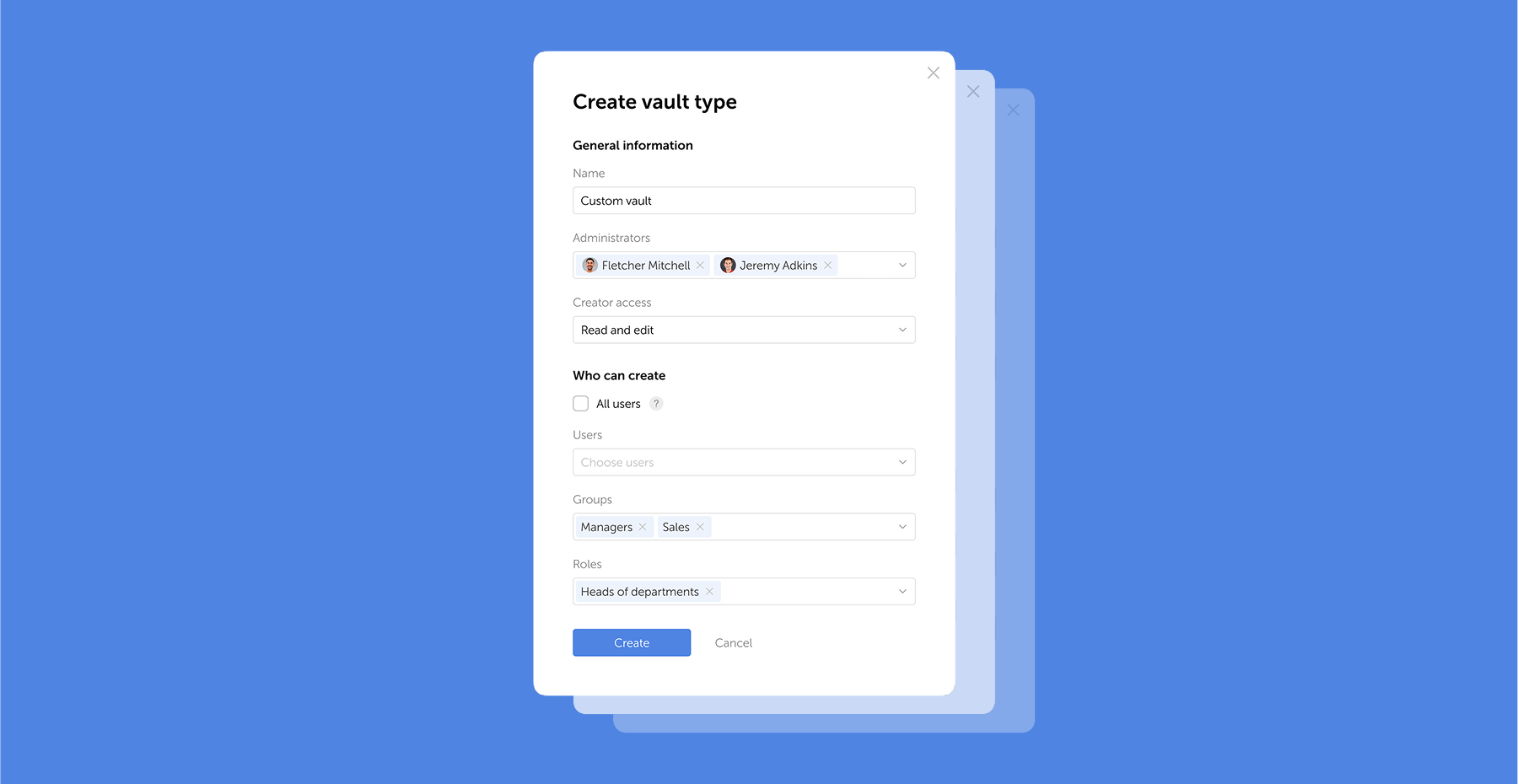
Our admin tools let you configure vault structures that mirror your team's organization. With role-based access, the finance team sees only finance credentials, while IT administrators maintain oversight of everything. This combination with a cost-efficient approach gives you enterprise-grade control without paying for features you do not need.
For teams implementing password management for the first time, setting up the right structure early prevents future access issues. Book a consultation to define your access model, deployment approach, and rollout plan.
Prioritizing your most critical accounts
Not all accounts carry the same risk. Start migration with the credentials that would cause the most damage if compromised:
- Primary email accounts (often the recovery method for everything else)
- Financial services and payment platforms
- Cloud infrastructure and admin panels
- Business communication tools (Slack, Teams, email servers)
- Social media and public-facing accounts
According to IBM's 2025 Cost of a Data Breach Report, the global average breach cost reached $4.44 million, and the average time to identify and contain an incident was 241 days. Early migration of high-value accounts reduces that exposure window.
Using password health and data breach tools
Once credentials are in the vault, run a password vault health report — a routine computer security check. Built-in data breach monitoring scans your entries against known breach databases, while compromised password detection flags reused or weak credentials. Address critical findings first, especially any accounts where the same password protects multiple services.
Generating and managing strong passwords
For every new account or password replacement, use the built-in password generator. A strong configuration for high-security accounts: 20+ characters, mixed case, numbers, and symbols. Where services impose character limits, adjust — but never go below 15 characters.
A generated password like "g7#Kp!2xVmNqR9bW" has no predictable structure, which makes brute-force attacks impractical. The password manager remembers it, so complexity costs nothing in usability.
Using autofill features securely
Auto-fill speeds up form filling, but it requires awareness. Before letting the extension complete a login, verify these indicators:
- The URL in the address bar matches the expected domain exactly
- The connection uses HTTPS (look for the padlock icon)
- The password manager recognizes the site; if it doesn't offer auto-fill, the domain may be spoofed
- No unexpected redirects occurred before the login page loaded
A phishing page at g00gle.com looks convincing, yet the password manager matches exact domains and will not auto-fill on a fake site. On personal and work devices, keep the extension locked when not in active use.
Sharing passwords securely with others
For joint accounts, admin panels, and third-party services, teams need to share credentials. Sending passwords over email, Slack, or text messages is the wrong approach. Through built-in sharing features, encryption stays intact — credentials remain protected in transit.
We designed our role-based access controls to manage department-specific credentials and temporary contractor access. With on-premise deployment, shared secrets never transit through external servers. Learn more about our approach to business password management.
Managing family and team access
Shared password vaults work like shared folders: each vault has its own access permissions. An IT administrator might have full access, while a marketing team member sees only the social media credentials vault. Under GDPR, organizations must both protect personal data from unauthorized access and prove that protection is in place. Granular access controls and audit logs address both requirements at once.
Advanced features worth using
Beyond storing passwords, most enterprise password managers include features that teams often overlook. Secure notes let you store Wi-Fi credentials, server details, software license keys, or recovery codes — all protected by AES-256 encryption.
Through SSO (Single Sign-On) integration, the password manager connects with your identity provider, reducing friction for users who already authenticate through AD or LDAP. Audit logs track every action: who accessed which credential, when, and from which device — this simplifies GDPR and PCI-DSS (Payment Card Industry Data Security Standard) reporting.
Secure notes and document storage
Secure Shell keys (SSH), API tokens, recovery phrases, or internal procedures — all of these belong in secure notes rather than scattered across email threads or shared drives. Encryption protects them identically to passwords, and access controls determine who sees what.
Device syncing and access management
When a team member updates a password on their laptop, every authorized device reflects that change within seconds. Encrypted in transit, the data travels to the server (or your on-premise instance) and arrives at other devices still protected. Decryption happens only locally.
Proper device management requires MFA verification before any new device gains vault access. Without this step, an attacker who clones a session token could silently reach stored credentials.
Troubleshooting common password manager issues
Maintaining your password security long-term
Security is not a one-time setup. Quarterly reviews keep your vault in good shape:
- Run the vault's security audit to identify weak, reused, or old passwords
- Replace any flagged credentials using the built-in password generator
- Review shared vault access — remove former employees or contractors
- Verify MFA is still active and backup codes are accessible
- Check for any accounts in known breach databases and rotate those passwords immediately
What to do if your password manager is compromised
If you suspect your master password has been exposed, immediate damage control is critical for your computer security:
- Change the master password immediately from a trusted device
- Enable or re-verify MFA on the vault account
- Rotate passwords for your highest-priority accounts (email, financial, infrastructure)
- Review the vault's audit log for unauthorized access
- Notify your security team and begin an incident response according to your organization's protocol
Conclusion: your next steps to password security
A password manager replaces guesswork with structure, a direct upgrade to your organization's digital protection. Instead of hoping employees choose strong passwords, you give them a tool that does it automatically and keeps every credential encrypted, auditable, and under control.
The first step is the simplest: choose a solution, create a strong master password, and start migrating your most critical accounts today.
Frequently Asked Questions

What is a password manager and how to use it?
Inside one encrypted vault, a password manager stores all your credentials – protected by a single master password. For new accounts, it generates strong passwords automatically and auto-fills login forms. We built our platform with AES-256 encryption and zero-knowledge architecture – once client-side encryption is enabled, your data stays unreadable, even to us.
How to use a password manager for the first time?
Create a strong master password (at least 15 characters, following NIST SP 800-63B-4 guidance). Enable MFA, install browser extensions, then import existing passwords from your browser or a CSV file. The process is well-documented and predictable with proper planning.
How do I create a master password?
Use the passphrase method: combine four or five random, unrelated words with separators (e.g., timber-clock-river-frost). Avoid personal details, common phrases, or song lyrics. The goal is high entropy – unpredictable to attackers, memorable for you.
What should I do if I forget my master password?
Under zero-knowledge architecture, the provider cannot recover it. Store a physical backup in a secure location (a sealed envelope in a safe, for example). Some platforms offer emergency access features or recovery keys – configure these during initial setup.
Are password managers safe?
With AES-256 encryption and zero-knowledge architecture, a properly configured password manager is safe by design: decryption happens only on the user's device, so even full server access reveals nothing. The 2025 Verizon DBIR found credential abuse in 22% of breaches – most involving weak or reused passwords. A password manager directly addresses that risk.
 Eirik Salmi
 Eirik Salmi
 Eirik Salmi