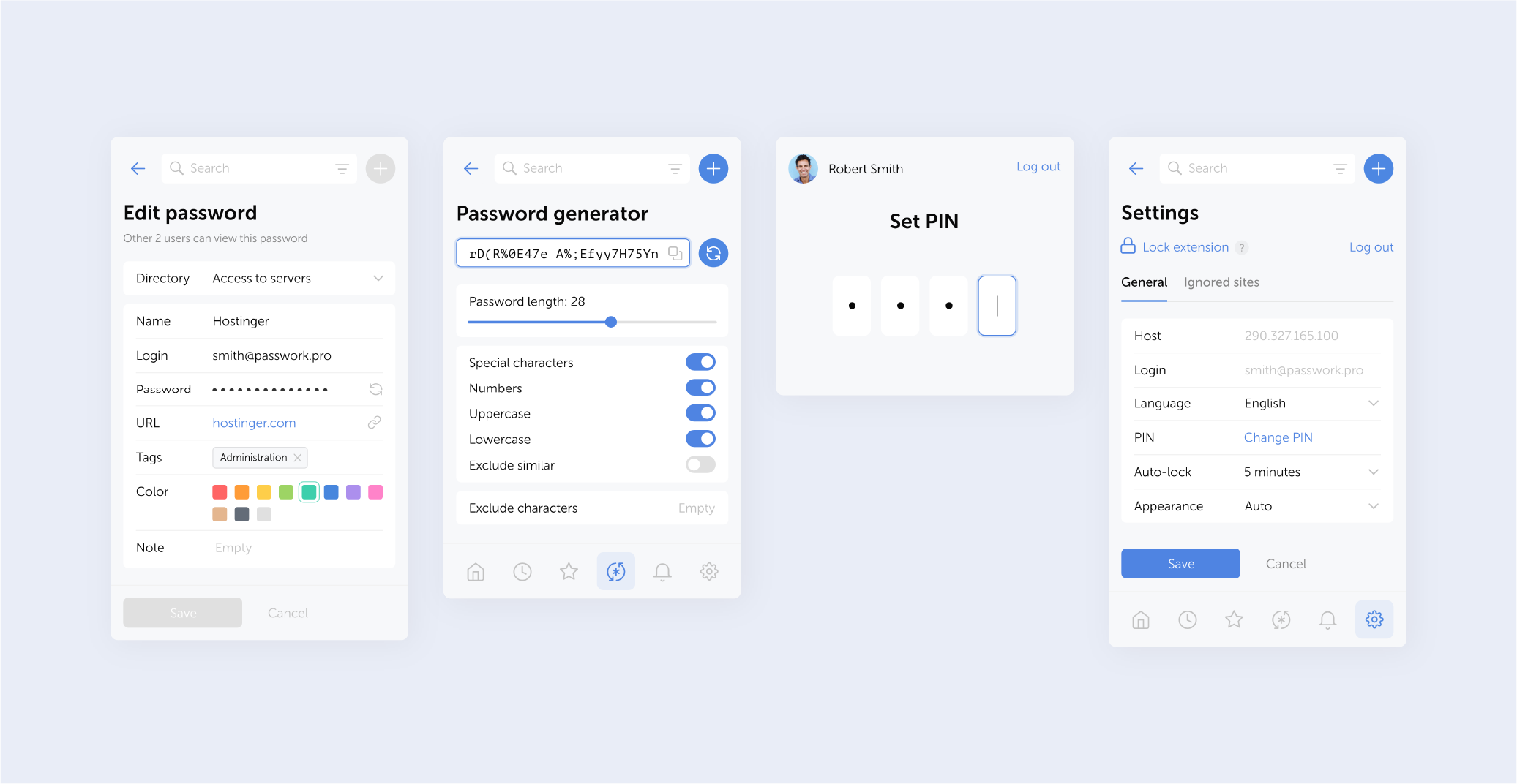
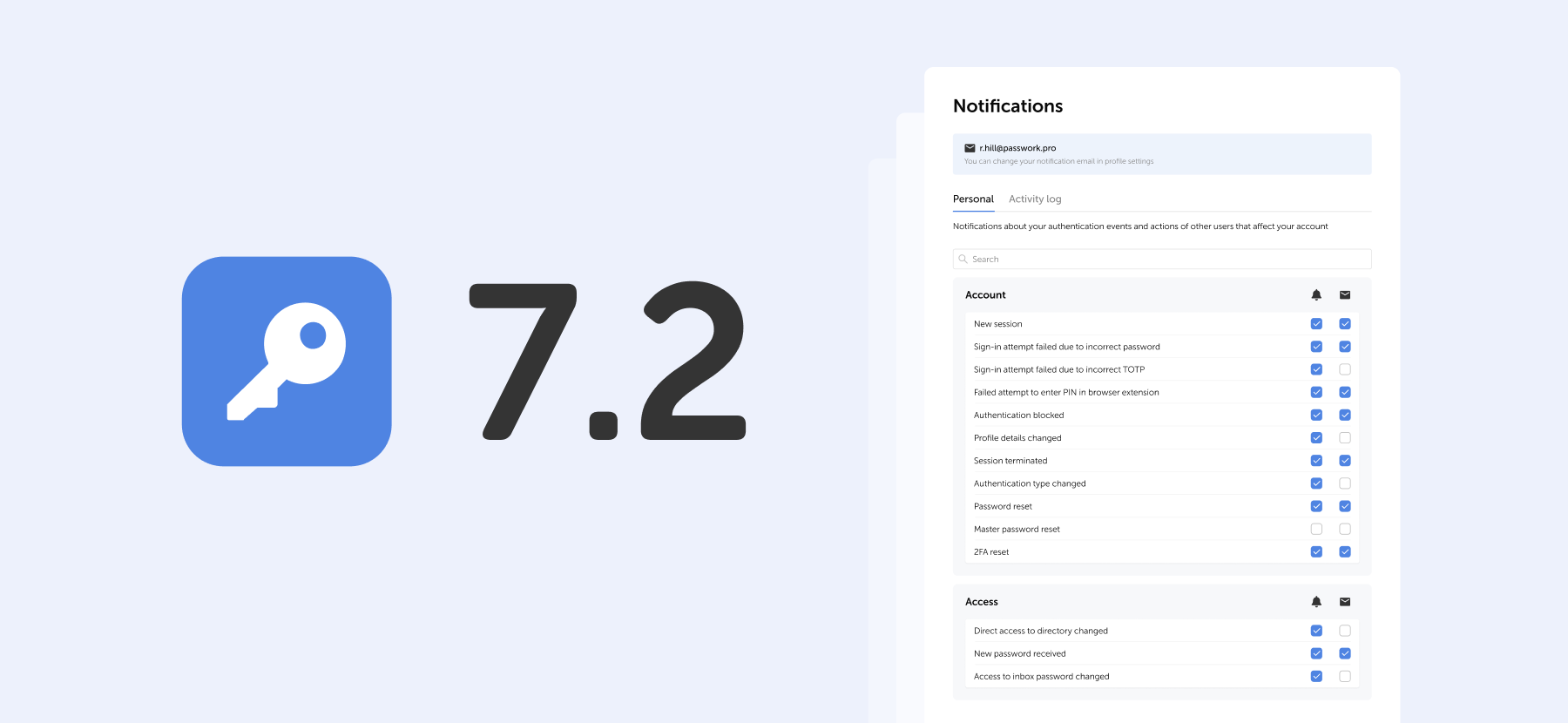
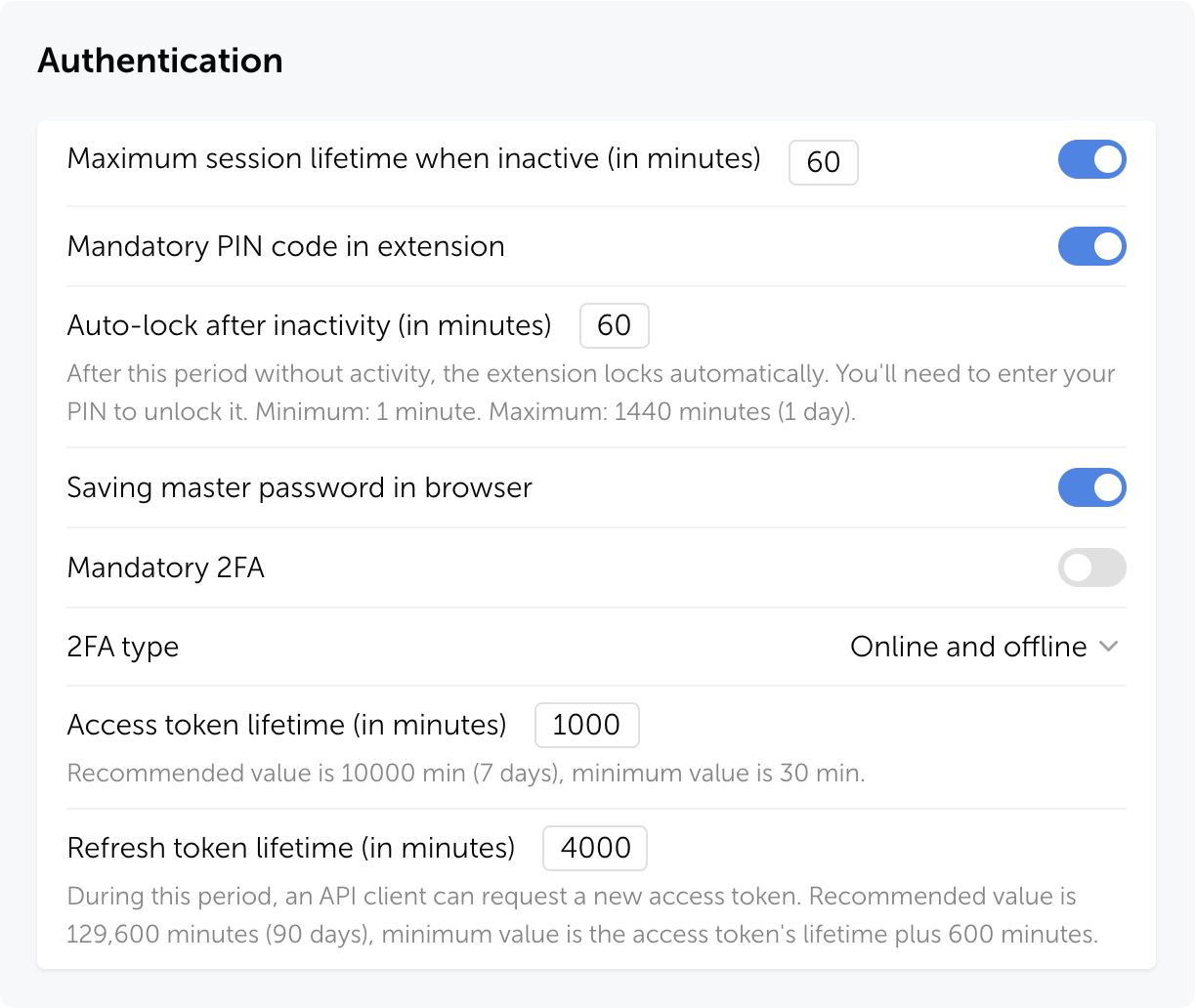
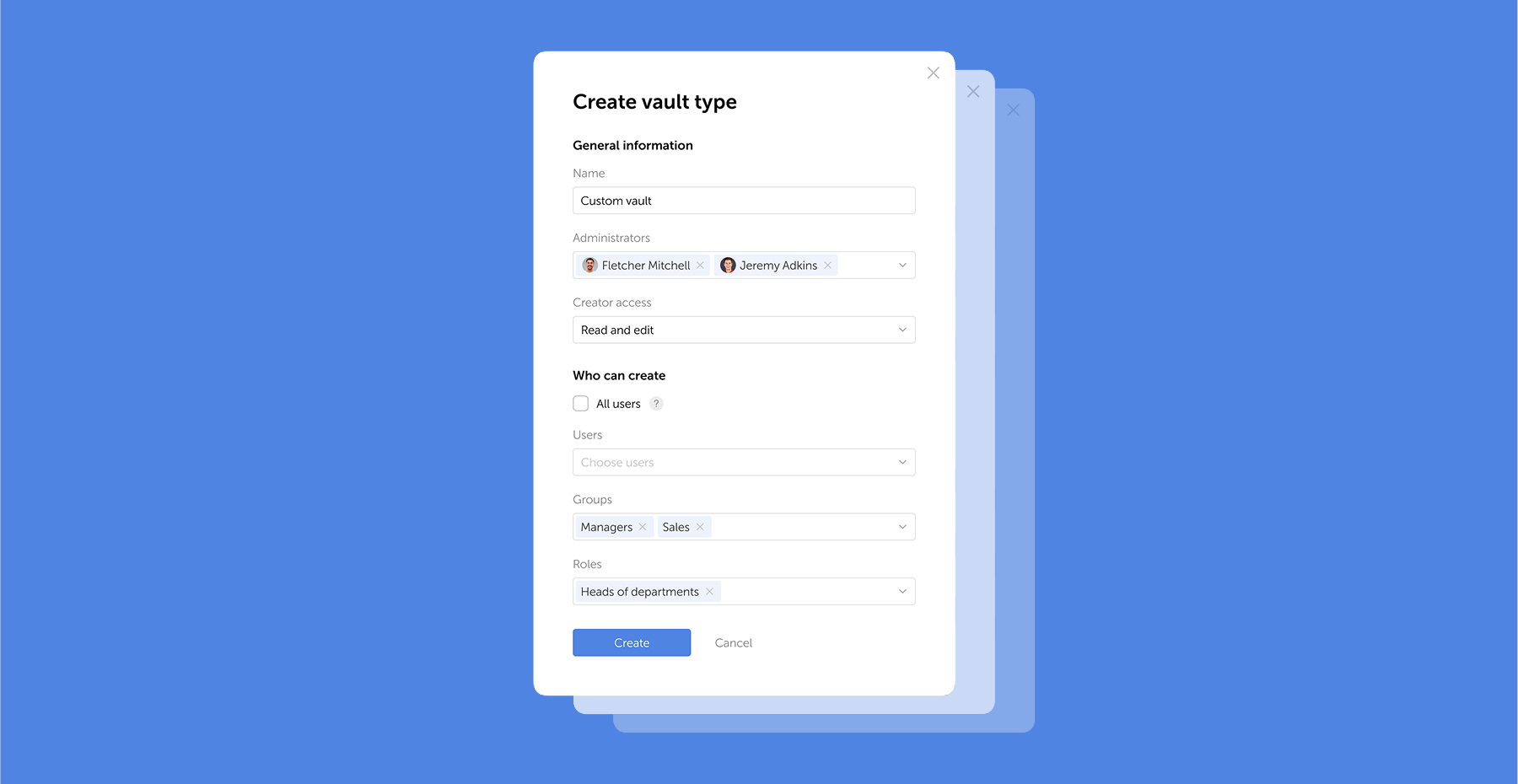
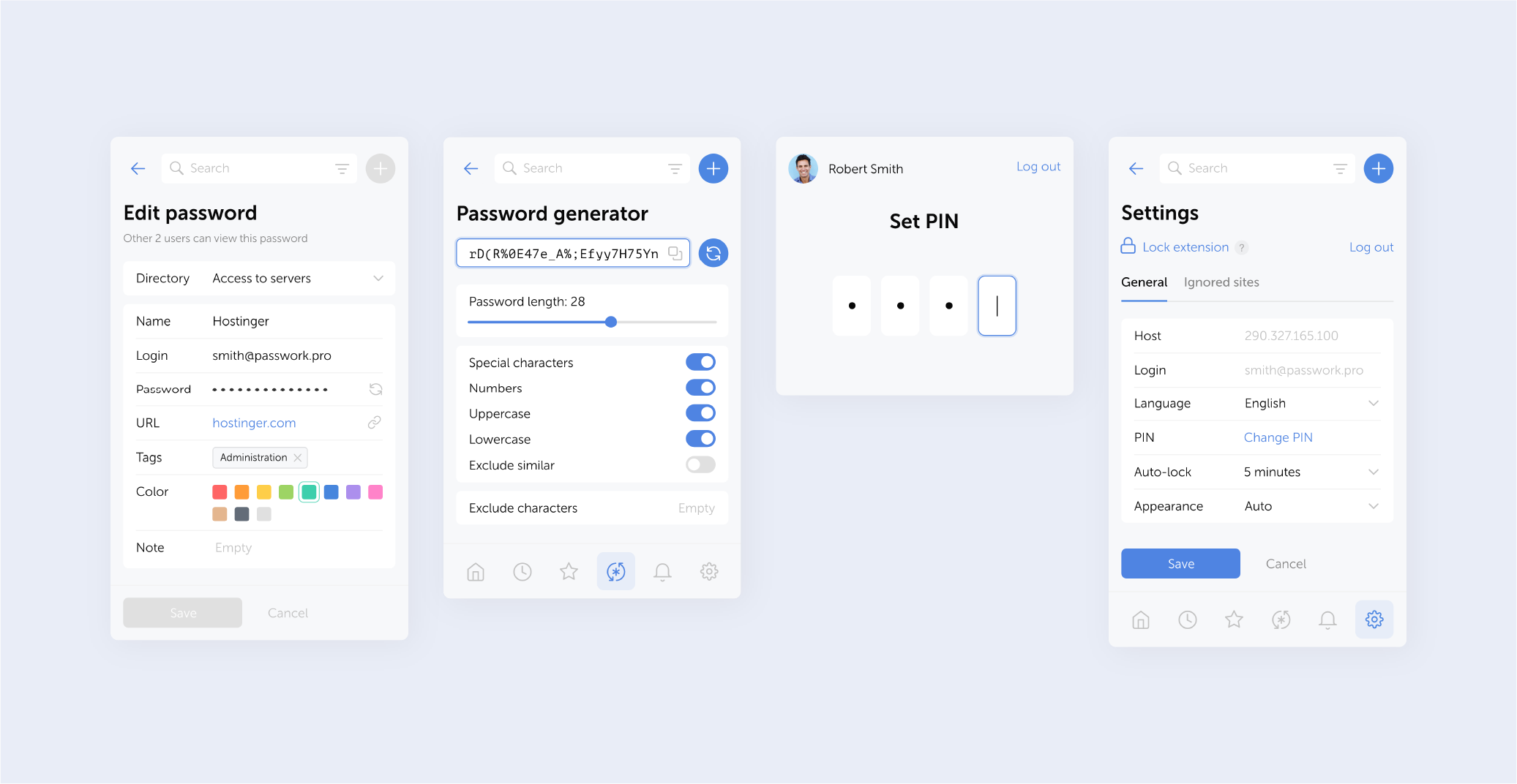
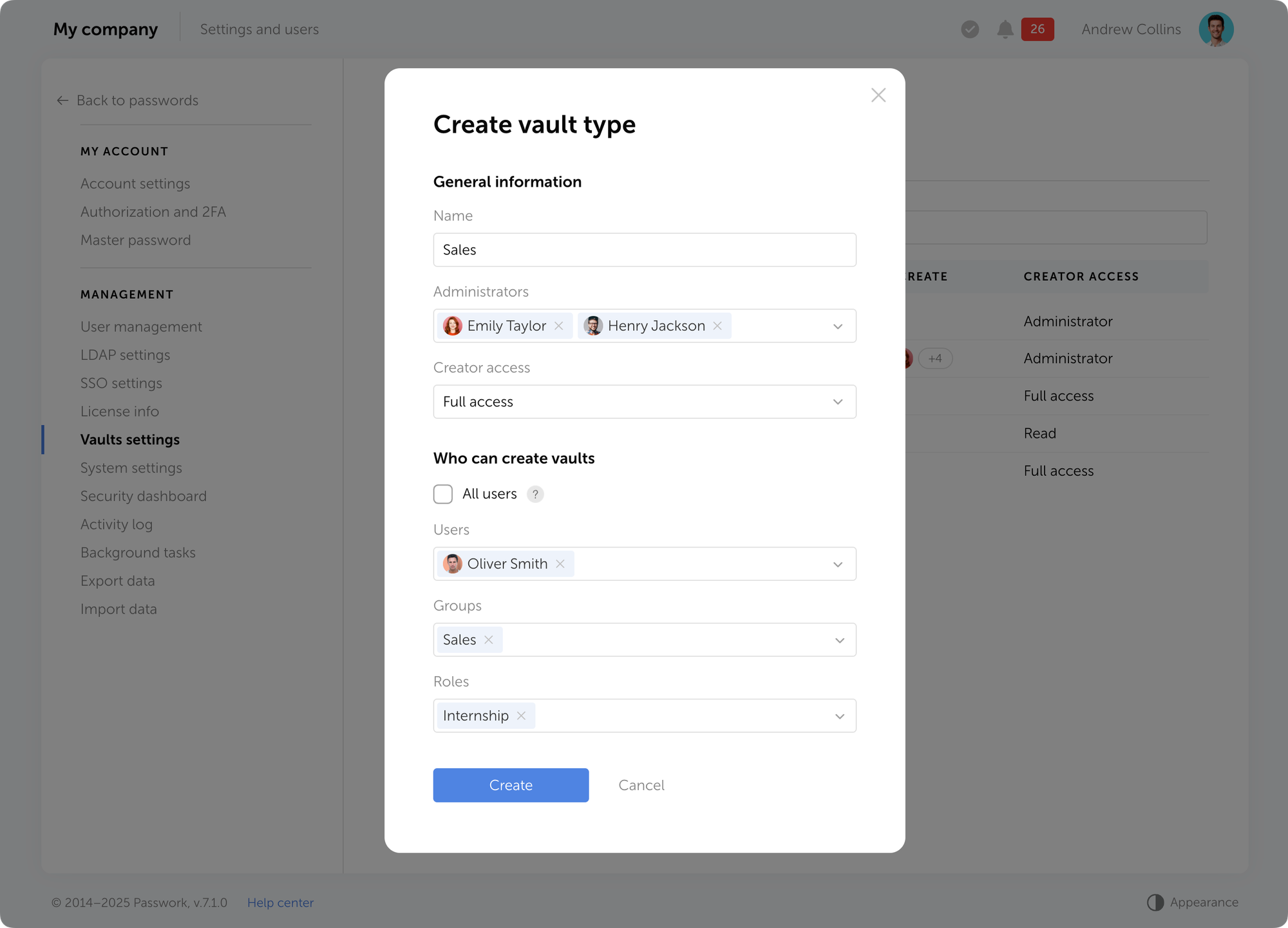
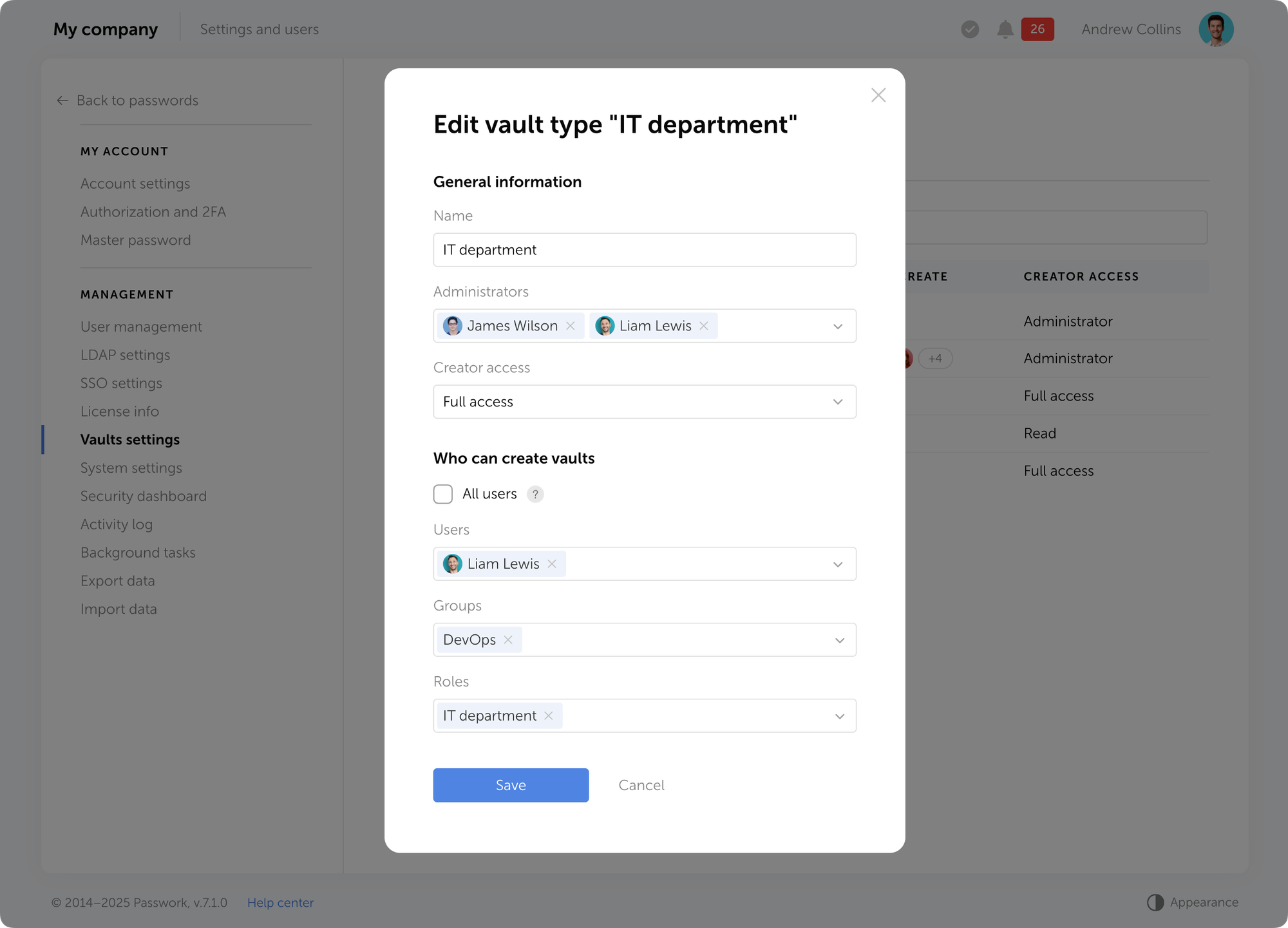
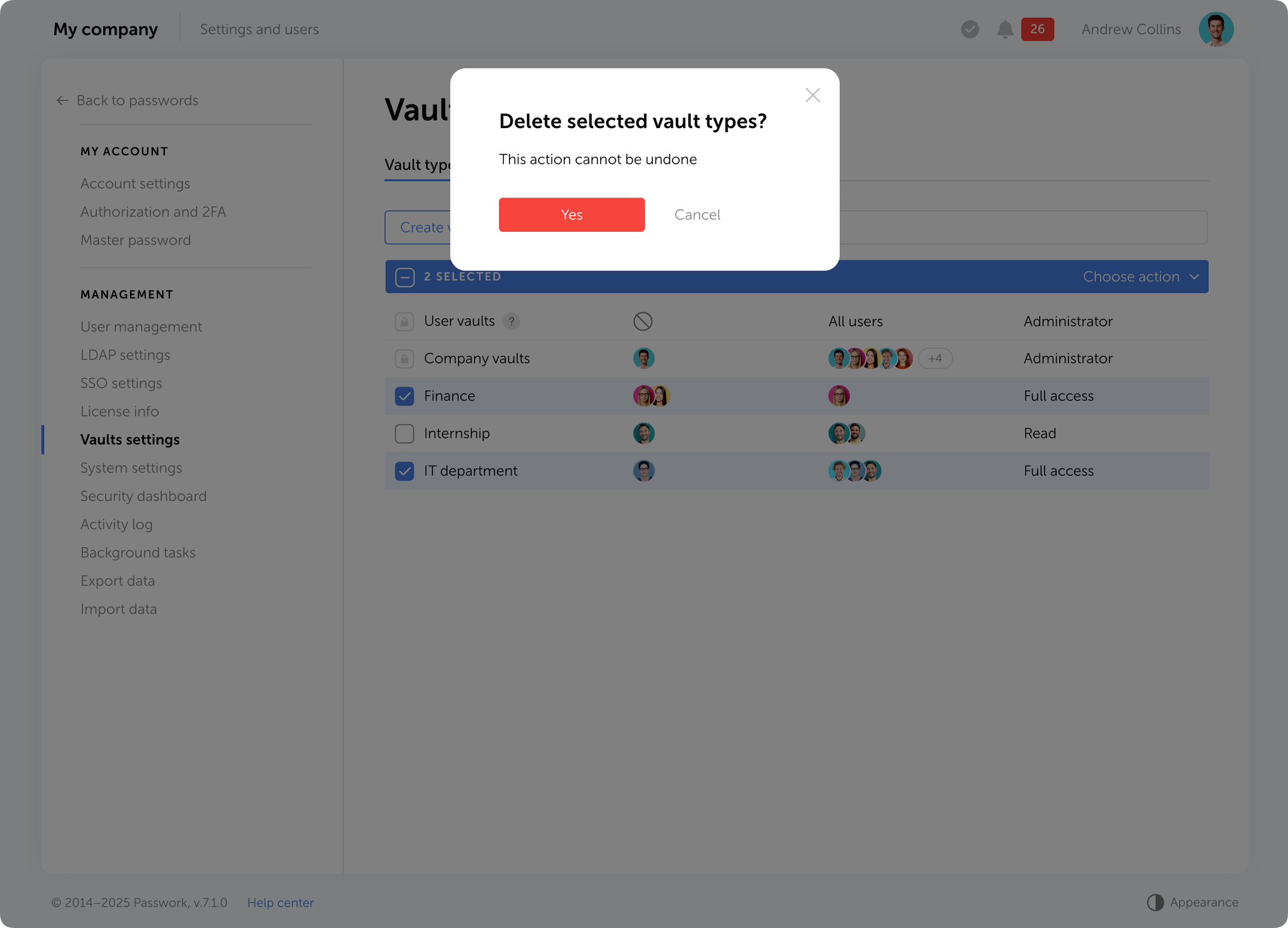
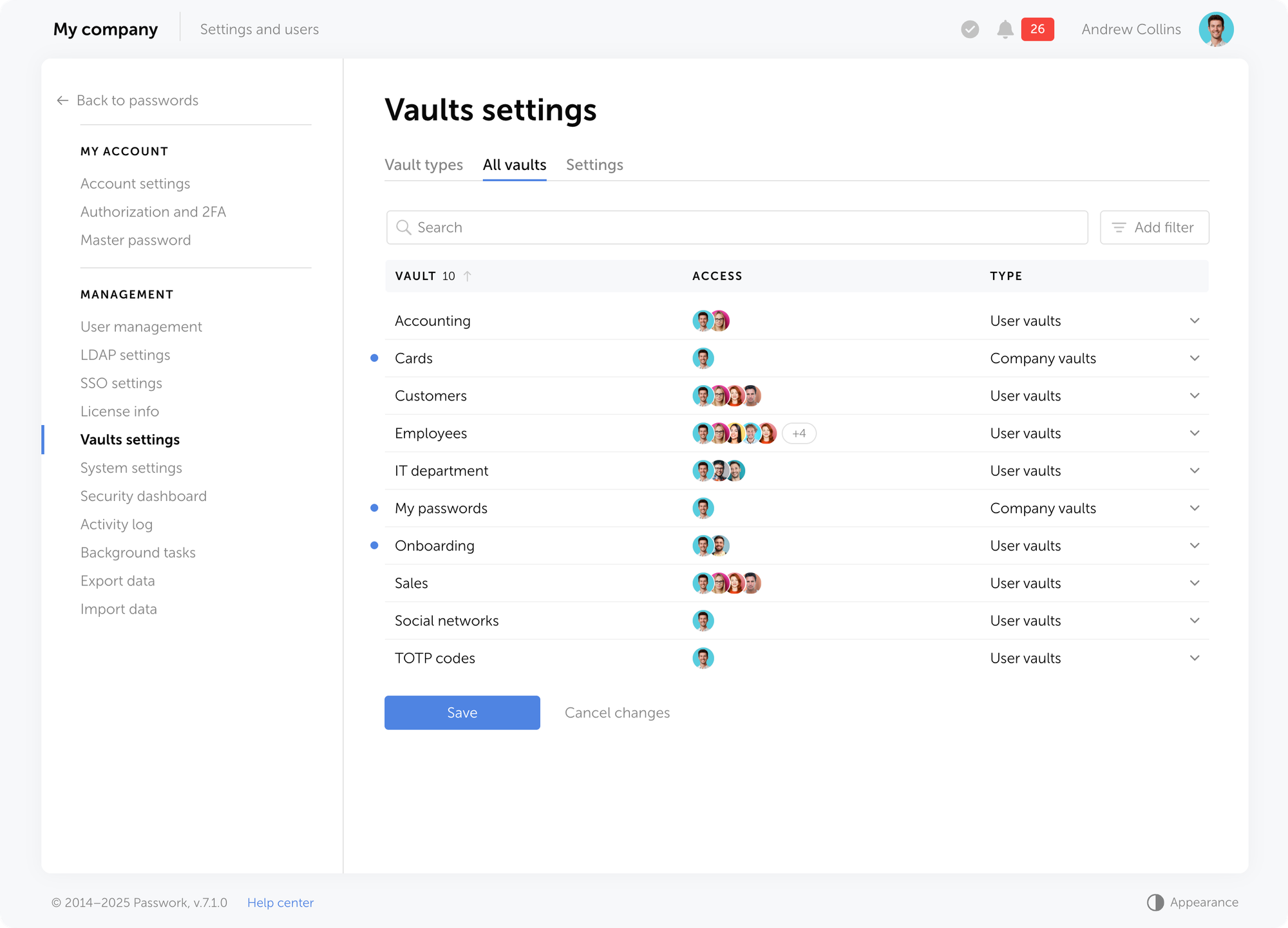
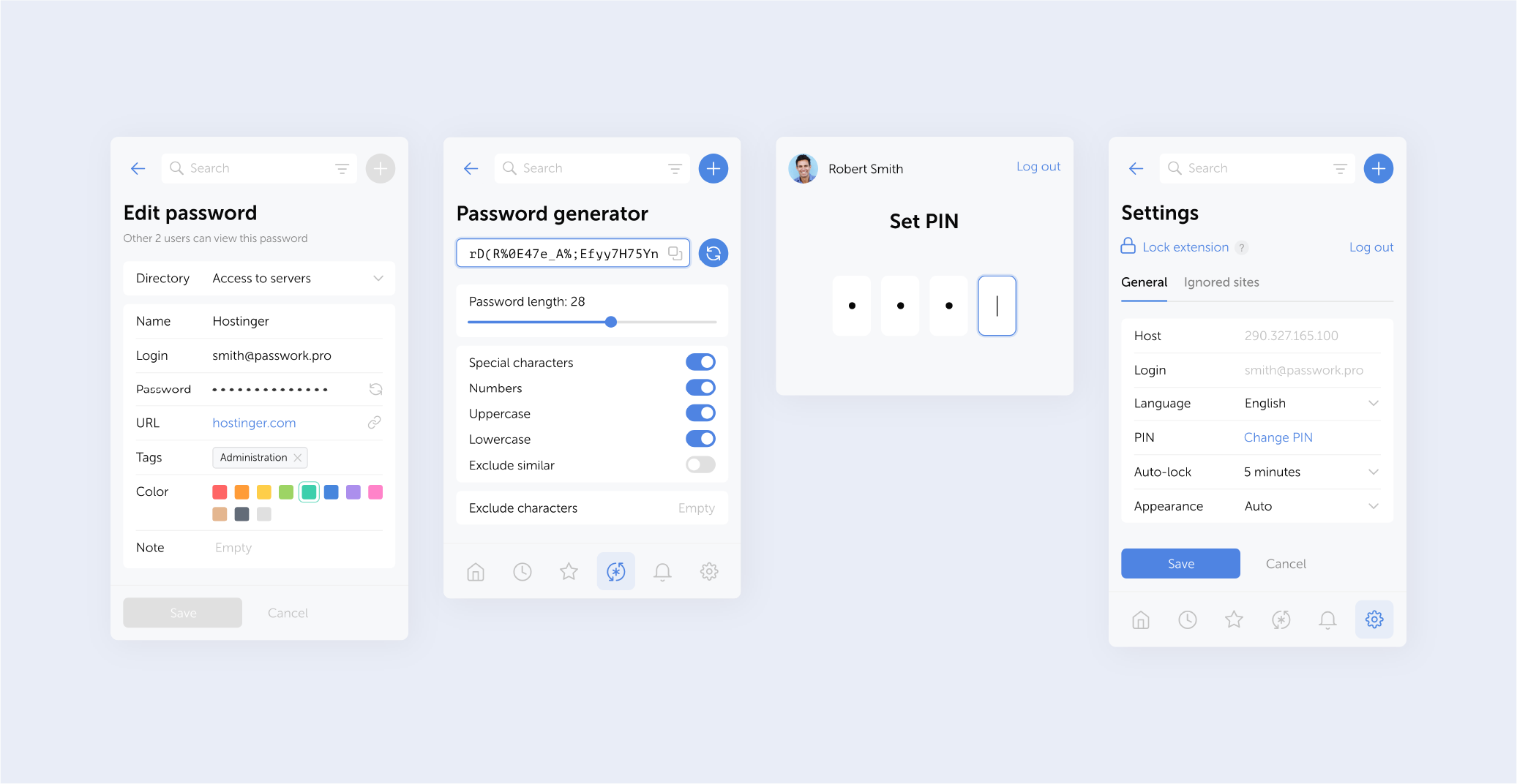
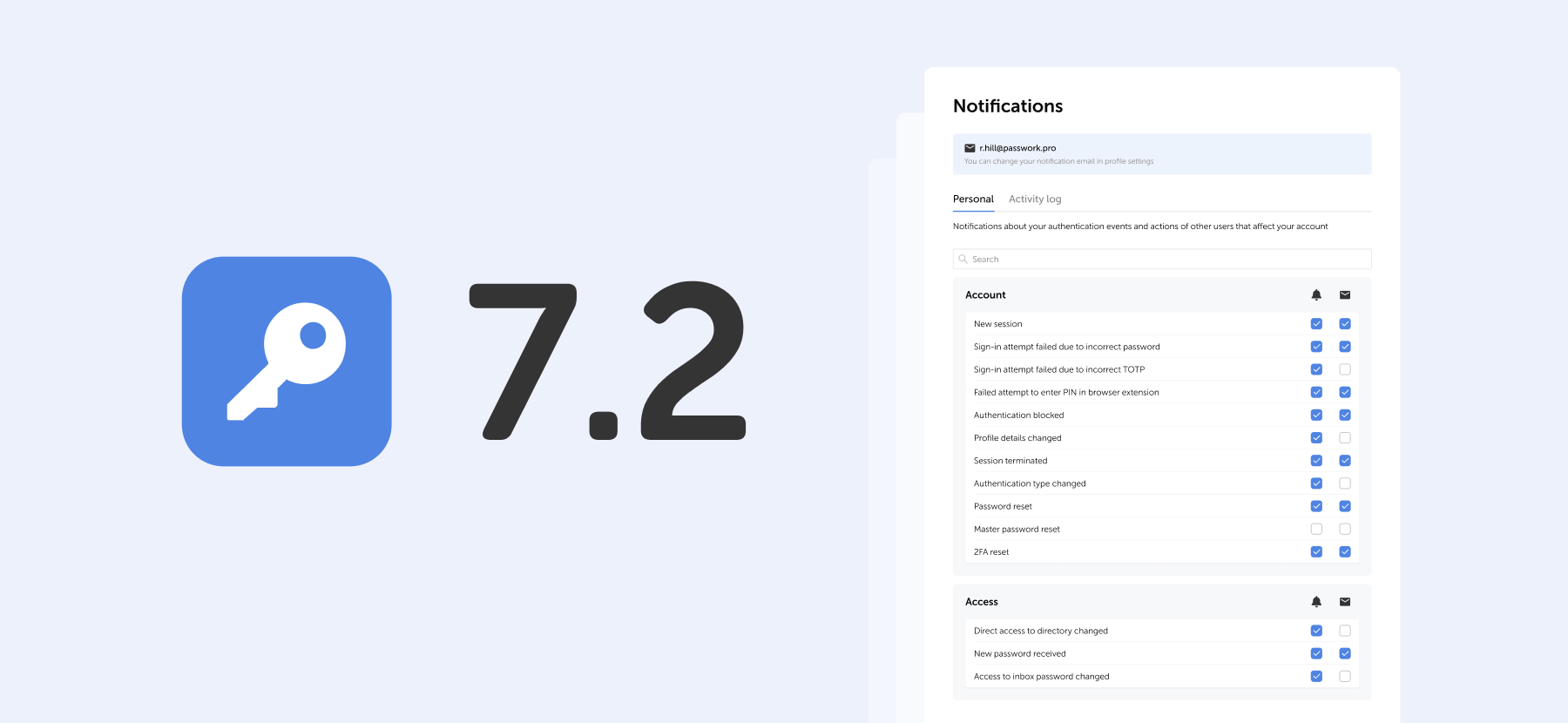
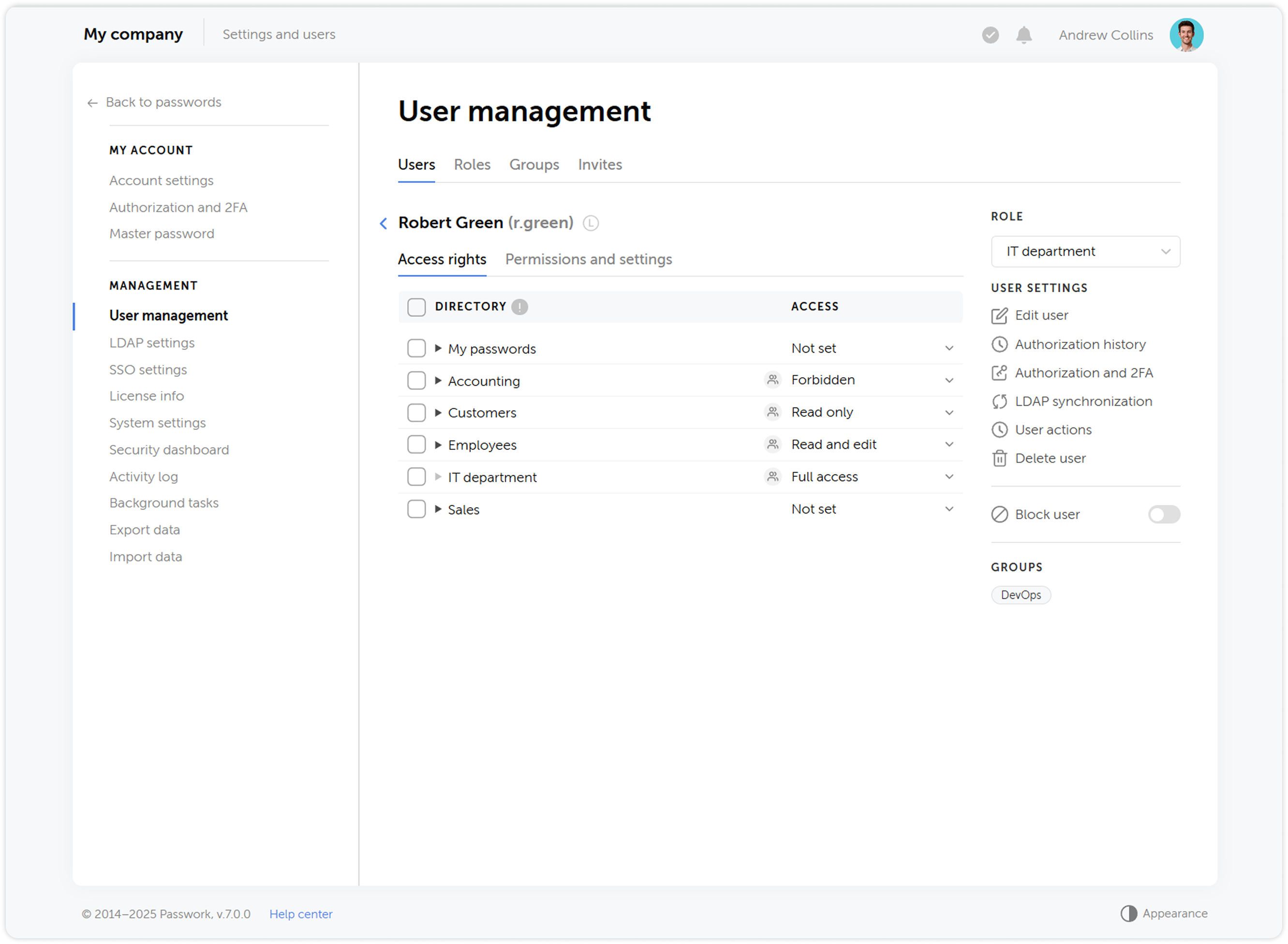
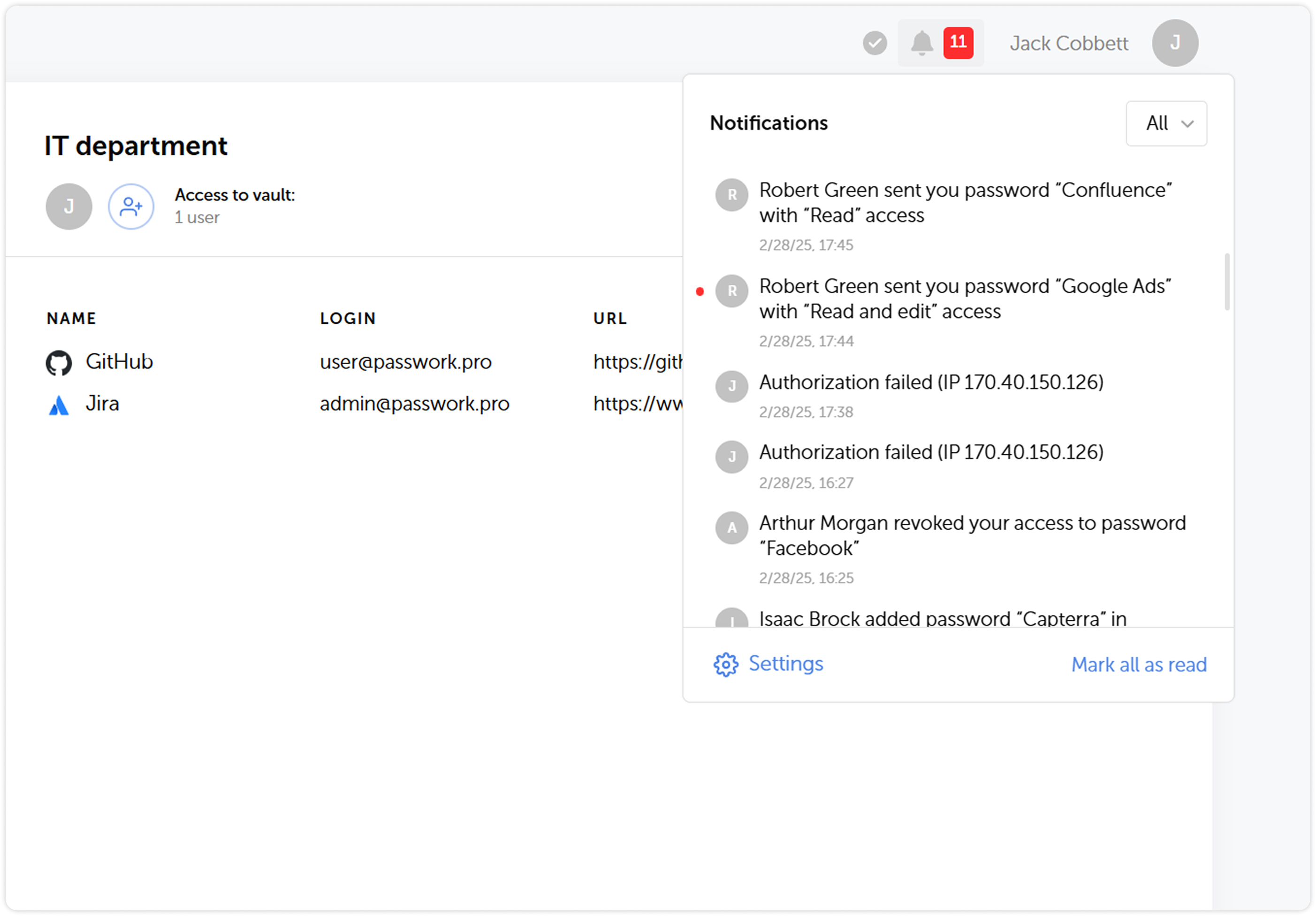
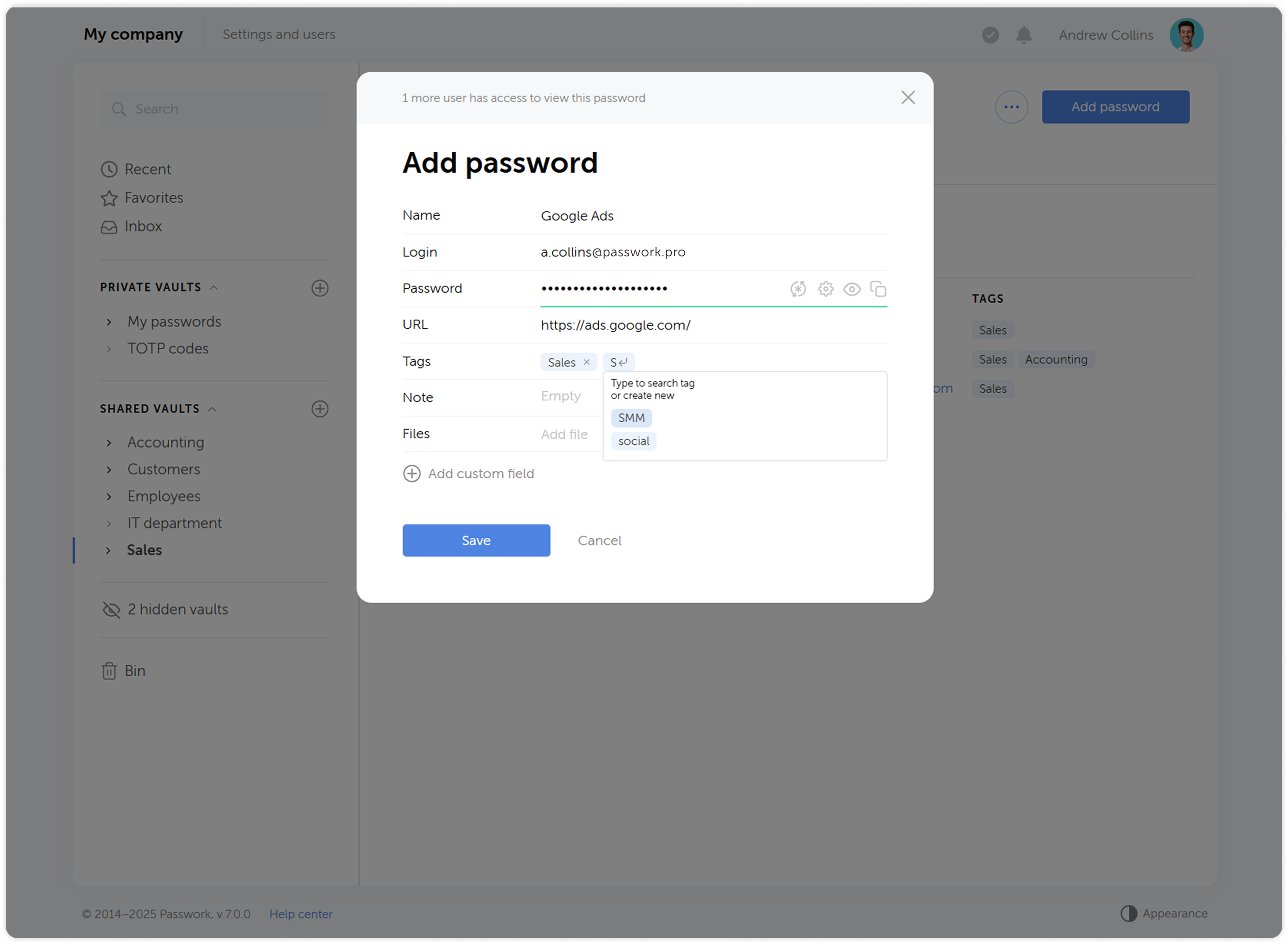
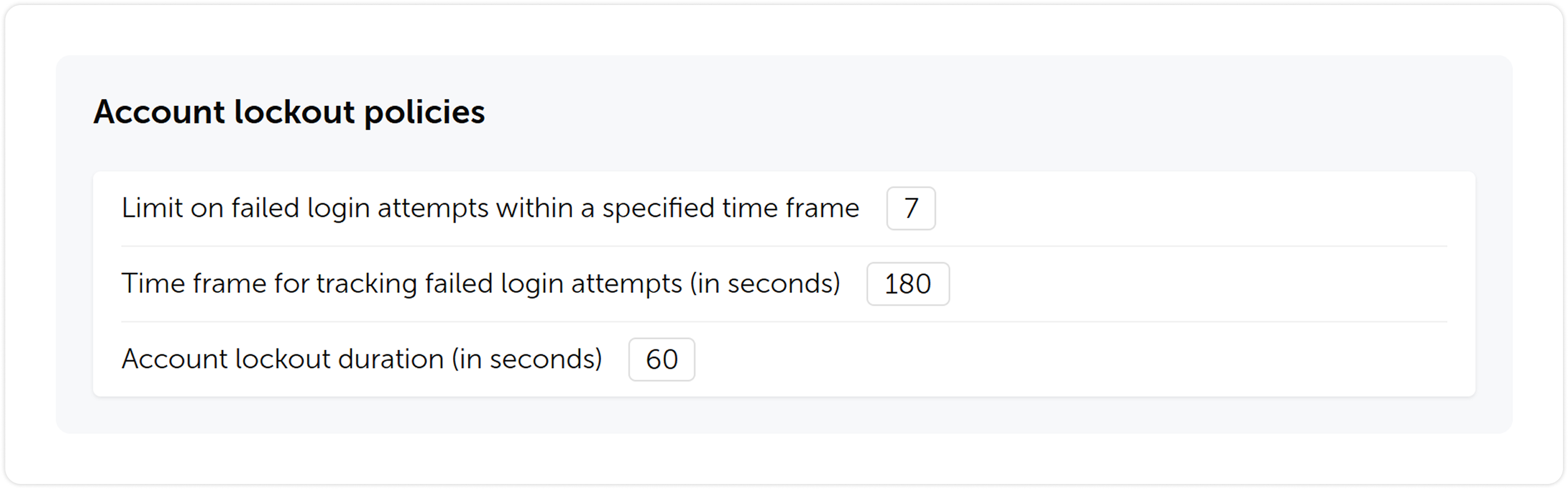
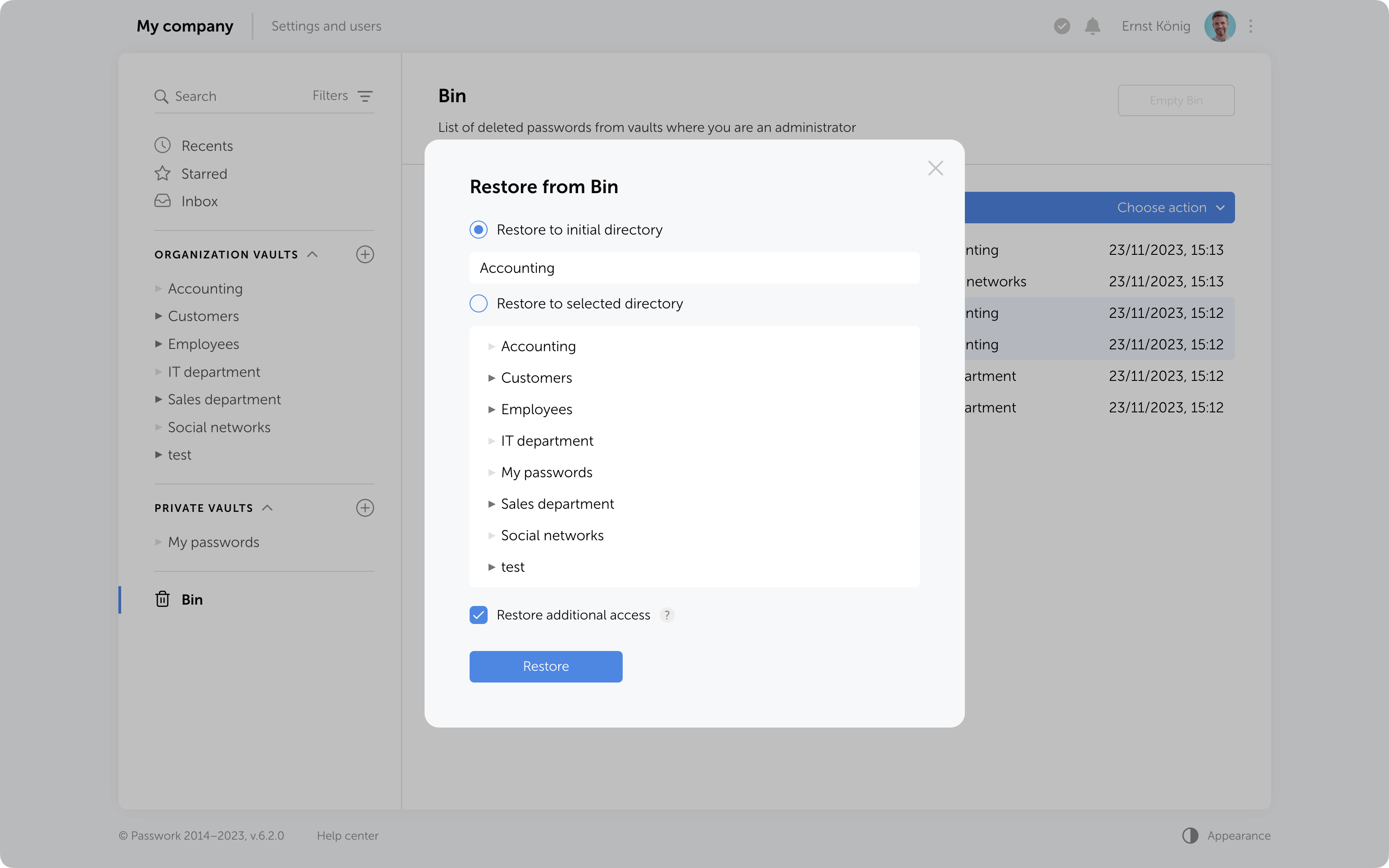
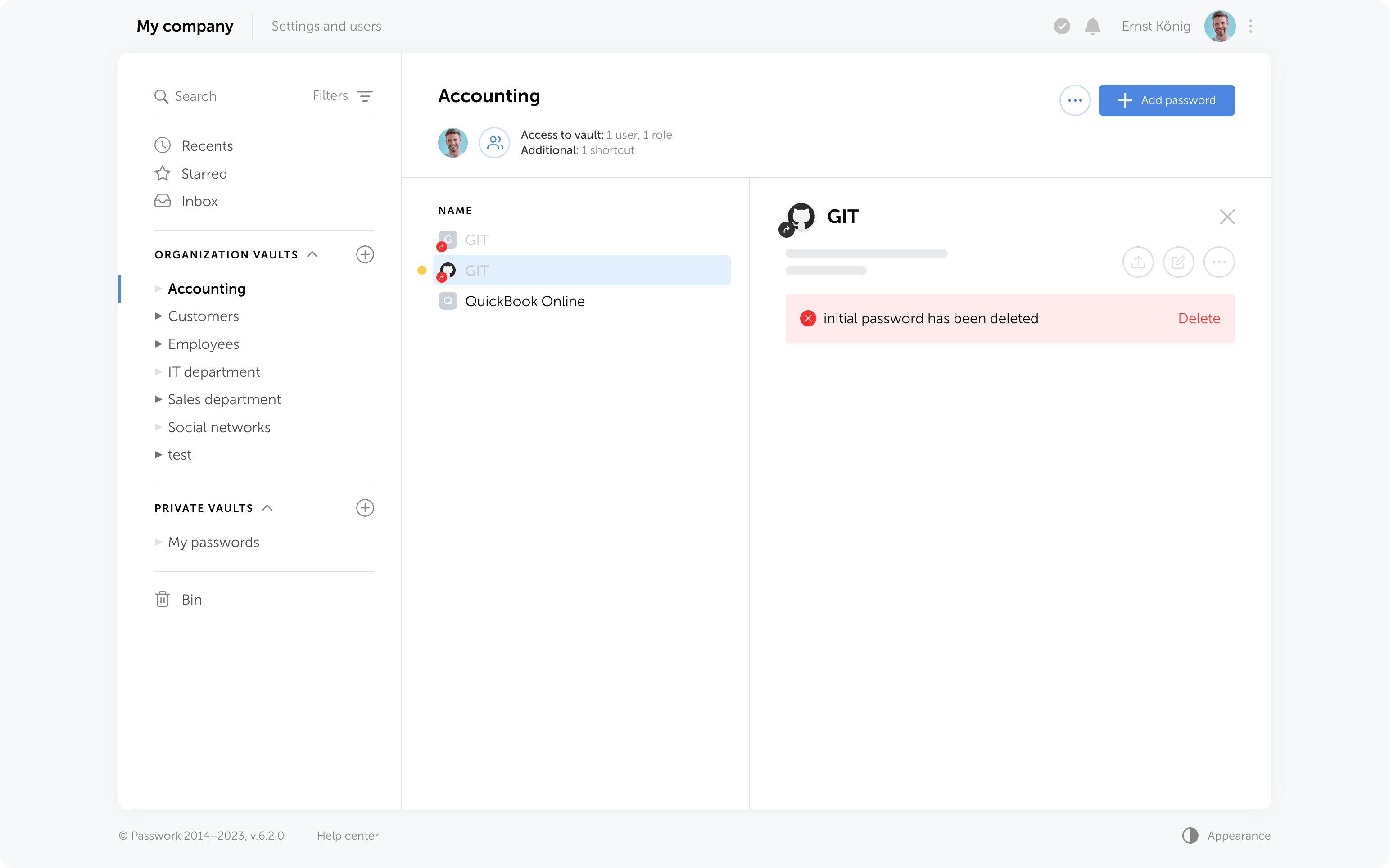
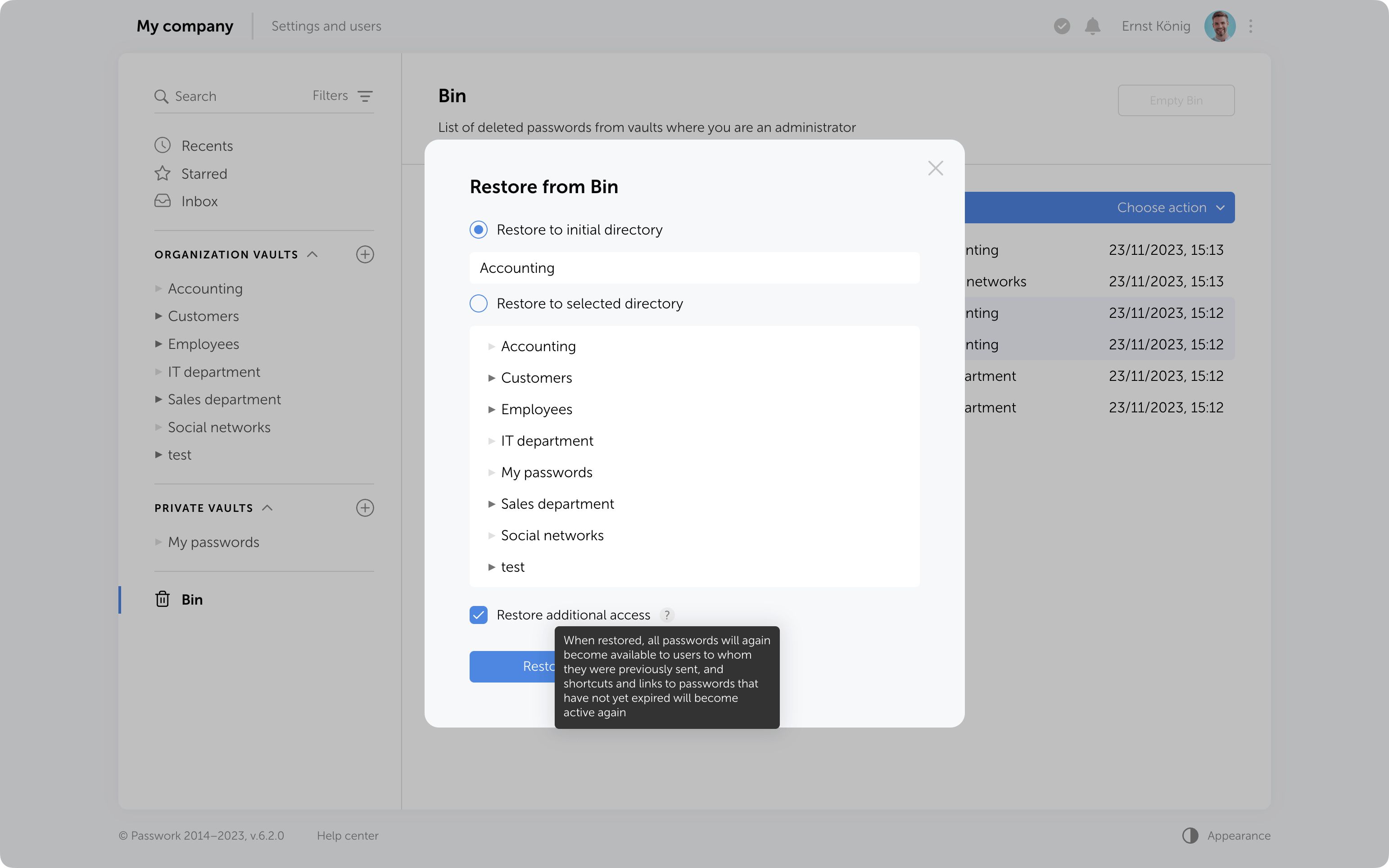
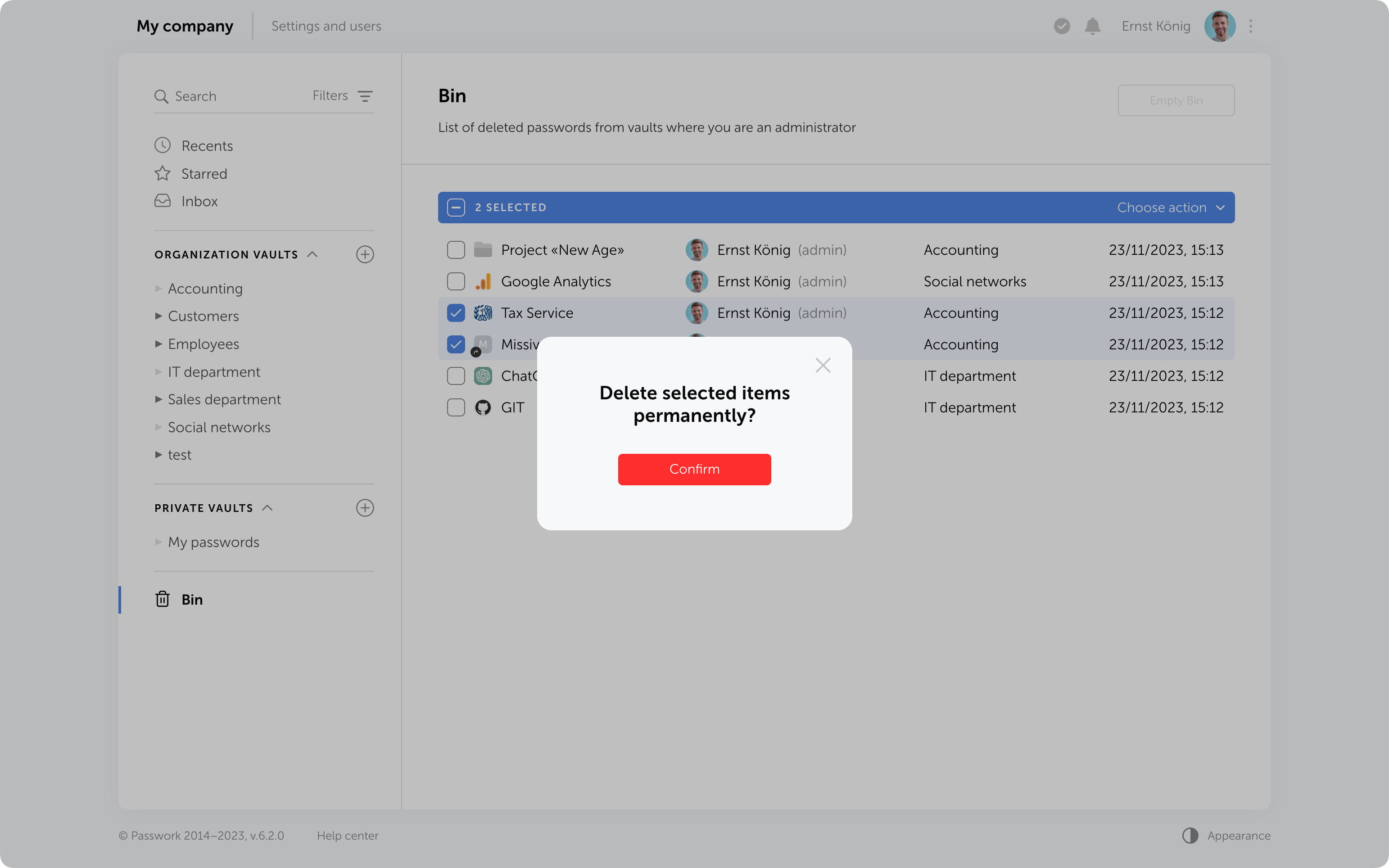
In the new version, we’ve improved TOTP autofill and added error logging to the browser extension. You can now export logs directly from the service worker console and share them with our team — significantly speeding up troubleshooting.
Improved TOTP autofill performance in the browser extension
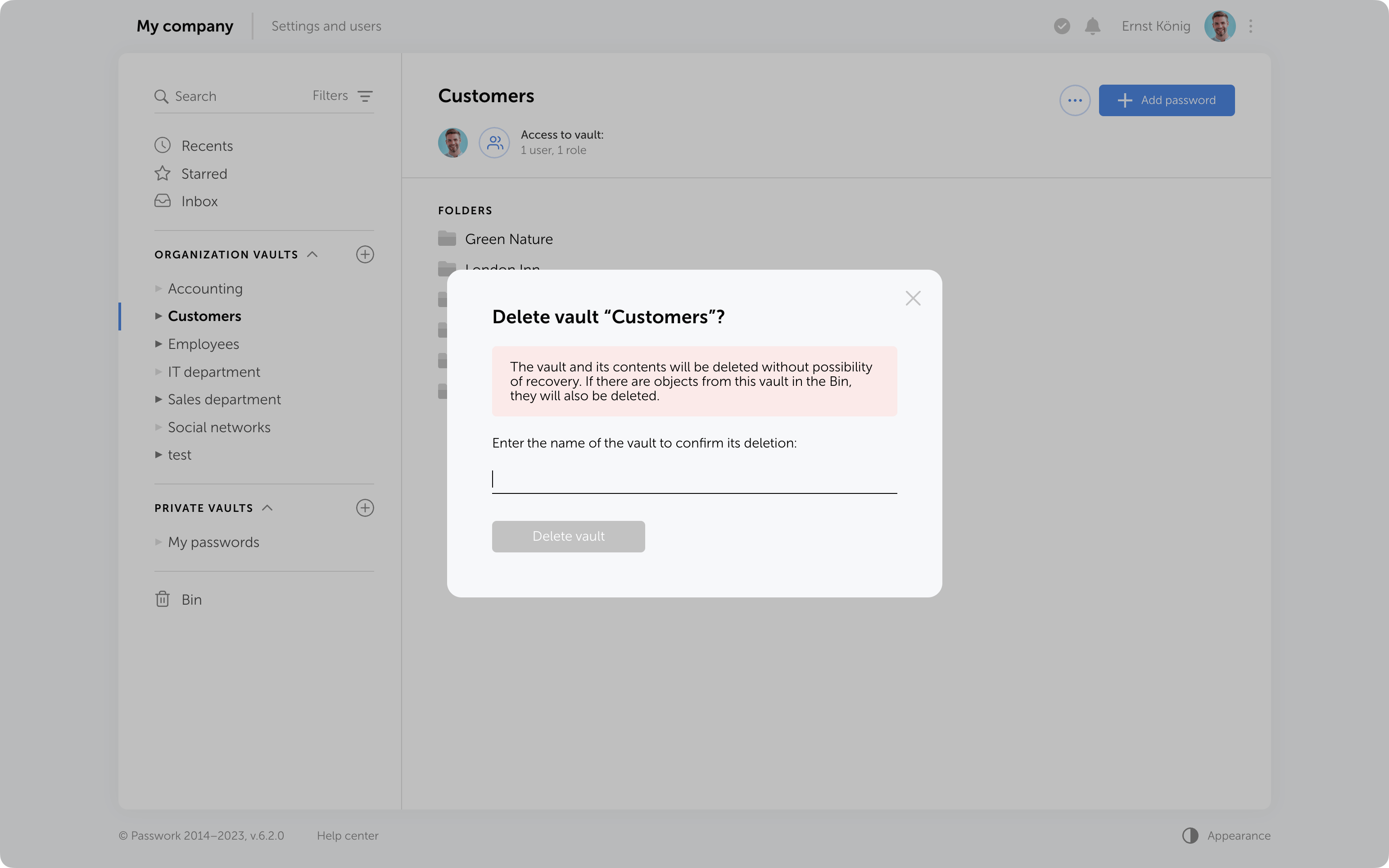
Added the capability to download error logs through the service worker console using the downloadErrors() command
Fixed an issue where TOTP autofill did not work for items from the Inbox
Fixed an issue where the extension could incorrectly prompt to save or autofill data in some forms not related to authentication
Fixed an issue that could block extension functionality after connecting it
Fixed an issue where notification dates could display incorrectly
Fixed an issue preventing the extension from working in Firefox Incognito mode
Minor bug fixes and performance improvements
⚠️ We updated the extension manifest permissions to enable log downloads. As a result, you may need to re-enable the Passwork extension in Chrome, Firefox, and Edge.
In the new version, we’ve improved TOTP autofill and added error logging to the browser extension. You can now export logs directly from the service worker console and share them with our team — significantly speeding up troubleshooting.
Feb 18, 2026 — 3 min read
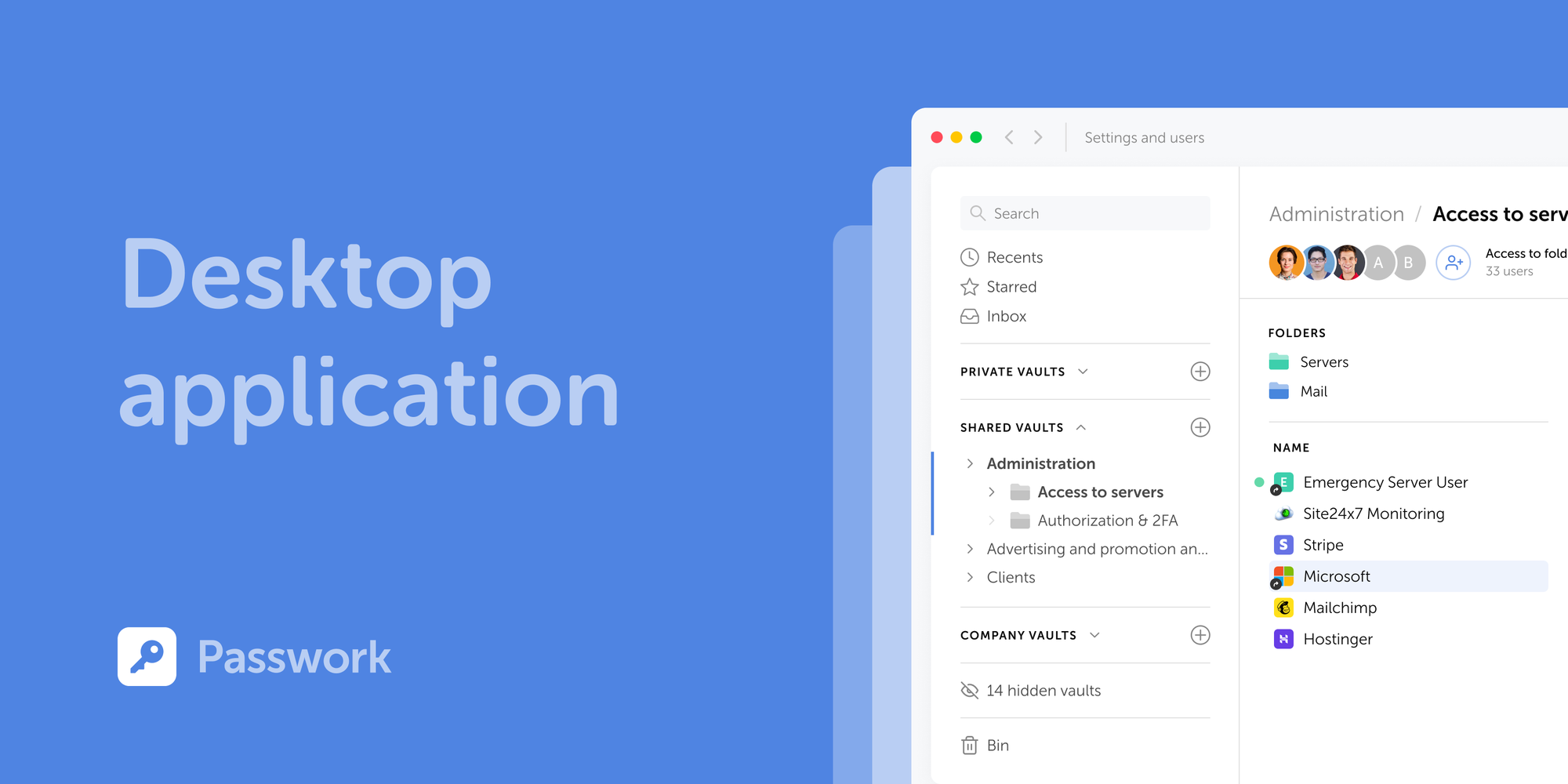
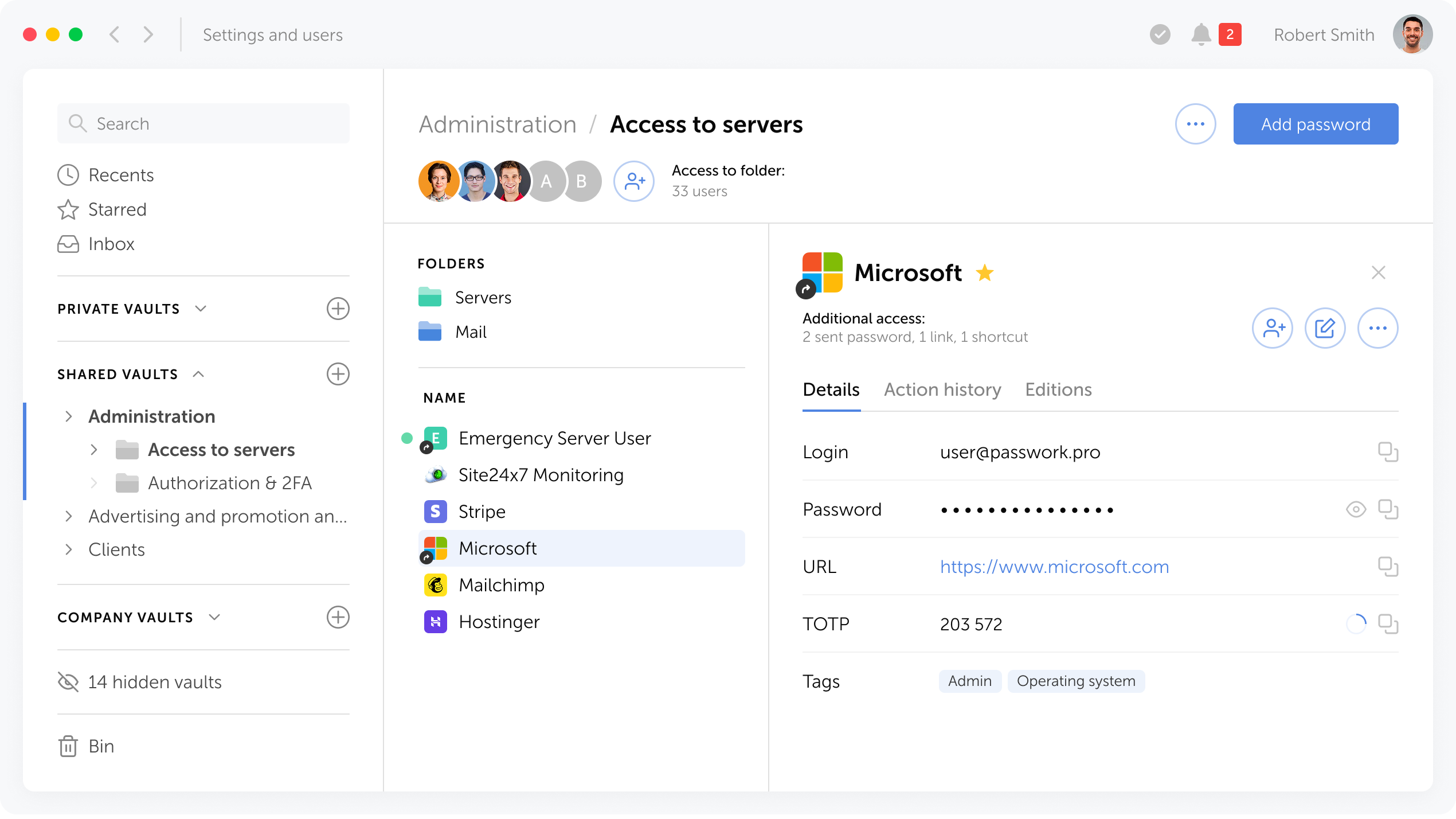
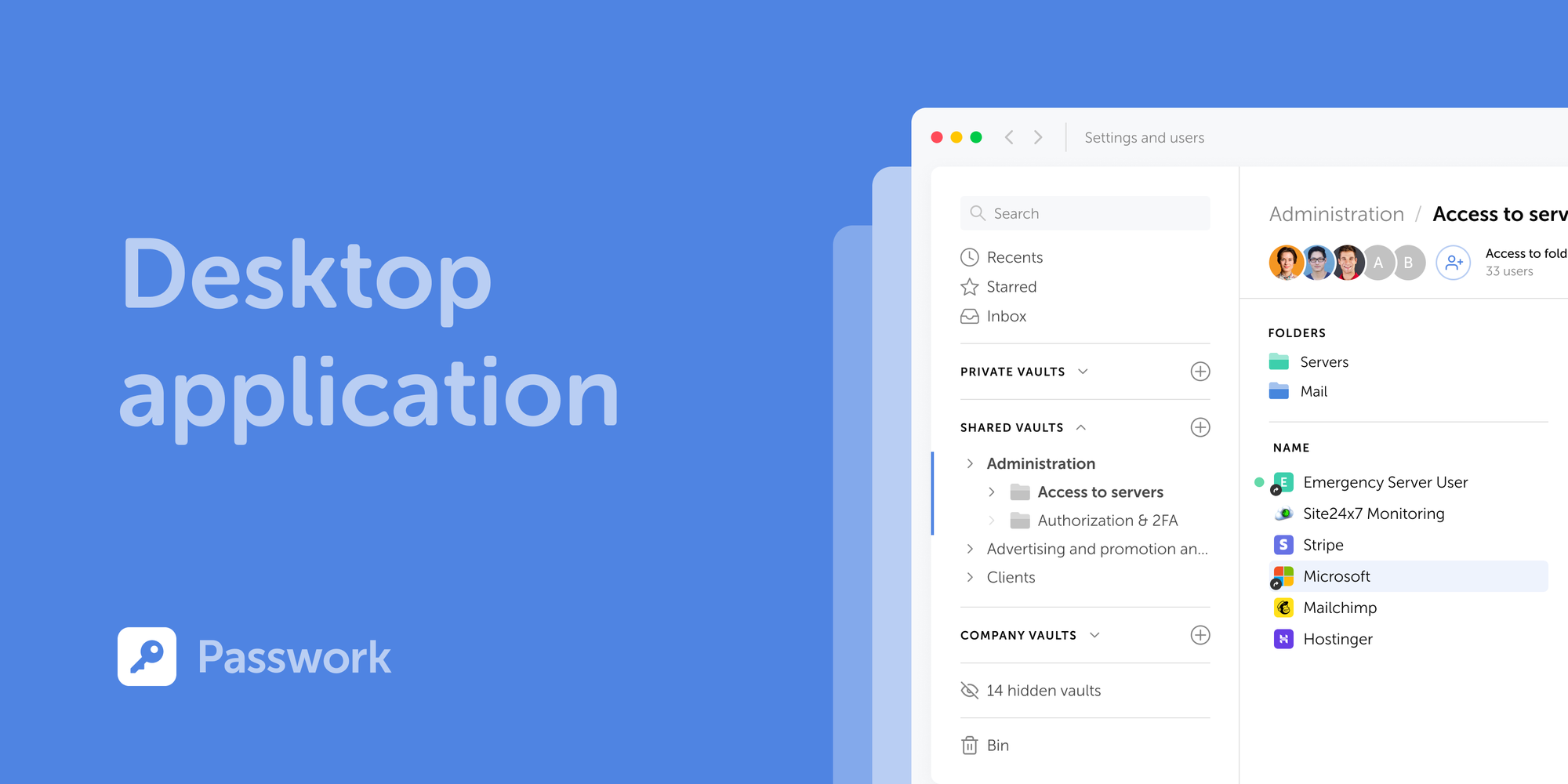
Passwork is now available as a full-featured desktop app for Windows, macOS, and Linux. The desktop app delivers complete password management functionality: manage credentials, access vaults, collaborate with your team, all with the native performance and convenience of a desktop environment.
Supported operating systems
The desktop application supports Windows 10/11 (64-bit), macOS 12 (Monterey) and later, and Linux distros including Ubuntu 20.04+, Fedora 34+, Debian 11+, and others (64-bit).
How to download
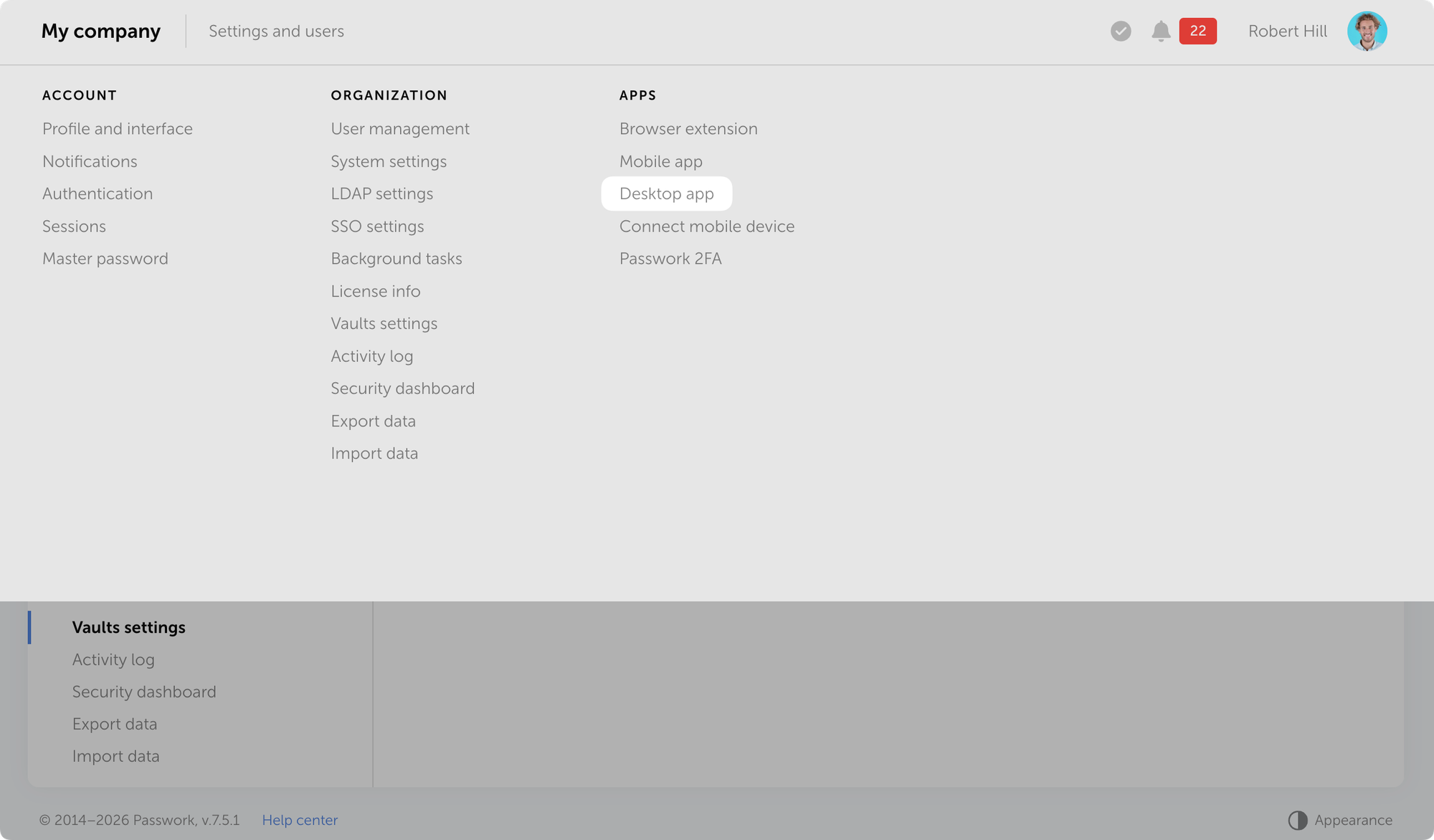
You can download the desktop app directly from the Passwork interface.
Open Passwork → Settings and users → Desktop app and download the installer for your operating system.
Installation
The app authenticates through your browser. You'll need your Passwork instance hostname.
Download the installer
Install the app for your OS and launch it
Enter your Passwork hostname and click Sign in with browser
Authenticate in the browser: enter your credentials or sign in via SSO or passkey
Allow the app to connect to your browser session
If client-side encryption is enabled in Passwork, enter your master password in the app
Note: If you have an active session in the web version, Passwork will prompt you to continue with the current user or switch accounts.
How to update
New desktop app versions are released alongside Passwork updates. When a new version becomes available, the app prompts you to update. The process is automatic — the installer downloads from the repository and installs without manual intervention.
What's next
Upcoming releases will introduce desktop-exclusive features, including offline mode. Access your passwords without a server connection, ensuring continuity even when network access is unavailable.
On macOS, the system may block the first launch because the app is still undergoing Apple's verification process. To allow it, open System Settings → Privacy & Security, find the message about Passwork being blocked, click Open Anyway, and authenticate with your administrator password.
Detailed installation instructions are available in the user guide All information about Passwork updates in our release notes
Passwork is now available as a full-featured desktop app for Windows, macOS, and Linux. The desktop app delivers complete password management functionality: manage credentials, access vaults, collaborate with your team, all with the native performance and convenience of a desktop environment.
Feb 18, 2026 — 2 min read
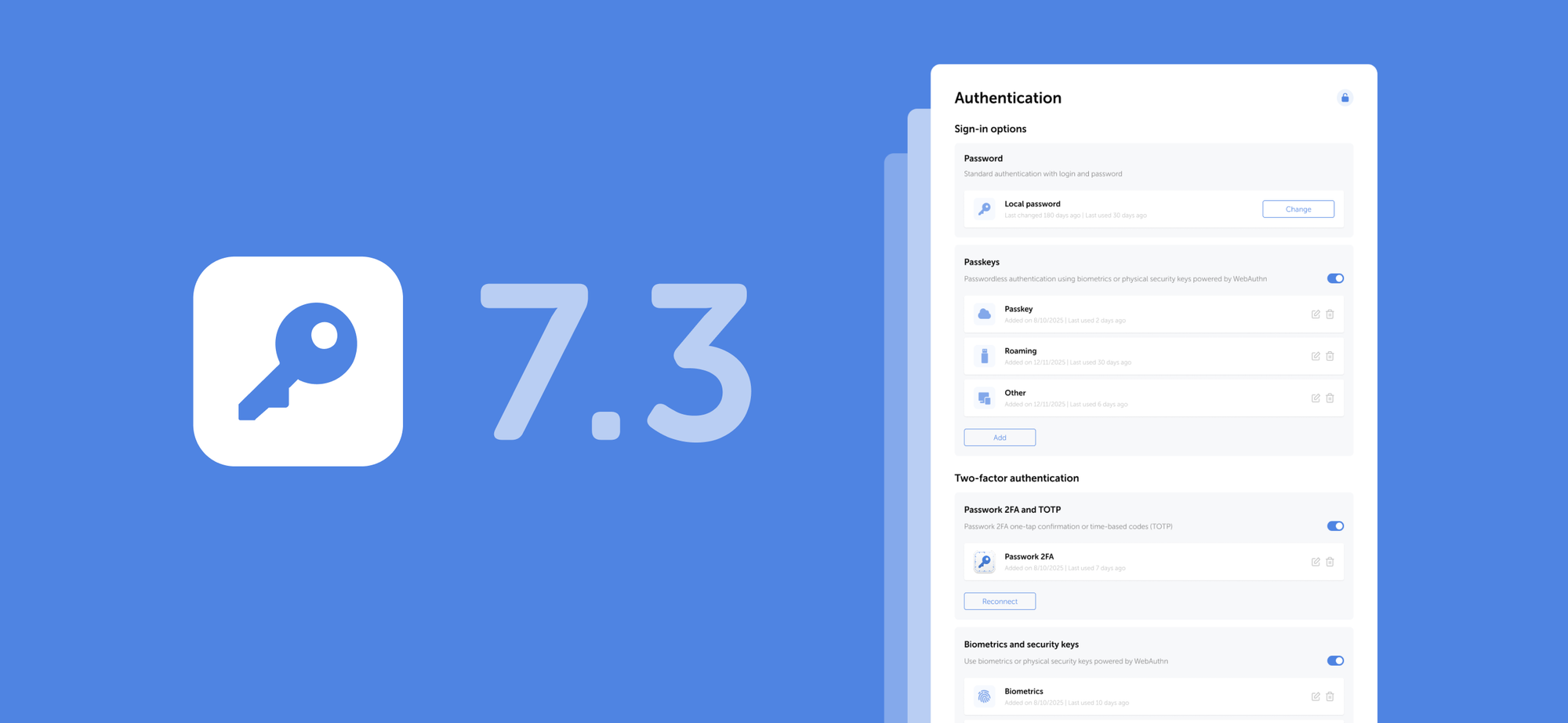
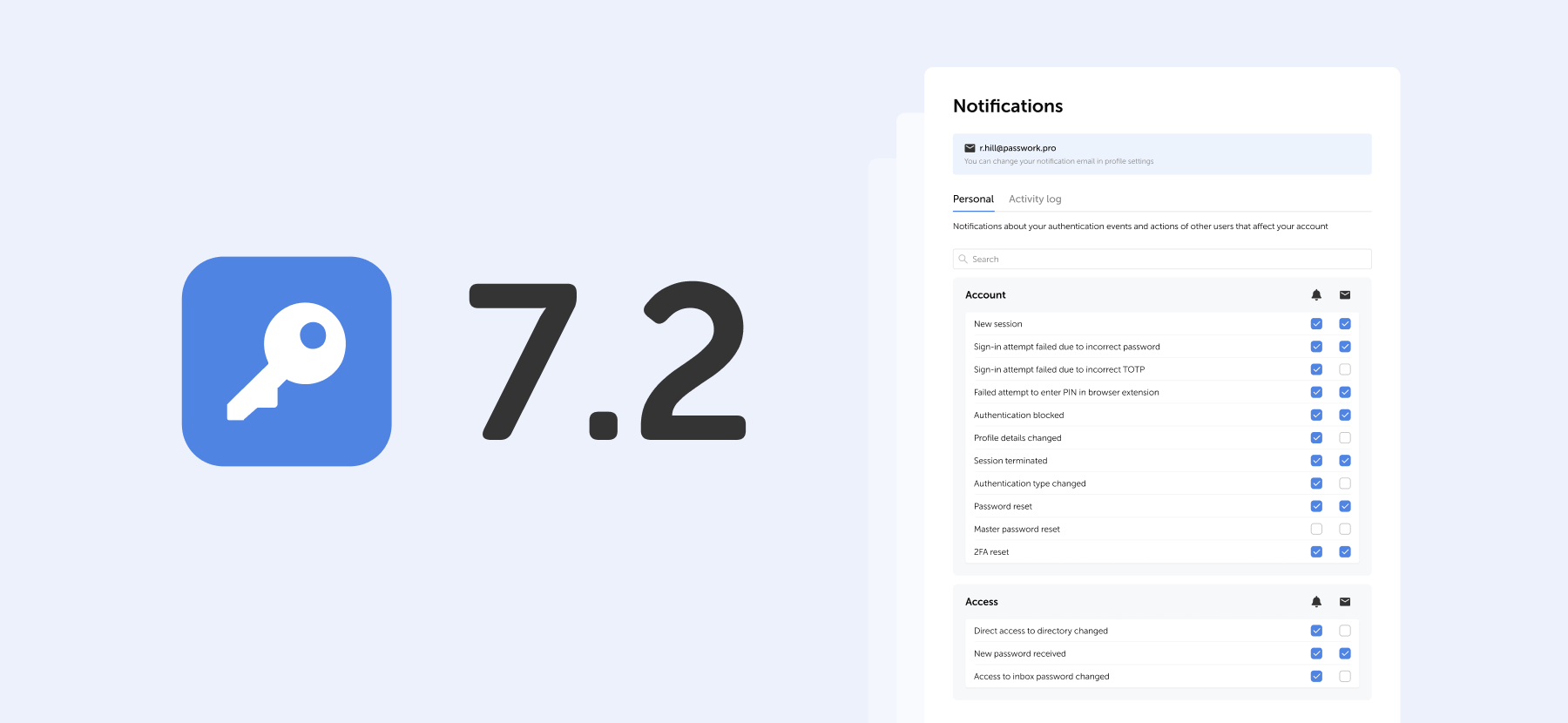
The new releases introduce the Passwork desktop app support and add several improvements and bug fixes to the Authentication settings.
Changes
Added support for the desktop app: it can now be downloaded from the Settings and users menu
Added the option to manually lock Authentication settings to prevent unauthorized changes
Changed the unlock method for the "Connect mobile device" modal: it now requires password, passkey, or SSO verification each time the window is opened
Fixed an issue where unlocking Authentication settings via SSO didn't work when the SSO server and Passwork had different domains
Fixed an issue where users with LDAP authentication couldn't see the password field when unlocking the Authentication settings
You can find all information about Passwork updates in our release notes
The new releases introduce the Passwork desktop app support and add several improvements and bug fixes to the Authentication settings.
Feb 13, 2026 — 4 min read
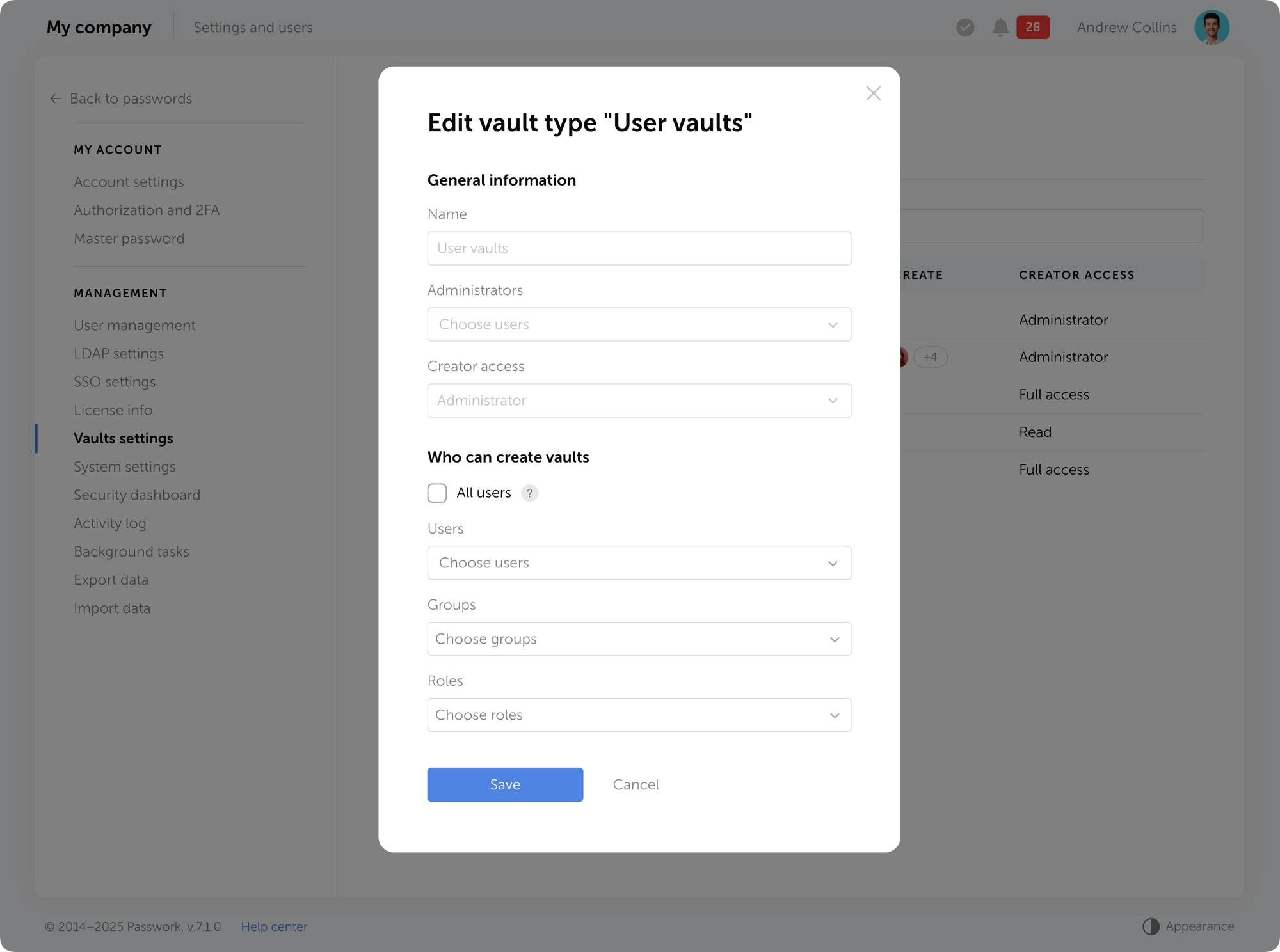
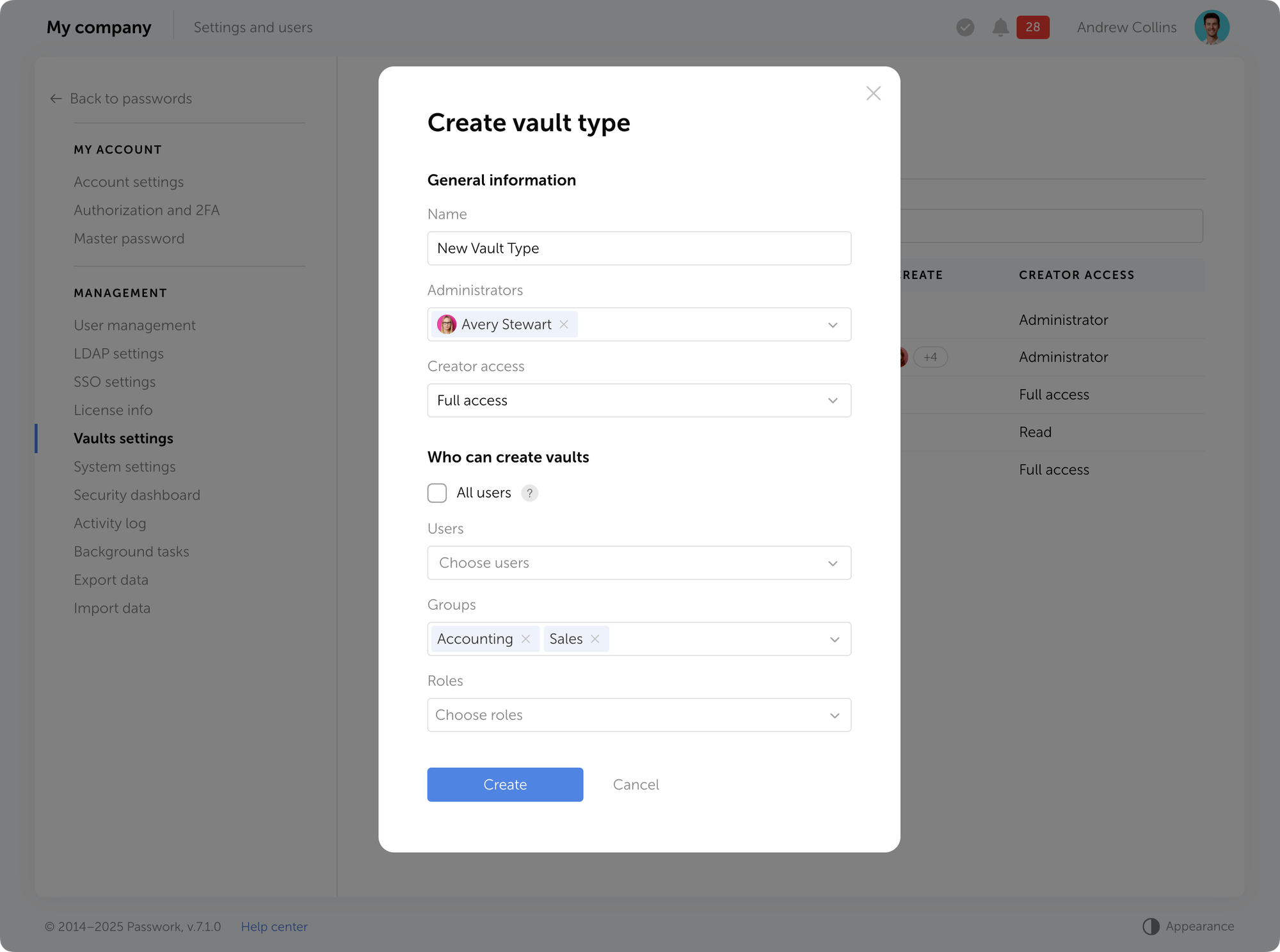
The new releases introduce restrictive settings for User vaults (including the option to block adding new users and groups), smooth appearance switching, and other improvements and fixes.
Restrictions for User vaults
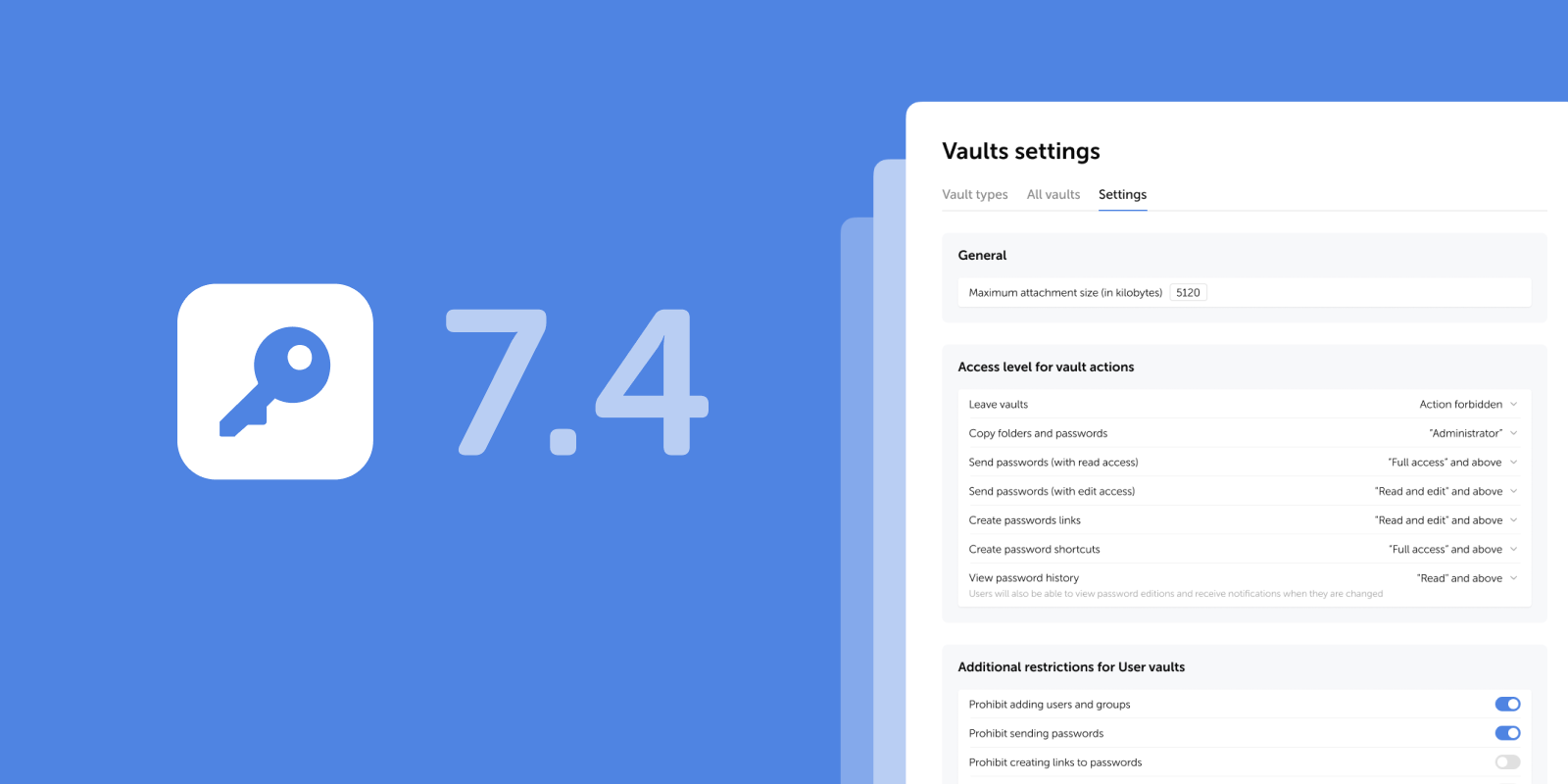
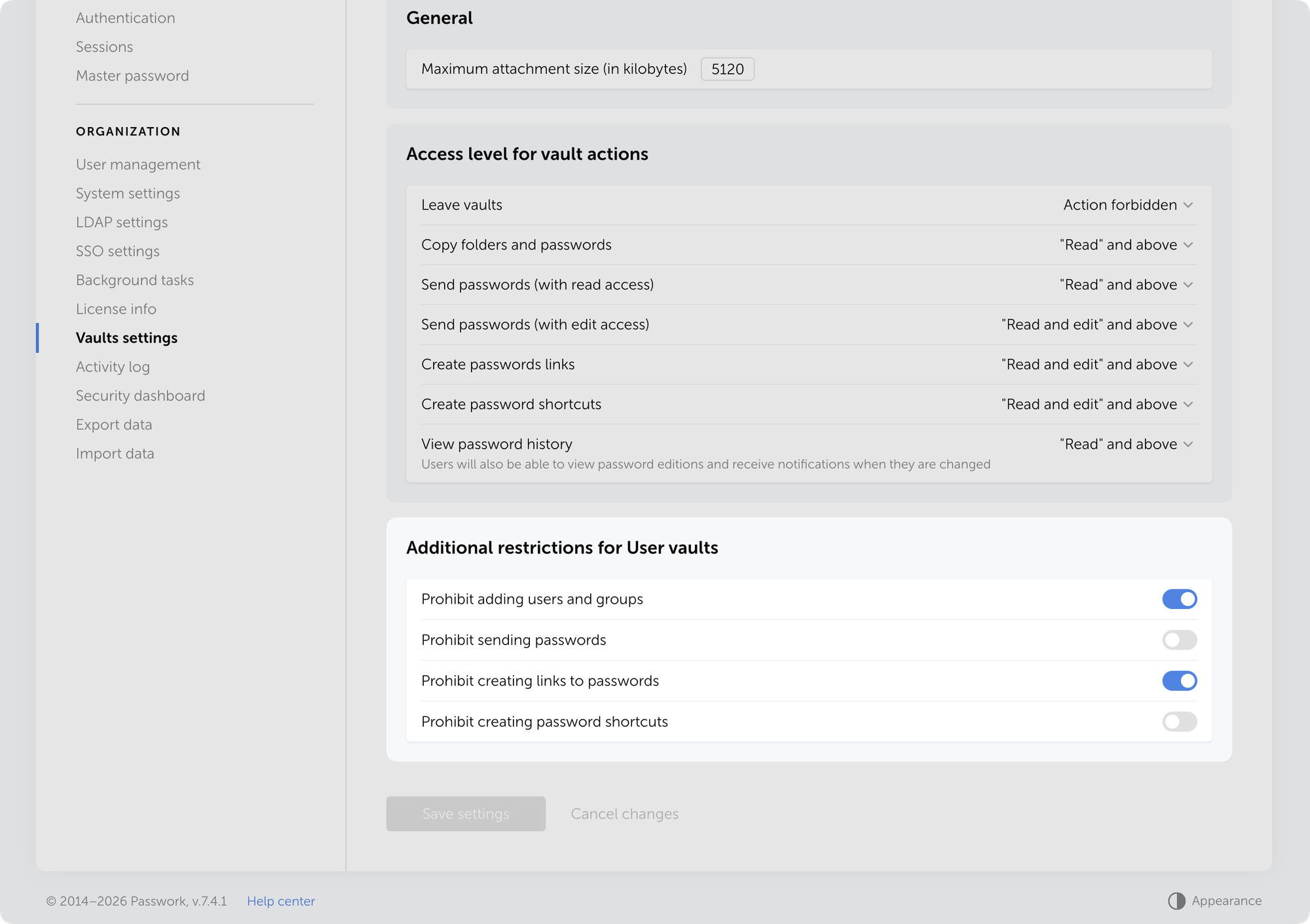
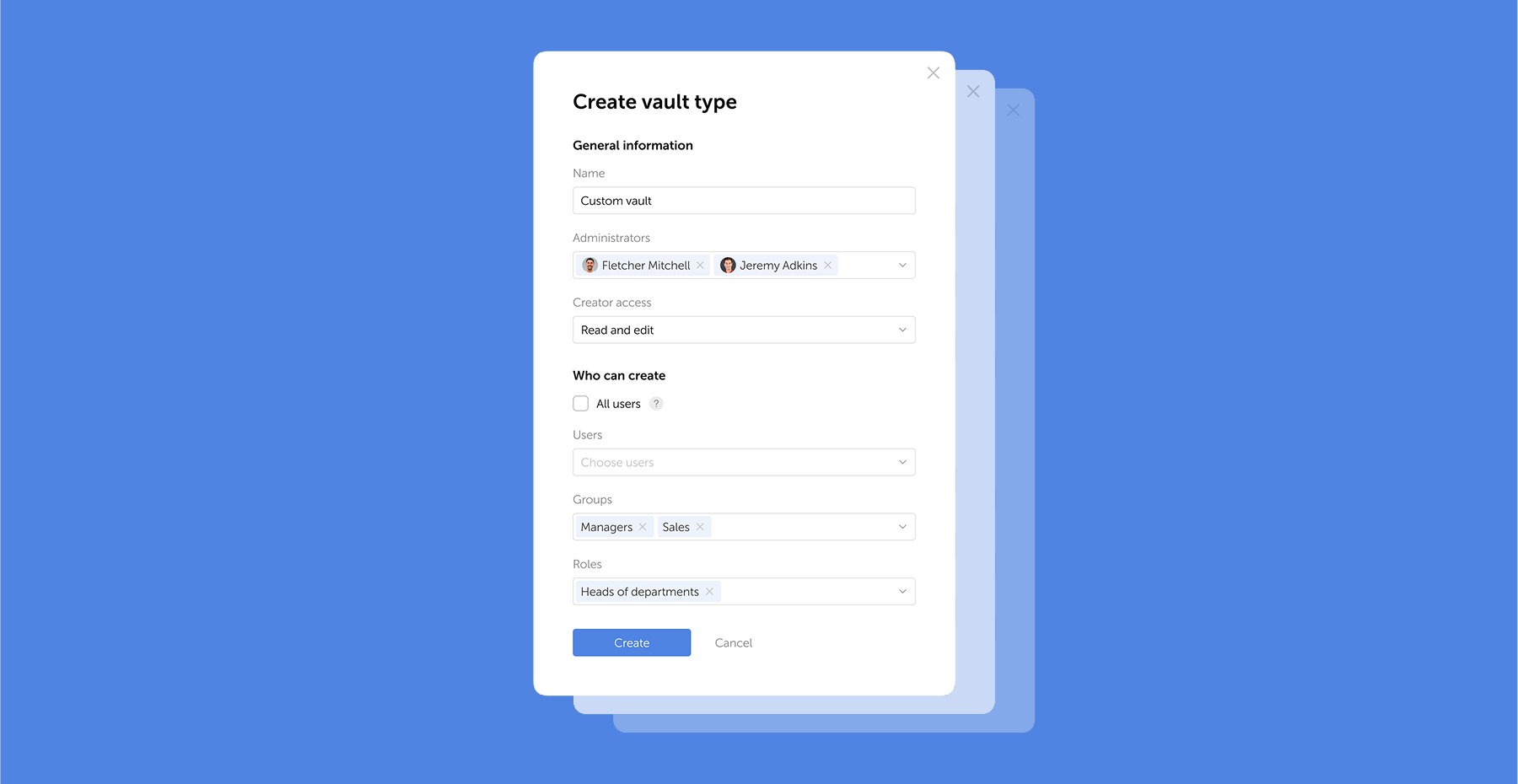
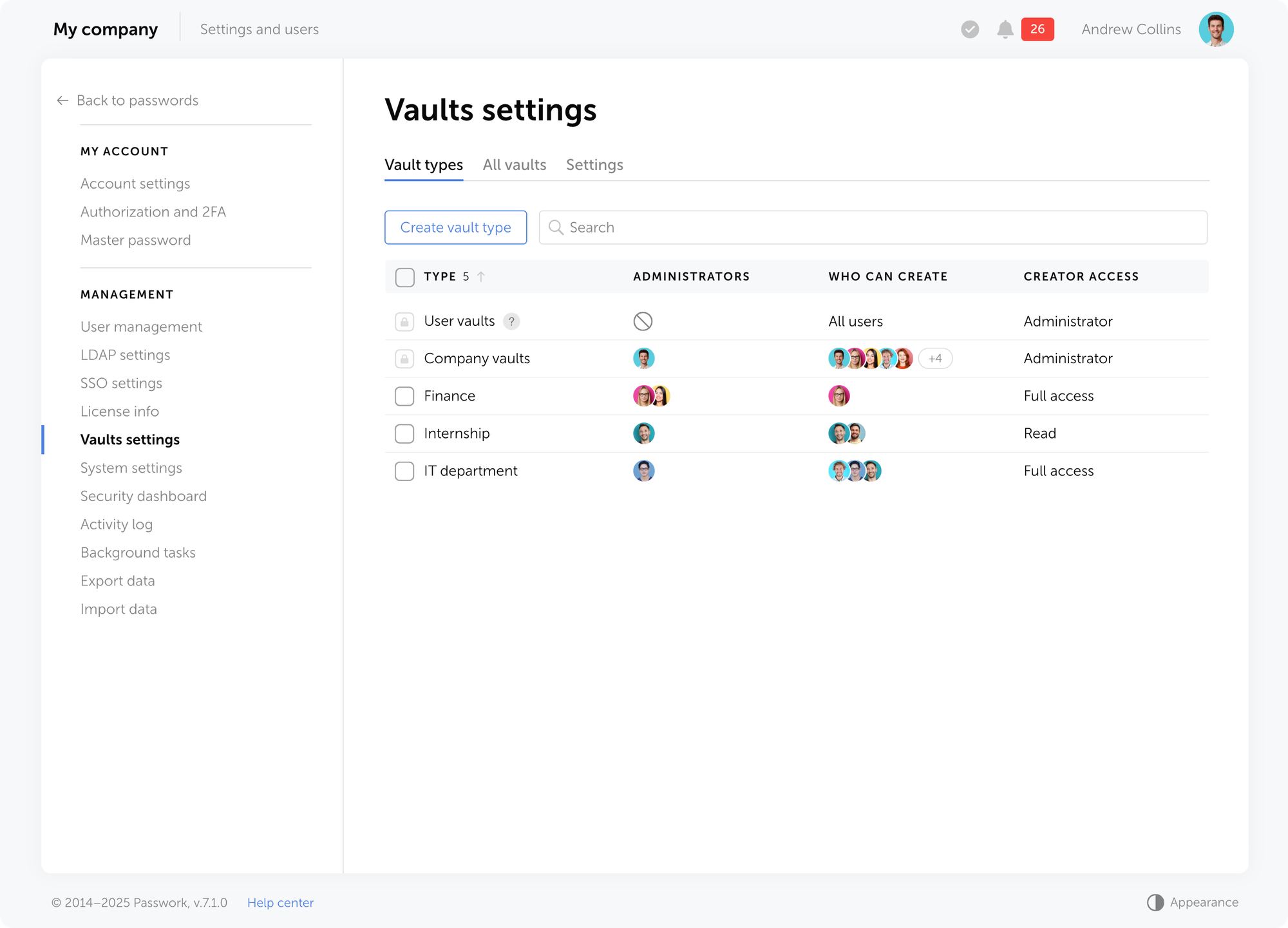
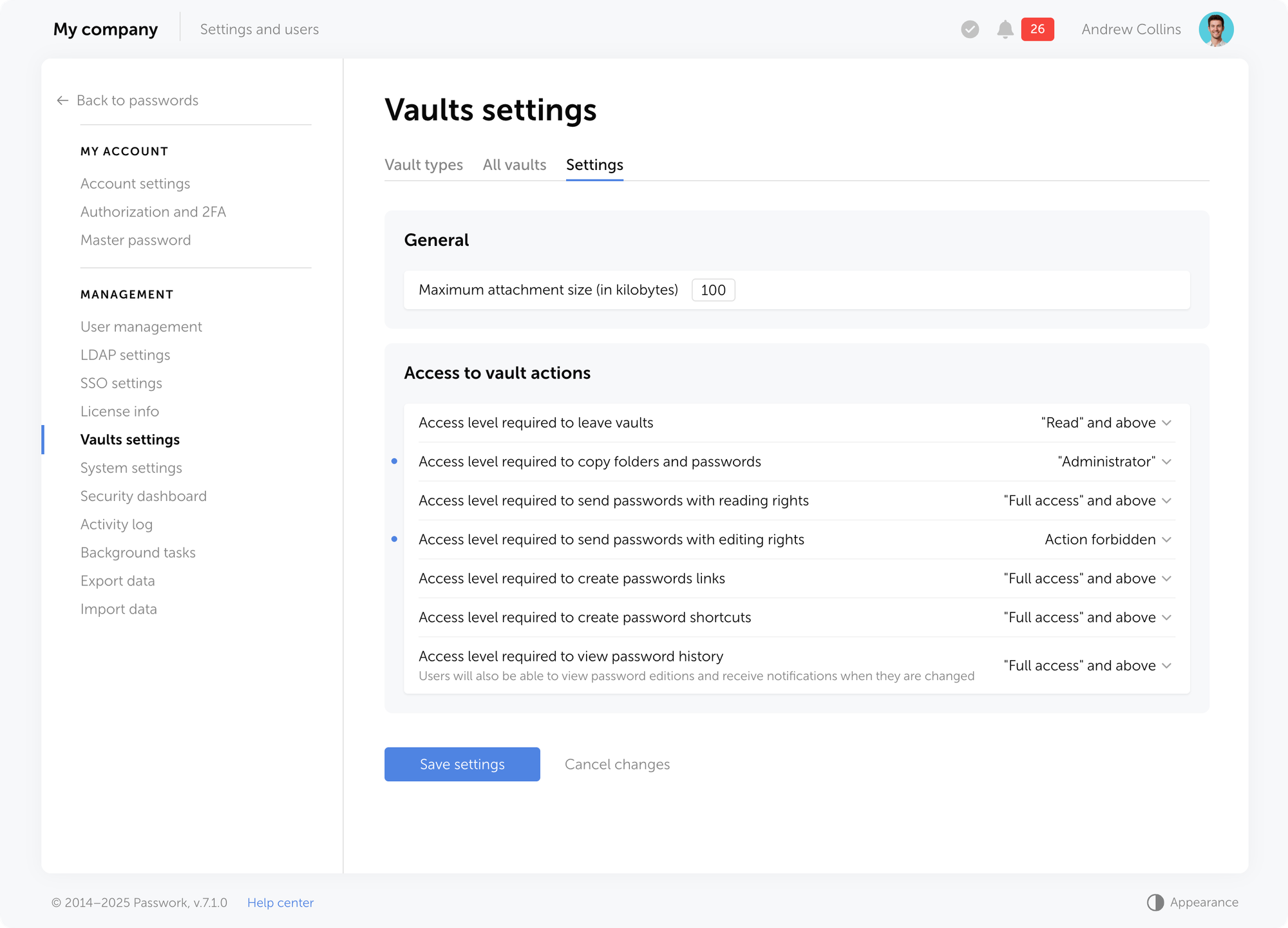
We've added a new block of additional restrictive settings for User vaults in the Vaults settings, allowing administrators to centrally permit or restrict the following actions for all user vaults (private and shared):
Adding users and groups
Sending passwords
Creating password links
Creating password shortcuts
The restrictions do not apply to Company vaults and are automatically enforced on all existing and new User vaults.
Additional restriction settings for user vaults are located in Settings and users → Vaults settings → Settings tab.
New restrictions solve three security problems:
Lower breach risk — Blocking link creation and password sending from User vaults prevents accidental or intentional data leaks outside the organization.
Centralized policy management — Administrators control actions at the platform level rather than relying on employee discipline.
Stronger control over data distribution — Prevent unmonitored password sharing through personal vaults. Critical for organizations with strict security requirements.
Use cases
Three common cases where additional restrictions for User vaults resolve specific security challenges:
Prohibiting password sharing from Personal vaults
Problem: Employees store corporate passwords in personal vaults and share them directly with colleagues, bypassing company vaults.
Solution: Enable all four restrictions. Employees can store passwords in personal vaults but cannot share them — sharing requires Company vaults with controlled access.
Prohibiting link creation for external contractors
Problem: Employees create temporary password links from personal vaults and send them to external contractors, creating leak risks.
Solution: Enable "Prohibit creating password links." Links can only be created from Company vaults, where administrators control expiration time and access rights.
Preventing corporate password duplication
Problem: Employees copy passwords from Company vaults to their personal ones, create shortcuts, and then share them with colleagues. As a result, the same credentials are stored in multiple locations, and when a password is changed in the Company vault, outdated copies remain in personal storage.
Solution: Enable the restrictions "Prohibit creating password shortcuts" and "Prohibit adding users and groups." This will force employees to work directly with Company vaults, where passwords are always up to date, and the administrator controls their lifecycle and change history.
Other changes
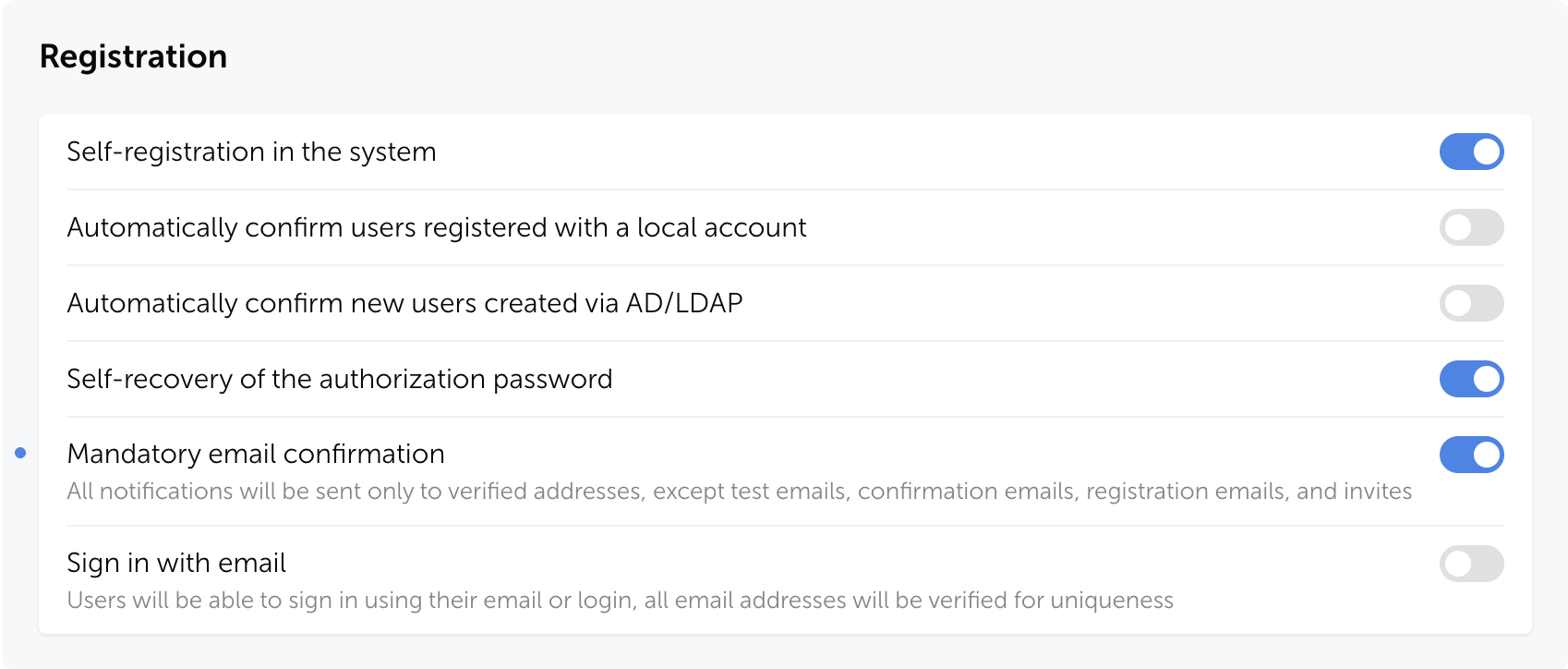
Added visual indicators informing users about the mandatory email confirmation in order to receive notifications
Added dynamic list loading for the user filter in the Security dashboard
Added smooth transition when switching appearance
Added automatic setting of the Read value in the Access field when sending a password to another user
Fixed an issue where users couldn't confirm their email addresses when the master password wasn't saved in the browser
Fixed an issue where, after resetting access in User management, an incorrect access level was displayed until the page was reloaded
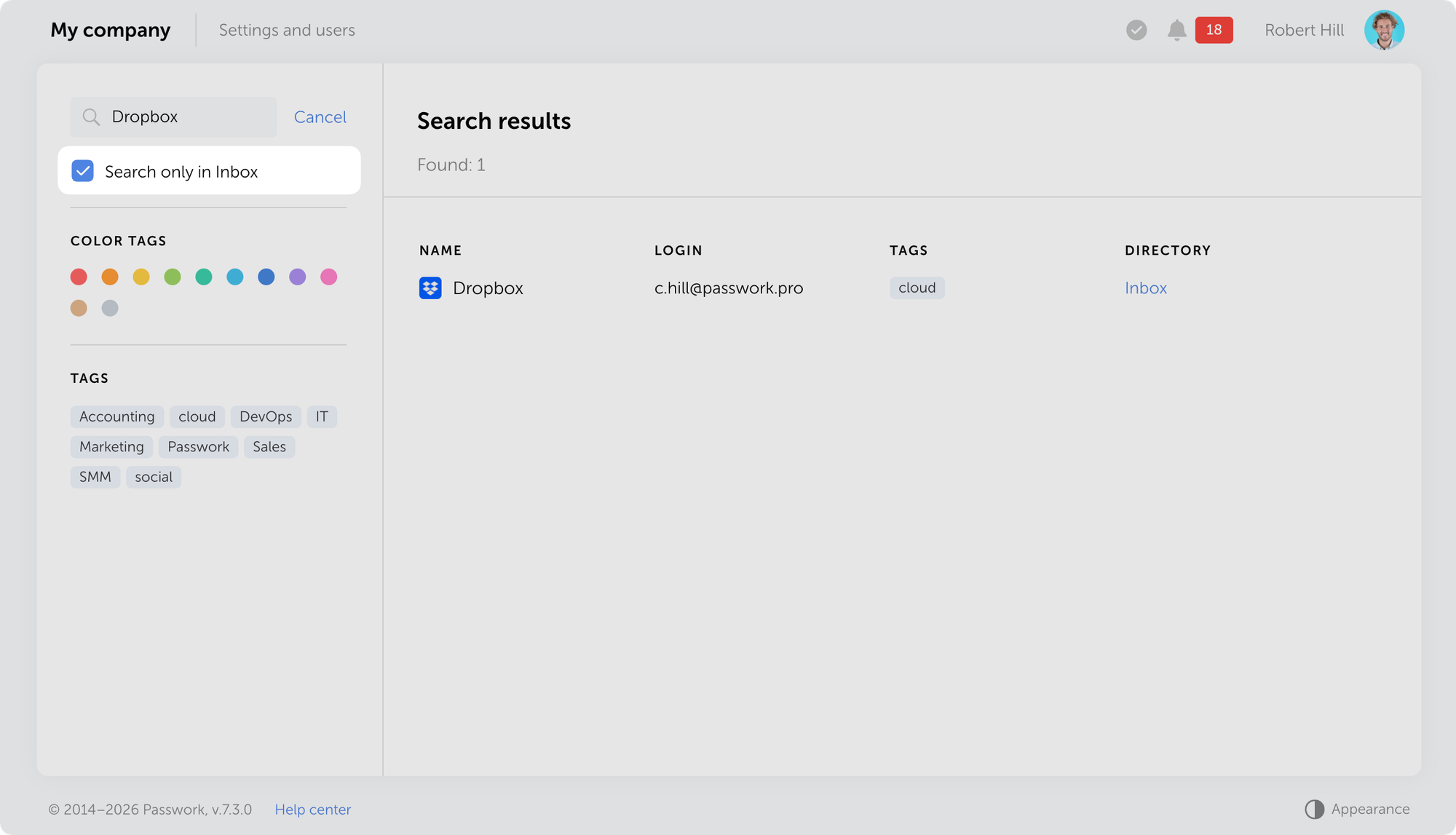
Fixed an issue where the list of inbox passwords wasn't displayed correctly after enabling the "Search only in Inbox" checkbox with an empty search query
Fixed an issue where XML files from KeePass could not be imported if they contained folders with names consisting only of digits
Made minor UI and localization improvements
You can find all information about Passwork updates in our release notes
The new version introduces restrictive settings for User vaults, including the option which blocks adding new users and groups, adds smooth appearance switching, and other improvements and fixes.
Feb 5, 2026 — 2 min read
The new version adds a resizable note field, enhanced event descriptions in Action log, and several other improvements and bug fixes.
Improvements
Added the capability to resize the Note field when creating and editing entries
Changed the behavior of the Export data menu item: it now becomes inactive when there is no data to export
Improved the description of user email confirmation events in the Activity log
Bug fixes
Fixed an issue where passwords with special characters could be processed incorrectly when saving an LDAP server
Fixed an issue where search results with an empty search query and no filters applied displayed incorrectly for a specified vault
Fixed an issue where after exiting search in a selected vault, only folders were displayed while passwords and shortcuts did not load until re-entering the vault
Fixed an issue where not all passwords were being exported during the data export process
Fixed an issue where resetting a user's master password incorrectly required permission to manage master password complexity policies
Fixed an issue where the sign-up form accessed via link returned a 401 error when self-registration was disabled
Fixed an issue that prevented adding a WebAuthn credential with an empty transports field
You can find all information about Passwork updates in our release notes
The new version adds a resizable note field, enhanced event descriptions in Action log, and several other improvements and bug fixes.
Jan 29, 2026 — 2 min read
In the new version, we've added search filtering by current directory and made minor improvements to the import process, localization, and UI. The update is available in the Customer portal.
Search in vault or Inbox
Added an option to limit search to the current vault or Inbox. A checkbox is now available below the search bar that, when enabled, restricts search to the selected area.
Other changes
Fixed an issue where quickly switching between directories and Recents, Favorites, or Inbox pages could display an incorrect or empty password list
Fixed an issue where importing files with long notes could cause the process to freeze
Fixed an issue in MongoDB connection string handling
You can find all information about Passwork updates in our release notes
In the new version, we've added search filtering by current directory and made minor improvements to the import process, localization, and UI. The update is available in the Customer portal.
Jan 22, 2026 — 4 min read
The new version introduces biometric and passkey authentication, the option to add multiple URLs for a single password, email address verification for users, email-based authentication, and numerous other improvements and fixes.
Biometric authentication and passkeys
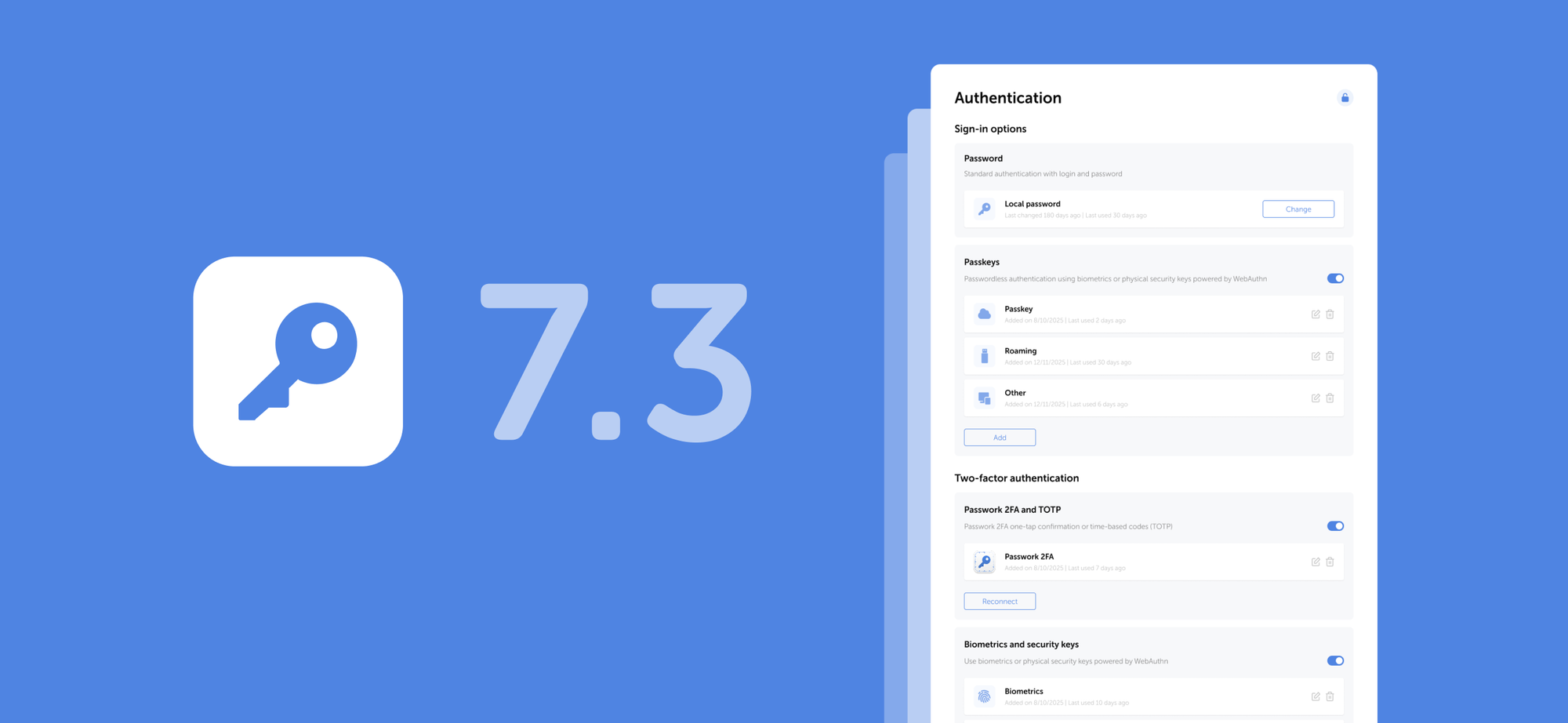
We've added support for biometric authentication, passkeys, and security keys based on the WebAuthn standard. You can now sign in to Passwork using your fingerprint, Face ID, PIN code, or a hardware security key (YubiKey and similar devices).
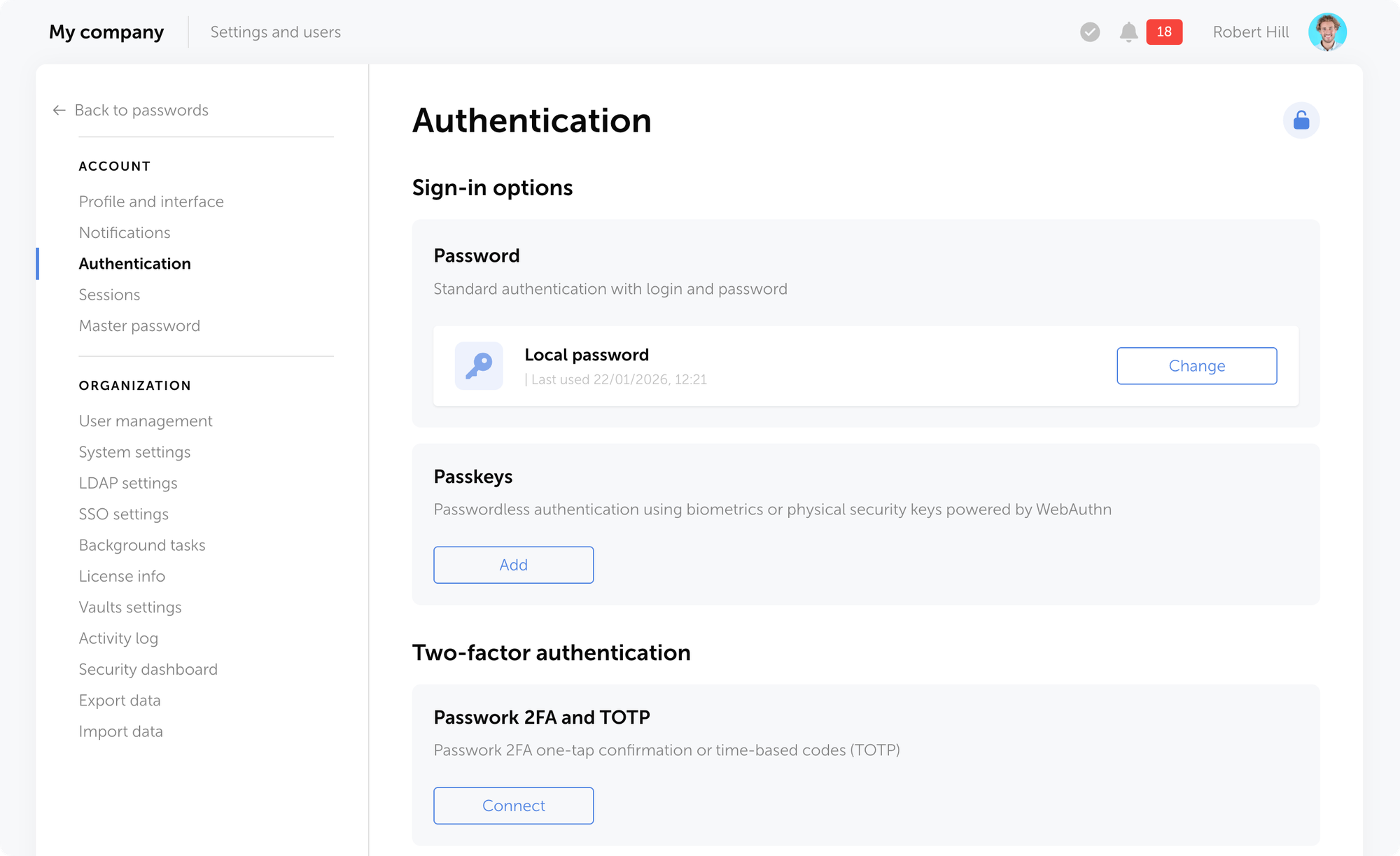
On the Authentication settings page, you can add new sign-in methods, manage existing ones, change your password, or enable passwordless authentication through biometrics or hardware security keys.
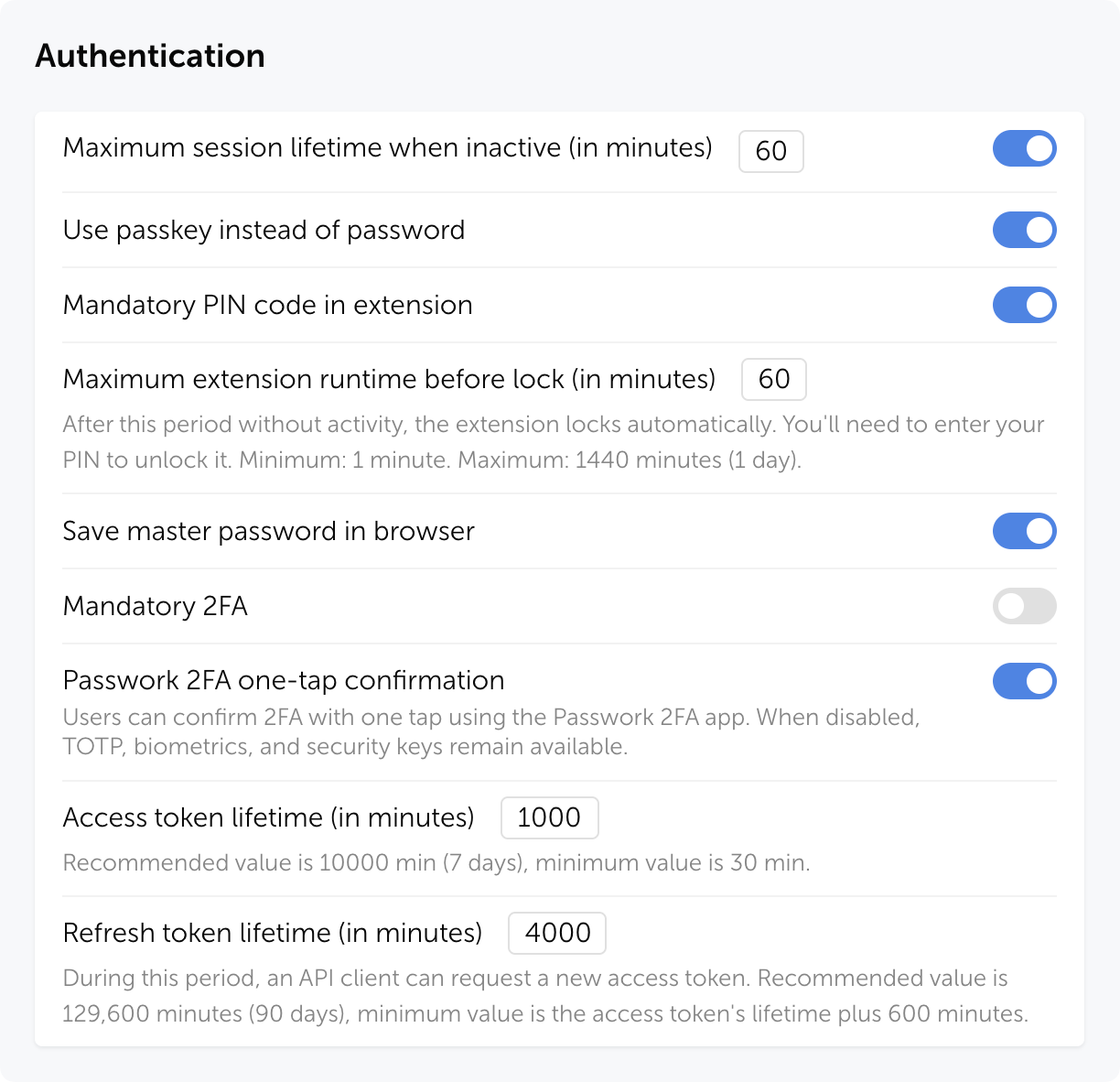
The authentication settings page automatically locks after 5 minutes of inactivity — click the lock icon in the top-right corner to unlock it.
The new role setting Use passkey instead of password allows users to authenticate with a passkey instead of their local or domain password.
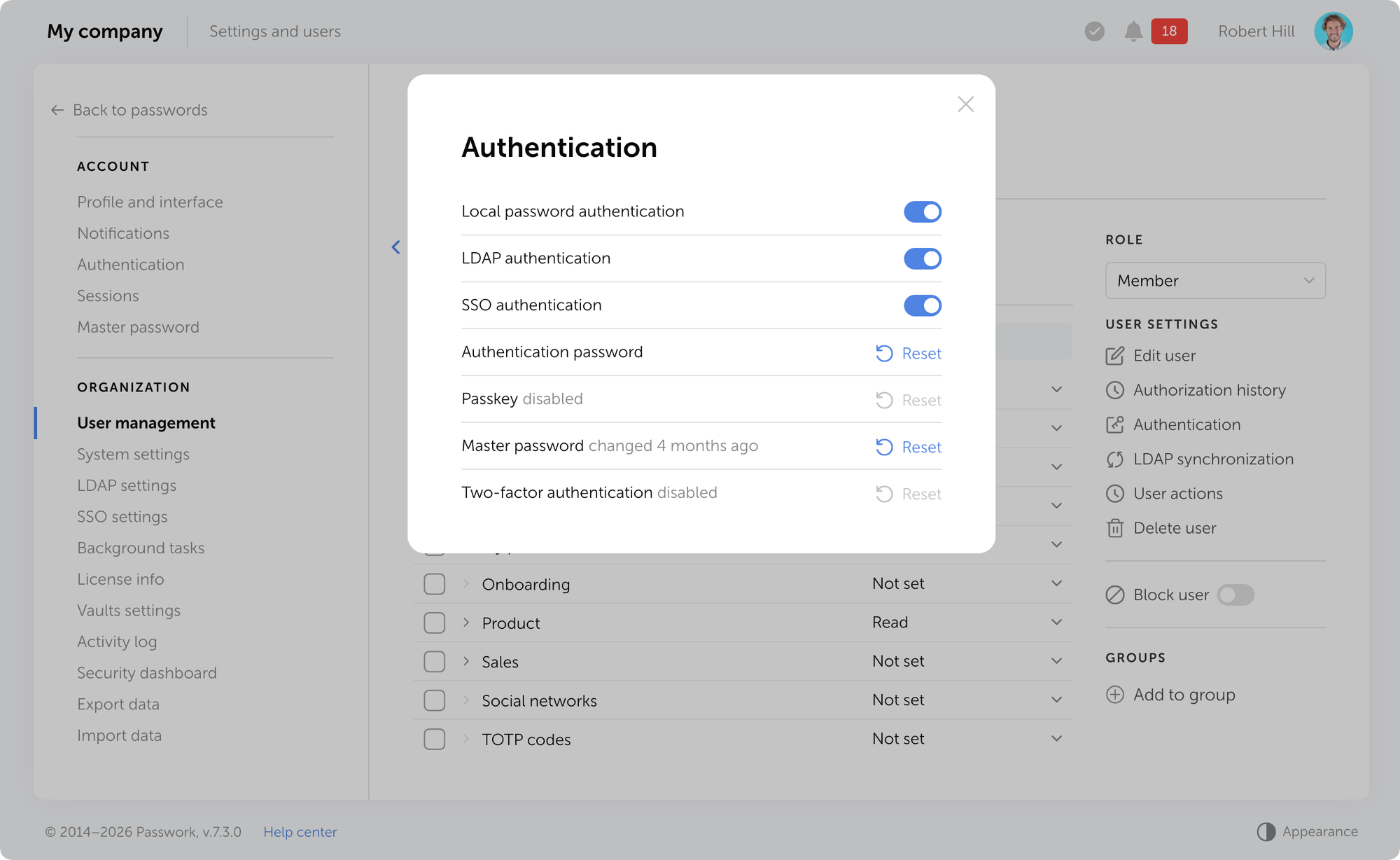
You can reset a passkey for an individual user on their page in the User management section through the Authentication modal window.
Learn more about authentication methods in our user manual.
Multiple URLs per entry
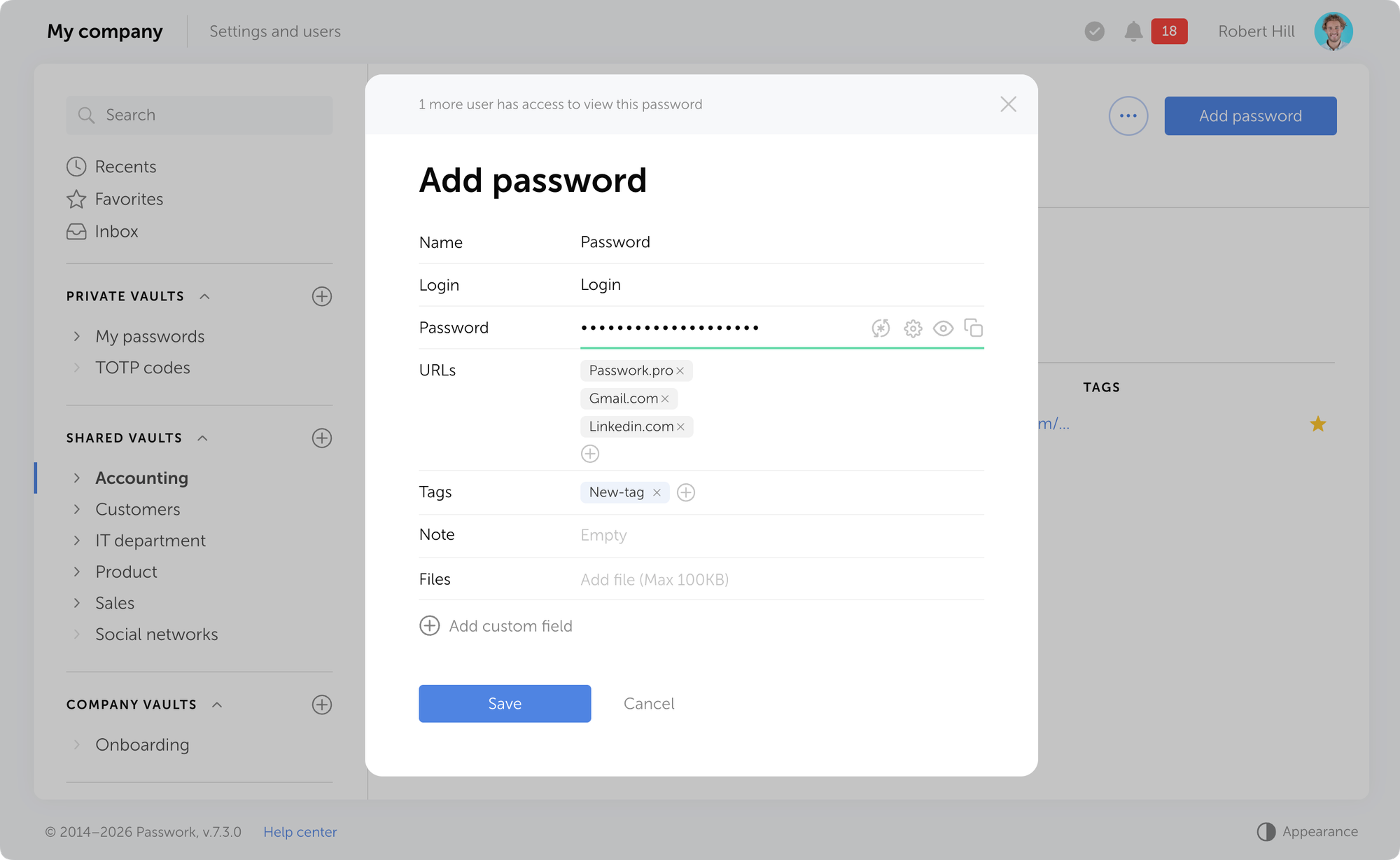
You can now add multiple URLs to a single entry. This is useful when one account is used to access different addresses: test and production environments, regional versions of a website, or related company services. The browser extension will automatically suggest filling in credentials on any of the specified URLs.
Email verification
Passwork now supports mandatory email verification for users. When a user adds or changes their email address, Passwork sends a verification email with a confirmation link.
Email notifications will only be sent to verified addresses. Exceptions include: test emails, verification emails, registration emails, and invites.
You can enable mandatory email confirmation in System settings → Registration → Mandatory email confirmation.
Without email verification, invalid addresses can appear in the system. This can create problems: notifications don't reach users, password reset fails, and security risks emerge. Email confirmation ensures that messages are delivered only to legitimate recipients.
Email-based authentication
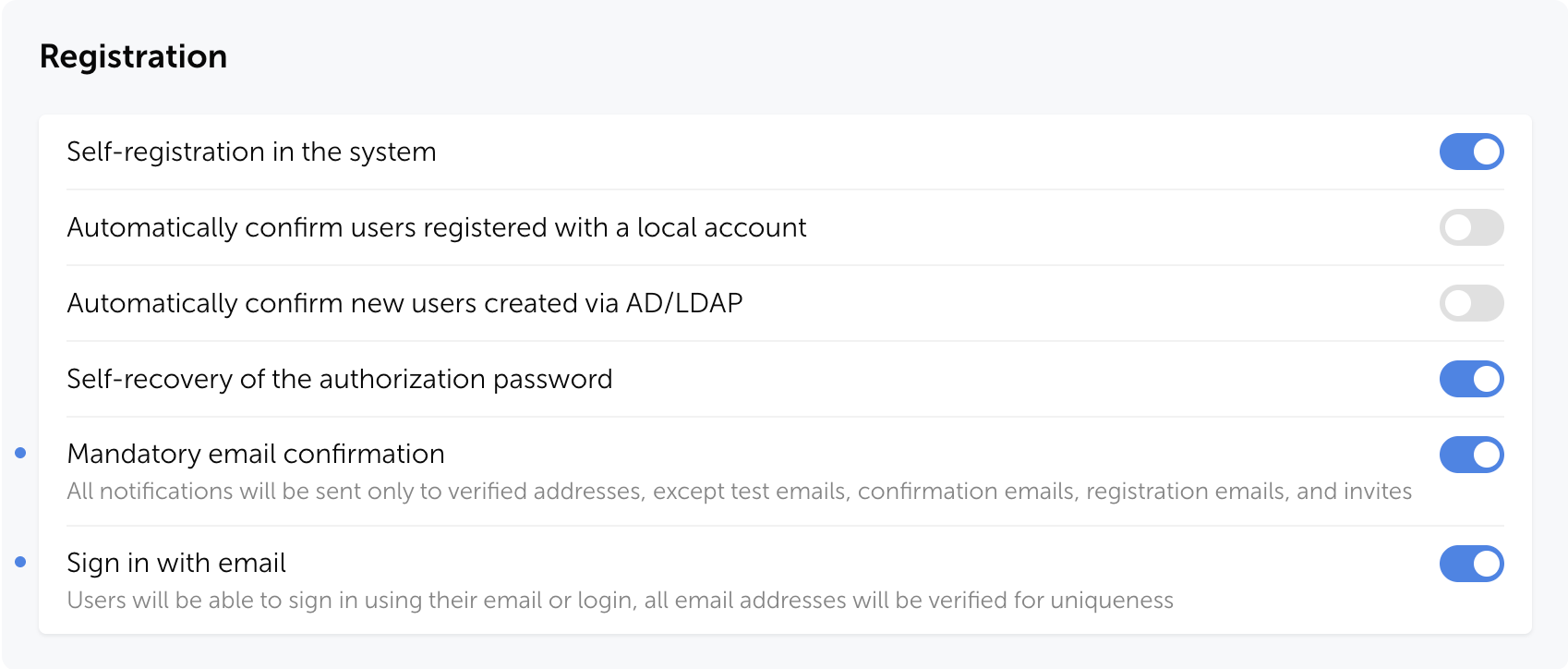
We've added the ability to sign in to Passwork using a verified email address instead of a login to simplify authentication and reduce login errors. After enabling this setting, username-based sign-in remains available, and all email addresses will be checked for uniqueness in the system.
You can enable email-based authentication in Passwork in System settings → Registration→ Sign in with email.
Improvements
Improved the user filter in the Activity log: search now considers not only the action initiator but also linked users
Fixed an issue where the folder filter in Security dashboard and Activity log might not include data from nested subfolders when selecting a parent folder
Added automatic locking of the authentication settings page after 5 minutes of inactivity
Added an option to set a color for each shortcut individually without changing the color of the initial password
Fixed an issue where the Edit option in User management was not activated when the "Edit user email" option was enabled in role settings
Fixed incorrect display of the banner prompting to add a service account on the LDAP server edit page after reloading the page
Fixed an issue where the Update button in the user edit modal could remain inactive when there were unsaved changes
Fixed an issue in the setup wizard where an incorrect "Database already exists" message could be displayed on the database connection page
Fixed an issue where after saving changes in the Vault access or Folder access modal, an incorrect "Discard changes?" message was displayed when attempting to close the window
Fixed an issue where notifications about failed PIN code entry attempts in the browser extension might not be sent
You can find all information about Passwork updates in our release notes
In the new version, we've added support for passkeys and biometrics, an email address verification mechanism for users, the option to specify multiple URLs for a single password, independent shortcut color customization, as well as numerous improvements and fixes.
Improved recognition and autofill algorithm for simple and multi-step login forms, including TOTP code fields
Improved local storage security for the extension in Chromium-based browsers
Fixed an issue where password icons displayed incorrectly when entry names contained Unicode characters
Fixed vault list display issues that occurred after deleting folders within a vault and returning to the main screen
Fixed unintended session reset when removing the PIN code in the extension
You can find all information about Passwork updates in our release notes
Browser extension 2.0.30 release
The browser extension is available for Google Chrome, Microsoft Edge, Mozilla Firefox, and Safari.
Dec 12, 2025 — 14 min read
Password management is the practice of securely creating, storing, organizing, and controlling access to passwords and other authentication credentials. It combines human processes with specialized software tools to ensure that every account uses a strong, unique password without requiring users to memorize them all.
Whether you're an individual trying to secure your online life or an IT administrator protecting your organization's digital assets, understanding password management is essential.
This guide explains everything you need to know: what password management is, why it matters, how it works, and how to implement it effectively. You'll learn about different types of password managers, key features to look for, and best practices that protect you from the most common security threats.
Understanding password management
At its core, password management addresses a fundamental challenge: humans are terrible at creating and remembering secure passwords. We default to predictable patterns, recycle familiar combinations across accounts, and prioritize convenience over security.
Password management systems compensate for these inherent limitations by assuming the cognitive burden and complexity on our behalf. As both a practice and a technology, password management encompasses several key functions:
Password generation: Creating strong, random passwords that meet security requirements and resist common attack methods like brute force and dictionary attacks.
Secure storage: Encrypting and storing passwords in a protected vault that only authorized users can access.
Organization: Categorizing and managing credentials across hundreds of accounts, making them easy to find when needed.
Access control: Determining who can access which passwords, particularly important in team and enterprise environments.
Autofill and automation: Automatically entering credentials into login forms, reducing friction while maintaining security.
Audit trails: Recording who accessed which credentials and when, allowing security teams to detect suspicious activity, investigate incidents, and maintain compliance with regulatory requirements.
Password management has evolved from rudimentary practices to sophisticated security infrastructure. The first generation of digital password managers introduced basic encryption (like Blowfish algorithm) and centralized storage, addressing immediate security gaps but lacking the granular controls enterprises required.
Modern password management systems represent a fundamental shift: they combine military-grade encryption, zero-knowledge architecture, role-based access controls, and comprehensive audit capabilities. Today's solutions enforce security policies, detect anomalies, integrate with existing infrastructure, and provide the visibility organizations need to maintain compliance and respond to threats in real time.
Why is password management important?
According to Verizon's 2025 Data Breach Investigations Report, stolen credentials served as the initial access vector in 22% of all confirmed breaches, with that figure jumping to 88% for basic web application attacks.
In the first half of 2025 alone, over 8,000 global data breaches exposed approximately 345 million records, demonstrating the persistent and catastrophic scale of credential-based attacks. Behind these statistics lies a fundamental incompatibility between human cognition and modern security demands.
The human factor
Our brains simply weren't designed for this pace of information. Psychological research shows that humans can reliably remember only 7±2 pieces of data in working memory. Yet we're expected to manage hundreds of unique, complex passwords — each a random string of uppercase letters, lowercase letters, numbers, and symbols.
Faced with this impossible task, people develop coping mechanisms that undermine security:
Predictable patterns: Adding "123" or "!" to meet complexity requirements.
Password reuse: Over 60% of people reuse passwords across multiple accounts.
Writing passwords down: Sticky notes on monitors remain surprisingly common.
Simple passwords: "password," "123456," and "qwerty" still rank among the most common passwords globally.
This behavior isn't laziness. It's a rational response to an overwhelming cognitive burden. Password fatigue is real, and it leads to security shortcuts.
Password fatigue is the mental exhaustion and frustration users experience from creating, remembering, managing, and resetting an excessive number of passwords across multiple accounts.
The consequences of poor password hygiene
When password security fails, the consequences cascade:
For individuals: Identity theft, financial fraud, privacy violations, and the time-consuming process of recovering compromised accounts. The average victim of identity theft spends 200 hours resolving the issue.
For businesses: Data breaches cost an average of $4.44 million per incident, according to IBM's Cost of a Data Breach Report. Beyond direct financial losses, organizations face regulatory fines, legal liability, reputational damage, and loss of customer trust.
For IT teams: Password-related help desk tickets consume 20-50% of IT support resources in typical organizations. Every "forgot password" request represents time that could be spent on strategic initiatives.
Enhanced security: Unique, strong passwords for every account eliminate the domino effect of credential reuse. Even if one password is compromised, your other accounts remain secure.
Reduced cognitive load: You remember one master password instead of hundreds. The mental relief is immediate and significant.
Time savings: Autofill eliminates the minutes spent typing or resetting passwords. For organizations, this translates to thousands of hours of productivity annually.
Compliance support: Many regulations (GDPR, HIPAA, SOC 2) require organizations to demonstrate proper credential management. Password managers provide the audit trails and controls needed for compliance.
Improved user experience: Seamless access to accounts without the friction of password resets or account lockouts.
How does password management work?
Understanding the mechanics of password management helps you appreciate both its security and its usability. Modern password managers balance strong encryption with user-friendly access.
The master password concept
Everything starts with your master password — the single password you need to remember. This password unlocks your encrypted vault containing all your other credentials.
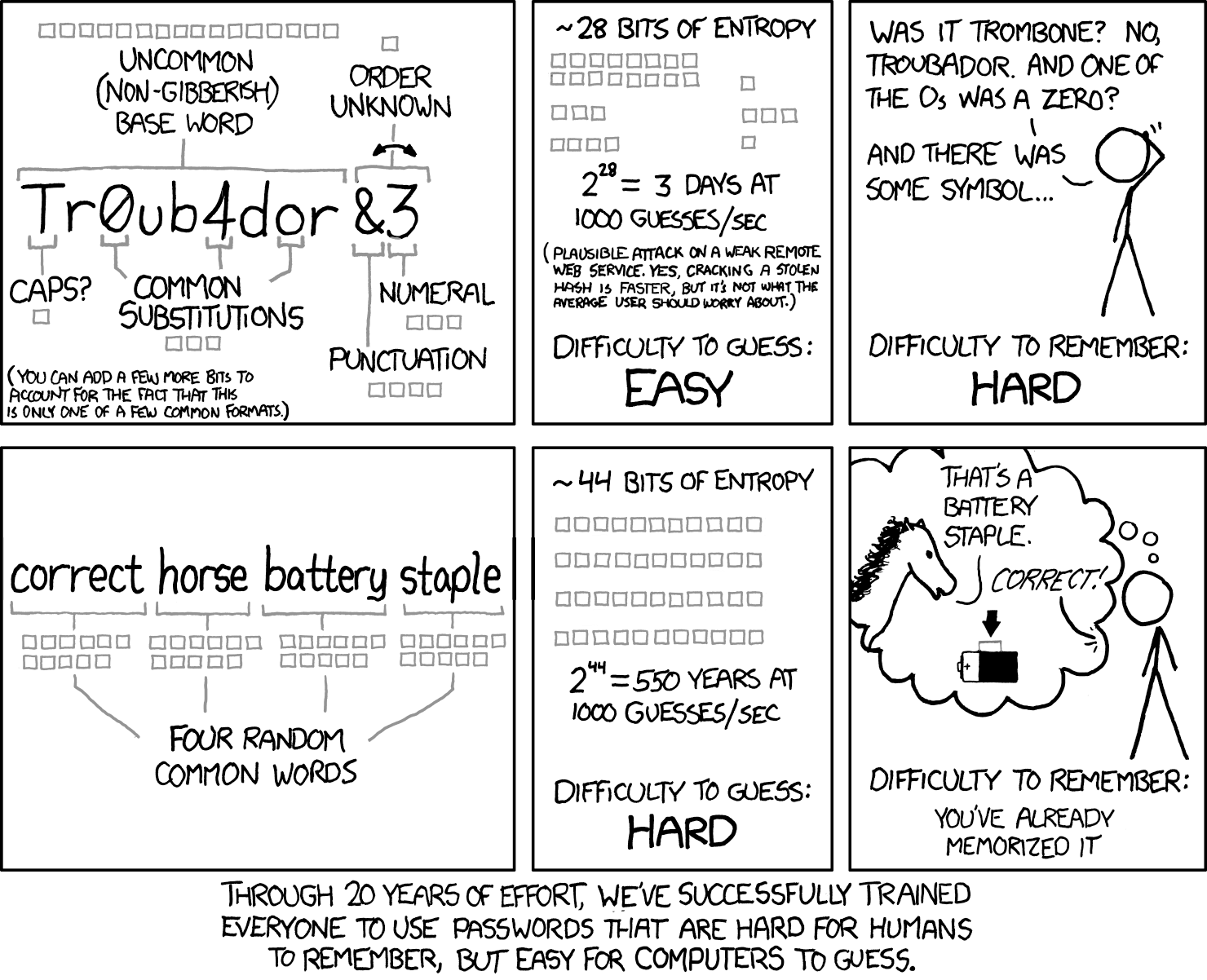
Many users create master passwords using passphrases, random words strung together like correct-horse-battery-staple, which are both secure and memorable.
The XKCD comic that popularized this concept demonstrated a crucial insight: four or five random common words create more entropy (randomness) than a shorter complex password, while being far easier to remember.
The encrypted vault
Your password vault is an encrypted database that stores all your credentials, notes, and other sensitive information. Modern password managers use AES-256 encryption, the same standard used by governments and militaries worldwide.
Here's what makes it secure:
Encryption at rest: Your data is encrypted before it leaves your device. Even the password manager company cannot read your vault contents.
Zero-knowledge architecture: The service provider never has access to your master password or unencrypted data. If their servers are breached, your passwords remain protected.
Encryption in transit: When syncing across devices, your encrypted vault travels through secure channels (TLS/SSL), adding another layer of protection.
On-premise password managers such as Passwork take this further. Your encrypted vault never leaves your infrastructure — no cloud sync, no external servers, no third-party access. The data stays on your servers, behind your firewall, under your access controls.
The user journey
Here's how password management works in practice:
Initial setup: You create your master password, set up your account and security settings — multi-factor authentication, access controls, and vault parameters.
Adding passwords: As you log into existing accounts, the password manager detects login forms and offers to save your credentials. You can also manually add passwords or import them from browsers or other password managers.
Password generation: When creating new accounts, the password manager generates strong, random passwords according to the site's requirements. You never need to think about password creation again.
Autofill: When you visit a login page, the password manager recognizes the site and offers to fill in your credentials. One click, and you're logged in.
Syncing: Your encrypted vault syncs across all your devices — phone, tablet, laptop, desktop. Changes made on one device appear everywhere.
Secure sharing: When you need to share credentials with family members or team members, the password manager encrypts and transmits them securely, without exposing them in plain text.
Types of password managers
Password managers vary significantly in architecture, security model, and deployment options. Understanding these differences is essential for selecting the right solution.
Browser-based password managers
Built into web browsers like Chrome, Firefox, Safari, and Edge, these password managers offer basic functionality without additional software.
Pros:
Free and immediately available
Seamless integration with the browser
Automatic syncing across devices using the same browser
No learning curve
Cons:
Limited to browser-only passwords
Basic security features compared to dedicated solutions
Vulnerable if browser account is compromised
Limited sharing capabilities
Inconsistent cross-browser functionality
Best for: Casual users with simple needs who primarily use one browser ecosystem.
Standalone password managers
These applications store your encrypted password vault locally on your device rather than in the cloud. Designed for individual use, they prioritize local control over multi-device convenience.
Pros:
Complete control over your data
No reliance on cloud services
Works offline
Maximum privacy
Cons:
Manual syncing across devices
Risk of data loss if device fails without backups
Less convenient for multi-device users
Requires more technical knowledge
Best for: Privacy-conscious users, those with limited internet connectivity, or anyone who prefers local data storage.
Cloud-based password managers
The most popular category, these services store your encrypted vault on their servers and sync it across all your devices.
Potential target for attackers (though encryption protects data)
Best for: Most individual users, families, and small teams who want convenience and comprehensive features.
Enterprise password managers
Designed for organizations, these solutions add administrative controls, compliance features, integration with corporate systems and are deployed on-premise. This architecture eliminates dependencies on external providers. You define the security perimeter, manage access controls, and maintain complete operational independence.
Pros:
Complete data sovereignty
Zero external dependencies or cloud service providers
Automatic compliance with data residency regulations
Integration with Active Directory, LDAP, and SSO systems
Centralized administration with granular policy enforcement
Role-based access controls and privileged access management
Comprehensive audit logs and compliance reporting
Automated onboarding/offboarding workflows
Protection from provider-side security incidents
Cons:
Higher upfront infrastructure and licensing costs
More complex setup and administration
May require IT expertise
Organization manages backups and disaster recovery
Best for: Businesses of all sizes, IT teams managing shared credentials, organizations with compliance requirements.
Key features of password managers
Modern password managers offer far more than basic password storage. Understanding these features helps you evaluate solutions and maximize their value.
Core features
Password generation: Creates strong, random passwords based on customizable criteria (length, character types, symbol inclusion). The best generators create passwords that resist brute force attacks for centuries.
Secure storage: Encrypted vault for passwords, with many managers also storing secure notes, credit card information, identity documents, and other sensitive data.
Autofill: Automatically detects login forms and fills credentials with one click or tap. Advanced autofill distinguishes between similar sites to prevent phishing attacks.
Cross-platform syncing: Keeps your vault synchronized across Windows, macOS, Linux, iOS, Android, and web browsers.
Browser extensions: Integrations for Chrome, Firefox, Safari, Edge, and other browsers that enable autofill and password capture.
Mobile apps: Full-featured applications for smartphones and tablets, often with biometric authentication.
Security features
Multi-factor authentication (MFA): Adds a second verification step beyond your master password. Options include authenticator apps (TOTP), SMS codes, hardware keys (YubiKey), or biometric verification.
Biometric authentication: Unlock your vault using fingerprint, face recognition, or other biometric methods on supported devices.
Security dashboard: Analyzes your passwords and identifies:
Weak passwords that don't meet security standards
Reused passwords across multiple accounts
Old passwords that haven't been changed recently
Zero-knowledge architecture: Ensures that even the password manager company cannot access your unencrypted data.
Emergency access: Designates trusted contacts who can access your vault after a waiting period if you become incapacitated.
Sharing and collaboration features
Secure sharing: Share individual passwords or entire folders with family members or team members without exposing passwords in plain text.
Team accounts: Organize passwords by department, project, or access level with role-based permissions.
Access controls: Define who can view, use, or modify specific passwords.
Sharing history: Track when passwords were shared, accessed, or modified.
Advanced features
Password history: Maintains previous versions of passwords, allowing you to revert if needed.
Secure notes: Store sensitive information beyond passwords — software licenses, WiFi credentials, server details, recovery codes.
API access: For developers and power users, programmatic access to the password manager.
CLI tools: Command-line interfaces for integrating password management into development workflows.
Audit logs: Detailed records of all vault activities for security monitoring and compliance.
Password management best practices
Having a password manager is only the first step. Following these best practices ensures you're using it effectively and securely.
1. Create an unbreakable master password
Your master password is the single point of failure for your entire password security. Make it count:
Use at least 16 characters (longer is better)
Combine random words into a memorable passphrase
Avoid personal information (names, dates, addresses)
Never reuse a password you've used anywhere else
2. Enable multi-factor authentication
Add a second layer of security to your password manager account. Even if someone discovers your master password, they can't access your vault without the second factor. Authenticator apps (Passwork 2FA, Google Authenticator, Authy) are more secure than SMS codes. Hardware security keys (YubiKey) offer the strongest protection.
3. Use unique passwords for every account
This is the fundamental rule of password security. Your password manager makes it effortless — let it generate a unique password for each account. If one site is breached, your other accounts remain secure.
4. Generate long, complex passwords
When creating passwords, maximize length and complexity:
Aim for 16-20 characters minimum
Use all character types (uppercase, lowercase, numbers, symbols)
Let the password manager generate them randomly
5. Conduct regular password audits
Schedule quarterly reviews using your password manager's security dashboard:
Update weak passwords
Eliminate reused passwords
Change old passwords (especially for critical accounts)
Remove passwords for accounts you no longer use
6. Respond immediately to breach alerts
When your password manager notifies you of a compromised password, change it immediately. Don't wait, breached credentials are often exploited within hours.
7. Organize your vault thoughtfully
Create a logical structure:
Use folders or tags to categorize passwords (Work, Personal, Finance, etc.)
Add notes to passwords with security questions, account numbers, or other relevant information
Mark critical accounts for easy identification
8. Back up your vault regularly
While cloud-based password managers handle backups automatically, consider:
Exporting an encrypted backup periodically
Storing the backup in a separate secure location
Testing your backup to ensure it works
9. Set up emergency access
Designate a trusted person who can access your vault if something happens to you. Most password managers offer emergency access features with configurable waiting periods.
10. Use secure sharing features
When sharing passwords with team members:
Use the password manager's built-in sharing features
Never send passwords via email, text, or messaging apps
Revoke access immediately when no longer needed
Regularly review who has access to shared passwords
11. Keep your password manager updated
Enable automatic updates to ensure you have the latest security patches and features. This applies to browser extensions, mobile apps, and desktop applications.
12. Avoid common mistakes
Don't store your master password in your vault (circular dependency)
Don't share your master password with anyone, ever
Don't use password manager autofill on public or shared computers
Don't ignore security warnings from your password manager
Yes, when properly implemented, password managers are significantly safer than the alternatives (reusing passwords, writing them down, or using weak passwords). They use military-grade AES-256 encryption and zero-knowledge architecture, meaning even the password manager company cannot access your unencrypted data. While no system is 100% invulnerable, password managers have proven track records and are recommended by security experts, including the NSA and CISA.
Can password managers be hacked?
While password managers can theoretically be targeted by attackers, successful attacks are extremely rare and typically require sophisticated techniques. The encryption used is virtually unbreakable with current technology. Most "password manager breaches" you hear about involve compromised user accounts (weak master passwords, no MFA) rather than flaws in the password manager itself. Using a strong master password and enabling multi-factor authentication makes your password manager highly resistant to attacks.
Should I use a free or paid password manager?
Free password managers provide adequate security for basic needs. Paid password managers offer additional features like advanced sharing, priority support, dark web monitoring, and more storage. For individuals, free options are often sufficient. For families and businesses, paid plans provide better collaboration tools and administrative controls. The most important factor is choosing a reputable password manager and using it consistently, regardless of whether it's free or paid.
Can I share passwords safely with family or team members?
Yes, modern password managers include secure sharing features that encrypt passwords before transmission. You can share individual passwords or entire folders with specific people, and you can revoke access at any time. This is far safer than sending passwords via email, text, or messaging apps. Family plans typically allow each person to have their own vault plus shared family folders. Business plans offer more granular permission controls.
Do I need a password manager if I use two-factor authentication?
Yes. Two-factor authentication (2FA) and password managers serve complementary purposes. 2FA adds a second verification step beyond your password, providing protection even if your password is compromised. However, you still need strong, unique passwords for each account — which is what password managers provide. In fact, many password managers can also store and autofill 2FA codes, making the combination even more convenient.
Can I use a password manager on public or shared computers?
It's generally not recommended to use your password manager on public computers (libraries, internet cafes) or shared computers (hotel business centers) due to the risk of keyloggers or other malware. If you must access accounts from a public computer, use your password manager's web vault in a private/incognito browser window, log out completely when finished, and change your master password afterward.
Conclusion
Password management isn't optional anymore — it's essential infrastructure for digital life. The average person manages hundreds of accounts, each requiring secure authentication. Trying to remember unique, strong passwords for every account is impossible, and the alternatives — password reuse, weak passwords, or written notes — create serious security vulnerabilities.
Password managers solve this problem. They generate strong passwords, store them securely with military-grade encryption, and autofill them when needed. You remember one master password; the password manager handles everything else.
The benefits extend beyond security. Password managers save time, reduce frustration, improve productivity, and support compliance requirements. For businesses, they reduce help desk burden and protect against the costly consequences of data breaches.
Passwork is an EU-based company with a trusted name in cybersecurity delivering enterprise-grade password management solution designed for organizations that demand full control over their security infrastructure.
With on-premise deployment at its core, Passwork ensures complete data ownership, zero-knowledge encryption, and compliance with industry regulations — backed by ISO 27001 certification.
Take the first step today. Start your free Passwork trial and see how easy secure password management can be.
Password rotation is the practice of changing passwords at regular intervals. It has been a cornerstone of security policies for decades. However, research increasingly demonstrates that this traditional approach often undermines rather than enhances security.
This guide explains what password rotation actually is, why the outdated 90-day password change schedule needs to die, and how modern organizations implement risk-based credential rotation that actually strengthens security instead of undermining it.
The traditional approach to password rotation (and why it's flawed)
For years, IT departments enforced strict password change schedules. Every 30, 60, or 90 days, users received the dreaded notification: "Your password will expire in 3 days." This approach seemed logical — regularly changing passwords should limit the damage if credentials are compromised, right? Wrong. Research and real-world experience have exposed fundamental flaws in this thinking.
The 90-day password change myth
The 90-day password rotation policy became an industry standard not because of rigorous security research, but because it seemed reasonable. Organizations assumed that forcing regular password changes would limit the window of opportunity for attackers using stolen credentials.
The reality is far different. When users are forced to change passwords frequently, they develop predictable patterns. Password1 becomes Password2. Summer2024 becomes Fall2024. Users add a number or special character to meet complexity requirements, creating the illusion of security while actually making passwords easier to crack through pattern recognition.
NIST Special Publication 800-63B, the authoritative guide on digital identity, explicitly recommends against mandatory periodic password changes. The document states that verifiers "SHOULD NOT require memorized secrets to be changed arbitrarily (e.g., periodically)." This represents a fundamental shift in how security experts think about password rotation.
How frequent rotation leads to weaker passwords
Frequent password changes create a cascade of security problems:
Cognitive overload. Users managing dozens of accounts can't remember constantly changing passwords, leading to password reuse across systems or writing passwords down in insecure locations.
Predictable patterns. Research from the University of North Carolina found that users typically make minor, predictable modifications when forced to change passwords. Attackers who crack one password can often guess subsequent versions.
Help desk burden. Password resets consume significant IT resources. One study found that 20-50% of help desk calls relate to password issues.
Reduced security vigilance. When users view password changes as bureaucratic annoyance rather than genuine security measure, they disengage from security practices entirely.
Modern password rotation best practices (NIST Guidelines)
The current approach to password rotation focuses on risk-based triggers rather than arbitrary time intervals. This shift represents a more sophisticated understanding of actual threat vectors.
When to rotate passwords (and when not to)
Modern password rotation policy should trigger changes only when there's a legitimate security reason:
Rotate immediately when:
A data breach exposes credentials (confirmed or suspected)
An employee with access leaves the organization
A password is shared inappropriately or observed by unauthorized individuals
A device containing stored passwords is lost or stolen
Don't rotate when:
A calendar date arrives (30, 60, 90 days)
Compliance checkboxes demand it without risk assessment
"It's always been done this way"
This approach aligns with NIST recommendations and focuses security efforts where they actually matter.
Focusing on strength and breach detection
Instead of frequent rotation, modern security practices emphasize:
Password strength. A single strong, unique password (12+ characters with genuine randomness) provides better protection than frequently changed weak passwords.
Multi-factor authentication. MFA provides far better protection than password rotation ever could. Even if credentials are compromised, attackers can't access accounts without the second factor.
Password manager adoption. These tools generate and store truly random passwords, eliminating the cognitive burden that makes frequent rotation counterproductive.
How to implement a risk-based password rotation policy
Transitioning from calendar-based to risk-based password rotation requires clear policy, appropriate tools, and organizational change management.
Step 1: Assess current state. Document existing password rotation requirements, including those driven by compliance frameworks. Identify which requirements are based on actual risk versus outdated assumptions.
Step 2: Define risk-based triggers. Create specific criteria that require password rotation: confirmed breaches, personnel changes, suspicious activity, and other concrete events.
Step 3: Implement breach monitoring. Deploy tools that automatically check credentials against known breach databases.
Step 4: Strengthen baseline requirements. Since passwords won't change frequently, ensure they're strong from the start. Enforce minimum length (12+ characters), check against common password lists, and require uniqueness across systems.
Step 5: Separate human and non-human accounts. Apply risk-based rotation to human users while implementing automated rotation for service accounts and API keys.
Step 6: Deploy supporting infrastructure.Password managers enable users to maintain strong, unique passwords without memorization burden. PAM solutions automate service account rotation.
Step 7: Update compliance documentation. Work with auditors to demonstrate how risk-based rotation provides better security than arbitrary time intervals. Reference NIST guidelines and document your risk-based triggers.
Step 8: Communicate changes. Help users understand why the new approach is more secure. Emphasize that this isn't about making things easier — it's about focusing security efforts where they actually matter.
Frequently Asked Questions
What is password rotation and why has the traditional approach become outdated?
Password rotation is the practice of changing passwords at regular intervals — typically every 30, 60, or 90 days. This traditional approach has become outdated because research shows it undermines rather than enhances security. When users are forced to change passwords frequently, they develop predictable patterns: Password1 becomes Password2, Summer2024 becomes Fall2024. NIST Special Publication 800-63B explicitly recommends against mandatory periodic password changes, stating that verifiers "SHOULD NOT require memorized secrets to be changed arbitrarily (e.g., periodically)." This represents a fundamental shift toward risk-based rotation.
What problems does frequent password rotation create?
Frequent password changes create a cascade of security problems: cognitive overload leads to password reuse or writing passwords in insecure locations; predictable patterns emerge as users make minor modifications (research from the University of North Carolina found attackers who crack one password can often guess subsequent versions); help desk burden increases with 20-50% of calls relating to password issues; and reduced security vigilance occurs when users view password changes as bureaucratic annoyance rather than genuine security measure. These problems make frequent rotation counterproductive.
When should passwords actually be rotated according to modern best practices?
Modern password rotation policy should trigger changes only when there's a legitimate security reason: immediately after a data breach exposes credentials (confirmed or suspected), when an employee with access leaves the organization, when a password is shared inappropriately or observed by unauthorized individuals, when security monitoring detects suspicious account activity, or when a device containing stored passwords is lost or stolen. Don't rotate when a calendar date arrives, compliance checkboxes demand it without risk assessment, or simply because "it's always been done this way."
What should organizations focus on instead of frequent password rotation?
Organizations should emphasize password strength (a single strong, unique password with 12+ characters and genuine randomness provides better protection than frequently changed weak passwords), Multi-Factor Authentication (MFA provides far better protection than password rotation — even if credentials are compromised, attackers can't access accounts without the second factor), and password manager adoption (these tools generate and store truly random passwords, eliminating the cognitive burden that makes frequent rotation counterproductive). This approach aligns with NIST recommendations and focuses security efforts where they actually matter.
How can organizations implement a risk-based password rotation policy?
Implementation requires eight steps: assess current state and identify requirements based on outdated assumptions; define specific risk-based triggers (confirmed breaches, personnel changes, suspicious activity); implement breach monitoring tools that check credentials against known breach databases; strengthen baseline requirements with minimum 12+ character length and uniqueness across systems; separate human and non-human accounts (apply risk-based rotation to users, automated rotation for service accounts); deploy supporting infrastructure like password managers and PAM solutions; update compliance documentation referencing NIST guidelines; and communicate changes to help users understand why the new approach is more secure.
Conclusion
Password rotation policies should respond to actual security events, not arbitrary calendars. The shift from time-based to risk-based rotation represents a fundamental evolution in authentication security — one grounded in research rather than assumption. By eliminating mandatory periodic changes and focusing on password strength, breach detection, and MFA, organizations build more resilient security without burdening users with counterproductive policies.
Ready to take control of your credentials? Start your free Passwork trial and explore practical ways to protect your business.
What is password rotation? Modern approach to credential security
Dec 12, 2025 — 12 min read
A password policy is a set of rules designed to enhance security by encouraging users to create strong passwords and handle them properly. For organizations, it's the foundation of access control — defining how employees create, manage, and protect credentials that guard sensitive systems and data.
Without a clear password policy, your organization faces predictable risks: weak passwords like "Password123," credential reuse across multiple systems, and inconsistent security practices that leave gaps attackers exploit. A well-designed policy eliminates guesswork, establishes accountability, and creates a consistent security baseline across your entire infrastructure.
This guide walks you through the essential components of an effective password policy, modern best practices aligned with NIST guidelines, and a practical implementation framework you can apply immediately.
Key components of effective password policy
An effective password policy balances security requirements with user practicality. Here are the core elements every corporate password policy should address:
Minimum password length — At least 8 characters, with 12-16 recommended for sensitive systems
Complexity requirements — Guidelines for character variety (uppercase, lowercase, numbers, symbols)
Password expiration rules — How often passwords must be changed, if at all
Reuse restrictions — Preventing users from recycling old passwords
Account lockout thresholds — Number of failed login attempts before temporary lockout
Password storage guidelines — How passwords should be stored and protected
Breach response procedures — Actions required when credentials are compromised
These components work together to create defense-in-depth. A strong password policy doesn't rely on a single control — it layers multiple requirements to reduce risk from different attack vectors.
Password length and complexity requirements
Length matters more than complexity. A 16-character passphrase like "coffee-morning-bicycle-cloud" is exponentially harder to crack than "P@ssw0rd!" despite the latter's special characters.
Modern password complexity requirements focus on entropy — the randomness and unpredictability that makes passwords resistant to brute-force attacks. NIST Special Publication 800-63B recommends:
Minimum 8 characters for user-generated passwords
No arbitrary complexity rules that force specific character types
Support for all printable ASCII characters plus spaces and Unicode
Maximum length of at least 64 characters to accommodate passphrases
The shift away from rigid complexity requirements (like mandatory special characters) reflects real-world evidence: forced complexity often leads to predictable patterns. Users create "Password1!" instead of genuinely random credentials, then write them down because they're impossible to remember.
Focus your password complexity requirements on length and uniqueness rather than character gymnastics. A 14-character password built from common words is both more secure and more memorable than an 8-character string with forced symbols.
Password expiration and rotation rules
Mandatory password expiration, the practice of forcing users to change passwords every 60 or 90 days, was once considered essential security hygiene. Current research shows it creates more problems than it solves.
When users must change passwords frequently, they make predictable modifications: "Summer2023!" becomes "Fall2023!" or "Summer2024!" These incremental changes provide minimal security benefit while training users to view password changes as a checkbox exercise rather than a security practice.
NIST guidelines now recommend against time-based password expiration for standard accounts. Instead, implement event-based rotation:
After confirmed or suspected breach — Immediate password reset required
When leaving shared accounts — Reset credentials when team members change
Following security incidents — Reset potentially compromised credentials
For privileged accounts — Consider periodic rotation for high-risk administrative access
This approach focuses security effort where it matters. You're not forcing arbitrary changes, you're responding to actual risk events.
Password reuse restrictions
Password reuse transforms a single compromised credential into a master key. When users recycle passwords across systems, a breach at one service exposes all others using the same credentials.
Your enterprise password policy should prevent both internal and external reuse:
Internal reuse prevention: Maintain a password history that blocks users from reusing their last 5-10 passwords. This prevents simple rotation schemes where users cycle through a small set of familiar passwords.
External reuse detection: Check new passwords against databases of compromised credentials from known breaches. Services like Have I Been Pwned provide APIs that let you verify passwords haven't appeared in public data breaches without exposing the actual password.
Cross-system uniqueness: Require different passwords for different privilege levels. Administrative accounts should never share passwords with standard user accounts, even for the same person.
Password managers make reuse restrictions practical rather than burdensome. When users can generate and store unique passwords effortlessly, compliance becomes the path of least resistance.
Multi-factor authentication (MFA) enforcement
Passwords alone, regardless of complexity, cannot protect against phishing, keyloggers, or credential stuffing attacks. Multi-factor authentication adds a second verification layer that remains secure even when passwords are compromised.
Effective MFA enforcement in your password policy should specify:
Which accounts require MFA: At minimum, all administrative accounts, remote access, and systems containing sensitive data. Ideally, MFA should be universal across your organization.
Fallback procedures: How users regain access when they lose MFA devices, balancing security with operational continuity.
Exemption criteria: Specific circumstances where MFA may be temporarily waived, with compensating controls and time limits.
MFA isn't optional in modern security frameworks. It's the single most effective control for preventing account takeover, blocking 99.9% of automated attacks according to Microsoft's security research.
Modern password policy best practices (NIST guidelines)
The National Institute of Standards and Technology (NIST) fundamentally revised password guidance in Special Publication 800-63B, abandoning outdated practices in favor of evidence-based recommendations. These guidelines now inform compliance frameworks worldwide.
Key shifts in modern password policy requirements:
Longer, simpler passwords over complex, frequently changed ones: A memorable 16-character passphrase beats an 8-character string with forced symbols that expires every 60 days.
No arbitrary composition rules: Don't mandate specific character types (uppercase, numbers, symbols). These rules reduce password space by making passwords predictable.
Screen against common passwords: Block passwords from breach databases and common password lists. Reject "Password123" regardless of added complexity.
No password hints: Security questions and hints create vulnerabilities. They're often guessable or discoverable through social engineering.
Allow password paste: Let users paste passwords from password managers. Blocking paste forces manual typing, which discourages strong, unique passwords.
Limit failed authentication attempts: Implement rate limiting and account lockout to prevent brute-force attacks, but avoid permanent lockouts that create denial-of-service vulnerabilities.
These NIST password guidelines reflect a crucial insight: security policies must account for human behavior. Policies that fight human nature create workarounds that undermine security. Policies that align with how people actually work get followed.
The move away from mandatory password rotation represents one of the most significant changes in modern password policy best practices. This is about focusing effort where it actually improves security.
Why rotation fails: Forced password changes create predictable patterns. Users increment numbers, swap characters, or cycle through a small set of variations. An attacker who compromises "Winter2023!" can easily guess "Spring2023!" when the user is forced to rotate.
What works instead: Invest in password strength and uniqueness. A truly random 16-character password that never changes is more secure than a weak password that rotates monthly. Focus on:
Initial password quality — Ensure strong passwords from the start
Breach monitoring — Detect compromised credentials and force immediate resets
Behavioral analysis — Identify suspicious login patterns that suggest compromise
Privileged account monitoring — Apply extra scrutiny to high-risk credentials
This approach concentrates security resources on actual threats rather than calendar dates. You're responding to evidence of compromise, not arbitrary time intervals.
The role of password managers in policy compliance
Password managers solve the fundamental tension between security requirements and human memory limitations.
How password managers support policy compliance:
Generate policy-compliant passwords automatically: Users don't need to invent 16-character random strings — the password manager creates them instantly, meeting all complexity requirements.
Eliminate reuse without user effort: Each account gets a unique password by default. Users don't need to remember which variation they used where.
Enable longer, stronger passwords: When you don't need to memorize passwords, you can use 20+ character random strings that are effectively uncrackable.
Enforce MFA: Many password managers integrate with authentication systems, supporting your MFA requirements.
Audit compliance: Enterprise solutions provide visibility into password practices across your organization, identifying weak passwords and policy violations.
For organizations implementing a corporate password policy, password managers are the infrastructure that makes strong policies practical. Without them, you're asking users to memorize dozens of complex, unique passwords, which inevitably leads to workarounds that undermine security.
Passwork provides enterprise password management with policy enforcement capabilities, letting you define password requirements centrally and ensure compliance across your organization.
How to create a password policy for your organization
Creating an effective password policy requires balancing security requirements, compliance obligations, and operational reality. Follow this framework to develop a policy that actually gets implemented rather than ignored.
Step 1: Assess your security and compliance needs
Start by understanding what you're protecting and what standards you must meet.
Identify your security requirements: What systems contain sensitive data? Which accounts have elevated privileges? Where are your highest-risk access points? Your password policy should apply stricter controls to higher-risk systems.
Document compliance obligations: Different industries face different requirements. Healthcare organizations must address HIPAA, financial services face PCI DSS, government contractors need NIST 800-171 compliance. List every applicable framework and extract password-related requirements.
Evaluate current practices: Audit existing passwords across your organization. How many users have weak passwords? What's your average password length? How common is password reuse? This baseline shows where you need improvement.
Assess user capabilities: Consider your users' technical sophistication and work environment. A policy that works for a tech company may fail in a manufacturing environment with shared workstations.
This assessment phase prevents the common mistake of copying a template without considering your specific context. Your password policy must fit your organization's actual risk profile and operational constraints.
Step 2: Define your policy requirements
Translate your security needs into specific, measurable requirements.
Set minimum password standards: Based on your risk assessment and compliance needs, define:
Establish MFA requirements: Specify which accounts and systems require multi-factor authentication. Start with administrative accounts and remote access, then expand to all users if possible.
Define rotation policies: For most accounts, eliminate time-based expiration. For privileged accounts where you maintain rotation, specify intervals (typically 90-180 days) and circumstances requiring immediate resets.
Create tiered requirements: Consider different password requirements for different risk levels. Administrative accounts might require 16+ characters and hardware MFA, while standard accounts need 12+ characters and app-based MFA.
Document exceptions and exemptions: Specify how service accounts, emergency access accounts, and other special cases are handled. Every exception should include compensating controls.
Write requirements in clear, testable language. "Passwords should be strong" is useless. "Passwords must be at least 12 characters and cannot match any of the user's previous 10 passwords" is enforceable.
Step 3: Communicate the policy to employees
A policy that nobody understands won't be followed. Communication determines whether your password policy succeeds or becomes another ignored document.
Explain the why, not just the what: Users comply when they understand the reasoning. Explain how weak passwords lead to breaches, how those breaches affect the organization and individuals, and how the policy protects everyone.
Provide practical guidance: Don't just list requirements — show users how to meet them. Demonstrate creating strong passphrases, explain how to use the password manager, walk through MFA setup.
Make it accessible: Publish the policy where employees can easily reference it. Include it in onboarding, link it from your intranet, reference it in security awareness training.
Address common questions proactively: Why can't I use my birthday? Why do I need different passwords for different systems? What happens if I forget my password? Answer these before users ask.
Provide tools and support: If you're requiring password managers, provide one. If you're enforcing MFA, ensure users can easily enroll devices. Remove friction from compliance.
Set clear timelines: When does the policy take effect? What's the deadline for compliance? How will you handle accounts that don't meet requirements by the deadline?
Communication isn't a one-time announcement. Plan ongoing reminders, refresher training, and updates as the policy evolves.
Step 4: Enforce the policy with technical controls
Documentation without enforcement is wishful thinking. Technical controls make your password policy automatic rather than optional.
Configure password requirements in Active Directory or identity provider: Set minimum length, complexity rules, password history, and account lockout policies at the system level. Users can't create non-compliant passwords when the system prevents it.
Deploy password filtering: Implement tools that check passwords against breach databases and common password lists, rejecting compromised or weak credentials at creation time.
Enforce MFA at the authentication layer: Configure your identity provider to require MFA for specified accounts and applications. Don't rely on users to voluntarily enable it.
Implement password manager deployment: For enterprise password policy compliance, deploy a password manager organization-wide. Passwork provides centralized policy enforcement, letting administrators define password requirements that apply across all users.
Monitor compliance continuously: Use audit tools to identify accounts with weak passwords, missing MFA, or other policy violations. Generate regular compliance reports for security leadership.
Automate breach response: When credentials appear in breach databases, automatically flag affected accounts and require password resets.
Create enforcement escalation: Define what happens when users violate policy. First violation might trigger a warning and required training. Repeated violations might involve account restrictions or management notification.
Technical enforcement removes the burden from users and security teams. The system automatically prevents weak passwords, enforces MFA, and detects violations — no manual checking required.
Frequently Asked Questions
What are the essential components every password policy should include?
An effective password policy requires minimum password length (12-16 characters for sensitive systems), complexity guidelines focusing on entropy rather than forced character types, password reuse restrictions preventing both internal and external credential recycling, Multi-Factor Authentication (MFA) enforcement for all administrative and sensitive accounts, account lockout thresholds to prevent brute-force attacks, breach response procedures, and password storage guidelines. These components create defense-in-depth by layering multiple requirements that reduce risk from different attack vectors.
Why does NIST recommend against mandatory password expiration?
Forced password changes every 60 or 90 days create predictable modifications. Users change "Summer2023!" to "Fall2023!" or "Summer2024!" — providing minimal security benefit while training people to view password changes as a checkbox exercise. NIST Special Publication 800-63B now recommends event-based rotation instead: after confirmed breaches, when team members leave shared accounts, following security incidents, or for privileged administrative access. This focuses security effort on actual risk events rather than arbitrary time intervals.
Is password length more important than complexity?
Yes. A 16-character passphrase like "coffee-morning-bicycle-cloud" is exponentially harder to crack than "P@ssw0rd!" despite the latter's special characters. Modern NIST guidelines recommend minimum 8 characters (12-16 for sensitive systems) without arbitrary complexity rules that force specific character types. Forced complexity leads to predictable patterns — users create "Password1!" then write it down because it's impossible to remember. Focus on length and uniqueness rather than character gymnastics.
How does Multi-Factor Authentication (MFA) fit into password policy?
MFA is non-negotiable in modern security frameworks. Passwords alone cannot protect against phishing, keyloggers, or credential stuffing attacks. MFA adds a second verification layer that remains secure even when passwords are compromised, blocking 99.9% of automated attacks according to Microsoft's security research. Your policy should specify which accounts require MFA (at minimum: all administrative accounts, remote access, and sensitive data systems), acceptable authentication factors (hardware keys, authenticator apps, SMS), and fallback procedures for lost devices.
What are password reuse restrictions and why do they matter?
Password reuse transforms a single compromised credential into a master key. Your policy should prevent internal reuse by maintaining password history that blocks users from reusing their last 5-10 passwords, detect external reuse by checking new passwords against breach databases like Have I Been Pwned, and enforce cross-system uniqueness requiring different passwords for different privilege levels. Administrative accounts should never share passwords with standard user accounts. Password managers make these restrictions practical by generating and storing unique passwords effortlessly.
Why do NIST guidelines recommend allowing password paste from password managers?
Blocking paste forces manual typing, which discourages strong, unique passwords. When users must type complex passwords manually, they choose simpler, more memorable (and weaker) credentials they can type without errors. Allowing paste from password managers encourages the use of cryptographically strong, randomly generated passwords that would be impractical to type. This aligns security policy with human behavior — making the secure choice the easy choice increases compliance and overall security posture.
Conclusion
A strong password policy, clearly communicated and technically enforced, forms the foundation of your access control security. Combined with modern tools like password managers and MFA, it protects your organization from the most common attack vectors while remaining practical for everyday use.
Ready to take control of your credentials? Start your free Passwork trial and explore practical ways to protect your business.
What is a password policy? Guide to creating and enforcing secure policies
Dec 12, 2025 — 8 min read
Password hygiene refers to the set of habits and practices that keep your passwords secure. Just as personal hygiene prevents illness, password hygiene prevents unauthorized access, data breaches, and identity theft. It encompasses everything from creating strong, unique passwords to using a password manager and enabling multi-factor authentication.
Despite growing awareness of cybersecurity threats, poor password habits remain one of the weakest links in digital security. According to Verizon's 2025 Data Breach Investigations Report, compromised credentials continue to be a leading cause of data breaches. The good news? Improving your password hygiene doesn't require technical expertise — just consistent, deliberate practice.
Why is password hygiene important?
The risks of poor password habits
Weak password practices create vulnerabilities that attackers actively exploit. When you reuse passwords across multiple accounts, a single breach can cascade into a complete compromise of your digital identity. Hackers use credential stuffing — automated attacks that test stolen username-password combinations across thousands of websites — to gain unauthorized access.
IBM Cost of a Data Breach Report 2025 shows that stolen or compromised credentials remain one of the top five most common initial attack vectors. Common mistakes include using predictable patterns (Password123!), recycling the same password across accounts, and storing credentials in unsecured locations like spreadsheets or sticky notes.
Poor password hygiene also affects organizations. A single compromised employee account can provide attackers with a foothold into corporate networks, leading to ransomware attacks, data theft, and regulatory penalties.
The benefits of a strong password hygiene routine
Good password habits create multiple layers of defense. When you maintain strong password hygiene, you significantly reduce your attack surface and make it exponentially harder for unauthorized users to access your accounts.
The benefits extend beyond security. A solid password hygiene routine eliminates the frustration of forgotten credentials, reduces time spent on password resets, and provides peace of mind. For organizations, it strengthens compliance with security standards, reduces help desk tickets, and protects sensitive data.
Most importantly, password hygiene is cumulative. Each best practice you implement compounds the security of the others, creating a robust defense system that protects your digital life.
Top 10 password hygiene best practices
1. Create strong and unique passwords
Strong passwords form the foundation of password security. A truly strong password contains at least 12 characters and combines uppercase letters, lowercase letters, numbers, and special symbols in unpredictable ways.
Avoid dictionary words, personal information, and common substitutions (like @ for "a"). Instead of Sarah2024!, use something like Tr7$mK9#pLq2wX8n — completely random and impossible to guess.
The "unique" part is equally critical. Every account needs its own password. Never use variations of the same base password across different sites.
2. Avoid password reuse at all costs
Password reuse is the single most dangerous password habit. When you use the same password for your email, banking, and social media accounts, you're essentially protecting everything with one key.
Attackers know this. After a breach, stolen credentials are immediately tested across popular platforms. If you've reused that password, every account becomes vulnerable simultaneously.
Think of each password as a lock. You wouldn't use the same key for your house, car, and office — apply the same logic to your digital accounts.
3. Use a secure password manager
Remembering dozens of unique, complex passwords is impossible. That's where password managers become essential.
A password manager securely stores all your credentials in an encrypted vault, accessible with a single master password. It autofills login forms, syncs across devices, and eliminates the temptation to reuse passwords because you don't need to remember them.
Password managers like Passwork use military-grade encryption (AES-256) to protect your data. They're far more secure than browser-based password saving or written lists, and they dramatically improve your password hygiene by making strong, unique passwords practical.
4. Enable multi-factor authentication (MFA)
Multi-factor authentication adds a critical second layer of security. Even if someone steals your password, they can't access your account without the second factor — typically a code from your phone, a biometric scan, or a hardware token.
Enable MFA on every account that offers it, prioritizing email, banking, and work accounts. Authenticator apps like Password 2FA, Google Authenticator or Authy are more secure than SMS-based codes, which can be intercepted.
MFA is a fundamental component of password hygiene that blocks the vast majority of automated attacks.
5. Change passwords after a breach
When a service you use experiences a data breach, change that password immediately. Don't wait for a forced reset.
Use services like Have I Been Pwned to check if your email address appears in known breaches. If you've reused that password elsewhere (which you shouldn't), change it on those accounts too.
This reactive approach is crucial, and it reinforces why password uniqueness matters. When each account has its own password, a breach only affects that single account.
6. Be wary of phishing scams
The strongest password in the world won't protect you if you hand it directly to an attacker. Phishing scams trick users into entering credentials on fake login pages that look identical to legitimate sites.
Always verify the URL before entering your password. Look for HTTPS and the correct domain name. Be suspicious of urgent emails requesting password resets or account verification — these are common phishing tactics.
When in doubt, navigate to the website directly rather than clicking email links. Password manager can help here too — it won't autofill credentials on a fake site because the URL won't match.
7. Don't share your passwords insecurely
Sometimes you need to share access — with family members, team members, or service providers. Never do this via email, text message, or written notes.
Use your password manager's secure sharing features, which encrypt credentials during transmission and allow you to revoke access later. For organizational credential management, platforms like Passwork provide role-based access controls and audit trails.
If you must share temporary access, change the password afterward. And never share your master passwordor MFA codes with anyone.
8. Use a password generator
Creating truly random passwords is harder than it seems. Humans naturally introduce patterns that make passwords predictable.
Password generators create cryptographically random passwords that resist all forms of guessing and brute-force attacks. Most password managers include built-in generators that let you specify length and character types.
Make this your default approach. Instead of inventing passwords, generate them. It takes seconds and produces credentials that would take centuries to crack.
9. Conduct regular password audits
Password hygiene requires periodic maintenance. Conduct password audits every few months to identify weak, reused, or compromised credentials.
Most password managers include audit features that flag security issues. They'll identify passwords that are too weak, used on multiple accounts, or appear in known breach databases.
Address these findings systematically. Start with your most critical accounts — email, banking, work systems — then work through the rest. This proactive approach catches problems before they become breaches.
10. Follow your organization's password policy
If you work for an organization, follow their password policy. These policies exist for a reason — they establish baseline security standards that protect everyone.
Common requirements include minimum password length, complexity rules, and expiration periods. While some policies may seem inconvenient, they're designed to prevent the most common attack vectors.
Use your password manager to comply effortlessly. It handles the complexity requirements automatically, and you won't need to remember when passwords expire.
Frequently Asked Questions
What exactly is password hygiene and why does it matter?
Password hygiene is the set of habits and practices that keep your passwords secure — from creating strong, unique passwords to using password managers and enabling multi-factor authentication. Just as personal hygiene prevents illness, password hygiene prevents unauthorized access, data breaches, and identity theft.
Why is password reuse considered the most dangerous password habit?
Password reuse creates a domino effect. When you use the same password for email, banking, and social media, you're protecting everything with one key. After a breach, stolen credentials are immediately tested across popular platforms through credential stuffing attacks. If you've reused that password, every account becomes vulnerable simultaneously.
How does a password manager improve password hygiene?
Remembering dozens of unique, complex passwords is impossible. Password managers securely store all credentials in an encrypted vault accessible with a single master password. They autofill login forms, sync across devices, and eliminate the temptation to reuse passwords because you don't need to remember them. Password managers like Passwork use military-grade encryption (AES-256) and include built-in generators that create cryptographically random passwords. They're far more secure than browser-based password saving or written lists, making strong, unique passwords practical rather than burdensome.
How can I protect myself from phishing attacks that steal passwords?
Always verify the URL before entering your password. Look for HTTPS and the correct domain name. Be suspicious of urgent emails requesting password resets or account verification — these are common phishing tactics. When in doubt, navigate to the website directly rather than clicking email links. Password managers provide additional protection here — they won't autofill credentials on fake sites because the URL won't match the legitimate one. The strongest password in the world won't protect you if you hand it directly to an attacker.
How often should I conduct password audits and what should I look for?
Conduct password audits every few months to identify weak, reused, or compromised credentials. Most password managers include audit features that flag security issues automatically. They identify passwords that are too weak, used on multiple accounts, or appear in known breach databases. Address findings systematically, starting with your most critical accounts — email, banking, work systems — then work through the rest. This proactive approach catches problems before they become breaches and ensures your password hygiene doesn't degrade over time.
Conclusion
Start with a password manager, enable MFA on critical accounts, and systematically replace weak or reused passwords. These habits take minimal time but provide maximum protection against the most common cyber threats.
Ready to take control of your credentials? Start your free Passwork trial and explore practical ways to protect your business.
Password reuse is using the same password across multiple accounts. It's one of the most dangerous yet common security mistakes people make online. Despite warnings from security experts, studies show that over 60% of people admit to reusing passwords across different platforms. This seemingly harmless habit creates a domino effect: when one account is compromised, attackers gain access to every other account sharing that password.
Think of password reuse as using the same key for your house, car, office, and safe. If someone steals that key, they access everything. In the digital world, this vulnerability is exploited thousands of times daily through automated attacks that can test millions of stolen credentials in minutes.
Understanding what password reuse is and why it poses such a critical threat is the first step toward building stronger password security habits that protect both personal and organizational data.
The psychology of password reuse
Convenience vs. security
The average person manages 100+ online accounts, from email and banking to streaming services and shopping sites. Creating and remembering a unique password for each account feels overwhelming, so we default to familiar patterns. We choose convenience over security because the threat feels abstract — until it becomes personal.
Our brains are wired to minimize cognitive load. Remembering one strong password feels manageable; remembering 100 feels impossible. This mental shortcut, however, creates a single point of failure that attackers actively exploit. The convenience of password reuse comes with a hidden cost: exponential risk.
The myth of the "unimportant" account
Many people justify password reuse by categorizing accounts as "important" (banking, work email) versus "unimportant" (forums, newsletters, gaming sites). They use unique passwords for critical accounts but reuse passwords for everything else. This strategy fails because attackers don't distinguish between account types — they simply need one breach to start.
That forgotten forum account from 2015 becomes the entry point. Once attackers have your credentials from a low-security breach, they test them everywhere: your email, financial accounts, work systems. The "unimportant" account becomes the key that unlocks everything else.
How attackers exploit password reuse: Credential stuffing explained
The anatomy of a credential stuffing attack
Credential stuffing is an automated cyberattack that exploits password reuse at scale. Here's how it works:
Data breach occurs — Attackers obtain millions of username/password combinations from a compromised website or service
Credentials are compiled — Stolen credentials are aggregated into massive databases and sold or shared on dark web forums
Automated testing begins — Attackers use bots to systematically test these credentials across thousands of websites and services
Successful logins are exploited — When credentials work, attackers gain access to accounts, steal data, make fraudulent purchases, or sell access to others
Unlike brute-force attacks that guess passwords, credential stuffing uses real credentials that people have already chosen. Success rates range from 0.1% to 2% — which sounds low until you realize attackers test billions of credentials. Even a 0.5% success rate means 5 million compromised accounts from 1 billion attempts.
According to the 2025 Verizon Data Breach Investigations Report, stolen credentials remain the most common attack vector, involved in 88% of basic web application breaches.
The report emphasizes that password reuse transforms individual breaches into widespread security crises, with stolen credentials used as the initial access vector in 22% of all breaches analyzed.
How to break the habit: Best practices for eliminating password reuse
1. Use a secure password manager
A password manager is the single most effective tool for eliminating password reuse. It generates, stores, and automatically fills unique passwords for every account, removing the memory burden that drives password reuse.
Modern password managers like Passwork use military-grade encryption to protect your credentials and require only one master password to access your vault. This transforms password management from an impossible task into a simple, secure system.
2. Create strong, unique passwords for every account
Every account should have its own password — no exceptions. Strong passwords should be:
At least 12-16 characters long — Longer passwords exponentially increase cracking difficulty
Randomly generated — Avoid patterns, dictionary words, or personal information
Unique — Never reused across accounts, even with slight variations
Password managers generate these automatically, ensuring every credential meets security standards without requiring you to create or remember them.
3. Enable Multi-Factor Authentication (MFA)
Multi-factor authentication adds a second verification step beyond your password, typically a code sent to your phone or generated by an authenticator app. Even if attackers obtain your password through a breach, MFA blocks unauthorized access.
Enable MFA on every account that offers it, prioritizing email, banking, work systems, and social media. This single step dramatically reduces your vulnerability to credential stuffing attacks.
4. Conduct regular password audits
Password hygiene requires ongoing maintenance. Conduct quarterly audits to identify and replace:
Reused passwords — Find accounts sharing the same credentials
Weak passwords — Identify passwords that don't meet current security standards
Compromised passwords — Check if your credentials have appeared in known data breaches
Passwork includes built-in audit tools that automatically flag these issues and guide you through fixes.
How Passwork helps you eliminate password reuse
Passwork is designed specifically to solve the password reuse problem for individuals and organizations. Here's how:
Password generator — Create cryptographically strong, unique passwords instantly with customizable length and character requirements.
Password audit feature — Passwork automatically scans your vault to identify weak or compromised passwords. The security dashboard shows exactly which credentials need attention, prioritizing fixes by threats.
Secure sharing — Share credentials with team members without exposing passwords through insecure channels like email or messaging apps.
Role-based access control — Organizations can enforce password policies and monitor compliance across teams — ensuring password reuse doesn't become an organizational vulnerability.
By centralizing password management and automating security best practices, Passwork transforms password reuse from an overwhelming problem into a solved challenge. The combination of generation, storage, auditing, and monitoring creates a comprehensive system that protects both individual users and entire organizations from credential-based attacks.
Frequently Asked Questions
Why is password reuse considered more dangerous than using weak passwords?
Password reuse creates a domino effect. When one service gets breached, attackers automatically test those stolen credentials across thousands of other websites through credential stuffing attacks. Even if you use a strong password like "mK9#pL2@vN4$xR7," reusing it across multiple accounts means one breach compromises everything. A weak but unique password only affects one account. Password reuse transforms individual breaches into widespread security crises — which is why stolen credentials are involved in 88% of basic web application breaches according to the 2025 Verizon Data Breach Investigations Report.
What is credential stuffing and how does it work?
Credential stuffing is an automated attack that exploits password reuse at scale. Attackers obtain millions of username/password combinations from breached websites, compile them into massive databases, then use bots to systematically test these credentials across thousands of services. Success rates range from 0.1% to 2% — which means 5 million compromised accounts from 1 billion attempts at just 0.5% success. Unlike brute-force attacks that guess passwords, credential stuffing uses real credentials people have already chosen, making it significantly more effective.
Can I safely reuse passwords for "unimportant" accounts?
No. The distinction between "important" and "unimportant" accounts is meaningless to attackers. That forgotten forum account from 2015 becomes the entry point. Once attackers have your credentials from any breach, they test them everywhere — your email, financial accounts, work systems. Low-security sites often have weaker breach protection, making them easier targets. Attackers don't care which door they enter; they just need one breach to access everything else sharing that password.
How does a password manager solve the password reuse problem?
Password managers eliminate the memory burden that drives password reuse. They generate cryptographically strong, unique passwords for every account, store them in an encrypted vault, and automatically fill them when needed. You only remember one master password to access your vault. Modern password managers like Passwork use military-grade encryption and include audit tools that automatically identify reused, weak, or compromised passwords — transforming password management from an impossible task into a simple, secure system.
Does Multi-Factor Authentication (MFA) protect me if I reuse passwords?
MFA adds significant protection but doesn't eliminate the risk. Even if attackers obtain your password through a breach, MFA blocks unauthorized access by requiring a second verification step. However, not all accounts offer MFA, and sophisticated attackers have developed MFA bypass techniques. MFA should complement unique passwords, not replace them. The strongest security combines unique passwords for every account with MFA enabled wherever available — creating multiple layers of defense.
How often should I audit my passwords for reuse?
Conduct password audits quarterly to identify and fix security issues. Regular audits help you find reused passwords, weak credentials that don't meet current security standards, and passwords that have appeared in known data breaches. Passwork's built-in audit tools automate this process, scanning your vault and flagging issues with prioritization by risk level. This ongoing maintenance ensures password hygiene doesn't degrade over time as you create new accounts or as new breaches occur.
Conclusion
Password reuse is a critical security vulnerability that attackers exploit daily through credential stuffing attacks. Every reused password is a master key that attackers can use to unlock multiple accounts, turning a single breach into a cascading security crisis.
The solution combines three components: unique passwords for every account, a password manager for secure storage and generation, and multi-factor authentication as an additional security layer. Start with a password audit to identify reused credentials, replace them systematically, and enable MFA everywhere. These steps require minutes to implement but provide lasting protection.
Ready to take control of your credentials? Start your free Passwork trial and explore practical ways to protect your business.
What is password reuse and why is it a major security risk?
Dec 11, 2025 — 7 min read
A password generator is a software tool that creates random, complex passwords using cryptographic algorithms. Unlike human-created passwords that follow predictable patterns, a random password generator produces combinations of characters that are mathematically difficult to crack. These tools have become essential for anyone serious about online security — from casual internet users to IT professionals managing hundreds of accounts.
The core function of a secure password generator is simple: generate passwords that maximize unpredictability while meeting specific security requirements. Instead of relying on memorable words, dates, or patterns (which hackers exploit), password generators use true randomness to create credentials that resist both automated attacks and human guessing.
How password generators work
A strong password generator operates on principles borrowed from cryptography. When you click generate, the tool doesn't just randomly mash keys — it uses sophisticated algorithms to ensure each character is selected independently and unpredictably.
Most password creation tools follow this process:
Define parameters — You specify length and character types (uppercase, lowercase, numbers, symbols)
Generate random values — The algorithm uses a cryptographically secure random number generator (CSPRNG) to select characters
Assemble the password — Characters are combined according to your specifications
Verify complexity — The tool ensures the result meets minimum security standards
The entire process happens in milliseconds, producing passwords that would take humans hours to create manually, and with far better security outcomes.
The role of randomness and entropy
Entropy is the measurement of unpredictability in a password. Higher entropy means more possible combinations, which translates directly to stronger security. A password generator maximizes entropy by ensuring each character position is truly random.
Entropy measures the randomness or unpredictability of data — the higher the entropy, the harder it is to guess. In cybersecurity, high entropy is essential for strong passwords, encryption keys, and tokens because it makes brute-force attacks exponentially more difficult, while low entropy creates predictable patterns that attackers can exploit easily.
Consider the difference: A human creating a password might choose Summer2024! — predictable, dictionary-based, with common substitutions. A password generator produces something like 7mK#9pL@2vN$4xR — no patterns, no meaning, maximum entropy.
Mathematically, entropy is calculated based on the character set size and password length. An 8-character password using only lowercase letters has 26^8 possible combinations (about 208 billion). Add uppercase, numbers, and symbols, and that same 8-character password jumps to 95^8 combinations (6.6 quadrillion). A 16-character password with full complexity? The numbers become astronomical.
This is why password complexity matters. Each additional character and character type exponentially increases the time required to crack the password through brute-force methods.
Customizable parameters (length, character types)
Modern password generators offer extensive customization to balance security with usability:
Length — Most security experts recommend minimum 12-16 characters. Some systems require longer passwords for administrative access. The Passwork password generator allows you to specify exact length requirements.
Character types — Toggle uppercase letters, lowercase letters, numbers, and special symbols. Some generators let you exclude ambiguous characters (like 0/O or 1/l/I) that cause confusion when typing passwords manually.
Exclusion rules — Avoid specific characters that certain systems don't accept or that create problems in command-line interfaces.
Pronounceability — Some tools offer "pronounceable" passwords that balance randomness with memorability, though this typically reduces entropy.
The key is understanding your specific requirements. A password for your bank account should maximize all complexity options. A password for a low-security account might use fewer character types if the system doesn't support them.
Why you should use a password generator
The security gap between human-created and machine-generated passwords is massive. Using a password generator is a necessity in today's threat environment.
The dangers of human-created passwords
Humans are terrible at creating random passwords. Our brains naturally seek patterns, meaning, and memorability — exactly what makes passwords weak.
Research consistently shows that human-created passwords cluster around predictable patterns:
Dictionary words — password, admin, welcome
Personal information — Names, birthdays, pet names
Keyboard patterns — qwerty, 123456, asdfgh
Common substitutions — @ for a, 3 for e, ! at the end
Hackers know these patterns. Their tools specifically target them. A password like Jennifer1985! feels random to you, but it's among the first combinations an attacker will try. It combines a common name, a likely birth year, and a predictable symbol placement.
Even when people try to be random, they fail. Studies where participants were asked to create "random" passwords showed clear biases toward certain characters, positions, and patterns. True randomness is counterintuitive to human thinking.
Protection against brute-force and dictionary attacks
Password generators create credentials specifically designed to resist the two most common attack methods:
Dictionary attacks — Attackers use lists of common passwords and words, trying each one systematically. A randomly generated password like xP9#mK2@vL7$nR4 won't appear in any dictionary, rendering this attack useless.
Brute-force attacks — Attackers try every possible character combination. Here, password length and complexity become critical. An 8-character password with only lowercase letters can be cracked in hours with modern hardware. A 16-character password with full complexity would take centuries.
The mathematics are unforgiving. Each additional character multiplies the number of possible combinations. A password generator ensures you're always on the right side of that equation.
Additionally, generated passwords protect against credential stuffing — where attackers use passwords leaked from one breach to access other accounts. Since generated passwords are unique and random, they can't be reused across services, isolating any potential breach.
Features to look for in a password generator
Not all password generators are created equal. When choosing a password creation tool, prioritize these essential features.
Integration with a password manager
A standalone password generator is useful, but integration with a password manager is transformative. Here's why: randomly generated passwords are impossible to remember. If you can't store them securely, you'll either write them down (insecure) or revert to weak, memorable passwords (defeating the purpose).
Passwork combines password generation with secure storage and autofill capabilities. When you create a new account, the built-in generator creates a strong password, saves it encrypted in your vault, and automatically fills it when you return to that site. You never need to see, type, or remember the password — it just works.
This integration eliminates the usability barrier that prevents people from using strong passwords. You get maximum security without any memorization burden.
Cross-platform availability
Your password generator should work everywhere you create accounts — desktop browsers, mobile devices, and web applications. Password managers like Passwork sync your generated passwords across all devices, ensuring you always have access when you need to log in.
Frequently Asked Questions
What makes a password generator more secure than creating passwords myself?
Humans naturally create predictable patterns — dictionary words, personal information, keyboard sequences, and common substitutions like "@" for "a." Hackers specifically target these patterns. Password generators use cryptographically secure random number generators (CSPRNG) to produce truly random combinations without patterns. A password like "Jennifer1985!" feels random to you but is among the first combinations attackers try. A generated password like "xP9#mK2@vL7$nR4" won't appear in any dictionary and resists automated attacks.
What is entropy and why does it matter for password security?
Entropy measures the unpredictability in a password. Higher entropy means more possible combinations, making passwords exponentially harder to crack. An 8-character password using only lowercase letters has 208 billion possible combinations. Add uppercase, numbers, and symbols, and that jumps to 6.6 quadrillion combinations. A 16-character password with full complexity creates astronomical numbers that would take centuries to crack with current computing power.
How long should my generated passwords be?
Security experts recommend minimum 12-16 characters for standard accounts. Administrative access and high-security accounts should use longer passwords. Each additional character exponentially increases the time required to crack the password through brute-force methods. The mathematical advantage is significant — an 8-character password with full complexity might be cracked in hours with modern hardware, while a 16-character password would take centuries.
Can password generators protect against credential stuffing attacks?
Yes. Credential stuffing attacks use passwords leaked from one breach to access other accounts. Since generated passwords are unique and random for each account, they can't be reused across services. This isolates any potential breach — if one service gets compromised, your other accounts remain protected because they use completely different, randomly generated credentials.
What parameters should I customize when generating passwords?
Balance security with system requirements. Maximize all complexity options for high-security accounts like banking — full length (16+ characters), uppercase, lowercase, numbers, and special symbols. For systems with restrictions, adjust accordingly. Some generators let you exclude ambiguous characters (0/O or 1/l/I) that cause confusion when typing manually. The key is understanding your specific requirements while maintaining maximum entropy within those constraints.
Conclusion
Password generators have evolved from optional security tools to essential components of modern digital hygiene. A quality password generator, especially when integrated with a password manager like Passwork, removes the impossible burden of creating and remembering dozens of complex, unique credentials while maximizing your security posture across every account.
The investment in using a password generator is minimal — a few seconds per account — but the protection it provides is substantial. By letting cryptographic algorithms handle password creation, you're making them practically impossible to compromise through password-based attacks.
Ready to take control of your credentials? Start your free Passwork trial and explore practical ways to protect your business.
Password encryption transforms readable credentials into scrambled data that unauthorized parties cannot decode. It's the fundamental mechanism that prevents attackers from reading stolen password databases and protects your credentials as they travel across networks. Understanding how password encryption works helps you evaluate security solutions and implement proper credential protection in your infrastructure.
Understanding the basics of password encryption
Password encryption converts plaintext passwords into ciphertext using mathematical algorithms and encryption keys. When you enter a password, the system encrypts it before storage or transmission, ensuring that even if someone intercepts the data, they see only meaningless characters. Only authorized parties with the correct decryption key can reverse the process and access the original password.
This protection operates on a simple principle: computational difficulty. Modern encryption algorithms create ciphertext that would take thousands of years to crack using current computing power, making brute-force attacks impractical.
Encryption vs. hashing: What's the difference?
Encryption and hashing serve different security purposes, though people often confuse them.
Encryption is reversible. You can decrypt encrypted data back to its original form using the correct key. This two-way process works well for password managers, where you need to retrieve and use stored passwords. When you encrypt a password with AES-256, you can decrypt it later to autofill login forms.
Hashing is one-way. It transforms passwords into fixed-length strings that cannot be reversed. When you create an account on a website, the system hashes your password and stores only the hash. During login, it hashes your input and compares the results. If they match, you're authenticated. The original password never needs to be stored or retrieved.
Hashing protects against database breaches. Even if attackers steal the hash database, they cannot reverse the hashes to obtain actual passwords. This makes hashing the standard for authentication systems, while encryption suits scenarios requiring password retrieval.
The role of cryptographic algorithms (AES, RSA)
AES (Advanced Encryption Standard) dominates modern password encryption. AES-256, using 256-bit keys, provides military-grade security and processes data efficiently. The National Institute of Standards and Technology (NIST) approved AES in 2001, and it remains the gold standard for symmetric encryption. Organizations worldwide — including Passwork — rely on AES-256 to protect sensitive credentials.
RSA handles asymmetric encryption scenarios, particularly for secure key exchange. While too slow for encrypting large datasets, RSA excels at encrypting the symmetric keys used for actual data encryption. This hybrid approach combines RSA's security advantages with AES's speed.
Key password encryption techniques
Symmetric vs. asymmetric encryption
Symmetric encryption uses a single key for both encryption and decryption. You encrypt your password database with a master key, then use that same key to decrypt it when needed. This approach offers speed and simplicity but requires secure key management. If someone steals your symmetric key, they access everything it protects.
Asymmetric encryption employs two mathematically related keys: a public key for encryption and a private key for decryption. You can freely share your public key, allowing others to encrypt messages that only your private key can decrypt. This eliminates the key distribution problem but operates more slowly than symmetric encryption.
Most password security systems use hybrid approaches. They encrypt data with symmetric algorithms like AES, then protect the symmetric key with asymmetric encryption.
Where is password encryption used?
Encryption at rest: Protecting stored passwords
Encryption at rest protects data stored on disks, databases, and backup systems. Your password manager encrypts its vault before writing it to your hard drive. If someone steals your laptop or gains unauthorized access to the storage system, they find only encrypted data.
Database encryption operates at multiple levels. Full-disk encryption protects against physical theft, while application-layer encryption secures specific data fields. Password managers typically implement application-layer encryption, encrypting each vault with user-specific keys that the service provider never accesses.
Encryption in transit: Securing passwords on the move
Encryption in transit protects data traveling across networks. When you log into a website, TLS (Transport Layer Security) encrypts your password as it moves from your browser to the server. Without this protection, anyone monitoring network traffic (on public Wi-Fi, for example) could intercept your credentials.
Modern web browsers display padlock icons for HTTPS connections, indicating active TLS encryption. This protocol establishes an encrypted tunnel between client and server, protecting not just passwords but all transmitted data from eavesdropping and tampering.
Advanced encryption concepts
End-to-end encryption explained
End-to-end encryption (E2EE) ensures that only the sender and intended recipient can read transmitted data. The service provider facilitating the communication cannot decrypt the content, even if legally compelled or compromised.
In password management, E2EE means your vault encrypts on your device before syncing to cloud servers. The encryption key never leaves your control. The service provider stores encrypted data but cannot decrypt it, eliminating insider threats and reducing breach impact.
What is zero-knowledge encryption?
Zero-knowledge encryption extends E2EE principles to service architecture. The provider knows nothing about your stored data — not your master password, not your encryption keys, not your vault contents. This architecture makes the provider unable to access your data, even if they wanted to.
Passwork implements zero-knowledge architecture: this design prioritizes your security over convenience, placing complete control in your hands.
Zero-knowledge systems authenticate you by verifying cryptographic proofs derived from your master password, not by comparing the password itself. This approach protects against server breaches, malicious insiders, and government overreach.
How password managers use encryption
Password managers combine multiple encryption techniques to create comprehensive security:
Master password derivation: Your master password passes through a key derivation function (PBKDF2, bcrypt, or Argon2) to generate the encryption key. This process includes salting and thousands of iterations, making brute-force attacks computationally expensive.
Vault encryption: The derived key encrypts your password vault using AES-256. Each vault entry — passwords, notes, attachments — encrypts individually with unique encryption parameters.
Secure synchronization: When syncing across devices, the encrypted vault transmits over TLS-protected connections. The server stores only encrypted data, maintaining zero-knowledge architecture.
Local decryption: When you unlock your vault, the password manager decrypts data locally on your device. Decrypted passwords remain in device memory only as long as necessary, never written to disk in plaintext.
Secure password sharing: Advanced password managers like Passwork use asymmetric encryption for sharing. Your public key encrypts shared passwords, ensuring only your private key can decrypt them. This enables secure collaboration without exposing credentials to intermediaries.
This multi-layered approach ensures that password encryption protects your credentials at every stage — during storage, transmission, and use. Even if attackers compromise one layer, others maintain protection.
Frequently Asked Questions
What's the difference between password encryption and hashing?
Encryption is reversible — you can decrypt data back to its original form using the correct key. Password managers use encryption because they need to retrieve and display your stored passwords. Hashing is one-way and cannot be reversed. Websites use hashing to verify your password during login without storing the actual password. If someone steals a hashed password database, they cannot recover the original passwords.
Why do password managers use AES-256 encryption?
AES-256 provides military-grade security with 256-bit keys that would take thousands of years to crack using current computing power. The National Institute of Standards and Technology (NIST) approved it in 2001, and it remains the gold standard for symmetric encryption. It combines exceptional security with fast processing speed, making it ideal for encrypting large password databases efficiently.
What is zero-knowledge encryption and why does it matter?
Zero-knowledge encryption means the service provider knows nothing about your stored data — not your master password, not your encryption keys, not your vault contents. The provider cannot access your data even if legally compelled or compromised. This architecture eliminates insider threats and reduces breach impact because attackers who compromise the server find only encrypted data they cannot decrypt.
How does encryption protect my passwords during transmission?
TLS (Transport Layer Security) creates an encrypted tunnel between your device and the server, protecting passwords as they travel across networks. Without this protection, anyone monitoring network traffic — on public Wi-Fi, for example — could intercept your credentials. Modern browsers display padlock icons for HTTPS connections, indicating active TLS encryption that protects all transmitted data from eavesdropping and tampering.
What's the difference between symmetric and asymmetric encryption?
Symmetric encryption uses a single key for both encryption and decryption. It's fast and efficient but requires secure key management. Asymmetric encryption uses two mathematically related keys: a public key for encryption and a private key for decryption. It solves the key distribution problem but operates more slowly. Most password security systems use hybrid approaches — encrypting data with symmetric algorithms like AES, then protecting the symmetric key with asymmetric encryption.
Conclusion
Password encryption transforms vulnerable plaintext credentials into protected ciphertext that only authorized parties can access. Understanding the difference between encryption and hashing, recognizing the importance of modern algorithms like AES-256 and Argon2, and appreciating advanced concepts like zero-knowledge architecture helps you evaluate security solutions and implement proper credential protection. Choose password managers that combine these techniques transparently, giving you both security and usability without compromise.
Ready to take control of your credentials? Start your free Passwork trial and explore practical ways to protect your business.
A master password is the single credential that secures your entire password vault. It functions as the primary authentication layer — the only barrier between your stored credentials and unauthorized access.
Unlike the dozens of passwords you create for individual websites and apps, your master password never leaves your control. It's not stored on any server, not saved in any database, and not accessible to anyone but you — not even the password manager company itself or your IT team. This makes it simultaneously the most powerful and most vulnerable element of your password security strategy.
Understanding how your master password works, how to create a strong one, and what happens if you lose it is essential for anyone using a password manager.
The role of the master password in a zero-knowledge system
Modern password managers like Passwork operate on a zero-knowledge security architecture. This means the service provider has zero knowledge of your master password or the contents of your vault. Your master password is the foundation of this system, serving as both authentication credential and encryption key.
Your master password is the key to your encrypted vault
When you create a master password, your password manager uses it to generate an encryption key through a process called key derivation. This key encrypts all the data in your vault — every password, note, and piece of sensitive information you store.
Key derivation is a cryptographic process of generating one or more secret keys from an initial secret value (such as a password or master key) using specialized functions called KDFs (Key Derivation Functions)
Each time you enter your master password, the system derives the same encryption key and uses it to decrypt your vault. No password, no key. No key, no access. The mathematics behind this process ensures that without your exact master password, the encrypted data remains computationally infeasible to crack, even with significant resources.
This is why your master password must be both strong and memorable. It serves double purpose as your authentication method and the basis for your vault's encryption.
Why even your password manager can't see it
In a zero-knowledge system, your master password never travels to the password manager's servers in plain text. When you log in, your device performs the key derivation locally, then uses the resulting key to decrypt your vault data.
Passwork, for example, never receives or stores your master password. This architecture protects you even in the unlikely event of a server breach. An attacker who compromises the service's infrastructure would find only encrypted vaults with no way to unlock them.
The trade-off? If you forget your master password, the company genuinely cannot help you recover it. They don't have it, can't reset it, and can't decrypt your vault without it. Your security is entirely in your hands.
Best practices for creating a strong master password
Creating a master password requires balancing two competing needs: security and memorability. A password that's impossible to remember is useless if you can't access your vault. A password that's easy to remember but weak defeats the entire purpose of using a password manager.
Length, complexity, and uniqueness
The most important characteristic of a strong master password is length. Every additional character exponentially increases the time required to crack it through brute force attacks. Security experts recommend a minimum of 12 characters, but 16 or more is ideal.
Complexity matters, but not in the way most people think. A truly random string of characters like K9$mP2#vL5@nQ8 is strong but nearly impossible to remember. You need complexity that serves security without sacrificing usability.
Your master password must be absolutely unique — never used for any other account, never shared with anyone, and never written down in an insecure location. This is the one password that cannot be stored in your password manager, so it must live in your memory.
Using a passphrase for memorability and strength
A passphrase (sequence of random words) offers an elegant solution to the security-memorability problem. Instead of trying to remember K9$mP2#vL5@nQ8, you might use something like correct-horse-battery-staple.
The XKCD comic that popularized this concept demonstrated a crucial insight: four or five random common words create more entropy (randomness) than a shorter complex password, while being far easier to remember. The key word here is "random" — don't use song lyrics, famous quotes, or predictable phrases.
Choose 4-6 random words from a large vocabulary (avoid common phrases)
Add a number or special character for additional complexity
Use a separator between words for readability
Make it personal but not guessable (avoid names, dates, or obvious references)
Test it: can you remember it after waiting 24 hours?
A passphrase like telescope-harvest-glacier-symphony-42 is both strong and memorable. It contains 40 characters, includes a number, and would take centuries to crack with current technology — yet you can visualize the words to help remember them.
What to do if you forget your master password
Forgetting your master password is the worst-case scenario for any password manager user. Because of the zero-knowledge architecture that protects your security, recovery options are limited by design.
The challenges of master password recovery
The same encryption that protects your vault from hackers also protects it from you if you forget your master password. There's no "forgot password" link that sends a reset email, no customer service representative who can look up your password, and no backdoor that lets you regain access.
This isn't a flaw — it's a feature. Any recovery mechanism that bypasses your master password would create a vulnerability that attackers could exploit. If the company could reset your master password, so could a hacker who compromises their systems or social engineers their support team.
Securing your master password
Creating a strong master password is only half the battle. You must also protect it from theft, shoulder surfing, keyloggers, and your own forgetfulness.
Never write it down in plain text: Don't store your master password in a text file, email, or note-taking app. If you must write it down while memorizing it, use paper and store it in a physically secure location like a locked safe.
Beware of keyloggers: Malware that records keystrokes can capture your master password as you type it. Keep your devices secure with updated antivirus software, avoid entering your master password on public or shared computers, and be cautious about what software you install.
Use two-factor authentication: Enable two-factor authentication (2FA) on your password manager account. This adds a second layer of security beyond your master password, protecting you even if someone discovers your master password.
Practice typing it regularly: The more frequently you use your master password, the better you'll remember it. Don't rely on biometric unlock features exclusively — periodically log out and log back in with your full master password to keep it fresh in your memory.
Change it if compromised: If you suspect your master password has been compromised — perhaps you entered it on a device you don't trust — change it immediately. This will re-encrypt your entire vault with a new key.
Don't share it: Your master password should never be shared with anyone, including family members, IT support, or customer service representatives. Legitimate password manager companies will never ask for your master password.
Frequently Asked Questions
What happens to my data if I forget my master password?
Your data becomes permanently inaccessible unless you've set up a recovery mechanism. Because of zero-knowledge encryption, your master password never reaches any servers, and no one has the ability to decrypt your vault without it. There's no standard password reset option and no customer support workaround. Some services offer recovery keys or emergency access features that you can configure during setup, but if you haven't enabled these options, your data cannot be recovered. The best approach is prevention: create a memorable master password and set up recovery mechanisms when available.
How is a master password different from other passwords I use?
Your master password serves a dual purpose that makes it fundamentally different. First, it authenticates your identity to access your vault. Second, it generates the encryption key that protects all your stored data. Unlike passwords for websites or apps, your master password never leaves your device, isn't stored on any server, and can't be reset by anyone. It's the only password you'll need to remember, but it's also the only one that can't be stored anywhere else.
Is a passphrase really more secure than a complex password?
Yes, when created correctly. A passphrase like "telescope-harvest-glacier-symphony-42" (40 characters) provides more entropy than a shorter complex password like "K9$mP2#vL5@nQ8" (14 characters), while being significantly easier to remember. The key is randomness — your passphrase must use randomly selected words, not song lyrics, quotes, or predictable phrases. Four to six random common words create a password that would take centuries to crack with current technology, yet you can visualize the words to aid memory.
Should I write down my master password?
Only as a temporary measure during memorization, and only if stored in a physically secure location like a locked safe. Never store your master password in a text file, email, note-taking app, or any digital format. The risk of digital theft far outweighs the convenience. If you must write it down initially, use paper, store it securely, and destroy it once you've committed the password to memory. A better long-term strategy is creating a memorable passphrase you can visualize.
How often should I change my master password?
Change it immediately if you suspect compromise — for example, if you entered it on an untrusted device or believe someone may have observed you typing it. Otherwise, routine changes aren't necessary if you've created a strong, unique master password and protect it properly. Frequent changes can actually reduce security by forcing you to choose weaker, more forgettable passwords. Focus on creating one exceptionally strong master password and protecting it through two-factor authentication, device security, and careful usage habits.
Conclusion
Your master password is the foundation of your digital security. Treat it with the importance it deserves — because once it's gone, so is access to everything it protects. The zero-knowledge architecture that makes your master password so secure also makes it irreplaceable, so take the time to create something you won't forget. Choose it carefully, make it strong yet memorable, and guard it with the same vigilance you'd apply to a physical key to your home or office.
Ready to take control of your credentials? Start your free Passwork trial and explore practical ways to protect your business.
Every day, the average person uses dozens of online accounts — email, banking, social media, work tools, shopping sites. Each requires a password. And not just any password, but a strong, unique one that hackers can't easily crack.
The reality? Most people reuse the same handful of passwords across multiple sites. When one gets breached, all connected accounts become vulnerable. This is where a password manager becomes essential.
A password manager is a software application that securely stores and manages all your login credentials in an encrypted vault. Instead of remembering dozens of complex passwords, you only need to remember one master password. The password manager handles everything else — generating strong passwords, filling them in automatically, and keeping them synchronized across all your devices.
For IT professionals and businesses, password management software goes beyond personal convenience. It becomes a critical security infrastructure component that protects sensitive company data, enforces security policies, and provides visibility into password hygiene across entire organizations.
How does a password manager work?
At its core, a password manager operates on a simple principle: encrypt everything, trust nothing, remember one thing.
When you save a password, the password manager encrypts it using advanced cryptographic algorithms before storing it in a secure vault. This vault can exist locally on your device, on a company server, or in the cloud, depending on the type of solution you choose. Every time you need to log in somewhere, the password manager decrypts the stored credentials and fills them in automatically.
The entire system hinges on two critical security components: the encrypted vault and your master password.
The role of the encrypted vault and master password
The encrypted vault is your digital safe. It contains all your passwords, notes, payment information, and other sensitive data, protected by military-grade encryption (typically AES-256). Without the correct decryption key, this vault is essentially unreadable — even if someone gains access to the encrypted file itself.
Your master password is the key to this vault. It's the single password you create and memorize to unlock access to everything else. When you enter your master password, the password manager uses it to decrypt your vault and make your stored credentials available.
This creates both the greatest strength and the greatest responsibility of password management: your master password must be strong, unique, and memorable. If you forget it, most secure password managers cannot recover it for you — a feature, not a bug, of proper security architecture.
Zero-knowledge architecture explained
The best password managers implement what's called zero-knowledge architecture. This security model ensures that no one — not the password manager company, not their employees, not even system administrators — can access your stored passwords.
Here's how it works: all encryption and decryption happens locally on your device, not on the company's servers. Your master password never leaves your device, and the encryption key derived from it never gets transmitted to the cloud. The password manager provider only stores your encrypted vault, which is useless without your master password.
This approach means that even if the password manager's servers were breached, attackers would only find encrypted data they cannot decrypt. For enterprise password managers deployed on-premise like Passwork, this architecture provides an additional layer of control, as sensitive data never leaves the company's infrastructure.
Key features and benefits of using a password manager
Modern password management software offers far more than simple password storage. These tools have evolved into comprehensive security platforms that actively improve your digital security posture.
Automatic password generation
Creating strong passwords is tedious. Creating unique strong passwords for every account is nearly impossible without help.
A password manager's built-in generator creates cryptographically random passwords with customizable parameters — length, character types, and complexity. These passwords are virtually impossible to guess or crack through brute force attacks. Since you don't need to remember them, they can be as complex as necessary: 20+ characters mixing uppercase, lowercase, numbers, and symbols.
The generator eliminates password reuse — one of the most dangerous security practices. Each account gets its own unique password, so a breach at one service doesn't compromise your other accounts.
Secure password sharing
Teams need to share credentials for shared accounts, but sending passwords through email or chat is fundamentally insecure. An enterprise password manager solves this problem with encrypted sharing mechanisms.
You can share specific passwords or entire folders with colleagues without exposing the actual password in plaintext. Recipients get access through their own encrypted vault, and you maintain control — revoking access instantly when someone leaves the team or no longer needs it.
For businesses, this feature becomes critical for managing shared accounts, service credentials, and client access without creating security vulnerabilities.
Auto-fill and cross-platform sync
The best password managers eliminate friction from your daily workflow. Browser extensions and mobile apps detect login forms and fill credentials automatically with a single click. No more switching between apps, copying and pasting, or typing complex passwords on mobile keyboards.
Cross-platform synchronization keeps your vault updated across all devices — desktop, laptop, phone, tablet. Add a password on your work computer, and it's immediately available on your phone. This seamless experience encourages better security practices because secure behavior becomes easier than insecure shortcuts.
Breach monitoring and password health checks
A password vault app doesn't just store passwords — it actively monitors their security.
Password security dashboards analyze your entire vault, identifying weak passwords, reused credentials, and old passwords that haven't been changed in months or years. For IT administrators managing an enterprise password manager, these insights provide visibility into organizational password hygiene and help prioritize security improvements.
Types of password managers
Understanding the different types helps you choose the right solution for your specific needs and security requirements.
Cloud-based vs. on-premise solutions
Cloud-based password managers store your encrypted vault on the provider's servers. You access your passwords from anywhere with an internet connection, and synchronization happens automatically. These solutions offer convenience and minimal setup, making them ideal for individuals and small teams.
The trade-off: you're trusting the provider's infrastructure and security practices. While reputable providers implement zero-knowledge architecture, some organizations have compliance requirements or security policies that prohibit storing sensitive data in third-party clouds.
On-premise solutions give you complete control. The password manager runs on your own servers within your infrastructure. Your encrypted vaults never leave your network, and you control all aspects of security, backup, and access.
This approach appeals to enterprises with strict data residency requirements, regulated industries, and organizations that prefer not to depend on external services. The trade-off is increased complexity — you're responsible for server maintenance, updates, and ensuring high availability.
Feature
Cloud-based
On-premise
Setup complexity
Minimal
Moderate to high
Data location
Provider's servers
Your infrastructure
Maintenance
Provider managed
Self-managed
Access
Anywhere with internet
Network-dependent
Best for
Individuals, small teams
Enterprises, regulated industries
Personal vs. enterprise password managers
Personal password managers focus on individual users. They offer core features like password storage, generation, and auto-fill, typically with a simple pricing model and user-friendly interface. These solutions work well for managing personal accounts and small-scale password sharing.
Business and enterprise password managers add organizational capabilities: centralized administration, role-based access control, audit logs, policy enforcement, and integration with existing identity management systems. IT administrators can manage user access, monitor security compliance, and respond to security incidents from a central dashboard.
Enterprise solutions also provide advanced features like single sign-on (SSO) integration, Active Directory synchronization, and detailed reporting for compliance audits. These capabilities make them essential infrastructure for organizations where password security affects business continuity and regulatory compliance.
Is it safe to store all your passwords in one place?
This question surfaces in every conversation about password managers. The concern is understandable: if someone compromises your password manager, don't they get access to everything?
The answer requires understanding the threat model.
Without a password manager, most people reuse passwords or use predictable variations. A single breach exposes multiple accounts. Passwords get written on sticky notes, stored in unencrypted documents, or shared through insecure channels. This scattered approach creates numerous attack vectors, each with varying levels of security.
With a password manager, all your passwords exist in one place, but that place is protected by multiple layers of security: a strong master password, encryption that makes the data unreadable without the key, and zero-knowledge architecture that ensures even the provider cannot access your passwords.
The single point of entry — your master password — is protected by you alone. No one can reset it, recover it, or bypass it. This makes it significantly more secure than the alternative of weak, reused passwords scattered across dozens of services with varying security standards.
Security experts consistently recommend password managers as the most practical way to maintain unique, strong passwords for every account. The National Institute of Standards and Technology (NIST), SANS Institute, and virtually every cybersecurity organization advocate for their use.
For businesses, the question isn't whether to use a password manager, but which type best fits their security requirements and infrastructure. An enterprise password manager becomes part of a defense-in-depth strategy, working alongside multi-factor authentication, network security, and employee training to create comprehensive protection.
The practical reality: password managers don't eliminate all risk, but they dramatically reduce it compared to any alternative approach to managing dozens or hundreds of passwords.
Frequently Asked Questions
Are password managers safe?
Yes, when properly implemented. Password managers like Passwork use military-grade encryption (AES-256) and zero-knowledge architecture, meaning even the provider cannot access your passwords. The main security requirement is creating a strong, unique master password that you never share or reuse elsewhere.
Can password managers be hacked?
While no system is completely immune to attacks, reputable password managers use military-grade encryption (AES-256) and zero-knowledge architecture, making them extremely difficult to compromise. Even if a password manager's servers were breached, attackers would only access encrypted data they cannot decrypt without your master password. The biggest vulnerability isn't the password manager itself — it's weak master passwords or phishing attacks targeting users directly. Using a strong, unique master password and enabling two-factor authentication significantly reduces risk.
Do I need a password manager if I use my browser's built-in password saving?
Browser password managers offer basic convenience but lack the security features, cross-browser compatibility, and advanced capabilities of dedicated password management software. They typically don't use zero-knowledge encryption, offer limited sharing options, and provide no password health monitoring or breach alerts.
Can I use a password manager for more than just passwords?
Modern password managers function as secure digital vaults for various sensitive information. Beyond login credentials, you can store credit card details, secure notes, software licenses, Wi-Fi passwords, server access keys, API tokens, and confidential documents. Enterprise solutions often include features for storing SSH keys, database credentials, and other technical assets that IT teams need to manage securely. This consolidation reduces the number of places where sensitive information exists unencrypted.
How difficult is it to migrate from one password manager to another?
Most password managers support import and export functionality using standard formats like CSV or encrypted files. The migration process typically involves exporting your data from the old password manager, importing it into the new one, and verifying that everything transferred correctly. The main challenge isn't technical — it's organizational. For enterprises, migration requires planning around user training, policy updates, and ensuring business continuity during the transition. Personal migrations are usually straightforward and can be completed in under an hour.
Conclusion
Password security is a fundamental infrastructure for both personal and professional digital life. The question isn't whether you need a password manager, but which type fits your specific requirements.
For individuals, a password manager transforms security from a burden into a seamless part of your daily routine. You gain stronger passwords, eliminate reuse, and actually reduce the mental overhead of managing dozens of accounts.
For businesses, password management software becomes a critical security control that protects sensitive data, enforces policies, and provides visibility into organizational password hygiene. The cost of a breach — in terms of data loss, regulatory fines, and reputation damage — far exceeds the investment in proper password management infrastructure.
The strongest security systems are the ones people actually use. A password manager succeeds because it makes secure behavior easier than insecure shortcuts. Whether you choose a cloud-based solution for convenience or an on-premise deployment like Passwork for maximum control, implementing a password manager is one of the highest-impact security decisions you can make.
Ready to take control of your credentials? Start your free Passwork trial and explore practical ways to protect your business.
What is a password manager and why do you need one?
Dec 9, 2025 — 12 min read
Every time you connect to a Wi-Fi network, send a message through an encrypted app, or access your bank account online, you're relying on encryption to keep your data safe. At the heart of this digital security infrastructure stands the Advanced Encryption Standard (AES) — the encryption algorithm trusted by everyone from individual users to intelligence agencies protecting classified information.
AES is a symmetric-key encryption algorithm that transforms readable data (plaintext) into an unreadable format (ciphertext) using a secret key. Since its adoption by the National Institute of Standards and Technology (NIST) in 2001, AES has become the global standard for data encryption, trusted by governments, financial institutions, and technology companies worldwide.
This guide will walk you through everything you need to know about AES: from its fundamental principles to advanced implementation strategies, regulatory compliance, and its resilience against emerging quantum computing threats.
What is the Advanced Encryption Standard (AES)?
The Advanced Encryption Standard (AES) is a symmetric-key block cipher that encrypts data in fixed-size blocks of 128 bits using keys of 128, 192, or 256 bits. Originally known as the Rijndael cipher, AES was developed by Belgian cryptographers Vincent Rijmen and Joan Daemen and selected by NIST in 2001 to replace the aging Data Encryption Standard (DES).
Unlike asymmetric encryption algorithms such as RSA, which use different keys for encryption and decryption, AES uses the same secret key for both operations. This symmetric approach makes AES exceptionally fast and efficient, particularly for encrypting large volumes of data.
The U.S. National Security Agency (NSA) approved AES-256 for protecting information classified as TOP SECRET, cementing its status as a military-grade encryption standard. Today, AES is mandated by the Federal Information Processing Standard (FIPS 197) and has been adopted globally as the de facto encryption standard for both commercial and government applications.
From DES to AES: A brief history
By the mid-1990s, the Data Encryption Standard (DES), which had served as the primary encryption standard since 1977, was showing its age. With a key length of only 56 bits, DES had become vulnerable to brute-force attacks as computing power increased. In 1997, NIST launched a public competition to select a new encryption standard that would be secure, efficient, and flexible enough to meet the needs of the 21st century.
The AES competition attracted 15 submissions from cryptographers around the world. After three years of rigorous analysis, testing, and public scrutiny, the Rijndael cipher emerged as the winner. NIST officially adopted AES as a federal standard in November 2001, and it was published as FIPS 197 in December of that year.
The selection of Rijndael was based on its superior combination of security, performance, and versatility. Unlike many competing algorithms, Rijndael could efficiently operate on various hardware platforms — from high-performance servers to resource-constrained embedded systems — while maintaining strong cryptographic properties.
How AES encryption works?
AES operates as a substitution-permutation network, performing multiple rounds of transformations on the data. The number of rounds depends on the key size: 10 rounds for AES-128, 12 rounds for AES-192, and 14 rounds for AES-256.
Before encryption begins, the algorithm expands the original key into a series of round keys through a process called key expansion. Each round then applies four distinct operations to scramble the data:
SubBytes: This step provides non-linear substitution by replacing each byte in the data block with a corresponding value from a fixed substitution table called the S-box. This operation is crucial for AES's resistance to cryptanalysis, as it introduces confusion into the encryption process.
ShiftRows: The bytes in each row of the data matrix are cyclically shifted by different offsets. The first row remains unchanged, the second row shifts one position to the left, the third row shifts two positions, and the fourth row shifts three positions. This operation provides diffusion by spreading the data across the entire block.
MixColumns: Each column of the data matrix is transformed using a mathematical operation in the Galois Field GF(2^8). This step combines the bytes within each column, ensuring that changes to a single input byte affect multiple output bytes. The MixColumns operation is skipped in the final round.
AddRoundKey: The round key is combined with the data block using a bitwise XOR operation. This step incorporates the secret key material into the encrypted data, ensuring that without the correct key, the ciphertext cannot be decrypted.
After all rounds are complete, the output is the encrypted ciphertext. Decryption reverses this process using inverse operations in the opposite order.
AES key sizes: 128, 192, or 256 Bits?
AES supports three key lengths, each offering different levels of security and performance characteristics:
AES-128 uses a 128-bit key and performs 10 encryption rounds. It provides 128 bits of security, which translates to 2^128 possible key combinations — approximately 340 undecillion possibilities. For context, testing one billion keys per second would require billions of years to exhaust all possibilities. AES-128 is suitable for most commercial applications and offers the best performance of the three variants.
AES-192 uses a 192-bit key and performs 12 rounds. While less commonly implemented than AES-128 or AES-256, it offers an intermediate security level for organizations that want additional protection without the performance overhead of AES-256.
AES-256 uses a 256-bit key and performs 14 rounds. Often referred to as "military-grade encryption," AES-256 is approved by the NSA for protecting TOP SECRET information. The 256-bit key space provides 2^256 possible combinations, making it computationally infeasible to break through brute-force attacks, even with future advances in computing technology.
For most applications, AES-128 provides more than adequate security. However, organizations handling highly sensitive data, operating in regulated industries, or concerned about long-term data protection often choose AES-256. The performance difference between AES-128 and AES-256 is minimal on modern hardware, particularly on processors with AES-NI (AES New Instructions) hardware acceleration.
Understanding AES modes of operation
While AES encrypts data in 128-bit blocks, real-world applications typically need to encrypt data that's much larger than a single block. Modes of operation define how AES processes multiple blocks of data and how it handles data that doesn't fit evenly into 128-bit blocks.
ECB (Electronic Codebook) is the simplest mode, encrypting each block independently with the same key. However, ECB has a critical weakness: identical plaintext blocks produce identical ciphertext blocks, revealing patterns in the encrypted data. ECB should never be used for encrypting anything beyond single blocks of random data.
CBC (Cipher Block Chaining) addresses ECB's weakness by XORing each plaintext block with the previous ciphertext block before encryption. This creates a chain effect where each block depends on all previous blocks. CBC requires an initialization vector (IV) — a random value used to encrypt the first block. While CBC is widely used and secure when implemented correctly, it cannot be parallelized and is vulnerable to padding oracle attacks if not properly implemented.
GCM (Galois/Counter Mode) is the recommended mode for most modern applications. GCM combines the counter mode of encryption with Galois field multiplication to provide both confidentiality and authentication. Unlike CBC, GCM can be parallelized for better performance and produces an authentication tag that verifies data integrity. This authenticated encryption approach protects against tampering and certain types of attacks that can compromise CBC implementations.
CTR (Counter Mode) turns AES into a stream cipher by encrypting a counter value and XORing the result with the plaintext. CTR mode is parallelizable and doesn't require padding, making it efficient for high-performance applications. However, CTR alone doesn't provide authentication, so it's often combined with a separate authentication mechanism.
For new implementations, security experts recommend using AES-GCM. Its combination of encryption and authentication in a single operation, along with its performance characteristics, makes it the preferred choice for protocols like TLS 1.3, IPsec, and modern VPN implementations.
Why AES remains the global standard
More than two decades after its adoption, AES continues to dominate the encryption landscape for several compelling reasons:
Unbroken Security: Despite extensive cryptanalysis by researchers worldwide, no practical attack has been found that can break properly implemented AES encryption. The best known attacks against AES-256 are theoretical and require computational resources far beyond anything currently available.
Exceptional Performance: AES is designed for efficiency on both hardware and software implementations. Modern processors include dedicated AES-NI instructions that accelerate AES operations by up to 10 times compared to software-only implementations. The hardware encryption market, which includes AES-accelerated processors, is projected to grow from $359.5 million in 2025 to $698.7 million by 2032.
Widespread Adoption: According to a 2025 survey, 46.2% of U.S. Managed Service Providers favor AES as their primary encryption method. This widespread adoption creates a virtuous cycle: more implementations lead to better-tested code, more hardware support, and increased interoperability.
Regulatory Compliance: AES is mandated or recommended by numerous regulatory frameworks, including FIPS 197, GDPR, HIPAA, and PCI DSS. This regulatory acceptance makes AES the safe choice for organizations operating in regulated industries.
Real-world applications of AES
AES encryption protects data across virtually every digital domain:
Network Security: AES secures internet communications through HTTPS (using TLS/SSL protocols), protects VPN connections, and encrypts Wi-Fi networks through WPA2 and WPA3 standards. Every time you see a padlock icon in your browser, AES is likely protecting your data in transit.
Data Storage: Operating systems use AES for full-disk encryption (BitLocker on Windows, FileVault on macOS, LUKS on Linux). Cloud storage providers encrypt data at rest using AES-256, with the cloud encryption market holding a 69% share in 2024.
Mobile Devices: Smartphones use AES to encrypt stored data, secure messaging applications, and protect mobile payment transactions. The encryption happens transparently in the background, with dedicated hardware accelerators ensuring minimal impact on battery life.
Financial Services: Banks and payment processors rely on AES to protect financial transactions, secure ATM communications, and encrypt sensitive customer data. The Payment Card Industry Data Security Standard (PCI DSS) specifically requires strong encryption for cardholder data.
Healthcare: Medical institutions use AES-256 to protect electronic Protected Health Information (ePHI) as required by HIPAA regulations. The 2025 HIPAA updates mandate encryption for ePHI, with AES as the de facto standard and requirements for Hardware Security Modules (HSMs) for key management.
Password Managers: Modern password managers like Passwork rely on AES-256 encryption to protect your stored credentials, ensuring that even if someone gains access to your password vault file, they cannot read its contents without your master password.
Government and Military: AES-256 is approved for protecting classified information up to the TOP SECRET level, making it the encryption standard for government communications, military operations, and intelligence agencies.
AES and regulatory compliance
For organizations operating in regulated industries, AES encryption is often a compliance requirement:
FIPS 197 is the official NIST standard that defines AES. Organizations working with the U.S. federal government must use FIPS 197-validated cryptographic modules, ensuring that their AES implementations meet rigorous security standards.
GDPR requires organizations to implement "appropriate technical and organizational measures" to protect personal data. While GDPR doesn't mandate specific encryption algorithms, AES-256 is widely recognized as meeting the regulation's requirements for strong encryption.
HIPAA mandates encryption for electronic Protected Health Information (ePHI). The 2025 HIPAA updates specifically require encryption both in transit and at rest, with AES-256 recommended as the standard and HSMs required for secure key management.
PCI DSS requires merchants and service providers to encrypt cardholder data during transmission and storage. AES is explicitly mentioned as an acceptable encryption algorithm for meeting PCI DSS
The future of AES: Quantum computing and beyond
The emergence of quantum computing has raised questions about the future of encryption. Quantum computers leverage quantum mechanical phenomena to perform certain calculations exponentially faster than classical computers. Shor's algorithm, running on a sufficiently powerful quantum computer, could break RSA and other asymmetric encryption schemes that rely on the difficulty of factoring large numbers.
However, symmetric encryption algorithms like AES are significantly more resistant to quantum attacks. The primary quantum threat to AES comes from Grover's algorithm, which can search through possible keys faster than classical brute-force attacks. Grover's algorithm effectively halves the security level of symmetric encryption — meaning AES-256 would provide 128 bits of security against quantum attacks, and AES-128 would provide 64 bits.
This is why security experts recommend AES-256 for data that needs long-term protection. Even in a post-quantum world, AES-256 will remain secure, providing the equivalent of 128-bit security — still far beyond the reach of any conceivable quantum computer.
In August 2024, NIST released the first three finalized Post-Quantum Cryptography (PQC) standards: FIPS 203, 204, and 205. These standards focus on quantum-resistant asymmetric algorithms for key exchange and digital signatures. The recommended approach for the quantum era is hybrid encryption: using post-quantum algorithms to securely exchange keys, then using AES to encrypt the actual data.
Frequently Asked Questions
Is AES encryption breakable?
No practical attack exists that can break properly implemented AES encryption. The best known attacks are theoretical and require resources far beyond current capabilities. AES-256, in particular, is considered computationally infeasible to break through brute-force methods.
How long would it take to crack AES-256?
Using current technology, a brute-force attack on AES-256 would require testing 2^256 possible keys. Even if you could test one trillion keys per second, it would take longer than the age of the universe to try all possibilities.
What is the difference between AES and RSA?
AES is a symmetric encryption algorithm that uses the same key for encryption and decryption, making it fast and efficient for encrypting large amounts of data. RSA is an asymmetric algorithm that uses different keys for encryption and decryption, making it suitable for secure key exchange and digital signatures but much slower than AES.
Can quantum computers break AES?
Quantum computers pose less threat to AES than to asymmetric algorithms like RSA. While Grover's algorithm can speed up brute-force attacks, it only halves the effective key length. AES-256 remains secure even against quantum attacks, providing 128 bits of effective security.
What is the best AES mode to use?
For most modern applications, AES-GCM is the recommended mode. It provides both encryption and authentication, can be parallelized for better performance, and is the standard mode used in TLS 1.3 and other modern protocols.
Is AES-128 still secure in 2025?
Yes, AES-128 remains secure for most applications. It provides 128 bits of security, which is computationally infeasible to break with current or foreseeable technology. However, organizations handling highly sensitive data or concerned about long-term protection often choose AES-256.
Conclusion
The Advanced Encryption Standard has proven to be one of the most successful cryptographic standards in history. More than two decades after its adoption, AES remains unbroken, widely implemented, and continues to protect the vast majority of encrypted data worldwide.
As we move into an era of quantum computing and increasingly sophisticated cyber threats, AES-256 stands ready to continue its role as the workhorse of data encryption. Its combination of strong security, excellent performance, and regulatory acceptance ensures that AES will remain the encryption standard of choice for years to come.
Whether you're a developer implementing encryption in your applications, a business leader ensuring compliance, or simply someone who wants to understand how your data is protected, AES represents the gold standard in modern cryptography. By using strong encryption, maintaining secure key management practices, and staying informed about emerging threats, you can leverage AES to protect your most sensitive data in an increasingly connected world.
Ready to take control of your credentials? Start your free Passwork trial and explore practical ways to protect your business.
Passwork 7.2.4 update is available in the Customer portal.
Fixed an issue in the Security dashboard where the threat warning about a password being viewed via an expired link disappeared after deleting that link: the threat warning now persists until the password is changed
Fixed an issue where after setting up 2FA, authentication apps (e.g., Google Authenticator) displayed incorrect text instead of the user's login
Fixed PIN logic in the browser extension: now when a PIN is deleted or after three failed attempts, only the current session is reset
Fixed an issue where the Enter key was incorrectly handled in the "Background task history retention period" field
Fixed an issue where a folder would only open after double-clicking on its name
Fixed an issue where email notifications could be sent to blocked and unconfirmed users when vault access was changed
Fixed an issue where the directory filter reset button did not work in the Activity log
Minor improvements to UI and localization
You can find all information about Passwork updates in our release notes
Passwork 7.2.3 update is available in the Customer portal.
Improved search functionality: password names are now indexed with case sensitivity and numbers
Extended the display period for passwords and shortcuts in Recents from 30 to 90 days
Fixed an issue where deleted passwords and folders from subfolders could appear in the Bin of vault administrators with group-based access, even if they didn't have access to those subfolders (these items could not be restored or deleted)
Fixed issues with password editions migration
We recommend running password reindexing after updating Passwork. Go to System settings → Search → Reindex all passwords.
You can find all information about Passwork updates in our release notes
In the new releases, we’ve added the capability to display a company logo in the Passwork interface, improved event display in the Activity log and Notifications settings, and fixed several UI issues.
Improvements
Added the capability to display a company logo in the upper left corner of the interface: specify the image path in the APP_LOGO_PATH parameter of the configuration file (recommended format and size: PNG, 200×80 px)
Improved event display in Activity log and Notification settings: now only relevant events are shown depending on the encryption type
Added automatic logout from the mobile app and browser extension when a user's master password is changed: previously, changing the master password could cause errors in the app and extension
Changed the behavior of the "Reset filter" button in filter modal windows: the window now remains open after reset
Added icons for system events in the Activity log
Improved event descriptions in the Activity log
Bug fixes
Fixed an issue where multiple tags could display as a single element in the password details window in Security dashboard
Fixed an issue where some toggles in the "Role-based user management" section remained active when necessary permissions were missing
Fixed an issue where the “Set as owner” button could be unavailable (non-client-side encryption version)
Minor fixes to UI and localization
You can find all information about Passwork updates in our release notes
The new Python connector version 0.1.5 expands CLI utility capabilities. We've added commands that solve critical tasks for DevOps engineers and developers — secure retrieval and updating of secrets in automated pipelines.
What this solves
Hardcoded secrets, API keys, tokens, and database credentials create security vulnerabilities and operational bottlenecks. Manual secret management introduces delays and human error into deployment pipelines. The new get and update commands in passwork-cli fully automate secrets management. Passwork functions as your single source of truth (SSOT): secrets stay centralized, secure, and fully automated.
How the new commands work
get — retrieves data from Passwork
update — updates data in Passwork
Both commands support all field types: passwords, tokens, API keys, and custom fields.
Get: Retrieving data from entries
The get command extracts any field value from an entry and fits perfectly into automation scripts.
Retrieving specific fields
Use the --field flag to extract login, URL, or values from any custom field.
# Get API access token from custom field 'API_TOKEN'
export API_TOKEN=$(passwork-cli get --password-id "..." --field API_TOKEN)
Generating TOTP codes
If you store two-factor authentication secrets in Passwork, passwork-cli generates the current code directly in your terminal. Use the --totp-code flag.
# Get TOTP code for VPN connection
VPN_TOTP=$(passwork-cli get --password-id "..." --totp-code "VPN_SECRET")
Update: Modifying secrets
The update command changes data in Passwork and automates secret rotation.
Updating custom fields
The --custom-<field_name> flag updates values in custom fields.
# Update API key in entry
passwork-cli update --password-id "..." --custom-API_KEY "new-generated-key"
Bulk updates
Now you can modify multiple fields with a single command.
Both get and update commands fully support Passwork's client-side encryption mode. When using get, all encrypted fields are automatically decrypted using the master key. When executing update, data is first encrypted on your side and only then sent to the server.
The new version introduces customizable notifications with flexible delivery options, enhanced event logging descriptions, expanded CLI functionality, server-side PIN code storage for the browser extension, and the ability to enable client-side encryption during initial Passwork configuration.
Notification settings
We've added a dedicated notification settings section where you can choose notification types and delivery methods: in-app or via email.
Access notification settings in the Notifications section under Account in the settings menu.
Notification settings include two tabs:
Personal — notifications about your authentication events and actions of other users that affect your account
Activity log — notifications about selected events from the activity log. Notifications for events related to vaults, passwords, and tags are available for vaults with "Read" access level or higher.
For each event, you can independently choose how to receive notifications or disable them entirely.
Use the checkboxes in the two columns to the right of the event name:
Bell icon — in-app notifications in Passwork interface
Envelope icon — email notifications to your specified address
Select the desired checkboxes. Settings apply independently for each event type.
PIN in browser extension
The extension PIN is now stored on the server as a cryptographic hash. In the role settings, you can set a maximum user inactivity period, after which the extension will request the PIN to be re-entered, narrowing the window of potential attack and protecting against unauthorized access to an already open session.
How it works
Actions on first extension login:
User authenticates in the extension
If PIN is mandatory for the user's role — a prompt to create one appears
If PIN is optional — the user can enable it voluntarily for additional protection
After successful login, a temporary access session begins — the user works with the extension without re-entering the PIN. Session duration depends on role settings and personal preferences. The PIN is requested again if the user hasn't performed any actions in the extension during the set time period.
If PIN is mandatory for the user's role, it cannot be disabled
Security
Even if someone gains access to a user's session token, they cannot open passwords in the extension without the PIN.
Passwork automatically terminates all sessions when:
PIN code is reset
Three failed entry attempts occur
Mandatory PIN code is enabled for the user's role
User's role is changed to one where PIN code is mandatory
All PIN code actions are recorded in the Activity log
Zero knowledge mode
Added an option to enable client-side encryption (Zero knowledge mode) in the setup wizard during initial Passwork configuration. Previously, this required running a separate script or editing the configuration file.
Zero knowledge mode encrypts all data on the client side, making decryption impossible even if the server is compromised. Each user has their own master password that is never transmitted to the server.
Learn more about Zero knowledge mode in our documentation
Improvements
Added a confirmation modal window for changing role to Owner and restricted the ability to assign this role to users
Added pagination and change indicators in the hidden vaults modal window
Added error information and update and get commands to the CLI utility (details in documentation)
Added the ability to retrieve current TOTP codes via CLI: the command now returns a one-time code instead of the original key
Improved security dashboard analysis: entries with an empty Password field no longer fall into the Weak category and are not evaluated for complexity
Added an option to limit link validity to one day
Improved display of long names and logins in User management
Improved display of inactive items in dropdown menus
Improved event descriptions in Activity log
Improved data import with large numbers of folders
Improved localization
Bug fixes
Fixed an issue where folders were not created during CSV import, causing passwords to import directly to the root directory
Fixed automatic launch of background tasks for loading groups, users, and LDAP sync when saving changes on the Groups and Synchronization tabs, and when starting manual sync in LDAP settings
Fixed display of pagination items when changing the sidebar width
Fixed an issue where pagination in User management could stop working after using the search bar
Fixed import window freezing when uploading files with large amounts of data and when importing vaults containing only folders
Fixed an issue in export where not all passwords could be exported after selecting all directories with the checkbox
Fixed an issue when bulk deleting large numbers of folders from the Bin
Fixed issues when moving columns: overlapping and extending beyond the visible area
Fixed filtering by invite creator: now it is possible to sequentially select different users without resetting the filter
Fixed an issue where checkboxes in access modals were not reset after canceling changes
Fixed an issue where a vault connection request appeared when connecting a user without access (version with client-side encryption)
Fixed an issue where copy and move folder to another vault options were unavailable if folder access was granted through a group without access to the root directory
Fixed an issue where the Move option remained available for folders in directories with "Full access" rights
Fixed an issue where the active tab reset to Users after refreshing the User management page
Fixed an issue in JSON import with structure preservation where passwords from folders could move to the root directory
Fixed KeePass XML import issues when the <UUID> tag is missing and custom fields transfer incorrectly
Fixed an issue where the first password edition was not saved after migration from version 6.x.x
Fixed an issue where attachments stopped downloading from links after preparing for migration in version 5.4.2, with the problem persisting after updating to version 7.x.x
Fixed an issue where links in the access window stopped displaying for some vaults and passwords after updating to version 7.x.x
Fixed an issue in migration from version 6.x.x where user IDs displayed instead of user names in notifications
Fixed user manual links: they now open in a new tab and lead to correct pages
Fixed an issue where favicon failed to display correctly when changing the URL to a site with an unavailable favicon
Fixed an issue where selected items remained highlighted after copying folders by drag-and-drop
Fixed the display of the default role in user creation and confirmation windows
Fixed an issue where the TOTP code would only update after reopening the password card when the key was changed
Other changes
Changed default values for "Access to vault actions" section in Vaults settings
Hidden the "Password sent to group" item from the actions filter in Activity log (version with client-side encryption)
Hidden the Edit menu item in the password send window for users without the appropriate access rights
Hidden the "Connect mobile device" menu item for users who have mobile app usage restricted by their role settings
Important: Passwork requires MongoDB version 7.0 or higher. Earlier versions are not supported and may cause compatibility issues.
You can find all information about Passwork updates in our release notes.
60% of small businesses that suffer a cyberattack shut down within six months. That is a reality documented by the U.S. Securities and Exchange Commission.
Small and medium-sized businesses have become prime targets for cybercriminals. The reason? These organizations hold valuable customer data, financial records, and intellectual property, yet they often lack the dedicated security teams and enterprise-grade defenses of larger corporations.
But here's the good news: you don't need a Fortune 500 budget to build robust defenses. What you need is a systematic approach, starting with the fundamentals and building from there.
This guide provides a comprehensive, step-by-step cybersecurity checklist based on the National Institute of Standards and Technology (NIST) framework — the same standard used by government agencies and major corporations. We'll walk you through everything from securing passwords and training employees to creating an incident response plan, with a focus on practical solutions that actually work.
Quick takeaways
The 7 most critical actions to protect your business:
Enable multi-factor authentication (MFA) on all business accounts and systems
Train your teamquarterly on phishing recognition and security best practices
Implement the 3-2-1 backup rule and test your backups monthly
Create an incident response plan before you need it
Conduct a risk assessment to identify your most valuable assets and biggest vulnerabilities
Deploy a password manager to eliminate weak and reused passwords across your organization
Keep all software patched and updated with automatic updates wherever possible
SMB cybersecurity: 2025 snapshot
SMBs are prime targets
46% of all cyber breaches impact businesses with fewer than 1,000 employees, and 43% of SMBs faced at least one cyber attack in the past 12 months (October 2025). These statistics represent real businesses, many of which never recovered.
Cybercriminals target small businesses because they’re often the path of least resistance. These organizations have valuable data but typically lack dedicated security staff, making them an attractive target with a high probability of success.
Financial impact
The average cost of a data breach for a small business ranges from $120,000 to $1.24 million, according to research from Verizon. IBM's 2025 Cost of a Data Breach Report places the global average even higher at $4.44 million.
But the financial damage extends beyond immediate costs. Factor in lost business, damaged reputation, legal fees, regulatory fines, and the operational disruption of recovering from an attack, and the true cost becomes existential for many small businesses.
Top threats in 2025
Ransomware: Ransomware remains the most damaging attack type for small and medium-sized businesses. In 2025, 88% of all SMB breaches involved ransomware attacks, significantly exceeding the 39% rate seen in larger enterprises. 47% of small businesses (with annual revenue under $10 million) were hit by ransomware in the last year, with 75% of SMBs stating they could not continue operating if successfully attacked.
Phishing and social engineering: Deceptive emails and messages designed to trick employees into revealing credentials or transferring money. 95% of breaches involve human error, making this the most common attack vector.
Business Email Compromise (BEC): Sophisticated scams where attackers impersonate executives or vendors to authorize fraudulent wire transfers. The FBI reported BEC losses of $2.77 billion in 2024 across 21,442 complaints.
NIST cybersecurity framework
Rather than approaching security in an ad hoc manner, this guide follows the National Institute of Standards and Technology (NIST) Cybersecurity Framework — a structured, systematic approach used by organizations worldwide.
The framework consists of six core functions:
GOVERN: Establish policies, assign responsibilities, and understand your risk landscape
IDENTIFY: Know what assets you need to protect and where your vulnerabilities lie
PROTECT: Implement safeguards to ensure delivery of critical services
DETECT: Develop capabilities to identify cybersecurity events quickly
RESPOND: Take action when a security incident is detected
RECOVER: Restore capabilities and services impaired by an incident
This systematic approach ensures you're not just implementing random security measures, but building a comprehensive defense strategy that addresses all aspects of cybersecurity.
GOVERN: Establish your cybersecurity foundation
Step 1. Create a cybersecurity policy
A cybersecurity policy is your organization's rulebook for security. It defines acceptable behavior, establishes standards, and sets clear expectations for everyone in your company.
Your policy should cover:
Acceptable use: What employees can and cannot do with company devices, networks, and data. This includes guidelines on personal use of company equipment, prohibited websites, and acceptable software installations.
Password policy: Requirements for password strength, uniqueness, and management. Specify that employees must use unique passwords for each account, never share credentials, and store passwords only in approved password managers.
Data handling: How to classify, store, share, and dispose of different types of company and customer data. Define what constitutes confidential information and how it should be protected.
Incident reporting: Clear procedures for reporting suspected security incidents, including who to contact and what information to provide.
You don't need a 50-page document. A clear, concise 3-5 page policy that employees actually read and understand is far more valuable than a comprehensive document that sits unread in a shared drive.
Step 2. Conduct a risk assessment
A risk assessment helps you identify your most valuable assets and your biggest vulnerabilities so you can prioritize your security investments.
Start by asking:
What data would be most damaging if stolen or destroyed? (Customer records, financial data, intellectual property, employee information)
Which systems are critical to daily operations? (Email, CRM, payment processing, file servers)
What are our biggest vulnerabilities? (Outdated software, lack of MFA, untrained employees, poor backup procedures)
What would be the business impact of various incidents? (Ransomware, data breach, extended downtime)
The FCC's Small Biz Cyber Planner provides a free, guided assessment tool specifically designed for small businesses. It takes about 30 minutes and generates a customized action plan.
Step 3. Address compliance requirements
Depending on your industry and location, you may have legal obligations for data protection:
GDPR (General Data Protection Regulation): If you handle data of EU residents, you must comply with strict data protection and privacy requirements, including breach notification within 72 hours.
HIPAA (Health Insurance Portability and Accountability Act): Healthcare providers and their business associates must protect patient health information with specific technical, physical, and administrative safeguards.
PCI DSS (Payment Card Industry Data Security Standard): If you accept credit card payments, you must comply with PCI DSS requirements for protecting cardholder data.
SOX (Sarbanes-Oxley Act): Publicly traded companies must implement controls to ensure the accuracy and security of financial data, including IT systems that store or process financial information.
Non-compliance is a business risk. GDPR fines can reach €20 million or 4% of annual global turnover, whichever is higher. HIPAA violations can result in penalties up to $1.5 million per violation category per year.
Step 4. Consider cyber insurance
Cyber insurance can help cover the costs of a breach, including forensic investigation, legal fees, customer notification, credit monitoring services, and business interruption losses.
However, insurance isn't a substitute for good security practices. Insurers increasingly require evidence of basic security controls, like MFA, employee training, and regular backups before issuing coverage. Premiums have also risen significantly, with some businesses seeing increases of 50-100% in recent years.
Before purchasing, understand exactly what's covered and what's excluded. Many policies don't cover ransomware payments or have significant limitations on business interruption coverage.
IDENTIFY: Know what you need to protect
Step 5. Inventory your hardware and software
Create and maintain an inventory of all devices and applications connected to your network:
Software: Operating systems, business applications, cloud services, browser extensions
Include details like device owner, operating system version, software version, and last update date. This inventory serves multiple purposes: identifying outdated or unsupported systems, tracking devices when employees leave, and understanding your attack surface.
Many endpoint management tools can automate this inventory process. For smaller businesses, a simple spreadsheet updated quarterly may suffice.
Step 6. Classify your data
Not all data requires the same level of protection. Classify your data into categories to prioritize security efforts:
Public: Information intended for public consumption (marketing materials, published content)
Internal: Information for internal use that wouldn't cause significant harm if disclosed (internal memos, general business documents)
Confidential: Sensitive information that could cause significant harm if disclosed (customer data, financial records, employee information, trade secrets, intellectual property)
Restricted: Highly sensitive information subject to regulatory requirements (payment card data, health records, personally identifiable information)
Once classified, implement appropriate controls for each category. Confidential and restricted data should be encrypted, access should be limited to those with a business need, and handling procedures should be clearly documented.
PROTECT: Implement your core defenses
Step 7. Secure your passwords
Weak and compromised credentials are the leading cause of data breaches. 86% of breaches involved stolen or compromised credentials, according to Verizon's 2024 Data Breach Investigations Report.
The problem is simple: humans are terrible at creating and remembering strong, unique passwords. The average person has 100+ online accounts but uses the same handful of passwords across many of them. When one site is breached, attackers use those credentials to access other accounts — a technique called credential stuffing.
The solution: Password managers
A password manager is the single most impactful security tool you can deploy. It generates strong, unique passwords for every account, stores them in an encrypted vault, and automatically fills them when needed.
For businesses, a password manager like Passwork provides:
Centralized password management: Store all company credentials in a secure, encrypted vault accessible only to authorized team members.
Password generation: Create cryptographically strong passwords of 15+ characters with mixed case, numbers, and symbols — passwords that are virtually impossible to crack through brute force.
Secure sharing: Share credentials with team members without exposing the actual password. When an employee leaves, revoke access instantly without changing dozens of passwords.
Security dashboard: Identify weak, reused, or compromised passwords across your organization. Passwork's Security Dashboard provides visibility into your password hygiene and helps prioritize remediation efforts.
Audit trail: Track who accessed which credentials and when, providing accountability and helping investigate potential security incidents.
Even with a password manager, establish minimum standards:
Minimum 15 characters (longer is always better)
Unique for every account (never reuse passwords)
Randomly generated (no dictionary words, personal information, or predictable patterns)
Stored only in the password manager (never in browsers, spreadsheets, or sticky notes)
Step 8. Enforce Multi-Factor Authentication (MFA)
Multi-factor authentication requires two or more verification methods to access an account: something you know (password), something you have (phone or security key), or something you are (fingerprint or face).
Enable MFA immediately on:
Email accounts (your email is the key to resetting all other passwords)
Financial and banking systems
Cloud storage and file sharing
Administrative and privileged accounts
Any system containing sensitive data
MFA is extraordinarily effective.Microsoft research shows that MFA can prevent 99.9% of account compromise attacks. Even if an attacker steals a password through phishing or a data breach, they still can't access the account without the second factor.
Step 9. Train your employees
Technology alone cannot protect your business. 95% of breaches involve human error — an employee clicking a phishing link, falling for a social engineering scam, or misconfiguring a system.
Training program structure:
Onboarding training: All new employees should complete security awareness training within their first week. Cover the basics: password security, phishing recognition, physical security, acceptable use policy, and incident reporting.
Annual refresher training: Security threats evolve. Conduct comprehensive refresher training at least annually to cover new threats, reinforce fundamentals, and update employees on policy changes.
Phishing simulations: Send simulated phishing emails quarterly to test employee awareness and identify individuals who need additional training. This provides measurable data on your organization's security posture and keeps security top-of-mind.
Targeted training: When employees fall for simulated phishing or make security mistakes, provide immediate, constructive training rather than punishment. The goal is learning, not blame.
Key topics to cover:
Phishing recognition: How to identify suspicious emails, including checking sender addresses, hovering over links before clicking, watching for urgency and fear tactics, and verifying requests through alternative channels.
Social engineering: Tactics attackers use to manipulate people into divulging information or taking actions, including pretexting, baiting, and tailgating.
Password security: The importance of unique passwords, using the company password manager, never sharing credentials, and reporting suspected compromises.
Physical security: Locking screens when away from desks, securing mobile devices, proper disposal of sensitive documents, and challenging unknown individuals in the office.
Incident reporting: How to report suspected security incidents, who to contact, and the importance of reporting quickly even if unsure.
Make training engaging and relevant. Use real-world examples, keep sessions short (15-20 minutes), and relate threats to scenarios employees actually encounter.
Step 10. Secure your network
Your network is the foundation of your digital infrastructure. Securing it prevents unauthorized access and protects data in transit.
Firewall: A firewall acts as a barrier between your internal network and the internet, blocking unauthorized access while allowing legitimate traffic. Modern firewalls provide additional features like intrusion prevention, application control, and threat intelligence integration.
Ensure your firewall is:
Properly configured with rules that follow the principle of least privilege
Regularly updated with the latest firmware
Monitored for suspicious activity
Wi-Fi security: Wireless networks are convenient but create additional security risks.
Use WPA3 encryption (or WPA2 if WPA3 isn't available)
Change the default administrator password on your router
Disable WPS (Wi-Fi Protected Setup)
Hide your SSID if appropriate for your environment
Create a separate guest network isolated from your business network
VPN (Virtual Private Network): With remote work now standard, VPNs are essential. A VPN encrypts all internet traffic between remote employees and your business network, protecting sensitive data from interception.
Require all remote employees to use the company VPN when accessing business systems or handling sensitive data. Choose a reputable business VPN provider with strong encryption (AES-256), a no-logs policy, and support for modern protocols like WireGuard or OpenVPN.
Step 11. Protect your endpoints
Endpoints (computers, laptops, mobile devices) are where employees interact with your systems and data. They're also common entry points for malware and other threats.
Antivirus and Endpoint Detection and Response (EDR): Traditional antivirus is no longer sufficient. Modern threats require more sophisticated detection capabilities.
EDR solutions go beyond signature-based detection to identify suspicious behavior, contain threats automatically, and provide detailed forensics for investigation. While enterprise EDR can be expensive, several vendors now offer affordable solutions designed for small businesses.
At minimum, ensure every device has:
Modern antivirus/anti-malware software
Real-time scanning enabled
Automatic updates configured
Regular full system scans scheduled
Patch management: 60% of breaches involve unpatched vulnerabilities. Attackers actively scan for systems running outdated software with known vulnerabilities.
Implement a patch management process:
Enable automatic updates for operating systems and applications wherever possible
Prioritize critical security patches (apply within 48 hours of release)
Test patches in a non-production environment if possible, but don't let testing delay critical security updates
Maintain an inventory of all software to track patch status
Pay special attention to internet-facing systems and applications
Mobile Device Management (MDM): If employees use mobile devices for work, implement MDM to enforce security policies, encrypt data, enable remote wipe capabilities, and ensure devices stay updated.
Step 12. Back up your data
The 3-2-1 Backup Rule:
3 copies of your data (the original plus two backups)
2 different media types (e.g., local disk and cloud storage)
1 copy offsite (protected from physical disasters like fire or flood)
What to back up:
All business-critical data and databases
Email systems and archives
Financial records and customer data
Configuration files and system images
Intellectual property and work product
Backup frequency:
Critical systems: Daily or continuous
Important data: Daily
Less critical data: Weekly
Retention period: Keep multiple versions spanning at least 30 days. This protects against ransomware that remains dormant before activating, ensuring you have clean backups from before the infection.
Immutable backups: Configure backups to be immutable (cannot be modified or deleted) for a specified period. This prevents ransomware from encrypting your backups along with your production data.
Test your backups: Untested backups are just expensive storage. Conduct restoration tests quarterly to verify:
Backups are completing successfully
Data can be restored within acceptable timeframes
Restored data is complete and usable
Restoration procedures are documented and understood
Step 13. Control access to data
Not everyone needs access to everything. The Principle of Least Privilege states that users should have only the minimum access necessary to perform their job functions.
Role-Based Access Control (RBAC): Define roles based on job functions and assign permissions to roles rather than individuals. When someone changes positions, you simply change their role assignment rather than adjusting dozens of individual permissions.
Through Passwork's role-based permission system, administrators can define exactly who has access to which credentials, implement the principle of least privilege at the password level, and enforce separation of duties.
Regular access reviews: Conduct quarterly reviews of who has access to what. Remove access for departed employees immediately, adjust access for employees who changed roles, and revoke unnecessary permissions.
Privileged account management: Administrative accounts have extensive system access and are prime targets for attackers.
Limit the number of users with administrative privileges
Use separate accounts for administrative tasks (never use admin accounts for daily work)
Require MFA for all privileged accounts
Log and monitor all privileged account activity
Implement just-in-time access that grants elevated privileges only when needed and automatically revokes them after a specified period
When an employee changes roles or leaves the company, Passwork makes it possible to instantly revoke access to all relevant credentials without the need to change dozens of passwords across multiple systems. Audit logs track every credential access, providing the accountability and visibility required for compliance and security investigations.
Shared account elimination: Eliminate shared accounts wherever possible. Every user should have their own credentials for accountability and audit purposes. When shared accounts are unavoidable (legacy systems), use a password manager like Passwork to control access and maintain an audit trail of who accessed the credentials and when.
Passwork provides centralized control over credential access across the organization. Through Passwork's role-based permission system, administrators can define exactly who has access to which credentials, implement the principle of least privilege at the password level, and enforce separation of duties through Vault types.
DETECT: Monitor for suspicious activity
Assume that determined attackers will eventually find a way in. Your goal is to detect and respond before they can cause significant damage.
Step 14. Monitor your systems
Implement logging and monitoring for:
Failed login attempts: Multiple failed logins may indicate a brute-force attack or compromised credentials.
Unusual access patterns: Logins from unexpected locations, access to unusual resources, or activity outside normal business hours.
System changes: New user accounts, permission changes, software installations, or configuration modifications.
Network traffic anomalies: Unusual outbound traffic, connections to suspicious IP addresses, or large data transfers.
For small businesses without dedicated security staff, consider:
Security Information and Event Management (SIEM): Cloud-based SIEM solutions designed for SMBs can aggregate logs, identify anomalies, and alert you to potential incidents. Many offer affordable pricing tiers for small businesses.
Managed Detection and Response (MDR): Outsource monitoring to a security provider who watches your systems 24/7 and alerts you to threats. This provides enterprise-grade detection capabilities at a fraction of the cost of building an internal security operations center.
As your business grows and your security maturity increases, consider deploying Intrusion Detection Systems (IDS) or Intrusion Prevention Systems (IPS).
These systems monitor network traffic for malicious activity and known attack patterns. IDS alerts you to threats, while IPS can automatically block malicious traffic.
For most small businesses, this is a secondary priority after implementing the fundamental controls outlined above. Focus first on the basics before investing in more advanced detection capabilities.
RESPOND: Plan for a security incident
Having a plan in place before an incident occurs dramatically reduces response time, limits damage, and improves recovery outcomes. Yet 47% of SMBs lack an incident response plan.
Step 16. Create an Incident Response (IR) plan
An incident response plan is your playbook for handling security incidents. It defines roles, establishes procedures, and ensures everyone knows what to do when an incident occurs.
The 6-step incident response lifecycle:
1. Preparation
Develop and document your IR plan
Assemble your IR team and define roles
Establish communication procedures
Prepare tools and resources needed for response
Conduct training and tabletop exercises
2. Detection and analysis
Identify potential security incidents through monitoring, alerts, or user reports
Determine if an actual incident has occurred
Assess the scope, severity, and type of incident
Document all findings and actions taken
3. Containment
Short-term containment: Immediately isolate affected systems to prevent spread (disconnect from network, disable compromised accounts)
Long-term containment: Implement temporary fixes to allow systems to continue operating while preparing for recovery
Preserve evidence for investigation and potential legal action
4. Eradication
Remove the threat from your environment (delete malware, close vulnerabilities, remove unauthorized access)
Identify and address the root cause
Ensure the threat is completely eliminated before proceeding to recovery
5. Recovery
Restore systems and data from clean backups
Verify systems are functioning normally
Monitor closely for signs of persistent threats
Gradually return systems to production
6. Lessons learned
Conduct a post-incident review within two weeks
Document what happened, what worked, and what didn't
Update your IR plan based on lessons learned
Implement improvements to prevent similar incidents
Key components of your IR plan:
Incident classification: Define severity levels (Low, Medium, High, Critical) with clear criteria and corresponding response procedures.
Contact information: Maintain an updated list of internal team members, external partners (IT support, legal counsel, cyber insurance provider, law enforcement), and key vendors.
Communication procedures: Who communicates what to whom? How do you notify customers of a breach? What's your media response strategy?
Legal and regulatory requirements: Understand breach notification requirements for your jurisdiction and industry. Many regulations require notification within specific timeframes (GDPR: 72 hours, many U.S. state laws: 30-60 days).
Evidence preservation: Document procedures for preserving evidence for investigation and potential legal action.
RECOVER: Ensure business continuity
Step 17. Develop a Business Continuity Plan (BCP)
While your incident response plan focuses on the technical response to a security incident, your business continuity plan addresses how your business will continue operating.
Your BCP should address:
Critical business functions: Identify which business functions are essential and must continue during an incident (e.g., customer service, order processing, payroll).
Recovery Time Objectives (RTO): How quickly must each system or function be restored? Different systems have different priorities.
Recovery Point Objectives (RPO): How much data loss is acceptable? This determines your backup frequency.
Alternative procedures: How will you perform critical functions if primary systems are unavailable? This might include manual processes, alternative systems, or temporary workarounds.
Communication plan: How will you communicate with employees, customers, vendors, and partners during an extended outage?
Succession planning: Who makes decisions if key personnel are unavailable?
Step 18. Test your recovery procedures
Plans that aren't tested are just documents. Conduct regular tests of your recovery procedures:
Tabletop exercises: Gather your team and walk through incident scenarios. Discuss how you would respond, identify gaps in your plan, and clarify roles and responsibilities. Conduct these exercises at least annually.
Technical tests: Actually restore systems from backups, fail over to alternative systems, and verify that recovery procedures work as documented. Test quarterly for critical systems.
Full-scale simulations: For mature organizations, conduct realistic simulations that test your entire response and recovery capability. These are resource-intensive but provide invaluable insights.
Document the results of all tests, identify areas for improvement, and update your plans accordingly.
Frequently Asked Questions
How much should a small business spend on cybersecurity?
Industry guidelines suggest allocating 3-10% of your IT budget to cybersecurity, with the percentage increasing based on your risk profile and industry. For a small business with a $50,000 annual IT budget, this translates to $1,500-$5,000 per year.
However, don't let budget constraints prevent you from implementing basic security. The fundamental controls — password manager, MFA, employee training, and backups — cost less than $5,000 annually for most small businesses and provide the majority of risk reduction.
What is the most common cyber attack on small businesses?
Phishing is the most common attack vector, involved in 85% of breaches according to Cyber security breaches survey 2025. Phishing attacks trick employees into revealing credentials, downloading malware, or transferring money.
Ransomware is the most damaging attack type for small businesses, with attacks increasing 68% in 2024. The average ransomware payment demanded from small businesses is $200,000, though many organizations pay significantly more when downtime costs are included.
Do I need cyber insurance?
Cyber insurance can be valuable, but it's not a substitute for good security practices. Insurance helps cover costs after a breach, but it doesn't prevent the operational disruption, reputational damage, and customer trust issues that come with an incident.
Consider cyber insurance if:
You handle sensitive customer data
You're in a high-risk industry (healthcare, finance, retail)
You have significant revenue that would be impacted by downtime
You want to transfer some financial risk
Before purchasing, implement basic security controls. Many insurers now require evidence of MFA, employee training, and regular backups before issuing coverage.
What is the NIST Cybersecurity Framework?
The NIST Cybersecurity Framework is a voluntary framework developed by the National Institute of Standards and Technology to help organizations manage cybersecurity risk. It provides a common language and systematic approach to cybersecurity through six core functions: Govern, Identify, Protect, Detect, Respond, and Recover.
The framework is flexible and scalable, making it appropriate for organizations of all sizes, from small businesses to large enterprises and government agencies.
How often should we conduct security training?
At minimum, conduct comprehensive security awareness training annually for all employees. However, best practice includes:
Initial training during onboarding (within first week)
Annual comprehensive refresher training
Quarterly phishing simulations
Immediate targeted training when employees fail simulations or make security mistakes
Ad-hoc training when new threats emerge
Security awareness is not a one-time event—it's an ongoing process. Regular reinforcement keeps security top-of-mind and helps employees recognize evolving threats.
What should we do if we're hit by ransomware?
If you suspect a ransomware infection:
Immediately isolate affected systems from the network
Do not pay the ransom (payment doesn't guarantee data recovery and funds criminal activity)
Activate your incident response plan
Contact law enforcement (FBI, local authorities)
Notify your cyber insurance provider if you have coverage
Engage cybersecurity experts to contain the threat and investigate
Restore from clean backups once the threat is eradicated
This is why having tested backups and an incident response plan is critical — they provide options other than paying the ransom.
How do we know if our current security is adequate?
Conduct a security assessment using the NIST Cybersecurity Framework or the CIS Critical Security Controls as a benchmark. Ask:
Do we have a password manager and is MFA enabled on all critical systems?
Do we conduct regular security training and phishing simulations?
Do we have tested backups following the 3-2-1 rule?
Do we have an incident response plan?
Are all systems patched and up-to-date?
Do we monitor systems for suspicious activity?
Have we conducted a risk assessment in the past year?
If you answered "no" to any of these questions, you have gaps to address. Consider engaging a third-party security assessor for an objective evaluation of your security posture.
Conclusion
Cybersecurity can feel overwhelming, especially for small businesses without dedicated IT security staff. But the reality is that you don't need enterprise-grade tools or a massive budget to significantly reduce your risk.
What you need is a systematic approach: start with the fundamentals, build from there, and continuously improve. The NIST Cybersecurity Framework provides that structure, guiding you through governance, identification, protection, detection, response, and recovery.
The threats are real, and the statistics are sobering. But so is the opportunity. By implementing the controls outlined in this checklist, you'll be far ahead of most small businesses, and far less attractive to attackers who seek the path of least resistance.
Cybersecurity is an ongoing process of assessment, implementation, monitoring, and improvement. Start today with the highest-impact, lowest-cost controls: deploy a password manager, enable MFA, train your team, and implement robust backups.
Ready to take the first and most critical step? Secure your company's passwords today with a free trial of Passwork.
In corporate environment, the number of passwords, keys, and digital certificates is rapidly increasing, and secrets management is becoming one of the critical tasks for IT teams.
Secrets management addresses the complete lifecycle of sensitive data: from secure generation and encrypted storage to automated rotation and audit trails. As organizations adopt cloud infrastructure, microservices, and DevOps practices, the challenge intensifies — applications need seamless access to credentials while maintaining zero-trust security principles.
IT departments and DevOps teams face situations where there are too many secrets that become difficult to structure, control, and protect. In real-world projects, these secrets scatter across config files, environment variables, deployment scripts, and occasionally surface in public repositories.
What is secrets management
Secrets management is a cybersecurity best practice and set of tools for securely storing, managing, accessing, and rotating digital authentication credentials used by non-human identities such as applications, services, servers, and automated workloads.
Such secrets include passwords, passphrases, SSH, API and encryption keys, access tokens, digital certificates, and any other credentials that enable secure access to infrastructure.
Why secrets management matters
Protecting confidential information is a key priority for any business. Secrets require strict control at every stage of their lifecycle. That's just a few benefits of proper secrets management:
Centralized storage. All passwords, keys, and tokens are stored in a single protected repository, preventing them from ending up in open docs, scripts, or source code, reducing the risk of leaks and unauthorized access.
Flexible access management. The system allows individualized determination of who can access which secrets, whether individual employees, groups, or service accounts. This helps implement the principle of least privilege and reduces potential attack vectors.
Complete control and operational transparency. Every request is logged: you can track who, when, and what actions were performed. Auditing facilitates regulatory compliance and makes security processes maximally transparent.
Automated rotation. Passwords and keys are regularly updated automatically, on schedule or when threats are detected. This saves IT resources and reduces the likelihood of using outdated or compromised data.
Integration with infrastructure and DevOps. Access to secrets is provided through API, CLI, SDK, and plugins, simplifying system integration with CI/CD pipelines, cloud platforms, containers, and databases.
Rapid incident response. A centralized approach allows quick revocation or replacement of vulnerable secrets, minimizing incident consequences and preventing threat propagation within the company.
Without a unified solution, secrets often "wander" through configuration files and source code, complicating their updates and increasing compromise risks. Corporate password managers solve this task, but not all of them support the necessary automation for modern DevOps processes.
Passwork: More than a password manager
Passwork started as a corporate password manager — a simple and convenient tool for storing credentials. But modern IT teams need more: automation, integration, and programmatic access to secrets.
With Passwork 7, the platform evolved beyond traditional password storage into a full-fledged secrets management system.
API-first architecture
Passwork is built on API-first principles. This means that every function available in the UI is available through REST API.
The API provides programmatic access to all system functions: password management, vaults, folders, users, roles, tags, file attachments, and event logs. This enables you to automate access provisioning and revocation, update passwords programmatically, integrate Passwork into CI/CD pipelines, and export logs for analysis.
Two products in one
In other words, Passwork now combines two full-fledged products:
Password manager — intuitive interface for secure credential storage and team collaboration.
Secrets management system — programmatic access through REST API, Python connector, CLI, and Docker container for workflow automation.
Automation tools
Python connector
Passwork's official Python connector eliminates the complexity of working with low-level API calls and cryptography. Manage secrets through simple methods—no manual HTTP request handling or data transformations required.
Ready for GitLab, Bitbucket Pipelines, and docker-compose workflows
Secrets easily passed between containers
How we automate password rotation
Regular password changes are a fundamental security requirement, but manual rotation introduces risk and wastes time. Passwork enables complete automation through the Python connector.
Rotation workflow:
Retrieve current password from Passwork (get_item)
Generate new secure password
Change password in target system (e.g., ALTER USER for databases)
Update record in Passwork (update_item)
Notify team of completion
Example implementation:
from passwork_client import PassworkClient
import secrets
import psycopg2

def rotate_db_password(passwork_host, accessToken, refreshToken, master_key, password_id, db_params):
    client = PassworkClient(passwork_host)
    client.set_tokens(accessToken, refreshToken)
    client.set_master_key(master_key)

    secret = client.get_item(password_id)
    current_password = secret['password']
    new_password = secrets.token_urlsafe(32)

    conn = psycopg2.connect(
        dbname=db_params['db'],
        user=db_params['user'],
        password=current_password,
        host=db_params['host']
    )

    with conn.cursor() as cur:
        cur.execute(f"ALTER USER {db_params['user']} WITH PASSWORD '{new_password}'")
    conn.commit()

    client.update_item(password_id, {"password": new_password})
    print("Password successfully rotated and updated in Passwork")
Benefits:
Fully automated rotation eliminates manual actions and human error
New password immediately available to the entire team—no delays or communication gaps
Security: Zero knowledge and encryption
Passwork implements Zero knowledge architecture: the server never accesses secrets in plain text. Even administrators with full infrastructure access cannot read your data.
Server-side encryption — All secrets stored encrypted on the server. Suitable for internal networks and standard security requirements.
Client-side encryption (CSE) — Secrets encrypted on the client before transmission; only ciphertext reaches the server. Master key derived from user's master password. Essential for cloud deployments or strict compliance requirements.
Choosing your model:
Cloud deployment or strict compliance → Enable CSE
Internal network with standard requirements → Server-side encryption sufficient
Authorization and tokens
Passwork API uses a token pair: accessToken and refreshToken.
Access token — Short-lived credential for API requests
Refresh token — Enables automatic access token renewal without re-authorization
The Python connector handles token refresh automatically, ensuring stable integrations without manual intervention.
Security best practices:
Create dedicated service accounts — Assign minimal permissions, grant access only to required vaults and folders
Rotate tokens regularly — Set expiration policies and refresh credentials on schedule
Secure token storage — Use environment variables or dedicated secret vaults (never hardcode)
Enforce HTTPS — Always use encrypted connections for API communication
Conclusions
Passwork has evolved from a password manager into a comprehensive secrets management platform. The open API, Python connector, CLI, and Docker image enable seamless integration into any workflow while centralizing secrets with granular access control.
For administrators: Reliable storage with built-in automation capabilities.
For developers and DevOps: Production-ready API and tools for secure secrets handling.
Passwork consolidates what typically requires multiple solutions into a single system with unified management. This reduces operational overhead, simplifies rotation workflows, and provides IT and development teams with transparent security controls.
As a secrets management platform, Passwork delivers protected, scalable infrastructure that adapts to your organization's needs.
See how Passwork automates credential lifecycle management in your infrastructure. Get free demo with full API access.
Passwork: Secrets management and automation for DevOps
Sep 24, 2025 — 2 min read
In the new version, we've improved the migration process from older versions of Passwork, enhanced descriptions in the Activity log, and made minor fixes to the UI and localization.
Improvements
Added a restriction that blocks users from changing their own authorization type
Improved migration to Passwork 7 for versions earlier than 5.3
Improved descriptions for certain events in the Activity log
Bug fixes
Fixed an issue where it was impossible to move a folder to the Bin via drag-and-drop if the "Access level required to copy folders and passwords" setting was set to "Action forbidden"
Fixed duplicate "Save settings" button in Vault settings
Fixed the display of parameter change indicators in Vault settings and User management in Safari browser
Fixed incorrect redirect to Recents after successful extension authorization
You can find all information about Passwork updates in our release notes
Passwork 7.1 introduces a robust vault types architecture, providing enterprise-grade access control for enhanced security and management. Vault types address a key challenge for administrators: controlling data access and delegating vault management across large organizations. Previously, the choice was limited to two types. Now, you can create custom vault types tailored to any task or organizational structure.
For each department or project, you can create a dedicated vault type, assign specific administrators, choose creator permissions, and define who can create vaults of this type.
For example, you can create separate vaults for IT department, finance, HR, or temporary project teams. Administrators assigned to a specific vault type will be automatically added to all new vaults of this type, ensuring constant control and transparency.
What are vault types
Vault types allow administrators to establish vault templates with predefined access management settings. For each vault type, you can designate specific administrators, configure vault creator permissions, and set rules or restrictions for creating new vaults.
You can organize vaults by department, project, or access level, ensuring that permissions are assigned accurately
When a vault is created, administrators specified in the vault type settings are automatically granted access. These administrators cannot be removed or demoted, ensuring that key personnel — such as department heads or IT administrators — always retain control over critical data.
Basic vault types
Passwork has two basic vault types: User vaults and Company vaults — they cannot be deleted or renamed:
User vaults: By default, these are accessible only to their creators and are categorized as either private or shared. A private vault becomes shared when the owner of this vault grants access to other users.
Company vaults: These vaults are available to both the creator and corporate administrators, who are automatically assigned access. Corporate administrators cannot be removed or demoted, ensuring continuous oversight and control.
Besides basic types, you can create unlimited custom vault types.
Advantages of vault types
Vault types empower Passwork administrators to control who can create vaults, automatically assign administrators who cannot be removed, and effectively manage creator permissions.
Constant control: New vaults of a specific type automatically include non-removable administrators, ensuring continuous access to critical data and consistent security standards across all vaults of the same type.
Permission flexibility: You can allow users to create vaults while restricting certain actions, such as prohibiting them from inviting other users.
Delegation: Vault types enable granular permission distribution — for example, the IT director can manage IT vaults, while the sales director oversees sales department vaults.
Audit and analysis: Easily view all vaults in the system, along with their types and associated users, and quickly adjust vault types as needed.
Streamlined vault creation: No need to configure permissions from scratch each time.
Vaults of all types support a multi-level, folder-based structure, allowing administrators to create hierarchies with nested elements
Managing vault types
On the Vault settings page, you can manage all vault types, view their list, and configure action access permissions. Access to this section is controlled by individual role permissions, ensuring that only authorized users can modify critical settings.
Creating vault types
You can choose from basic vault types or create your own custom types. To set up a custom vault type, click Create vault type.
The vault type creation window offers the following options:
Name — specify the vault type name.
Administrators — select users who will be automatically added to all vaults of this type with Administrator permissions.
Creator access — define the access level granted to users who create vaults of this type. For example, you can allow employees to create vaults without permitting them to invite other users.
Who can create vaults — determine who is allowed to create vaults of this type: specific users, groups, roles, or all users.
Editing vault types
Users with access to the Vault types tab can modify vault types by renaming them, adding or removing administrators, and updating vault creation permissions. To edit a vault type, select it from the list of all types and adjust the necessary fields.
If a user is added as an administrator to an existing vault type, you must confirm the request to grant them access to the corresponding vaults.
Important: When you remove an administrator from a vault type, they keep their access to all existing vaults of that type. However, you can then remove them from individual vaults or change their permissions.
Deleting vault types
To delete a vault type, select one or more types on the Vault types tab and click Delete in the dropdown menu at the top of the list.
Important: Vault type cannot be deleted if there is at least one existing vault of that type.
Audit and vault type change
On the All vaults tab, you can view all vaults along with their types, user lists, and administrators. Additionally, you can quickly change a vault’s type — for example, when a department is reorganized or a new project is created.
You have the option to filter vaults by type or display only those to which you have access.
Settings
The Settings tab makes it possible to define the minimum required access level for performing specific actions within directories, as well as set the maximum file size for attachments linked to passwords.
Migration from previous versions
When migrating from previous versions, you can assign a vault type to imported vaults in the vault import window, provided you choose the option to import to the root directory.
When upgrading from Passwork 6 to version 7, the system automatically converts existing vaults:
Private vaults remain private and receive the User vaults type. Your permissions and access rights remain unchanged.
Shared vaults also receive the User vaults type. All users and their permissions are preserved.
Organization vaults are converted to company vault type. Administrators are restored and become non-removable, with the access structure preserved.
Frequently asked questions
What's the difference between vault types and regular vaults? Regular vaults are containers for storing passwords. Vault types are rules and templates that define how vaults of a specific type are created and managed.
Is it mandatory to use vault types? No, using custom vault types is not mandatory. You'll always have access to basic types: private vaults for personal passwords and shared vaults for passwords users share independently.
For complex corporate structures and access policies, we recommend creating custom vault types — this ensures the necessary level of control and compliance with security requirements
How do corporate administrators differ from regular ones? Corporate administrators are users who automatically receive administrator rights in all vaults of a specific type. Assigning corporate administrators ensures permanent control over critical data.
Key features: administrators are added to vaults automatically upon creation, they cannot be removed or have their access level downgraded, and changes to the vault type apply to all vaults of that type.
Can I change administrators in an existing type? Yes, you can modify the list of administrators in the vault type settings. When adding a new user, the system automatically creates requests to add the new administrator to all existing vaults of that type.
To remove a user from corporate administrators, delete them from the vault type's administrator list and, if necessary, from all vaults of that type. As long as an administrator is specified in the vault type, they cannot be removed from individual vaults.
How do I restrict who can create vaults of a specific type? When creating or editing a vault type, go to Who can create vaults and choose one of the options: All users — any user can create a vault of this type, or limited access — only selected users, roles, or groups.
Can I change the type of an existing vault? Yes, you can change an existing vault's type, but only if you have administrator rights in that vault. When changing the type, corporate administrators of the new type are automatically added to the vault, new access rules are applied, and user connection requests are created.
Why can't I remove certain administrators from a vault? If you cannot remove administrators from a vault, they are corporate administrators. Corporate administrators can only be removed by changing the corresponding vault type setting (requires administrator rights).
Basic use cases
Prohibit private vaults creation
Task: Prevent employees from creating private vaults. Solution: In Vault settings, open the User vaults type. In Who can create vaults, remove all users or leave only those who need to retain this right.
Vaults with mandatory administrators
Task: All vaults created by users must include corporate administrators. Solution: In Vault settings, create one or more new vault types. In the Administrators section, add the required users (corporate administrators) — they will automatically be added to all vaults of this type with rights that cannot be changed or revoked. Prohibit creation of other vault types.
Private vaults creation without user invitation rights
Task: Allow users to create their own vaults but prohibit inviting other users. Solution: In Vault settings, create a new type with Full access level for the creator—this level prohibits adding other users.
Delegating administrative responsibilities
Task: Configure the system so different departments or projects have their own administrators. Solution: In Vault settings, create separate types for each department and add corresponding roles.
Limit vault management
Task: Prevent administrators from viewing the list of all vaults, managing vault types, and access level settings. Solution: In role settings, open the Administrator role. In the Vaults section, disable the necessary permissions — you can restrict access to the section with the list of all vaults or to the entire Vault settings page.
Conclusion: Data control and efficiency
Vault types address a key challenge for growing companies: controlling data access without overwhelming the IT department. Administrators automatically gain access to new vaults of their type, while department heads can manage data independently. Passwork scales with your organization, ensuring data remains secure, processes are automated, and employees can work efficiently.
Ready to take the first step? Try Passwork with a free demo and explore practical ways to protect your business.
Further improved clickjacking protection: added blocking of clicks on hidden elements and checking for element overlap and CSS transformations
Fixed an issue when following a link from a notification to a deleted vault or password
Fixed an issue that could cause the extension to log out
Changes in versions 2.0.25 and 2.0.26
In version 2.0.25, pop-up window offering autofill was disabled to test the extension’s resistance to clickjacking attacks. Warnings about suspicious elements on webpages were also added.
In version 2.0.26, autofill pop-ups are available again, and you can now disable them for the entire organization. The extension automatically detects and blocks most common clickjacking methods.
You can disable pop-up autofill suggestions by adjusting the Content scripts setting in the Browser extension section of the system settings (available starting from Passwork 7.1.2).
In the new version, we have introduced the capability to create custom vault types with automatically assigned administrators, refined the inheritance of group-based access rights and handling of TOTP code parameters, as well as made numerous fixes and improvements.
Vault types
In Passwork 7.1, you can create custom vault types with flexible settings tailored to your organization’s needs:
Each vault type allows you to assign dedicated administrators, set restrictions on vault creation and define a creator's access level
When you create a vault or change it's type, select corporate administrators automatically gain access to it. Other administrators won't be able to lower their access level or remove them altogether
Now you can set up different vault types for various departments or projects, assign relevant administrators, and configure permissions for specific tasks
Viewing all system vaults
We've added an ability to view all vaults created within the organization, including the private ones. The list displays only the names of the vaults as well as users and groups that have access to them, while the vault contents are still available strictly to users with direct access. This opens up extensive opportunities for system-wide data storage audits. Access to the vault list is determined by role settings.
Improvements
Improved the logic of inheriting access from multiple groups: now if a user belongs to groups with both "Full access" and "Forbidden" rights to a specific directory, the 'Forbidden' access level will be applied
Added "Access level required to leave vaults" and "Access level required to copy folders and passwords" settings
Added the option to show a custom banner to unauthenticated users: when the "Show to unauthenticated users" option is enabled, the banner will be visible on the sign-in, sign-up, master password and password reset pages
Added processing of digits and period parameters during TOTP code generation
Added clickable links to vaults, folders, passwords, roles, groups, and users in notifications
Added transfer of user session history when migrating from Passwork 6
Bug fixes
Fixed an issue where the 2FA setup page did not appear when logging into Passwork after enabling "Mandatory 2FA" in role settings
Fixed incorrect counting of failed login attempts with active "Limit on failed login attempts within a specified time frame" setting
Fixed an issue where mobile app and browser extension sessions were not reset after disabling "Enable mobile apps" and "Enable browser extensions" in role settings
Fixed an issue where Activity log filtered by a particular vault showed events from folders inside the vault: now, only events at the selected nesting level are displayed
Fixed an issue where a search by color tag did not work for some passwords
Fixed an issue where user data could be updated on LDAP login despite disabled "Allow user modification during LDAP synchronization" setting
Fixed an issue in the export window where unchecking all folders inside a vault also unchecked the vault itself
Fixed incorrect behavior of the "Automatically log out after inactivity" setting
Fixed incorrect display of notes
Fixed incorrect redirect to the password's or shortcut's initial directory after editing these items in Favorites
Fixed an issue where the item deletion date in the Bin was reset during migration from Passwork 6
Passwork has successfully completed the penetration testing, carried out by HackerOne — the world’s largest platform for coordinating bug bounty programs and security assessments. This independent evaluation confirmed Passwork’s highest level of data protection and strong resilience against modern cyber threats.
What the pentest covered
Security architecture and data protection Experts examined the overall design of Passwork’s infrastructure, focusing on how sensitive data is stored, transmitted, and protected.
Protection against major web vulnerabilities The assessment included a comprehensive check for vulnerabilities listed in the OWASP Top 10 and SANS Top 25, ensuring that Passwork is safeguarded against the most widespread and dangerous web application threats.
User authentication and authorization mechanisms The test verified the robustness of login processes, session management, and access control systems to prevent unauthorized access.
API security and access control Security specialists thoroughly tested Passwork’s API endpoints, checking for proper validation, authorization, and protection against unauthorized or malicious requests.
Incident detection and response The evaluation reviewed Passwork’s ability to detect, respond to, and recover from security incidents, ensuring rapid mitigation of potential threats.
Resilience against targeted attacks Simulated attacks tested Passwork’s defenses against advanced persistent threats.
Why this matters
For IT leaders, developers, and security professionals, independent penetration testing provides objective assurance that a product’s security measures are not just theoretical but effective against real-world attack vectors. The collaboration with HackerOne means that Passwork’s security was tested by some of the world’s leading ethical hackers, using up-to-date tactics and tools.
Continuous improvement
Passwork’s recent ISO 27001 certification, combined with the positive results of this penetration test, demonstrates a systematic approach to information security management. Passwork undergoes regular assessments, code reviews, and updates to ensure ongoing compliance with best practices and emerging standards.
Our security team monitors the threat landscape and adapts defenses proactively, so your data remains protected as new risks evolve. We are constantly developing and improving Passwork, keeping its security aligned with the industry-leading standards at every stage.
Ready to take the first step? Start your free trial of Passwork today and explore practical ways to protect your business.
In the new version we’ve enhanced filtering capabilities in Security dashboard and User management, optimized performance with large data volumes, and introduced several interface and localization improvements.
Improvements
Added the option to filter passwords by username and login in Security dashboard
Added the option to open a new tab when navigating to a password or folder from Security dashboard
Added the option to select multiple roles when filtering users in User management
Added a progress bar for actions performed in User management
Added support for handling the data export restriction parameter in the web interface
Optimized performance when processing large amounts of data
Bug fixes
Fixed duplication of events in Activity log when viewing recent, favorite, and inbox passwords
Fixed duplication of the Save and Cancel buttons in System and SSO settings under certain scenarios
Fixed pagination issues when viewing password cards in a directory with many items
Fixed an issue where users with viewing rights in User management could not access some user pages
Fixed an issue where the Create shortcut, Create link, and Send buttons were displayed in the additional access window even though users had no permission for these actions
Fixed an issue where the Manage roles option in role settings remained unavailable in certain scenarios
Fixed an issue allowing the Read and edit access to be set for a shared password through the additional access window, even though sharing passwords with that access level was restricted
Fixed an issue preventing the creation of a nested folder with the same name as its parent folder
Fixed an issue where outdated settings could be used when starting background tasks
Fixed an issue with data decryption when configuring SMTP with anonymous authentication
Fixed an issue that occurred when connecting a user to a vault via a group in User management (relevant for the version without client-side encryption)
Fixed incorrect navigation to the target directory when copying a folder via the context menu
Fixed incorrect redirect to the Recents page when selecting Mailer config for the email service in System settings
Fixed an error in the validation of passwords with the underscore special character
Fixed a migration issue from Passwork 6 with invalid IDs
You can find all information about Passwork updates in our release notes
Would you trust a single key to open every door in your life? Probably not. And yet, when it comes to online security, countless people unwittingly take similar risks by using weak or easy-to-guess passwords — or by using the same password over and over again. Enter password managers — software designed to protect your digital life. But despite their growing popularity, myths about password managers persist, often deterring people from adopting them.
In this article, we’ll unravel common myths about password managers, explain how they work, and why indeed you can’t afford not to use them in order to up your cybersecurity. Let’s separate fact from fiction and give you the necessary tools to make smart choices to be safe online.
What is a password manager?
A password manager is like a digital vault that stores, generates, and manages your passwords securely. Instead of remembering dozens of complex passwords, you only need to remember one. These software products encrypt your credentials, ensuring that even if someone gains access to your device, they can’t decrypt your data without the master key.
Modern password managers, like Passwork, are not limited just by storing passwords. They offer features like password sharing, secure notes, and compatibility with multi-factor authentication (MFA). Think of it as your personal cybersecurity assistant, making it easy for you to stay safe without sacrificing your online experience.
Myth 1: Password managers aren’t safe or secure
This is one of the oldest password myths out there. Many believe that storing all your sensitive information in one place is just asking for trouble, but the reality is quite the opposite. Reputable password managers use end-to-end encryption to protect your data, so even if their servers are compromised, your passwords remain unreadable without your master password. And since most password managers don’t store your master password, even the provider can’t access your information.
No security system is 100% foolproof, but dismissing password managers for this reason is like refusing to lock your door because a burglar might pick the lock. In fact, password managers greatly reduce your risk by helping you create and store strong, unique passwords for every account. Consider this: a Verizon study found that 81% of data breaches are caused by weak or reused passwords. Using a password manager is like having a bank vault for your credentials—far safer than sticky notes, spreadsheets, or browser storage. It’s a crucial layer in your cybersecurity strategy.
Real-world perspective: A study by Verizon found that 81% of data breaches are caused by weak or reused passwords. Using a password manager minimizes this risk, making it a crucial layer in your cybersecurity strategy.
Myth 2: Putting all my passwords in one place makes them easy to hack
This myth stems from the fear of a "single point of failure." However, password managers are designed to be resilient. They use zero-knowledge architecture, meaning your data is encrypted locally before it’s stored. Even if the manager’s servers are compromised, your information remains secure.
And — depending on the app or service in question — features such as biometric authentication and MFA add another layer of defense, one that can't be pierced without you there to open it.
Myth 3: Remembering all my passwords is safer than trusting technology to do it for me
Let’s face it: How many of us can be bothered to remember a unique, 16-character password for every account? The human brain simply isn’t wired for this task. This is why people frequently depend on risky practices like weak passwords or using the same password for multiple accounts.
Analogy: Would you memorize every phone number in your phone book? No, you keep them in your phone. Password managers serve the same purpose, but for your digital credentials.
Myth 4: It’s a hassle to get a password manager up and running
Some people are fed up with password managers because they think the setup process is too technical. The reality? The majority of password managers are built as user-friendly as possible.
For instance, Passwork provides clear user interfaces and easy step-by-step instruction, with which absolute lay persons can't do anything wrong. Their API connector also specialise in browser extensions and mobile apps for ease of use.
Pro tip: Start small by importing passwords from your browser or manually add just a few important accounts. Once you realize how much time and strain it saves, you might even regret that you didn’t make the switch sooner.
Myth 5: Your passwords will be compromised if your computer is stolen
This is a myth, and it neglects several strong security features in modern password managers. Even if someone physically stole your device, they’d still need your master password or biometric data to access your vault.
Myth 6: Password length doesn’t matter as long as it’s complex
Complexity is important, but so does length, and maybe even more so. It becomes exponentially more difficult to crack a longer password, even with the most sophisticated software.
Example: A 12-character password consisting of random words (e.g., "PurpleElephantSky") is far more secure than a shorter, complex one will ever be ("P@ssw0rd").
Myth 7: Two-factor authentication (2FA) makes passwords irrelevant
While 2FA is an excellent security measure, it’s not a replacement for strong passwords. Instead, consider it an added layer of protection. A weak or reused password is enough to get you hacked even with the added layer of 2FA protection.
Myth 8: You can reuse passwords for low-importance accounts
Even "low-importance" accounts can be exploited in credential stuffingattacks, where stolen passwords are used to break into other accounts. It also requires you to reset a lot of other passwords and, if you’ve reused a lot of passwords (which is a bad idea), might put a significant portion of your digital life at risk
This is where a password manager comes in — creating unique passwords for each and every account without determining a tier of "importance".
How Passwork improves online security
Passwork takes password management to the next level by combining robust security features with user-friendly design. Here’s how it stands out:
Team sharing: Share passwords with your team securely keeping everything private.
Customizable policies: Set password strength requirements and expiration dates to enforce best practices.
End-to-end encryption: Your data is encrypted locally, ensuring that only you can access it.
Seamless integration: Use browser extensions and mobile apps to access your credentials anytime, anywhere.
With Passwork, managing your passwords becomes effortless, freeing you to focus on what truly matters.
FAQs
Are password managers safe to use? Yes, password managers encrypt everything, so, much safer than say browser storage.
Is it possible for hackers to get into my password manager? Not without your master password or biometric authentication. Features like zero-knowledge architecture further enhance security.
What happens if I forget my master password? With most password managers, you can set up recovery options, but you must safeguard your master password.
I use 2FA, do I still need a password manager? Yes, 2FA complements strong passwords but doesn’t replace them. A password manager ensures your passwords are both strong and unique.
Are password managers difficult to set up? Not at all! Most tools, including Passwork, are designed for ease of use and come with setup guides.
Can I share passwords securely with a team? Yes, tools like Passwork offer features for secure password sharing within teams.
Conclusion
Password managers are no longer a luxury: they are a must-have in today’s pretty much entirely digital world. By debunking these myths, we hope to encourage more users to embrace password managers.
Still hesitant? The risks of weak or reused passwords far outweigh the few minutes it takes to set up a password manager. Be in charge of your online security today — your future self will thank you.
Ready to take the first step? Try Passwork with a free demo and explore practical ways to protect your business.
Worried that password managers are risky or hard to use? It’s time to rethink. In this article, we debunk common myths about password managers, break down how they actually work, and show why solutions like Passwork are vital for your cybersecurity. Learn how these tools keep your data protected.
Jun 30, 2025 — 4 min read
In the new version, we've introduced an option to share passwords with groups of users, implemented support for the OTPAuth encryption algorithm for generating TOTP codes, added internal link support between the 6th and 7th versions of Passwork, and resolved various UI and localization issues.
Group password sharing (only in the version without client-side encryption)
Now you can send passwords to a group of users — a new Groups field has been added to the password-sharing modal window. Password access updates automatically:
When new users are added to a group, they will immediately see the password in their Inbox
When users are removed from a group, the password will disappear from their Inbox
If the same password is shared with a user both directly and through a group, the access level set directly will take precedence
Improvements
Added support for links to vaults, folders, passwords, shortcuts, and other entities between the 6th and 7th versions of Passwork
Added support for the OTPAuth encryption algorithm for generating TOTP codes
Added a Forbidden by role tooltip for settings unavailable to users due to role limitations
Added detailed logging of SSO settings changes
Added an option to view the action history for shortcuts linked to deleted passwords
Added the option to navigate to a shortcut's directory from additional access modal windows, provided users has access to the specified directories
Added an empty state for the data export modal window
Disabled checkboxes for directories in User management if the user has Full access or lower permissions for them
Updated the appearance of deleted shortcut card
Bug fixes
Fixed an issue where the master password reset button in the Authorization and 2FA modal window did not work correctly when local password authorization was disabled
Fixed an issue where users could see the Assign as owner button when changing another user's role, but attempting to assign ownership resulted in an Access denied message
Fixed an issue where opening a password caused the current directory selection to disappear in the navigation panel
Fixed an issue where the 2FA connected event was logged in Activity log before the 2FA connection was confirmed
Fixed an issue where not all groups and roles were displayed in filters
Fixed an Access denied error when attempting to navigate from a shortcut to the initial password in a vault with Read and edit access level
Fixed an error that occurred when opening the password context menu if the TOTP field contained an OTPAuth URI
Fixed an issue where deleting a password via API or by another user did not trigger a redirect to the Recents page in the web version
Fixed an issue where enabling/disabling the Automatically clear background task history setting caused the task to appear in the scheduler only after refreshing the page
Fixed an issue where a folder continued to display in its original directory after being moved until the expanded directories in the navigation panel were collapsed/expanded
Fixed an issue where creating a new vault caused expanded directories in the navigation panel to collapse
Fixed an issue where not all users were displayed in the user addition window for a vault
Fixed an issue where the cancel button did not clear the DN for finding groups in AD/LDAP field when adding an LDAP server
Fixed an issue where the system notification about resetting the authorization password did not automatically disappear
Fixed an issue with resetting selected roles, groups, and invitations in user management when the search query was empty
Fixed an issue where the group filter was reset after clearing the role filter
Fixed an issue where nested elements in the navigation panel collapsed after creating a new vault
Fixed an issue with incorrect display of some icons on the vault access request tab
Fixed incorrect font in directory names
You can find all information about Passwork updates in our release notes
Imagine waking up one morning to find your business crippled by a cyber attack — your customer data stolen, your systems locked, and your reputation hanging by a thread. It’s a nightmare scenario, but one faced by countless businesses every year. Cybersecurity is no longer optional; it’s a necessity. Whether you're running a small business or managing a large enterprise, understanding how to prevent cyber attacks is critical to staying ahead of increasingly sophisticated threats.
In this article, we’ll dive into practical strategies for protecting your business from cyber attacks, ranging from securing networks to educating employees. We’ll also explore how tools like Passwork password manager can play a pivotal role in fortifying your defenses. Ready to safeguard your business? Let’s get started.
What is a cyberattack?
A cyberattack is an intentional attempt by hackers or malicious actors to compromise the security of a system or network. These attacks come in various forms, including phishing, ransomware, denial-of-service (DoS), and malware. For businesses, the stakes are high — financial loss, data breaches, and damaged reputations are just the tip of the iceberg.
Common types of cyber attacks on businesses
Phishing
Phishing involves fraudulent emails or messages designed to trick employees into revealing sensitive information, such as login credentials or financial data.
Reports: Phishing remains one of the most prevalent and damaging forms of cyberattacks. In Q4 2024 alone, 989,123 phishing attacks were detected globally (APWG).
Example: In 2023, attackers impersonated Microsoft in a phishing campaign targeting over 120,000 employees across industries. The emails mimicked legitimate notifications, resulting in compromised credentials for several corporate accounts.
Ransomware
Ransomware attacks involve hackers encrypting your systems and demanding payment for decryption keys.
Reports: In 2024, 59% of organizations were hit by ransomware attacks, with 70% of these attacks resulting in data encryption. The average ransom demand increased to $2.73 million, a sharp rise from $1.85 million in 2023 (Varonis Ransomware Statistics).
Example: In 2024, the Colonial Pipeline ransomware attack crippled fuel supply across the eastern U.S. The company paid a $4.4 million ransom to regain access to its systems, highlighting the severe operational and financial impacts of such attacks.
DDoS (Distributed Denial of Service)
DDoS attacks aim to disrupt operations by overwhelming servers with traffic.
Reports: In 2023, the largest recorded DDoS attack peaked at 71 million requests per second, targeting Google Cloud.
Example: In 2024, the GitHub DDoS attack brought down the platform for hours, affecting millions of developers globally. The attack exploited botnets to flood GitHub’s servers with malicious traffic.
Credential stuffing
Attackers use stolen login credentials from one breach to gain access to other systems due to password reuse. Attackers use stolen credentials from one breach to gain access to other systems.
Reports: With 65% of users reusing passwords, credential stuffing remains a critical threat.
Example: In 2023, attackers used credential stuffing to breach Zoom accounts, exposing private meetings and sensitive data. The attack leveraged credentials leaked in earlier breaches of unrelated platforms.
Malware
Malware refers to malicious software, such as viruses, worms, or spyware, that infiltrates systems to steal data or cause damage.
Reports: Malware-related email threats accounted for 39.6% of all email attacks in 2024, and the global financial impact of malware exceeded $20 billion annually (NU Cybersecurity Report).
Example: The Emotet malware campaign in 2023 targeted financial institutions worldwide, stealing banking credentials and causing widespread disruptions.
Social engineering
Social engineering manipulates individuals into revealing confidential information or granting access to secure systems.
Reports: In 2024, 68% of breaches involved the human element, often through social engineering tactics like pretexting, baiting, and tailgating (Verizon DBIR).
Example: In 2023, an attacker posing as a senior executive tricked an employee at Toyota Boshoku Corporation into transferring $37 million to a fraudulent account.
Supply chain attacks
Supply chain attacks exploit vulnerabilities in third-party vendors or suppliers to infiltrate larger organizations.
Reports: In 2023, 62% of system intrusions were traced back to supply chain vulnerabilities (IBM X-Force).
Example: The SolarWinds attack remains one of the most damaging supply chain incidents. Hackers compromised the Orion software update, affecting thousands of organizations, including government agencies and Fortune 500 companies.
Data breaches
Data breaches involve unauthorized access to sensitive customer or company information.
Reports: In 2024, the average cost of a data breach reached $4.45 million, a 15% increase over three years (IBM Cost of a Data Breach Report 2024). These breaches often result from weak passwords, phishing, or insider threats.
Example: In 2023, the T-Mobile data breach exposed the personal information of 37 million customers, including names, addresses, and phone numbers, leading to significant reputational damage and regulatory scrutiny.
Understanding these threats is the first step toward prevention.
How to protect your online business from cyber attacks
Protecting your business from cyber threats requires a multi-layered approach. Below are actionable strategies to fortify your defenses.
Secure your networks and databases
Your network is the backbone of your business operations, making it a prime target for attackers. Implement these measures to secure it:
Install firewalls Firewalls act as a barrier between your internal network and external threats.
Use VPNs Encrypt data transfers with Virtual Private Networks to prevent interception.
Segment networks Divide your network into smaller sections to contain breaches.
Recommendation: Reduce the risk of data breaches by segmenting your network. Isolate sensitive customer data from general operations to limit unauthorized access and minimize potential exposure in case of a breach.
Educate your employees
Your employees are your first line of defense — and often the weakest link. Training them on cybersecurity best practices can significantly reduce risks.
Conduct regular workshops Teach employees how to recognize phishing emails and suspicious links.
Simulate cyber attacks Run mock scenarios to test their response and improve preparedness.
Create a reporting system Encourage employees to report potential threats immediately.
Recommendation: Since 95% of cybersecurity breaches are caused by human error, prioritize educating your team. Implement regular cybersecurity training to raise awareness and equip employees with the knowledge to identify and prevent potential threats.
Ensure proper password management
Weak passwords are an open invitation for hackers. Proper password management is essential to protecting your systems.
Use strong passwords Encourage the use of complex passwords with a mix of letters, numbers, and symbols.
Adopt a password manager Implement a secure solution like Passwork to simplify password management, encourage unique passwords for each account, and reduce the risk of breaches.
Change passwords regularly Implement policies for periodic password updates.
Recommendation: Use a secure password manager to generate and store complex, unique passwords for all accounts, enforce regular password updates, and eliminate the risks associated with weak or reused credentials.
Carefully manage access and identity
Controlling who has access to sensitive data is crucial. Follow these steps:
Role-based access control (RBAC) Assign access based on job roles.
Monitor access logs Regularly review who accessed what and when.
Deactivate unused accounts Immediately revoke access for former employees.
Set up multi-factor authentication (MFA)
Passwords alone aren’t enough. MFA adds an extra layer of security by requiring multiple forms of verification.
SMS or email codes Require a code sent to the user’s phone or email.
Biometric authentication Use fingerprint or facial recognition for secure access.
App-based authentication Tools like Passwork 2Fa and Google Authenticator offer reliable MFA solutions.
Encrypt your data
Encryption ensures that even if data is intercepted, it remains unreadable to unauthorized users.
Encrypt files Use advanced encryption algorithms for sensitive documents.
Secure communication channels Encrypt emails and messaging platforms.
Adopt end-to-end encryption Particularly important for customer-facing applications.
Create backups
Backups are your safety net in the event of a ransomware attack or accidental data loss.
Automate backups Use cloud services to schedule regular backups.
Keep multiple copies Store backups both online and offline.
Test recovery Periodically test your ability to restore data from backups.
Ensure your software is kept up-to-date
Outdated software is a goldmine for hackers. Regular updates close known vulnerabilities.
Enable automatic updates Ensure your systems update without manual intervention.
Patch management Use tools to monitor and apply security patches.
Audit software Regularly review third-party applications for potential risks.
Create security policies and practices
Formal policies provide a clear framework for cybersecurity.
Draft a cybersecurity policy Include guidelines for data handling, password use, and incident response.
Conduct regular audits Review compliance with security protocols.
Update policies Adapt your policies to evolving threats.
Inform your customers
Transparency builds trust. Inform customers about your cybersecurity measures and educate them on protecting their data.
Send security tips Share advice via newsletters or blogs.
Offer secure payment options Use encrypted payment gateways.
Respond to breaches Communicate openly and promptly if an incident occurs.
Understand what data you have and classify it
Knowing what data you store — and its value — is key to prioritizing protection.
Inventory your data Create a list of sensitive information, such as customer details and financial records.
Classify data Separate high-risk data from less critical information.
Limit data collection Only collect what’s necessary for business operations.
How Passwork protects your business from cyberattacks
Passwork password manager is a game-changer for businesses aiming to strengthen their cybersecurity. Here’s how:
Centralized password management Simplifies and secures access for teams.
Role-based permissions Ensures employees only access what they need.
Audit trails Tracks password usage for accountability.
Encrypted storage Keeps passwords safe from unauthorized access.
FAQ
What’s the most common type of cyberattack on businesses? Phishing is the most prevalent, accounting for over 80% of reported incidents.
How does Passwork enhance password security? Passwork provides encrypted storage, role-based permissions, and audit trails for secure password management.
How often should I update my software? Software should be updated as soon as patches are available to close vulnerabilities.
What’s the importance of encryption in cybersecurity? Encryption ensures that intercepted data remains unreadable to unauthorized users.
Can small businesses afford cybersecurity measures? Yes, many affordable tools and strategies cater specifically to small businesses. Passwork provides flexible and cost-effective plans tailored for small businesses.
What should I do if my business suffers a cyberattack? Immediately contain the breach, inform stakeholders, and consult cybersecurity professionals.
How can I educate employees about cybersecurity? Conduct regular workshops, simulate attacks, and provide easy-to-follow guidelines.
Conclusion
Cybersecurity isn’t just a technical issue — it’s a business imperative. By implementing the strategies outlined above, you can protect your online business from cyberattacks, safeguard sensitive data, and build trust with your customers. Tools like Passwork make it easier than ever to stay secure without sacrificing efficiency.
Ready to take the first step? Try Passwork with a free demo and explore practical ways to protect your business.
How to protect your online business from cyberattacks
Protect your online business from cyber threats with actionable strategies, from employee education to advanced tools like Passwork. Learn about phishing, ransomware, and more while discovering how to enhance security with simple yet effective measures. Stay protected — read the full article!
Jun 19, 2025 — 2 min read
Passwork 7.0.7 update is available in the Customer portal.
Fixed incorrect migration of attachments and password editions to Passwork 7
Fixed an issue where the API session could be reset after token renewal
Improved overall performance and stability
You can find all information about Passwork updates in our release notes
In the new version, we’ve improved sorting algorithms for vaults, passwords, and shortcuts, extended settings for authorization password policies, and made numerous improvements to the UI and localization.
Improvements
Added new settings Restrict password reuse and Password history length to the authorization password complexity policies
Added an option to navigate to the initial password directory from the Recents and Favorites
Added tooltips for long group, folder, password, and shortcut names
Prevented creation of additional fields with duplicate names or names already used in system fields — identical names with different cases are allowed
Improved filters in User management and Activity log
Improved the UI, dark theme, and localization
Bug fixes
Fixed sorting of vaults, folders, passwords, and shortcuts in Favorites, Inbox, Search, and Bin
Fixed an issue where the SMTP password field sometimes displayed Empty even though a password was set
Fixed an issue where trying to open a password with a lot of characters in the Password field prevented cards from opening and users were redirected to the Recents
Fixed an issue where a prompt to change the local password sometimes appeared after logging in via LDAP
Fixed an issue where the Master password complexity policy settings appeared in role settings when the client-side encryption was disabled
Fixed an issue where some system notifications were not sent to administrators and users with permission to view them
Fixed an issue where manually imported data was reset when returning to data mapping
Fixed incorrect display of access levels in the System settings changed event
Fixed sorting by date in the Bin
You can find all information about Passwork updates in our release notes
In Passwork 7, we improved everything: completely rewrote the code using the latest technologies, implemented a full-fledged API, updated the interface, redesigned groups and roles, abandoned the automatic addition of system administrators to vaults, and made access rights management even more flexible. This will significantly enhance the convenience of administration and password management, as well as greatly accelerate the development of new features.
Updated interface
We redesigned the Passwork interface and updated all key sections — took into account many requests and fixed logical and functional errors while preserving the familiar convenience of working with passwords. We also added the ability to customize column widths and move interface elements — each user will be able to adapt it to their needs.
Expanded API functionality
We significantly expanded the API functionality — now it allows full interaction with all Passwork features: from copying passwords to managing users and security settings.
To simplify working with the API, we prepared an official Python connector — a developer library that allows integrating Passwork with applications and scripts in Python, and the Passwork-CLI utility, which enables working with the API from the command line.
Instead of API keys, tokens are now used — a more modern and reliable way to access the system. In addition, API access settings have been moved to the role page.
New backend and frontend
We completely updated the code using more modern methods — this will improve performance and simplify the initial installation of Passwork. Moreover, the new code will become the basis for developing desktop applications and will significantly speed up the introduction of new features.
User roles
We updated the status system by combining administrative rights and user settings, and renamed them to Roles — now, instead of two standard statuses Administrator and Employee, you can create an unlimited number of roles with individual rights and settings.
User groups
What was called Roles in previous versions has been renamed to Groups, making the user management process more intuitive and closer to common standards, such as those used in Active Directory. Groups allow restricting user access to vaults based on certain privileges.
Updated vault structure
We simplified the vault structure — instead of organization vaults and personal vaults, users will be able to create private vaults. A private vault becomes shared when other users are added to it. At the same time, administrators are no longer automatically added to new vaults.
The updated vault structure ensures reliable encryption and offers new possibilities for password management, making the process more convenient and secure.
Vault access confirmation
When adding users to groups, they will no longer automatically receive access to other users' vaults — access will require confirmation from the vault administrator. Users who gained access to a vault during LDAP synchronization also need to be confirmed. This provides additional control and prevents unauthorized access to vault contents.
Changing access levels
We’ve reworked the access level system and introduced a number of changes to some of them:
Navigation level has been replaced by an ability to view all parent directories of the folder the access level is applied to
Users with the Full access level now can view access levels of other users, manage additional access, view the history of changes within the directory and analyze passwords available to them via Security dashboard
Added the ability to assign administrative rights to users in folders. The Administration access level is inherited by child folders without the ability to change it
History of actions and notifications
We’ve expanded the list of actions that are logged, updated their descriptions and completely reworked the notification system. Soon after the release we are going to introduce notification settings, which will add flexibility to keeping track of important changes and user actions.
Using shortcuts
In order to enhance security, we’ve made some changes to the way shortcuts work:
It is now impossible to copy shortcuts for passwords which don’t allow shortcut creation
Folders which include shortcuts unavailable to a user will now be copied without them
Adding tags to passwords
Now when you create or edit a password, you will be able to pick a tag from a list of already created ones. This has an added benefit of preventing creation of tags with the same name (sales ↔ Sales, etc.). When selecting tags, only those available in the user's vaults will be displayed.
Changes to 2FA reset flow
When you reset your authorization password, two-factor authentication now won’t be reset along with it. Users won’t be able to reset 2FA without a successful login, which increases security.
Account locking option
We’ve introduced an account locking feature. You will be able to set a limit on failed login attempts, timeframe for tracking the failed attempts and lockout duration.
Other changes
Tidied settings up by making their structure more clear
Added automatic retrieval of email and name from single sign-on systems (SSO)
Added settings for automatic clearing of sessions, notifications and background tasks
Added the ability to enable a system banner that will be visible to all Passwork users. You can use it for important notifications, alerts or instructions
Added an ability to choose a time zone and date & time format
Updated filters in key sections for faster and simpler search
Upgrading to Passwork 7
To upgrade to version 7.0, you’ll need to update your Passwork to version 6.5, migrate your data, and confirm this in the customer portal. Upgrade instructions can be found here.
We recommend exploring the new features and data migration specifics in a test environment before updating your self-hosted version. For testing, you can deploy Passwork 7 on a separate server — this will allow you to review all the changes in the new version without affecting your current working environment.
Kindernothilfe (KNH) is a German non-profit organization dedicated to supporting vulnerable children in impoverished and underprivileged regions worldwide. Founded in 1959, it has made significant contributions as one of Europe's largest charities dedicated to child aid. Operating in over 30 countries, Kindernothilfe emphasizes the importance of ensuring children's rights and providing access to education, healthcare, child protection, and community development initiatives, all aimed at enhancing children's living conditions and eradicating poverty.
Company: Kindernothilfe Location: Duisburg, Germany Industry: Non-profit organization Company size: Over 300 employees in more than 30 countries
The challenge: Finding a secure and user-friendly solution for global teams
Before choosing Passwork, Kindernothilfe relied on KeePass, a solution that limited scalability and lacked user-friendly features essential for a globally operating organization. With over 300 employees across more than 30 countries, the organization required a secure, scalable, and intuitive password management solution.
Doing so was crucial to meet the growing demands of its international team, especially for enhancing password sharing and access management capabilities for remote employees.
The solution: Switching to Passwork for improved security and simplified user access
Kindernothilfe opted for Passwork for its robust self-hosting capabilities, ensuring optimal data control and security. The seamless integration with SAML2 for Single Sign-On (SSO) streamlined access management across multiple platforms.
Furthermore, Passwork's intuitive interface, along with its mobile app and browser extension, made it possible to manage passwords effortlessly from any device. The secure password-sharing features enhanced team collaboration, significantly reducing human error and improving overall security protocols.
The implementation: Gradual rollout and building a secure infrastructure
The implementation process took approximately two months. It was primarily focused on establishing and thoroughly testing the infrastructure to ensure Passwork met Kindernothilfe's security requirements. The integration of SAML2 for Single Sign-On (SSO) was smooth and completed within a short timeframe.
To facilitate the successful implementation of Passwork, Kindernothilfe opted for a phased rollout rather than deploying the password management solution organization-wide all at once. They began with a smaller group of employees to showcase the benefits of the system and gradually promoted its use.
While organizing various promotional and educational activities, such as "Lunch and Learn" events, the organization encouraged employees to engage with Passwork. The goal was to achieve the point where at least 50% of the staff actively used Passwork before expanding the system to the entire organization.
The results: Increasing operational efficiency for cross-border teams
Currently, approximately 50% of the staff are actively using Passwork — a centralized, secure, and user-friendly solution for password sharing. This incremental approach not only ensured higher user engagement but also significantly strengthened security protocols across the organization.
By improving password management processes, Kindernothilfe increased its overall operational efficiency, especially for cross-border teams. Educational initiatives, such as "Lunch and Learn" sessions, were instrumental in raising awareness about Passwork and facilitating its successful adoption throughout the organization.
"Passwork met our needs with its affordable pricing and ease of use, making it an essential tool for our global workforce." — Bernd Schlürmann, network and security manager
Take the first step too! Start your free Passwork trial and see how easy secure password management can be.
Kindernothilfe: Simplifying global employee collaboration with Passwork
Oct 21, 2024 — 5 min read
Cybersecurity — as complex as it sounds — is an essential concept that we all need to be aware of in this day and age. Computers, phones, and smart devices have become an extension of our bodies at this point, which makes their security paramount. From your family photos to your bank details and social media handles, everything lives inside these devices. That’s why a security breach could have potentially life-changing consequences. With viruses and malware getting more advanced than ever, it’s no longer just a programmer’s job to care about cybersecurity. Every user should have at least a basic understanding of it to be able to implement it onto their devices.
But, most of us aren’t too tech-savvy, so we can’t even understand the most basic computer terms. That’s why the first step is to get familiar with cybersecurity jargon so that you can easily grasp and follow tutorials online. In this article, we’re covering some of the most common cybersecurity terms and phrases. We’ve handpicked the most important ones, so read till the end and don’t miss any. Let’s get into it!
Phishing
Phishing is a malicious way to get unsuspecting users to click on shady links or attachments, or get them to reveal sensitive information by posing as a legitimate organization or business. Some attempts can be spotted easier than others depending on how sophisticated the setup is, and the user’s level of awareness.
Trojan
Sometimes, harmful code can be disguised as a legitimate program, application, or file, which is called a Trojan.
Keylogger
A keylogger is a software tool that can monitor and record all keystrokes entered by a user. Through the data gathered by a keylogger, hackers can easily steal sensitive information like login details, credentials, OTPs (one-time passwords), private texts, and much more.
Account hijacking
Account hijacking is where a hacker takes control of a user’s account with malicious intent like stealing sensitive information or sharing problematic content through their platform. You could see it as a form of online identity theft, making it one of the biggest cybersecurity threats faced by celebrities and influential personalities.
DevSecOps
DevSecOps seem like gibberish at first glance, but it’s a combination of the words “development,” “security,” and “operations.”
The combined term refers to a software development approach that integrates security solutions into the development process right from the get-go. It’s ideal because, with cybersecurity threats, prevention really is better than cure.
Digital footprint
As an online user, anything you do online creates a “footprint” consisting of your activities on the internet. For instance, what you post, what you like, the purchases you make, or simply the web pages you browse through. That’s your digital footprint.
Cyber insurance
It’s a type of insurance that helps large organizations cover the risk of financial losses that may occur as a result of data breaches or cyberattacks.
Threat vector
Hackers or cyber attackers use a certain method or path to get into their target device, network, or system, referred to as the “threat vector.”
IP address
An Internet Protocol (IP) address consists of a series of numbers associated with WiFi routers, servers, computers, and just about anything that’s connected to the Internet. Just like your standard home address, an IP address specifies the location of a system or device, letting users find it anywhere on the global network.
Malware
Malware is one of the most common words used within the cybersecurity space. It’s short for “malicious software,” and can be any code that’s meant to cause harm to systems or computers. Depending on how dangerous it is, it can steal, delete, and spy on information, or even destroy a system altogether.
Virus
A computer virus is a specific type of malware that’s designed to corrupt, change, or delete information from a system. Like viral diseases, a computer virus also passes onto other systems through in-built multiplication means like sending out emails with malware as attachments, etc.
Antivirus software
Antivirus software, as the name suggests, is a computer program that’s responsible for preventing, detecting, and getting rid of malware. Getting a strong antivirus service for your Mac or Windows PC is the most important step you can take to reinforce your cybersecurity defenses as an average user.
VPN
Most of us already know or use VPNs, without ever even knowing what it stands for. It’s an acronym for “Virtual Private Network,” whereby the user’s actual IP address gets replaced by the VPN’s — granting them digital anonymity and making a cyber attacker’s life much harder.
Cryptojacking
Cryptojacking is another modern threat for unsuspecting users where hackers can start using your computer’s processing power to mine cryptocurrency in an unauthorized manner. This slows down performance and starts jacking up your utility bills while the user has no clue.
Data encryption
Data encryption is the process of encoding data such that no third party can access it unless they have a decryption key.
Data protection
Data protection is an umbrella term that consists of many different practices designed to prevent private info from getting exposed to the wrong eyes. Data encryption, for instance, is one of the examples of data protection.
DDoS attacks
Distributed Denial of Service (DDoS) is a method used by attackers to render a server or site unusable. It involves overwhelming it with bots or malicious traffic in volumes that are way over the capacity it’s meant to handle.
Worm
A worm is a particularly nasty type of malware that can reproduce itself just to spread to other networks and computers. They can either slow down the computer by compromising its resources or steal data.
Conclusion
Now that you know some of the most commonly used cybersecurity jargon, you can hopefully start to educate yourself on this crucial topic. This vocabulary should allow you to comprehend basic cybersecurity tutorials to perform regular tasks like installing an antivirus program, performing a scan, and quarantining or removing threats from your computer. All the best!
Comprehensive guide: Cybersecurity vocabulary — terms and phrases you need to know
Jul 24, 2024 — 6 min read
When employees find the standard security measures of their organization frustrating and annoying, the risk of internal threats increases. For example, a recent Gartner report said 69% of employees ignore cybersecurity recommendations within their organization. This doesn’t mean they do it on purpose to spite management. More often, it means they just want to get on with their job without distractions, and see security as a hassle and a waste of time.
Can security be pleasant?
Passwords are a classic example of the clash between cybersecurity and user experience. The average office worker has up to 190 different login and password combinations. Naturally, remembering that many and matching them to the services is impossible.
61% of employees admit to reusing passwords as a way to cope with this. At the same time, most are aware that this is a security risk for the company. So, how can IT departments improve password security in their organizations, when users are already burdened with these digital security measures and have chosen convenience and speed over security?
While many tech giants are promoting passwordless access technologies, unfortunately for most organizations eliminating passwords is not an option. That's why it's super important to choose the best security methods that can provide a pleasant user experience. Below, we'll look at four ways to engage end-users into more responsible password habits in a way they might even enjoy.
Key phrases for strong and memorable password
Hackers use brute force to quickly try many different options in a row to crack a specific account's password. They often combine these methods with dictionaries of known vulnerable passwords, including sequential passwords like "qwerty" or "123456," which users often use. Shorter and less complex passwords are much more vulnerable to this method of attack, so the advice is to create longer and more complex passwords.
Of course, this is a pain for users who now have to remember many long and complex passwords ideally 15 characters and above. One way to simplify this task is to suggest using key phrases instead of traditional passwords.
A key phrase is 3 or more random words strung together, for example, "Pig-Lion-Window-Night." At first glance, this password looks simple and insecure, but it has 19 characters, special characters and capital letters. That’s enough to make brute force attempts take a long time. If a few more special characters or numbers are added, one can confidently say hackers have no chance of success. The main thing is to use words that are not related to the company activities or the personal data of a specific user.
Overall, key phrases are a great way for endpoint users to create longer and more complex passwords without increasing their cognitive load.
Recommendations and feedback
Asking an employee to create a new password makes them feel like all the knowledge has left their head and they will go into a long thought process that can take hours. "What password should I create that is both easy and secure?" the user will think.
It's very important to be in touch with colleagues during this difficult moment: to give clear recommendations and answer questions. No one should feel like they are left to their own devices when taking steps that directly affect the security of the whole organization. Ideally, of course, an exhaustive memo with all recommendations and examples should be created so the password creation process is quick and painless. But even such memos often don't cover all the needs and questions of users.
Providing dynamic feedback during password creation is not only a learning opportunity for the user but also an instant check to see if the password meets the security policy. By consulting with an IT specialist, employees can see in real time if their new password complies with the company policy and if not, why, and quickly correct it.
Password expiration based on length
No one likes it when work is stalled because of the need to change a password. Sometimes this comes too soon and even bothers the most diligent employees who take security very seriously. But using passwords with infinite validity period is simply not acceptable in today's reality, as such passwords open many doors for clever hackers. That's why the regular changing of passwords is so widely used by many organizations.
But why not turn the potentially negative user experience of forced password change into an opportunity?
Password expiration based on its length gives end-users a choice. They can create a simple and easy password that only partially meets the organization's requirements, but they will have to change it again, for example, in 90 days. Or they can extend the length of the password and not touch this issue for as long as possible, for example, the next 180 days.
Instead of all employees facing a forced password reset every 90 days, a flexible validity period based on its length rewards users who create longer and safer passwords. This is the best balance between security and usability.
Continuous monitoring of compromised passwords
The methods discussed above are quite effective in helping end-users create more reliable passwords and provide them with more transparency and understanding of their organization's security policies. But even reliable passwords can be compromised. And it's impossible to be 100% sure that company employees aren't using the same passwords to log in to several services at once. That's why it's necessary to have a way to detect compromised passwords and block potential attack routes.
Many security solutions can periodically check user passwords against leaked lists of compromised credentials, but these solutions are not perfect, as monitoring is not real-time. The optimal solution would be to choose a security solution that continuously scans passwords for leaks and notifies the administrator, or even automatically resets the password to not give hackers a second for potential compromise. The market is full of information security solutions so finding a product with such feature should not be difficult.
Conclusion
Passwords don’t have to be frustrating. As we have seen above, by choosing the right approach between IT and users this problem will disappear on its own.
With Passwork this problem disappears. It helps to organize and store your passwords, making the process more manageable and secure. Key password phrases, feedback during password reset, length-based expiration and continuous scanning for compromised passwords are great solutions that can boost any organization’s security.
Passwork 6.4, we have introduced a number of changes which enhance our browser extension security, make user permissions settings more flexible, and improve the logging of settings related changes:
Mandatory extension PIN code
Logging of all changes related to settings
User access to history of actions with passwords
Automatic updating of LDAP group lists
Mandatory extension PIN code
With the new setting ‘Mandatory PIN code in extension’, administrators can set a mandatory browser extension PIN code for all users, minimizing potential unauthorized access. Once enabled, users who have not yet set a PIN code will be prompted to do so upon their next login to the extension. Users will be able to configure their auto-lock timeout and change the PIN code, but they cannot disable these functions.
The ‘Mandatory PIN code in extension’ setting is located in the ‘API, extension and mobile app’ section of the System settings
Logging of all changes related to settings
Now all changes in the Account settings, User management, LDAP settings, SSO settings, License info, and Background tasks are displayed in the Activity log.
All changes related to settings logged in the Activity log in the Settings and users
History of actions with passwords
The new setting ‘Who can view the history of actions with passwords’ makes it possible for vault administrators to let other users view password history, password editions, and receive notifications related to their changes. Previously, these features were available only to vault administrators.
You can customize this feature in the Vaults section of the System settings
Automatic updating of LDAP group lists
Automatic updating of LDAP group lists can now be configured on the Groups tab in the LDAP settings. The update is performed through background tasks with a selected time interval.
To configure LDAP group list updates, select LDAP server, go to the Groups tab, and click the Edit settings button
Other improvements
Added pop-up notifications when exporting data or moving data to the Bin
Improved display of dropdown lists on the Activity log page
Changed time display format of the ‘Automatic logout when inactive’ and ‘Maximum lifetime of the session when inactive’ settings
Changed the Enabled / Disabled dropdown lists on the System settings and LDAP settings pages with toggles
Increased minimum length of generated passwords to six characters
Bug fixes
Fixed an issue in the Password generator where selected characters were sometimes missing in the generated password
Fixed an issue where local users could not independently recover their account password when an LDAP server was enabled
Fixed an issue where local users could not register in Passwork when an LDAP server was enabled
Fixed an issue which occurred after moving a folder with shortcuts to another vault and shortcuts not being displayed in the new vault
Fixed an issue that occurred when trying to move a shortcut found in search results without opening any vaults right after logging into Passwork
Fixed an issue that occurred when trying to copy a password found in search results without opening any vaults right after logging into Passwork
Fixed an issue that occurred when a password was sent to another user and remained on the recipient's Recents and Starred pages after the initial password was moved to the Bin
Fixed the value in the time field for the ‘API key rotation period (in hours)’ setting which was reset to zero after disabling it
Fixed incorrect event logging in the Activity log after changing folder permissions
Fixed incorrect text notification about assigning access rights to a user through a role
Fixed incorrect tooltip text when hovering over the username of a recently created user
Fixed incorrect display of long invitation titles
Removed the local registration page when the LDAP server is enabled
In Passwork 6.3, we have implemented numerous changes that significantly improve organization management efficiency, provide more flexible user permission settings, and increase security:
Administrative rights
Hidden vaults
Improved private vaults
Improved settings interface
Administrative rights
Available with the Advanced license
Now there is no need to make users administrators in order to grant them specific administrative rights. This option is a response to one of the most frequent requests from our customers.
Administrators can grant only those rights or permissions that are necessary for users to fulfill their duties and flexibly customize access to settings sections and manage Passwork. For instance, you can grant employees the right to create and edit new users, view the history of user activity, track settings changes, while restricting access to organization vaults and System settings.
You can configure additional rights on the Administrative rights tab in User management. There are four settings sections to flexibly customize Passwork for your business:
General In this section, you can grant users access rights to manage all existing and new organization vaults, view the history of actions with settings and users, access license info and upload license keys, view and modify the parameters of SSO settings and Background tasks.
User management In this section, you can grant users access rights to view and modify User management parameters. This includes performing any necessary actions with users and roles, such as creating, deleting, and editing users, changing their authorization type and sending invitations.
System settings In this section of settings, you can grant users the right to view and modify specific groups of System settings.
LDAP settings In this section, you can grant users the right to view and modify LDAP parameters which include adding and deleting servers, registering new users, managing group lists, viewing and configuring synchronization settings.
Activity log The event of changing user administrative rights has been added to the Activity log. All changes are now recorded in the Activity log, that includes the users who initiated such changes as well as each setting that was modified with its previous and current values.
Interface improvements
Users with additional administrative rights are marked with a special icon next to their user status.
Some items remain unavailable until the necessary settings have been activated. When hovering your cursor over such items, a tooltip with information regarding dependent settings will be displayed.
Hidden vaults
In the previous versions of Passwork only organization administrators were able to hide vaults. Also, only organization vaults could be hidden. In this new version, all users can hide any vaults. Hiding makes vaults invisible only to the users who choose to do it and does not affect others.
Hidden vault management is now carried out in a new window, which is available directly from the list of vaults. You can view the list of all available vaults and customize their visibility there.
Private vault improvements
Displaying private vaults in User management Besides hiding private vaults, employees with User management access can now see all vaults which they administer (including private vaults). The new feature which makes it possible to add users to private vaults has also been added to User management.
Logging of events in private vaults Private vault administrators can view all events related to their vaults in the Activity log.
Other changes
Fixed an issue which prevented users from changing their temporary master password
Fixed an issue which prevented users from setting the minimum length for authorization and master passwords
Fixed an issue in User management which made administrator self-deletion possible
In Passwork 6.2 we have introduced a range of features aimed at enhancing your security and convenience:
Bin
Protection against accidental removal of vault
Protection against 2FA brute force
Accelerated synchronization with LDAP
Improved API settings
Bug fixes in role management
Bin
Now, when deleting folders and passwords, they will be moved to the Bin. If needed, they can be restored while preserving previously set access permissions. Vaults are deleted without being moved to the Bin — they can only be restored from a backup.
Who can view deleted passwords and folders in the Bin?
Inside the bin users can see the deleted items from those vaults in which they are administrators. For instance, an employee who is not an administrator of organization vaults will only see the deleted passwords and folders from his personal vaults when opening the Bin.
In addition to object names, the Bin also displays the usernames of people who deleted data. You can also see the initial directory name and the deletion date.
Object restoration
Objects from the Bin can be restored to their initial directory if it has not been deleted or moved. Alternatively, you can choose any other directory where you have edit and higher access levels.
When restoring deleted folders to their initial directories, user and role access levels will also be restored exactly as they were previously manually set in these folders. Other access permissions will be set based on the current permissions in the initial directory.
When restoring folders to a directory different from the initial, access levels will always depend on the current permissions in the selected directory.
Additional access to deleted passwords
If passwords have been shared with users, moving them to the Bin will remove them from the “Inbox” section, and any shortcuts or links to these passwords will become nonfunctional.
Restoring additional access
When restoring from the Bin, it is possible to regain additional access levels to passwords. Passwords that were shared with users will reappear in their “Inbox” section, access to passwords through shortcuts will be restored, and links that have not expired will become functional again.
Bin cleanup
You can delete selected items from the Bin or use the "Empty Bin" button to remove all items contained inside.
It's important to note that in the Bin you only see the items which were deleted from the vaults where you are an administrator. Objects from other vaults are not visible, and clearing the Bin will not affect them.
In future, the option to configure automatic Bin cleanup will be added.
Protection against accidental removal of vault
To confirm the deletion of a vault, you now need to enter its name. It will be permanently deleted along with all the data inside. Additionally, if there are passwords or folders from this vault in the Bin, they will also be removed.
Protection against 2FA brute force
Protection against 2FA brute-force attacks has been added. After several incorrect attempts to enter the 2FA code, the user will be temporarily locked. The number of attempts, input intervals, and the lockout time are set in the config.ini file.
Other changes
LDAP synchronization has been accelerated
Descriptions of parameters and minimum allowable values for API token expiration time and API refresh token expiration time have been added to the API settings section
Automatic assignment of "Navigation" to parent folders in role management has been fixed
The issue when a vault administrator could not add roles to a vault and manage its permissions has been fixed
The issue with showing additional access rights to passwords when moved to another vault has been fixed


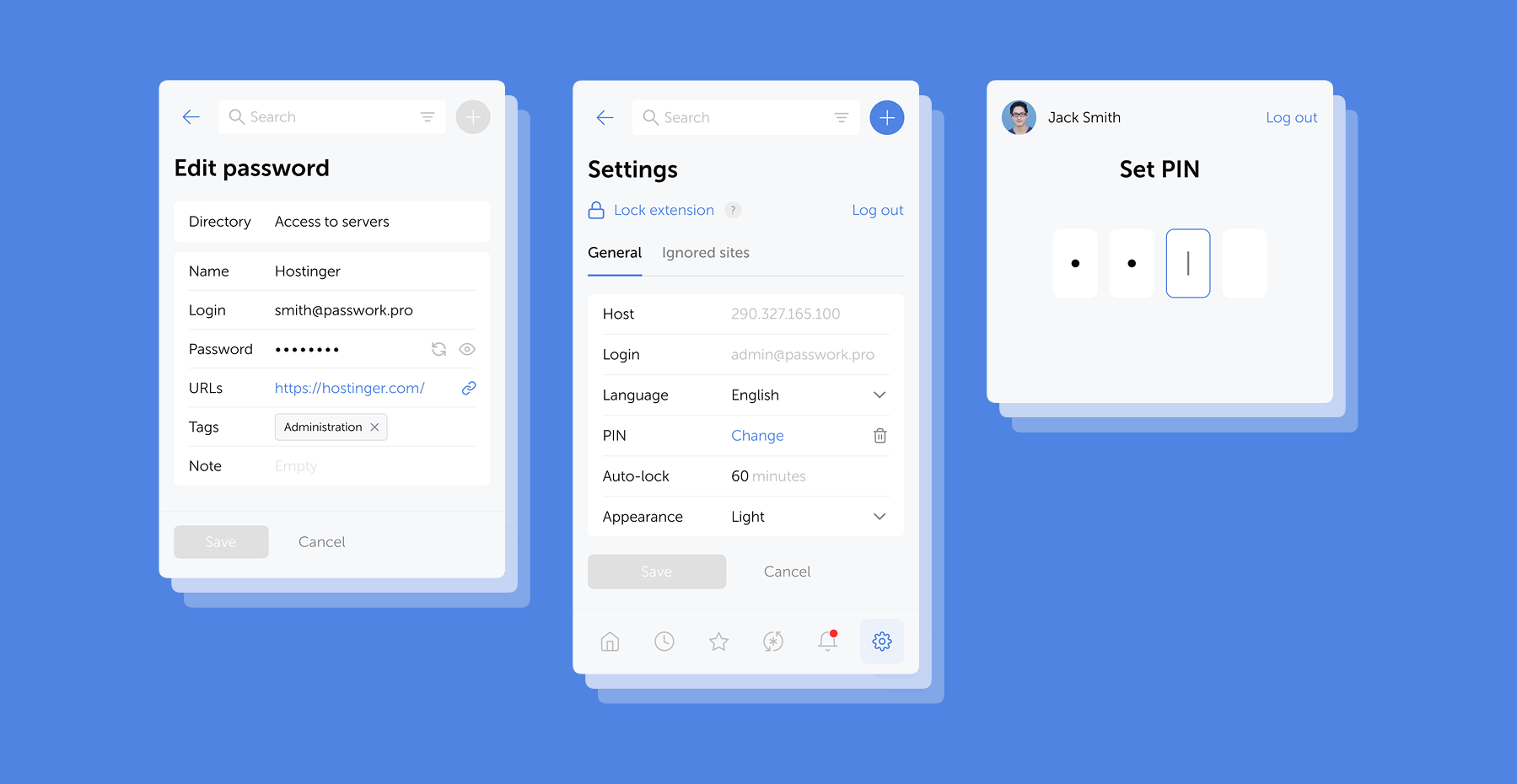
 Eirik Salmi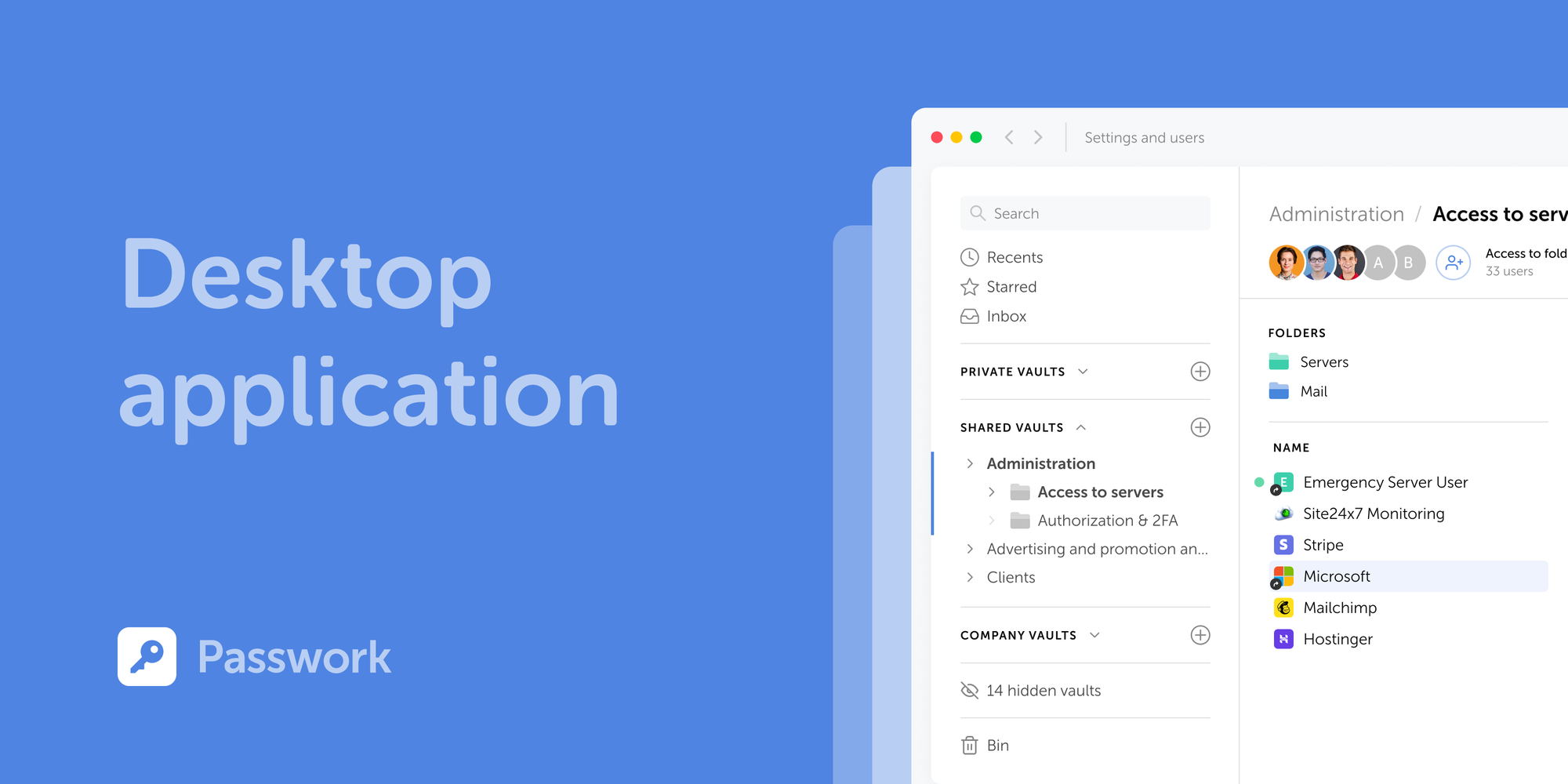
 Mike Shikun
 Mike Shikun